During your client’s monitoring program, you may wish to save documents related to the client’s profile in the SCRAM 24/7 system. These documents could include court-specific files, time cards, or other important documents. If your client is a SCRAM TouchPoint mobile app client, The Documents tab is also where you will find the files you have shared with and received from the client via the TouchPoint app. In short, the Documents tab offers a centralized location for client file storage and facilitates easy management.
This article contains information to:
- Upload a file
- File Management
- Client with a TouchPoint Activity
- Share a file with the SCRAM TouchPoint Mobile Application
- Require an eSignature
- Received Document Notification
Upload a file
Before uploading a file to the client’s profile, it must be accessible on your computer. Sometimes, you may have to scan the document to your computer, download the file from another site – like the forms on the Admin tab in SCRAM 24/7 for example – or you may have to locate an electronic copy of a file sent from the client or a judicial entity.
Supported file types include:
|
|
Getting started:
The file for this example is located on our Desktop.
- Navigate to the Documents tab for the client and select the Upload File button.
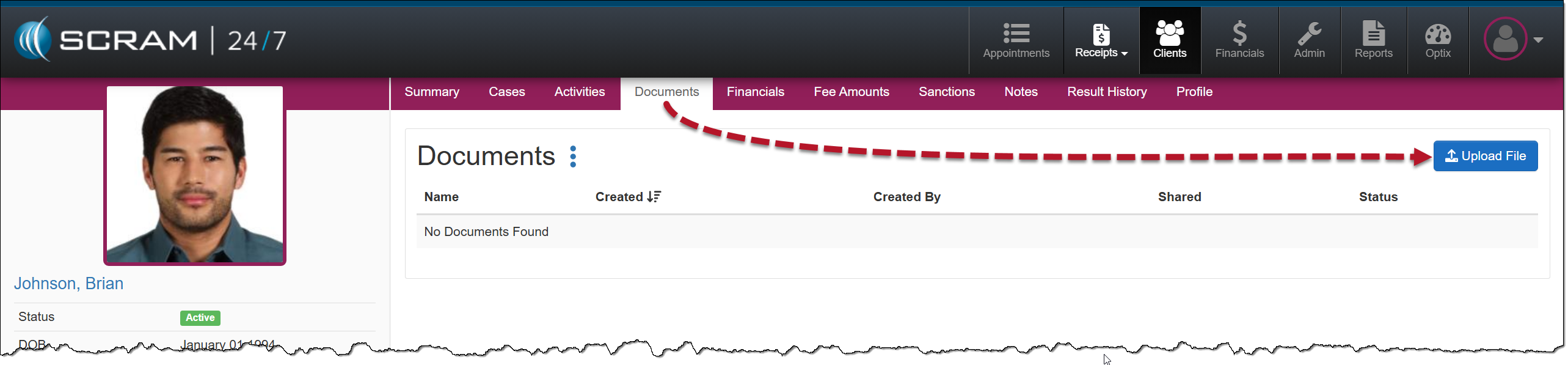
Client Documents Tab – Upload file (click to enlarge)
- On the Upload File pop-up, select the Choose File button.

Upload file pop-up (click to enlarge)
- Select the location where the file is located and then select the file.
- You may double-click the file name, or
- Single-click the file name and then select the Open button.
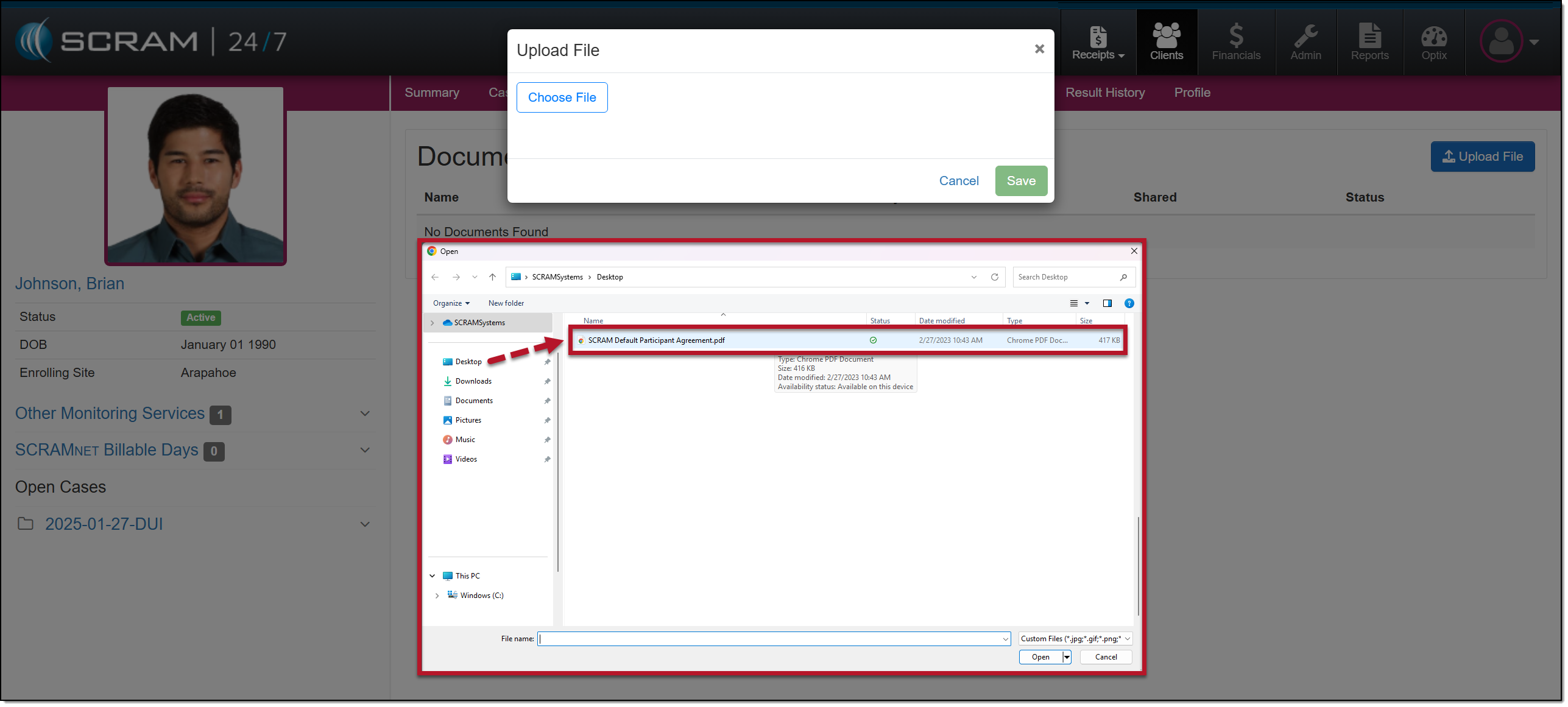
Selecting a file (click to enlarge)
- Once selected, the file will be displayed in the pop-up. A green circle will appear when the file is ready to upload. At this time, select the Save button.

Upload File Pop-up – Save button (click to enlarge)
The file is now displayed on the Documents page under the Documents heading with a date stamp and the user’s information. From now on, all users accessing the client’s profile will have access to the file.
File Management
Select the file’s name hyperlink to open a Document Preview window.
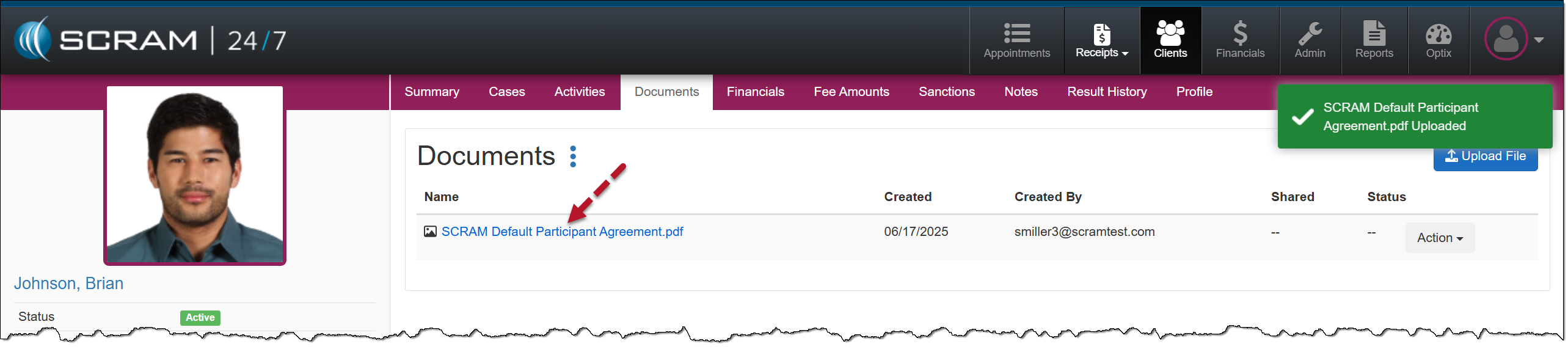
Documents Page – File Name Hyperlink (click to enlarge)
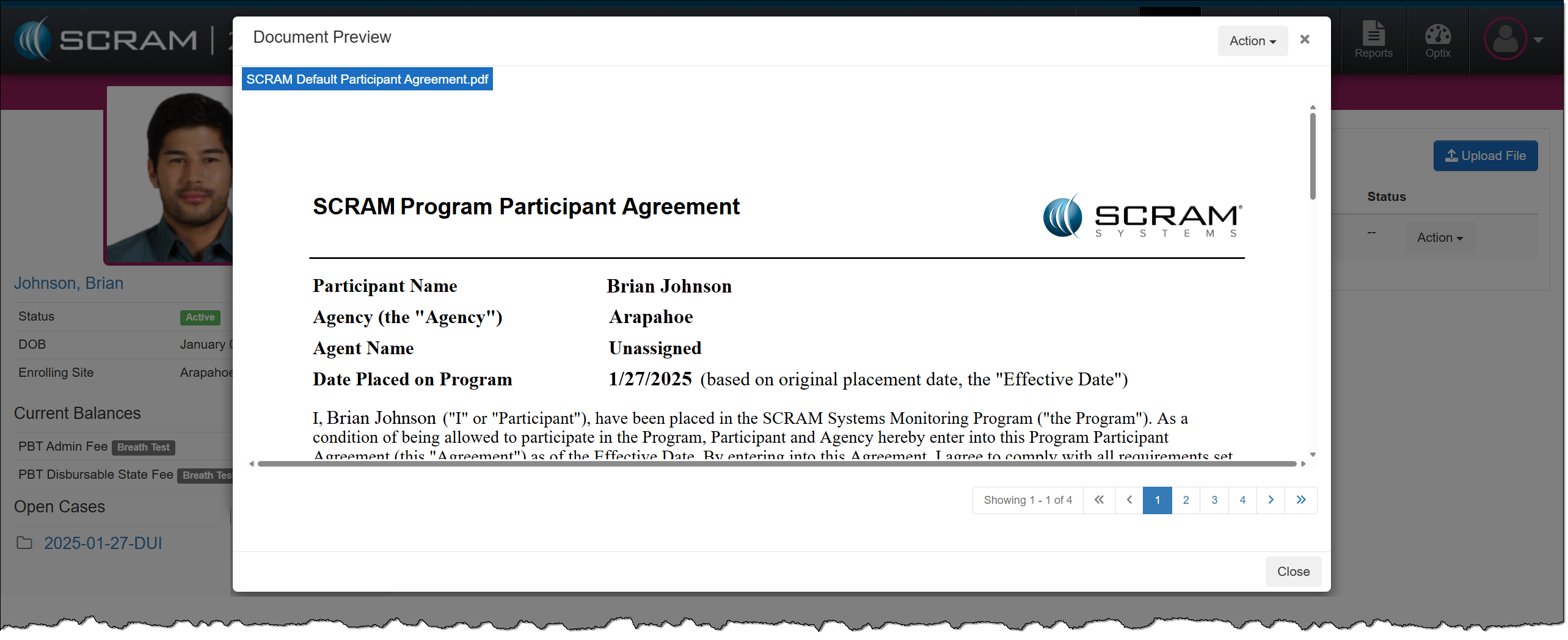
Documents Preview Pop-up (click to enlarge)
Access the Action dropdown menu to Download the document to your computer, or select the Delete option to remove it from the Documents list.

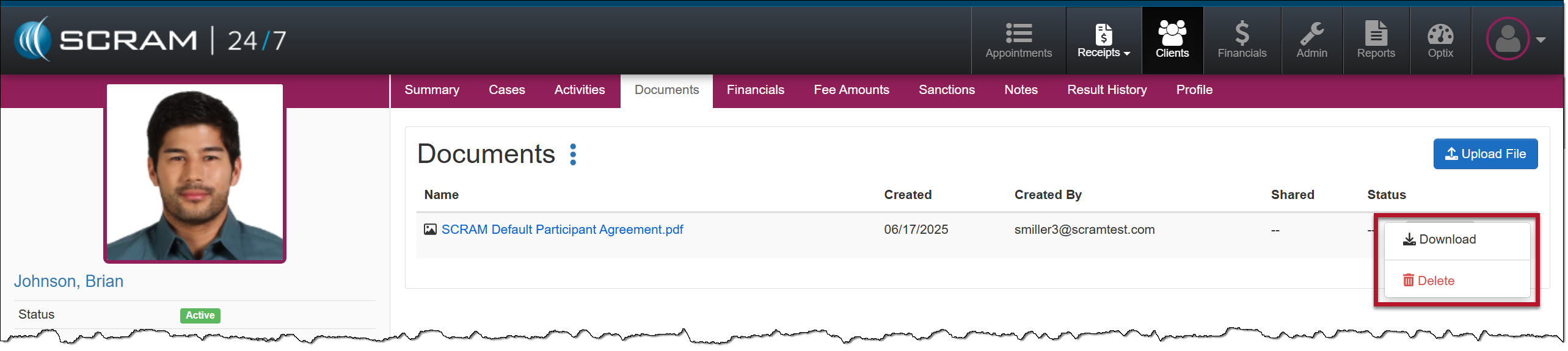
Once a file has been deleted from the Documents page, you may view it, download it, or restore it from the Trash Bin if necessary. To do this:
- Open the Document’s ellipsis and select the Trash Bin option.
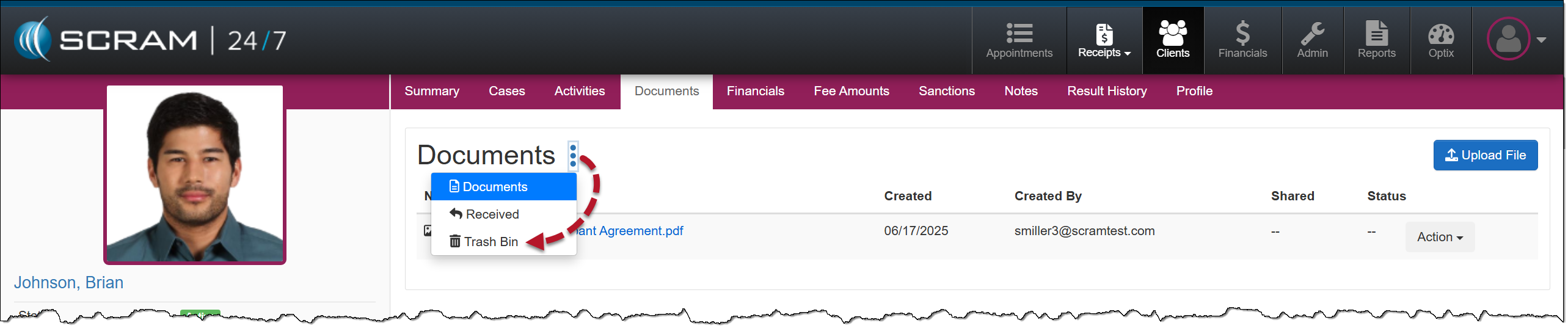
Documents Ellipsis Menu (click to enlarge)
- Open the Action dropdown menu next to the file and select the appropriate action.
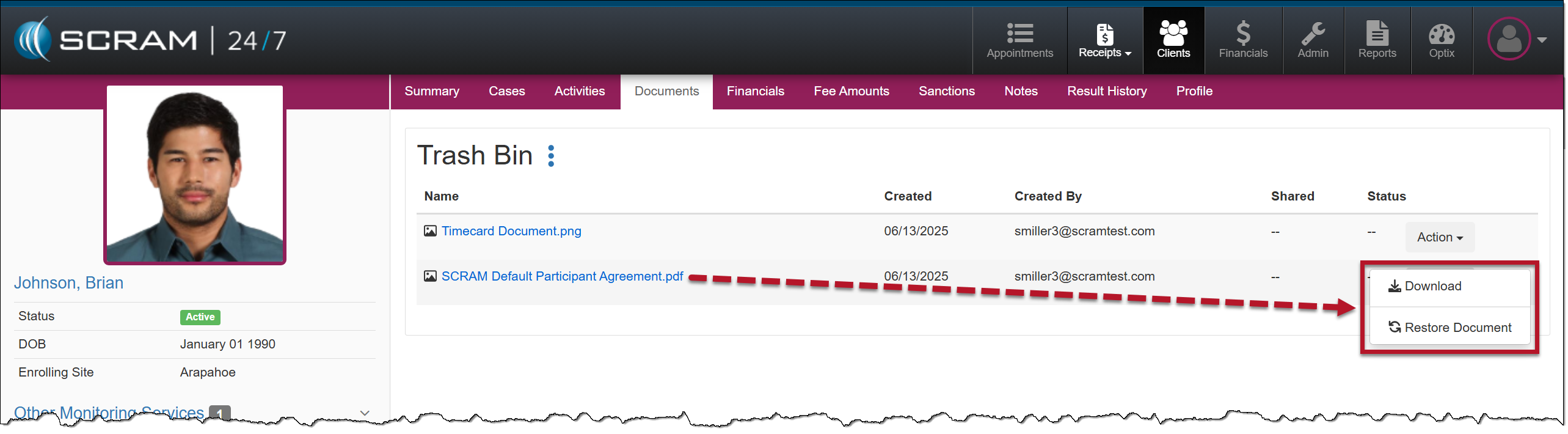
Trash Bin – Action Dropdown Menu (click to enlarge)
Clients with a TouchPoint Activity
For clients utilizing the TouchPoint Activity and the SCRAM TouchPoint Mobile application, an additional benefit of the Documents page is that you may take advantage of all the benefits of the Documents service without navigating to the client’s Optix Profile. This includes:
- sharing documents directly with the client through the SCRAM TouchPoint Mobile application,
- requiring client e-signatures, and
- generating “Read” date and time stamps on shared documents.
The client may send documents and images directly from their mobile application to their Documents page in SCRAM 24/7, thus streamlining the delivery, receiving, and saving of documents to the client’s SCRAM 24/7 Profile.
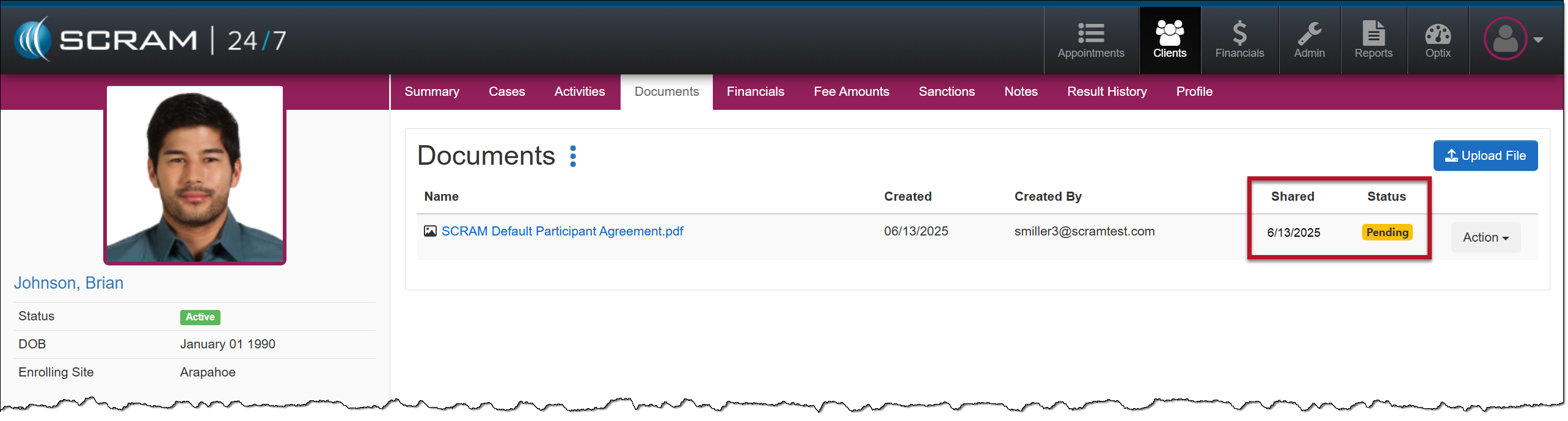
TouchPoint Activity Document View Status (click to enlarge)
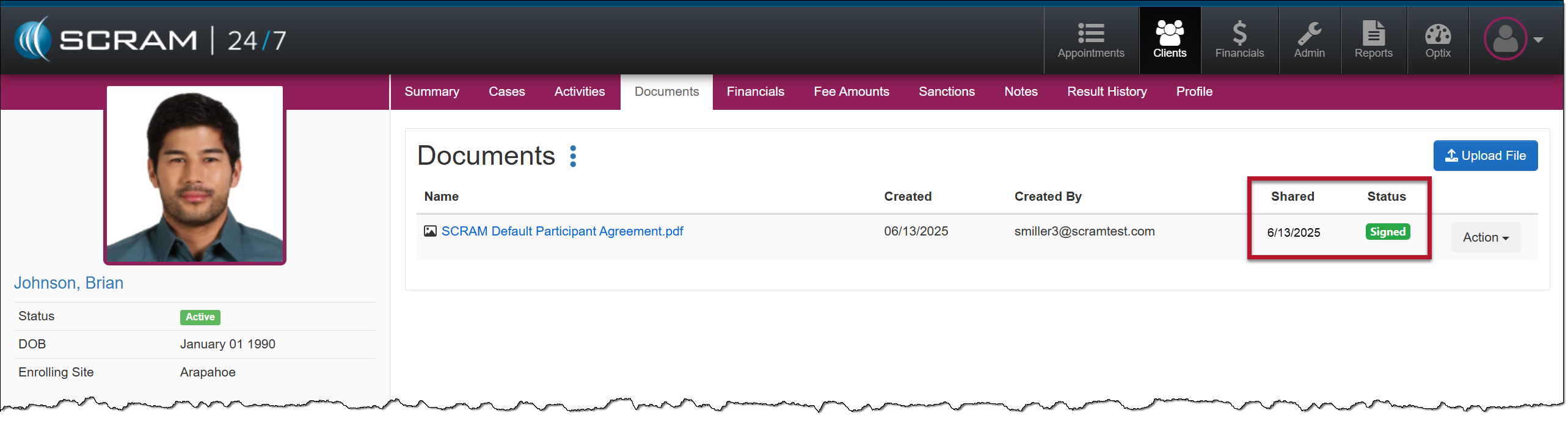
TouchPoint Activity Document Signed (click to enlarge)
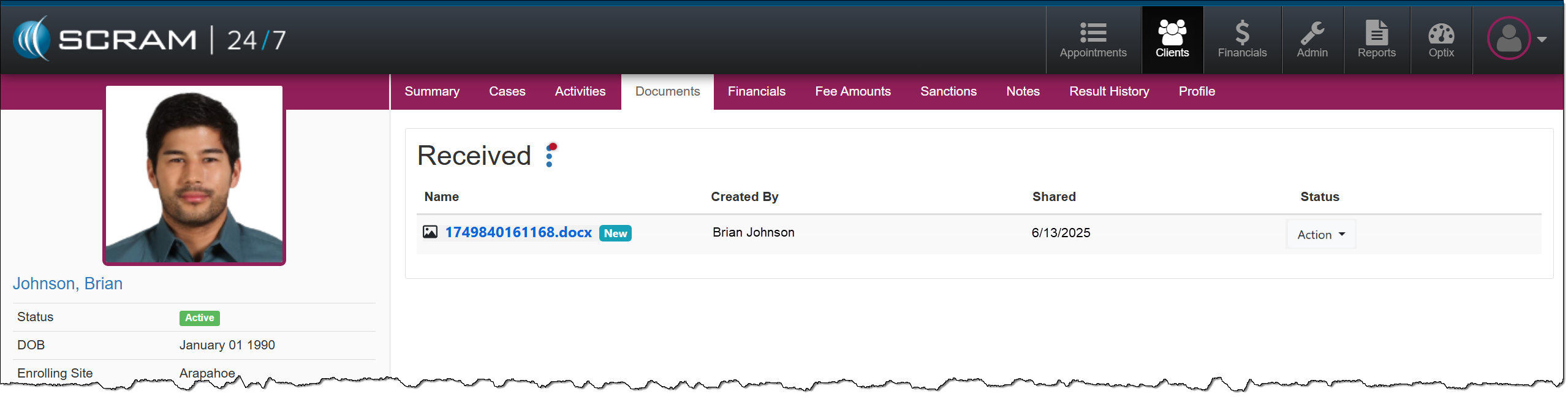
TouchPoint Activity New Received from Client’s App (click to enlarge)
 |
|
Share a file with the SCRAM TouchPoint Mobile Application
If you have uploaded a file to the client’s Documents page in SCRAM 24/7 that does not require a client e-signature, and you are ready to share the file with the client’s SCRAM TouchPoint app on their smartphone, then do the following:
To share a file:
- Open the Action dropdown menu next to the file you want to share.
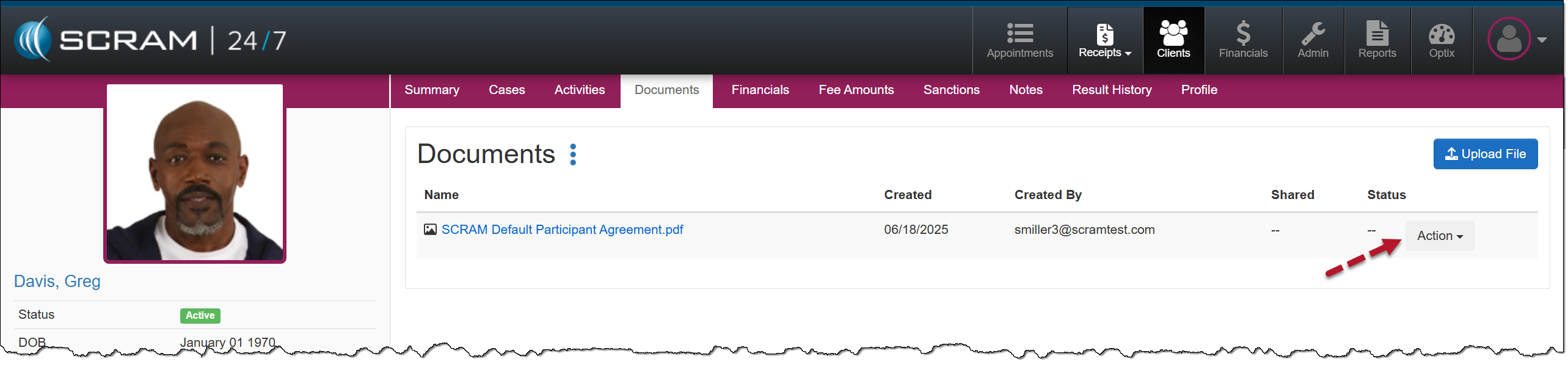
Share a File with a Client – Action Button (click to enlarge)
- On the dropdown menu, select the Share option.
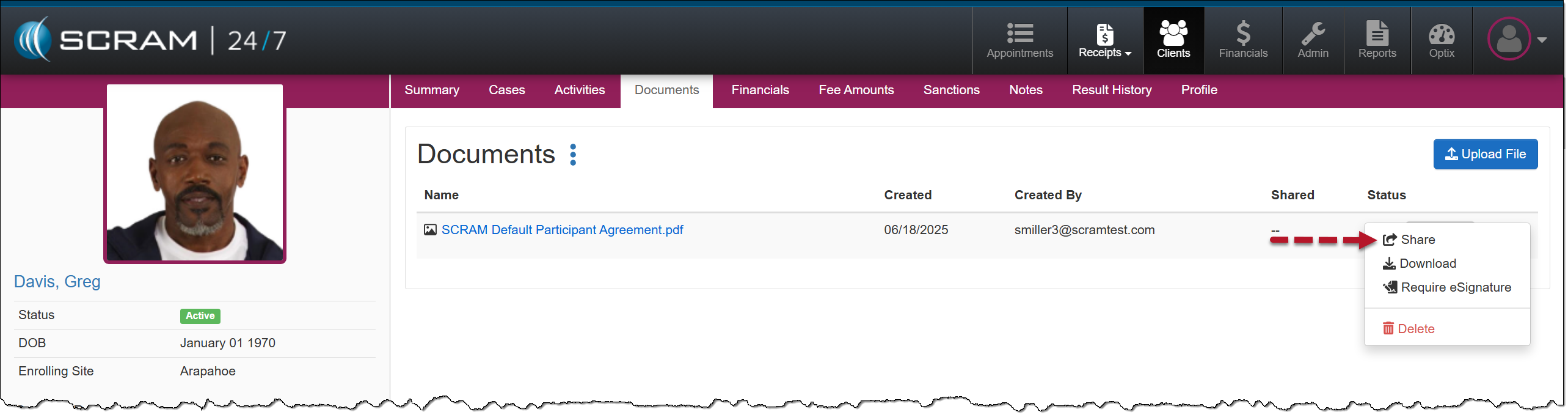
Action Dropdown Menu – Share Option (click to enlarge)
Once shared with the client’s SCRAM TouchPoint app, the shared date and a Pending status are displayed.
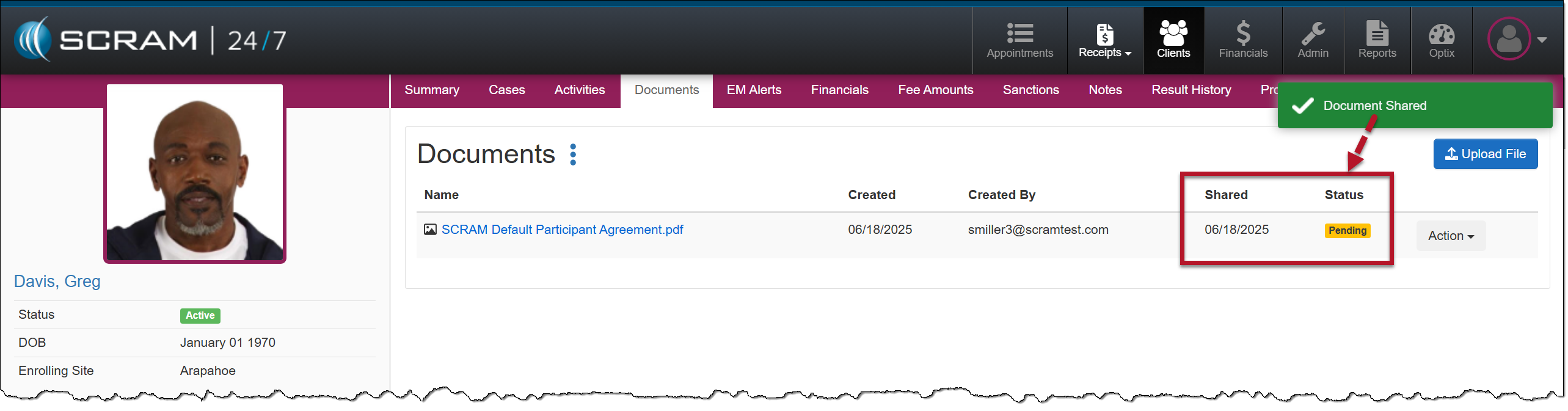
Shared File Status of Pending (click to enlarge)
Once viewed by the client, the status will update to Viewed.
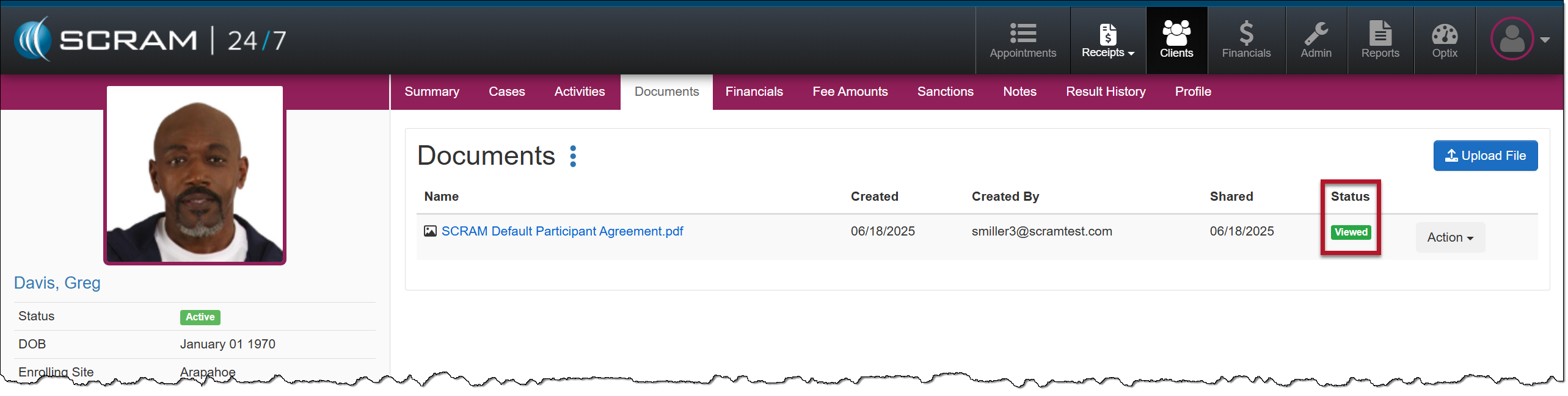
Shared File Status of Viewed (click to enlarge)
Require an eSignature
When you upload a file requiring the client to complete an e-signature and select that option on the Upload File pop-up, the file is automatically shared with the SCRAM TouchPoint app.
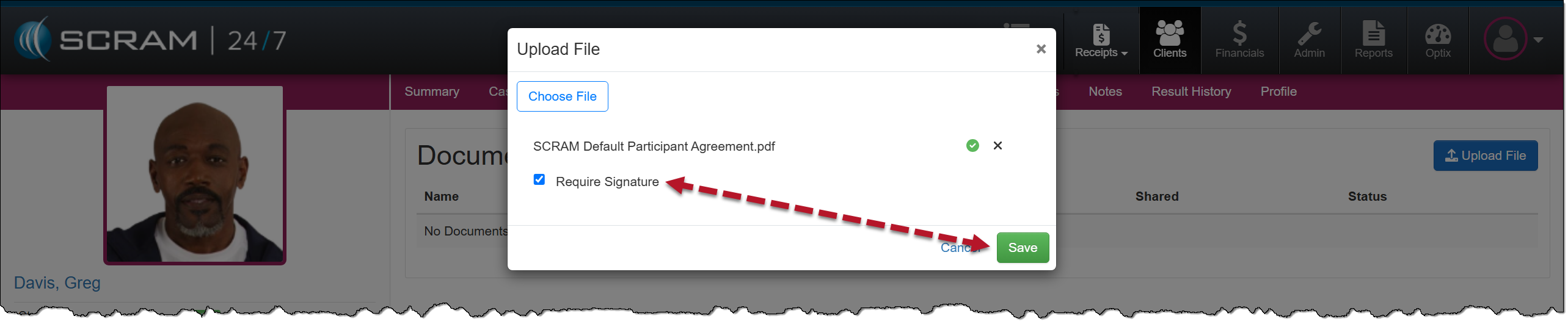
Upload File Pop-up – Require Signature Selected (click to enlarge)
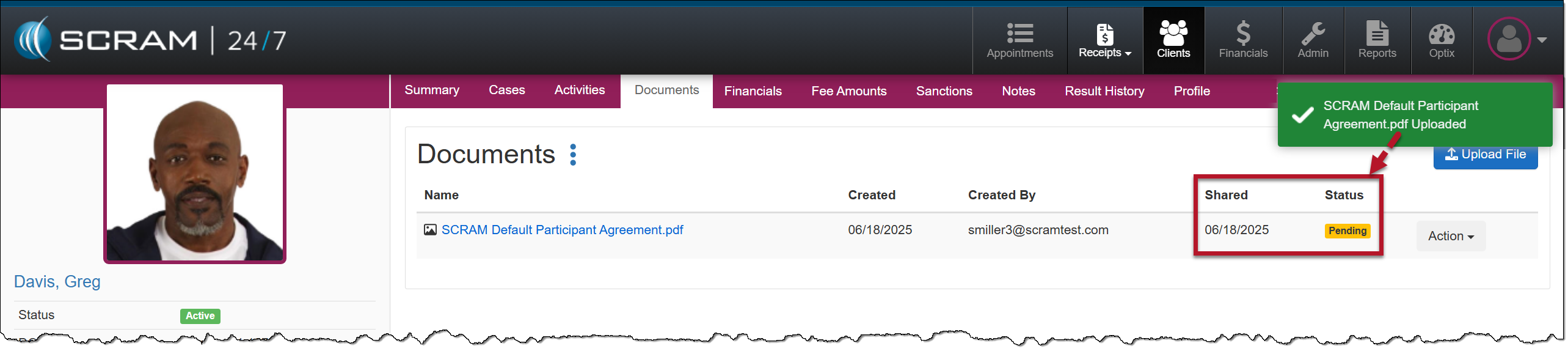
File Shared with Client – Pending Signature (click to enlarge)Once the client has viewed and e-signed the document, the status will update to Signed.
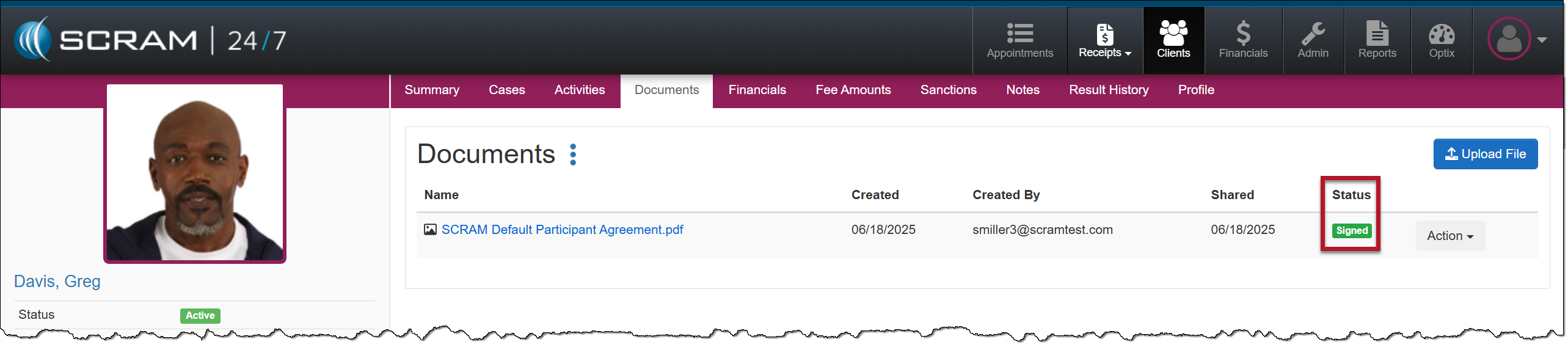
File Status of Signed (click to enlarge)
 |
Tip: You may require a client e-signature for current and past files on the client’s Documents tab when available. Access the Action dropdown menu and select the Require eSignature option. The client will be notified and may follow the instructions to complete the e-signature. If the Require eSignature option is unavailable, the client will either have already completed the task or is not a SCRAM TouchPoint client. |
Received Document Notification
When a client uploads and shares a file or document from their SCRAM TouchPoint app, an alert badge is displayed on the on the Documents page.
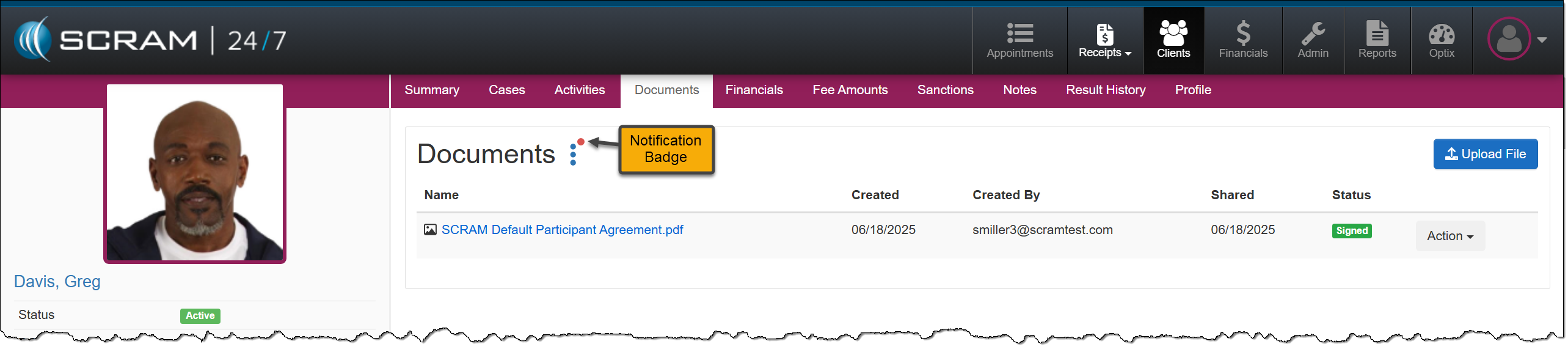
Received File from the Client Notification (click to enlarge)
Selecting the ellipsis opens the dropdown menu options, and the number of received files is displayed next to the Received option.
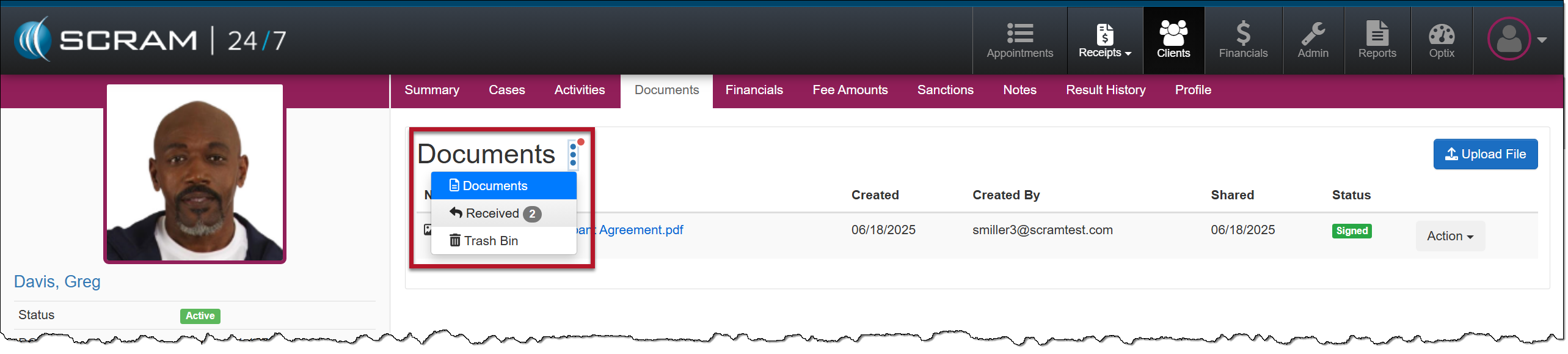
Ellipsis Menu Open – Notification badge Next to Received Option (click to enlarge)
Select the Received option to view the files shared from the client’s SCRAM TouchPoint app.
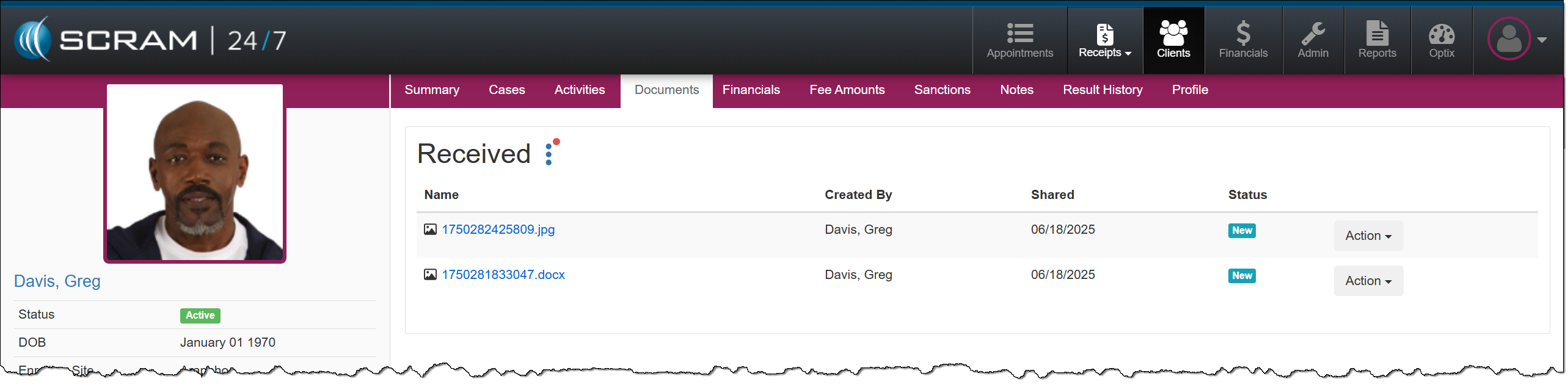
Received Page With Two New Files (click to enlarge)
On the Received page, you may complete the actions documented in the File Management section above.
|
Tip: Select the file name hyperlink to open the Document Preview pop-up window, which will update the file’s status from New to Viewed. |
|
For step-by-step client instructions, visit the TouchPoint Client Instructions Help article, or direct the client to the Using SCRAM TouchPoint article on www.scramsystems.com. |