In order to support a broader range of sobriety testing environments and programs, SCRAM Systems provides an optional Random Activity workflow which is designed to provide 24/7 agencies with the ability to add random testing supervision to any client being managed within the application. Benefits of this new feature include:
- Eliminates dependence on “manual” color days testing
- Completely automates random testing for clients
- Provides Officer with behind the curtain calendar when “random” clients will be testing
Random Testing Schedule
Admin – Set Up Random Test Schedule

From the 24/7 Application Admin icon, scroll down to the Random Test Schedules heading. The option to either add a random testing schedule or modify an existing one is available. (Please note: permissions to add Random Test Scheduling are agency dependent, please check with your administrator if you do not see this option).
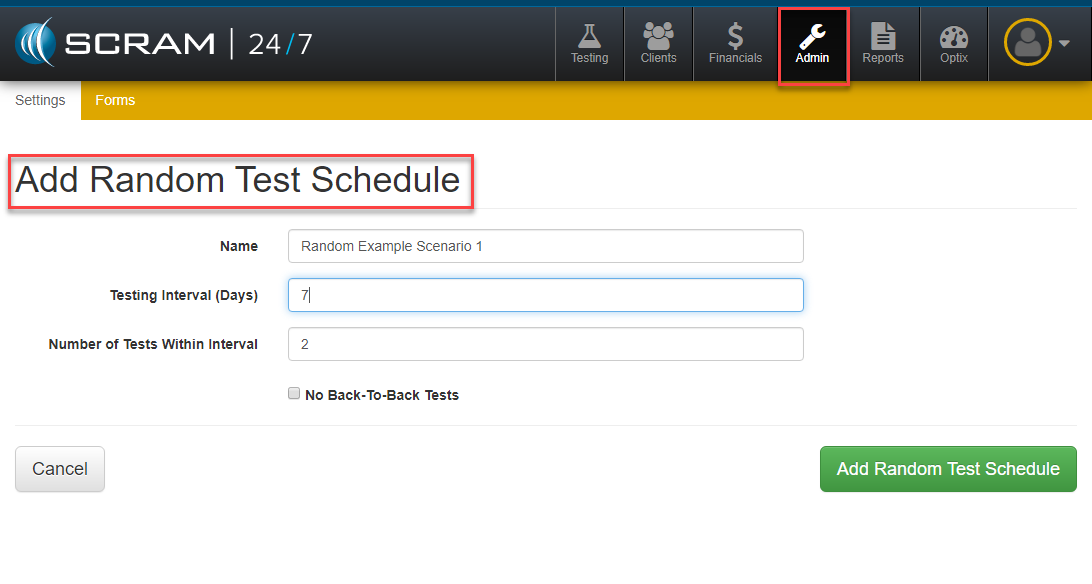
Once the +Add a Random Testing Schedule is selected, the Settings page will allow you to configure the random testing parameters including:
- Name: Define name for schedule so that officers can select it from Activities drop down options
- Testing Intervals: Sequential days that random testing will occur (period of time)
- Number of Test Within Interval: Number of tests that can occur within Testing Interval
An additional option exists to toggle off back to back testing days.
Client View – Add Random Testing To Activity
Once an Admin user has set up the Random Testing within your agency, you can then enable “Random Testing” by modifying the testing activity and adding it to the schedule configuration. Start by selecting a Client’s Activities tab, and opening up the activity you want to randomize (in this example UAs).
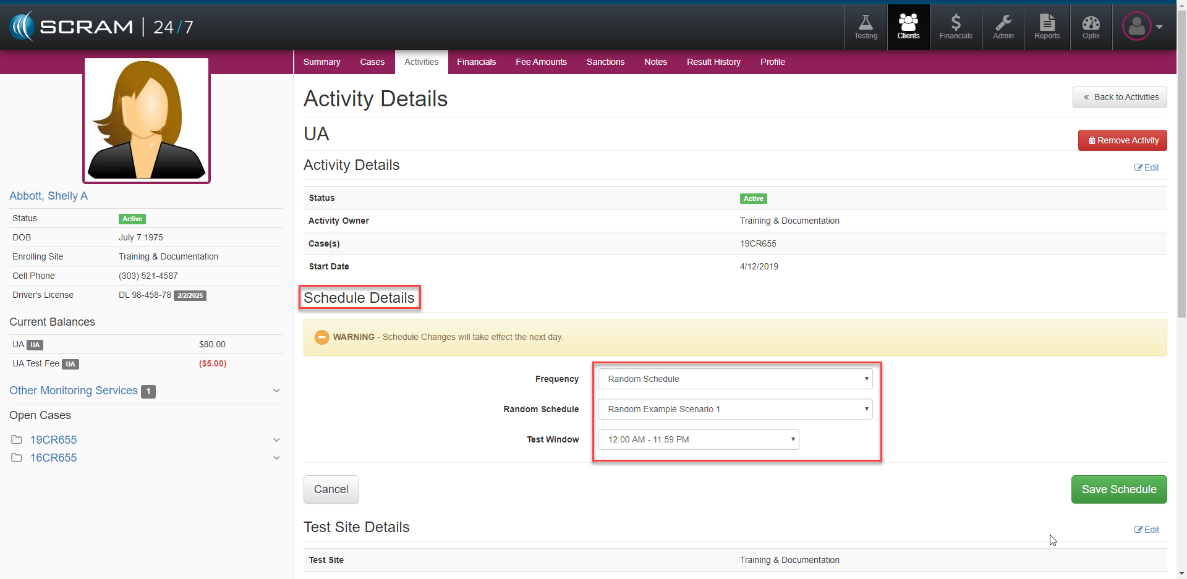
With the Activity Details page open for editing, scroll down to the Schedule Details heading where the following modifications can be enabled for the client’s schedule.
- Frequency: Select Random Schedule
- Random Schedule: Choose predefined and named Random Schedule title from dropdown
- Test Window: Select the appropriate test window you want the randomization to occur within.
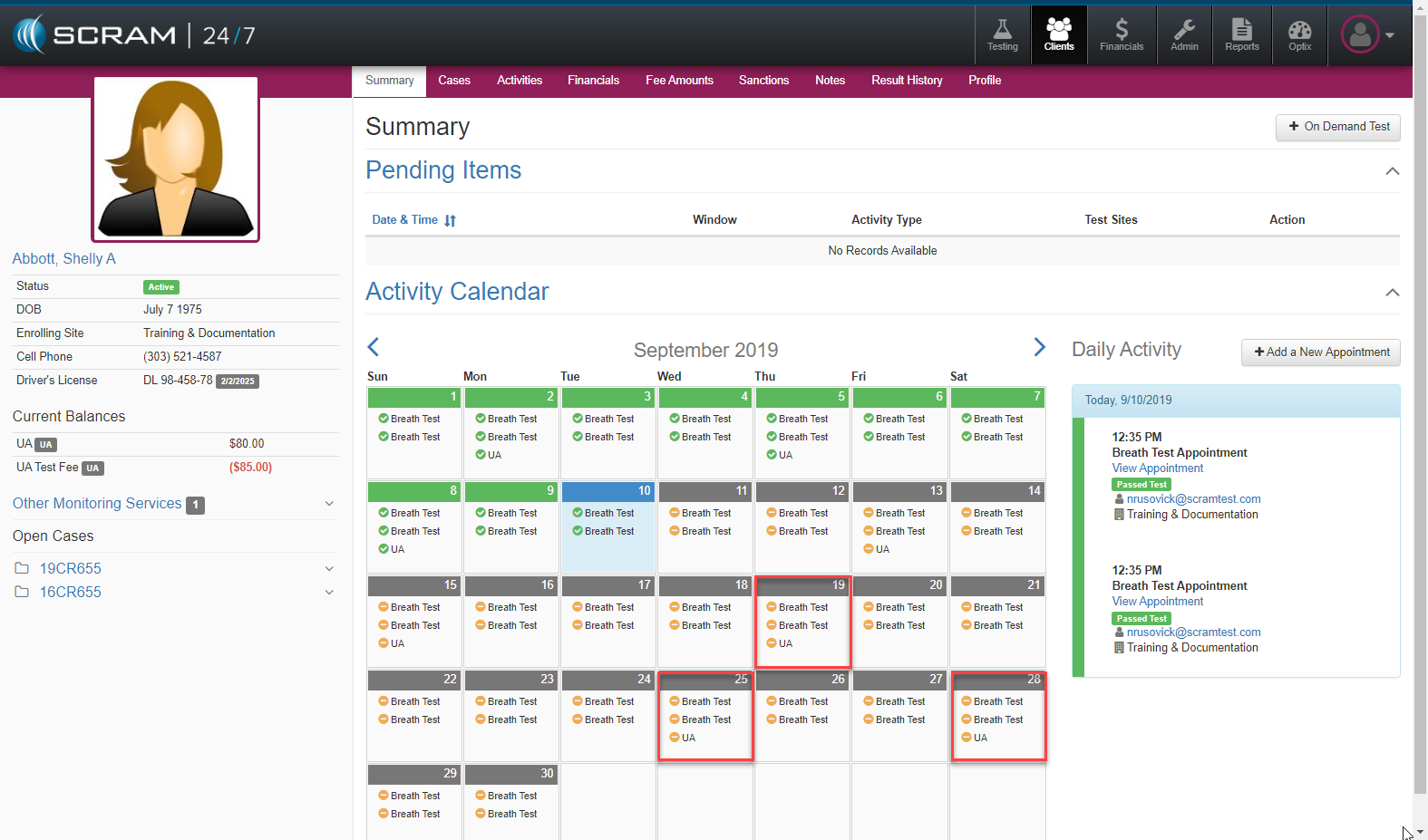
Once the Save Schedule is selected, the 24/7 software will automatically randomly reschedule the upcoming Activities for the client. (See UAs in example below).
SCRAM 24/7 Random Schedule – Options and Rules
- Interval (Number of days)
- No less than 2 days and no greater than 365 days
- Quantity of Tests (Number of Tests within interval)
- Test quantity must be less than the number of days selected for the interval
- Do Not Allow or Allow back to back tests
- If back to back tests are set as Do Not Allow, the quantity of tests must be less than 45% of the selected interval days
- Enabled for UA and Mouth Swab only.
- Feature is agency specific and can be enabled by a Base Account user or Test Site Admin
- Rescheduled tests will not affect future tests
- If No Back to Back tests are enabled, a user can still reschedule a test to be back to back, this can be handled by adding an additional adjacent appointment or by creating an on demand test that could be back to back.