To begin monitoring an individual on your program, you must create their client profile in SCRAM 24/7. This task may be accomplished from the “Testing Dashboard” or the “Clients” page.

SCRAM 24/7 Client’s page – Add Client tab (click to enlarge)
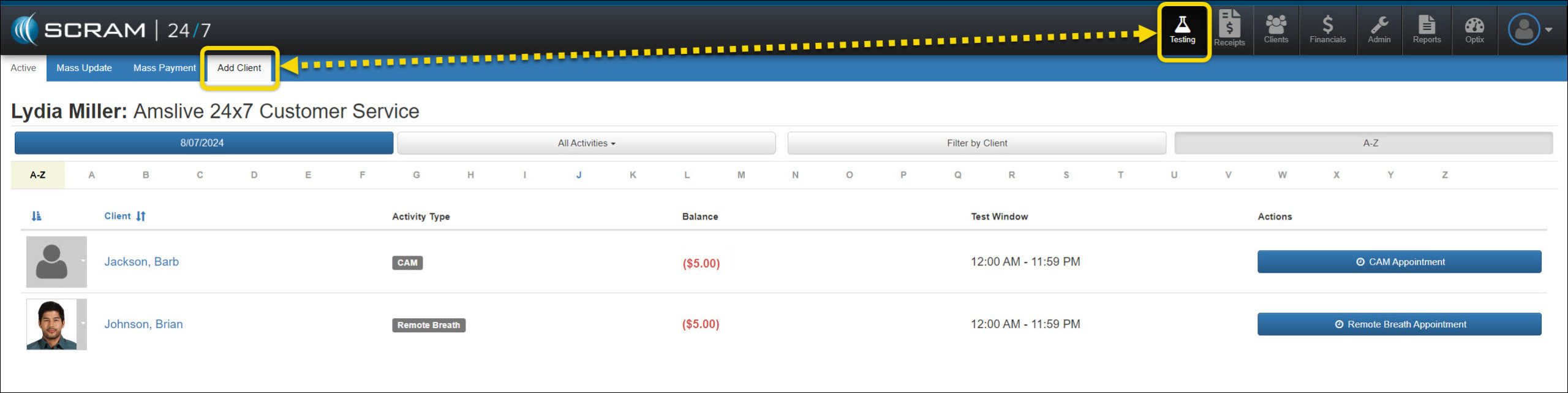
SCRAM 24/7 Testing Dashboard – Add Client tab (click to enlarge)
Create a Client Profile
- Select the Add Client button.
- On the “Create New 24/7 Profile” page, add the client’s first and last names and their date of birth. The system will search our entire program for potential duplicates as the client’s information is entered.
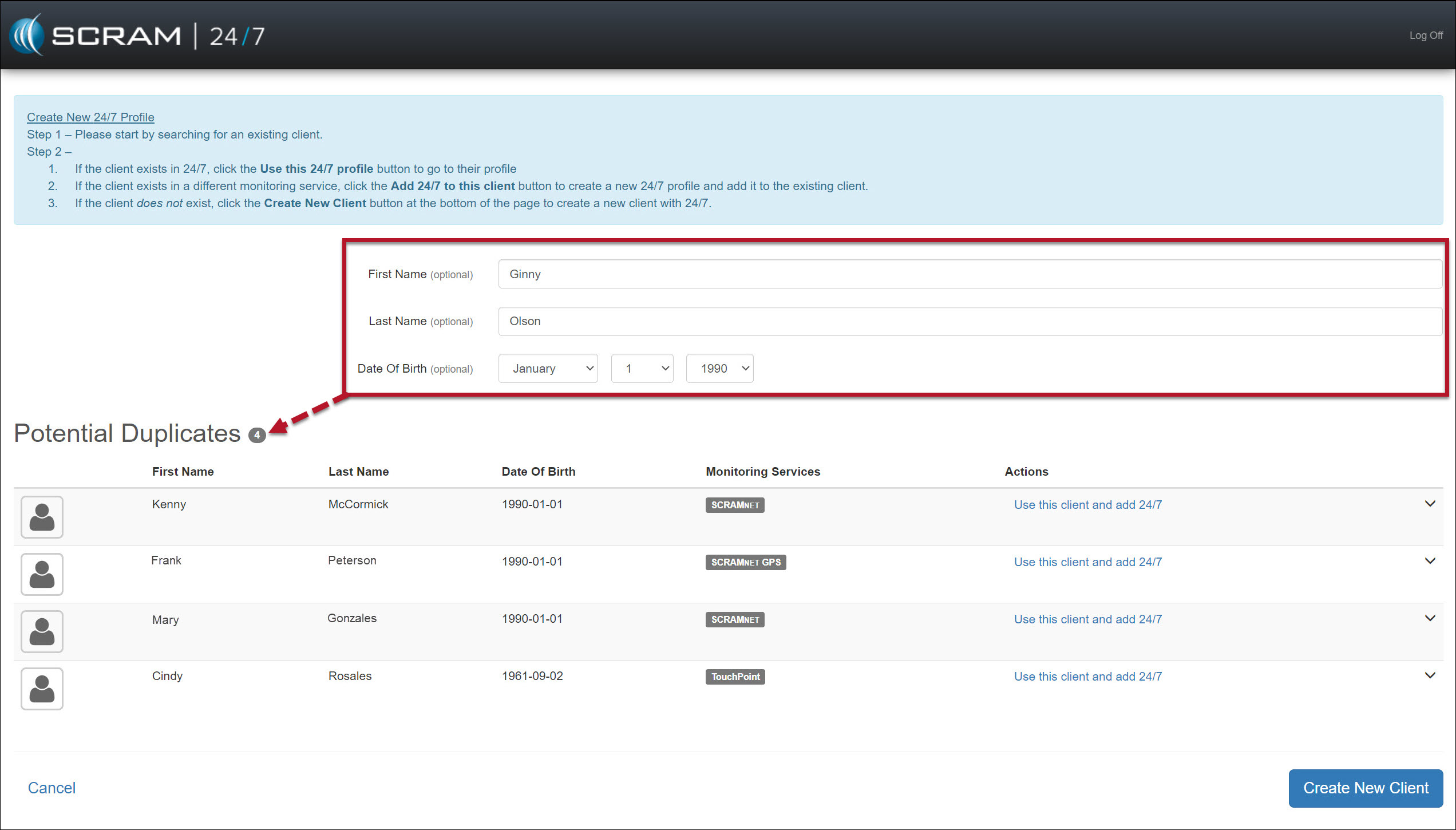
Create 24/7 Client Profile page (click to enlarge)
- Next, you have two options:
- When the client’s profile is displayed in the “Potential Duplicates” list, follow the instructions in the blue banner to use the current profile and add the new monitoring requirements.
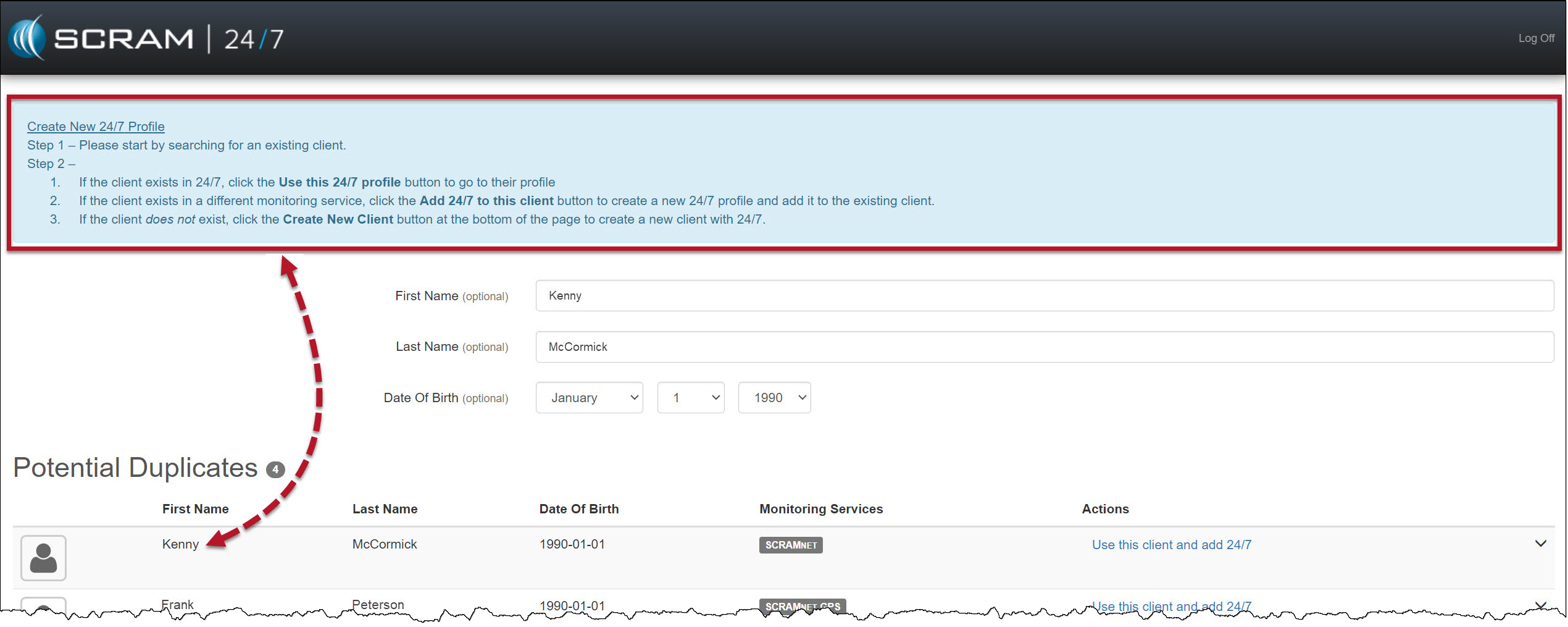
- When the client’s profile is not displayed, select the Create New Client button to create a new client profile.
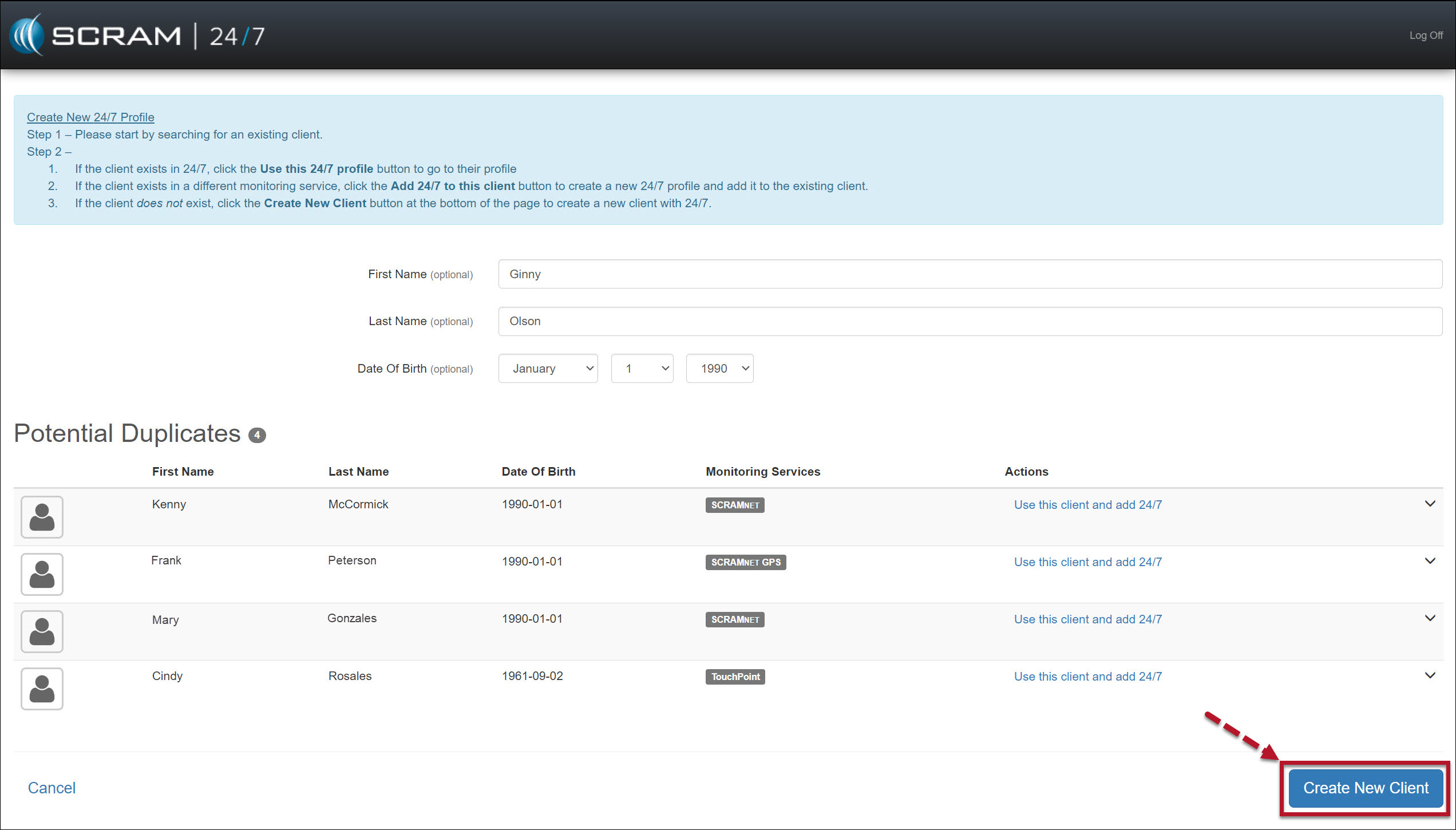
- When the client’s profile is displayed in the “Potential Duplicates” list, follow the instructions in the blue banner to use the current profile and add the new monitoring requirements.
- Complete the Add 24/7 Client page. This includes the client’s personal information, contact, employment, judicial referring details, and account information.
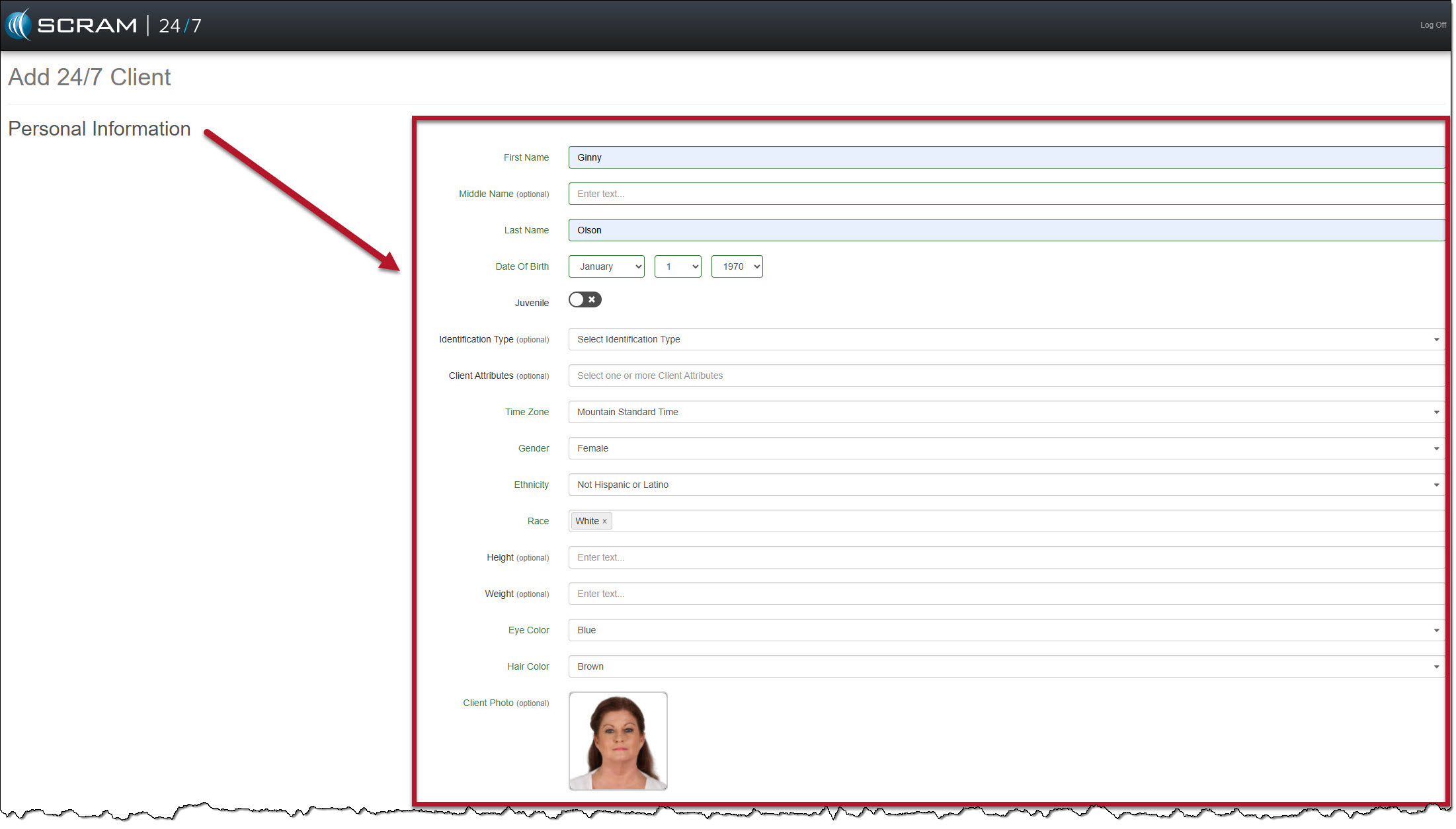
Add 24/7 Client personal Information Section (click to enlarge)
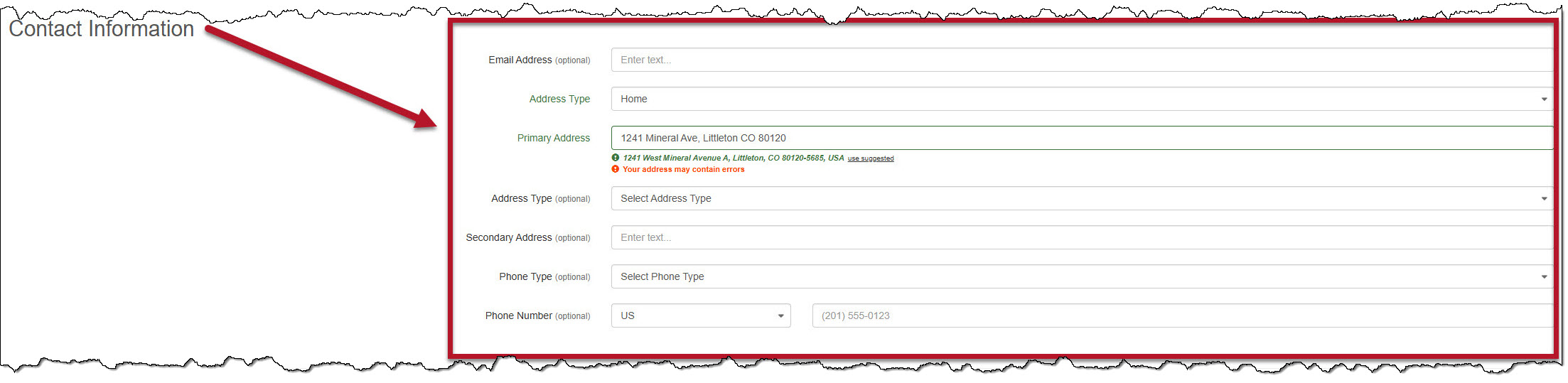
Client Contact Information Section (click to enlarge)
 |
While entering the client’s address, you may save the information regardless of whether a Google-verified address suggestion is available to select. |
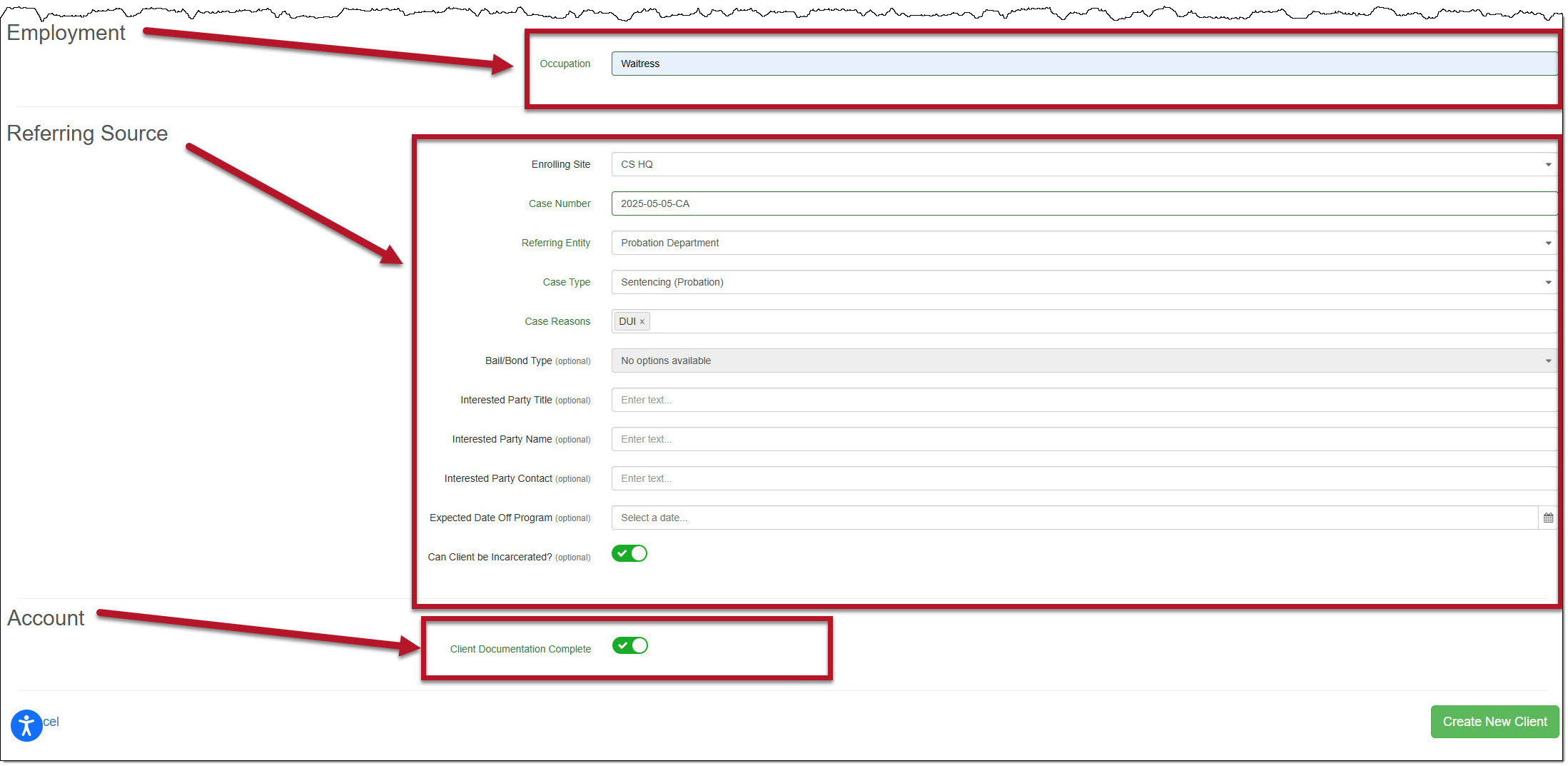
Client Employment, Referring Source, and Account Information Sections (click to enlarge)
- Select the Create New Client button after entering the required information.
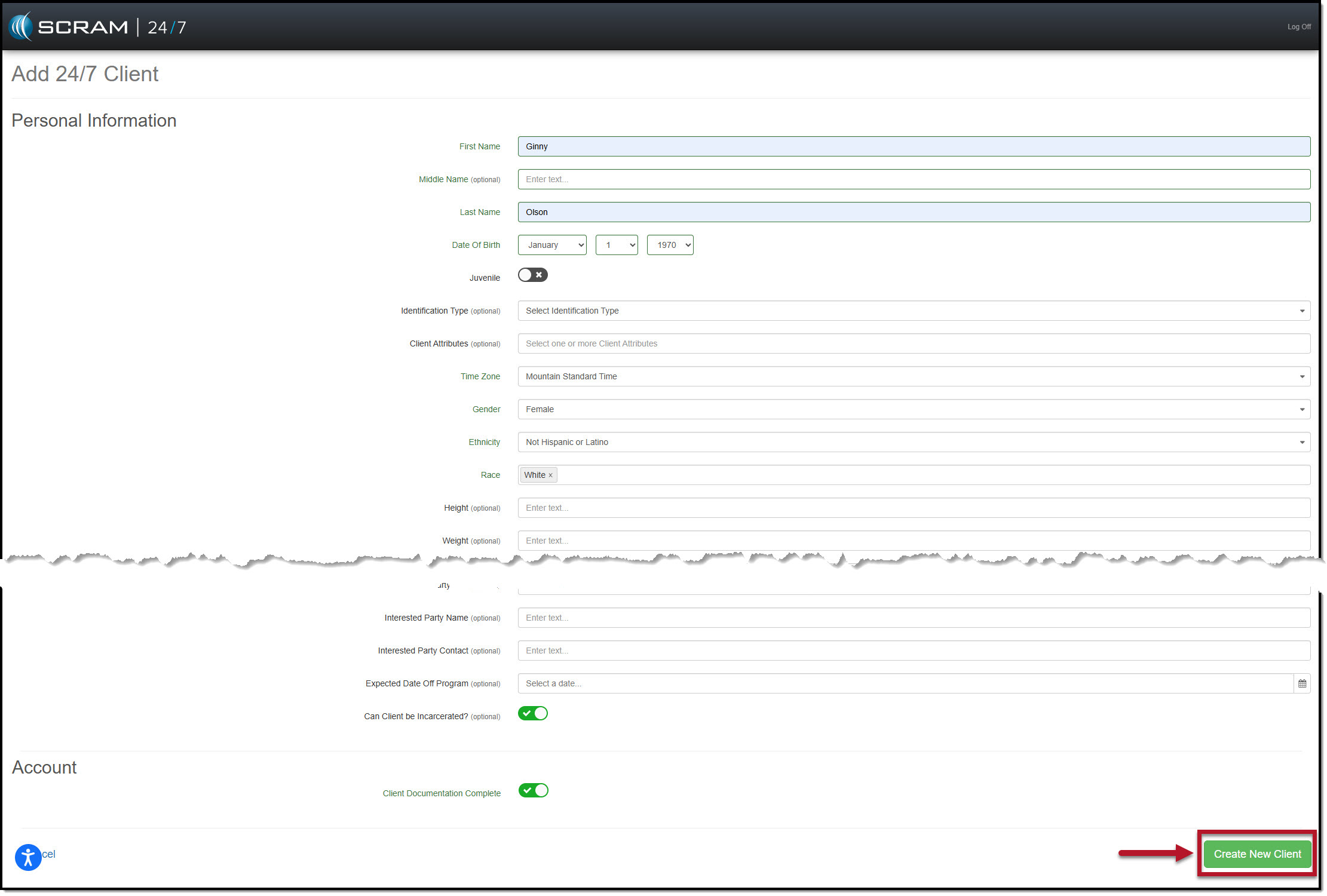
Complete Add 24/7 Client Profile (click to enlarge)
- On the “Client successfully added to 24/7” pop-up, you may add another client profile or continue enrolling the current client to your monitoring program. Select the View SCRAMNET 24X7 Profile button to continue enrolling the current client.
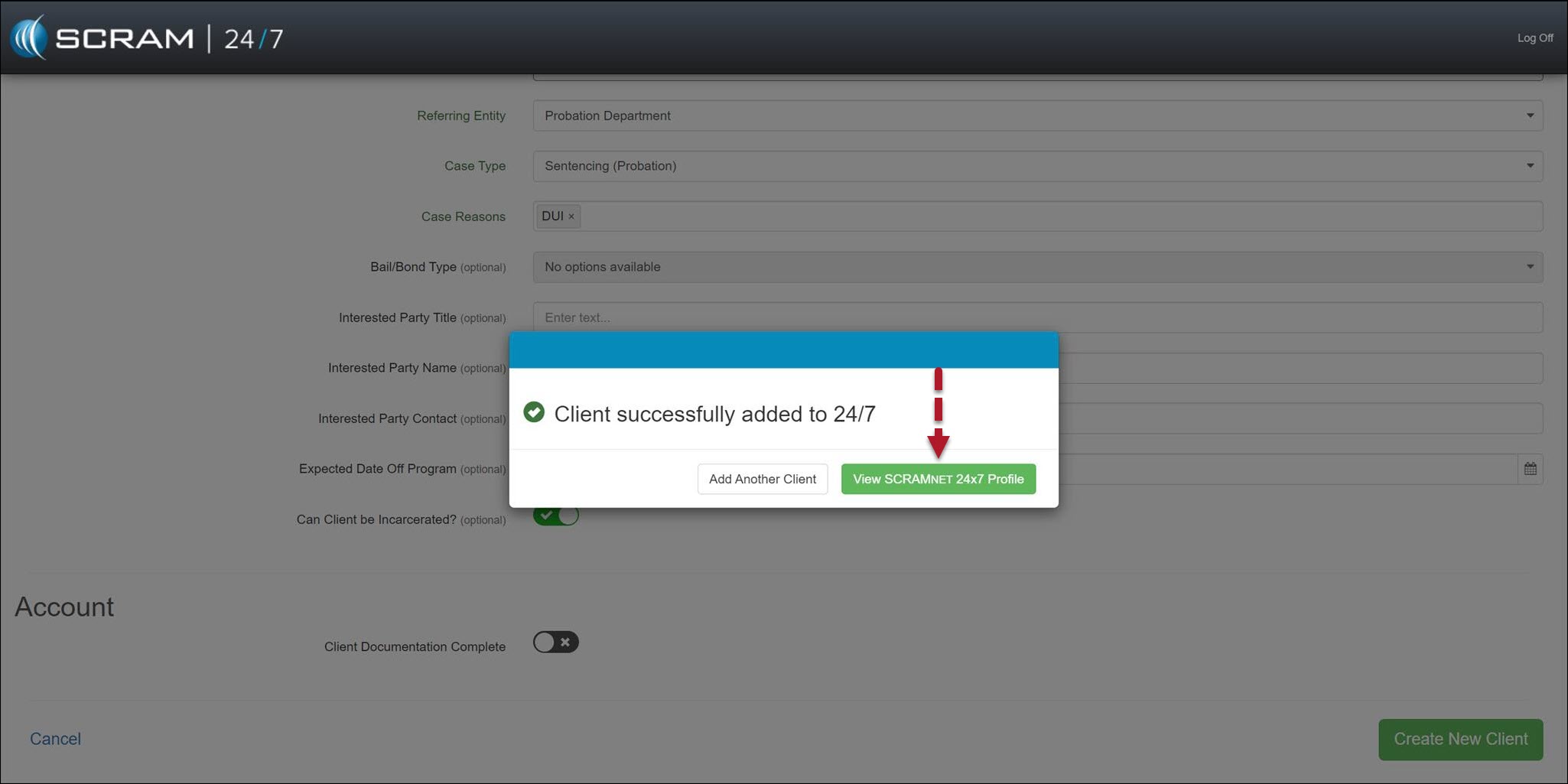
Client Successfully Added to 24/7 pop-up (click to enlarge)
Now that the client’s profile has been added to SCRAM 24/7, you may add the appropriate monitoring Activity.
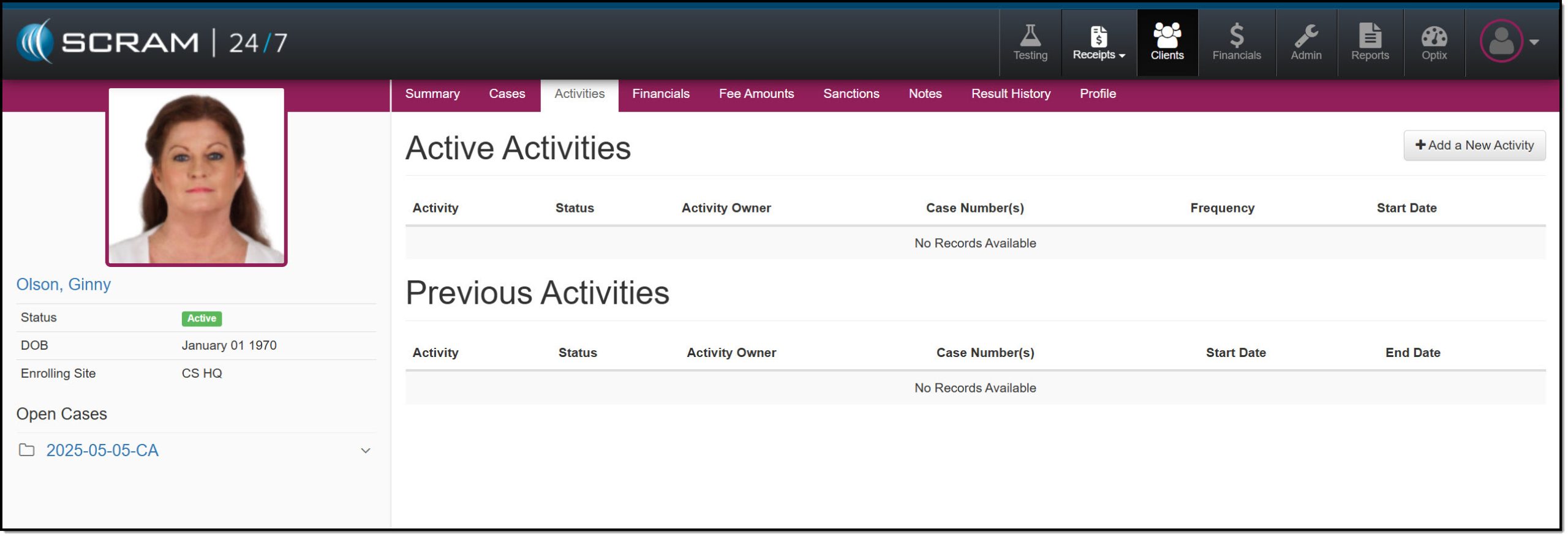
Client’s Activities page (click to enlarge)