Once you have created the client’s profile in SCRAM 24/7, the next step is to add the House Arrest Activity and then complete the device assignment.
Starting on the client’s Activities tab:
- Select the +Add a New Activity button.
- Select the HA Activity from the Activity dropdown menu on the “Add an Activity” page.
 |
|
General Step
- Select the “SCRAMNET Caseload” from the dropdown menu.
- After making your caseload selection, in the “Optional Settings,” select the checkbox next to each option to add it to the workflow or leave it unchecked and add the information later.
- Select the Save & Continue button.
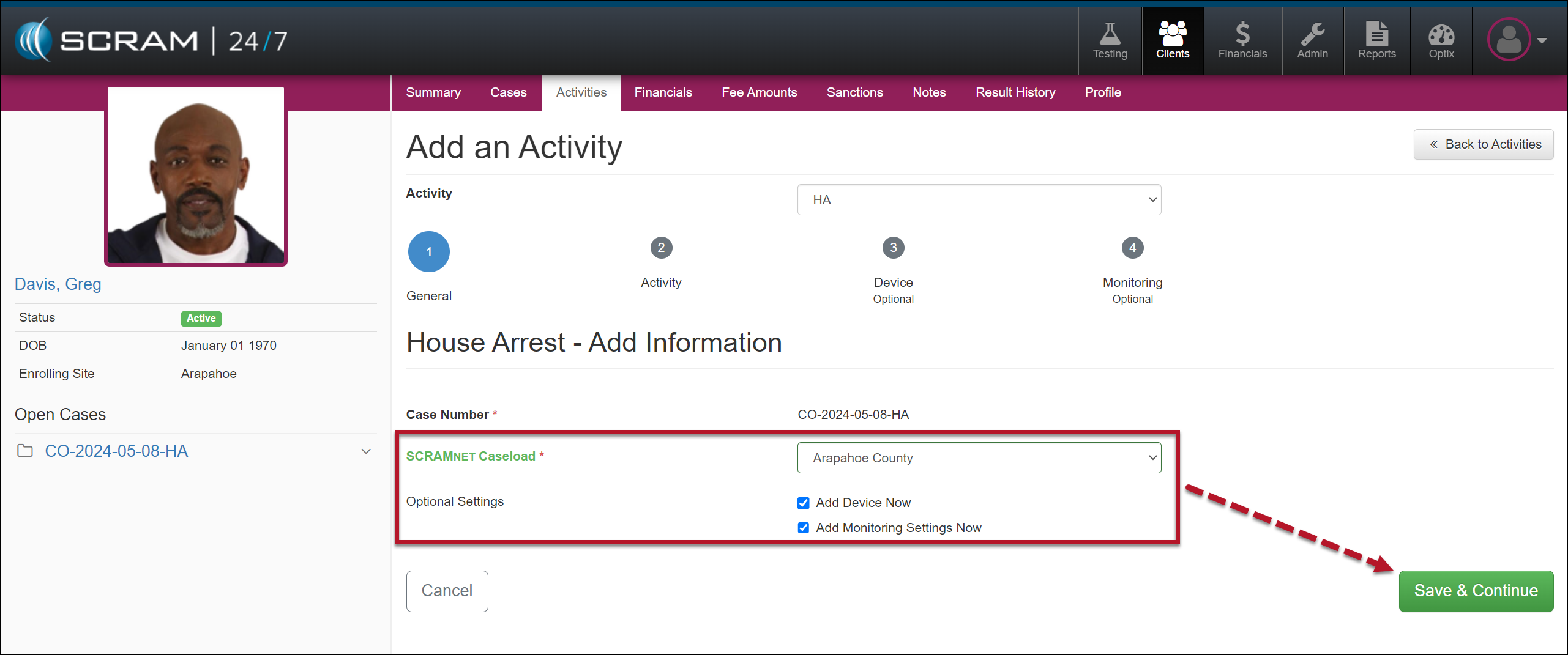
Add House Arrest Activity General Step (click to enlarge)
|
|
Activity Step
- Add the Activity details.
- The “Required In-Person Check-In” option establishes whether you would like to schedule a recurring face-to-face appointment with the client. When this option is set to “Yes,” you will enter the appointment details.
- Once saved, the appointment is visible on the client’s Activity Calendar on the Summary page and will populate on the Testing Dashboard on the appointment date.
- Verify or adjust the Activity fees for the client.
- After making your selections, select the Save & Continue button.
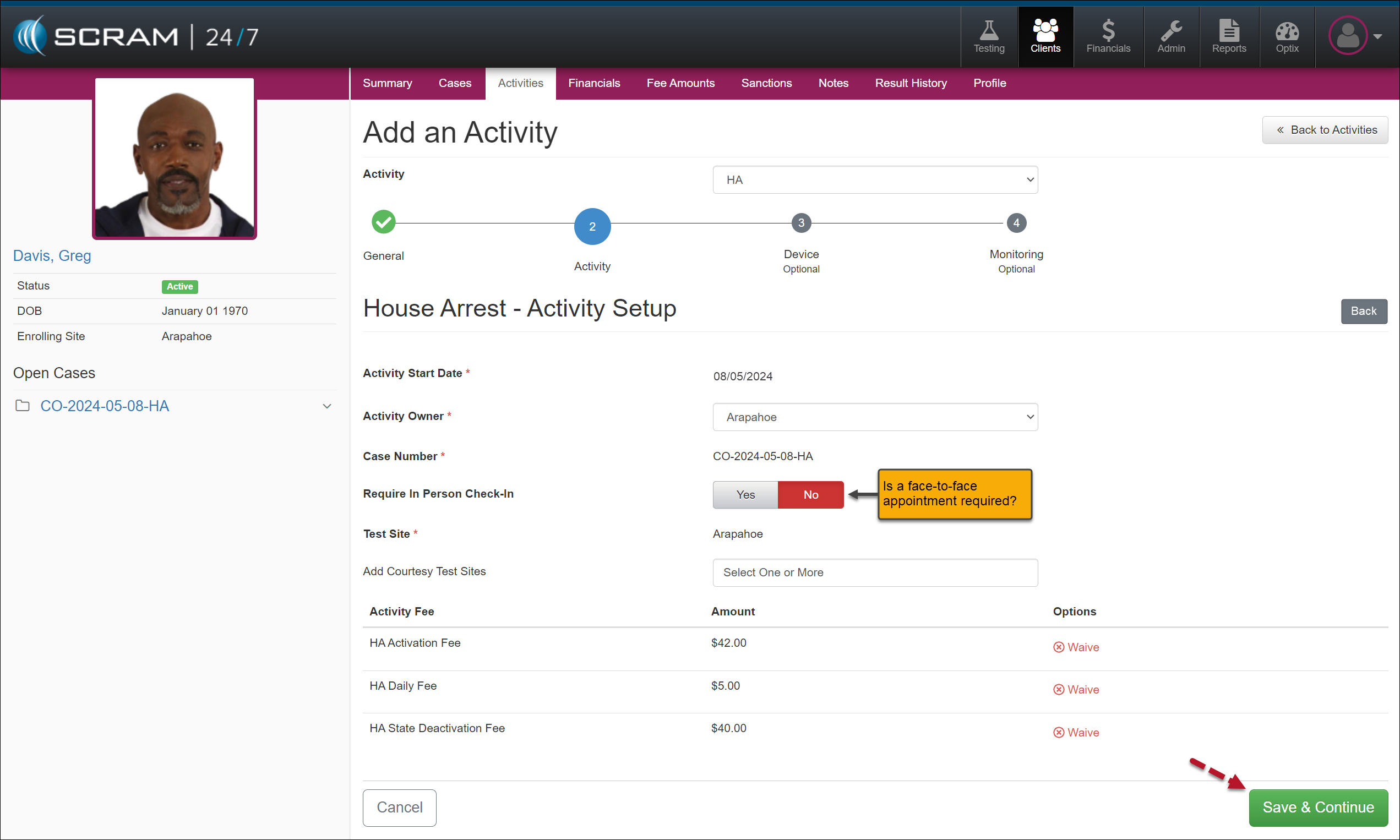
House Arrest Activity Setup Step (click to enlarge)
Device Step
- It is time to add the device information, set up the communication schedule, and select the appropriate Participant Agreement Acknowledgement option.
- Once entered, select the Assign Equipment button.
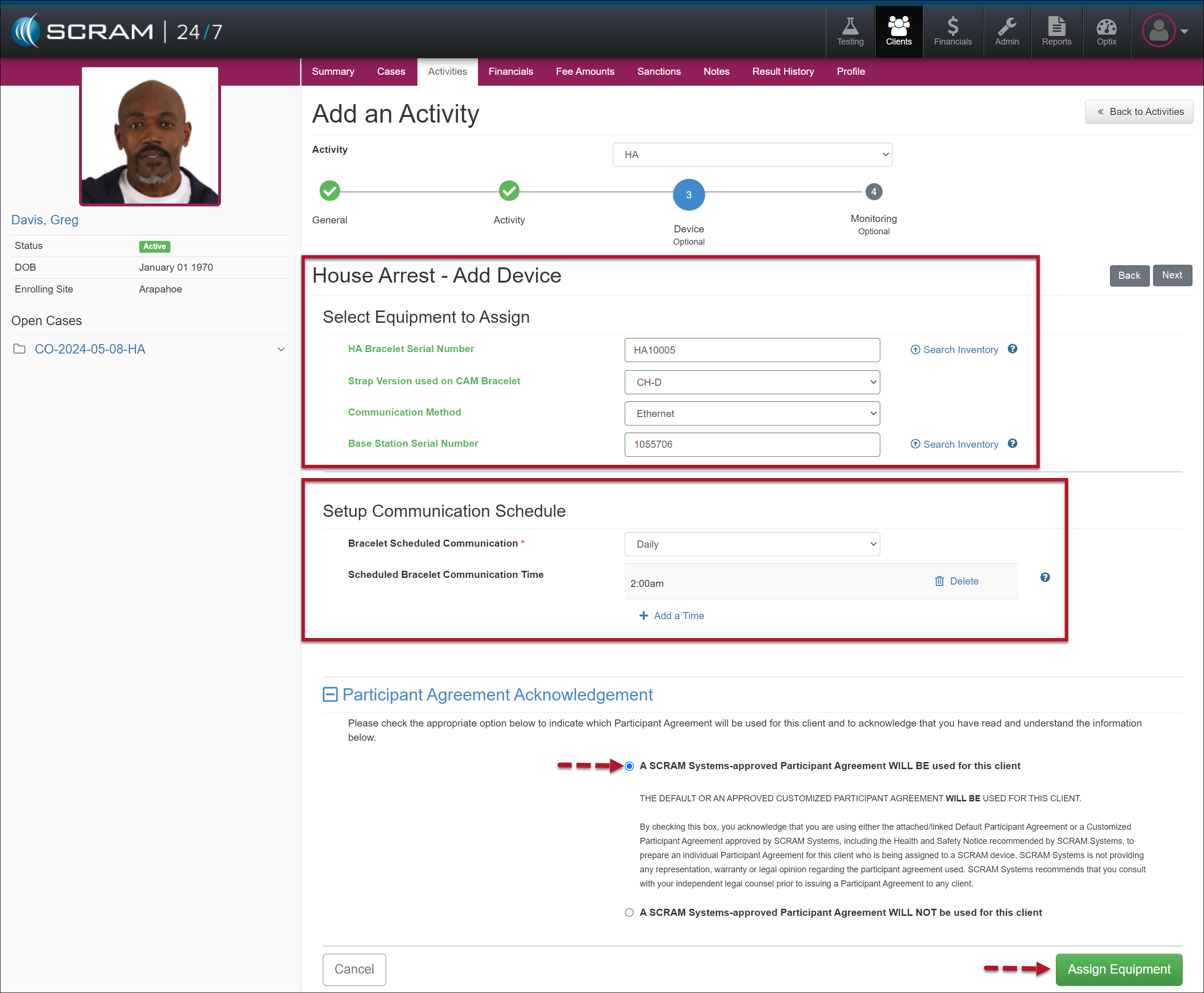
House Arrest Add Device Step One (click to enlarge)
- Next, the Participant Agreement form may be selected and printed for the client to sign. In addition, you can access the SCRAM Device Installation help documentation.
- Next, select the Complete Assignment button.
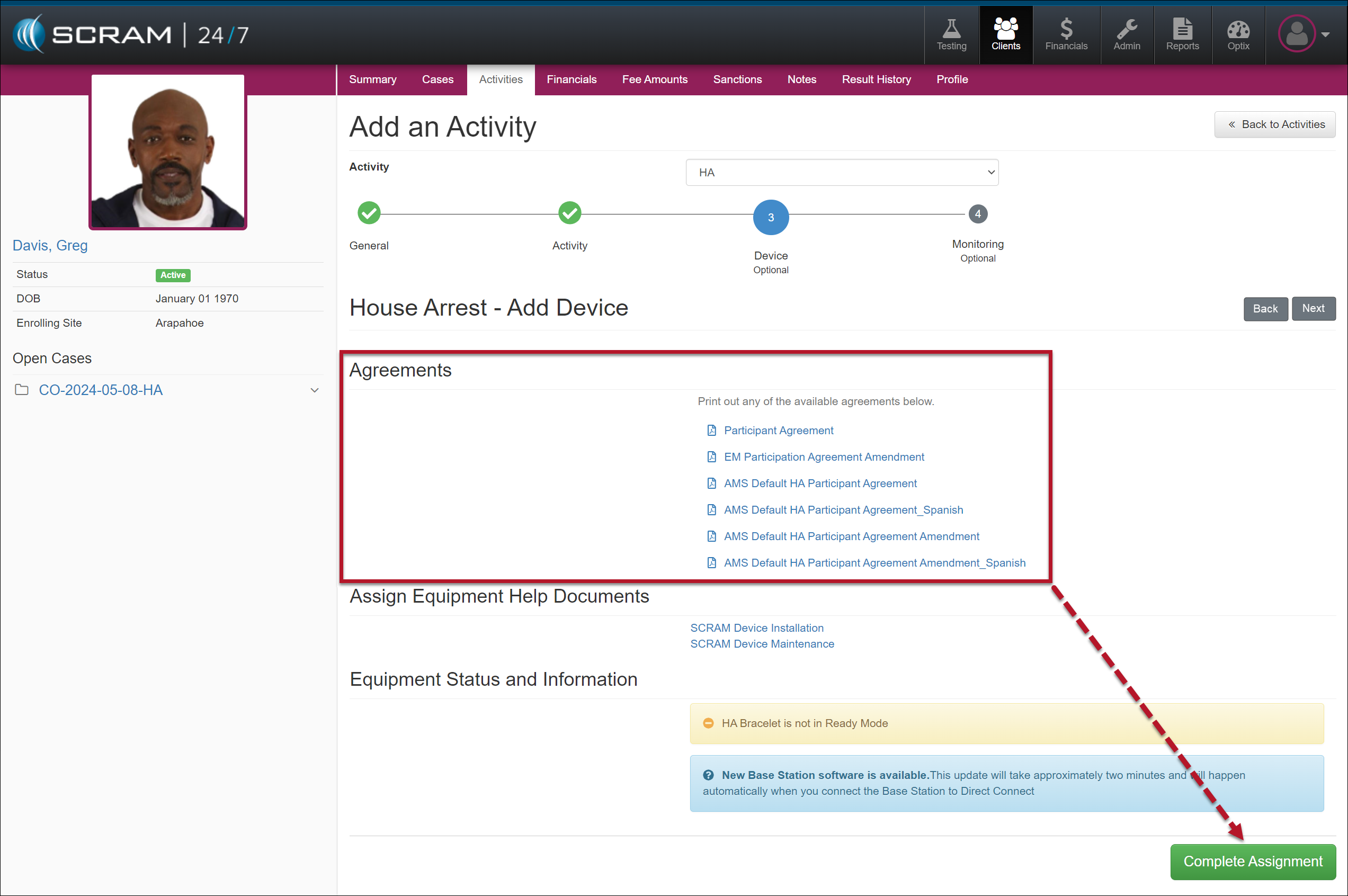
House Arrest Add Device Step Two (click to enlarge)
Monitoring Step
- On the Monitoring step, you may edit the default “House Arrest Settings” or enable “Priority Notification” for the client by selecting the Edit hyperlink next to the options. Select the Save & Finish button to save the Activity if that is not required.
-
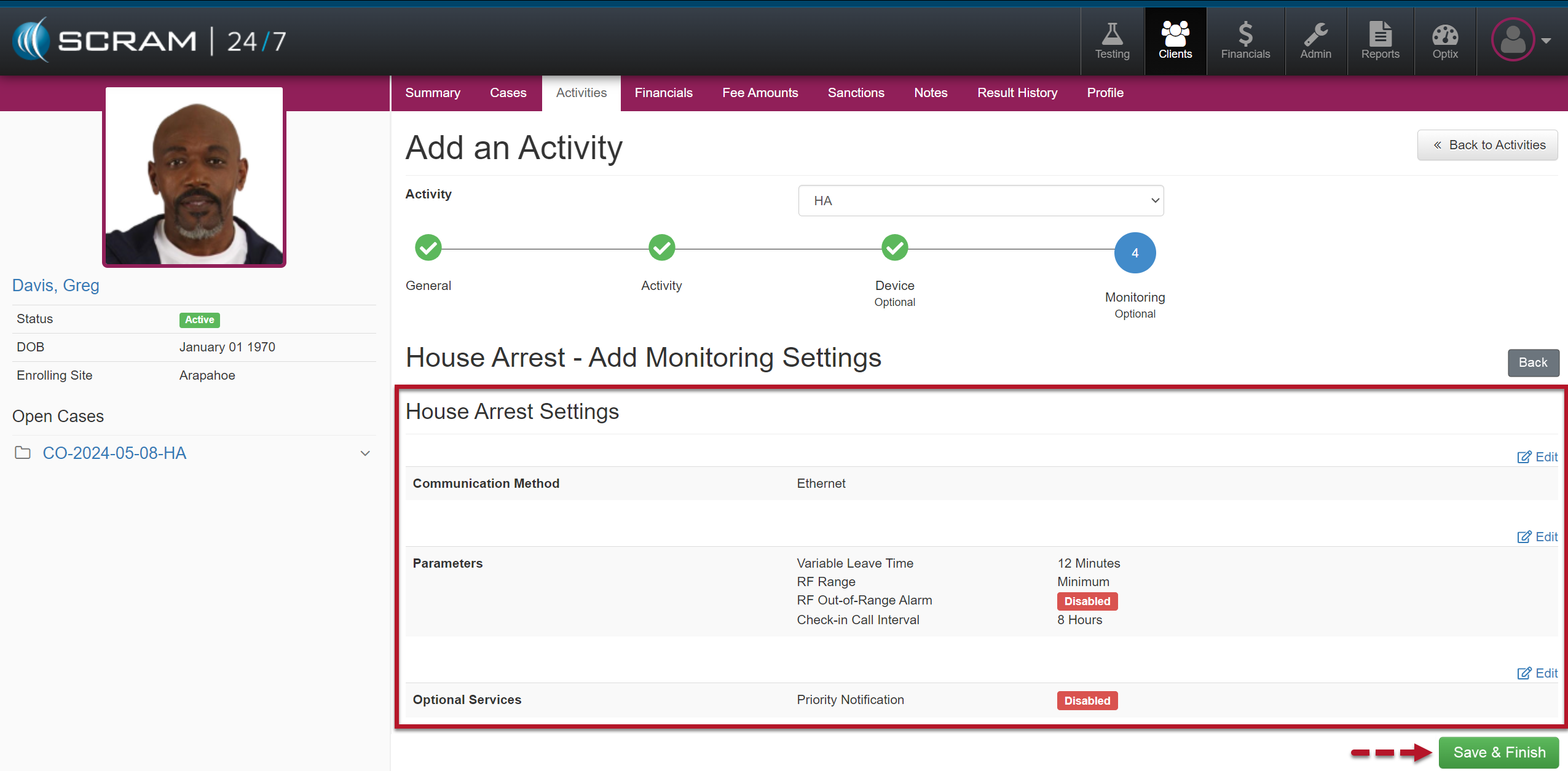
Add House Arrest Activity Monitoring Step (click to enlarge)
- When editing the House Arrest Settings, select the Save Changes button once you have made your updates.
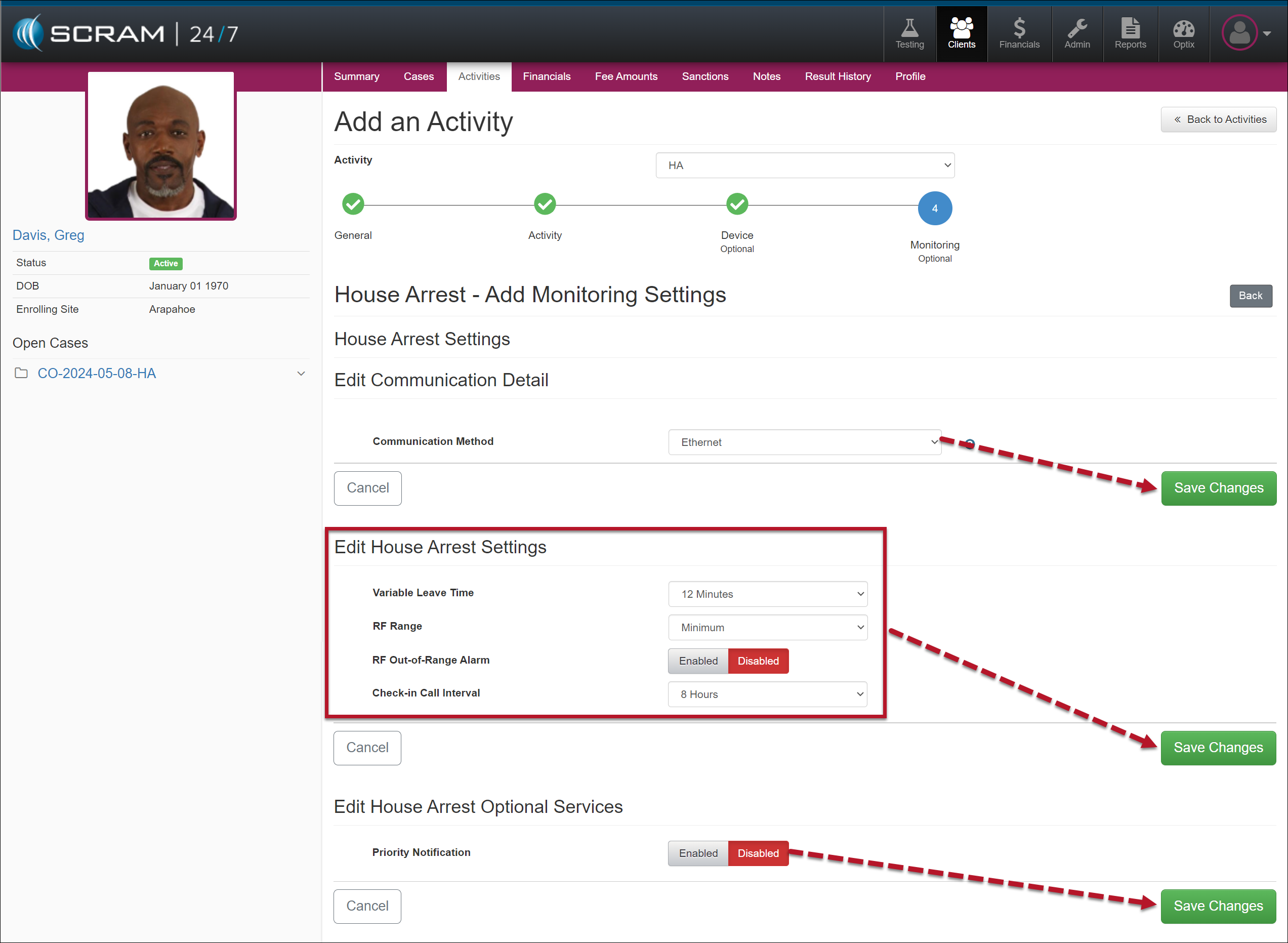
Edit House Arrest Settings (click to enlarge)
- Then select the Save & Finish button to complete the adding activity process once the settings are set.
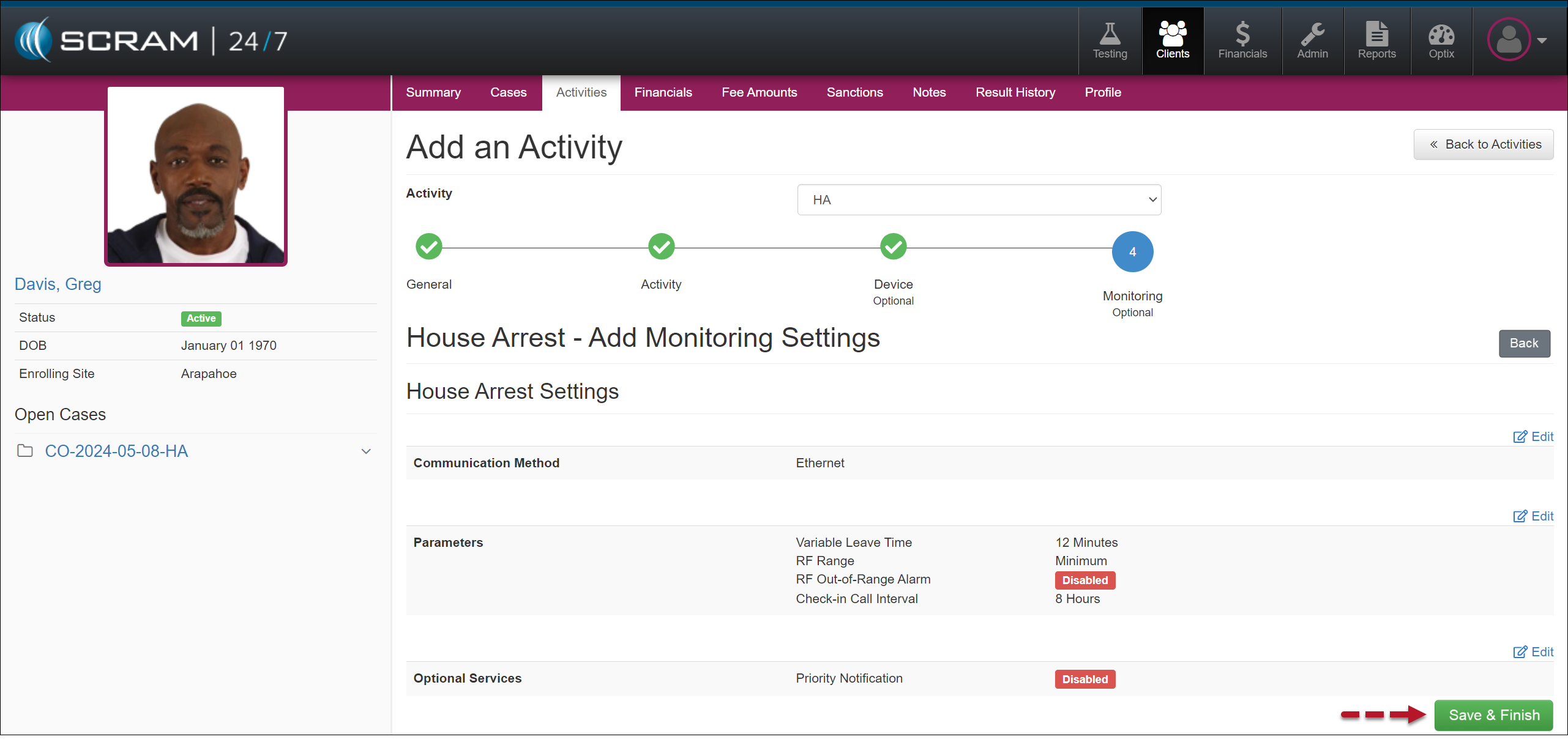
Save & Finish Adding the House Arrest Activity (click to enlarge)
The Client Equipment section on the client’s Summary page displays the equipment in a “Pending Assignment” status.
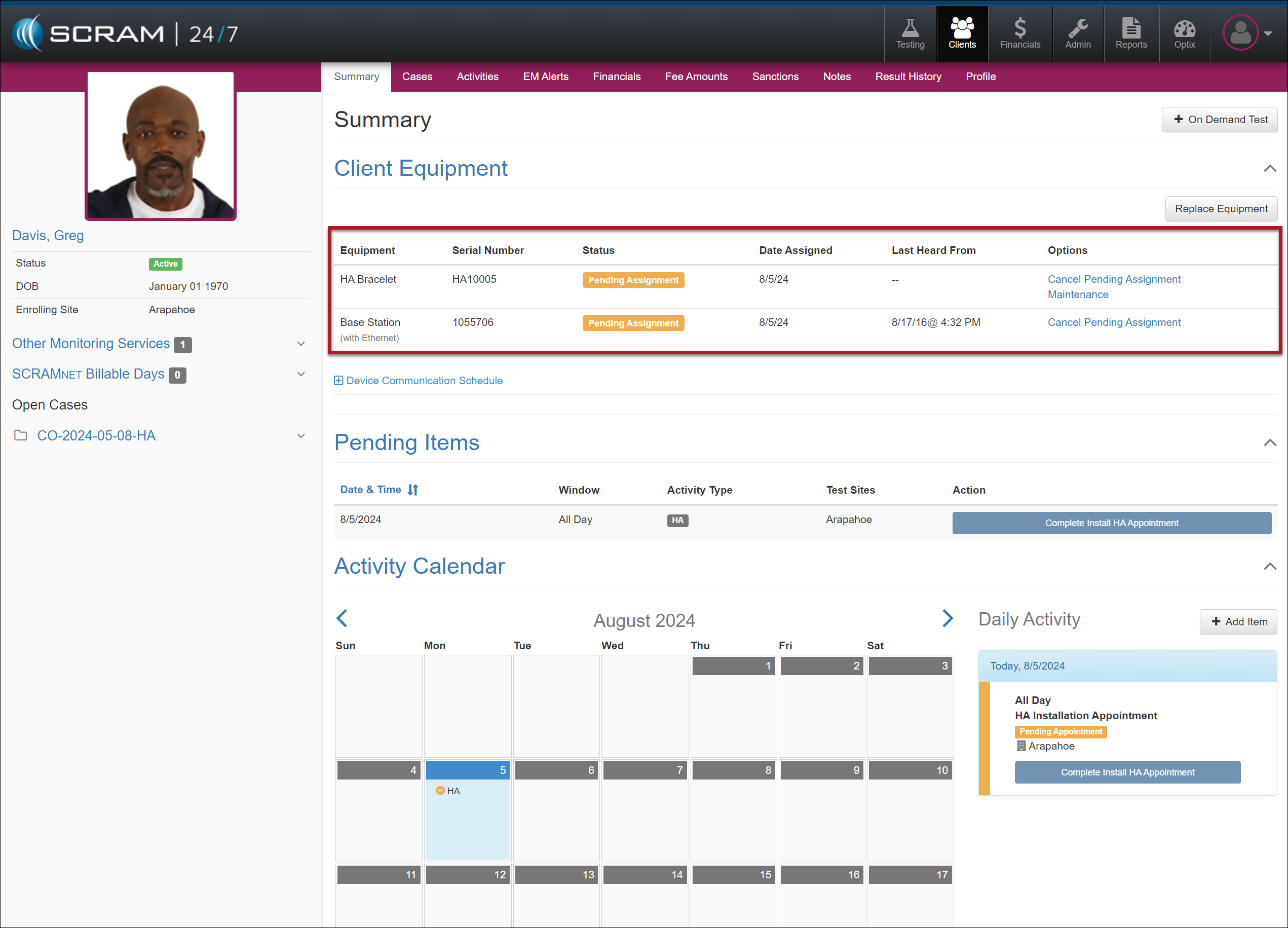
Client’s Summary Page – Equipment Pending Assignment (click to enlarge)
Once the assignment process is complete, the Client Equipment section will reflect the assigned equipment status.
Edit the Device Communication Schedule
To edit the scheduled timeframe the device communicated with SCRAMNET, expand the “Device Communication Schedule” section and select the Edit hyperlink.
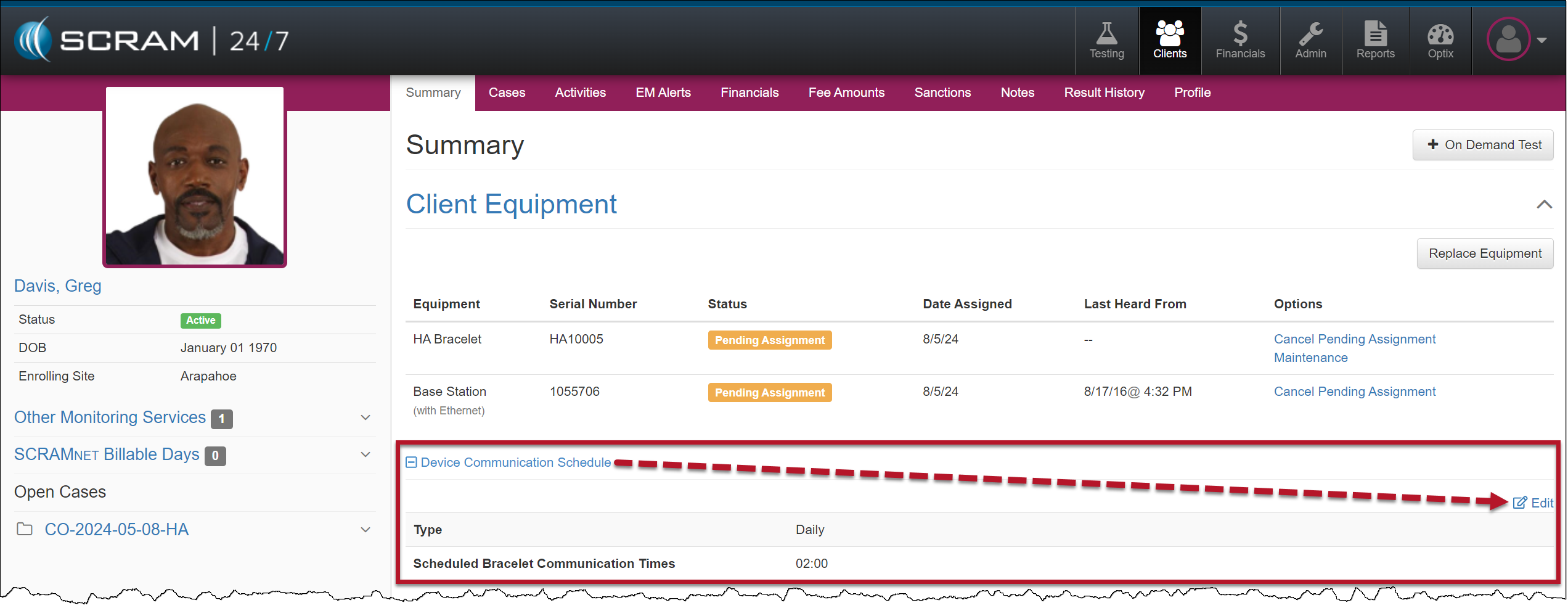
Client’s Summary Page – Device Communication Schedule Section (click to enlarge)
After making your changes, select the Save Changes button.
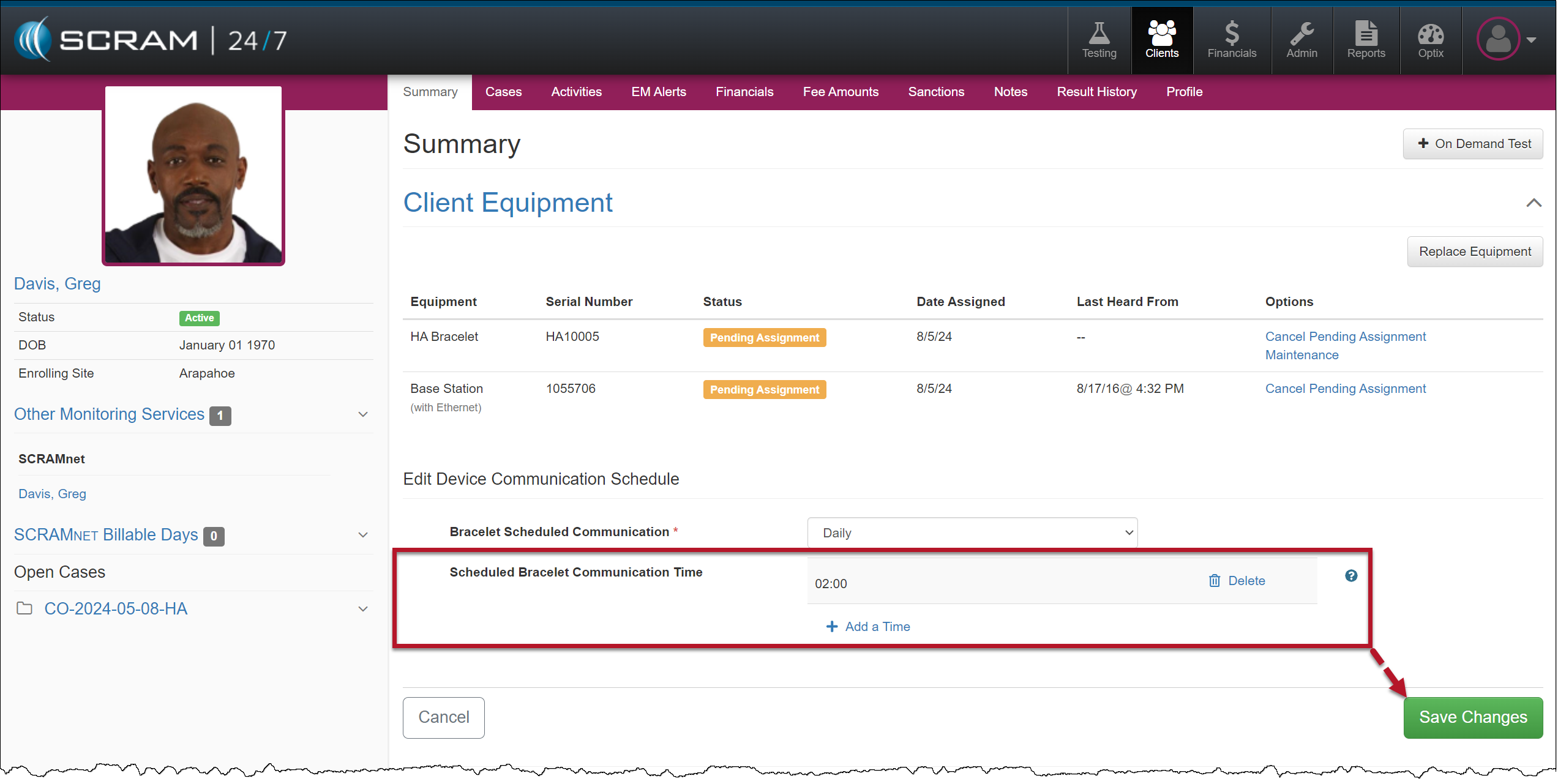
Client’s Summary Page – Save Changes to Device Communication Schedule (click to enlarge)
Adding a House Arrest Schedule
To create a “may leave” or “must leave” House Arrest schedule for the client, select the client’s name hyperlink in the Other Monitoring Services section on the sidebar.
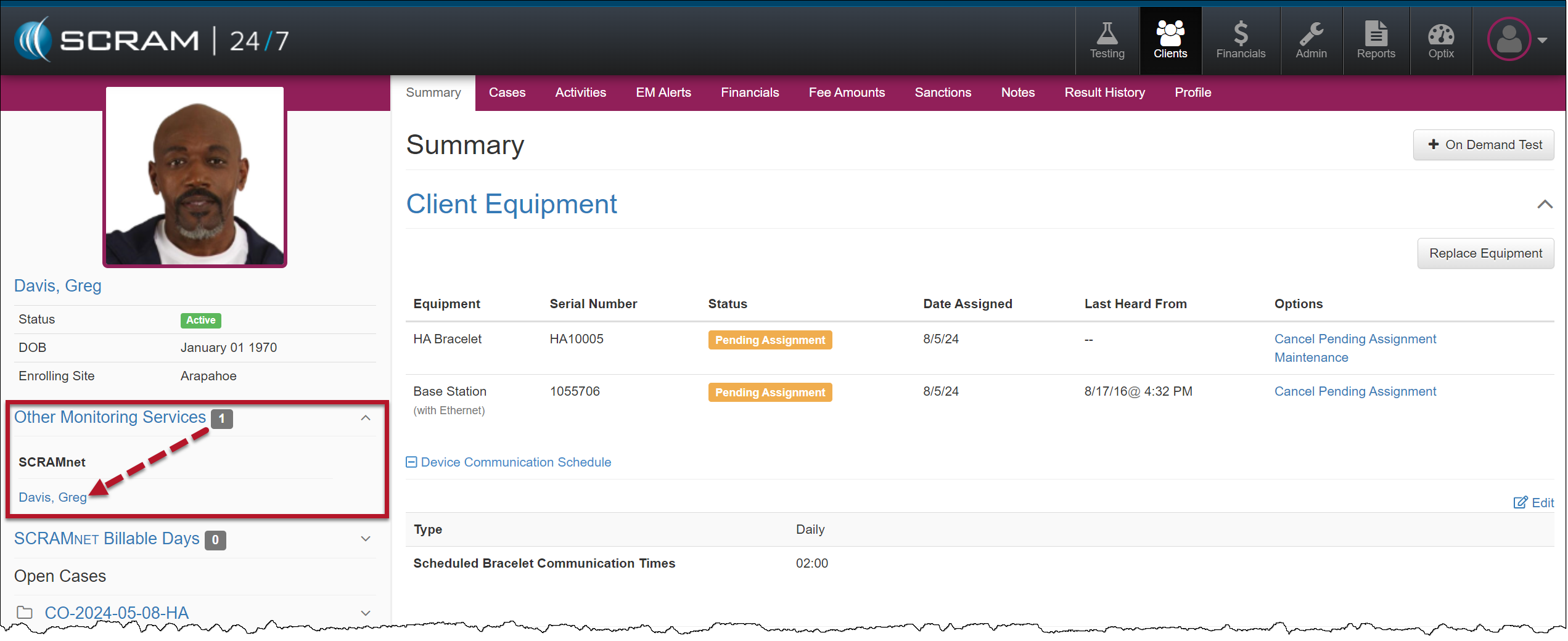
Client Sidebar – Other Monitoring Services Section (click to enlarge)
Within SCRAMNET, select the HA Schedule tab and create the client’s leave schedule.
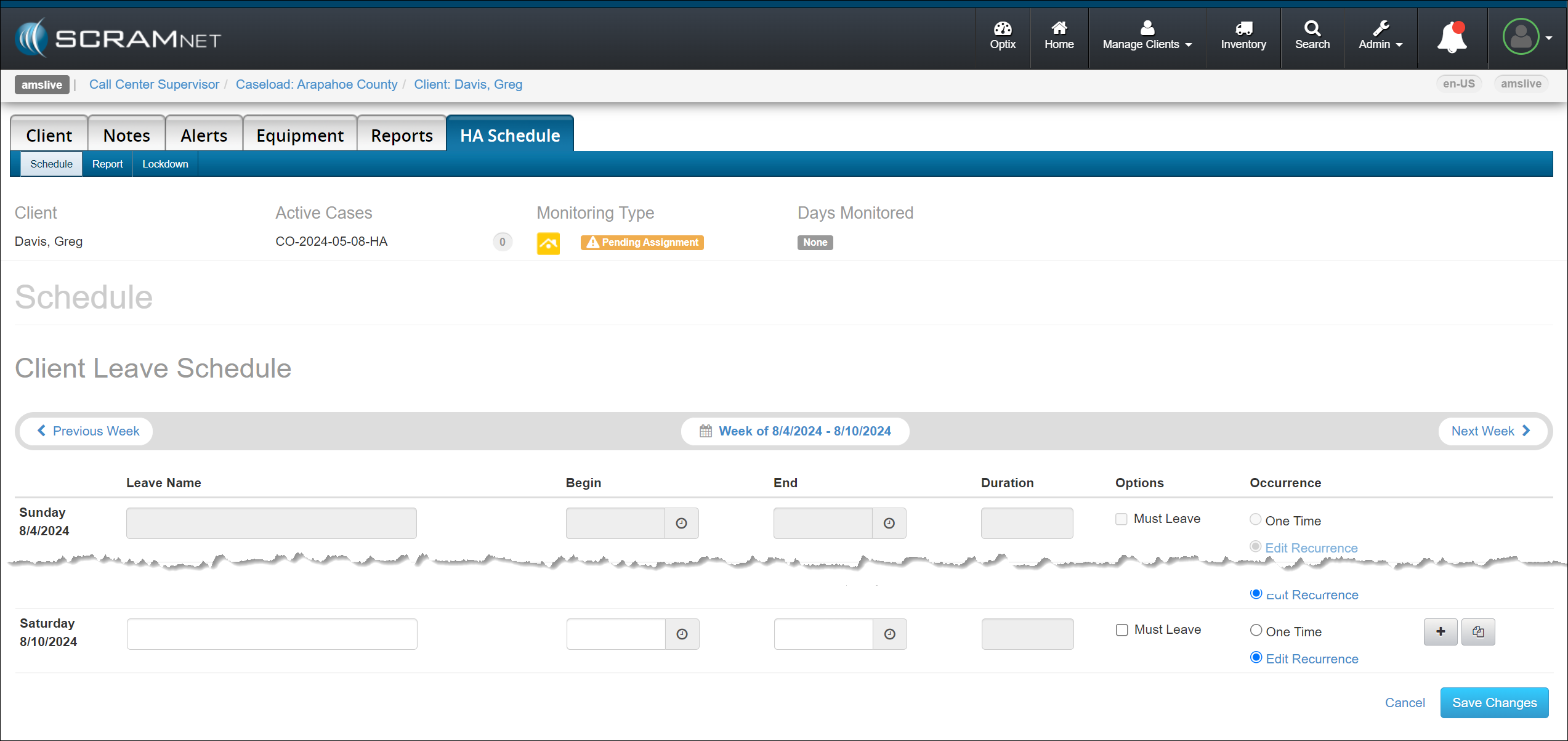
SCRAMNET Client HA Schedule Page (click to enlarge)
For step-by-step instructions on creating a House Arrest schedule, visit the Establish Client Leave Schedule Help article. - When editing the House Arrest Settings, select the Save Changes button once you have made your updates.