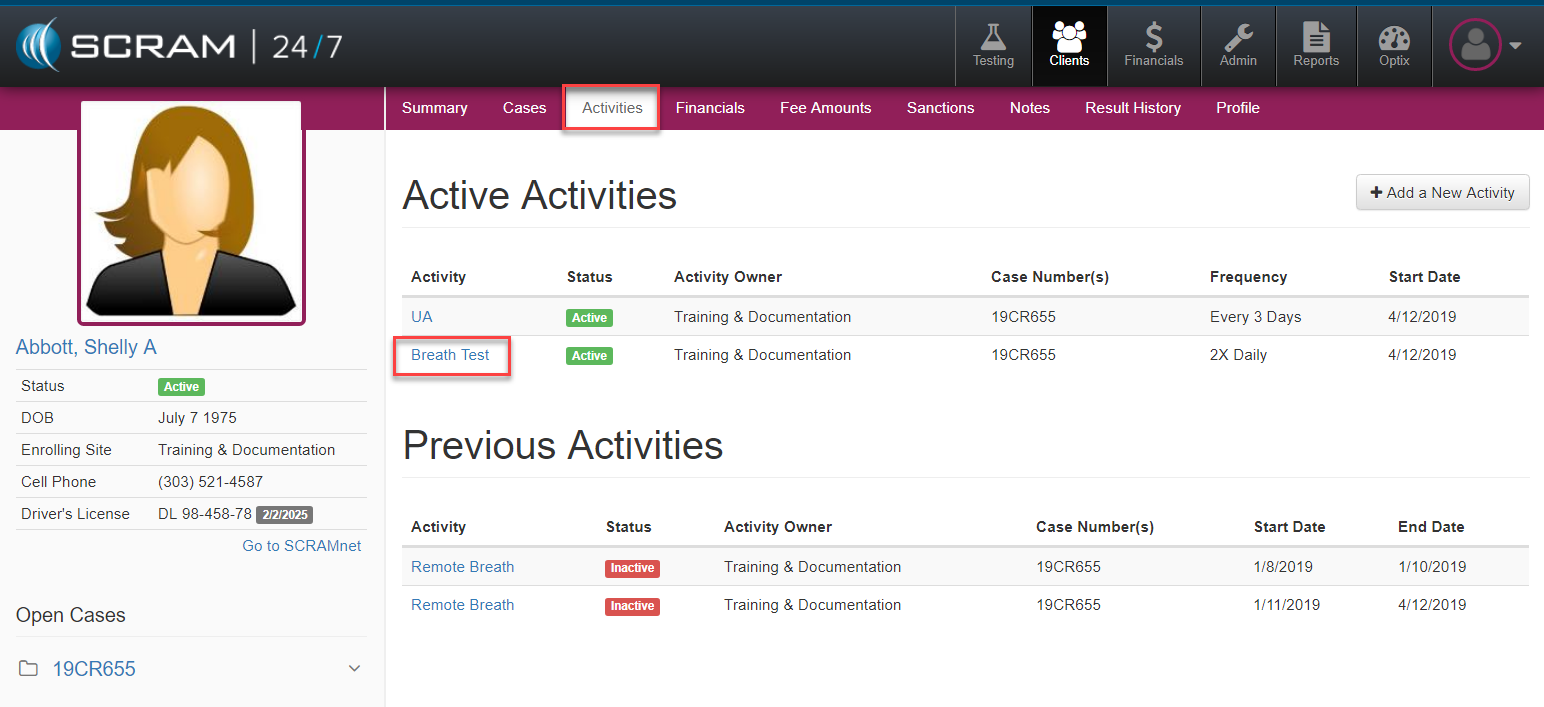
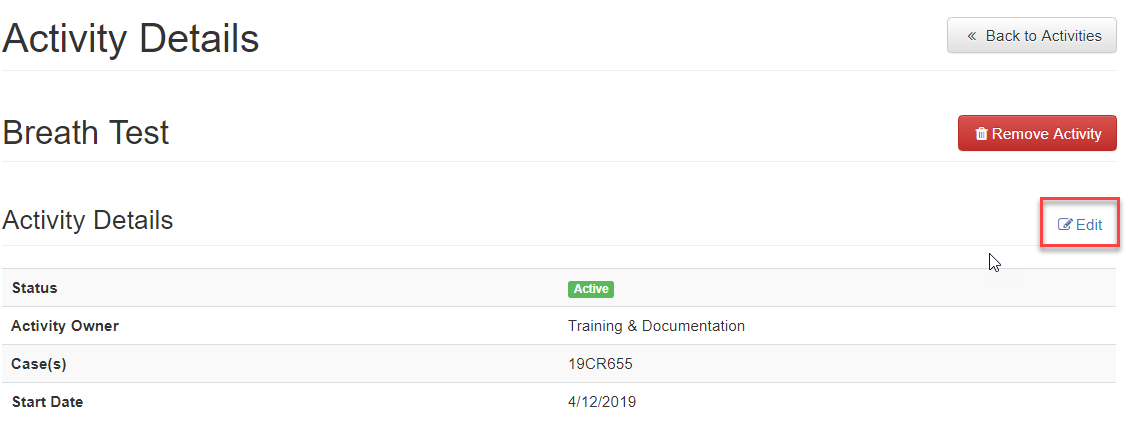
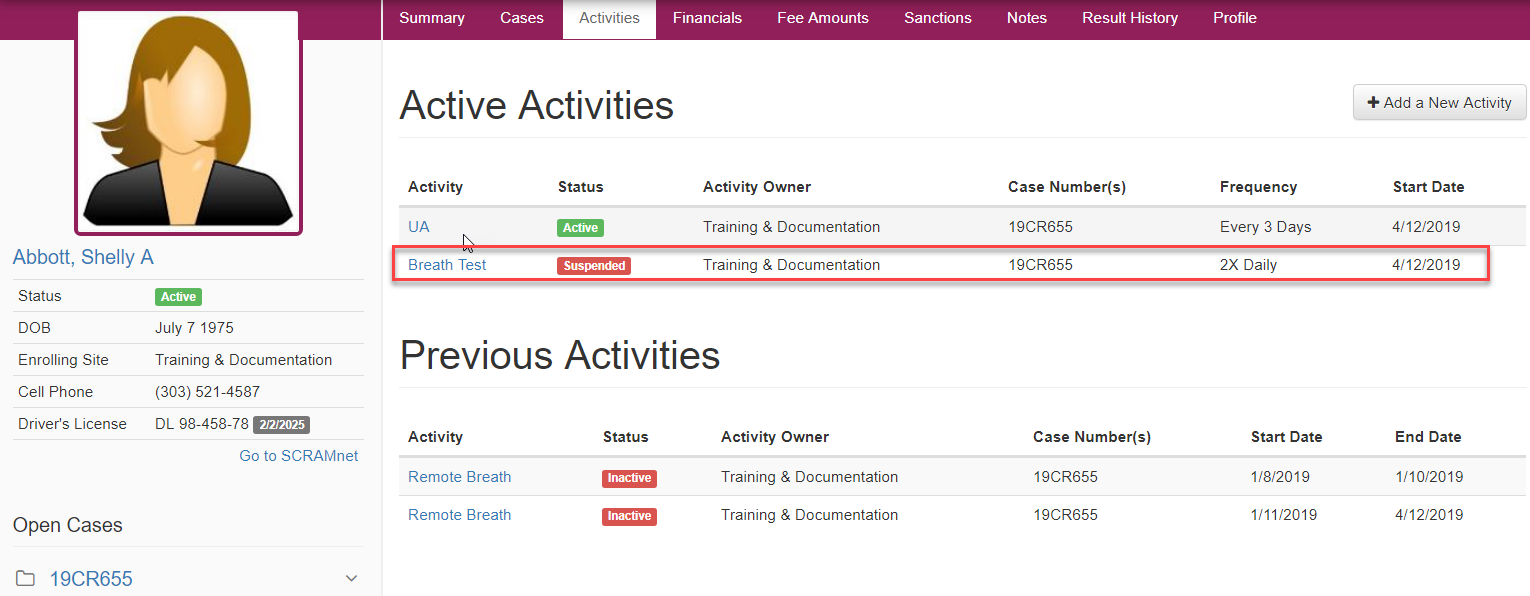
If for some reason a client’s activity necessitates that it be temporarily suspended, an officer can select the specific activity for editing. This is first achieved by going to the Client’s Activities page and selecting from the Active Activities table the specific activity targeted for suspension. This will open up the Activities Details page where the topic Activity Details can be edited by clicking on the blue edit button to the right as seen below.
Once the Edit button is chosen the Activity Details menuing will expand and the officer can toggle on the Suspended action from the Status option as well as configure the date for when the Activity Resumes On.
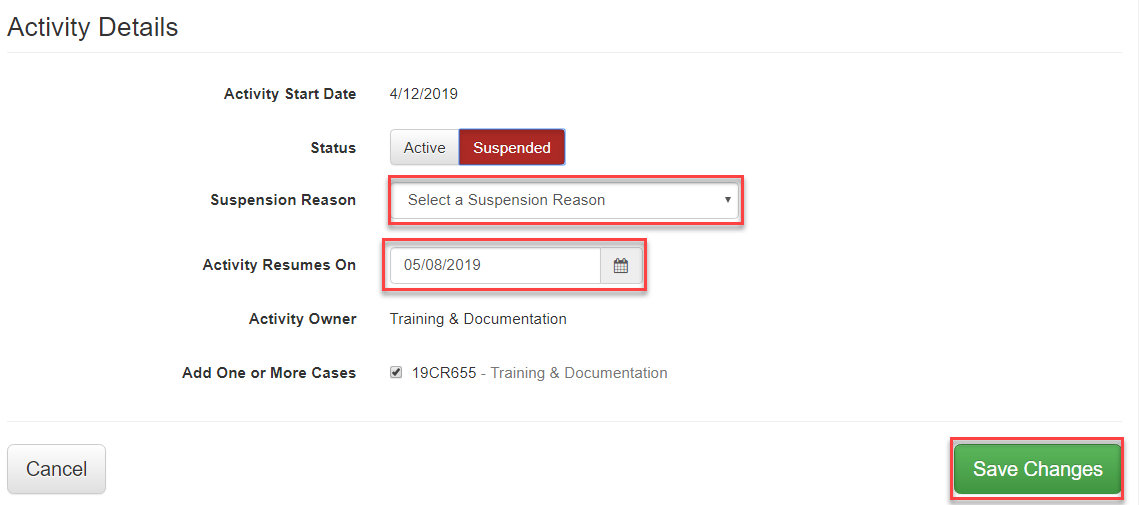
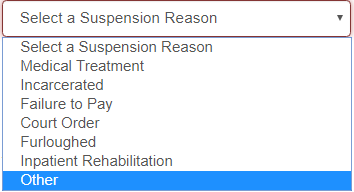
Please note a suspension reason will need to be selected and the green Save Changes will need to be selected to finalize the task.
Reinstate Activity
As with the suspend activity workflow, to reinstate a client’s activity an officer can navigate to the Activities tab and select the suspended activity from the Active Activities table.
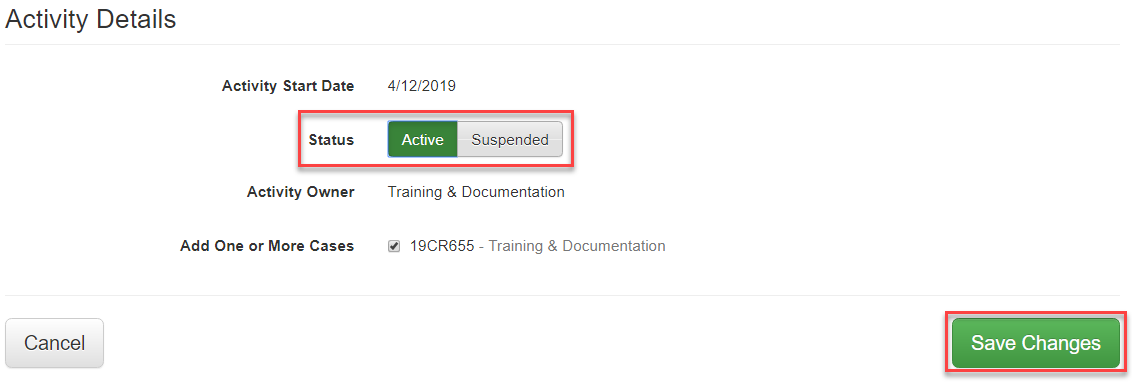
The officer then selects the blue Edit button adjacent to the Activity Details category and then selects the Active toggle followed by the green Save Changes. This action will then reactivate the activity and automatically reschedule upcoming testing for the client.