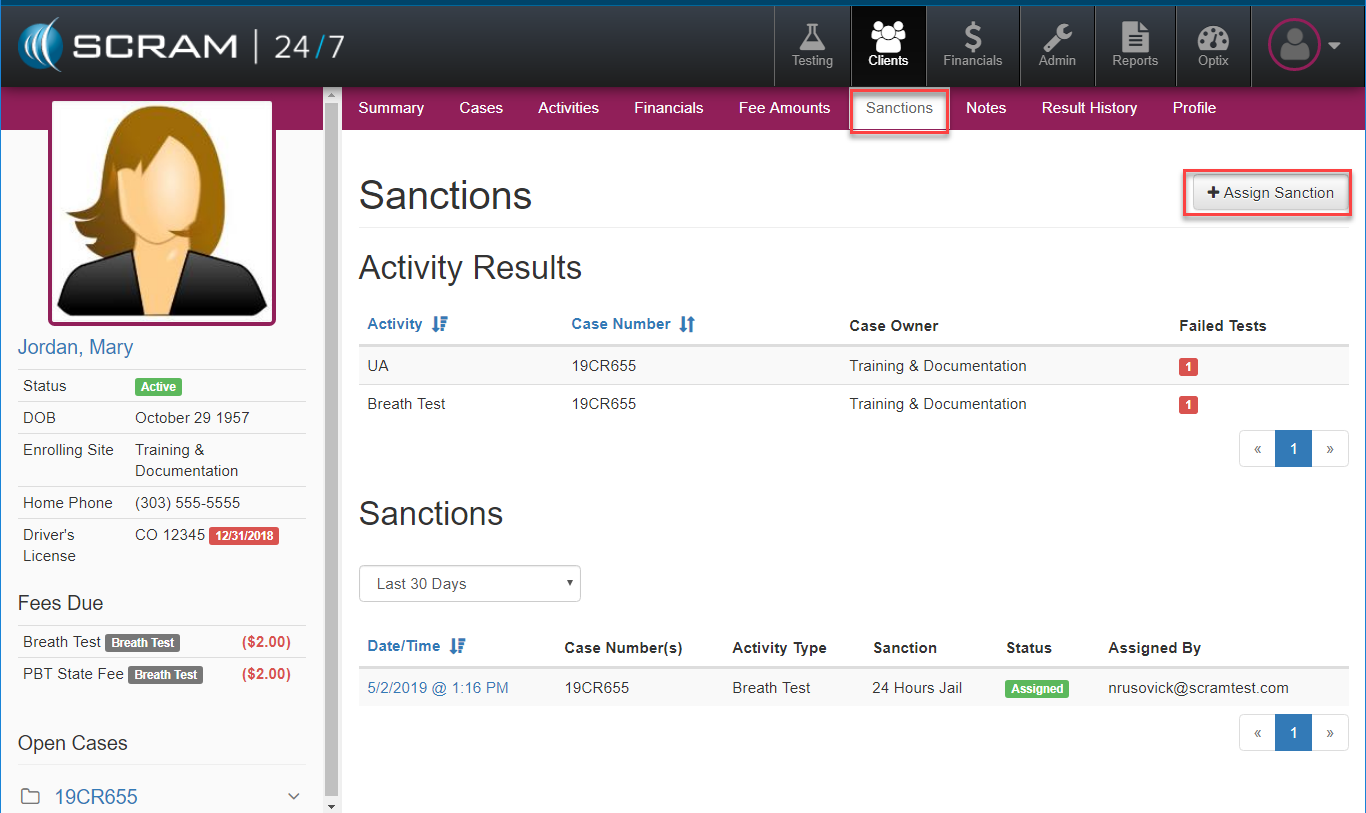
For scenarios where a client’s behavior requires a sanction, such as failing a breath test, officers can issue a sanction by navigating to that client’s Sanction tab. The Sanctions page will display both the Activity Results which will give a summary view of the relevant activity, case and any correlating number of failed tests. Directly below that table, officers will notice the Sanctions topic table which provides a historic listing of all of the sanctions delivered.
Assigning A Sanction
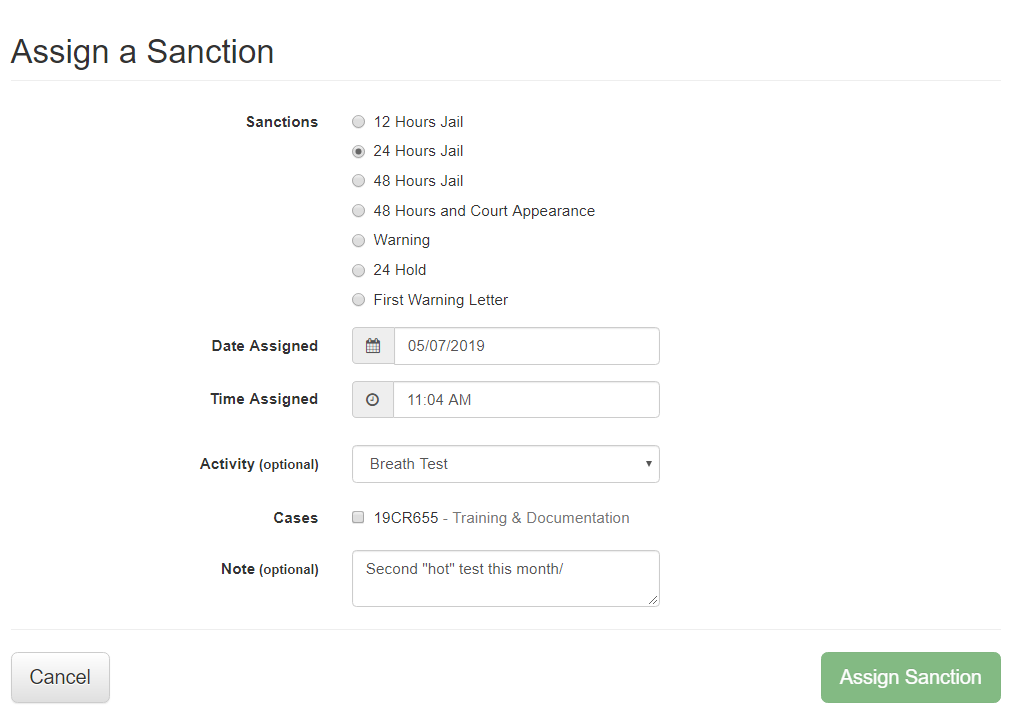
To open the Sanction menuing, the officer can select the +Assign Sanction button in the upper right hand corner. This will bring up the Assign A Sanction page where the officer can detail:
- Sanction: Choose options based on department policy
- Date Assigned
- Time Assigned
- Activity: Testing type
- Cases:
- Notes: Officer can add additional notations if required.
The click the green Assign Sanction to issue.
Sanction History
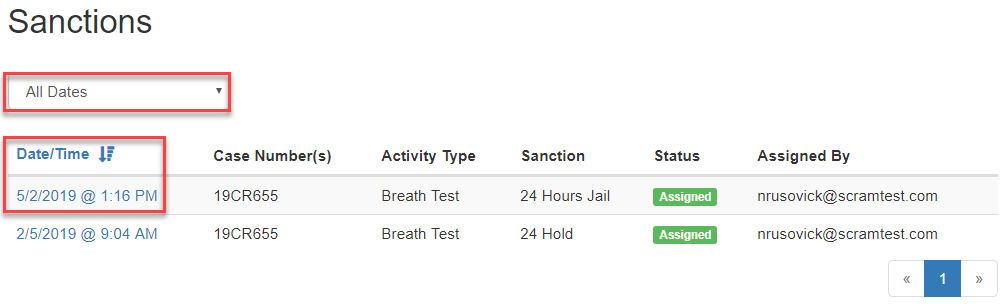
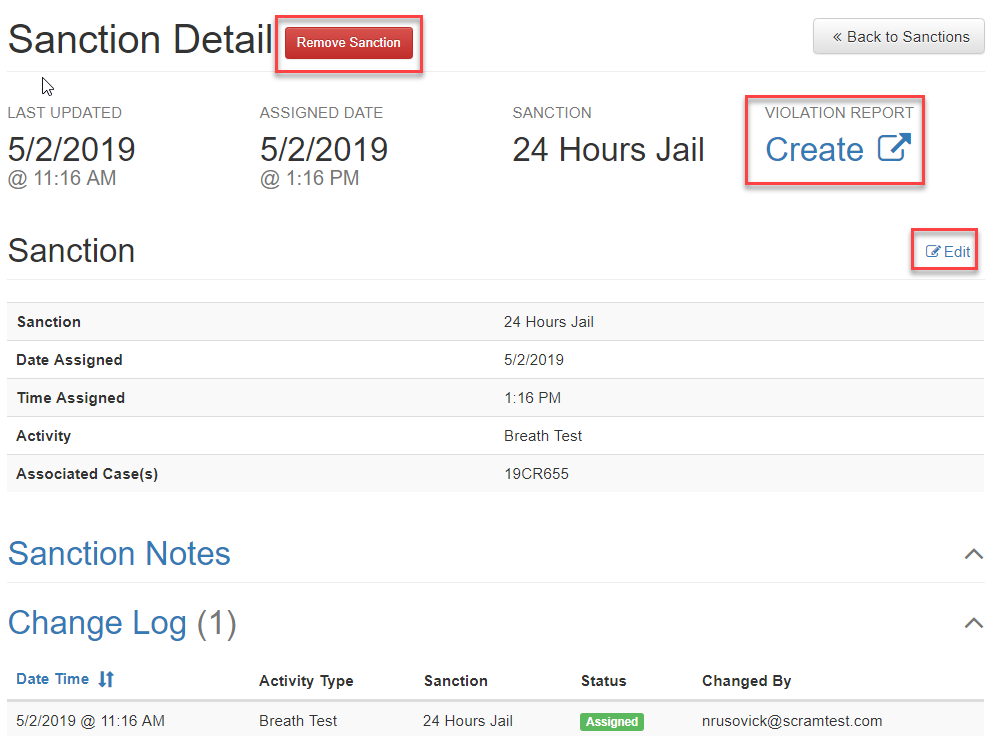
To review any sanctioned events, officers can scroll down to the Sanction section, apply either the Date/Time filters and then select the time and date stamp on the specific sanction they would like to review. A Sanction Detail page will open and the officer can choose to review the sanction detail or interactively:
- Remove Sanction: by selecting the red button to remove the sanction.
- Edit Sanction: Select blue edit button to change, Sanction, Time, Date, Activity, and Associated Cases
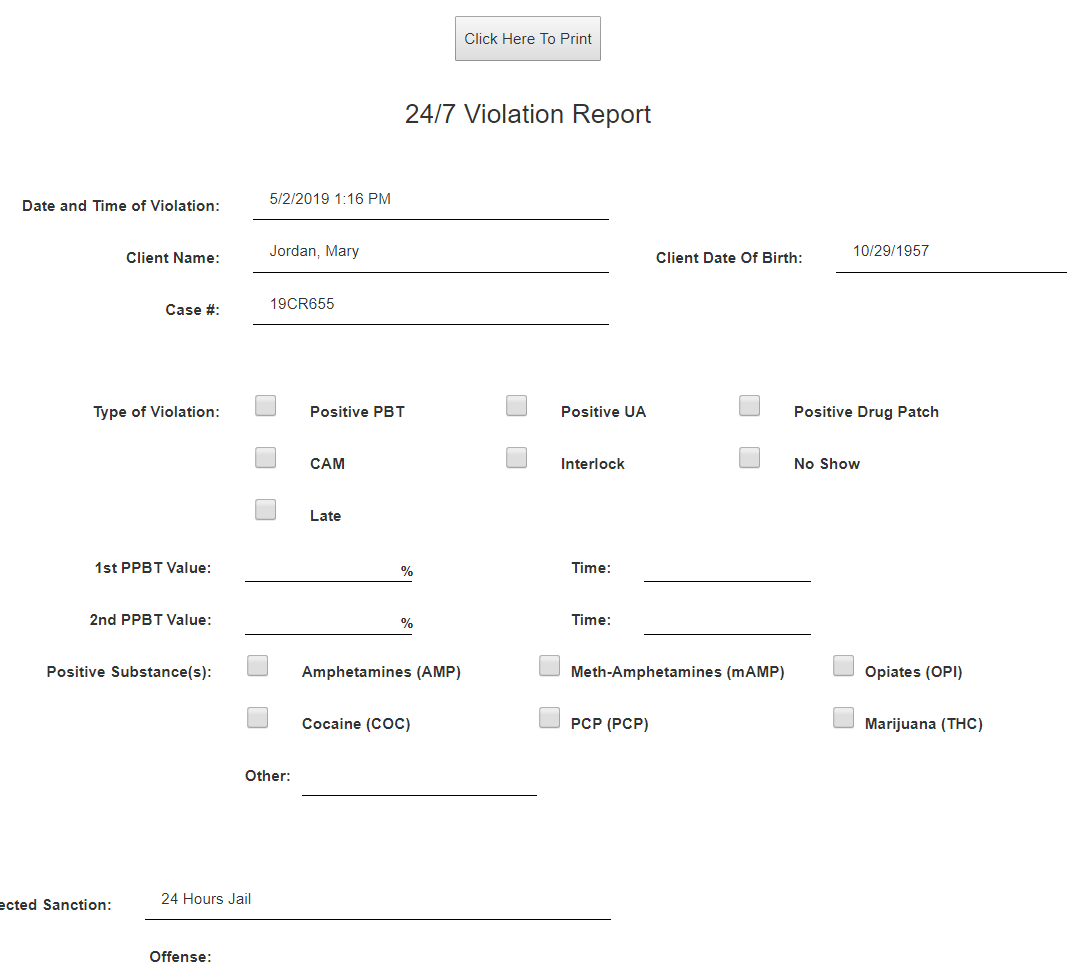
- Violation Report: There is an additional option to create a violation report if necessary.
Violation Report
The Create Violation report will prepopulate client information with a printable report that the officer can further add detail to and print.