Remove Activity / Suspend Activity
When the client’s billing and monitoring need to be stopped or suspended, the equipment status will need to be updated to an “Awaiting Return” status. This will prevent the monitoring fees from being generated for the client in SCRAMNET.
Remove Activity
Select the Activities tab to get started.
- Select the Remote Breath Activity on the Activities page.
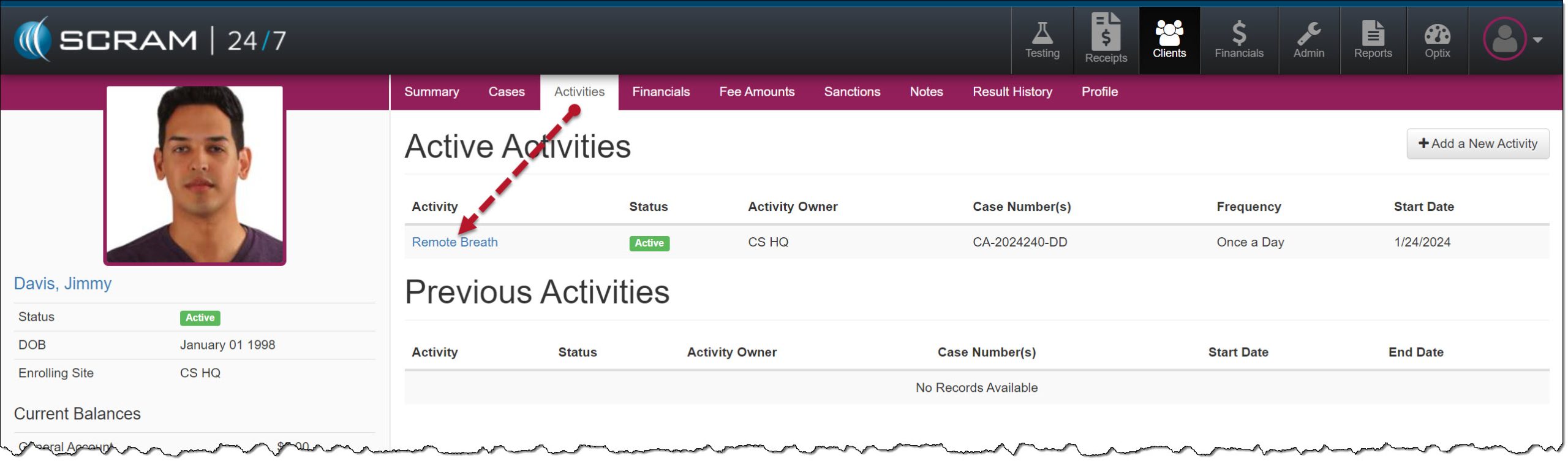
Client’s Activities page – click to enlarge
- On the Activity Details page, select the Remove Activity button.
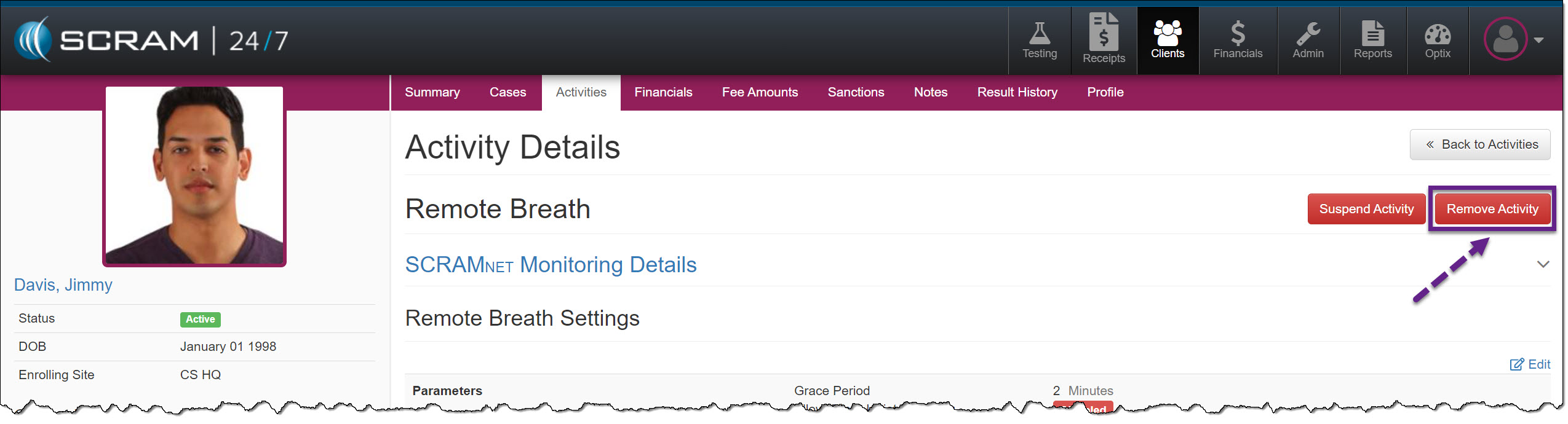
Remote Breath Activity Details page – click to enlarge
- On the Remove Equipment page, select when to stop monitoring the client and whether to automatically deactivate the SCRAMNET profile once the equipment is checked in.
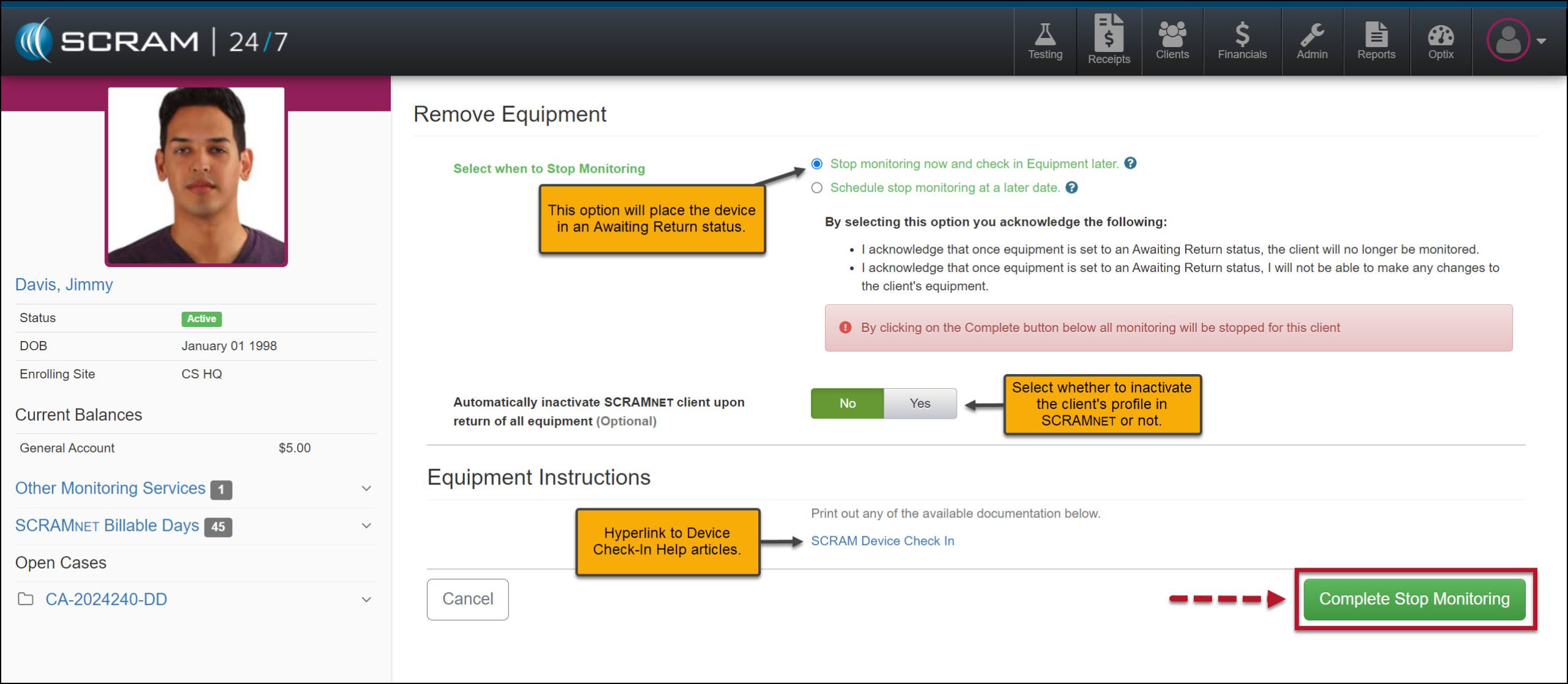
Remove Equipment page – click to enlarge
- To save the selection, select the Complete Stop Monitoring button.
- Collect any fees and select the Save & Remove Activity button.
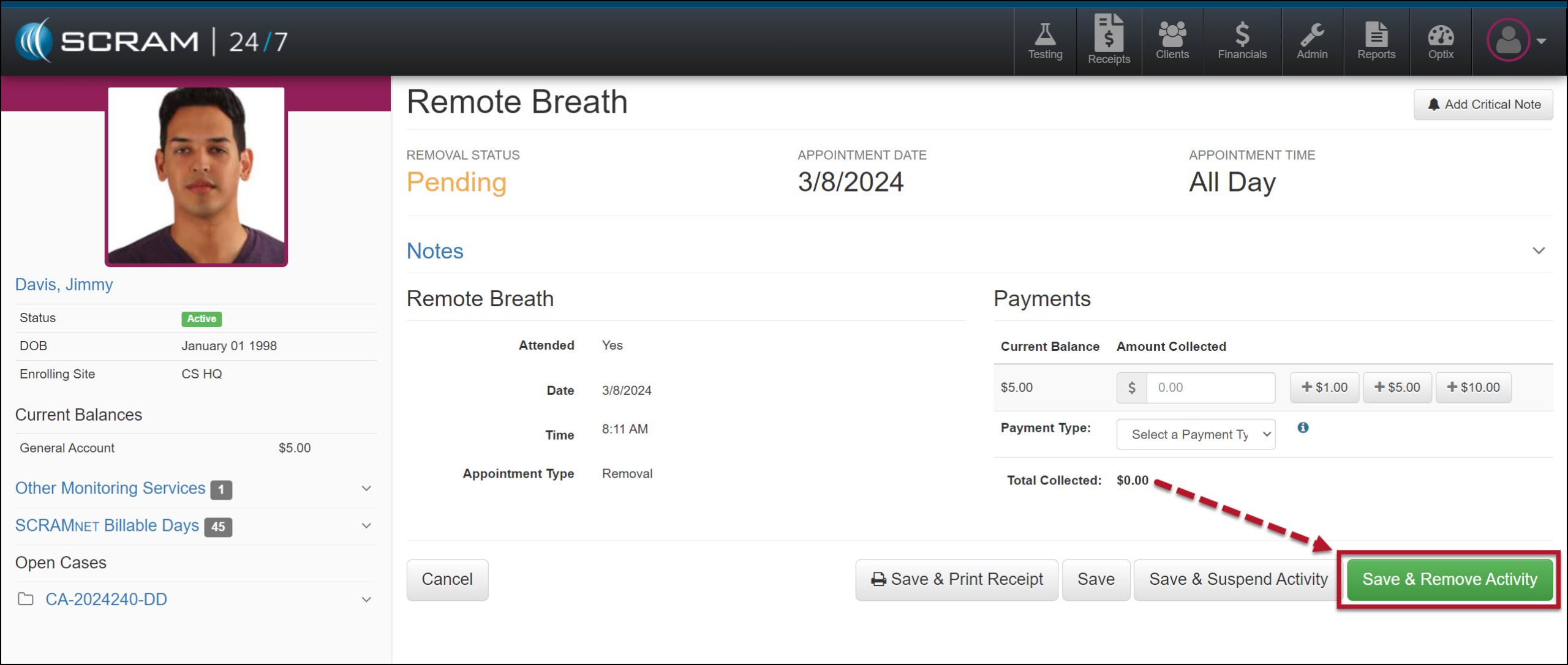
Remote Breath Appointment page – click to enlarge
- Verify the Effective Date and select the Remove Activity button.
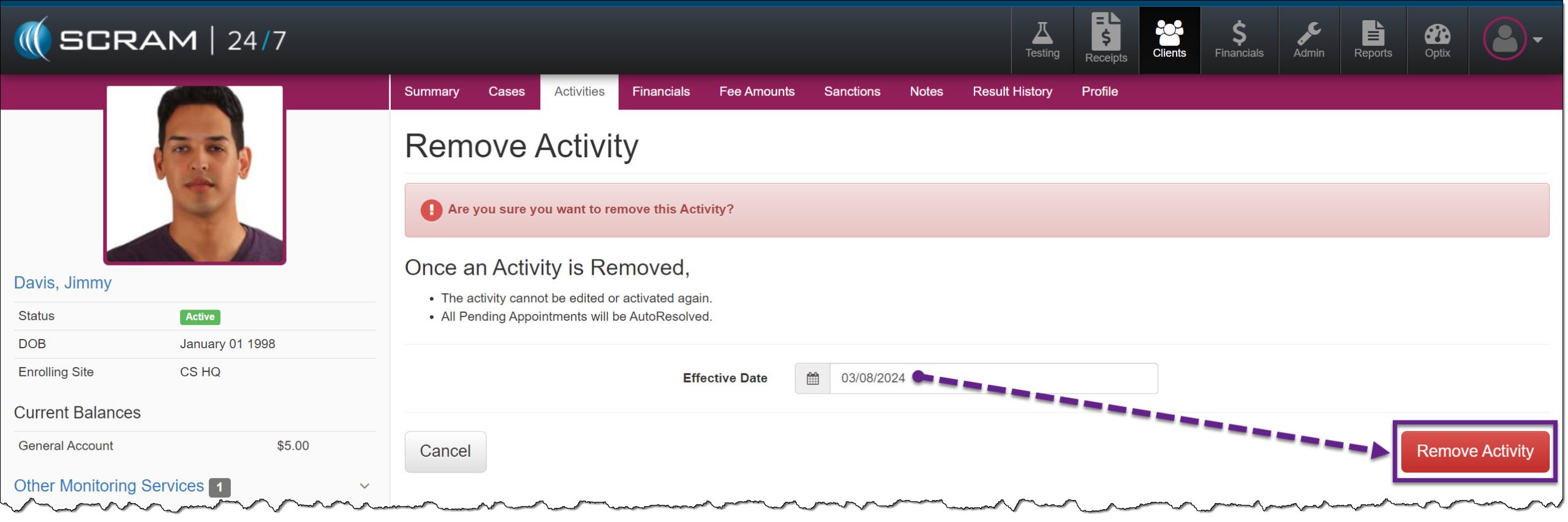
Remove Activity page – click to enlarge
The Activity will now display as Inactive.
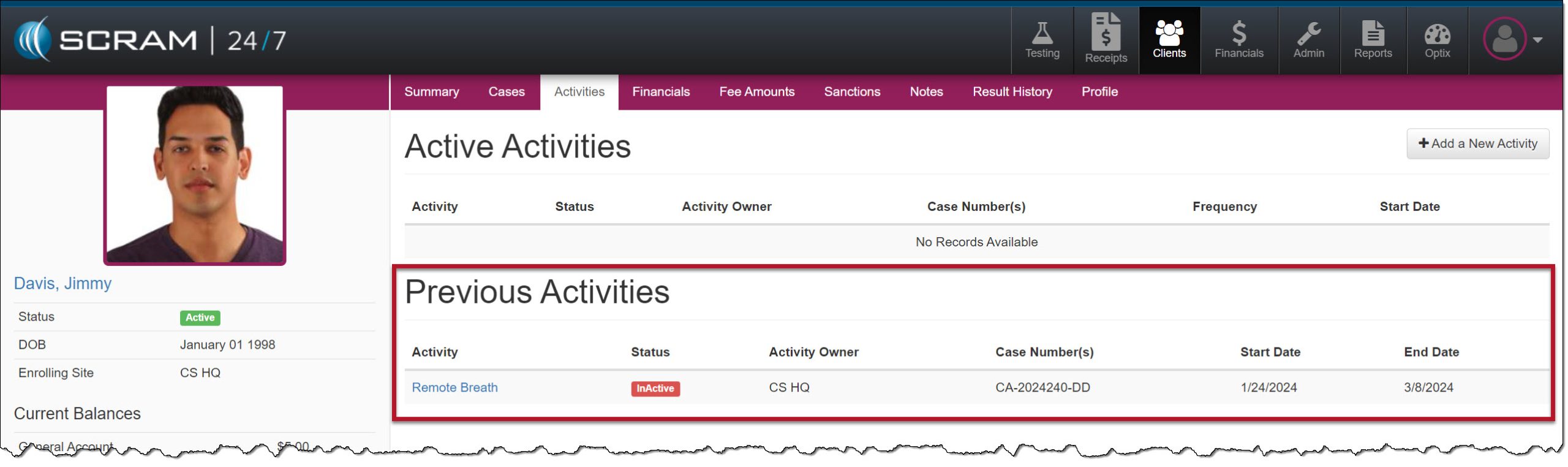
Client’s Activities page, Previous Activities Section – click to enlarge
The equipment is now in an “Awaiting Return” status on the Summary page. When the device is recovered, navigate to the client’s Equipment page in SCRAMNET and select the Move to Inventory hyperlink under the Options column to update the device status from “Awaiting Return” to “In Inventory.”
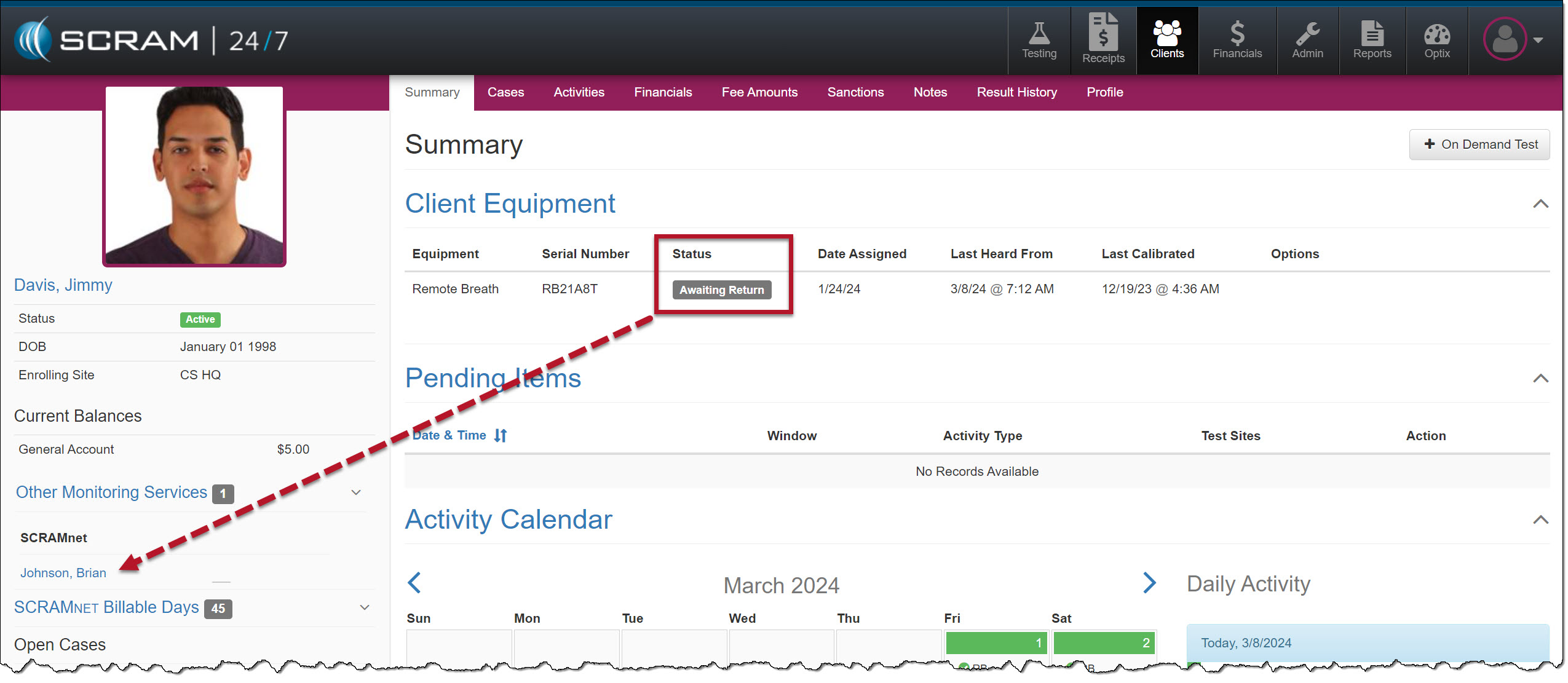
Client’s Summary page, Equipment Awaiting Return Status – click to enlarge
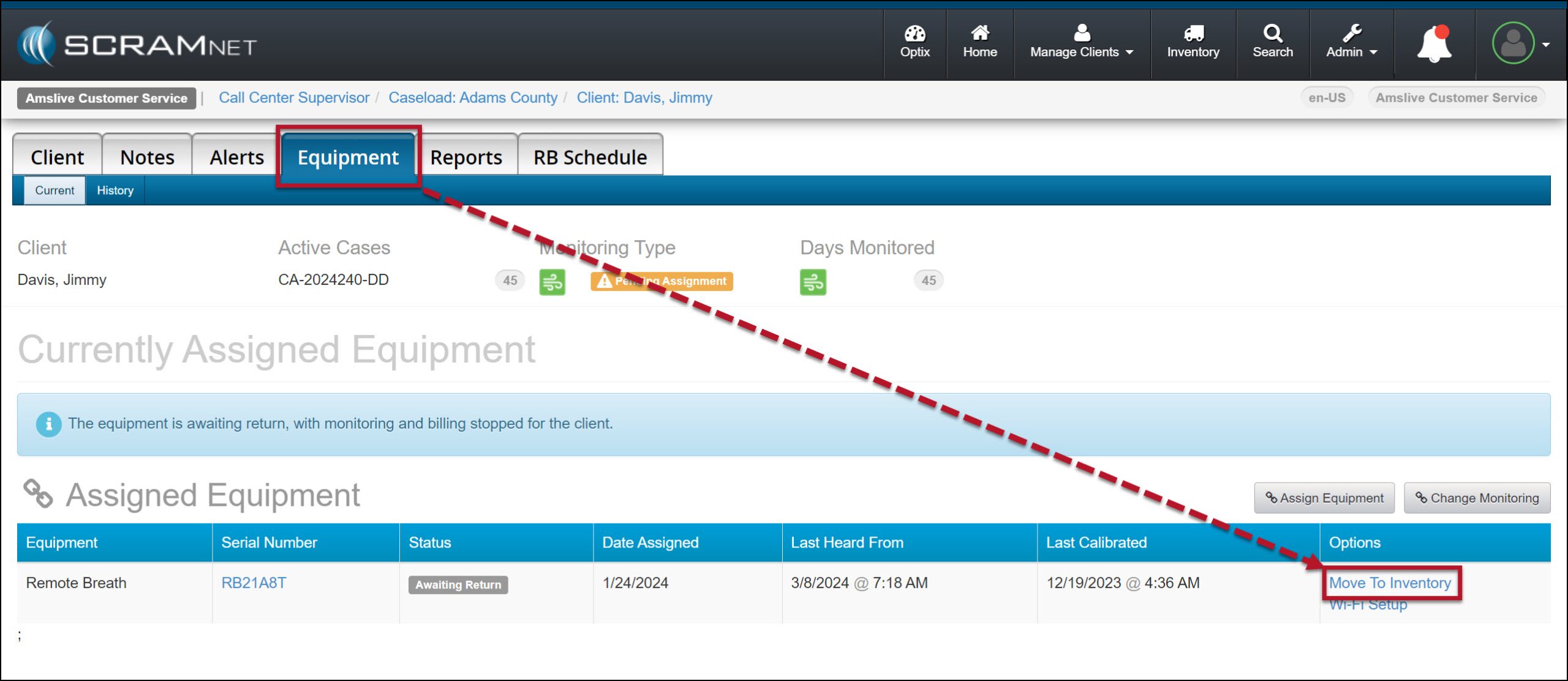
Client’s SCRAMNET Equipment page, Move to Inventory Hyperlink – click to enlarge
 |
Tip:
Once the device communicates, the Move To Inventory hyperlink will be displayed on the SCRAM 24/7 Summary page under the Options column. This process could take up to an hour. |
Suspend Activity
Select the Activities tab to get started.
- Select the Remote Breath Activity.
Client’s Activities page – click to enlarge
- On the Activity Details page, select the Suspend Activity button.
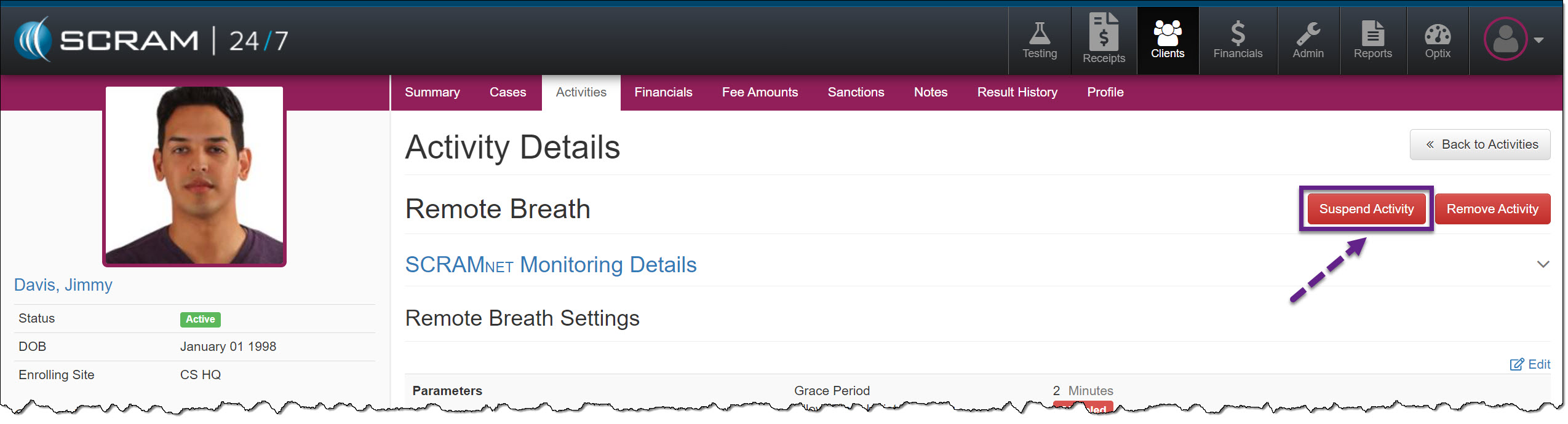
Remote Breath Activity Details page – click to enlarge
- On the Remove Equipment page, select the first option to place the device in an Awaiting Return status.
Remove Equipment page – click to enlarge
- Collect any fees and select the Save & Suspend Activity button.
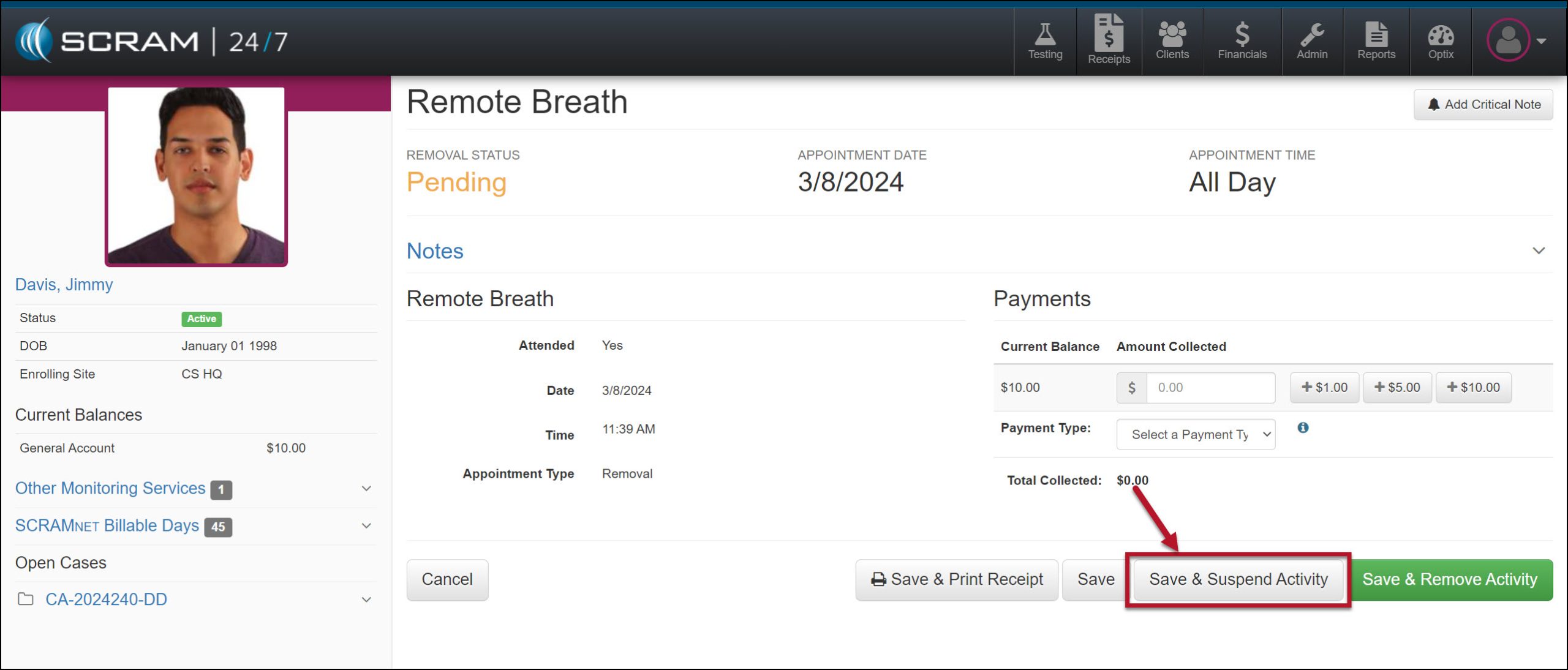
Record Remote Breath Appointment page – click to enlarge
- On the Suspend Activity page, select the Suspended button.
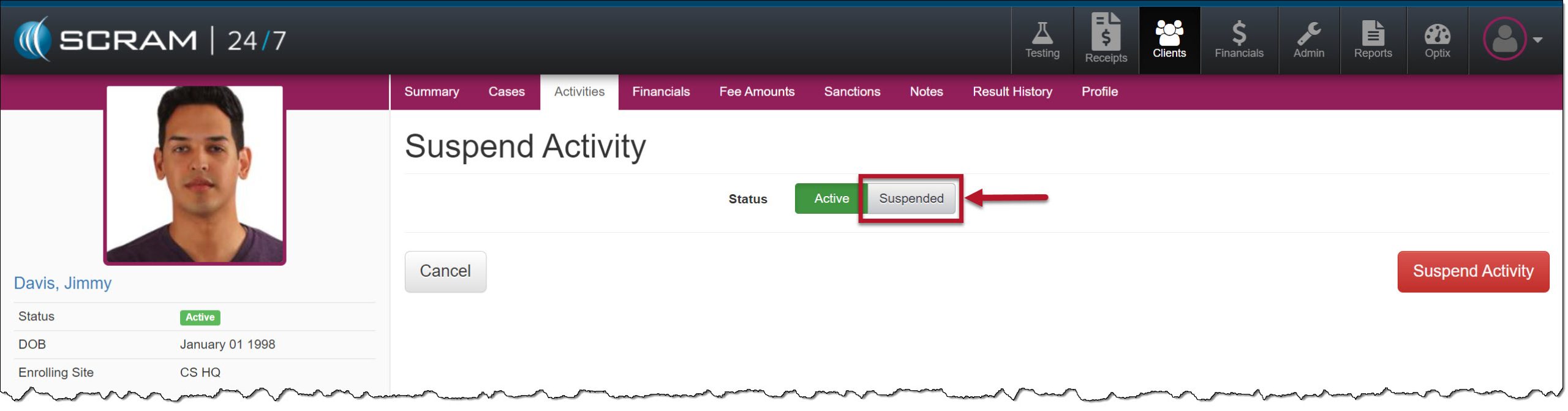
Suspend Activity page – click to enlarge
- Select the appropriate suspension details and verify the Activity Resume On date.
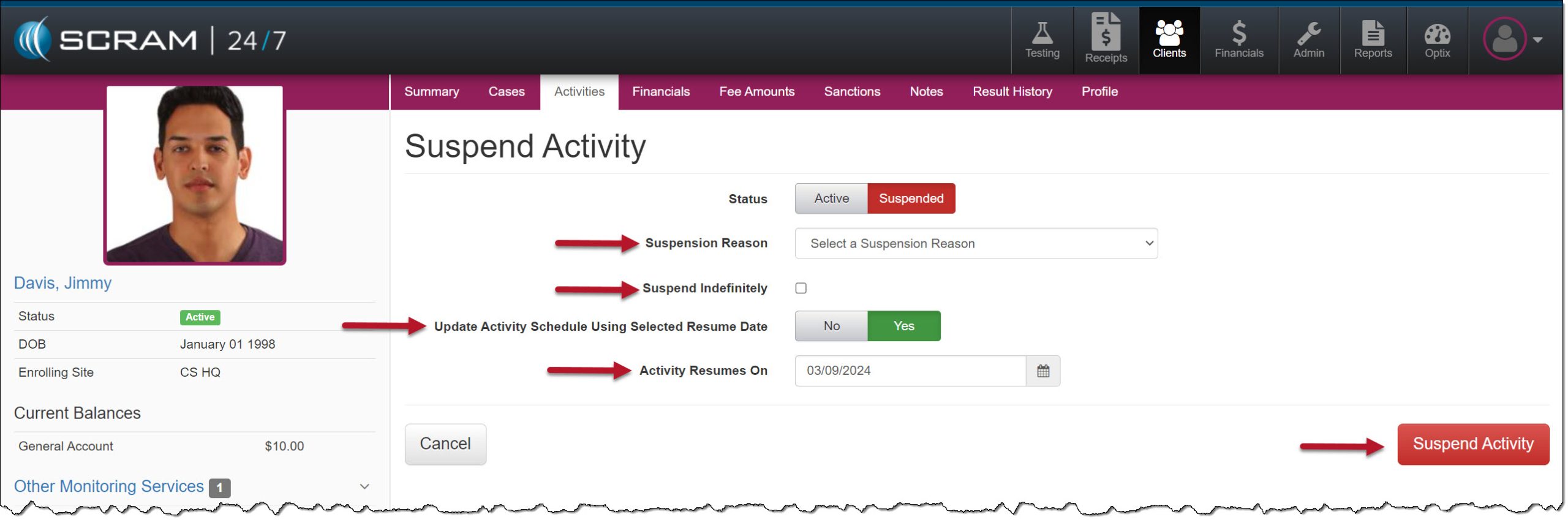
Suspend Activity, Suspended selected – click to enlarge
- Select the Suspend Activity button.
The activity will now be displayed as suspended on the Activities page.
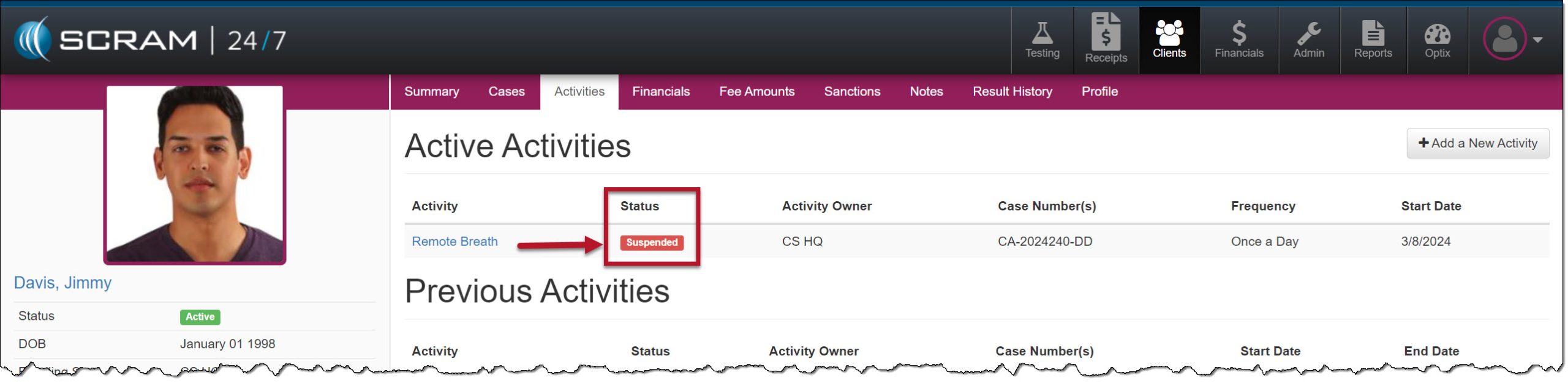
Active Activities page, Remote Breath Activity Suspended – click to enlarge
The equipment is now in an “Awaiting Return” status on the Summary page. When the device is recovered, navigate to the client’s Equipment page in SCRAMNET and select the Move to Inventory hyperlink under the Options column to update the device status from “Awaiting Return” to “In Inventory.”
Client’s Summary page – Equipment Awaiting Return Status – click to enlarge
Client’s SCRAMNET Equipment page, Move to Inventory Hyperlink – click to enlarge
On the resume on a date, a new Install Remote Breath Equipment appointment will be displayed on the client’s Summary page.
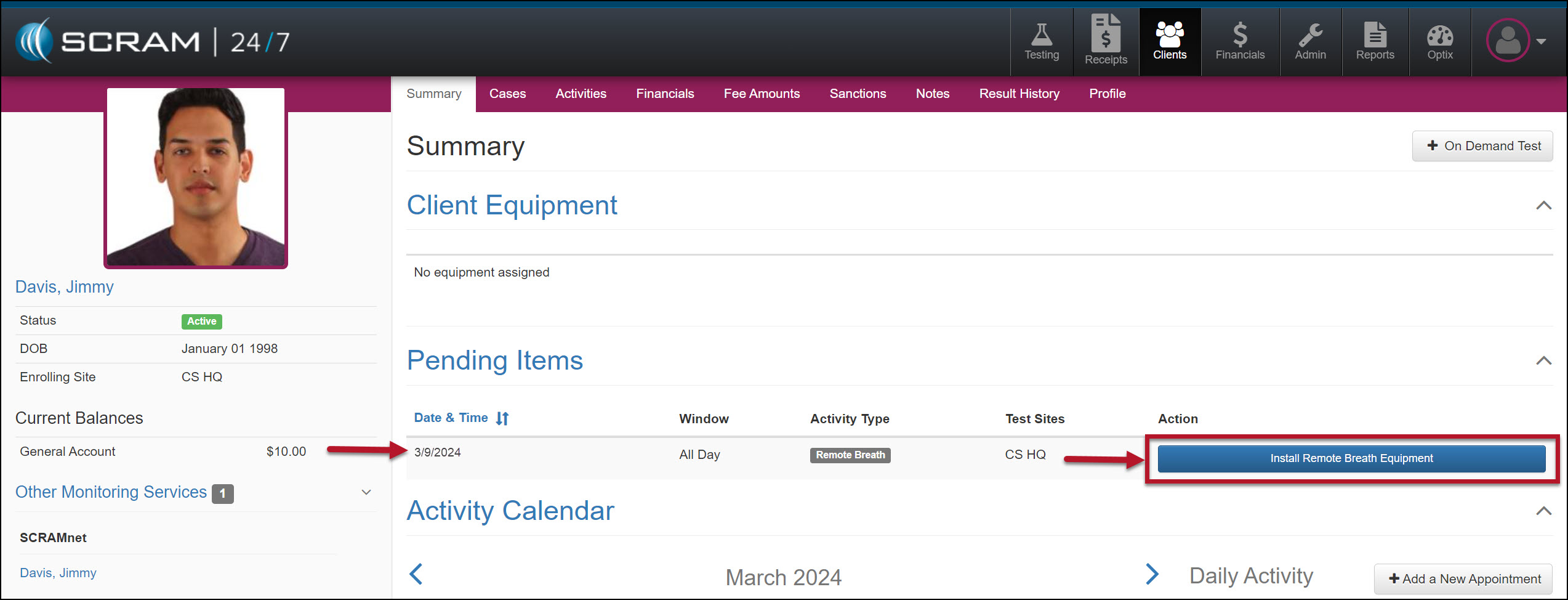
Client’s Summary page, pending Items Section – click to enlarge