The Video Conferencing services allow agents to place video calls directly to clients’ TouchPoint applications on their smartphones. Once an agent initiates a video call, they may record the session. A history of all video calls, the call results, as well as recordings and transcripts are automatically stored under the client’s Communications tab for future reference.
To schedule a recurring video conference during the Add Activity process:
- Select the Activities tab, open the Add an EM Activity menu, and then select the Add TouchPoint Activity option.
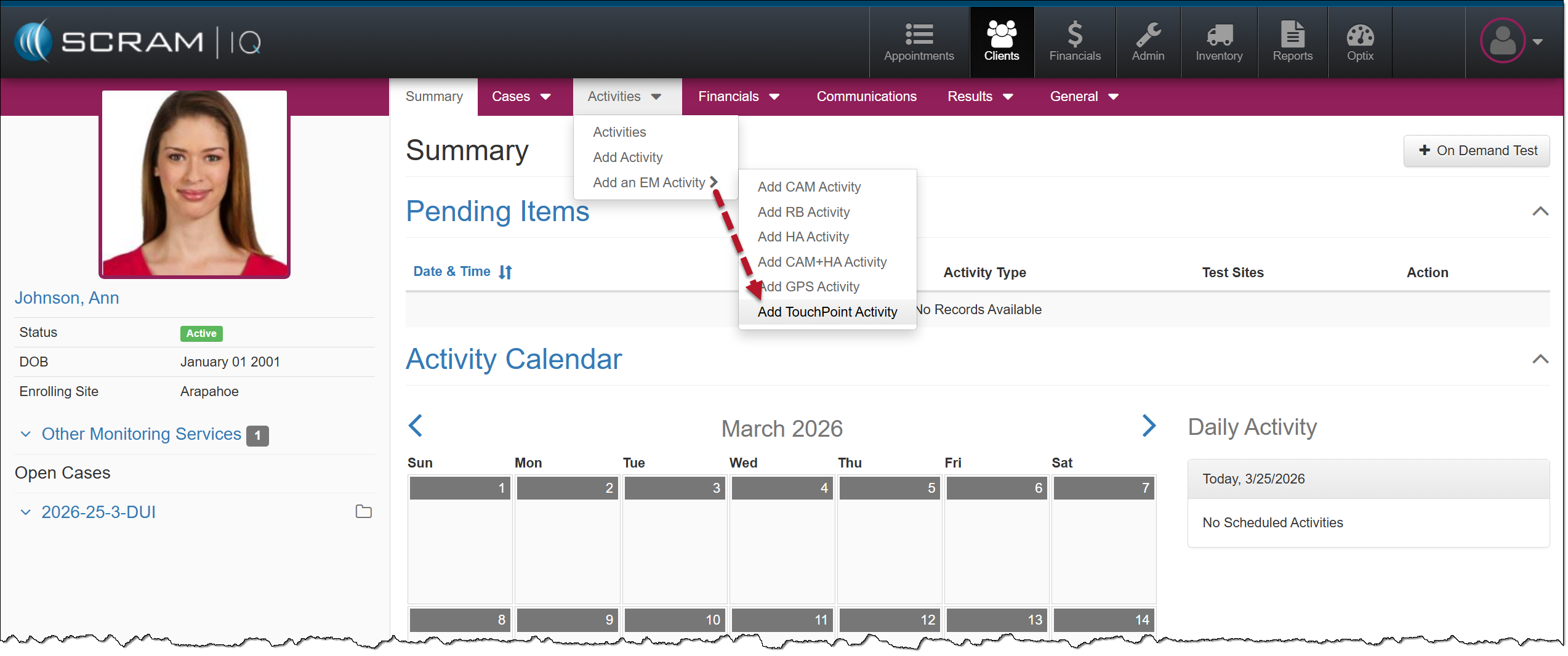
TouchPoint Activity Option – click to enlarge
- Enter the client’s Username, email address, the TouchPoint Caseload, and select the specific TouchPoint Services the client will be utilizing. Include the Video Conferencing service.
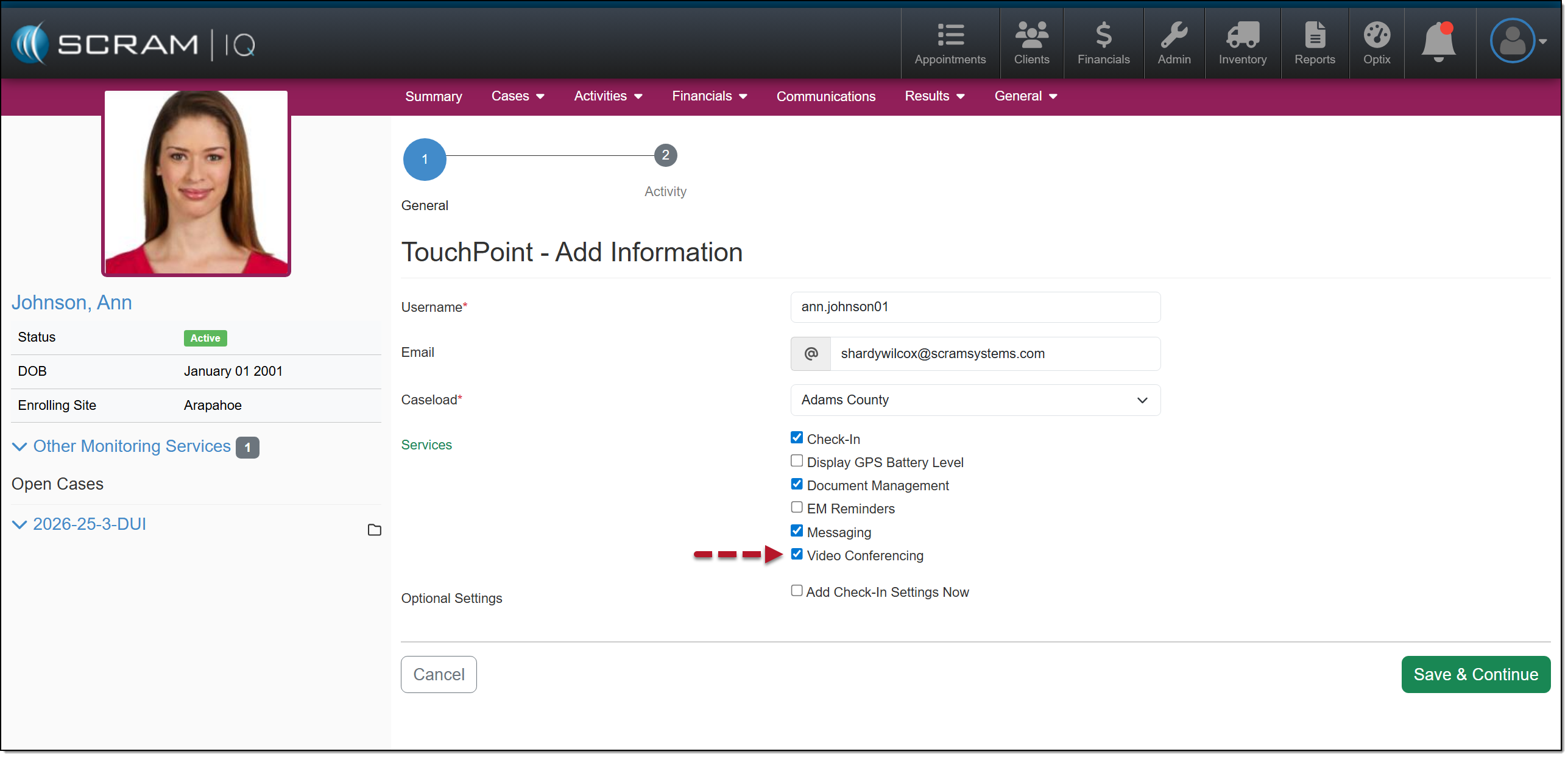
TouchPoint – Add Information Video Conferencing Option – click to enlarge
- Once the required fields and services are entered, select the Save & Continue button.
- On the TouchPoint – Activity Setup page, you will enter the details for monitoring. This includes the:
- Start Date,
- Activity Owner, and
- The Appointment Type of Video Call Appointments.
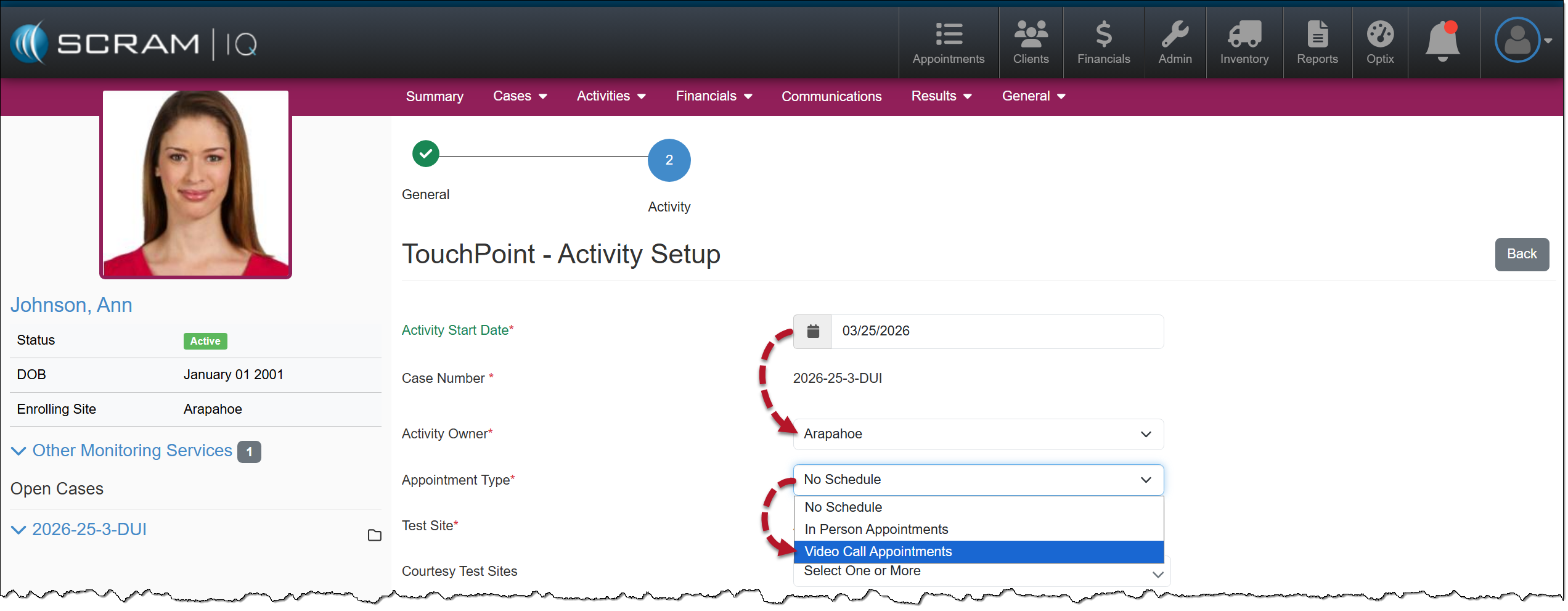
TouchPoint Activity Setup- Appointment Type – click to enlarge
- Open the User dropdown menu and select a user from the list.
- Next, open the Frequency dropdown menu and select either the option of Set Interval or Set Schedule.
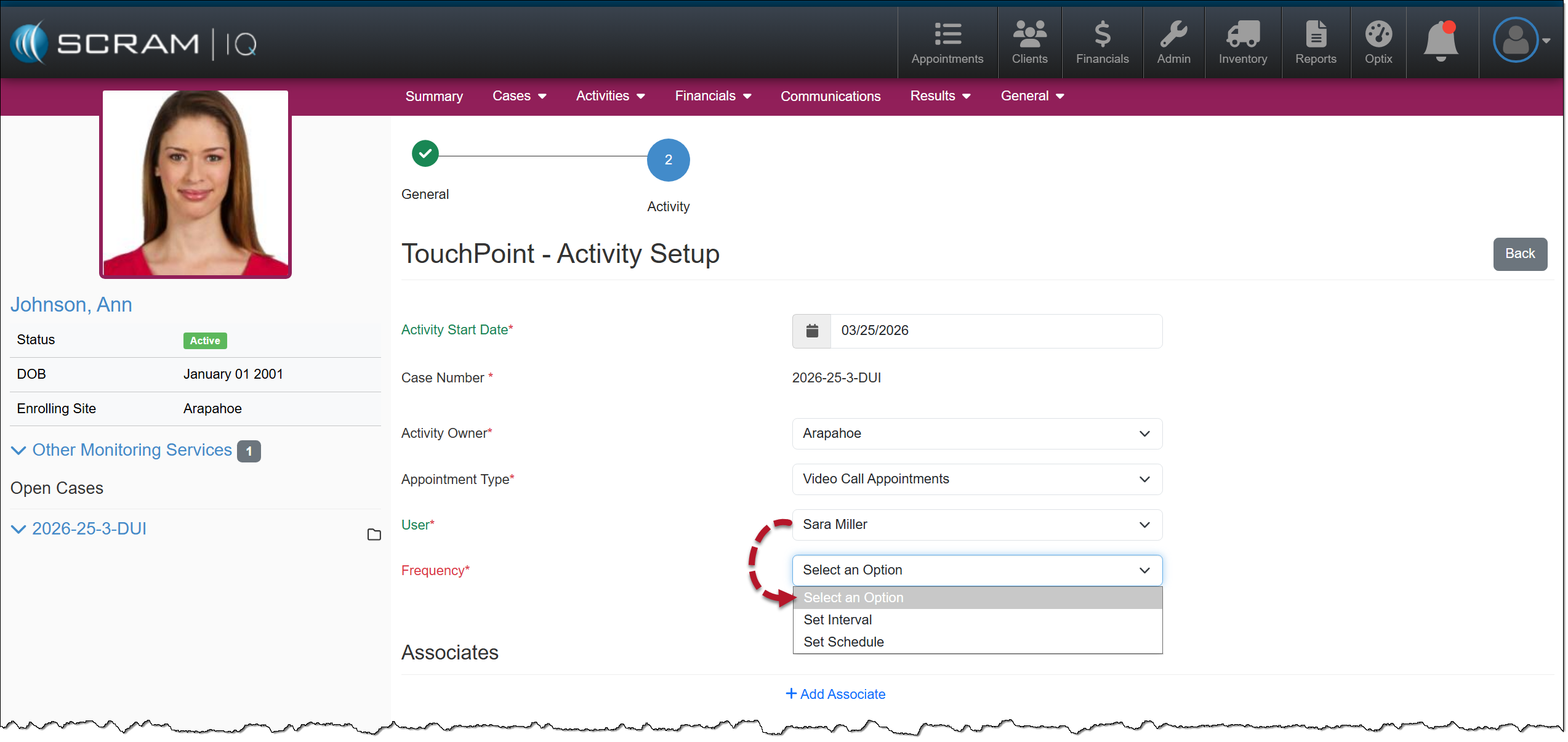
Video Conference Appointment User and Frequency Selection – click to enlarge
- Based on your selected frequency, enter the details for the schedule.
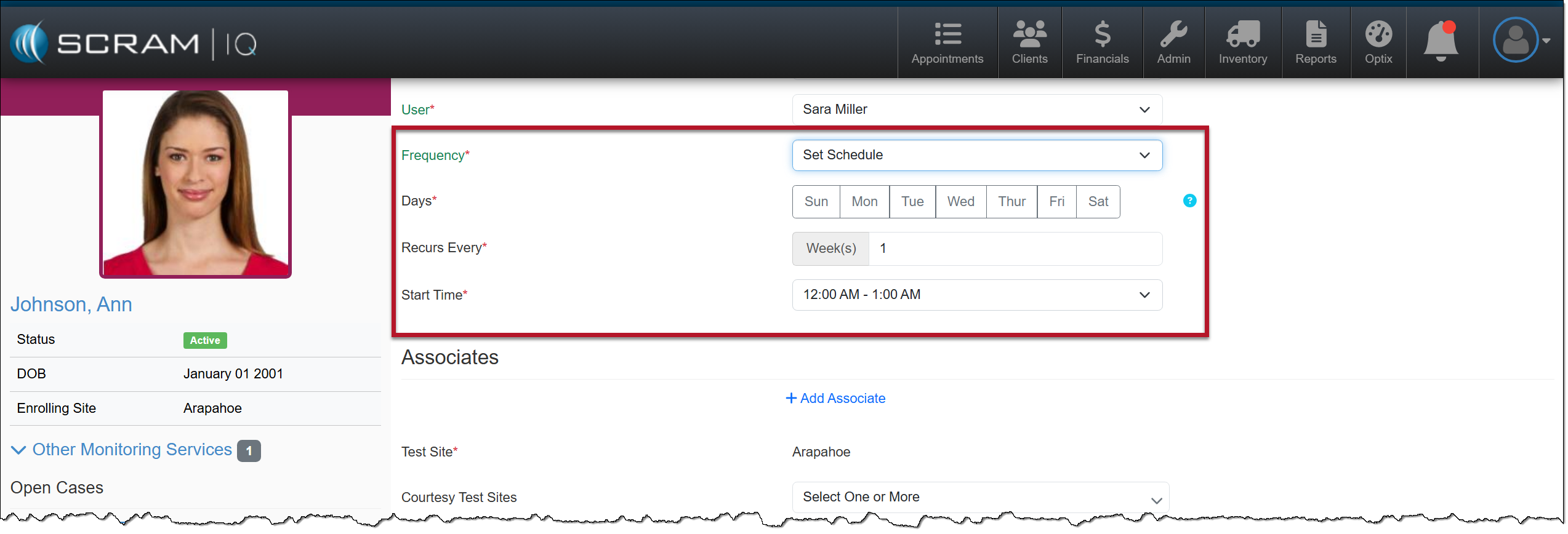
Example: Set Schedule Option – click to enlarge
- In addition to the client, you may also include up to 10 associates who may be included in the scheduled video call. An associate is a family member, an officer, a supervising agent, or other interested individuals, such as a lawyer or presiding judge.
- Once saved, each associate added is sent an email informing them that they have been included in the client’s video call and the details of the schedule.
- On the day of the scheduled video conference, they will be sent an email with the details of the call and a link to access the video call.
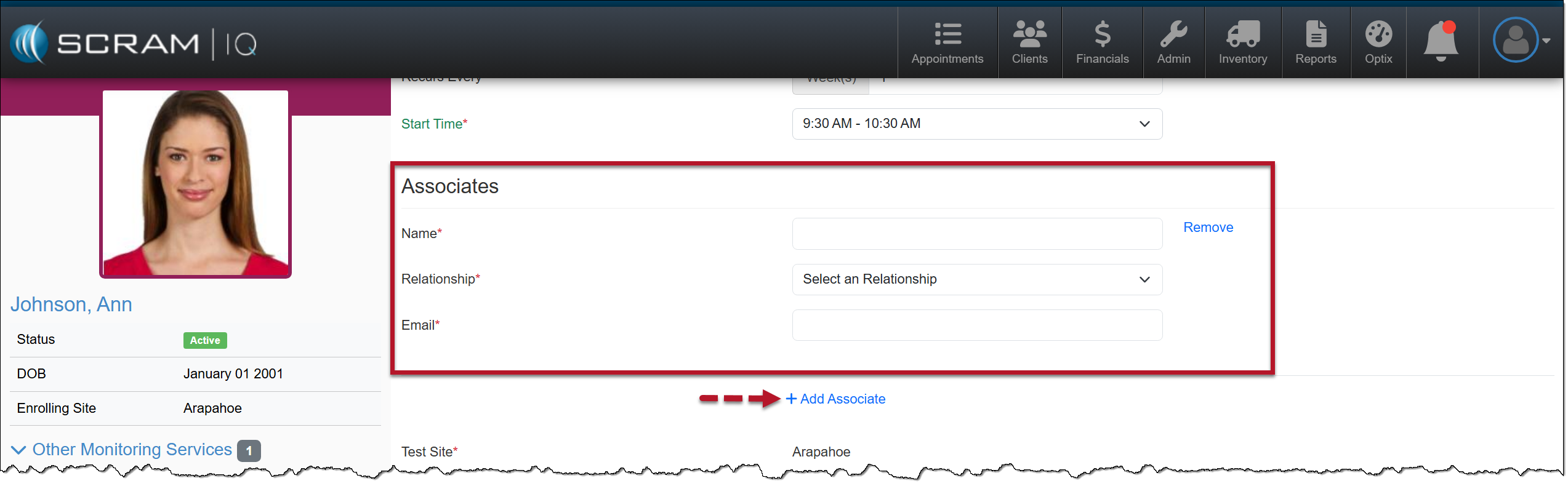
Adding Associates – click to enlarge
- To add another associate, select the +Add Associate hyperlink.
- Once all details and associates are added, select the Save & Finish button.
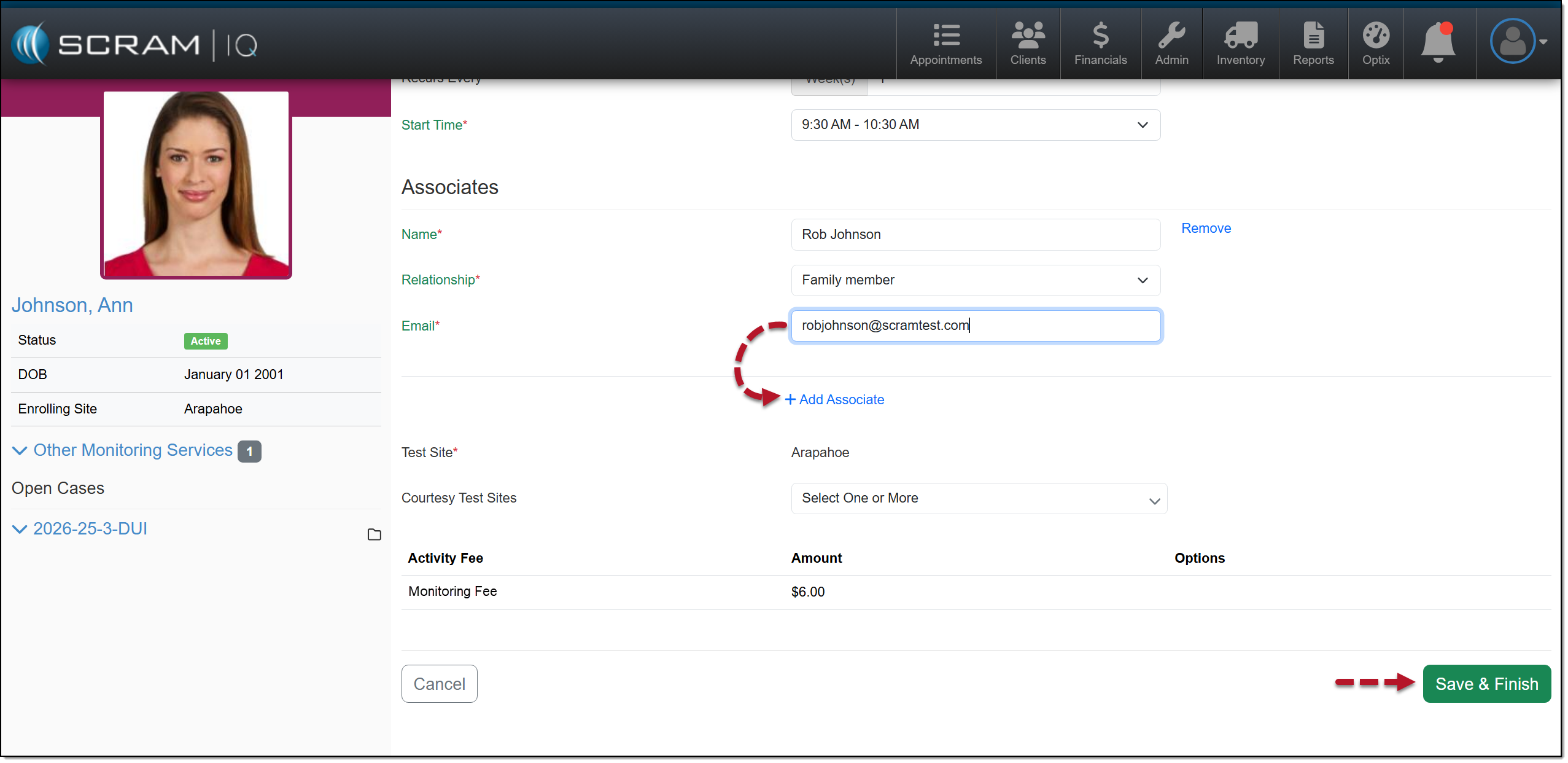
+Add Associates Hyperlink – click to enlarge
The client’s Summary page will reflect the TouchPoint video call appointments:
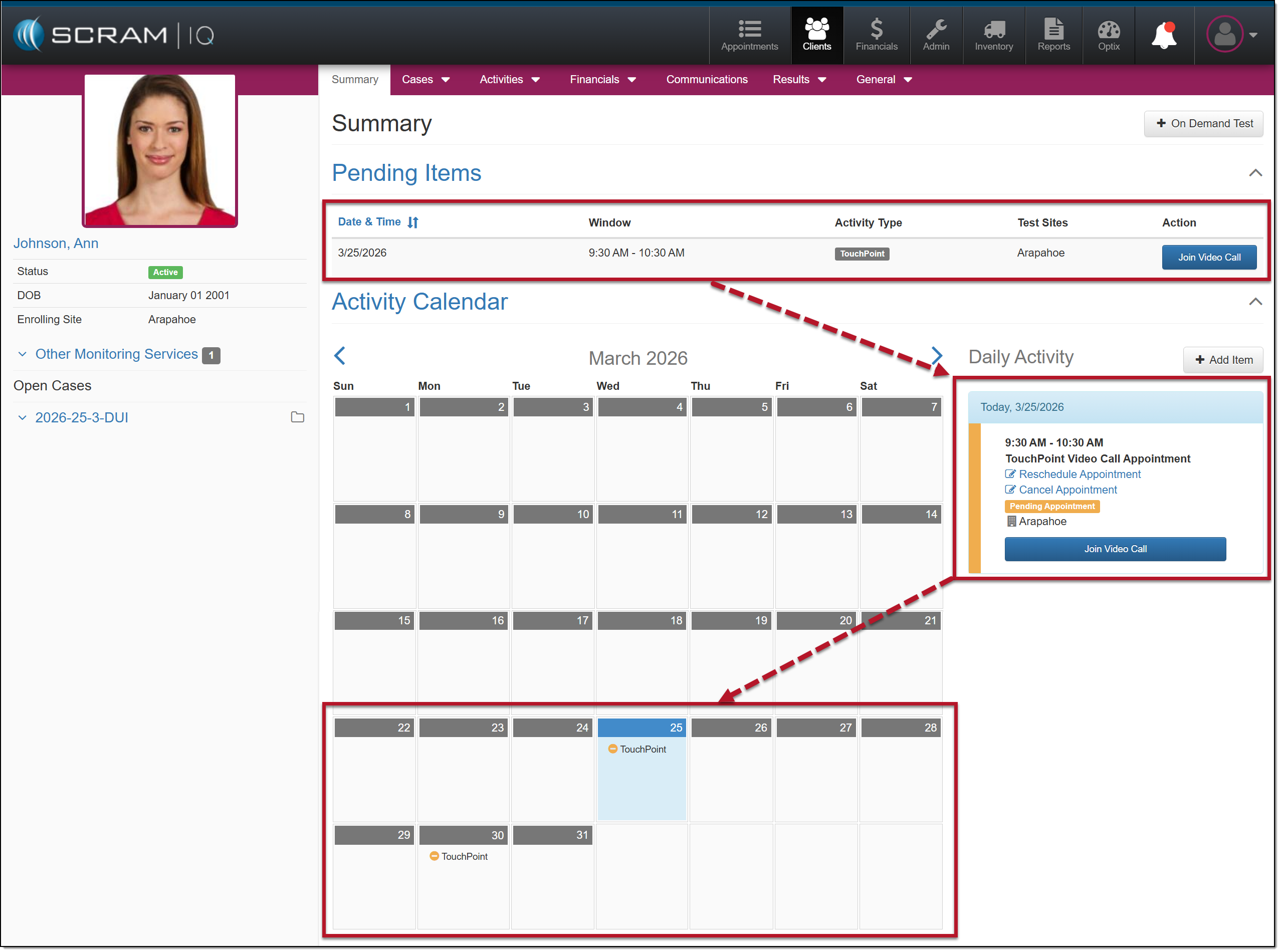
Client Summary Page with Video Conference Appointments – click to enlarge
The client’s TouchPoint Mobile application, Events tab, and calendar will reflect the appointments as well:
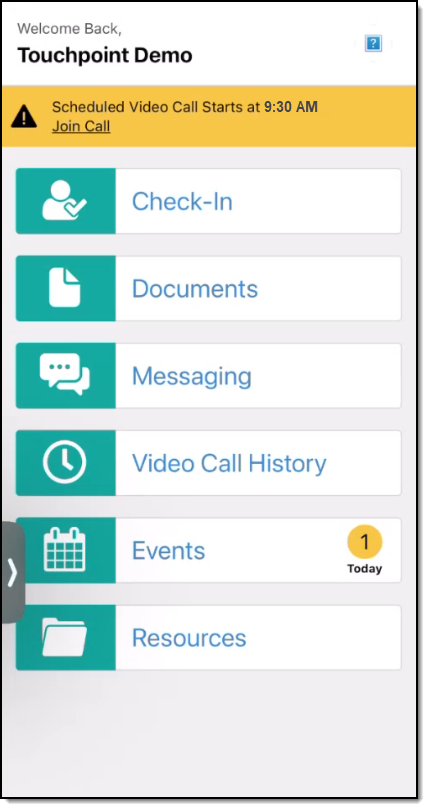
Client’s TouchPoint Mobile Application Home Screen – click to enlarge
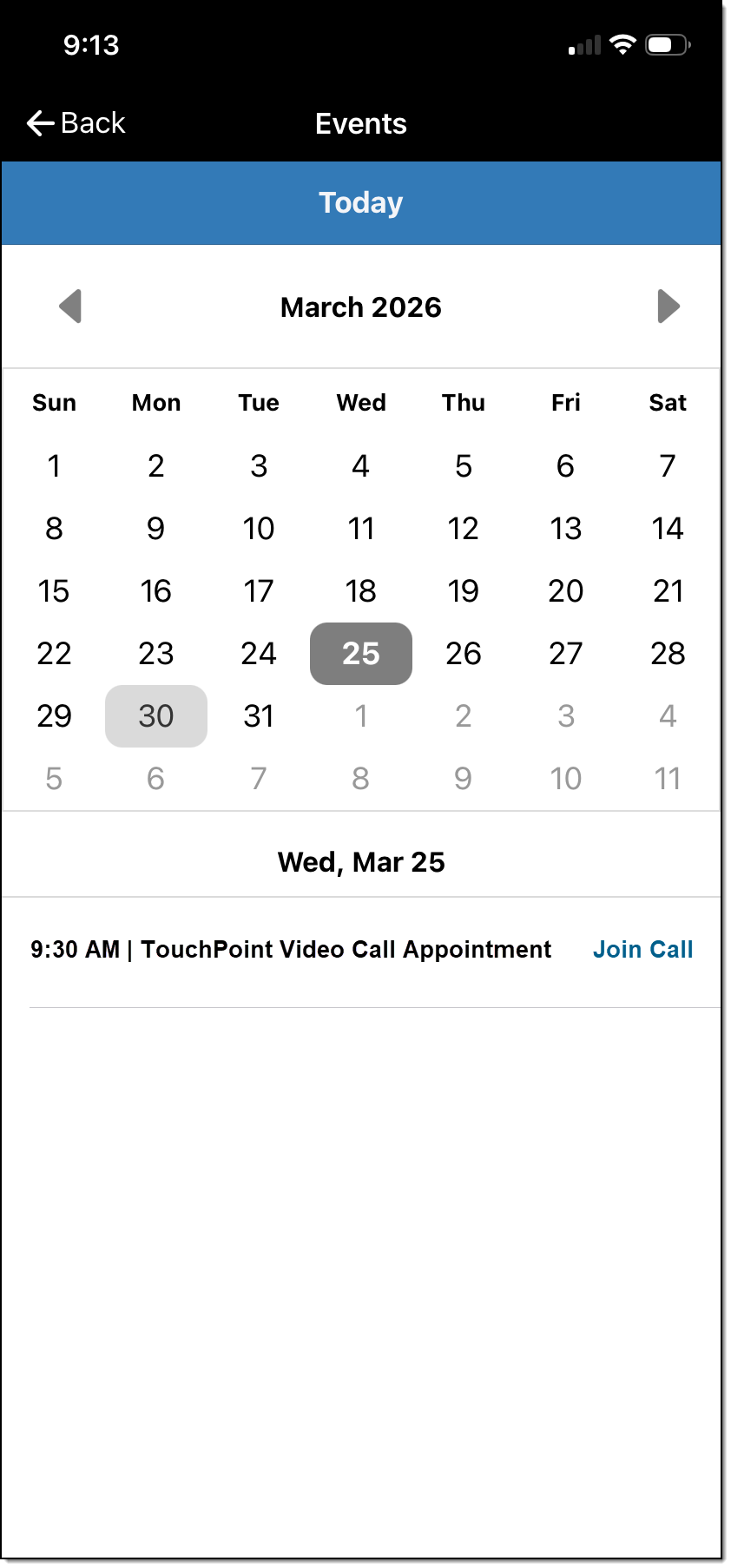
Client’s TouchPoint Mobile Application Events Screen – click to enlarge
Initiate a Scheduled Video Call
15 minutes before a scheduled video call, you may access the video call platform by:
User
On the client’s Summary page:
- Select the Join Call button in the Pending Items section or the Daily Activity stream.
Client Summary Page with Video Conference Appointments – click to enlarge
- You may be asked to allow access to your camera and microphone. Select the appropriate options.
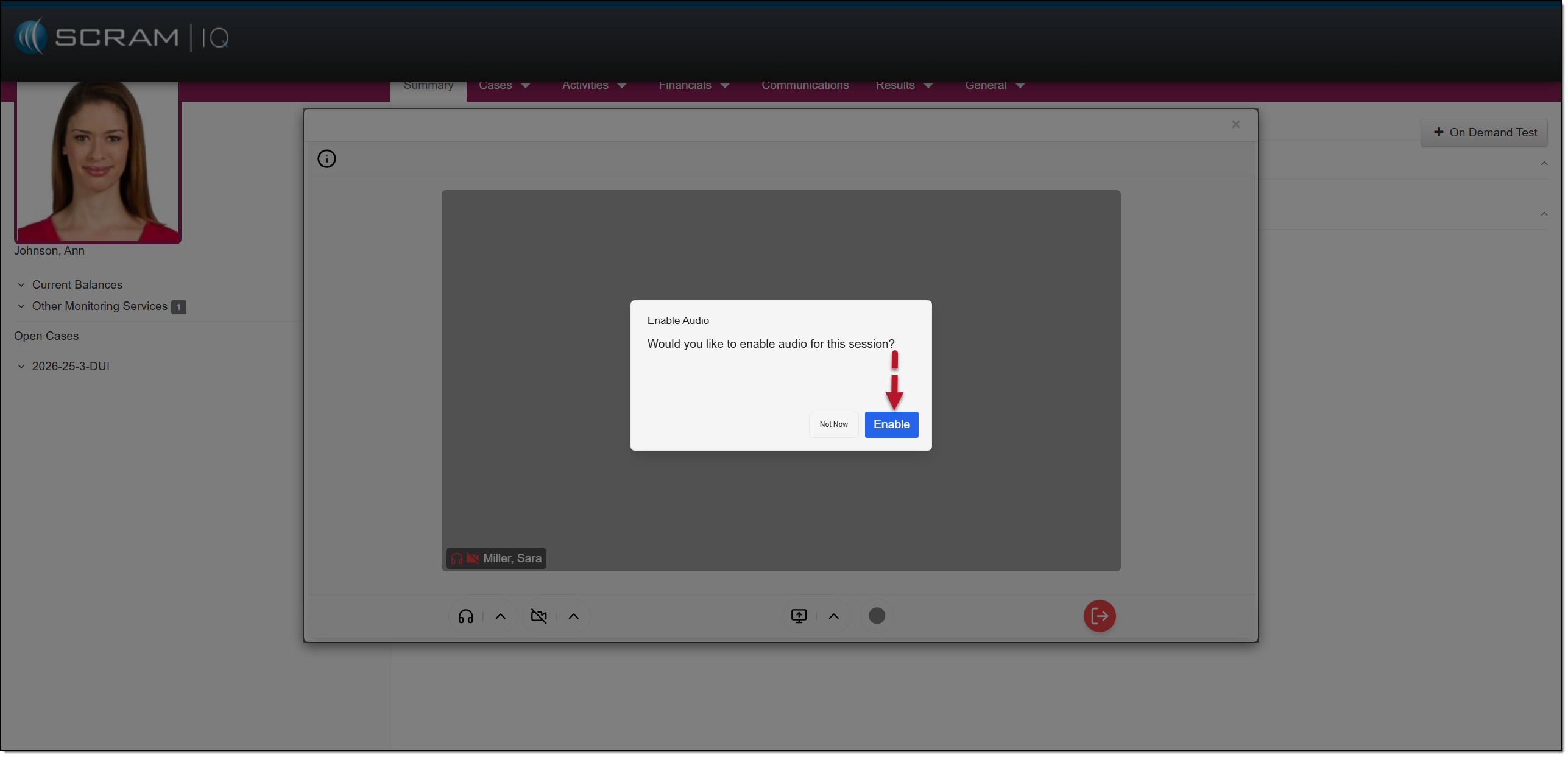
Video Conference Audio and Video Options – click to enlarge
Once connected, you will see all active participants on the video call.
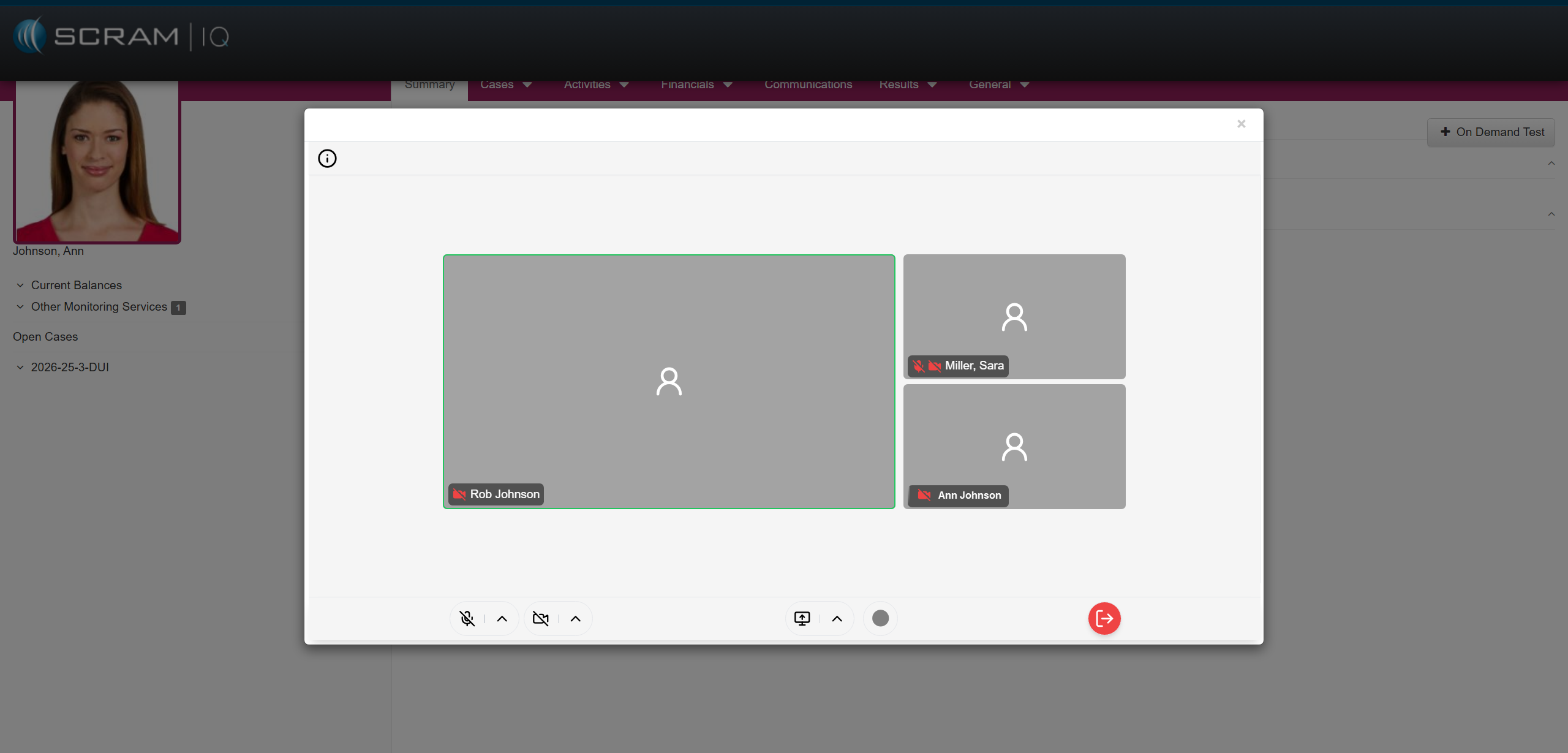
Video Conference Active – click to enlarge
Client
Within the client TouchPoint Mobile application:
- They may access the video call by selecting the Join Call hyperlink in the notification banner on the Home screen or from the Events screen.
Client’s TouchPoint Mobile Application Home Screen – click to enlarge
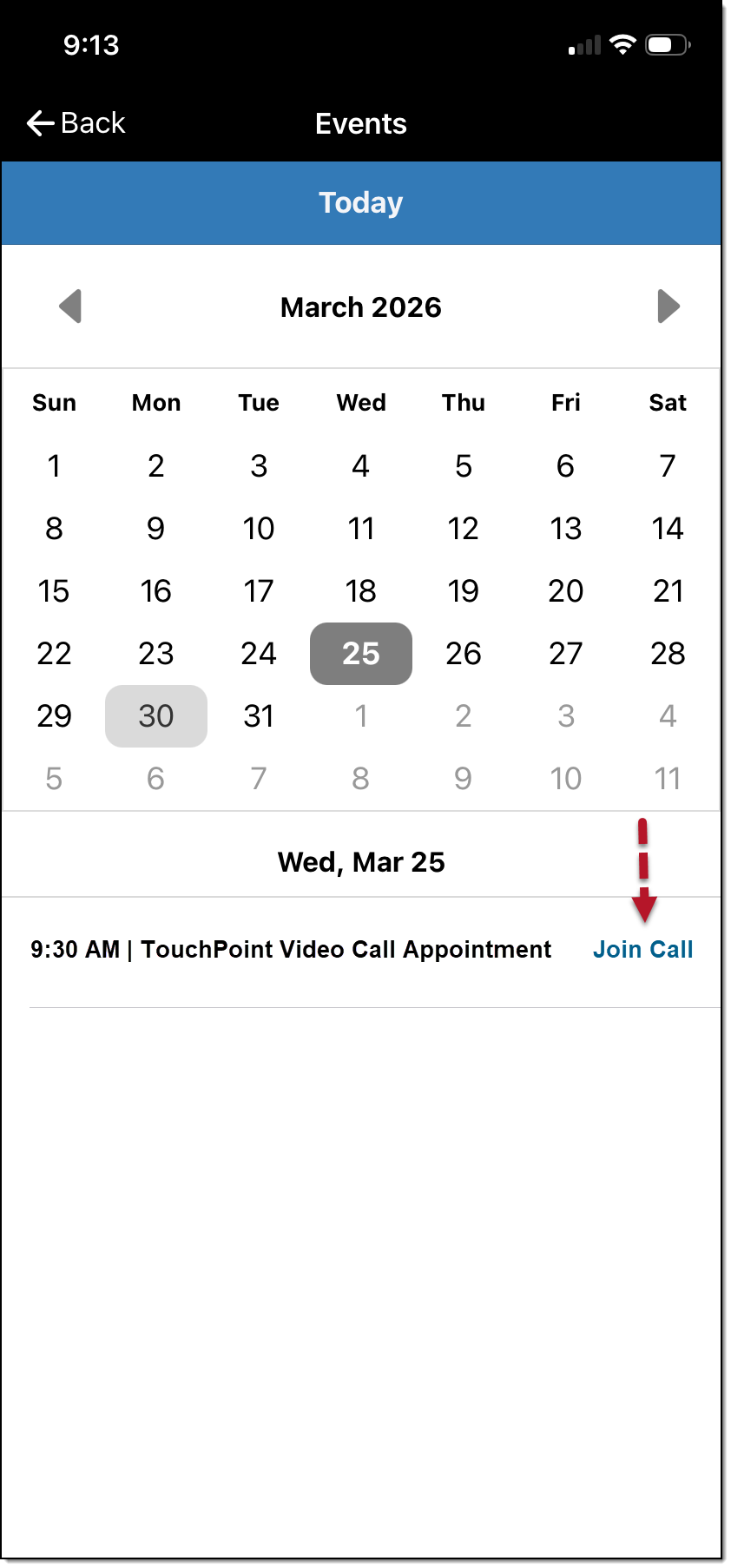
Client’s TouchPoint Mobile Application Events Screen Join Call Hyperlink – click to enlarge
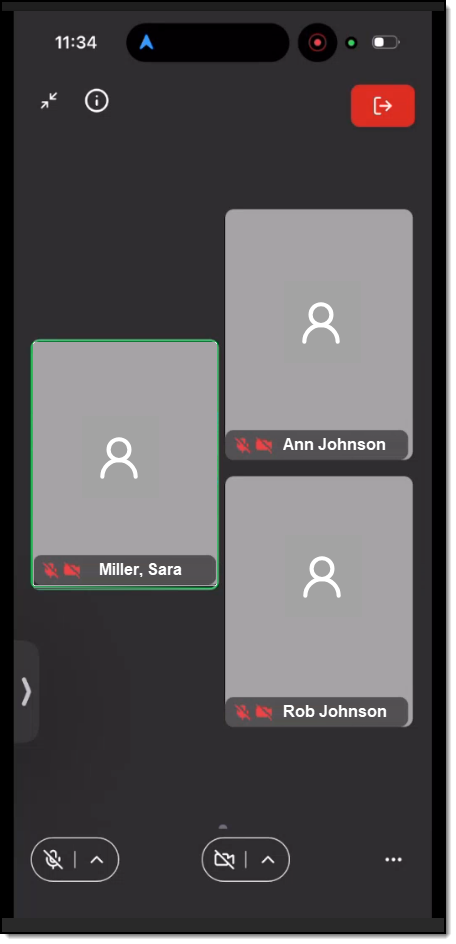
Client’s TouchPoint Mobile App Video Conference Active – click to enlarge
Once connected, they will see all active participants on the video call.
Associate
The associate should access their email and locate the video call appointment email.
- Within the email, select the Click here hyperlink.
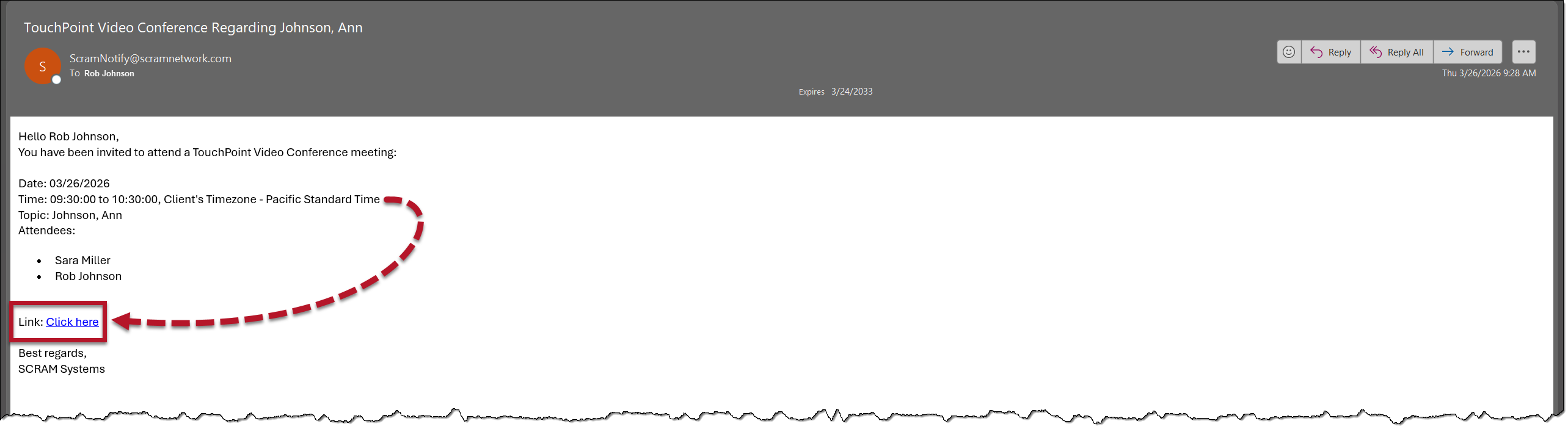
Associate’s Email with Video Conference Hyperlink – click to enlarge
- On the secure SCRAM IQ webpage, select the Join Video Call button.
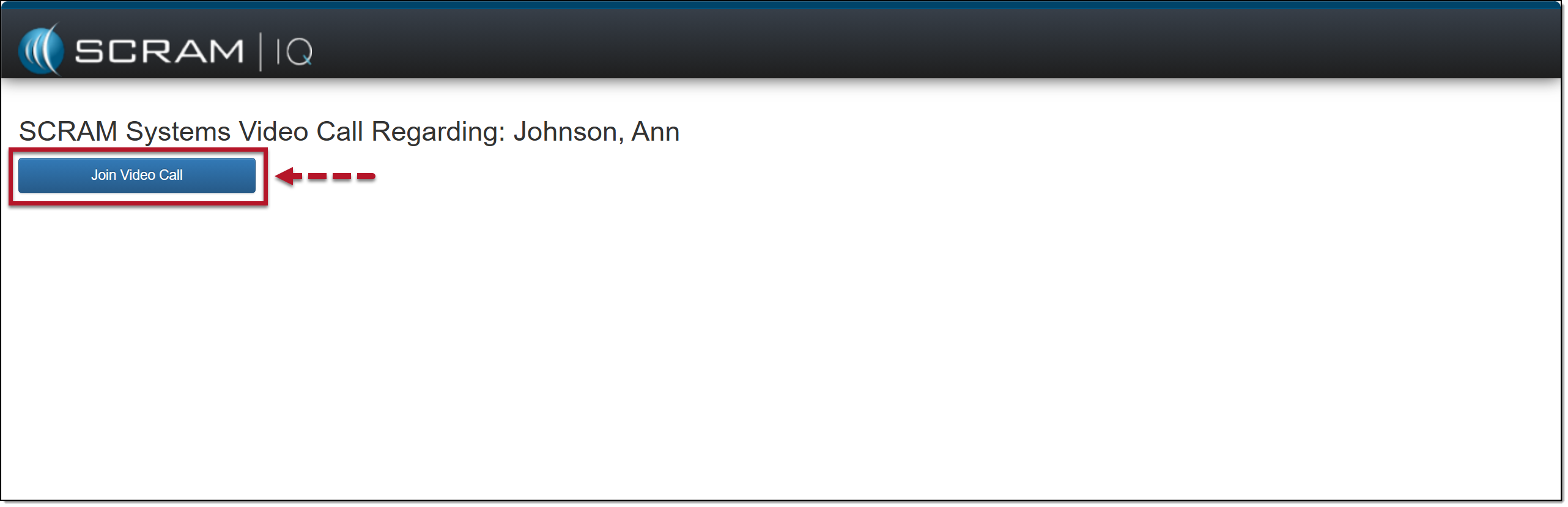
SCRAM IQ Secure Join Video Call page – click to enlarge
Once connected, they will see all active participants on the video call.
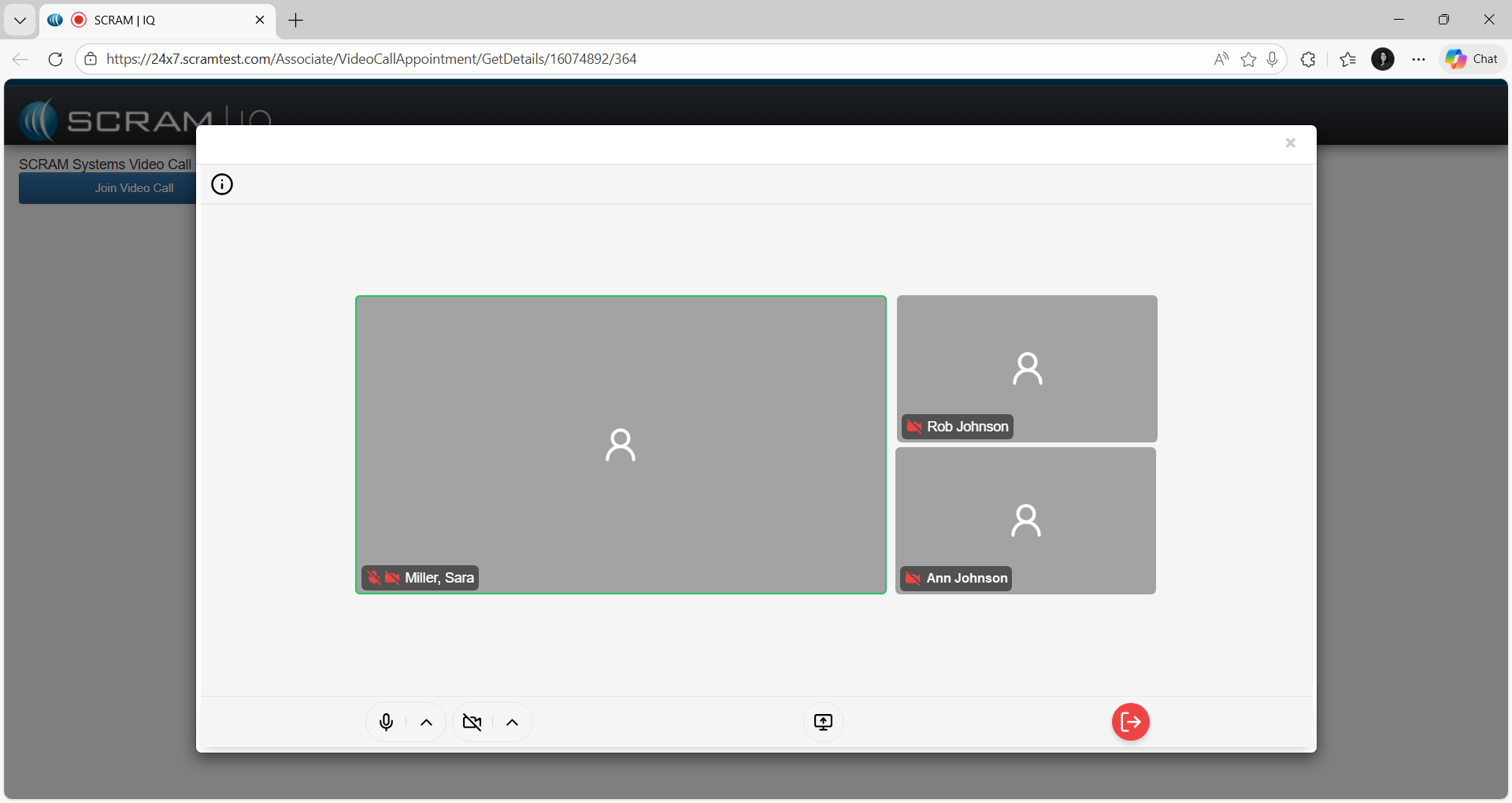
SCRAM IQ Video Conference Active – click to enlarge
 |
Video Conference participants can join up to 15 minutes before the scheduled start time. If trying to join before the 15-minute window, an information banner will display informing them that it is too early to start the call. |
Record a Video Conference Appointment
Once the video conference ends, you may record the client’s attendance and record a client payment, if applicable.
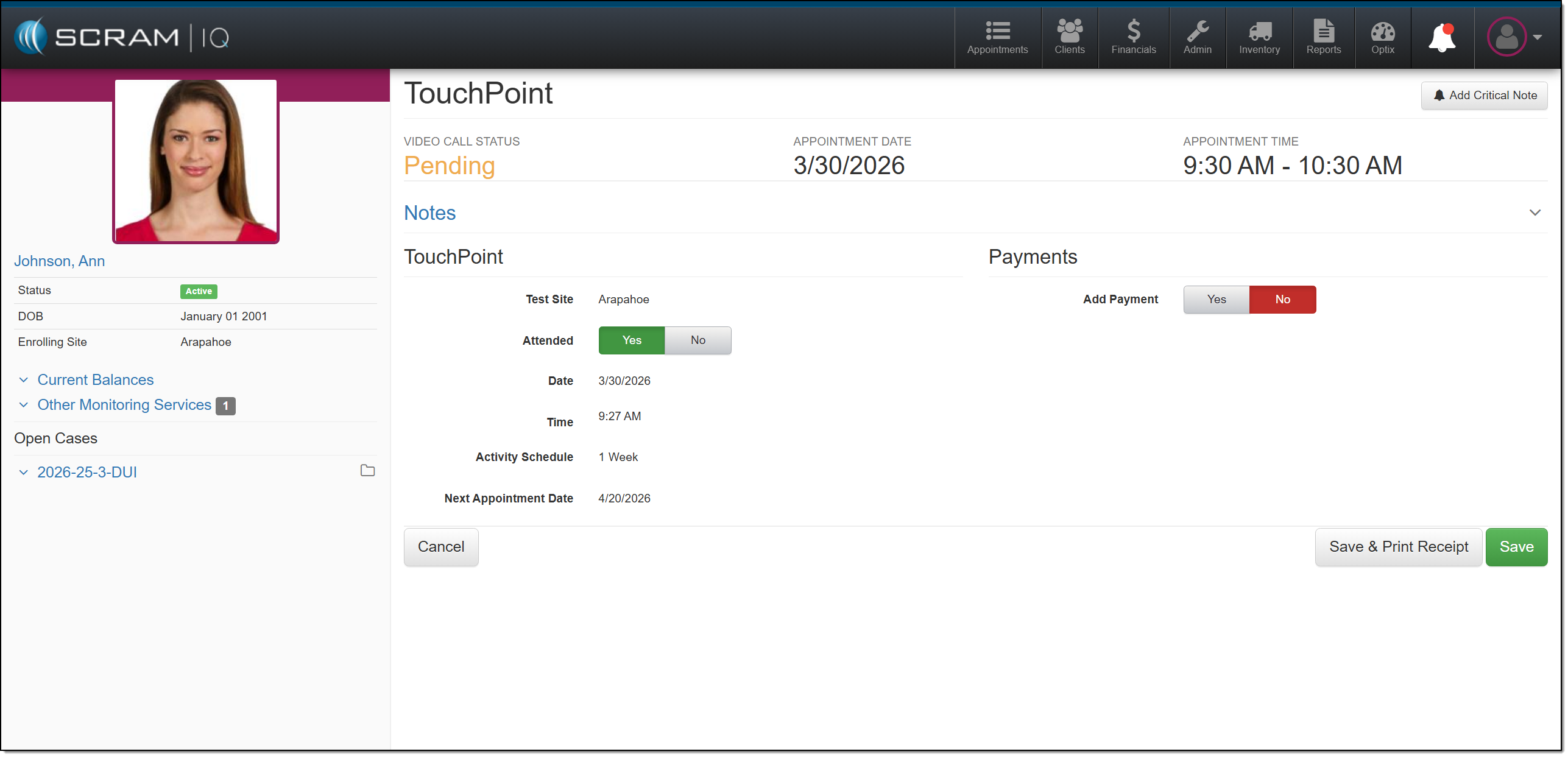
Record Video Conference Appointment – click to enlarge