Whether you receive the client UA results or not, you will need to record the results in the system.
On the client’s Summary page:
- Select the Record UA Results button in the Pending Items section or the Daily Activity stream.
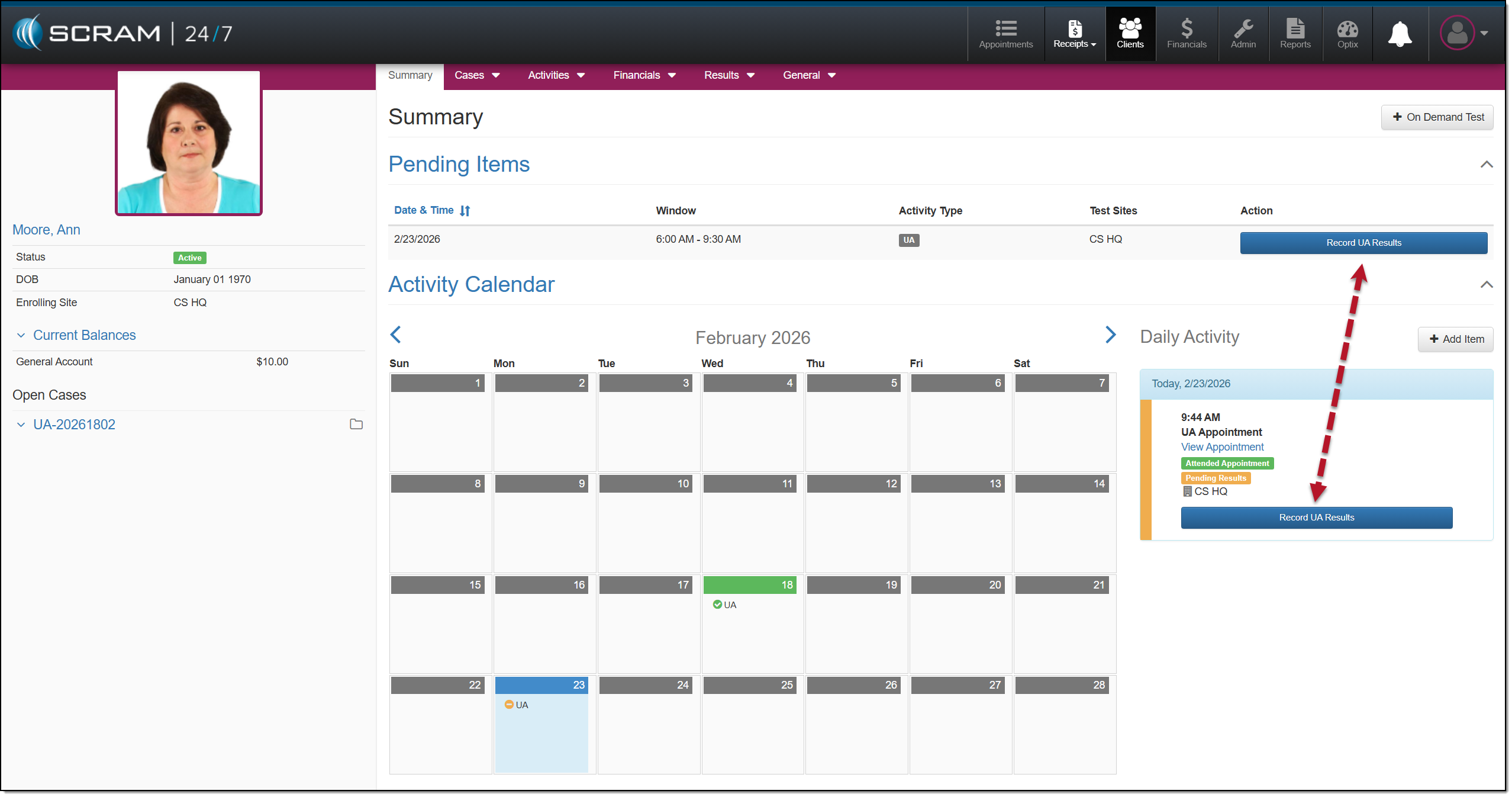
Client’s Summary Page and Record UA Results Buttons – click to enlarge
- On the UA Results page, you may add any notes for the results by expanding the Notes section.
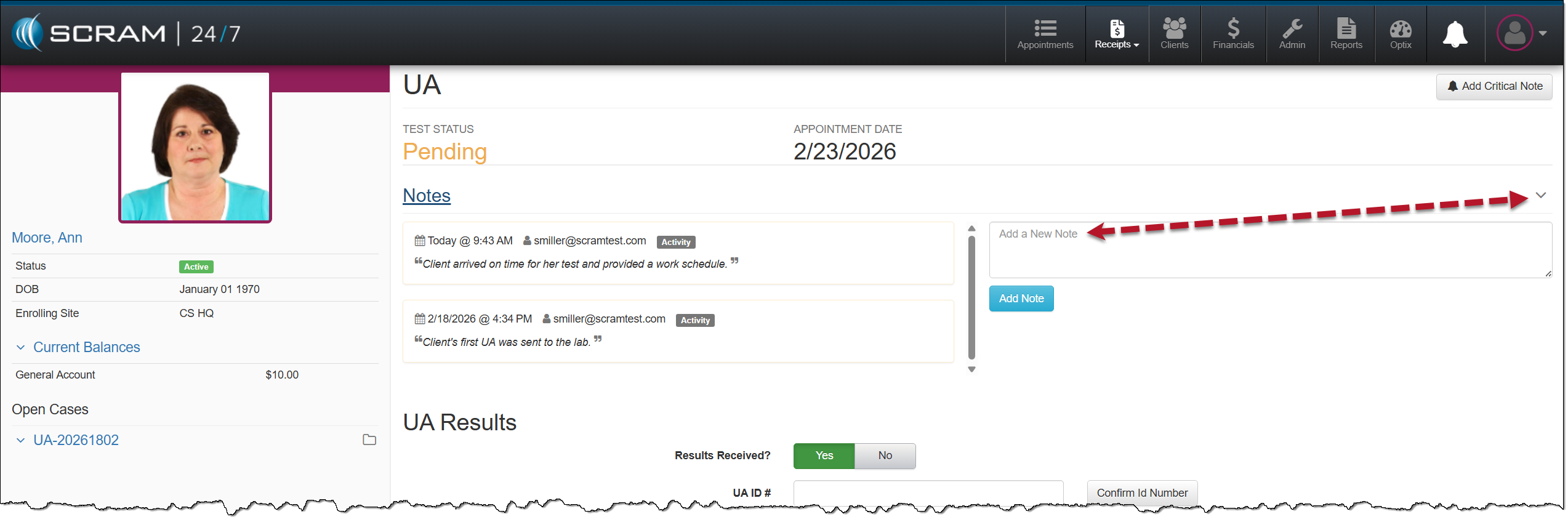
Record UA Results, Note Section – click to enlarge
- Start by selecting whether the results were received.
- If the results were not received, select the option of No and then save the results.
- Enter the UA ID number and select the Confirm ID Number This UA ID# is a security measure to ensure that the UA results are associated with the correct client.
- If the UA ID# is not a match for the client, an error message will be displayed.
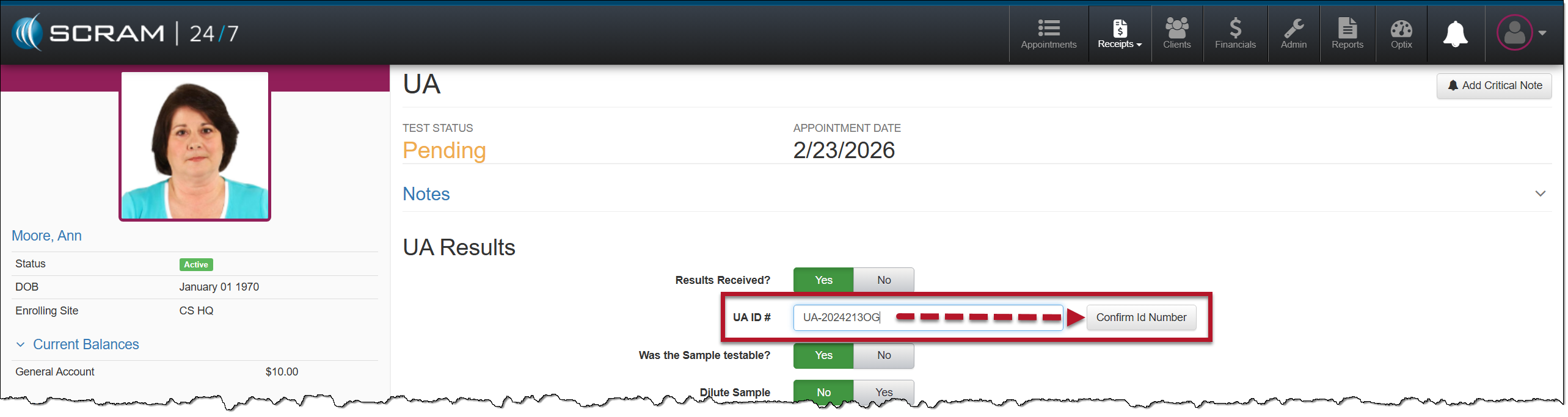
UA ID # and Confirm ID Number Section – click to enlarge
- Once the UA ID# has been confirmed, enter the UA test results. As you make selections, the options will update.
- Once entered, select the Save Results button.
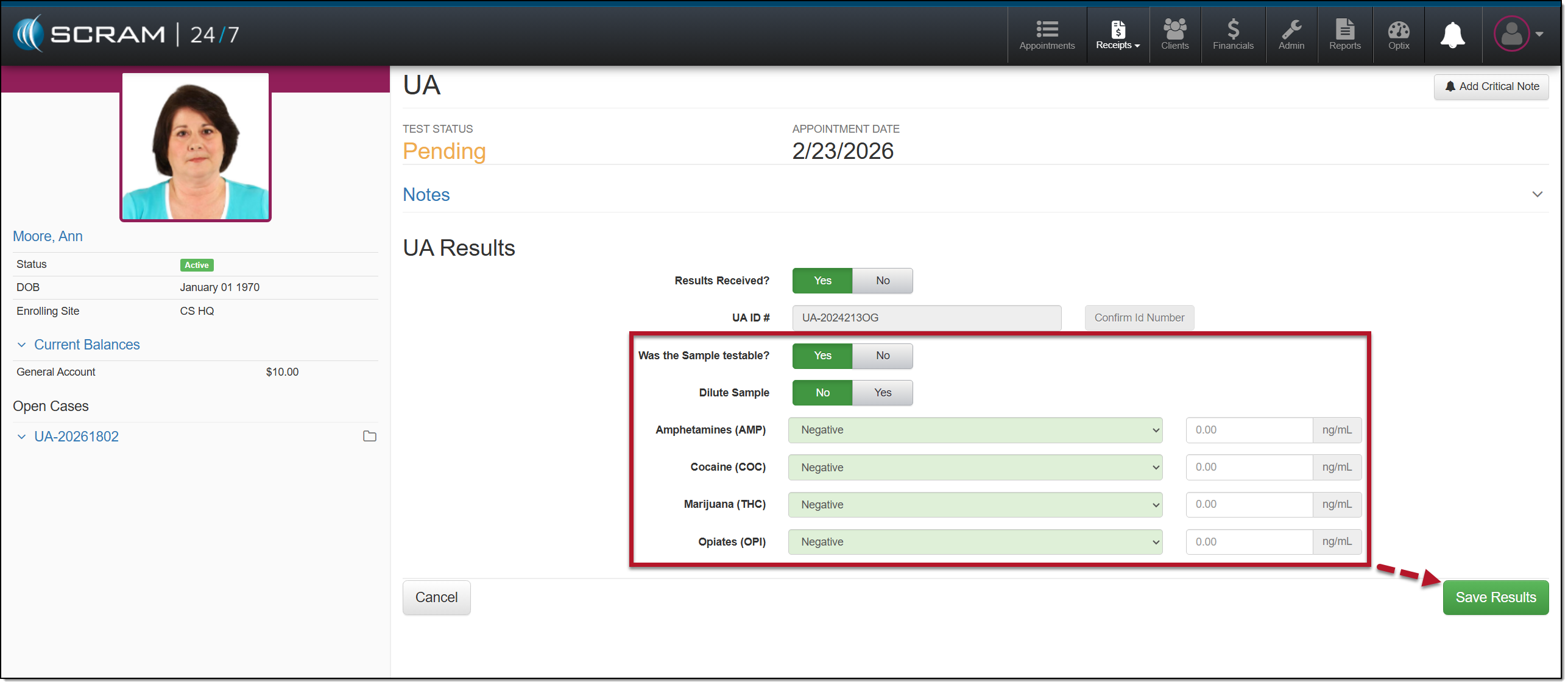
Record UA Results Details – click to enlarge
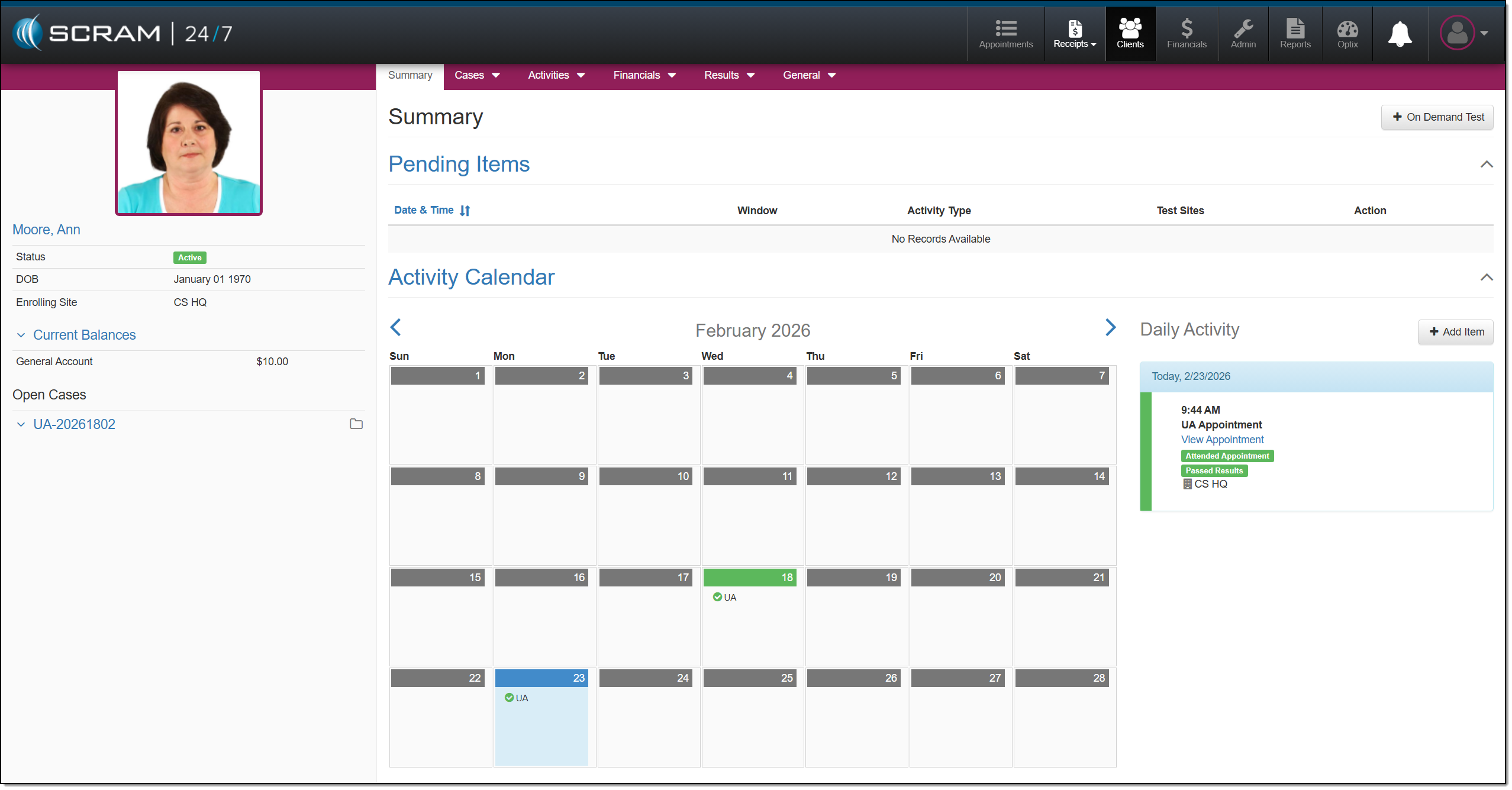
Client Summary Page – click to enlarge
You may view the client’s UA appointment and test results on the Result History page.
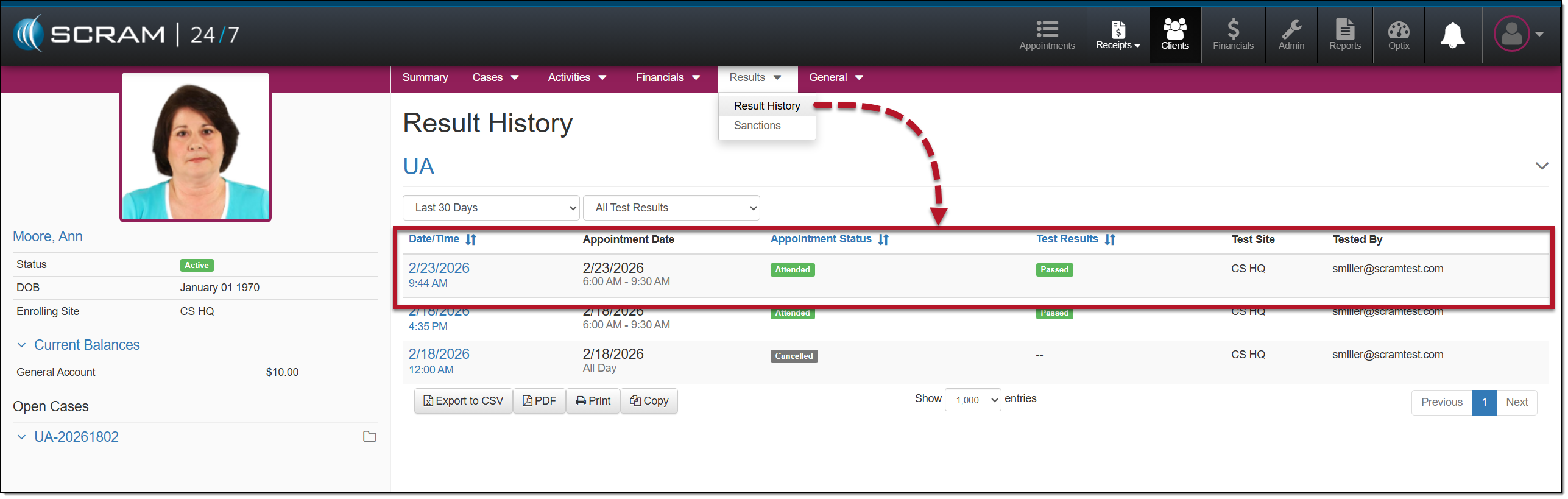
Results, Result History Page – click to enlarge