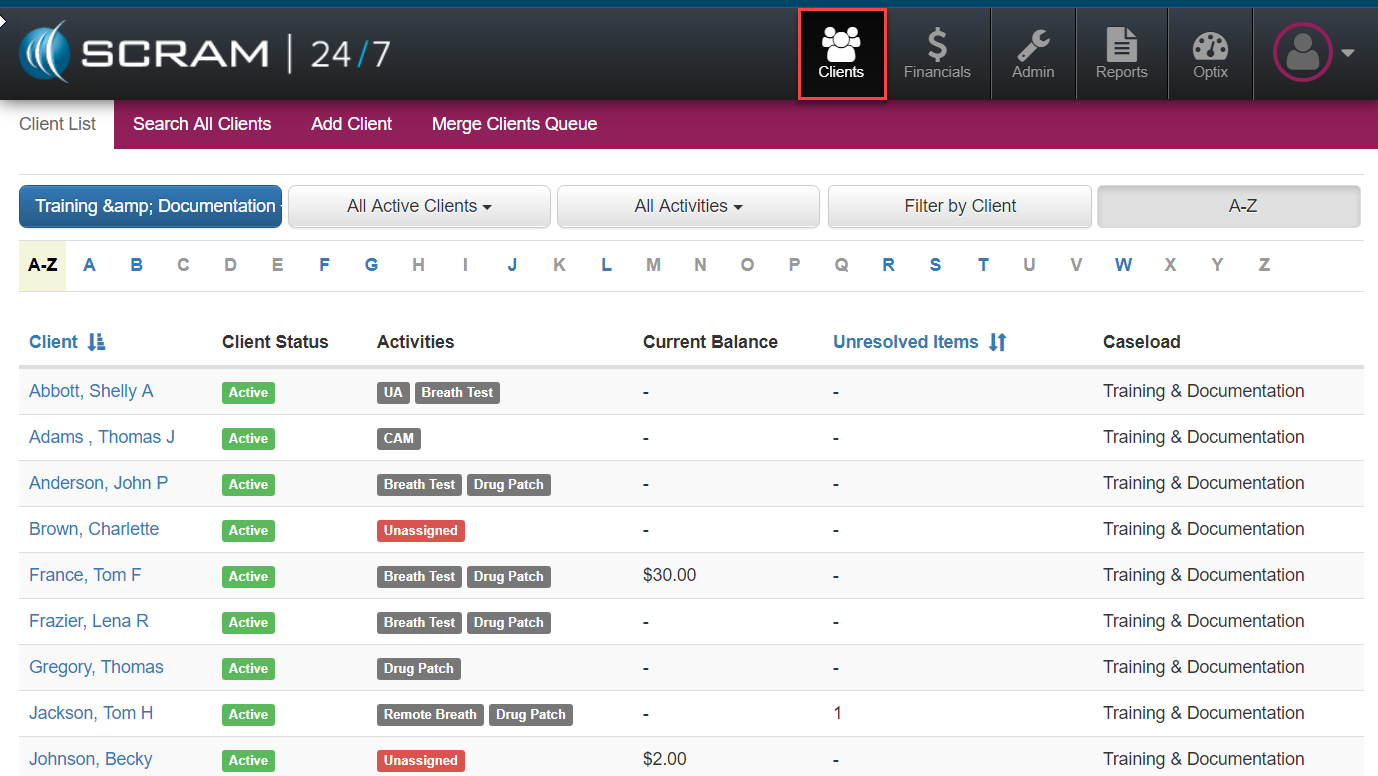
By selecting the black Client’s icon, officer’s can review the global listing of all the clients available on the program. From there the officer has any number of options to search or filter the caseload. Additionally, the system will display the client’s active status, any testing fees balances banked or owed, as well as the number of unresolved tests. Client names will appear on the agencies Client List when they are the Enrolling site, when the agency is the Activity Owner, the Case Owner and when the agency has been enabled as a Courtesy Test site. Once the Client is inactivated or the agency has been removed as a Courtesy Test site, the Client’s name will be removed.
The Client’s tab is also where new clients can be added or checked for duplicate instances in the system.
To better understand the menuing, client’s view provides a tab based navigation structure that provides the following functions.

- Client List: Global List of Clients
- Search All Clients: Provides officers ability to quickly search customers by name, case or ID#
- Add Client: Begins new client profile set up process
- Merge Clients Queue: Designed to provided administrative users with the ability to merge duplicate client records into a single one.

Additional case wide filtering is available from the Client List tab that includes options to sort and filter by:
- Caseload: Listed agency
- Active/Active Clients: Options for Active, Clients with Unresolved items, Suspended activities, or Inactive clients
- Specific Activities: All or select testing activity types
- Filter by Client: Query by client’s name
- A-Z: Alphabetical selection or sorting