When it is time to remove the GPS activity and check in the equipment, start by:
- Accessing the GPS Activity Details button.
- Select the Remove Activity button.
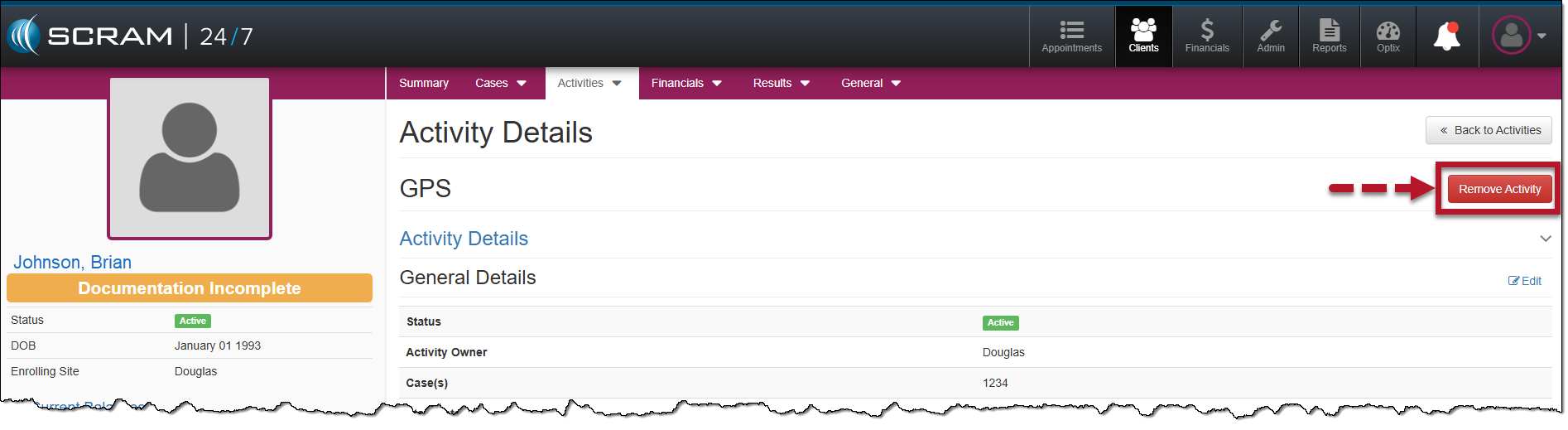
GPS Activity Details Page – click to enlarge
- On the Remove GPS Device page, open the Equipment Status dropdown menu and select the appropriate option. In this example, “In Inventory” was selected.
- After selecting the device status, select the Unassign Locator button.
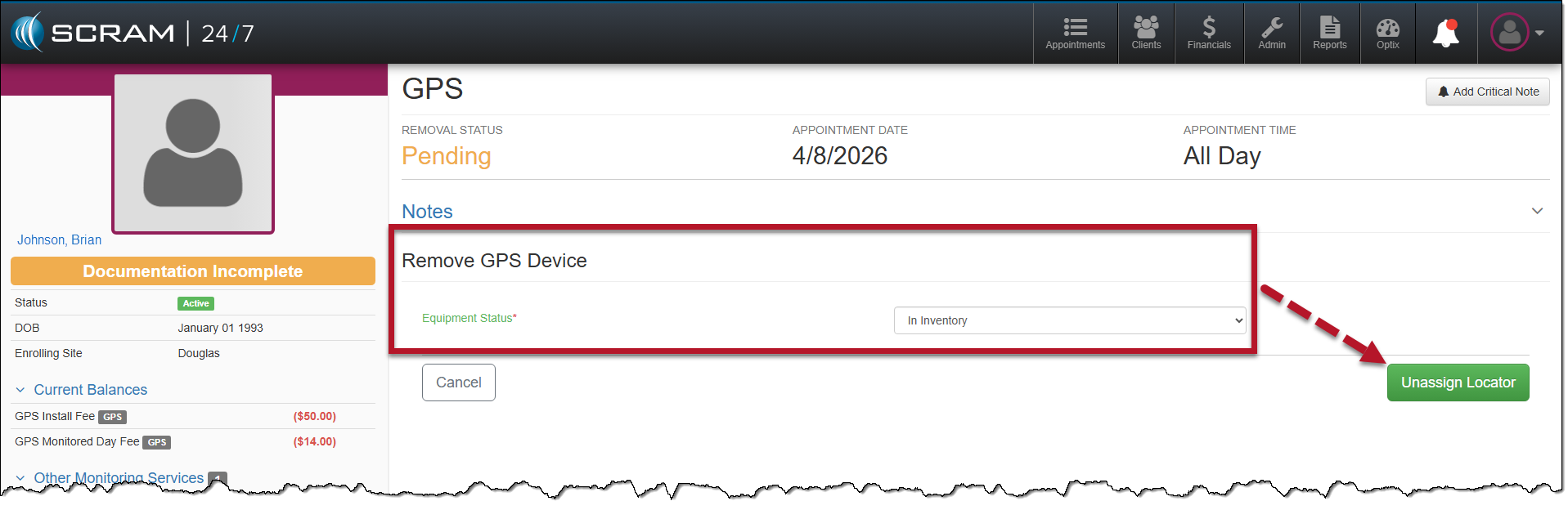
Remove GPS Device Equipment Status Options – click to enlarge
- Complete the GPS Removal appointment. Here, you may select whether the client is in attendance and record any payments made.
- Once information is entered, select the Save & Remove Activity button.
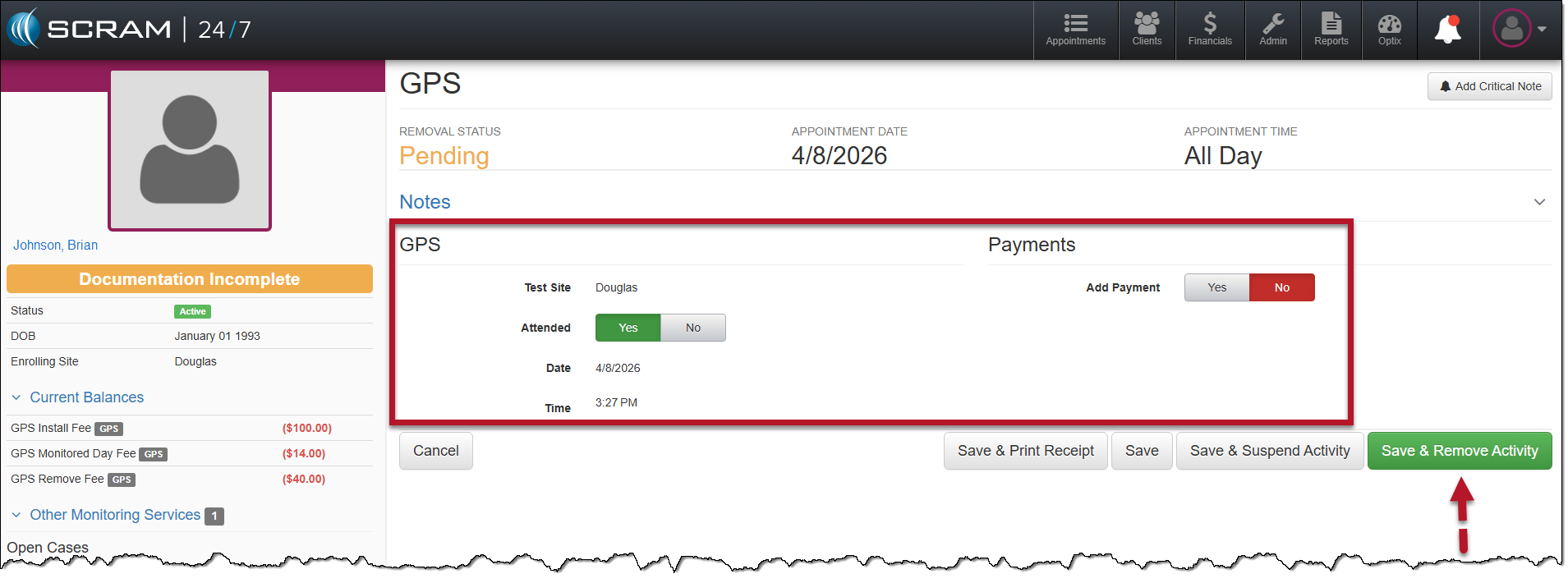
Remove GPS Activity Attendance and Payments page – click to enlarge
- Verify the Effective Data entry field and then select the Remove Activity button.
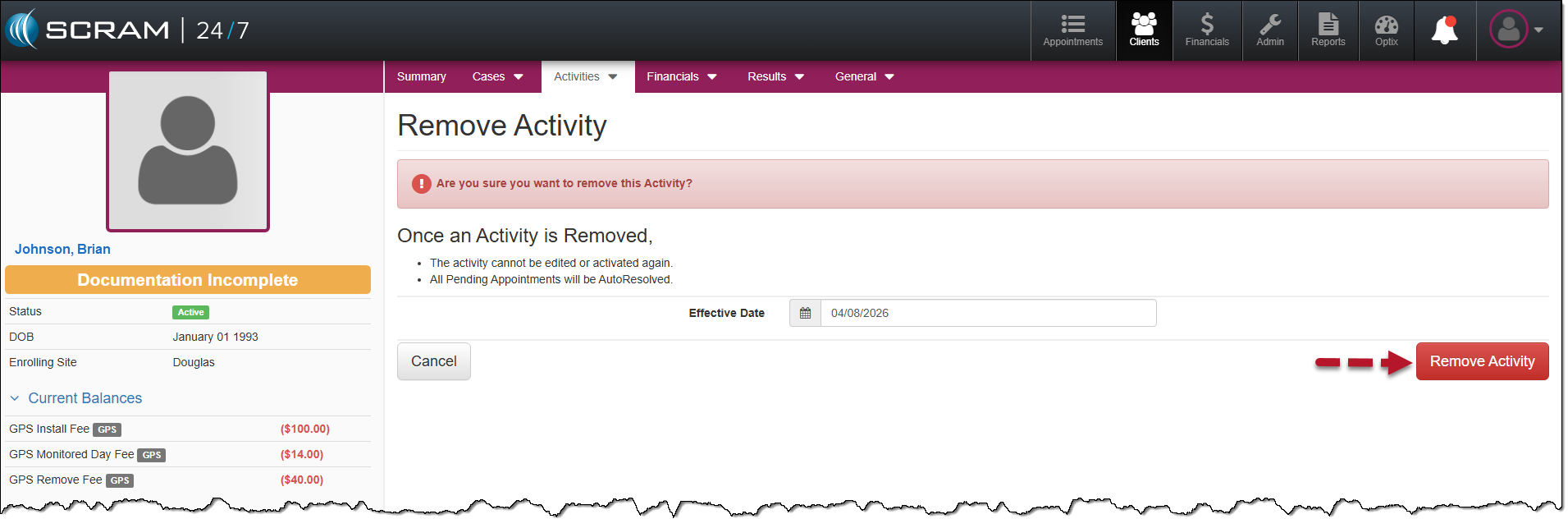
Remove Activity Effective date and Remove Activity button – click to enlarge
The Active Activities page now reflects the Inactive GPS Activity.
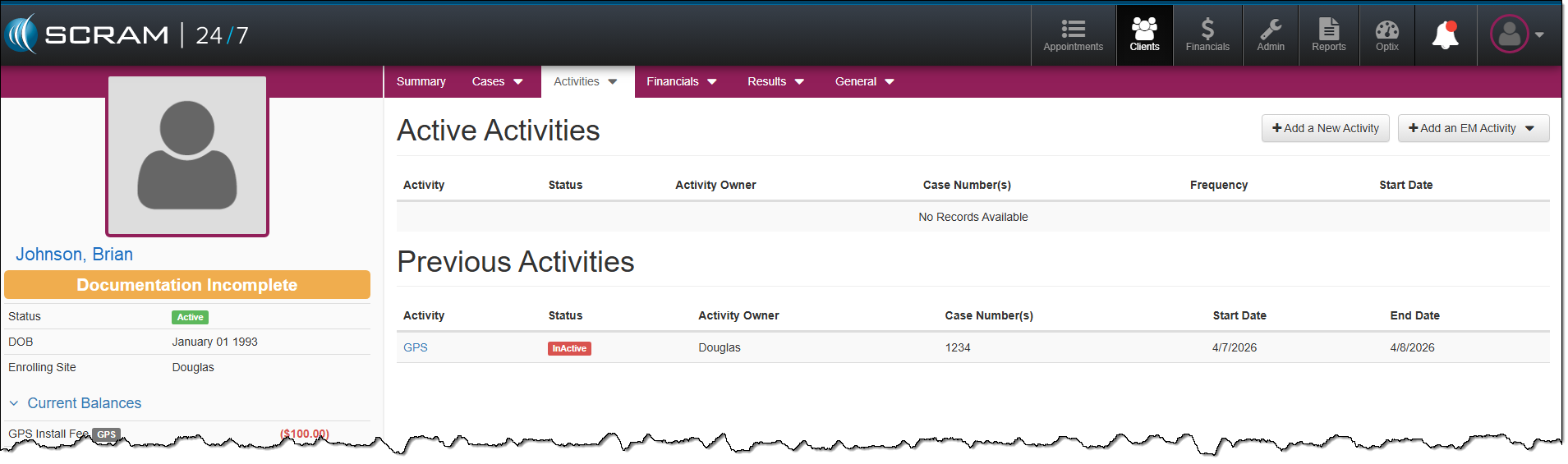
Previous Activities Section – click to enlarge
On the client’s Summary page, the Activity Calendar and Daily Activity stream will reflect a completed GPS Removal Appointment.
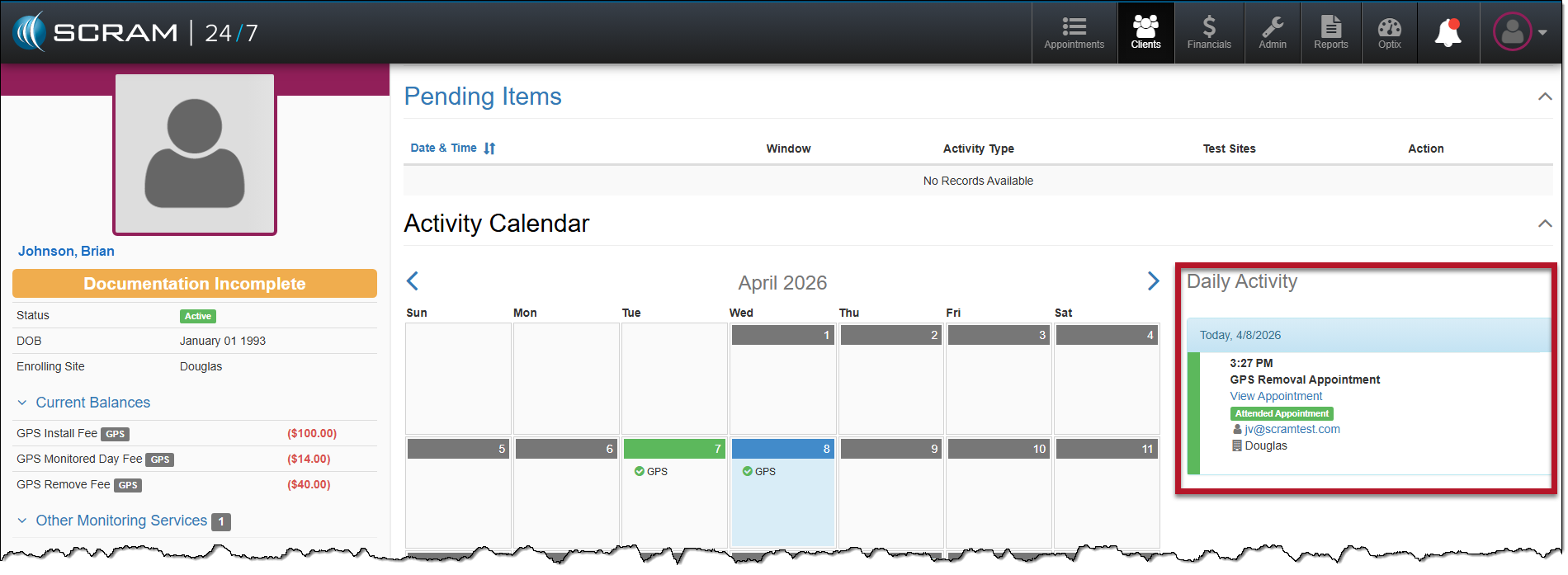
Client’s Summary Page, GPS Removal Appointment Displayed – click to enlarge
 |
Replace GPS Device
To replace a GPS bracelet:
|