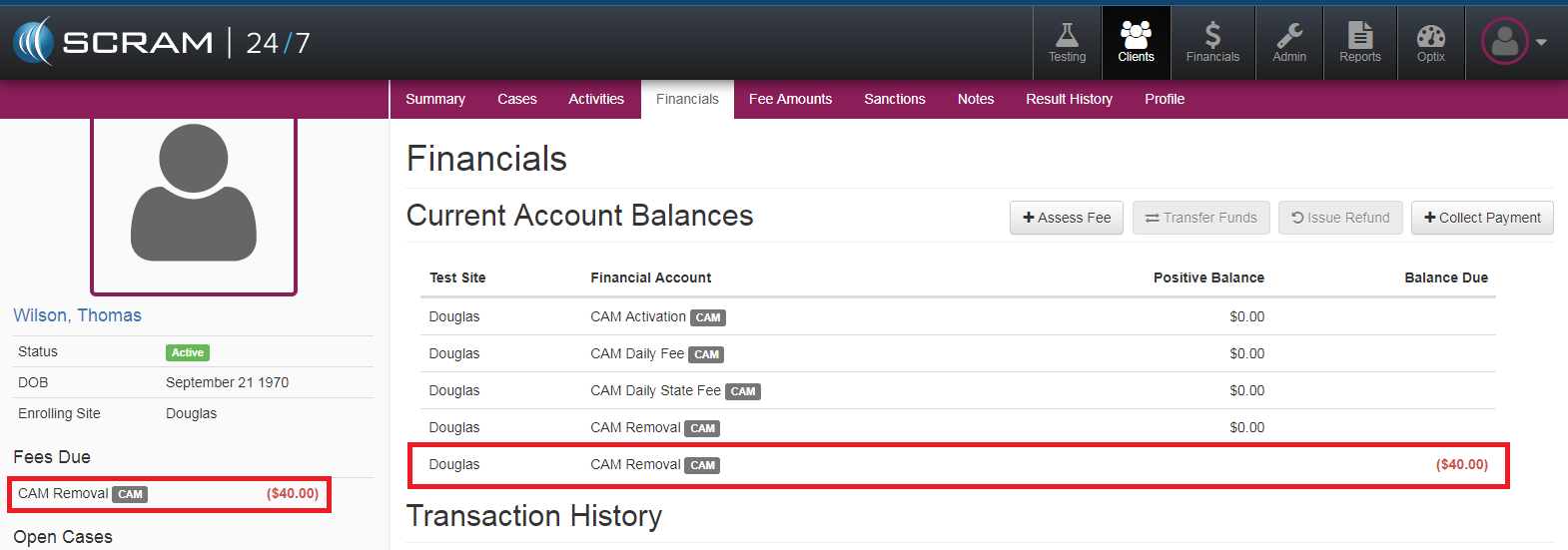
After a transaction with a client has occurred and has been recorded, officer’s have the ability to further manage the transaction should the situation necessitate it. The two fundamental post-payment options that can be exercised include voiding the transaction or issuing a refund.
Voiding a Transaction
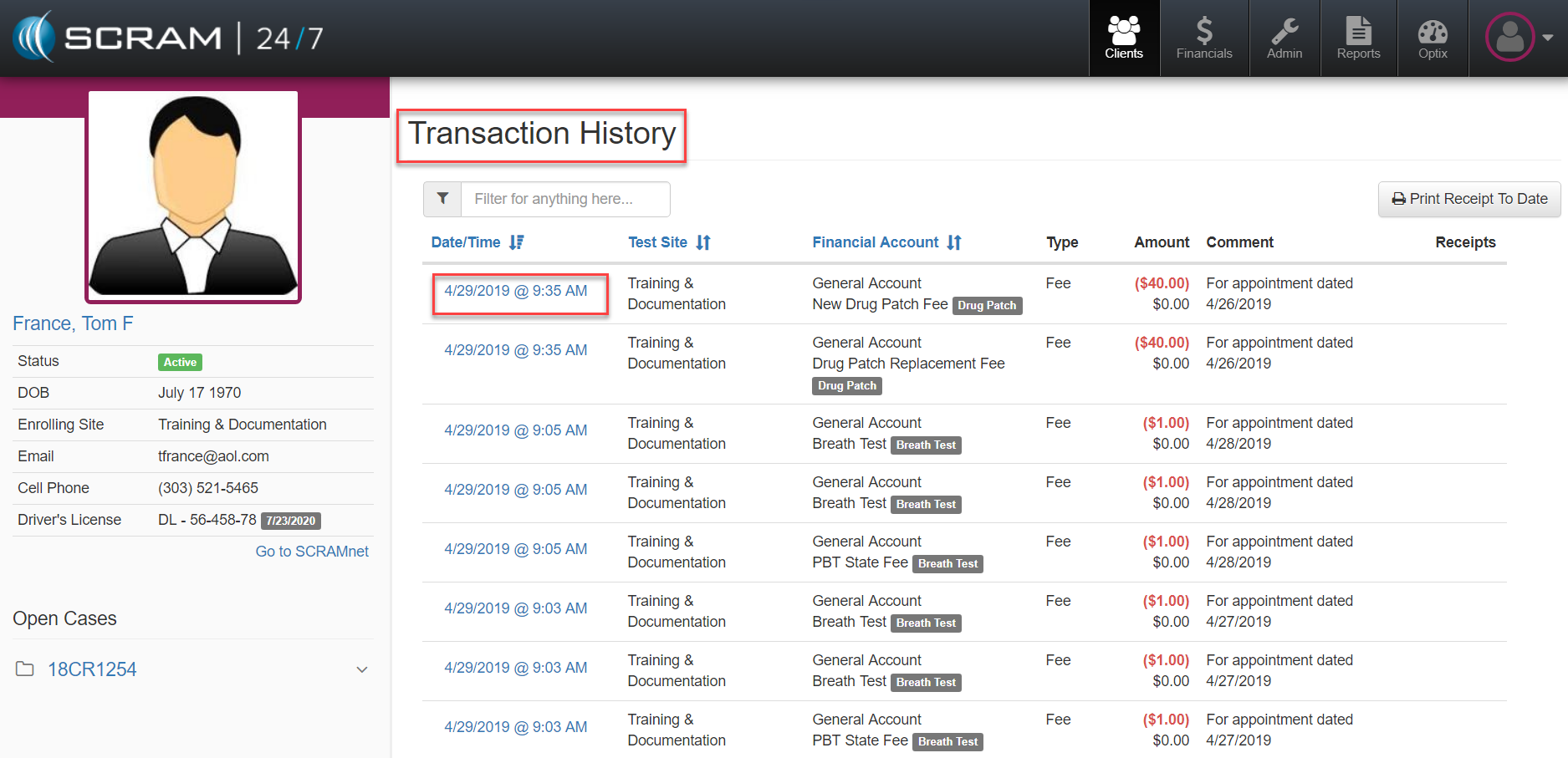
To void an individual client’s transaction, please search and select the client and then navigate to the clients Financials tab. From there you will see a listing of the Client’s Transaction History. Locate and select the specific transaction that needs to be voided either by filtering or just by clicking on the transaction Date/Time stamp listed.
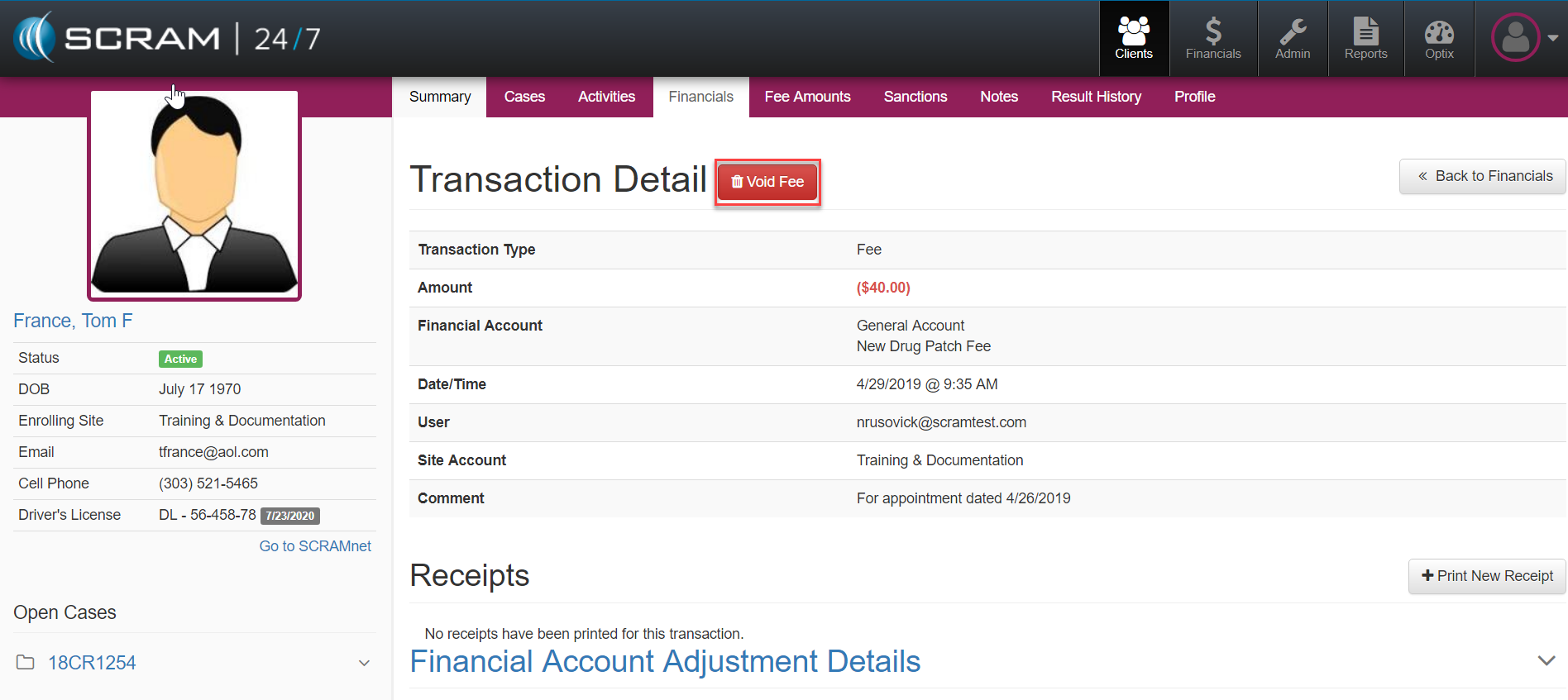
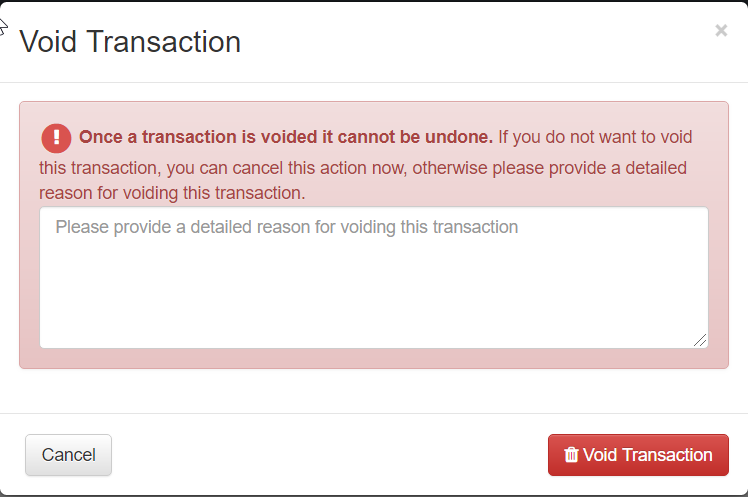
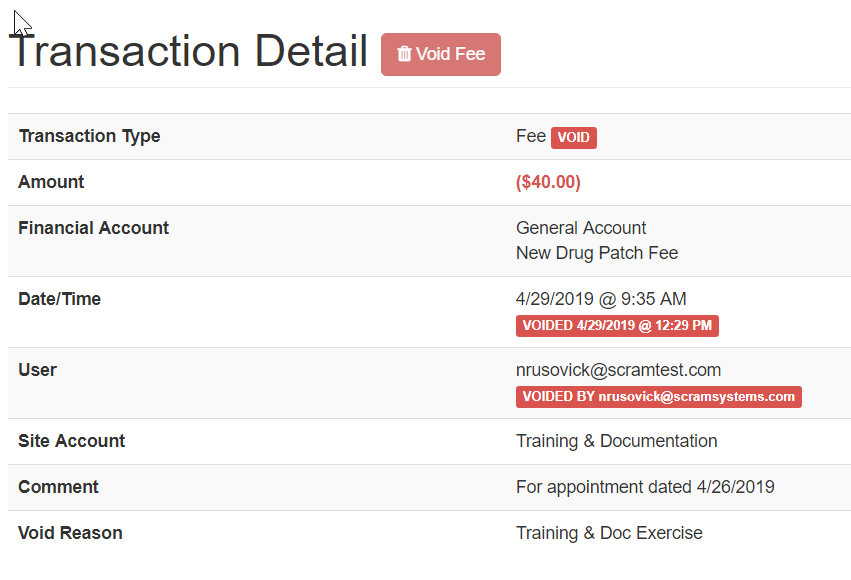
Once selected, the Transaction Detail page will load where the red Void Fee button can be selected to remove the fee. A Void Transaction confirmation popup will display to confirm the operation and to add any notes describing the rationale for voiding the fee.
The Transaction Detail will be automatically updated to represent the fee voided and time and user who executed the action.
Issuing a Refund
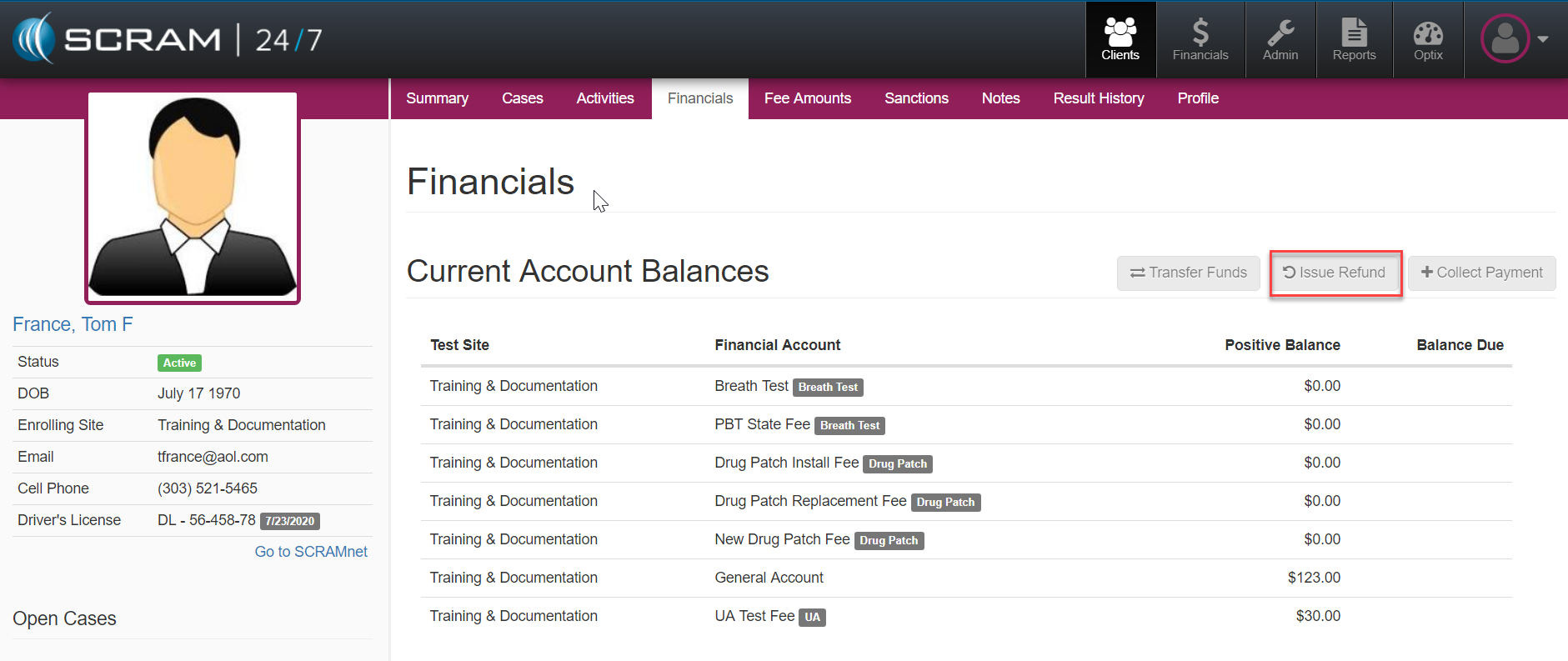
To issue a refund, search and select client and navigate to the individual client’s Financials tab. From the Current Account Balances menu, select the Issue Refund button.
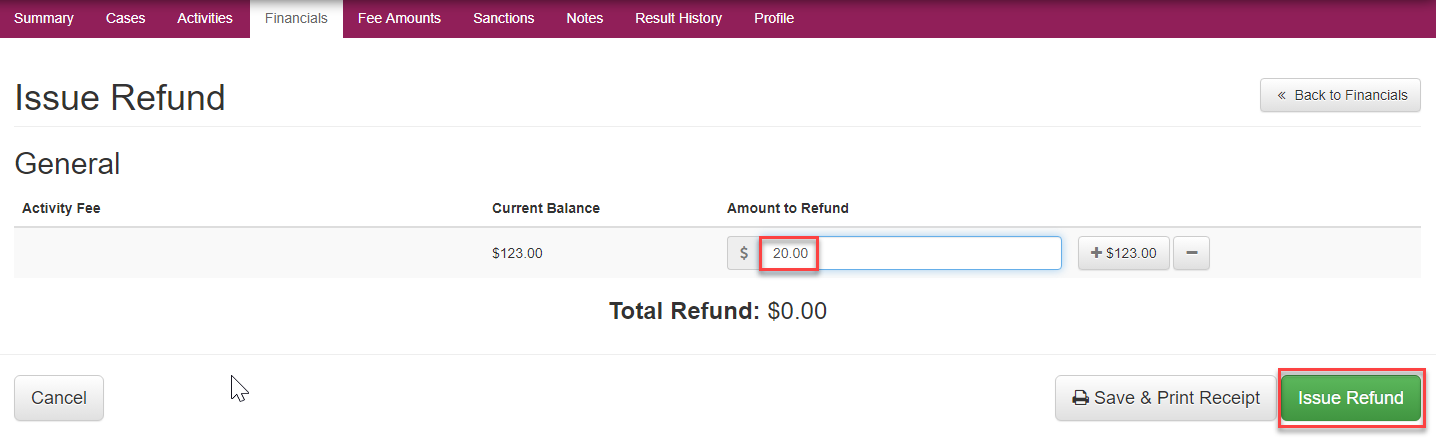
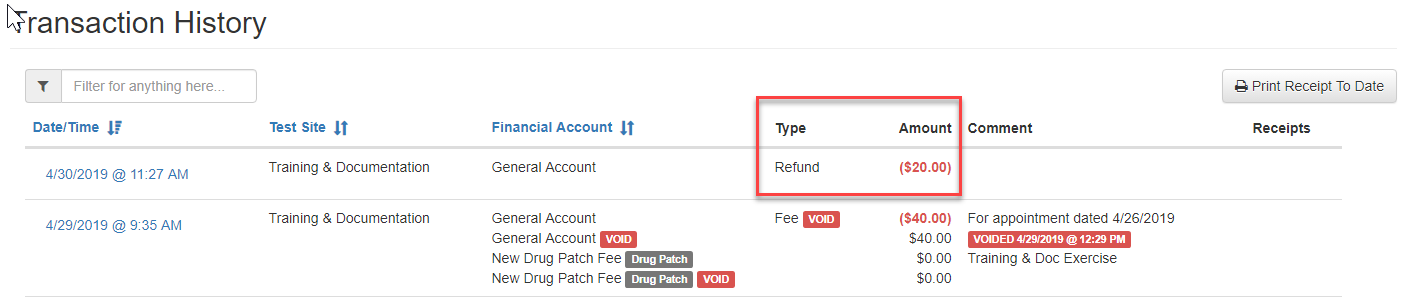
Once the Issue Refund page opens, you can enter the amount to refund and hit the green Issue Refund button. The refund will then be saved to the system and will be automatically posted to the clients Transaction History ledger on their Financials view.
Assess Fee
To assess a fee to a client:
- Locate the client.
- Click the Financials
The client’s Financials page appears with a new Assess Fee button added, as shown below.
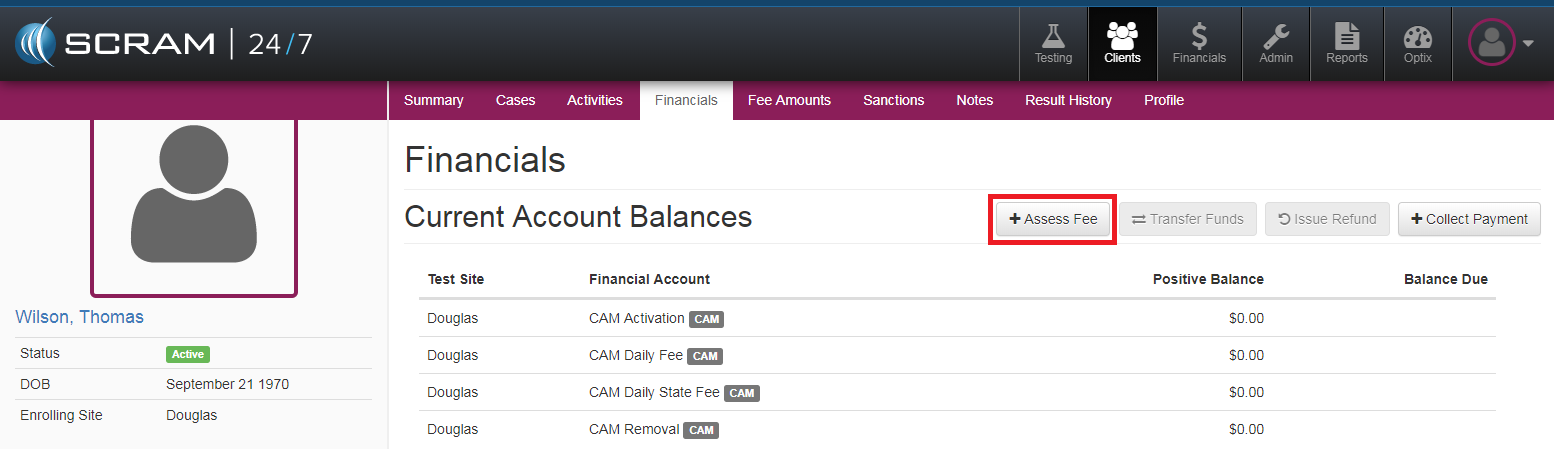
- Click the Assess Fee
The Assess Fee page appears.
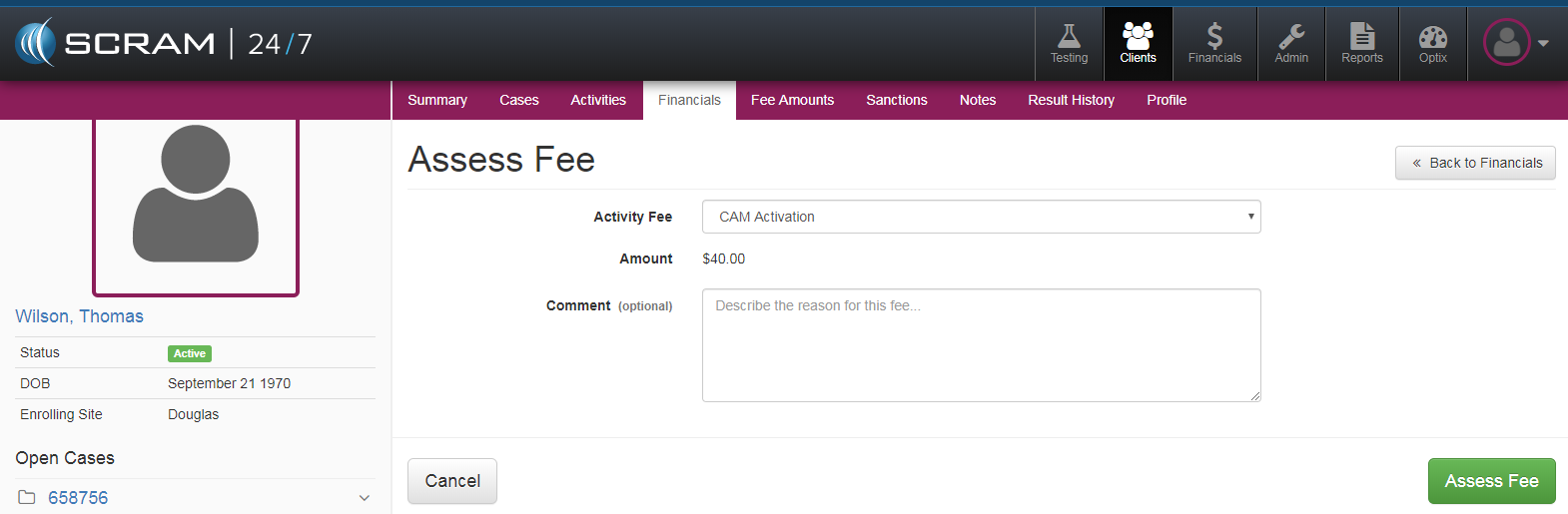
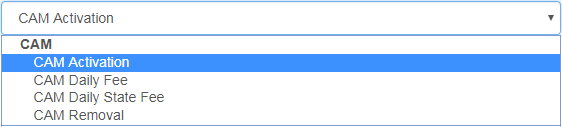
- Select the fee being applied in the Activity Fee drop-down list.
Note: Only fees for activities associated with the client appear in the list.
- After adding any necessary comments, click the Assess Fee
The fee assessed now appears in the Current Account Balances section of the Financials page and in the client’s profile area.