Add a Breath Test Schedule
You may add to a current client’s breath-testing schedule anytime during their Remote Breath Activity monitoring program.
To add a new breath-testing schedule:
- Select the + Add Item button in the “Daily Activity” stream on the Summary page.
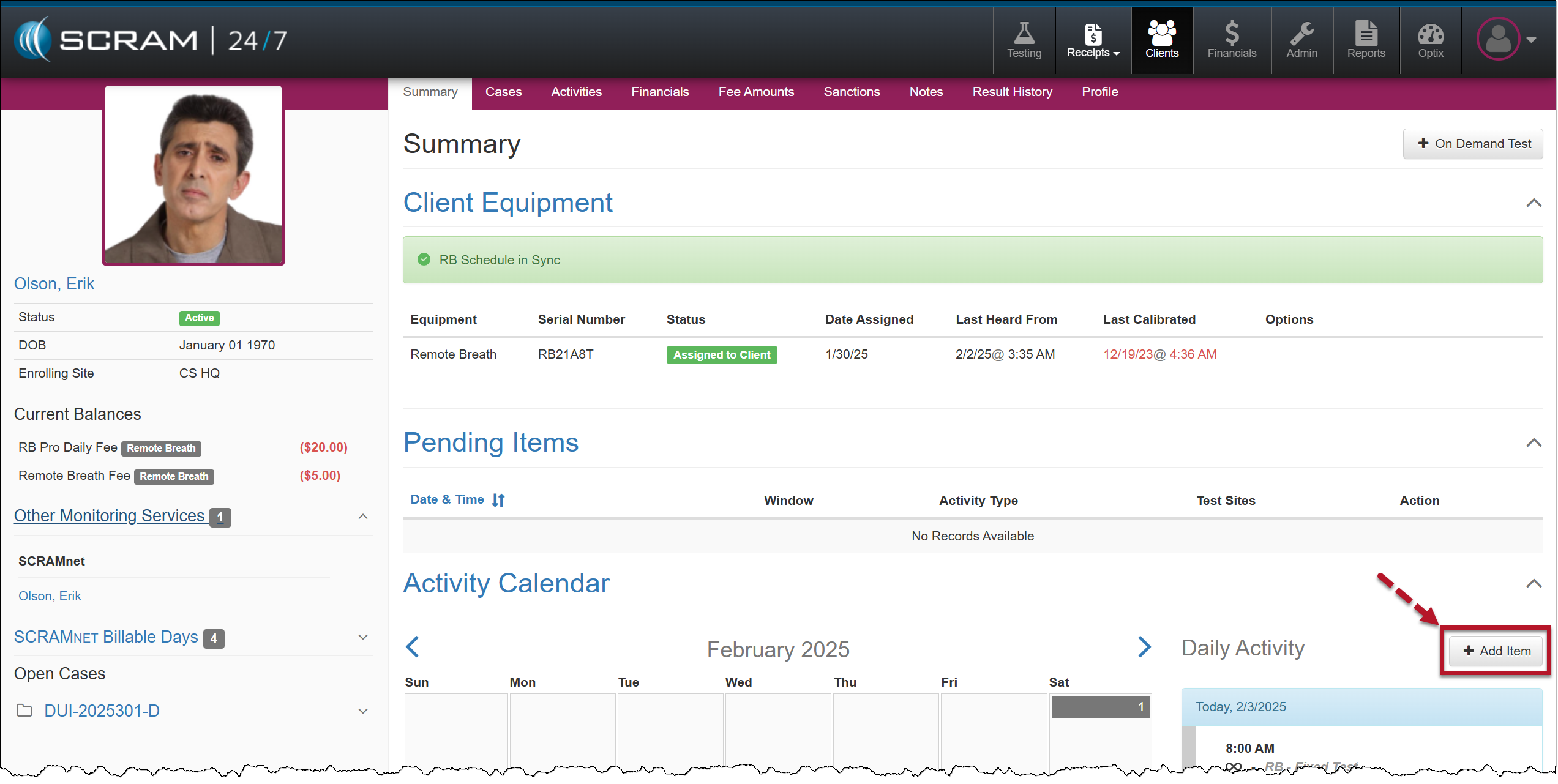
Client Summary Page
- Select the Device Test Schedule option on the Add Item page on the Item dropdown menu.
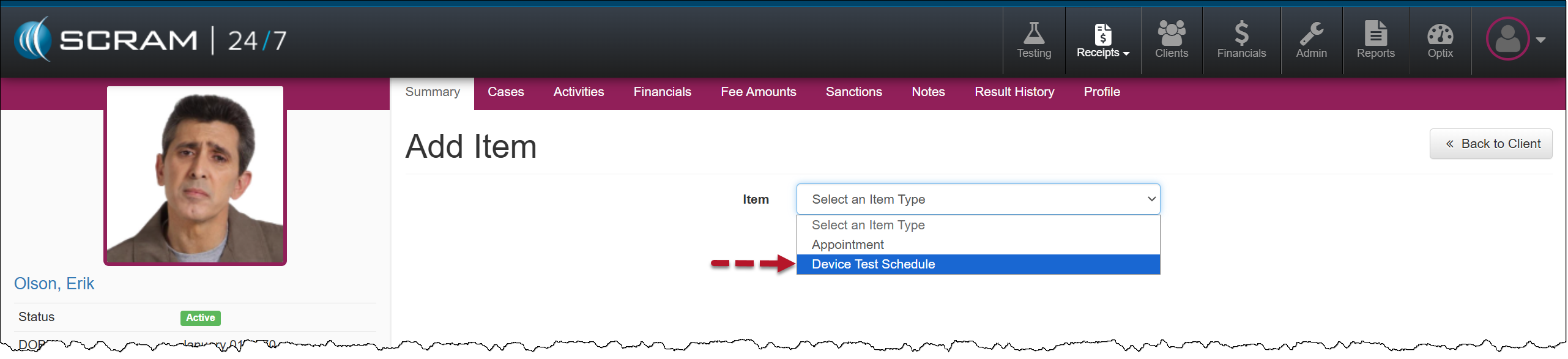
Add Item – Device Test Schedule
- Select the Remote Breath option on the Activity Type dropdown menu.
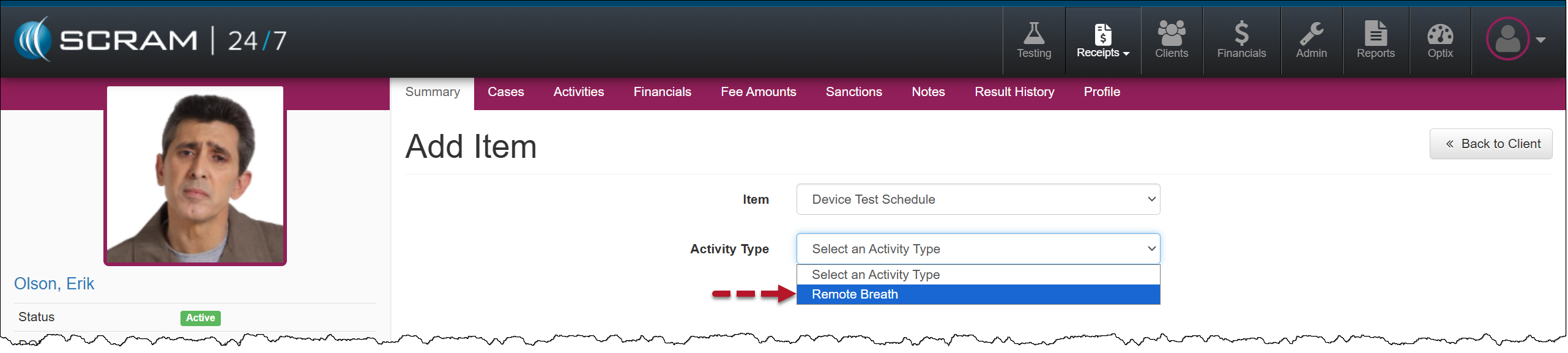
Add Item – Activity Type Remote Breath
- Enter the breath test schedule details, including the schedule type, Time, Days, and Range of Recurrence.
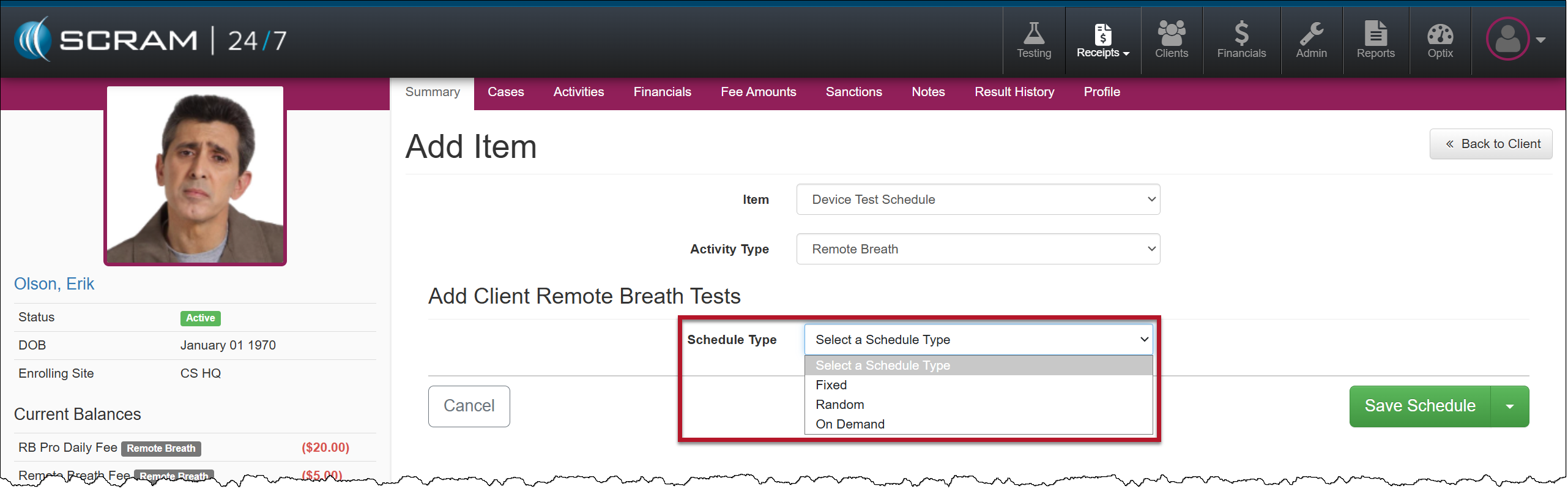
Schedule Type Option of Fixed or Random
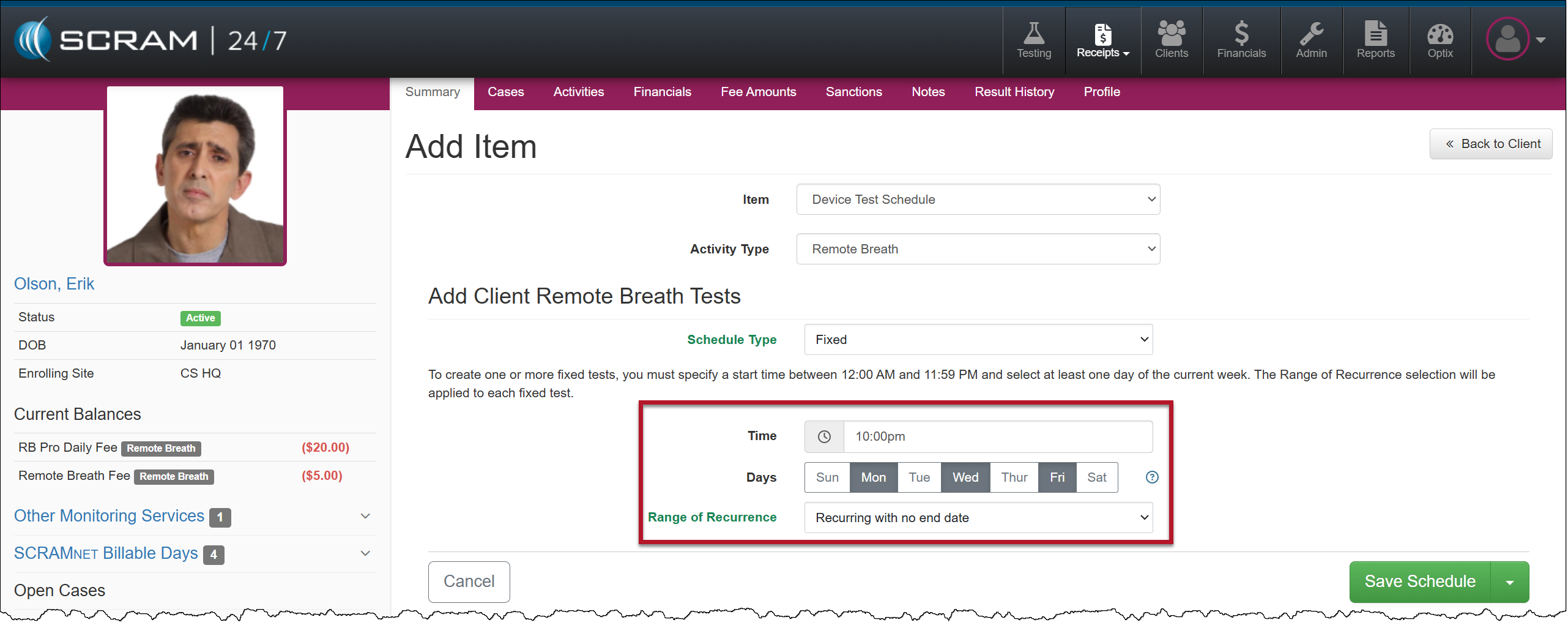
Schedule Details for the Test Time, Days of the Week, and Range of Recurrence
- Once the details for the breath test(s) have been entered, select the Save Schedule button, or to save this schedule and add another breath test schedule, select the “arrow” ans then the Save & Add Another Schedule option.
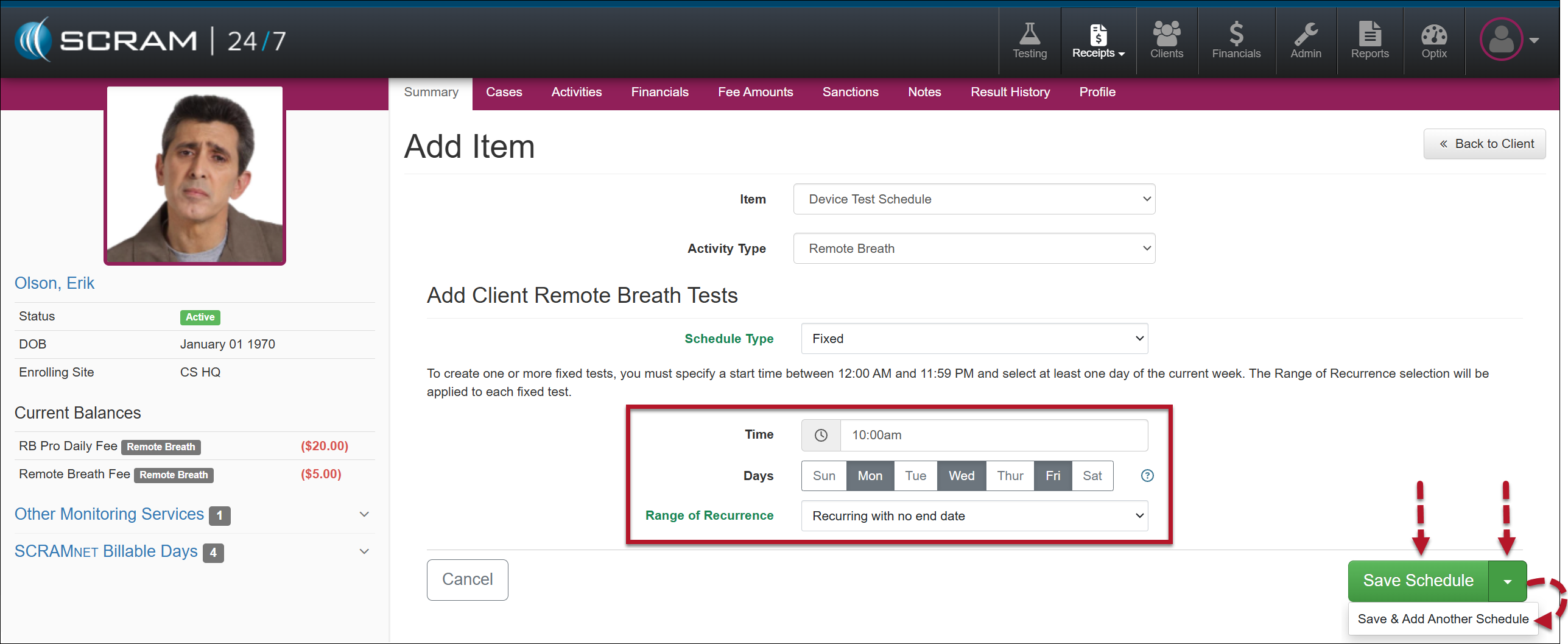
Save Schedule Options
The client’s Summary page will display a banner indicating that the RB schedule is pending download to the Remote Breath Pro device. Once communicated to the device, the banner will update to “RB Schedule in Sync.”
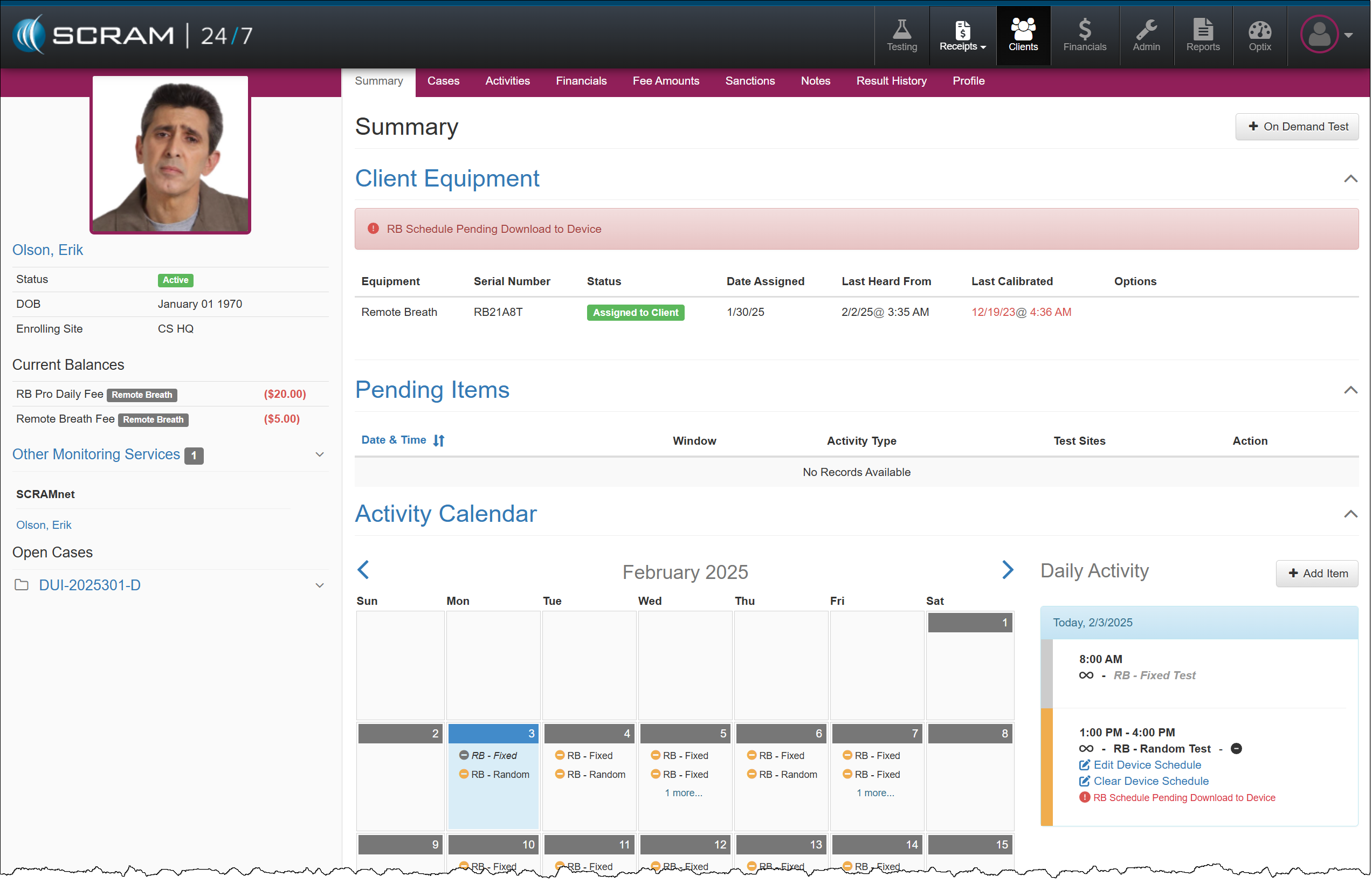
Remote Breath Device Schedule Pending Download to Device message
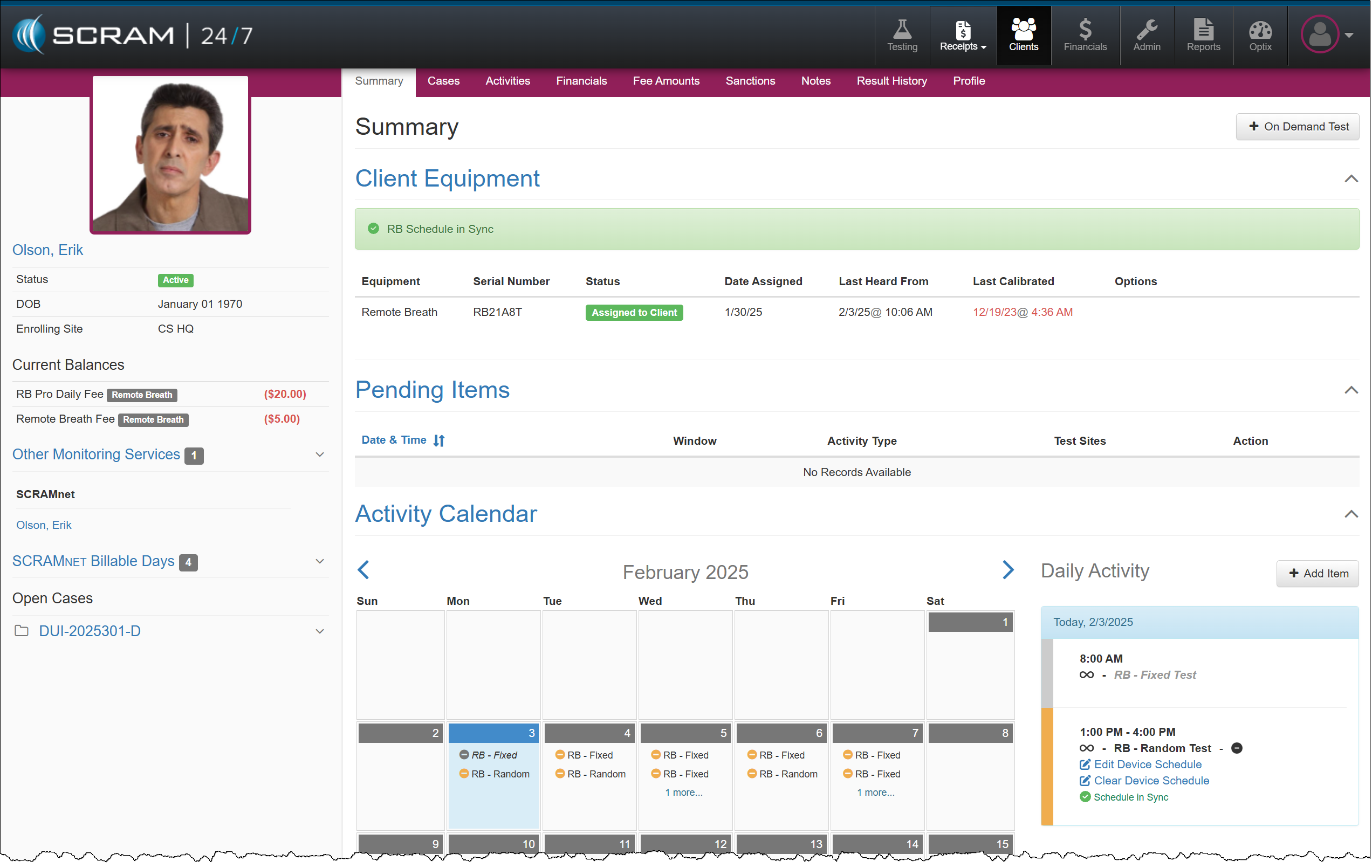
Remote Breath Device Schedule in Sync Message
Edit or Remove a Scheduled Breath Test
To edit or cancel a client’s scheduled breath test, select the appropriate hyperlink for the specific breath test you wish to update and follow the prompts.
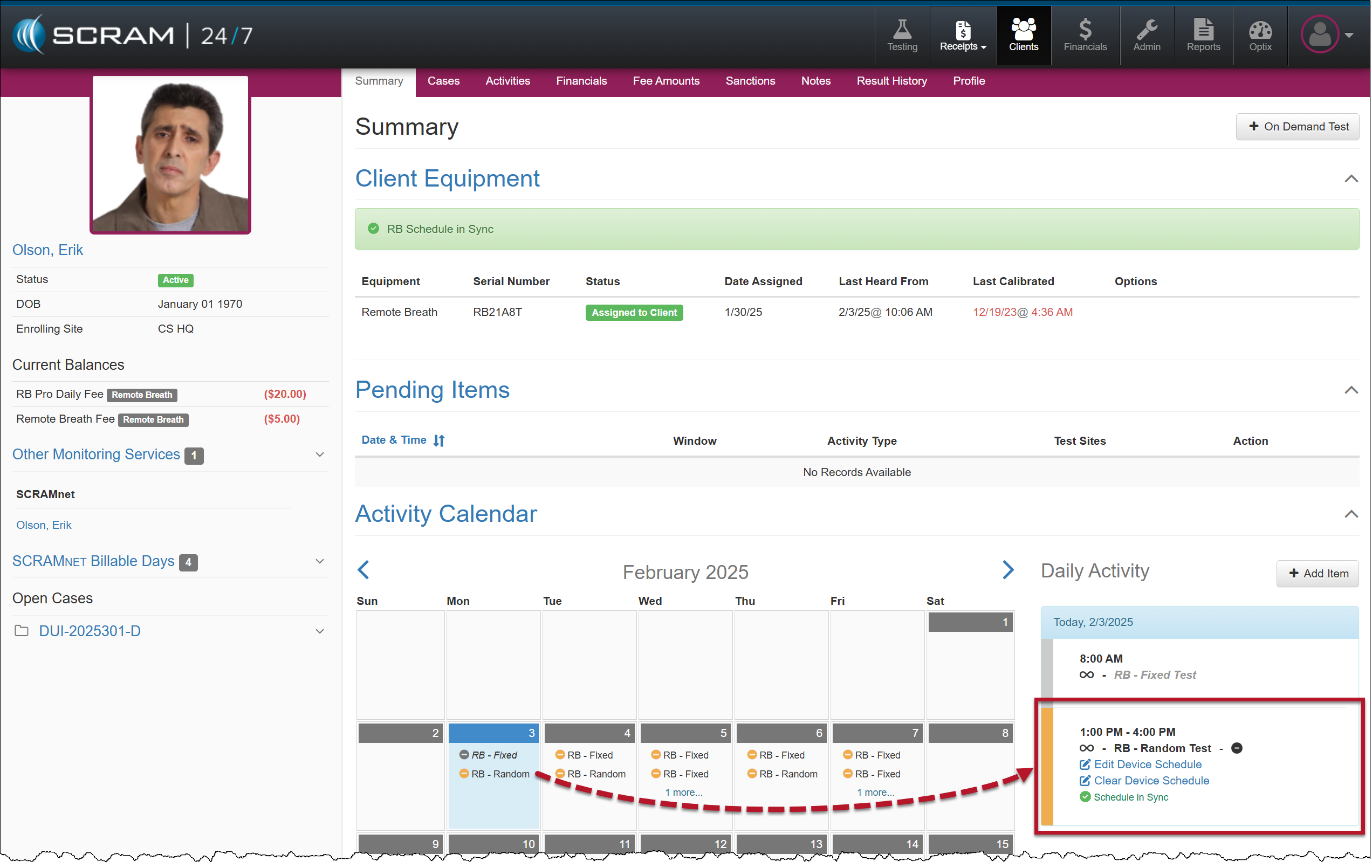
Daily Activity Stream – Edit or Clear Selected Breath Test Schedule
You may also edit the client RB Schedule within SCRAMNET. To do so, select the client’s name hyperlink in the Other Monitoring Services section and then the client’s “RB Schedule” tab.
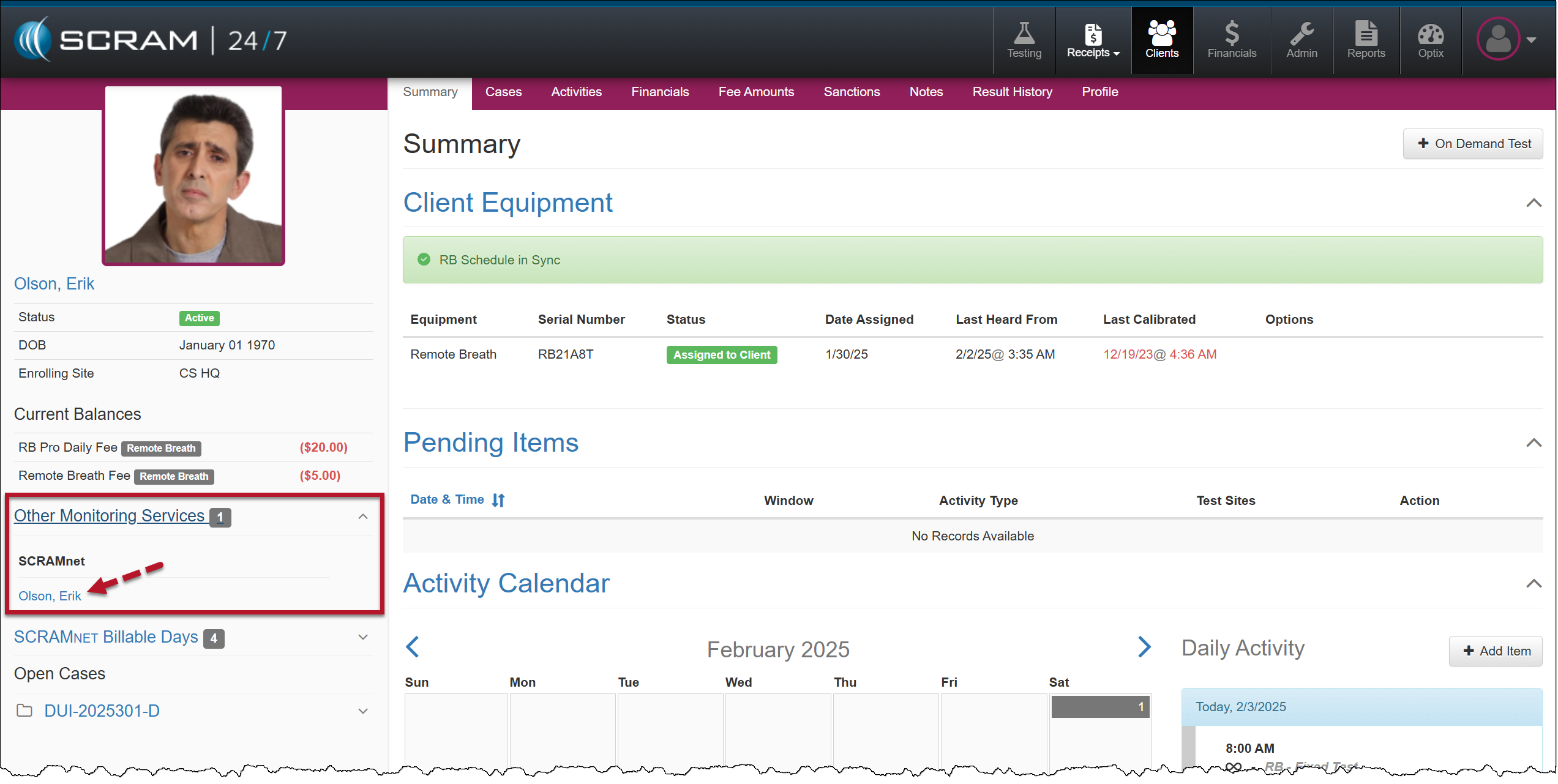
Hyperlink to Client’s SCRAMNET Profile Page
In SCRAMNET, select the RB Schedule tab and make your edits.
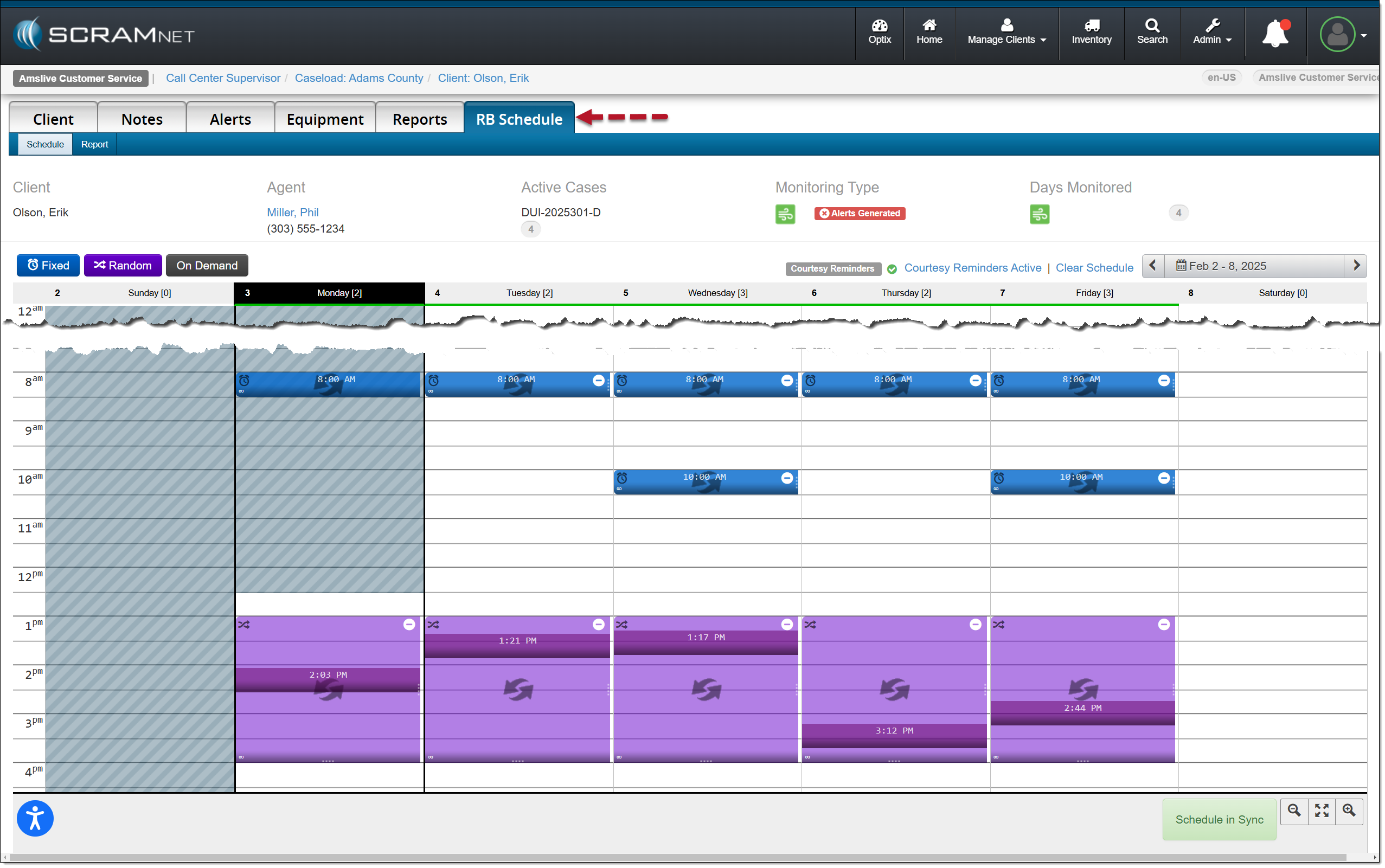
SCRAMNET Client RB Schedule Page