While the client is on your monitoring program, some equipment tasks may need to be completed. All equipment maintenance alerts are displayed in SCRAMNET on the Workload page, as well as sent electronically on the Daily Action Plan (DAP).
When it is time to Replace Equipment or complete a Maintenance request (fit adjustment, Battery Faceplate Replacement, or Strap Replacement), start on the client’s Summary page in SCRAM 24/7.
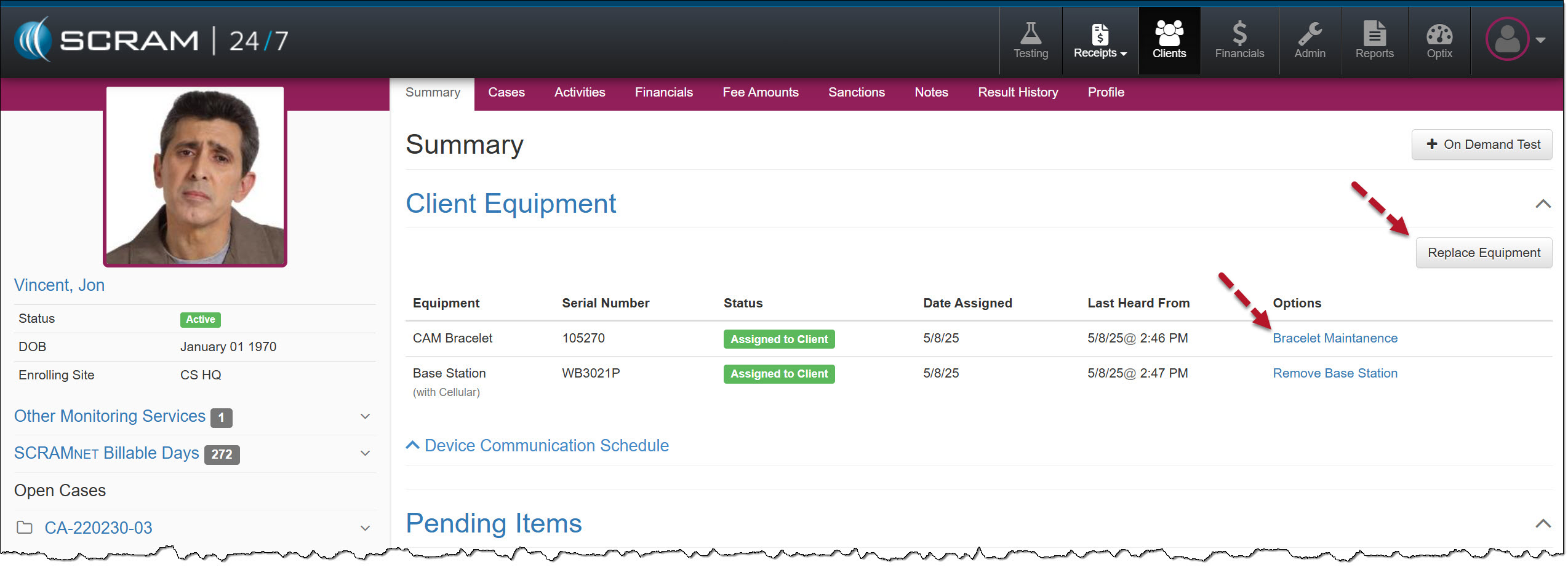
Client Summary Page (click to enlarge)
Replace Equipment
To replace the client’s monitoring equipment:
- Select the Replace Equipment button.
- On the Replace Equipment page, “Select a Device to Replace” from the dropdown menu.
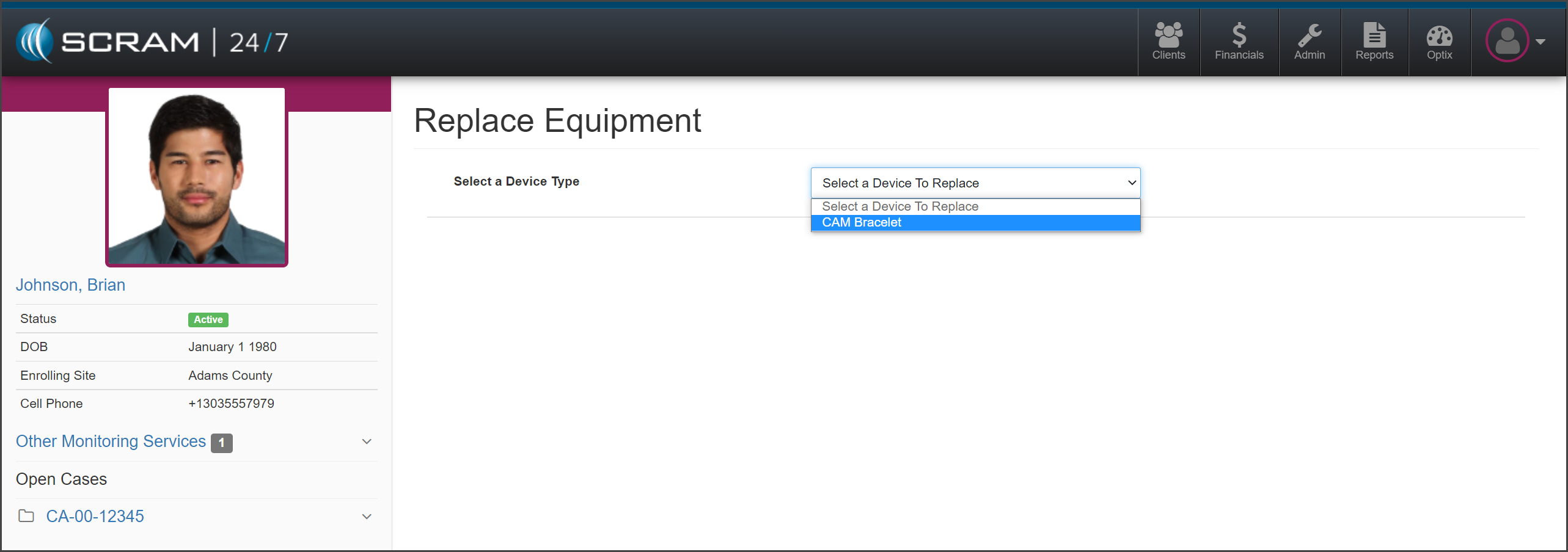
click to enlarge
- Add the new equipment information and select the Replace Equipment button.
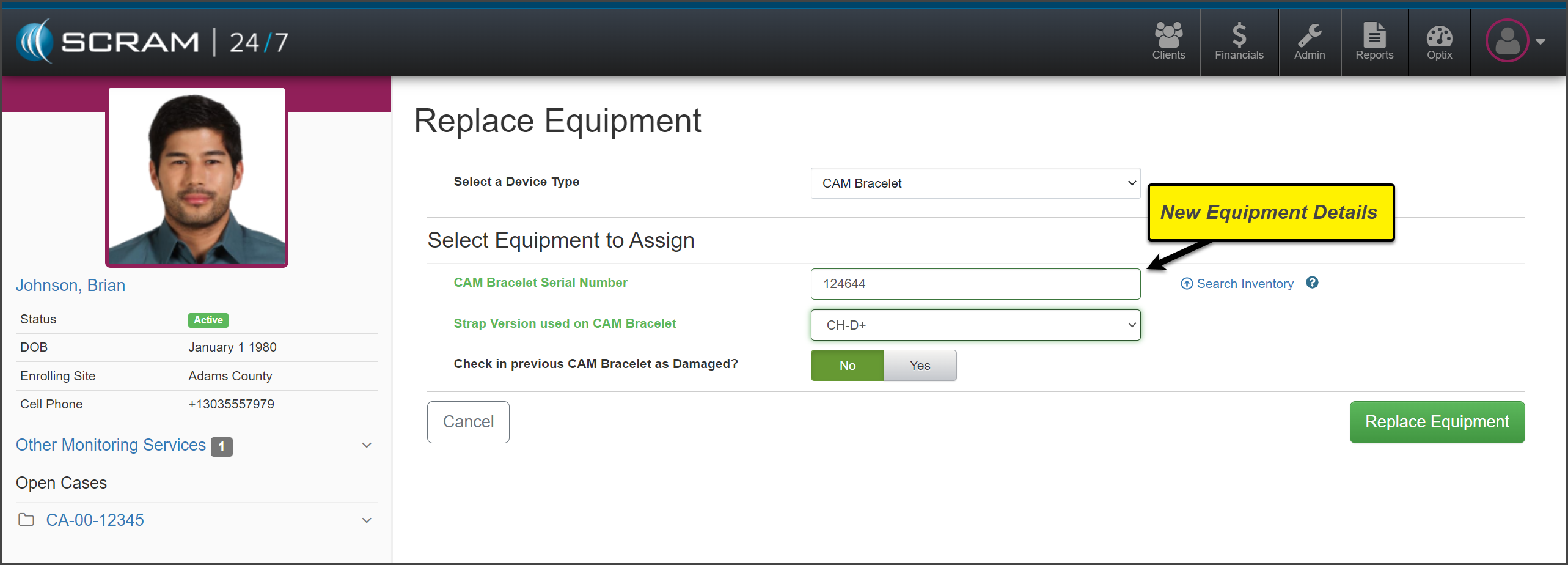
click to enlarge
- Select and print the AMS Default CAM Participant Agreement Addendum for the client to sign and select the Complete Assignment button.
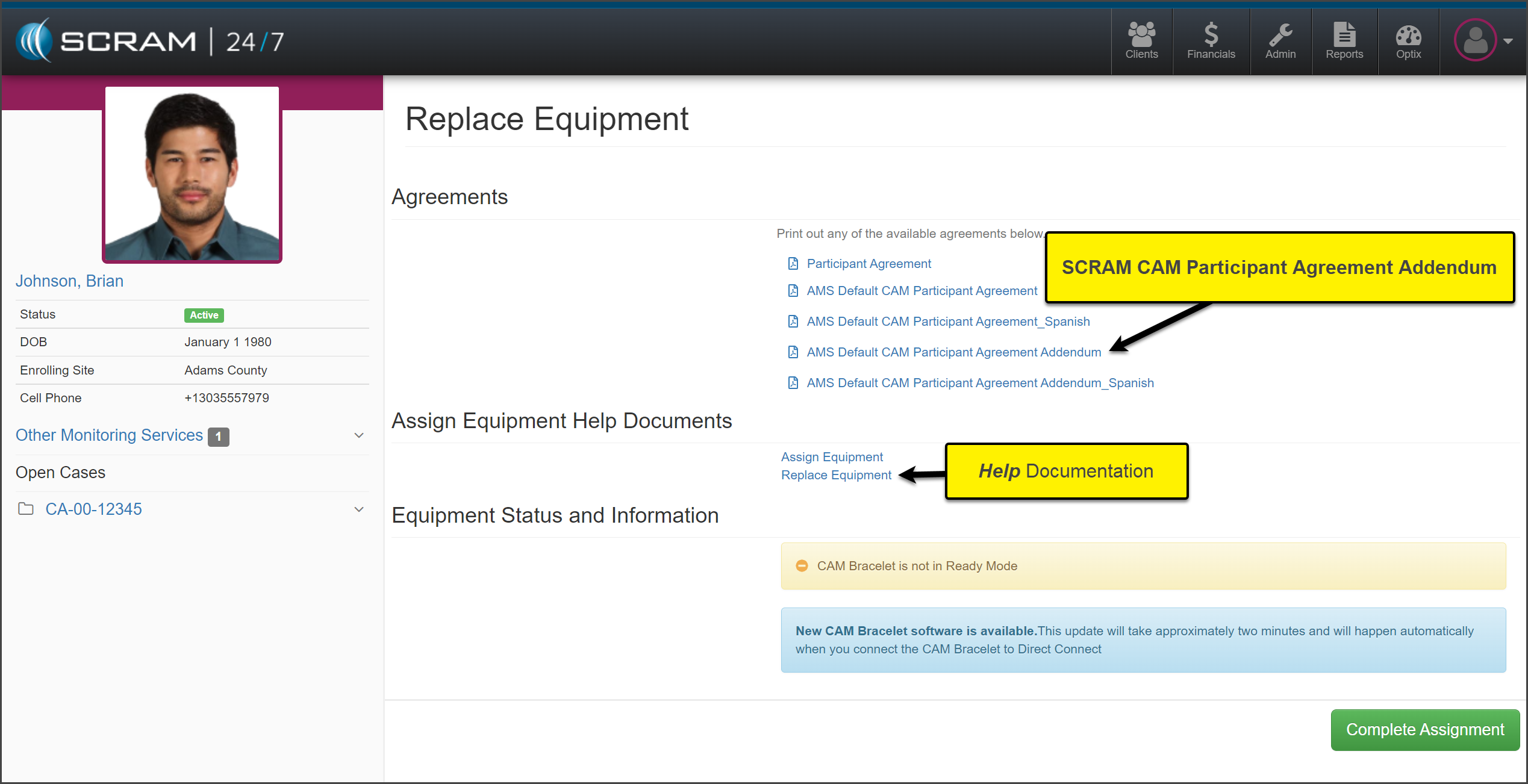
click to enlarge
- Collect any fees and select one of the Save options.
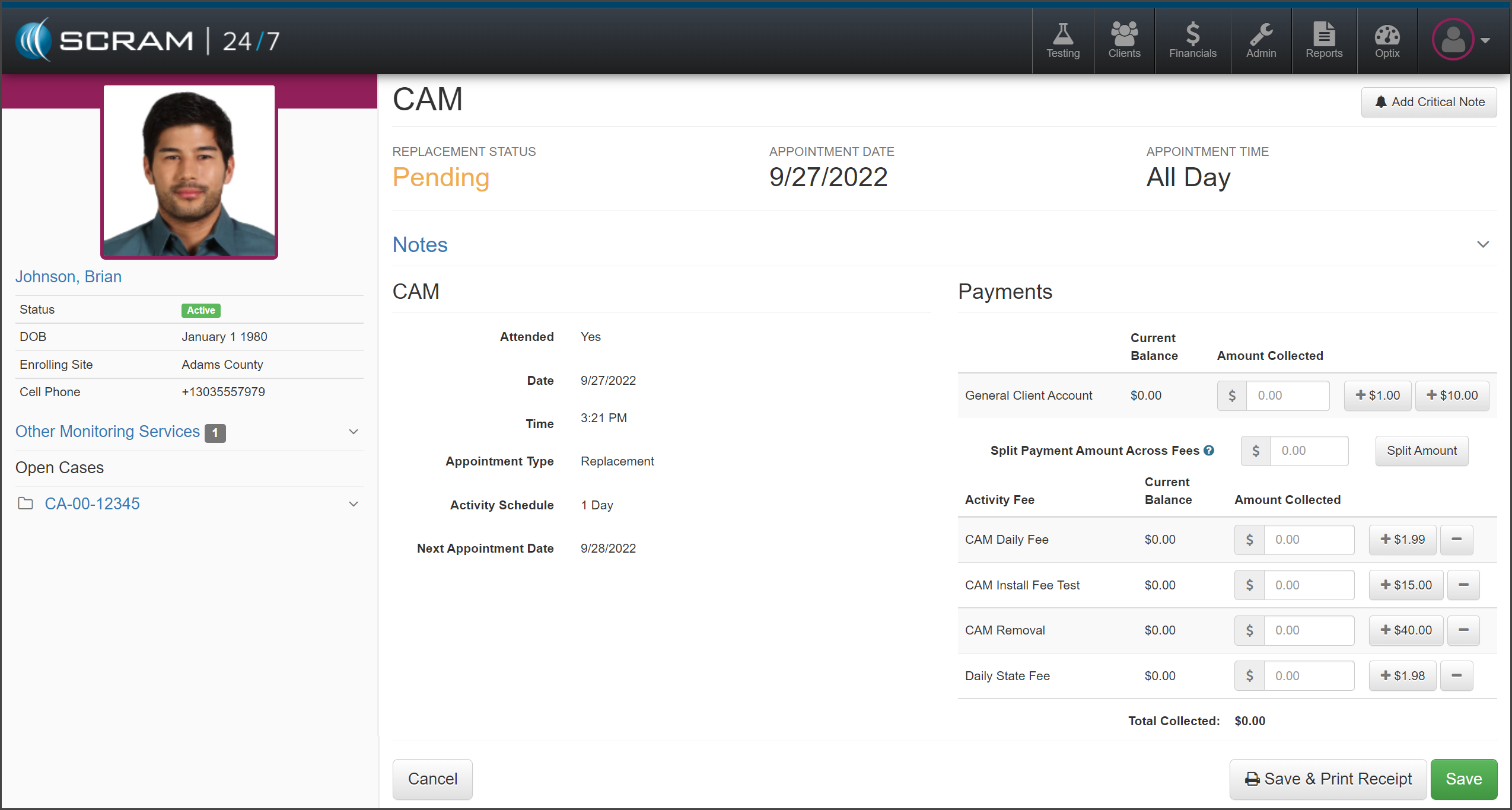
click to enlarge
- The Summary page will now display the current equipment status.
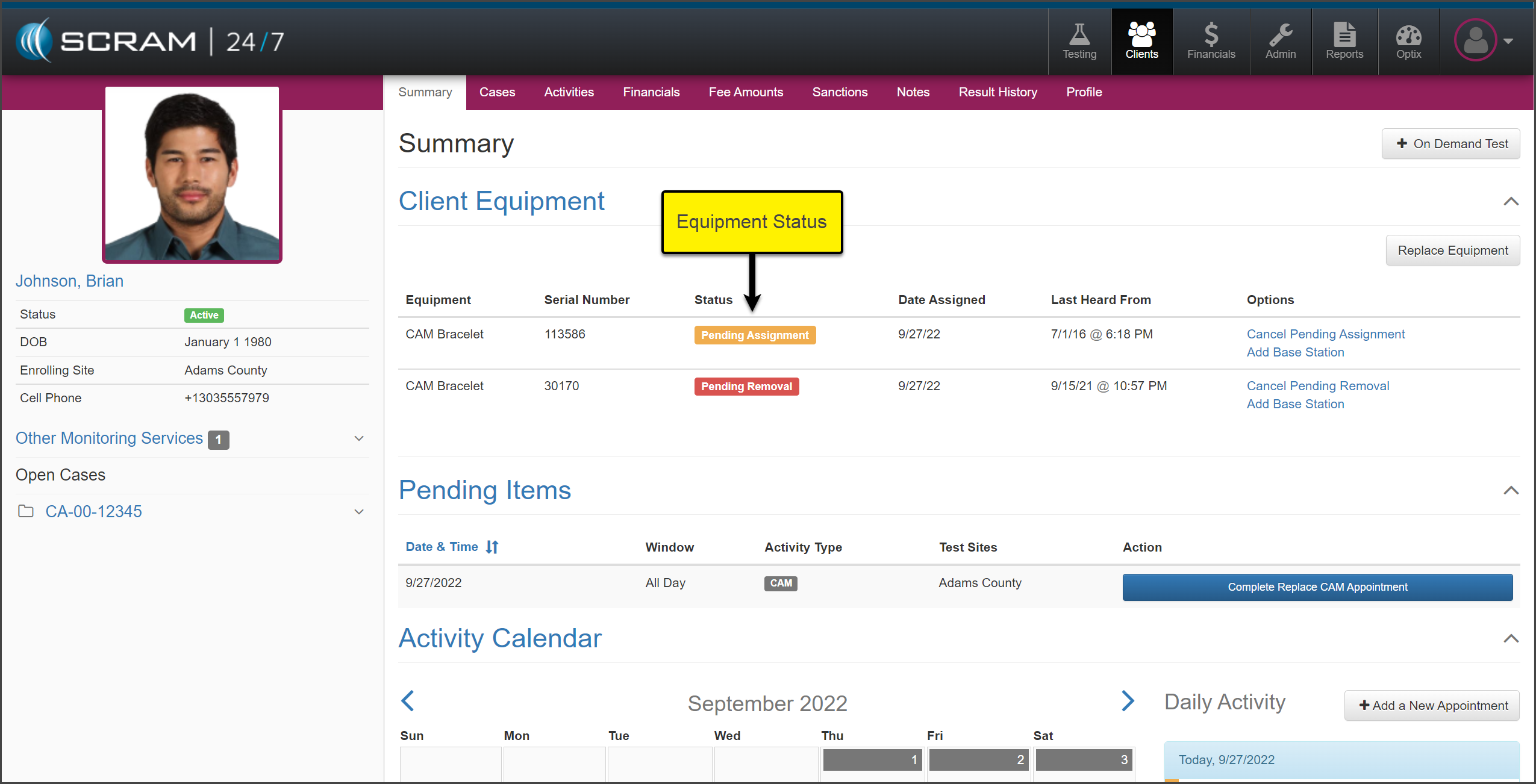
click to enlarge
- Check in the “Pending Removal” device, and then complete the assignment of the “Pending Assignment” device.
Once completed, the Summary page will display the device status of “Assigned to Client.”
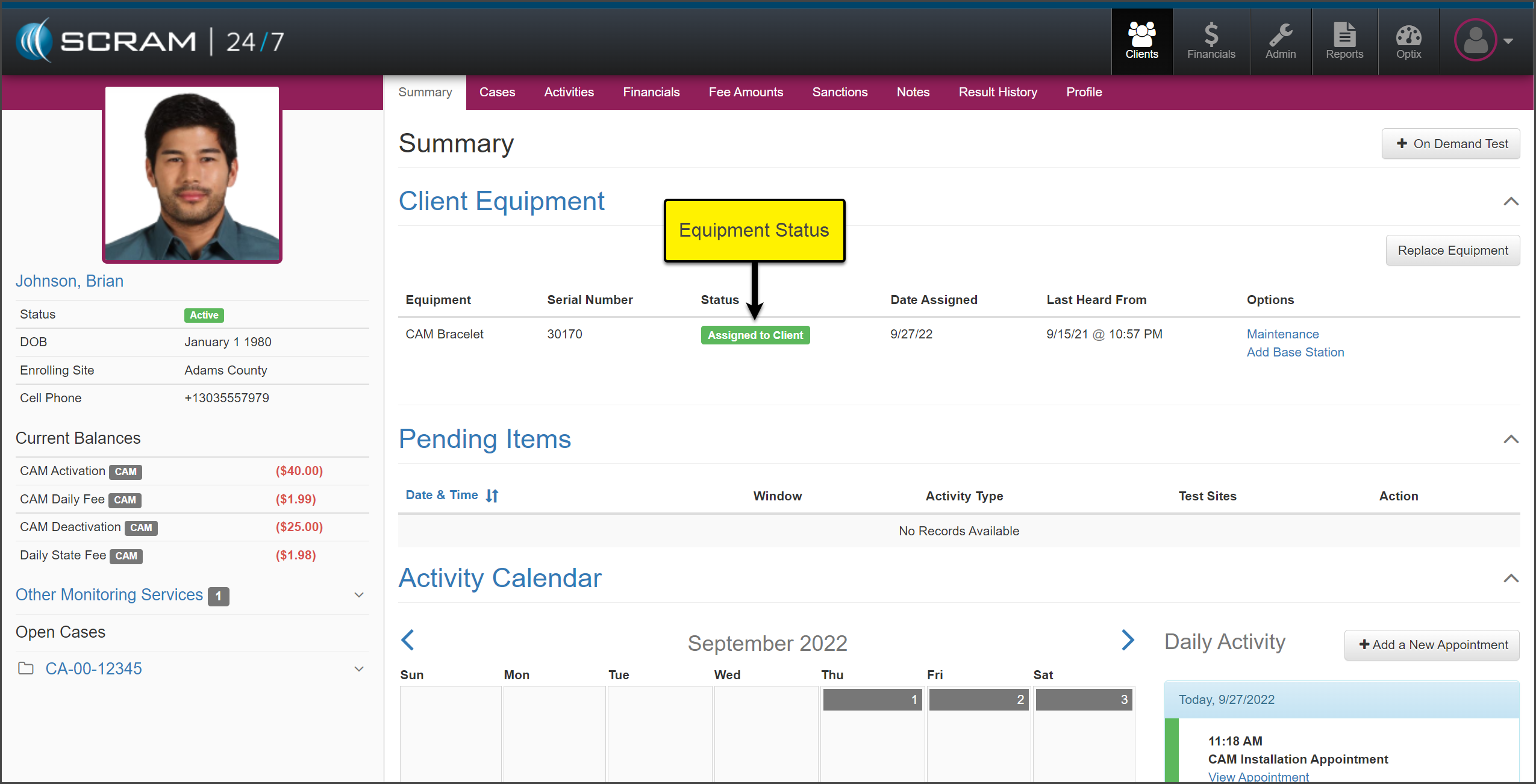
click to enlarge
Maintenance
To complete a required Maintenance alert, select the Bracelet Maintenance hyperlink located under the Options section on the client’s Summary page in SCRAM 24/7.
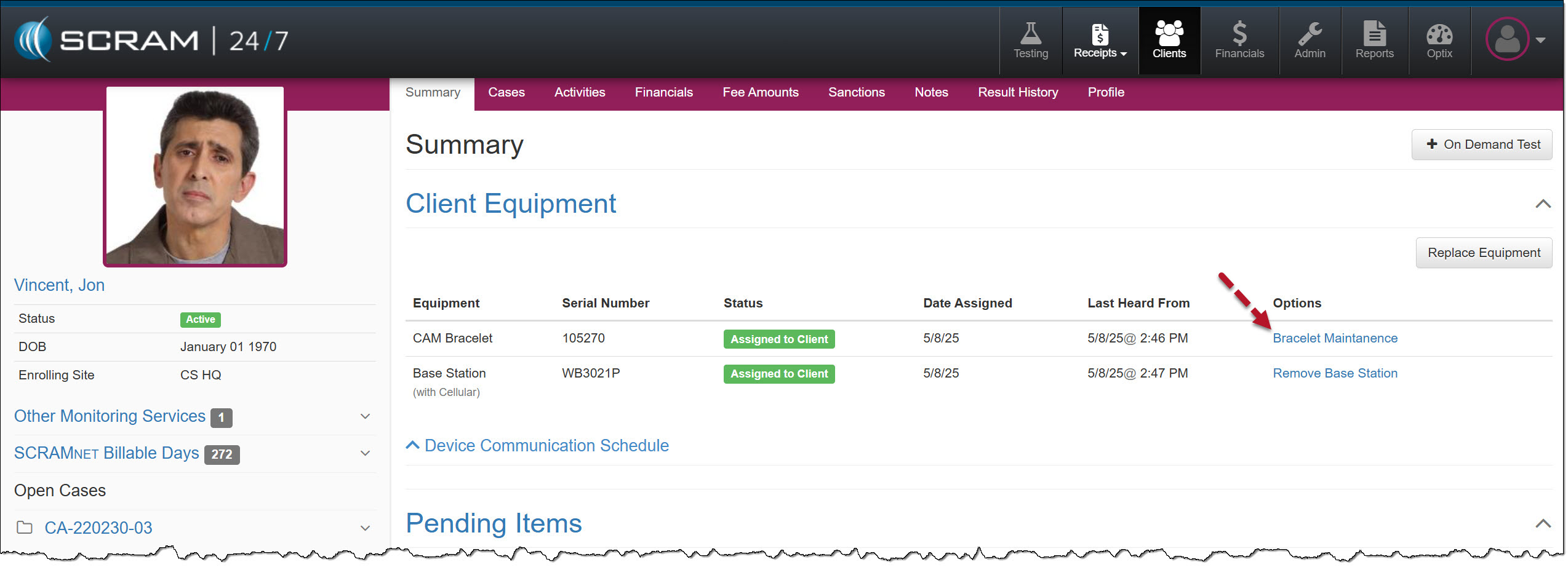
Bracelet Maintenance Hyperlink (click to enlarge)
On the Bracelet Maintenance pop-up window, enter the current date, any comments and select the appropriate maintenance option. Once all required fields are entered, select the Complete Maintenance button and then follow the established process for the specific maintenance request.
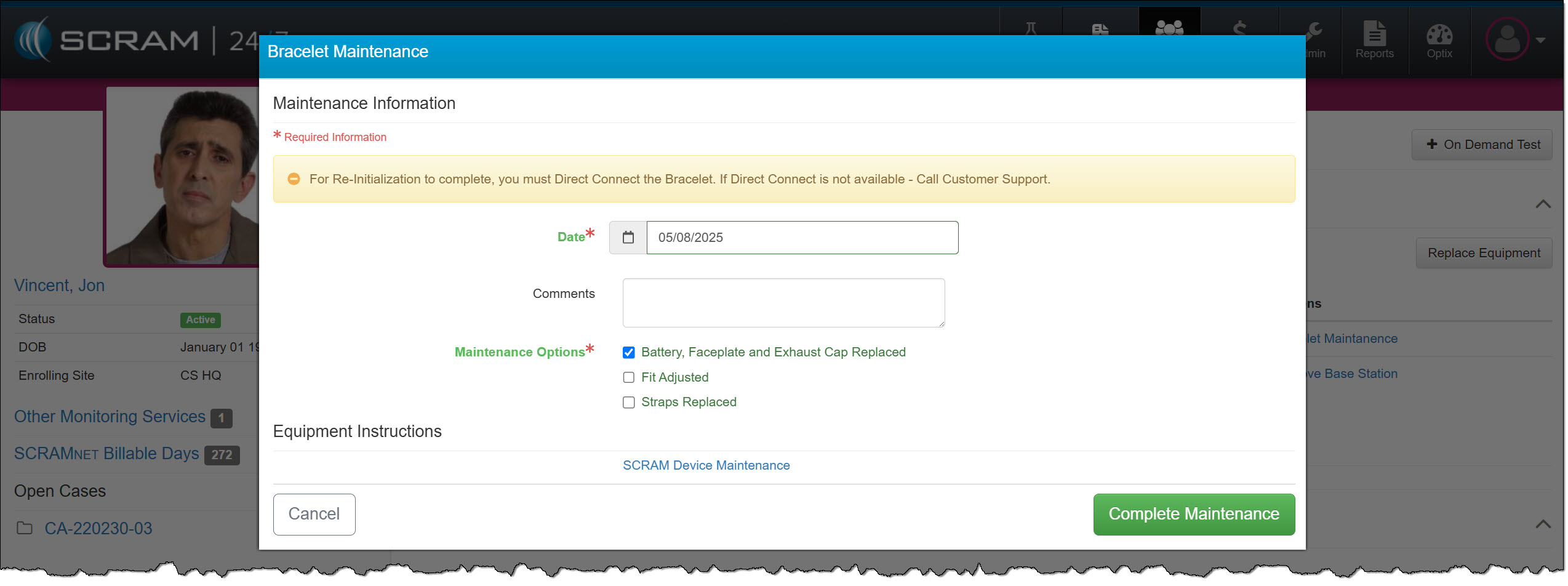
Bracelet Maintenance Pop-Up Window – Example Battery Faceplate Replacement (click to enlarge)