Once you have created the client’s profile in SCRAM 24/7, add the CAM Activity and complete the equipment assignment.
Starting on the client’s Activities tab:
- Select the +Add an EM Activity button.
- Select the Add CAM Activity from the +Add an EM Activity dropdown menu on the “Active Activities ” page.
 |
|
General Step
- Select the “SCRAMNET Caseload” from the dropdown menu.
- After making your caseload selection, in the “Optional Settings,” select the checkbox next to each option to add it to the workflow or leave it unchecked and add the information later.
- Select the Save & Continue button.
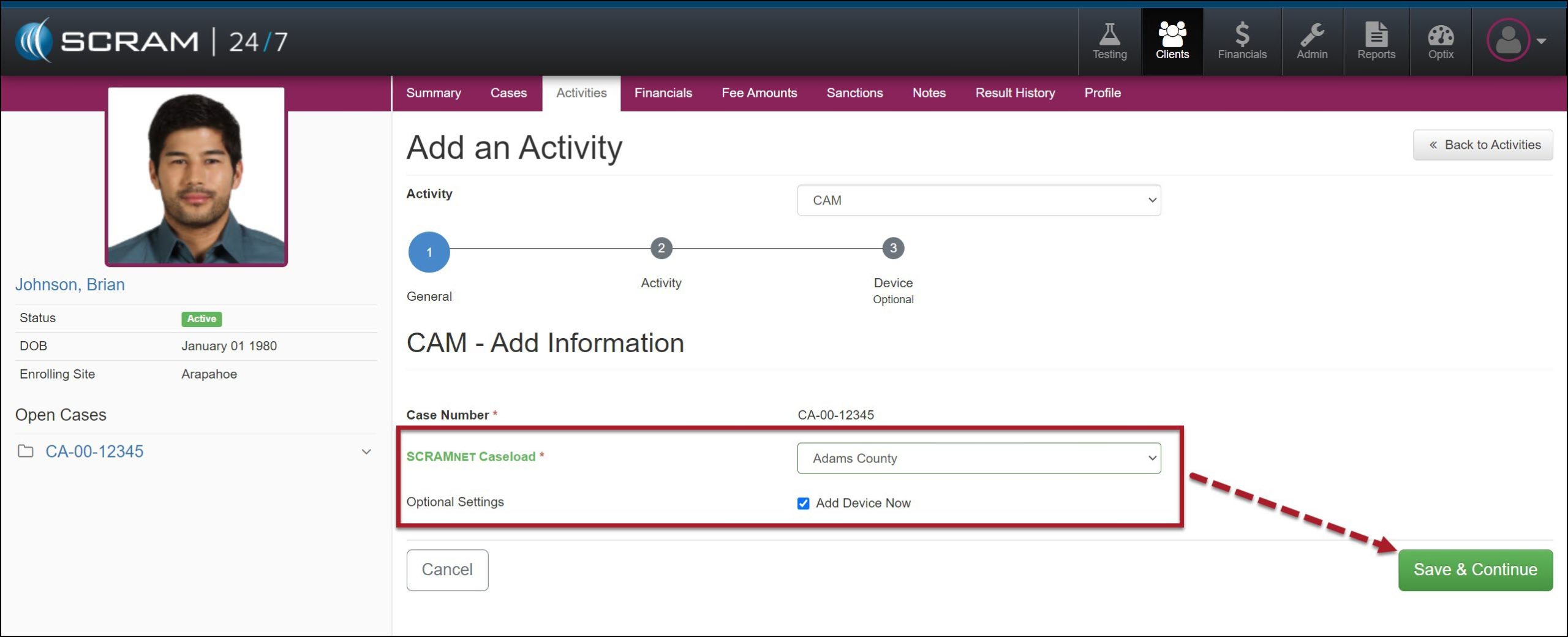
Add CAM Activity – General Step (click to enlarge)
|
|
Activity Step
- Add the Activity details.
- The “Required In-Person Check-In” option establishes whether you would like to schedule a recurring face-to-face appointment with the client. When this option is set to “Yes,” you will enter the appointment details.
- Once saved, the appointment is visible on the client’s Activity Calendar on the Summary page and will populate on the Testing Dashboard on the appointment date.
- Verify and make any updates to the Activity Fees if needed.
- After making your selections, select the Save & Continue button.
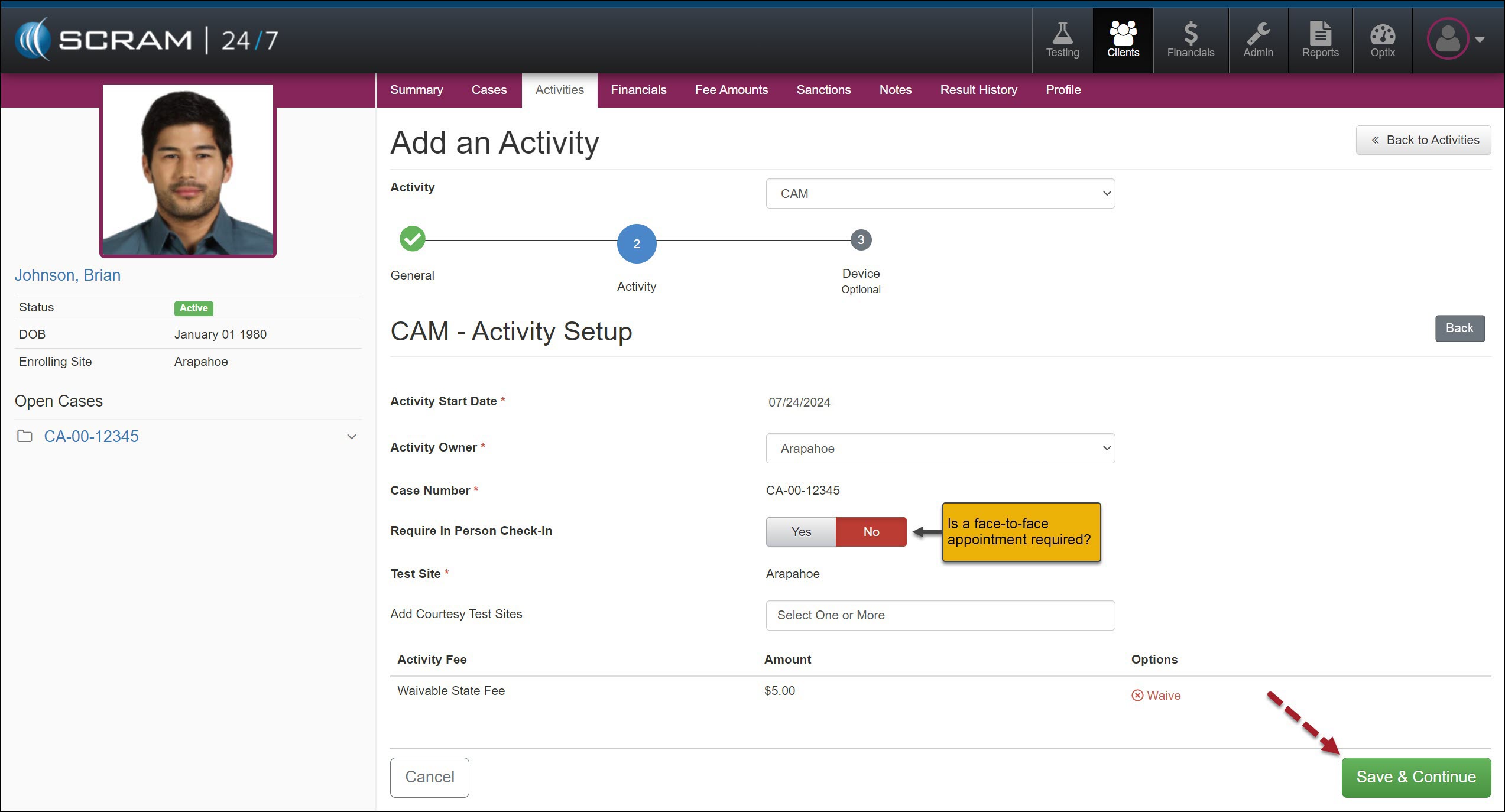
CAM Activity Step (click to enlarge)
Device Step
- It is now time to add the client’s equipment information and monitoring details.
- SCRAM equipment serial number(s)
- Bracelet communication method
- Bracelet communication Schedule
- Participant Agreement Acknowledgement
- Select the Assign Equipment button.
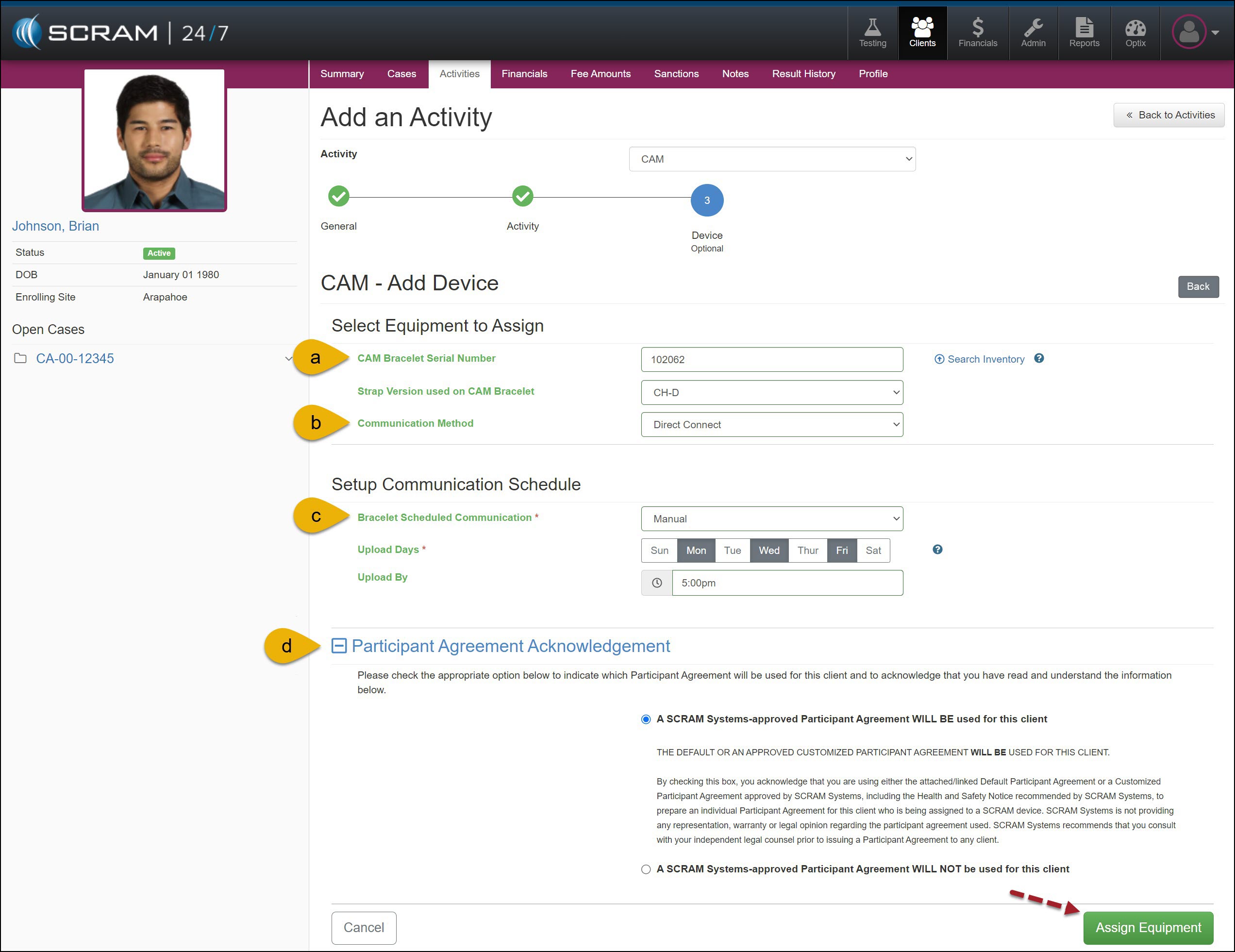
CAM Add Device step (click to enlarge)
- Next, the Participant Agreement form may be selected and printed for the client to sign. In addition, you can access the SCRAM Device Installation help documentation.
- Next, select the Complete Assignment button.
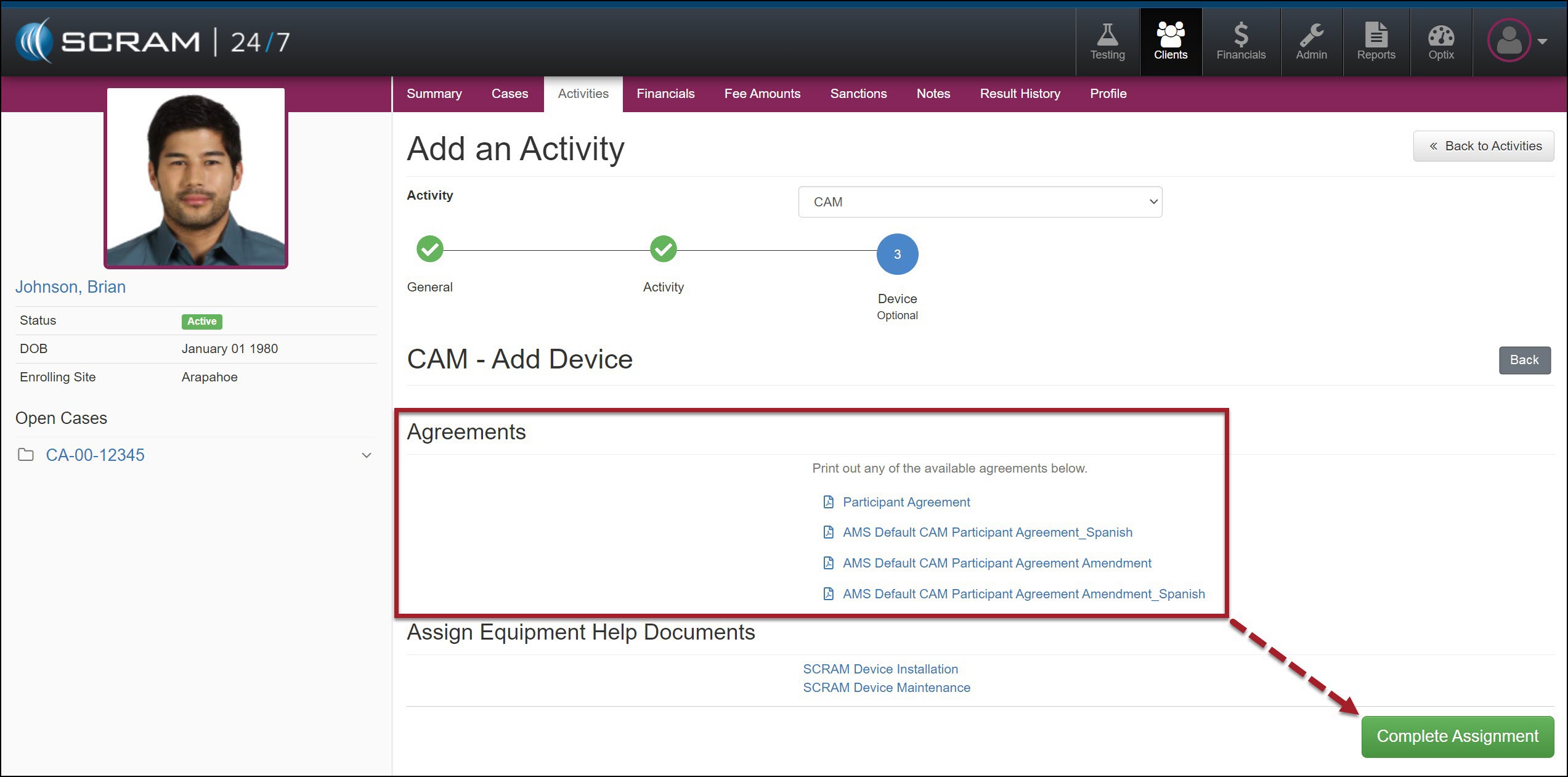
Activity Step – Participant Agreement and Finish set up (click to enlarge)
The Client Equipment section on the client’s Summary page displays the equipment in a “Pending Assignment” status.
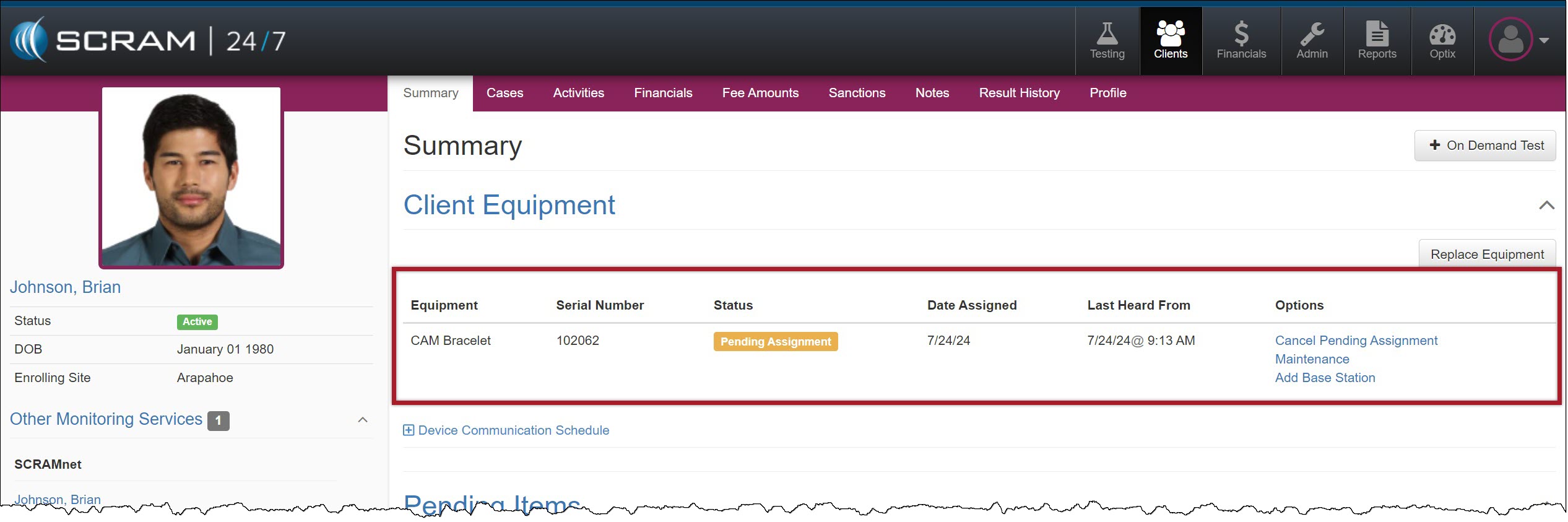
Client’s Summary Page – Equipment Pending Assignment (click to enlarge)
Once the assignment is completed, the client’s Equipment section will reflect the current equipment status.On the client’s summary page, you can complete equipment maintenance when required and view and edit the device’s communication schedule.
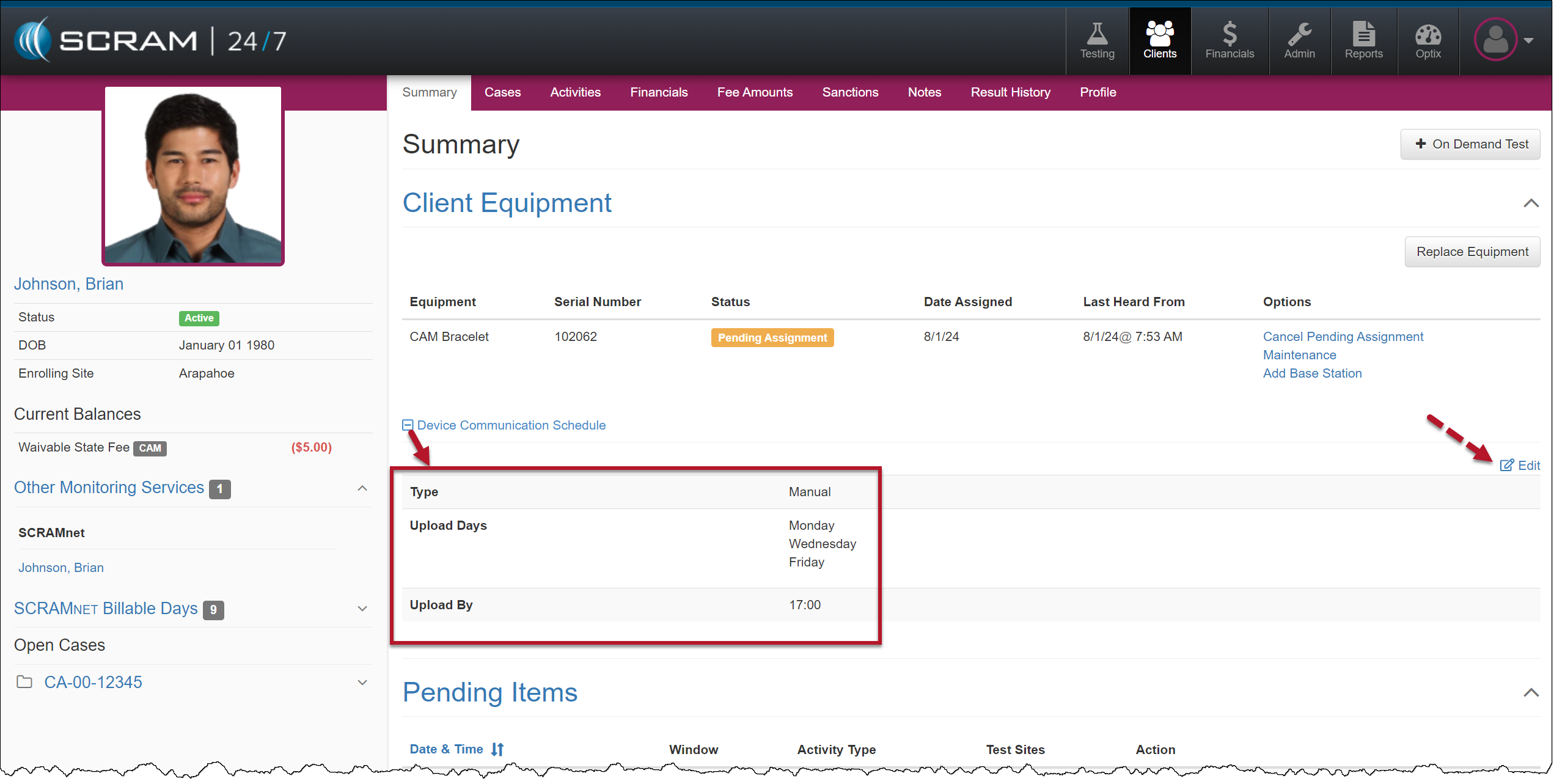
CAM Device Communication Schedule Section (click to enlarge)
The Other Monitoring Services section in the sidebar hyperlinks to the client’s SCRAMNET profile.
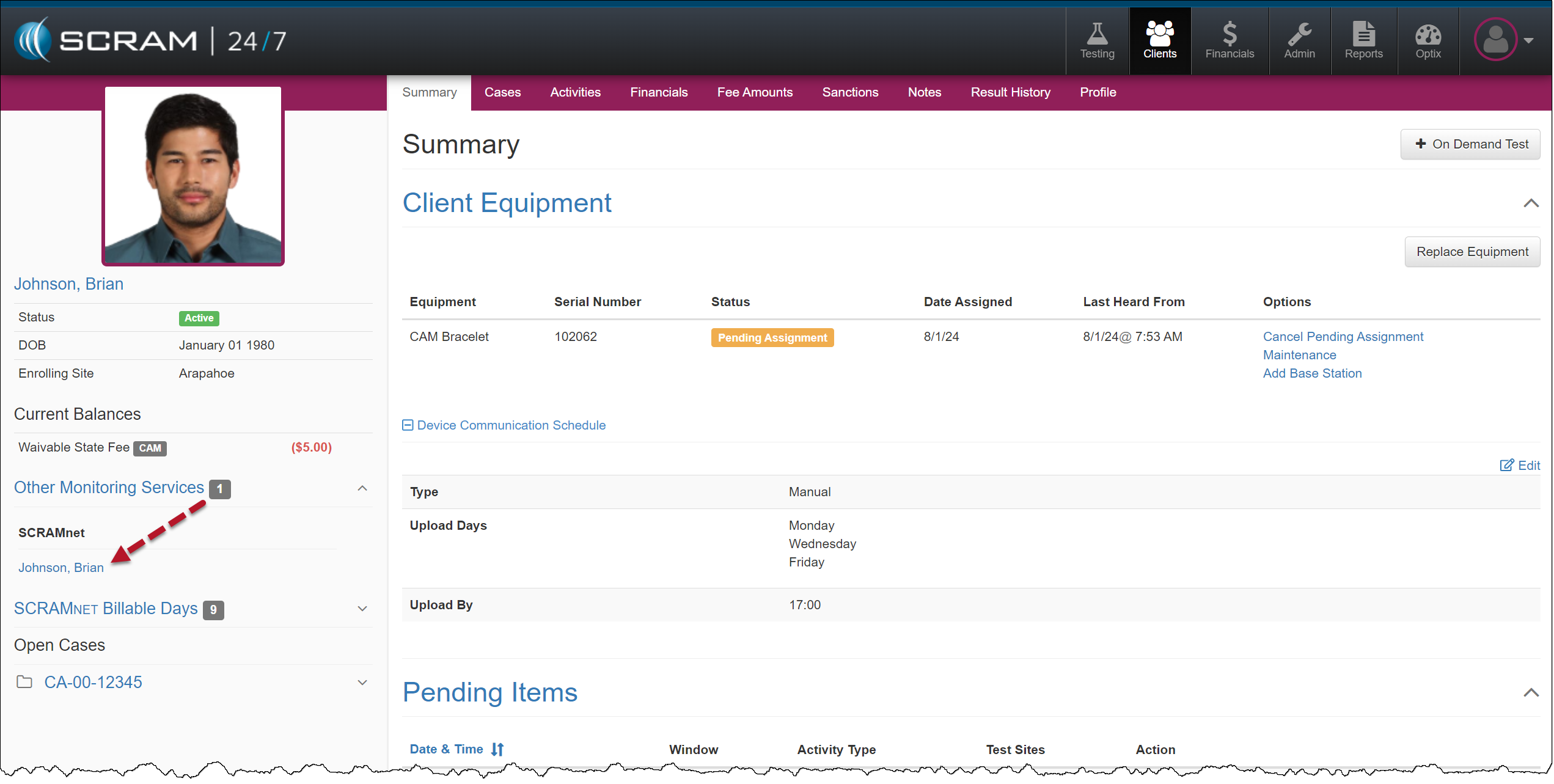
Client Sidebar – Other Monitoring Services (click to enlarge)
|
For step-by-step instructions on installing and assigning the client’s equipment, visit Assign the SCRAM CAM Bracelet and Assigning the Standard and Wireless Base Station Help articles. |