After reviewing the General Guidelines for Equipment Assignment, and Installing the SCRAM CAM Bracelet and Assigning Equipment, the next step is to assign the base station to the client for monitoring.
This article will cover:
*For best results, use the Direct Connect Application for equipment assignment.
Assign the Base Station
Assign the Standard Base Station using Direct Connect.
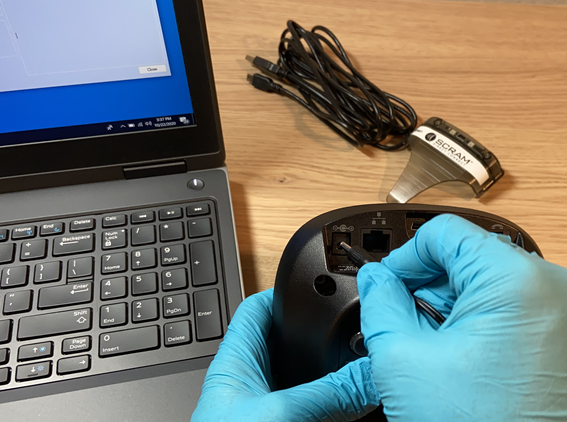
- Plug the base station in to a power source.
- Connect the base station to the Direct Connect cable.
- For Step by step instructions, view the Upload SCRAM Base Station Data Help section.
Plugging Power Cord into the Back of Base Station (click to enlarge)
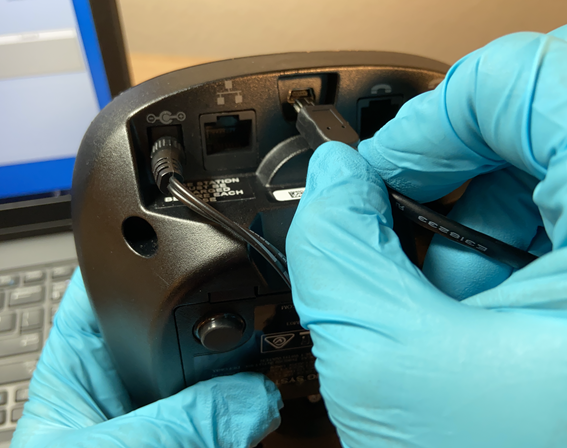
Plugging Direct Connect Cable into the Back of Base Station (click to enlarge)
While the base station is communicating via the Direct Connect application, take a moment to verify the client’s information displayed on the Direct Connect application. The information should match the current client associated to the base station.
- Once communication has completed, navigate to SCRAMNET and refresh the page. The base station’s equipment status should now display as Assigned to Client.
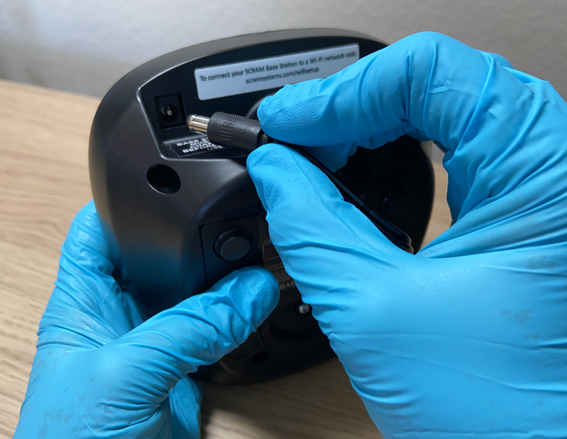
Plugging Power Cord into the Back of Base Station (click to enlarge)
Once the equipment status is showing Assigned to Client, go to the Final Checks section.
Assign the Standard Base Station using an Ethernet connection.
 |
Important: Effective May 15, 2026, Plain Old Telephone Service (POTS) or “landline” connectivity is no longer supported. Ethernet is the only option available for SCRAM Standard Base Stations. |
- Plug the base station into a power source.
- Connect the base station using an Ethernet cable:
- The LCD screen on the base station will display:
- Storage Mode
- Network – Connecting
- Network – Connected / Contacting Server
- Network – Connected / SCRAMNET Contacted
- Current Time and Date / Monitoring
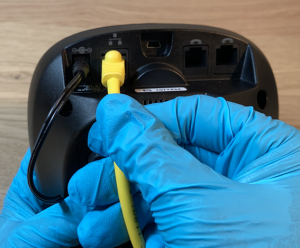
Plugging Ethernet cord into the Back of Base Station (click to enlarge)
- The LCD screen on the base station will display:
- Once the status on the LCD screen displays the current Time and Date / Monitoring,
- If available, refresh SCRAMNET and verify the equipment status displays Assigned to Client.
- If SCRAMNET is not available, contact SCRAM Systems Customer Service or the supervising authority to verify the equipment status in SCRAMNET displays Assigned to Client.
If the base station does not assign in 15 minutes and the LCD screen still displays “Storage Mode,” contact Customer Service for assistance.
Once the equipment status is showing Assigned to Client, go to the Final Checks section.
Assign the Wireless Base Station
- Plug the base station into a power source.
Plugging Power Cord into the Back of Base Station (click to enlarge)
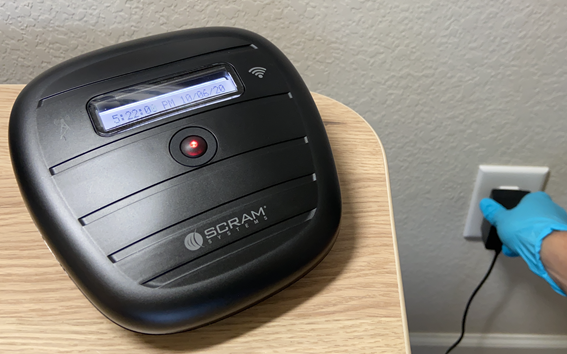
Plugging Wireless Base Station into Power Outlet (click to enlarge)
-
- When connecting over the Cellular network.
- The LCD screen on the base station will display:
- Storage Mode – Battery Charging or Fully Charged – None
- Current Time and Date / Monitoring – 3G
- The LCD screen on the base station will display:
- When connecting over Wi-Fi
- The LCD screen on the base station will display:
- Storage Mode – Battery Charging or Fully Charged – None
- Current Time and Date / Monitoring – WiFi
- The LCD screen on the base station will display:
- When connecting over the Cellular network.
- Once the status on the LCD screen displays the current Time and Date – Monitoring,
-
- If available, refresh SCRAMNET and verify the equipment status displays Assigned to Client.
- If SCRAMNET is not available, contact SCRAM Systems Customer Service or the supervising authority to verify the equipment status in SCRAMNET displays Assigned to Client.
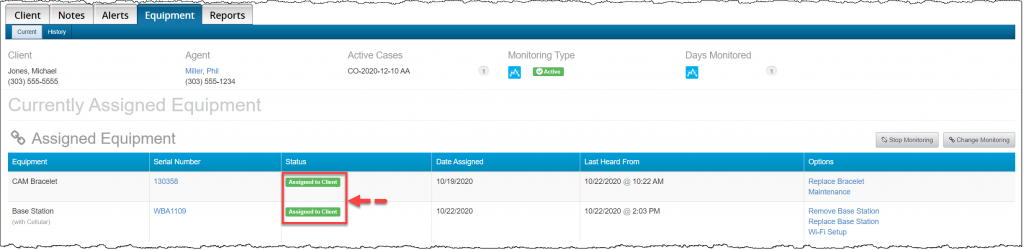
SCRAMNET Client Equipment Page (click to enlarge)
If the base station does not assign in 15 minutes and the LCD screen still displays None, unplug the base station from power, place the base station in a new location where better cellular connection may be available and then connect to power.
Final Checks
For best results, place the Wireless Base Station at least three feet off the floor, away from any other electronics or reflective surfaces that may cause interference. If possible, place the base station in the same room the client will be in during the communication scheduled timeframe.
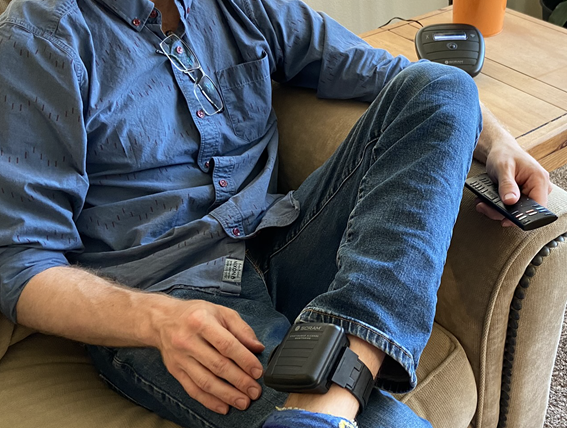
Client Sitting Next to Base Station (click to enlarge)

Client Sleeping Next to Base Station (click to enlarge)
Take a moment to verify:
- The tamper clips have been securely installed on the bracelet.
- The status of the client’s equipment is showing Assigned to Client in SCRAMNET.
- You have provided the client with any additional instructions.
- You have reviewed the Participant Agreement with the client and have a signed copy for your records.