Weekly View
The default view shows the current week up to today. You can navigate to previous weeks by clicking on the left-arrows next to the date range. Return to the current week by clicking the Today button. On the left-side calendar section, the amount of time spent at each stop category is totaled for each day. The location of the stops are shown on the map.
Clicking on a map icon displays information about that stop within two tabs:
- Info: Provides information about the stop like, address, latitude and longitude coordinates, number of visits, and total duration of the visits.
- Visits: Shows you information about the visit(s). For example, if the client stopped at the same location more than once, all the stops are listed. The popup window allows scrolling if there is more information available than will fit into it.
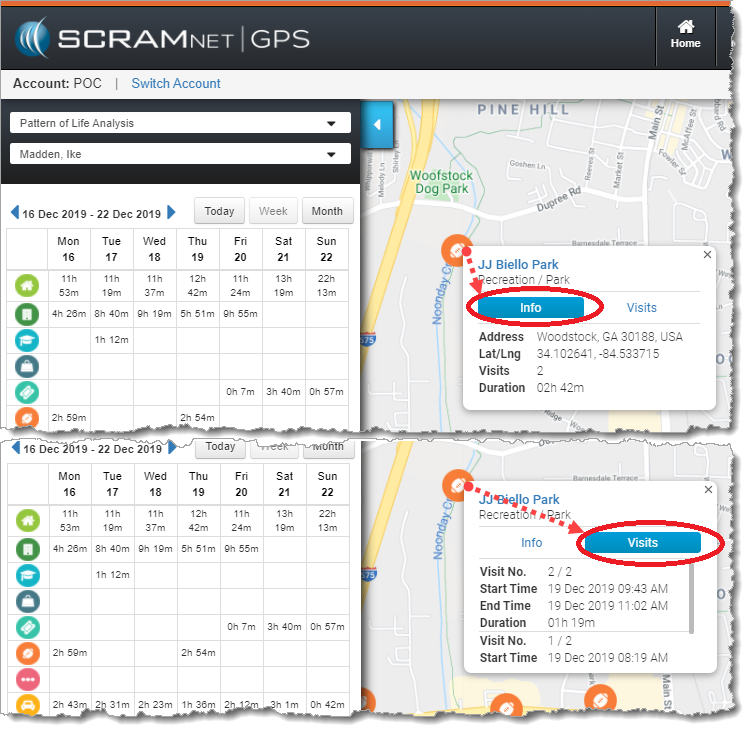
Pattern of Life Weekly View (click to enlarge)
Monthly View
This view displays the client’s stop categories by month. You can navigate to previous months by clicking the arrows on either side of the date range. On the left-side calendar section, the time spent at each stop category represents the average time that the client was in that stop category for that day of the week during the month. If you are looking at the current month, remember that you may not be seeing a complete month.
Similar to the weekly view, clicking on a map icon displays information about that stop. If the client stopped at the same location more than once during the month, all the individual stops will be listed on the information popup window under the Visits tab, which allows you to scroll through the information.
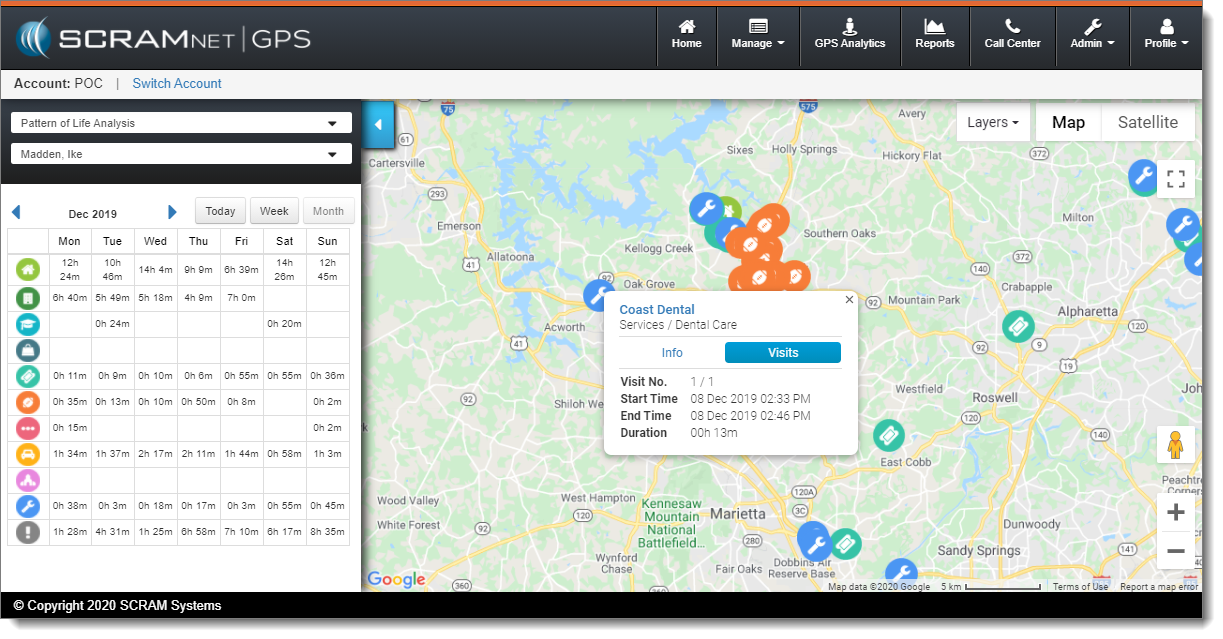
Pattern of Life Monthly View with Visits Tab Selected (click to enlarge)
Next Steps
- Start over with Pattern of Life access and navigation
- Step back to the Stop Categories
- Continue to the Daily Activity Routine View
- Use the Account View to track clients from multiple accounts and sub-accounts
- Review an Example Use-Case