Once the client’s monitoring program has ended, you will want to inactivate their profile and check in their equipment to stop billing and monitoring for the client.
Inactivate the Client Now and Check In the Equipment Now
- On the Dashboard page, select the client’s name hyperlink.
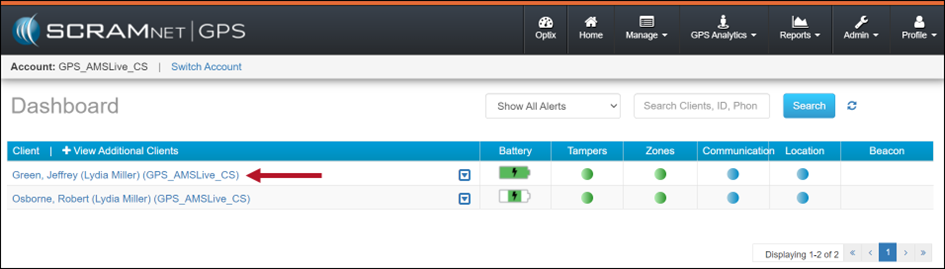
GPS Dashboard Client Name Hyperlink (click to enlarge)
- On the Profile Summary pop-up, select the Profile hyperlink.
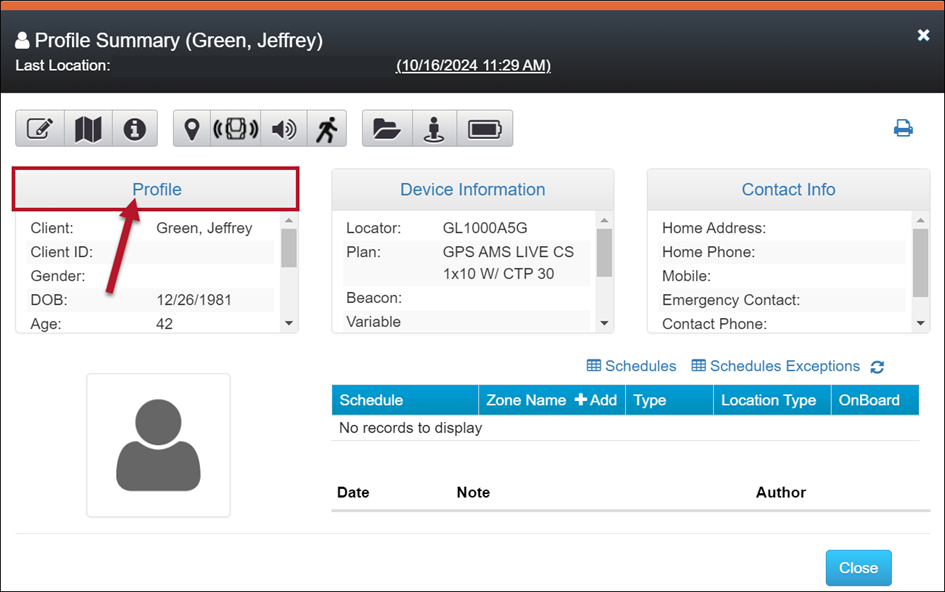
Profile Hyperlink (click to enlarge)
- On the client’s Profile page, select the Inactive option in the Status dropdown menu.
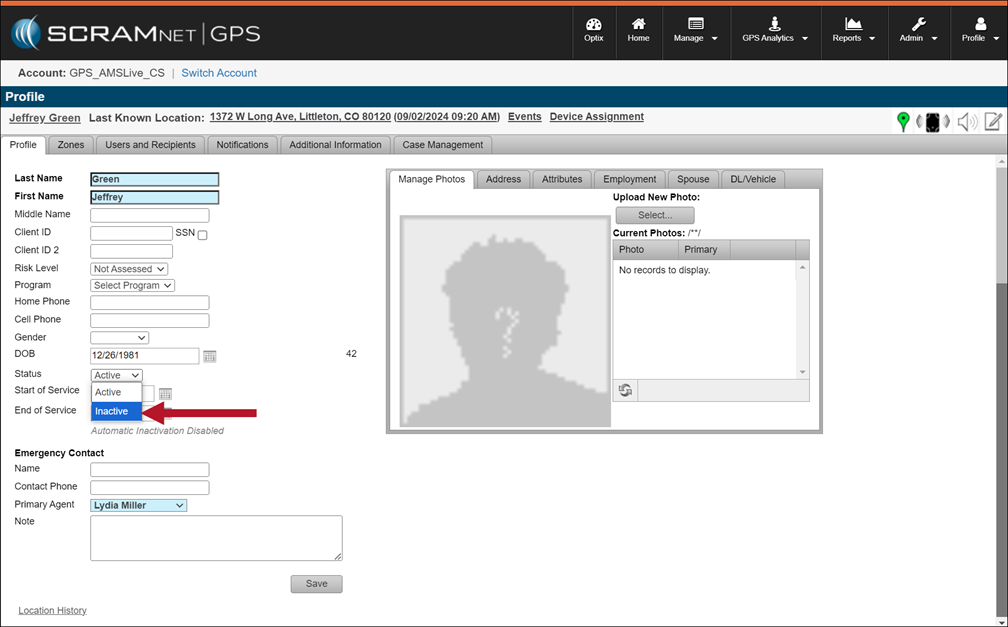
Status dropdown (click to enlarge)
- On the Inactivation Reason pop-up, select the reason for inactivating the client.
- Next, verify and update, if needed, the Device Inventory status. The default setting is “In Inventory.”
 |
When the option of “Awaiting Return” or “Pending Removal” is selected, additional steps must be taken on the Device Inventory page before the device may be assigned to a new client on your program. |
- To save your changes, select the Inactivate Client button.
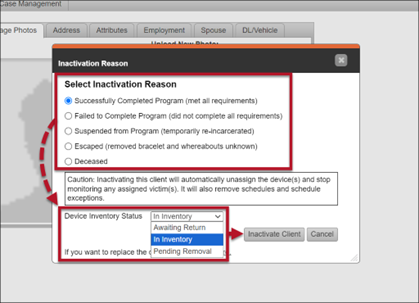
Select Inactivation Reason (click to enlarge)
Check In the Equipment Now and Inactivate the Profile Later
In some cases, you may wish to check in the client’s equipment now, and then inactivate their profile later. To check in the equipment now:
- On the Dashboard page, select the client’s name hyperlink.
- On the Profile Summary pop-up, select the Device Information hyperlink.
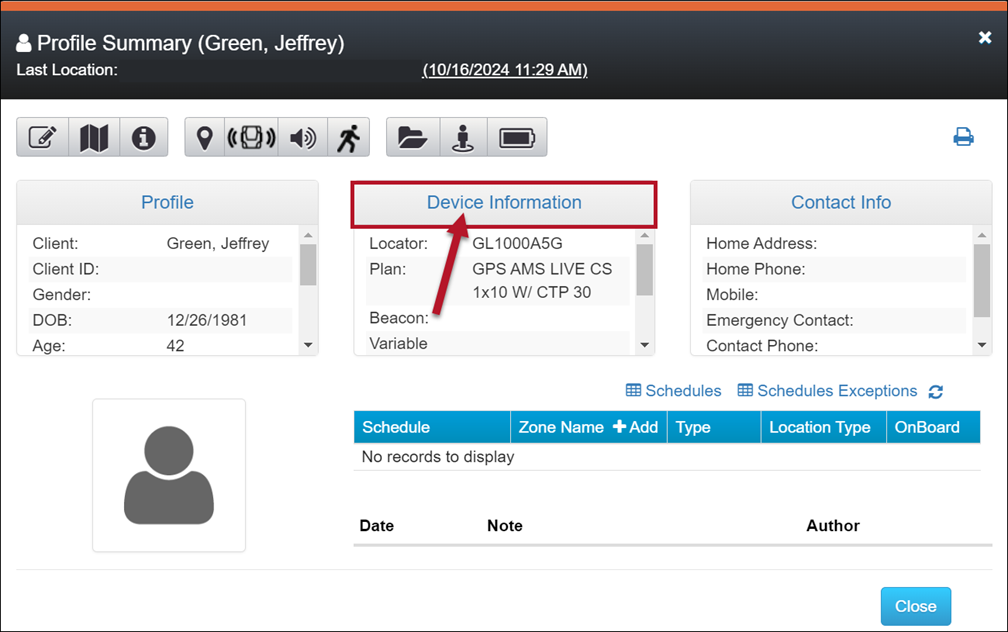
Device Information Hyperlink (click to enlarge)
- Select the Edit hyperlink.
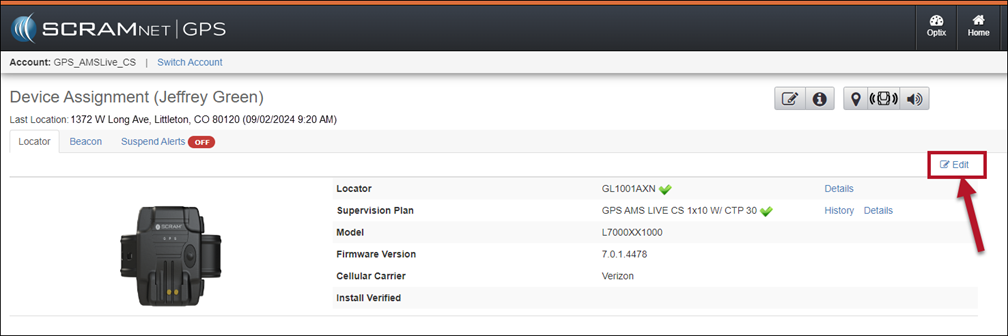
Edit Hyperlink (click to enlarge)
- Locate and select the Unassign button.
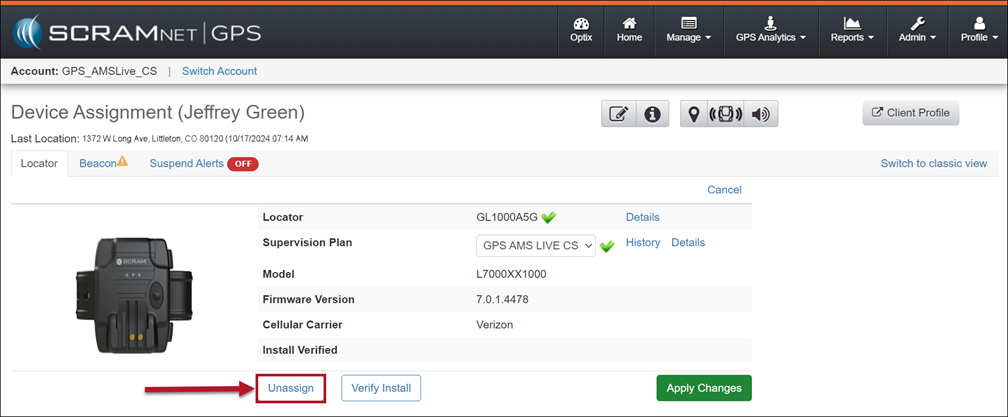
Unassign Button (click to enlarge)
- On the Confirmation pop-up, select the device status from the dropdown menu.
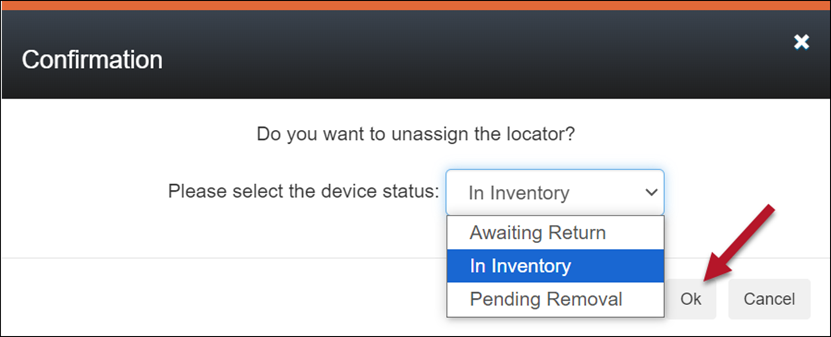
Device Status is “In Inventory” (click to enlarge)
- Select the Ok button to save the status.
|
When the option of “Awaiting Return” or “Pending Removal” is selected, additional steps must be taken on the Device Inventory page before the device may be assigned to a new client on your program. |
When it is time to inactivate the client Profile, follow the steps described in the “Inactivate the Client Now and Check In the Equipment Now” section.