This article focuses on ensuring that the correct event or alert options are selected, so that the appropriate text and email notifications are sent for each recipient associated with the client.
To view the selected events:
- Select the Notifications tab.
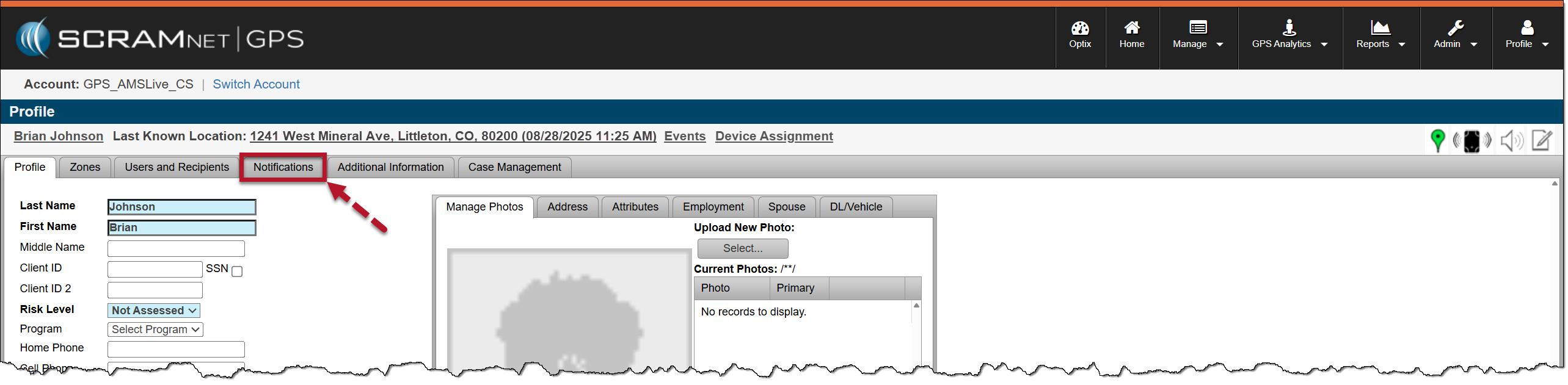
Notifications Tab – click to enlarge
- Open the User/Recipients/Victim dropdown menu and select a recipient’s name from the options available.
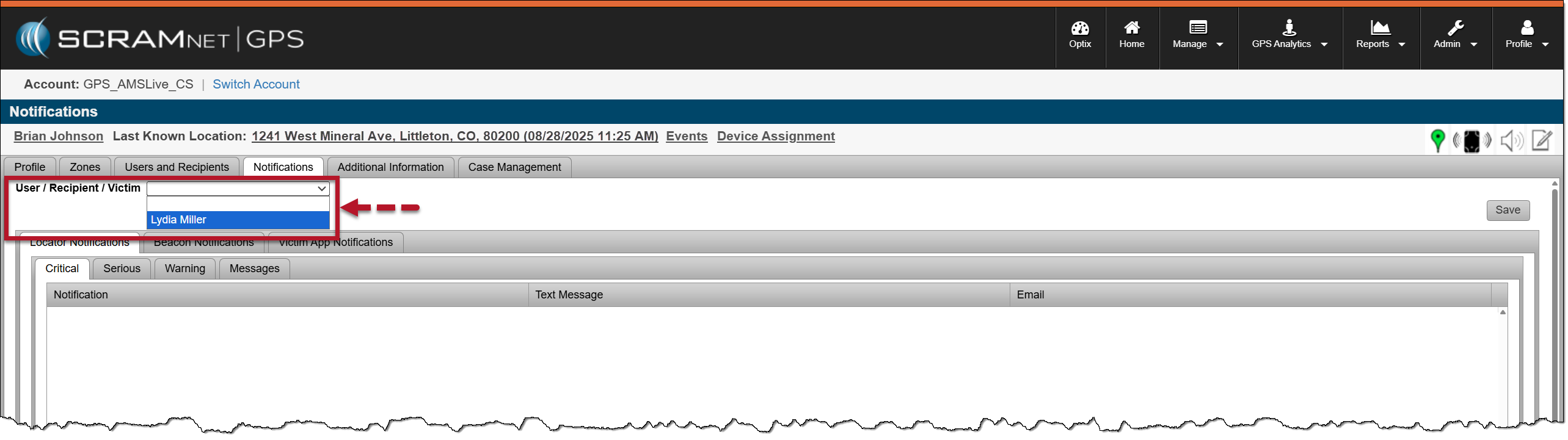
User/Recipient/Victim Dropdown Menu – click to enlarge
Once selected, the default notifications set at the Caseload level are displayed for the locator (GPS bracelet), beacon, and the SCRAM Ally Victim Notifications for the chosen recipient.
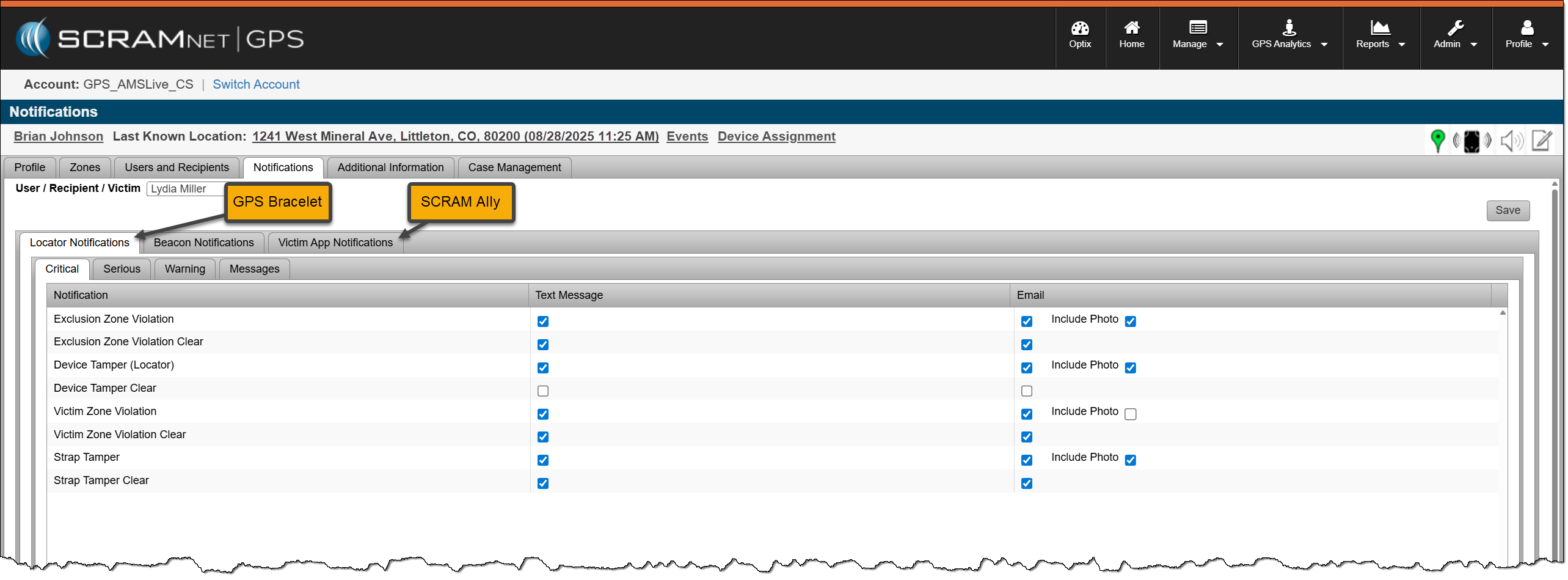
Notifications and Top Level Tabs – click to enlarge
Take note of the event severity tabs. Access each tab to view the specific events corresponding to the specified severity level.
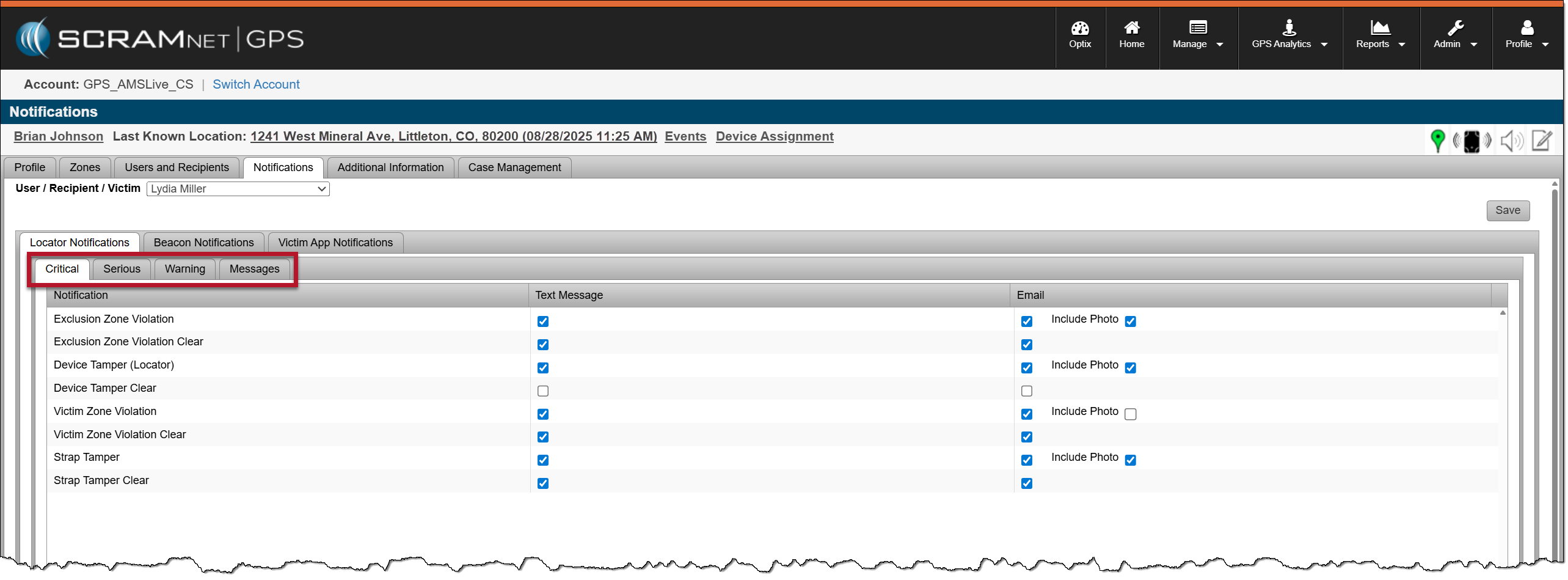
Notification Severity Tabs – click to enlarge
- You may edit the default selections by either checking or removing the checkmark from each event listed to customize the event notifications for each client.
 |
WARNING: Client-Level Notification settings supersede Caseload-Level settings. Be cautious about turning off specific notifications for an individual client. |
- After making any changes, select the Save button before navigating to each device and Victim App Notification tabs, as well as the severity tab, or when navigating away from this page.
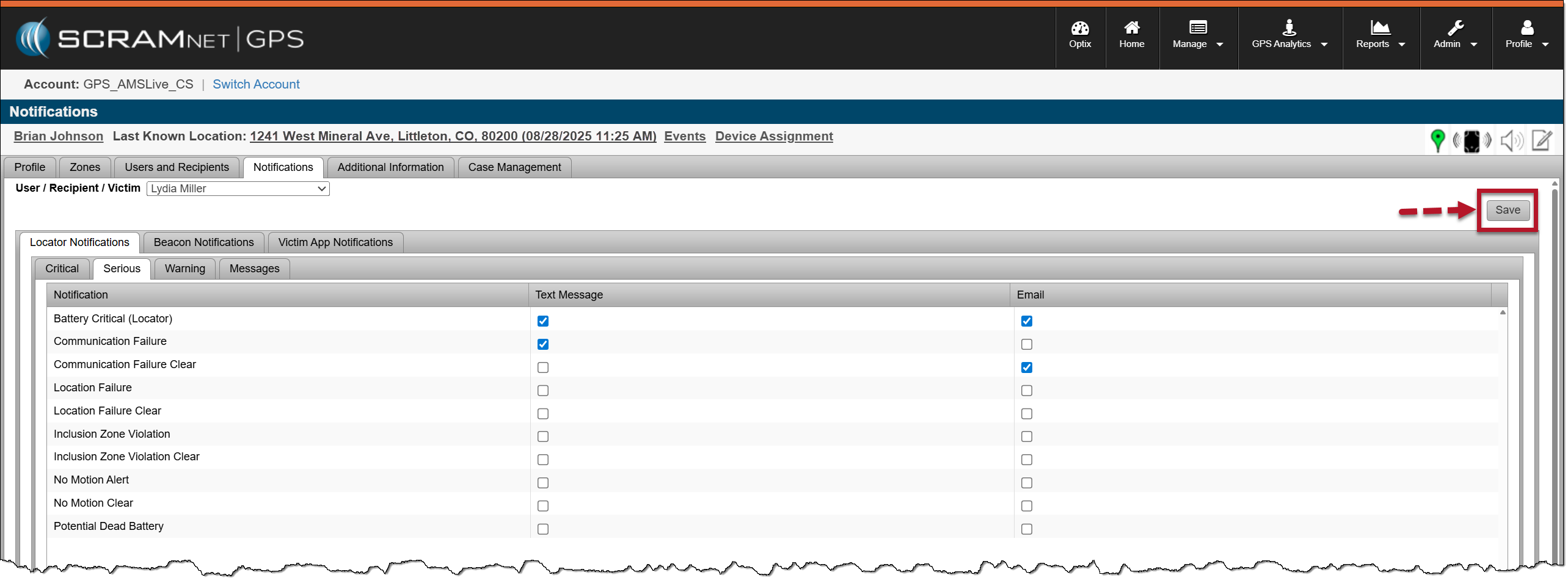
Save Button – click to enlarge
 |
Tips:
When viewing and editing notifications, take into consideration:
|