An Account Zone is a zone frequently used across your entire program, such as your state, the courthouse, parks, or schools. Account Zones may be Inclusion, Exclusion, or Neutral Zones, and may be circular, square, or polygonal shapes. They are saved as an On-Server Zone for the client. These pre-built Zones are created and saved by an administrator of your program.
To associate an Account Zone with a client, on the client’s Zones page:
- Select the Assign Account Zone button.
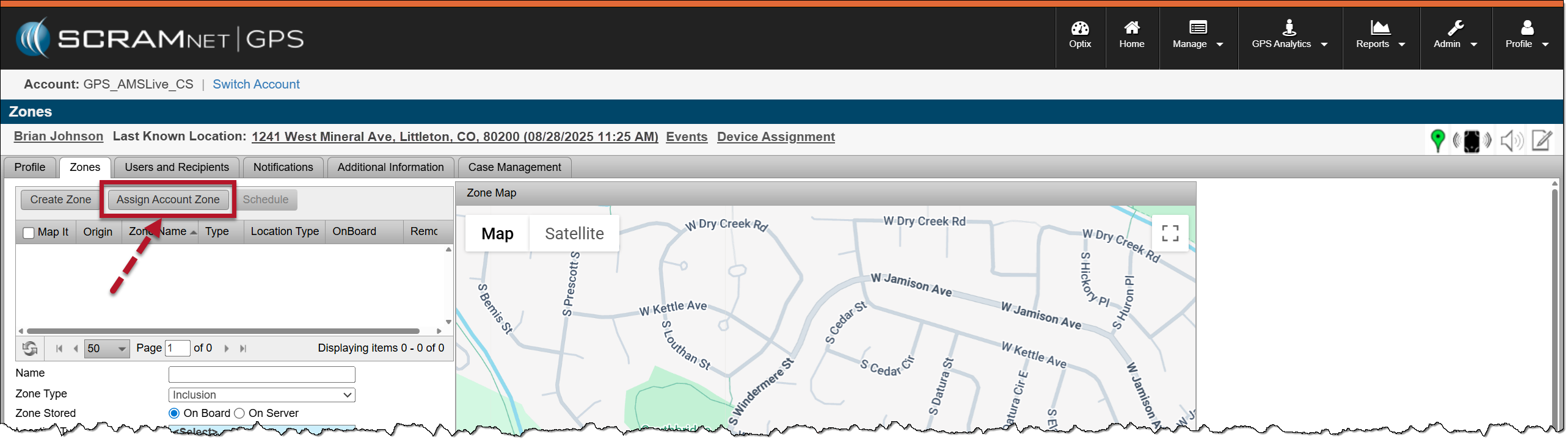
Client’s Zones page, Assign Account Zone Button – click to enlarge
- On the Assign Account Zones pop-up window, check the box next to each Account Zone to associate it with the client.
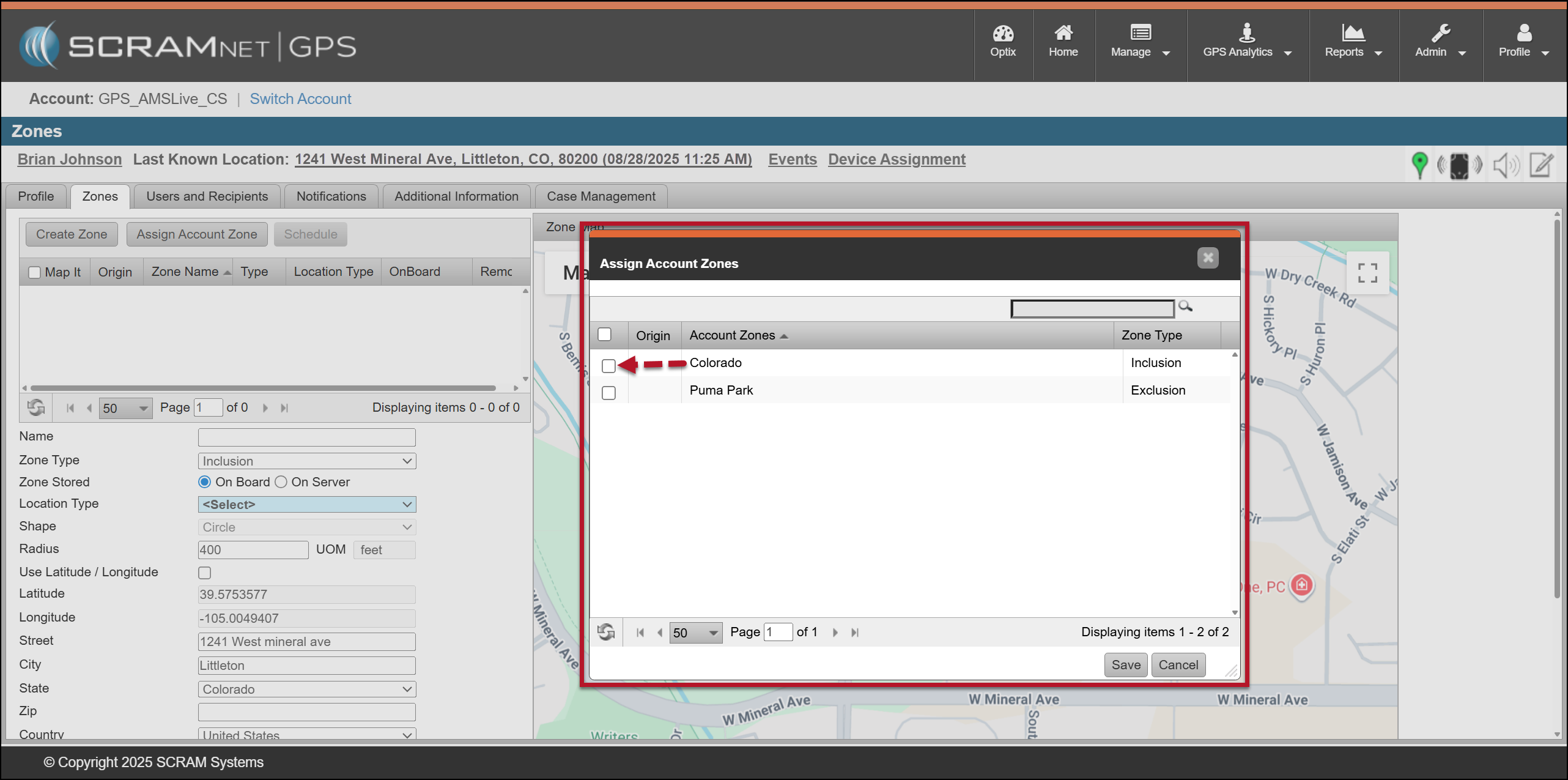
Assign Account Zones Pop-up Window – click to enlarge
- When selecting an Account Zone that was not pre-built with a 24/7 schedule, you will need to acknowledge the warning pop-up window by selecting the OK button and then add a schedule to that zone. Step-by-step instructions are in the available in the Zone Schedules article.
 |
WARNING – If a schedule is not associated with the Account Zone, Event violations will not be displayed on the Dashboard when the client exits that Account Zone. Additionally, depending on the Notifications enabled for the client, email and text notifications may not be sent. |
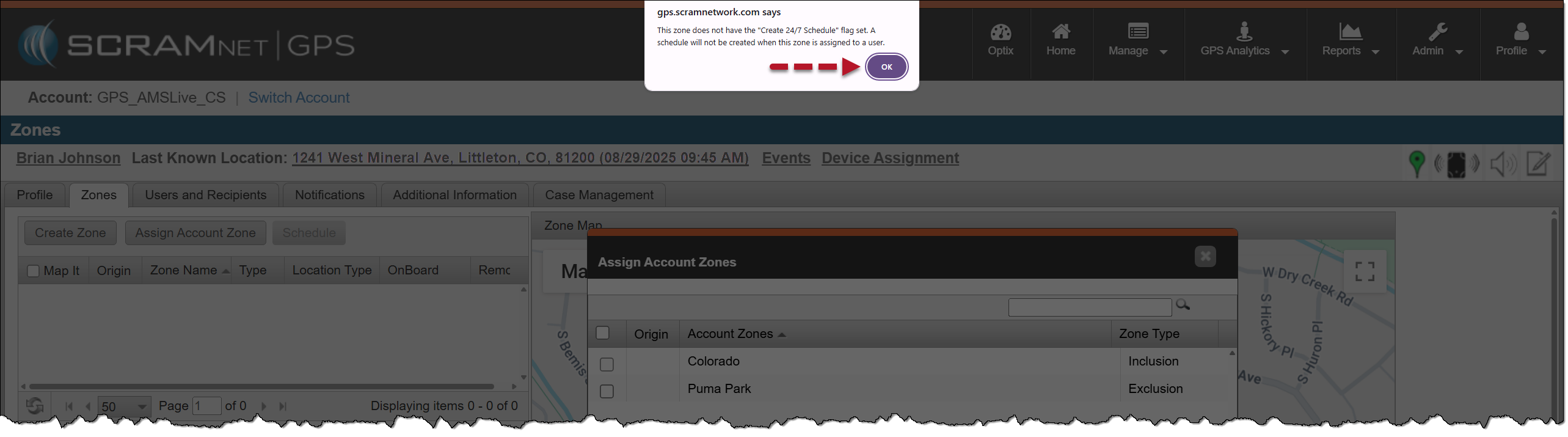
Warning pop-up window indicating that a 24/7 Zone Schedule is NOT associated with the Account Zone – click to enlarge
- Once your Account Zones are chosen, select the Save button.
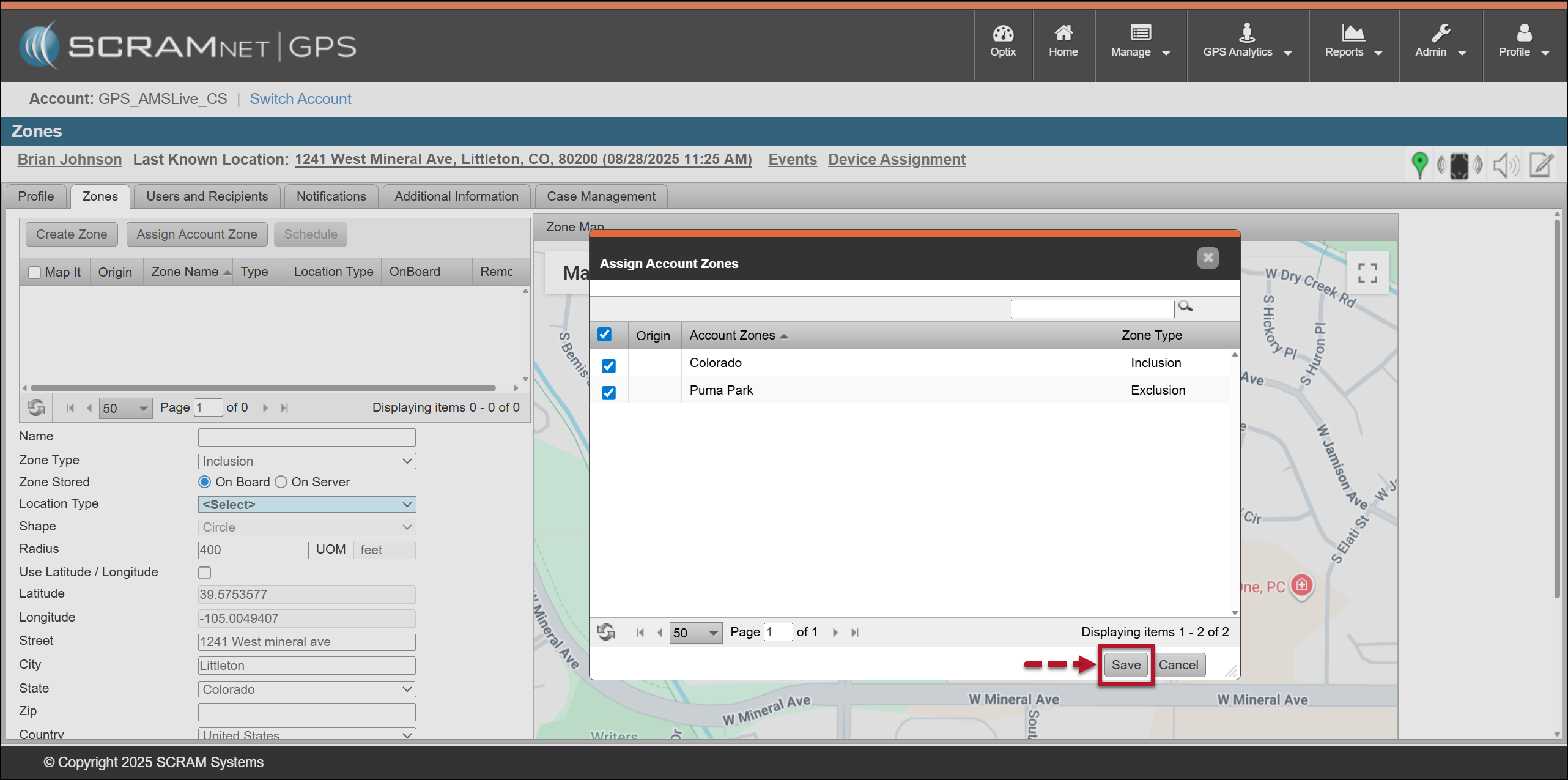
Assign Account Zones Pop-up Window, Save Button – click to enlarge
At this time, the zone’s information is displayed and saved as an “On Server” zone.
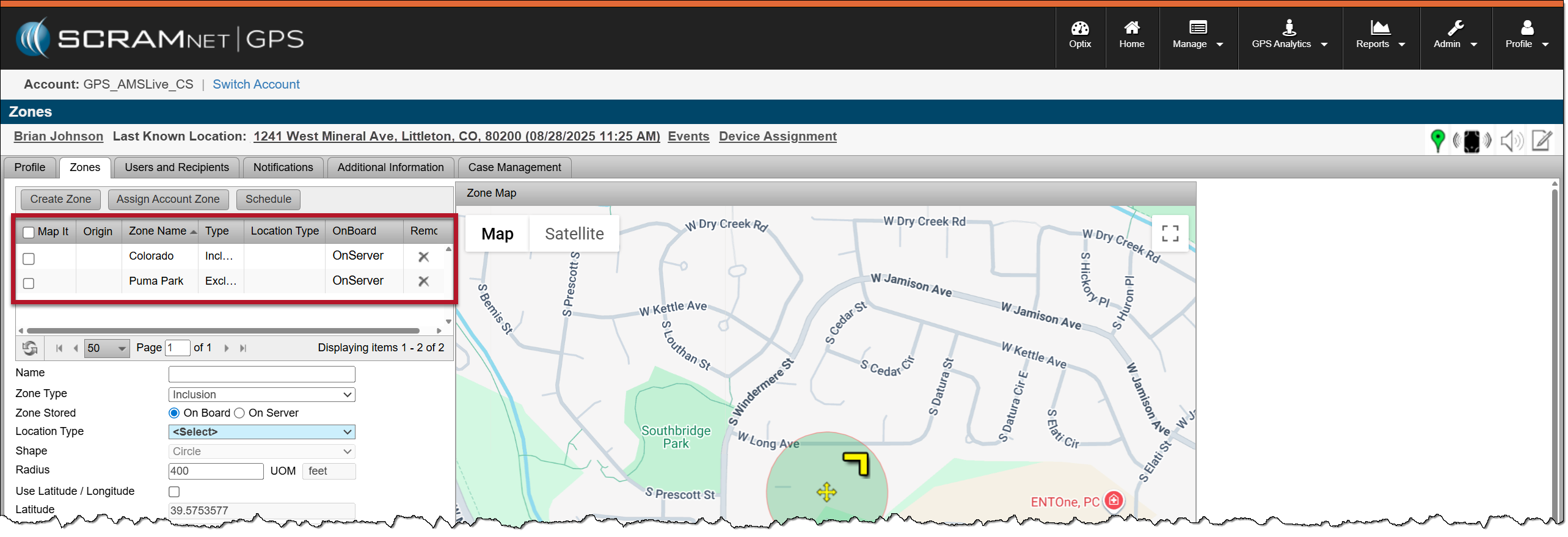
Client’s Zones page with Accounts Zones Saved – click to enlarge