Introduction
Once the client and victim are set up in SCRAMNET® GPS and the victim has installed SCRAM Ally™, victim management begins.
Client Dashboard
Victim Avatar
On the client Dashboard page, an icon to the right of the client’s name indicates that a victim has been associated with that client in the system.
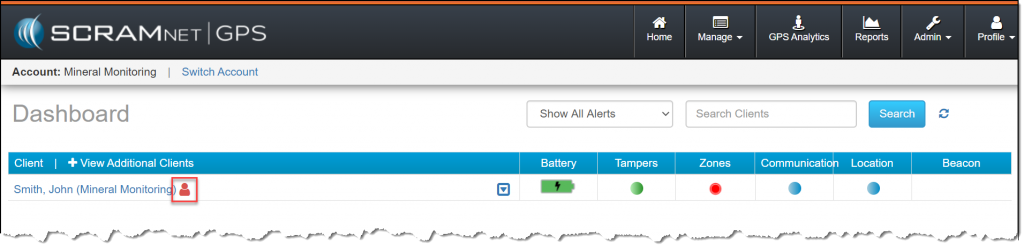
GPS Dashboard Shows Client with Victim Icon (click to enlarge)
The icon displays in three colors, which indicate:
- (
 )Green icon – Victim has no open alerts/events
 - (
 )Red icon – Victim has at least one open alert/event
 - (
 )Yellow icon – Victim registration is pending
Hovering your mouse pointer over the icon will provide more information about the victim.
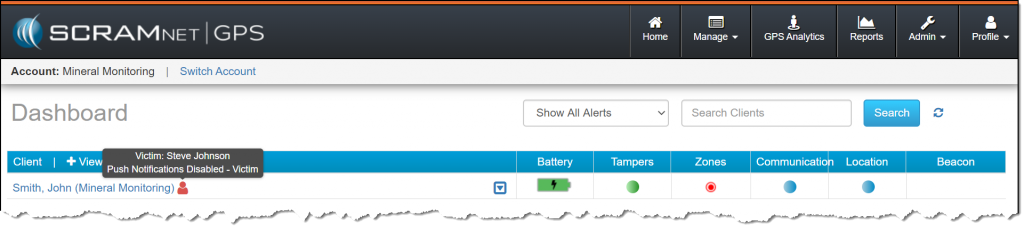
Hover Your Mouse Over the Victim Icon for More Information (click to enlarge)
Client Map
At any time, you may access the client’s map to view the current distance between the client and victim. To view the map, select “Map” from the dropdown menu to the right of the client’s name.
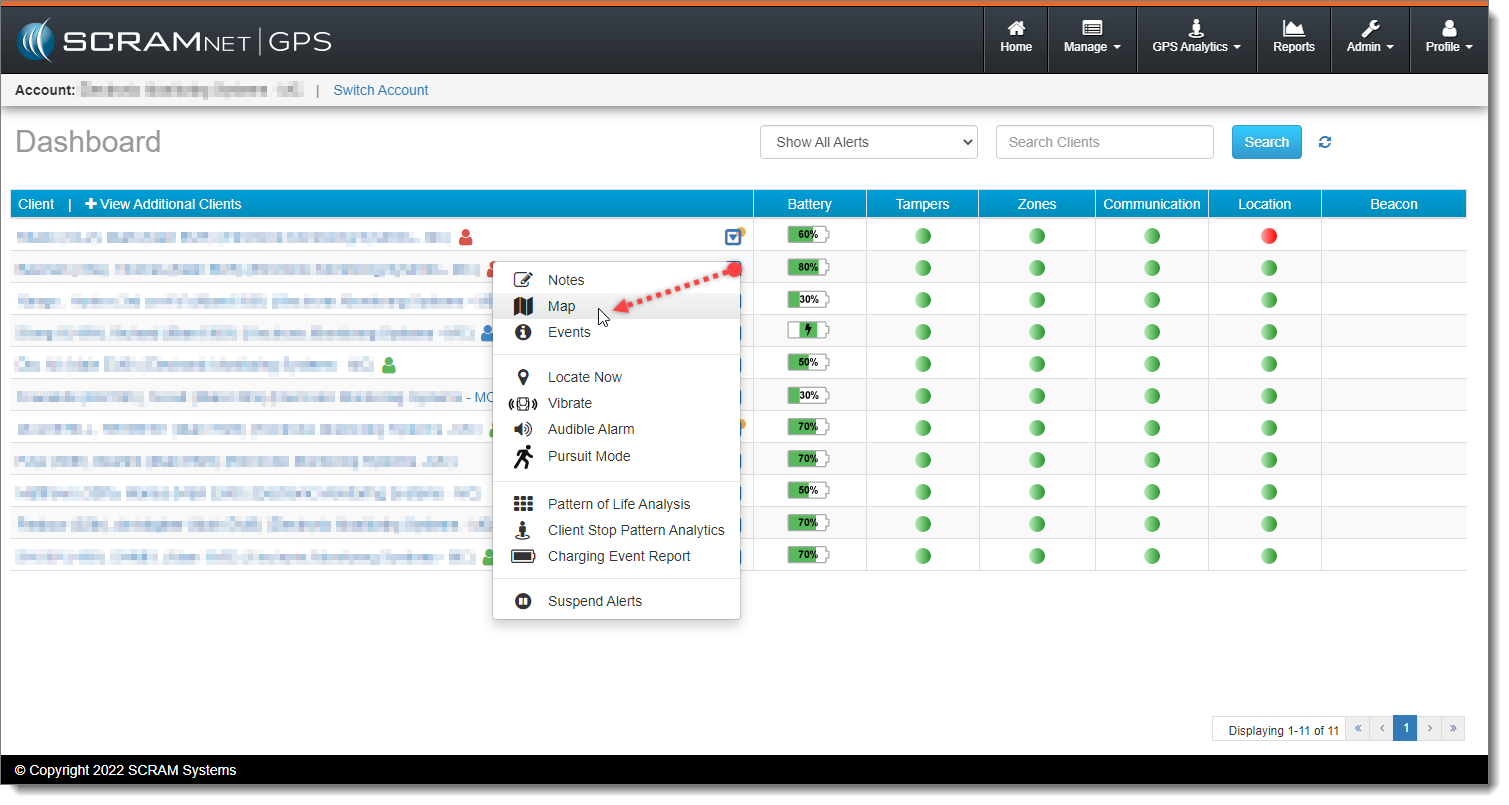
Select ‘Map’ from Dashboard Dropdown (click to enlarge)
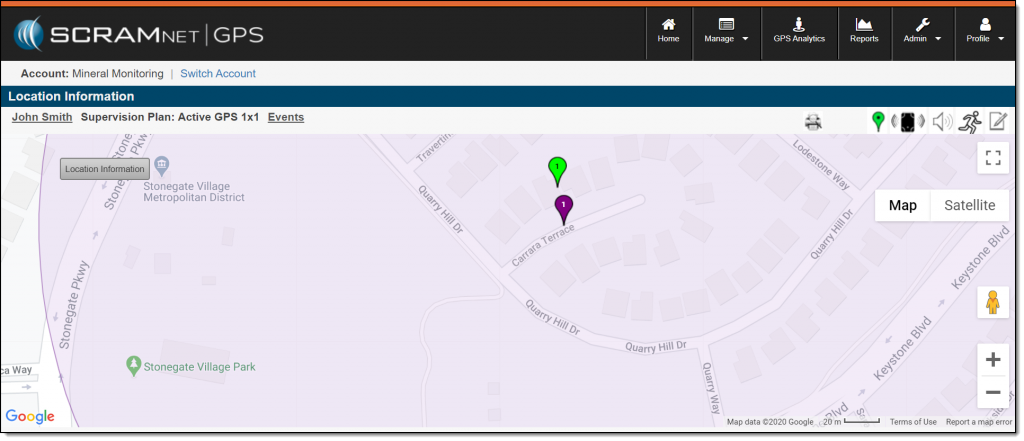
Map View (click to enlarge)
Victim Events
Click on the victim icon to view a Victim Events pop-up, which lists all open critical alerts, serious alerts, warnings, and messages related to the victim.
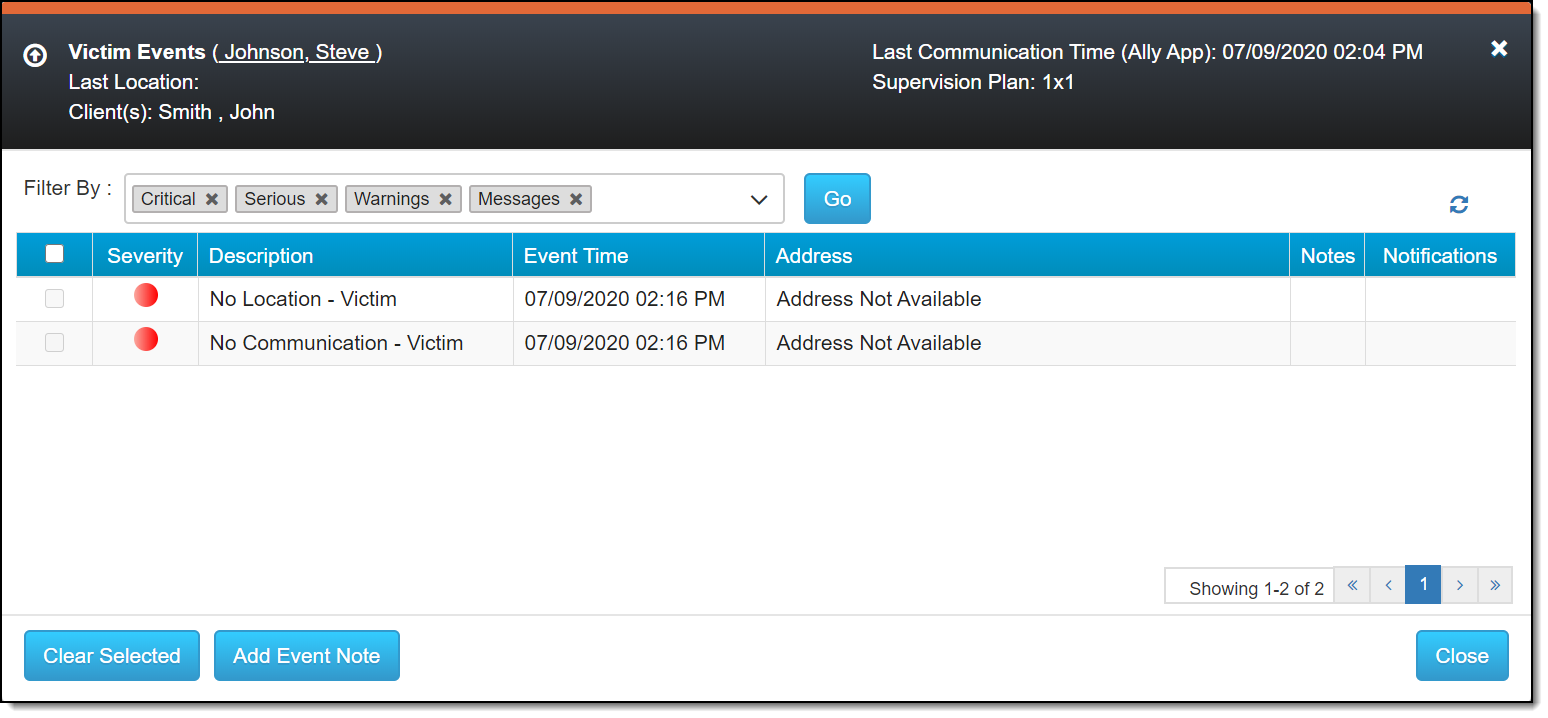
Victim Events Dialog (click to enlarge)
From here, you may select all or specific alerts and then click the Clear Selected button to clear those alerts.
You may also add a note to a victim event by selecting that event and clicking the Add Event Note button.
Manage Victims
All victims added in SCRAMNET GPS are listed on the Manage Victims page. Select the “Victims” from the top-level Manage dropdown to access the list.
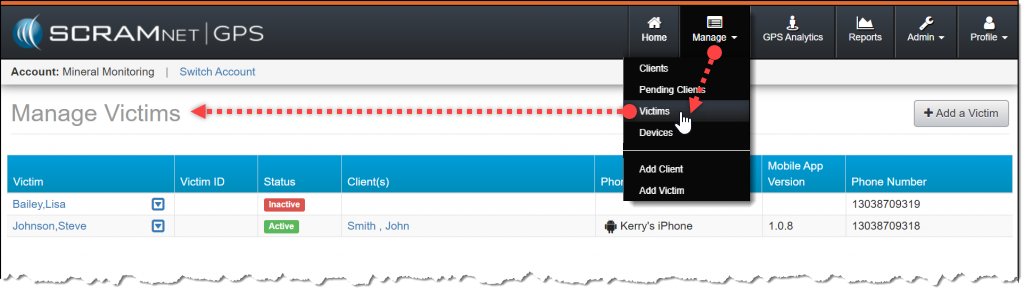
Manage Victims (click to enlarge)
For each victim, the following information is shown:
- Victim – Name of the victim as entered in the system. The name itself is a link that, when clicked, accesses the victim’s profile information. Clicking the down arrow to the right of the name lists two options:
- Notes – Clicking this option displays all notes entered for the victim.
- Events – Clicking this option displays a list of all open alerts related to the victim.
- Victim ID – Optional identification designation entered in the system.
- Client(s) – Name of all clients who have been associated with the victim. Each name is a link that, when clicked, accesses that client’s profile information.
- Phone Type/Name – Icon that represents the type of smartphone in which the SCRAM Ally app is installed. The name displayed is what the victim has entered as the name of their smartphone.
- Mobile App Version – Number of the version of SCRAM Ally that is currently installed on the victim’s phone.
- Phone Number – The victim’s smartphone number.
Next Steps:
- Review victim notification features and violations
- Complete victim set-up tasks to begin victim management
- Explain the features and capabilities of the SCRAM Ally App
- Configure account and user/recipient/victim notification settings
- Utilize reports in SCRAMNET GPS
- View and print the SCRAM Ally App victim instructions