When setting up a client for monitoring in your program, always verify that the correct Users and Recipients are associated with the client. This ensures the proper people have access to the client’s profile in SCRAMNET GPS, as well as those to whom event notifications will be sent.
To review the Users and Recipients set up for the client:
- Select the Users and Recipients tab on the client’s Profile page.
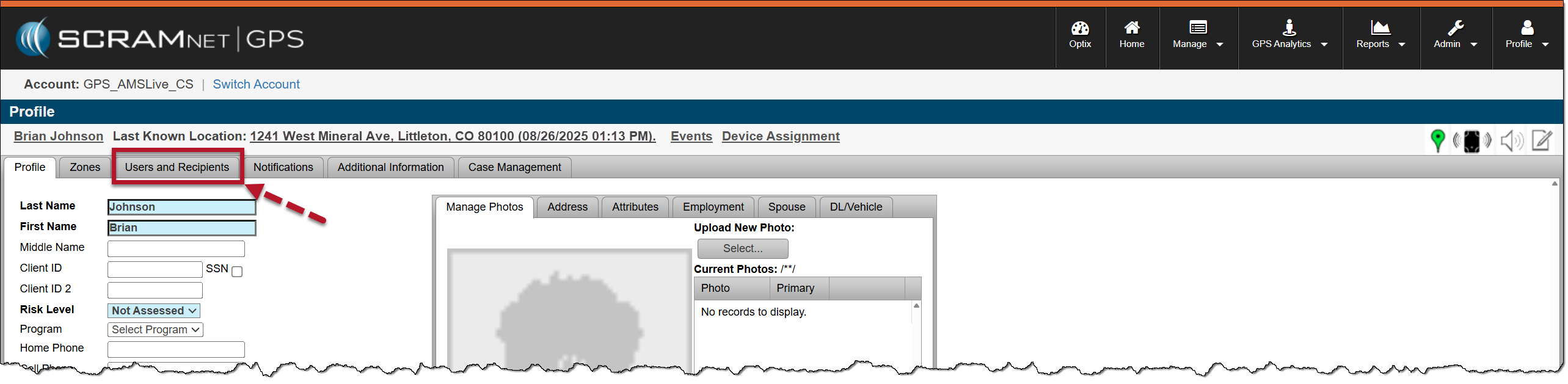
Users and Recipients Tab – click to enlarge
On the Users and Recipients page, let’s focus on the All Users section.
Users are people who have access to the SCRAMNET GPS software. Additionally, users may add and edit client information, manage events, run reports, and perform basic inventory management, based on their assigned user permissions.
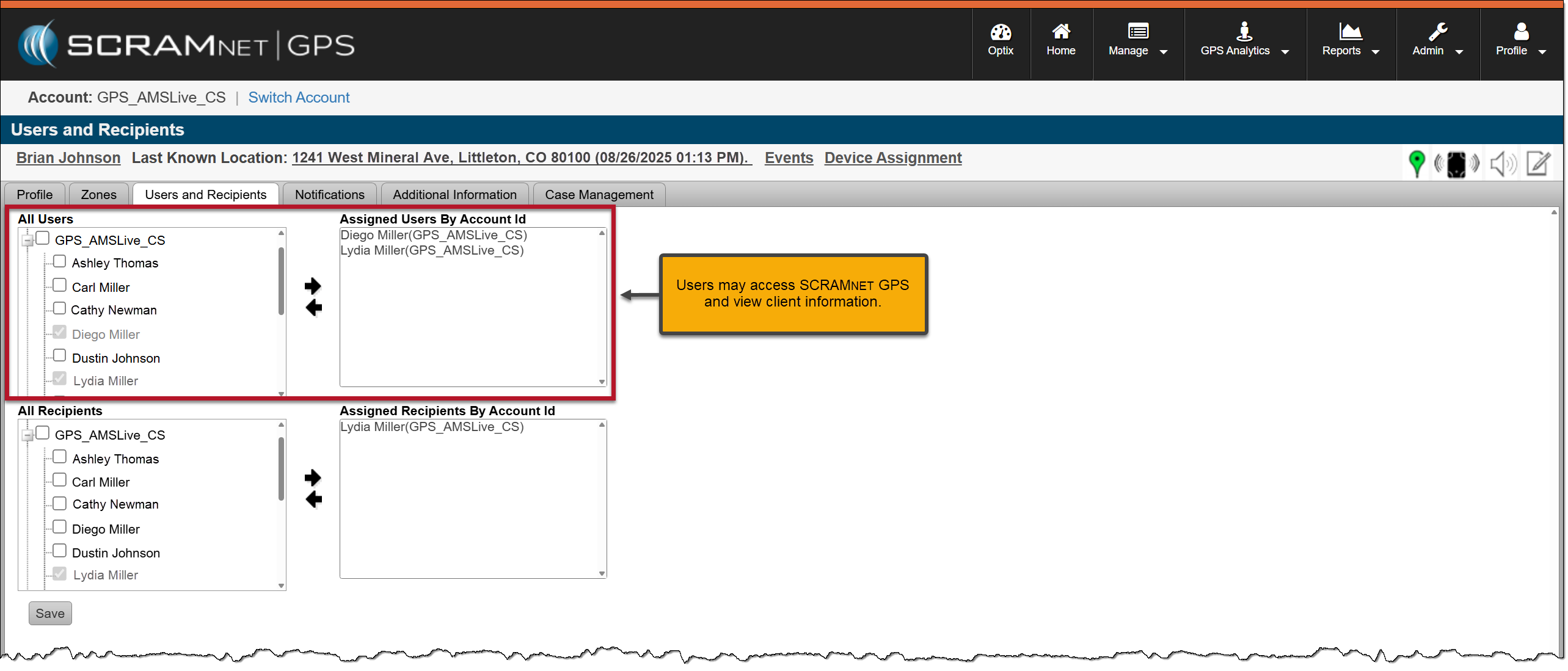
All Users Section – click to enlarge
Now focusing on the All Recipients section.
Recipients are people designated to receive text or email notifications of events generated in the system. In most cases, the person designated to receive text or email notifications also has access to SCRAMNET GPS, but this is not always the case. You may also add recipient-only contacts who are notified when an event is generated but cannot access client information within SCRAMNET GPS.
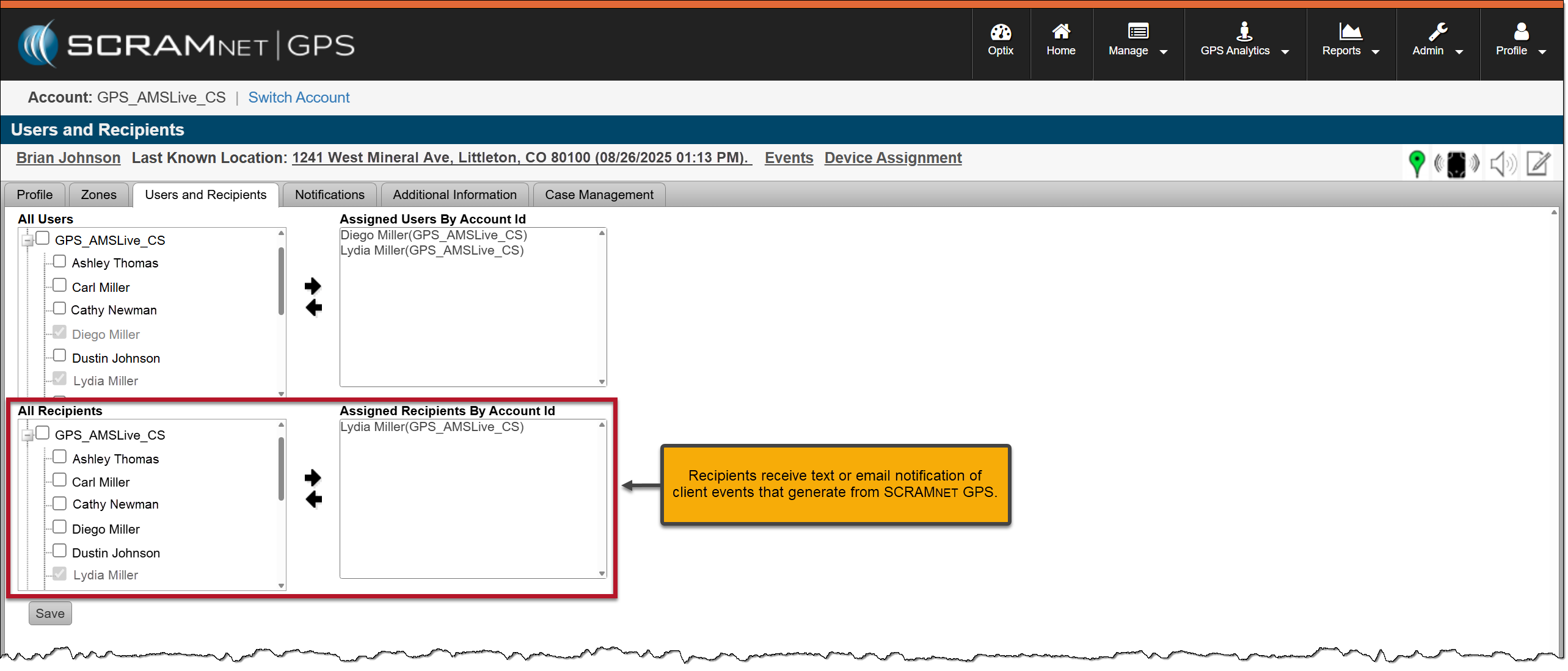
All recipients Section – click to enlarge
 |
|
- To add a User or Recipient, select the checkbox next to their name and then select the arrow icon pointing to the right to move them into the assigned sections.
- To remove a User or Recipient from the assigned sections, select their name to highlight it and then select the arrow icon pointing to the left.
- Once all updates have been made, select the Save button.
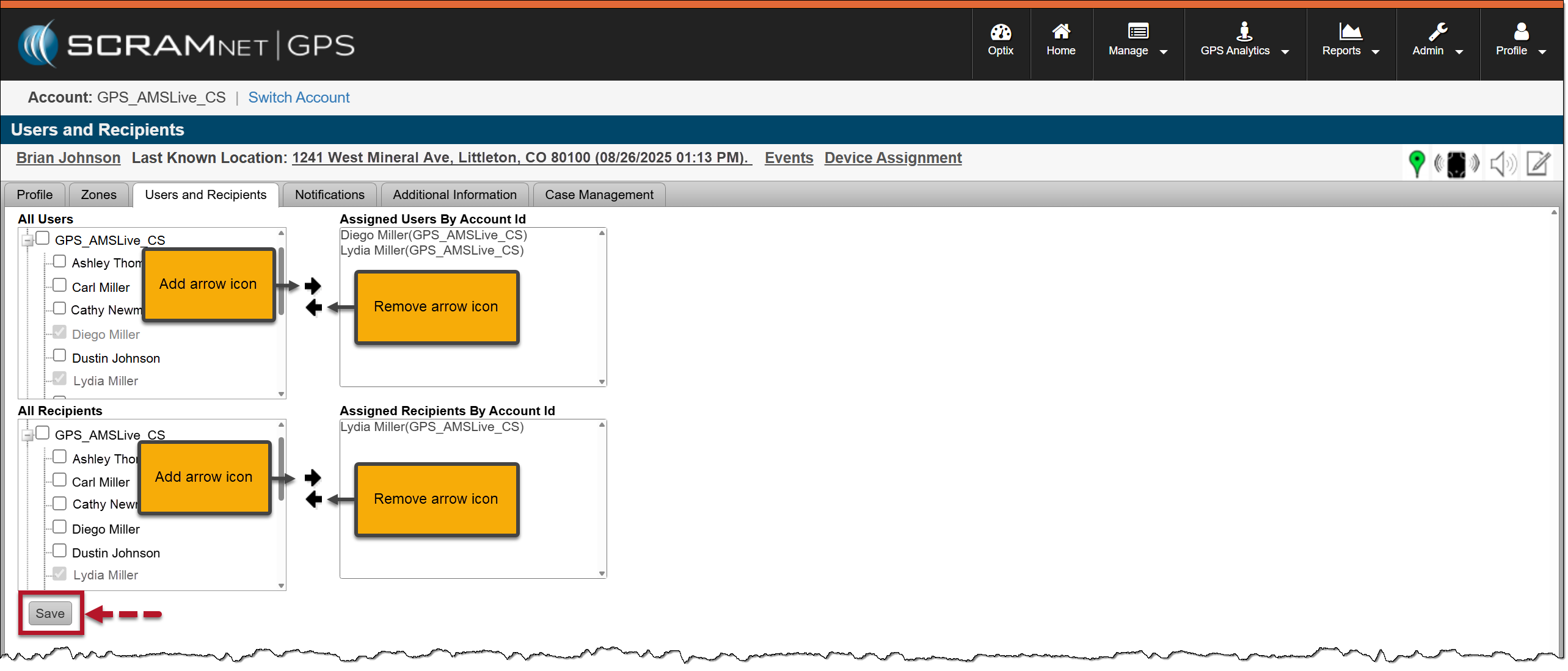
Add and Remove Arrows and Save Button – click to enlarge
To add a User or Recipient not listed, follow the step-by-step instructional video available in the SCRAMNET GPS Administration Basics article.