This is an overview of the user access allowed by each of the following four SCRAMNET GPS permission levels. Select a permission level from the list below to jump directly to that section. Select the yellow “up” arrow in the bottom-right corner of your screen to return to the top of this page.
Read Only Permissions
The Read Only permission level provides SCRAMNET GPS users with access to the Optix, Home, Reports, and Profile (My Profile, Help, Log Off) menu items.
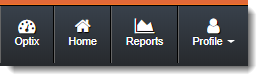
Read Only Menu Bar
 |
Read Only users cannot access inactive client records from the client list in Optix or via the Manage menu item in GPS, because they do not have access to either. |
Client Access: Active Clients Only
Users with Read Only permissions can view additional clients by Account or by Officer.

On the client Profile Summary page, users with Read Only permissions can:
- Add notes to the client’s profile
- Access the Location History window
- View the Event Details window
- Send a Locate Now, Vibrate, or Audible command
- Activate Pursuit Mode
- Open the Charging Event report
- View the client’s Schedule (only) via the Edit link
All other elements on the page are read only.
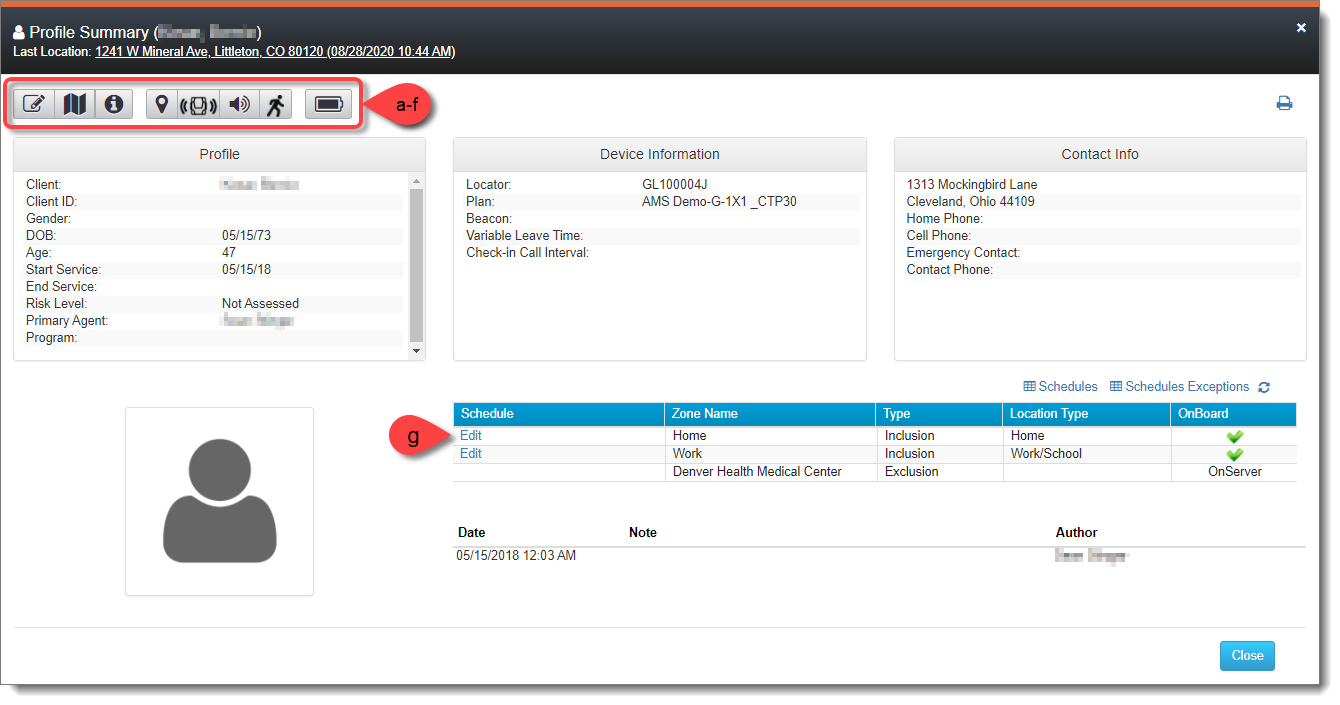
Profile Summary – Read Only (click to enlarge)
In the Location History window, users with Read Only permissions have access to the entire mapping playback functionality, as well as the ability to send a Locate Now, Vibrate, or Audible command; activate Pursuit Mode; and add notes to a client’s record.
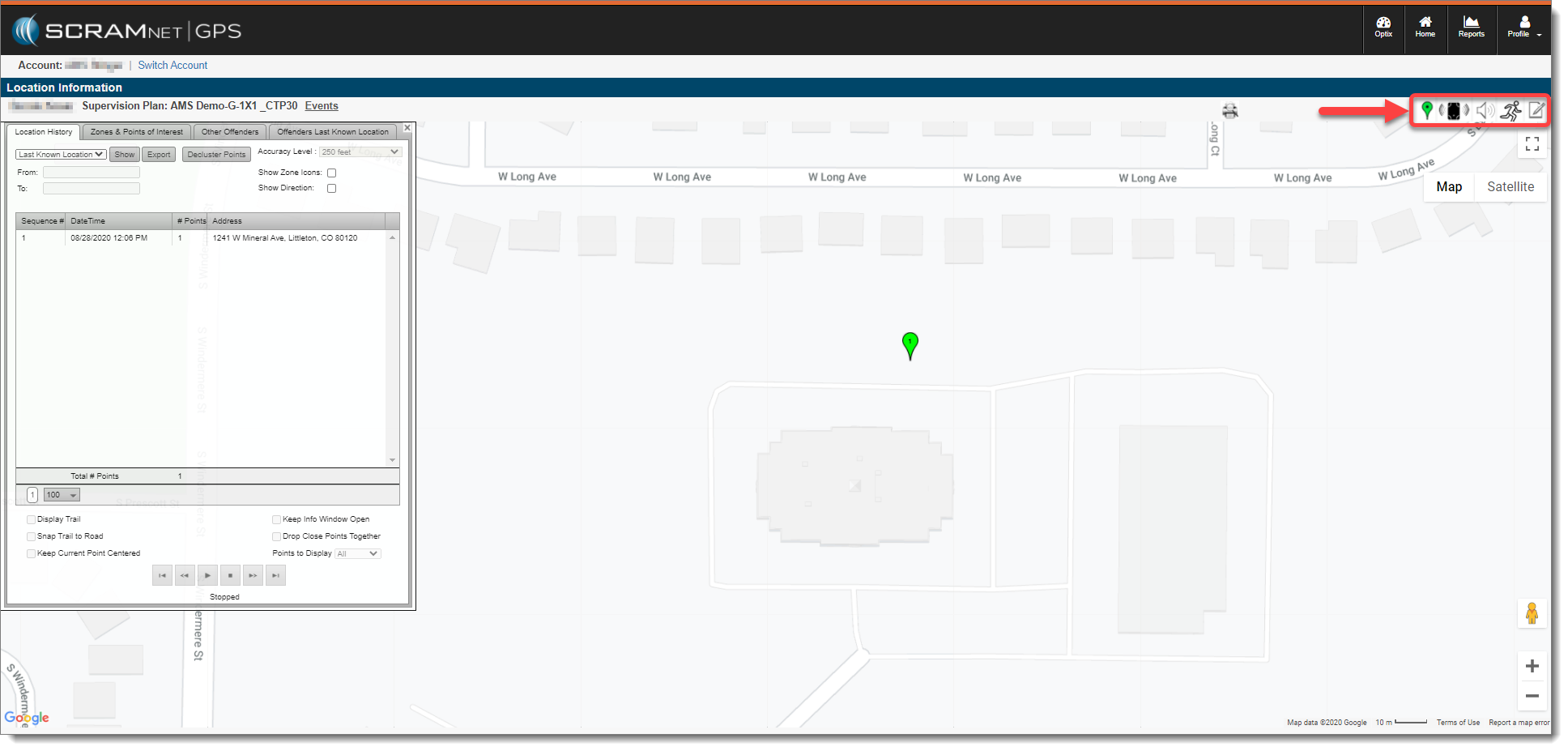
Location History – Read Only (click to enlarge)
Available Reports:
Users with Read Only permissions have access to the following reports:
- Charging Event Report
- Event Details Report
- Event Report
- Last Known Location Report
- Location History Report
- Offender Case Note Report
- Proximity Report
- Schedule Exceptions
- Schedule Exceptions by Day
- Stop Report
Dashboard Agent Permissions
The Dashboard Agent permission level provides SCRAMNET GPS users with access to the Optix, Home, GPS Analytics, and Profile (My Profile, Help, Log Off) menu items.
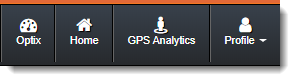
Dashboard Agent Menu Bar
|
Dashboard Agent users cannot access inactive client records from the client list in Optix or via the Manage menu item in GPS, because they do not have access to either. Dashboard Agent users do not have access to Reports, including the Charging Event report. |
Client Access: Active Clients Only
Users with Dashboard Agent permissions can view additional clients by Account or by Officer.
On the client Profile Summary page, users with Dashboard Agent permissions can:
- Add notes to the client’s profile
- Access the Location History window
- View the Event Details window and clear alerts
- Send a Locate Now, Vibrate, or Audible command
- Activate Pursuit Mode
- Access both the Stop pattern and Shared Locations reports in GPS Analytics
- Modify the client’s DOB, Start Service date, and End Service date in the Profile section
- Create, modify, and delete schedules for existing zones (only) in the Schedules section
All other elements on the page are read only.
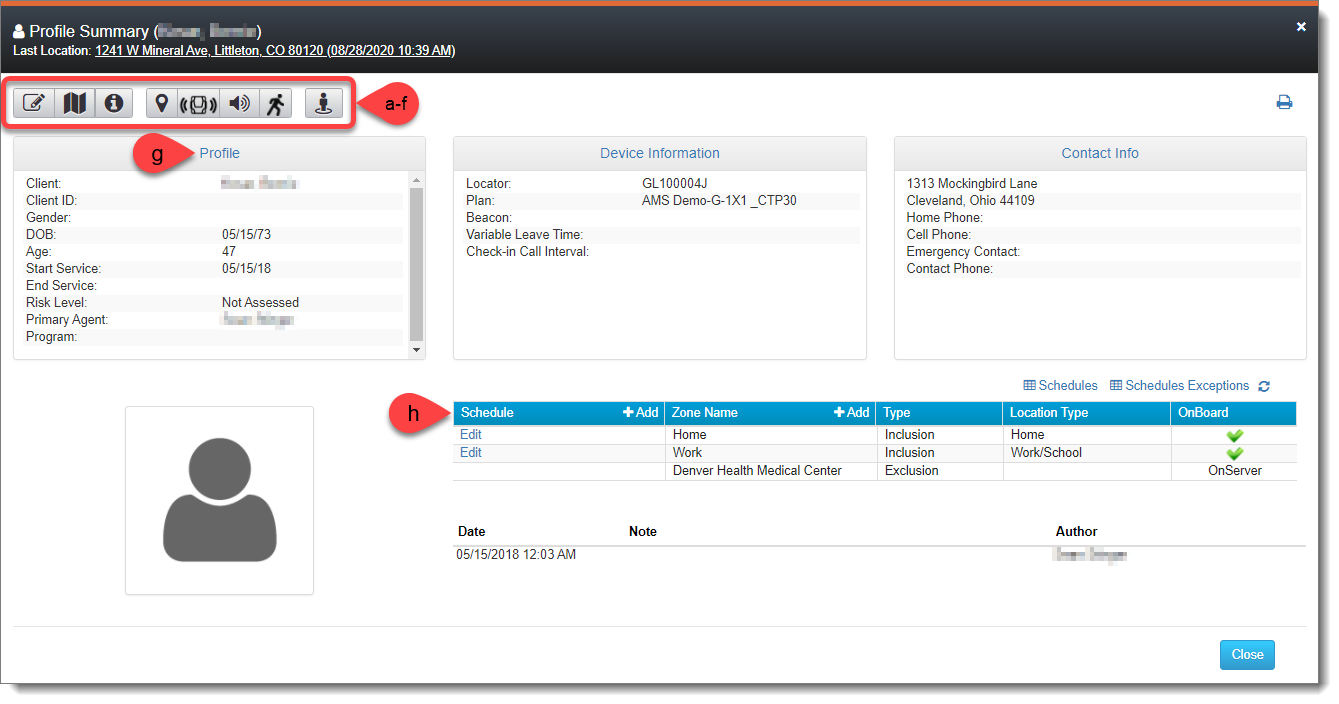
Profile Summary – Dashboard Agent (click to enlarge)
In the Location History window, users with Dashboard Agent permissions have access to the entire mapping playback functionality, as well as the ability to send a Locate Now, Vibrate, or Audible command; activate Pursuit Mode; and add notes to a client’s record.
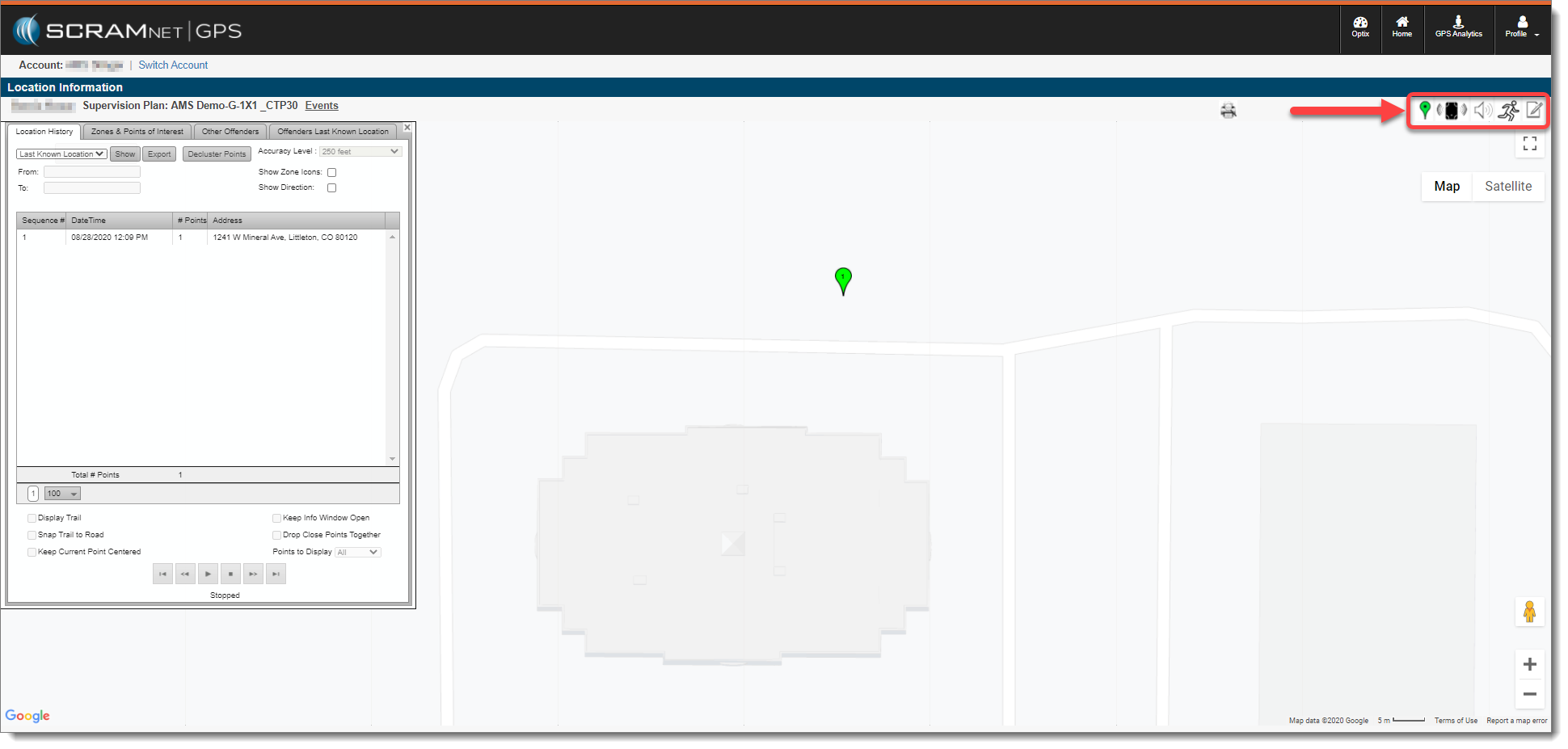
Location History – Dashboard Agent (click to enlarge)
Officer Permissions
The Officer permission level provides SCRAMNET GPS users with access to the Optix, Home, Manage, GPS Analytics, Reports, Admin, and Profile (My Profile, Help, Log Off) menu items.

Officer Menu Bar
Client Access: All Assigned Clients
Users with Officer permissions have 100% access to the clients – active or inactive – that are assigned to the Officer. Officers can:
- Modify Profiles, Zones, Schedules, and Notifications
- Send Locate Now, Vibrate, or Audible commands
- Run Reports and Mapping playback data
Officer-level users can also view additional clients by Account or by Officer.
Manage Menu:
The Manage menu provides Officer users with access to facilities that allow them to add a client, as well as manage clients, pending clients, and devices.
Available Reports:
Users with Officer permissions have access to the following reports:
- Active Events Report
- Case Assignment Report
- Case Management Details Report
- Case Management Summary Report
- Charging Event Report
- Client Profile Report
- End of Service Report
- Event Details Report
- Event Report
- House Arrest Summary Report
- Last Known Location Report
- Location History Report
- Offender Case Note Report
- Officer Assignment Report
- Program Assignment Report
- Proximity Report
- Schedule Exceptions
- Schedule Exceptions by Day
- Start of Service Report
- Stop Report
Admin Menu:
The Admin menu allows Officer users to adjust Account Settings, such as Recipients and Account Zones.
Administrator Permissions
The Administrator permission level provides SCRAMNET GPS users with access to the Optix, Home, Manage, GPS Analytics, Reports, Admin, and Profile (My Profile, Help, Log Off) menu items.
Administrator Menu Bar
Client Access: All Clients
Users with Administrator permissions have 100% access to all clients – active or inactive – in the account. On any client, Administrators can:
- Modify Profiles, Zones, Schedules, and Notifications
- Send Locate Now, Vibrate, or Audible commands
- Run Reports and Mapping playback data
Manage Menu:
The Manage menu provides Administrator users with access to facilities that allow them to add a client, as well as manage clients, pending clients, and devices.
Available Reports:
- Account Analysis Report
- Active Events Report
- Audit Report
- Case Assignment Report
- Case Management Details Report
- Case Management Summary Report
- Charging Event Report
- Client Profile Report
- Command Report
- Device Inventory Report
- Device History Report
- End of Service Report
- Event Details Report
- Event Report
- House Arrest Summary Report
- Last Known Location Report
- Location History Report
- Monthly Monitored Days Report
- Notification Report
- Offender Case Note Report
- Officer Assignment Report
- Program Assignment Report
- Proximity Report
- Schedule Exceptions
- Schedule Exceptions by Day
- Start of Service Report
- Stop Report
Admin Menu:
The Admin menu allows Administrators users to manage other users in the account and adjust account settings.
Under the Manage User sub-menu, Administrators can:
- Add a new user
- Edit existing users
Under the Account Settings sub-menu, Administrators can make adjustments to:
- Users
- Recipients
- Devices
- Account Zones
- Supervision Plans
- Event Actions
- Account Notifications
- Account Zones
- Accounts
- Judicial information