The Suspend Alerts feature in SCRAMNET GPS prevents alerts from appearing on the Dashboard and pauses notifications from being sent for specific clients during a specified timeframe.
To suspend alerts for a client:
- Open the dropdown menu next to the client’s name on the Dashboard and select the Suspend Alerts option.
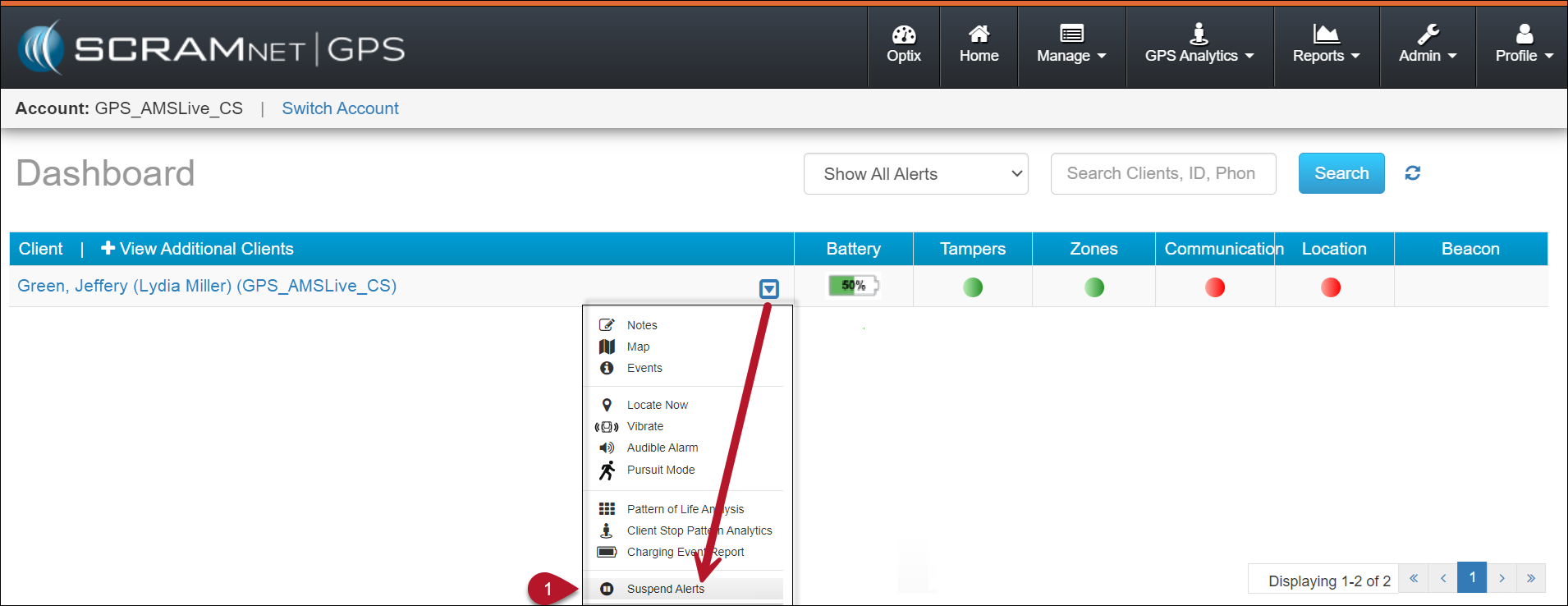
SCRAM GPS Dashboard (click to enlarge)
- On the Device Assignment page, select the Suspend Alerts tab.
- Select one of the two options available:
- Suspend All Alerts
- Suspend Specific Alerts (by Dashboard Column)
- When the Suspend Specific Alerts (by Dashboard column) is selected, you will select the desired Dashboard columns from the dropdown menu to include in the suspension.
- Hovering your mouse over the Information icon will display which specific alerts apply to the selected columns.
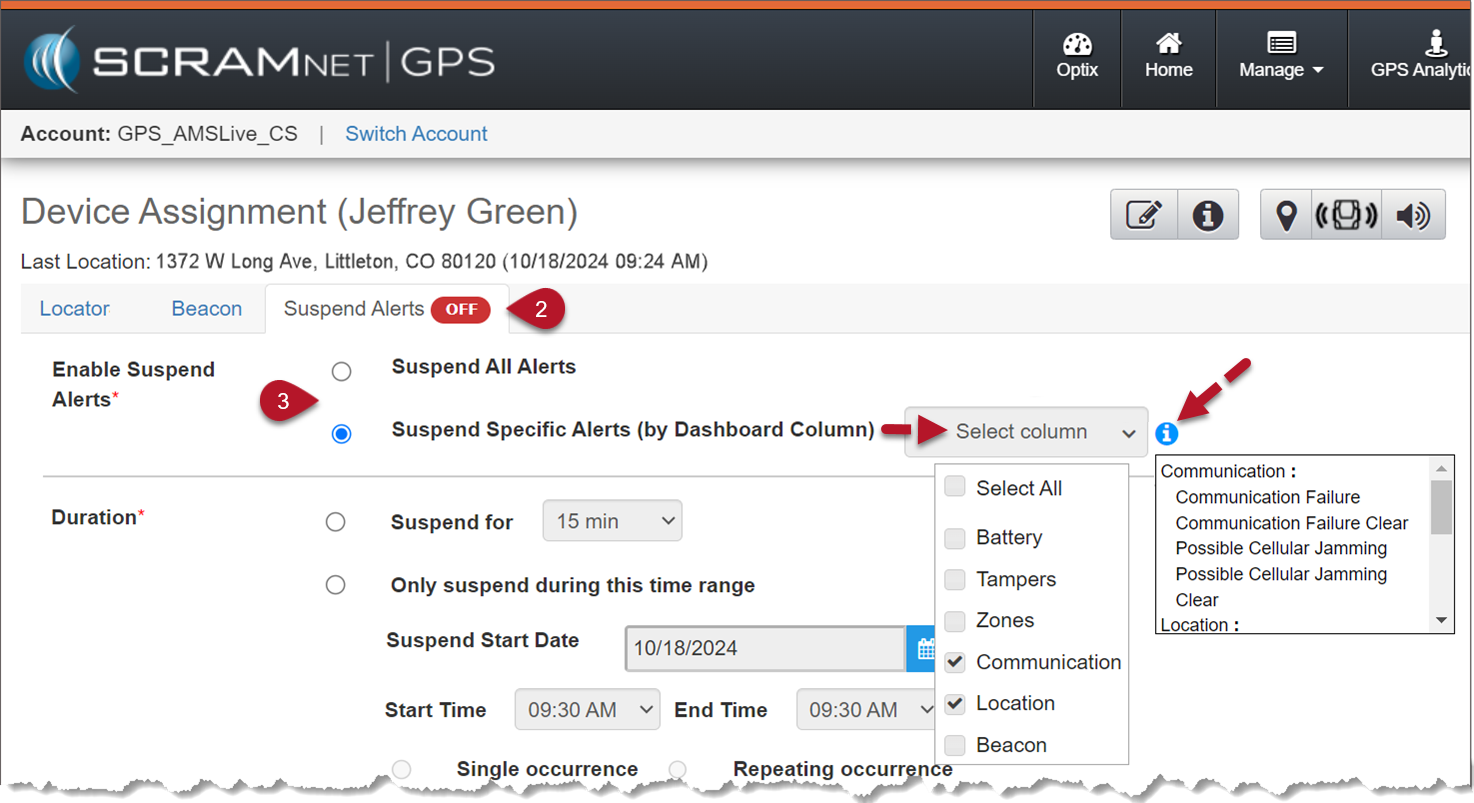
Suspend Alerts – Enable Suspend Alerts Options (click to enlarge)
- Set the Duration for the selected suspension.
- You can choose the “Suspend for” option to choose the time in 15-minute intervals, from 15 minutes to 2 hours.
- When choosing “Only suspend during this time range,” you will set the start and end dates, timeframe, and whether this suspension is a single or repeating occurrence.
- Enter a suspension reason.
- Select the Save button.
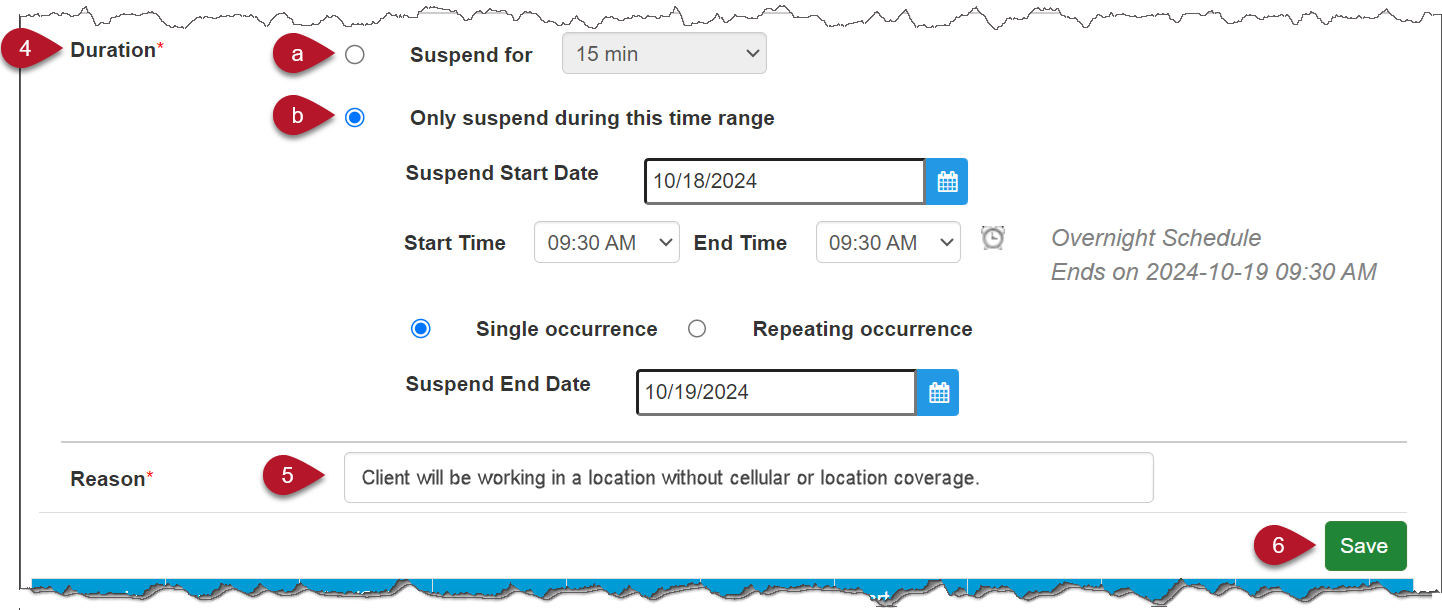
Suspend Alerts Duration and Reason Selections (click to enlarge)
- In the Suspend Specific Alerts pop-up window, acknowledge the message by selecting the Yes button.
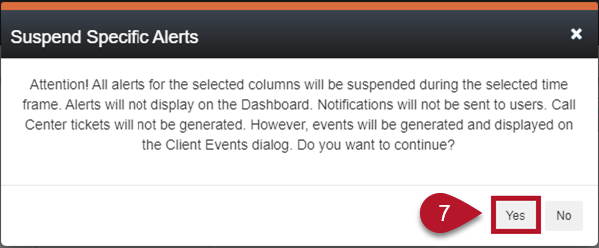
Suspend Specific Alerts Pop-Up Window (click to enlarge)
The Suspension details are displayed at the bottom of the page.
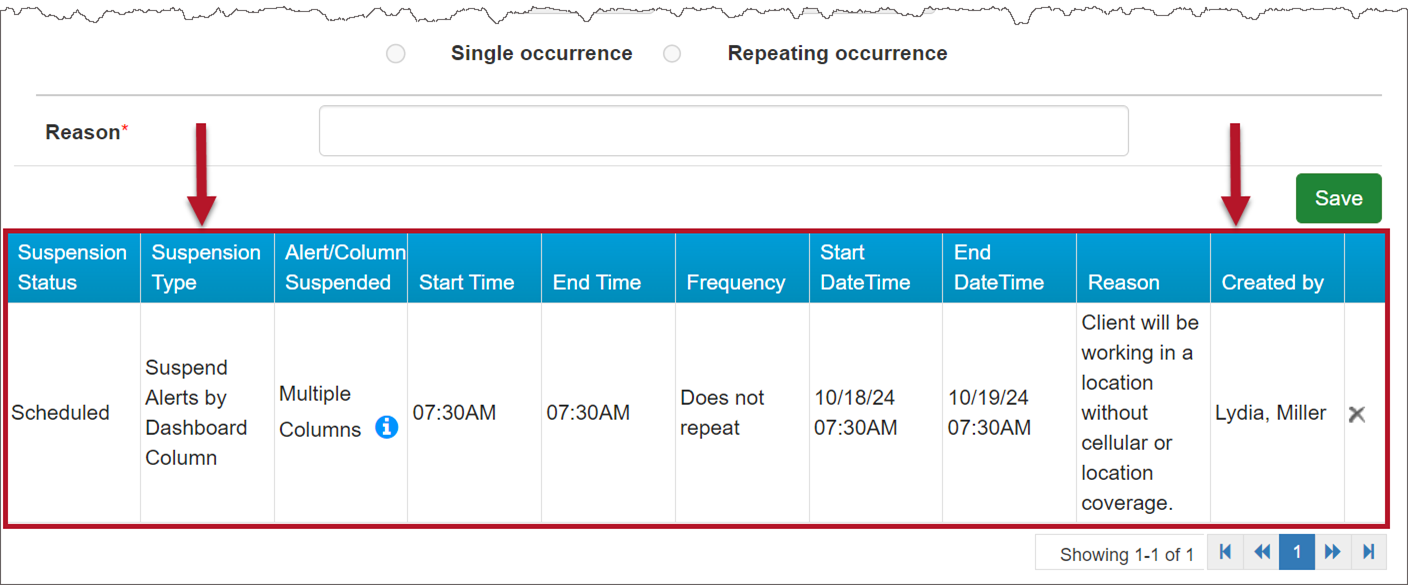
Suspension Details (click to enlarge)
Schedule Recurring Suspensions
Scheduled suspensions can be recurring. For example, alerts can be suspended every day for the next five days, or every Monday, Wednesday, and Friday. When creating the suspension, select the Repeating Occurrence radio button to reveal the Frequency options. Then select the desired Frequency.
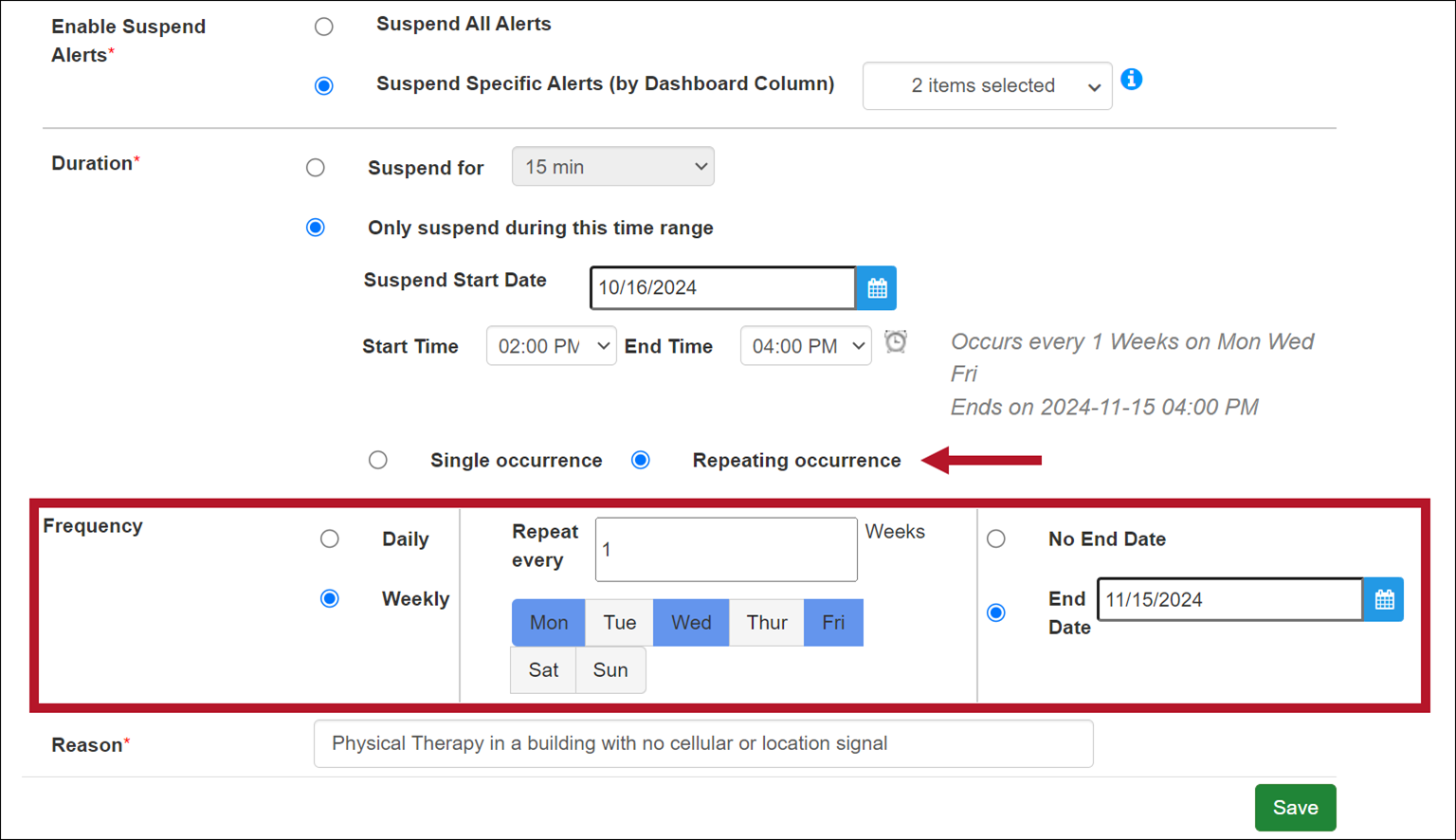
Set a Repeating Suspension (click to enlarge)
Once you Save the alert suspension schedule(s) and select Yes to confirm in the dialog window, the recurring suspension(s) will appear in the table at the bottom of the page.
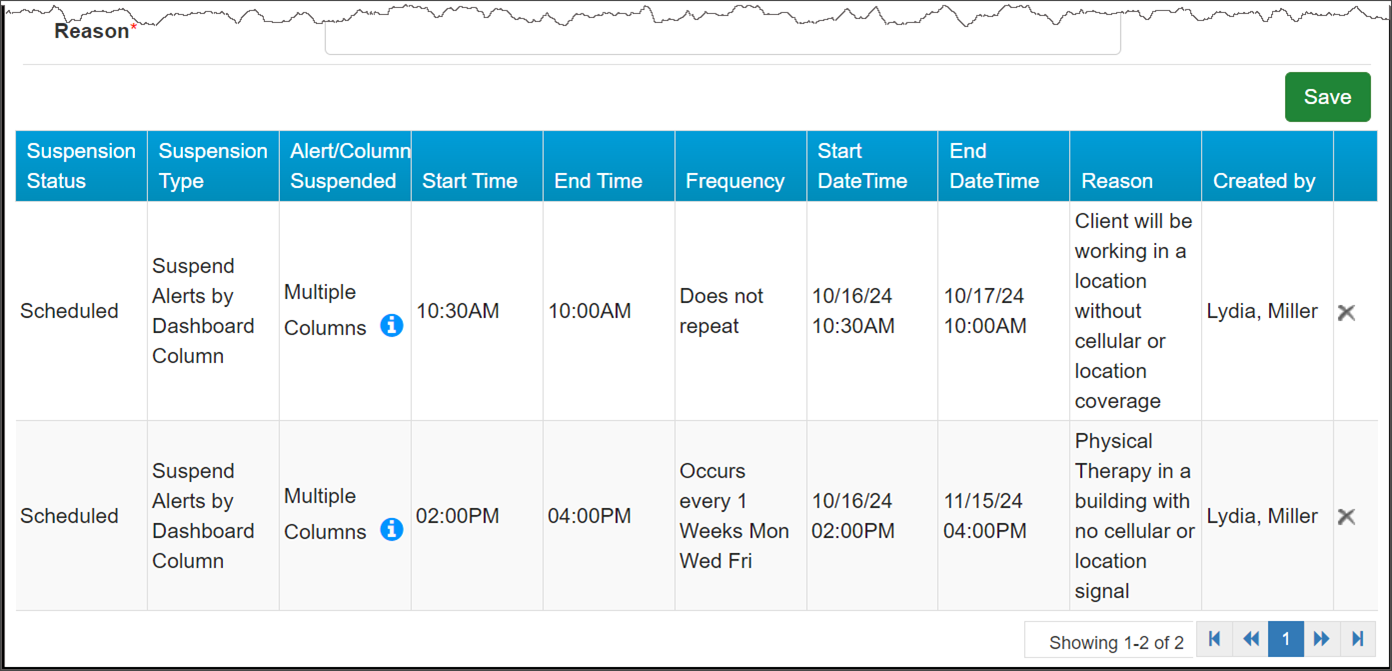
Repeating Suspension Displayed (click to enlarge)
Schedule a Continuous Suspension
In some cases, it would be practical to suspend GPS alerts continuously across multiple days. For example, for a client on a monitoring program that allows the client to live at home and go to work during the work week, but the client must report to jail for incarceration through the weekend, it would be useful to be able to suspend alerts generated by the SCRAM GPS device for the weekend hours during which the client is incarcerated.
Officers may schedule an alert suspension not only for the repeating days, but continuously from the desired start-time on the first day to the end-time on the last day. For example, if an officer wished to suspend alerts from Friday at 8 PM to Sunday at 4 PM with no gaps in between, the officer would complete the SCRAMNET GPS Suspend Alerts page as before for Recurring Suspensions, but now including the use of the “All Day” checkbox:
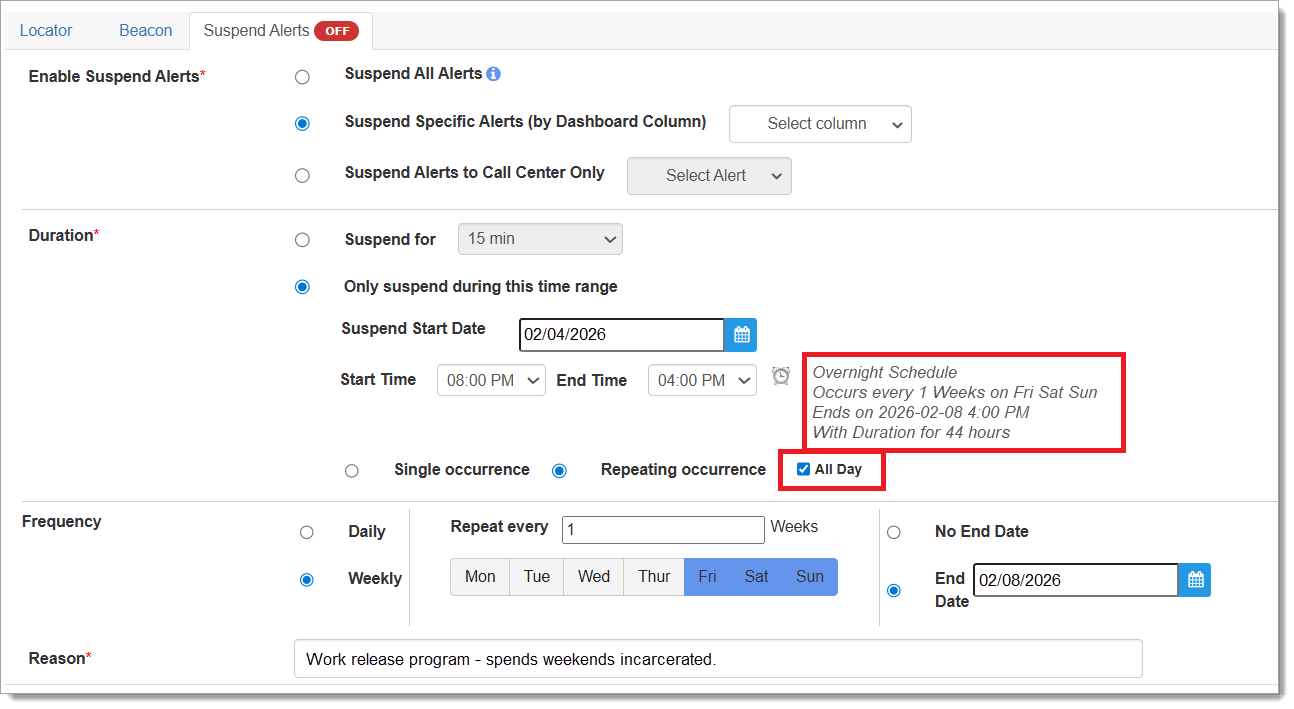
Continuous Alert Suspension Configuration (click to enlarge)
Messaging confirms the officer’s selections prior to saving, including a message about the total duration of the alert suspension. If a mistake is made in the configuration input by the officer, error messaging explains the mistake prior to saving as well:
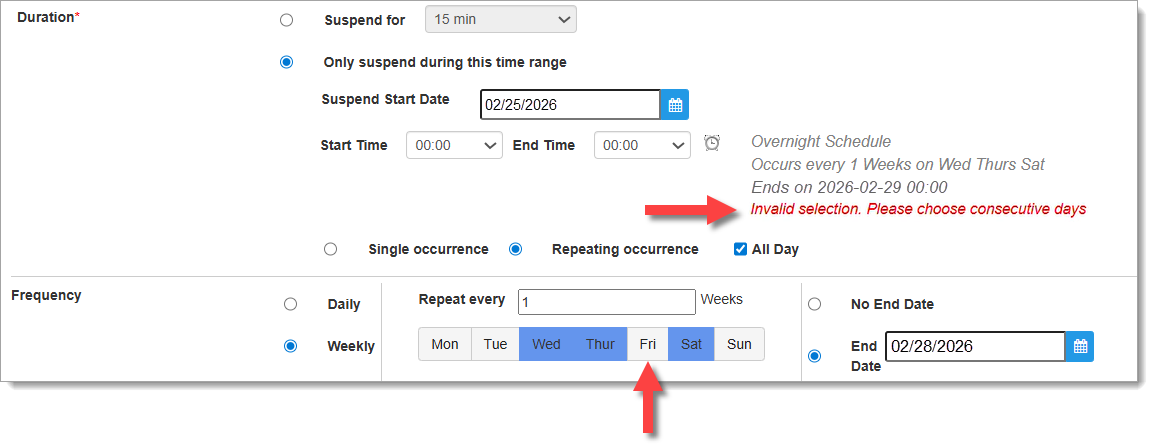
Messaging Provides Confirmation and Error Information (click to enlarge)
In the example above, the officer checked the “All Day” checkbox to indicate continuous alert suspension across multiple days, however, the officer also selected Wednesday, Thursday, and Saturday as the Weekly Frequency – Friday was excluded. The “All Day” feature only works if consecutive days are selected, and the error message indicates this in red text.
How Suspensions Display on the Dashboard
The Dashboard visually indicates if all alerts are suspended or if only alerts for specific columns are suspended. Suspended columns are highlighted in red. Alerts for other columns will continue to appear and function normally. To view the details for the alert suspension, mouse over the client’s name.
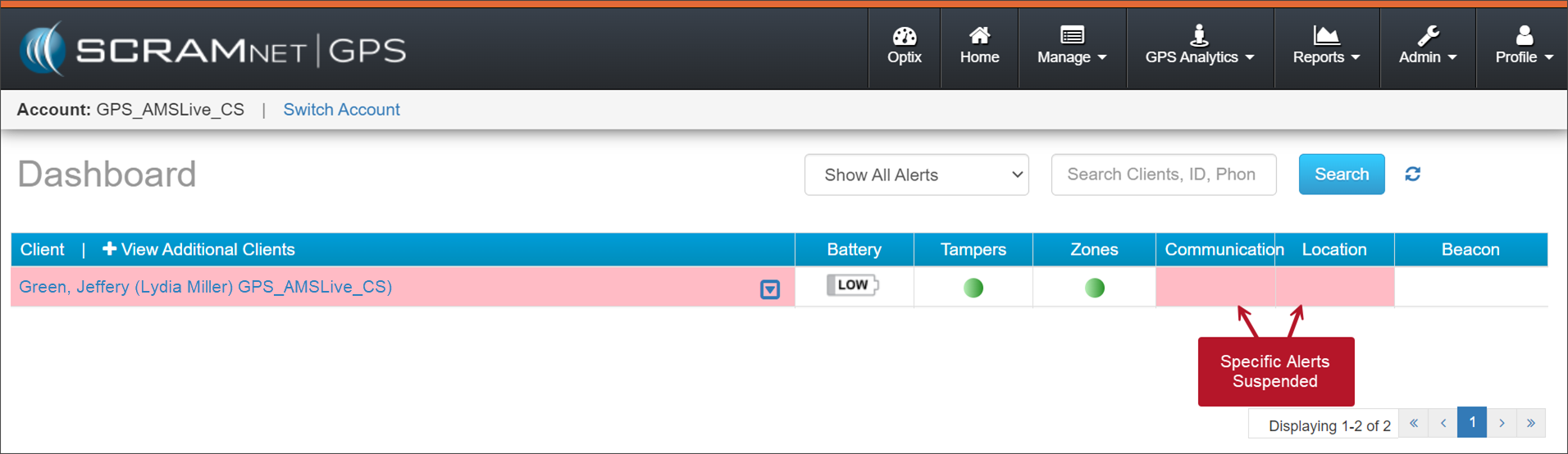
Dashboard with Suspended Alerts (click to enlarge)
Schedule Multiple Suspensions
Additionally, Suspend Alerts by Dashboard Column supports multiple and recurring suspensions. To schedule multiple suspensions:
- Select Only suspend during this time range option.
- Set the Suspend Start Date, Start Time, End Time, and Suspend End Date.
- Then select Save button.
Schedules may be for overnight or may last longer than 24 hours. Please note, however, that no part of a scheduled suspension can overlap with any other planned suspension.
Delete Active or Scheduled Suspensions
To delete an “Active” or “Scheduled” suspension:
- Select the client’s name from the Dashboard.
- Select the Device Information tab.
- Navigate to the Suspend Alerts tab.
- Select the Delete (x) icon at the far right of the row you wish to delete.
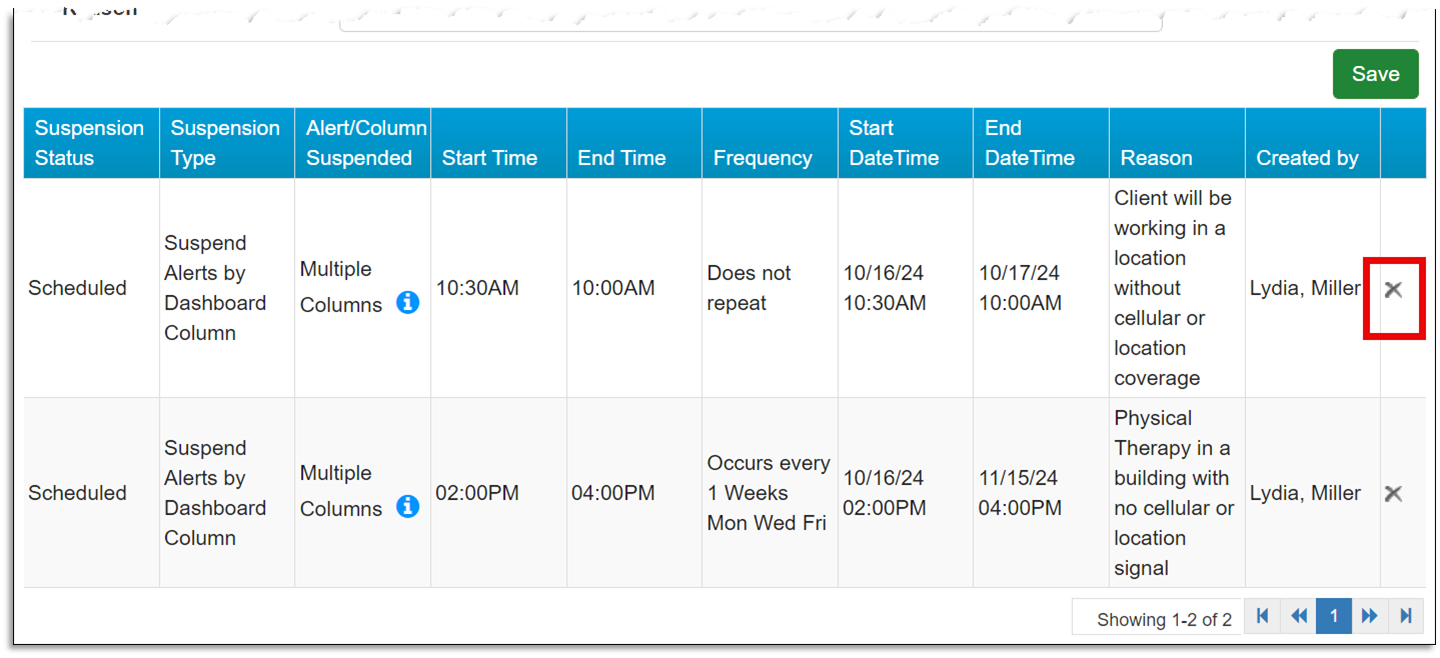
Delete an Active Suspension (click to enlarge)
Deleting an active or scheduled suspension deletes the entire series, as indicated in the End Suspension dialog window.
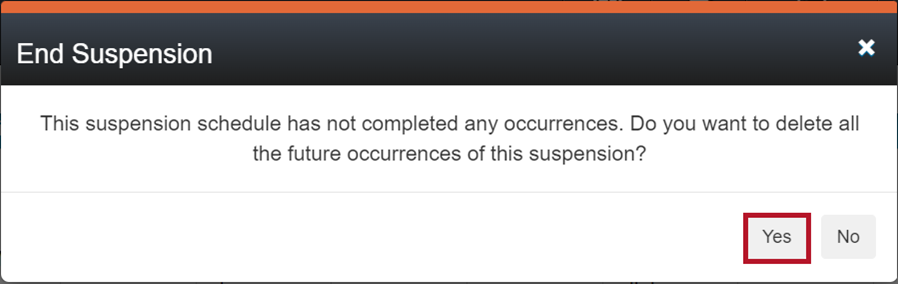
End Suspension Acknowledgement Pop-Up Window (click to enlarge)