Navigation
This view displays the client’s day-by-day movements, stop patterns, and stop categories as the day progresses from 12:00 AM to 11:59 PM. Just like the Weekly and Monthly views, the stop categories are represented by icons. Additionally, this view adds the business name to the timeline/data view on the left.
- Click on an icon on the map to highlight the stop data in the timeline view and open an information window.
- Click on an icon on the timeline view to center the stop on the map.
- On the timeline view, click on the marker next to the location name to show nearby places.
- Switch views and/or clients with the dropdown menus.
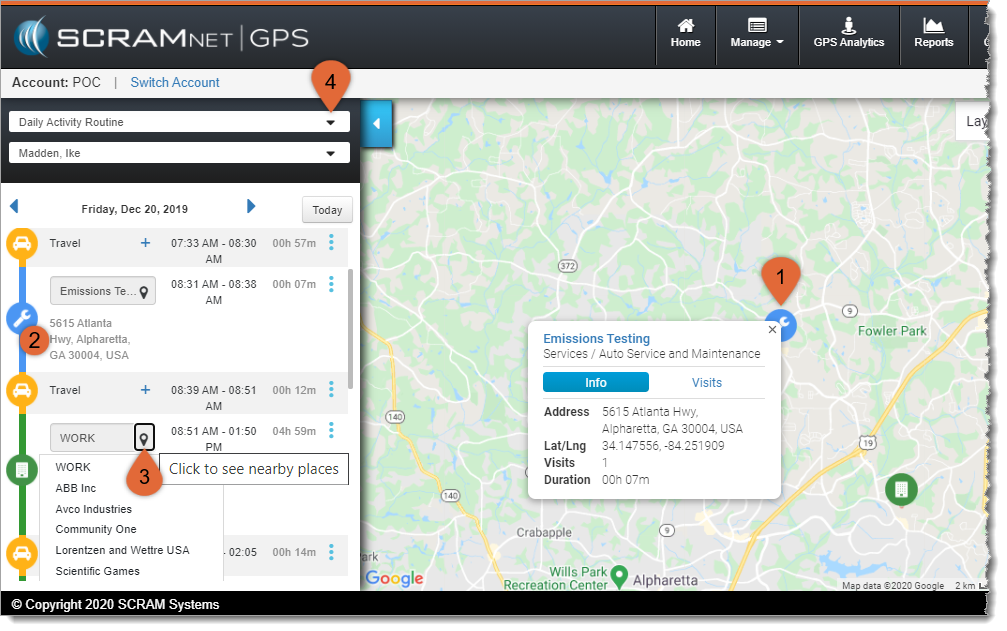
Daily Activity Routine View (click to enlarge)
Renaming a Location
While in the Daily Activity Routine view, you can modify the business name of a stop if necessary. To do this:
- Select “Change this location” from the context dropdown menu (the three dots) just to the right of the time spent at the stop
- Once the Location Details dialog window opens, select the appropriate business name from Location Name dropdown list, or enter a name yourself
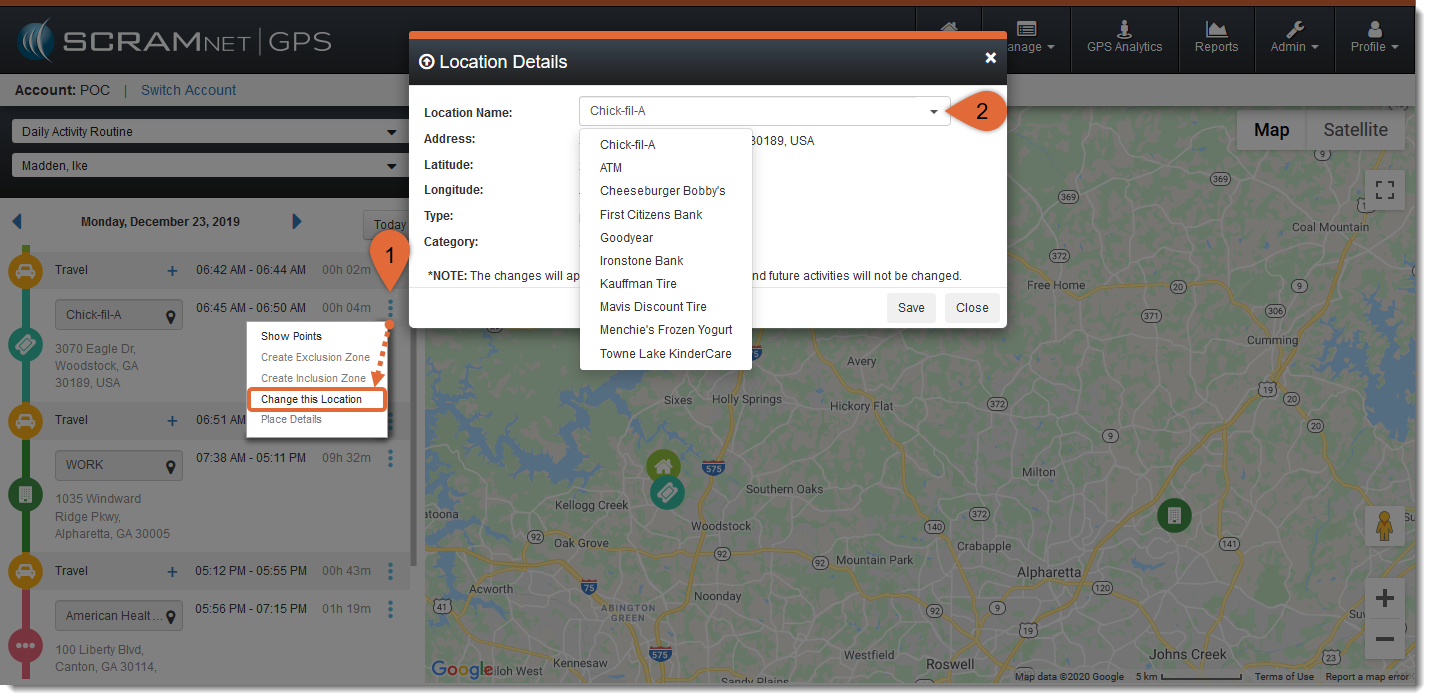
Rename the Location (click to enlarge)
Open Street View
Simply click on the business name in the on-map pop-up to open Street View:
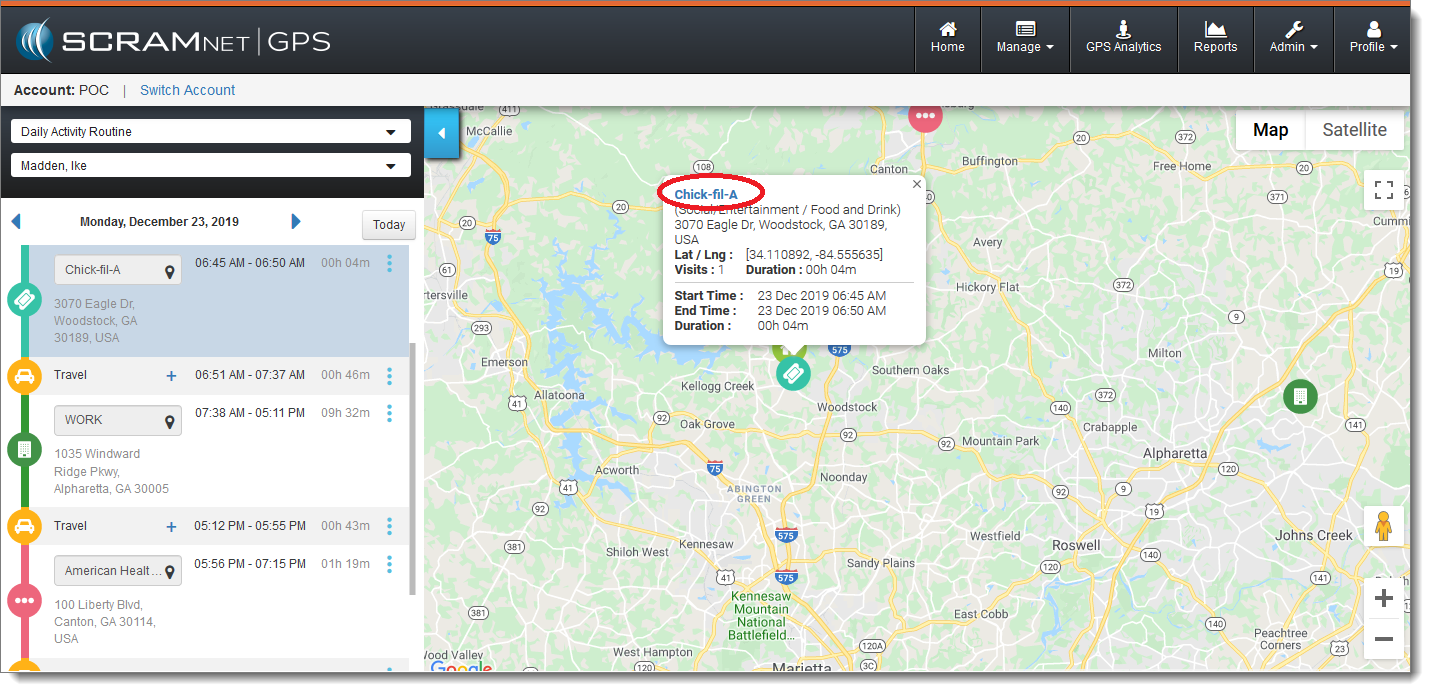
Open Street View (click to enlarge)
Return to Map View
Return to Map View by clicking on the “back” arrow near the location’s address:
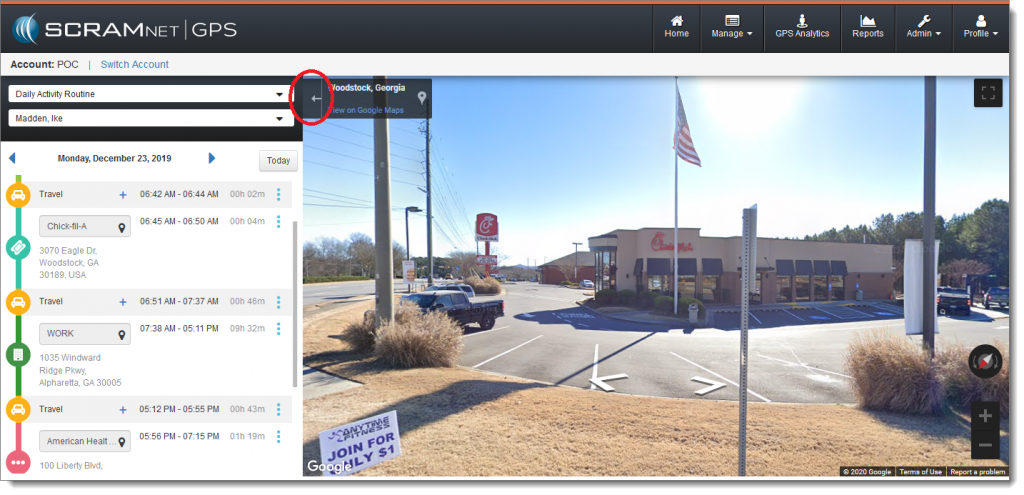
Return to Map View (click to enlarge)
Next Steps
- Start over with Pattern of Life access and navigation
- Review the Stop Categories
- Step back to the Weekly and Monthly Views
- Continue to the Account View
- Review an Example Use-Case