Once the client’s profile has been added, you may select and assign the SCRAM GPS Bracelet (or OM500 GPS Bracelet) for location tracking.
To associate and assign the bracelet to the client:
- From the client’s Profile page, select the Device Assignment hyperlink.
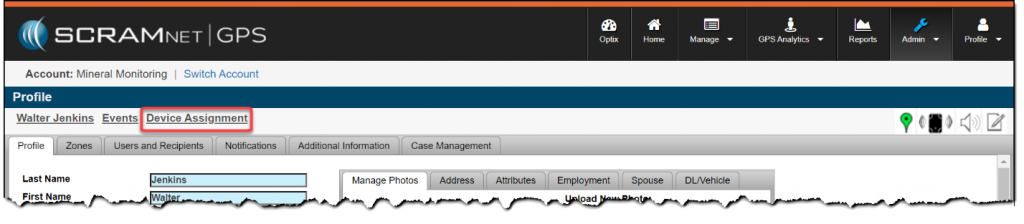
SCRAMNET GPS Device Assignment Link on the Client Profile Page
 |
Moving forward, the term “Locator” is used interchangeably for bracelet or device. |
- On the Device Assignment page, open the Locator dropdown menu, and then select the serial number for the device you will be assigning to the client.
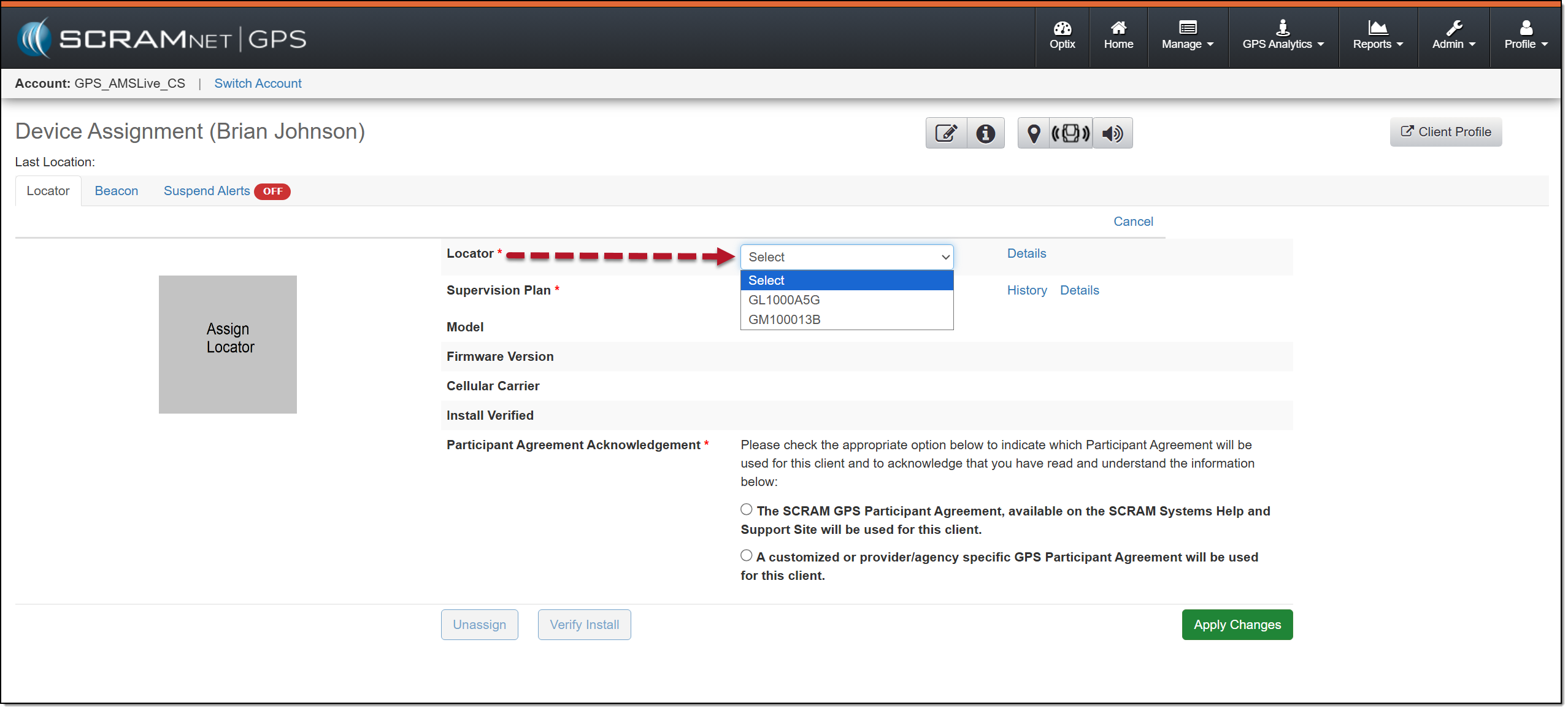
Locator (GPS Bracelet) Dropdown Menu – click to enlarge
- Next, open the Supervision Plan dropdown menu and select one of the options displayed.
|
The supervision plan determines the frequency at which the bracelet gathers location data and how frequently the collected location data is transmitted to the SCRAMNET GPS.
In a 1×1 supervision plan, the first number represents a single location point, and the second number represents the transmission interval of stored data in the device. |
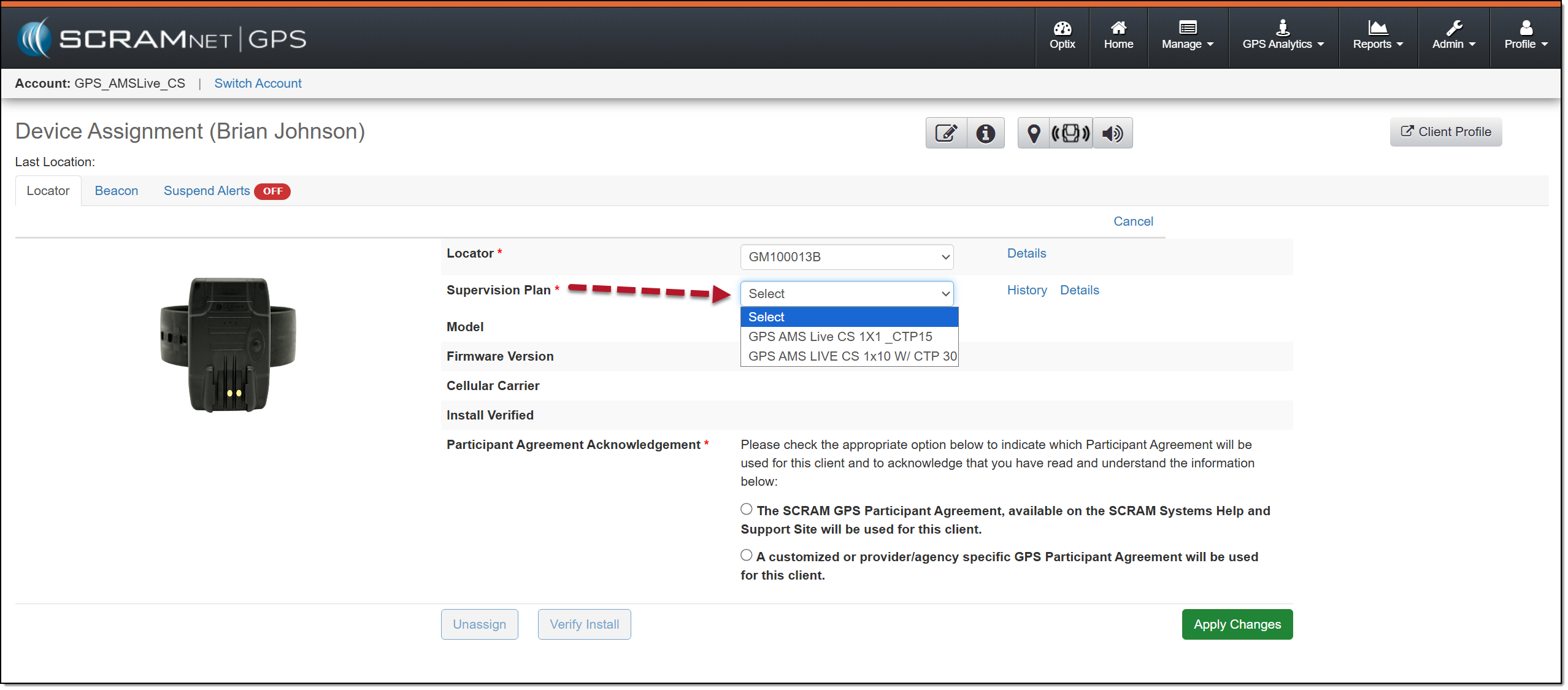
Supervision Plan Dropdown Menu options – click to enlarge
- (US customers only) Select the appropriate Participant Agreement Acknowledgment option that will be used for this client:
- The SCRAM GPS Participant Agreement, available on the SCRAM Systems Help and Support site, or
- A customized or provider/agency-specific GPS Participant Agreement.
- A combination of customized or provider/agency specific and SCRAM Systems participant agreement documents will be used for this client.
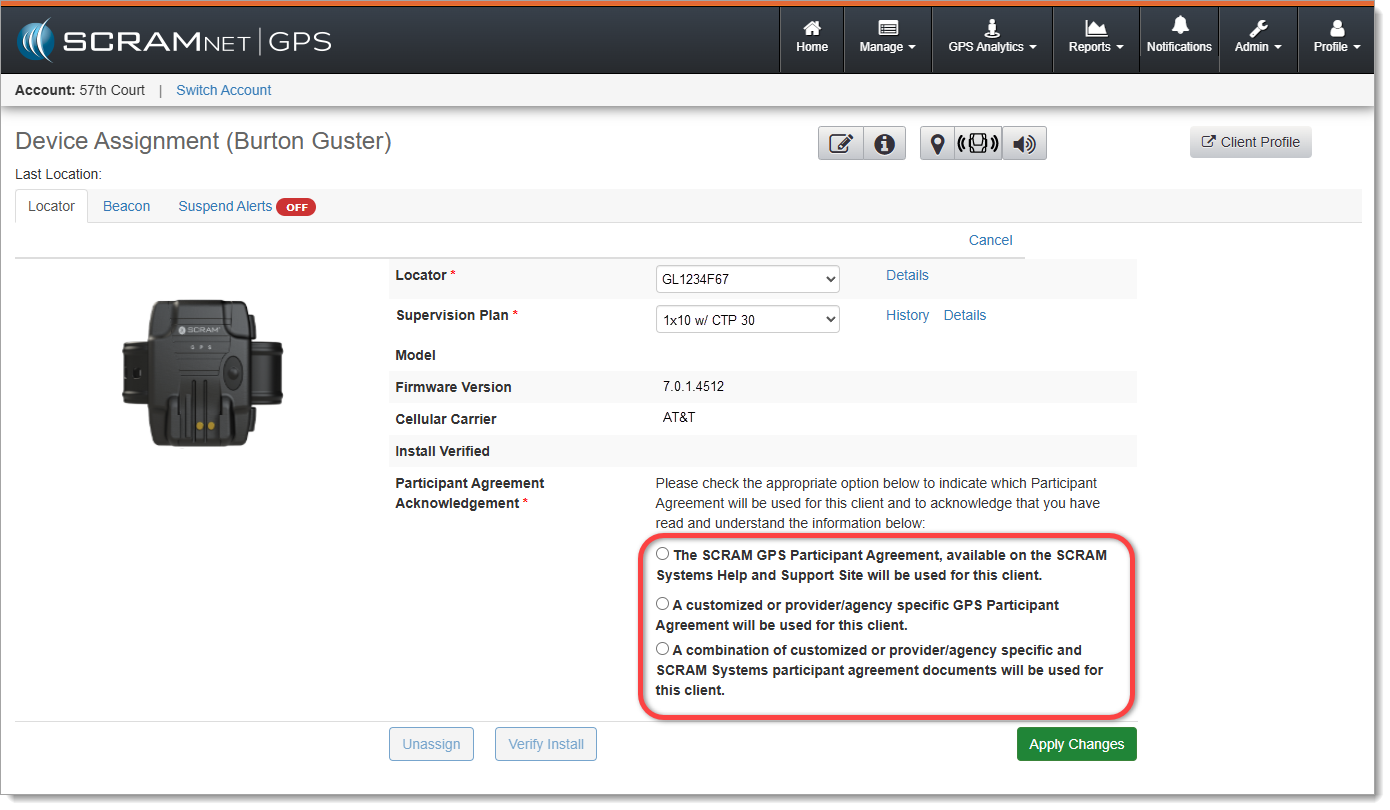
The new Participant Agreement Acknowledgement section on the Device Assignment page in SCRAMNET GPS (click to enlarge)
 |
Tips:
|
- Once all selections have been made, select the Apply Changes button.
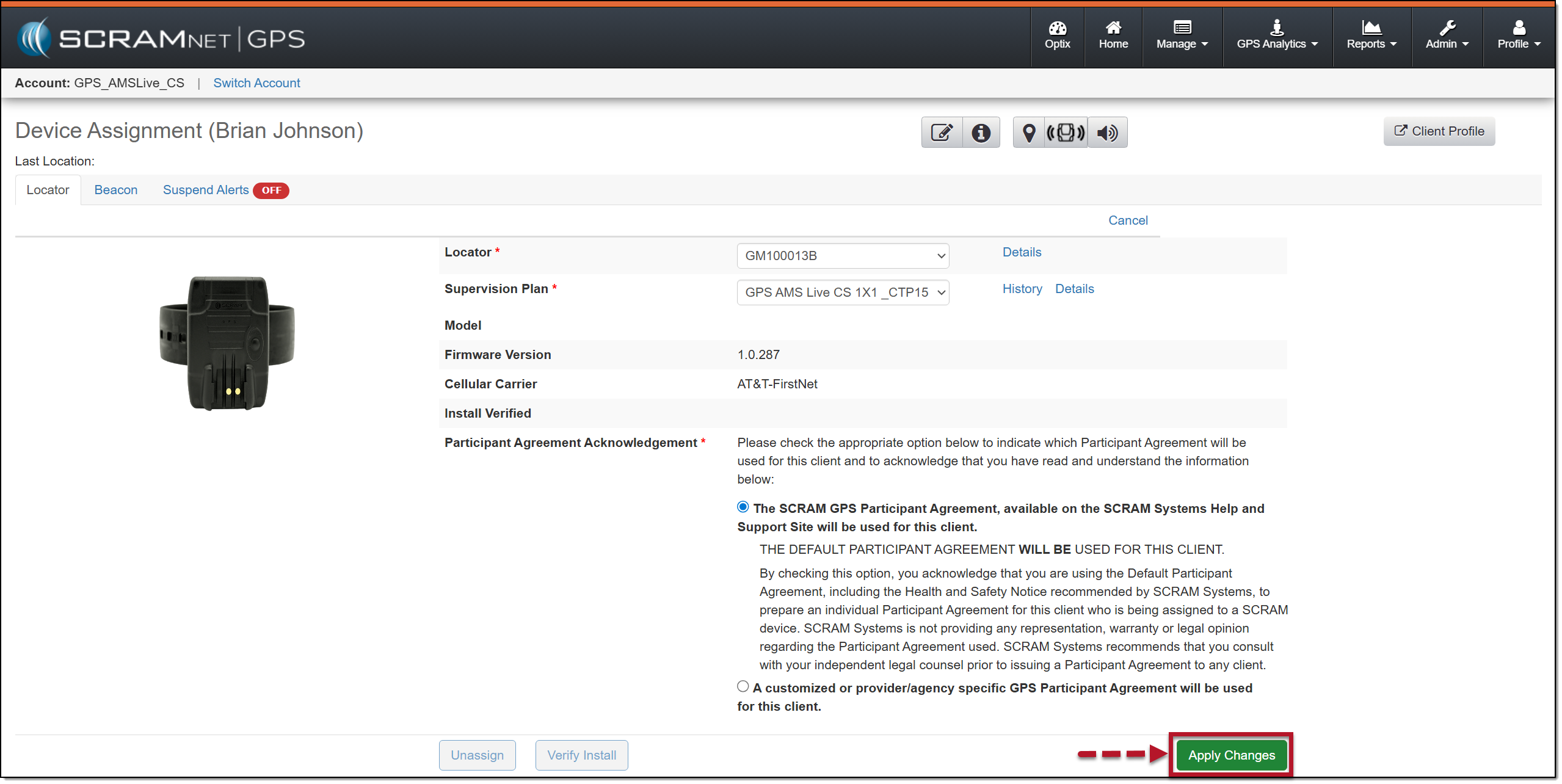
Device Assignment Apply Changes Button – click to enlarge
Once the locator has been successfully assigned and the supervision plan is saved on the device, a green check mark appears next to the locator’s serial number and selected supervision plan.
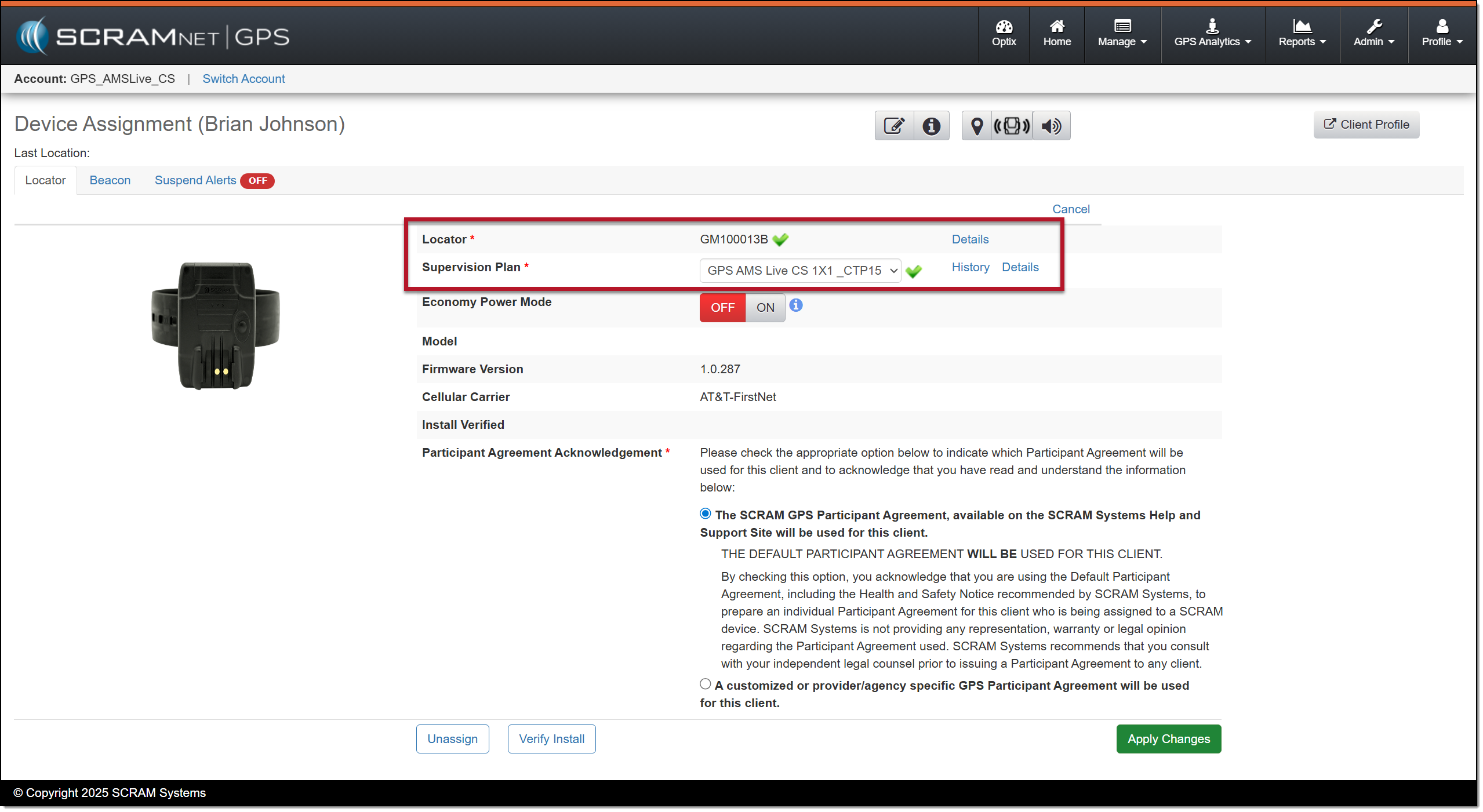
SCRAM GPS Bracelet Assignment Complete – click to enlarge
|
When assigning a SCRAM GPS 9 Plus bracelet, an Economy Power Mode option is available. The default setting is based on the selections made by the administrator of your program. For more information, contact your Account Manager or Customer Service.
The Economy Power Mode is not available for the standard SCRAM GPS bracelet. |
Current Location
As a best practice, SCRAM Systems recommends using the Locate Now icon to verify the device’s current location after the SCRAM GPS bracelet is assigned to the client and before allowing them to leave the office.
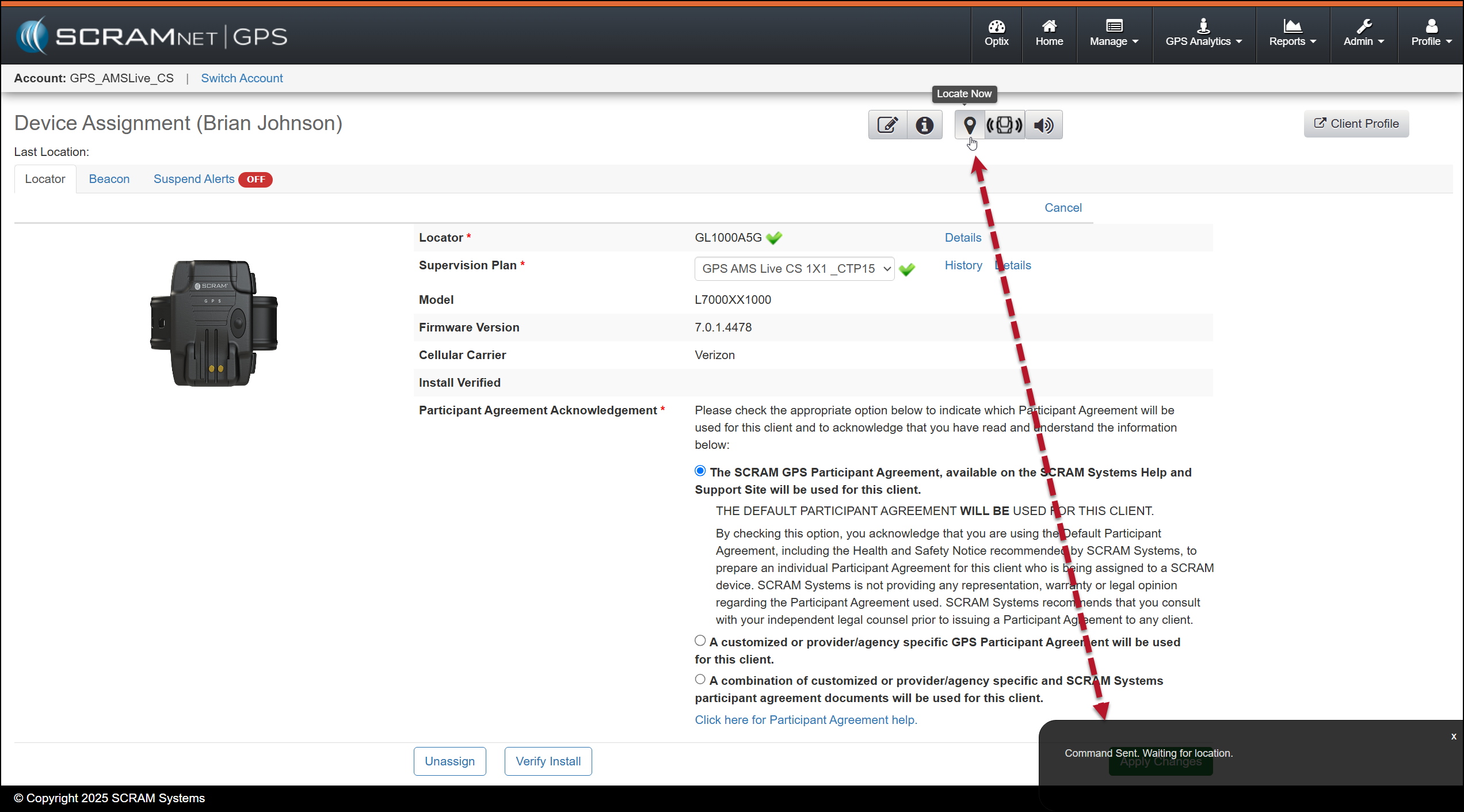
Locate Now Icon and Command Sent Waiting for Location pop-up window – click to enlarge
Once the location information is returned, the pop-up window will display it.
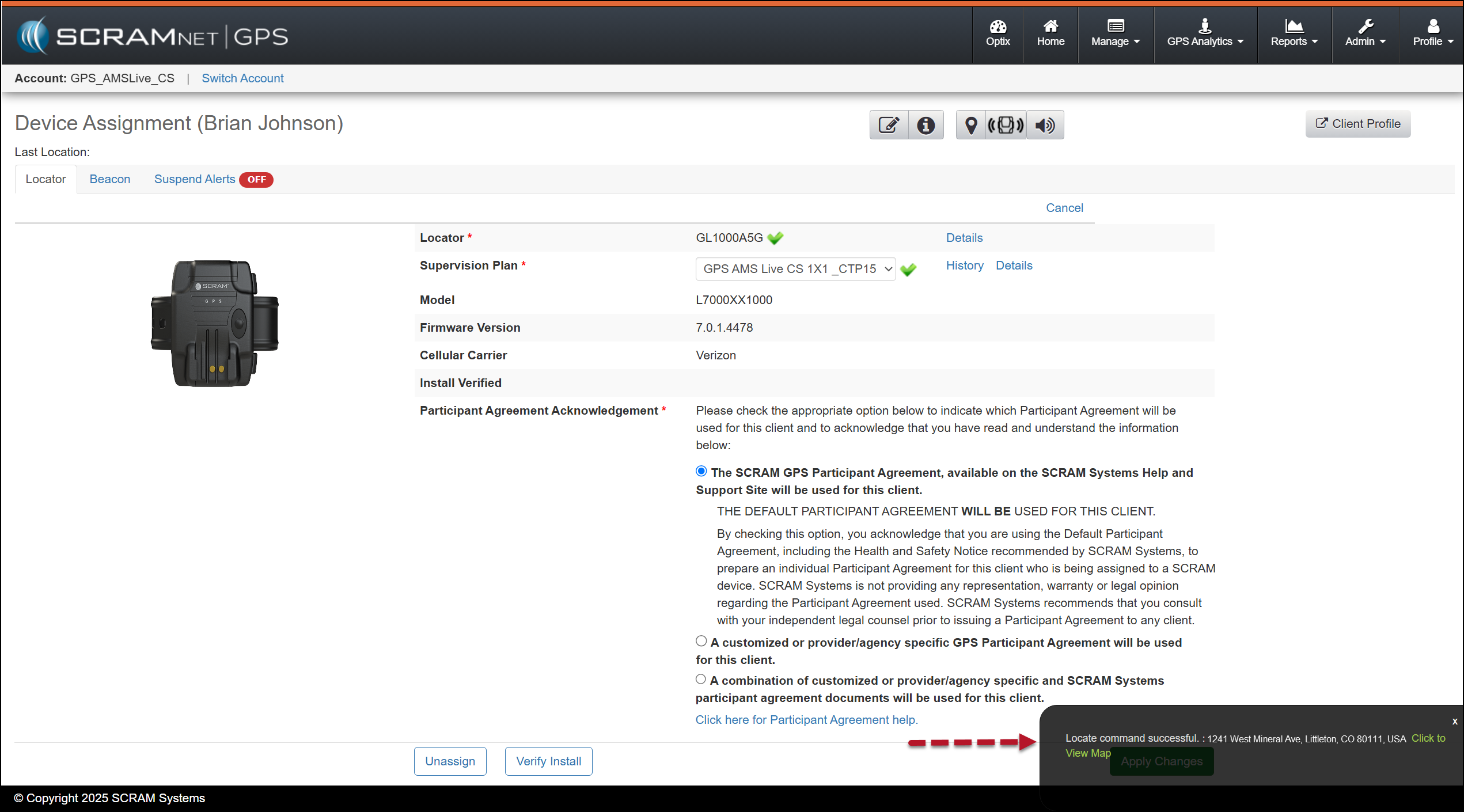
Location Successful pop-up window with Address Displayed – click to enlarge