In specific scenarios, clients currently assigned to a caseload may need to be transferred to a different caseload. A user with administrative permission may accomplish this task.
It’s essential to note that while clients are being transferred from one caseload to another, their location monitoring remains unaffected. All client data from the SCRAM GPS bracelet is still being processed. Additionally, the entire client record is moved and accessed from the new caseload.
 |
Important Notes:
|
To transfer a client(s) to a new caseload:
- Open the Manage dropdown menu and select the Clients option.
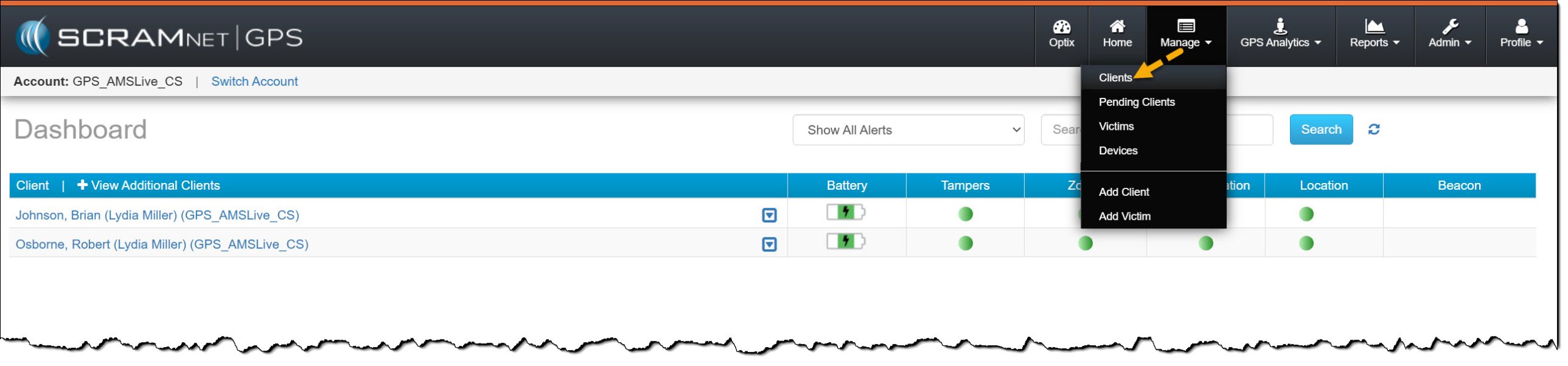
Manage Dropdown Menu, Clients option – click to enlarge
- On the Manage Clients pop-up window, check the box next to each client you wish to transfer to the new caseload.
- Once the clients are selected, select the Move Clients button.
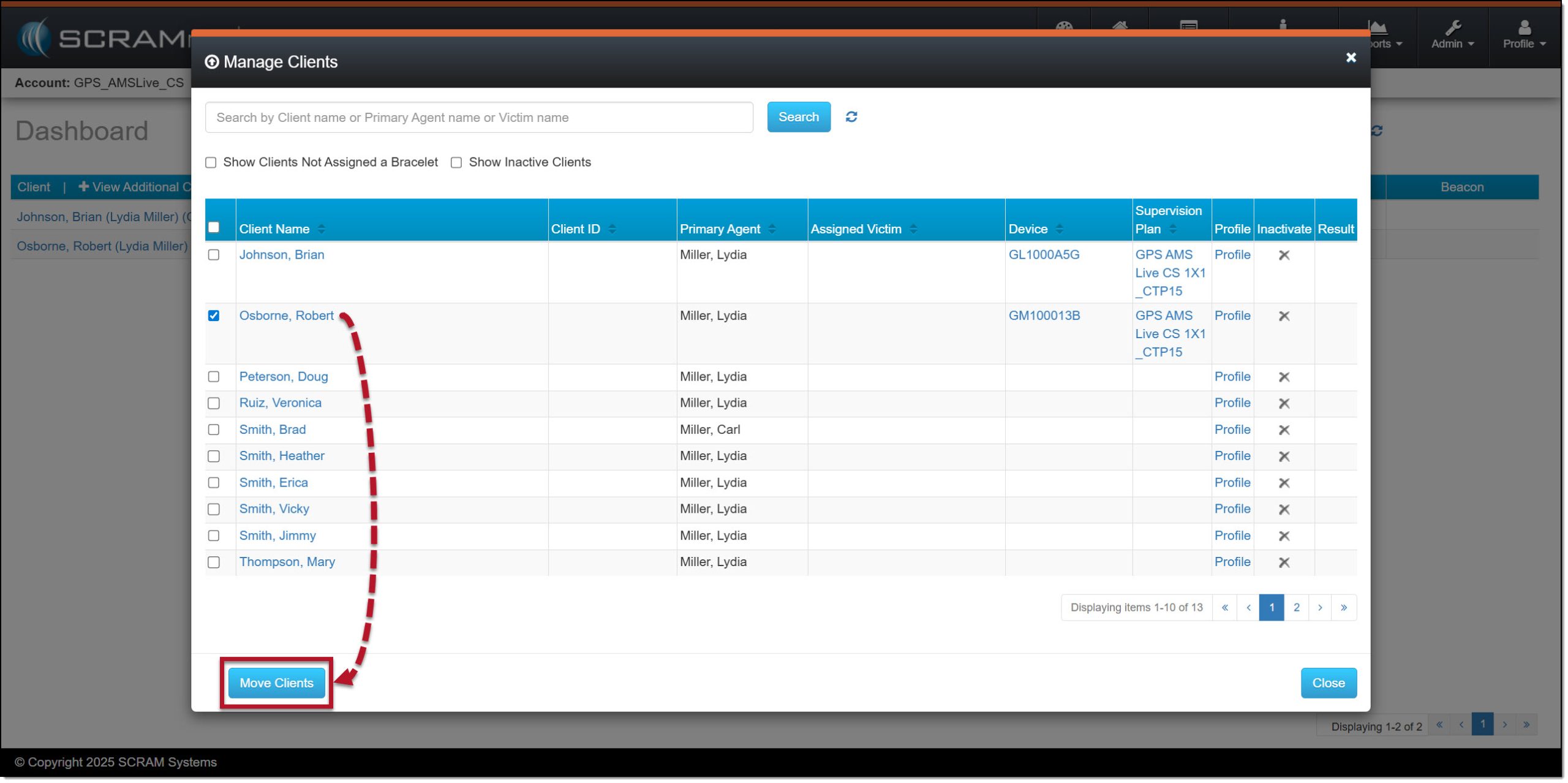
Manage Clients Pop-up Window – click to enlarge
 |
When selecting clients on the “Manage Clients” pop-up window, you may only transfer clients that appear on the current page. Once the transfer is complete, you may repeat the process on the next page, and so forth, until all required clients have been transferred to the new caseload. |
- On the Move Clients page, select the new caseload to transfer the clients to. Once the transfer is complete, that caseload’s settings will be applied to the clients.
This includes the:
| · Date and Time Format
· Unit of Measure · CommFailBuffer · Call Center Settings |
· Time zone
· LocationFailButter · No Motion · Primary Agent Requirement |
- In the Entities to be Moved section, select the checkbox to the right of the line item. In some cases, the checkbox may be selected by default, or cannot be deselected. The Entities’ options include:
- Supervision Plan: If the matching supervision plan does not exist in the destination caseload, the client cannot be moved. Contact Customer Service for assistance.
- Locators: Once the transfer is complete, the bracelet will be moved into the new caseload’s inventory. This option cannot be unchecked.
- Beacons: Once the transfer is complete, when the client is utilizing a beacon, the beacon will be moved to the new caseload’s inventory. This option cannot be unchecked.
- Primary Agents: When selected, the client’s primary agent will remain assigned to the client in the new caseload.
- Call Center Recipients: If the call center feature is enabled for both the current and new caseload, and this checkbox is selected, call center recipients remain assigned to the client once the transfer is complete. If there are open event tickets in the call center, the client cannot be moved. Additionally, the call center event tickets are not transferred to the new caseload.
- Zones (Clients and Accounts): All client zones are moved to the new caseload. Account Zones are copied to the new caseload. If the caseload’s hierarchy permits, account zones are referenced in the parent account.
- Schedules and Schedule Exceptions: All schedules and schedule exceptions are moved to the new caseload, including expired ones. This option cannot be unchecked. Schedules and exceptions are moved “as is.” When a client’s time zone changes, you must manually update the schedule to reflect the new time zone once the transfer is complete.
- Case Management: When checked, case numbers, courts, and judges are copied to the new caseload. If this option is unchecked, the client’s case information is not transferred.
- Programs: If the client is assigned to a “program,” and this option is checked, the program will be copied to the new caseload.
- Point of Interest: When the client has been assigned to a point of interest, and this option is checked, the points of interest will be copied to the new caseload and remain assigned to the client.
- Defined Location: When the client has a defined location, and this option is checked, the designated location will be moved to the new caseload.
- After verifying and making any required updates to the “Entities to be Moved” options, select the Move button to complete the client transfer.
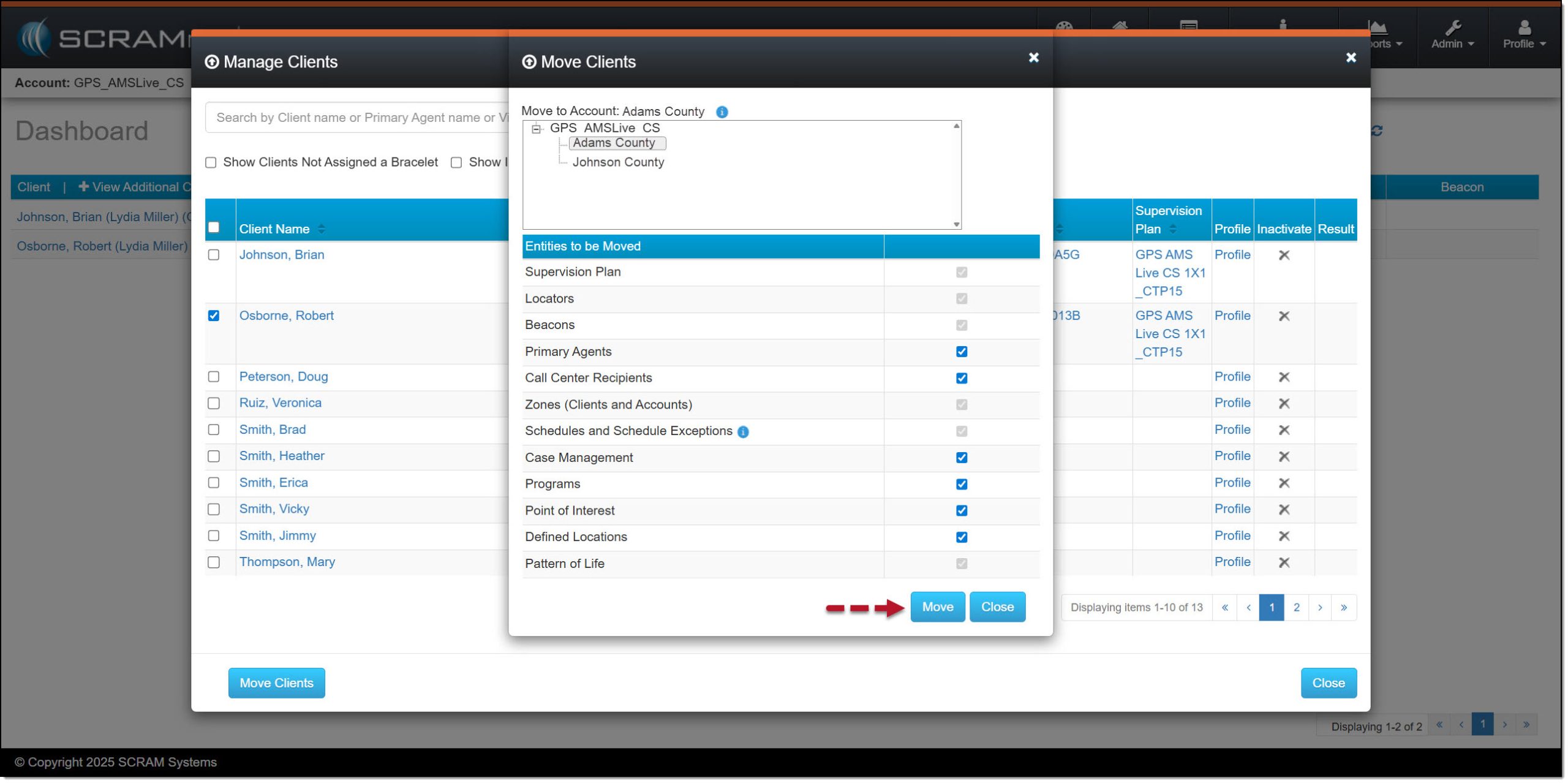
Move Clients Pop-up Window – click to enlarge
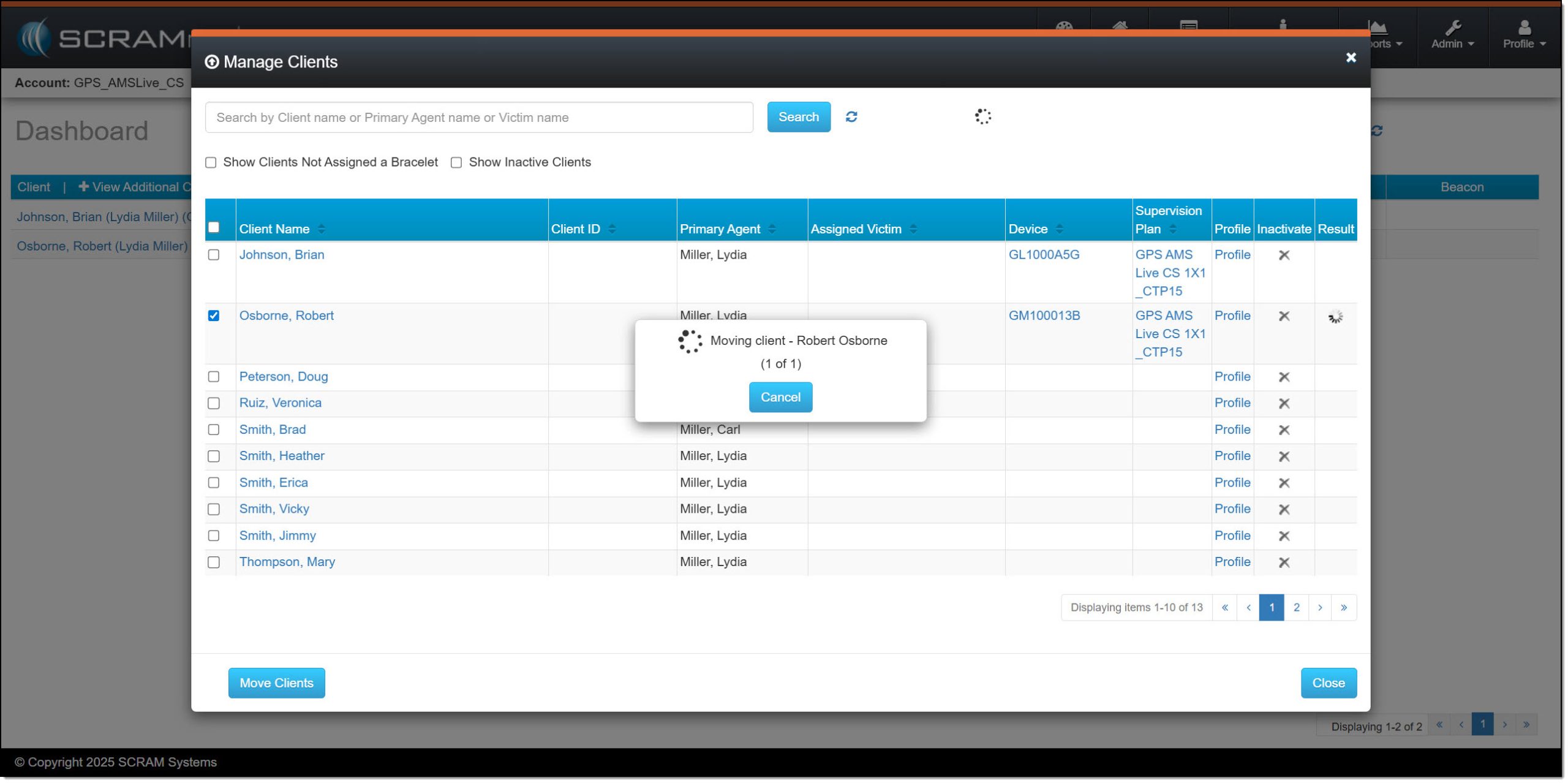
Transferring Clients In Process Pop-up Window – click to enlarge
- Once the transfer is successful, you will see a green checkmark in the Results column. The last step is to select the OK button.
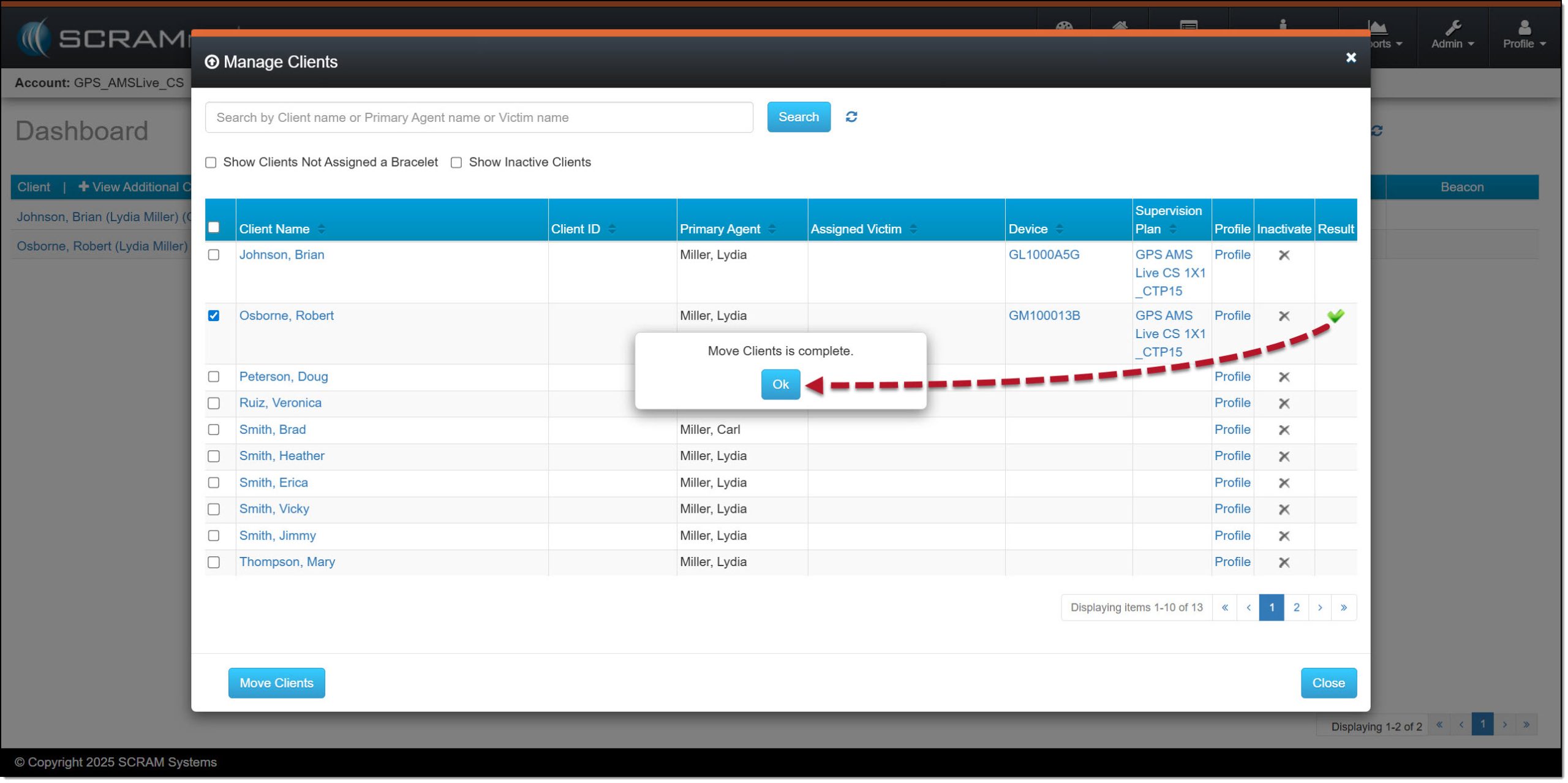
Completion Pop-up window – click to enlarge
If the transfer was not successful, a red “X” will display in the Result column. Hovering your mouse over the red “X” will display a pop-up window with the reason why the client was not transferred to the new caseload. When needed, make the necessary updates and try again.