The corrective actions below are designed to assist you with isolating a problem with the GPS beacon. Perform the steps sequentially and stop once a step resolves the issue. If none of the steps resolve the issue, contact SCRAM Systems Customer Service.
Tethering and Assignment Issues
| Symptom |
Corrective Action |
| Beacon will not tether to the GPS bracelet. |
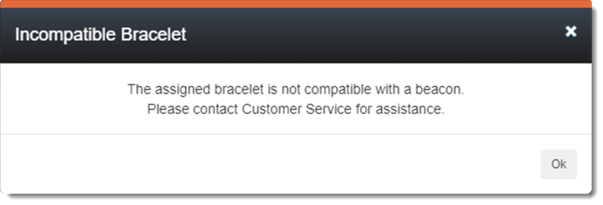
- Verify the GPS bracelet is compatible with a beacon:
 |
Most GPS devices with “GL” serial numbers are Beacon-compatible. If you receive the above warning on a GL device, your GPS bracelet may not be running the latest firmware. Contact SCRAM Systems Customer Support for assistance. |
- Verify the GPS bracelet is charged and communicating. If not communicating, bracelet must be moved to a location where it can communicate.
- Verify the beacon is plugged into power and communicating.
- Contact SCRAM Systems Customer Support.
|
| The beacon does not appear in the Device Grid. |
Ensure that both cable connectors (power and internet connection) are firmly inserted. |
| Beacon shows tethered but SCRAMNET GPS Dashboard shows devices are untethered. |
- Advise client to leave the range of the beacon, wait 30 seconds, then return within range.
- If this does not resolve the issue, contact SCRAM Systems Customer Support
|
| The devices experience frequent tethers and untethers. |
- Perform a Range Check.
- Increase the Range as needed.
|
| Devices still will not tether after troubleshooting. |
Contact SCRAM Systems Customer Support. |
| Beacon will not assign (yellow triangle warning). |
- Verify the GPS bracelet is charged and communicating. If it is not communicating, move it to an area where it can communicate.
- Verify the beacon is plugged into power and communicating.
|
Beacon Will Not Communicate
| Symptom |
Corrective Action |
Beacon uses an Ethernet cable to connect to the internet and beacon display shows, “Error XX – Check Internet” where “XX” is one of the following error codes:
- 01 (socket failure)
- 02 (DNS Lookup failure)
- 04 (ICMP Echo Request failure)
- 08 (DHCP failure)
|
- Ensure the Ethernet cable is securely connected to both the beacon and the internet router.
- Reboot the internet router.
- Contact the client’s internet service provider (ISP) to determine if there is an outage in the area.
- If required, perform a hard reset of the beacon by disconnecting it from power and removing its backup battery. Wait a few seconds and then re-install the backup battery and reconnect to power.
- If none of these steps resolve the issue, contact SCRAM Systems Customer Support.
|
Beacon uses a “plain old telephone service” (POTS) line to connect to the internet (a “landline”) and beacon display shows, “Error XX – Check Internet” where “XX” is one of the following error codes:
- 10 (Active link down)
- 20 (POTS line in use)
- 40 (POTS no dial tone)
- 80 (POTS no carrier)
|
- Verify the POTS line is active by checking for dial tone. If no dial tone, check for an extension phone that is “off the hook” and hang it up; otherwise contact telephone service carrier.
- Ensure the telephone cable is securely connected to both the beacon and the phone jack.
- Check for an extension phone that is in use – the beacon will usually reconnect once the extension is no longer in use.
- If the client uses a DSL (VOIP) telephone service, confirm that a DSL filter has been connected to the phone line or phone jack to which the beacon is connected.
- If the client uses a DSL (VOIP) telephone service, reboot the DSL modem/router.
- Contact the client’s telephone service carrier to determine if there is an outage in the area.
- If none of these steps resolve the issue, contact SCRAM Systems Customer Support
|
Beacon is Blocked by a Firewall
For the beacon to operate correctly, it must be allowed access to the following ports and protocols (you may need to engage an IT/Network Admin for assistance):
| Port |
Protocol |
Purpose |
| 8883 |
TCP |
Secure MQTT (MQTT over TLS) |
| 123 |
UDP |
Network Time Protocol – used for time synchronization |
| 80 |
TCP |
Hypertext Transfer Protocol (HTTP) |
| 21 |
TCP |
File Transfer Protocol (FTP) |
| n/a |
ICMP Echo Request |
Protocol that enables echo requests. |
| 53 |
TCP & UDP |
Domain Name Services (DNS)
Must allow access to Google DNS (8.8.8.8 and 8.8.4.4) |
| n/a |
DHCP |
Dynamic Host Control Protocol |
Contact SCRAM Systems Customer Support with any other GPS beacon-related issues.