Pattern of Life includes an “Account” view, which displays on the map the Last Known Location of all clients in any of the sub-accounts to which the agent or officer has access.
To access the view, select Pattern of Life Analysis from the GPS Analytics menu. Once on the Pattern of Life page, select Pattern of Life – Account from the View dropdown menu, and then select specific sub-accounts from the Accounts dropdown if desired.
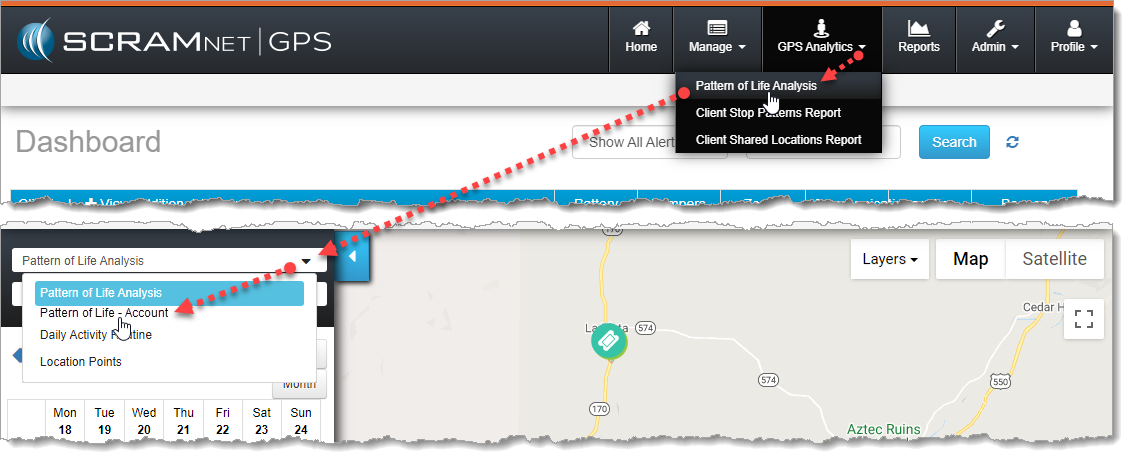
How to Access Pattern of Life – Account View (click to enlarge)
Account View Features
The numbered features in the following list correspond to the numbered markers on the Pattern of Life – Account screen capture.
|
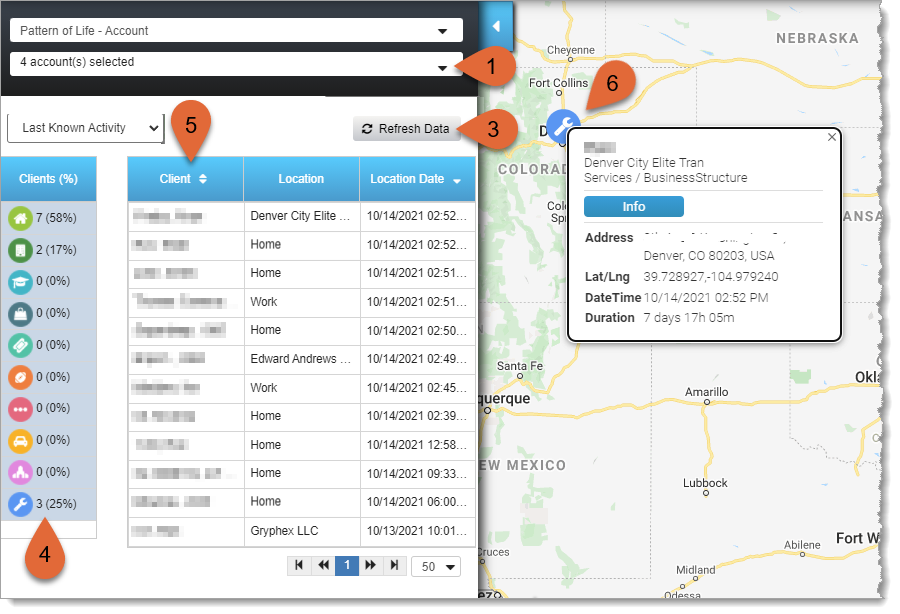 Pattern of Life Account View (click to enlarge) |
- Manual Refresh – Click the Refresh Data button to update all locations.
- Pattern of Life Categories – Locations are grouped into Pattern of Life Categories to bring more context to the location. By default, all categories are selected. To select or deselect categories, press the Ctrl key and click one or more categories.
- The table shows the total number of clients in the category and the percentage of all clients. For example, the image above shows seven clients at home and two clients at work, or 75% of all clients. In scenarios where there is no need to monitor those clients at home or at work, these categories may be deselected to eliminate them from the map and focus on the other categories.
- Client List – The list of all clients’ Last Known Locations for the selected Pattern of Life Categories. By default, the list is sorted by Location Date.
- Note the Location Date is not always “current.” For example, the Last Known Location for a client with a dead battery will have an older Location Date.
- Click the Client column header to sort by client Last Name.
- When a client is at home or work, the Location column shows the name of the zone. When a client is traveling, the Location is shown as “Traveling,” otherwise the place name of the location is shown.
- Click the client row to highlight the client’s location on the map.
- Map – Map markers indicate the Pattern of Life Category at a specific geographical location. Hover the mouse over (or click) a map marker to see the client’s name, as well as information about the location.
Next Steps
- Start over with Pattern of Life access and navigation
- Review the Stop Categories
- Review the Weekly and Monthly Views
- Step back to the Daily Activity Routine View
- Continue to an Example Use-Case