SCRAMNET

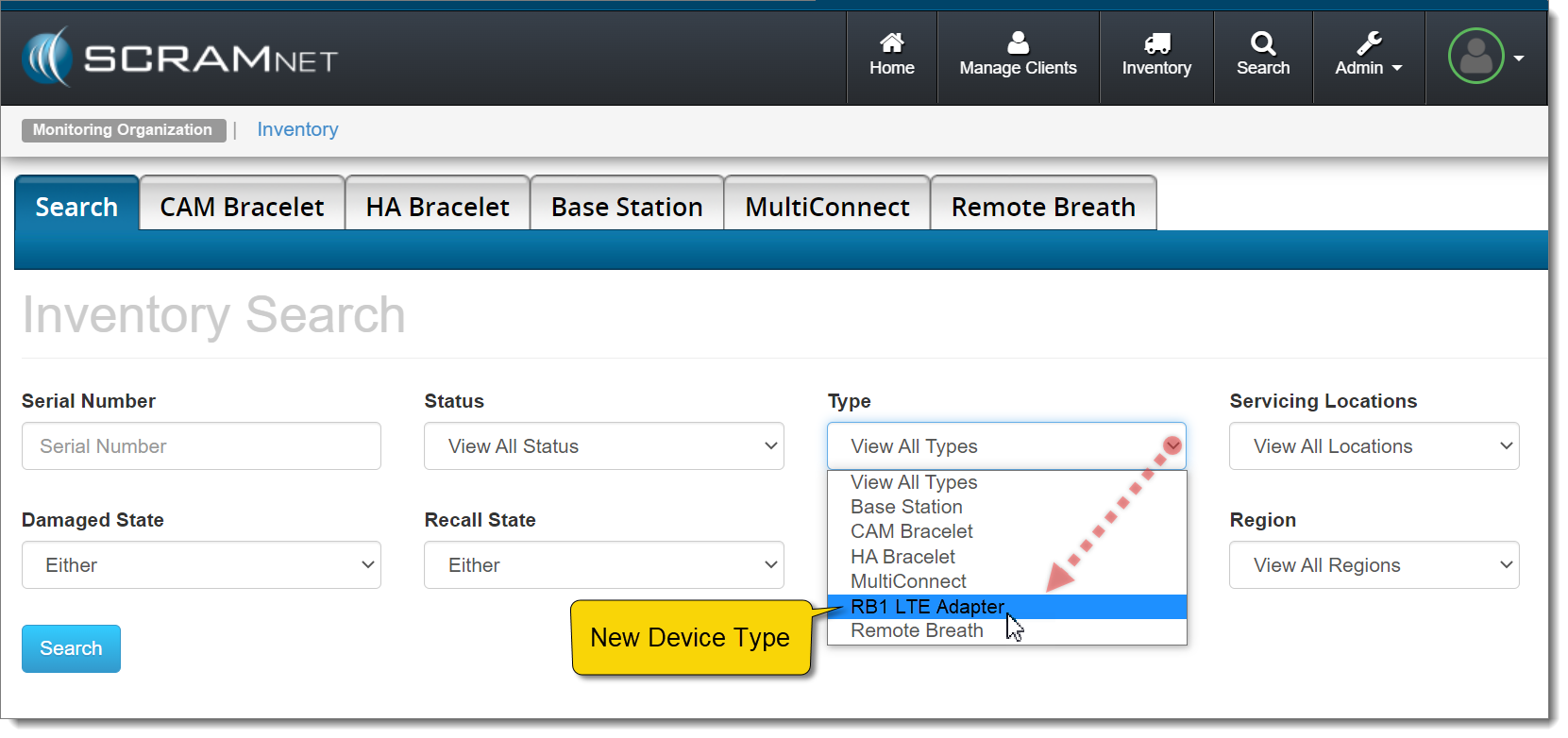
Effective January 6, 2022, SCRAM Systems will introduce an enhancement to the Inventory Search page in SCRAMNET. A new “RB1 LTE Adapter” device option will be added to the Type dropdown filter, in preparation for the launch of the new RB LTE Adapter later this month.

The new RB1 LTE Adapter option appears in the Type dropdown menu on the Inventory Search page in SCRAMNET
SCRAMNET Inventory Search page (click to enlarge)

Once selected, complete your inventory management using your current process. More information and instructions regarding RB LTE Adapter inventory management will be provided closer to the device’s release date.

Continue Reading

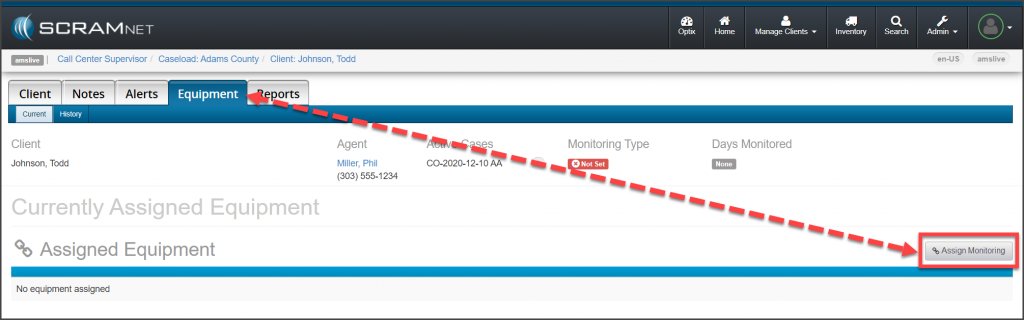
On November 18, 2021, the Change Monitoring button located on a new client’s Equipment page will display as “Assign Monitoring” until a monitoring type has been associated with the client. The updated verbiage on the button for this initial association to a monitoring type, more accurately reflects the action being completed for a new client.

Client's Equipment Page Assign Monitoring button
click to enlarge

Once the initial association to a monitoring type has been selected, the button will display as Change Monitoring from that point forward.

The process of adding a monitoring type to a new client itself has not changed; this is just a simple verbiage update to the action button. To review the process of creating a client in SCRAMNET, select the hyperlinks below to navigate to the corresponding monitoring technology’s Help articles:

Continue Reading

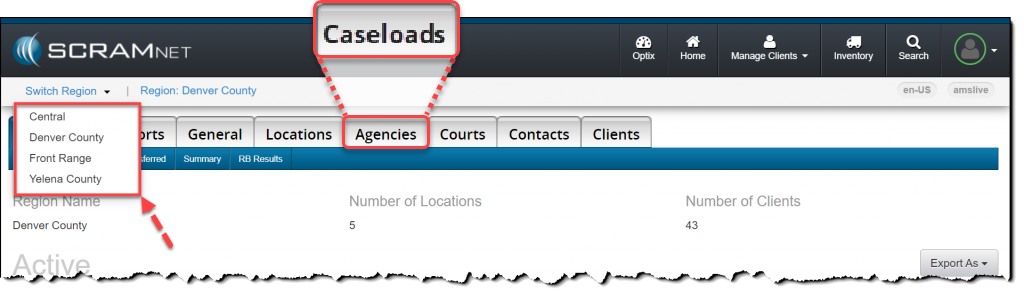
On the afternoon of Thursday, October 28, 2021, all instances of “Agency” that appear in SCRAMNET were changed to “Caseload.” This change applies to items in the site such as page titles, tabs, buttons, as well as various other objects.

The “Agencies” tab is now “Caseloads” (click to enlarge)

Check out the new Manage Caseloads Facility in SCRAMNET!

Related Article

Implementing this change aligns SCRAMNET with terminology currently being used in the field of public safety. The SCRAM Systems Help & Support site has been updated to reflect this change.

Continue Reading

In conjunction with the “Agencies” to “Caseloads” terminology update, SCRAM Systems is also releasing a new Manage Caseloads facility for SCRAMNET Administrators on Thursday October 28, 2021.

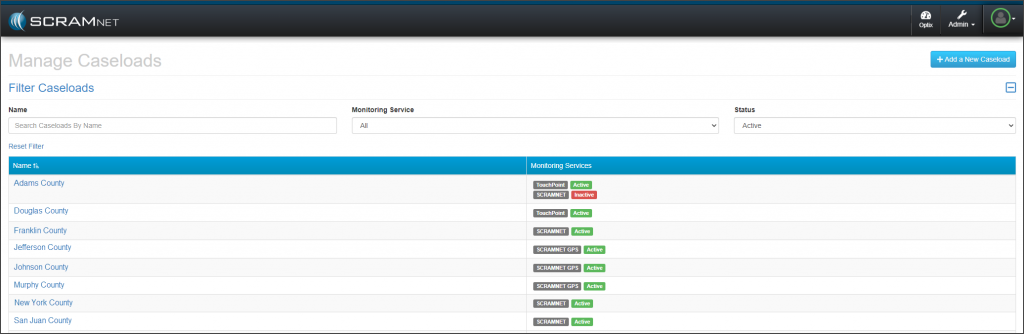
On the new Manage Caseloads facility you now can add, view, and edit SCRAMNET and TouchPoint caseloads.

Manage Caseloads page (click to enlarge)

Access the Manage Caseloads Facility

From SCRAMNET:

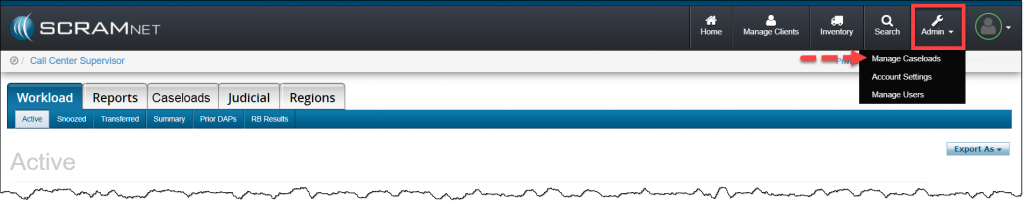
  1. Click the Admin button in the main navigational bar.
  2. Click the Manage Caseloads option from the menu.
Admin dropdown menu (click to enlarge)

Manage Caseloads Page

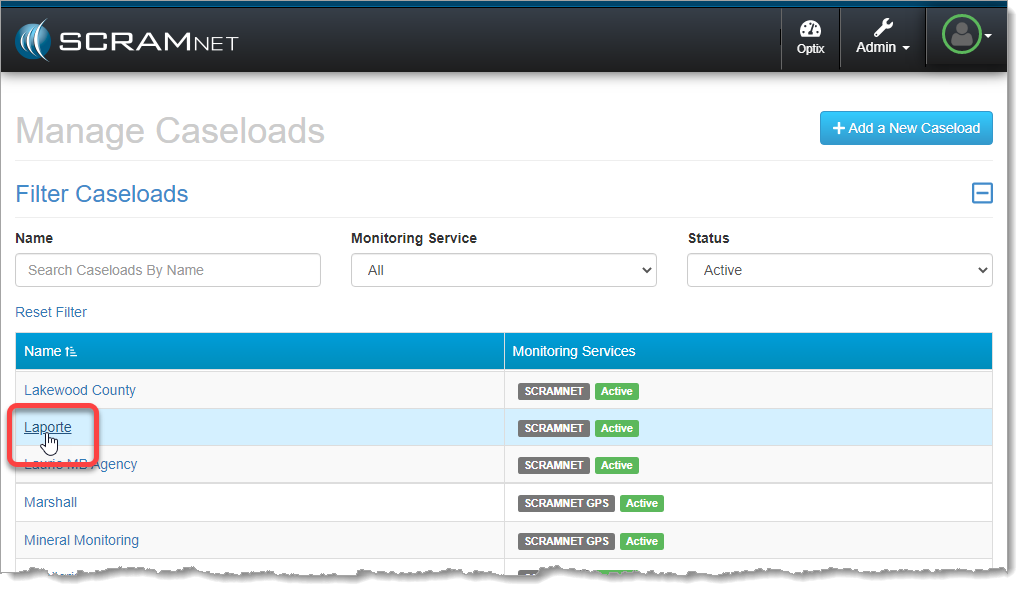
To edit or add a monitoring service (TouchPoint or SCRAMNET) to a current TouchPoint or SCRAMNET caseload, click the caseload’s name hyperlink.

Select existing Caseload (click to enlarge)

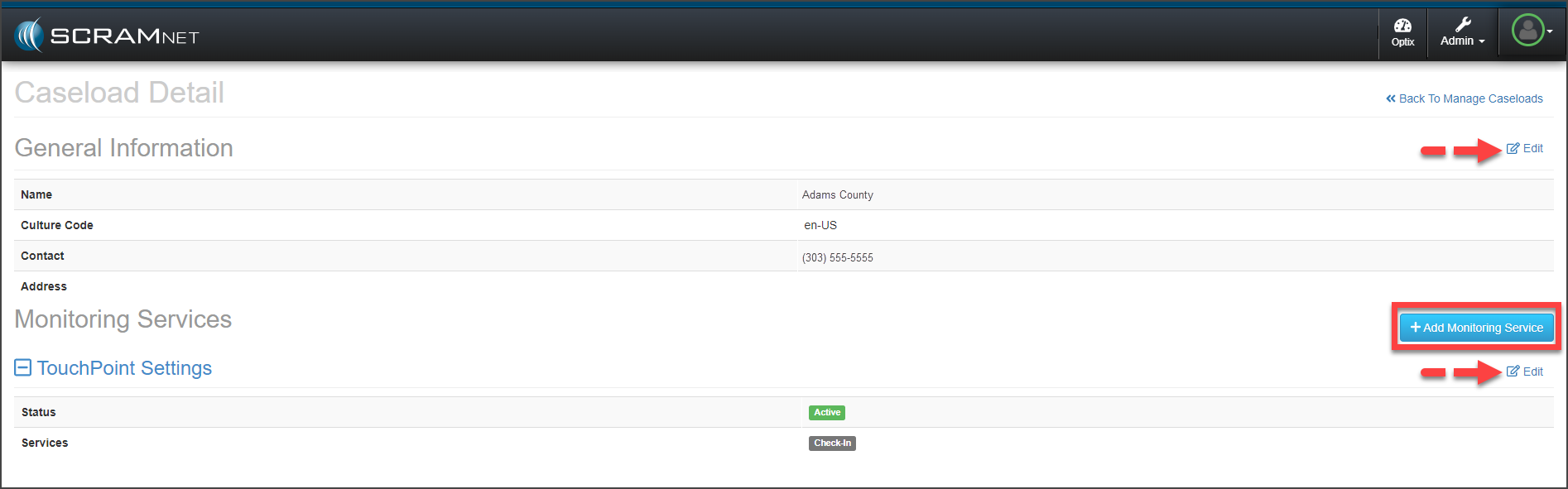
On the Caseload Detail page, use the Edit hyperlinks or +Add monitoring Service button (TouchPoint or SCRAMNET) to update the caseload as needed.

Caseload Detail page (click to enlarge)

Add a New Caseload

On the new Manage Caseloads page:

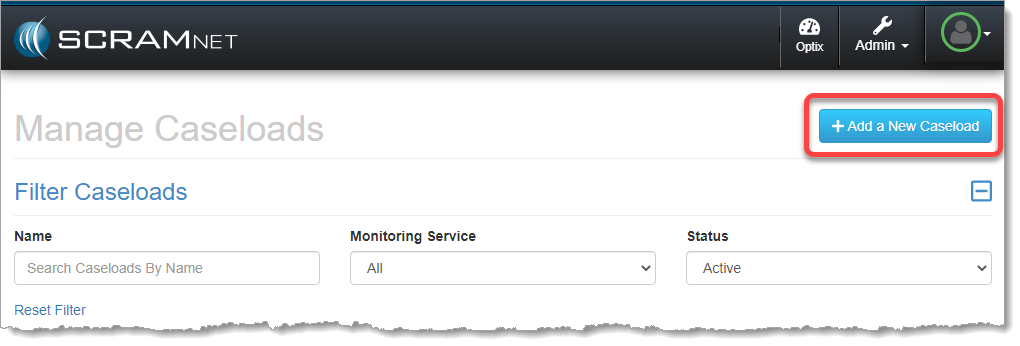
  1. Click the +Add a New Caseload button.
+Add a New Caseload (click to enlarge)
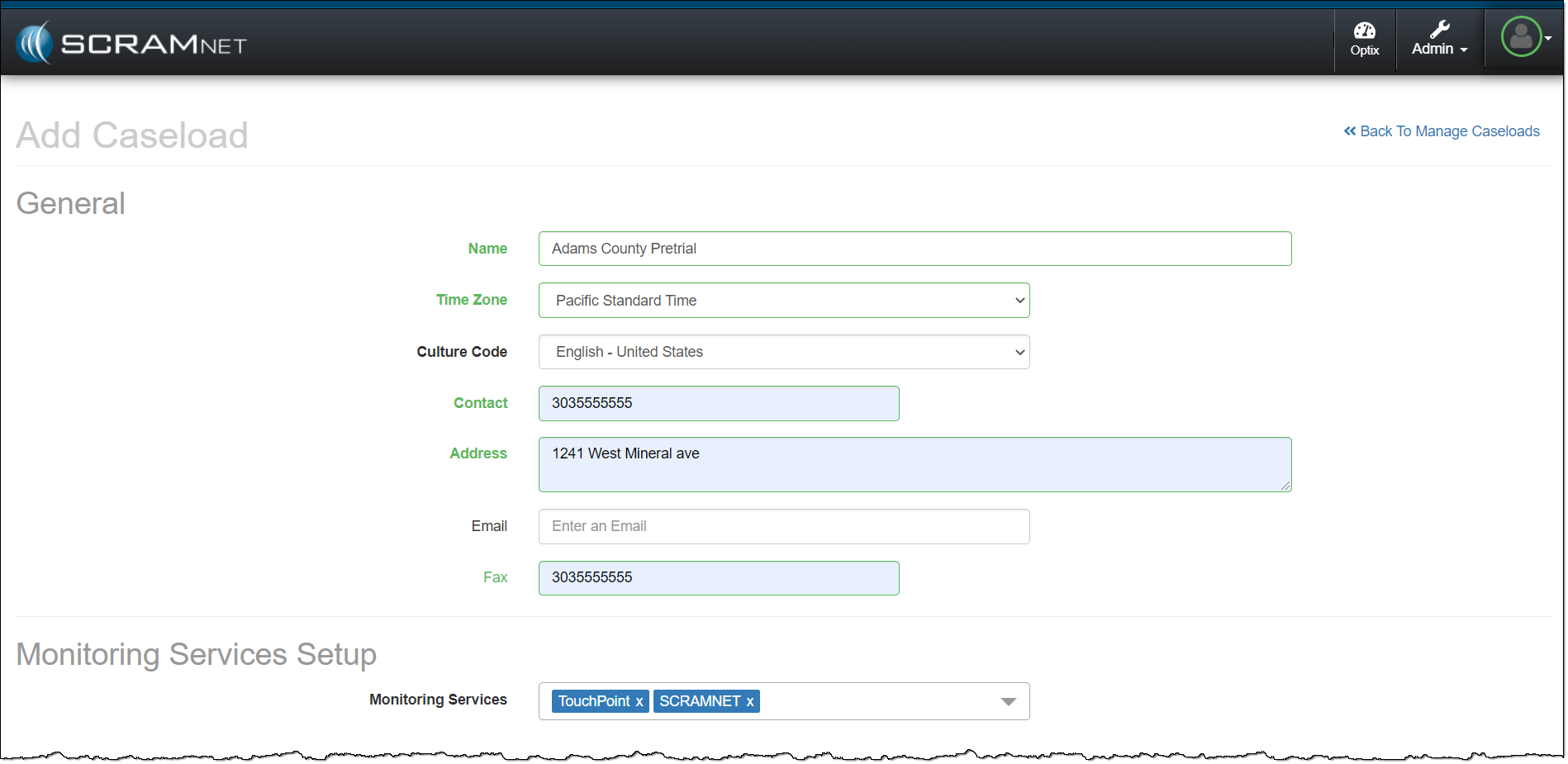
  1. Enter in the General information for the caseload. All fields with headings in bold print are required fields.
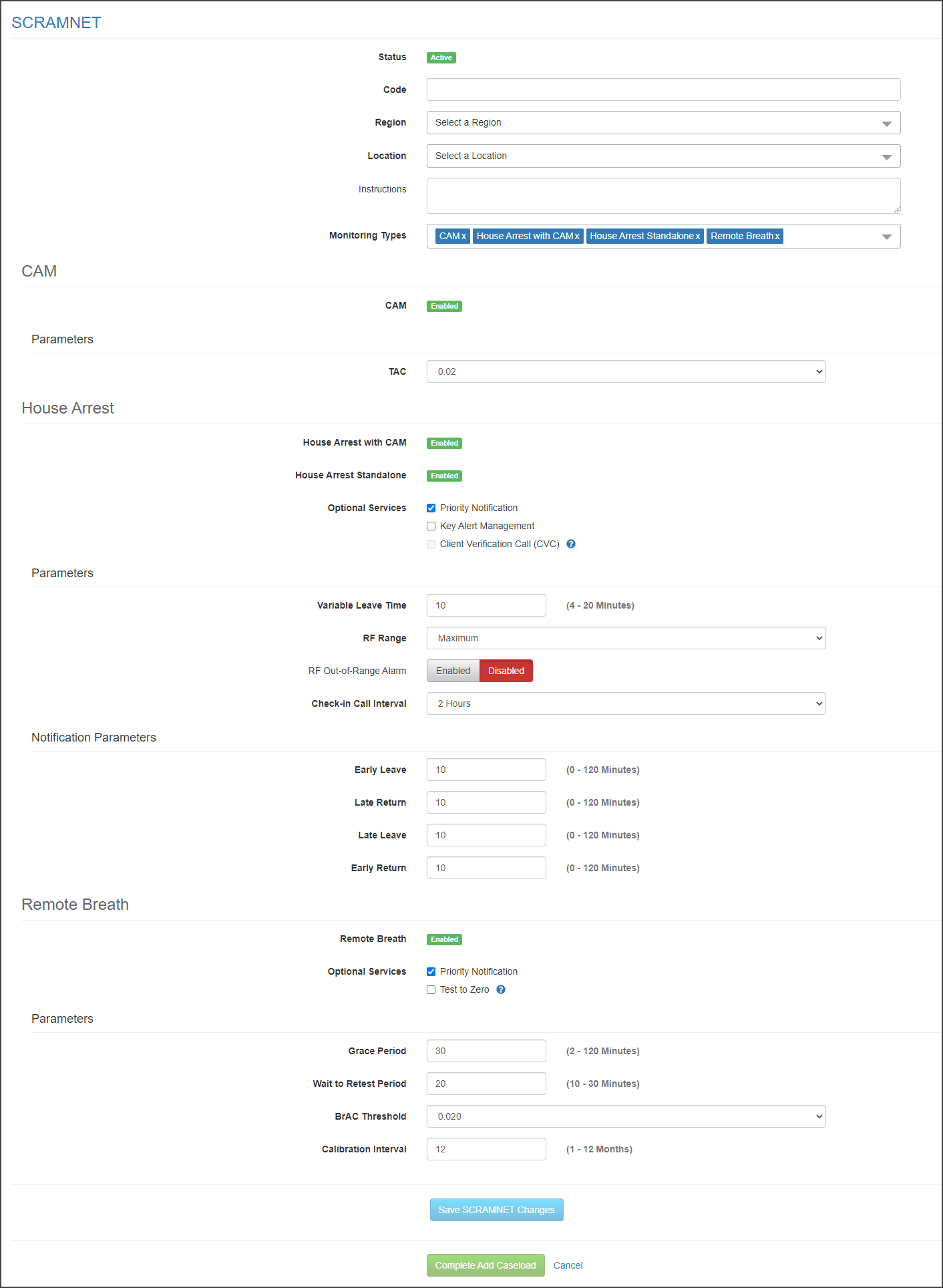
Manage Caseload: adding a new caseload General information added and Touchpoint and SCRAMNET monitoring services selected.
New Caseload General and Monitoring Services Setup (click to enlarge)
  1. Under the Monitoring Services Setup section, select all the Monitoring Service(s) required for the new caseload from the drop-down menu.
    • Note: The monitoring services available from the drop-down menu will reflect the current access level and permissions for that user.
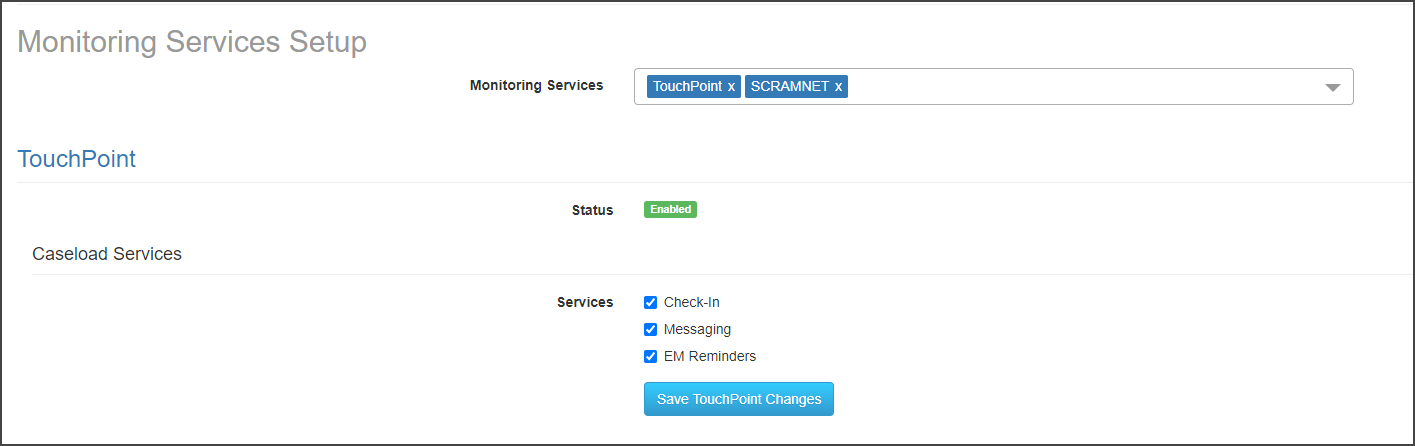
  2. Select the specific monitoring details for the Monitoring Services (TouchPoint) and Monitoring Types (SCRAMNET).
  3. Once all customizations are selected, click the Save TouchPoint Changes, and/or Save SCRAMNET Changes button.
TouchPoint Add Caseload Services (click to enlarge)
SCRAMNET Caseload Hierarchy and Add Monitoring Types Setup
  1. To save all updates, click the Complete Add Caseload button.
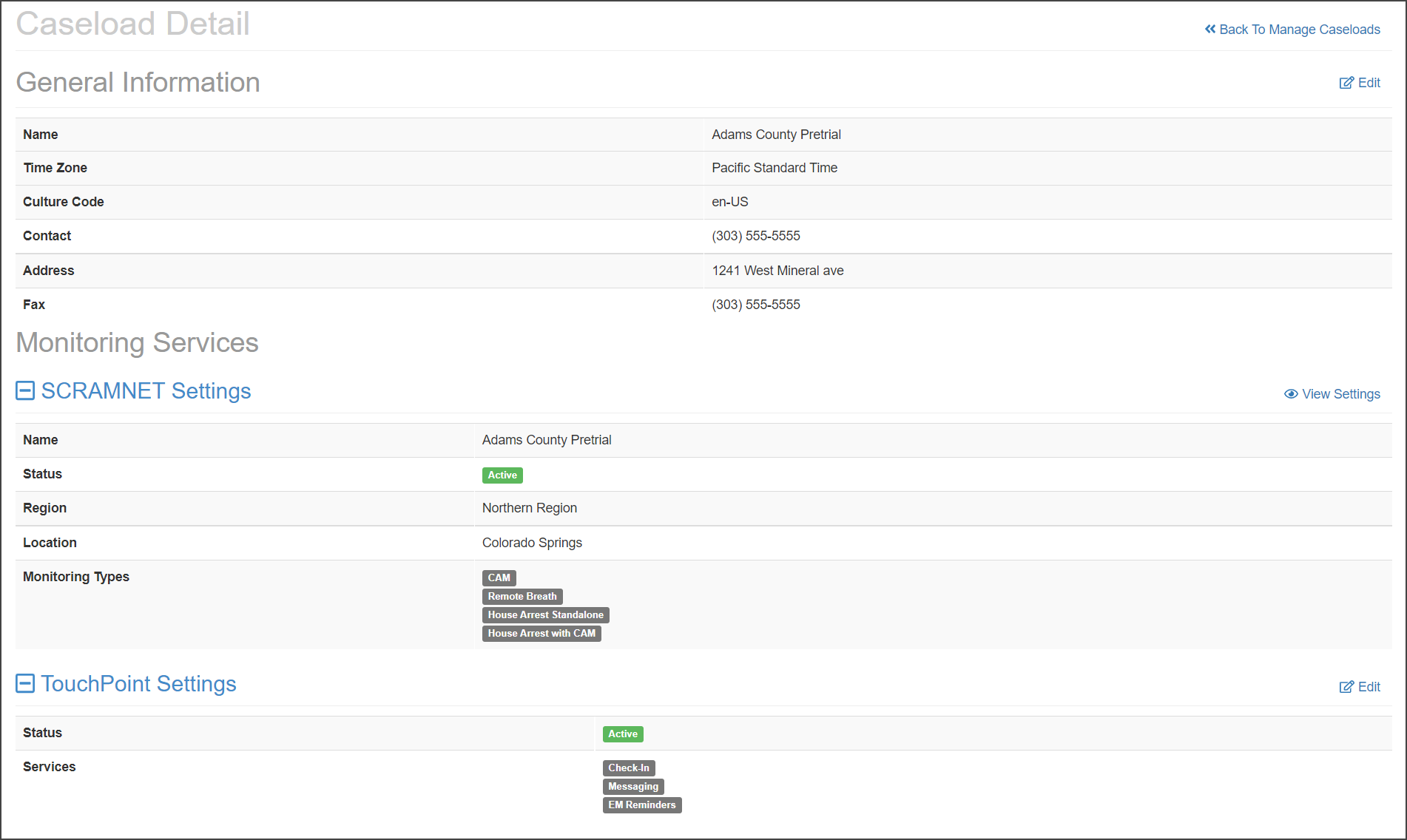
Manage Caseload, Adams County Pretrial Caseload Detail page
Saved Caseload (click to enlarge)

Continue Reading

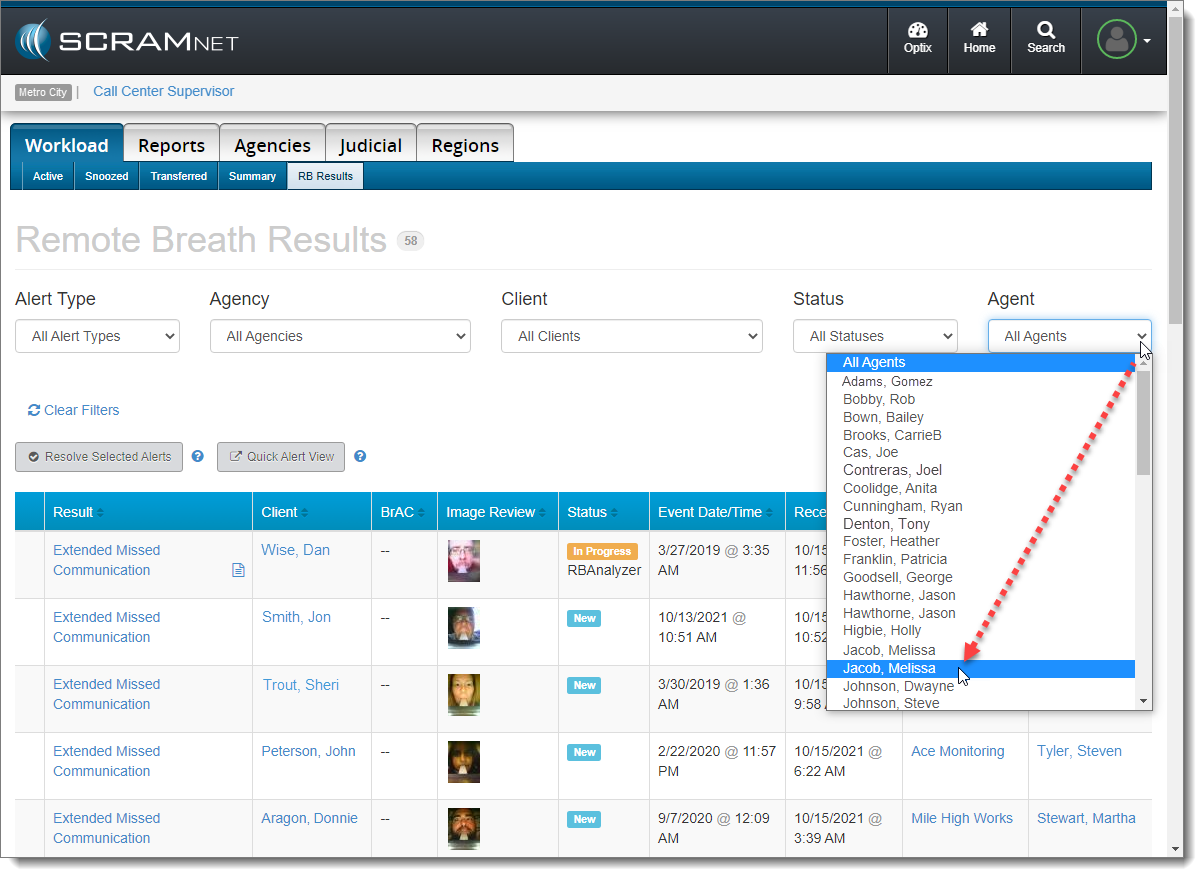
Effective today, SCRAM Systems® released a new Agent filter and associated column on the RB Results page in SCRAMNET­­®.

The Agent filter appears as a new dropdown menu on the far-right of the screen, and allows you to filter the list of results by a single agent. If an agent is assigned to more than one caseload, that agent will appear in the dropdown list multiple times, and you may have to select each instance of the agent until you get the desired agent/caseload combination.

Agent Filter (click to enlarge)

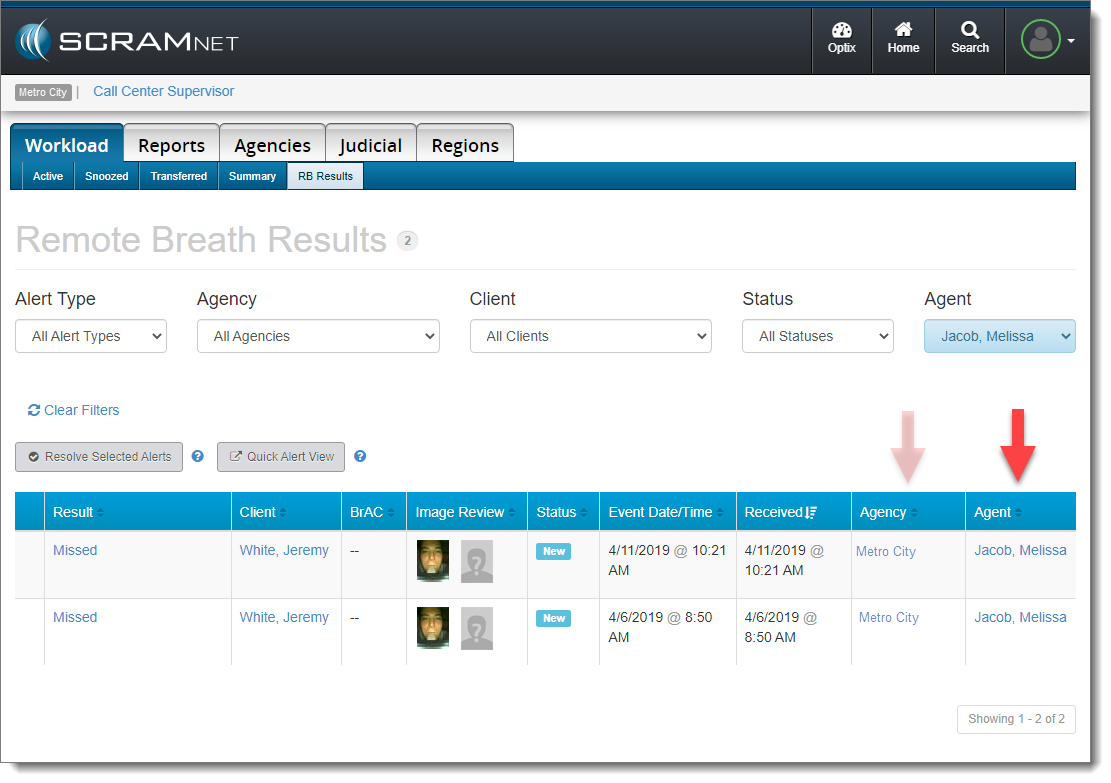
A new Agent column now appears on the Remote Breath Results page as well. Use this new column in conjunction with the existing Agency column to clarify which set of results you are viewing for that agent.

Agent-Related Columns (click to enlarge)
InformationEffective October 28, 2021, “Agencies” will be referred to as “Caseloads” in the SCRAMNET monitoring system. This change will bring SCRAMNET up-to-date with current terminology.

Continue Reading

On September 23, 2021, SCRAM Systems released two enhancements for SCRAMNET.  

  1. Access Multiple Regions/Locations or Caseloads. This enhancement allows a user to access multiple SCRAMNET Sub Accounts (Regions and Locations), or multiple Caseloads with a single sign-on. 
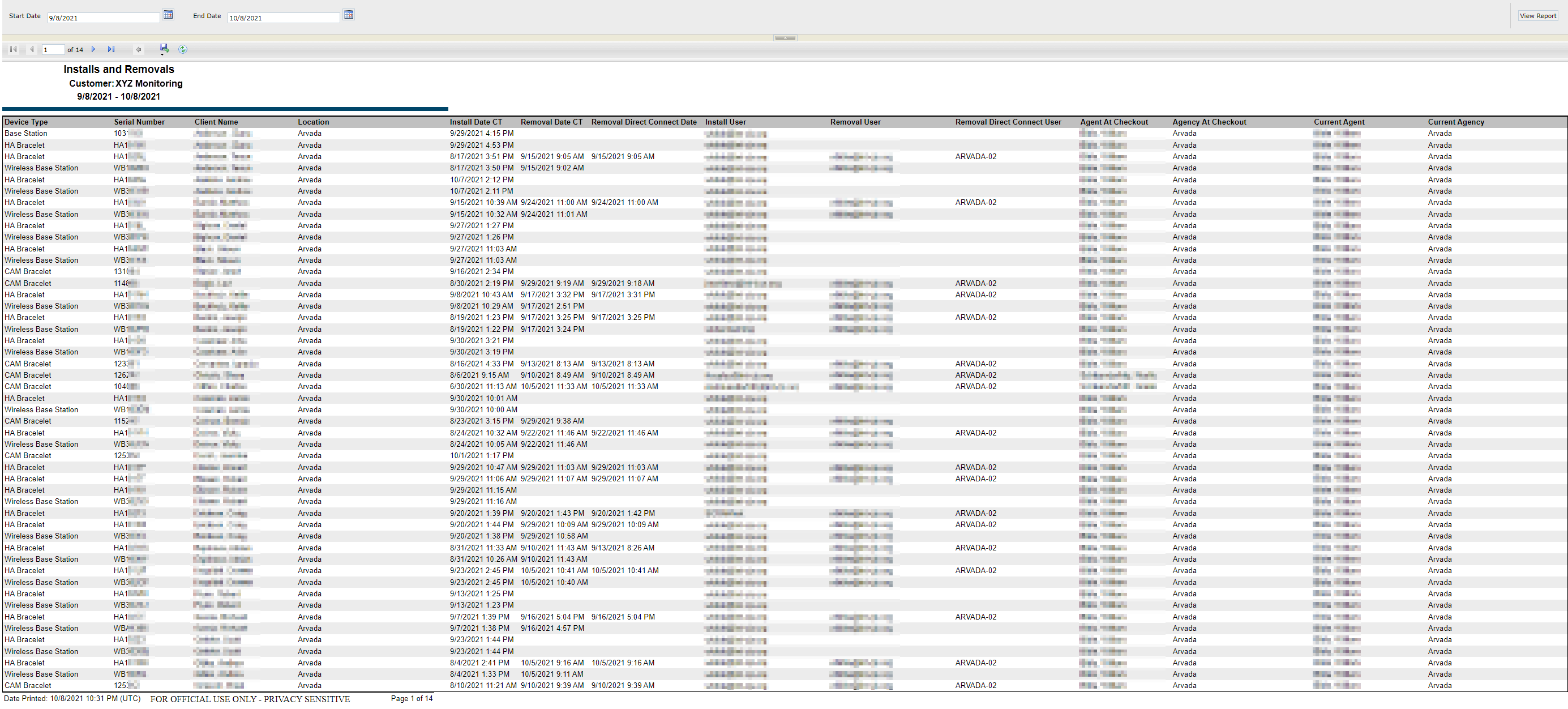
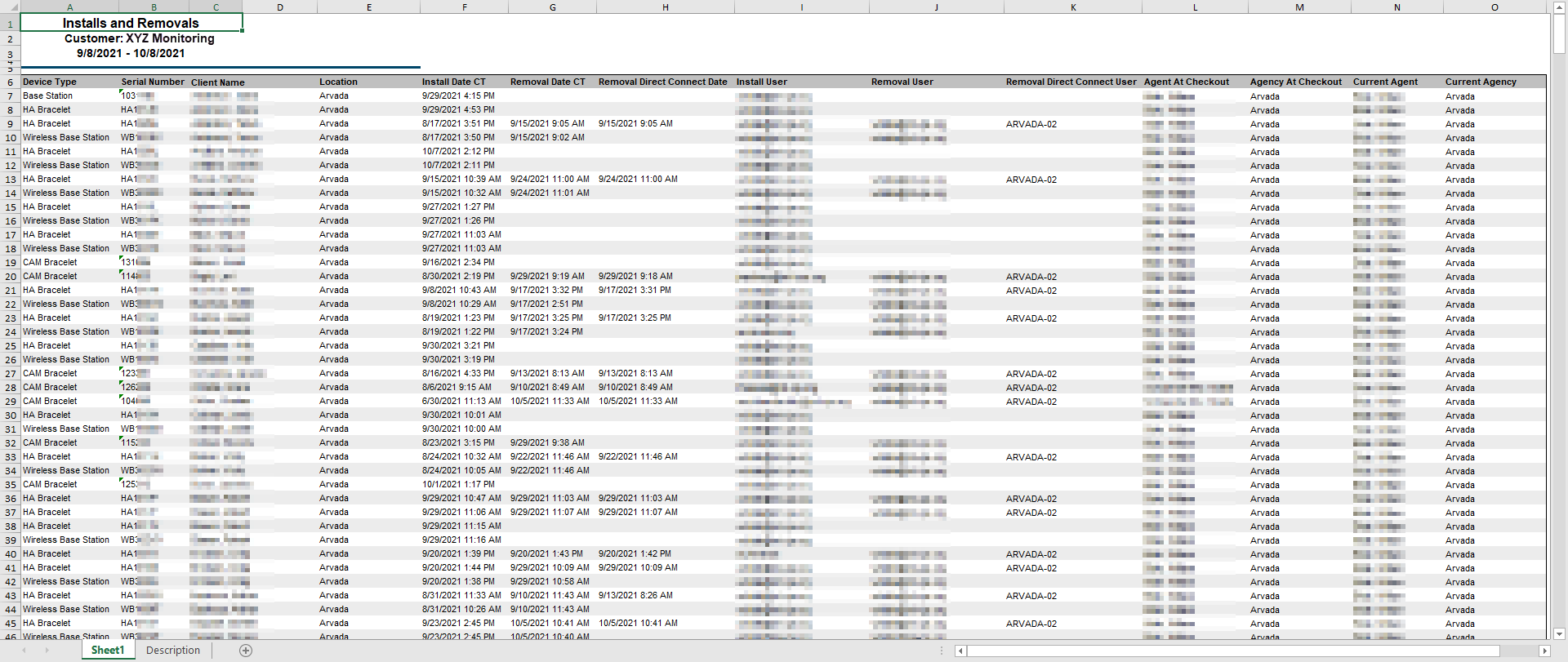
  2. New Installs & Removals Inventory Report. The report displays a detailed history of your inventory’s installations and removals for the last 30 days. 

Access Multiple Regions/Locations or Caseloads

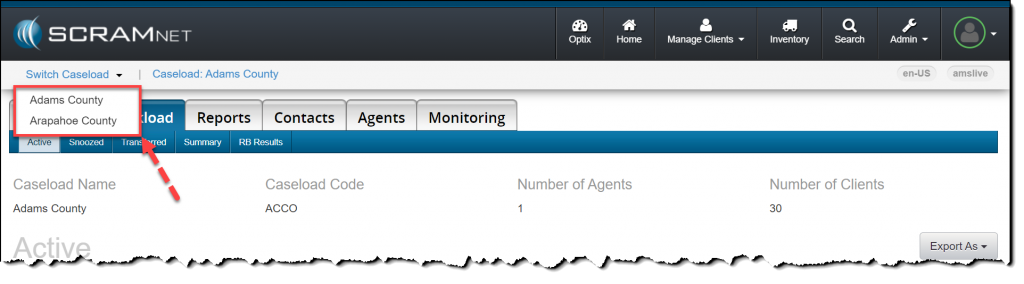
Users with access to multiple Regions/Locations or Caseloads may navigate within SCRAMNET using the Switch Caseload menu accessed within the quick access ribbon.

click to enlarge
click to enlarge
InformationEffective October 28, 2021, “Agencies” will be referred to as “Caseloads” in the SCRAMNET monitoring system. This change brings SCRAMNET up-to-date with current terminology.

Add Multiple Caseloads to a Current User

For a current user:

  1. Access the Manage Users page and click the user’s name hyperlink.  
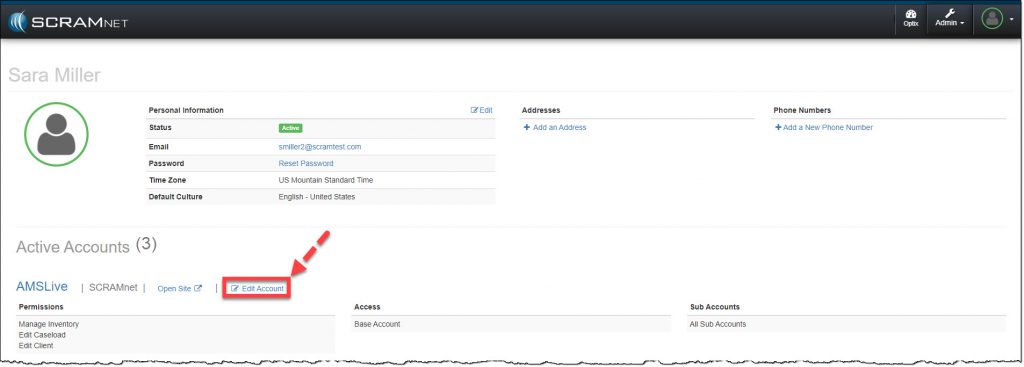
  2. Select the SCRAMNET Edit Account hyperlink.
Manage User profile page, Edit Account hyperlink
click to enlarge
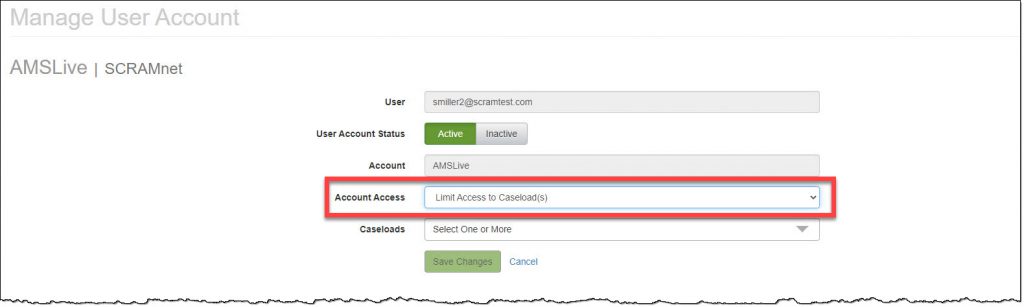
  1. Open the Account Access menu and select the option of Limit Access to Sub Account(s) or Limit Access to Caseload(s). (Example shown)
Manage User Account page set Account Access to Limit Access to Caseload(s)button
click to enlarge
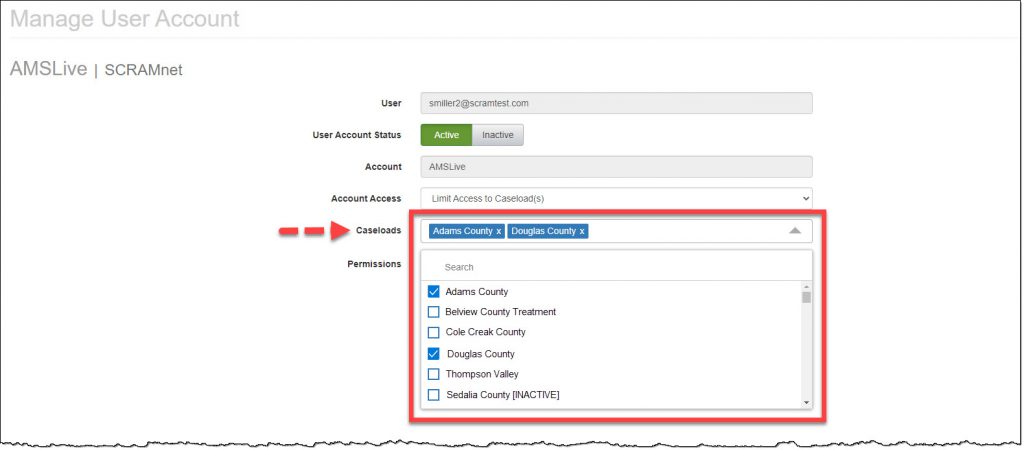
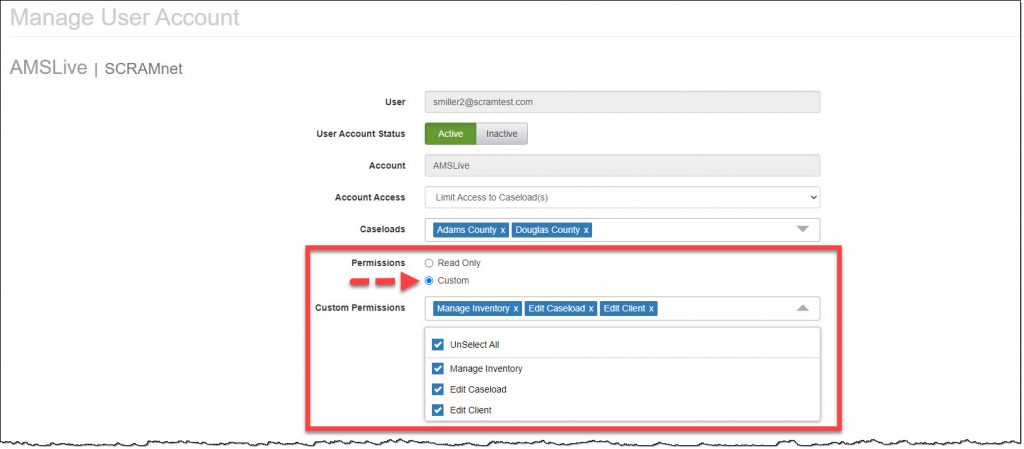
  1. Open the Caseloads menu and mark the Caseload(s) to which the user will require access by checking the box to the left of the caseload name. There is no limit on the number of caseloads a user may access. (The first caseload selected from the menu will be the default landing page for the user in SCRAMNET)
Manage User Account page Add caseloads to client profile
click to enlarge
  1. Verify or update the Permissions settings for the user. (The permissions apply to each caseload associated to the user)
Manage User Account page Update Permissions
click to enlarge
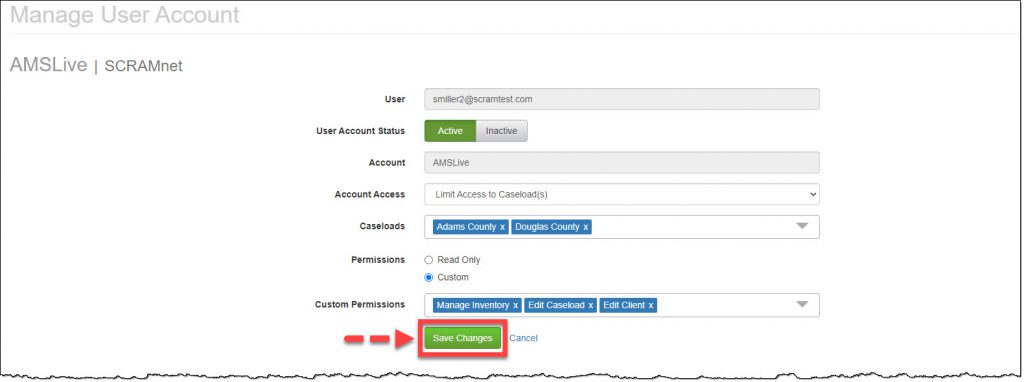
  1. Click the Save Changes button.
Manage User Account page Save Changes button
click to enlarge
Information

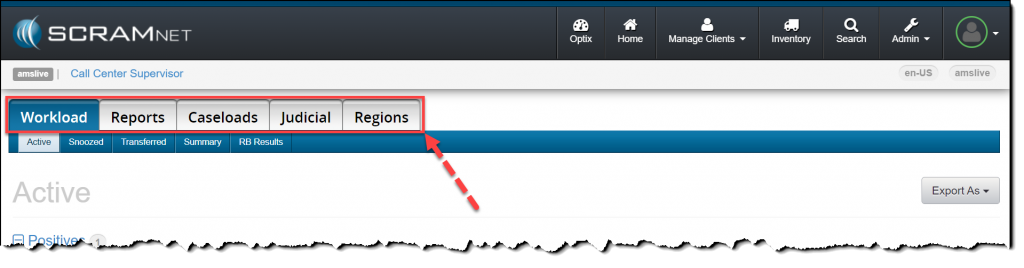
Users with “Access to the Entire Account” Account Access, will continue to navigate using the Regions and Caseloads tabs.

Users with access to a single Region, Location, or Caseload in SCRAMNET will continue to navigate the site in the traditional manner.

click to enlarge

Installs & Removals Report

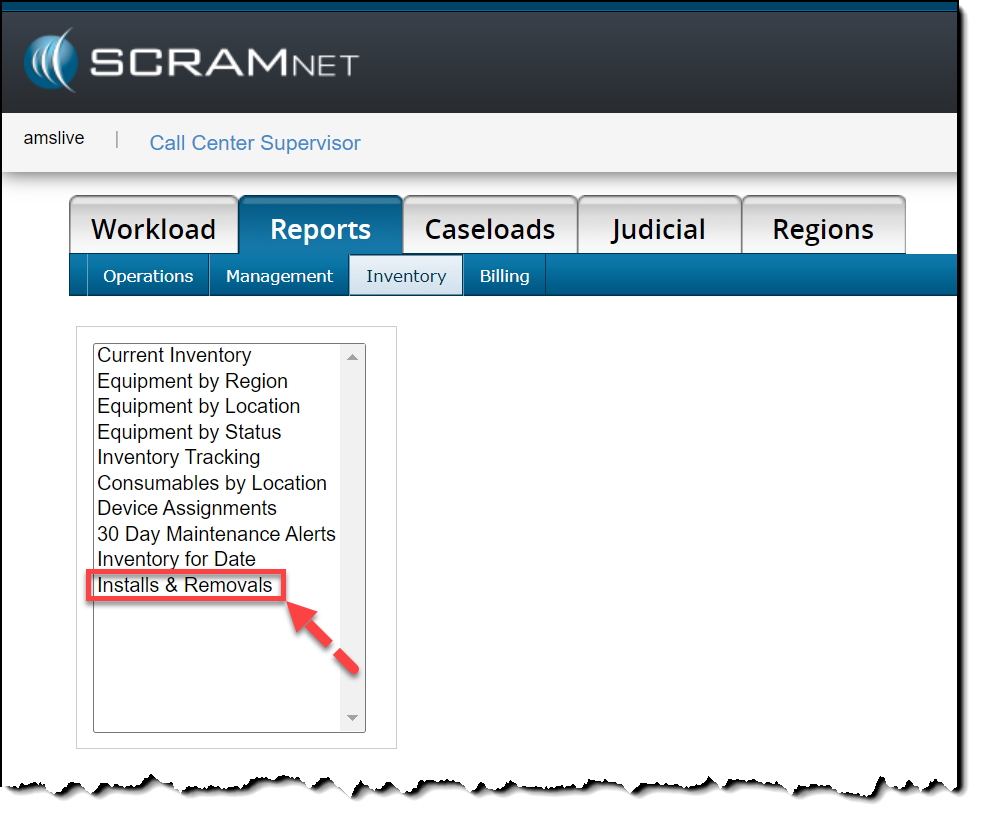
To locate the new Installs & Removals report available in SCRAMNET, navigate to the Reports tab and Inventory sub-tab. The report displays information for up to the past 30 days, including:

  • Device Serial Number
  • Client’s name
  • Install Date
  • Removal Date
  • Removal Direct Connect Date
  • Agent Name
  • Caseload Name
click to enlarge
InformationBecause of its wide layout, it is highly recommended that you view the Installs & Removals report in Web format, or export it to Excel format only.
Web format (click to enlarge)
Excel format (click to enlarge)

Continue Reading

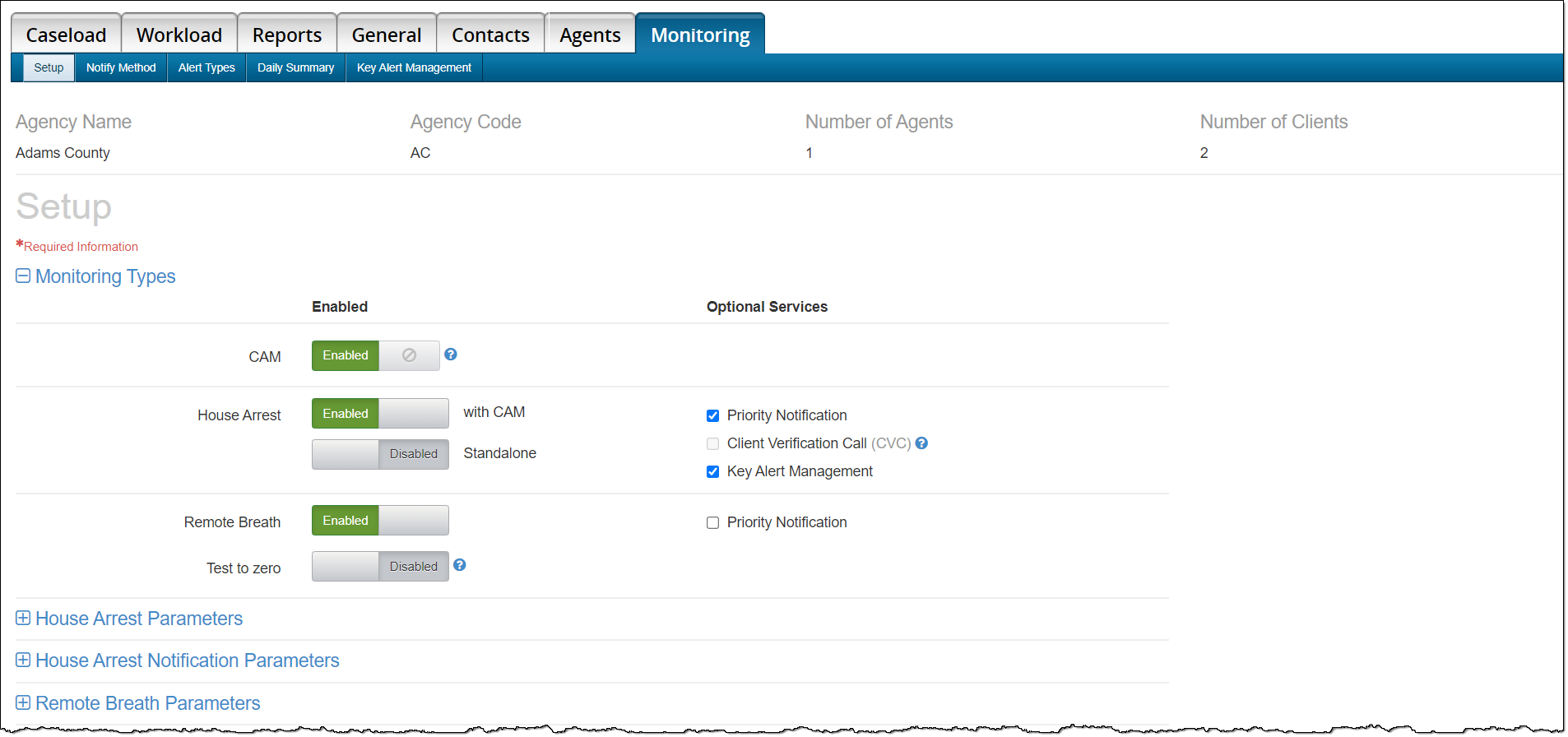
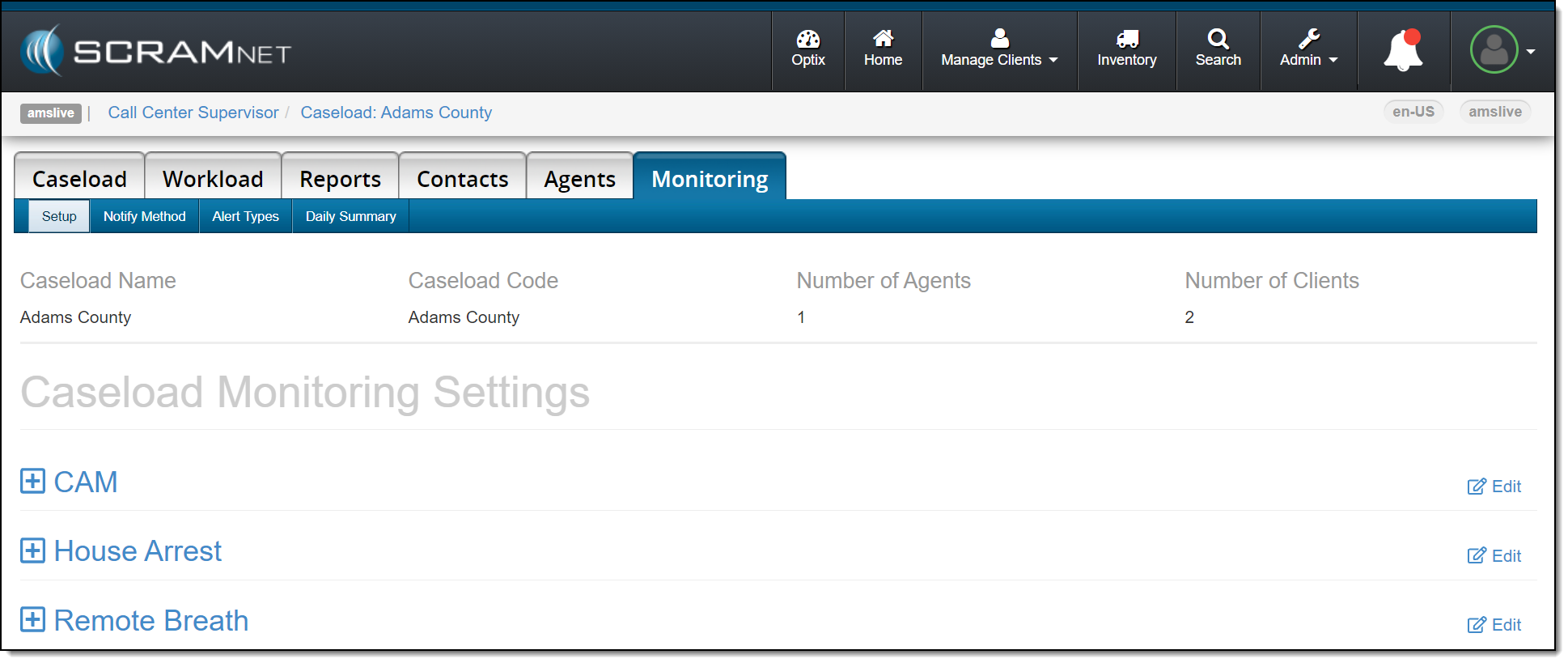
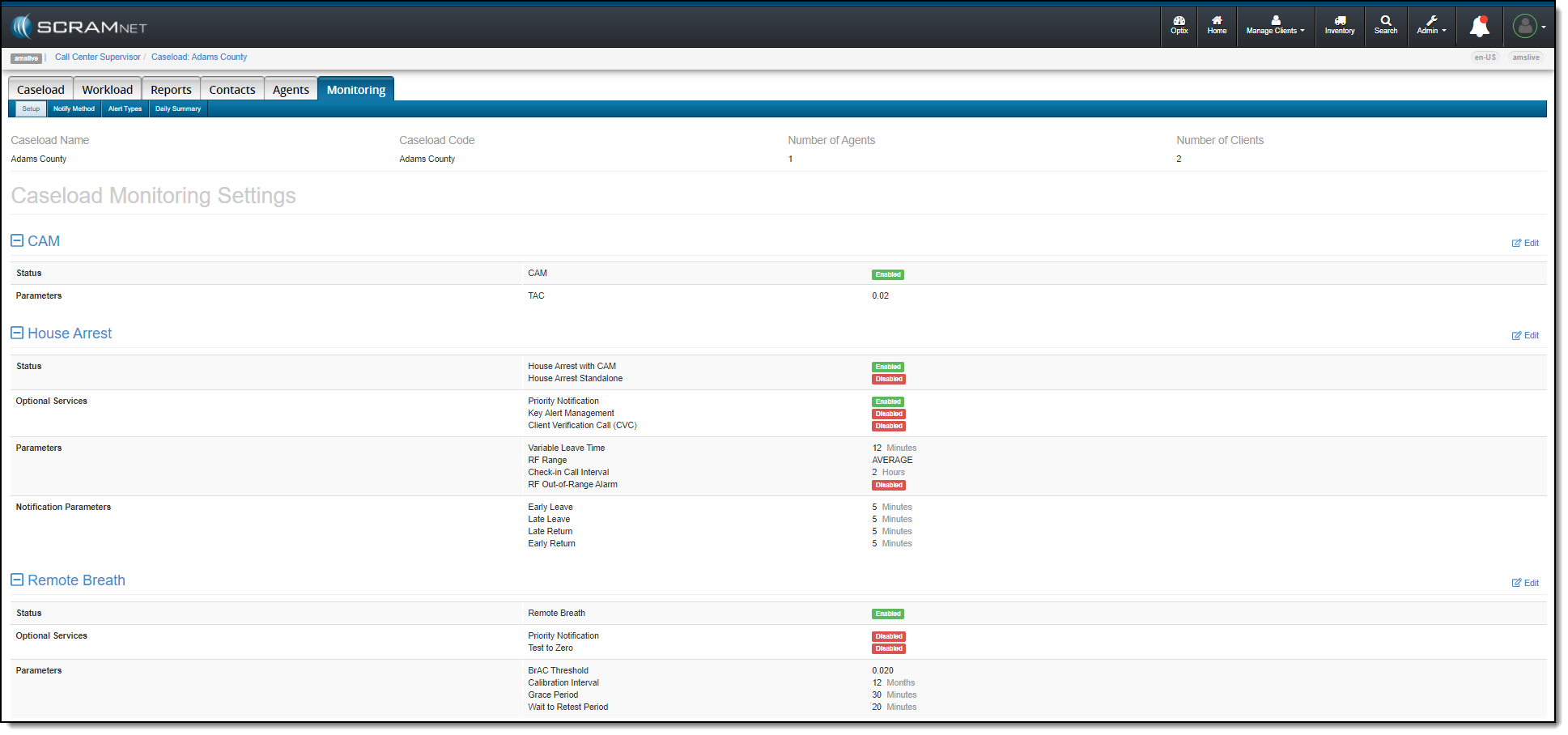
On June 10, 2021, SCRAM Systems® will be releasing an enhancement to the Monitoring tab on your Caseload page in SCRAMNET®. This enhancement updates how the monitoring types, optional services, and notification parameters selected for the caseload are displayed on the page. The functionality remains the same, the specific services and parameters are now grouped with the corresponding monitoring technology.

Current Page Layout

Current Caseload Monitoring page
click to enlarge

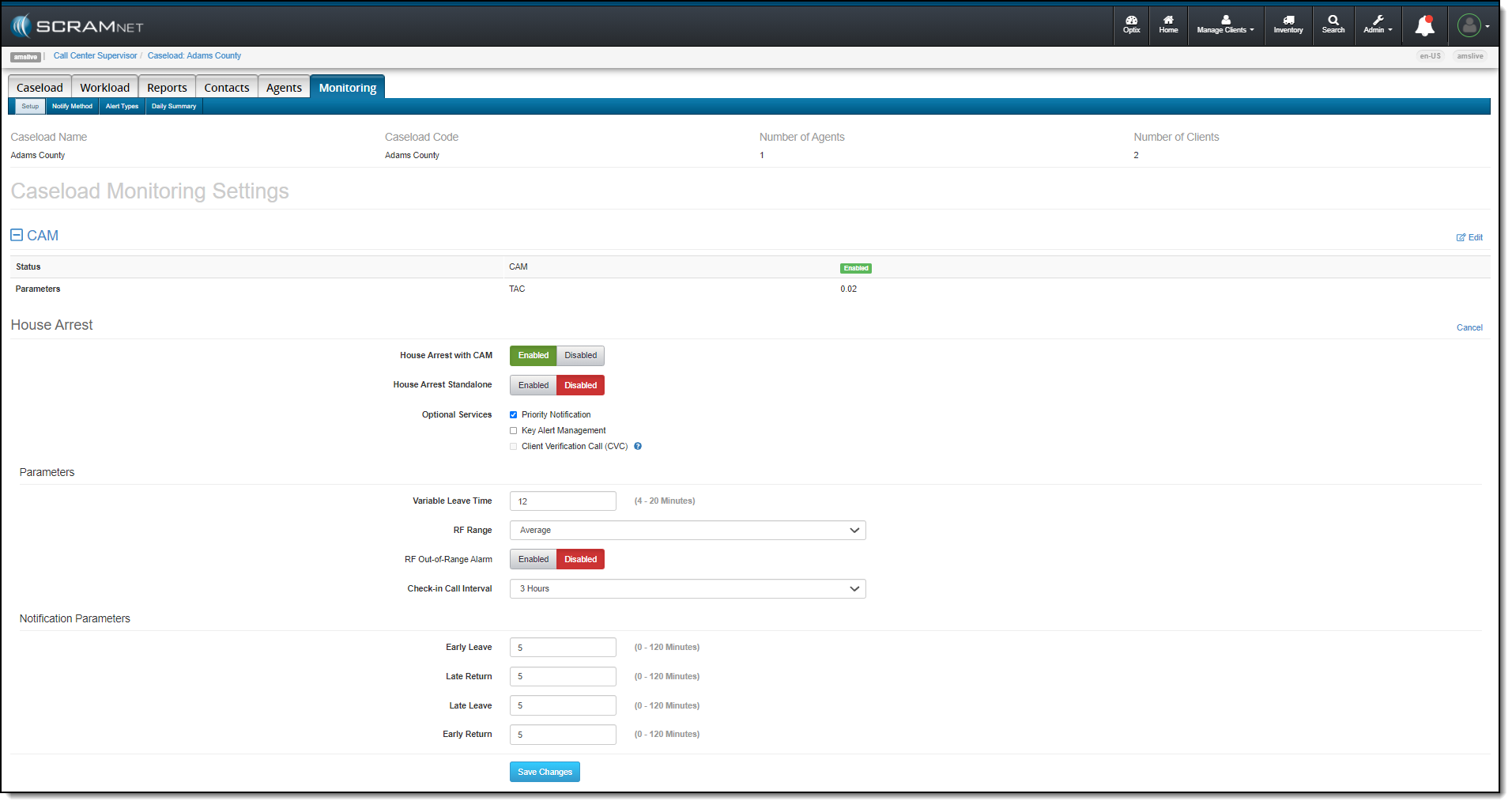
New Page Layout

click to enlarge

View and Update the Monitoring Settings

To view the current setting for a section, click the plus symbol next to the desired monitoring technology to expand the section.

click to enlarge

Select the Edit hyperlink to make any changes to the current settings. Once all changes have been made, click the Save Changes button.

click to enlarge

Feedback

Please contact SCRAM Systems Customer Service with any recommendations for system improvements.

Continue Reading

Equipment No Longer Set to “Lost” After 30 Days in “Awaiting Return” Status

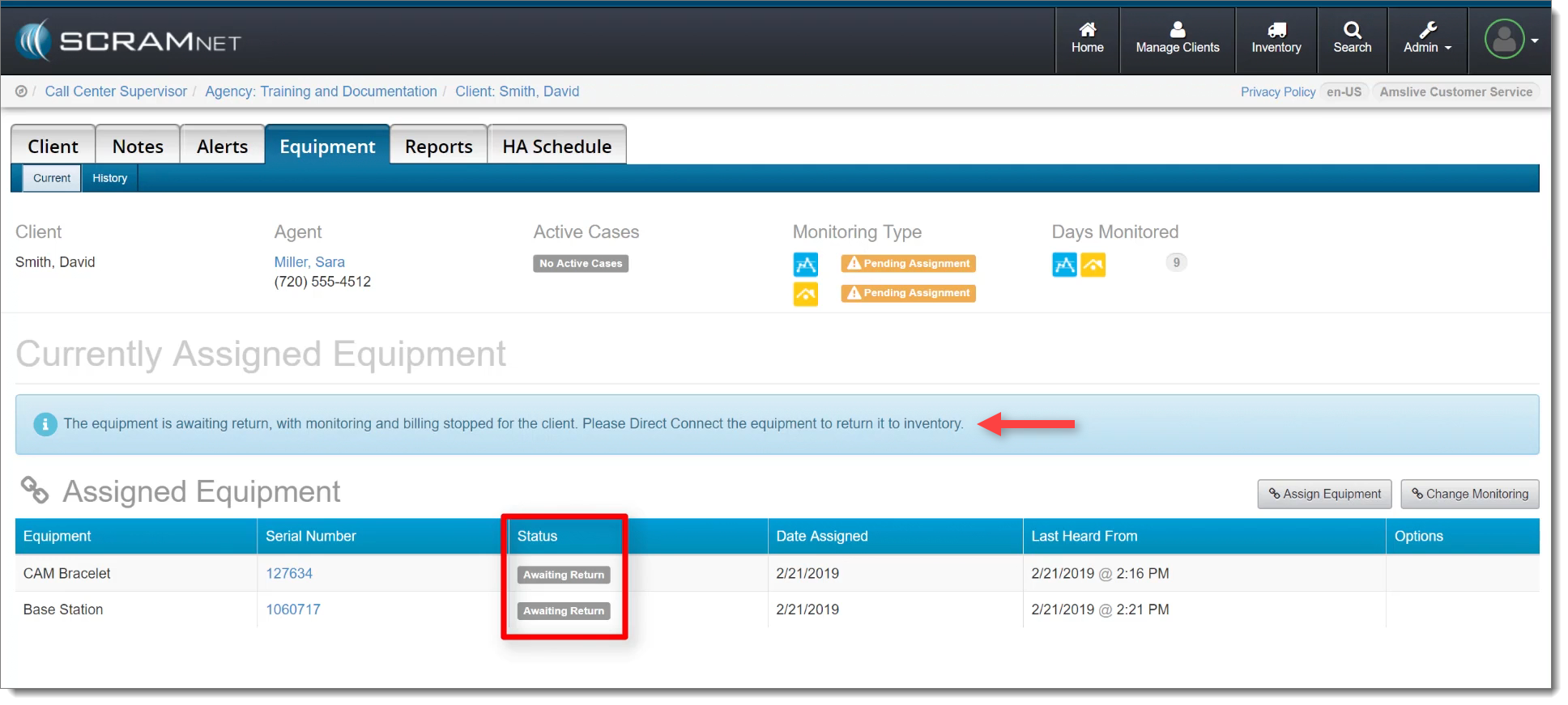
At the end of a client’s monitoring program, a SCRAM CAM or House Arrest bracelet and/or base station may be placed in the Awaiting Return status in SCRAMNET if the equipment is NOT on hand when the client is being removed from the monitoring program. Previously, SCRAMNET would automatically change the equipment status to Lost if the equipment was not checked in within 30 days.

Awaiting Return Status in SCRAMNET (click to enlarge)

However, customer feedback informed us that oftentimes equipment that is not returned within 30 days is NOT lost. Therefore, in response to your feedback, SCRAMNET no longer automatically changes the status of an Awaiting Return device to Lost after 30 days. All equipment will remain in Awaiting Return status until you check it in, or designate it as Lost yourself.

Continue Reading

A deployment scheduled for Thursday, April 8, 2021 introduces a new report and a change in how SCRAMNET reacts when a device is in the “Awaiting Return” status for 30 days.

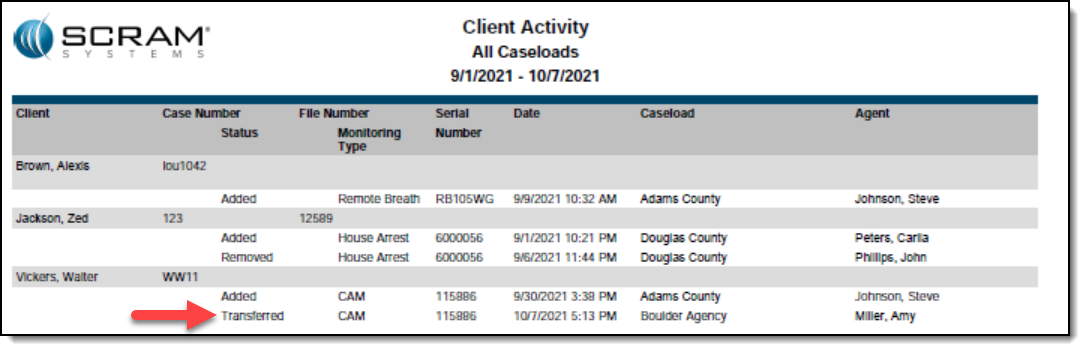
New Client Activity Report

This report allows customers to review all client activity within a selected date range for a specific location or for all locations. To access the report in SCRAMNET, click the Reports tab then click the Management sub-tab.
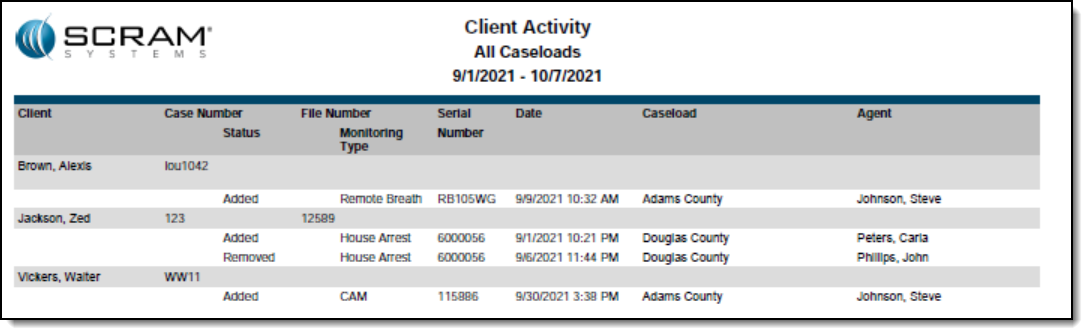
The Client Activity report also shows client transfers between agencies, as shown below.
Equipment No Longer Set to “Lost” After 30 Days in “Awaiting Return” Status

At the end of a client’s monitoring program, a SCRAM CAM or House Arrest bracelet and/or base station can be placed in the “Awaiting Return” status in SCRAMNET if the equipment is NOT on hand when the client is being removed from the program. Presently, SCRAMNET will automatically change the equipment status to “Lost” if the equipment is not checked in within 30 days.

However, customer feedback has informed us that equipment is often not returned within 30 days, but is also not lost. In response to your feedback, moving forward SCRAMNET will no longer automatically change the status of any device to “Lost” after 30 days. All equipment will remain in the “Awaiting Return” status until you check it in or designate it as “Lost” yourself.
Continue Reading

On April 1, 2021, SCRAM Systems® will simplify your SCRAM TouchPoint™ client’s first experience when logging into the SCRAM TouchPoint Mobile app. Moving forward, all your new TouchPoint clients will use the same temporary password. The temporary password of Touchpoint1! is visible on their TouchPoint client profile page in SCRAMNET OPTIX™.     

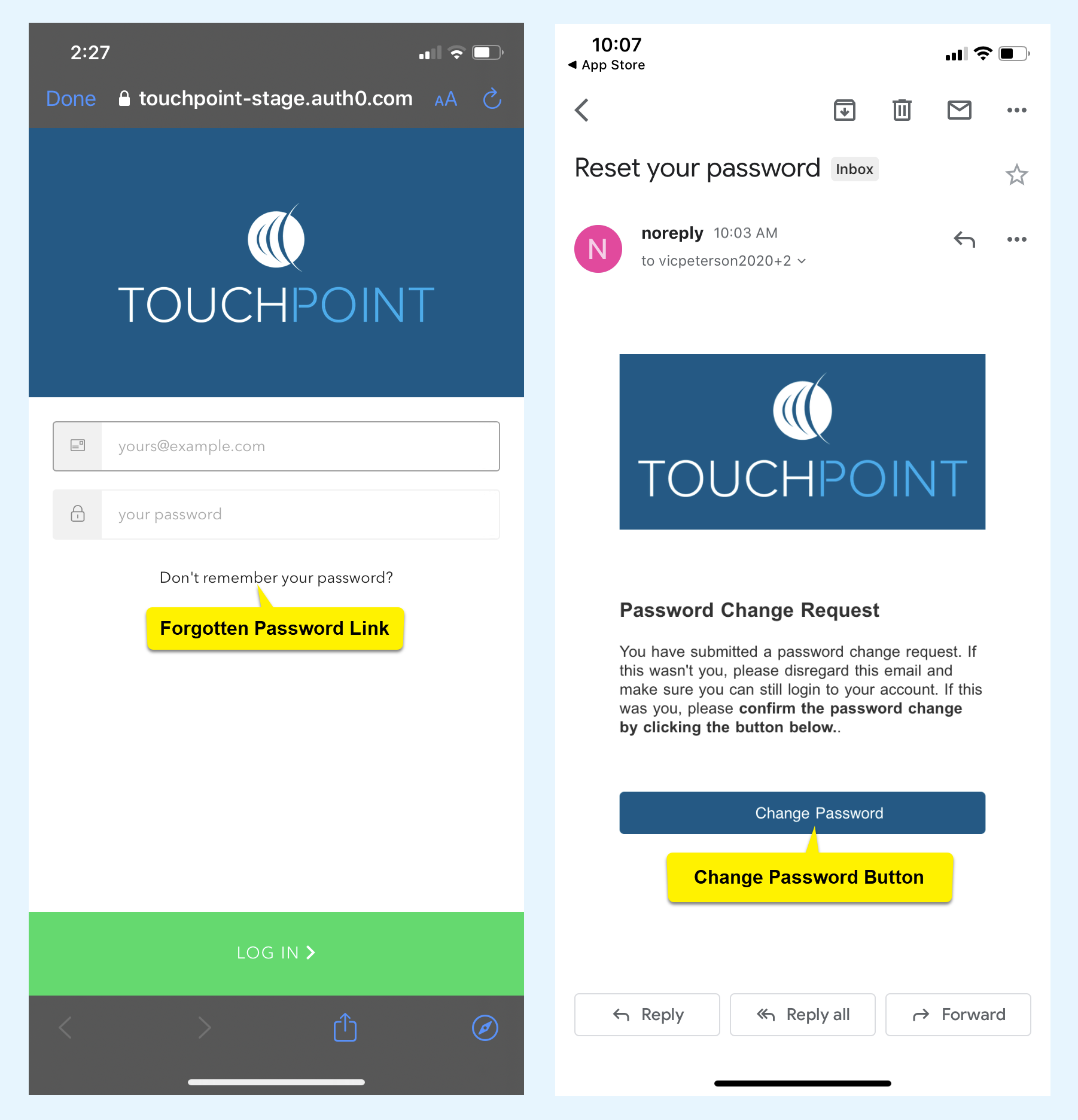
Moving forward, your client will use their email address and the temporary password of Touchpoint1! to log into their app for the first time. Once your client has successfully logged into the app for the first time, SCRAM Systems recommends your client access the forgotten password link on the app’s Log In screen and follow the instructions to create a secure password to use moving forward.

TouchPoint phone images for forgot password link and email with change password button highlighted.
click to enlarge

Feedback

Please contact SCRAM Systems Customer Service with any recommendations for system improvements.

Continue Reading