SCRAM Nexus Family

On May 25, 2023, SCRAM Systems released an enhancement for your clients who utilize the SCRAM TouchPoint app. With this enhancement, a new Resources section with documents and hyperlinks to additional information became available on the TouchPoint Profile screen to clients who have downloaded the latest version of the app.

Information
  • Not seeing the enhancement in Nexus? Clear your cache and cookies and refresh your browser window.
  • The latest version of the TouchPoint app is available to clients in the app stores. As a best practice, SCRAM Systems recommends that all TouchPoint app users enable their smartphones for automatic app updates to make this process easier.

Adding Client Resources

  1. Select the Admin button in Nexus.
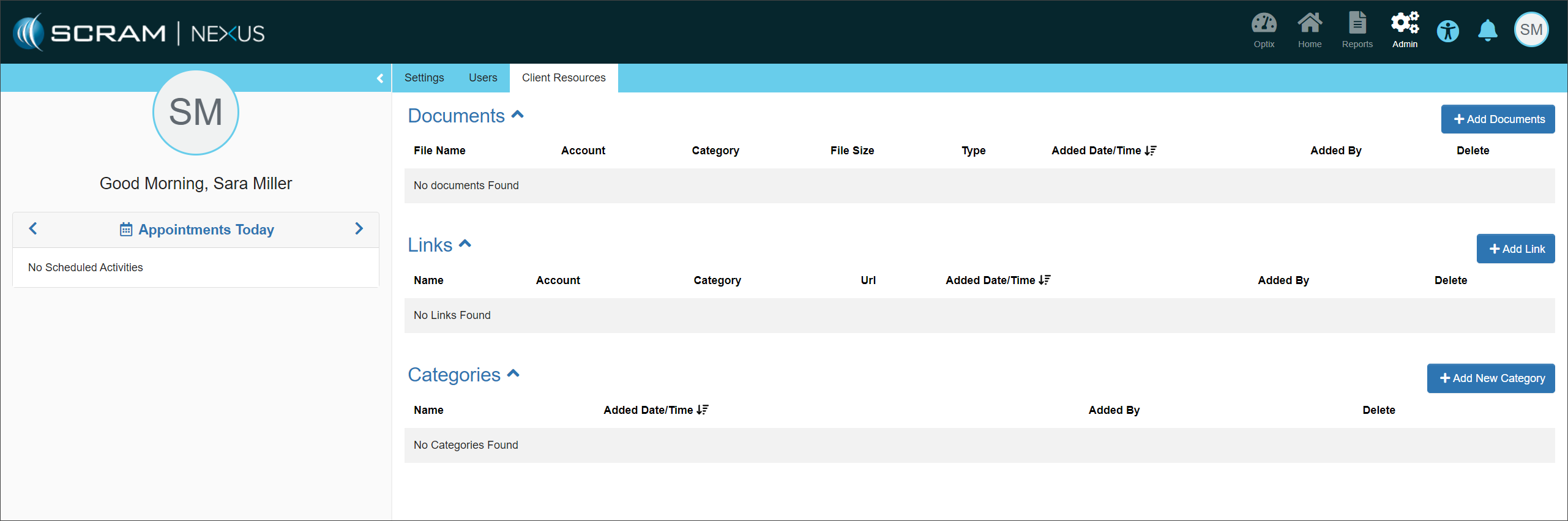
  2. Select the Client Resources tab.
Nexus Admin Client Resources page – click to enlarge

Create Resource Categories

  1. Select the +Add New Category button.
  2. Enter the Category Name.
  3. Select the Save button.

Repeat steps 1 – 3 to create as many Categories as required.
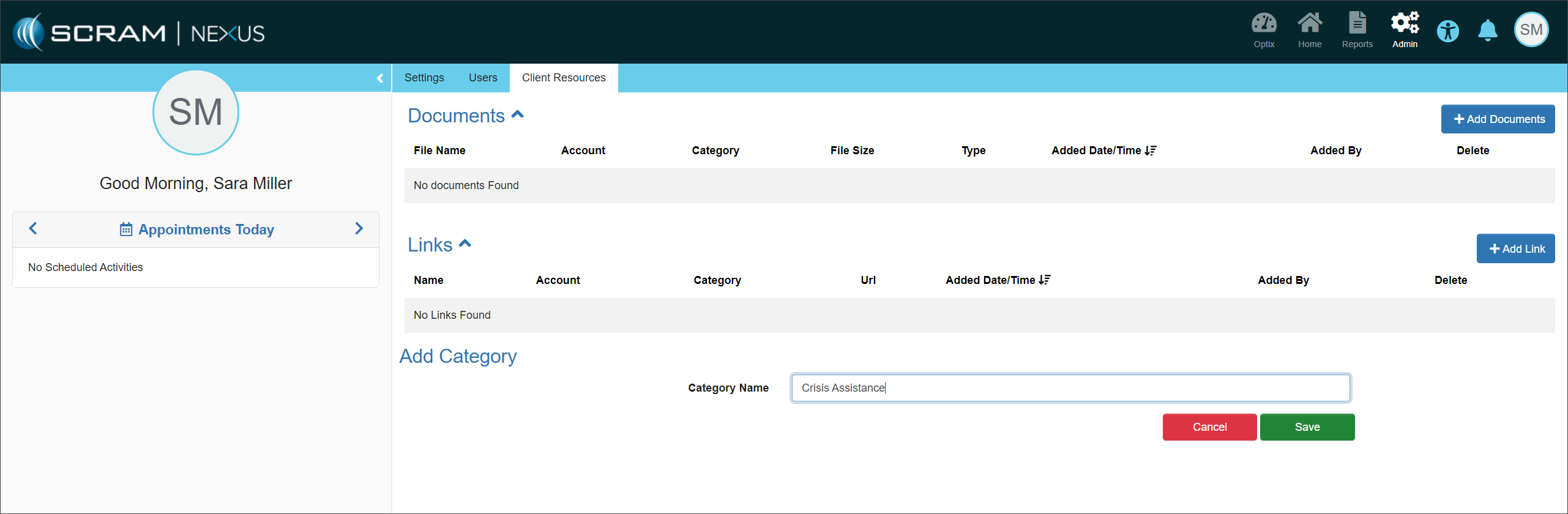
Add Category – click to enlarge
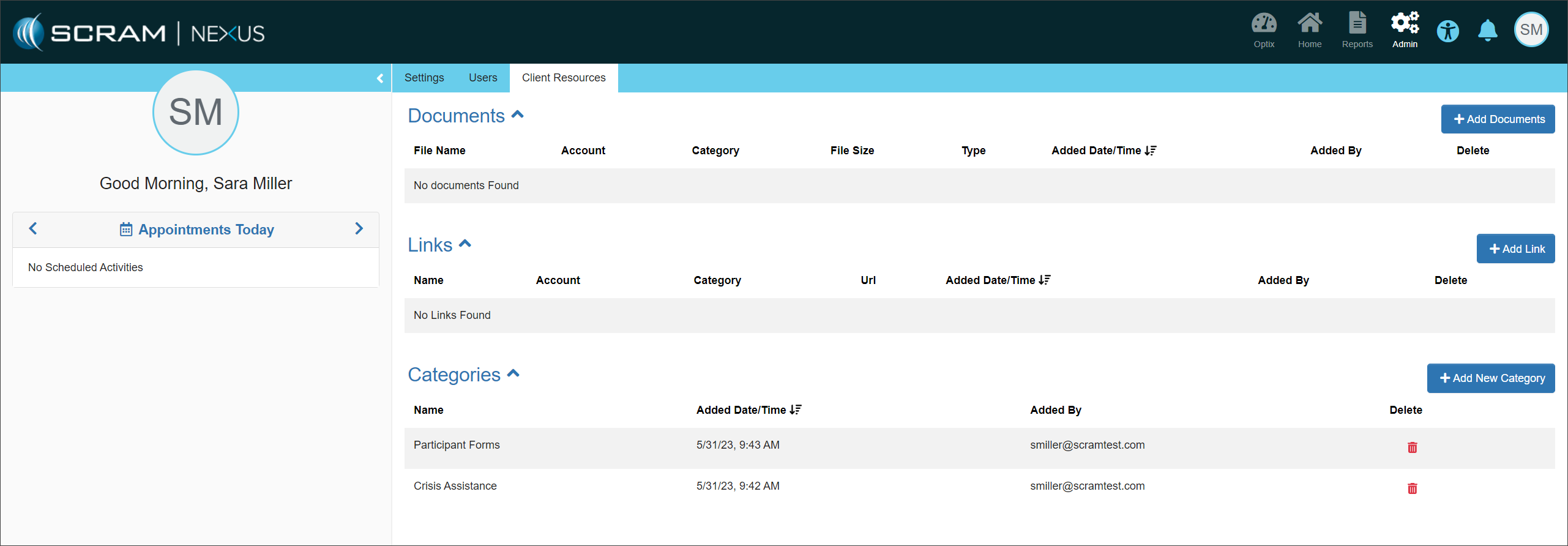
Categories Saved – click to enlarge

Add Documents

  1. To add a document, select the +Add Documents button.
  2. Select a Category to associate the document with from the dropdown menu. If you do not select a Category, the document will be available under a Miscellaneous heading on the client’s app.
  3. Select a Caseload to associate the document with from the dropdown menu. If you do not select a Caseload, the document will be available to all clients on your program under a Miscellaneous heading on their app.
  4.  Upload the file (accepted formats .docx, .pdf, .jpeg, and .png).
  5. Select the Save button.

Repeat steps 1 – 5 to add as many documents as required.
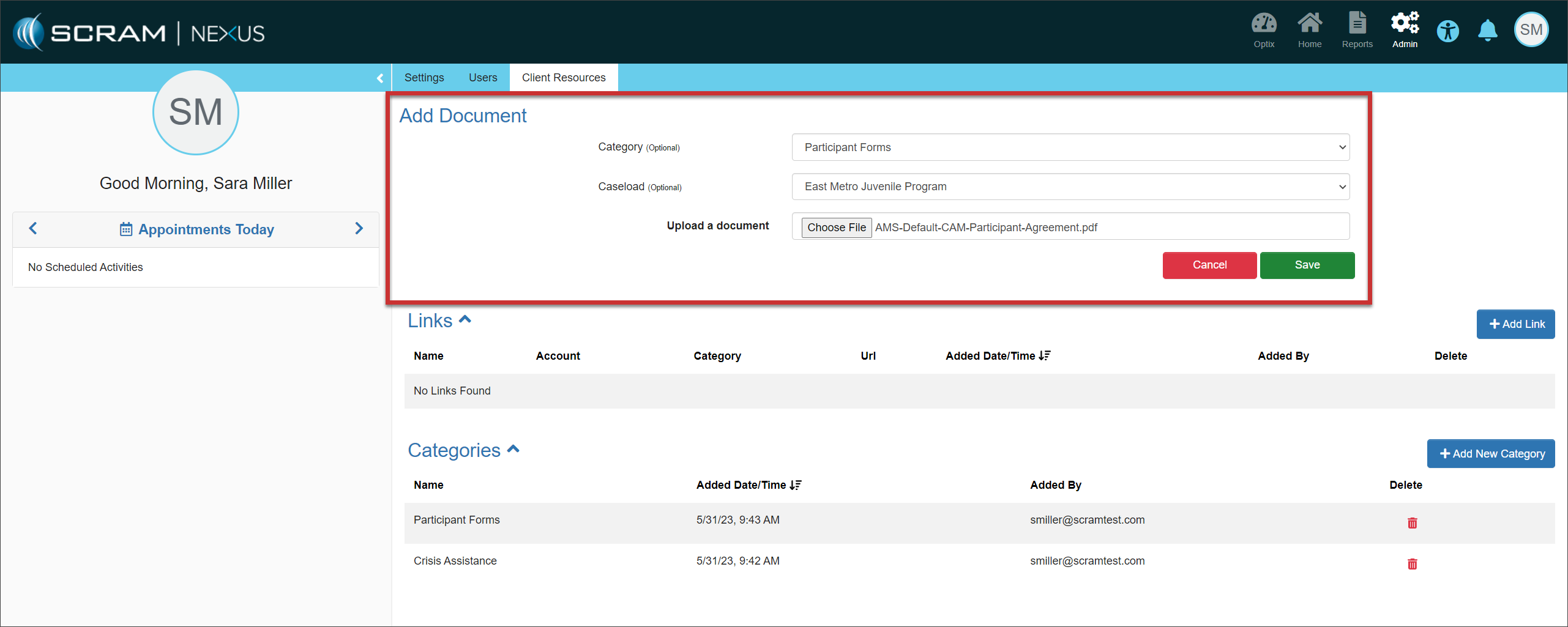
Add Document – click to enlarge
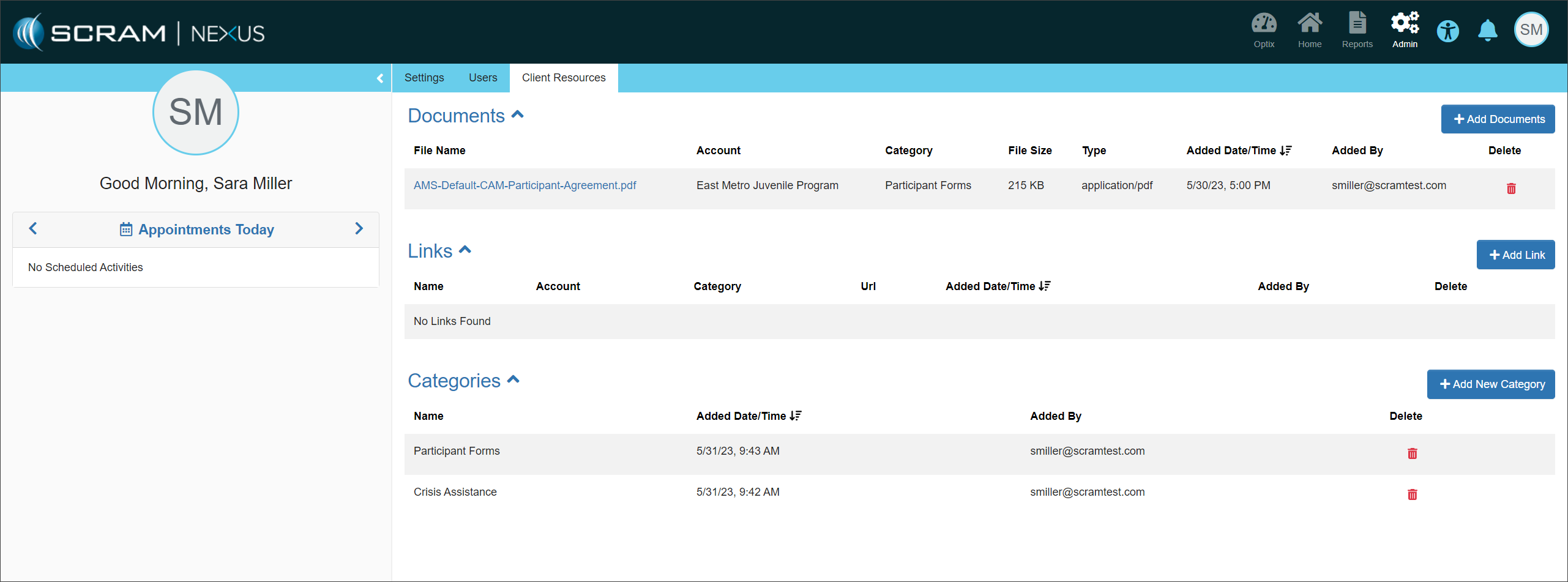
Document Saved – click to enlarge

Add Hyperlinks

  1. To add a hyperlink, select the +Add Link button.
  2. Select a Category to associate the hyperlink with from the dropdown menu. If you do not select a Category, the hyperlink will be available under a Miscellaneous heading on the client’s app.
  3. Select a Caseload to associate the hyperlink with from the dropdown menu. If you do not select a Caseload, the hyperlink will be available to all clients on your program under a Miscellaneous heading on their app.
  4. Add the Link’s name and URL. 
  5. Select the Save button.

Repeat steps 1 – 5 to add as many hyperlinks as required.
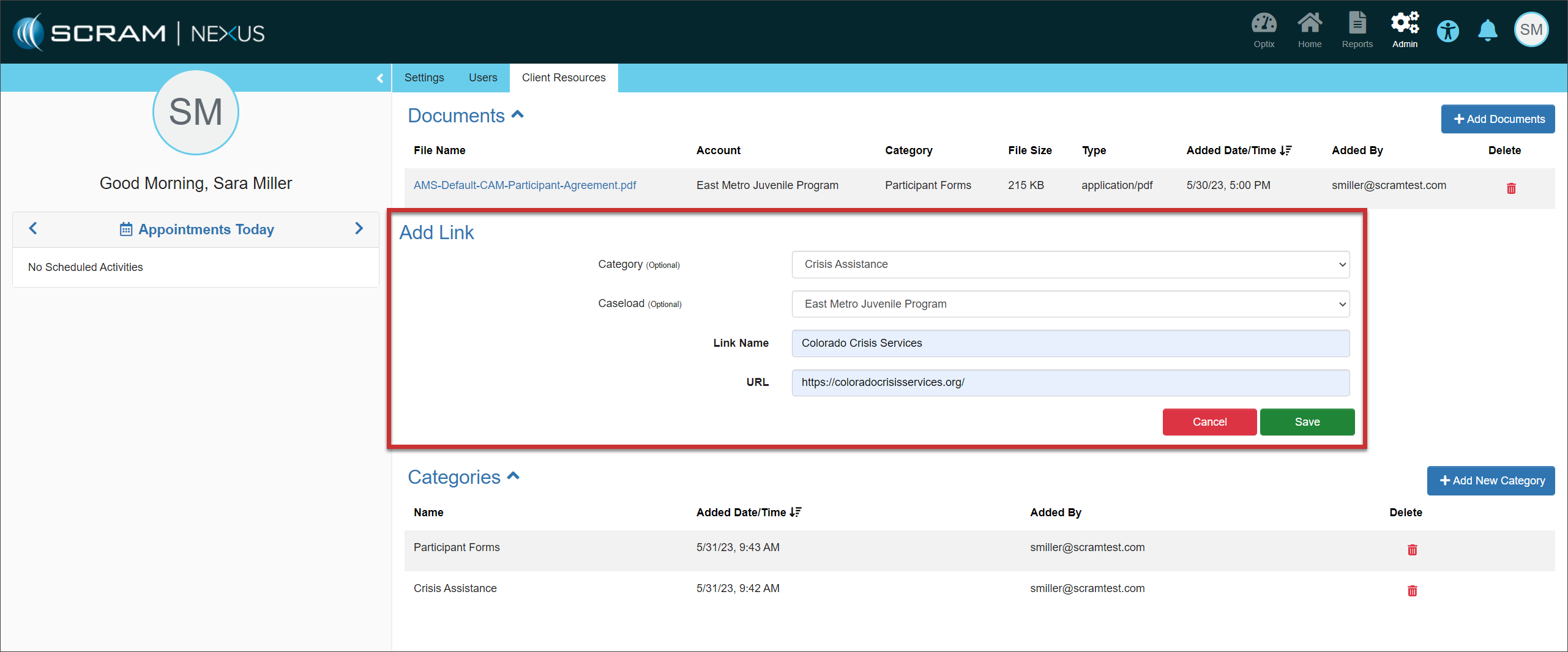
Add Link – click to enlarge
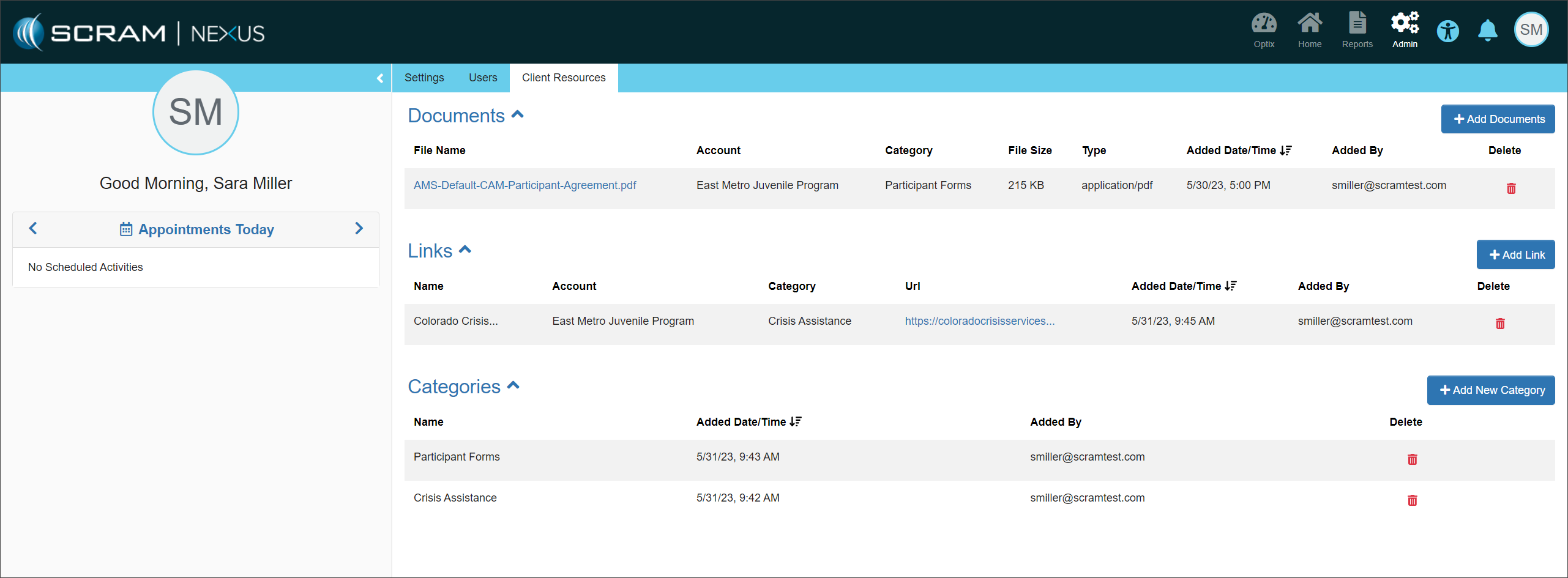
Link Saved – click to enlarge
Information If a document or hyperlink is no longer needed or you wish to update the category or caseload association, delete the entry by selecting the red trash can and re-enter the information.

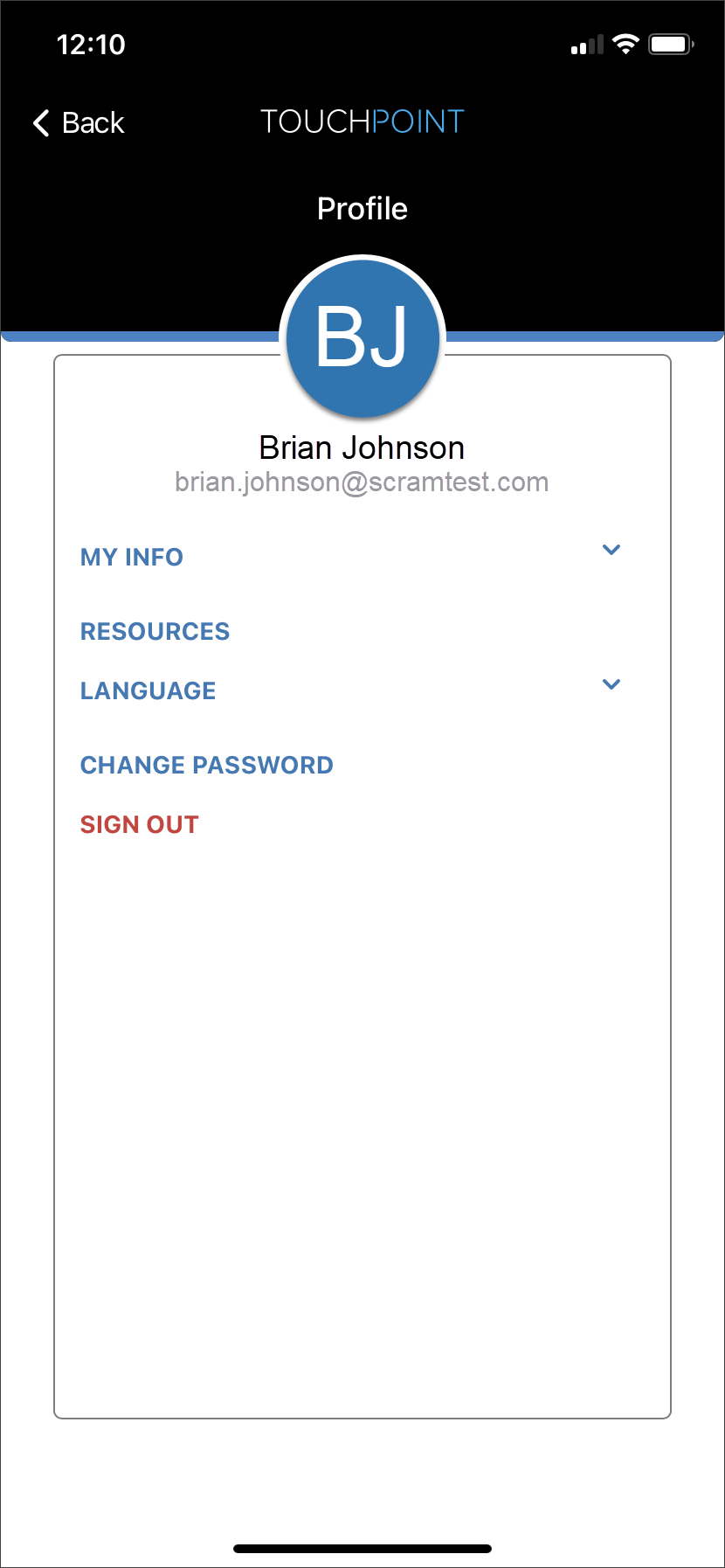
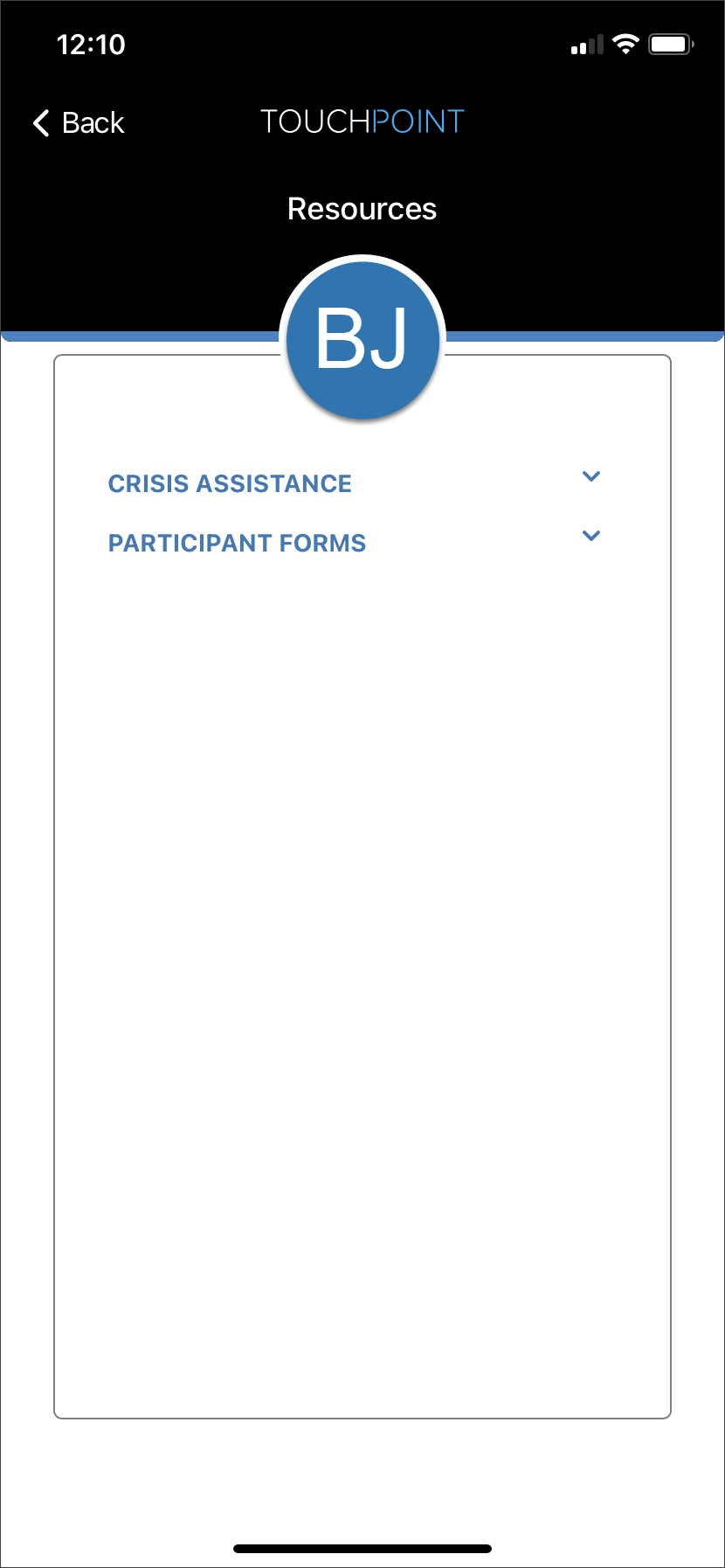
Once you have updated the Client Resources page, the documents and hyperlinks are accessible from the client’s Profile screen by tapping the Resources option. The client may need to log out and back into the app to see any changes.  
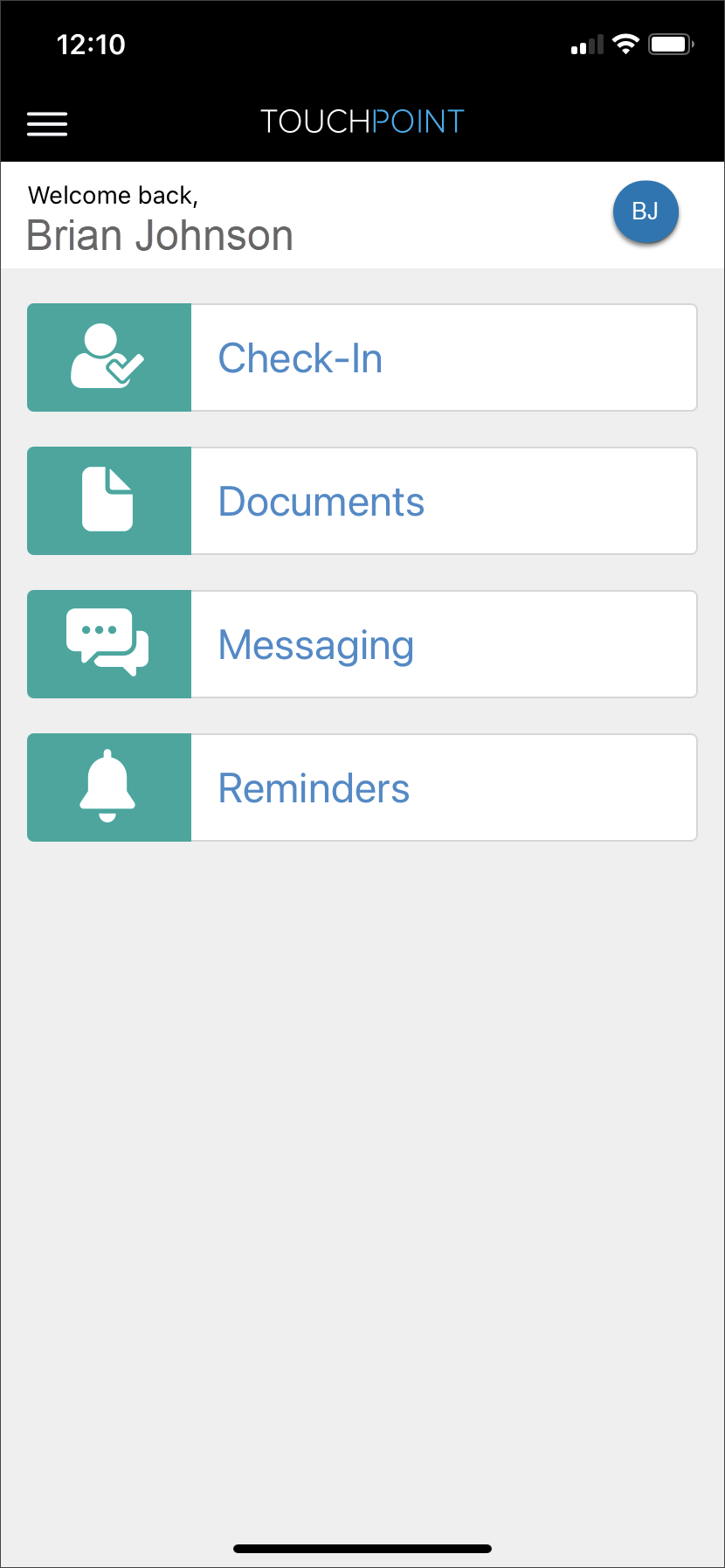
TouchPoint App Home screen – click to enlarge
Client Profile screen – click to enlarge
Client Resources screen – click to enlarge

Continue Reading

Today, April 27, 2023, SCRAM Systems released a new workflow when activating SCRAM TouchPoint Client Check-In activity to your client’s SCRAM Nexus supervision plan.

With this release:

  • Complete your client TouchPoint activation directly within the Nexus platform.
  • Scheduling options have been updated for additional flexibility when customizing your client check-in requirements.
    • The frequency options are Daily, Weekly, or Monthly.     
    • You may set the duration between each check-in by days, weeks, or months.
    • You may add multiple random check-ins to a single check-in window.
    • Single occurrence check-ins will automatically have a 15-minute grace period added to the end of the check-in window.

How it works

Once you have selected a client’s Supervision Plan, you will enable the Touchpoint Check-in activity for your client. To do this:

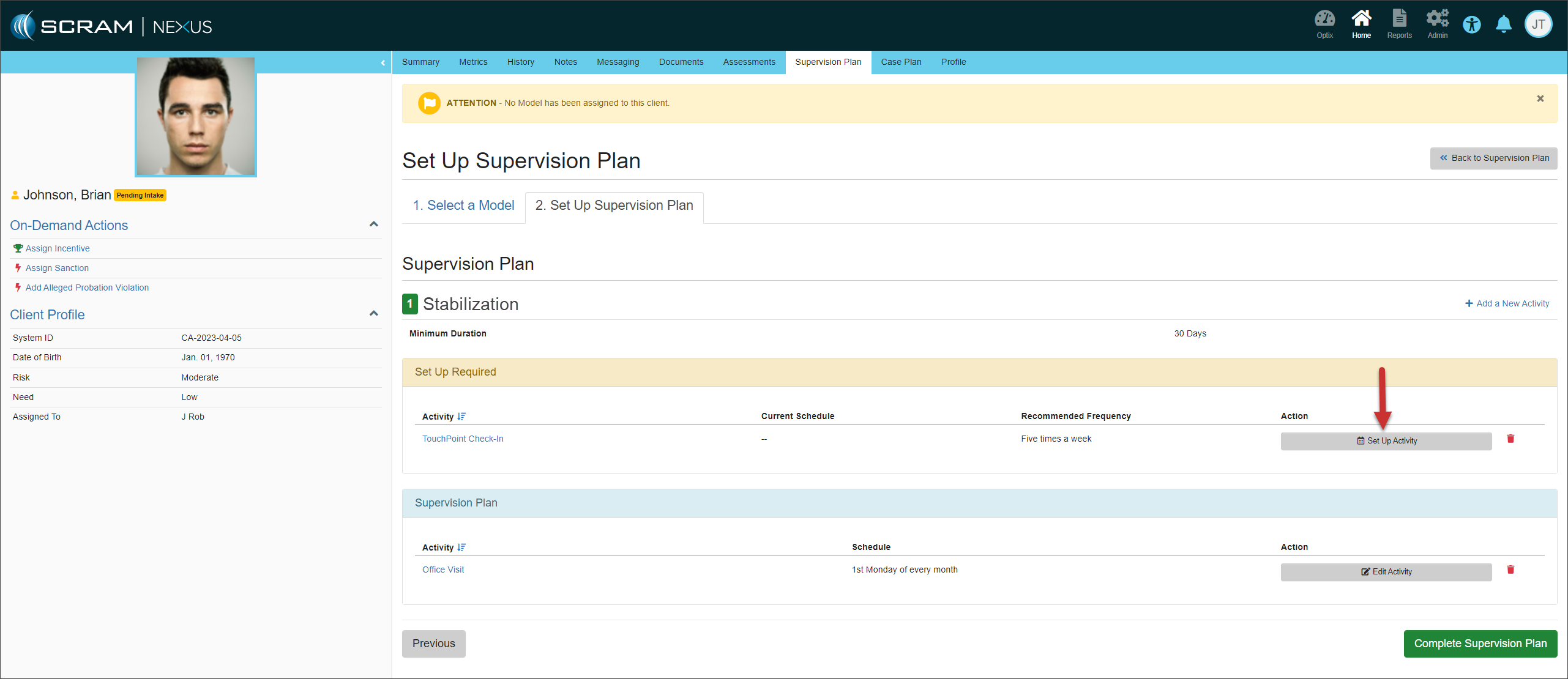
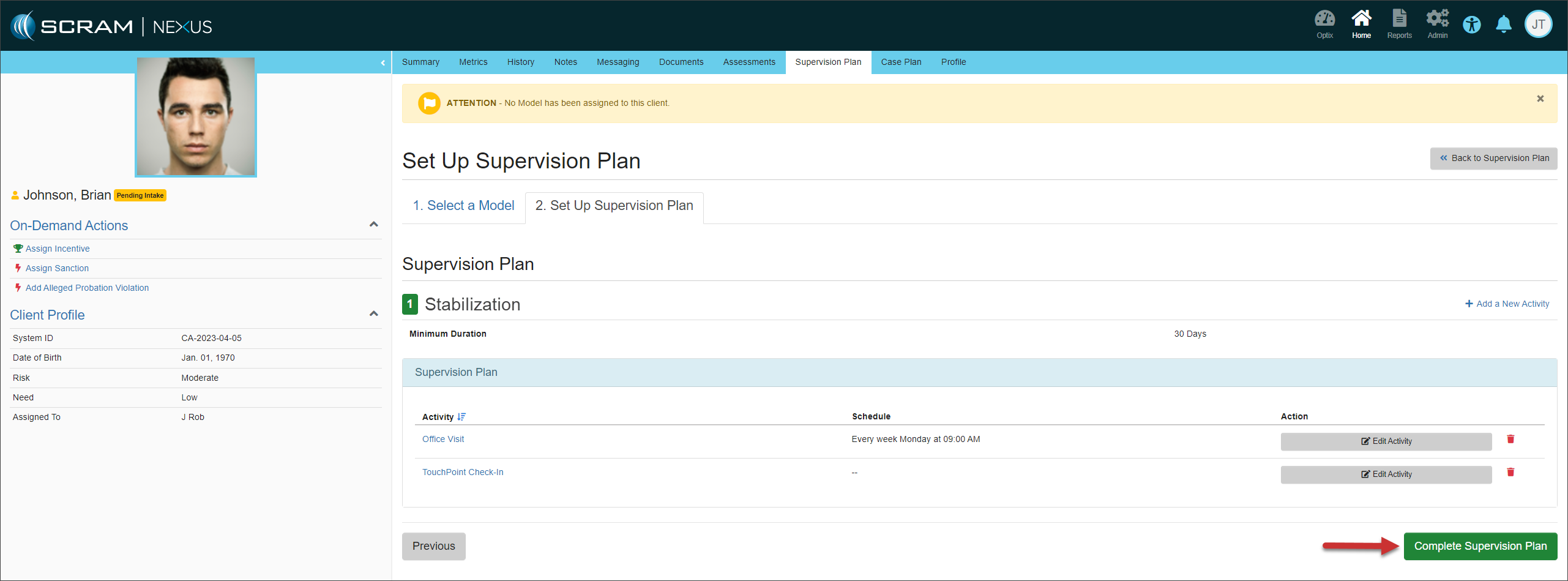
  1. On the Set Up Supervision Plan page, select the Set Up Activity button for the TouchPoint Check-In activity.  
Set Up Supervision Plan – click to enlarge
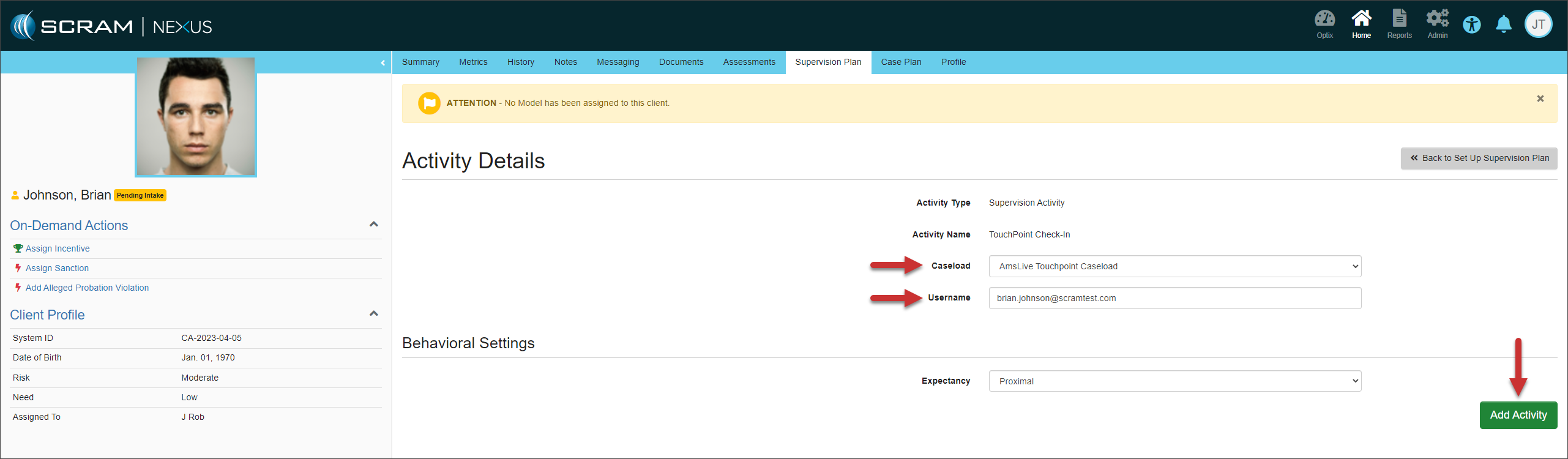
  1. On the Activity Details page, select the TouchPoint Caseload and enter the client’s Username (email address), and then select the Add Activity button. If this information is unknown at this time, you may continue to set up the supervision plan and add the client information later. However, the client information must be completed before TouchPoint Check-In is active for the client.
Activity Details – click to enlarge
  1. Once all activities are set up, select the Complete Supervision Plan button to continue.
Set Up Supervision Plan – click to enlarge
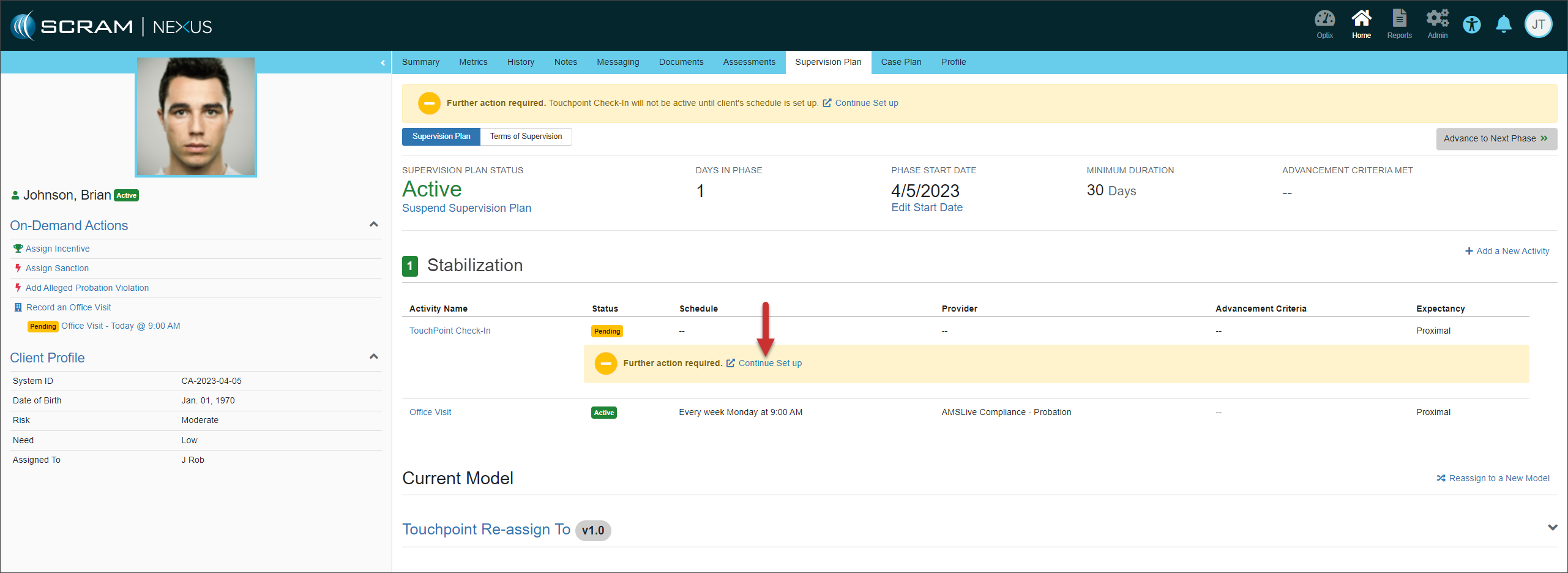
  1. On the active supervision plan, select the TouchPoint Check-In Continue Set Up hyperlink.
Continue TouchPoint Set Up – click to enlarge
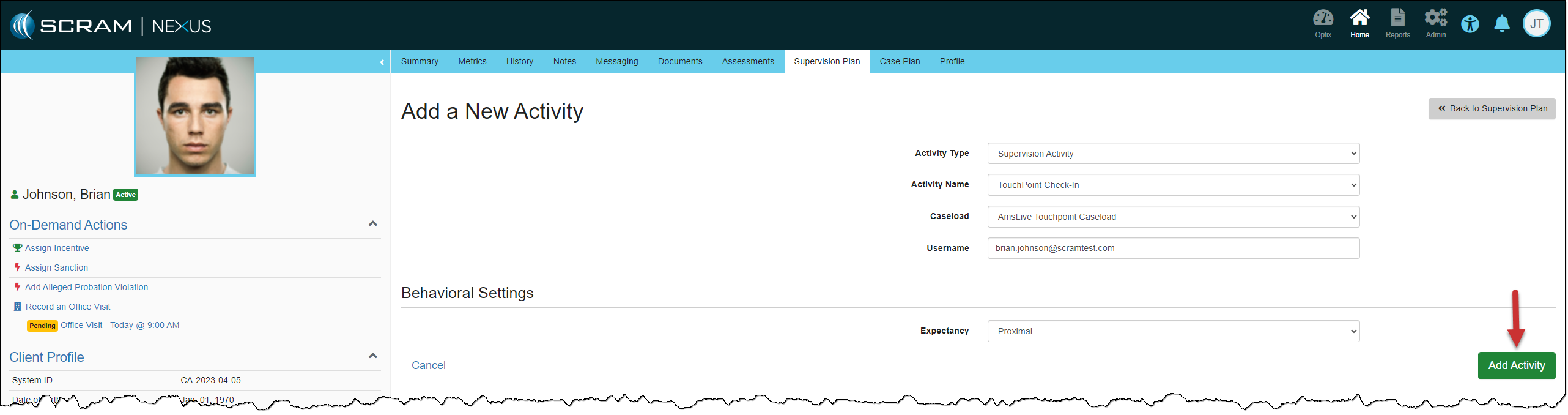
  1. On the Add a new Activity page, verify the information and then select the Add Activity button.
Add a New Activity Page – click to enlarge
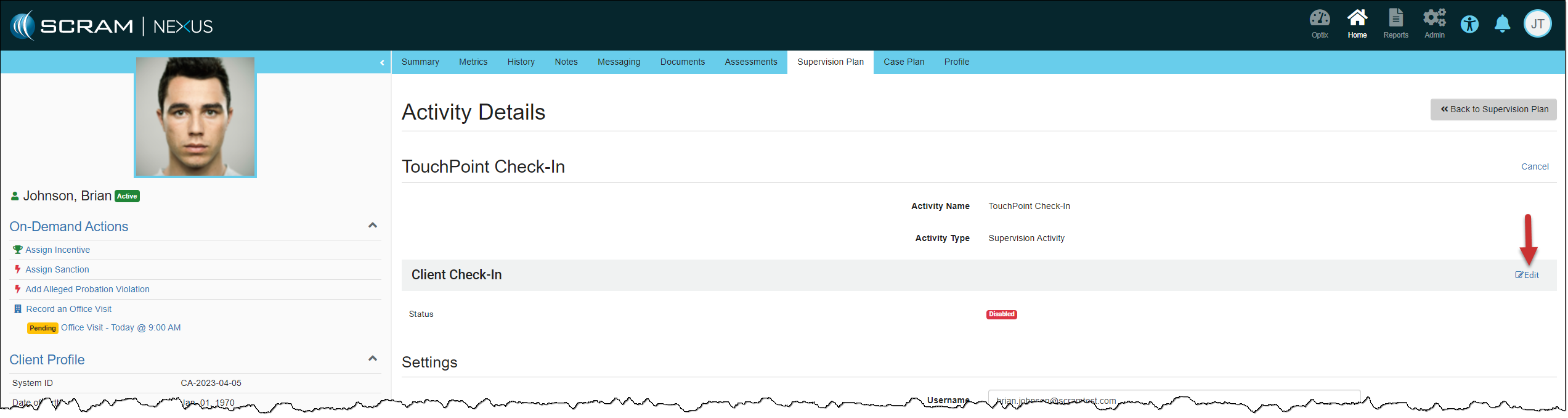
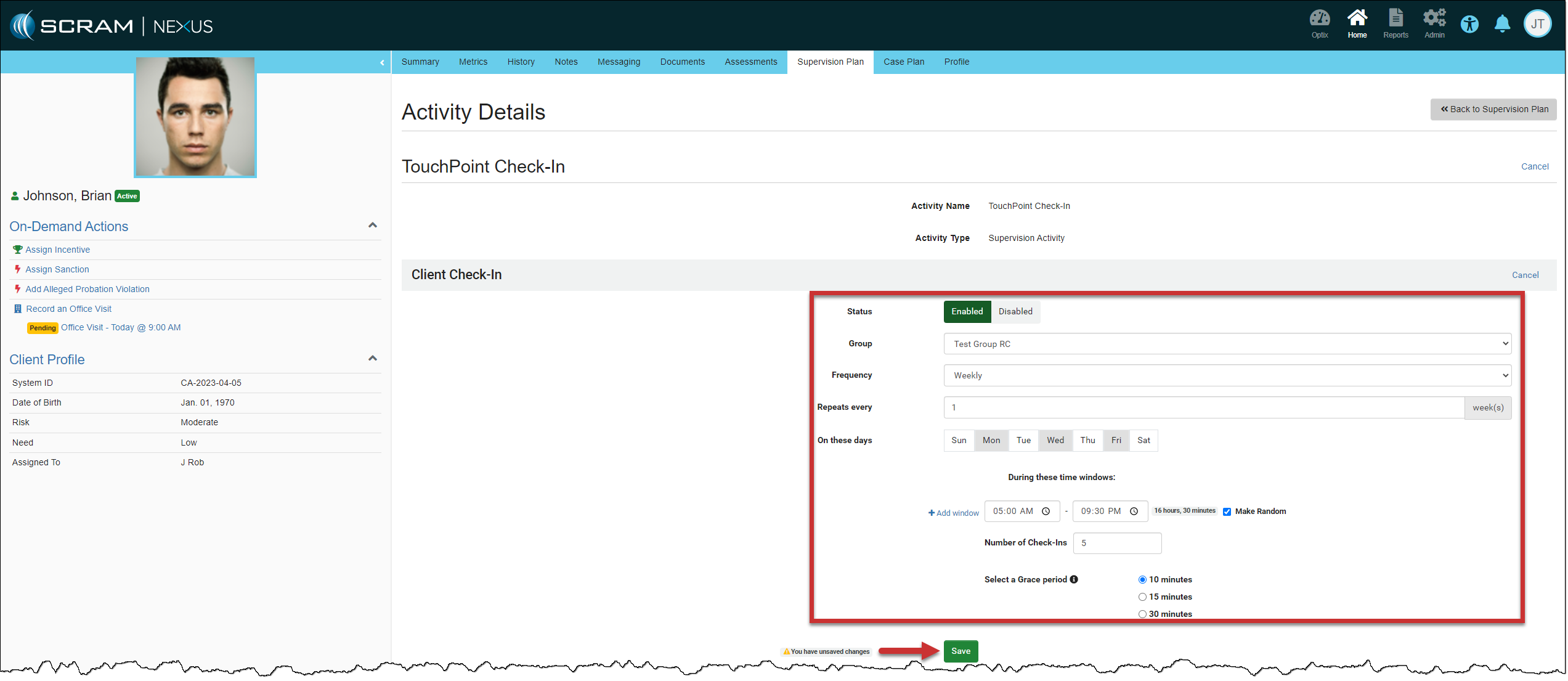
  1. Select the Client Check-In Edit hyperlink and then select the Enabled button.
TouchPoint Activity Details – Click to enlarge
  1. You will now add the details for the Check-in, starting with the question Group.
  2. Select one of the Frequency options and then the details.
    • Daily: In the Repeats Every field, you will select the number of days the check-in will repeat. You may choose between 1 and 90 days. For example, if you set the option to 1-day, daily check-ins will be required. If you set the option to 5 days, a check-in will be required every 5 days.
    • Weekly: In the Repeats Every field, you will select the number of weeks the check-in will repeat. You may choose between 1 and 52 weeks. For example, if you set the option to 1-week, weekly check-ins will be required. If you set the option to 5 weeks, a check-in will be required every 5 weeks. Select the day or days of the Week the check-in will be requested.
    • Monthly: In the Repeats Every field, you will select the number of months the check-in will repeat. You may choose between 1 and 12 months. For example, if you set the option to 1 month, a check-in will be required every month. If you set the option to 5 months, a check-in will be required every 5 months. Next, you may select a specific Date of the month. For example, select the date between 1-28 (this date range takes into account leap years and months that do not have 31 days), or select the Week (1st Week to the last Week) and day of the Week (Sunday to Saturday) the check-in will be requested.
  3. Set the check-in Window or add multiple check-in Windows for the client.
    • For a single check-in per window, add the desired number of check-in windows and their associated timeframes, then go to step 10.
    • To add multiple check-ins during a check-in window, select the Make Random checkbox. You will then set the number of check-ins the client must complete during the window and the Grace Period the client has to complete each check-in when prompted. There is a maximum number of random check-ins allowed during each window. This calculation is based on 30-minute intervals plus the grace period. An error message will display if you try to enter more check-ins than allowed during a window.
  4. Select the Save button.
Client Check-In – click to enlarge
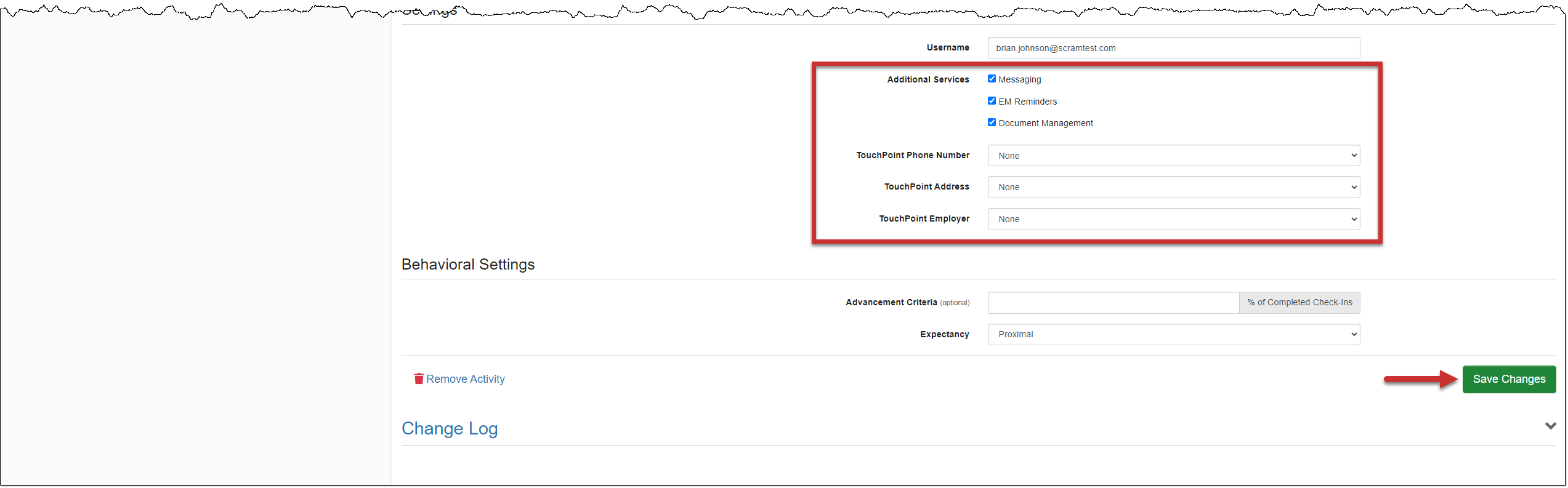
  1. In the Settings section, add any additional Services and information.
  2. Select the Save Changes button to complete the set up.
TouchPoint Setting Section – click to enlarge
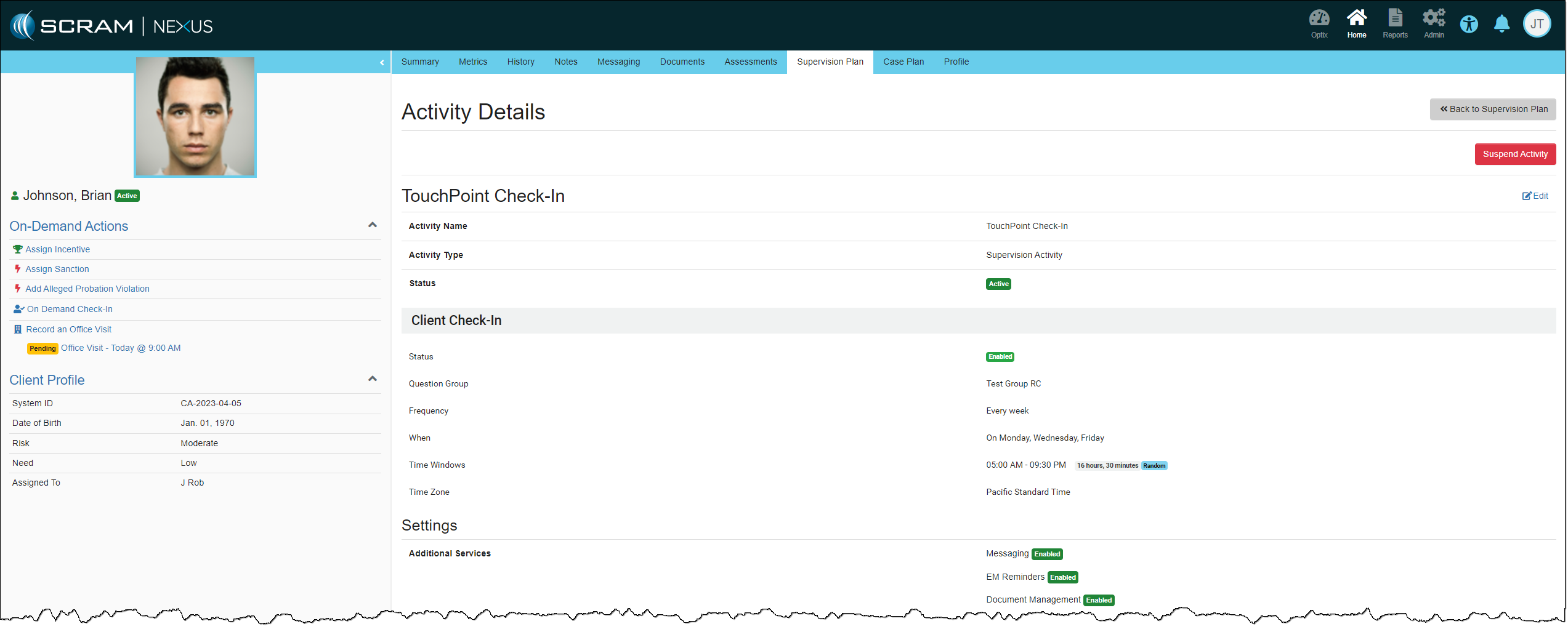
TouchPoint Activity Details – click to enlarge

Continue Reading

During the evening of July 27, 2022, SCRAM Systems® will deploy enhancements to the SCRAM Nexus Family and SCRAM Nexus Treatment Provider systems, including:

  • Suggested Activities for Nexus Family Case Plans
  • The Ability to Cancel a Session Series in the Nexus Treatment Provider Portal

Suggested Activities

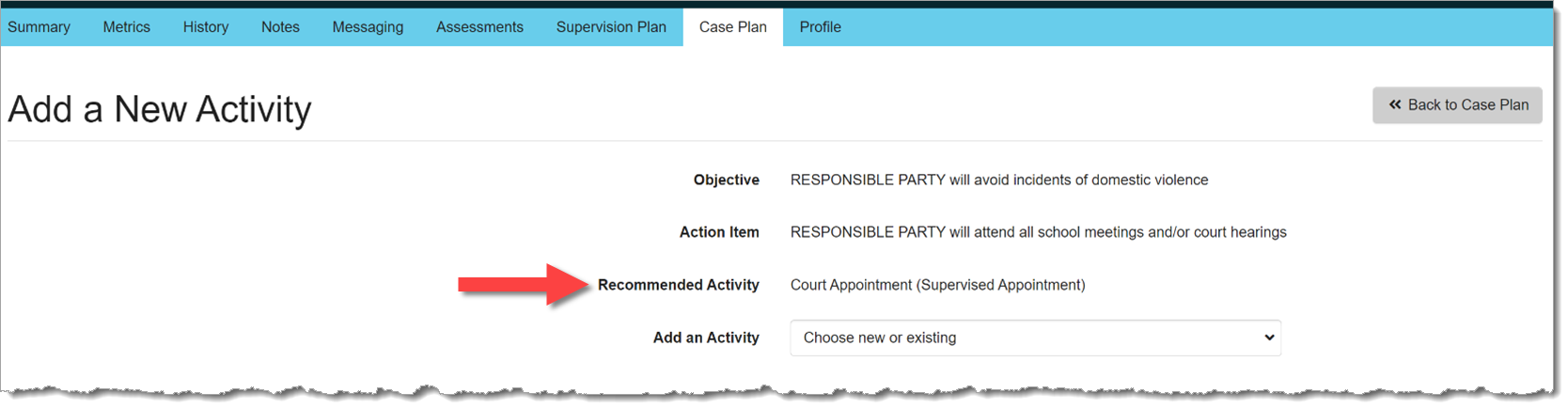
Based on configuration settings determined by your Administrator, with this release, Nexus Family will display Recommended Activities when a worker needs to add a new activity to an action item:

Recommended Activity (click to enlarge)

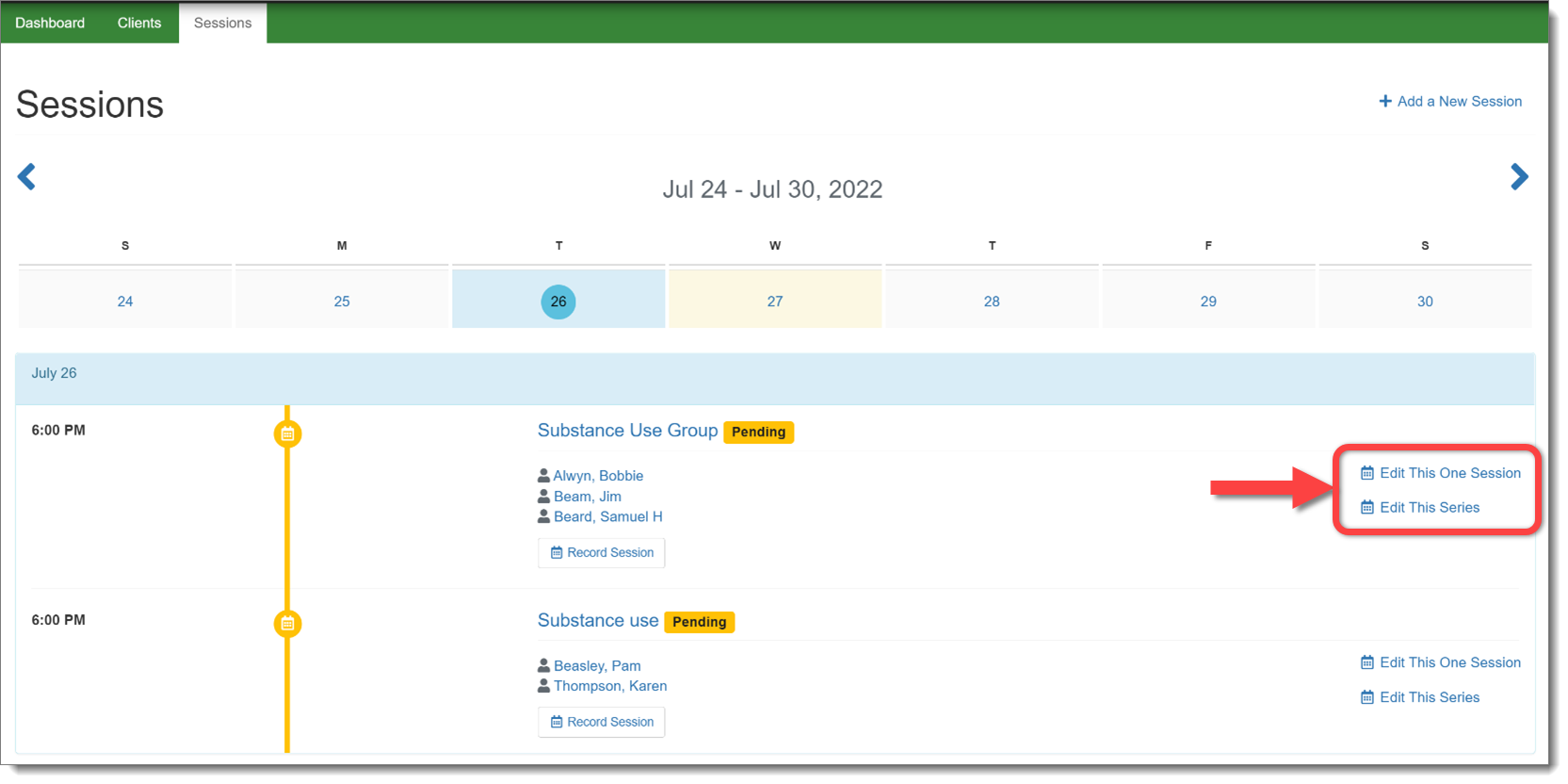
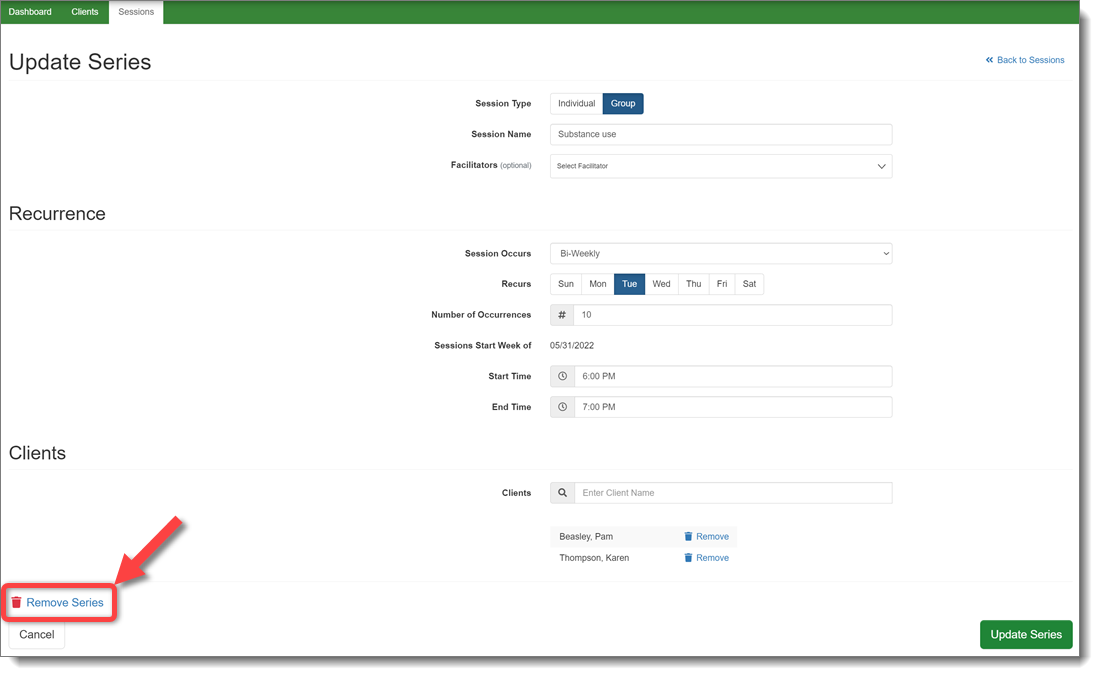
Cancel a Session Series

In the Nexus Treatment Provider portal, a provider will now have the ability to cancel an entire series of treatment sessions, rather than having to cancel individual sessions. This change will remove the session series from every client in the session.

Select the Appropriate Session Series to Edit (click to enlarge)
Remove the Session Series (click to enlarge)
Information Note the additional updates designed to make it clear if the provider is editing one session or an entire session series.

Continue Reading

During the evening of June 16, 2022, SCRAM Systems® will release a pair of enhancements to the SCRAM Nexus Family™ system, specifically, the ability to post a new Case Plan through Nexus Sync and the ability to retain Activities when the case is ‘Closed.’

Post Case Plan Through Nexus Sync

With this release, a new Case Plan may be posted through Nexus Sync. If there was a previous Case Plan for a case number, SCRAM Nexus Family will remove an Activity if there is not a related action item it should be associated with.

Retain Activities When Case is Closed

With this release, when a case is closed in Nexus Family, the Activities are retained on the Case Plan and no longer removed. This allows for Activities to still be tracked even if the case is closed in Case Management.

Continue Reading

During the evening of May 24, 2022, SCRAM Systems® will deploy a variety of enhancements to the SCRAM Nexus Family system, including new Home Visit features and a new Objective Progress chart.

Home Visit Enhancements

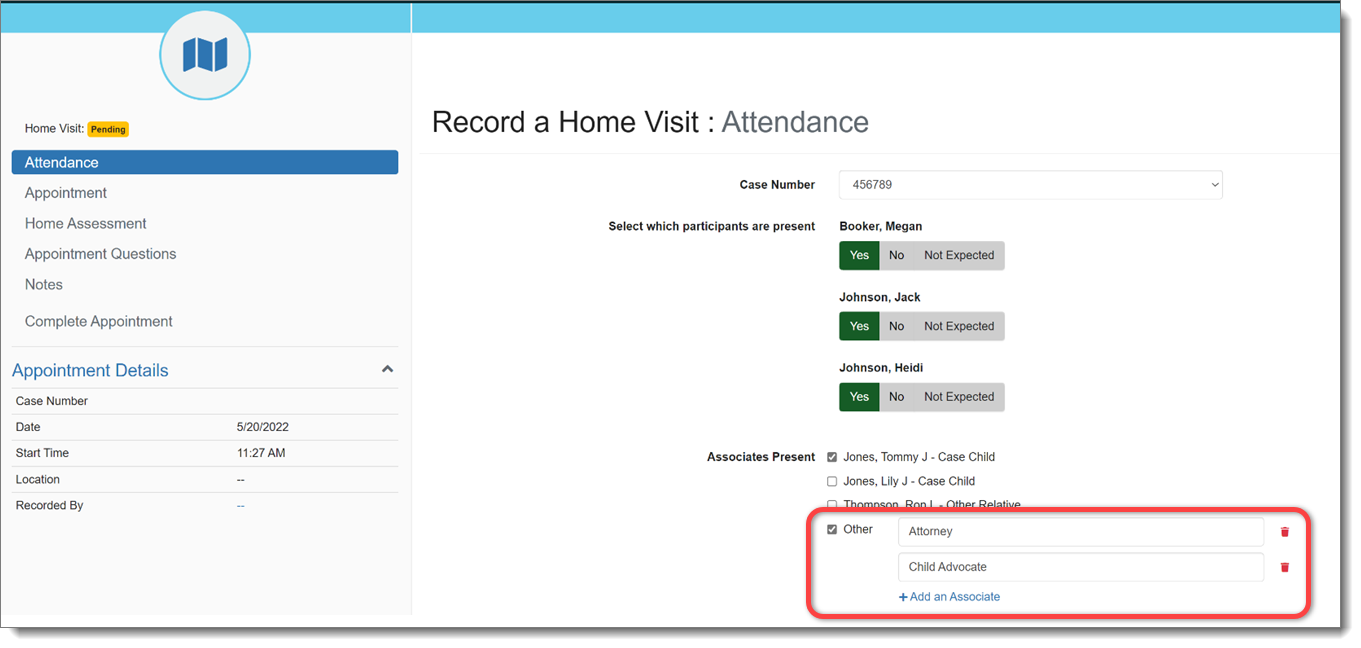
Multiple ‘Other’ Associates in Home Visit

While recording a home visit, a case worker may specify more than one ‘Other’ type of associate that was present in the home. These associates will be sent to the case management system for reference.

‘Other’ Associates on the Home Visit: Attendance Page (click to enlarge)

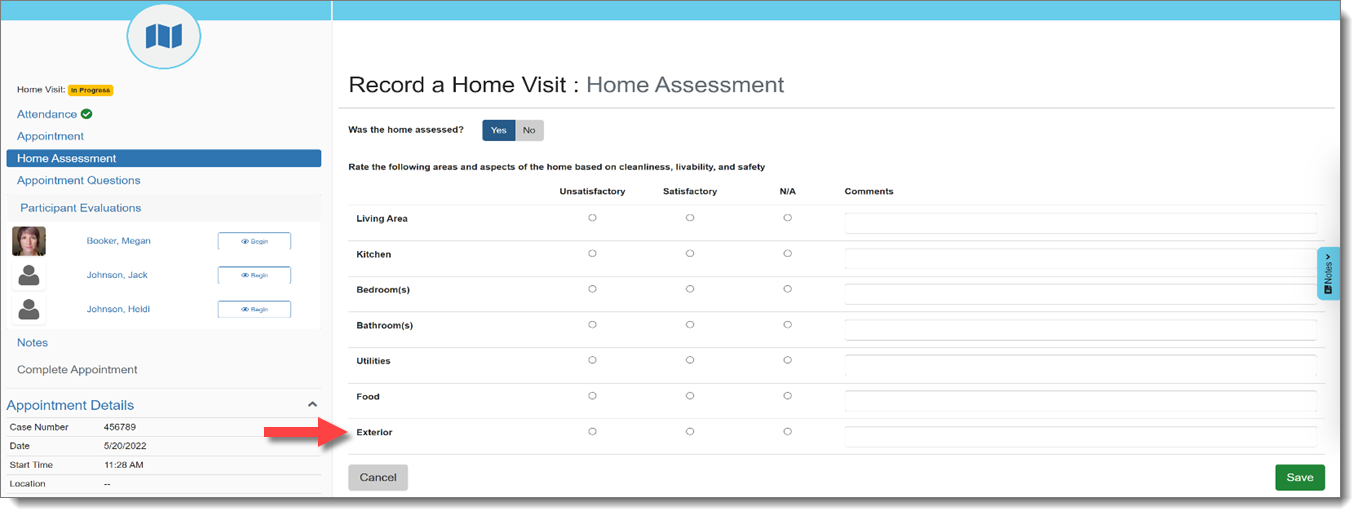
‘Exterior’ Option in Home Assessment

The “Exterior” of the home has been added as an option for home assessment when documenting a Home Visit. If this rating is unsatisfactory, the case worker will be required to enter a comment.

‘Exterior’ Option on the Home Visit: Home Assessment Page (click to enlarge)

Home Visit Questions Default to ‘NA’

When recording a Home Visit, appointment questions will default to ‘NA’ for any clients not present.

Objective Progress Chart

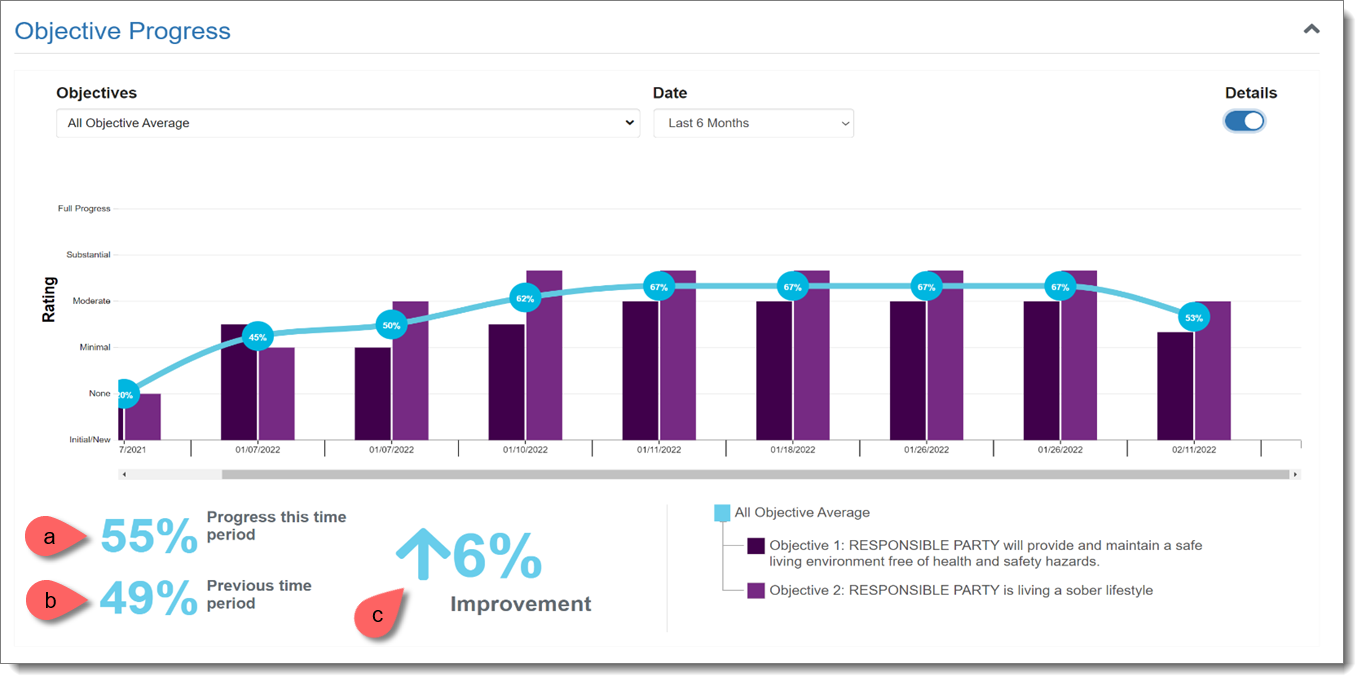
SCRAM Nexus Family now provides a visual chart to show you how a client is progressing over time for each Objective on their Case Plan.

Objective Progress Chart (click to enlarge)

For each Objective, an average value is calculated from each associated Action Item.

  1. Progress This Time Period: Calculated by averaging scores in the current time frame.
  2. Previous Time Period: Calculated by averaging scores in the previous time period.
  3. Improvement/Decline: The percentage difference between scores in the previous time period and current time period. An upward arrow indicates improvement; while a downward arrow indicates a decline.

Continue Reading

On the evening of April 12, 2022 at 8:30 PM MDT, SCRAM Systems implemented enhancements to the SCRAM Nexus Family case management system. These enhancements make it easier to manage Independent Living plans and improve the level of detail available in Case Plan History. Details below.

Independent Living Plans

Independent Living plans and clients are not in ACYS and may be added directly into Nexus instead of being transferred from ACYS. Clients may be added to the Independent Living plan from within Nexus, and then edits may be made to the client Addresses, Contact Methods, and Personal sections. A new caseload has also been added for Independent Living clients.

Case Plan History

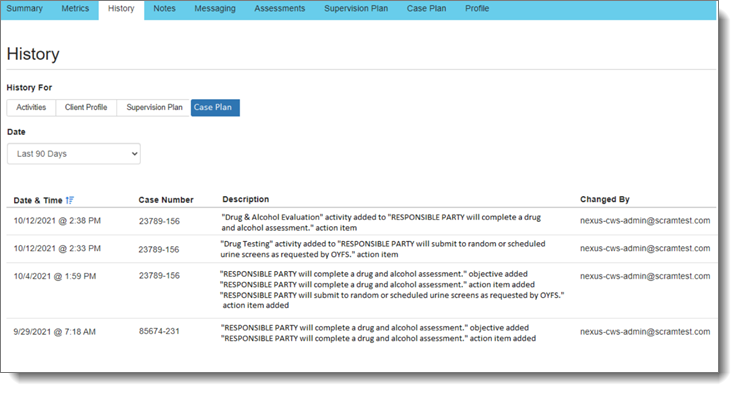
When changes are made to a Case Plan for a client, those changes will be tracked in the new Case Plan section under History. Any time an activity, Objective and Actions item is added, the Case Plan history will display this change.

Case Plan History

Continue Reading

This release, scheduled for tomorrow at 8:30 PM MT, includes updates to the Action Item catalog, client metrics, and treatment portal scheduling.

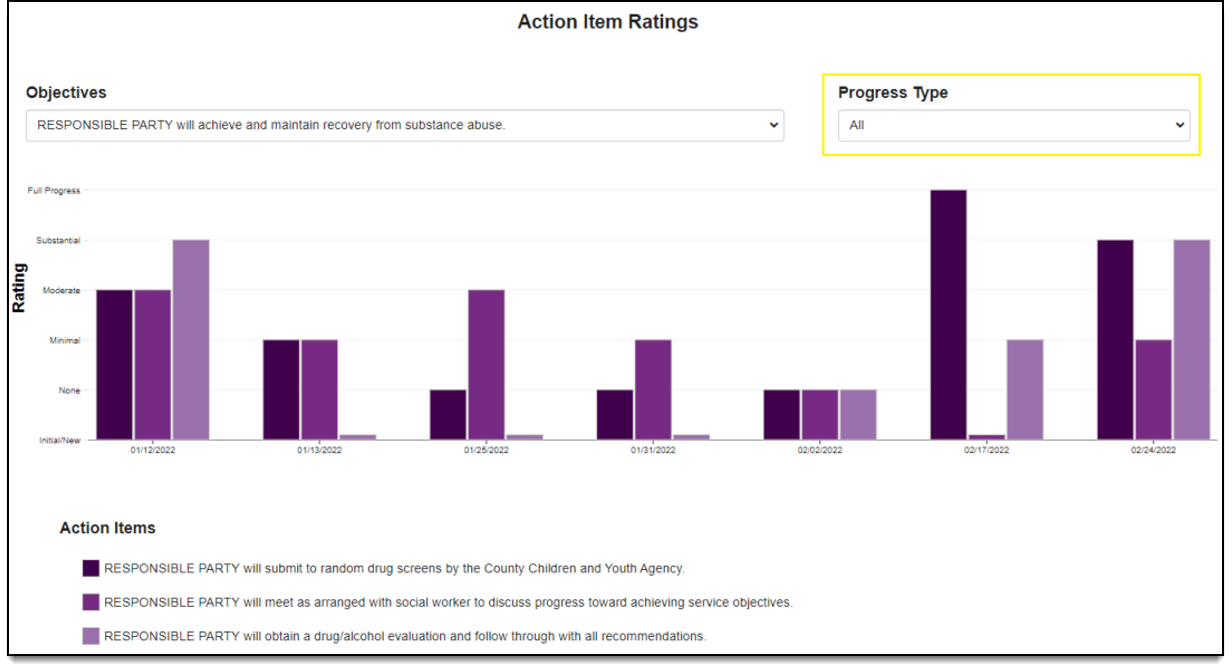
Case Worker: Show Action Item Ratings Chart by Compliance and Behavior

The Action Item Ratings chart can now be viewed by Progress Type.

Caseworkers can look at the ratings by compliance action items, behavioral action items, or both (all). The default view will be ‘All’. The Progress Type is set in the Action Items catalog.

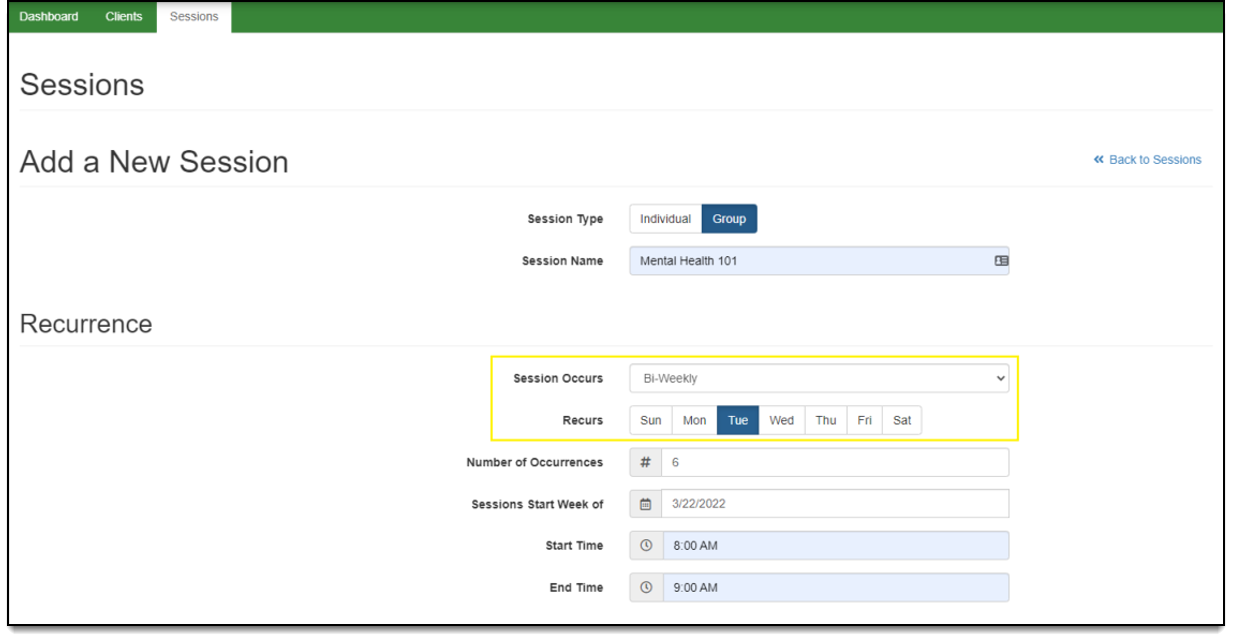
Treatment Provider/Visitation Worker: Add Bi-Weekly as a Recurrence Option in the Treatment Portal

A treatment provider and/or visitation worker can now add bi-weekly sessions in the Treatment Portal. The schedule types now include: Once, Weekly, Bi-Weekly, and Monthly. All other scheduling functionality remains the same.

Administrator: Add ‘Suggested Activity’ to Action Items Catalog

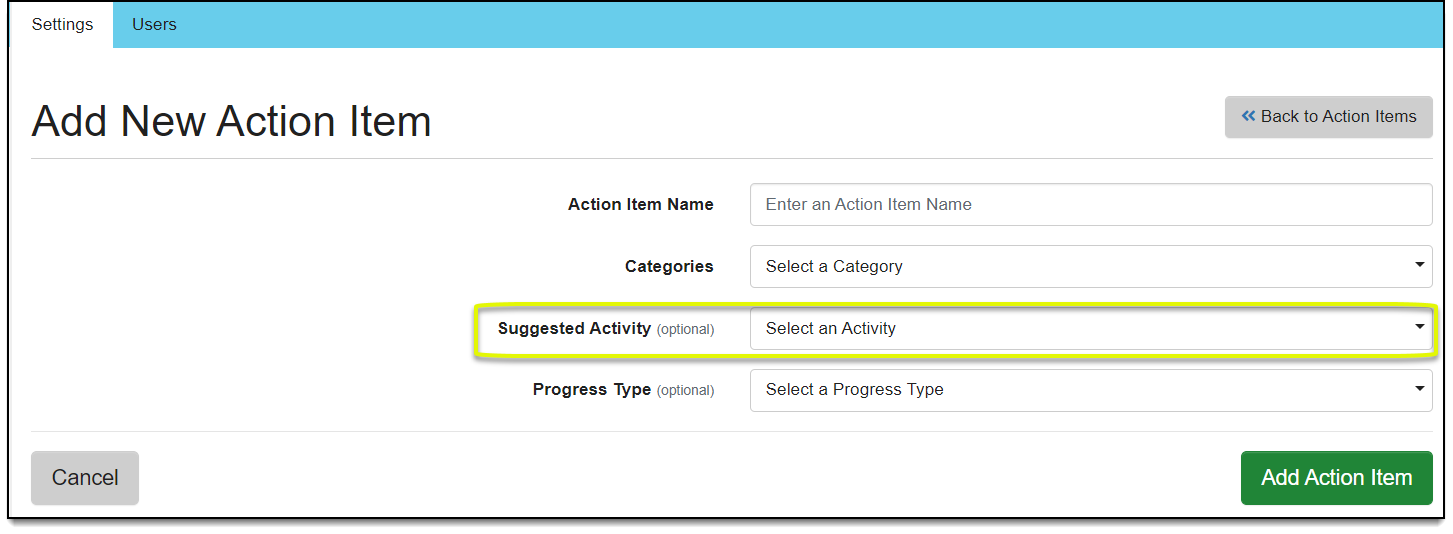
The ‘Suggested Activity’ field is now included in the Action Items catalog. When adding or editing an action item, an administrator can include a ‘suggested activity’. The suggested activity will eventually be displayed on the case plan to help guide the caseworker when adding activities to the plan. This field is optional and there is no limit on the number of suggested activities that can be added to each action item.

Continue Reading

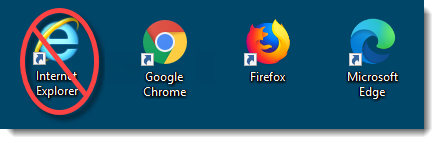
Microsoft Corporation discontinued support of older versions of its Internet Explorer (IE) browser on January 12, 2016, which impacted IE 10 and older versions. Although IE 11 is still being supported, Microsoft itself is phasing out IE 11 in favor of a browser that better supports today’s modern web capabilities.

The SCRAM Systems platform utilizes leading-edge web technologies to deliver comprehensive and informative data and reports that enable you to monitor clients efficiently and effectively. Effective March 9, 2020, SCRAM Systems will no longer develop content or provide technical support for any version of IE. Instead, for the best possible experience utilizing SCRAM Systems’ monitoring platforms, we recommend switching to the Google Chrome, Mozilla Firefox, or Microsoft Edge browsers.

Browser icons
Browser icons

Please contact our Customer Service department at 1-303-785-7879 if you have questions or concerns regarding this change.

Continue Reading