SCRAM Remote Breath Device

Starting on December 2nd, 2025, and continuing through December 18th, SCRAM Systems® will release enhancements for your Remote Breath Pro (RB Pro) Caseload. The first enhancement focuses on devices currently in “Storage Mode.” The second enhancement provides the client with four (4) options to establish and manage Wi-Fi networks from the RB Pro device’s menu.

Included in this enhancement:

  1. Auto “Power off” functionality for devices in Storage Mode.
  2. RB Pro menu options for client-accessible Wi-Fi management.
Contact your Account Manager for details on your devices’ firmware enhancement dates.

Auto “Power off” functionality

With this enhancement, when devices in “Storage Mode” are powered on to check the battery level status, they will automatically power off – if not manually powered off – after 30 minutes of being cycled on. This will conserve battery levels between client assignments.

RB Pro Wi-Fi Menu Options

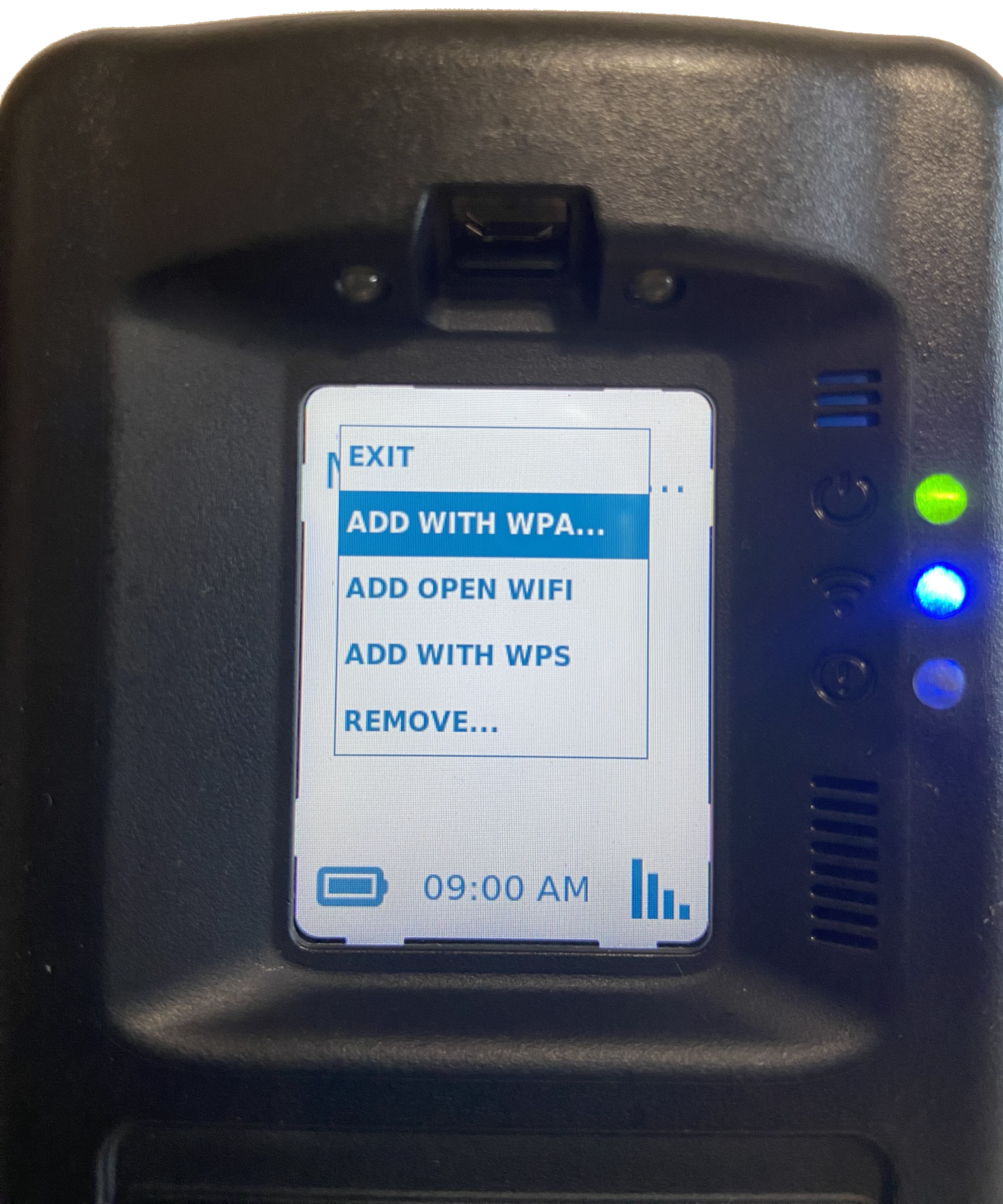
Currently, to connect to their Wi-Fi network, clients must navigate to wifisetup.scramsystems.com and enter their Wi-Fi network name and device serial number. Additionally, their RB Pro device must have a good cellular connection for the Wi-Fi setup to work. To simplify this process and provide additional options for connecting and managing client-accessible Wi-Fi networks, the client may access the RB Pro’s Wi-Fi Setup menu options. On the Wi-Fi setup menu, the client may select :

  • Add with WPA (Wireless Protected Access)
  • Add Open WiFi (Unprotected Wireless Access)
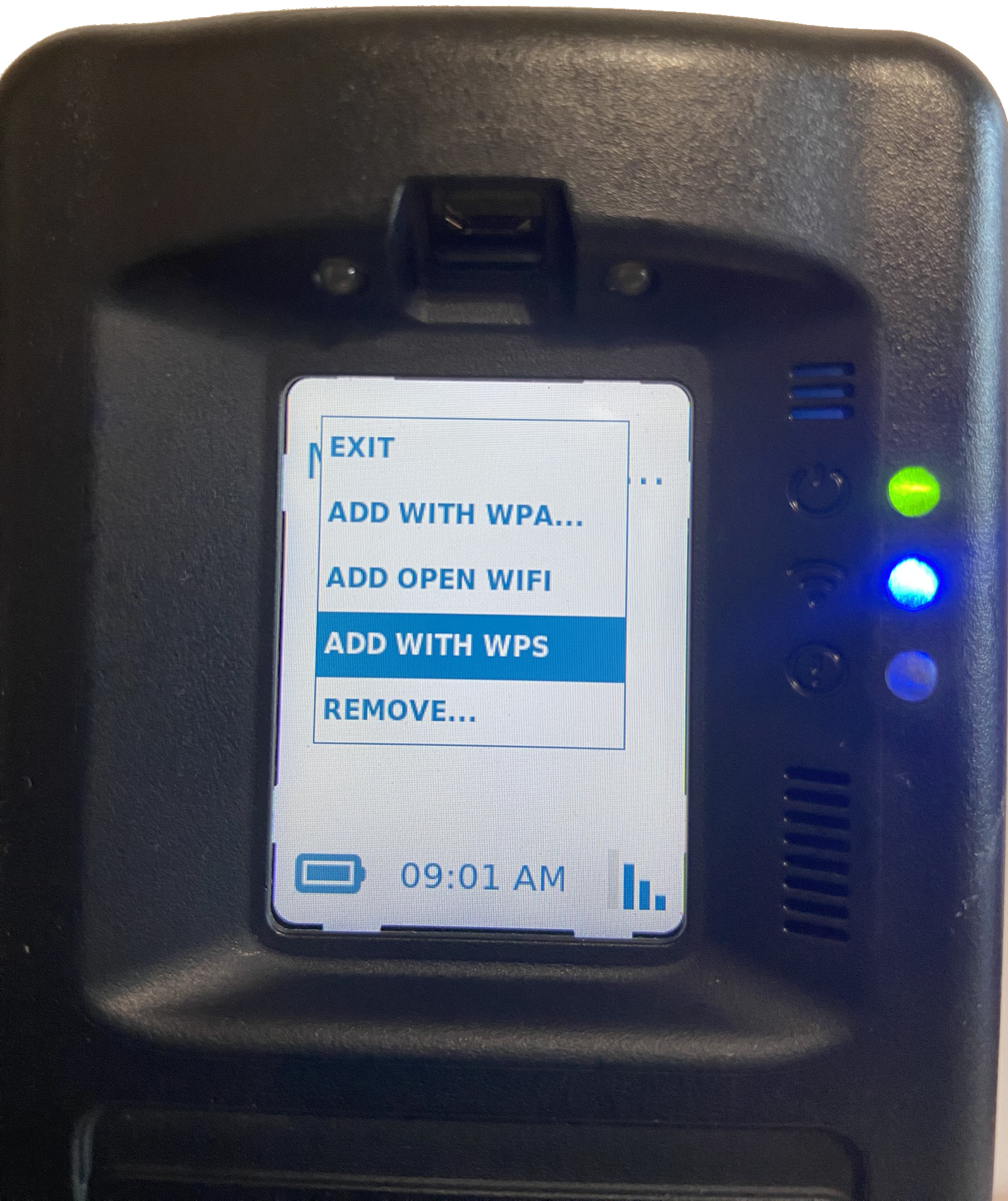
  • Add with WPS (Wireless Protected Setup)
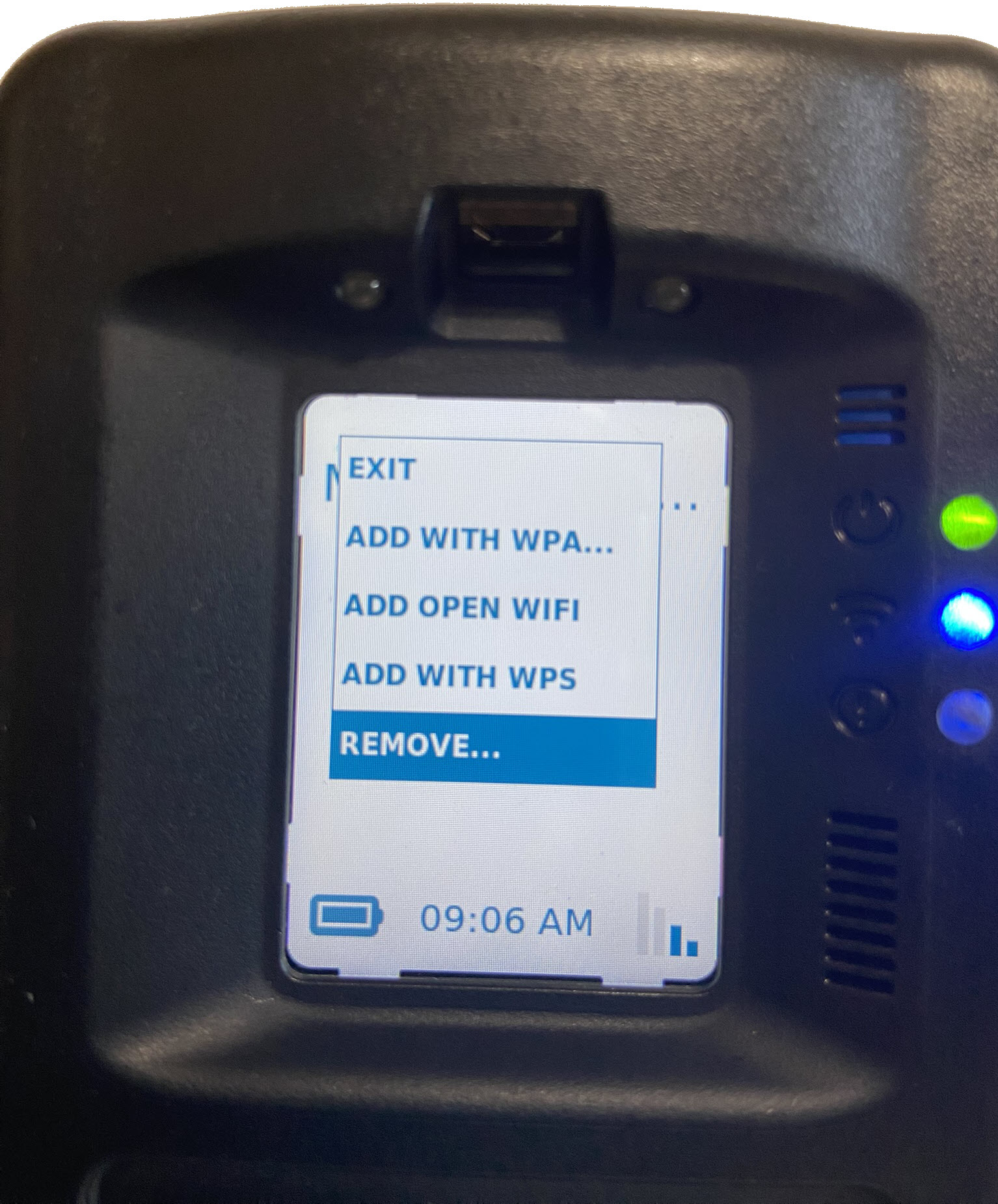
  • Remove (remove a client-added Wi-Fi network)
Tips
  • Once the RB Pro device has successfully connected to the Wi-Fi network, it will automatically switch back to a cellular network after 60 minutes, regardless of the cellular network’s signal strength. Moving forward, the device will only connect to the Wi-Fi network when it cannot communicate data over the cellular network.
  • The RB Pro device will only connect to Wi-Fi access points that use a 2.4 GHz band frequency.
  • There is no limit to the number of Wi-Fi networks the client may add.
  • Wi-Fi networks (SSIDs) that contain quotation marks (‘ or “), spaces, or dots (.) may cause issues when trying to connect to the RB Pro device. SCRAM Systems recommends either not using these networks, or renaming them.

Connect to a Client’s Wi-Fi Network:

  1. Start by accessing the RB Pro Menu.
  2. Use the up/down buttons on the RB Pro to highlight the WIFI SETUP option and then press the select button.
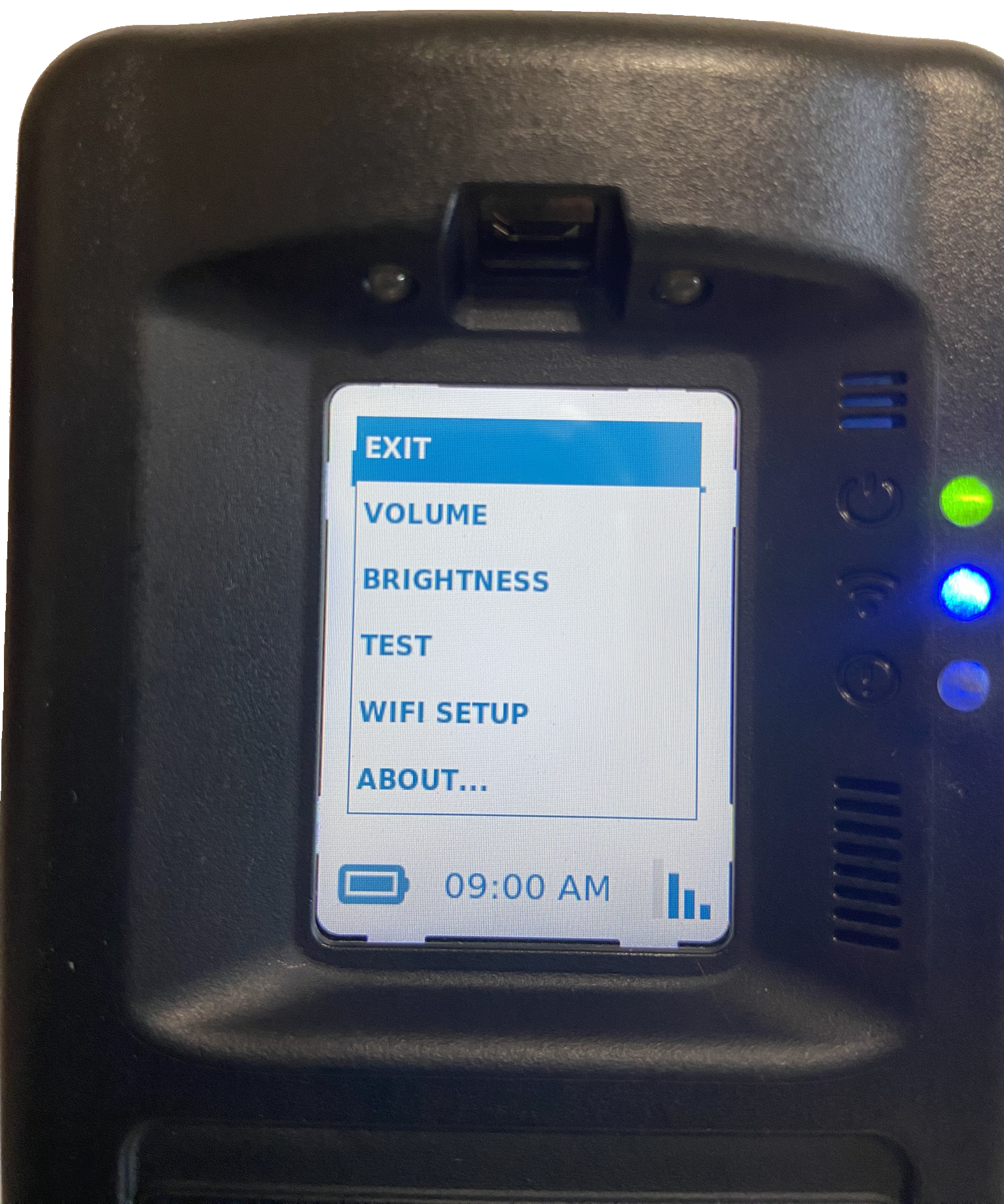
RB Pro Menu Options – click to enlarge
Wi-Fi Setup Option – click to enlarge
  1. On the Wi-Fi option screen, select one of the options available and follow the instructions for connecting
RB Pro Menu Wi-Fi Setup Options – click to enlarge

Connect using the “Add with WPA” Option

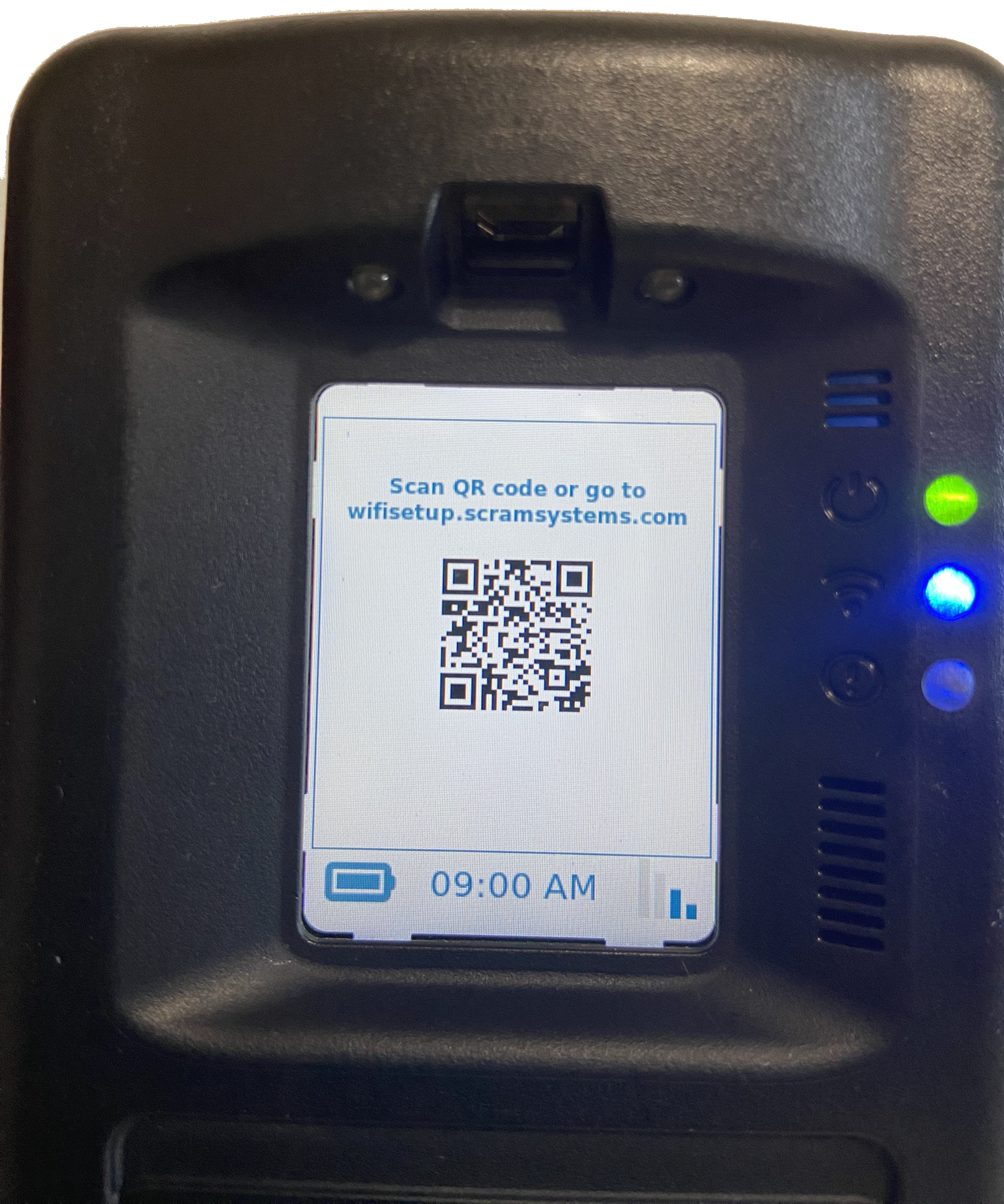
  1. Once the “Add With WPA” option is selected on the RB Pro, the screen will display instructions for accessing the wifisetup.scramsystems.com by either entering in the web address or using the QR code displayed.
Add With WPA Option Highlighted – click to enlarge
QR Code for Wifisetup.scramsystems.com – click to enlarge

Connect using the QR code:

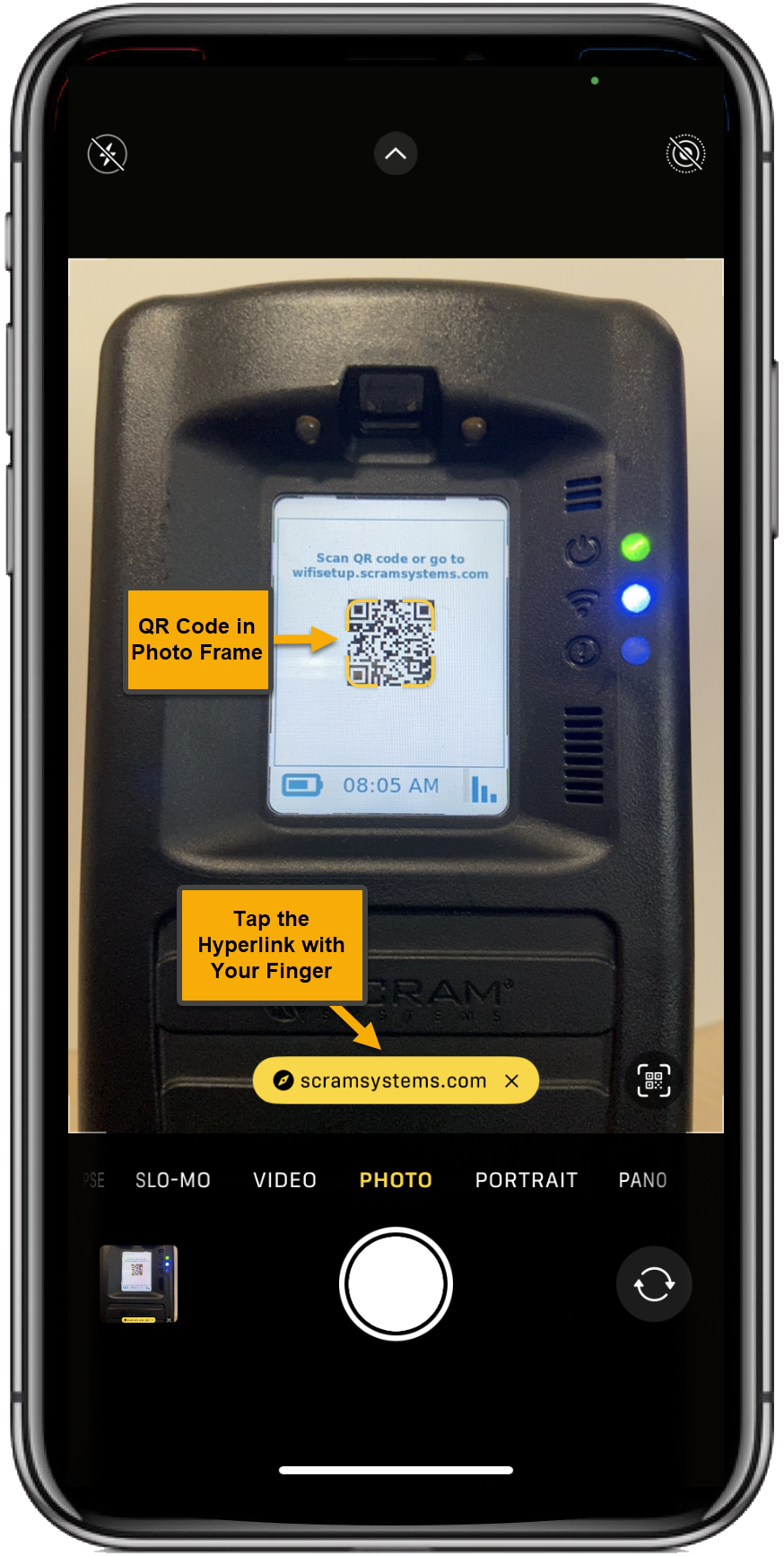
  1. Using a smartphone, open the camera option and bring the QR code into the photo frame.
  2. On the smartphone’s screen, tap the revealed hyperlink for “scramsystems.com.”
Viewing RB Pro’s Screen and QR Code – click to enlarge
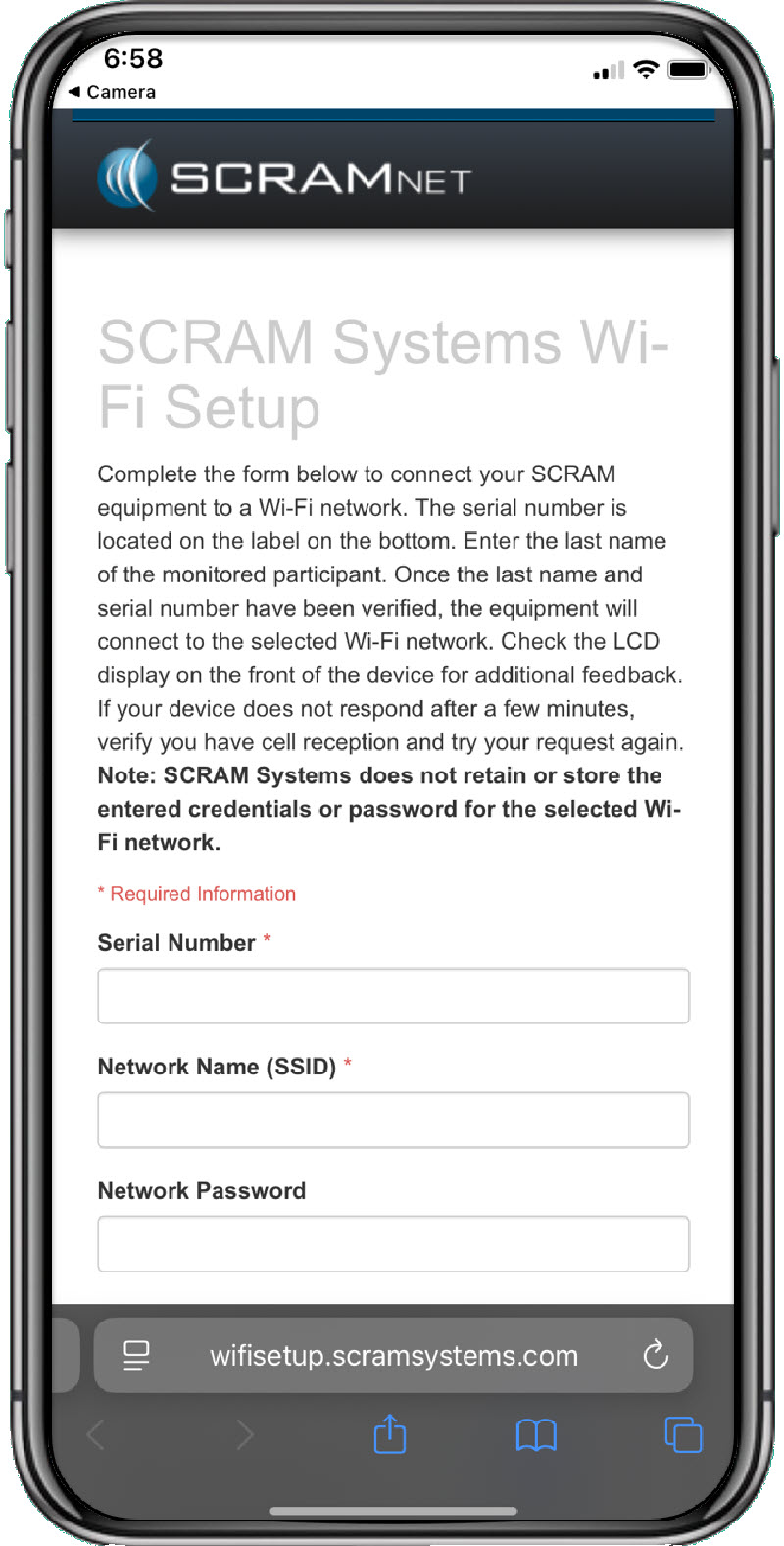
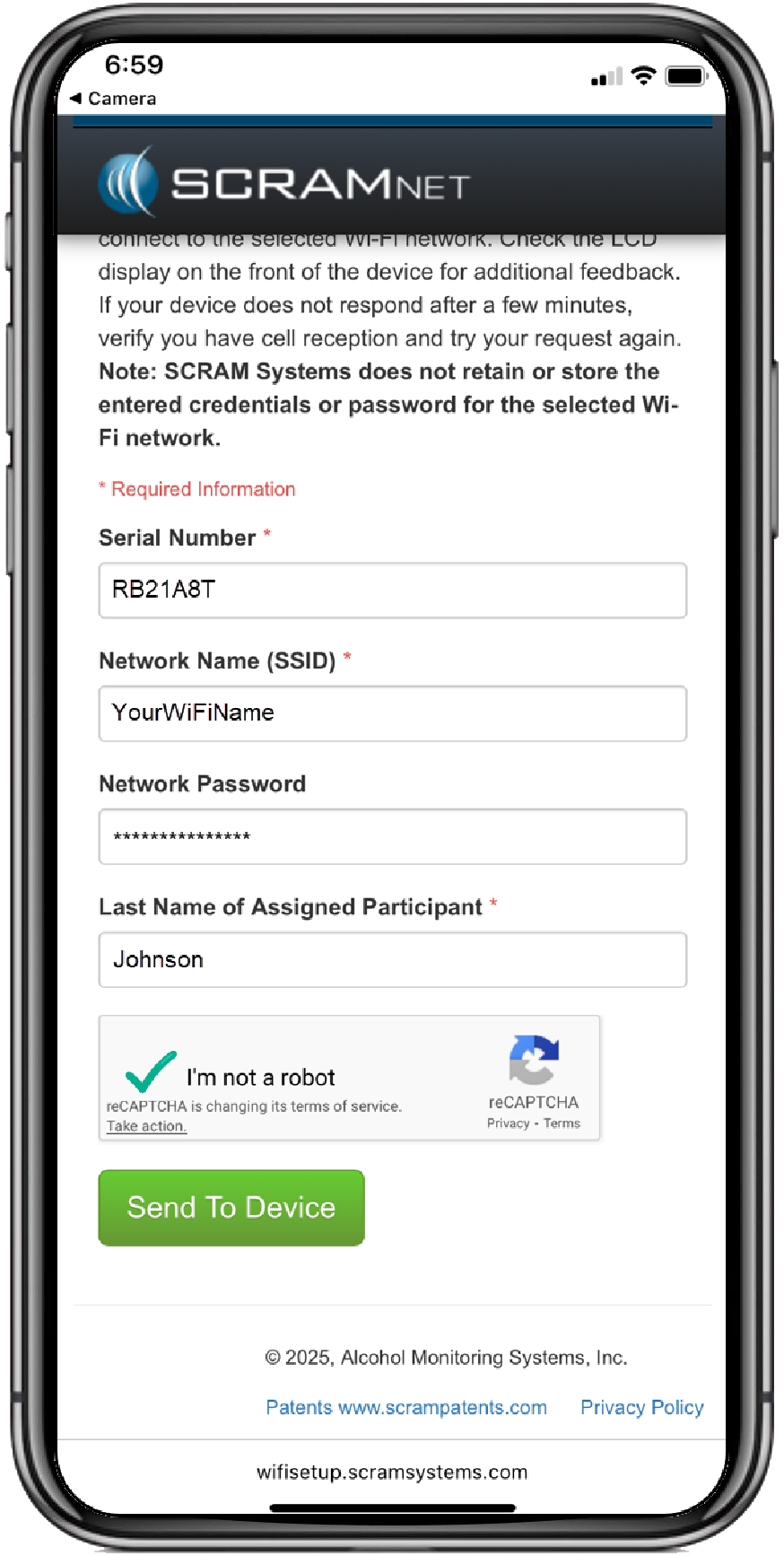
  1. An internet page for SCRAM System Wi-Fi Setup will open on the smartphone. Enter the required information and complete the captcha requirement.
Wi-Fi Setup Web Page- click to enlarge
Wi-Fi Setup Details Entered and Captcha Completed – click to enlarge
  1. Tap the Send to Device button.

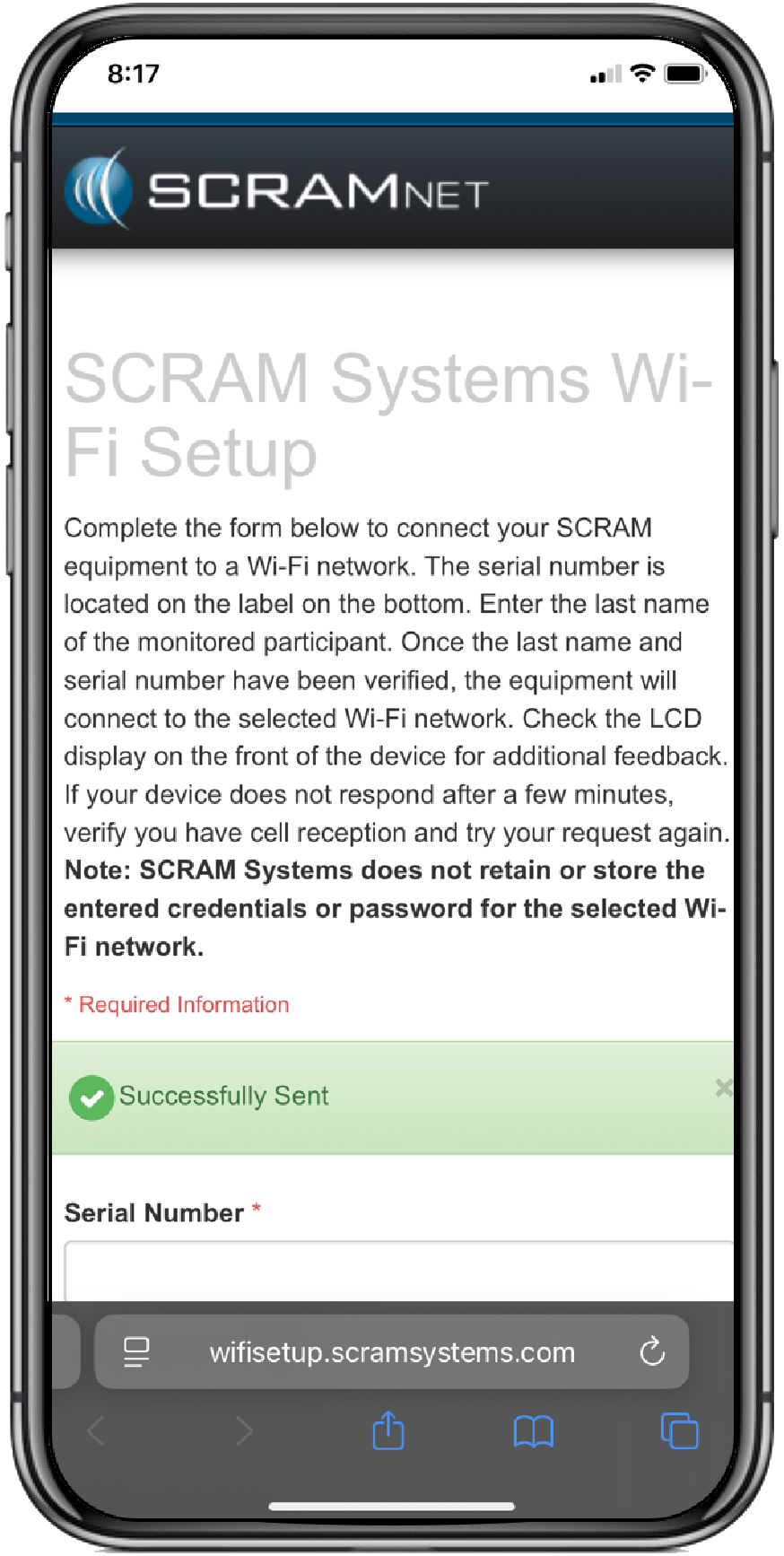
A Successfully Sent banner will be displayed on the smartphone’s screen.

Wi-Fi Setup Successfully Banner – click to enlarge

Once the Wi-Fi’s information has been communicated to the RB Pro over a cellular network connection, the RB Pro’s screen will display the Wi-Fi icon in the lower right corner. After 60 minutes, it will automatically switch back to a cellular network, regardless of the cellular network’s signal strength. Moving forward, the device will only connect to the Wi-Fi network when it cannot communicate data over the cellular network.

Important! For the RB Pro device to receive Wi-Fi network information, it must first connect to the cellular network. It may be necessary for a client to relocate the device to an area with a cellular network connection.

Connect using the “Add Open WiFi” Option

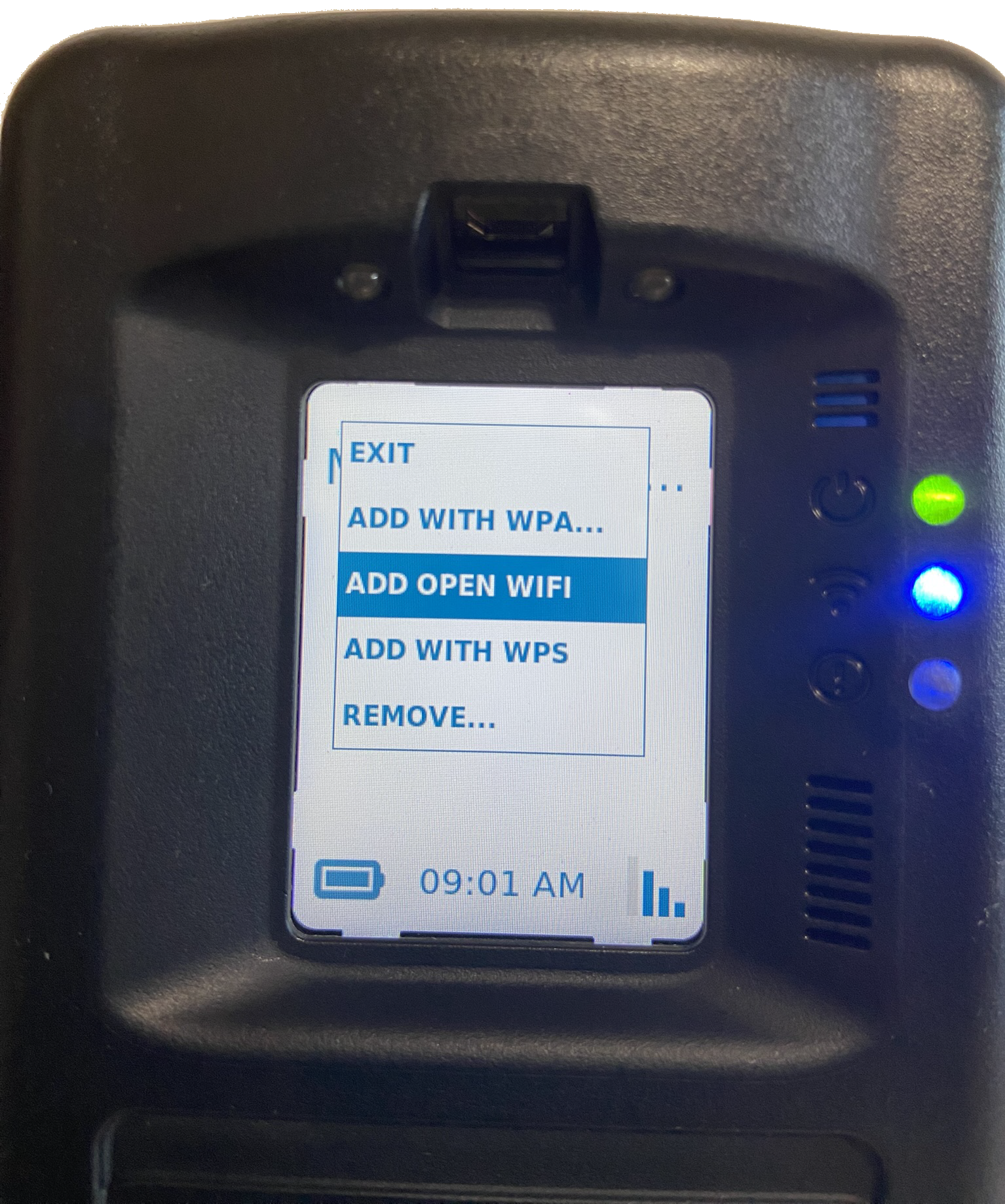
  1. Using the up/down buttons on the RB Pro device, highlight the “open Wi-Fi” network you wish to connect to.
  2. Once highlighted, press the “select” button on the RB Pro device.
Add Open Wi-Fi Option Highlighted – click to enlarge
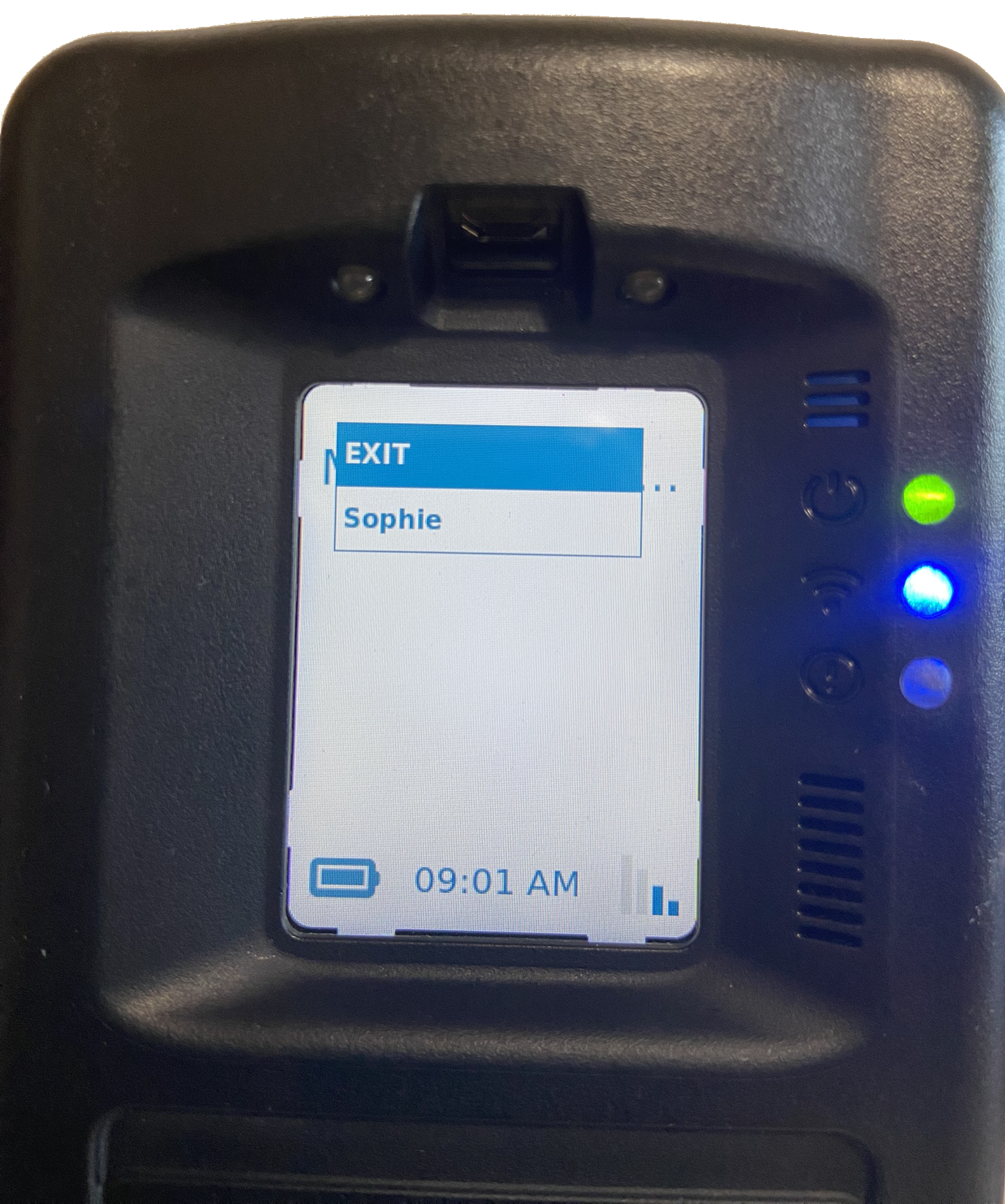
Open Wi-Fi Screen and Available Options – click to enlarge

After a few minutes, the RB Pro’s screen will display the Wi-Fi connection in the lower right corner. After 60 minutes, it will automatically switch back to a cellular network, regardless of the cellular network’s signal strength. Moving forward, the device will only connect to the Wi-Fi network when it cannot communicate data over the cellular network.

Important!
  • A cellular network connection is not required to connect the RB Pro device to an “open Wi-Fi” network.
  • When connecting to an “open Wi-Fi” network, if the network requires you to acknowledge its terms and conditions or if you must enter additional data before accessing the network, the RB Pro cannot be connected to that open wi-fi network.

Connect using the “Add With WPS” Option

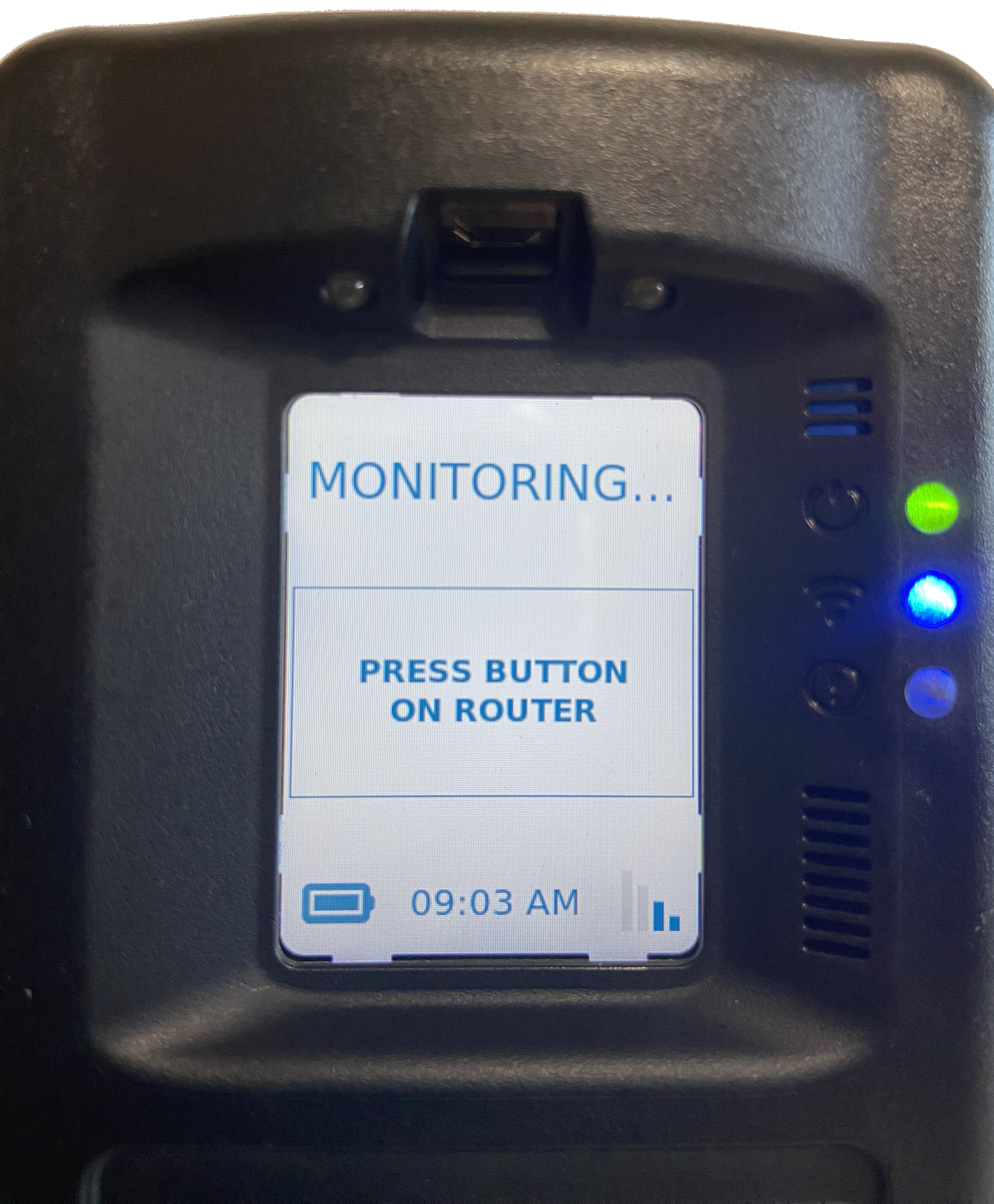
  1. Once the “Add With WPS” option is selected on the RB Pro device, instruct the client to locate the WPS button on their modem or router and press that button.
Add with WPS Option Highlighted – click to enlarge
WPS Set Up On Screen Instruction – click to enlarge

After a few minutes, the RB Pro’s screen will display the Wi-Fi connection in the lower right corner. After 60 minutes, it will automatically switch back to a cellular network, regardless of the cellular network’s signal strength. Moving forward, the device will only connect to the Wi-Fi network when it cannot communicate data over the cellular network.

Information
  • A cellular network connection is not required to connect the client’s Wi-Fi network to the RB Pro Device when using the Add with WPS option.
  • The “Press Button on Router” screen will remain for approximately two (2) minutes. After which, the screen will update to Monitoring, and the device will go into “sleep” mode.

Manually Remove a Client-Added Wi-Fi Network

If the client would like to remove a Wi-Fi network that they have connected to, they may accomplish this task by:

  1. Accessing the RB Pro WiFi Setup menu.
  2. Use the up/down buttons on the RB Pro to highlight the Remove option and then press the select button.
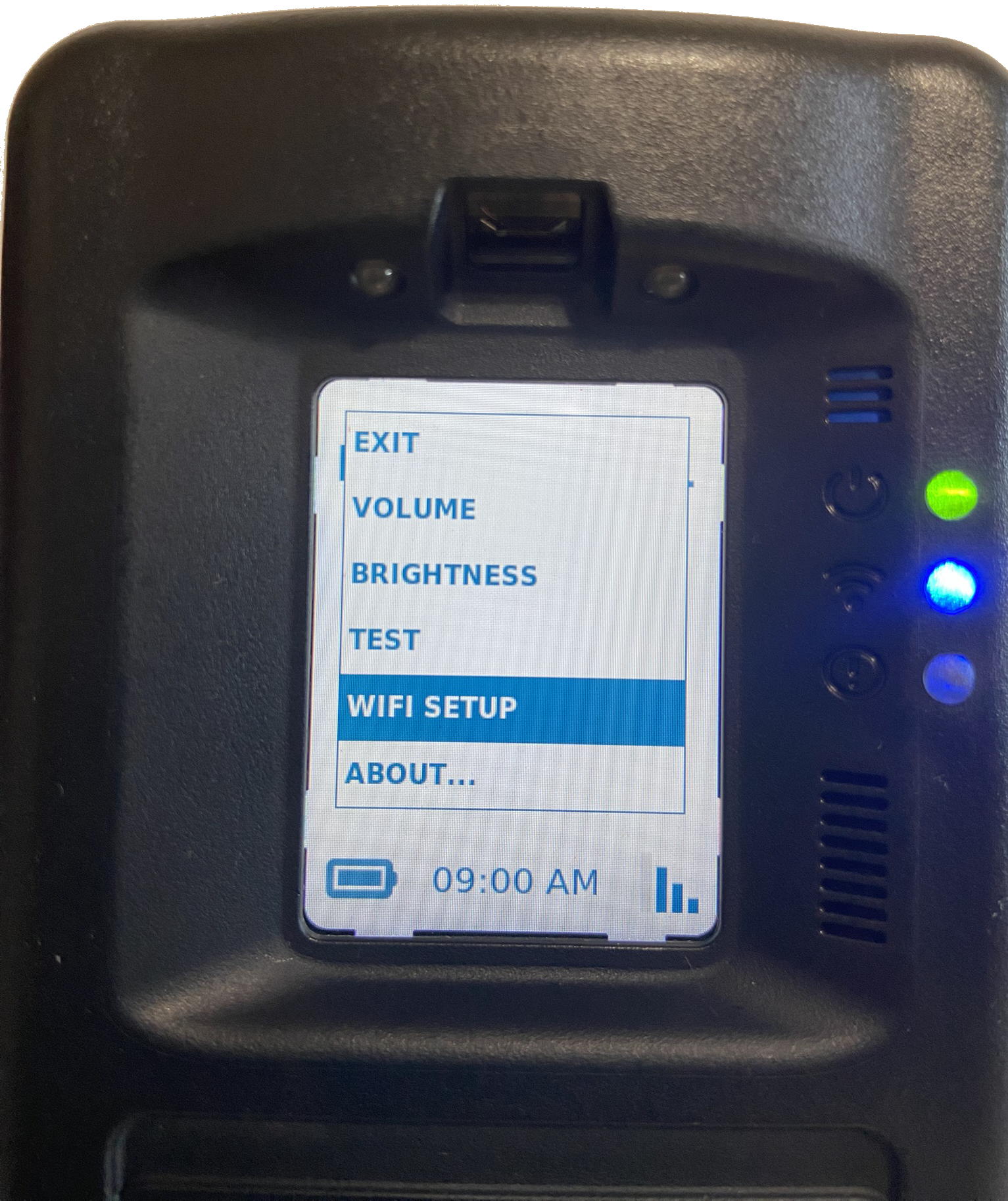
Wi-Fi Setup Option – click to enlarge
Wi-Fi Remove Option Highlighted – click to enlarge
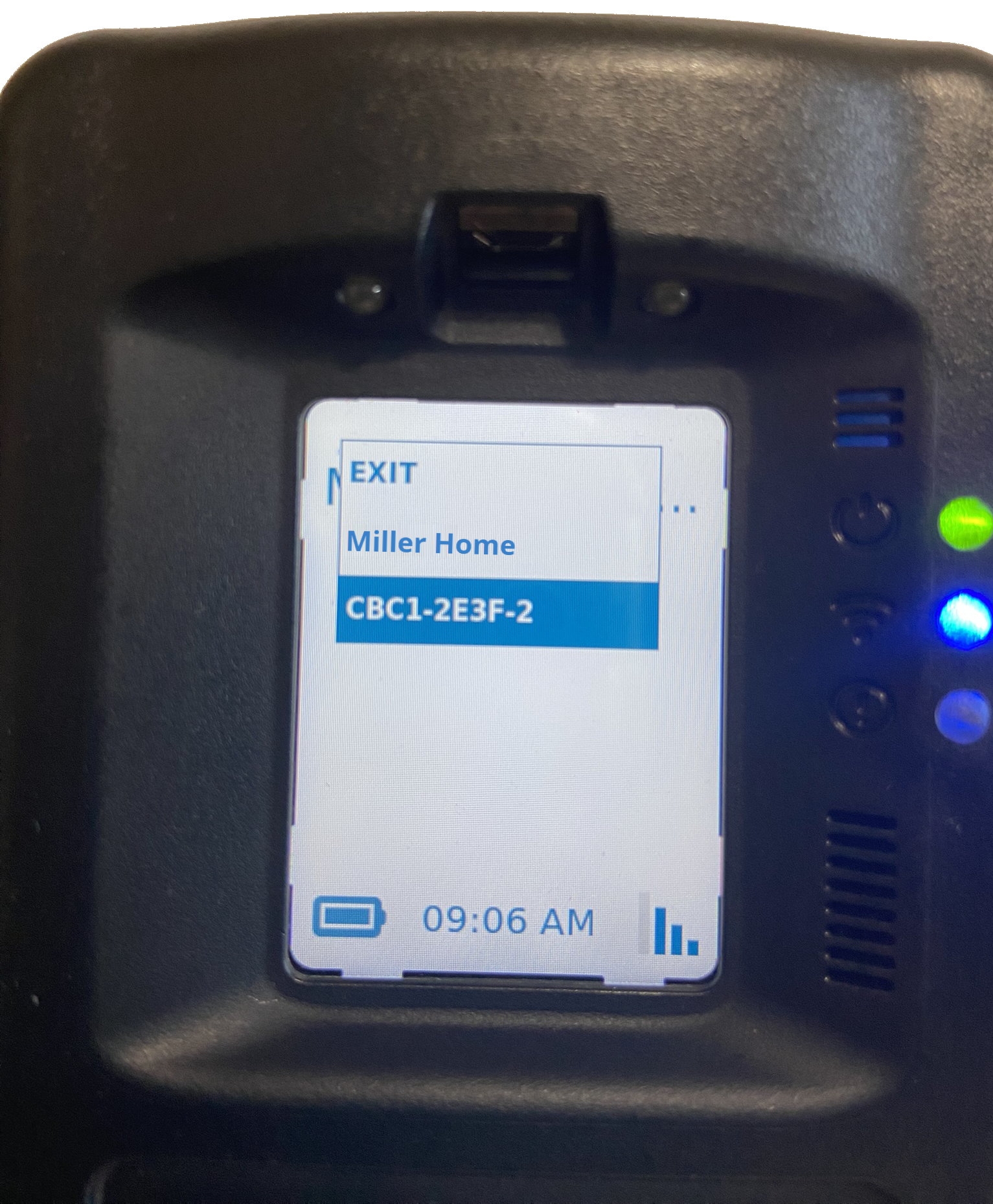
  1. Use the up/down buttons to highlight the wi-fi network to be removed and then press the “select” button.
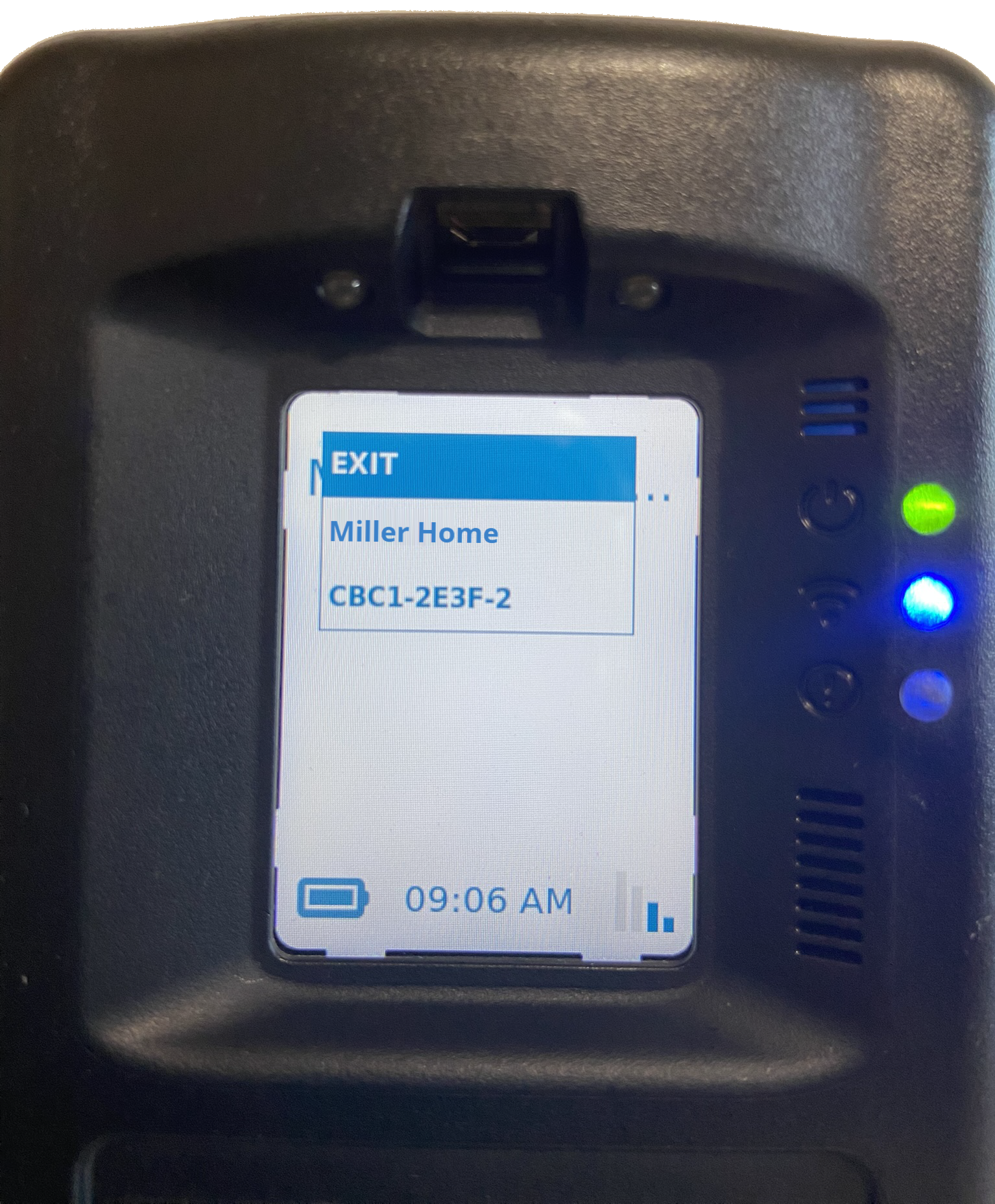
Remove Screen- click to enlarge
Wi-Fi Network Highlighted – click to enlarge

The Wi-Fi network is no longer displayed.
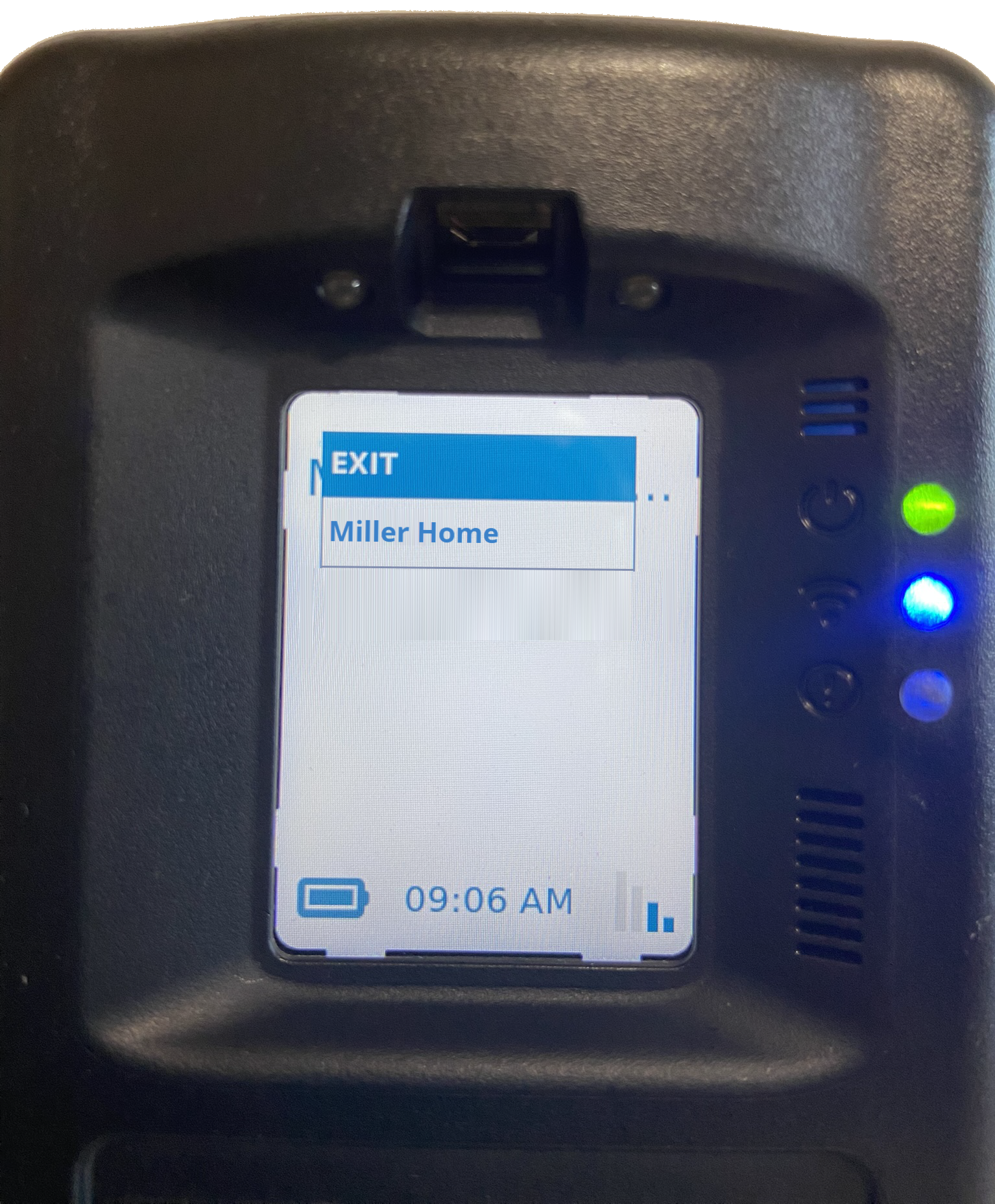
Wi-Fi Network Removed – click to enlarge

Continue Reading

It can sometimes be difficult for a client with a breathing issue, such as COPD or asthma, to provide a breath sample with enough air volume in it to test. The SCRAM Remote Breath Pro (RB Pro) device is designed to test a breath sample for alcohol once 1.5 liters of air has passed through it. The device will, however, test a breath sample for alcohol once 1.3 liters of air has passed through it, if it senses the breath sample air pressure dropping.

Tips for Breath-Testing Success

  1. Doublecheck the Straw: RB Pro breath tubes are fatter on one end versus the other. Make sure your client is inserting the “skinny” end of the straw all the way down into the device and then blowing through the fatter end.
  2. Keep it Clear: There is an exhaust port on the bottom of the RB Pro device. If that port is covered, it will create backpressure through the breath tube and make it difficult to pass enough air through the device. Ensure that your client is not inadvertently covering the exhaust port with a thumb or the palm of their hand, and make sure they never take a breath test with the device lying flat on a table.
  3. Start Strong: Blowing a large volume of air through the breath tube early tells the RB Pro device to start measuring air volume immediately. Starting gently and increasing volume causes some amount of air to pass through the device before it begins measuring to the target volume (1.5 L).

Following these tips will give your clients the best chance at successfully completing their SCRAM Remote Breath monitoring program.

Continue Reading

On July 16, 2025, SCRAM Systems® will release an enhancement for your Remote Breath Pro client Caseload. With this release, you may suspend your client’s monitoring and billing without using the Stop Monitoring process and unenrolling the device.

While a client is on your program, there may be a scenario where you need to suspend their monitoring temporarily. This enhancement allows you to set a suspension start and end date to temporarily stop monitoring and billing for a client for up to 30 days.

To suspend a client’s monitoring, 

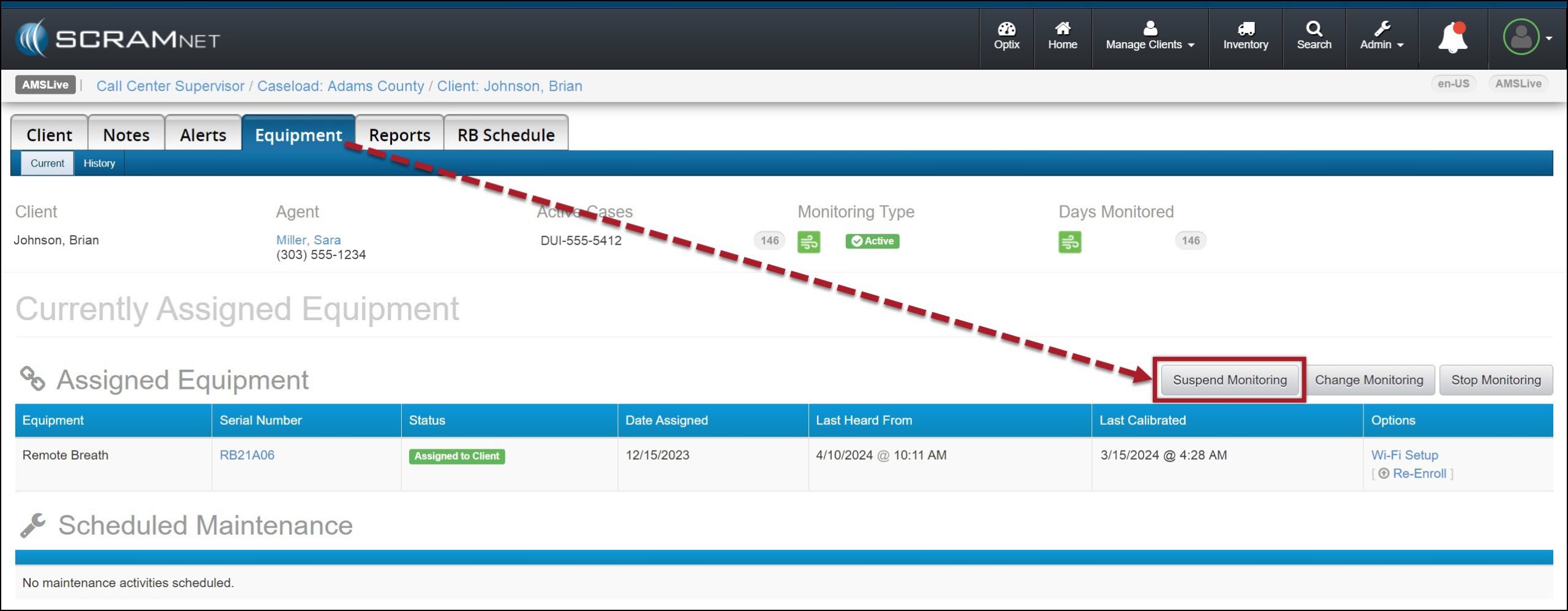
  1. Navigate to the client’s Equipment page and select the Suspend Monitoring button.
Client’s Equipment Page, Suspend Monitoring Button – click to enlarge
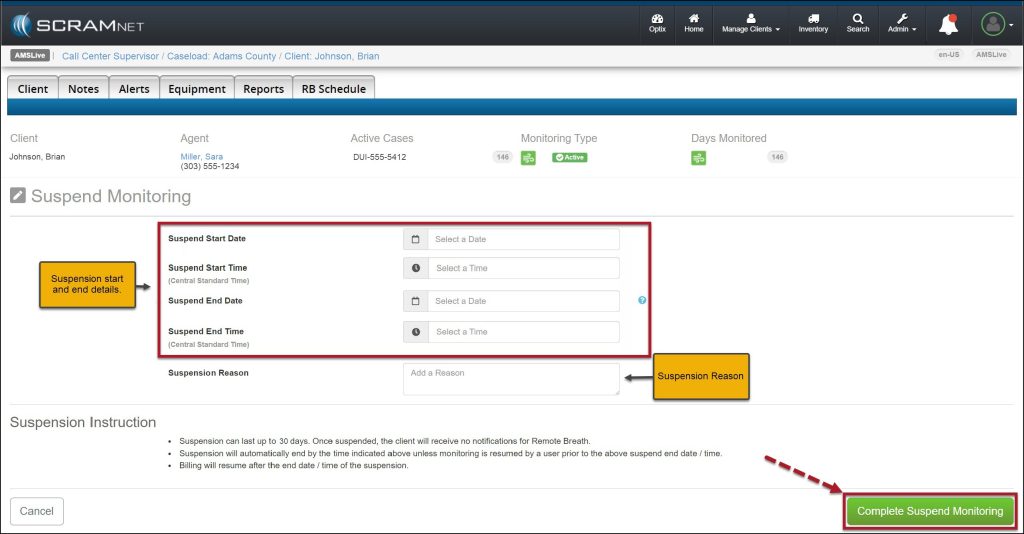
  1. On the Suspend Monitoring page, enter the start and end date and time, and the Suspension Reason.
    • When selecting the start date, you may enter the current date or schedule the suspension of monitoring for a future date.
  2. Select the Complete Suspend Monitoring button.
Suspend Monitoring Page – click to enlarge

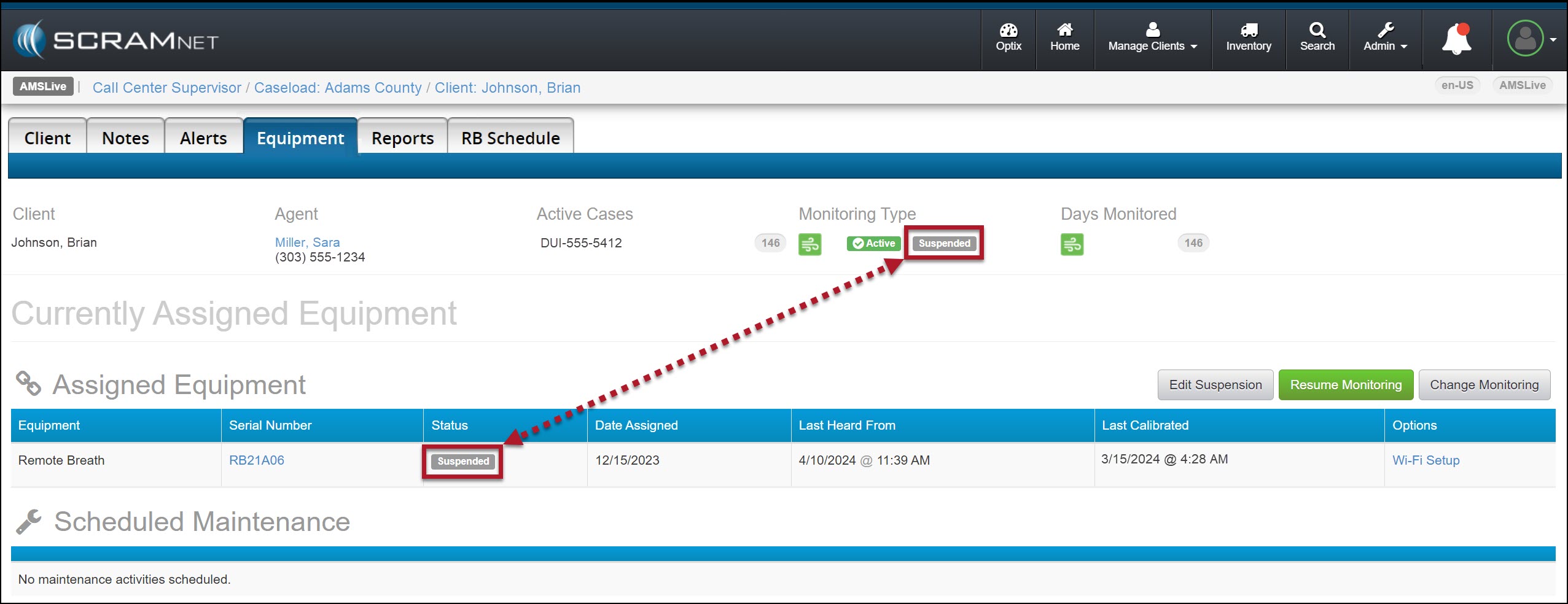
Once the suspension period has begun, the Monitoring Type banner and the Status column will display a status of “Suspended.”

Monitoring Status Displaying Suspended – click to enlarge
InformationDuring the suspension period:
  • The client’s Remote Breath Pro device will continue to display Monitoring on the screen.
  • On-Demand and “Client-Initiated” testing is not available.
  • The client will not be prompted to provide a breath sample.
  • Only Calibration Required alerts are generated when required.

Once the suspension period has ended, monitoring and billing will resume, “On Demand” and “Client-Initiated” tests are available, and the status will reflect active monitoring.

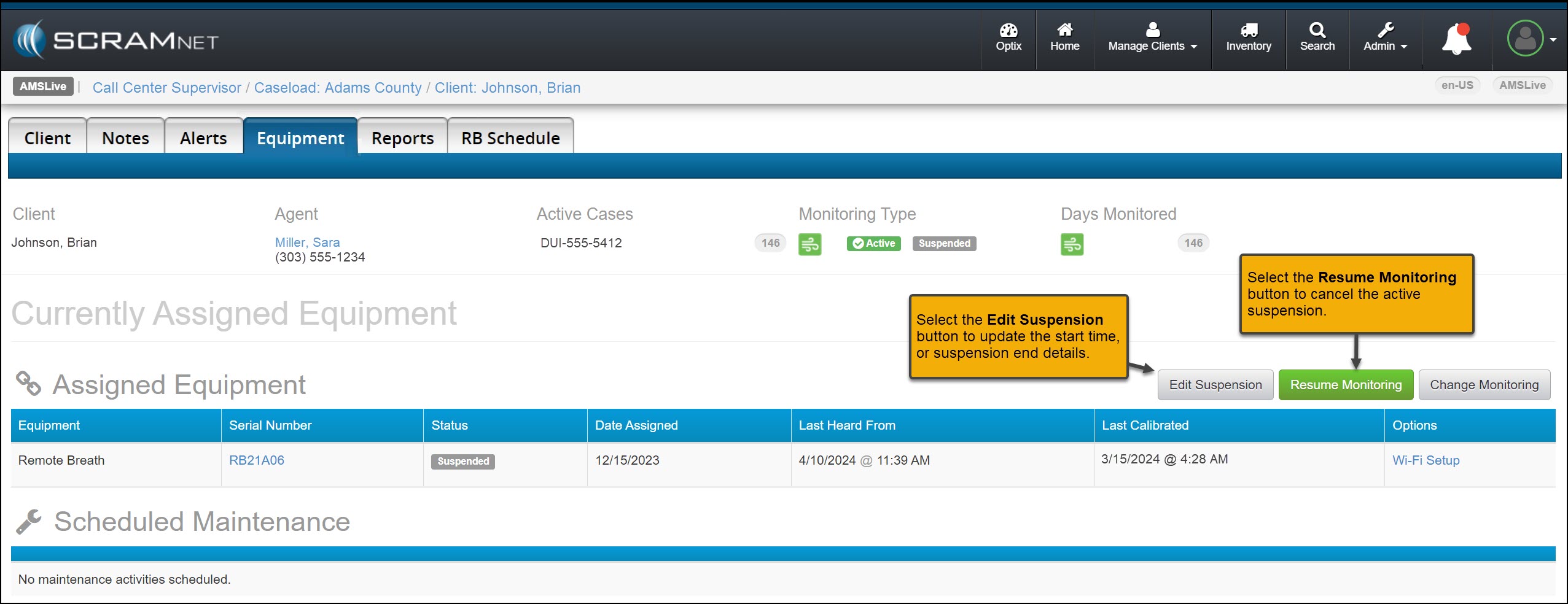
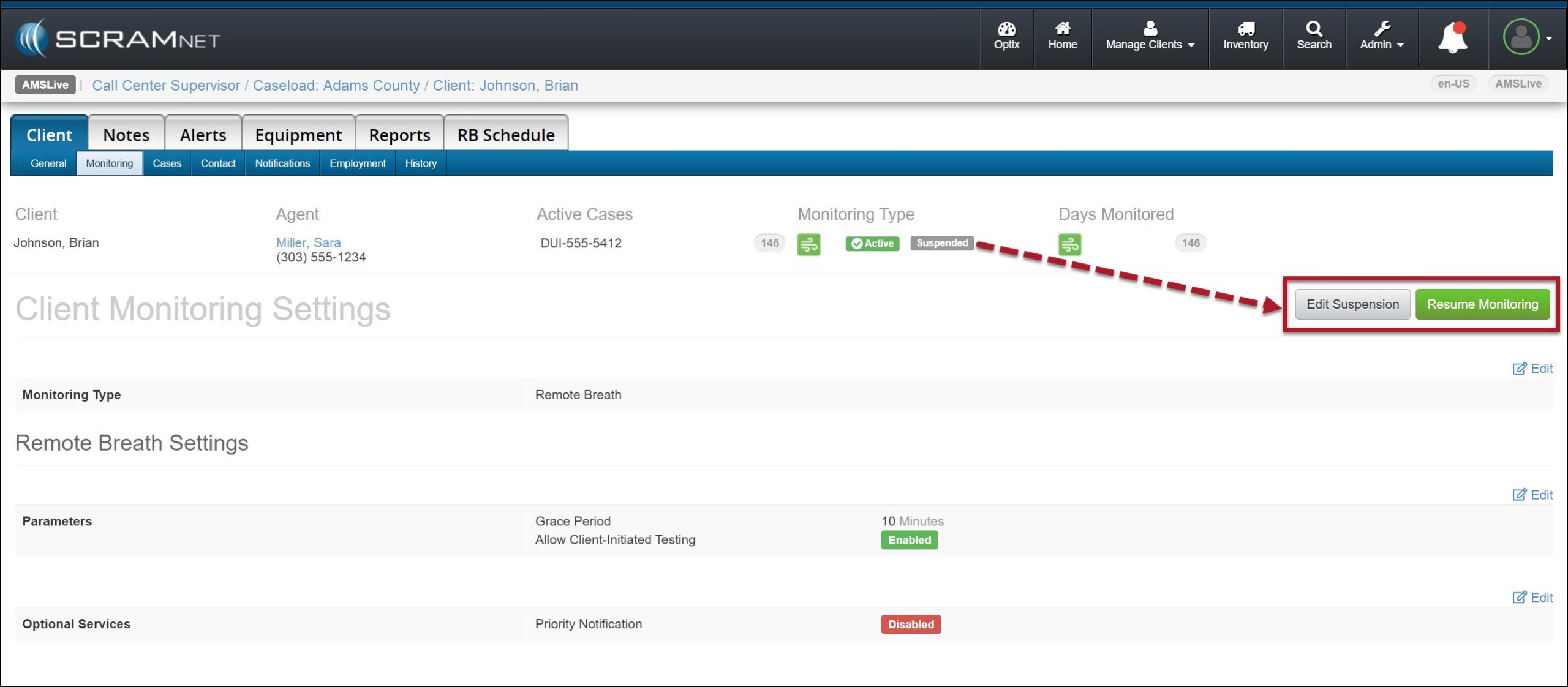
You may select the Resume Monitoring button to end the current suspension or the Edit Suspension button to update the suspension details.   

Edit Suspension and Resume Monitoring Buttons – click to enlarge

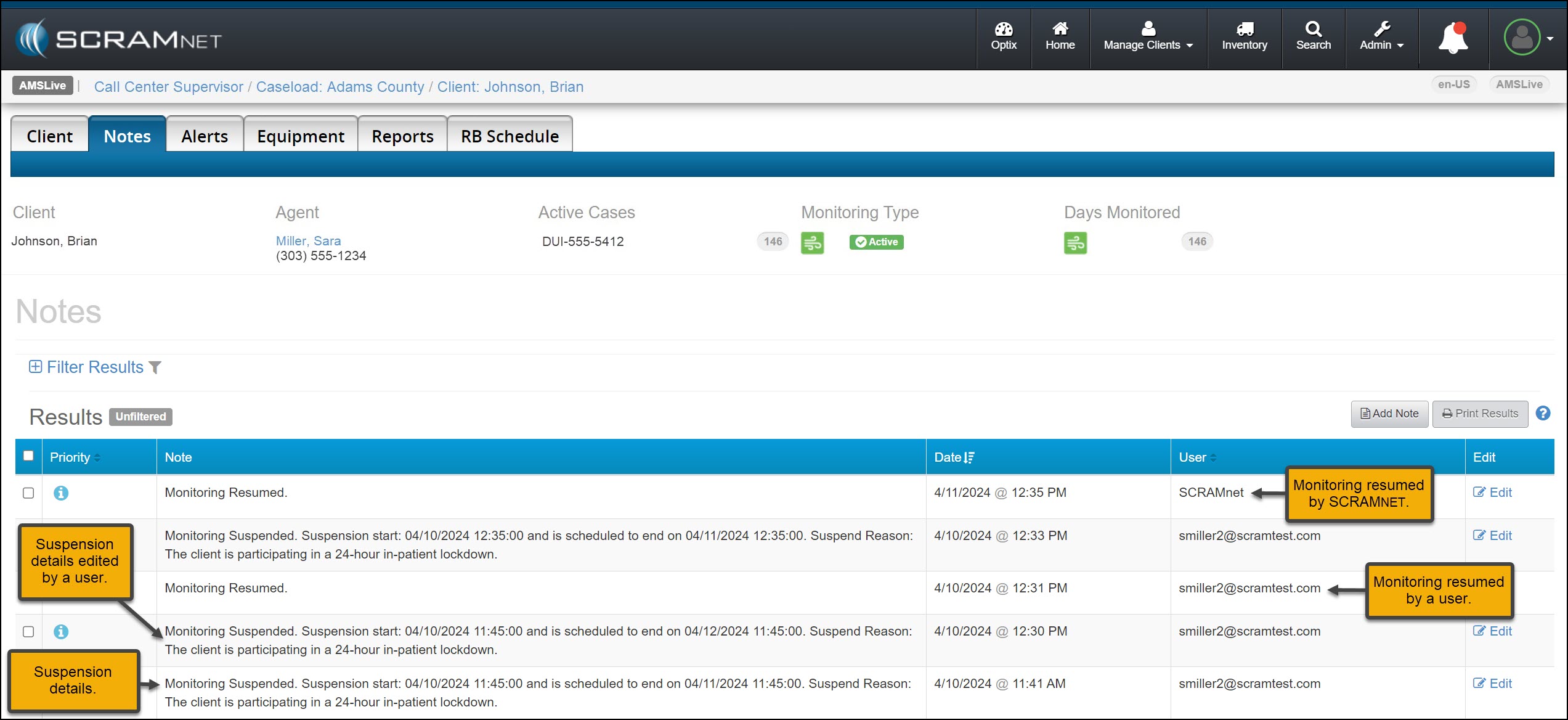
A history of the suspension details may be viewed on the client’s Notes page.

Client’s Notes page with Suspension Results Displayed – click to enlarge

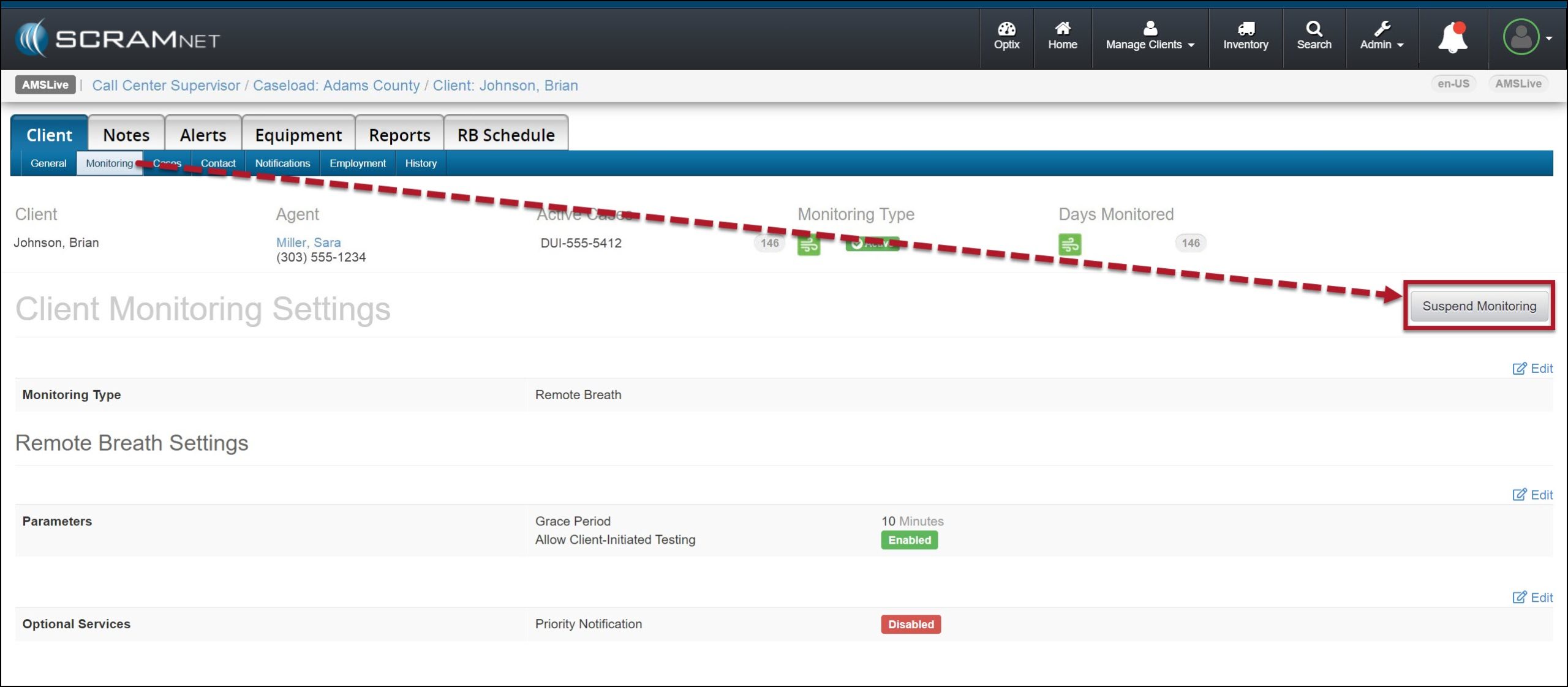
You may also suspend a client’s monitoring or edit and resume monitoring from their Monitoring sub-tab.

Client’s Monitoring Sub-Tab – Click to enlarge

Continue Reading

Re: Fraudulent Phone Calls, Client Safety, & Data Security Assurance

To Our Valued Partners,

We want to take a moment to reassure you that there has been no data breach at SCRAM Systems. Our internal security teams have conducted a thorough review of recent reports, and there is no indication that any data has been accessed or compromised from SCRAM Systems’ servers.

What we are observing appears to be part of a broader scam targeting individuals on Electronic Monitoring (EM) programs nationwide—regardless of the device manufacturer or service provider. These fraudulent calls have been reported by clients wearing a variety of monitoring devices from multiple vendors and appear to stem from publicly available information or data obtained through unrelated means.

SCRAM Systems is actively monitoring the situation and remains in close contact with partners and relevant authorities to ensure the integrity of our systems and support the safety of monitored individuals.

In the meantime, we continue to recommend the following:

  • If a client receives a suspicious or threatening call, they should immediately contact local law enforcement and report the incident.
  • If you have any client reports or specific details to share, we welcome you to pass them along so we can escalate internally and contribute to broader awareness and monitoring efforts.

We are also available to set up a call should you wish to discuss this matter further.

Thank you for your continued partnership and vigilance.

Sincerely,

John Hennessey

Chief Operating Officer

SCRAM Systems

jhennessey@scramsystems.com

815-342-4469

Download a copy of this letter

Continue Reading

SCRAM Systems has recently learned of a telephone-based scam that targets the clients of electronic monitoring (EM) programs. Currently, the scam appears to be centered in the states of North Carolina and Tennessee, and focused on EM clients. In this scam, a caller poses as a member of local law enforcement – or in one case, as a SCRAM Systems representative – and then demands payment and/or bank account information from the client over the phone for EM device monitoring services. The scammer additionally threatens arrest or other legal consequences for failure to comply.

Please be aware that SCRAM Systems will never contact your clients to request payments. We have engaged our Security Team to investigate this further, and we encourage you to share news of this potential fraud with your monitoring program clients, as well as any monitoring program team member who interfaces with clients.

You may also wish to share news of this scam with recently-released clients who are not court-ordered to be fitted with an EM device, as they may be targeted by scammers who claim they are to be fitted with one and must pay for it in advance.

If you have any questions or receive reports of fraud attempts, please contact SCRAM Systems Customer Service.

Continue Reading

On January 29, 2025, SCRAM Systems® will release two enhancements for your SCRAM Remote Breath Caseload.

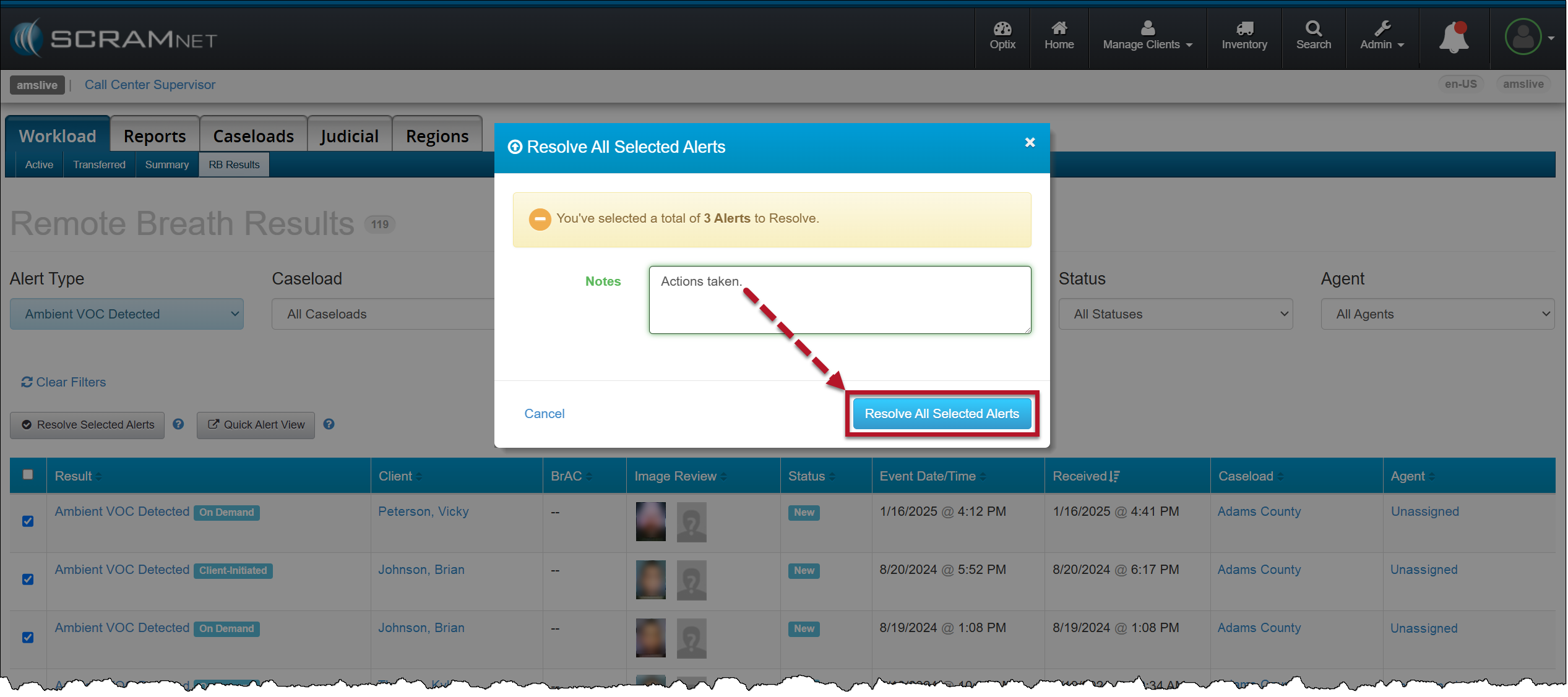
  • Resolve multiple Ambient VOC Detected alerts on the RB Results page.
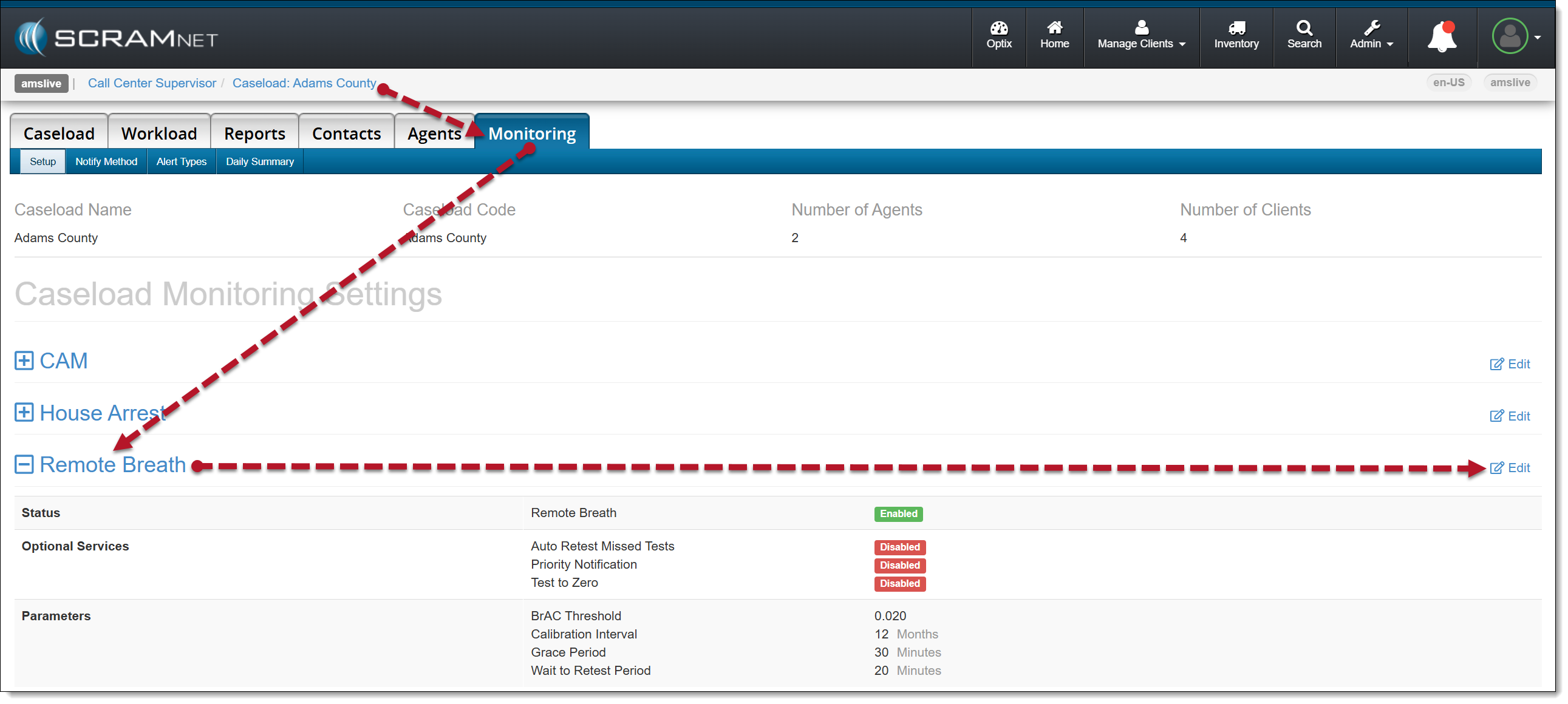
  • Configure your Caseload to automatically send a single On-Demand test to the device following a “Missed” scheduled breath test.

Resolve Multiple (bulk) Ambient VOC Detected Alerts

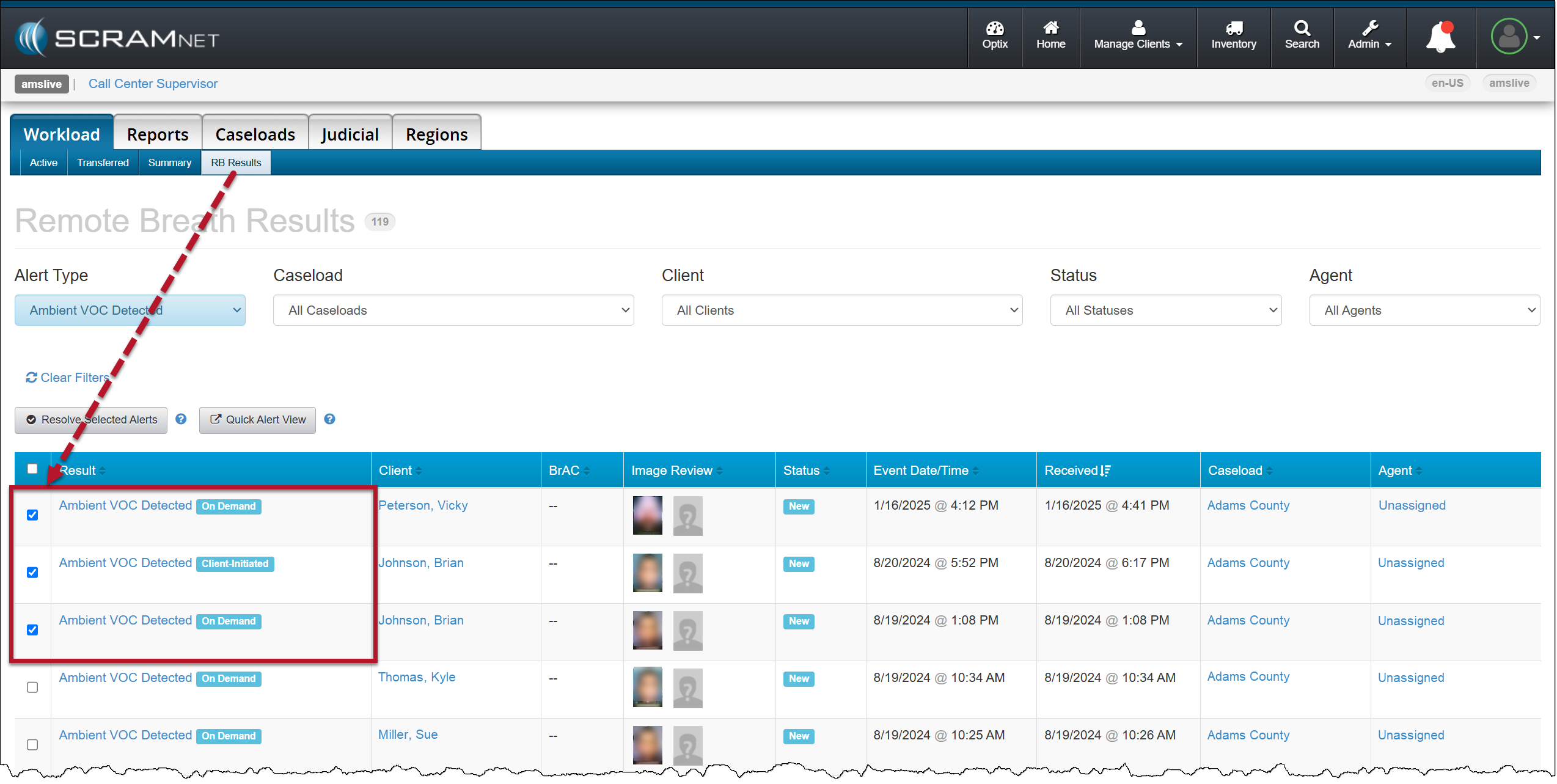
On the RB Results page for your Caseload, you may select the checkbox next to multiple Ambient VOC detected alerts and then select the Resolve Selected Alerts button to “bulk” resolve of them all at once.

RB Results page – Multiple Ambient VOC Detected Alerts Selected
Resolve All Selected Alerts Pop-Up Acknowledgement

Configure your Remote Breath Caseload to Send an On-Demand Test after a Missed Scheduled Breath Test:

  1. Select the Monitoring tab for the selected Caseload.
  2. In the Remote Breath section, select the Edit hyperlink.
Caseload-Monitoring page-Remote Breath section
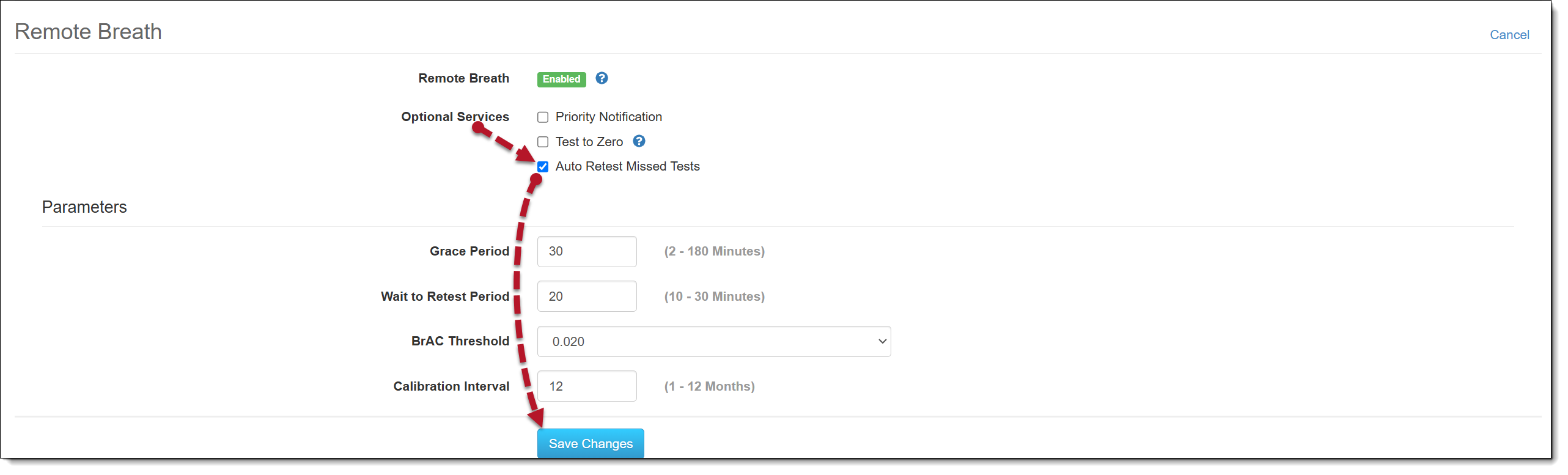
  1. Select the checkbox next to the Auto Retest Missed Test option in the Optional Services section.  
  2. Select the Save Changes button.
Configure Remote Breath Optional Services
Auto Retest Missed Tests Enabled

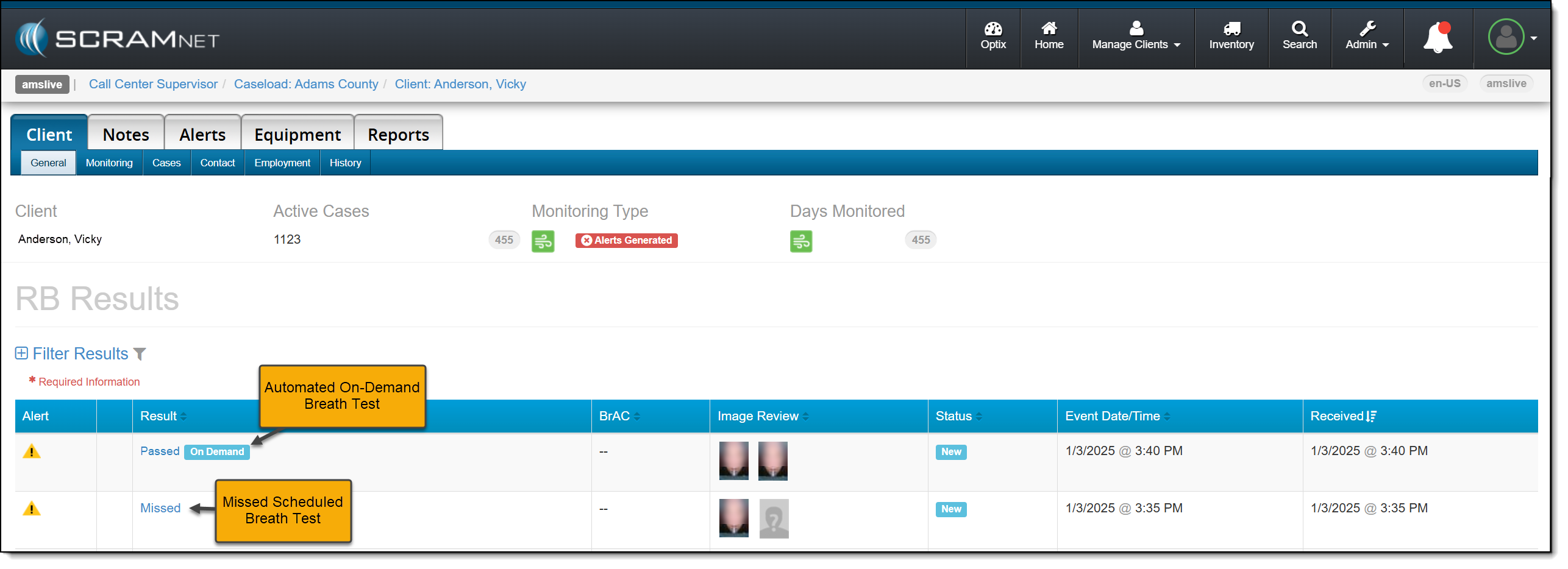
Moving forward, when SCRAMNET reports that the client has missed their scheduled breath test, an On-Demand test will be sent.

RB Results Page with Missed Test with Automated On-Demand test sent

Continue Reading

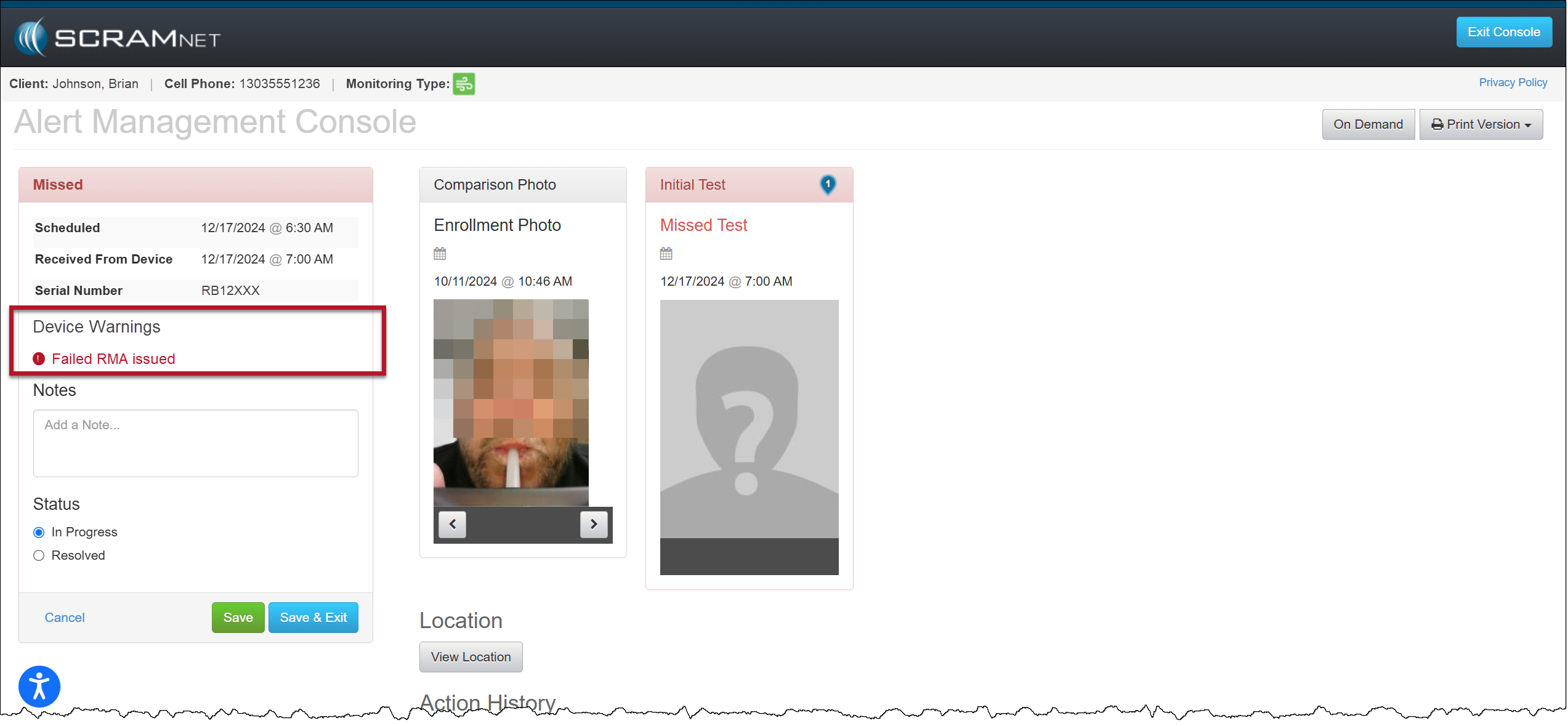
On December 18, 2024, SCRAM Systems® will release an enhancement for your Remote Breath Pro client Caseloads. With this enhancement, when an RMA has been issued for an RB Pro device that has failed, the Alert Management Console (AMC) will include a new Device Warnings section that displays a “Failed RMA issued” warning for all breath test results (for example, Passed, Missed, or Scheduled Test Not Received alerts) received after the RMA is created. 

AMC with Device Warning Message – click to enlarge
Tips
  • A “failed RMA” is issued when the device is not operating within normal parameters.
  • When utilizing the Remote Breath Carousel, the “Device Warning” section will not display regardless of the device’s RMA status.
  • Once the client’s RB Pro device has been replaced or checked in, the Device Warning section and “Failed RMA issued” message will no longer be displayed on the alert’s AMC.
  • If SCRAM Systems cancels the RMA, the Device Warning section and “Failed RMA issued” message will no longer be displayed on the alert’s AMC.

Continue Reading

Tomorrow, December 4th, 2024, SCRAM Systems will release an enhancement to the Ambient VOC Detected test results.

When an excess of Volatile Organic Compounds (VOCs) – usually picked up from the device’s surroundings – is detected in the SCRAM Remote Breath Pro (RB Pro) device’s breath testing flow path, the RB Pro device prevents breath tests from being performed, and an Ambient VOC Detected alert is displayed in SCRAMNET. With this enhancement, SCRAMNET will automatically initiate flow path checks every 10 minutes for up to two hours until the flow path is clear and the client may test.

Here is the complete process:

  1. The device will generate a descending arpeggio (“uh-oh”) sound.
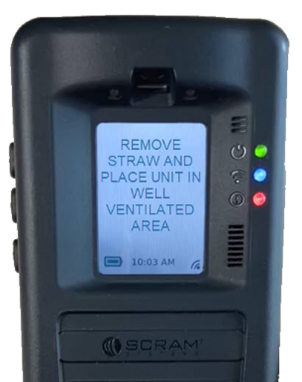
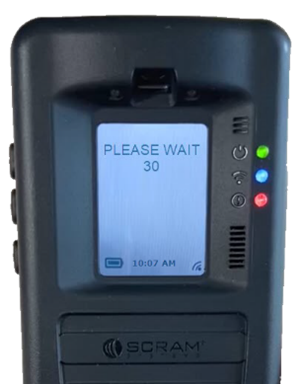
  2. The device’s screen will display, “REMOVE STRAW AND PLACE UNIT IN A WELL VENTILATED AREA,” followed by, “PLEASE WAIT with a 30-second count down.”
RB Pro Device Message – click to enlarge
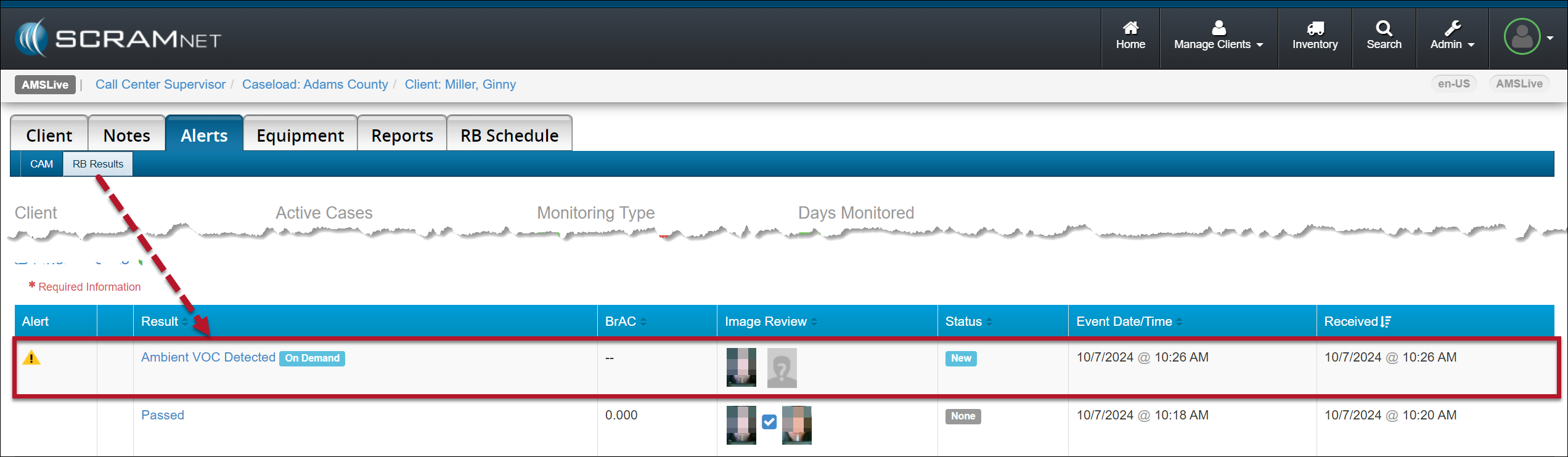
  1. The device will repeat this process automatically for two minutes. If the VOC does not clear, the device will end the current breath test process, and the screen will display “MONITORING …” At this time, an “Ambient VOC Detected” alert will be generated in SCRAMNET.
SCRAMNET Ambient VOC Detected Alert Client’s RB Results page – click to enlarge
Advise the client to take the following steps to help clear the device’s breath-testing flow path:
  1. Remove the breath tube from the device, wash it with dish soap, rinse it with water, and then thoroughly dry the breath tube before using it again. Moisture in the breath tube could impact test results.
  2. Relocate the RB Pro device to an area of fresh air that is free of chemicals (like air fresheners) and cleaning agents (including freshly cleaned countertops).
  3. Remove the device from its carrying case and place it on its side on a tabletop or other clean surface away from contaminants, with the vent on the bottom and the breath tube port unobstructed.
Once an Ambient VOC Detected alert has been generated:
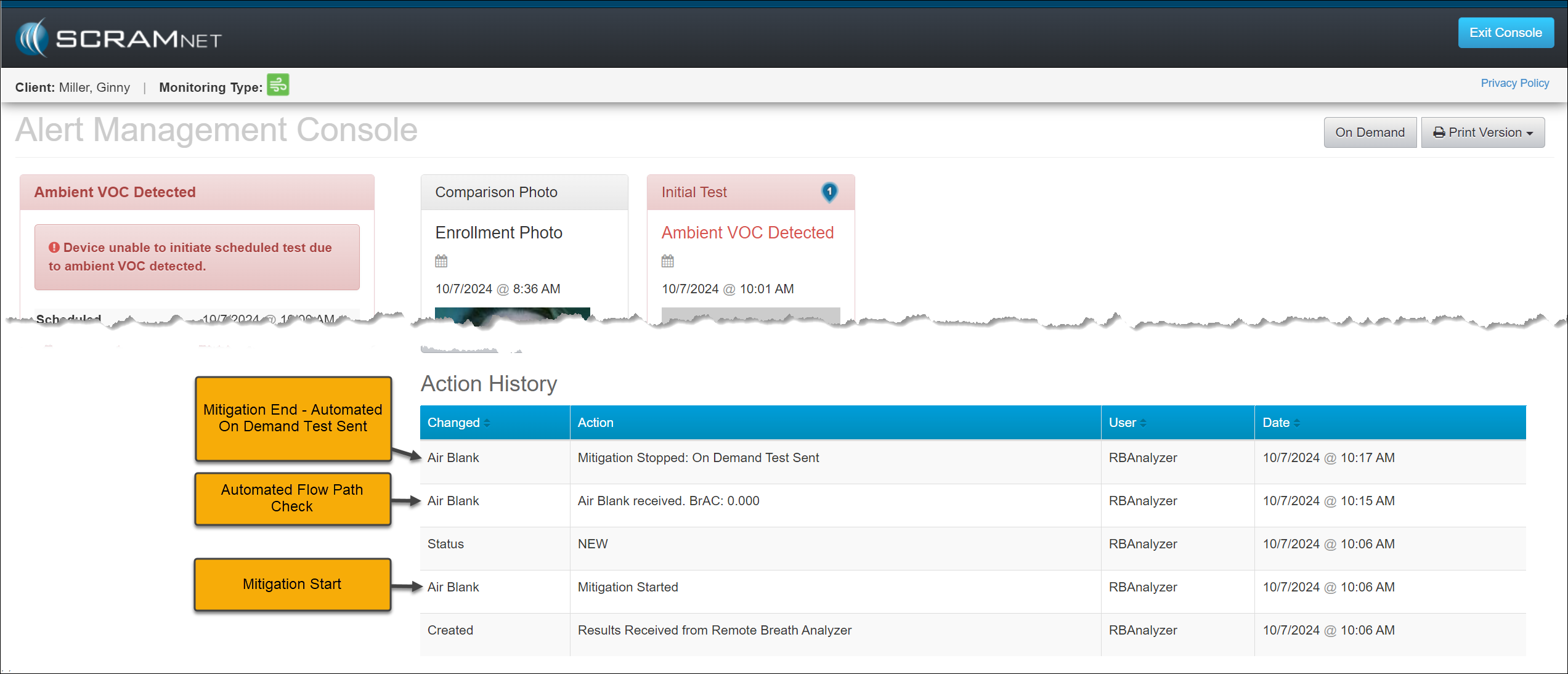
  1. SCRAMNET will record a “Mitigation Started” entry in the event’s Action History section of the Alert Management Console.
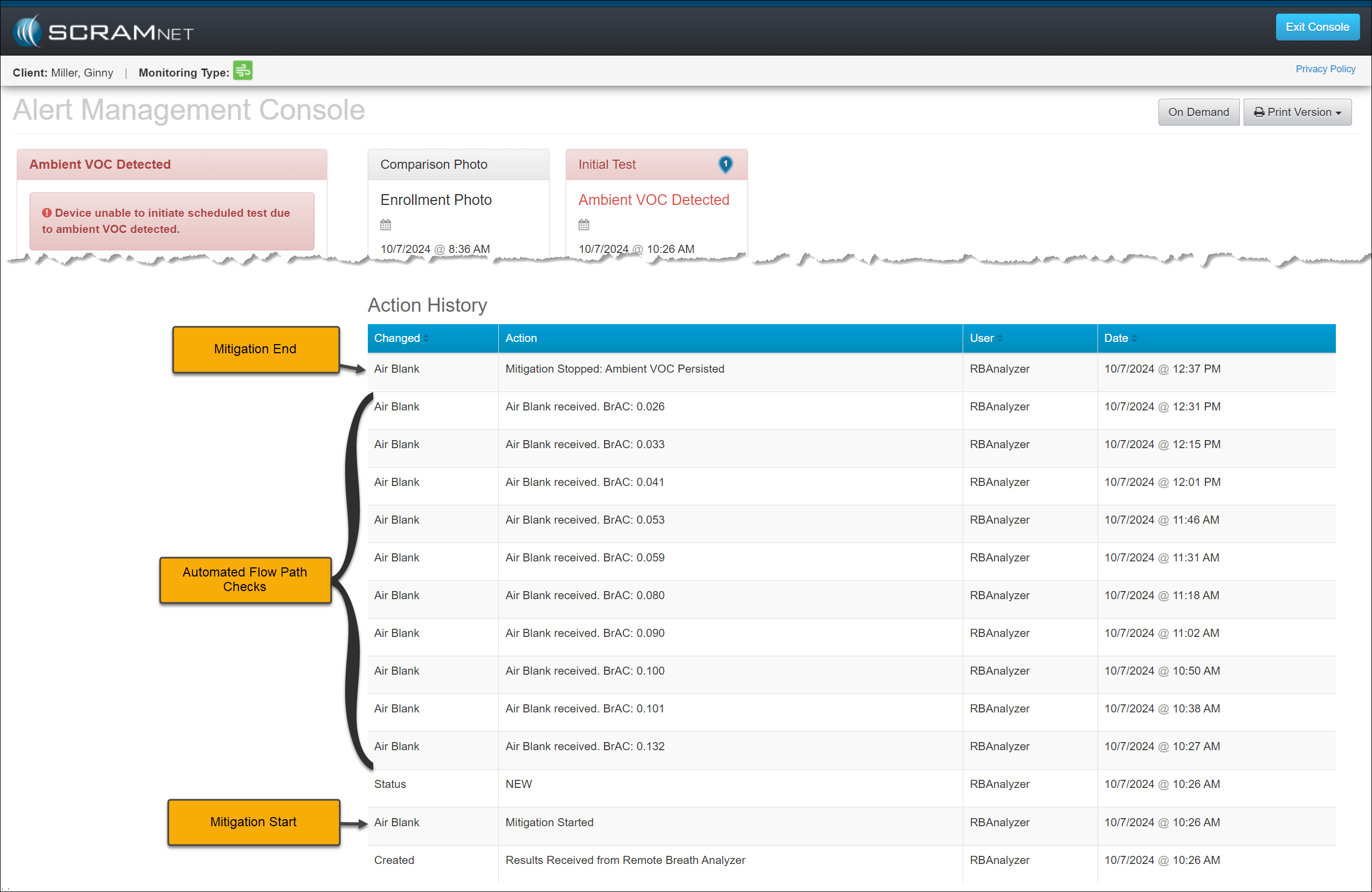
  2. SCRAMNET will automatically initiate flow path checks (Air Blank Tests) every 10 minutes for two hours. These checks will also be recorded in the event’s Action History.
  3. SCRAMNET will automatically send the device an On-Demand test once environmental ethanol (Ambient VOC) is no longer detected. The Action History will record this as a “Mitigation Stopped: On Demand Test Sent” entry.
Ambient VOC Detected Alert Management Console -click to enlarge
  1. If environmental ethanol is still detected after two hours of flow path checks, SCRAMNET will stop requesting Air Blank checks and record a “Mitigation Stopped – Ambient VOC Persisted” entry in the Action History for the event.
Ambient VOC Detected Alert Management Console -click to enlarge
WarningIf the Ambient VOC Mitigation process is interrupted by another breath test (scheduled, on-demand, or client-initiated), this event’s mitigation process is discontinued.
  • A new mitigation process will begin if the latest test request exceeds the Ambient VOC threshold.
  • If, however, the level of VOCs detected in the flow path drops below the detection threshold but is still above 0.000, then the RB Pro device will allow a breath test. So, it is possible that a client’s breath test result that interrupts the Ambient VOC Mitigation process may register a very low-level alcohol detection.
  • SCRAM Systems advises against violating clients for this very low-level alcohol detection, as the alcohol detected in the breath test could be from residual environmental VOCs still in the flow path and/or fuel cell.
NotesImportant Notes:
  • Typically, the low-level alcohol detection we see following a lengthy VOC-clearing scenario is well below the monitoring program’s Lower Level of Detection (LLOD), which is the threshold at which alerts are generated in SCRAMNET. Most monitoring programs’ LLOD threshold is 0.020 BrAC.
  • Based on SCRAM Systems internal testing, residual VOCs present in the device will not influence a BrAC value above 0.020.
  • For customers with the LLOD threshold set below 0.020, the confirmation process of initial and confirmation tests being both positive and not drastically different is still required.
  • If the LLOD threshold is set very low (0.005, e.g.), then the potential for a low-level VOC contaminant to influence both the initial and confirmation tests is increased. For these caseloads, SCRAM Systems recommends that customers allow the automated Ambient VOC Mitigation process to be completed uninterrupted.

Continue Reading

…that is the question this Tip of the Month will attempt to answer.

RMA Requests

Generally speaking, the decision to request a Return Merchandise Authorization boils down to device functionality. SCRAM devices are used daily; so normal wear and tear – scratches, scuffs, and even minor dents in plastic casings – is to be expected. As long as the wear on the device does not impede its functional ability to monitor clients, then the device is not eligible for an RMA.

As long as the wear on the device does not impede its functional ability to monitor clients, then the device is not eligible for an RMA.

If, however, a SCRAM device is not operating as expected, please follow the appropriate troubleshooting steps for the device prior to requesting an RMA. You may also contact SCRAM Systems Customer Service for device troubleshooting assistance prior to requesting an RMA. Regardless of how you request an RMA, you will be required to describe how you attempted to troubleshoot the device first.

Requesting an Inspection Report

If you require SCRAM Systems to inspect a returned device and write a report of our findings – because the device’s functionality is in question, or because the report is needed so you may charge a client for billable damage, e.g. – then please be sure to provide the name and mailing address of the individual within your organization who should receive the report when you request it.

Continue Reading

Effective the afternoon of August 7, 2024, SCRAM Systems will deploy a new automatic face obstruction scanning feature and release a new “Possible Face Obstruction” alert to go with it. This new feature automatically detects irregularities with the RB Pro device’s breath tube in the breath test photo. 

Irregularities that trigger a Possible Face Obstruction alert include, but are not limited to:

  • Anything – like hands, fingers, clothing, the RB Pro case itself, etc. – that blocks the camera’s view of the entire breath tube, from where it leaves the RB Pro device to where it enters the client’s mouth.
  • Irregularities in the color, size, or shape of the breath tube.
  • Attachments connected to the breath tube.
  • Breath tube is missing altogether.

Reviewing a Possible Face Obstruction Alert

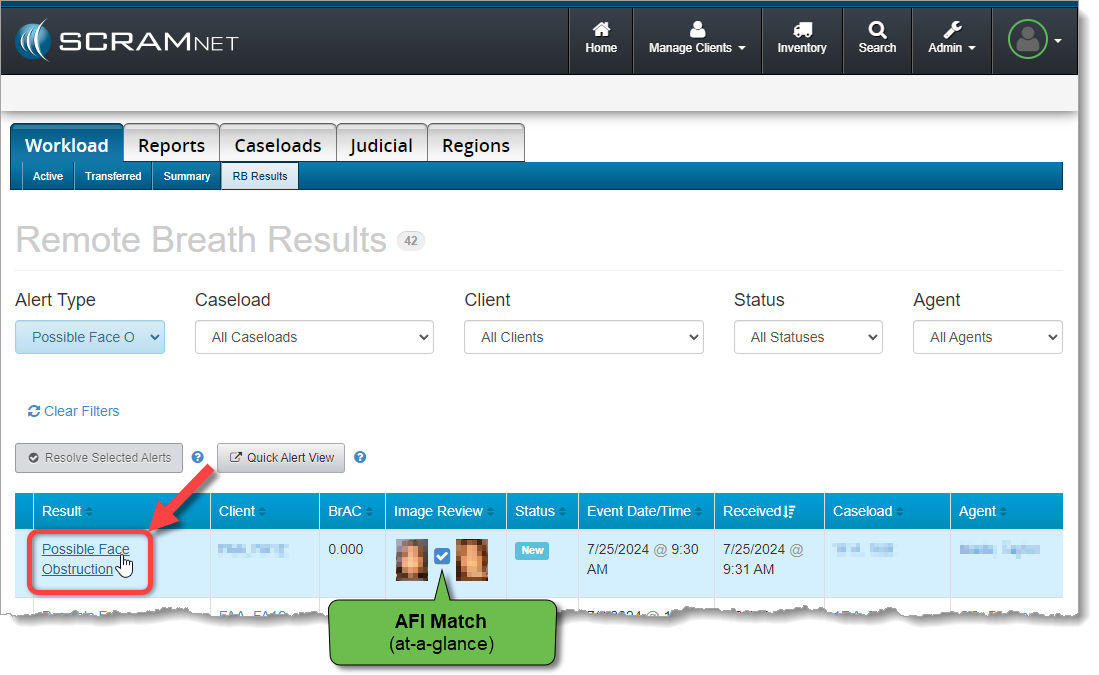
Select the Possible Face Obstruction result from the table of breath test results found on the SCRAMNET Workload RB Results page to open it in the Alert Management Console:

Select the ‘Possible Face Obstruction’ Result Hyperlink (click to enlarge)

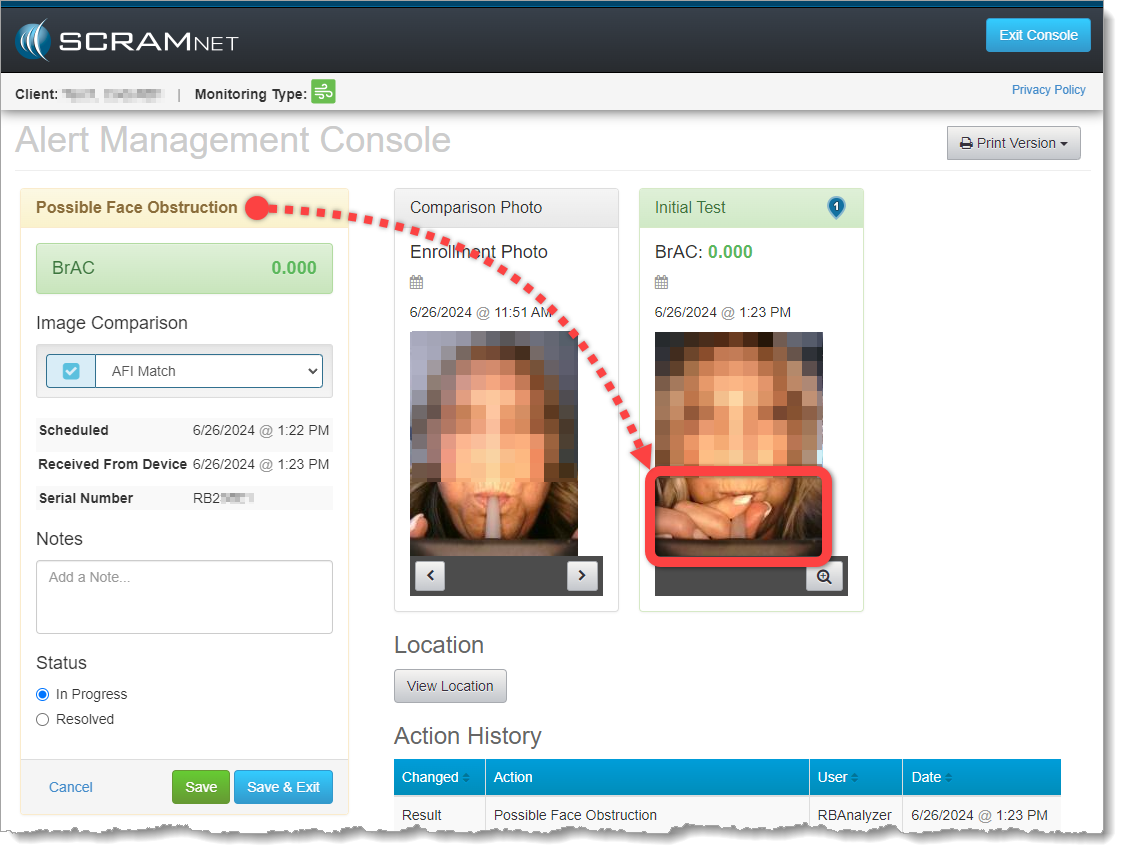
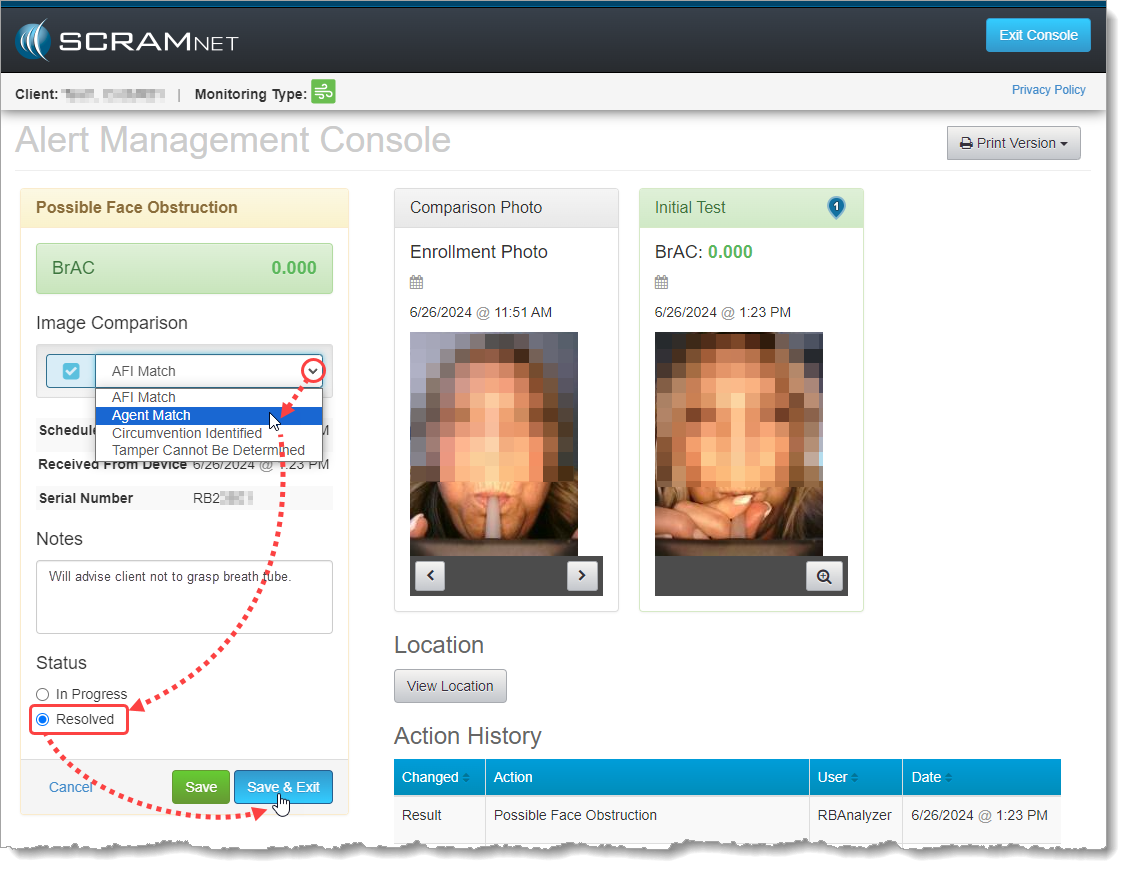
Review the breath test photo for obstructions to the breath tube. In this example, the client is grasping the breath tube near her mouth and obscuring the view of the breath tube entering her mouth:

Possible Face Obstruction Alert on the Alert Management Console (click to enlarge)

If you are fairly confident that the client did not grasp the breath tube in an effort to obscure a circumvention, then this may simply be a coaching opportunity. Pass this test, but reach out to the client to advise her NOT to grasp the tube while delivering a breath sample going forward.

Perform the following actions:

  1. Select Agent Match from the Image Comparison dropdown menu
  2. Add Notes describing the coaching actions you plan to take with the client
  3. Change the test result Status to Resolved
  4. Save & Exit the Alert Management Console
Resolving the Possible Face Obstruction Alert as Passed (click to enlarge)

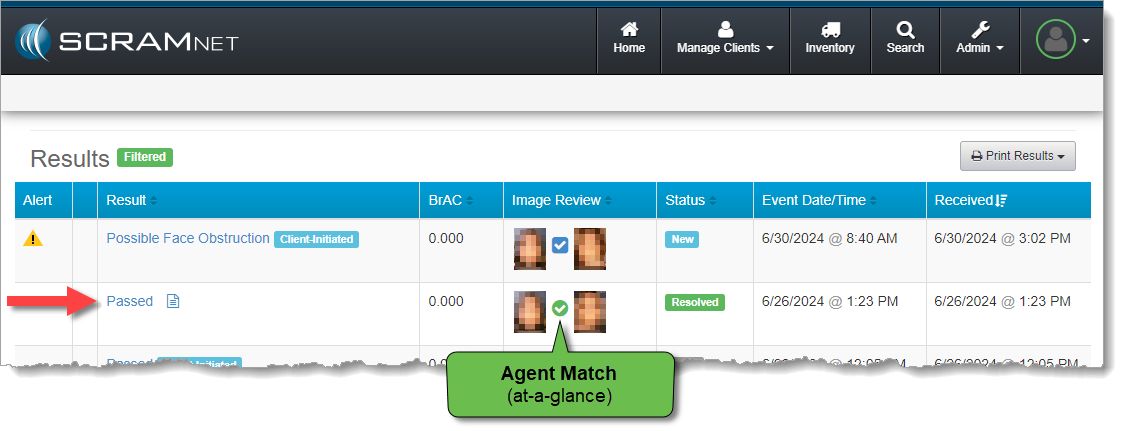
The test will fall off the SCRAMNET Workload RB Results page, but you will find it as a “Passed” test result on the individual client’s RB Results page:

Resolved Test Result Shows ‘Passed’ on Client RB Results Page (click to enlarge)

Detailed Help Available

Visit the Possible Face Obstruction Alert article in the Remote Breath section of the SCRAM Systems Help & Support site for a more detailed explanation of this new feature, and for additional alert resolution example scenarios.

Continue Reading