Thursday, October 9, 2025, at 5:00 a.m. MDT, SCRAM Systems will release two new features for your SCRAMNET GPS caseloads and the SCRAM Ally (Victim Notification) application.
The enhancements are:
Pattern of Life “Sort by Primary Agent” Filter option
SCRAM Ally application, County/Region option for Canada Victim Users
During the 15-minute deployment, you may not be able to access SCRAMNET GPS, but messages from the SCRAM GPS device will continue to be processed uninterrupted.
Pattern of Life “Sort by Primary Agent” Filter option
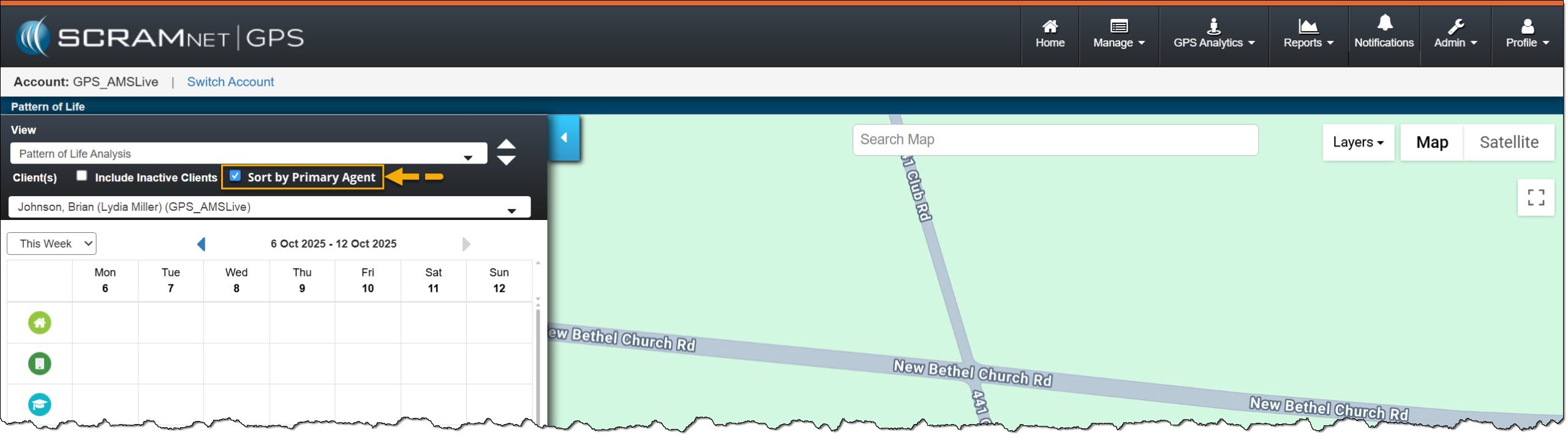
Use the “Sort By Primary Agent” to customize the Activity view within the Pattern of Life Analysis data..
Patter Of Life Analysis – click to enlarge
Updated Country/Region Selection for Ally
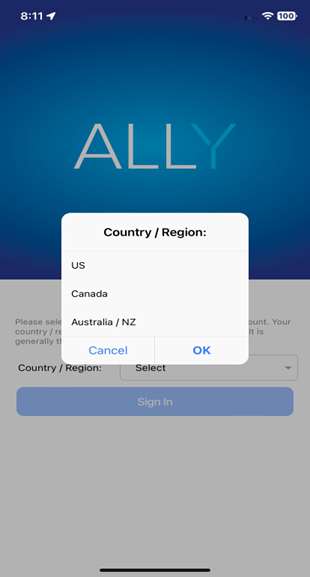
The first time the victim accesses the SCRAM Ally app on their smartphone, the victim must select one of the following options: US, Canada, or Australia/NZ for the app to operate correctly.
SCRAM Ally app County/Region selections – click to enlarge
IMPORTANT: Activation of the Victim Notification service requires a contract amendment. If you are interested in the service, please contact your SCRAM Systems Account Manager or Sales Representative.
On August 14th, 2025, a new version of the SCRAM Ally (Victim Notification mobile application) will be available for iOS users in the Apple Store. The enhancements in version 2.1.1 (2) include:
Logging into multiple Ally applications on multiple devices
Updated Push Notifications, Location Service, and Motion Activity Disabled banners
Location information availability when the Ally Victim uses the application to call for help
As a best practice, SCRAM Systems recommends that all SCRAM Ally Victim app users enable their smartphones to automatically update their apps to make this process easier.
For accurate, continuous monitoring, SCRAM Ally requires permission to send Push Notifications, access Location Service, and Motion & Fitness Activity. SCRAM Ally requires these permissions to properly monitor Victims and deliver important alerts with regard to Victims’ proximity to their assigned individuals.
Tip: After updating the SCRAM Ally app, it is important that your Victim users open the app and visit the Homepage. This action will ensure alert notifications function properly.
Logging into Multiple Devices
If the client is currently logged into the Ally application on their smartphone and they attempt to log into the application on a second device, for example, an iPad or second smartphone, the following pop-up message will display on the second device: “Your Ally account is already registered with another phone. If you choose to continue, the account on your prior phone will be disabled, and only this phone will be used for monitoring. Do you want to continue?”
The Ally victim user is presented with two options to move forward. If they select:
Continue/OK – The user is automatically logged out of the first device and may sign into the app on the second device. The first device will display a message of, “Your Ally account is registered with a new phone. Your Ally account will be disabled on this phone and will not be used for monitoring.”
Cancel – This will cancel the login attempt on the second device, keeping the victim signed in on the first device. In this case, the first device is the smartphone being monitored.
Updated Push Notifications, Location Service, and Motion Activity Disabled Banners
For accurate, continuous monitoring, SCRAM Ally requires permission to send Push Notifications, access Location Service, and Motion & Fitness Activity. Even when the app requires permissions to function properly, Apple recommends making these permissions optional to give users more control over their data.
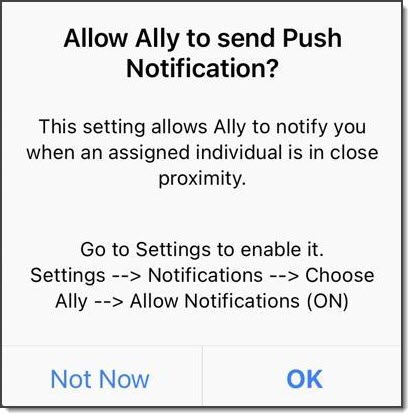
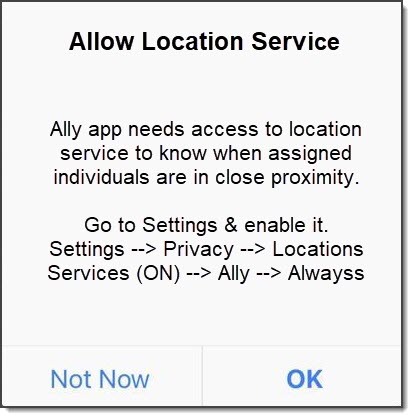
SCRAM Ally requires these permissions to properly monitor Victims and deliver important alerts with regard to Victims’ proximity to their assigned individuals. When Ally does not have these permissions, the following dialogs are displayed:
SCRAM Ally App Requests to send Push Notifications
SCRAM Ally App Requests Access to Location Service
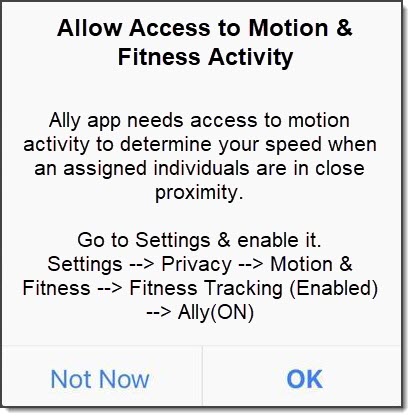
SCRAM Ally Requests Access to Motion & Fitness Activity
If Victim users do not grant permission to these services, the following banner warnings are displayed in the SCRAM Ally app:
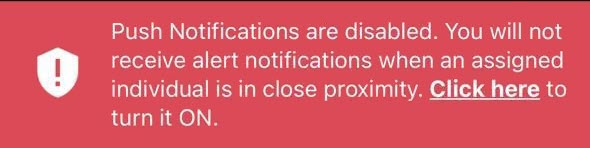
Warning Banner: Push Notifications are Disabled
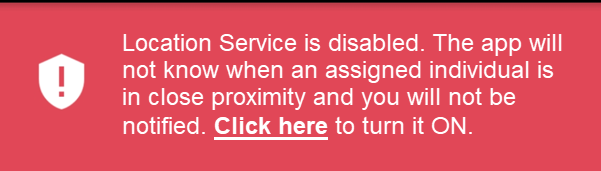
Warning Banner: Location Service is Disabled
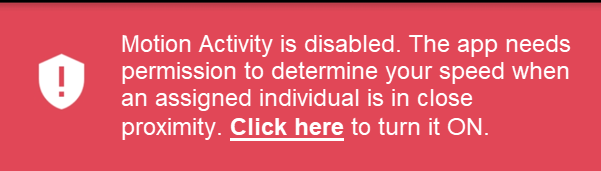
Warning Banner: Motion & Fitness Activity is Disabled
Additionally, when the Location Service is disabled, a critical alert is generated in SCRAMNET GPS. It is important to address this alert as it indicates the Victim is not properly monitored:
SCRAMNET Alert: Location Service Disabled – Victim (click to enlarge)
Location Information Availability when the Ally Victim Uses the Application to Call for Help
When Location Services are enabled for the Ally application and the victim uses the app to call the emergency number displayed, the current location information is reported.
If the victim disables Location Services while the application is open, when they call the emergency number displayed, the last known location will be reported.
If the victim disables Location Services and then closes the application on their smartphone, once reopened, unless Location Services are enabled, no location information is reported when making an emergency call from within the Ally application.
At 5:00 AM MDT on Thursday, April 3, 2025, SCRAM Systems is introducing two new features in SCRAMNET GPS. Enhancements include:
Changes to the SCRAM Ally mobile app registration and login process
Enhanced performance with HTTP/2 support
During the 15-minute deployment, you may not be able to access SCRAMNET GPS, but messages from the SCRAM GPS device will continue to be processed uninterrupted.
Changes to SCRAM Ally Registration & Login
Victim Notification: Background
The SCRAMNET GPS Victim Notification service, paired with its companion smartphone app, SCRAM Ally™, allows officers and case managers to automatically inform victims when an assigned GPS client is in close proximity to the victim’s smartphone, and possibly in violation of a restraining order.
IMPORTANT: Activation of the Victim Notification service requires a contract amendment. If you are interested in the service, please contact your SCRAM Systems Account Manager or Sales Representative.
Changes That Impact Existing Victim Notification Customers
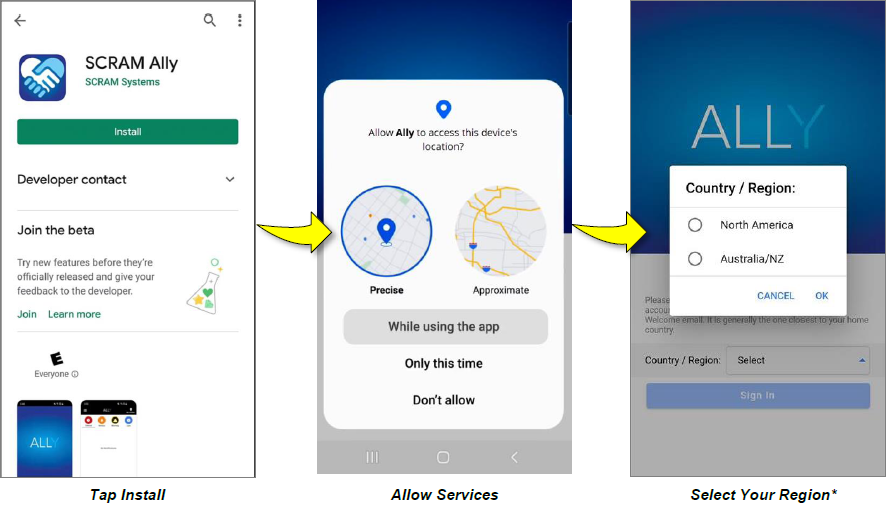
New victim-users of the SCRAM Ally mobile app must now select their home Country / Region* when registering the app:
Select the image above to open the SCRAM Ally App Victim Instructions help page
IMPORTANT NOTES:
*If a new victim-user selects the wrong Region by mistake during registration, contact SCRAM Systems Customer Support for assistance immediately.
Existing users of the SCRAM Ally app will not need to take any action to continue using the app.
Enhanced Performance with HTTP/2 Support
SCRAMNET GPS now supports HTTP/2, a modern standard for allowing web browsers to communicate more efficiently with SCRAM Systems servers, which results in faster page-load times. You don’t need to do anything to take advantage of this feature. It is automatically enabled on your browser.
Tip: For optimal performance we suggest clearing your browser’s cache and cookies following the April 3rd deployment of the feature.
A new version of the SCRAM Ally (Victim Notification) mobile app is available on the Google Play Store. Users are encouraged to update to the latest version (2.1.0), which includes the following changes:
Support for newer versions of the Android OS
Updates to the core messaging system used for alert notifications
Permissions to access Location Service and Motion Activity are now optional
Support for Newer Versions of the Android OS
SCRAM Ally supports Android versions 9 through 15, and this latest update provides a smoother, more optimized experience for users on Android 14 and 15 devices.
Updates to the Core Messaging System Used for Alert Notifications
The SCRAM Ally app’s core messaging system – Firebase Cloud Messaging (FCM) – was updated for improved reliability and performance. Android smartphone users are strongly encouraged to visit the Google Play Store and update to the latest version of SCRAM Ally for Android to ensure proper delivery of important alerts via push notifications.
Tip: After updating the SCRAM Ally app, it is important that your Victim users open the app and visit the Homepage. This action will ensure alert notifications function properly.
Access to Location Service and Motion Activity
For accurate, continuous monitoring, SCRAM Ally requires permission to access Location Service and Motion & Fitness Activity. Even when permissions are required by the app to function properly, both Apple and Google recommend making these permissions optional, to give users more control over their data.
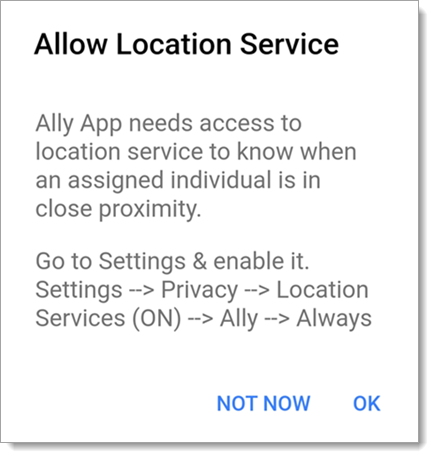
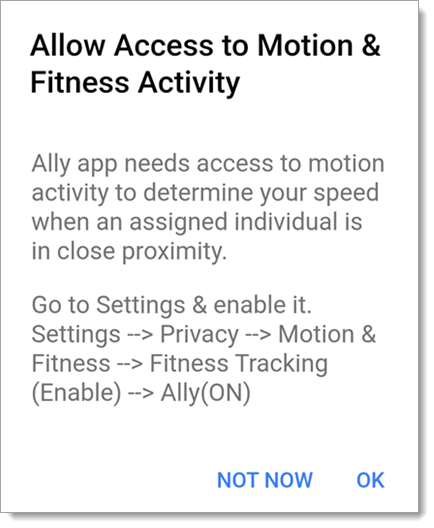
SCRAM Ally requires these permissions to properly monitor Victims and deliver important alerts with regard to Victims’ proximity to their assigned individuals. When Ally does not have these permissions, the following dialogs are displayed:
SCRAM Ally App Requests Access to Location Service
SCRAM Ally Requests Access to Motion & Fitness Activity
If Victim users do not grant permission to either of these services, the following banner warnings are displayed in the SCRAM Ally app:
Warning Banner: Location Service is Disabled
Warning Banner: Motion & Fitness Activity is Disabled
Additionally, when the Location Service is disabled, a critical alert is generated in SCRAMNET GPS. It is important to address this alert as it indicates the Victim is not properly monitored:
SCRAMNET Alert: Location Service Disabled – Victim (click to enlarge)
SCRAM Systems® will be moving to QR code-based “Help” cards for nearly all of its products and services by the end of this week. The switch from static instruction cards to QR codes helps to ensure that customers – and clients – always have the most up-to-date instructions for their SCRAM Systems devices at their fingertips.
There will be two separate QR code-driven Help cards:
SCRAM Systems Device Help for customers (Service Providers and Agencies) – the blue card
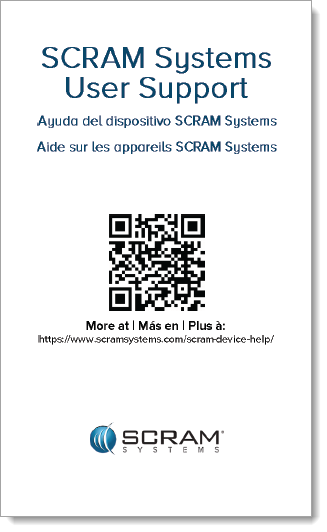
SCRAM Systems User Support for clients – the white card
Quick Reference Guides will still continue to be printed for all SCRAM Systems products.
What’s a QR Code?
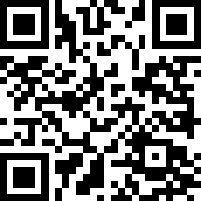
A QR code is a type of two-dimensional matrix barcode consisting of an array of black and white squares. QR codes are typically used for storing web addresses (URLs), which can be read by the camera on a smartphone to open a web page.
QR Code Example
How Will SCRAM Systems Use QR Codes?
Rather than including device-specific instruction cards in the boxes we ship to you, we will instead include two packs of 25 business-card-sized Help cards – one pack of customer Help cards and one pack of client Help cards – in each of our Customer Care Kits. Additional 25-card packs of each type will be available for purchase on the SCRAMNET Equipment Order Form if needed.
Help for Service Providers and Agencies
You and the other Officers, Agents, and Case Managers who are responsible for monitoring clients in your SCRAM Systems Program, can carry one of the blue customer cards with you, or post them around the office. Then whenever you need help installing or removing a device, for example, you may simply pull out the SCRAM Systems Device Help card and scan it with your smartphone:
SCRAM Systems Device Help Card – Front
SCRAM Systems Device Help Card – Back
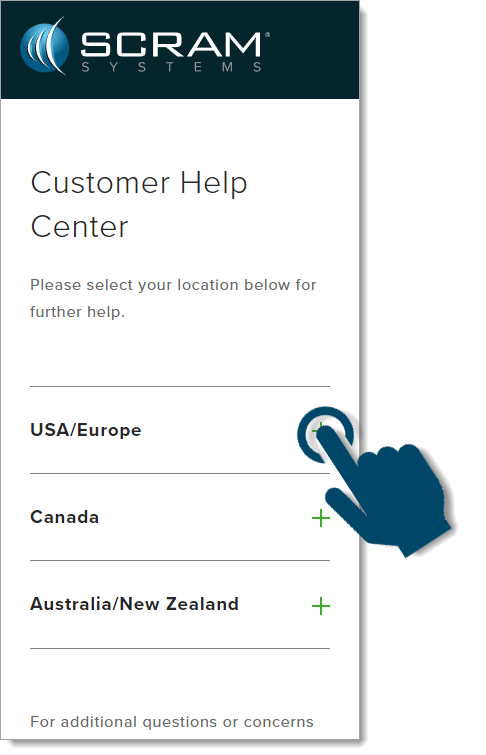
Once you scan the QR code on the card, your smartphone will launch the SCRAM Systems Customer Help Center (www.scramsystems.com/customer-help/), where you will tap on your location, and then tap on the type of Help you need:
Scan the card with your smartphone and then select your location:
Select Your Geographical Location (USA/Europe Shown)
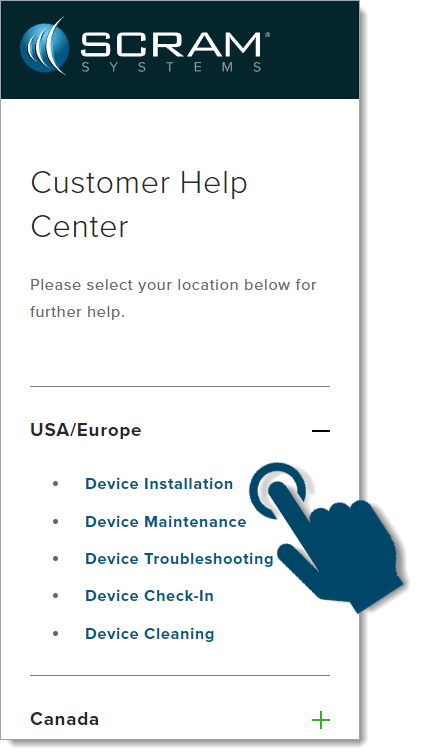
Select the type of device help you seek:
Select the Type of Help (Device Installation Shown)
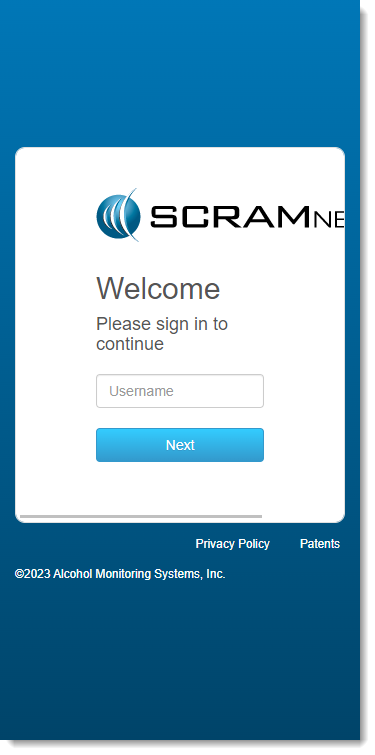
Login with your SCRAM monitoring system credentials:
Login with SCRAM Credentials
Requiring a login ensures that nobody except SCRAM Systems customers can access SCRAM Device Help.
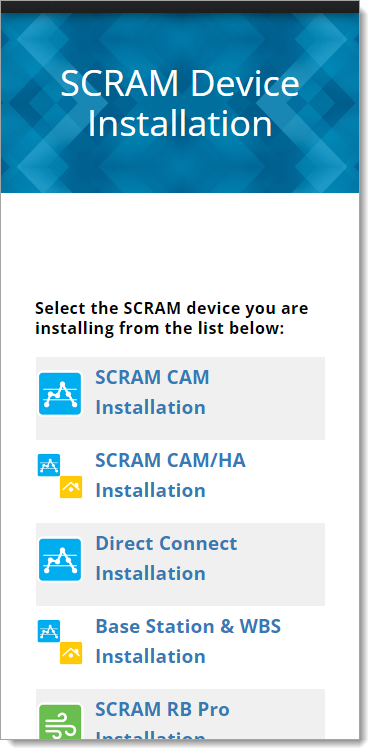
Select the specific SCRAM Systems product for which you want help:
Select the Appropriate Product (Installation Help Example)
Help for Clients
SCRAM Systems will also be eliminating most product-specific client instruction cards, and will instead make QR code-driven SCRAM Systems User Support help cards available:
SCRAM Systems User Support Help Card – Front
SCRAM Systems User Support Help Card – Back
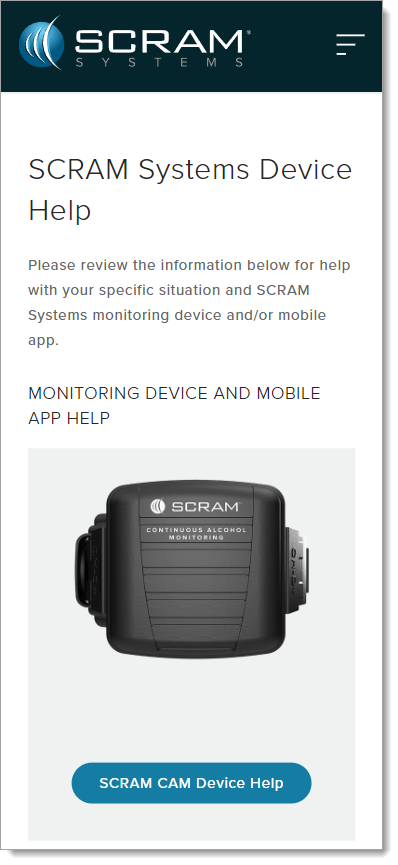
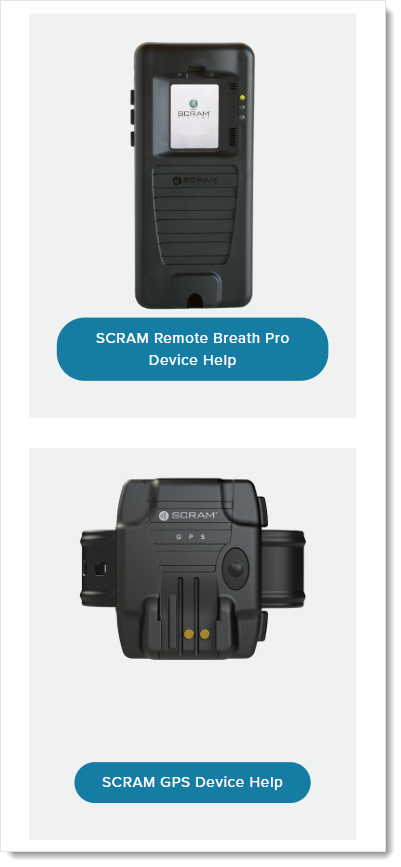
Once the client scans the QR code on the white card, their smartphone will launch SCRAM Systems Device Help for clients (www.scramsystems.com/scram-device-help/), where they may scroll through a list of SCRAM Systems devices, mobile apps, and FAQs, and simply tap on the type of help they need:
SCRAM Systems Device Help for Clients – SCRAM CAM
SCRAM Systems Device Help for Clients – SCRAM RB Pro & GPS
At 5:00 AM MT on Thursday, February 16, 2023, SCRAM Systems® will introduce new victim notification features, including:
A new version of the Ally app for Android users
Changes in SCRAMNET GPS® to prevent some victim events from dropping off the Victim Events dialog
During the 15-minute deployment, you may not be able to access SCRAMNET GPS, but messages from the SCRAM GPS device will continue to be processed uninterrupted.
New Version of Ally App Available in Google Play Store
Ally version 2.0.30 for Android mobile devices is available on the Google Play Store. Customers are encouraged to have victims update to this version to address the following issues:
Under certain scenarios, when a victim has Ally open to the Homepage, the page won’t automatically refresh when a new alert is received
Under certain scenarios, Ally for Android may stop communicating with the SCRAMNET GPS server
Changes to Prevent Some Victim Events from Dropping Off Victim Events Dialog
The Days to keep events setting (in Admin > Account Settings > Accounts page), indicates when events will no longer be visible on the Client Events dialog. This setting also applies to the Victim Events dialog.
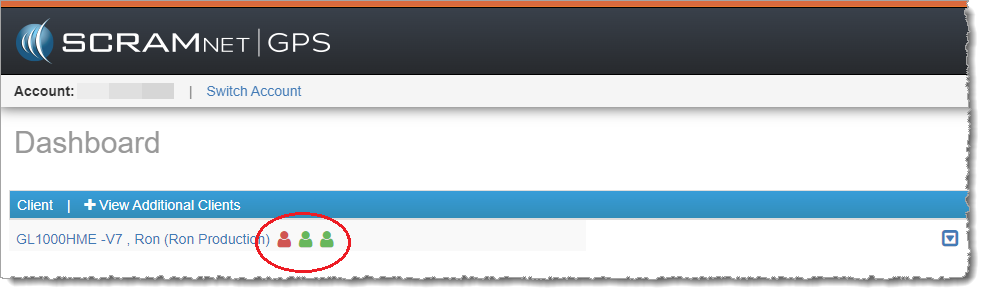
For some victims, Ally has been in No Communication and/or No Location longer than the ‘Days to keep events’ setting. As these events roll off the Victim Events dialog, this causes the “victim” avatar on the Dashboard to show green. After Thursday’s release, these events will reappear on the Victim Event dialog, and the victim avatar will show red.
Victim Avatar on the Dashboard (click to enlarge)
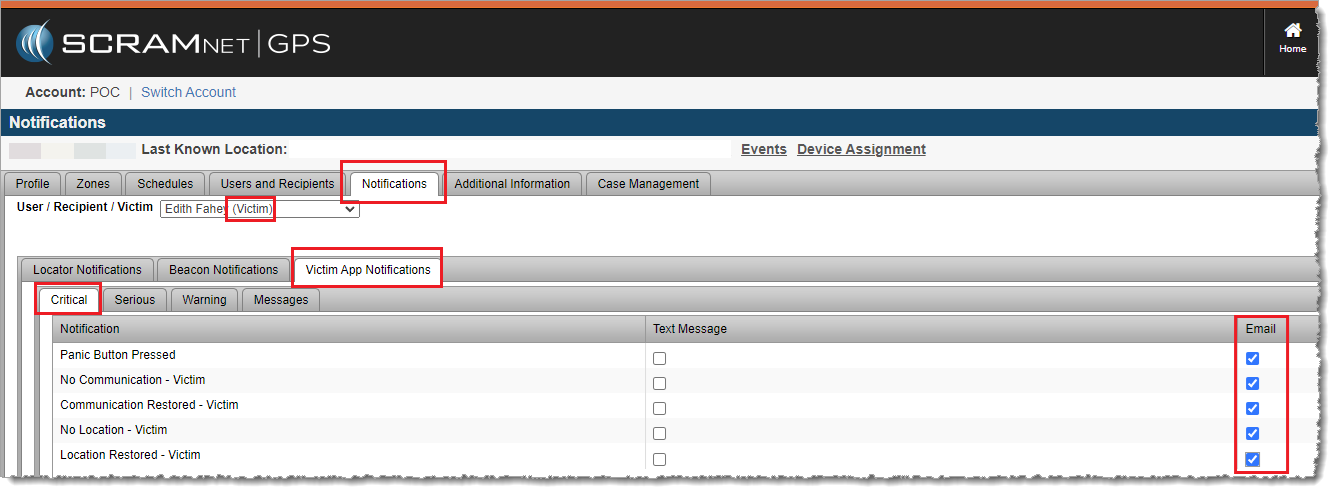
Customers are also encouraged to subscribe victims to the No Communication – Victim, and No Location – Victim events so they will receive an email or text notification when Ally is not communicating or sending location points.
Subscribe Victims to No Communication – Victim and No Location – Victim Events (click to enlarge)
At 5:00 AM MDT Tuesday, October 18, 2022, SCRAM Systems® is introducing three new
features to SCRAMNET GPS.
These enhancements are:
Suspend Alerts for the SCRAM GPS Call Center Application
Pattern of Life Home (Inferred) Location
Pursuit Mode in Ally Mobile Application
During the 15-minute deployment, you may not be able to access SCRAMNET GPS but messages from the SCRAM GPS Bracelet will continue to be processed uninterrupted.
Suspend Alerts for the SCRAM GPS Call Center
The SCRAM GPS Call Center application is a centralized location
where client non-compliance events are displayed and managed according to pre-established
processes and procedures. The GPS Call Center can be managed by SCRAM Systems, or
by our service partners’ monitoring centers.
When a non-compliance event occurs – like when a client
enters an Exclusion Zone – an event ticket is generated in the Call Center
application where call center agents will take the appropriate action for the
alert. The actions taken might include calling the client or the officer. Once
the call center agents have completed the specific procedure for the alert, the
alert is then resolved.
On some occasions, the client may be allowed to temporarily enter an Exclusion Zone for example. With this release the supervising authority may temporarily suspend the specific alert, therefore the alert will not generate an alert ticket in the Call Center application. This feature is useful when no action should be taken by the call center agent for the violation.
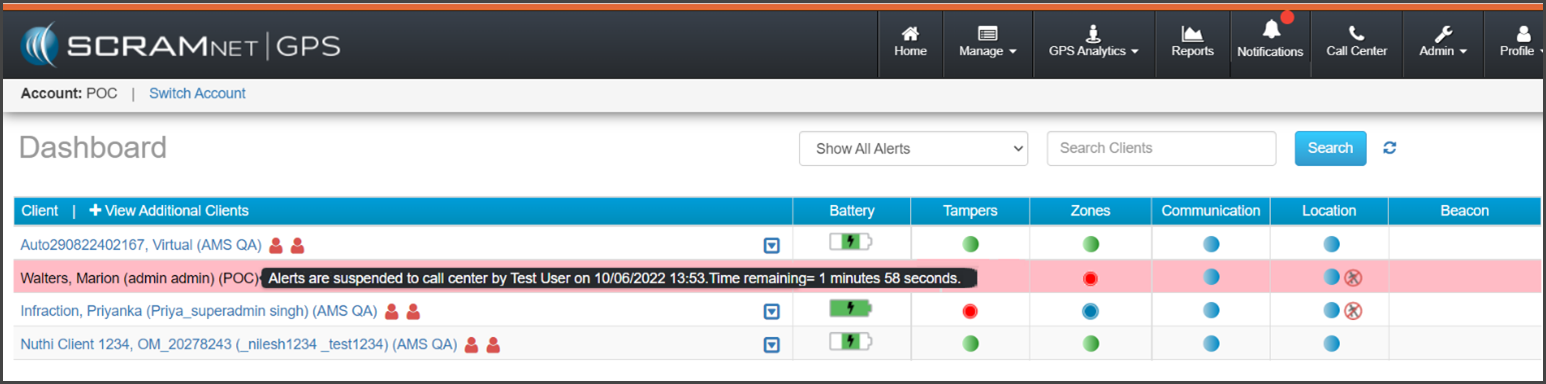
During the suspension period, the client’s information on
the Dashboard will be highlighted. To view the details of the suspension
period, hover your mouse over the highlighted area.
SCRAMNET GPS Dashboard – click to enlarge
All suspended non-compliant violations will display on the Dashboard and all notifications will be sent. Only the Call Center alert ticket is suspended (not sent).
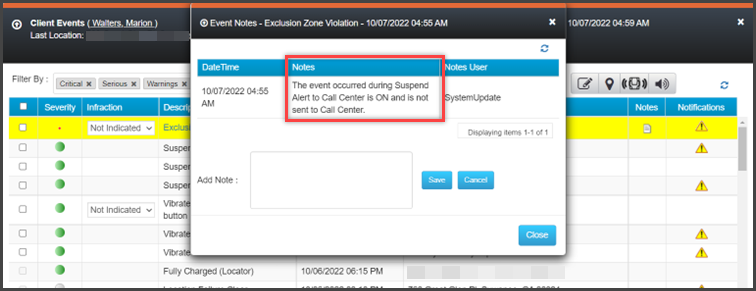
When the event
or alert generates during a suspension period, a system note is added to the Event Notes indicating that the Call Center ticket
was not sent to the Call Center:
Event Notes pop-up – click to enlarge
To temporarily suspend events and alert(s) from generating event
tickets in the Call Center application for a client:
Select
the client’s name on the Dashboard.
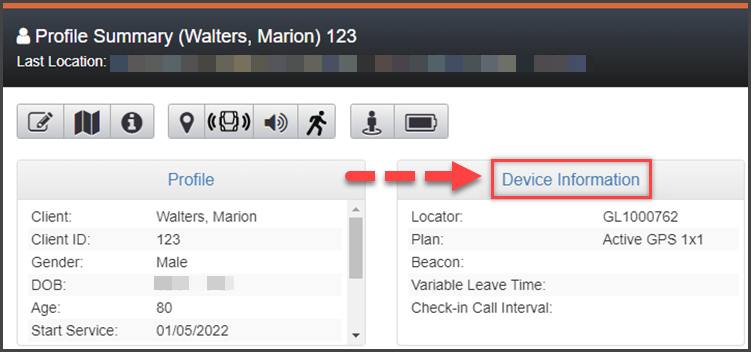
On
the Profile Summary dialog box, select the Device Information
hyperlink.
SCRAMNET GPS Client Profile Summary page – click to enlarge
On
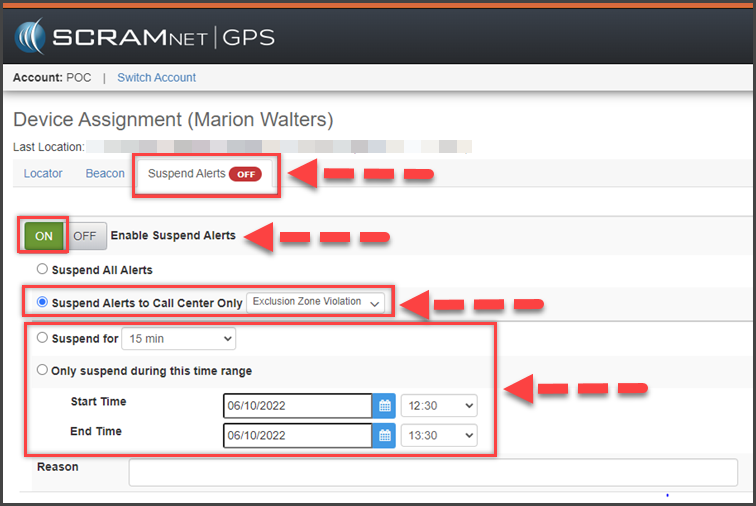
the Device Assignment page, toggle ON the Enable Suspend Alerts option.
Select the Suspend Alerts to Call Center Only radio button.
On the Select Alert dropdown menu, select which alert(s) you would like to suspend.
Next, set the duration or date and timeframe for the suspension:
If the suspension is to start now, select the radio button next to the “Suspend for” option, and then select the duration from the dropdown menu.
If the suspension is for a future date, select the radio button next to the “Only suspend during this range” option, and enter the Start Time and End Time.
Client Device Assignment page – click to enlarge
Enter
the reason for the suspension.
To
save the information, select the Save button.
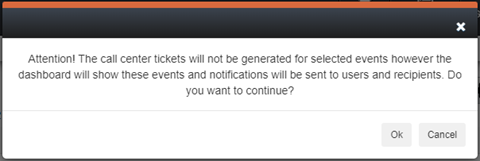
Read
and acknowledge the information on the pop-up by selecting the Ok
button.
Suspend Alerts Acknowledgement pop-up
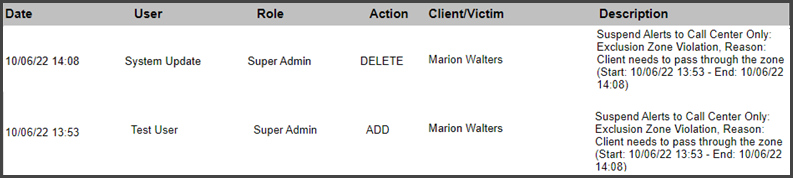
The
suspension details including the start and end times are recorded in the Audit Report.
Audit Report – click to enlarge
Pattern of Life – Home (Inferred) Location
SCRAMNET GPS® Pattern of Life identifies
and associates the client’s location to an activity location category. When
reporting the client’s “Home” location and activity category in Pattern of
life, the Home Zone created for the client is used. The location and activity
category’s label will reflect the Home Zone’s name entered in the system. For
example, “John’s Home Zone” would display in Pattern of Life as “John’s Home
Zone” on the map and reports.
When the client does not have a Home Zone recorded in the system, the Pattern of Life location may not be correctly identified or grouped into a different activity location category altogether.
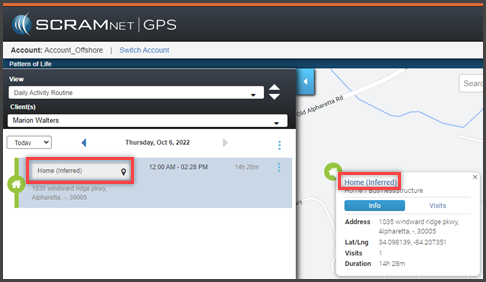
With this enhancement, if the client does not have a Home Zone saved in the system, Pattern of Life will use the client’s home address to identify the location and activity location’s category. Once identified, the label of “Home (Inferred)” will display on the map and report detail information. In addition, when the client’s address is updated, the “Home (Inferred)” location is also updated.
Pattern Of Life Daily Activity Routine – click to enlarge
Pursuit Mode in Ally Mobile Application
SCRAM Ally is a victim notification mobile app. The app is installed on the victim’s smartphone to create a moving exclusion zone around the victim. When paired to one or more clients, the SCRAMNET GPS application can alert the victim and officers when a client is inside the victim’s moving exclusion zone.
Pursuit Mode is started automatically on the client’s SCRAM GPS device when the following alerts occur:
Panic Button Pressed (from SCRAM Ally) – this will start Pursuit Mode for the victim who pressed the button, as well as all the clients associated with the victim.
Victim Zone Violation – this will start Pursuit Mode for the victim whose zone was breached, as well as the client who breached the zone
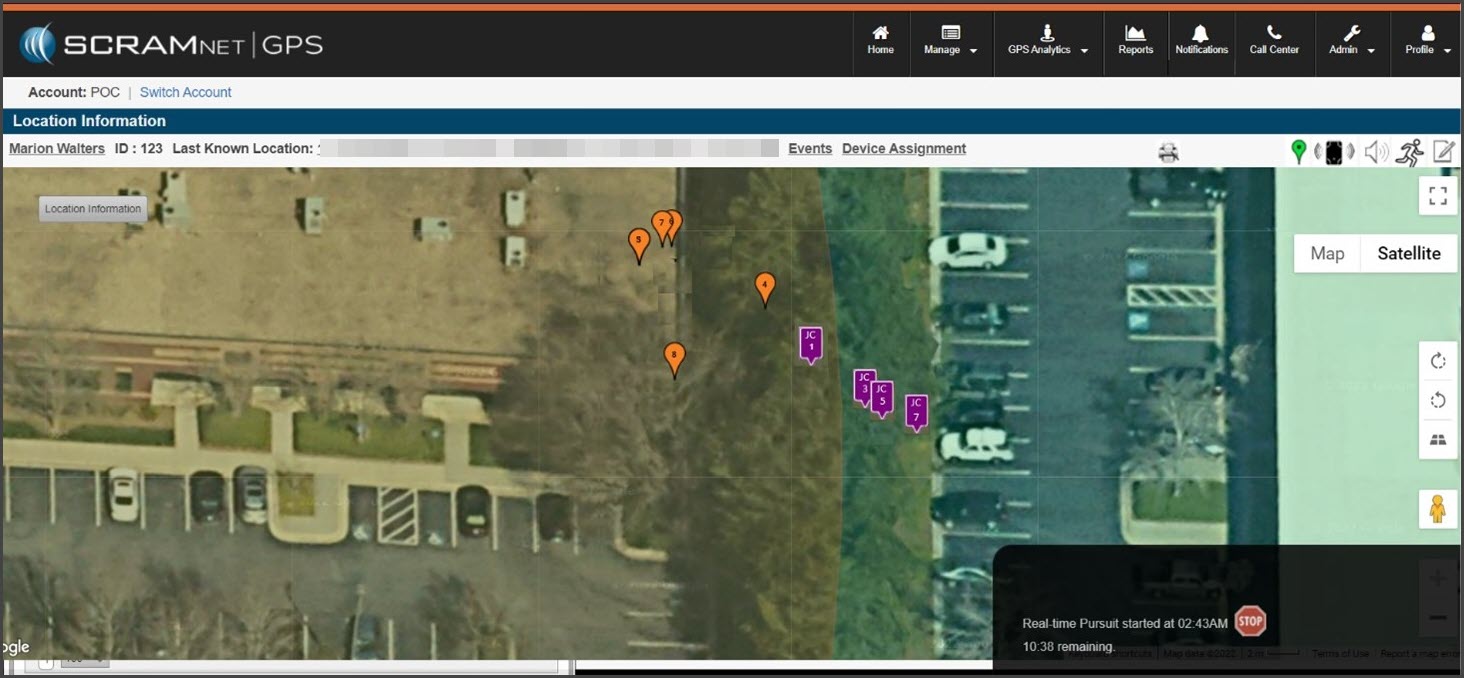
SCRAM Ally continues to send location points every minute (1) while in Pursuit Mode. Location points from both the client(s) and victim can be seen on the Location Information page in SCRAMNET GPS.
At 5:00 AM MDT Tuesday, June 14, 2022, SCRAM Systems® will introduce several new Victim Notification features in both SCRAMNET GPS and the SCRAM Ally mobile app for victims.
During the 15-minute deployment, you may not be able to access SCRAMNET GPS but messages from the SCRAM GPS Bracelet will continue to be processed uninterrupted.
SCRAM Ally App Update
Version 2.0 of the SCRAM Ally app has been released to the Google Play and Apple App stores. Although the following features will be visible in the SCRAMNET GPS application. The victim must install Ally 2.0 for the features to work:
Text-to-911
Always contact 911 by making a voice call whenever possible. However, for those who are hearing impaired, speech disabled, or in a situation where using voice is not possible or potentially dangerous, use SCRAM Ally Text-to-911.
Not all 911 dispatch call centers are equipped with text capability. Visit the FCC website to download a list of call centers that accept Text-to-911.
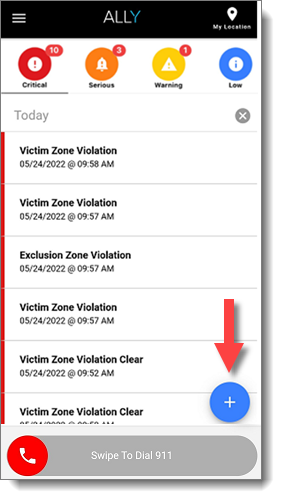
Tap the floating blue “plus” button to start a text to the emergency number. The address of the smartphone’s current location is automatically pasted into the text box.
Ally Text-to-911 Button
Moving Zone Buffer
Officers may add a buffer around a victim’s Moving Zone. If a client enters the buffer area, a “Victim Zone Buffer Entry” event is generated. A “Victim Zone Buffer Exit” event is generated when the client moves out of the buffer zone.
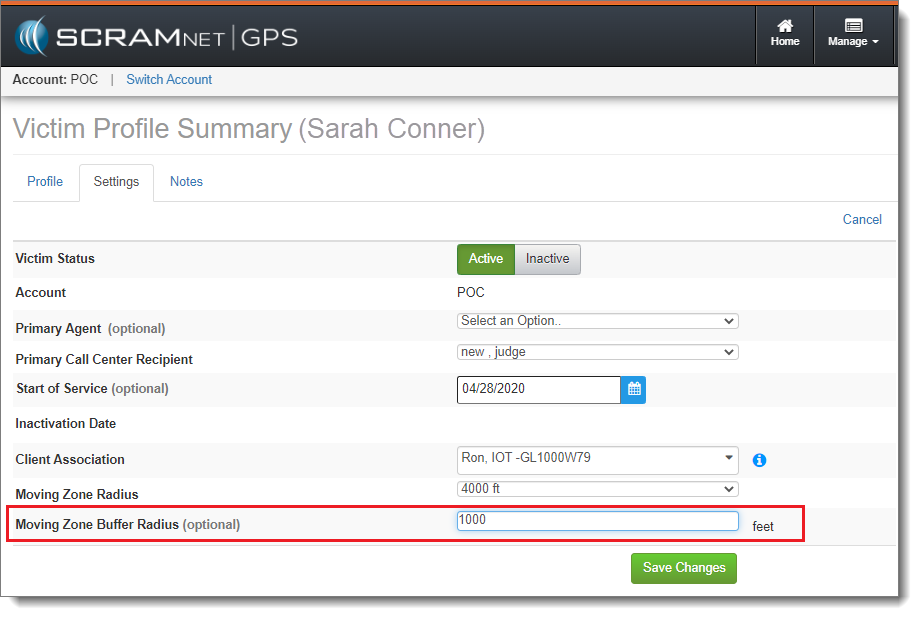
To set the Moving Zone Buffer Radius, navigate to Manage Victims > [select victim] > Victim Profile Summary > Settings tab.
‘Moving Zone Buffer Radius’ on the Victim Profile Summary > Settings Tab (click to enlarge)
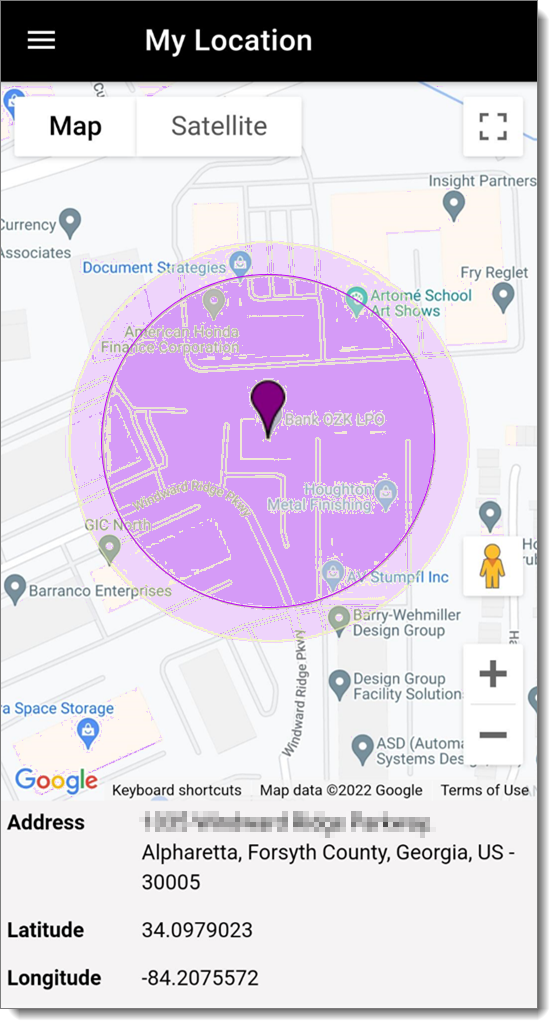
In the SCRAM Ally app, the buffer zone is visible (light purple) from the My Location screen:
Moving Zone Buffer on SCRAM Ally (click to enlarge)
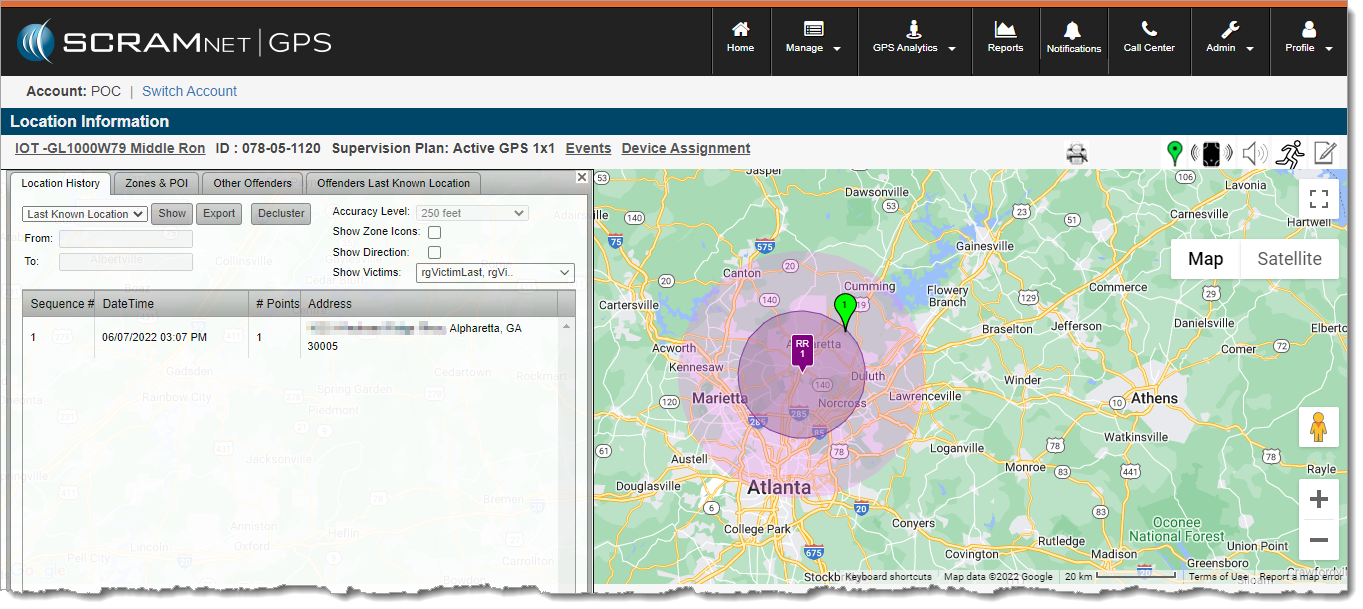
In SCRAMNET GPS, the buffer zone is visible (light purple) when victims are displayed on the Location Information page:
Moving Zone Buffer on SCRAMNET GPS (click to enlarge)
Moving Zone Buffer Entry and Exit Events
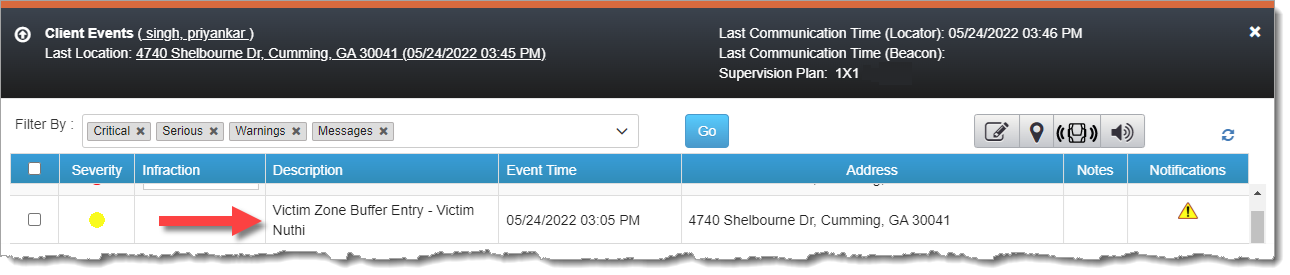
If a client enters the victim’s Moving Zone Buffer, a ‘Victim Zone Buffer Entry’ event is generated. When the client is no longer in the buffer zone, then a ‘Victim Zone Buffer Exit’ event is generated.
These events appear in the Client Events dialog:
Victim Zone Entry Event in Client Events Dialog (click to enlarge)
These events also appear in the following reports:
Active Events Report
Event Details Report
Event Report
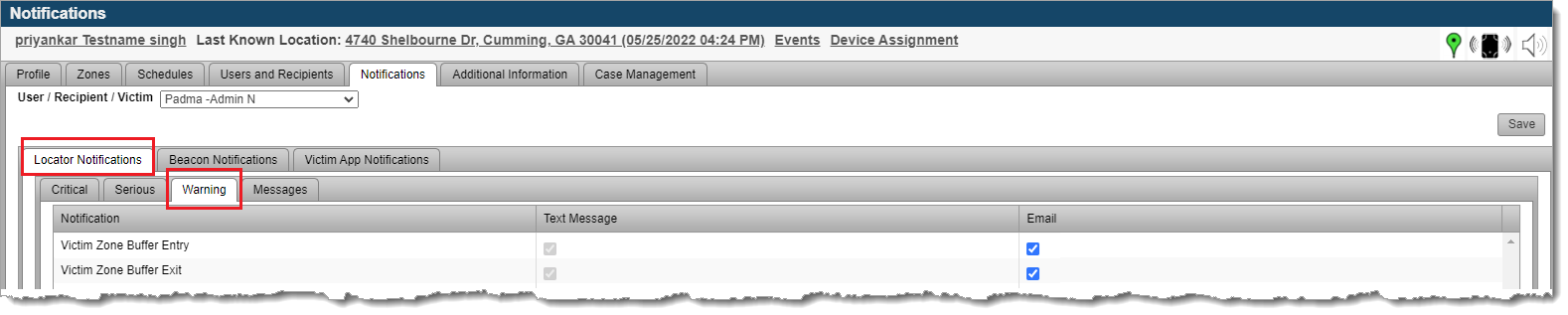
Notifications for these two events can be sent to Users, Recipients, and Victims. To set notifications, navigate to the client’s Profile page, and click the Notifications tab. The Victim Zone Buffer Entry and Exit events can be found in the Locator Notifications > Warning tab.
Locator Notifications > Warning Tab (click to enlarge)
When notifications are sent, they can be seen in the Client Events dialog (above) in the ‘Notifications’ column, as well as on the Notification Report.
Additional Victim Notification Enhancements
Associate Multiple Clients to a Victim
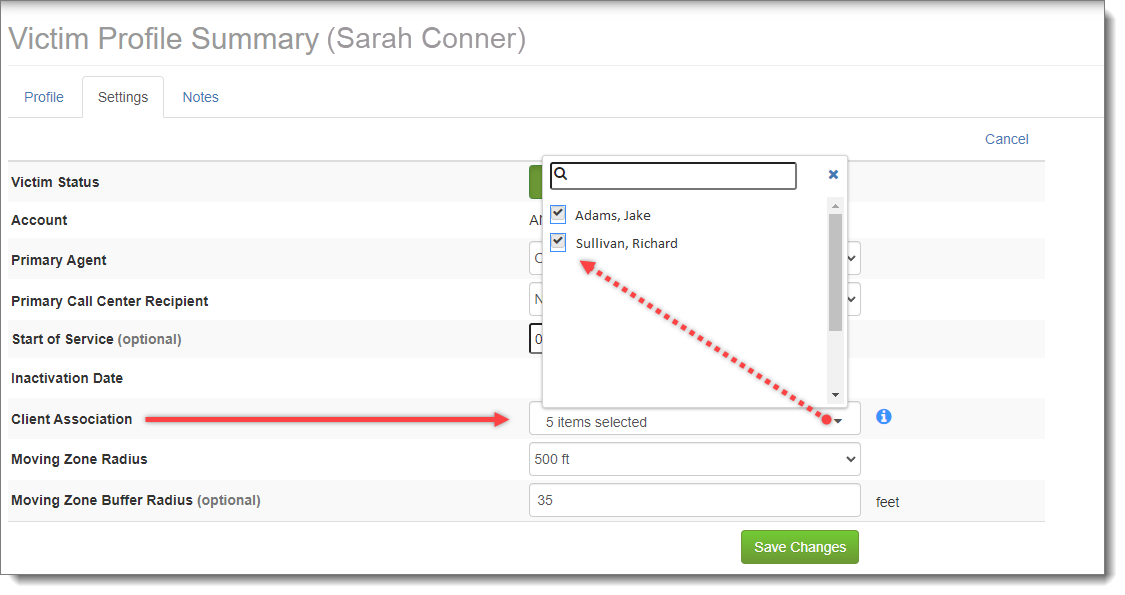
Multiple clients may be associated with a single victim. To associate clients, navigate to Manage Victims > [select victim] > Victim Profile Summary > Settings tab. Use the Client Association dropdown menu to associate (or disassociate) up to 10 clients with the victim.
Client Association Dropdown Menu on Victim Profile Summary > Settings Tab (click to enlarge)
The Client Association dropdown list only shows those clients on a 1 x 1 rate plan and have not already been associated with 10 other victims.
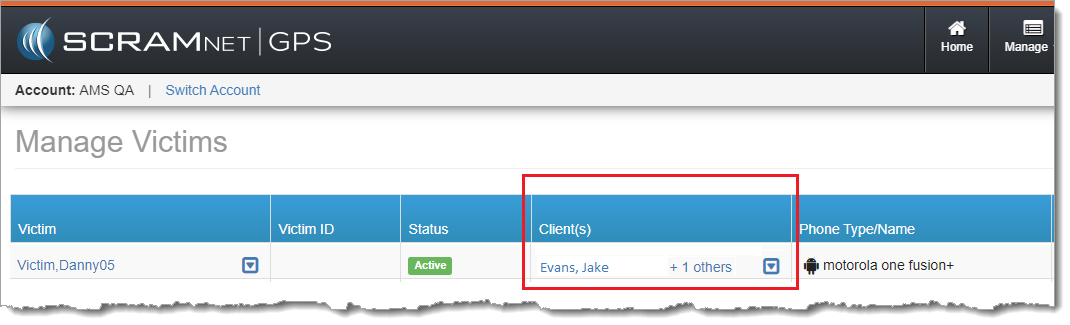
All clients associated with the victim can be seen on the Manage Victims page:
Associated Clients on the SCRAMNET GPS Manage Victims Page (click to enlarge)
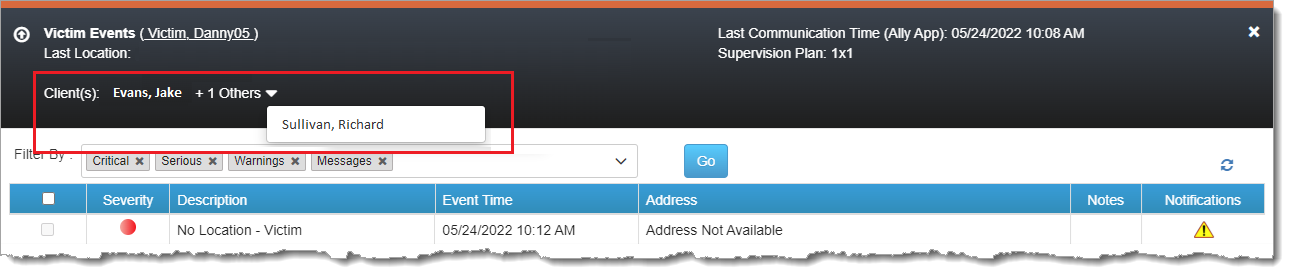
The Victim Events dialog also shows all clients associated with the victim:
Associated Clients on the SCRAMNET GPS Victim Events Dialog (click to enlarge)
Associate Multiple Victims to a Client
A single client can be monitored for several victims. For each victim, use the same steps outlined above (Manage Victims > [select victim] > Victim Profile Summary > Settings tab) to associate the same client with each victim.
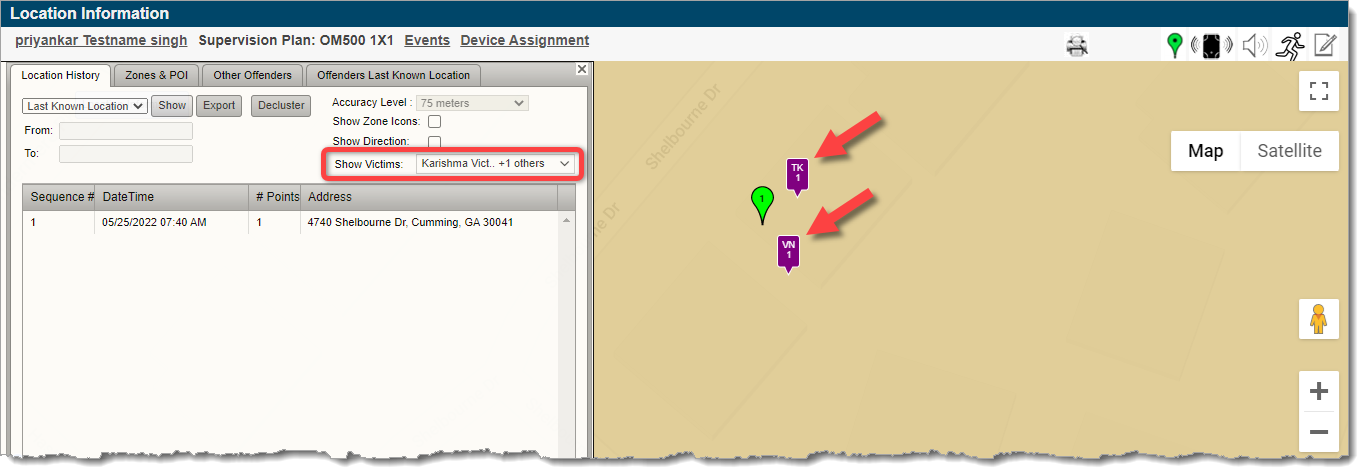
All associated victims can be seen on the Location Information page using the Show Victims dropdown menu. When the timeframe is set to ‘Last Known Location,’ all associated victims are automatically selected to show their Last Known Location. Because multiple victims may be associated with a single client, the victim’s map marker has been updated to include the victim’s initials.
Location Information Page with Multiple Victims on Map (click to enlarge)
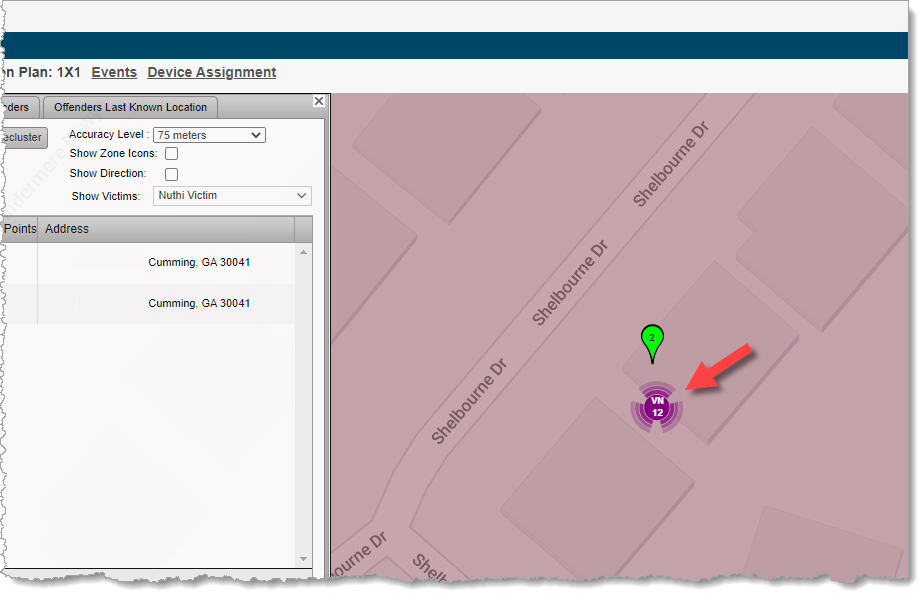
When a timeframe other than Last Known Location is selected, each victim’s points are grouped in a separate cluster using the victim’s initials.
Victim Points Clustered on Map (click to enlarge)
Client Notifications to Victims
When victims are subscribed to receive notifications, victim-specific notifications are only sent to the specific victim, and not sent to all associated victims. Consider the scenario where Client 1 is associated to Victim A and Victim B, and both victims are subscribed to receive notifications for the Victim Zone Violation. If Client 1 breaches Victim A’s moving zone, then only Victim A receives the Victim Zone Violation notification. The notification is not sent to Victim B because Victim B’s moving zone was not breached.