Mobile Apps

On March 12, 2026, SCRAM Systems will release an enhancement to your TouchPoint Monitoring program. For clients who are enabled for the SCRAM TouchPoint Location Tracking service, their smartphone’s location data will be captured and stored during periods without network or internet connectivity. Once service is restored, the stored data will be transmitted to the system.

Information Your account must be enabled for location tracking for these instructions to work. Contact your SCRAM Systems Account Representative if you are interested in activating this service.

How It Works

For this example, the client’s Location Tracking service is configured to collect location data every 5 minutes.

From the Client Profile page, select Location Tracking Map from the Quick Actions dropdown ellipsis menu.
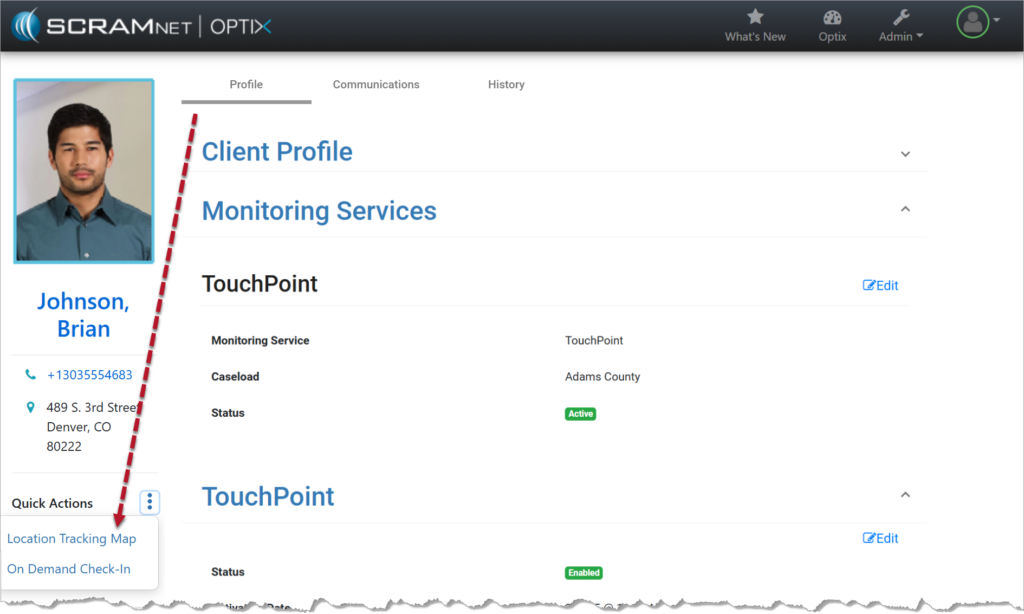
Client Profile Page

On the Location Tracking pop-up window:

When connectivity is available:

  • The location points are plotted on the map.
  • Each point is recorded as Successful.
  • The Location Tracking pop-up window reflects normal communication.
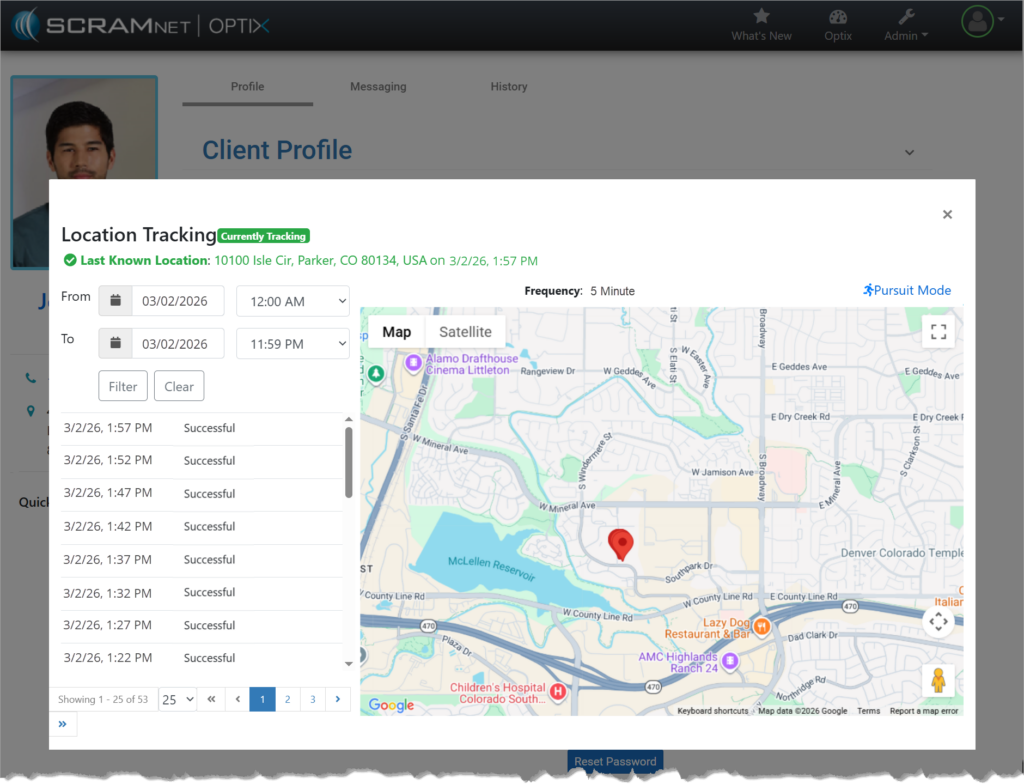
Successful Location Points

When connection is not available:

  • The location table will not indicate the last known location in bold.
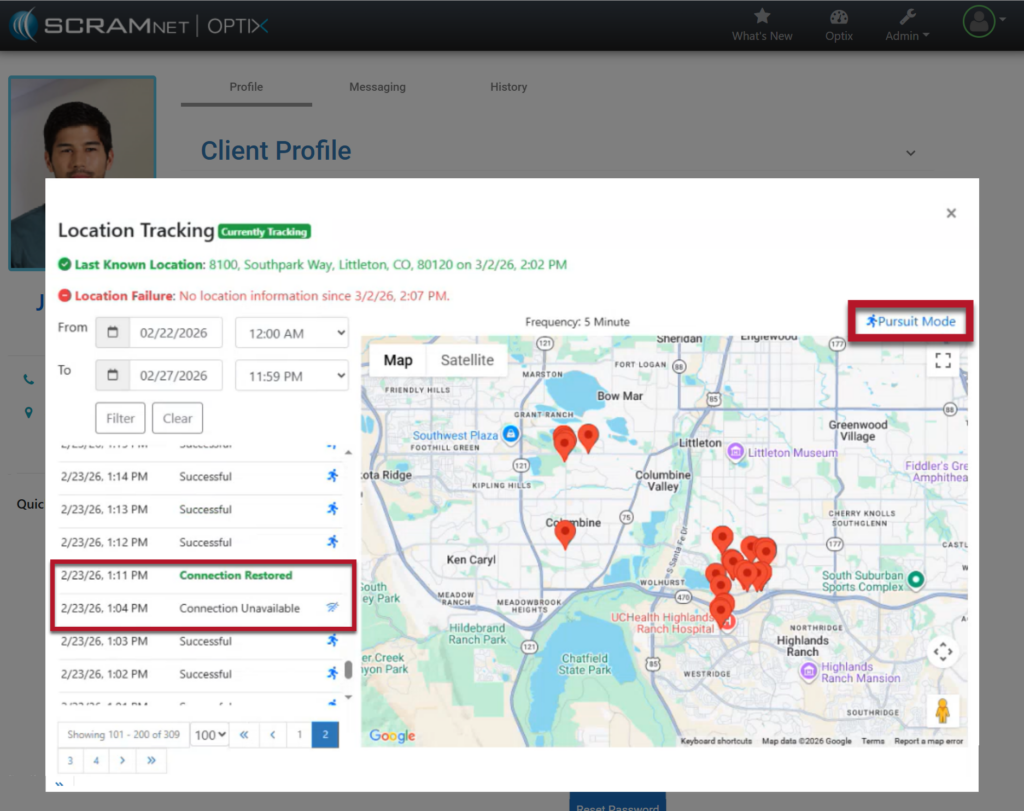
  • At the next location interval, in this case the 5-minute interval, the location table will display Connection Unavailable in red.
  • Additionally, a red Location Failure heading is displayed at the top of the pop-up window, displaying the last communication date and time.
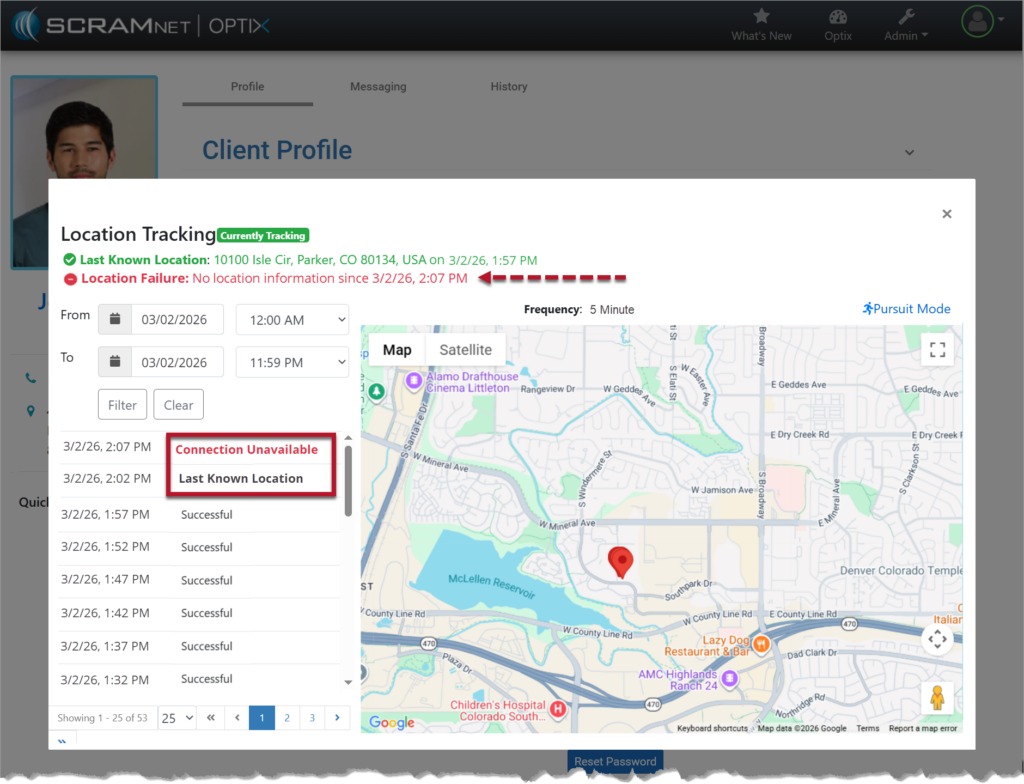
Connection Unavailable

Once the connection is reestablished:

  • The location data will automatically update on the map and on the location table.
  • The “Connection Unavailable” message will no longer display in bold or in red.
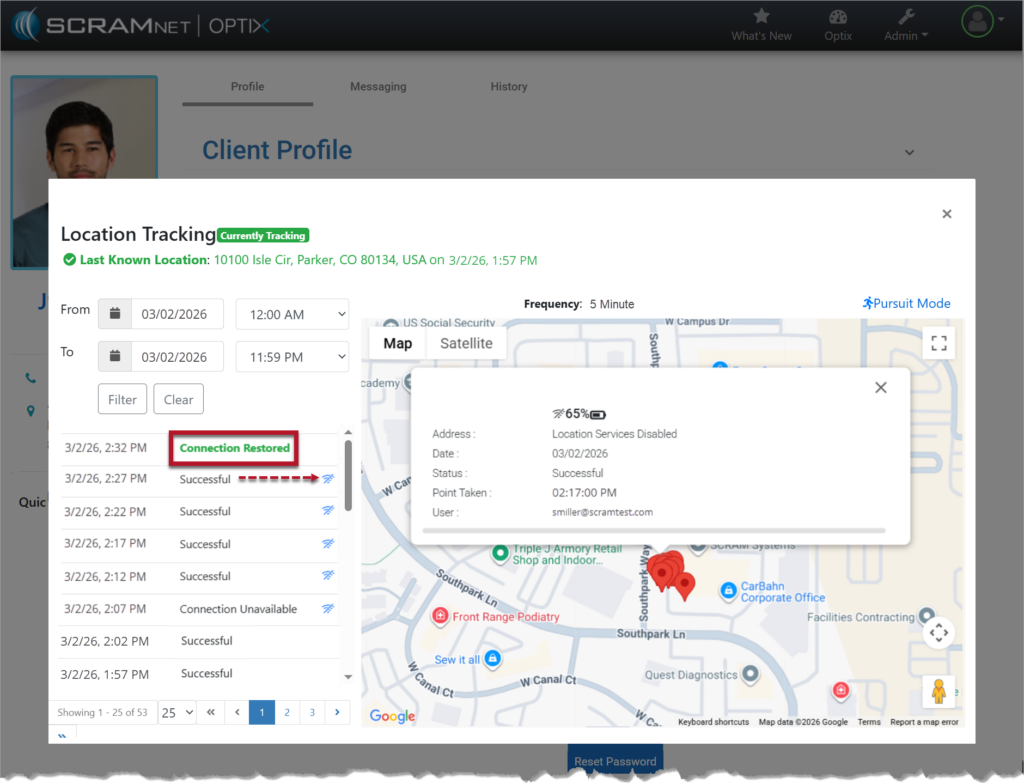
  • A “Connection Restored” message will appear bolded and in green on the location table with the date and time stamp of when communication was restored.
Information Status Updates: Location Tracking updates are tied to the frequency configured for the client. For example, location information is gathered and communicated every 5, 10, 15, 30, and 60 minutes. Any change in connectivity and location status will only display at the sent interval.
Connection Restored

Loss of Connectivity During Pursuit Mode

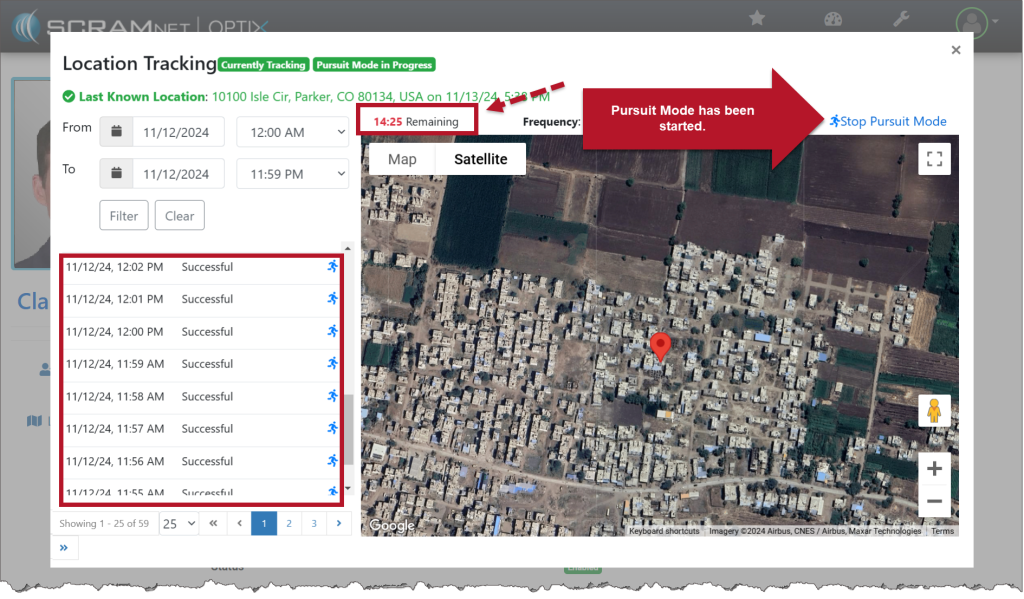
During the 15-minute Pursuit Mode window, if connectivity is lost the location table will display “Connection Unavailable,” and the red failure banner will display in the Location Tracking pop-up window.

If the device reconnects during the 15-minute Pursuit Mode session, location collection will resume automatically and continue at one-minute intervals for the remainder of the session.
Pursuit Mode

Continue Reading

RE: Fraudulent Phone Calls Targeting Individuals on Electronic Monitoring

To our valued partners,

We want to make you aware of a recent increase in fraudulent phone calls being made to individuals involved in electronic monitoring (EM) or community supervision programs. These scams are occurring nationwide in the United States, and have affected programs using a variety of EM technologies—not just SCRAM Systems monitoring technologies.

In these calls, the scammer poses as a representative of a sheriff’s office, court, or monitoring company and claims that the individual owes money, is in violation, or could be taken back into custody unless a payment is made immediately. The goal of these calls is to create fear and prompt a quick payment.

Please note the following:

  • There has been no data breach or security incident at SCRAM Systems.
  • This is not a SCRAM-specific issue. Similar scams have targeted programs using other EM devices, as well as drug-testing and supervision programs with no electronic monitoring at all.
  • These scams appear to draw on publicly available information or data obtained through unrelated means.

If any client, agency, or staff member receives such a call:

  1. Do not provide any personal or payment information.
  2. Do not make any payment requests over the phone.
  3. Immediately contact local law enforcement to report the incident.
  4. Notify your SCRAM Account Manager or SCRAM Systems Customer Support so we can assist with awareness and tracking.

SCRAM Systems continues to monitor these incidents closely and remains in contact with law enforcement and agency partners. Protecting the integrity of our programs and the safety of the individuals we serve is our top priority.

Thank you for your continued vigilance and partnership.

Sincerely,
John Hennessey
Chief Operating Officer
SCRAM Systems
jhennessey@scramsystems.com
815-342-4469

Download a copy of this notice

Continue Reading

On February 4, 2026, SCRAM Systems will release an update that allows providers to control whether the GPS battery level is visible to clients in the TouchPoint Mobile app. This setting can be managed in SCRAM Optix or 24×7.

Enable the Display GPS Battery Level Setting in Optix

  1. In Optix, navigate to TouchPoint.
Optix Dashboard
  1. Select the Admin tab from the top toolbar and then the Manage Caseloads option.
Manage Check-In Page
  1. Select the caseload.
Manage Caseloads Page
  1. From the Caseload Detail page, select the View Settings hyperlink.
Caseload Detail Page
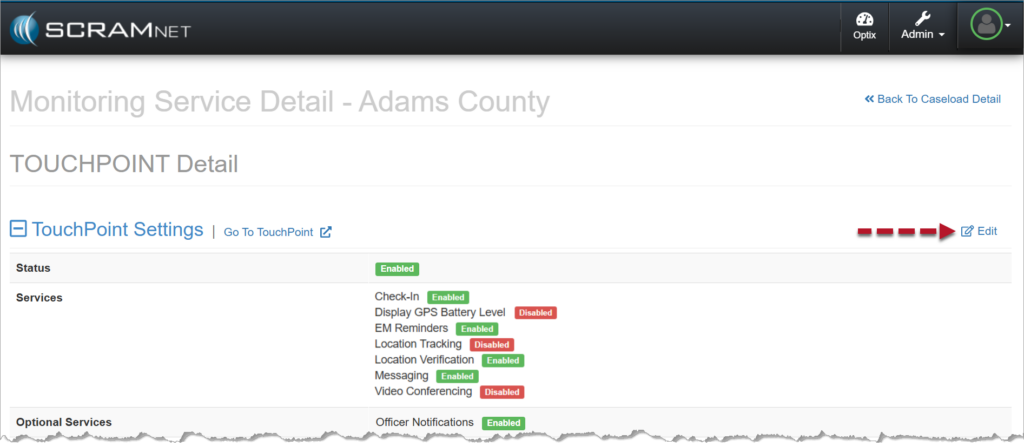
  1. Select the Edit hyperlink.
Monitoring Service Detail Page for the Caseload
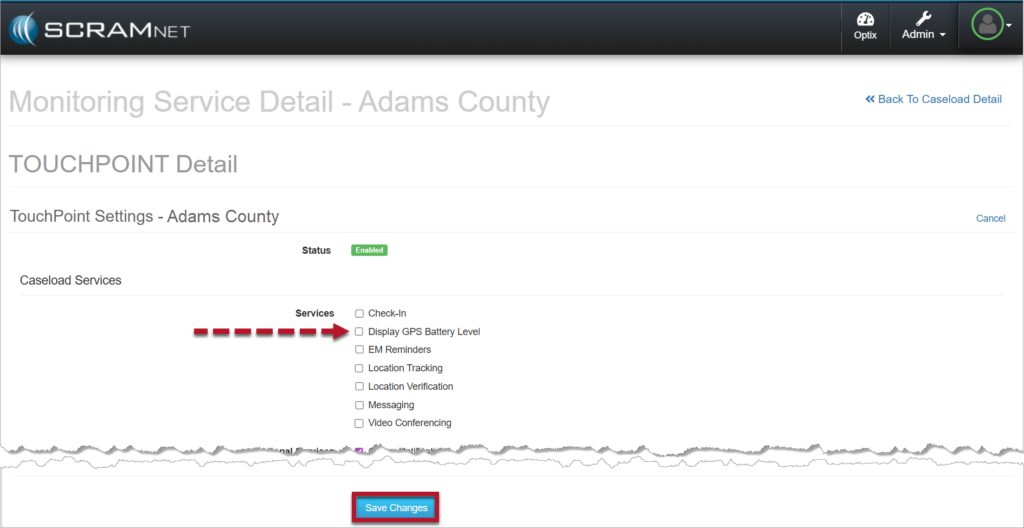
  1. Select the checkbox next to Display GPS Battery Level.
  2. Save your changes.
TouchPoint Settings for the Caseload

Once saved:

  • The setting will appear as Enabled under TouchPoint Settings on the TouchPoint Detail page for the caseload.
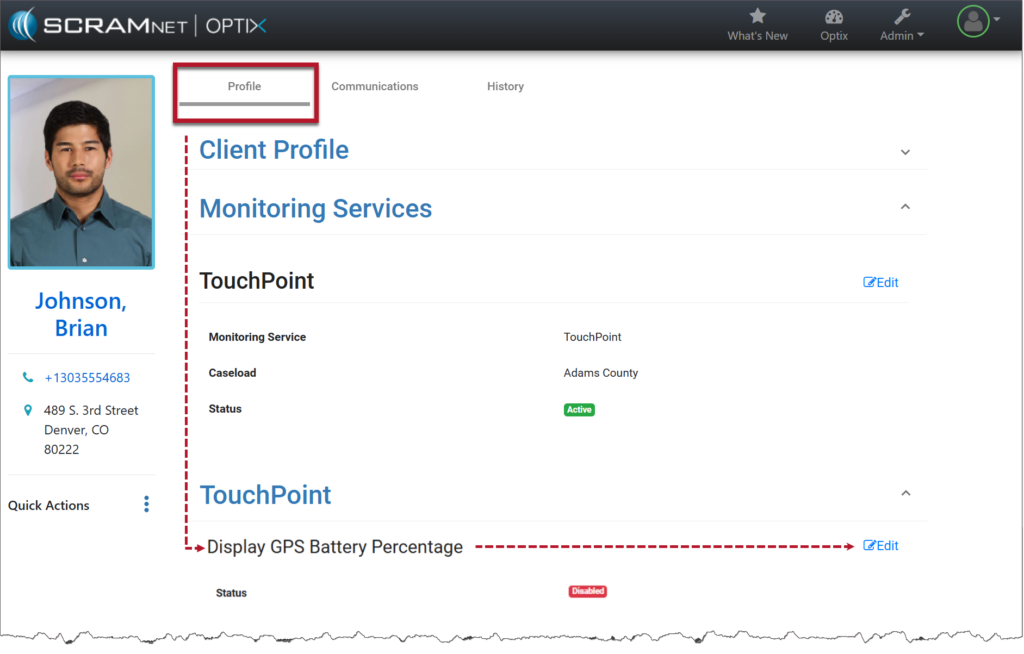
  • The Display GPS Battery Percentage option will be visible on the client’s Profile page in Optix.
  1. Enable the Display GPS Battery Percentage service for the client:
  • Select the Edit hyperlink on the client’s Profile page.
Client Profile Page
  • Change the Status from Disabled to Enabled.
  • Save your changes.
Enable the Service

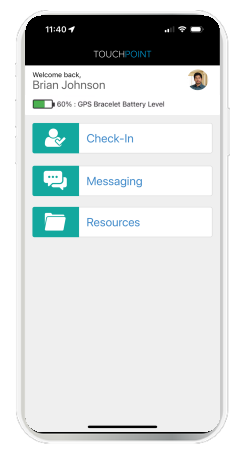
The client’s last reported SCRAM GPS bracelet’s battery level is displayed at the top of the home screen within the TouchPoint mobile application.
TouchPoint GPS Battery Level Display
NotesImportant Notes:
  • The Display GPS Battery Level option is only editable after a GPS device has been assigned to the client.
  • If the service is enabled for the caseload, the option will be visible, but it cannot be edited until a GPS device is assigned.

Disable the Display GPS Battery Level Setting Once Enabled in Optix

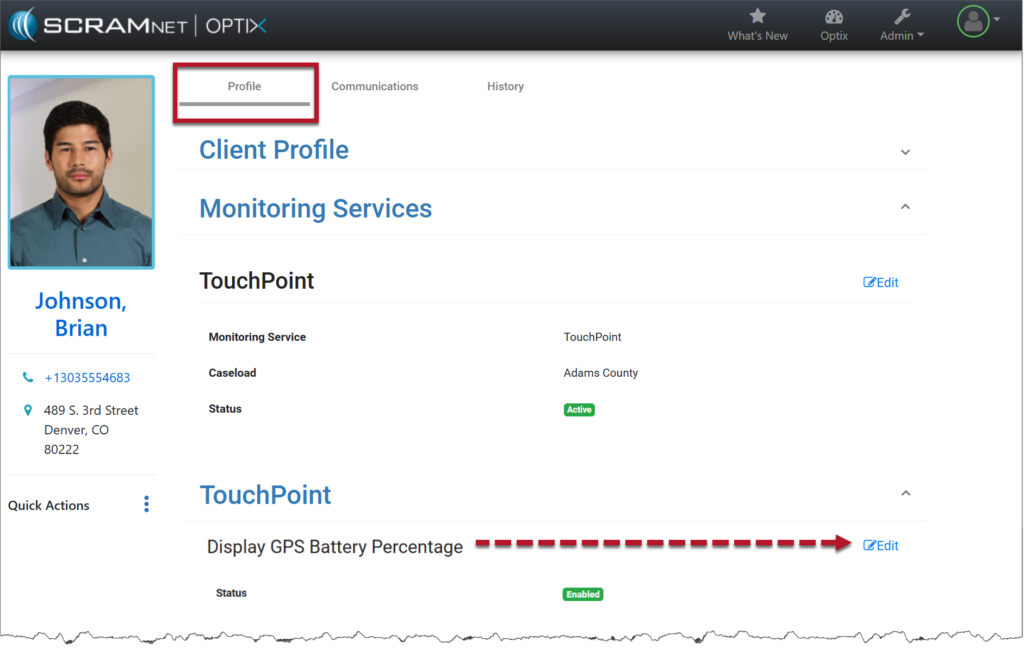
  1. From the client’s Profile page, select the Edit hyperlink next to Display GPS Battery Percentage.
Client Profile Page
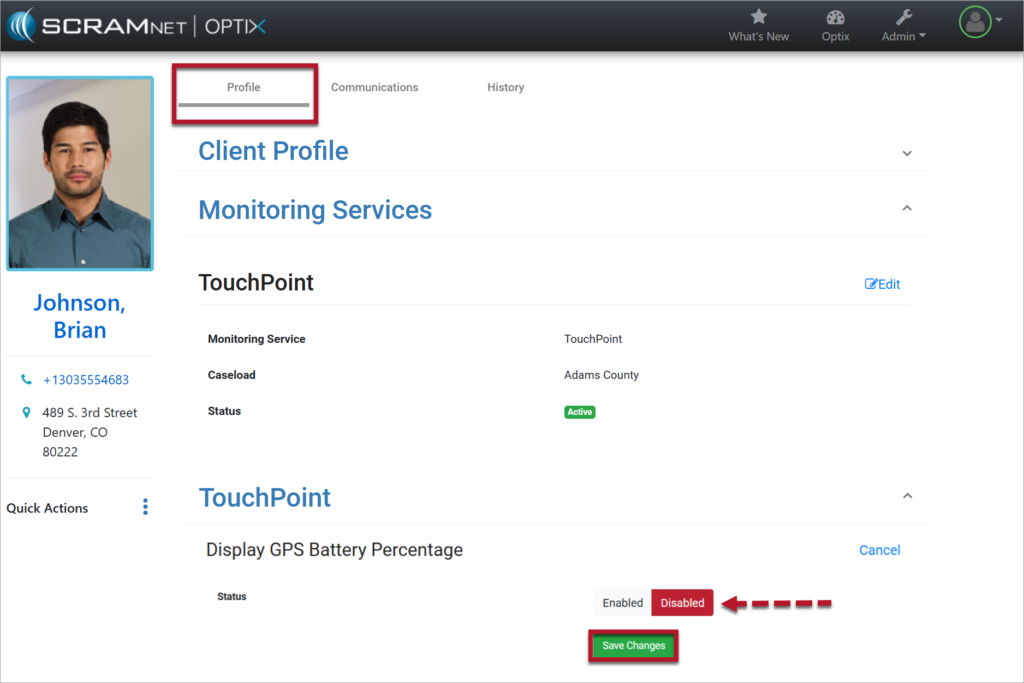
  1. Toggle the status to Disabled and select the Save Changes button.
Disable the Setting
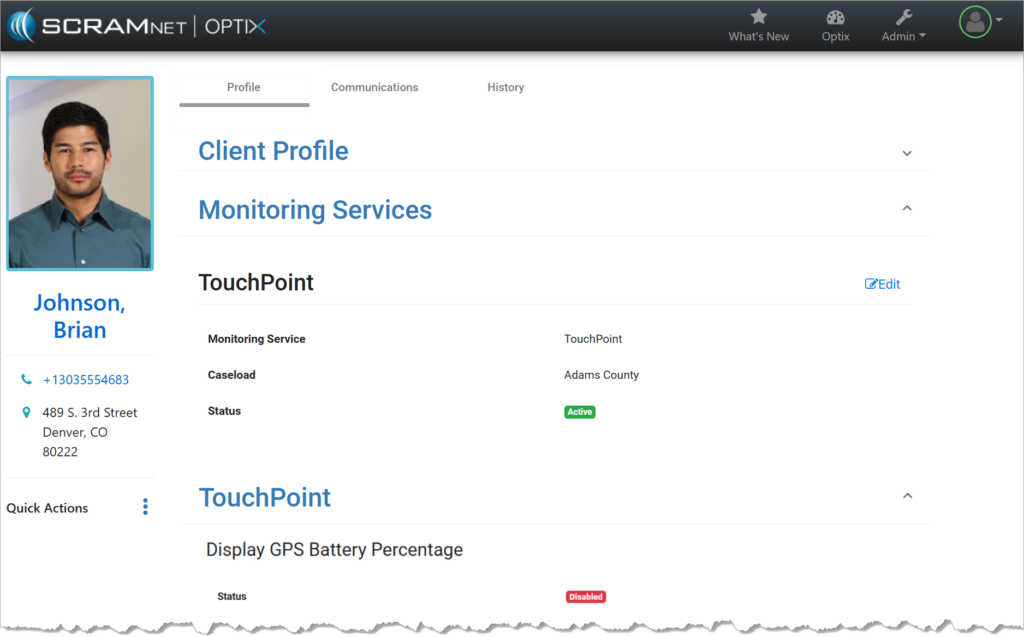
  • The Display GPS Battery Percentage setting has been disabled for the client.
Disabled Status
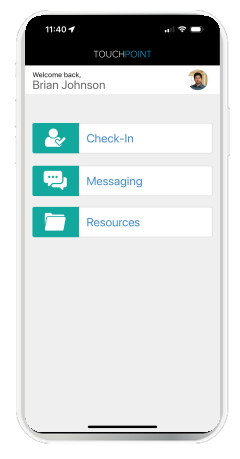
  • The SCRAM GPS bracelet’s battery level is no longer displayed at the top of the home screen within the TouchPoint Mobile application.
GPS Battery Level Not Displayed

Enable the Display GPS Battery Level Setting for a SCRAM 24×7 Client

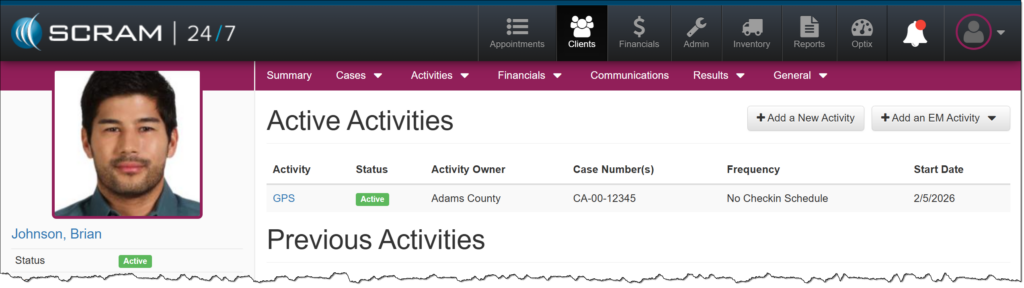
After adding a GPS Activity to a client, you may also add a TouchPoint Activity and enable the GPS Battery Level feature from within SCRAM 24/7.

SCRAM 24×7 GPS Activity

On the client’s Activities page:

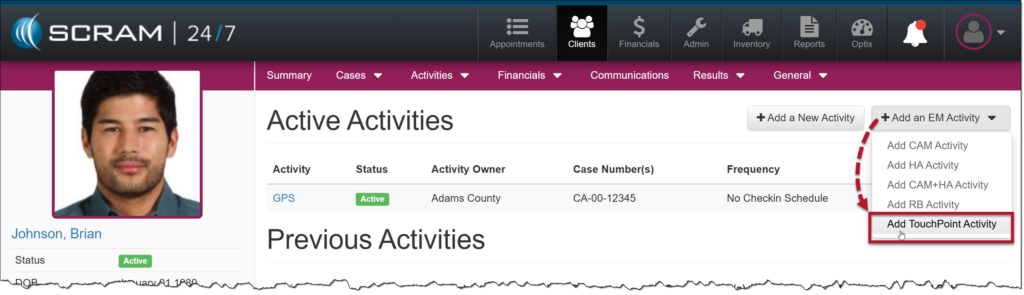
  1. Open the +Add an EM Activity dropdown menu, and then select the Add TouchPoint Activity option.
Add TouchPoint Activity Option
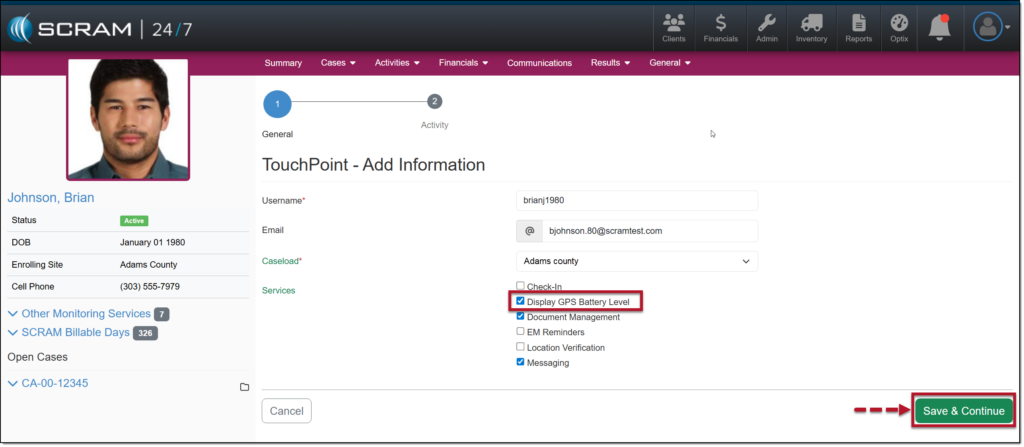
  1. On the TouchPoint – Add Information page, enter the TouchPoint details. This includes the client’s username for the mobile application, email address, and TouchPoint Caseload.
  2. Select the checkbox next to each TouchPoint service the client will be utilizing. To display the client’s GPS battery voltage in the mobile application, select the checkbox next to the Display GPS Battery Level option.
  3. Once you have made your selections, select the Save & Continue button.
TouchPoint Activity Details
Information When adding a TouchPoint Activity, the services and features available to select on dependent on the TouchPoint Caseload selected.
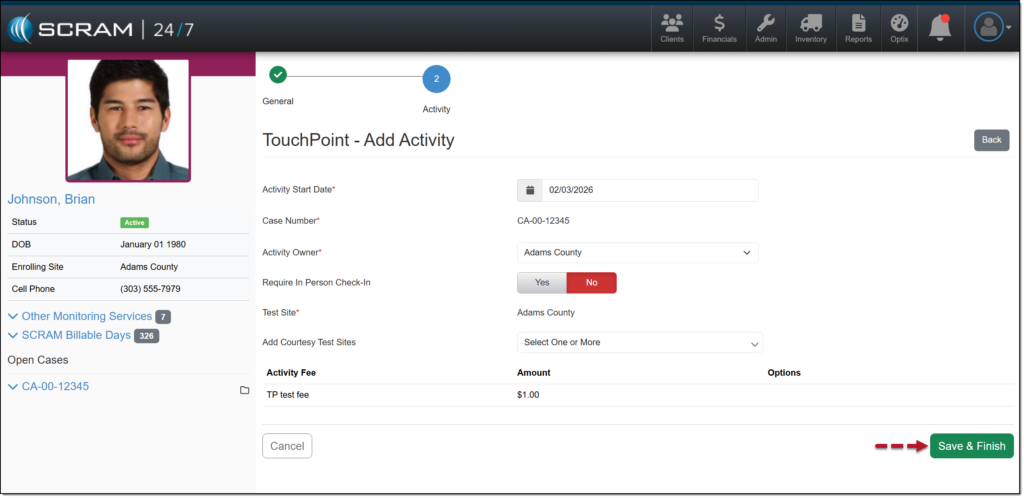
  1. Add the Activity Start Date and any additional monitoring requirements, and then select the Save & Finish button.
TouchPoint Activity Final Details

The TouchPoint Activity is now displayed on the client’s Activity page.

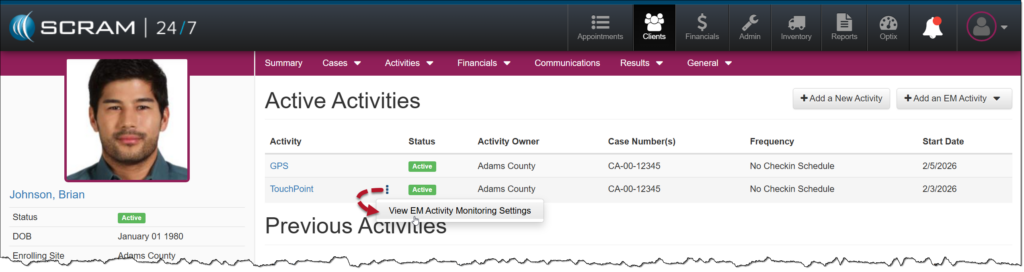
To view or edit the TouchPoint settings, select the ellipsis, and then the View EM Activity Monitoring Settings option.

View EM Activity Monitoring Settings

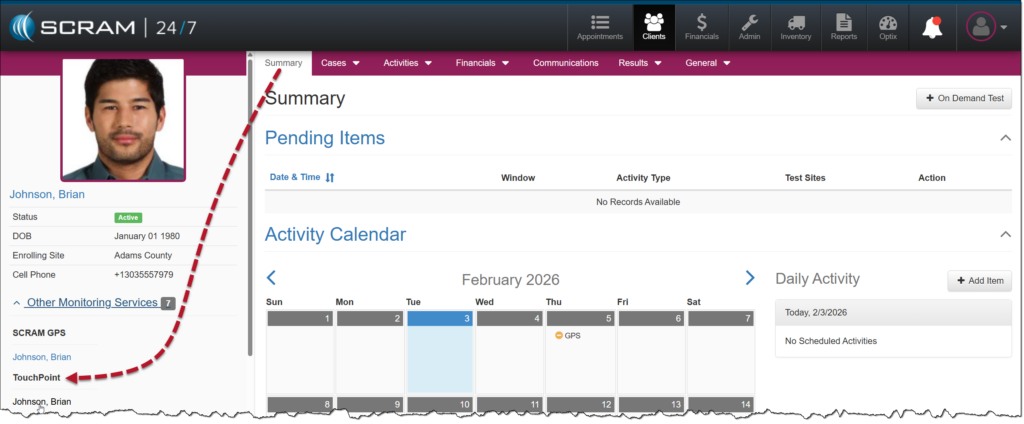
Or, you may navigate to the client’s TouchPoint Profile page in Optix by selecting their name hyperlink in the Other Monitoring Services section on the Summary page.

Other Monitoring Services – TouchPoint
Information The Display GPS Battery Level option is only editable after a GPS device has been assigned to the client.

Continue Reading

On January 28, 2026, SCRAM Systems will release an enhancement for your SCRAM TouchPoint caseload. This enhancement updates how alerts are displayed and managed in Optix. Alerts now appear individually in a list on the client’s History tab, providing clearer visibility into client activity. Agents may open alerts to view details, add notes, update statuses, resolve alerts individually or in bulk, and export alert records as needed.

TouchPoint Alert Types

TouchPoint Alerts include the following alert types:

  • Pending Photo Review
  • Biometric Verification Unsuccessful
  • Missed Check-In
  • Responses to Questions
  • No GPS Location
  • Location Services Disabled
  • Push Notifications Disabled
  • Device Change
  • Locate Now
  • Location Verification
  • Location Failure
  • Completed Check-Ins

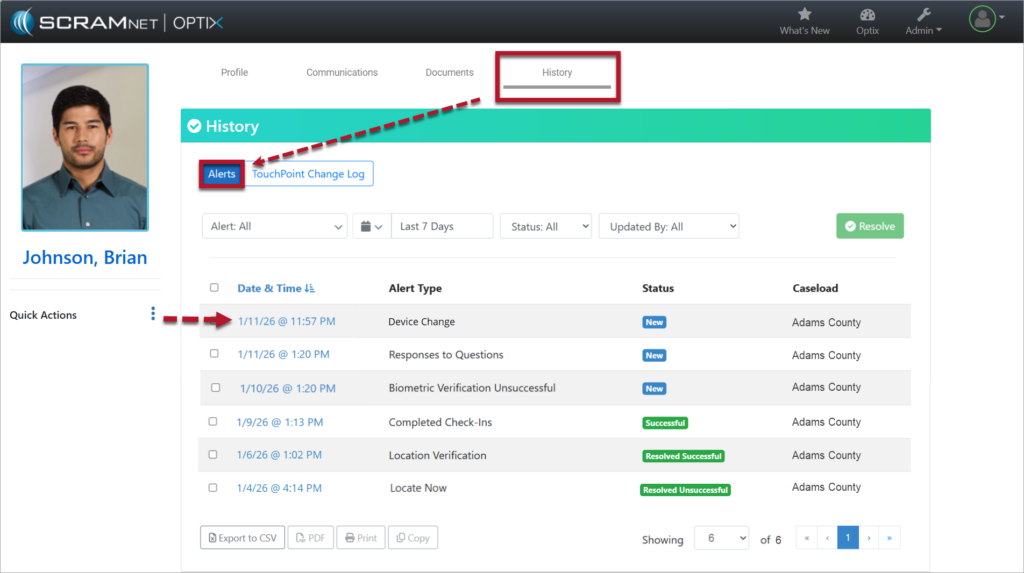
Alert History Page

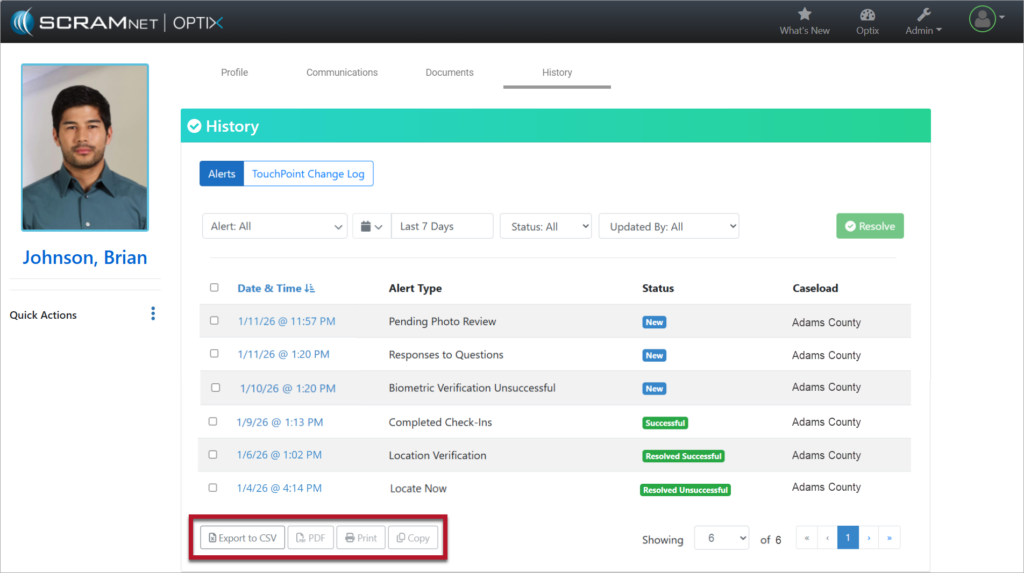
All TouchPoint Alerts are displayed in a list on the client’s History tab. Each alert on the History tab includes the following information:

  • Date & Time
  • Alert Type
  • Status
  • Caseload

Selecting the Date & Time hyperlink opens the Alert Details page for the selected alert.

Alerts on the Client’s History Tab

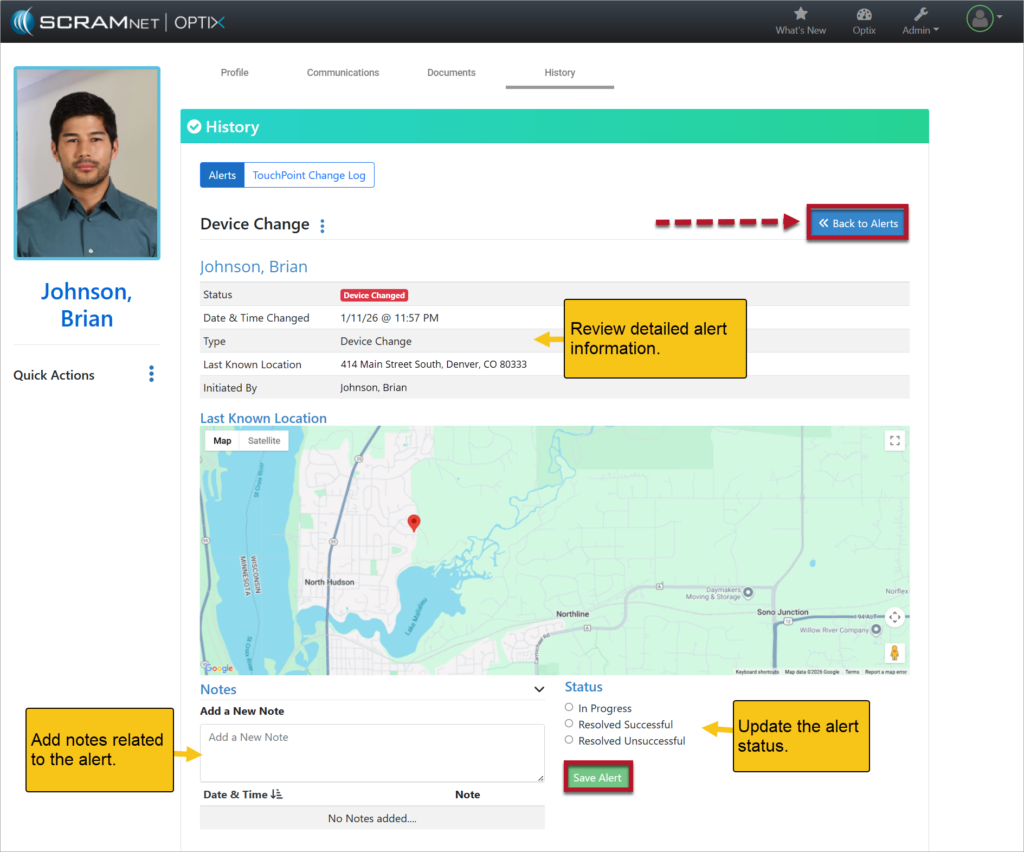
Alert Details Page

The Alert Details page provides additional information about the selected alert and allows agents to take action.

From this page, agents may:

  • Review detailed alert information
  • Add notes related to the alert
  • Update the alert status

Available alert statuses include:

  • In Progress
  • Resolved Successful
  • Resolved Unsuccessful – Use this status to quickly clear alerts from the Dashboard when no specific action is required

After updating the alert, select Save Alert followed by the <<Back to Alerts button to return to the full list on the History tab.

Alert Details Page

Bulk Resolution of Alerts

New bulk actions allow agents to resolve multiple alerts at once directly from the History page.

To bulk resolve alerts:

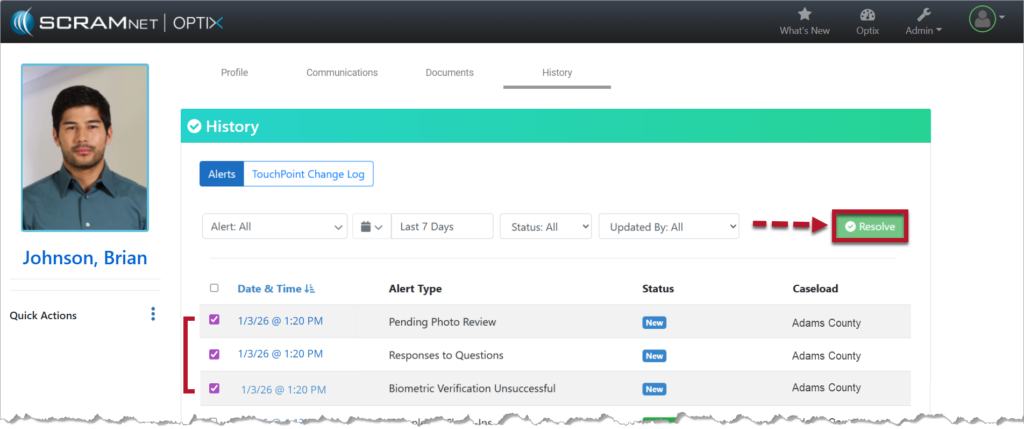
  • Select the checkbox next to one or more of the alerts in the list.
  • Select the green Resolve button.
Resolve Multiple Alerts
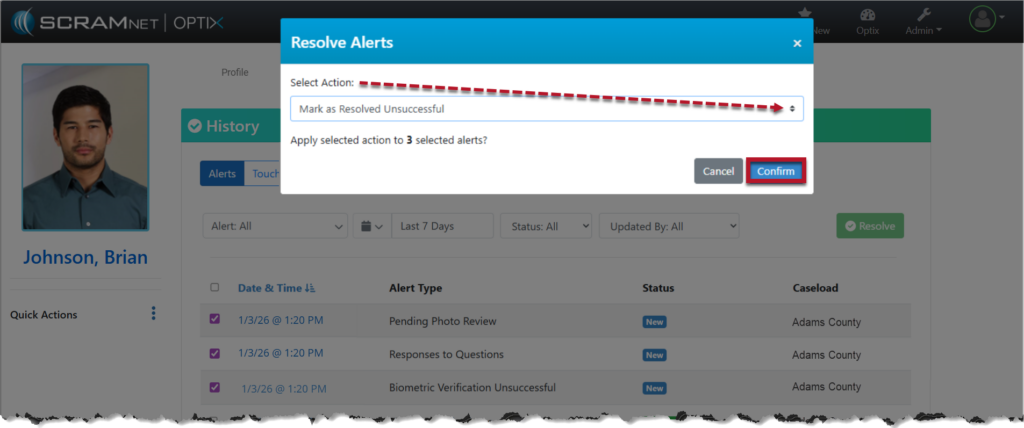
  • Select the Action from the Resolve Alerts pop-up window: Mark as Resolved Successful or Mark as Resolved Unsuccessful.
  • Choose Confirm to complete the action.
Resolve Alerts Pop-Up Window

After the alerts are resolved as part of a bulk action, returning to an individual Alert Details page will display the message “Resolved via bulk status update” at the bottom of the alert information.

Multiple Alerts per Check-In

With the updated TouchPoint Alerts experience, a single check-in may generate multiple alerts if more than one issue occurs during that check-in. Each issue displays as its own alert on the History list.

For example, on the same date and time, a single check-in could generate multiple alerts, including:

  • Pending Photo Review
  • Responses to Questions
  • Biometric Verification Unsuccessful

Although these alerts display individually, they are all tied to the same check-in. To fully resolve the check-in, agents must open the relevant alert(s) and complete all required actions on the Alert Details page. Once all required actions for that check-in are completed, the related alerts will resolve together. This provides clear visibility into each issue while maintaining efficient alert resolution.

Export, Print, and Copy Options

New options are available at the bottom of the client’s History tab to support reporting and recordkeeping.

The following actions are available:

  • Export to CSV – By default, all alerts are exported into a CSV file that may be opened in Excel.
  • PDF – Select the checkbox next to one or more alerts to export the selected records to a PDF.
  • Print – Select the checkbox next to one or more alerts to print the selected records.
  • Copy – Copy selected alerts and paste them into other applications such as Excel, Notepad, or Word.
Export, Print, and Copy Options

Continue Reading

Today, December 18th, 2025, SCRAM Systems released an enhancement for your SCRAM TouchPoint Monitoring program. With this update, clients enrolled in both SCRAM GPS monitoring and SCRAM TouchPoint may now view their GPS bracelet’s battery level within their TouchPoint mobile app.

TipsThe latest version of the TouchPoint app is available to clients in the app stores. As a best practice, SCRAM Systems recommends that all TouchPoint app users enable automatic app updates on their smartphones to make this process easier.

What’s New

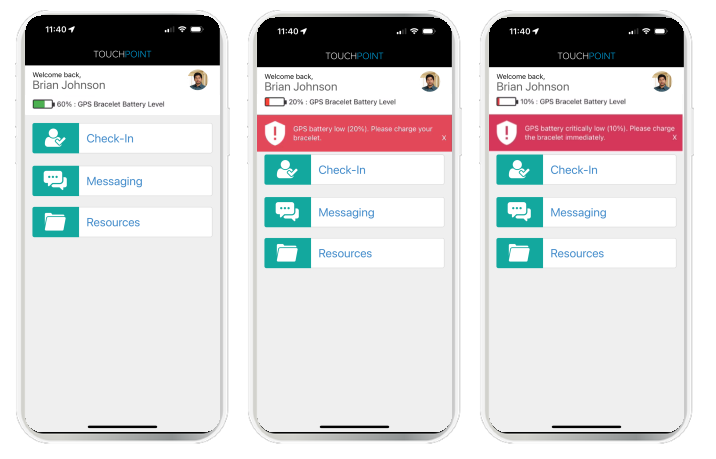
  • The client’s last reported SCRAM GPS bracelet’s battery level is displayed at the top of the home screen within the TouchPoint mobile application.
  • A red banner with charging instructions for the client will display on the Home screen within the app when the device requires charging. The banners will display when the device’s battery level is:
    • Below 20%, indicating a Battery Low alert.
    • Below 10%, indicating a Critically Low Battery alert.
TouchPoint GPS Battery Level Display

Important Reminder

The battery level shown in the client’s TouchPoint mobile app is for reference only. The client should not rely solely on the app’s display to manage charging. To remain compliant and avoid interruptions in monitoring, clients must continue to charge their GPS device regularly, following program instructions.

Information The battery level shown in the TouchPoint mobile app may not exactly match the battery level displayed on the GPS Dashboard in the agent view. In TouchPoint, battery levels are shown in 10% increments. For example, if the GPS Dashboard shows a battery level of 66%, the TouchPoint app will display 70%.

Continue Reading

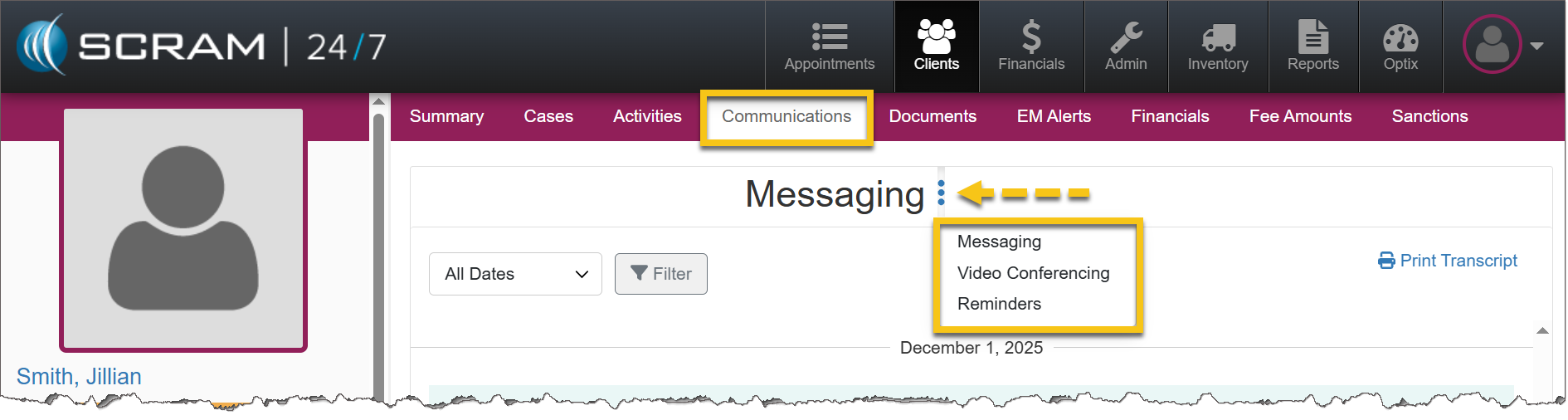
On December 11, 2025, SCRAM Systems will release an enhancement for your SCRAM 24/7 and TouchPoint Monitoring programs. With this update, 24/7 users may view the historical activity for the services connected to TouchPoint Activity communication. TouchPoint users will find Electronic Monitoring Reminders, Messaging, and Video Conferencing in one consolidated place under the Communications tab in Optix.

SCRAM 24/7 Communications Tab

In a previous update, SCRAM Systems enabled 24/7 users to complete all messaging functions within SCRAM 24/7 without navigating to Optix. With a recent update, users are able to view the historical activity associated with services connected to TouchPoint Activity communication.

  1. The Communications tab becomes available once the TouchPoint activity has been added. If TouchPoint has never been added, this tab will not appear.
  2. After the TouchPoint activity has been added – whether it remains active or has been disabled – the Communications tab will continue to display historical activity for Messaging, Video Conferencing, and Reminders.
  3. Service availablility determines whether users may interact with each option in the dropdown menu. For example, if Messaging is not enabled, users may view historical messages, but may not send new messages.
Information If Video Conferencing has not been enabled for the account, that option will not display.
Communications Tab in SCRAM 24/7 (click to enlarge)
Information Would you like to learn more about the benefits of the SCRAM TouchPoint Mobile application? Contact your Account Manager for details on getting started.

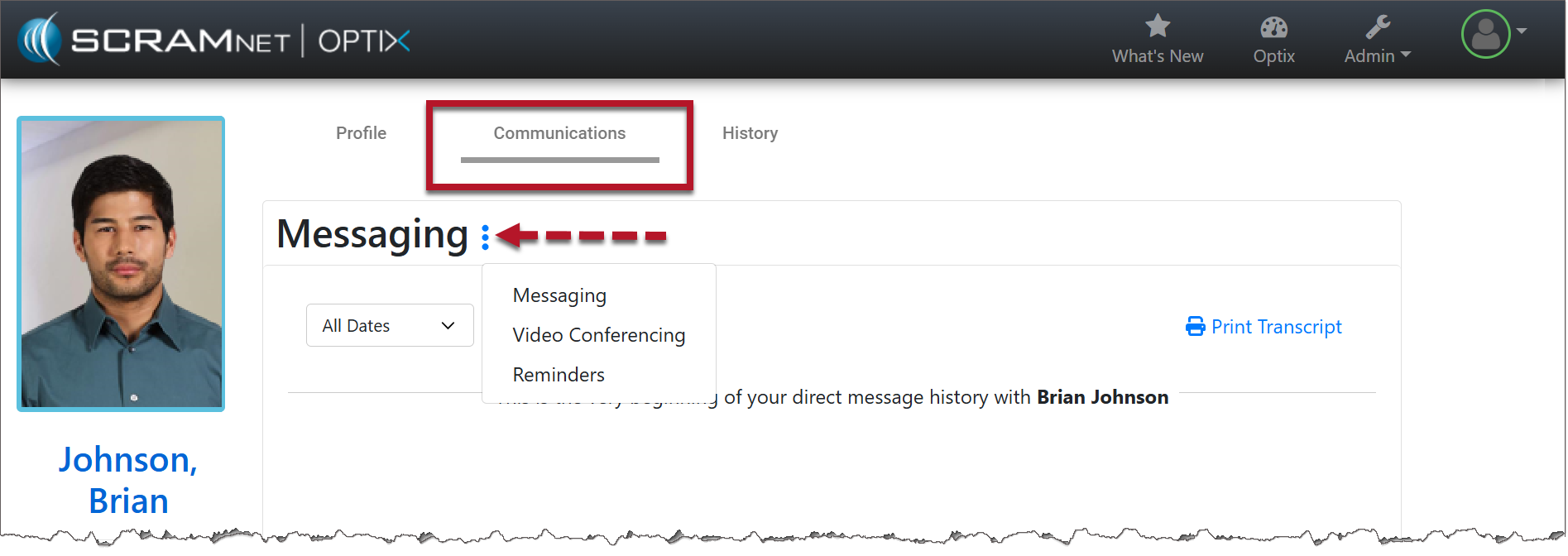
Optix Communications Tab

With this enhancement, users will find a consolidated view of communication and monitoring information under the Communications tab. This tab will contain:

  • Electronic Monitoring Reminders
  • Messaging
  • Video Conferencing

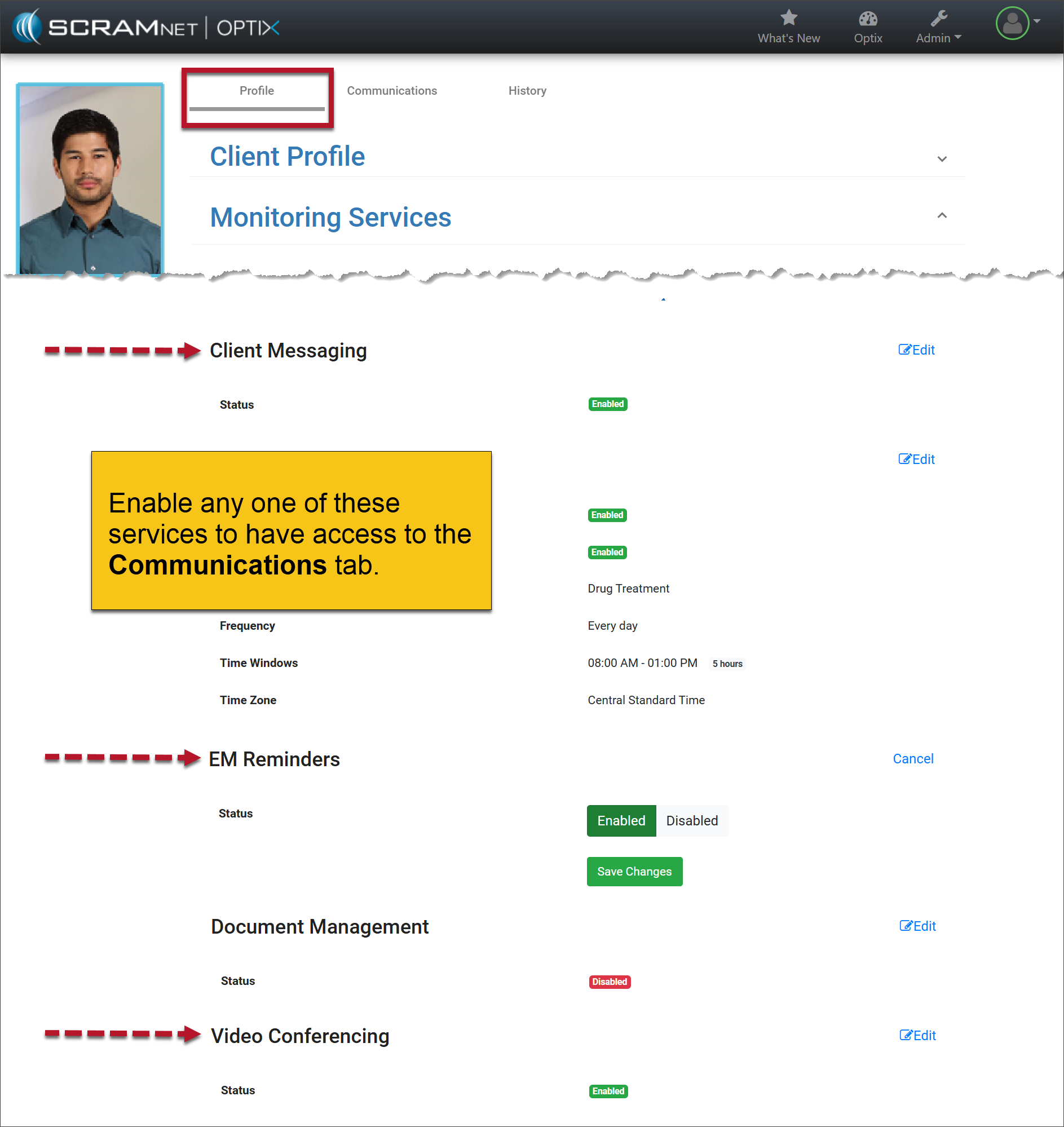
Enable the Service(s)

The Communications tab is available once any of the services is enabled.

Client Profile Page in Optix (click to enlarge)

Communications Tab

  1. Select the Communications tab.
  2. Open the More (ellipsis) menu next to Messaging.
  3. Select the desired service.
    • If the services are later disabled, users may still view the historical activity associated with those features. However, they will no longer be able to interact with the service or perform any new actions.
Information If Video Conferencing has not been enabled for the account, that option will not display.
Communications Tab in Optix (click to enlarge)
Information Your account must be enabled for video conferencing for these instructions to work. Contact your SCRAM Systems Account Representative if you are interested in activating this service.

Continue Reading

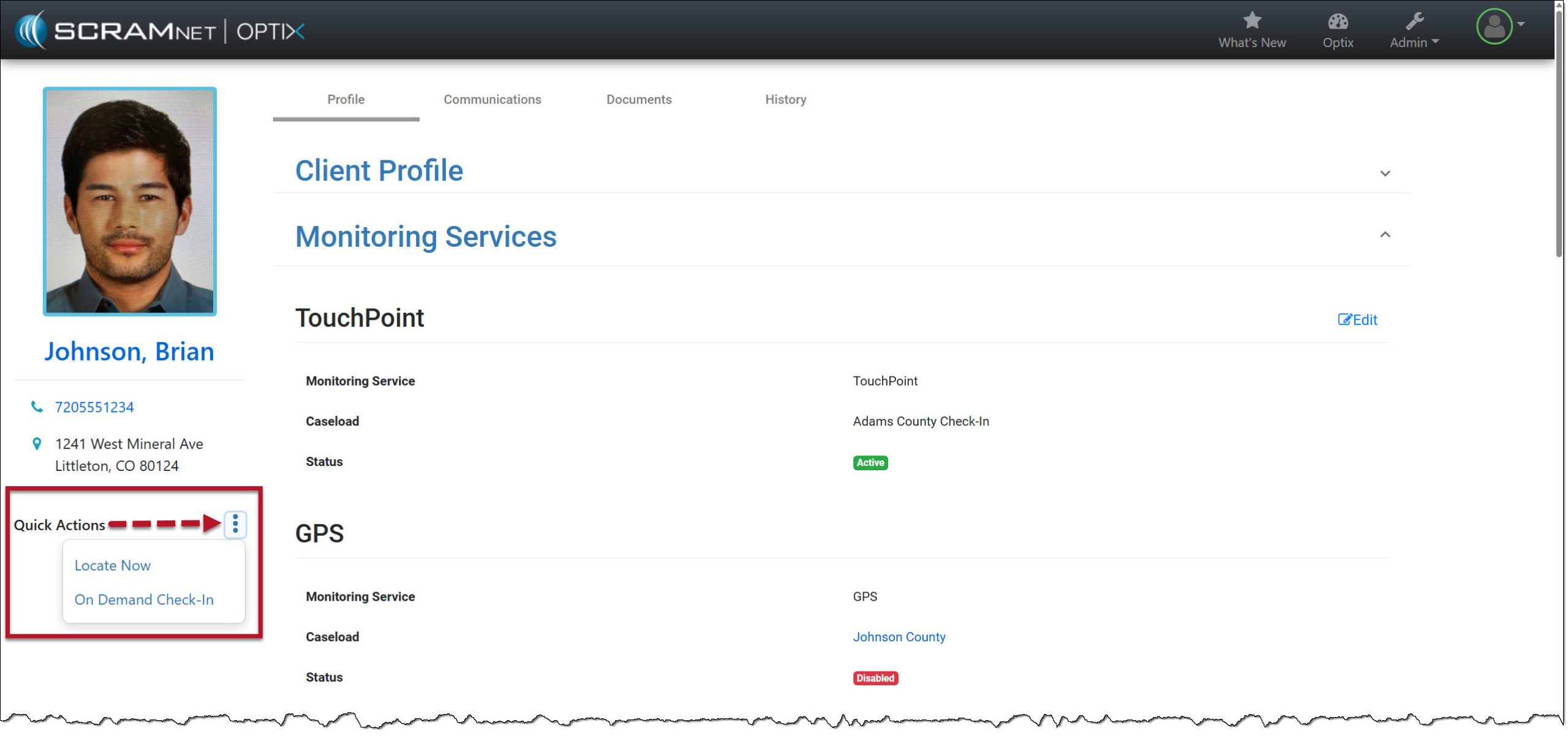
On October 15, 2025, SCRAM Systems will release an enhancement for your SCRAM TouchPoint caseload. This enhancement consolidates the one-touch action hyperlinks into a Quick Actions dropdown menu and allows room for additional Quick Actions to be added in the future..  

Information The options available on the “Quick Actions” dropdown menu will reflect the current SCRAM TouchPoint features enabled for the client.
Current View of the Quick Actions Hyperlinks – click to enlarge
Quick Actions Consolidated Dropdown Menu – click to enlarge

Continue Reading

Thursday, October 9, 2025, at 5:00 a.m. MDT, SCRAM Systems will release two new features for your SCRAMNET GPS caseloads and the SCRAM Ally (Victim Notification) application.

The enhancements are:

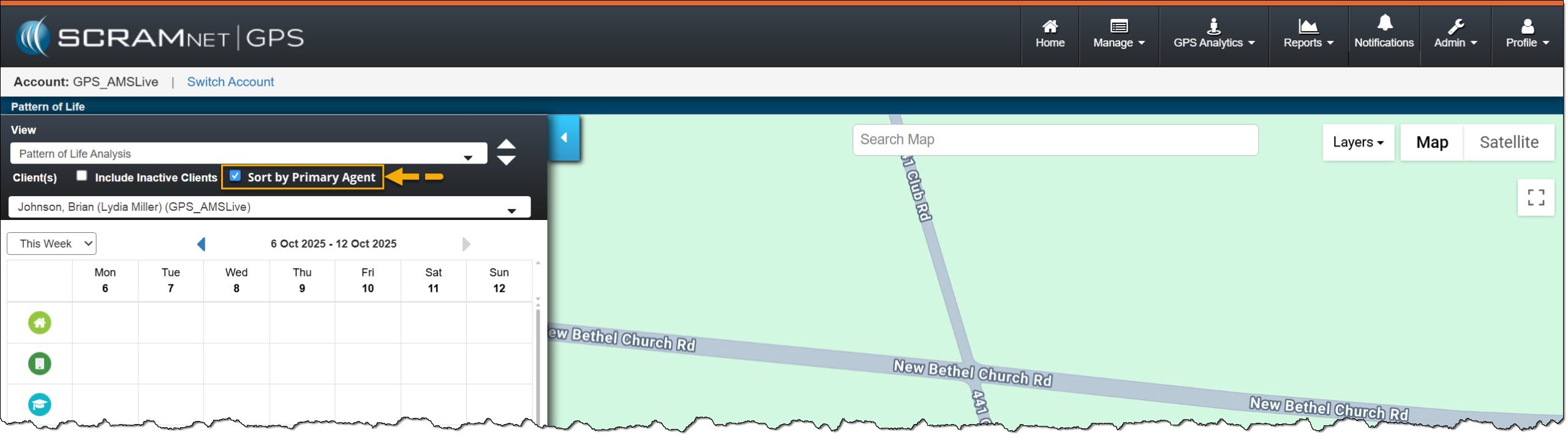
  • Pattern of Life “Sort by Primary Agent” Filter option
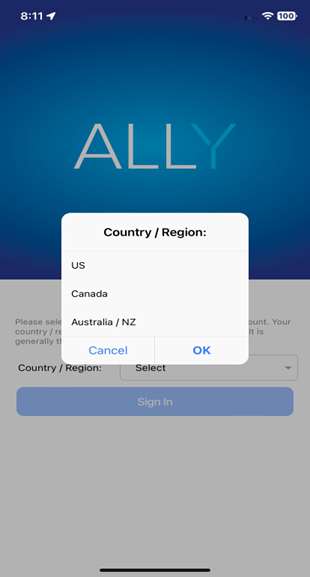
  • SCRAM Ally application, County/Region option for Canada Victim Users
Information During the 15-minute deployment, you may not be able to access SCRAMNET GPS, but messages from the SCRAM GPS device will continue to be processed uninterrupted.

Pattern of Life “Sort by Primary Agent” Filter option

Use the “Sort By Primary Agent” to customize the Activity view within the Pattern of Life Analysis data.. 

Patter Of Life Analysis – click to enlarge

Updated Country/Region Selection for Ally

The first time the victim accesses the SCRAM Ally app on their smartphone, the victim must select one of the following options: US, Canada, or Australia/NZ for the app to operate correctly.

SCRAM Ally app County/Region selections – click to enlarge
Important! IMPORTANT: Activation of the Victim Notification service requires a contract amendment. If you are interested in the service, please contact your SCRAM Systems Account Manager or Sales Representative.

Continue Reading

On August 14th, 2025, a new version of the SCRAM Ally (Victim Notification mobile application) will be available for iOS users in the Apple Store. The enhancements in version 2.1.1 (2) include:

  • Logging into multiple Ally applications on multiple devices
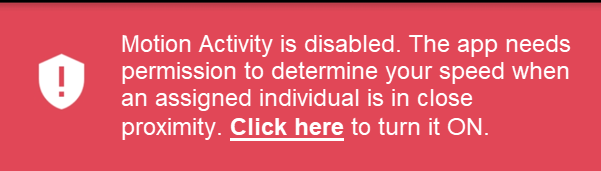
  • Updated Push Notifications, Location Service, and Motion Activity Disabled banners
  • Location information availability when the Ally Victim uses the application to call for help
Tips
  • As a best practice, SCRAM Systems recommends that all SCRAM Ally Victim app users enable their smartphones to automatically update their apps to make this process easier.
  • For accurate, continuous monitoring, SCRAM Ally requires permission to send Push Notifications, access Location Service, and Motion & Fitness Activity. SCRAM Ally requires these permissions to properly monitor Victims and deliver important alerts with regard to Victims’ proximity to their assigned individuals.
TipTip: After updating the SCRAM Ally app, it is important that your Victim users open the app and visit the Homepage. This action will ensure alert notifications function properly.

Logging into Multiple Devices

If the client is currently logged into the Ally application on their smartphone and they attempt to log into the application on a second device, for example, an iPad or second smartphone, the following pop-up message will display on the second device: “Your Ally account is already registered with another phone. If you choose to continue, the account on your prior phone will be disabled, and only this phone will be used for monitoring. Do you want to continue?”

The Ally victim user is presented with two options to move forward. If they select:

  1. Continue/OK – The user is automatically logged out of the first device and may sign into the app on the second device. The first device will display a message of, “Your Ally account is registered with a new phone. Your Ally account will be disabled on this phone and will not be used for monitoring.”
  2. Cancel – This will cancel the login attempt on the second device, keeping the victim signed in on the first device. In this case, the first device is the smartphone being monitored.

Updated Push Notifications, Location Service, and Motion Activity Disabled Banners

For accurate, continuous monitoring, SCRAM Ally requires permission to send Push Notifications, access Location Service, and Motion & Fitness Activity. Even when the app requires permissions to function properly, Apple recommends making these permissions optional to give users more control over their data.  

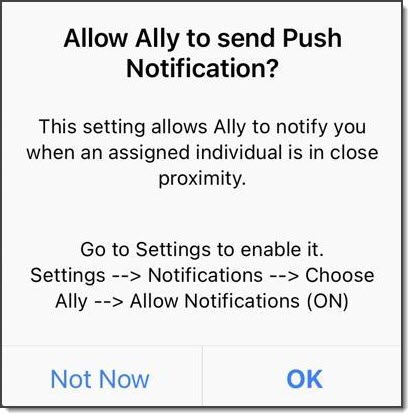
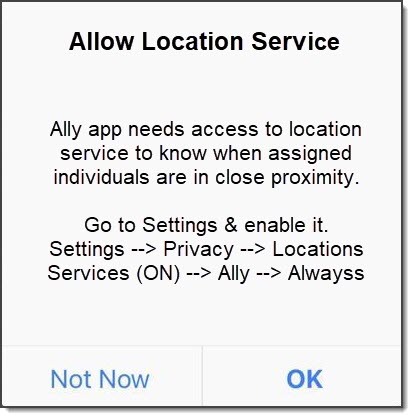
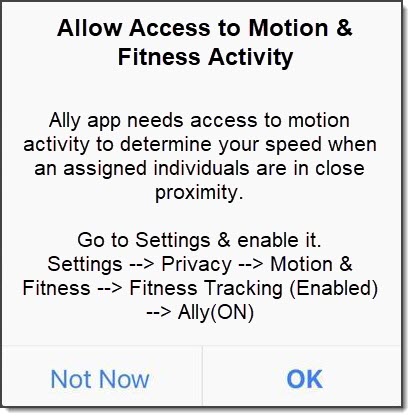
SCRAM Ally requires these permissions to properly monitor Victims and deliver important alerts with regard to Victims’ proximity to their assigned individuals. When Ally does not have these permissions, the following dialogs are displayed:

SCRAM Ally App Requests to send Push Notifications
SCRAM Ally App Requests Access to Location Service
SCRAM Ally Requests Access to Motion & Fitness Activity

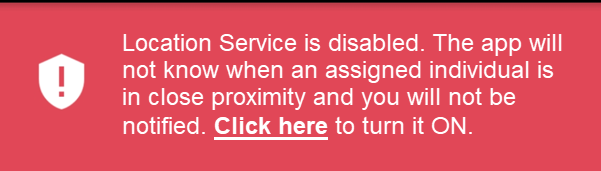
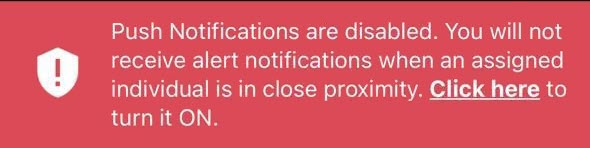
If Victim users do not grant permission to these services, the following banner warnings are displayed in the SCRAM Ally app:

Warning Banner: Push Notifications are Disabled
Warning Banner: Location Service is Disabled
Warning Banner: Motion & Fitness Activity is Disabled

Additionally, when the Location Service is disabled, a critical alert is generated in SCRAMNET GPS. It is important to address this alert as it indicates the Victim is not properly monitored:

SCRAMNET Alert: Location Service Disabled – Victim (click to enlarge)

Location Information Availability when the Ally Victim Uses the Application to Call for Help

When Location Services are enabled for the Ally application and the victim uses the app to call the emergency number displayed, the current location information is reported.

If the victim disables Location Services while the application is open, when they call the emergency number displayed, the last known location will be reported.

If the victim disables Location Services and then closes the application on their smartphone, once reopened, unless Location Services are enabled, no location information is reported when making an emergency call from within the Ally application.

Continue Reading

Information Your account must be enabled for location tracking for these instructions to work. Contact your SCRAM Systems Account Representative if you are interested in activating this service.

To Set Up Location Tracking at the Caseload Level:

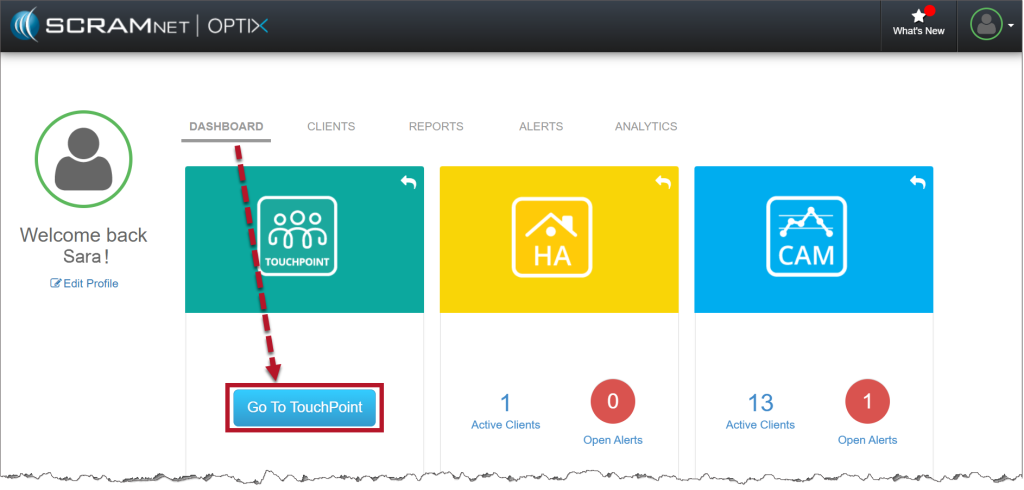
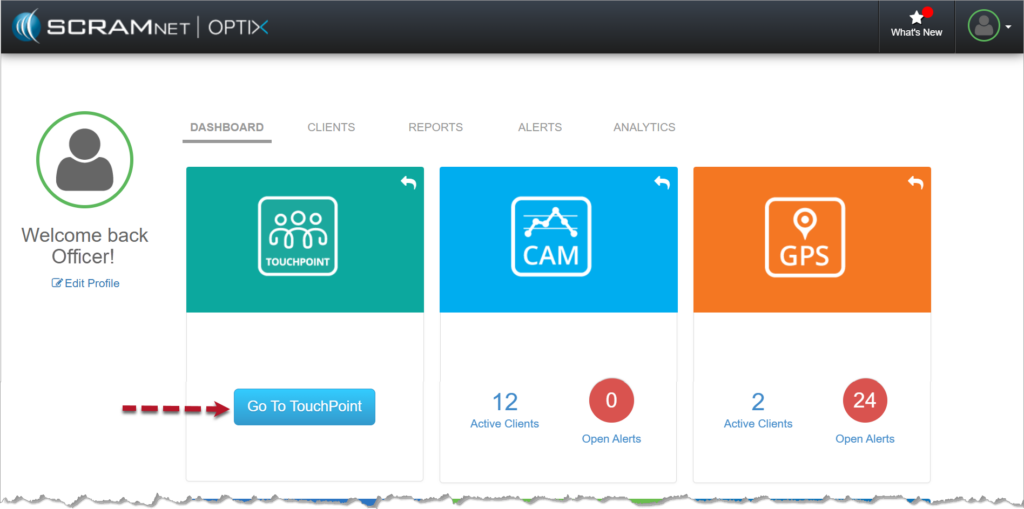
  1. On the Optix Dashboard, select Go to TouchPoint.
Optix Dashboard
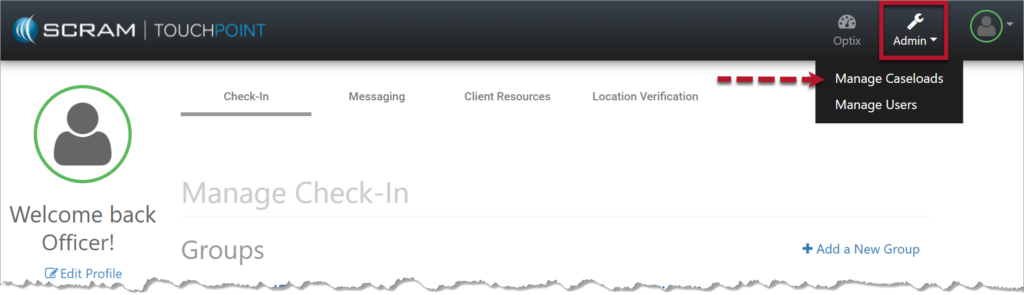
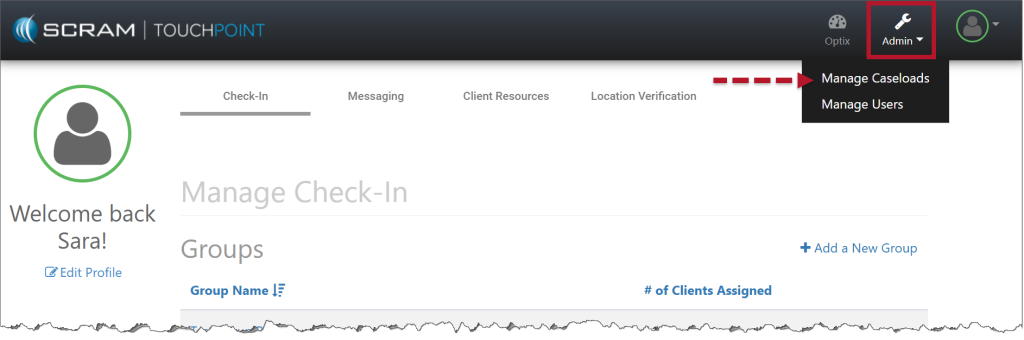
  1. From the TouchPoint Check-In page, select the Admin dropdown menu, and choose Manage Caseloads.
Manage Check-In Page
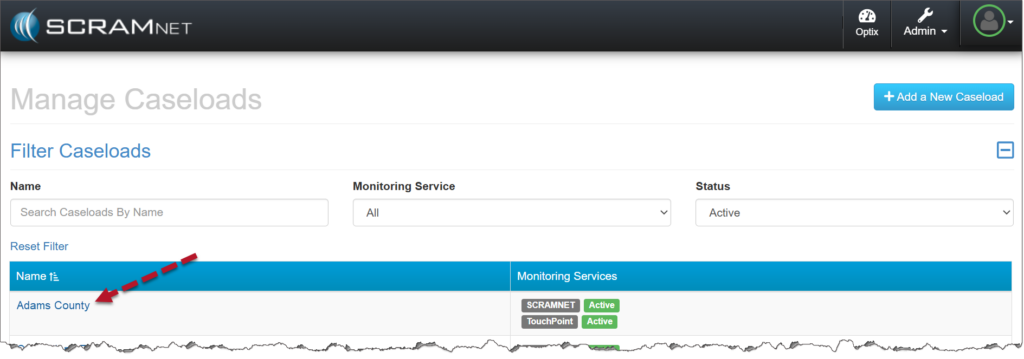
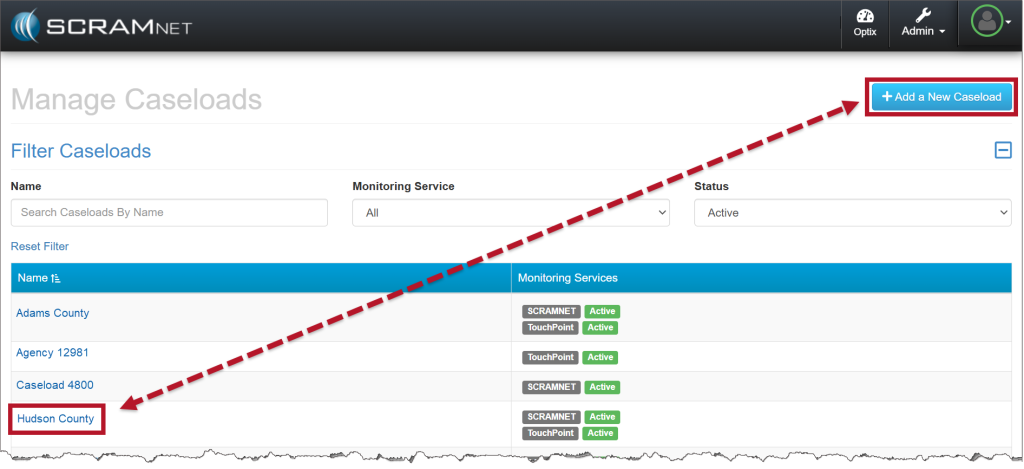
  1. Select the Add a New Caseload button to create a new caseload or select an existing caseload to add this feature.
Manage Caseloads Page
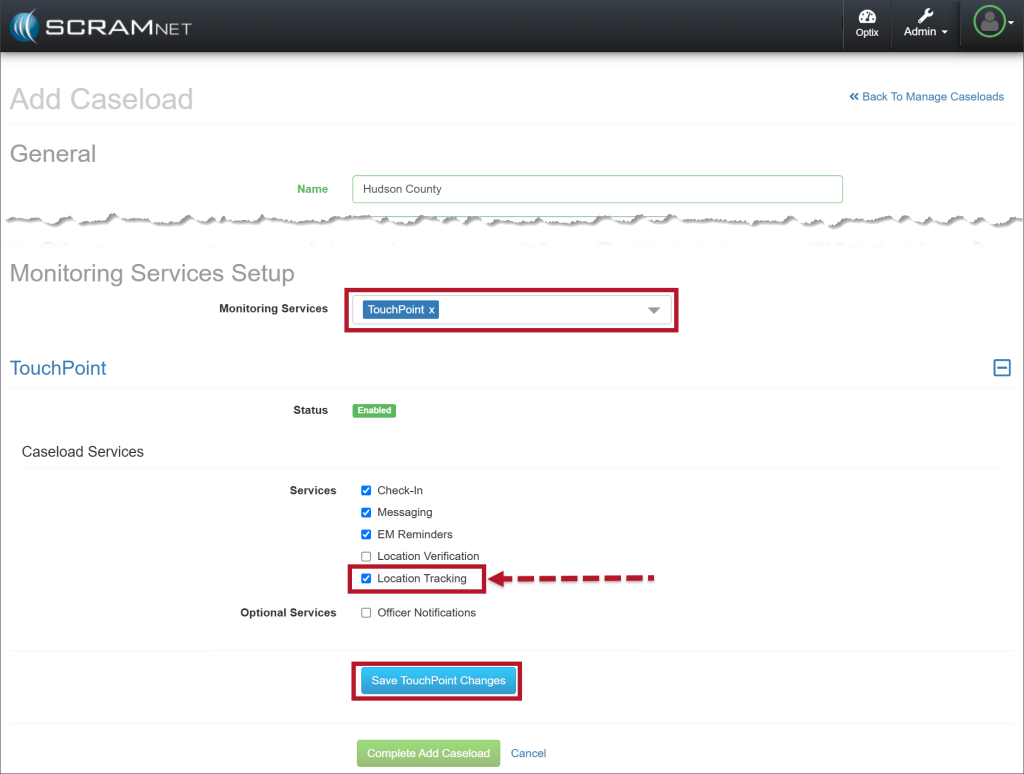
  1. When adding a new Caseload or editing an existing Caseload, in the Monitoring Services section, select the checkbox next to the Location Tracking option located in the Caseload Services section.
Important! When selecting the Caseload Services, Location Verification and Location Tracking cannot be enabled simultaneously.
  1. To finish, select the Save TouchPoint Changes button.
Monitoring Services Setup Page
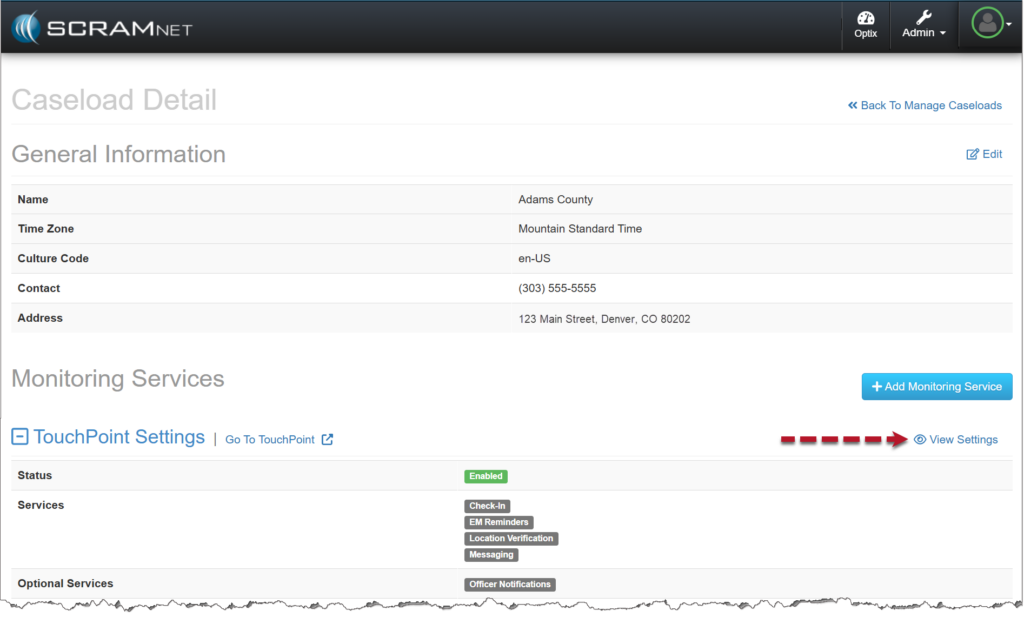
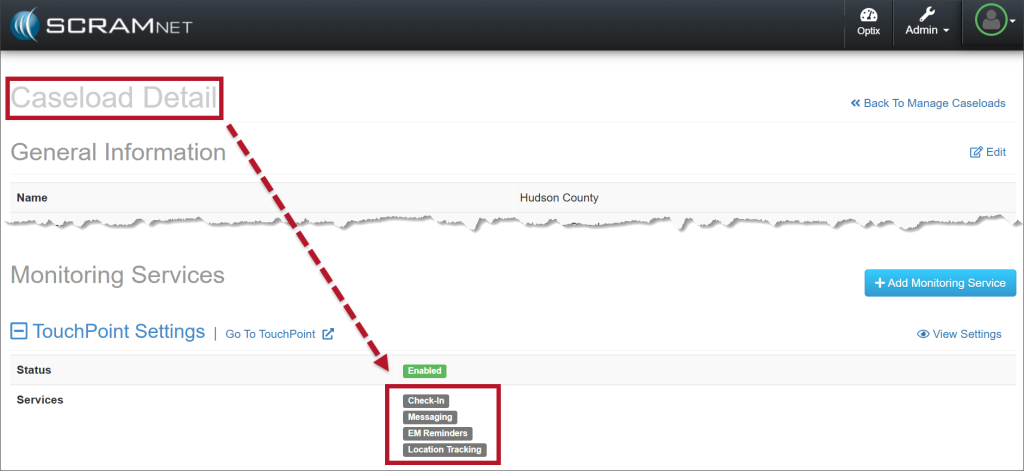
  1. Once saved, the Caseload Detail page will display the enabled services.
Caseload Details Page

Enabling Location Tracking for Clients

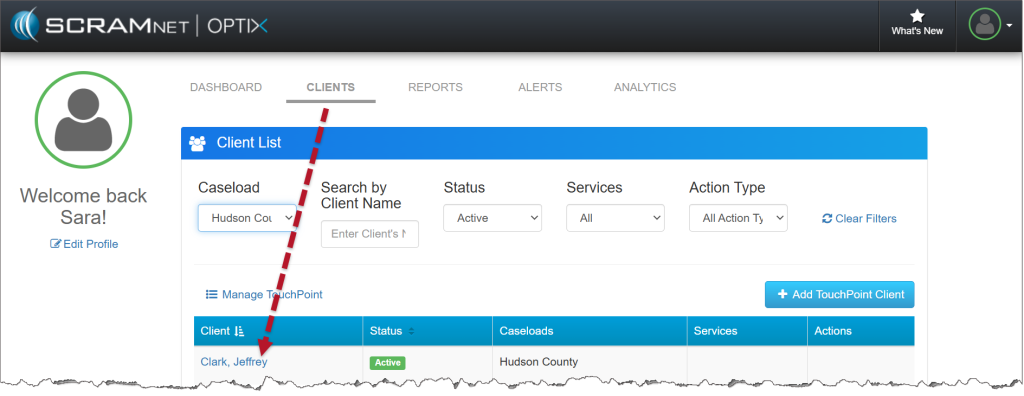
  1. Once your Caseload is enabled for Location Tracking, you may enable this service for clients on their Client Profile page. For existing clients, on the Optix Clients page, select their name hyperlink.
Optix Client Page
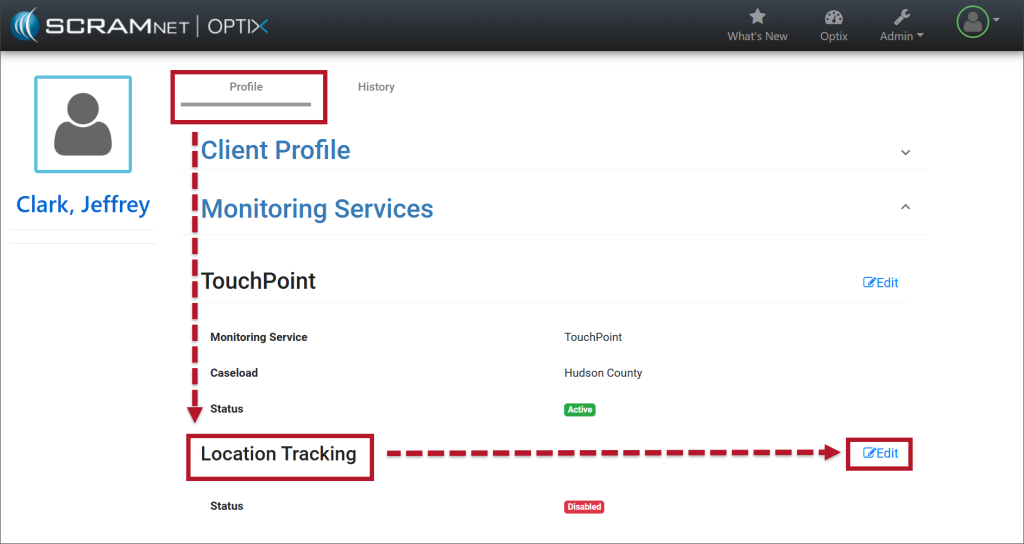
  1. In the Monitoring Services section, select the Edit hyperlink to the right of the Location Tracking monitoring service.
Monitoring Services on the Client Profile Page
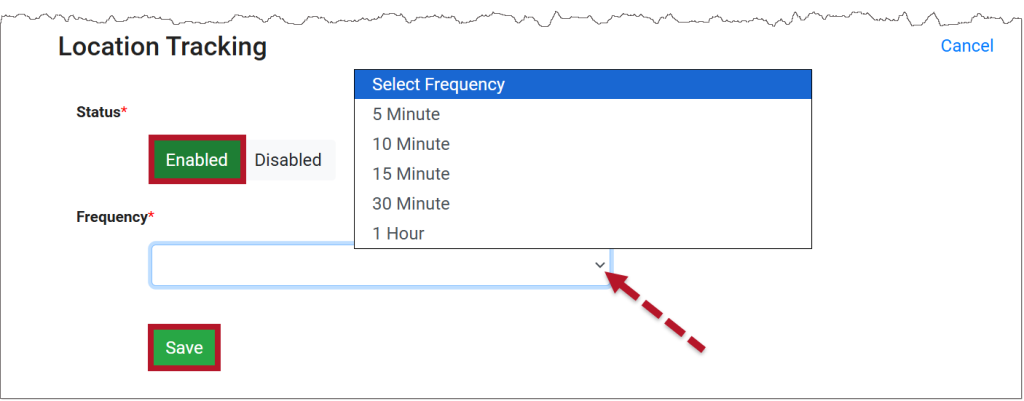
  1. Select the Enable button and then set the frequency – “how often” you want the client’s smartphone to provide a location point.
  2. Select the Save button.
Location Tracking Options

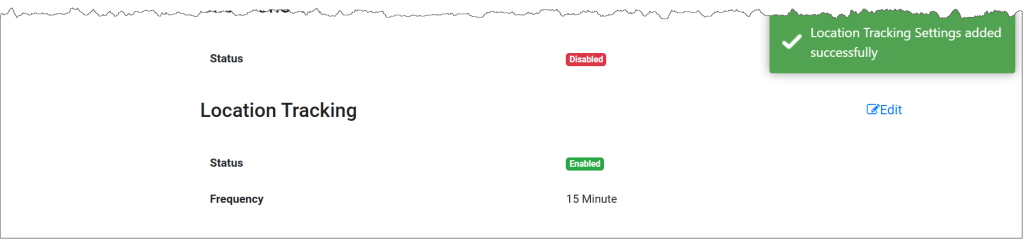
Once saved, a pop-up verifying the Location Tracking setting was successfully enabled for the client will display on the page.

Location Tracking Added Successfully

Accessing the Location Tracking Information

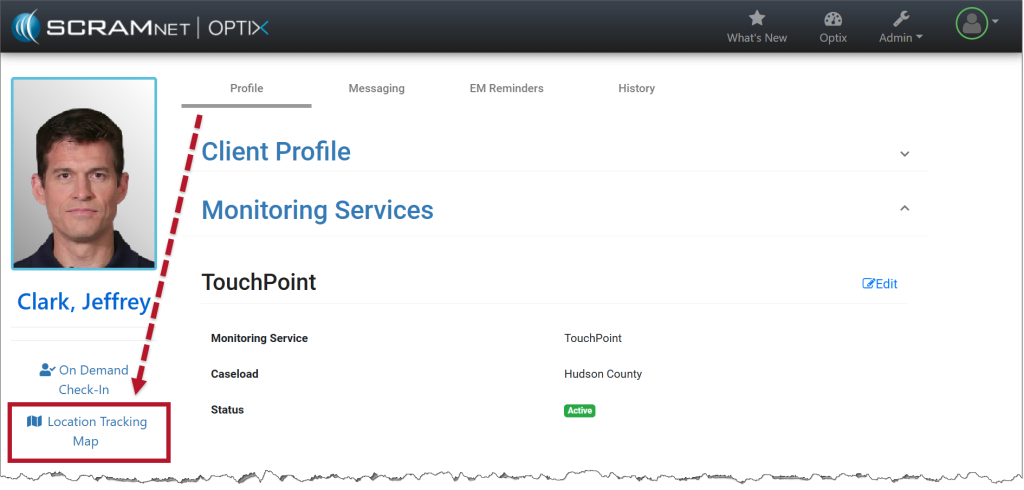
The Location Tracking information may be accessed by selecting that hyperlink on the Client Profile page.

Link to Location Tracking Map

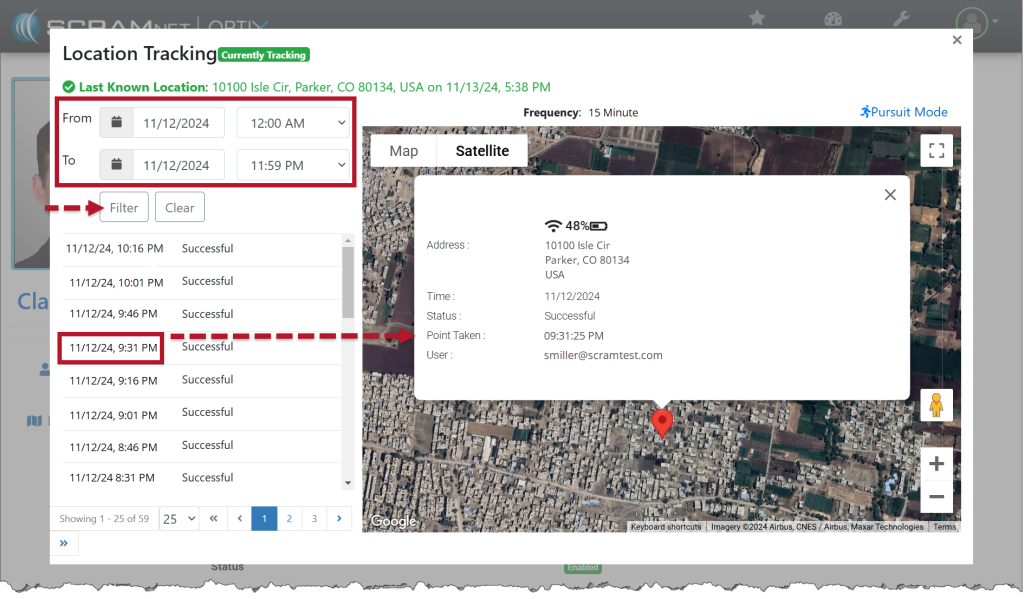
On the Location Tracking pop-up window:

  • The client’s last known location is displayed.
  • The “From” and “To” calendar and time fields allow you to customize the location information displayed on the pop-up. You are limited to a seven-day selection.
  • Select a specific date and time from the list to bring that location point into focus on the map.
  • Hover over the location point on the map to view the location’s details. This includes the location’s address, status, phone battery strength, and user name assigned to the client.
Location Tracking Pop-Up

Pursuit Mode Feature

In some scenarios, real-time tracking of a client may be needed. “Pursuit Mode” temporarily overrides the saved location frequency for the client and updates the frequency to one location point every minute. The system will continue to gather a location point every minute for a total duration of 15 minutes or until manually ended by selecting the Stop Pursuit Mode option.

As the location information is received, the map and location data are updated in real-time on the pop-up.

Location Tracking Pop-Up

Continue Reading