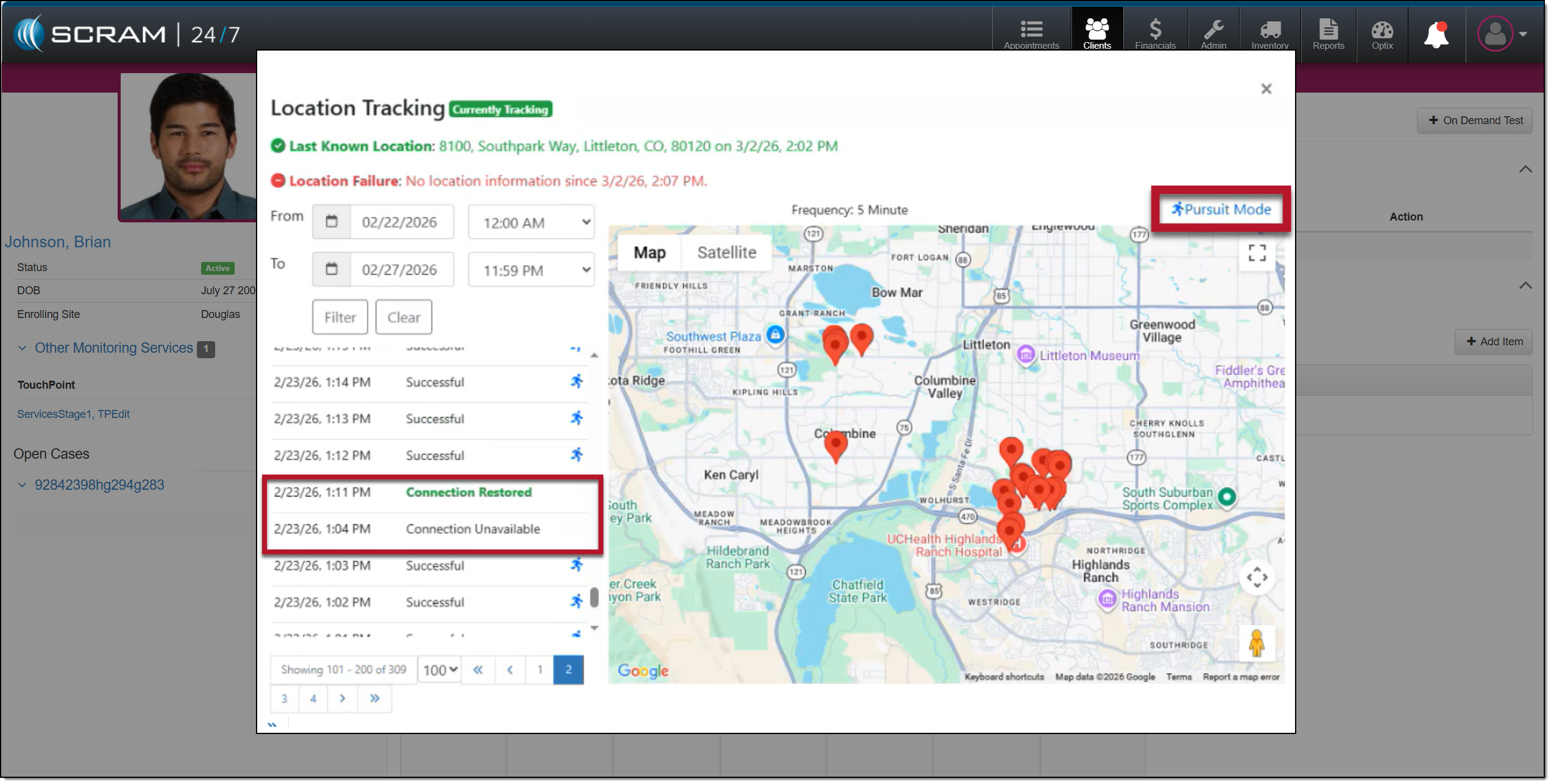
On March 11, 2026, SCRAM Systems will release multiple enhancements for your TouchPoint Activity Client Caseload.
These enhancements are:
- Expanded TouchPoint EM Activity Monitoring Settings page
- Offline Location Tracking Store and Forward
TouchPoint Activity EM Activity Monitoring Settings
Currently, you may access and edit limited TouchPoint features and services on the client’s TouchPoint EM Activity Monitoring Settings page.
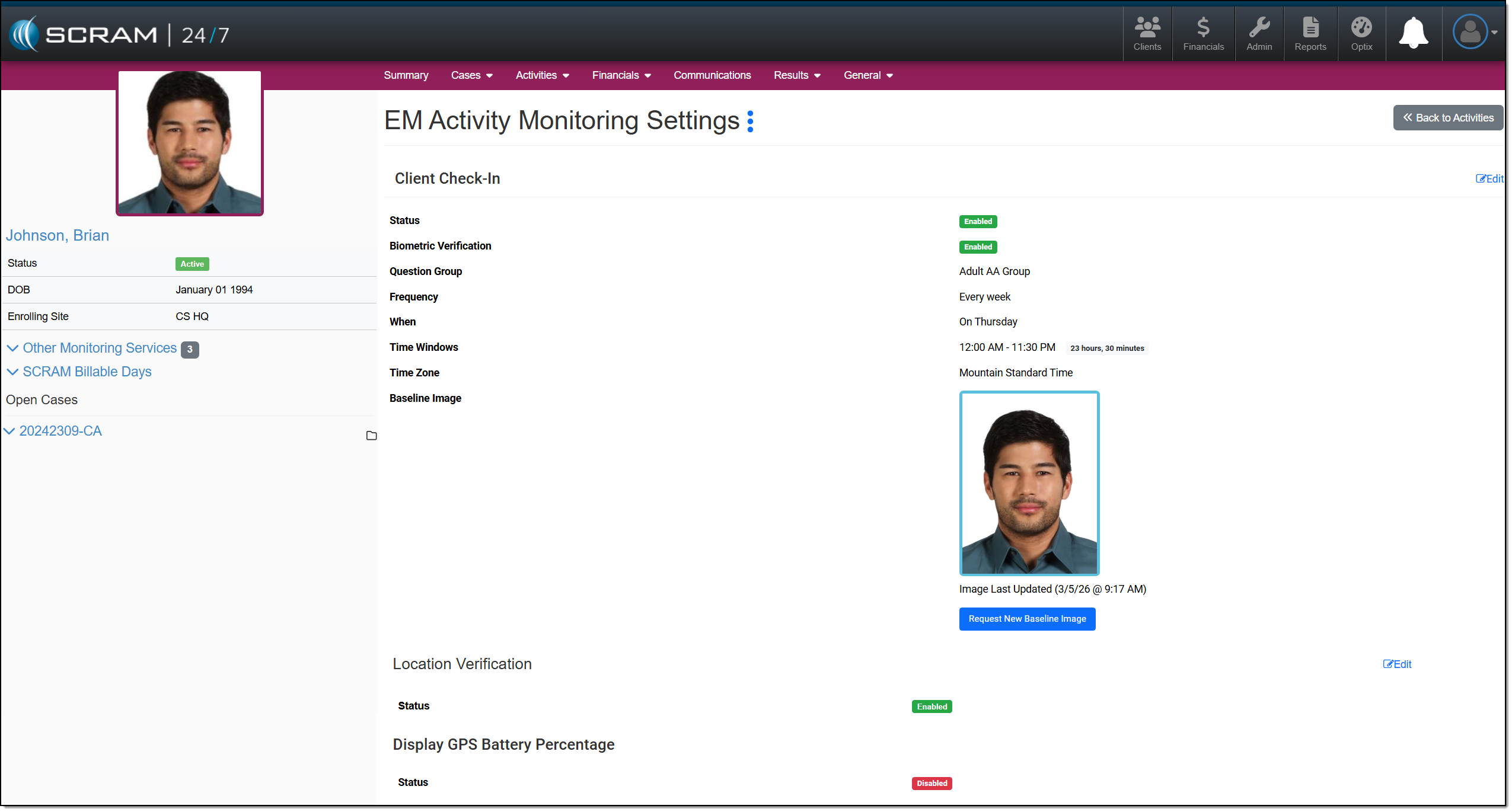
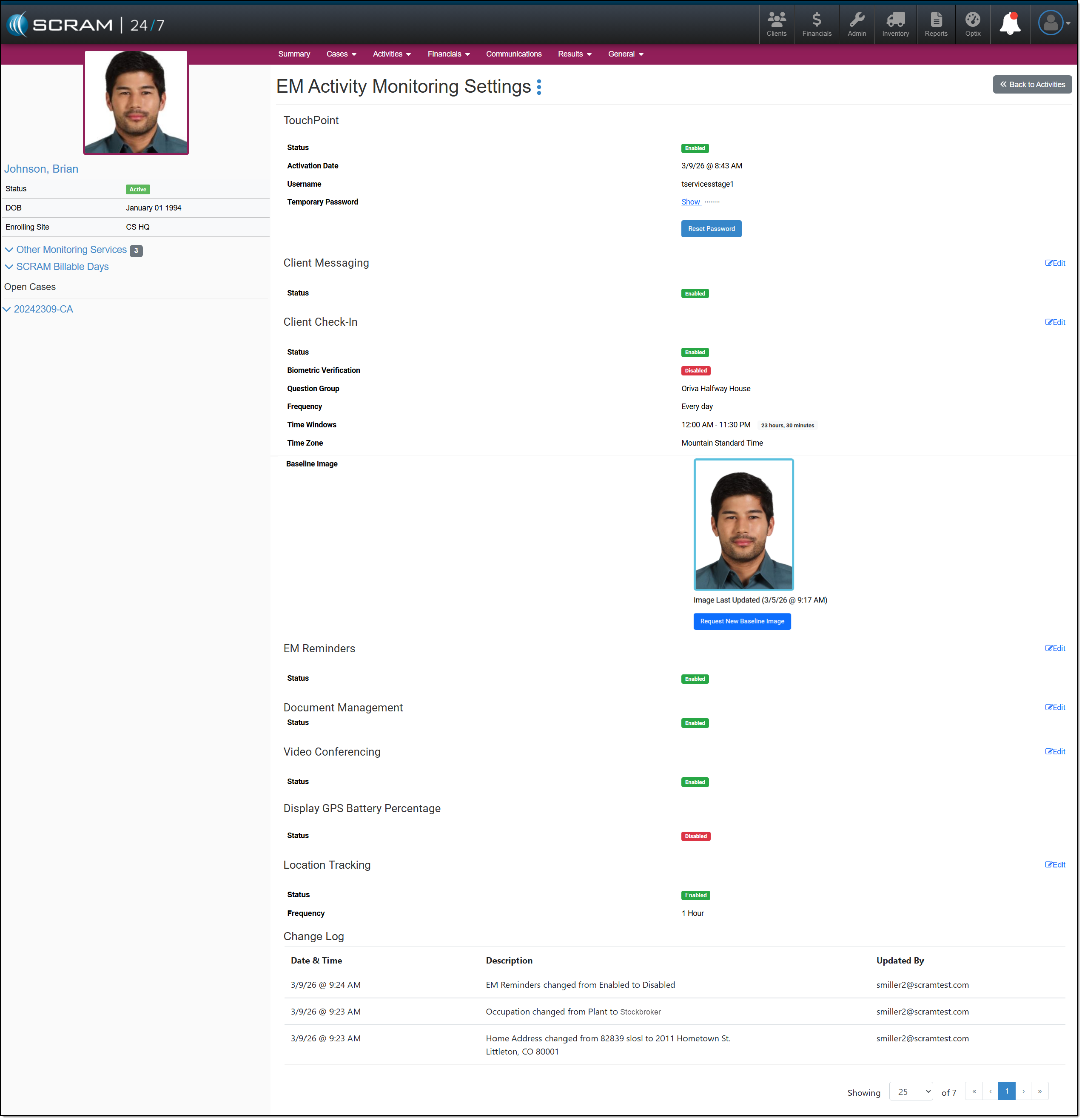
With this release, you may access and edit all TouchPoint features and services on the TouchPoint Activity EM Activity Monitoring Settings page.
 |
In a future enhancement, you will be able to change the client’s username or email address for their TouchPoint Mobile application. For the time being, navigate to the client’s Optix TouchPoint profile to make any updates. |
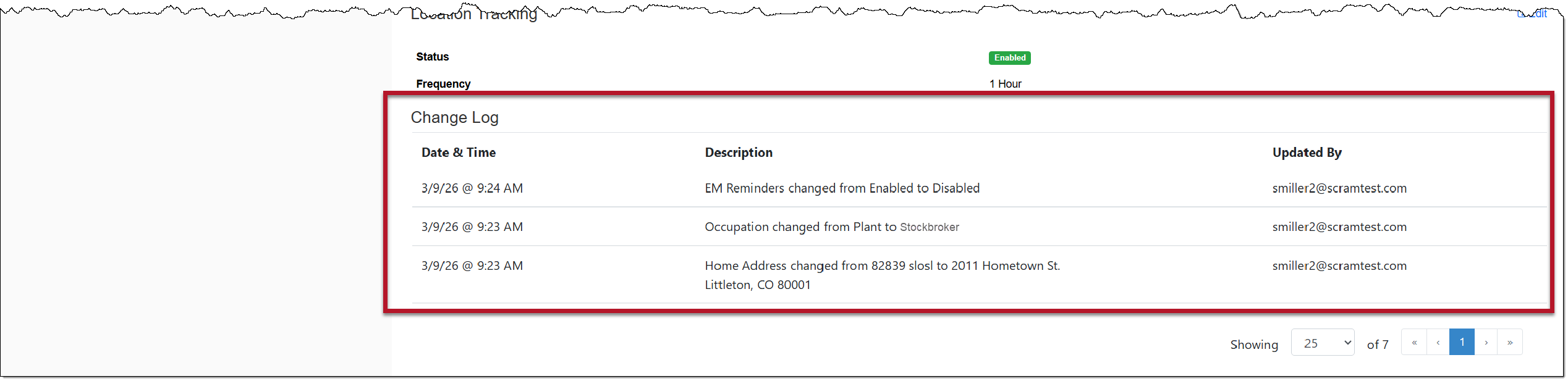
In addition to the TouchPoint services, the TouchPoint Change log history information will now be displayed on the TouchPoint Activity EM Activity Monitoring Settings page.
Offline Location Tracking
|
Your account must be enabled for location tracking for these instructions to work. Contact your SCRAM Systems Account Representative if you are interested in activating this service. |
For clients who are enabled for the SCRAM TouchPoint Location Tracking service, their smartphone’s location data will be captured and stored during periods without network or internet connectivity. Once service is restored, the stored data will be transmitted to the system.
Here is how it works:
For this example, the client’s Location Tracking service is configured to collect location data every 5 minutes.
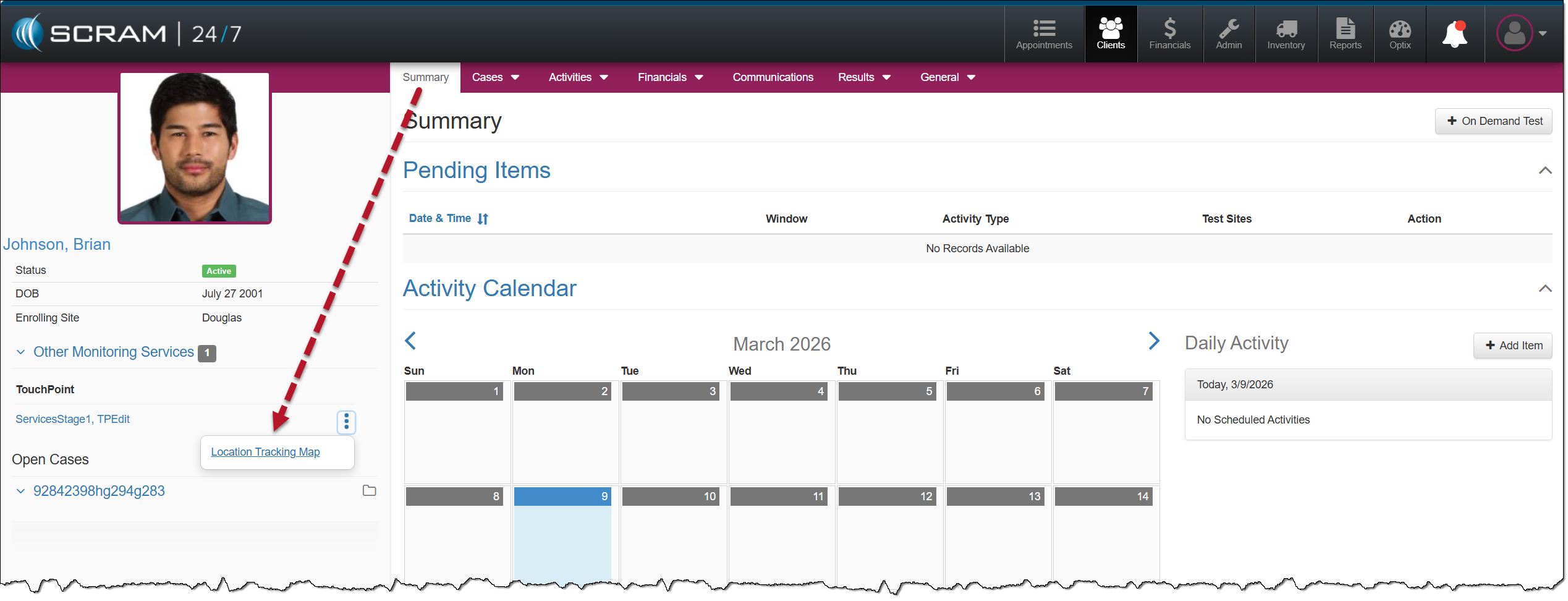
- View the Location Tracking Map by selecting the ellipsis next to the client’s name in the Other Monitoring Service, TouchPoint section.
- Select the Location Tracking Map option.
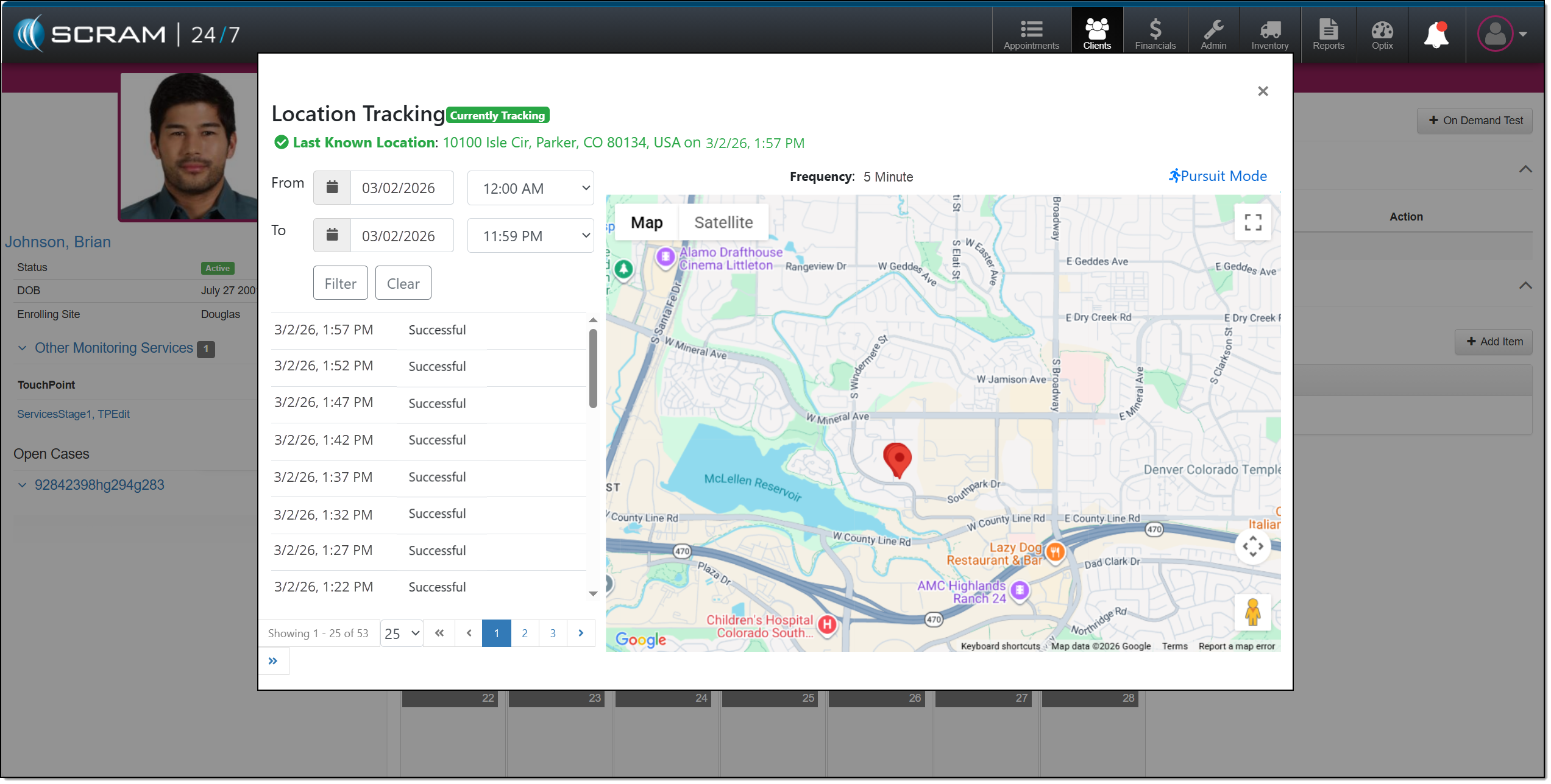
On the Location Tracking pop-up window:
When connectivity is available:
- The location points are plotted on the map.
- Each point is recorded as Successful.
- The Location Tracking pop-up window reflects normal communication.
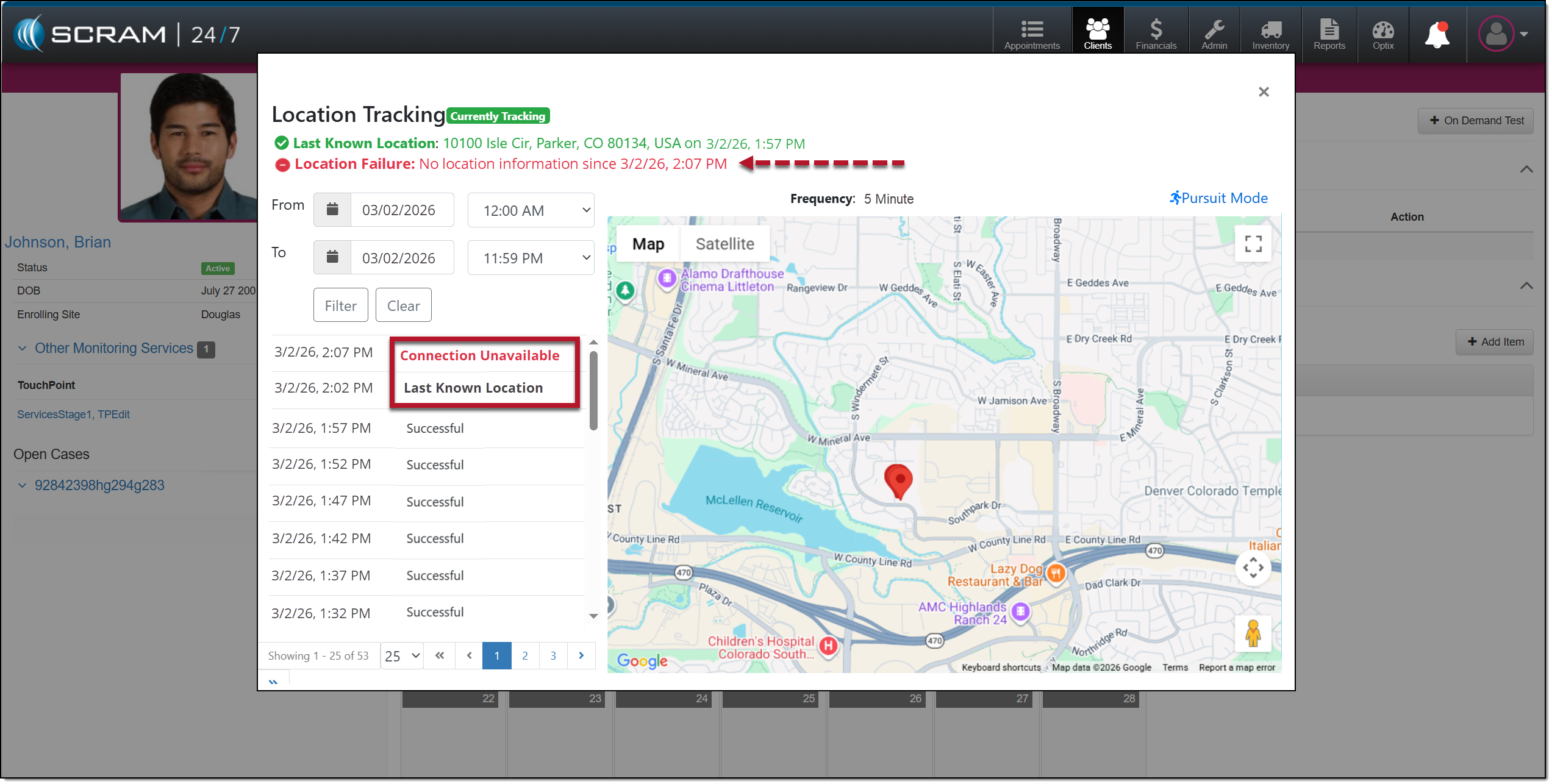
When the connection is not available:
- The location table will indicate the last known location in bold.
- At the next location interval, in this case the 5-minute interval, the location table will display Connection Unavailable in red.
- Additionally, a red Location Failure heading is displayed at the top of the pop-up window, displaying the last communication date and time.
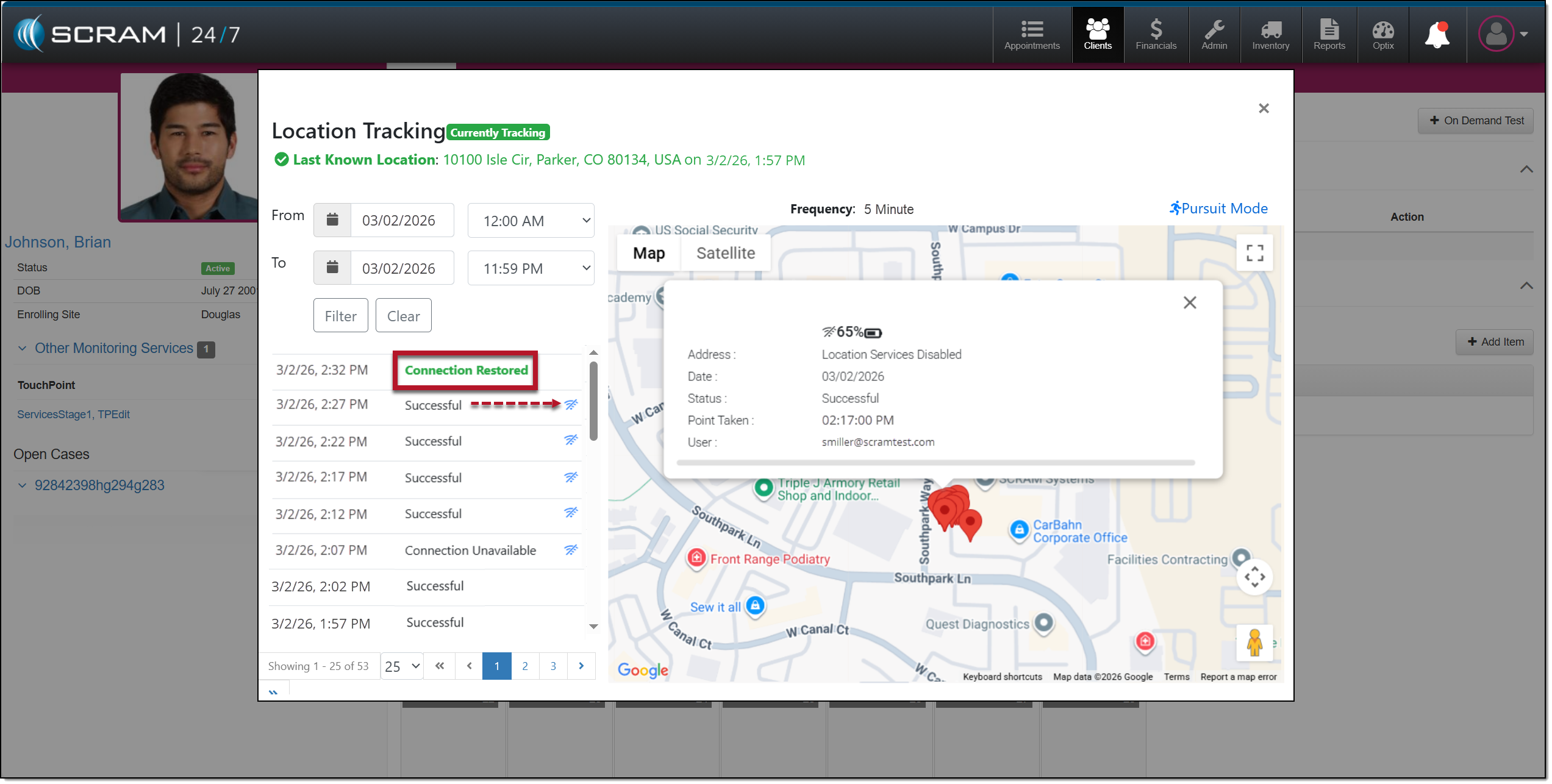
Once the connection is reestablished:
- The location data will automatically update on the map and on the location table.
- The “Connection Unavailable” message will no longer display in bold or in red.
- A “Connection Restored” message will appear bolded and in green on the location table with the date and time stamp of when communication was restored.
|
Status Updates: Location Tracking status updates are tied to the client’s configured frequency. For example, location information is gathered and communicated every 5, 10, 15, 30, and 60 minutes. Any change in connectivity or location status will only be displayed at the sent interval. |
Loss of Connectivity During Pursuit Mode
During the 15-minute Pursuit mode window, if connectivity is lost, the location table will display “Connection Unavailable,” and the red failure banner will display in the Location Tracking pop-up window.
If the device reconnects during the 15-minute Pursuit Mode window, location collection will resume automatically and continue at one-minute intervals for the remainder of the session.