SCRAM Mobile

SCRAM Systems® will be moving to QR code-based “Help” cards for nearly all of its products and services by the end of this week. The switch from static instruction cards to QR codes helps to ensure that customers – and clients – always have the most up-to-date instructions for their SCRAM Systems devices at their fingertips.

There will be two separate QR code-driven Help cards:

  1. SCRAM Systems Device Help for customers (Service Providers and Agencies) – the blue card
  2. SCRAM Systems User Support for clients – the white card

InformationQuick Reference Guides will still continue to be printed for all SCRAM Systems products.

What’s a QR Code?

A QR code is a type of two-dimensional matrix barcode consisting of an array of black and white squares. QR codes are typically used for storing web addresses (URLs), which can be read by the camera on a smartphone to open a web page.
QR Code Example

How Will SCRAM Systems Use QR Codes?

Rather than including device-specific instruction cards in the boxes we ship to you, we will instead include two packs of 25 business-card-sized Help cards – one pack of customer Help cards and one pack of client Help cards – in each of our Customer Care Kits. Additional 25-card packs of each type will be available for purchase on the SCRAMNET Equipment Order Form if needed.

Help for Service Providers and Agencies

You and the other Officers, Agents, and Case Managers who are responsible for monitoring clients in your SCRAM Systems Program, can carry one of the blue customer cards with you, or post them around the office. Then whenever you need help installing or removing a device, for example, you may simply pull out the SCRAM Systems Device Help card and scan it with your smartphone:

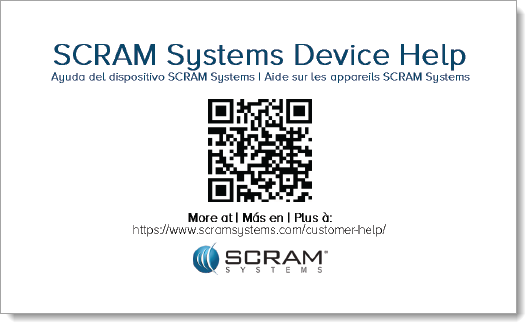
SCRAM Systems Device Help Card – Front
SCRAM Systems Device Help Card – Back

Once you scan the QR code on the card, your smartphone will launch the SCRAM Systems Customer Help Center (www.scramsystems.com/customer-help/), where you will tap on your location, and then tap on the type of Help you need:

  1. Scan the card with your smartphone and then select your location:
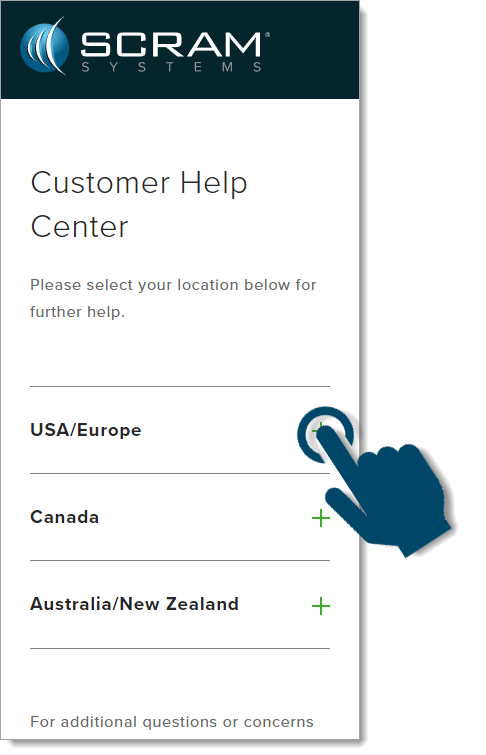
Select Your Geographical Location (USA/Europe Shown)
  1. Select the type of device help you seek:
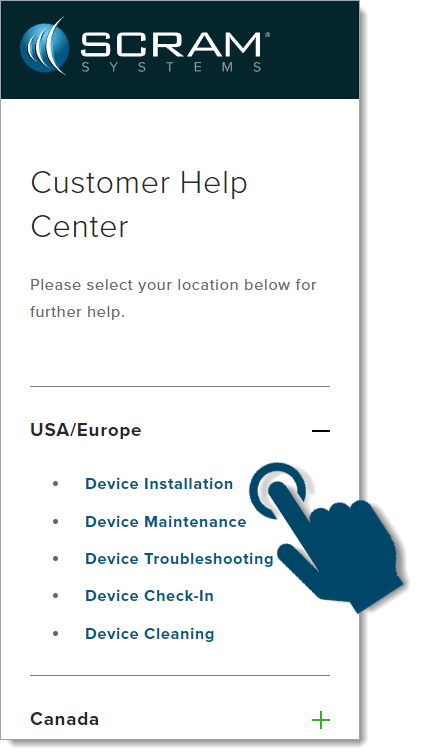
Select the Type of Help (Device Installation Shown)
  1. Login with your SCRAM monitoring system credentials:
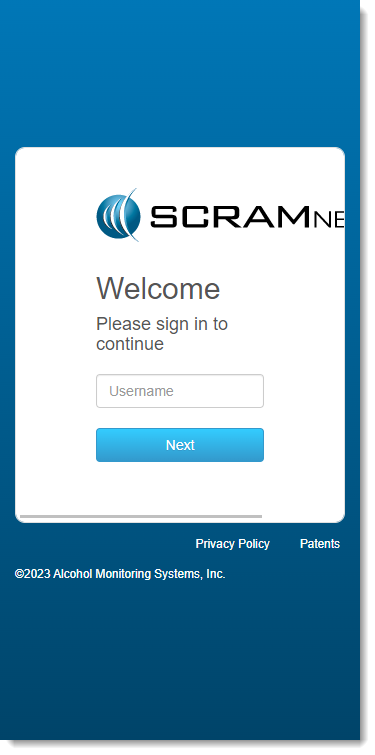
Login with SCRAM Credentials
InformationRequiring a login ensures that nobody except SCRAM Systems customers can access SCRAM Device Help.
  1. Select the specific SCRAM Systems product for which you want help:
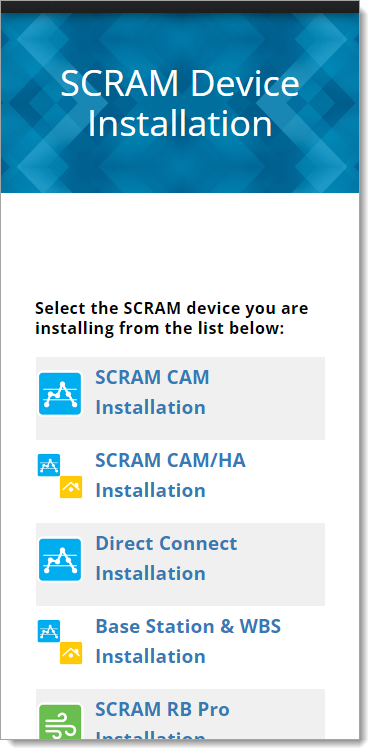
Select the Appropriate Product (Installation Help Example)

Help for Clients

SCRAM Systems will also be eliminating most product-specific client instruction cards, and will instead make QR code-driven SCRAM Systems User Support help cards available:

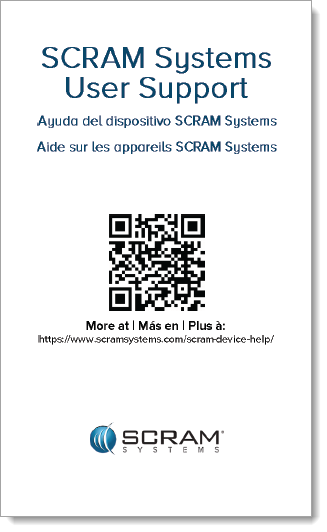
SCRAM Systems User Support Help Card – Front
SCRAM Systems User Support Help Card – Back

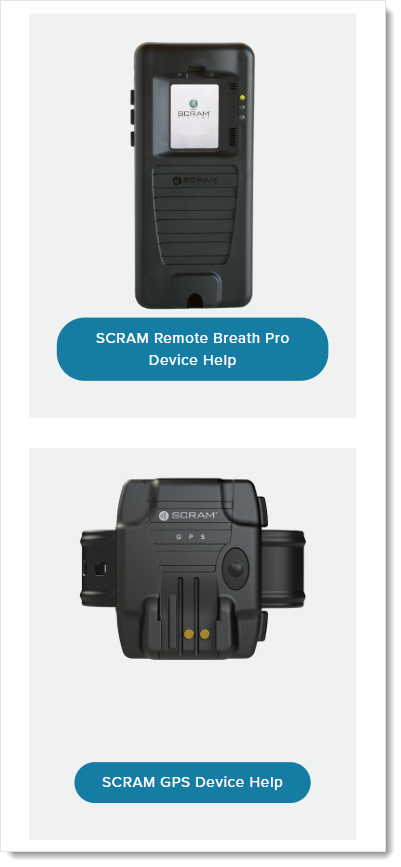
Once the client scans the QR code on the white card, their smartphone will launch SCRAM Systems Device Help for clients (www.scramsystems.com/scram-device-help/), where they may scroll through a list of SCRAM Systems devices, mobile apps, and FAQs, and simply tap on the type of help they need:
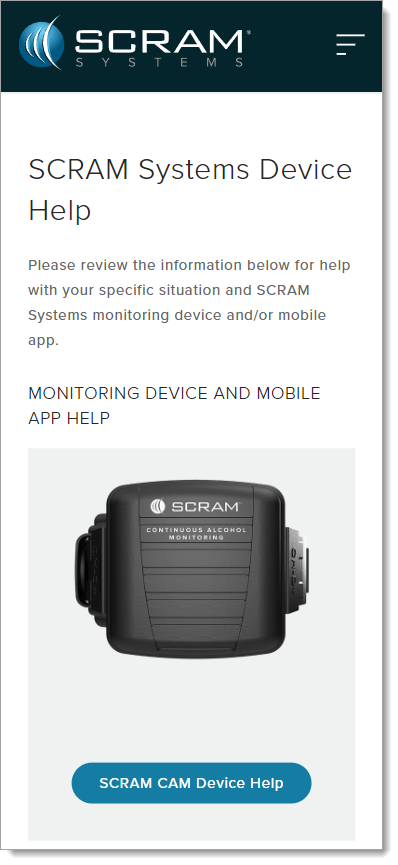
SCRAM Systems Device Help for Clients – SCRAM CAM
SCRAM Systems Device Help for Clients – SCRAM RB Pro & GPS

Continue Reading

At 5:00 AM MDT on Thursday, July 29, 2021, SCRAM Systems is introducing two new features in SCRAMNET GPS. During the 15-minute deployment, you may not be able to access SCRAMNET GPS but messages from the SCRAM GPS Bracelet will continue to be processed uninterrupted. Enhancements/changes included are:

  • New Daily Activity Report
  • Improvements to Locate Now and Pursuit Mode When Used on a Mobile Phone

New Daily Activity Report

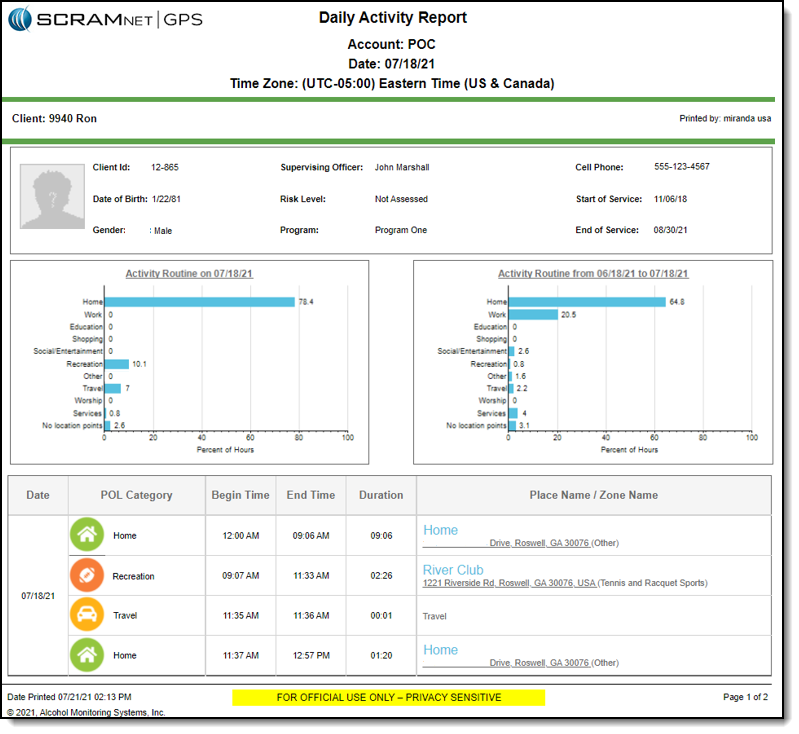
The Daily Activity report lists daily stops and travel for selected clients for a given date range.

The report can be accessed from two locations:

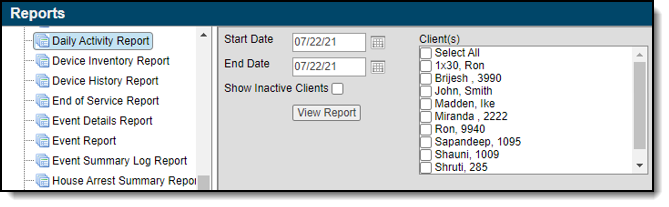
  1. Reports > Daily Activity Report
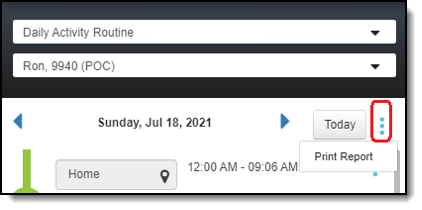
  2. Pattern of Life > Daily Activity Routine (View) > More Options (Menu) > Print Report

When accessing the report from the Reports menu:

  1. The Start Date can go back one year.
    Note: If Pattern of Life has recently been enabled for your account, a year of data will not be available.
  2. The End Date can be six months from the Start Date for a single client. If multiple clients are selected, the total duration for all selected clients cannot exceed 180 days.

The report body has three sections:

  1. Client Profile information
  2. Charts of how time is spent for the given day, compared to the last 30 days
  3. Daily activity of stops and travel

The stop address is a hyperlink that opens the address on Google Maps. When the report is exported to PDF, Word, or Excel, the hyperlink can still be used to display the address on the map.

Improvements to Locate Now and Pursuit Mode When Used on a Mobile Phone

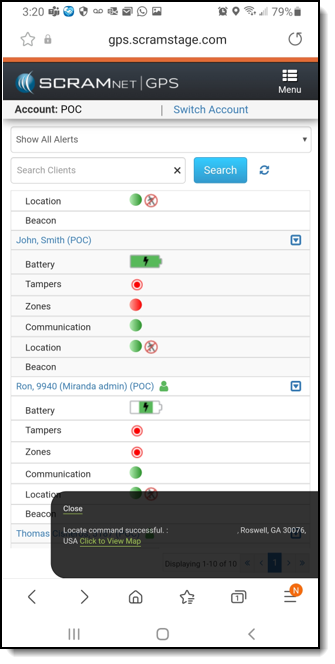
The Locate Now and Pursuit Mode commands can be initiated from the Dashboard, Profile Summary, and Client Events pages. These pages were recently updated for better viewing on a mobile phone.

Pinch the screen to zoom in or out of the map.

Note: Not all features of the map have been updated for better viewing on the map.

Continue Reading

At 5:00 AM MDT on Thursday, May 6, 2021, SCRAM Systems introduces several new features in SCRAMNET GPS. During the 15-minute deployment, you may not be able to access SCRAMNET GPS but messages from the SCRAM GPS bracelet will continue to be processed uninterrupted. The enhancements and updates include:

  • New Criteria for the Charger Maintenance Alert
  • Improvements to the Events Dialog When Viewed on Mobile Devices
  • Additional Information Added to Device Inventory Page

New Criteria for Charger Maintenance Alert

SCRAMNET GPS recently introduced a Charger Maintenance Alert as a reminder to inspect GPS Chargers. When this alert was first introduced, it was generated when a client had the same SCRAM GPS bracelet assigned for 18 months or longer or had over 200 plug-ins in a week, either of which could indicate worn charger components. Later, the interval was reduced to every 16 months. With this deployment and out of an abundance of caution, the criteria for generating this alert have been reduced to the same bracelet being assigned for 14 months or longer, or over 150 plug-ins in the last week.

Information Reminder: The Charger Maintenance alert is only generated once per client.

Improvements to the Schedule Details Page When Viewed on Mobile Devices

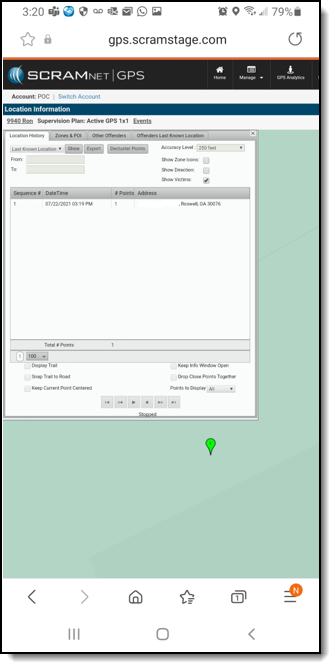
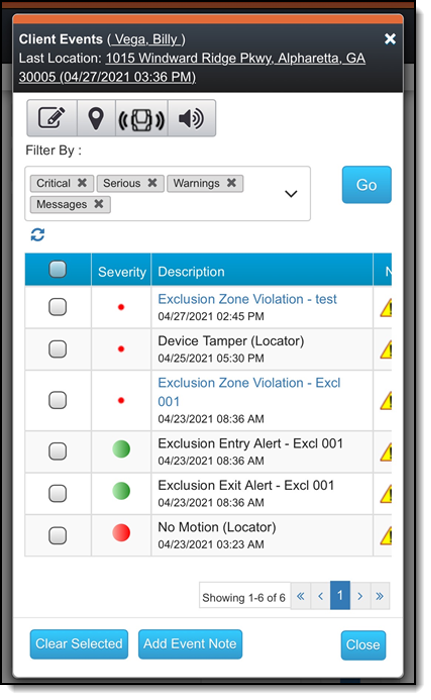
The Client Events and Victim Events screens have been updated for better viewing on mobile devices. In addition, with this release users can now clear alerts, enter notes, and view alert notifications from a mobile device.

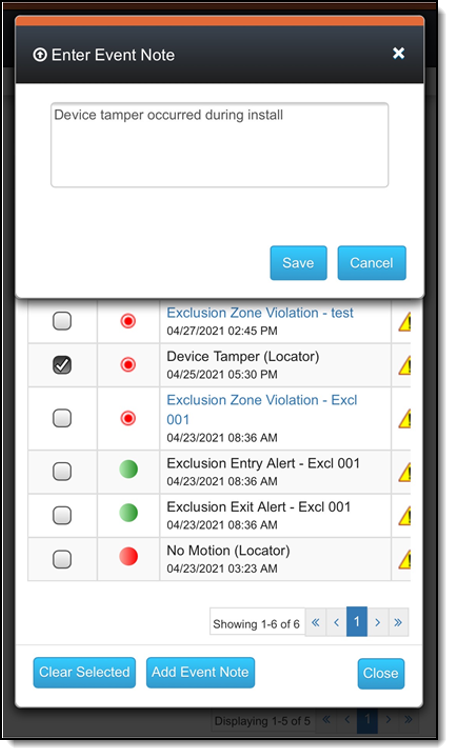
To clear an event:

  1. In the left column, select one or more events.
  2. Tap the Clear Selected button.
  3. Enter a note.
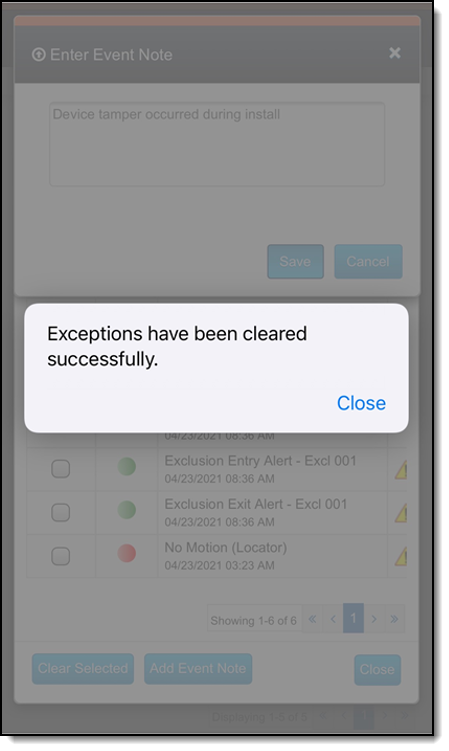
  4. Tap the Save button.
    The pop up below appears.

Additional Information Added to Device Inventory Page

Users in the Admin role can manage device inventory by navigating to the Admin > Account Settings > Devices tab. The following new columns have been added:
  • Protocol – The communication protocol the device uses to communicate with the server. The two possible values are UDP and MQTT (IoT).
  • Carrier – The wireless communications carrier the device’s SIM card uses.
  • Country Code – The country in which the device was configured to operate.

Initially, these columns may not display any information, which is as-designed and does NOT indicate that a problem has occurred.

Continue Reading

At 5:00 AM MT, Tuesday, April 20, 2021, AMS is introducing several new features in SCRAMNET GPS. During the 15-minute deployment, you may not be able to access SCRAMNET GPS but messages from the SCRAM GPS bracelet will continue to be processed uninterrupted. Enhancements/changes included are:
  • New Criteria for Charger Maintenance Alert
  • Show the Exclusion Zone Buffer Entry/Exit Alert on the Dashboard Page
  • Improvements to the Schedule Details Page When Viewed on Mobile Devices

New Criteria for Charger Maintenance Alert

SCRAMNET GPS recently introduced a Charger Maintenance alert as a reminder to inspect GPS Chargers. This alert is generated when a client has had the same bracelet for 18 months or longer or has over 200 plug-ins in a week, which could indicate a worn charger.

In an effort to ensure the safety of our customers and their clients, SCRAM Systems has re-evaluated its new GPS Charging Cable Warning criteria and made some adjustments. As a result you may see the warning that reminds you to inspect your charging cables appear more frequently.

To ensure that the electrical components are not worn, the criteria for generating this alert have been reduced to the same bracelet being assigned for 16 months or longer or has over 150 plug-ins in the last week.

Note: Be aware that the Charger Maintenance alert will be generated only once per client.

Show the Exclusion Zone Buffer Entry/Exit Alert on the Dashboard Page

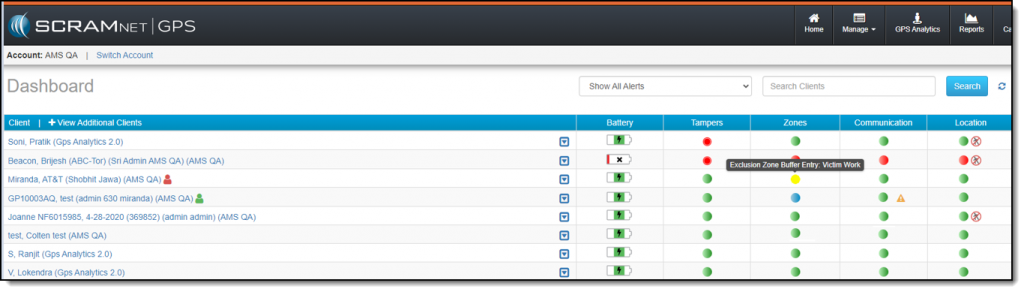
Exclusion zones that are circle shaped can also include a buffer zone that is associated with the Exclusion Zone Buffer Entry and Exclusion Zone Buffer Exit alerts. Users can elect to receive notifications for these alerts. Additionally, these alerts are now displayed on the Dashboard page.

A client entering an exclusion zone buffer is now indicated on the Dashboard page with a yellow flashing icon. The icon is in yellow to indicate it is not yet a zone violation. This alert’s severity is considered a “Message” so the icon appears below other alerts on the Dashboard page.

If the client exits the buffer zone, the icon will clear according to the clear settings. If the client enters the Exclusion zone, the icon will turn to flashing red and the severity will move the client to the top of the list.

Improvements to the Schedule Details Page When Viewed on Mobile Devices

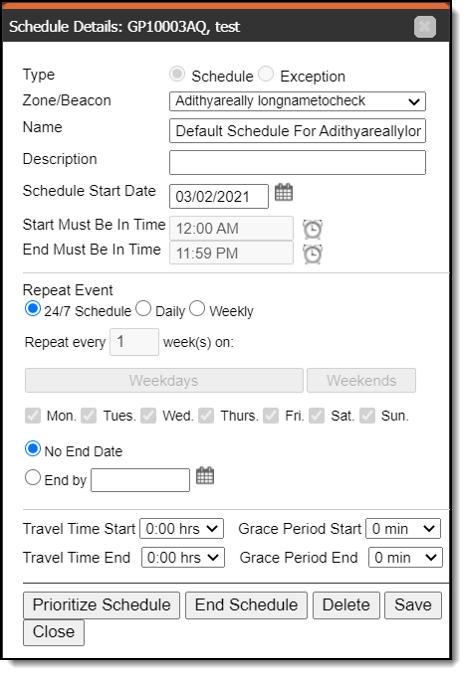
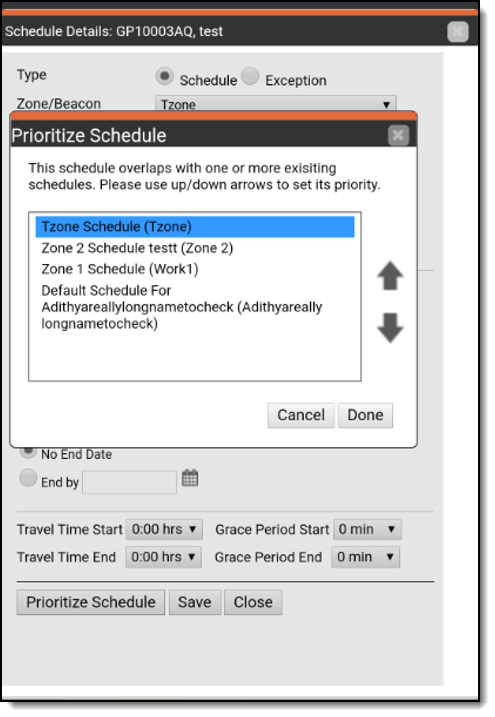
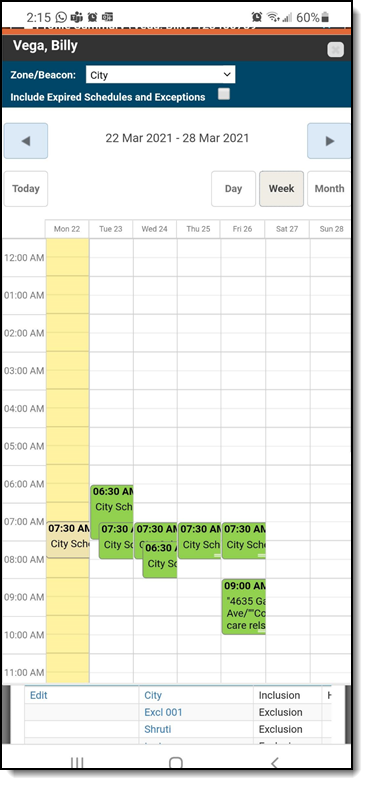
The Schedule Details page has been updated for better viewing on mobile devices. With this release, along with other pages that were previously updated for better viewing, users can now create, edit, and delete schedules from a mobile device, as shown below.

Continue Reading

SCRAM Systems® provides enhancements and updates to the SCRAM TouchPoint™ Mobile application on a continual basis. These updates improve the functionality and usability of the application for your client. Once an update is available in the Apple App store and the Google Play store, the next step is to have the client update the application on their smartphone.

An app update can be completed in two ways.

  • Automatic application updates (Recommended)
  • Manual application updates

As a best practice, we recommend you encourage your clients to enable automatic app updates – this ensures they are always using the latest version of the TouchPoint app.

Setup Automatic Application Updates

iPhone

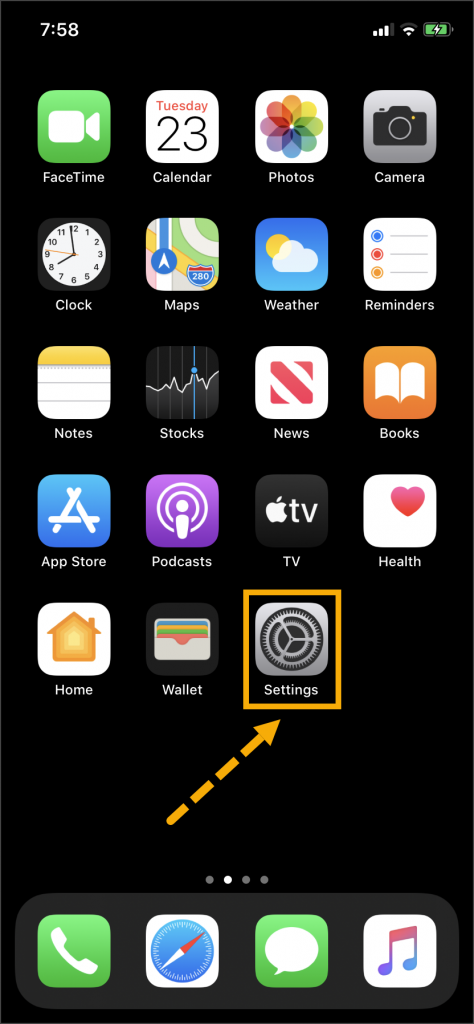
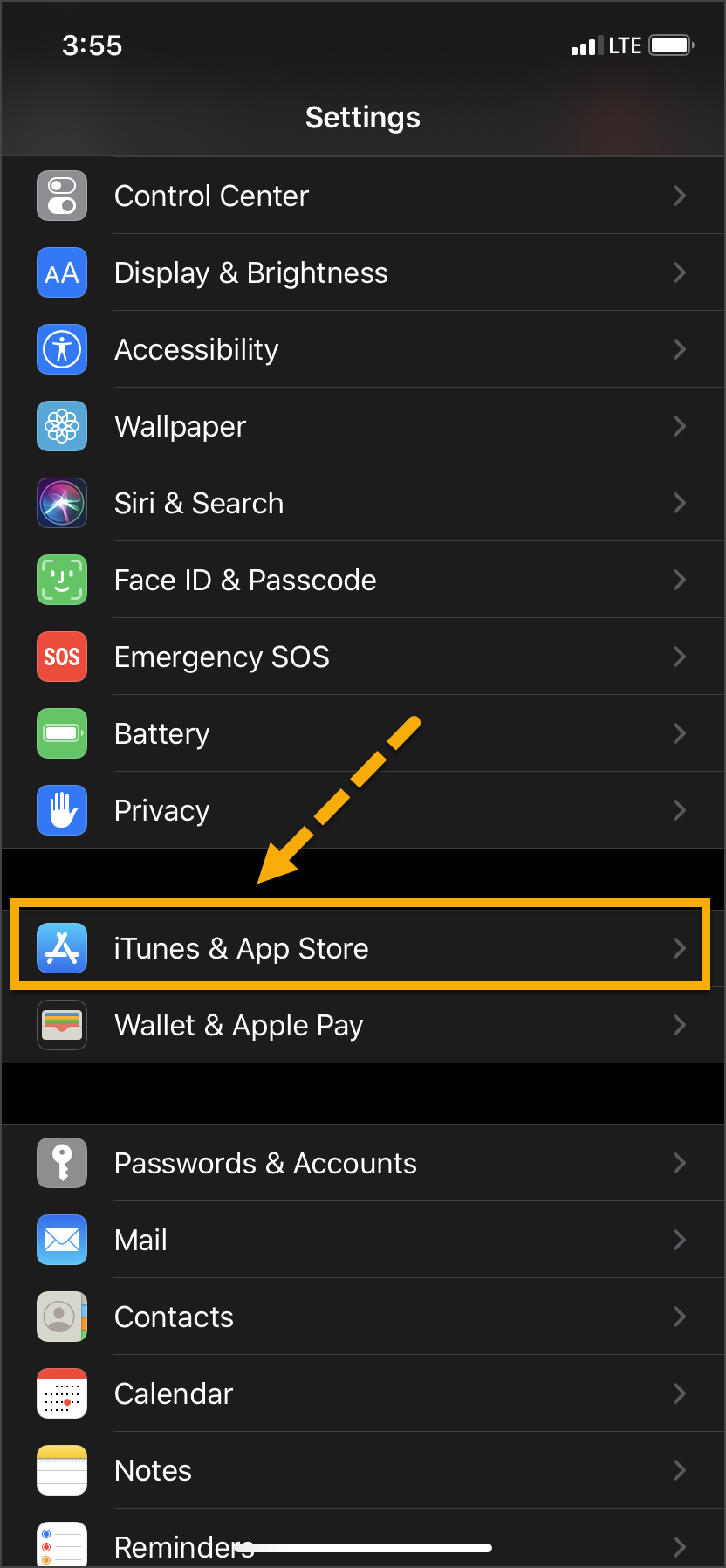
  1. On the client’s smartphone, tap the Settings icon.
  2. On the Settings screen, tap the iTunes & App Store option.
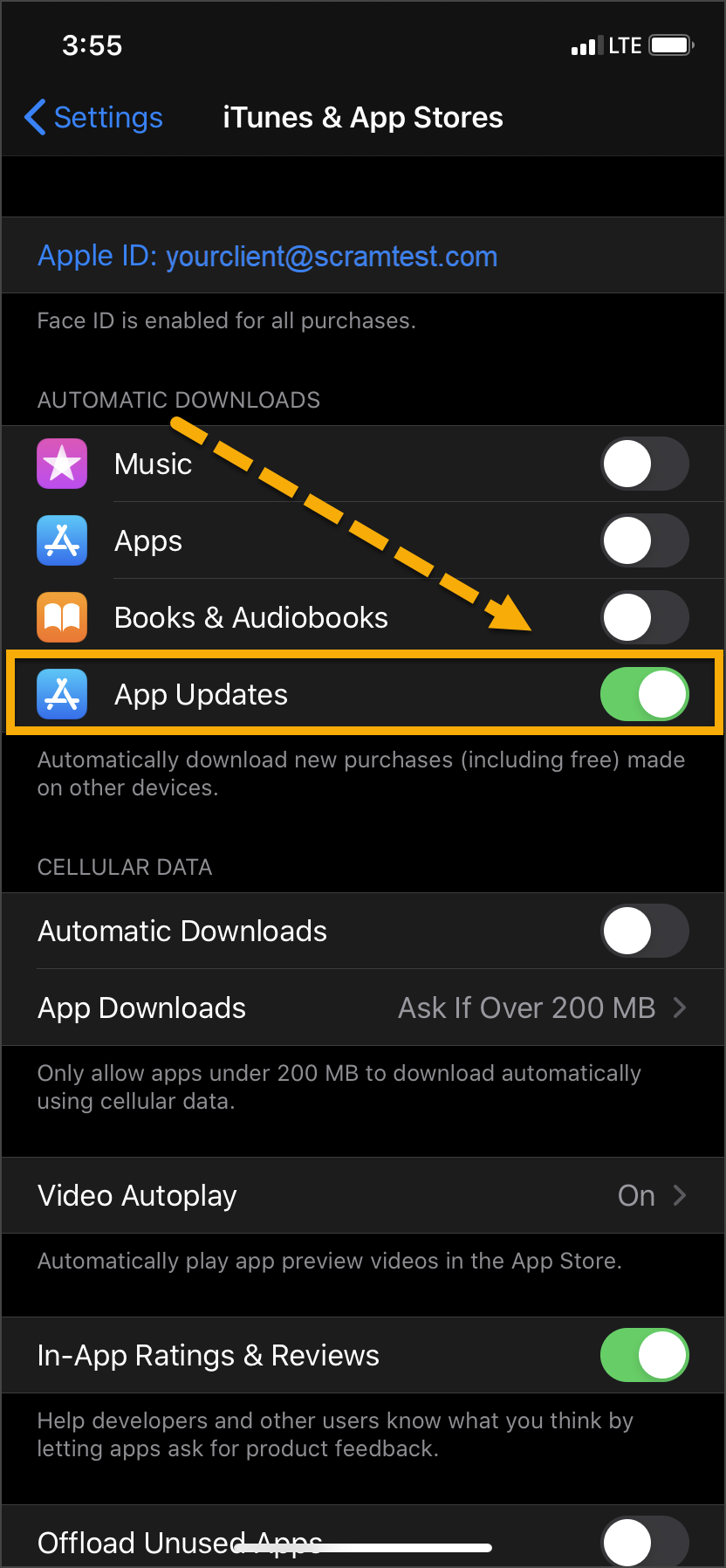
  3. Under the Automatic Downloads section, ensure the App Updates option is enabled.   
iPhone home screen Settings icon iPhone settings screen iPhone Settings screen

Click on any image to enlarge it.

Android

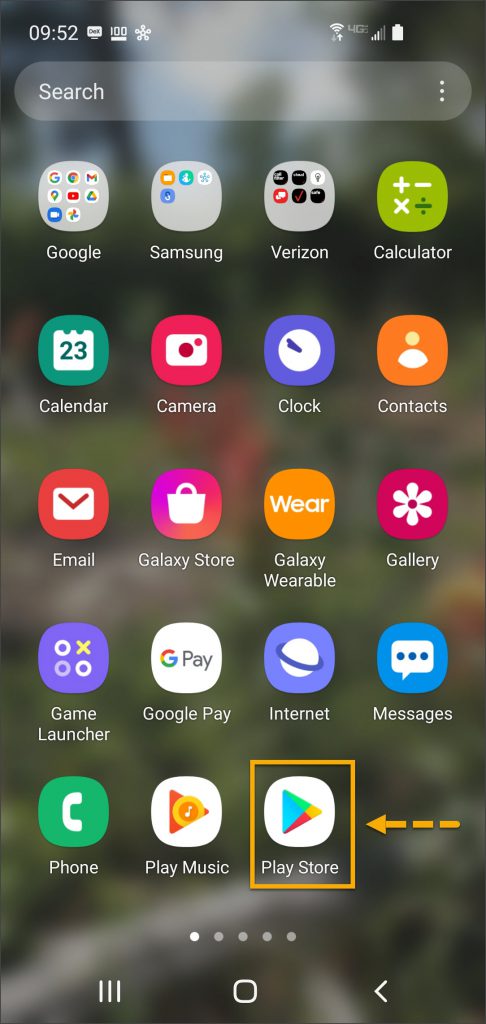
  1. On the client’s smartphone, swipe up on the Home screen.
  2. Tap the Play Store icon.
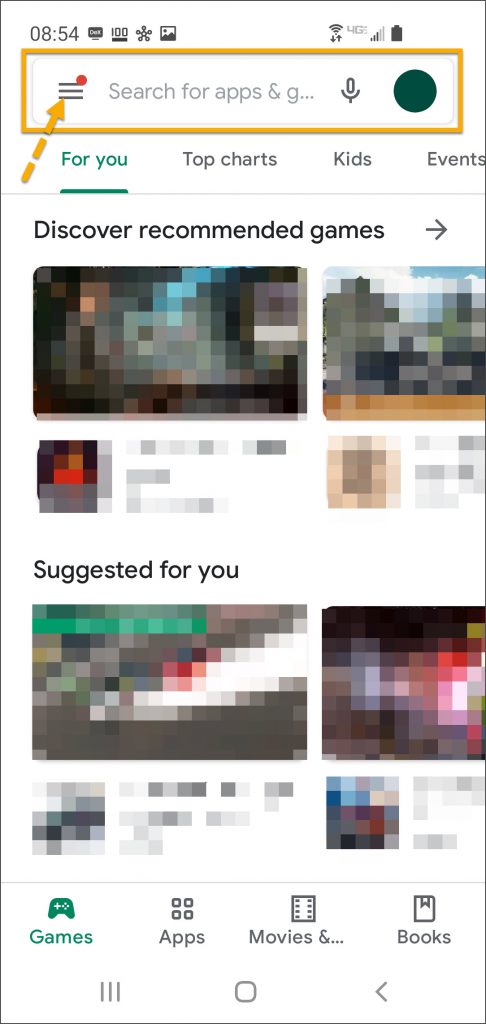
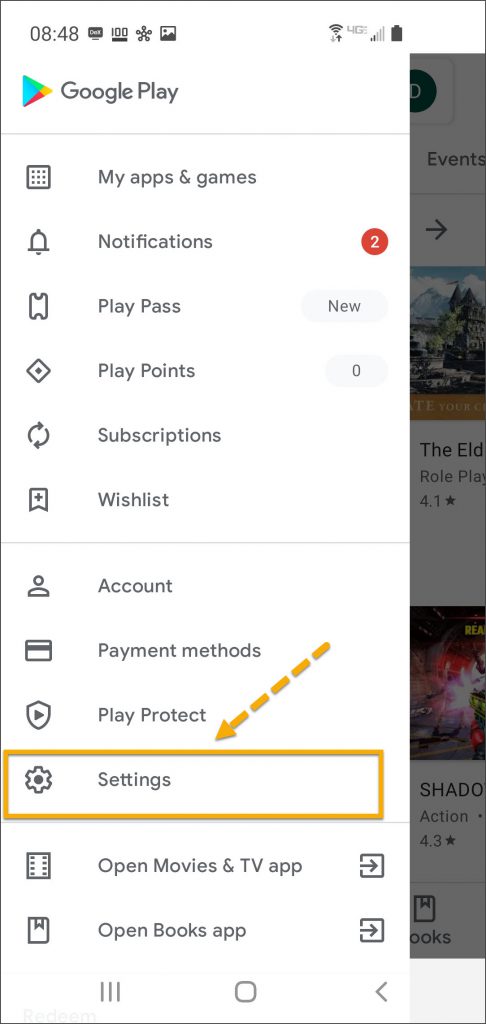
  3. On the Google Play store screen, tap the menu icon in the search field.
  4. Locate and tap the Settings option.
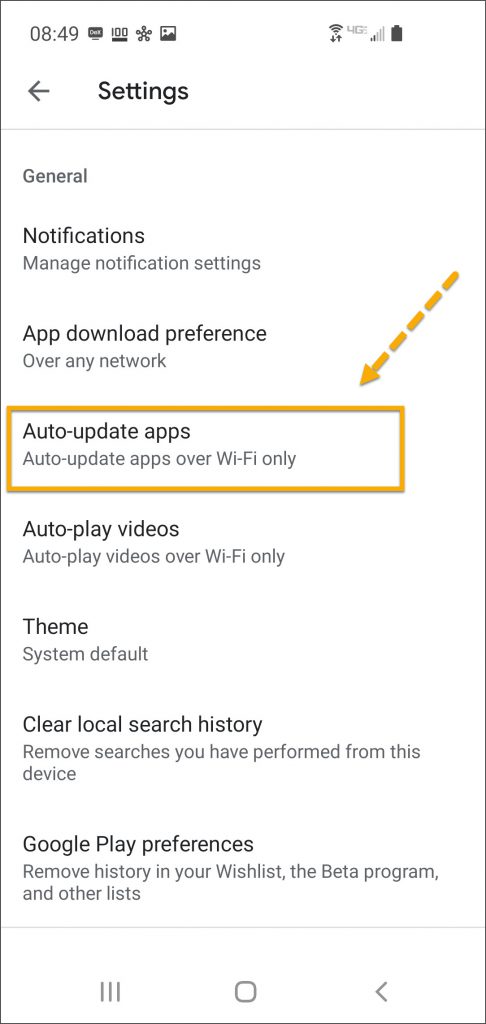
  5. Tap the Auto-update apps option.
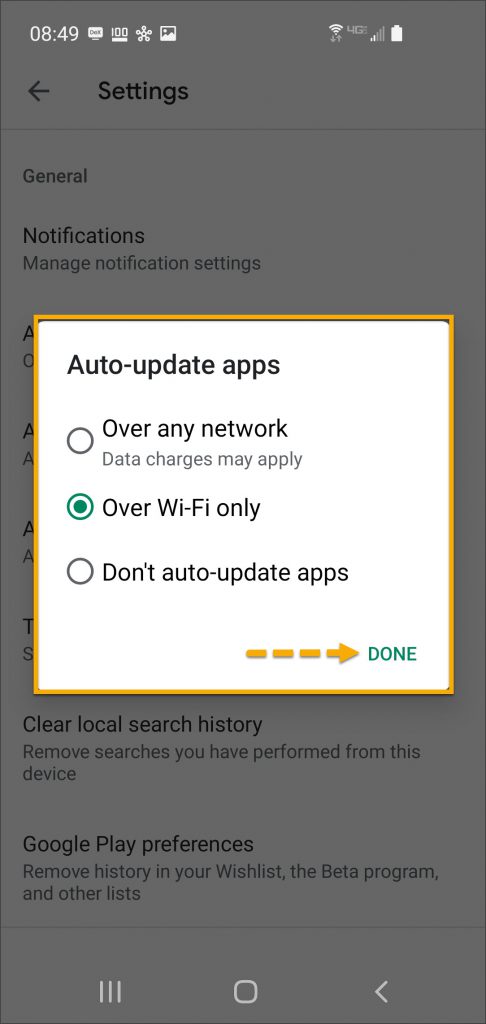
  6. In the Auto-update apps window, select the option of,
    • Over any network (Data charges may apply)
    • Over Wi-Fi only
  7. After making the selection, tap Done.
Android app screen Play Store app Android Google Play screen menu Android Google Play store screen
Android Settings screen Auto-Update appsAndroid Auto Update apps window options  

Click on any image to enlarge it.

Manual Application Update

iPhone

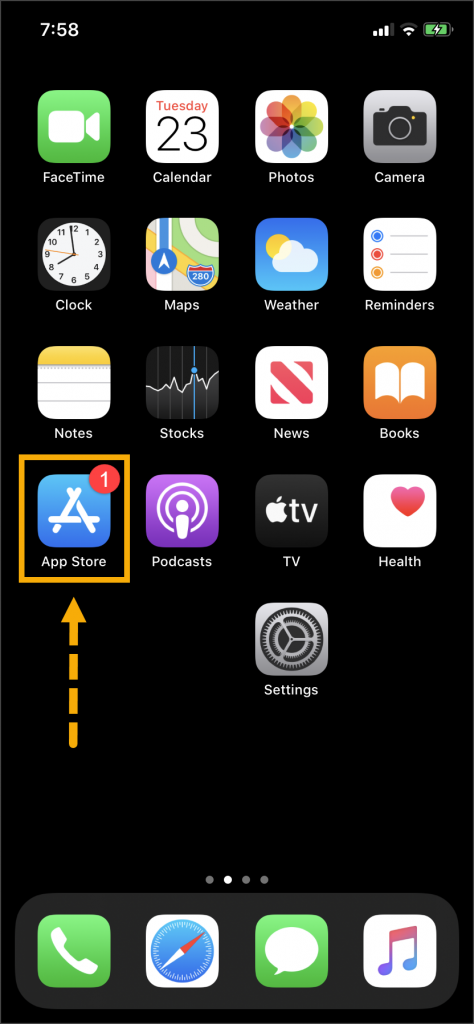
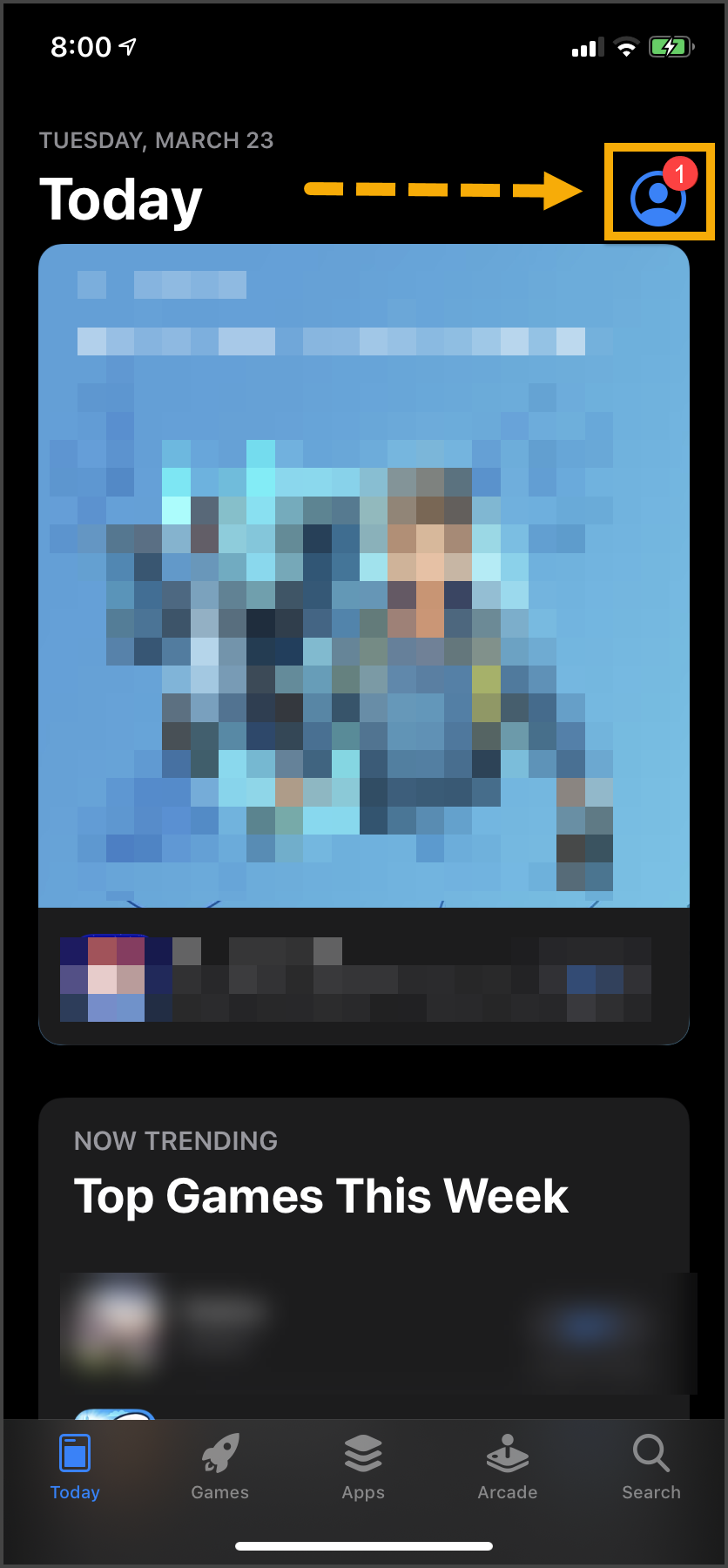
Once an update to the TouchPoint application is available, the App Store icon will display a red badge.

Instruct the client to:

  1. Tap the App Store icon.
  2. Tap their profile icon.
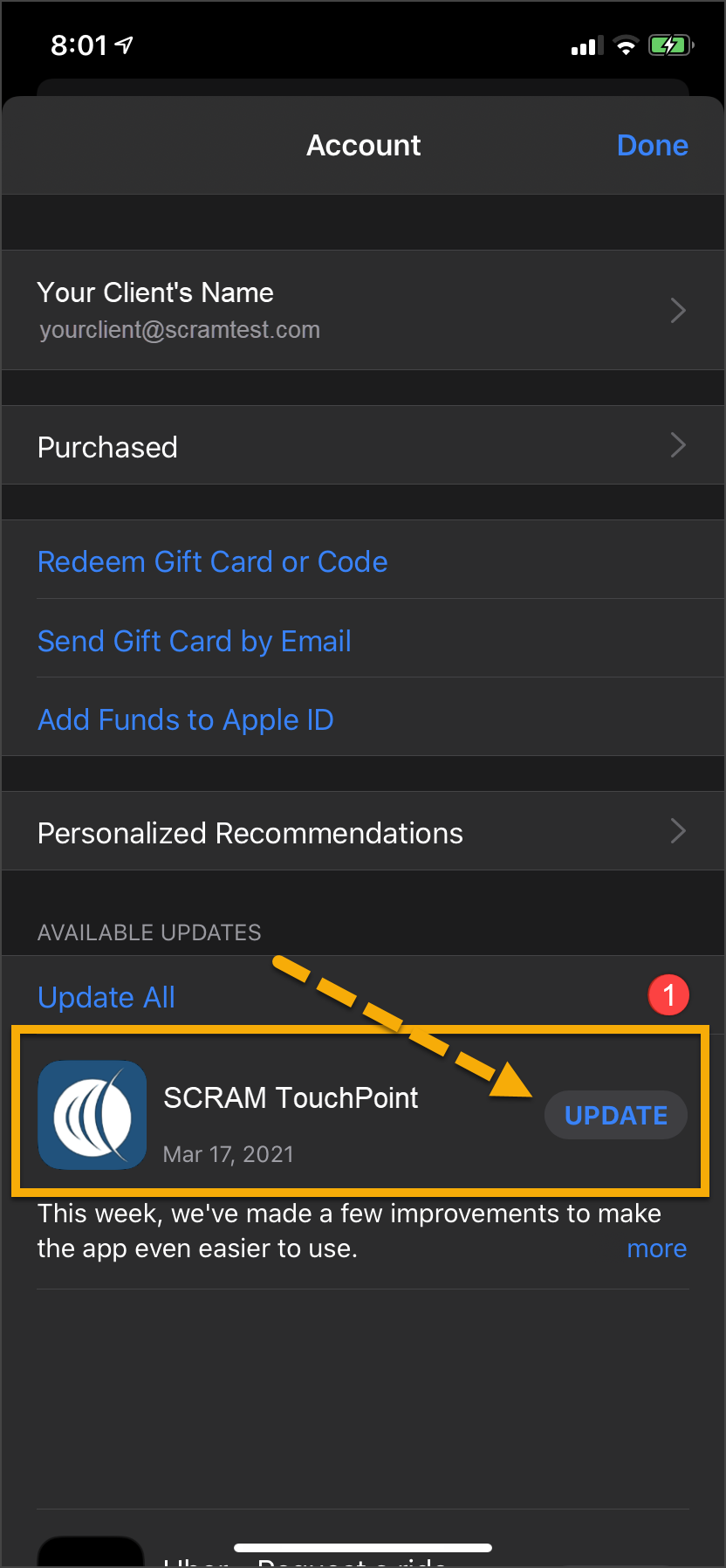
  3. Under the Available Updates heading, locate the SCRAM TouchPoint app.
  4. Tap the Update button. 

As a best practice, we recommend you encourage your clients to enable automatic app updates – this ensures they are always using the latest version of the TouchPoint app.

iPhone Home screen App Store icon iPhone App screeniPhone App update screen

Click on any image to enlarge it.

Android

  1. Swipe up on the Home screen and tap the Play Store icon.
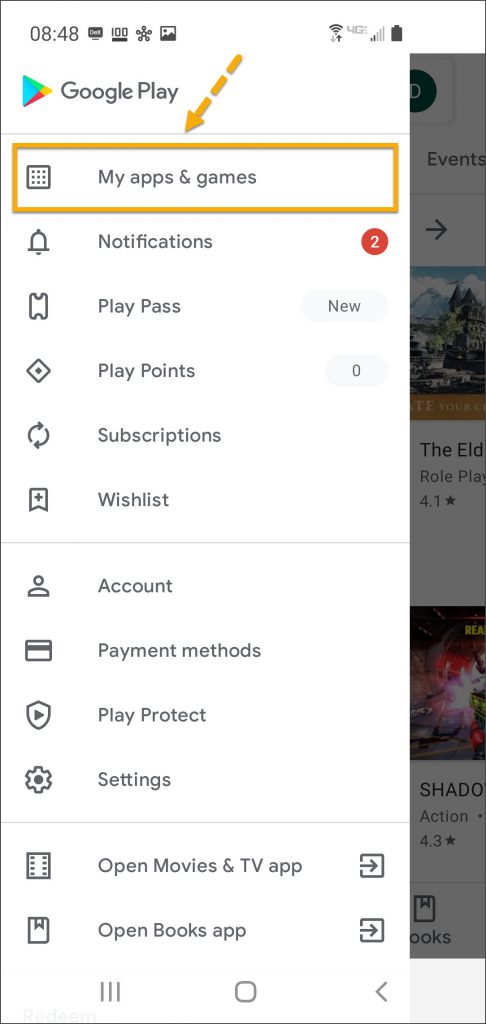
  2. On the Google Play store screen, tap the menu icon in the search field.
  3. Tap the My apps & games option.
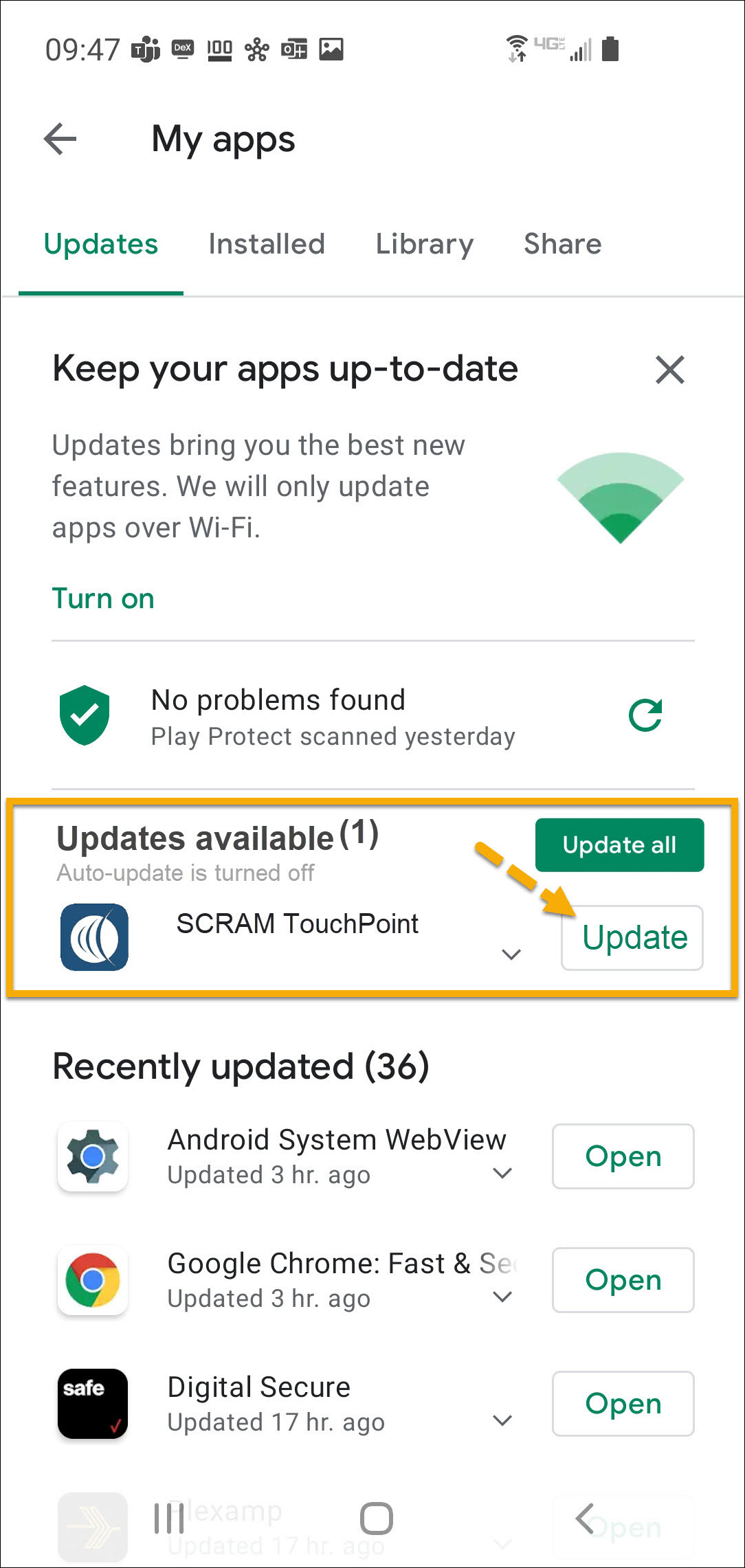
  4. Under the Updates Available section, locate the SCRAM TouchPoint app and tap the Update button.

As a best practice, we recommend you encourage your clients to enable automatic app updates – this ensures they are always using the latest version of the TouchPoint app.

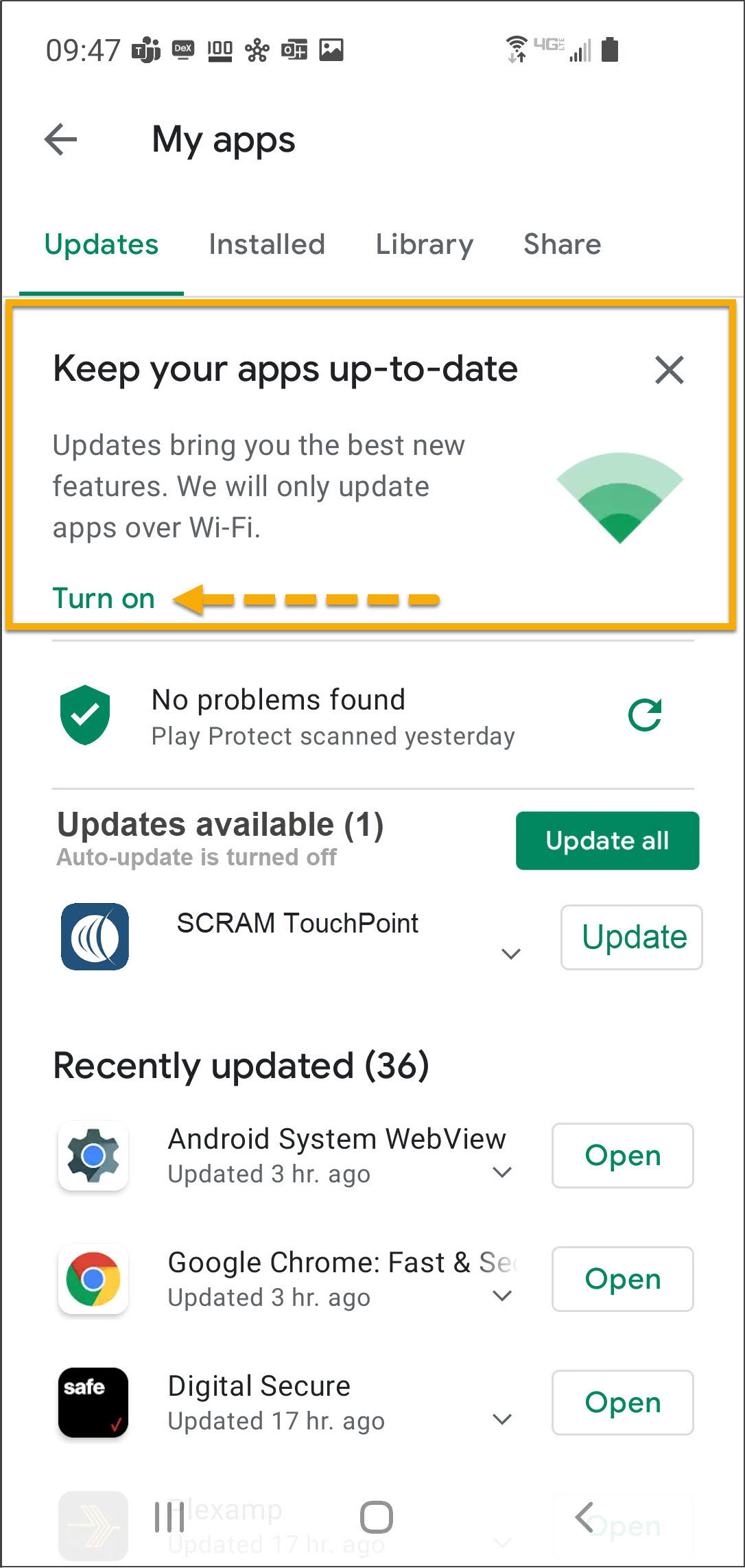
On the My apps screen, tap the Turn on button to enable automatic app updates.

Android app screen Play Store app Android Google Play screen menu Android Google Play store screen
Android My apps screen update availableAndroid My apps screen  

Click on any image to enlarge it.

Feedback

Please contact SCRAM Systems Customer Service with any recommendations for system improvements.

Continue Reading

At 5:00 AM MDT on Thursday, March 25, 2021, SCRAM Systems® is introducing several new features in SCRAMNET GPS. During the 15-minute deployment, you may not be able to access SCRAMNET® GPS but messages from the SCRAM GPS® Bracelet will continue to be processed uninterrupted. Enhancements/changes included are:

  • New Charger Maintenance alert
  • Improvements to the Schedule Calendar page when viewed on mobile devices
  • The Event Report can be run for longer periods

New Charger Maintenance Alert

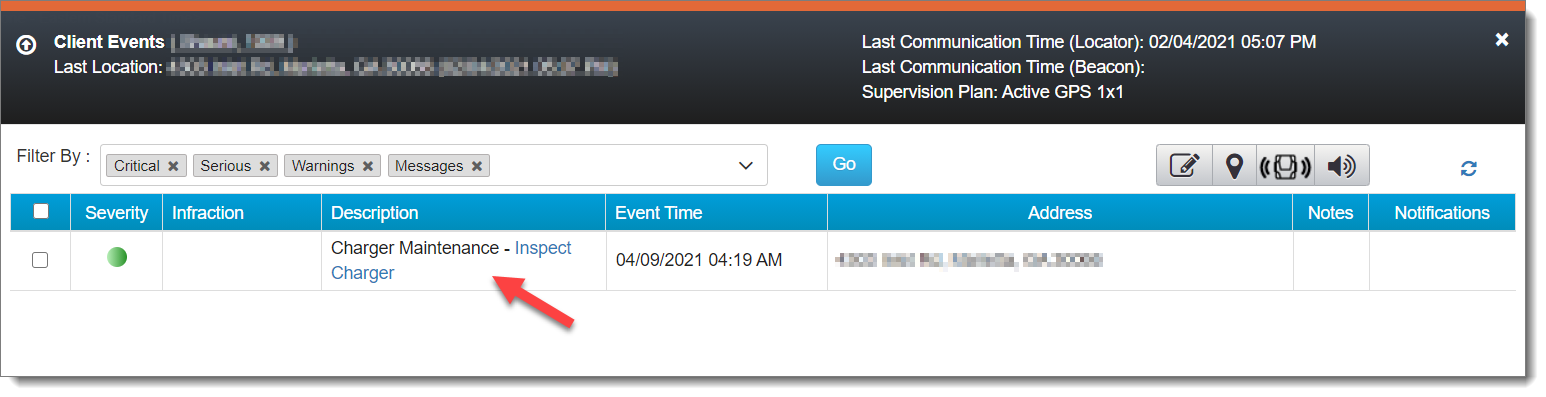
All mechanical equipment deteriorates with use over time. As a result, SCRAMNET GPS has introduced a Charger Maintenance Alert to remind users to inspect GPS Chargers for signs of wear.

GPS Charger Maintenance Alert (click to enlarge)

Charger Maintenance alerts are generated for:

  • All clients who have been assigned the same bracelet for 14 months or more.
  • Any client who has had 150 or more plug-in events in the last seven days.
InformationThis alert does not appear on or affect the Dashboard page, and it auto-clears from the Client Events pop up.

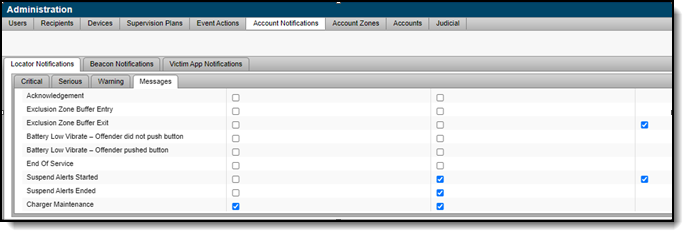
For those users with “Admin” access, the Charger Maintenance alert has been added to the Messages sub-tab of the Locator Notifications tab (Admin > Account Settings > Account Notifications tab > Locator Notifications tab). By default, the alert is selected to receive notifications via text message and email.

If selected, a notification is also sent to all designated recipients when a Charger Maintenance alert is generated. To adjust the notification settings for a specific client, navigate to that client’s Notifications page.

Note: Any designated recipient who is a victim using the SCRAM Ally mobile application will NOT receive a text message and email notification when a Charger Maintenance alert is generated.

Improvements to Schedule Calendar Page When Viewed on Mobile Devices

The Schedule Calendar page has been updated for better read-only viewing on a mobile device.

Note: In the next release, you will be able to add or edit a schedule from your mobile device.

The Event Report can be Run for Longer Periods

When running the Event report for a single client, up to a year of data can now be viewed. When more than one client is selected, the report can be run for a period of up to three months.

Continue Reading

At 5:00 AM MST on Thursday, March 4, 2021, SCRAM Systems® is introducing an enhancement for an improved user experience when viewing SCRAMNET® GPS on a mobile device. During the 15-minute deployment, you may not be able to access SCRAMNET GPS but messages from the SCRAM GPS® bracelet will continue to be processed uninterrupted.

Improvements to Profile Summary Page When Viewed on Mobile Devices

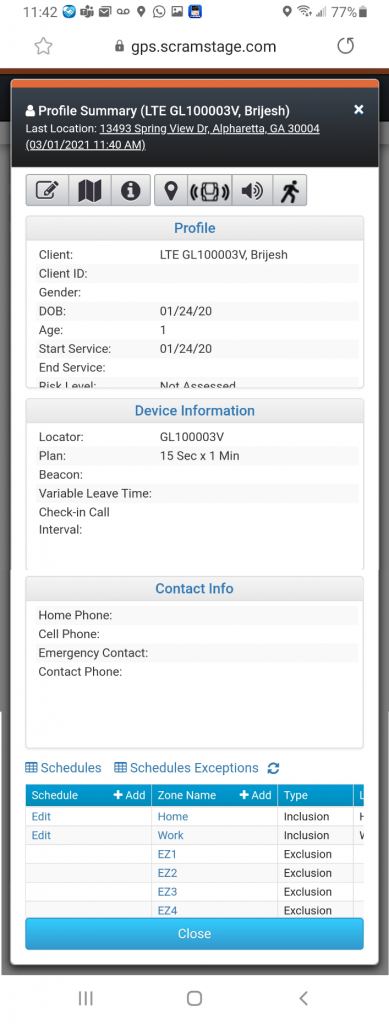
The Profile Summary page has been updated for better viewing on mobile devices in portrait mode. Users can use the icons at the top to send Vibrate and Audible Alarm commands.

Continue Reading

At 5:00 AM MST tomorrow, Thursday, February 11, 2021, SCRAM Systems® is introducing a new feature related to monitoring a SCRAM GPS® client using a mobile device, as well as an enhancement to the SCRAM Ally™ victim notification app. During the 15-minute deployment, you may not be able to access SCRAMNET® GPS but messages from the SCRAM GPS bracelet will continue to be processed uninterrupted. Enhancements/changes included are:

  • Improvements to Dashboard page when viewed on mobile device
    Important Note:
    In order for this change to be implemented, you must clear cookies and cache on your computer.
  • Victim zone radius is displayed in SCRAM Ally

Improvements to Dashboard page

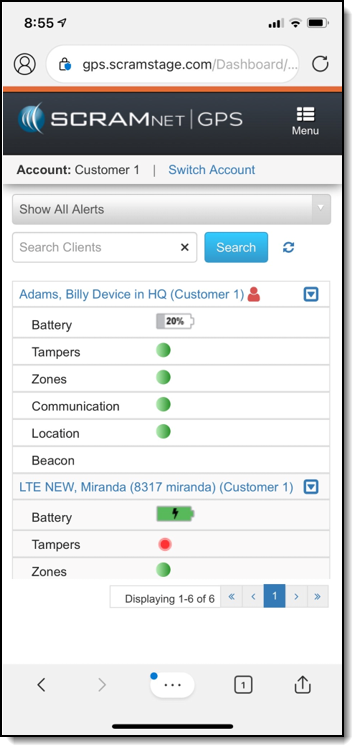
The Dashboard page has been updated for better viewing on mobile devices in “Portrait” mode. Users can use the filter options, search for clients, and view battery levels and alerts. Users can also use the “Quick Links” drop-down list to send Vibrate and Audible Alarm commands.

Victim Zone Radius is Displayed in SCRAM Ally

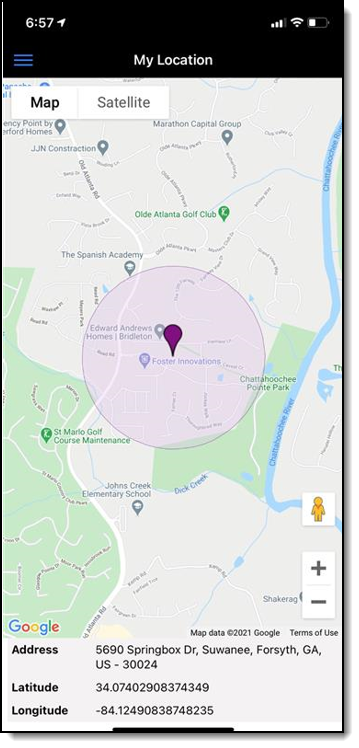
A new version of SCRAM Ally, our mobile app for victim notification, has been released on the Apple App Store (version 1.0.30) and Google Play Store (version 1.0.104). The app has been updated to show the victim zone radius on the My Location page. Adding this feature allows the victim to visually see the range of their moving zone based on where they are currently located.

Continue Reading

On November 4, 2020, SCRAM Systems® will release two new SCRAM TouchPoint™ client application enhancements for the Documents service and for the Client Check-In service.

Documents Service

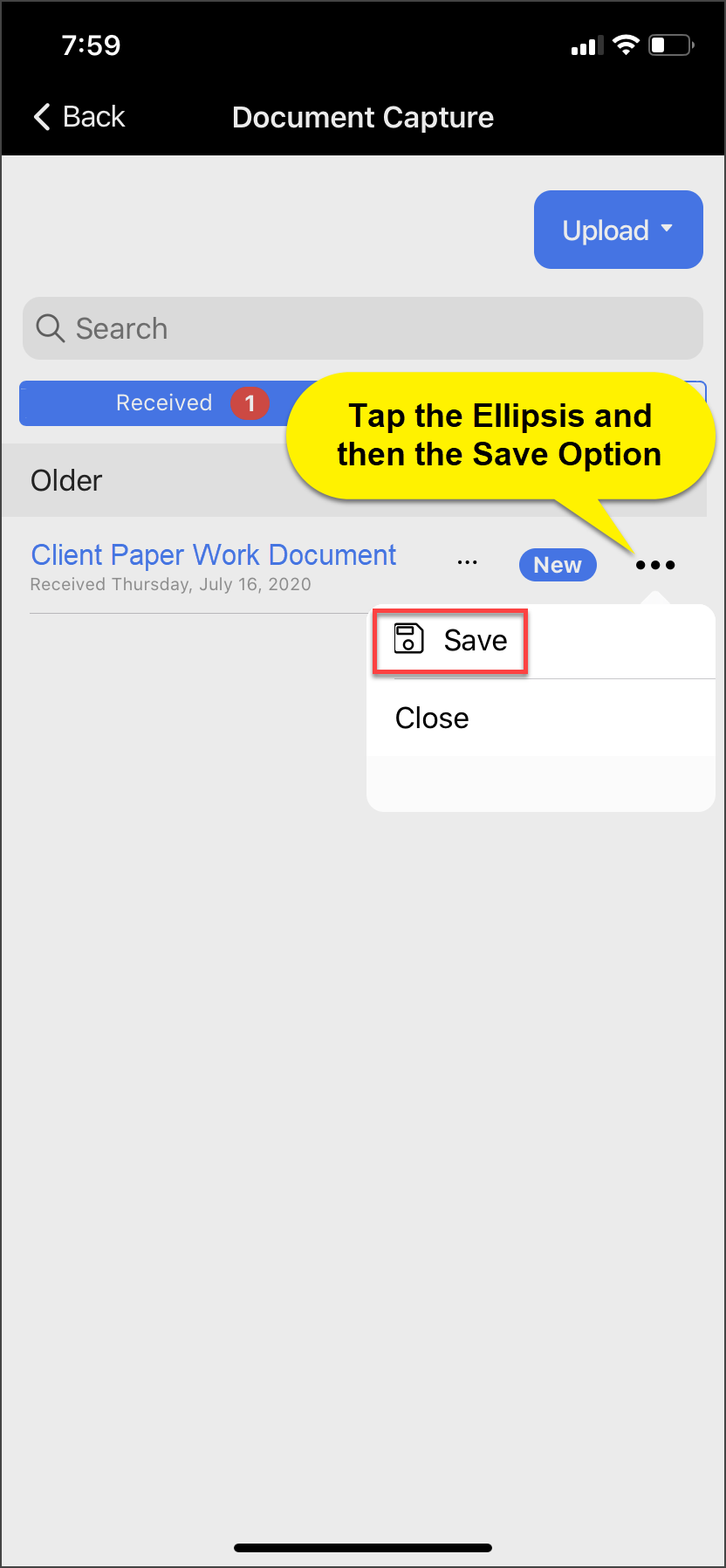
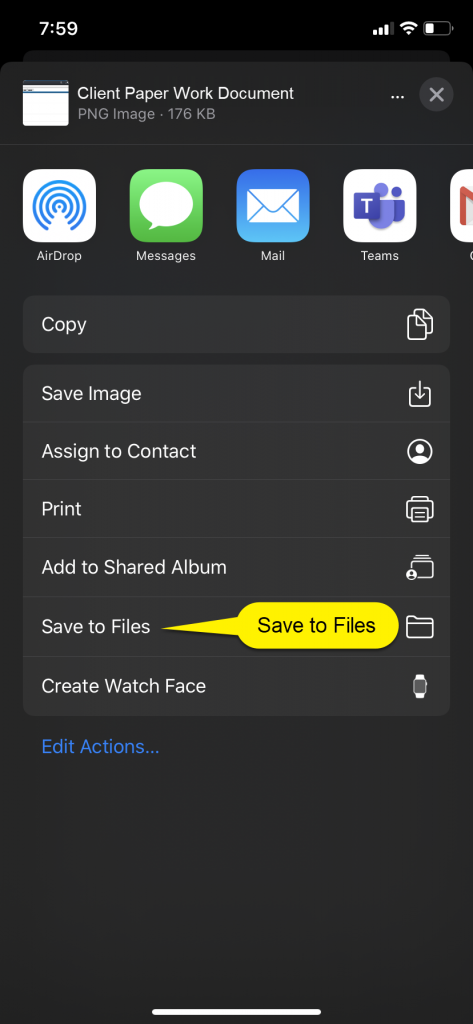
Clients can now save all shared documents to their smartphones. This gives clients better access to complete required forms and return them to you, as well as improved document management capabilities.

TouchPoint Client Application Document Capture Screen
TouchPoint Client Application Document Capture Screen (click to enlarge)
iPhone Social Sharing Window
iPhone Social Sharing Window (click to enlarge)

Client Check-In

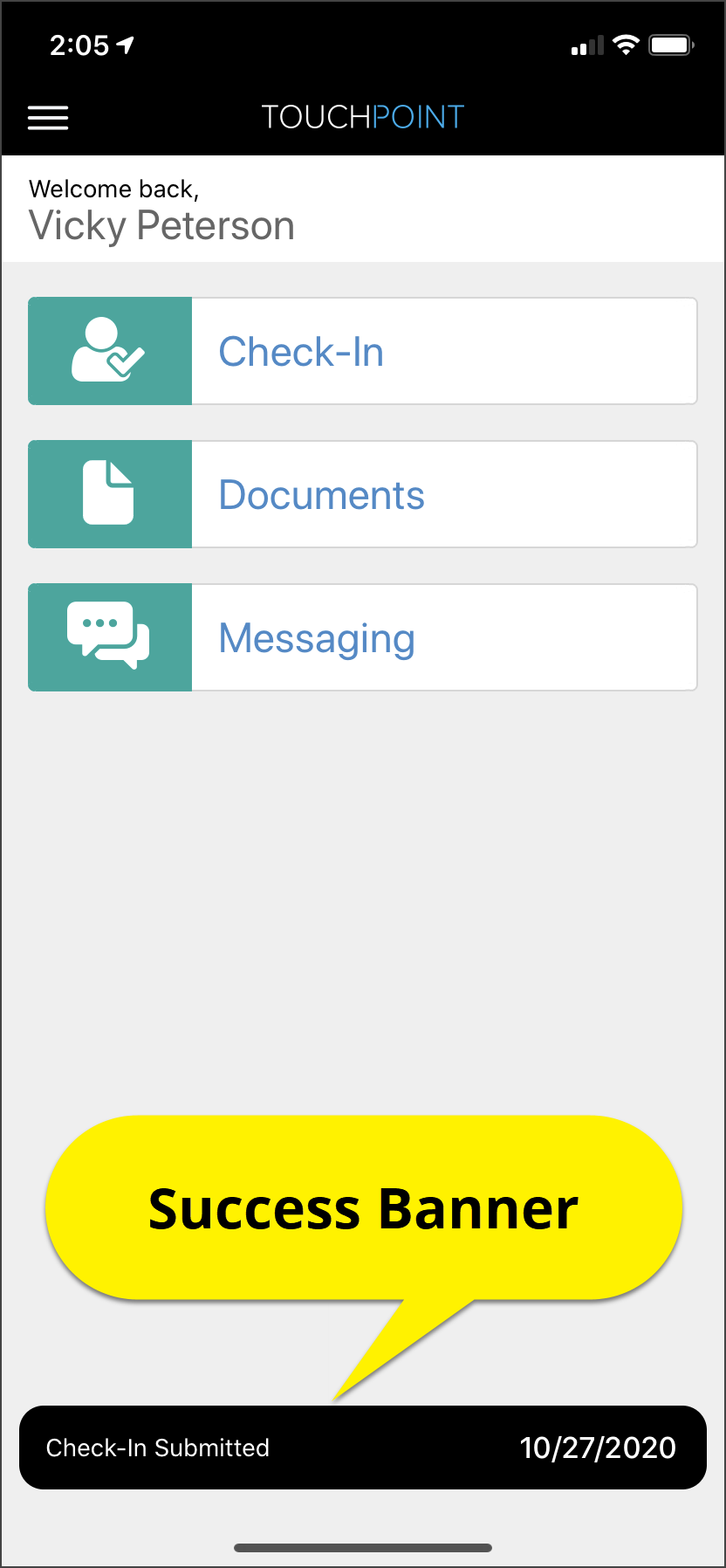
After a client completes a check-in and taps the Submit button, a banner will display on the bottom of the screen with a message of Check-In Submitted and the date. This verifies the check-in has been completed successfully.

TouchPoint Client Application Home Screen
TouchPoint Client Application Home Screen (click to enlarge)

Error Banners

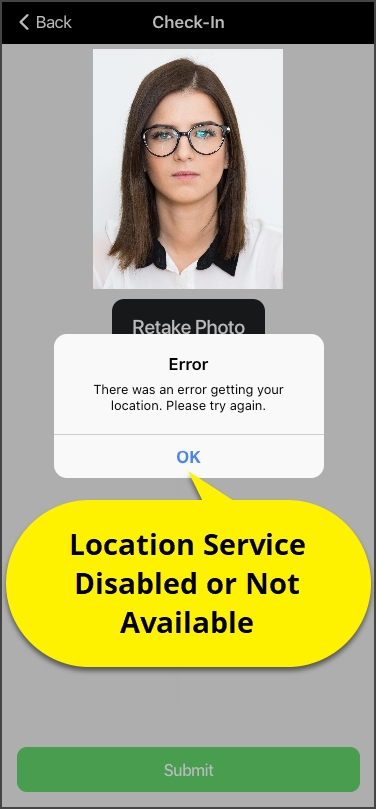
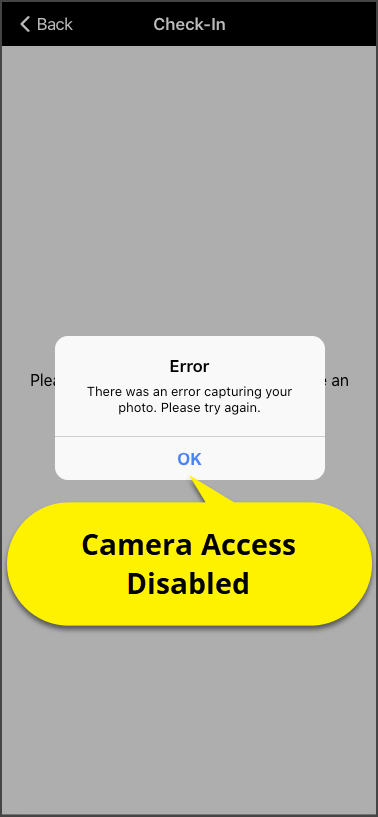
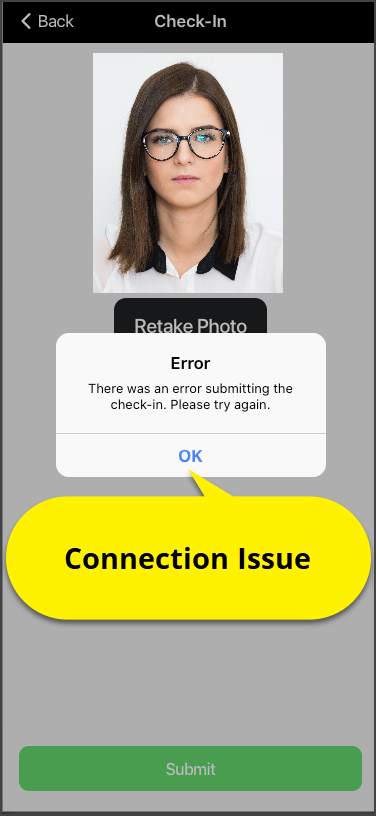
In addition, three new error banners help to identify issues that may prevent a check-in from being completed by the client. Quickly troubleshoot the possible cause for the error based on the error message. 

TouchPoint Client Application Check-In Error Message
TouchPoint Client Application Check-In Error Message (click to enlarge)
TouchPoint Client Application Check-In Error Message
TouchPoint Client Application Check-In Error Message (click to enlarge)
TouchPoint Client Application Check-In Error Message
TouchPoint Client Application Check-In Error Message (click to enlarge)

Feedback

As always, please contact SCRAM Systems Customer Service with any recommendations for system improvements.

Continue Reading

Effective September 22, 2020, SCRAM Systems® will release four new updates for your SCRAM TouchPoint™ caseload. Updates included in this release:

  1. A New TouchPoint Tile Icon
  2. New Document Shared Confirmation Banner
  3. New Notification Badge for a Received Document in the SCRAM TouchPoint App
  4. New SCRAM TouchPoint Client Self Help Link

New TouchPoint Tile

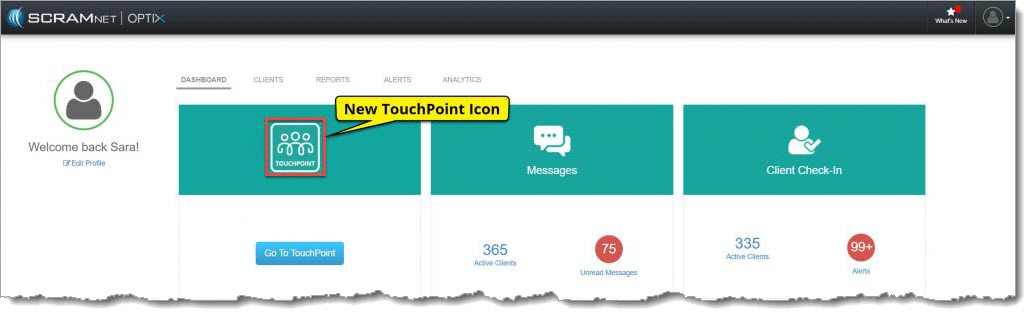
The TouchPoint tile on the SCRAM OPTIX® Dashboard has a new icon. The administrative functionality remains the same. Click on the Go To TouchPoint button within the tile, to open the Manage TouchPoint page. From here, access the Manage Check-In information and the Messaging Text to All feature.

Optix Dashboard with TouchPoint Tile highlighted
OPTIX Dashboard TouchPoint Tile (click to enlarge)

New Document Shared Confirmation Banner

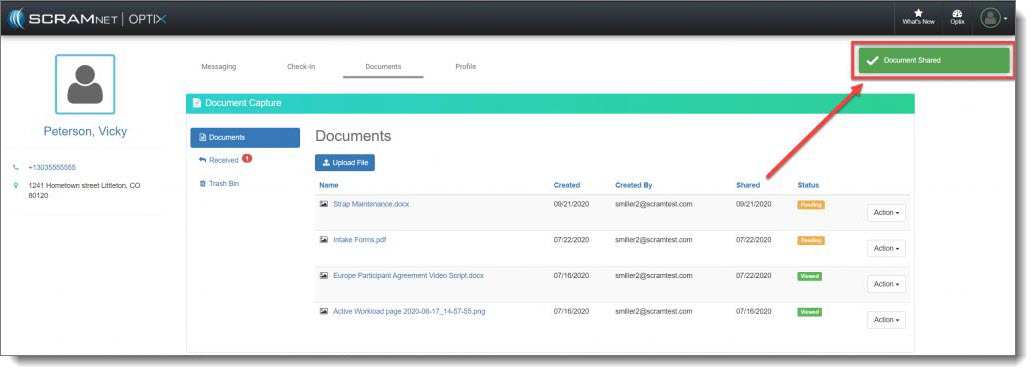
On the client’s Document page, once you have uploaded a document and then selected the Share option, a green Document Shared verification banner will display on the top of the screen confirming you have successfully shared the document with your client.

Client's Documents Page
Client’s Documents Page (click to enlarge)

New Notification Badge for a Received Document in the SCRAM TouchPoint App

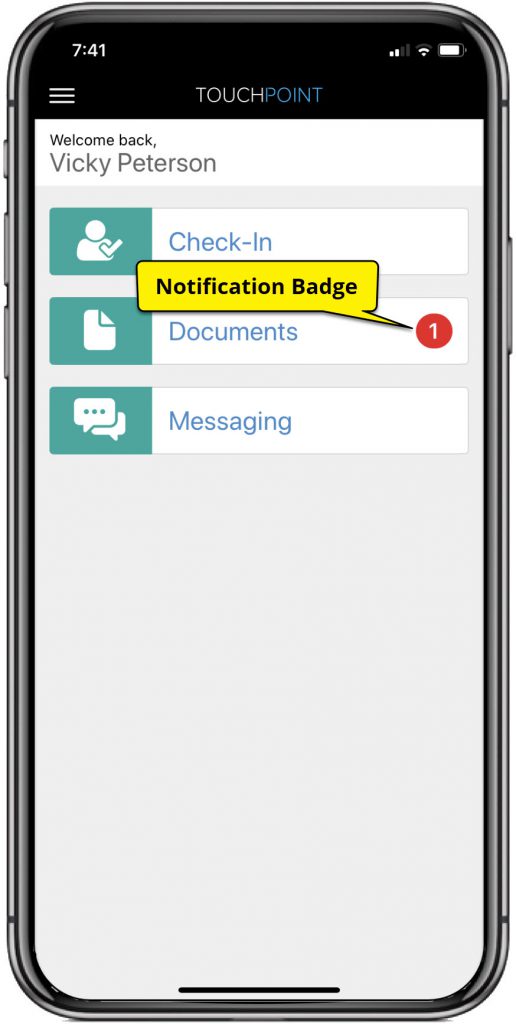
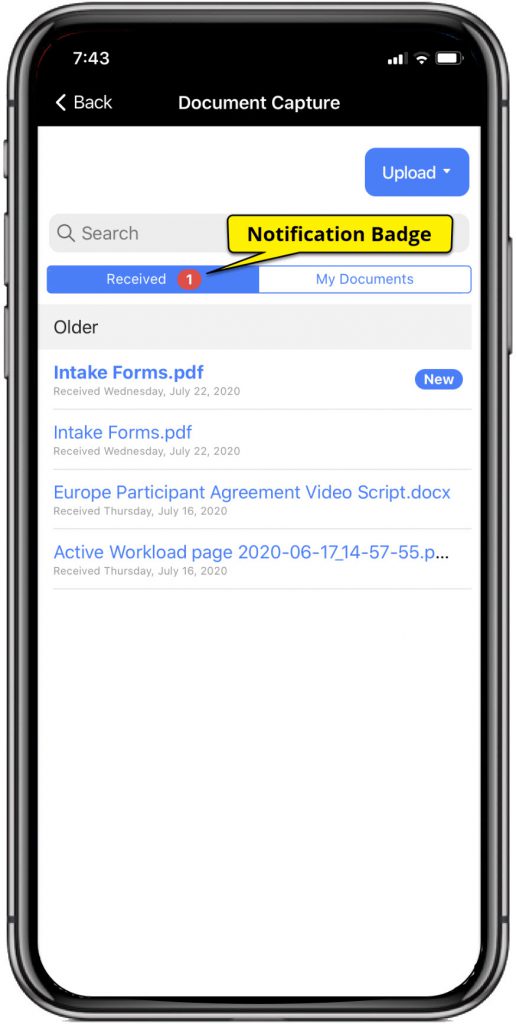
After sharing a document from the client’s Document page in SCRAMNET OPTIX, the Documents tile within the client’s app will display a red notification badge. In addition, when the client taps the Documents tile, the Received tab will also display a red notification badge alerting them to a new document shared by you.

SCRAM Client TouchPoint App Documents Tile highlighted SCRAM TouchPoint Documents Received Tab

SCRAM TouchPoint App Client Self Help

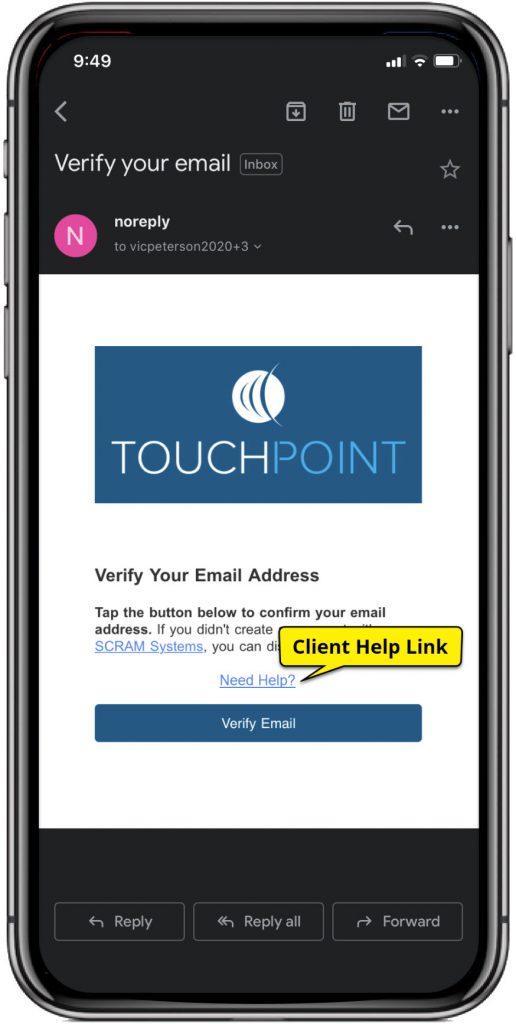
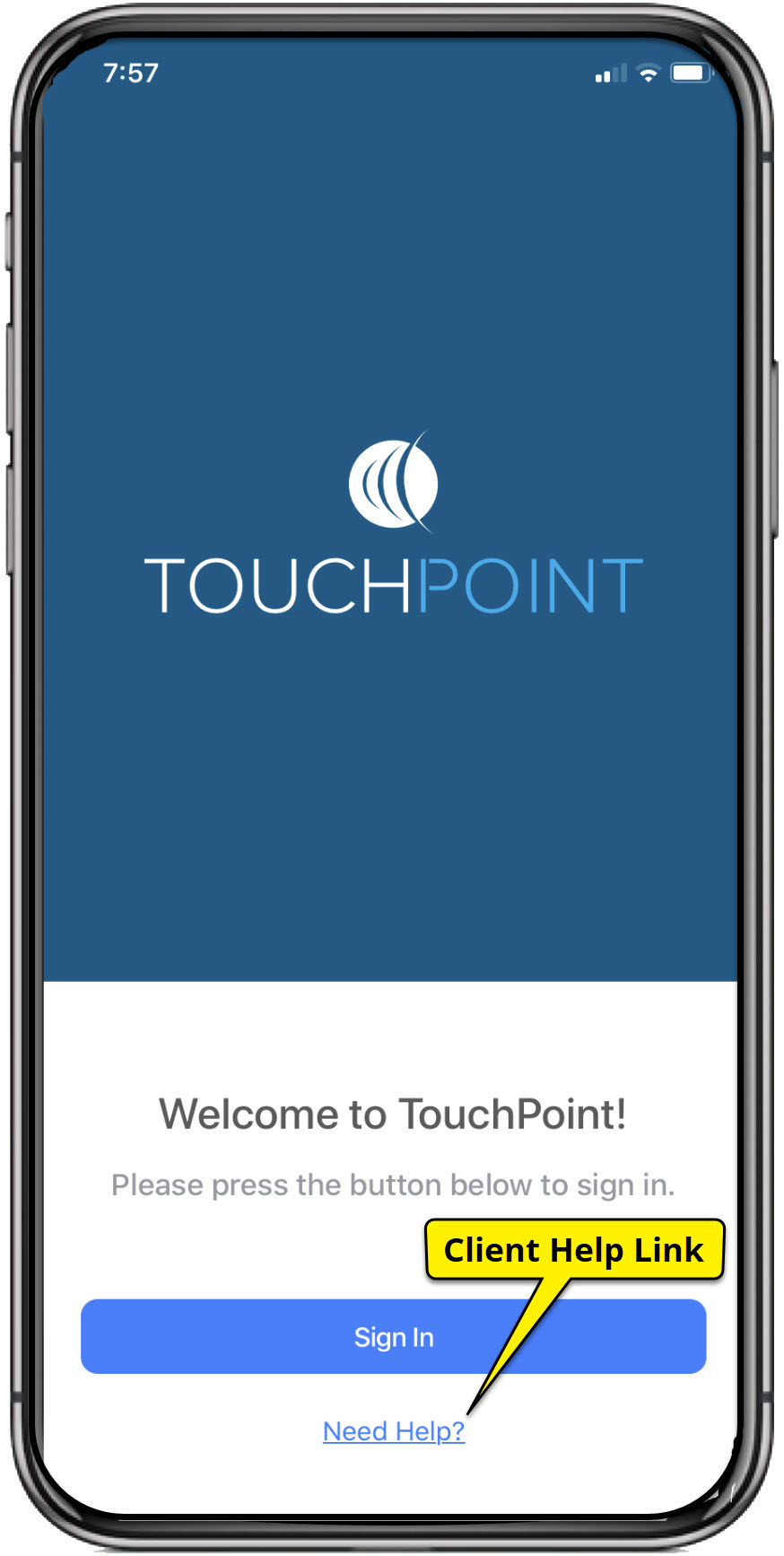
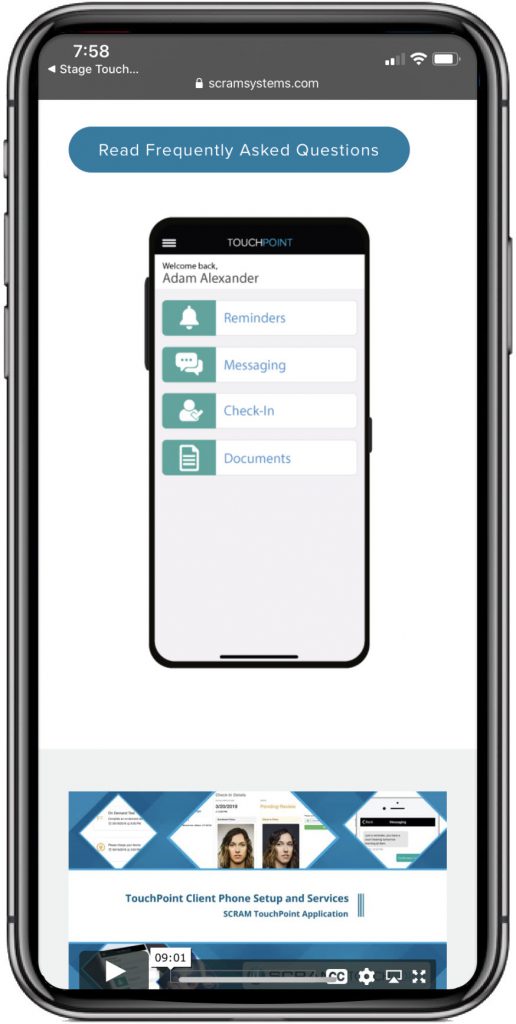
Your TouchPoint clients can now access the Client TouchPoint Installation document, video installation instructions and Frequently Asked Questions document by selecting the Need Help? link located on the email entitled Verify Your Email Address, and on the SCRAM TouchPoint app Sign In screen.

Tap the Need Help? link, to open the support page where the documents and video can be found.

TouchPoint Verify Email SCRAM TouchPoint App Sign In SCRAM Systems TouchPoint Client Help

Feedback

As always, please feel free to contact SCRAM Systems Customer Services at 1-303-785-7879 with any recommendations for system improvements.

Continue Reading