SCRAMNET

On September 3rd, 2025, SCRAM Systems will release multiple enhancements focusing on Alcohol and Tamper alerts that require maintenance activities after analysis to resolve them.

These enhancements include:

  • Five new Maintenance Alerts
  • Updates to the Alert Management Console

New Maintenance Alerts

Currently, once a Data Analyst completes their review, the next step for some alerts requires a maintenance activity to be completed to close them. To improve efficiency in both identifying and taking the required actions to resolve these alerts, SCRAM Systems will introduce new alerts that will appear in the Scheduled Maintenance section on the Workload page. Each alert will include the specific actions required to resolve the alert and to ensure proper client monitoring. These new alerts and required actions are:

  • Removal without Reinitialization – Removal without re-initialization – CLIENT IS NOT BEING MONITORED.  Need to meet with client to perform a re-initialization.  First, utilize the Maintenance Link.  Second, reinstall bracelet to the proper fit.  Third, perform a direct connect.  Once the bracelet receives the required initialization this alert will auto resolve, and monitoring can begin. Click the Maintenance button below to begin the process.
  • Fit Check Requested – Fit check – First, utilize the Maintenance Link.  Second, inspect client’s bracelet to ensure a proper fit.  If the bracelet is not fit properly, please remove and reinstall to the proper fit.  Third, perform a direct connect.  Once the bracelet receives the new initialization this alert will auto resolve.  Click the Maintenance button below to begin the process.
  • Assigned Off Body – Assigned off body – CLIENT IS NOT BEING MONITORED.  Need to meet with client to perform a re-initialization.  First, utilize the Maintenance Link.  Second, inspect client’s bracelet to ensure a proper fit.  If the bracelet is not fit properly, please remove and reinstall to the proper fit.  Third, perform a direct connect.  Once the bracelet receives the new initialization, this alert will auto resolve.  Click the Maintenance button below to begin the process.
  • Battery Replacement Required – Battery Replacement Required – First, utilize the Maintenance Link and select the “Battery, Faceplate and Exhaust Cap Replaced” option.  Second, remove the bracelet.  Clean the battery contacts using a dry, fine-bristled brush and wipe clean using the microfiber cloth.  Install a new battery and faceplate, ensuring you hear four audible clicks.   Third, perform a direct connect.  Once the bracelet receives the new initialization this alert will auto resolve.  Click the Maintenance button below to begin the process.
  • Alcohol detected at Install – Alcohol detected at install. This could be attributed to prior consumption of alcohol, product use, or environmental contaminants. Waiting for alcohol to dissipate and reach zero for long enough to allow the required initialization to complete.  Once the bracelet receives the required initialization this alert will auto resolve, and monitoring can begin.

To keep your monitoring program running smoothly, ensure you are managing the alerts displayed in the Scheduled Maintenance section daily. 

Alert Management Console

In addition to the five new alert types, we have made a couple of updates to the Alert Management Console (AMC).

  1. Upon opening the AMC, you will note a new alert banner that will display any required maintenance items that need your immediate attention for client monitoring.
  2. When a maintenance task is needed, a new Maintenance button is available for you to access and complete the required maintenance tasks.
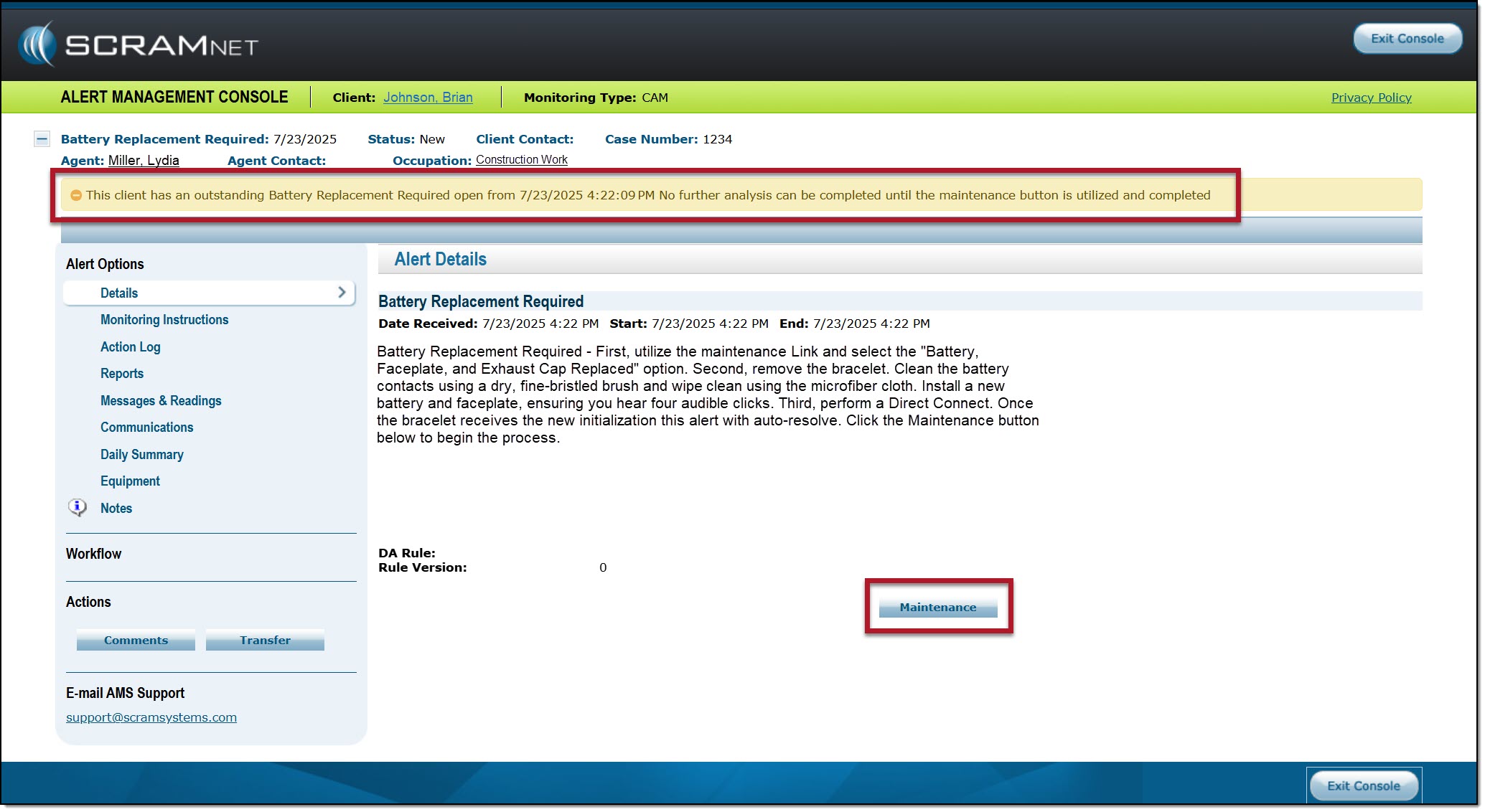
Example of the Alert Management Console with Maintenance Banner- click to enlarge

Handling the New Alert Types

Let’s walk through an example of an alert so you can better understand the workflow.

Data Analysis

  1. A “Tamper” alert is generated and displayed in the Tamper section of the Workload page.
  2. The Data Analyst completes their analysis of the data and determines that a fit check is required.
  3. The Data Analyst will generate a “Fit Check” alert that is displayed in the Scheduled Maintenance section on the Workload page and then will resolve the “Tamper” alert, thus removing it from the Tamper section.

Your Tasks

  1. Expand the Scheduled Maintenance section and select the Fit Check alert.
  2. Complete the required actions.
  3. Once all required actions are completed and recorded in SCRAMNET, the system will automatically resolve the alert.

Day-to-Day Operations

Overall, this update will improve your efficiency by providing a centralized location for all alerts that require maintenance actions to be completed to ensure client monitoring. Additionally, once the appropriate actions have been completed on your part and recorded in the system, the alerts are auto-resolved, eliminating the requirement to “Transfer” an alert back to your Data Analyst, thus removing alerts from your Workload page more efficiently.

If you have any questions or concerns, contact your Data Analyst or Customer Service.
Continue Reading

On January 29, 2025, SCRAM Systems® will release two enhancements for your SCRAM Remote Breath Caseload.

  • Resolve multiple Ambient VOC Detected alerts on the RB Results page.
  • Configure your Caseload to automatically send a single On-Demand test to the device following a “Missed” scheduled breath test.

Resolve Multiple (bulk) Ambient VOC Detected Alerts

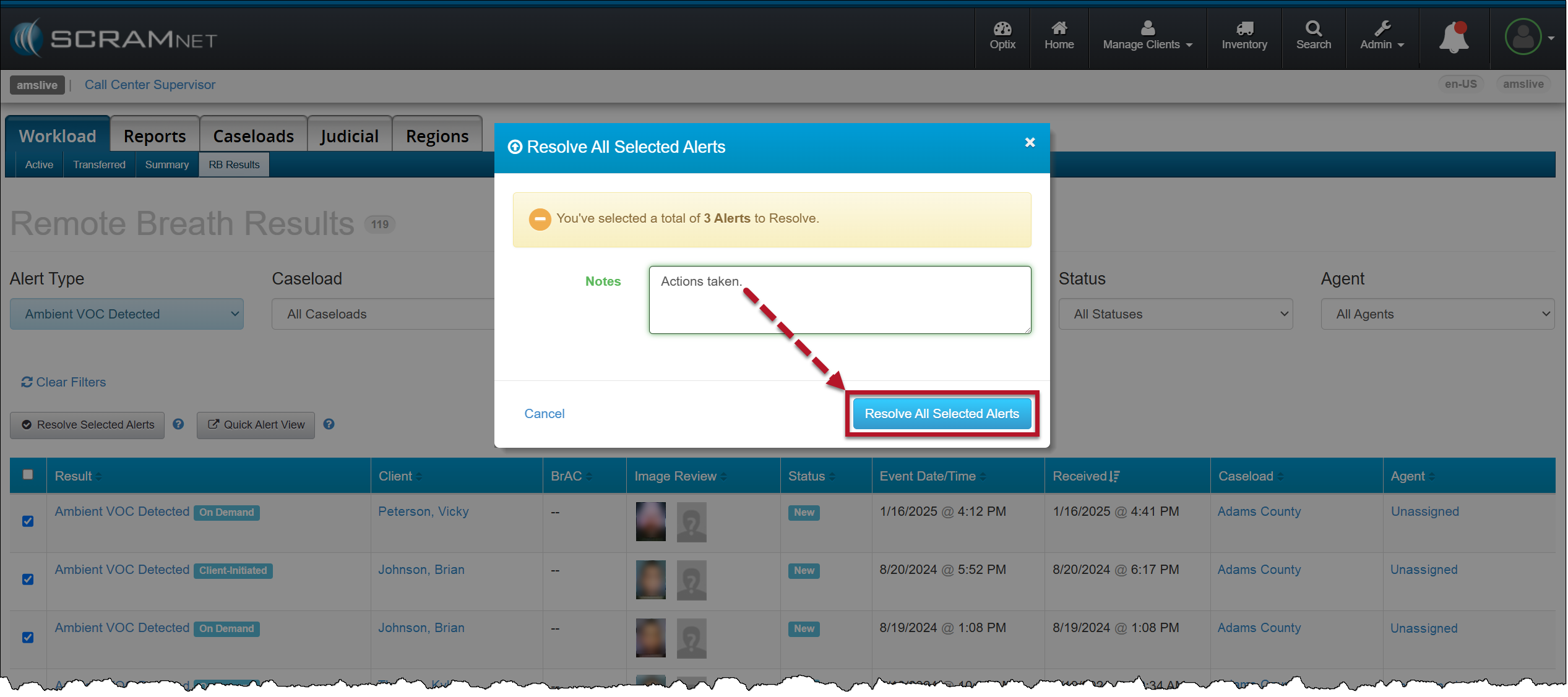
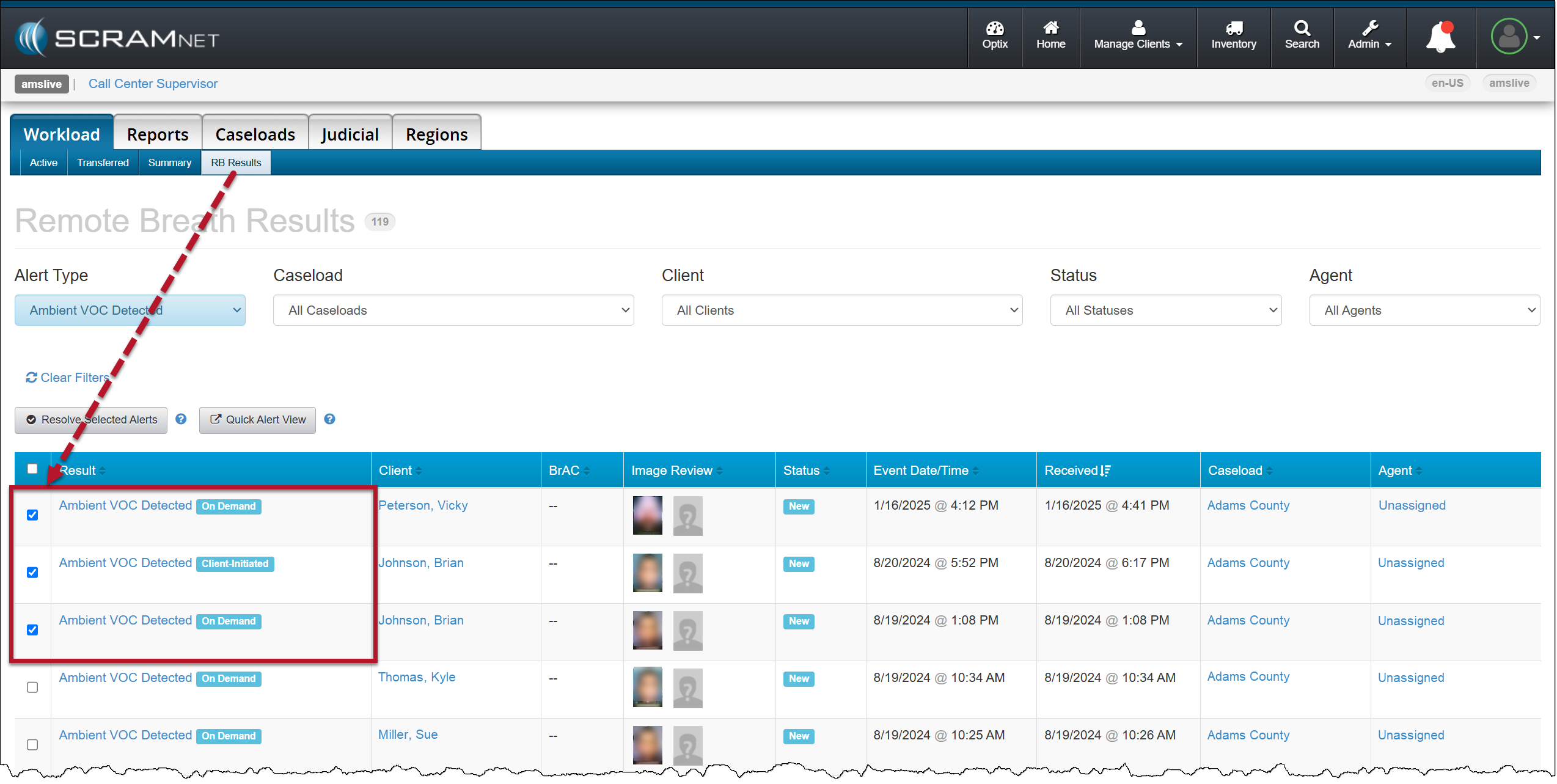
On the RB Results page for your Caseload, you may select the checkbox next to multiple Ambient VOC detected alerts and then select the Resolve Selected Alerts button to “bulk” resolve of them all at once.

RB Results page – Multiple Ambient VOC Detected Alerts Selected
Resolve All Selected Alerts Pop-Up Acknowledgement

Configure your Remote Breath Caseload to Send an On-Demand Test after a Missed Scheduled Breath Test:

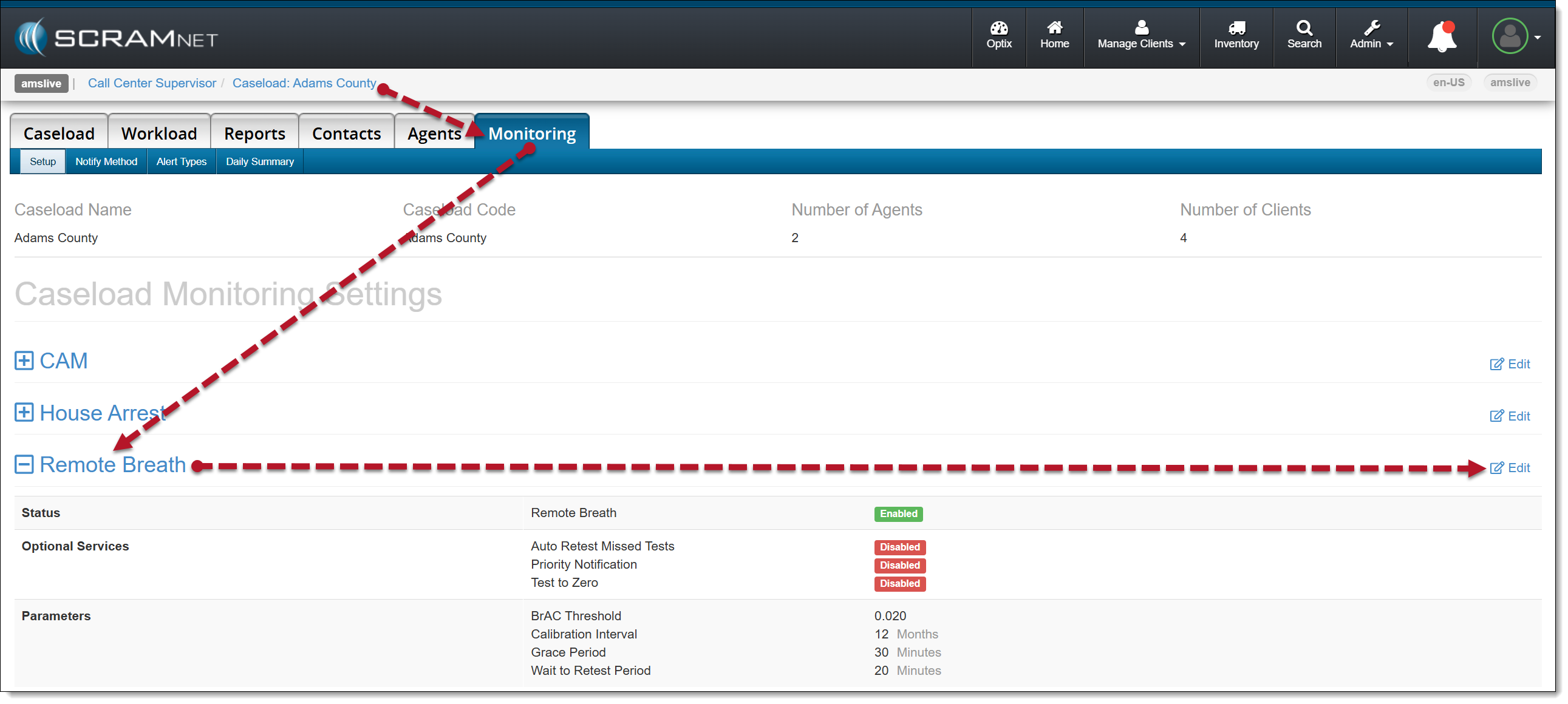
  1. Select the Monitoring tab for the selected Caseload.
  2. In the Remote Breath section, select the Edit hyperlink.
Caseload-Monitoring page-Remote Breath section
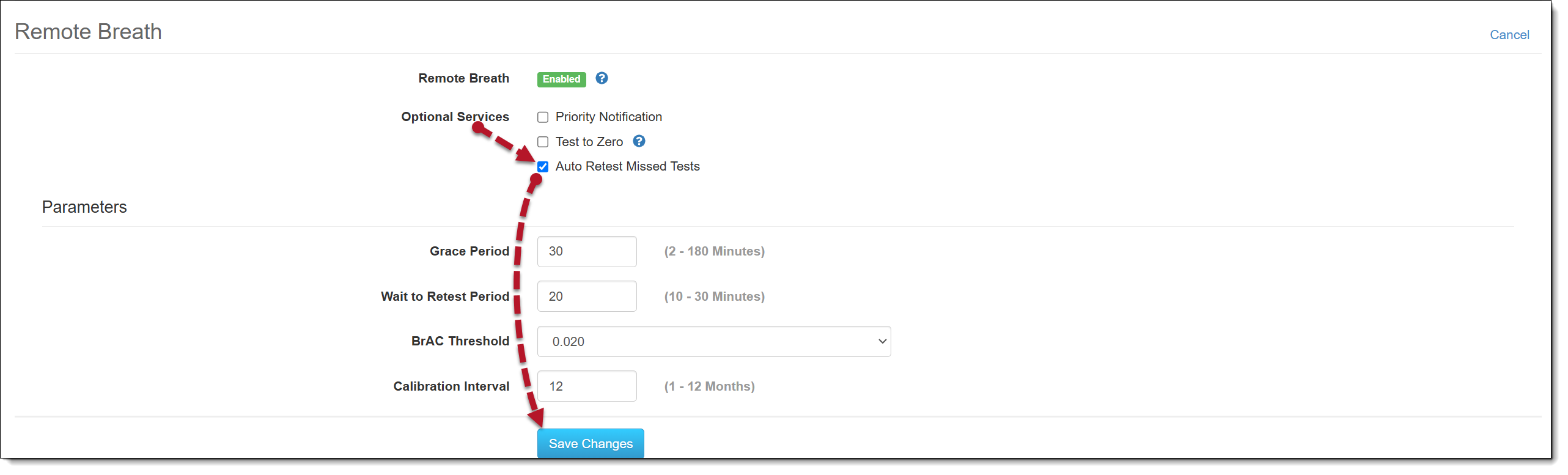
  1. Select the checkbox next to the Auto Retest Missed Test option in the Optional Services section.  
  2. Select the Save Changes button.
Configure Remote Breath Optional Services
Auto Retest Missed Tests Enabled

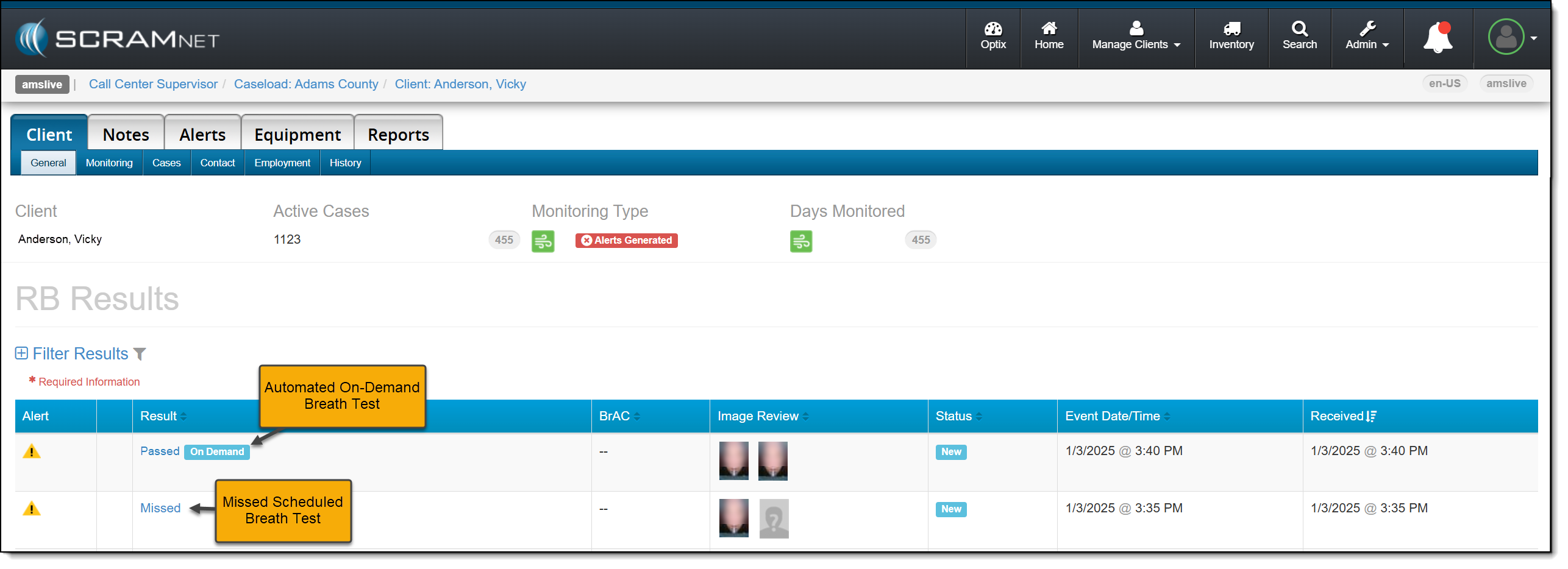
Moving forward, when SCRAMNET reports that the client has missed their scheduled breath test, an On-Demand test will be sent.

RB Results Page with Missed Test with Automated On-Demand test sent

Continue Reading

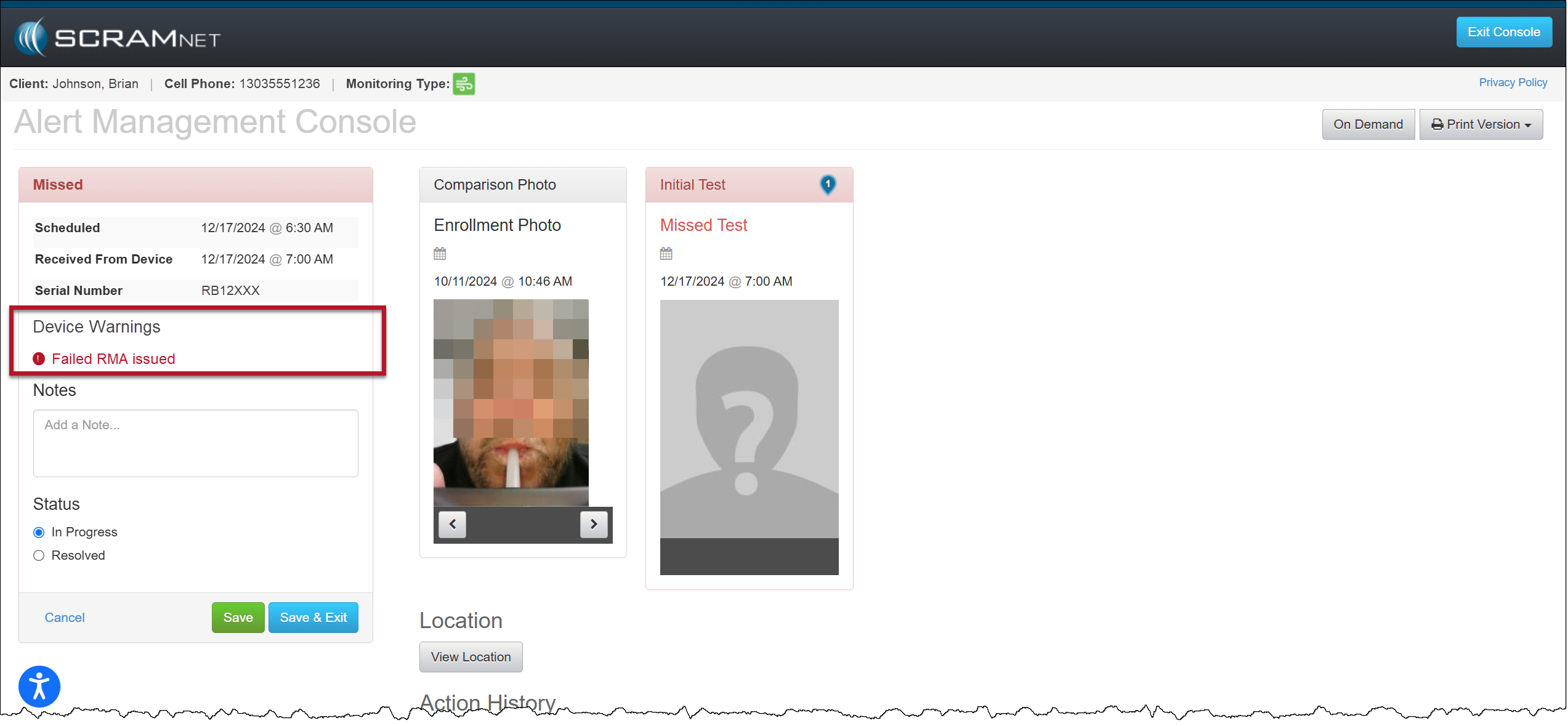
On December 18, 2024, SCRAM Systems® will release an enhancement for your Remote Breath Pro client Caseloads. With this enhancement, when an RMA has been issued for an RB Pro device that has failed, the Alert Management Console (AMC) will include a new Device Warnings section that displays a “Failed RMA issued” warning for all breath test results (for example, Passed, Missed, or Scheduled Test Not Received alerts) received after the RMA is created. 

AMC with Device Warning Message – click to enlarge
Tips
  • A “failed RMA” is issued when the device is not operating within normal parameters.
  • When utilizing the Remote Breath Carousel, the “Device Warning” section will not display regardless of the device’s RMA status.
  • Once the client’s RB Pro device has been replaced or checked in, the Device Warning section and “Failed RMA issued” message will no longer be displayed on the alert’s AMC.
  • If SCRAM Systems cancels the RMA, the Device Warning section and “Failed RMA issued” message will no longer be displayed on the alert’s AMC.

Continue Reading

Effective the afternoon of August 7, 2024, SCRAM Systems will deploy a new automatic face obstruction scanning feature and release a new “Possible Face Obstruction” alert to go with it. This new feature automatically detects irregularities with the RB Pro device’s breath tube in the breath test photo. 

Irregularities that trigger a Possible Face Obstruction alert include, but are not limited to:

  • Anything – like hands, fingers, clothing, the RB Pro case itself, etc. – that blocks the camera’s view of the entire breath tube, from where it leaves the RB Pro device to where it enters the client’s mouth.
  • Irregularities in the color, size, or shape of the breath tube.
  • Attachments connected to the breath tube.
  • Breath tube is missing altogether.

Reviewing a Possible Face Obstruction Alert

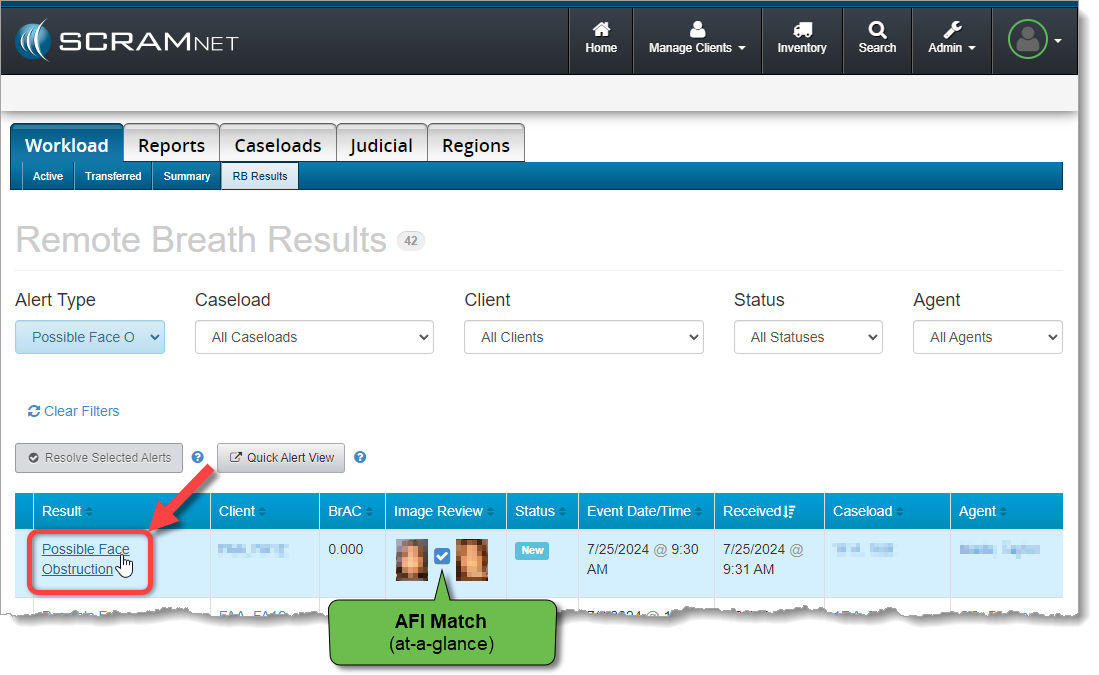
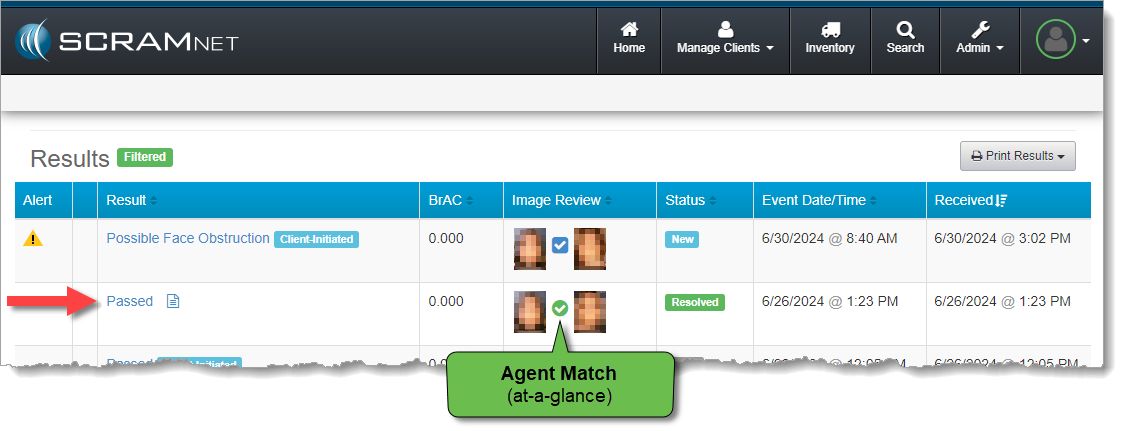
Select the Possible Face Obstruction result from the table of breath test results found on the SCRAMNET Workload RB Results page to open it in the Alert Management Console:

Select the ‘Possible Face Obstruction’ Result Hyperlink (click to enlarge)

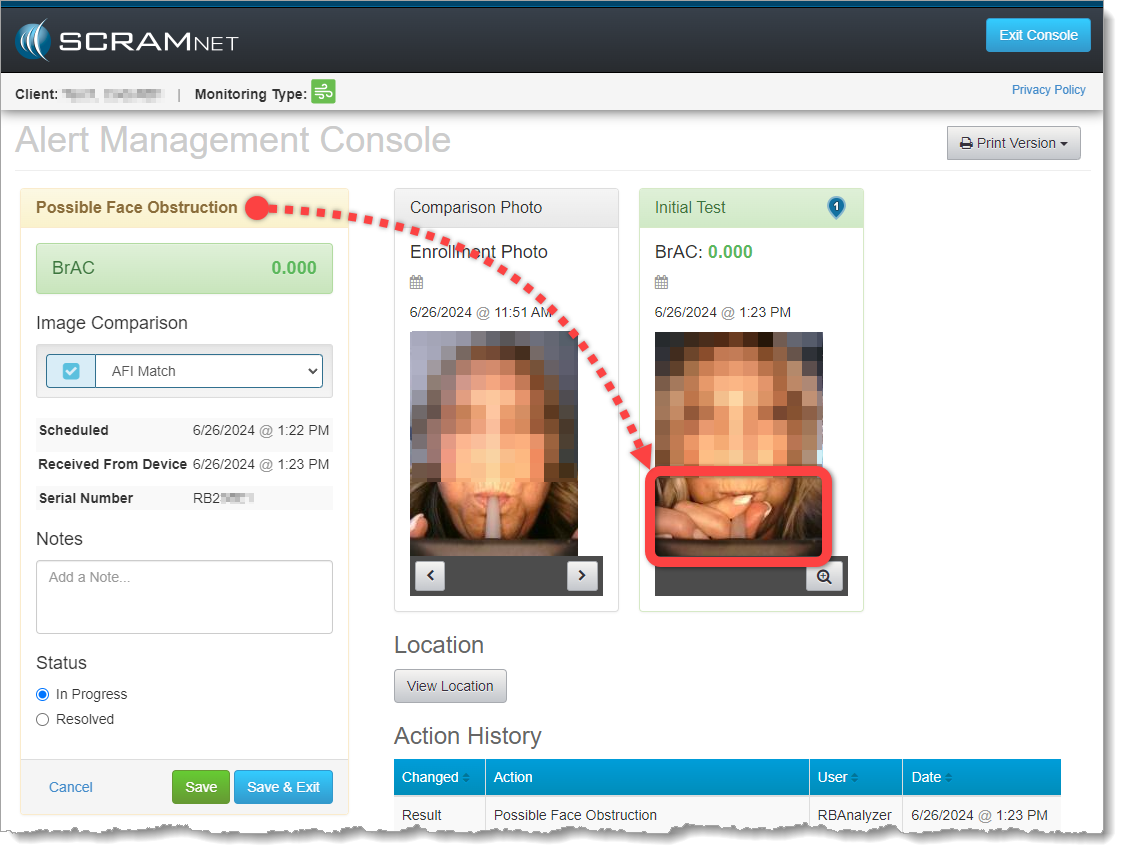
Review the breath test photo for obstructions to the breath tube. In this example, the client is grasping the breath tube near her mouth and obscuring the view of the breath tube entering her mouth:

Possible Face Obstruction Alert on the Alert Management Console (click to enlarge)

If you are fairly confident that the client did not grasp the breath tube in an effort to obscure a circumvention, then this may simply be a coaching opportunity. Pass this test, but reach out to the client to advise her NOT to grasp the tube while delivering a breath sample going forward.

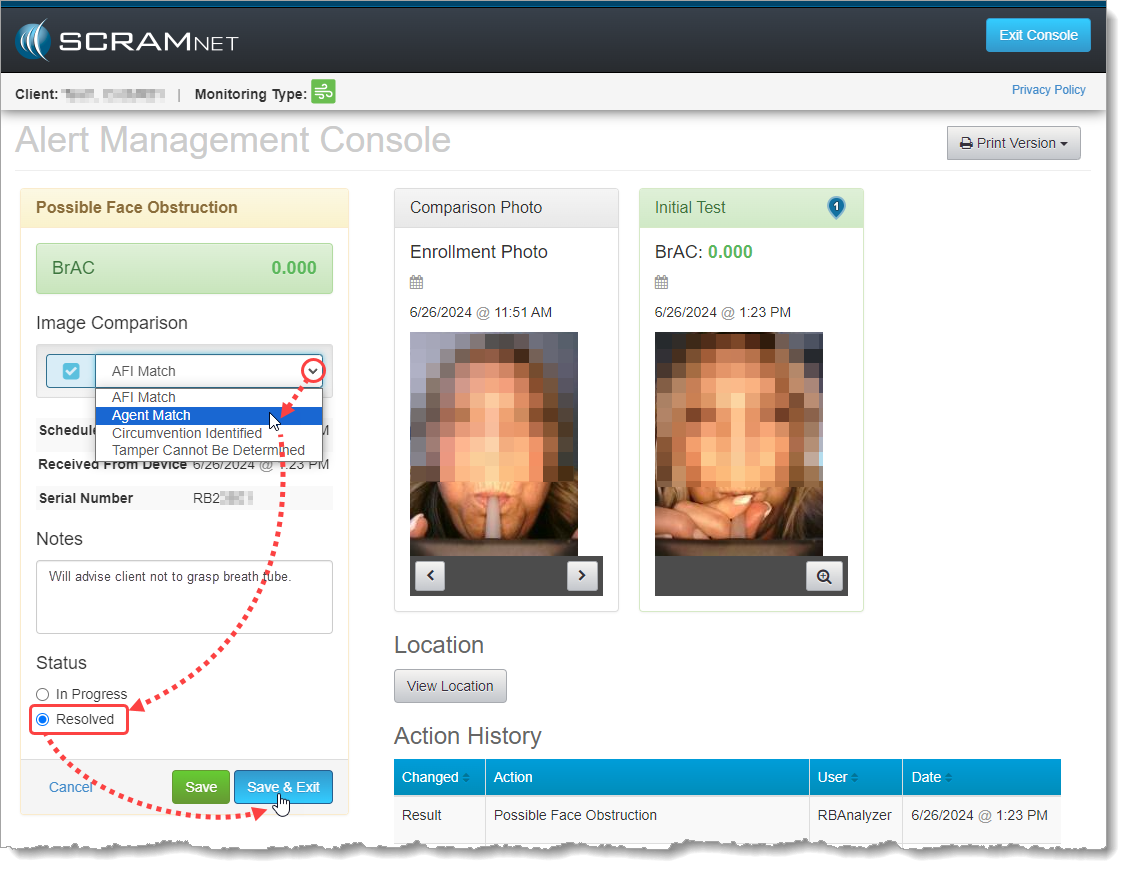
Perform the following actions:

  1. Select Agent Match from the Image Comparison dropdown menu
  2. Add Notes describing the coaching actions you plan to take with the client
  3. Change the test result Status to Resolved
  4. Save & Exit the Alert Management Console
Resolving the Possible Face Obstruction Alert as Passed (click to enlarge)

The test will fall off the SCRAMNET Workload RB Results page, but you will find it as a “Passed” test result on the individual client’s RB Results page:

Resolved Test Result Shows ‘Passed’ on Client RB Results Page (click to enlarge)

Detailed Help Available

Visit the Possible Face Obstruction Alert article in the Remote Breath section of the SCRAM Systems Help & Support site for a more detailed explanation of this new feature, and for additional alert resolution example scenarios.

Continue Reading

SCRAM Systems has moved from its Mineral Avenue address in Littleton, Colorado. When conducting business with us, be sure to use the appropriate address:

RMA Address

When a Return Merchandise Authorization (RMA) is issued for one of your SCRAM Systems devices, please ensure that the return shipping address on the label reads:

SCRAM Systems (AMS)
8100 Southpark Way

Littleton, CO 80120

If your return shipping labels have the old, now-obsolete Mineral Avenue address on them, please discard them and request new labels from your SCRAM Systems Account Manager or Regional Sales Manager.


Payments Address

When making a bill payment to SCRAM Systems for monitoring services, equipment purchases and rentals, or any other reason, please remit payment to the SCRAM Systems bank lockbox:

Alcohol Monitoring Systems, Inc.
PO Box 561097

Denver, CO 80256-1097

Do not remit payments to the now-obsolete Mineral Avenue address or to the Southpark Way address.

Continue Reading

On June 12, 2024, SCRAM Systems will unveil an enhanced Equipment RMA Request page accessible from the SCRAM Systems Help & Support page. The new design contains a significant upgrade to streamline the workflow and improve your experience.

The newly designed page includes:

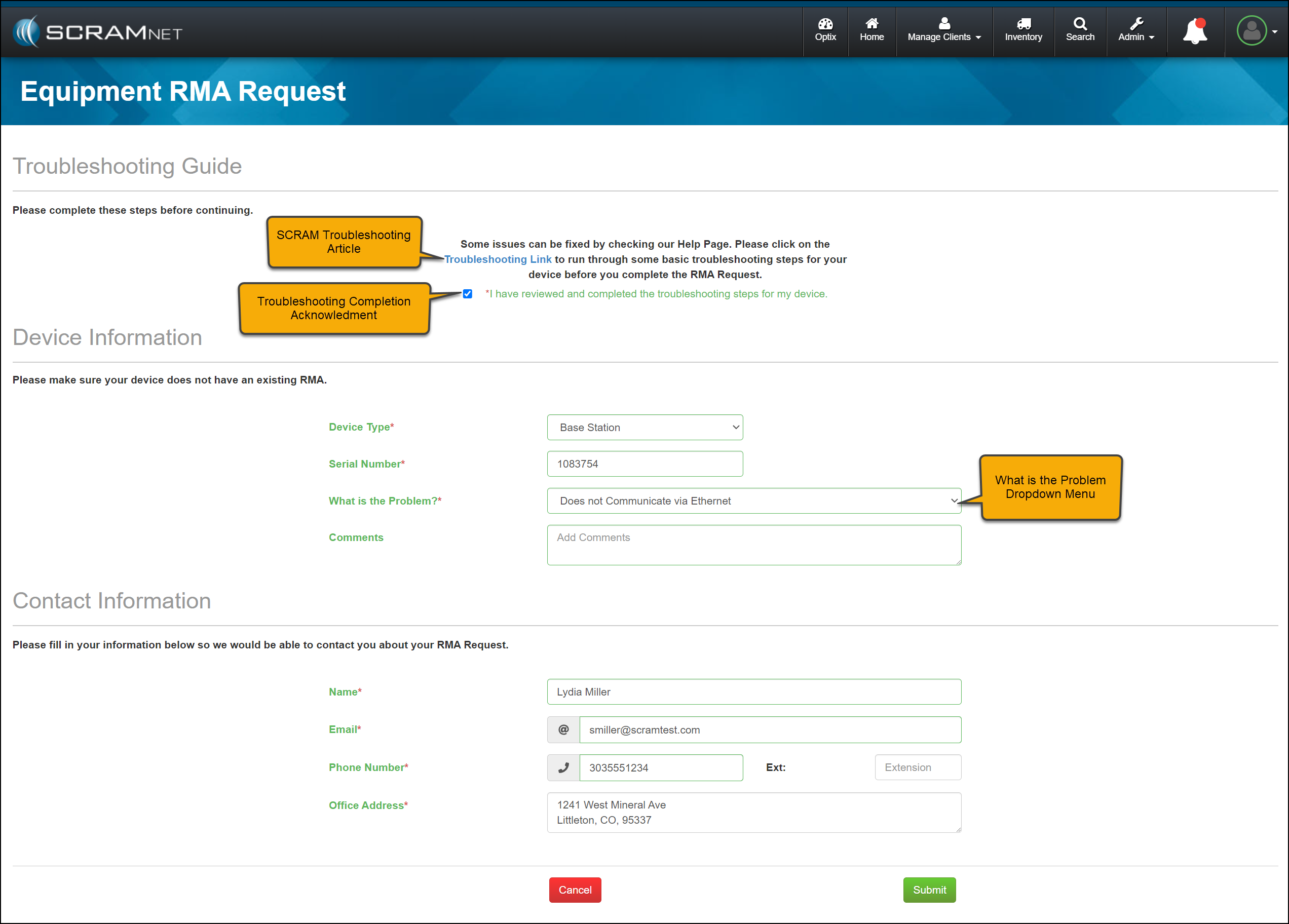
  • An updated single-page equipment RMA form.
  • A SCRAM Equipment Troubleshooting hyperlink providing quick access to basic troubleshooting. Following the troubleshooting steps may resolve the most common equipment issues, keeping functioning equipment available for client monitoring.
  • A troubleshooting acknowledgment checkbox confirming that troubleshooting steps have been taken before requesting an RMA for a device, thus ensuring no delay in processing the RMA request.  
  • The Device Information section now includes a “What is the Problem?” dropdown menu to identify the specific issue quickly. The dropdown menu will also reflect the device type to customize the options available further.
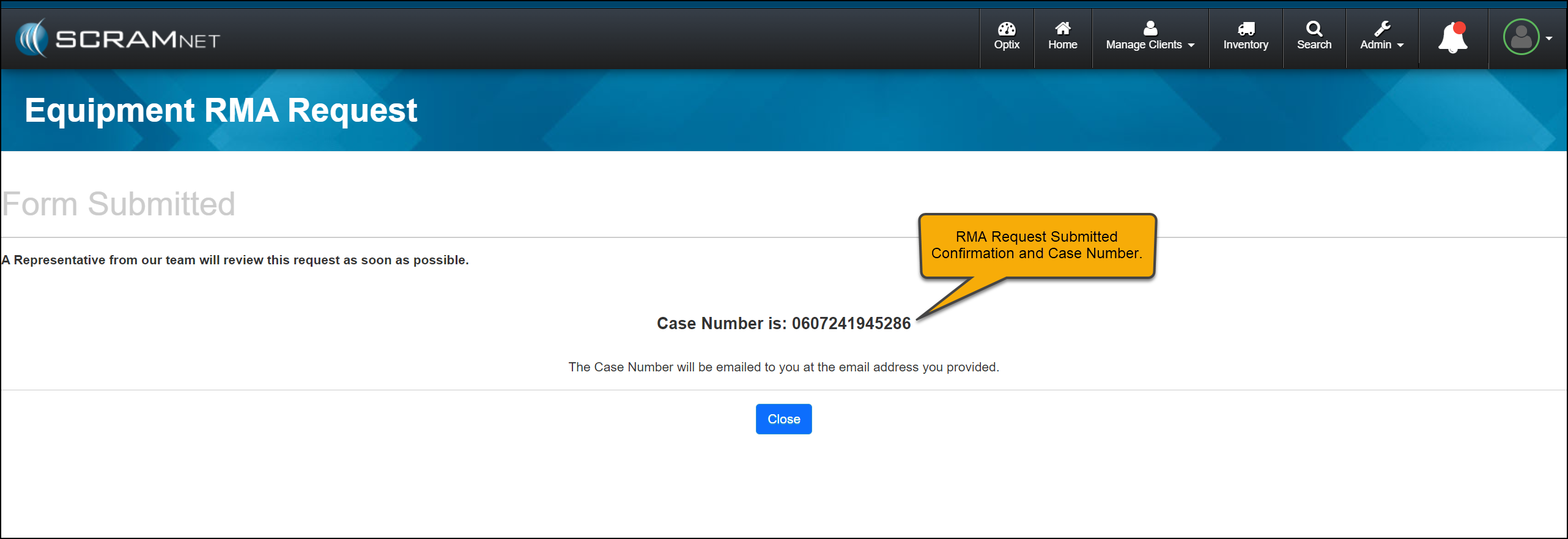
  • Once the RMA request has been submitted, the acknowledgment page will include the case number associated with the request for your reference.
TipsNot seeing the enhancement in SCRAM Systems Help & Support page? Clear your cache and cookies and refresh your browser window.

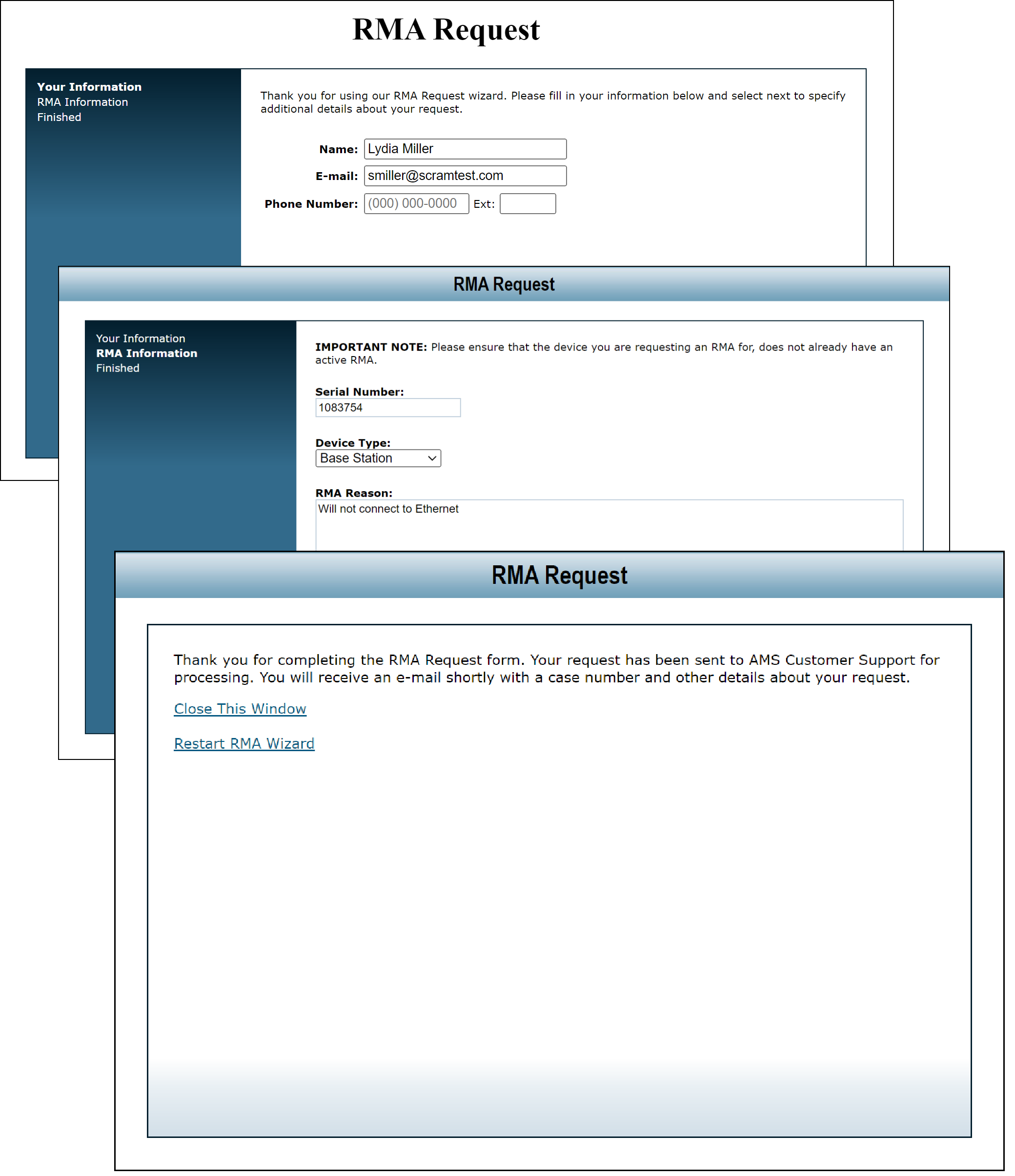
Current Equipment RMA Request Page

Pre-release RMA Request page (click to enlarge)

Enhanced Equipment RMA Request Page

Equipment RMA Request page (click to enlarge)
RMA Acknowledgement page with Case Number (click to enlarge)

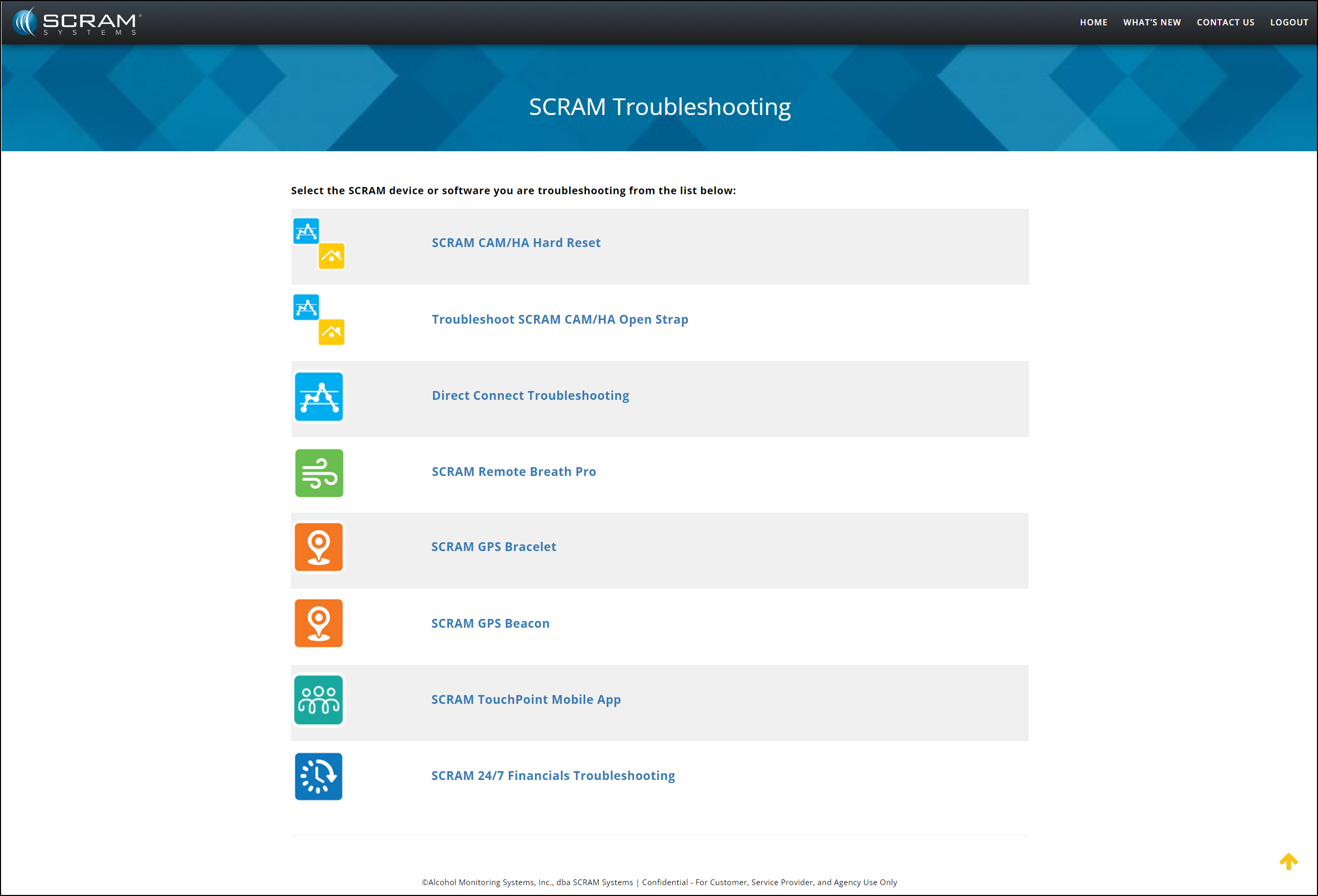
SCRAM Troubleshooting

On the SCRAM Troubleshooting article, select the product and issue to view step-by-step instructions.

SCRAM Troubleshooting Help Article (click to enlarge)

Continue Reading

On June 12, 2024, SCRAM Systems will release two enhancements centered around the process of checking in a device as damaged.

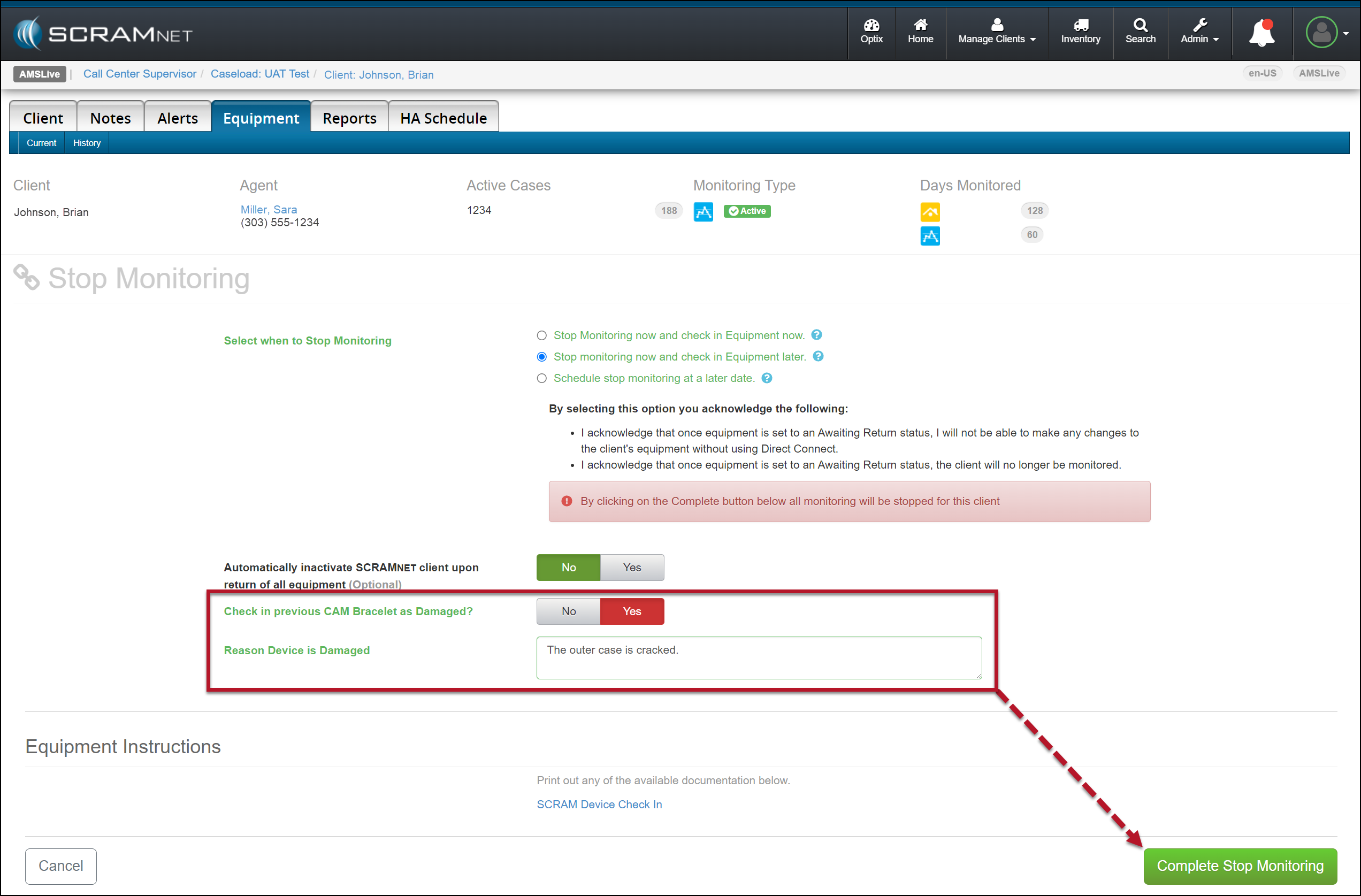
  1. You will now have the option to flag a device as damaged when stopping the monitoring for the client.
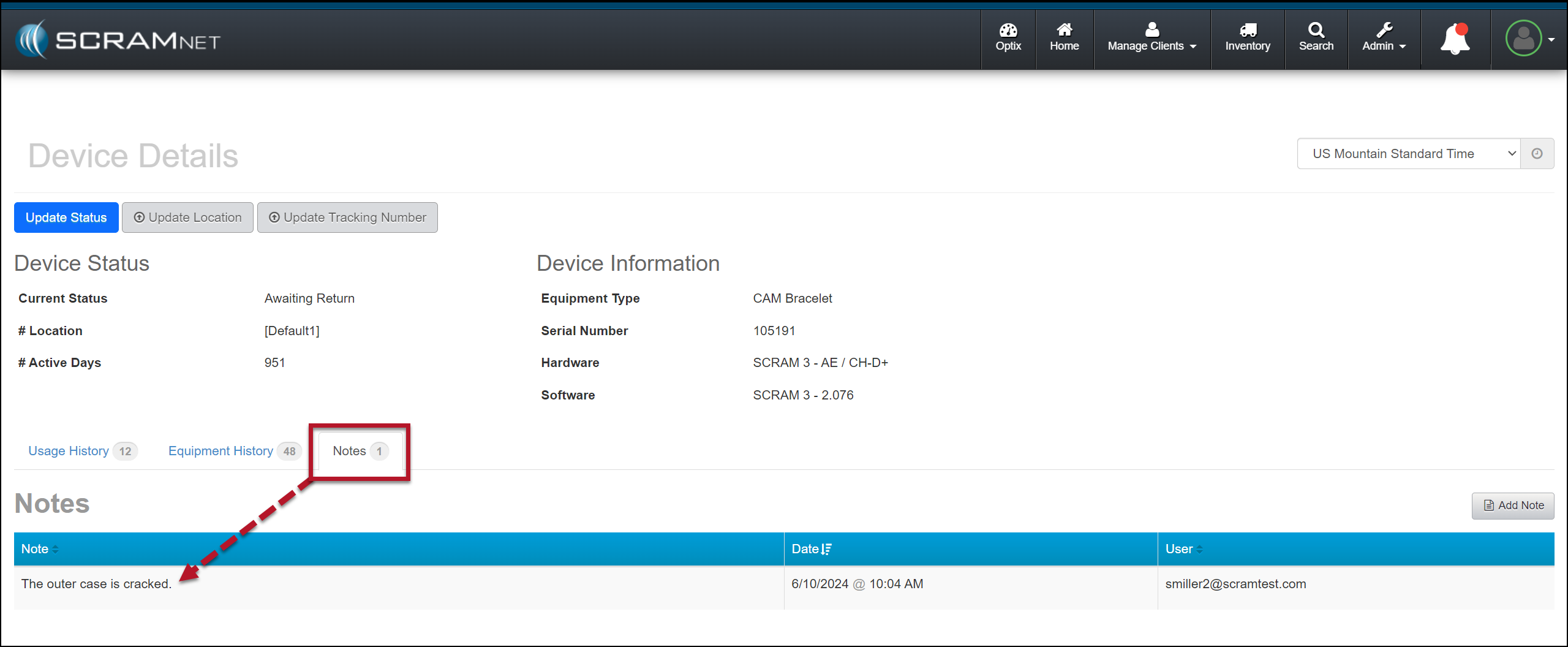
  2. The notes entered for a device being checked in as damaged will now be visible on the Device Details page in SCRAMNET.
TipsNot seeing the enhancement in SCRAMNET? Clear your cache and cookies and refresh your browser window.

Stop Monitoring and Check In Device as Damaged

When stopping the monitoring, for your client in SCRAMNET, you may flag a device as damaged by setting the “Check in previous [Device type] as Damaged?” option to Yes. Once set, add a note explaining why you flagged the device as damaged, and then complete the stop-monitoring process as usual.

Example of a SCRAM CAM Client in SCRAMNET
Stop Monitoring page, Device Flagged as Damaged (click to enlarge)
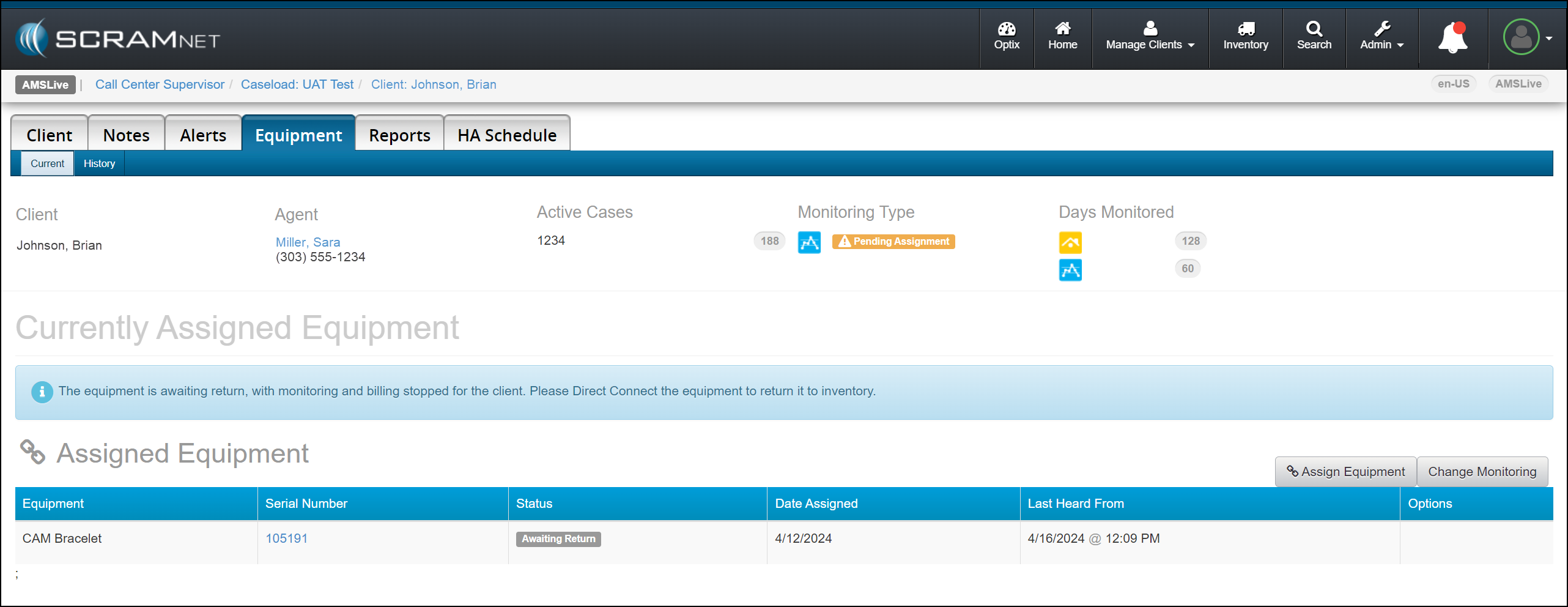
Client’s Equipment page Device Awaiting Return Status Displayed (click to enlarge)

Once the device status is updated to either “Pending Removal” or “Awaiting Return” based on the Stop Monitoring page selection, complete the process to return the device to your inventory.

Tips
  • SCRAM Systems recommends selecting the “Stop monitoring now and check in Equipment later” option when flagging a damaged device. This ensures billing is stopped for the client when a device cannot be checked in following the normal process.
  • When scheduling the stop monitoring for a later date, you cannot flag a device as damaged.
  • Flagging a device as damaged on the Stop Monitoring page does not automatically update its status to “In Inventory.” You must complete the check-in process to ensure billing and monitoring for the client are stopped.
  • When a device is flagged as damaged on the Replace Equipment page, it will automatically be updated to an “In Inventory” status.

Device Details Damage Notes

Once a device has been flagged as damaged, you may view the notes associated with the damaged device on the Device Details page in SCRAMNET.

Device Details Page with Notes Tab Selected (click to enlarge)

This information is helpful to reference when troubleshooting a device or requesting an RMA.

TipsThe damage notes will remain visible on your Device Details page until the device is returned and serviced at SCRAM Systems. At that time, they will no longer be visible.

Continue Reading

At 11:00 PM MDT on April 30, 2024, SCRAM Systems® will release a firmware update to the SCRAM Remote Breath Pro (RB Pro) device, which will result in multiple enhancements to your Remote Breath client Caseloads.

TipsFirmware Download Tips:
  • SCRAM Systems recommends you power on and update the firmware on your inventory devices before you assign them to clients.
  • It will take up to 15 minutes for the device to download and install the firmware update.
  • You and your clients may see the RB Pro device power cycle itself several times during the download and installation process. This is normal behavior.
  • If it is taking longer than 30 minutes to download and install the firmware update, then follow these tips for troubleshooting Extended Firmware Download Times

Enhancements included in this firmware update:

Client Breath Test Enhancements:
Additional Usability Improvements:

Client Breath Test Enhancements

RB Pro Grace Period “Sleep” Mode

Currently, when the device prompts the client to provide a breath sample, it will “wake up,” provide visual instructions on screen, an audible tone, and a solid red light to alert the client that it is time to give a breath sample. The screen will continue to display the instructions and an audible alert sound until the client completes the breath test or the Grace Period expires. If the client does not provide a breath sample in a timely manner, this causes the device to consume a lot of its battery power.

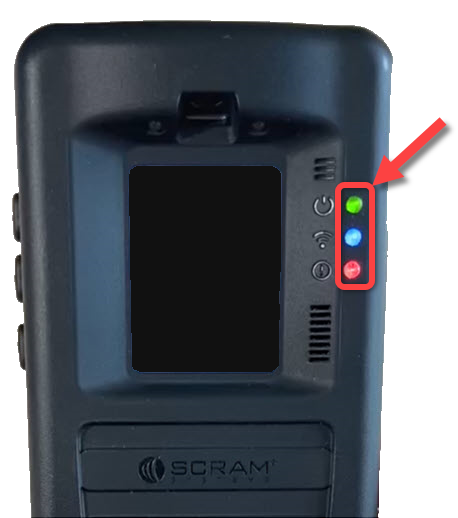
With this update – to conserve power and extend battery life between charges – if the client is not actively blowing into the breath tube 30 seconds after the initial breath test alert, then the screen will “sleep.” All three of the green, blue, and red indicator lights will remain on. Specifically, the red light remains on to remind the client a breath test is pending.

Red Light Remains On While in Sleep Mode When a Test is Pending

At set intervals throughout the Grace Period, the device’s screen will “wake up” and produce an audible tone to remind the client to complete the breath test as well.

When the client sees a solid red light on the device, with or without on-screen instructions, this indicates a pending breath test. If the screen is asleep, instruct the client to press one of the buttons on the side of the device to “wake” it, and then follow the on-screen prompts.

WarningWhen the device’s battery level is Low or Critically Low, the red indicator light flashes continuously and does not stay solid to signify a pending breath test. Instruct the client to press one of the buttons on the side of the device if the screen is asleep, follow the on-screen prompts to complete a breath test, and then connect the device to a charging cable.

Automated VOC Detection and Mitigation

TipsEnhancement Update: On December 4th, 2024 SCRAM Systems updated this Ambient VOC Detected Mitigation process. You may view the updated process here.

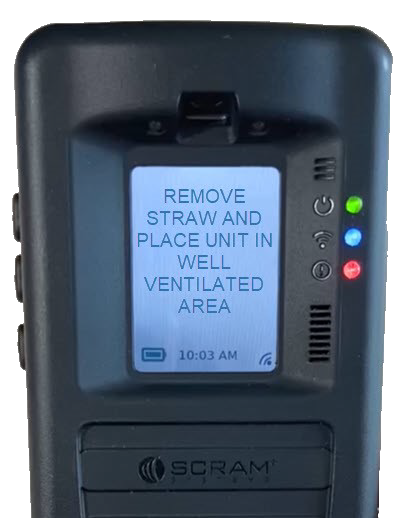
Once a breath test has been requested for the client, and before the RB Pro prompts the client to “Align Eyes,” the device will complete a VOC (Volatile Organic Compound) flow path check. When the device detects a VOC in the breath flow path, “Remove Straw and Place Unit In Well Ventilated Area” will be displayed on the screen:

RB Pro Device Displays ‘Remove Straw and Place Unit In Well Ventilated Area’

Instruct the client to follow the on-screen instructions by having the client:

  1. Remove the breath tube from the device.
  2. Relocate the RB Pro device to an area of fresh air and free of chemicals (like air fresheners) and cleaning agents (including freshly cleaned countertops).
  3. Ensure the RB Pro device is not in its carrying case. Place the device on its side on a tabletop or other clean surface away from contaminants, with the vent and breath tube port unobstructed.

After a period of time, the RB Pro’s screen will update to “Blow Again” and the device will complete a second VOC flow path check.

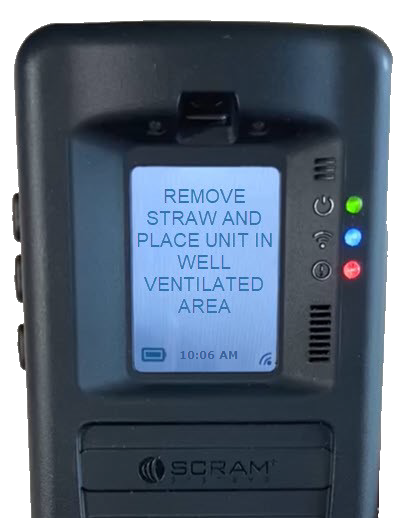
If VOCs are still detected, the screen will update to “Please Wait,” then “Remove Straw and Place Unit In Well Ventilated Area” for an additional period of time…

RB Pro Device Displays ‘Remove Straw and Place Unit In Well Ventilated Area’ Again

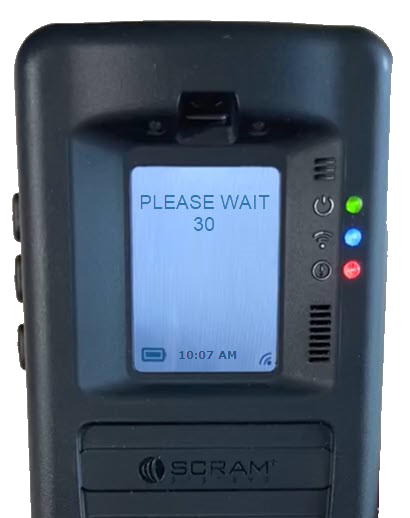
…followed by “Please Wait” with a timed countdown:

RB Pro Device Displays ‘Please Wait’ and Counts Down

At the end of the countdown, the device will complete another VOC flow path check.

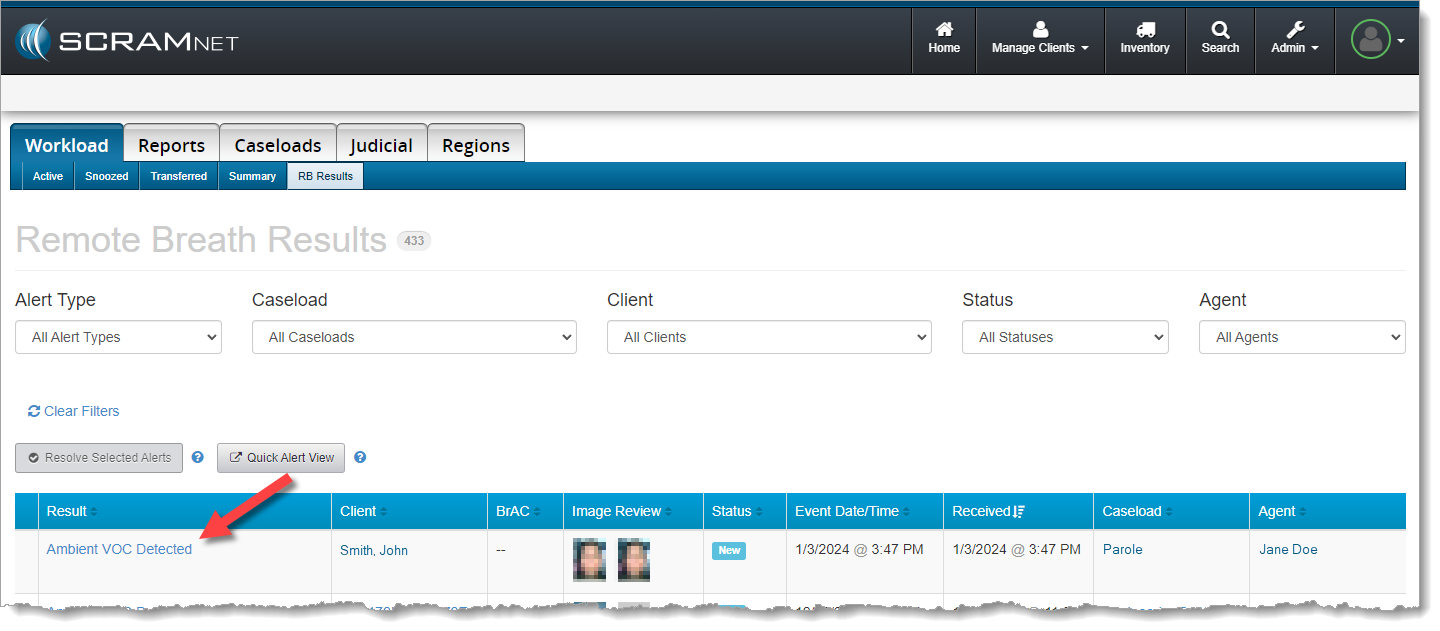
After three to four attempts (depending on the level of VOCs detected), if VOCs are still being detected, the screen will update to “Monitoring.” In SCRAMNET, an “Ambient VOC Detected result will be displayed on the client’s RB Results page.

‘Ambient VOC Detected’ on RB Alerts Page in SCRAMNET (click to enlarge)
InformationWhen the client is set up for Test to Zero, an On-Demand test will be sent – automatically – 20 minutes after the “Ambient VOC Detected” test result is received in SCRAMNET.

New “Stop Blowing” Message

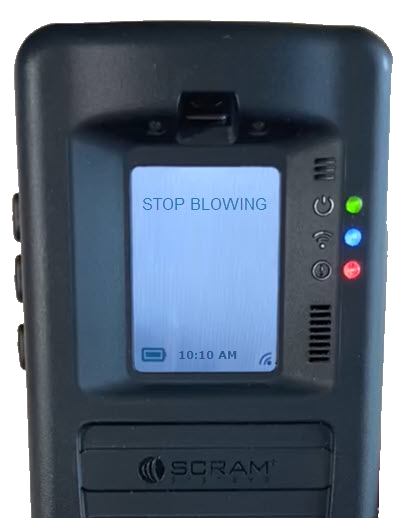
When a breath test is requested, if the client is actively blowing into the device without being prompted, a new “Stop Blowing” message will be displayed on the device’s screen. The client should follow the on-screen instructions when providing a breath sample.

RB Pro Device Displays ‘Stop Blowing’

Additional Usability Improvements

RB Pro Indicator Lights

Currently, when an RB Pro is in “sleep” mode, the green, blue, and red lights to the right of the RB Pro display screen will turn off. With this firmware update, the lights will remain on, even during sleep.

Indicator Lights Remains On Even While in Sleep Mode

In addition to the lights remaining on, the blue and red lights will display as solid or flashing, based on the device’s current status. Indicator light statuses are:

  • Green Light: Active, assigned device
  • Solid Blue Light: Connected to a Data or Wi-Fi Network
  • Flashing Blue Light: Establishing a Data or Wi-Fi Network Connection
  • No Blue Light: No Data or Wi-Fi Network Connection
  • Solid Red Light: Breath Test Required
  • Slow Flashing Red Light: Low Battery
  • Quick Flashing Red Light: Critically Low Battery

Periodically, the screen will wake up when the device is in sleep mode. This occurs during communication with SCRAMNET, or when an indicator light’s status changes. The client should be instructed to follow on-screen prompts when appropriate.

Wi-Fi Sleep Mode

With this update, the device will now go to sleep during inactive periods while connected to a Wi-Fi network. This will extend the battery life between charges while connected to Wi-Fi.

InformationInternal testing has revealed that – thanks to this firmware update – battery life more than doubled as compared to the current battery life of an RB Pro device connected to a Wi-Fi network. Regardless of this improvement, the client should still be instructed to connect the device to a charging cable whenever possible to ensure proper device operation.

Continue Reading

When it is time to discharge a client from the SCRAM CAM program, be sure you have a clear understanding of the status in which you should place the equipment.

Awaiting Return

If the bracelet or base station is NOT on-hand, select Stop Monitoring and complete the Stop Monitoring process to set the status to Awaiting Return. This status ends the monitoring program and stops the billing associated with it. The bracelet will remain in this status until it is checked in or until 30 days elapses, at which time it will automatically move to Lost status.

Pending Removal

If you will be completing the Stop Monitoring process with the client in person and the equipment is on-hand, select Stop Monitoring and complete the Stop Monitoring process to set the status to Pending Removal. This status prepares the bracelet for final connection with the Direct Connect device and application, and monitoring and billing both continue until the Direct Connect process is complete and the bracelet moves to In Inventory status.

More Help

For more detailed Client Discharge instructions please visit the Pending Removal vs. Awaiting Return article on SCRAM Systems Help & Support.

Continue Reading

On March 1, 2024, SCRAM Systems® will release an updated SCRAM Remote Breath Participant Agreement in the SCRAMNET® monitoring system. This updated Agreement better represents the current Remote Breath Pro (RB Pro) Device and better protects your organization and its agents.

What is Changing

Product evolution, feedback from customers, and input from our own internal legal team led us to make the following improvements in our RB Agreement:

  • References to the now-obsolete first generation Remote Breath “Classic” Device have been removed.
  • Terminology used throughout the Agreement is more clearly defined in the opening paragraphs.
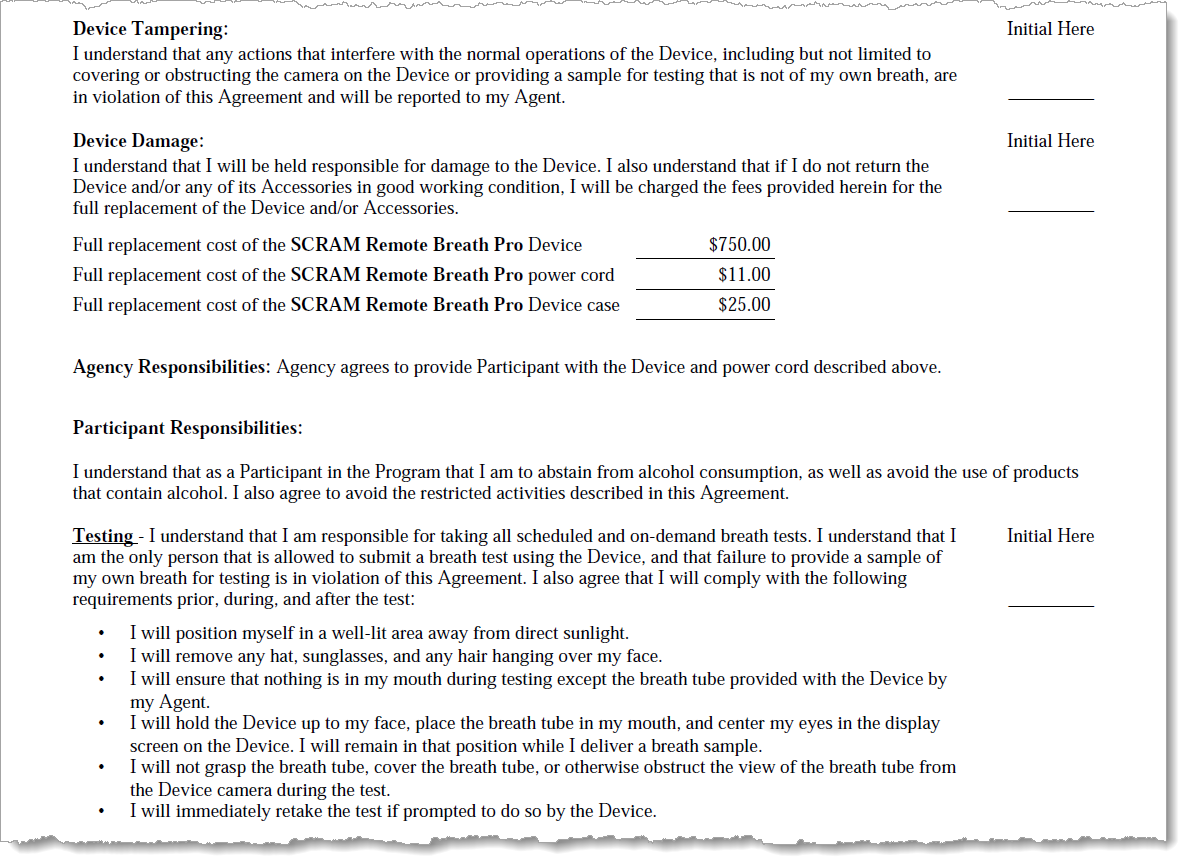
  • Language that explicitly describes what qualifies as “Device Tampering” and how it is a violation of the Agreement has been added.
  • The Participant Responsibilities – Testing section has been bolstered to discourage clients from (a) placing anything in their mouths except the breath tube supplied with the RB Pro Device and (b) grasping or otherwise obstructing the camera’s view of the breath tube while performing a breath test.
Updated RB Participant Agreement Excerpt (click to enlarge)

Who is Impacted

All Remote Breath customers who access and print their Remote Breath Participant Agreements from SCRAMNET will see the updated Agreement take effect March 1st. If your organization uses a customized version of the RB Agreement, your customizations will be “ported over” to the updated Agreement and made available in SCRAMNET as they are today.

ImportantIf you are unsure about the type of Remote Breath Participation Agreement used by your organization, ask your supervisor or program administrator.

An extremely small number of customers have made major material changes to their versions of the RB Participant Agreement. Those customers will be contacted by their SCRAM account representative to discuss options for making the update to the newer Agreement language.

Continue Reading