Add the client’s profile to SCRAMNET
In SCRAMNET click the Manage Clients icon.
- On the Manage Clients page, click the +Add New Client button to navigate to the Create New SCRAMNET Profile page.
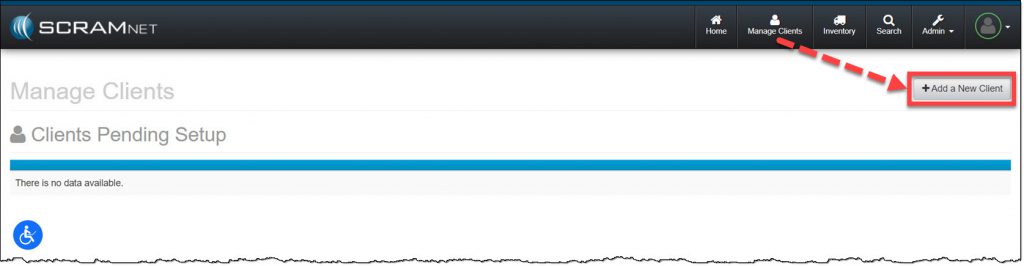
SCRAMNET Manage Clients page (click to enlarge)
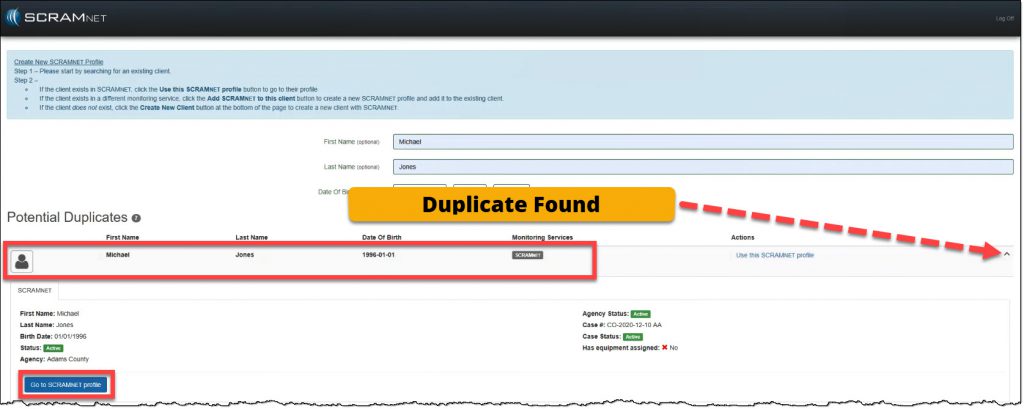
- Enter in the client’s name and date of birth.
- If the client’s information does not appear in the Potential Duplicates list, select the Create New Client button.
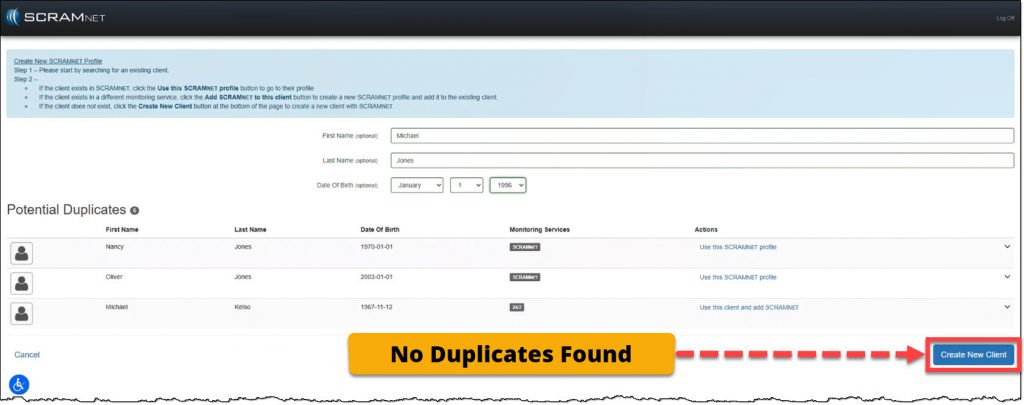
click to enlarge
- If the client’s information displays but is associated with a different Monitoring Service on the Potential Duplicates list, select the Use this client and add SCRAMNET link to create a SCRAMNET profile for the client.
- If the client’s information does not appear in the Potential Duplicates list, select the Create New Client button.
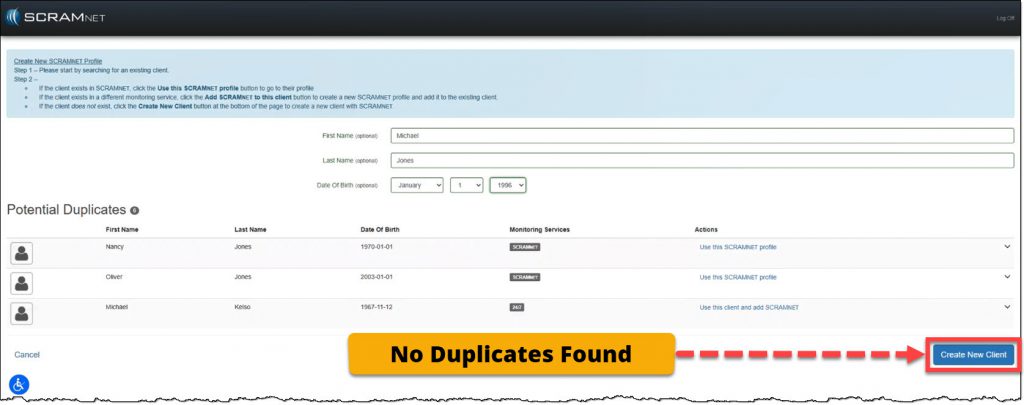
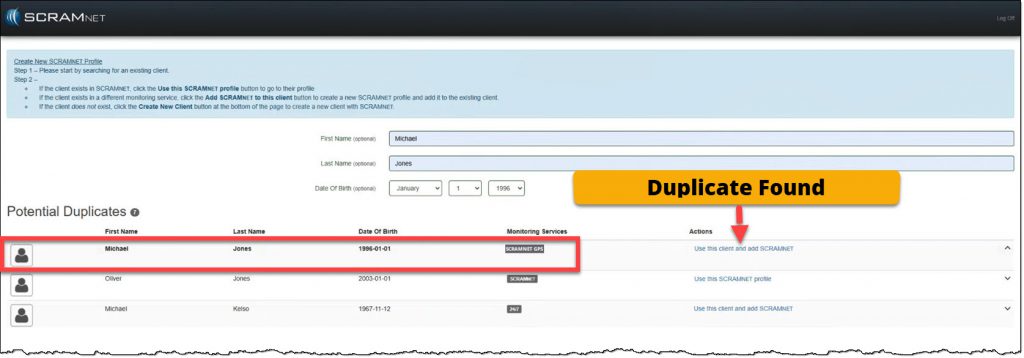
click to enlarge
-
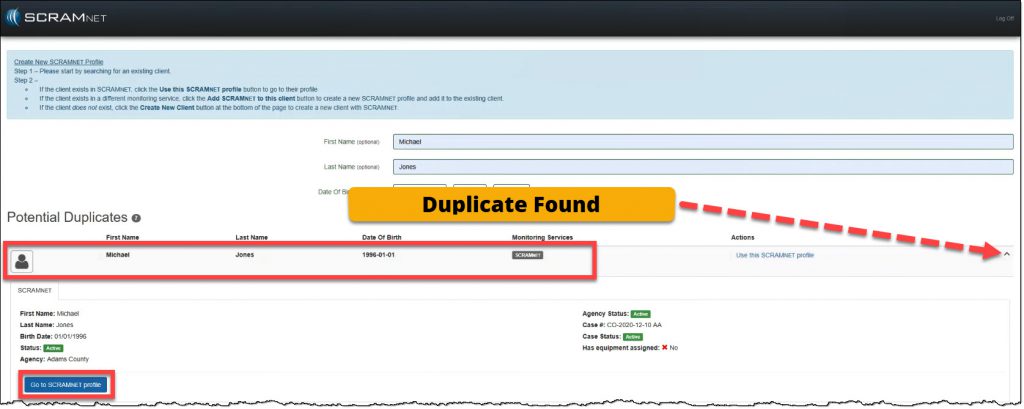
- If SCRAMNET is showing as a monitoring service for the client, expand the node and click the Go to SCRAMNET profile button to view or edit the profile.
click to enlarge
- If SCRAMNET is showing as a monitoring service for the client, expand the node and click the Go to SCRAMNET profile button to view or edit the profile.
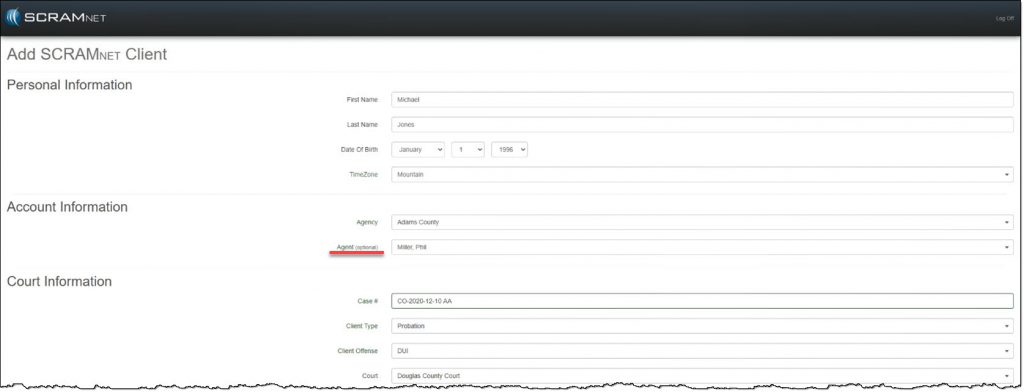
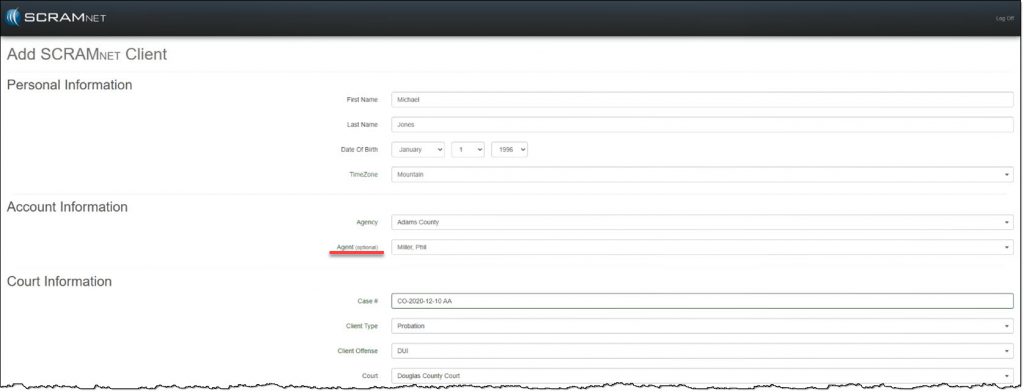
- Complete the Add SCRAMNET Client page. All fields are required unless marked optional.
(click to enlarge)
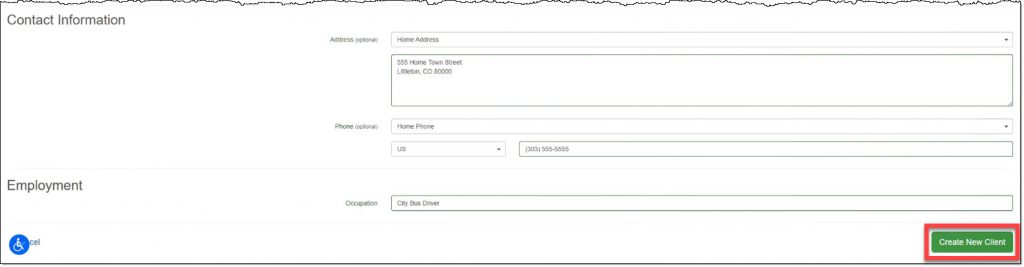
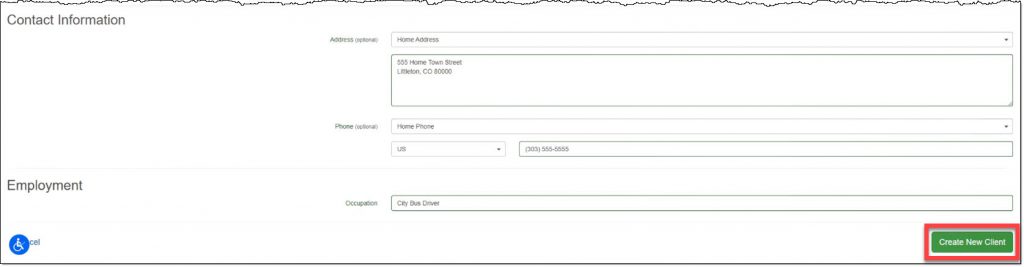
- Click the Create New Client button.
(click to enlarge)
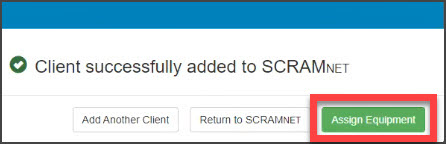
- On the decision pop-up, select one of the three available options:
- Add Another Client to SCRAMNET and return to the Manage Client page.
- Return to SCRAMNET
- Assign Equipment to continue setting up the current client for monitoring.
(click to enlarge)
Set the Client’s Monitoring Type
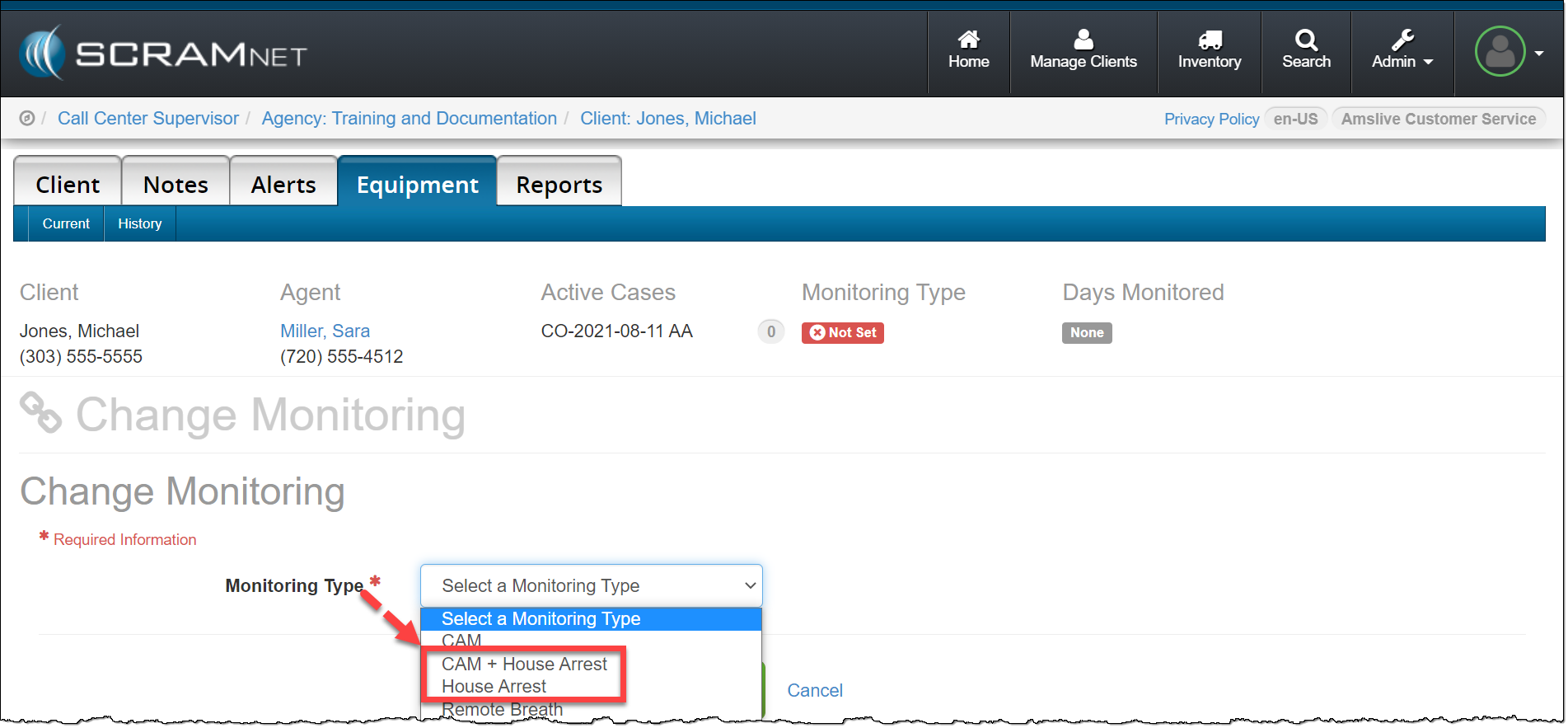
On the client’s Equipment page, the next step is to select the monitoring type for the client. Depending on your program, the options available for house arrest (curfew) monitoring are:
- CAM + House Arrest (SCRAM CAM bracelet: Alcohol and curfew monitoring)
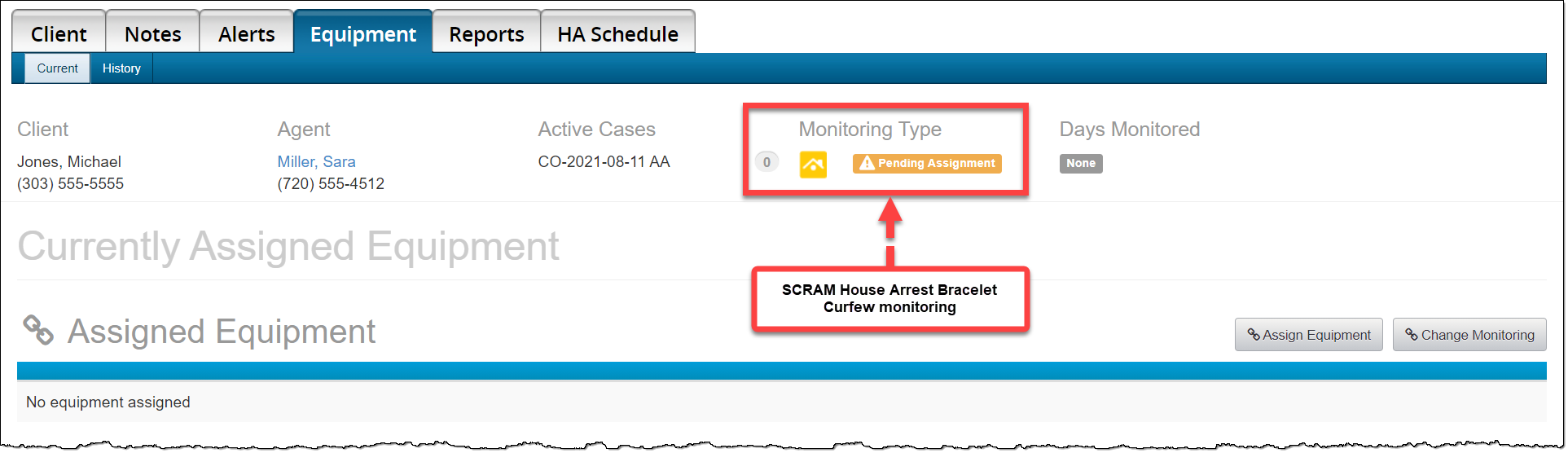
- House Arrest (SCRAM House Arrest bracelet: Gray bracelet for curfew monitoring only)
On the client’s Equipment page:
- Click the Assign Monitoring button.
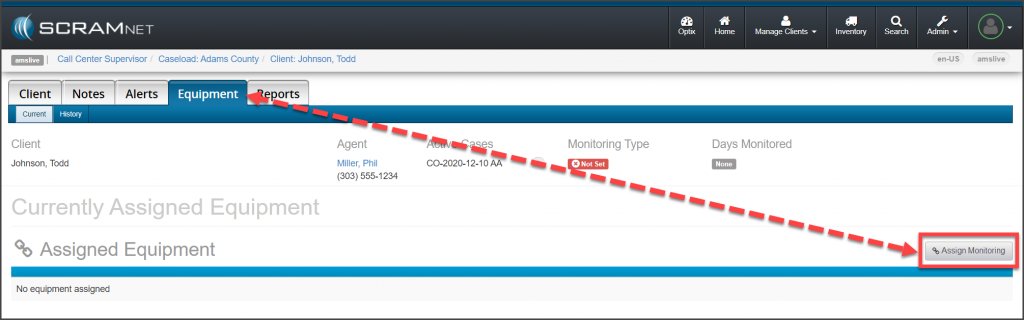
SCRAMNET Client’s Equipment page: No Monitoring Type Set (click to enlarge)
- On the Change Monitoring page, open the Monitoring Type menu and select either:
- CAM + House Arrest
- House Arrest
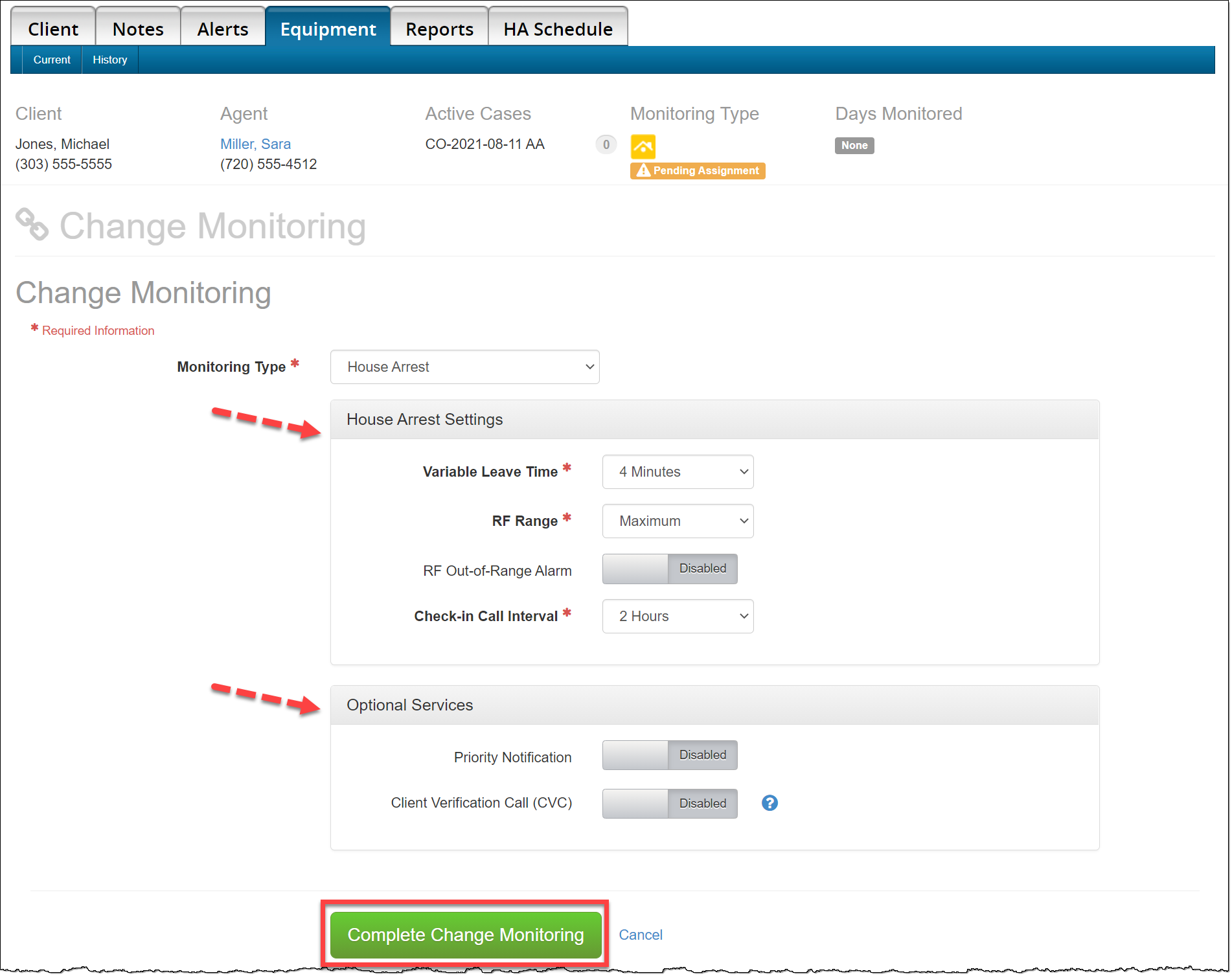
- In the House Arrest Settings section, verify/update the settings for the client.
- In the Optional Services section, activate Priority Notification or Client Verification Call (CVC) if available and required for client monitoring.
- For more information on activating “Priority Notification” for your clients, click here.
- Click the Complete Change Monitoring button.
The client’s Monitoring Type is now displayed.
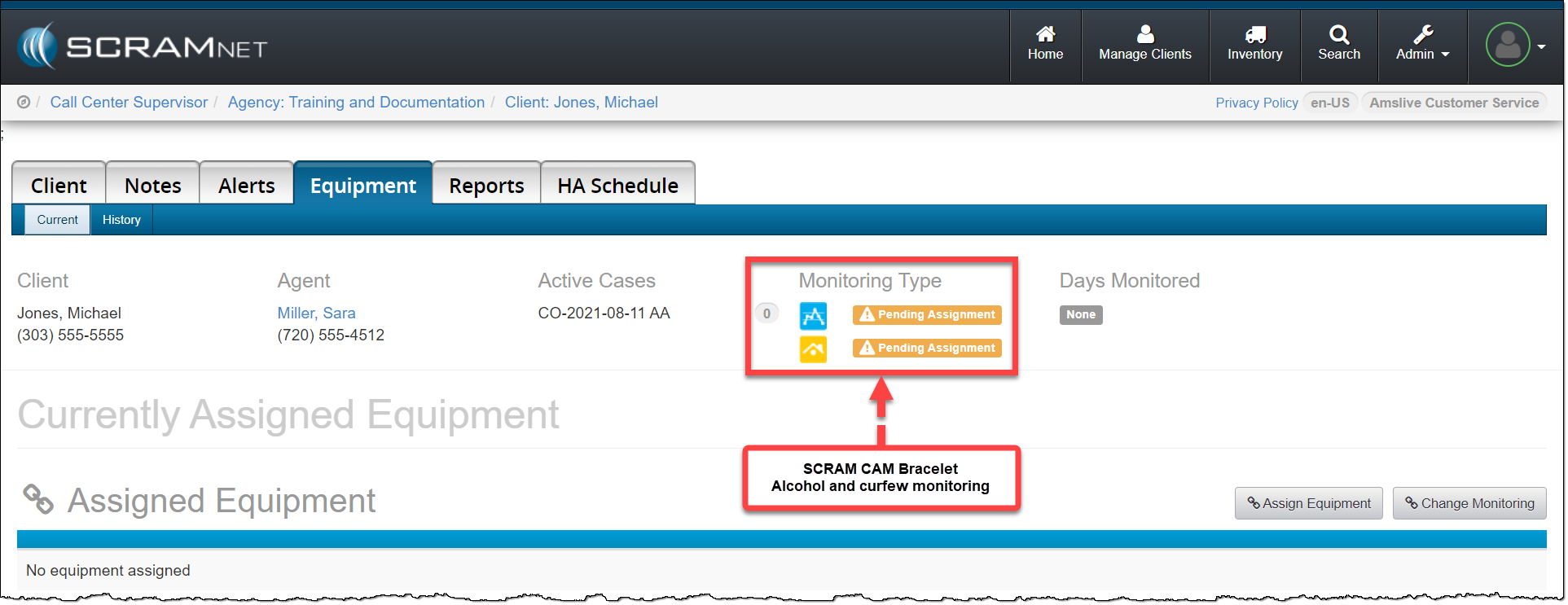
The next step is to add the equipment information into SCRAMNET.