SCRAM CAM Device

As of, February 1st, 2023, two new product certification courses, SCRAM Remote Breath Pro Fundamentals (Level 1) and SCRAM CAM Installer Fundamentals (Level 1), are available in the SCRAM Systems University Course Catalog.

Remote Breath Pro Fundamentals Course

Overview

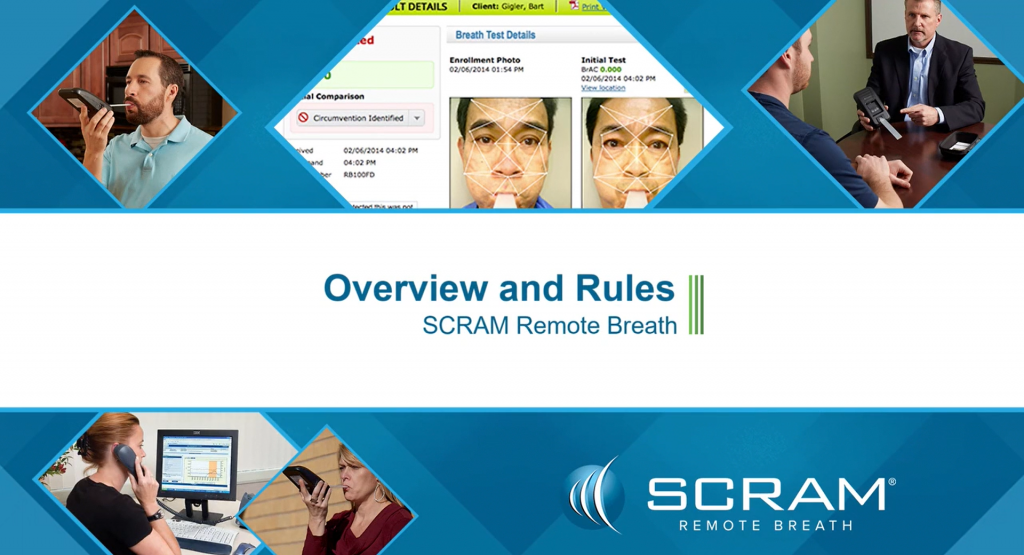
SCRAM Remote Breath Pro Fundamentals training consists of three tutorials covering the different aspects of managing a breath alcohol monitoring program. The course begins with how to use the SCRAMNET monitoring system, introduces you to the SCRAM Remote Breath Pro device, and concludes with a certification exam.

The tutorial topics included are:

  1. SCRAM Remote Breath Pro Client Setup and Equipment Assignment
  2. SCRAM Remote Breath Pro Client Management
  3. SCRAM Remote Breath Pro Client Discharge

The course includes a certification exam, so successful learners who pass with a score of 80% or better will be considered certified in SCRAM Remote Breath Pro Fundamentals (Level 1).

Learning Objectives

By the end of this e-learning program, the successful learner will be able to:

  1. Assign a SCRAM Remote Breath Pro device to a client.
  2. Create a breath-testing schedule.
  3. Enable Courtesy Reminders for the client.
  4. Locate equipment-related and non-compliance alerts in SCRAMNET.
  5. Set up the appropriate equipment-related and non-compliance notifications for your monitoring program.
  6. Generate client monitoring program reporting.
  7. Discharge a client from the monitoring program.
  8. Navigate to the relevant SCRAM Help pages and contact information for additional support.

SCRAM CAM Installer Fundamentals Course Overview

SCRAM CAM Installer Fundamentals (level 1) training consists of three tutorials covering different aspects of managing a SCRAM CAM monitoring program. The course begins with how to use the SCRAMNET monitoring system and install and assign the SCRAM CAM Bracelet and SCRAM Base Stations. Next, it covers how to complete required equipment maintenance and finishes with how to end the client’s monitoring program. You are required to pass a certification exam to complete the course.

The tutorial topics included are:

  1. SCRAM CAM Client Setup and Equipment Assignment
  2. SCRAM Equipment Maintenance
  3. SCRAM CAM Client Discharge

The course includes a certification exam, so successful learners who pass with a score of 80% or better will be considered certified in SCRAM CAM Installer Fundamentals (Level 1).

Learning Objectives

By the end of this e-learning program, the successful learner will be able to:

  1. Assign a SCRAM CAM Bracelet to a client.
  2. Complete equipment-related maintenance alerts in SCRAMNET.
  3. Discharge a client from the monitoring program.
  4. Navigate to the relevant SCRAM Help pages and contact information for additional support.

How to Enroll

To enroll in these new courses, please log into SCRAM Systems University and select the Get Item button for the SCRAM Remote Breath Pro Fundamentals and SCRAM CAM Installer Fundamentals courses in the Course Catalog.
SCRAM Remote Breath Pro – click to enlarge
SCRAM CAM Installer Fundamentals – click to enlarge

If you do not yet have an account, access the login page and click the Register Now! link. Use your organization’s unique registration key to fill out the registration form to request access to the site. Once your access request is approved, you will receive an email with all the information you need to access the course catalog and enroll in our course offerings.

If a registration key has not been provided to you, or if you need help with the site, please email us at training@scramsystems.com.
Continue Reading

Direct Connect v1 No Longer Works with Your SCRAM Systems Equipment

On June 17, 2021, SCRAM Systems® released Direct Connect Version 2. This new version of the Direct Connect application replaces the old version, and no longer requires you to log in each time you launch it. The new application uses your Microsoft Windows login credentials to automatically log you in.

If you receive the error message, “Unable to access SCRAMnet Updater Service. Error Code 1000/1002,” that means you are attempting to use the old version.

Uninstall the Old Version

SCRAM Systems is not able to remotely identify which computers have been upgraded to the new Direct Connect software; so to avoid any issues in downloading and assigning devices, it is strongly recommended that you follow the Microsoft-recommended instructions on how to uninstall Direct Connect v1 from your monitoring program computers.

Direct Connect v2 Installation Instructions

Visit the Direct Connect Installation page of the SCRAM Systems Help & Support site to learn how to install the Direct Connect v2 application on your monitoring program computers.

Continue Reading

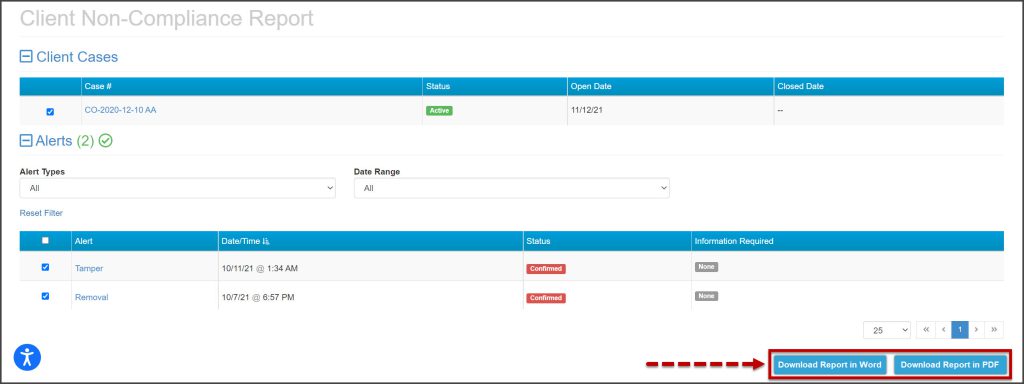
Effective July 14, 2022, SCRAM Systems® will release a printing enhancement for client non-compliance reporting within SCRAMNET. The report will now be available to print in either (Adobe) PDF or (MS Word) DOCX format.

Client Non-compliance page
click to enlarge

Continue Reading

Why You Need to Take Action

On February 22, 2022, AT&T Wireless stopped supporting its 3G cellular network nationwide. This means that the cellular technology that runs SCRAM 3G Wireless Base Station (WBS) devices has either already stopped working, or will in the near future as AT&T continues its turndown efforts.

SCRAM Systems is first and foremost committed to public safety. Since AT&T has already begun decommissioning 3G cell towers, we cannot guarantee your SCRAM WBS 3G devices will continue to operate; so to ensure continuity of your monitoring program, SCRAM Systems advises that you replace your 3G WBS devices with new 4G LTE-compatible SCRAM Wireless Base Stations as soon as possible.

Once the AT&T 3G cellular towers are decommissioned in your area, your 3G WBS devices will no longer communicate, which will render the clients they are assigned to unmonitored. Replace your 3G SCRAM Wireless Base Stations with LTE-compatible SCRAM Wireless Base Stations immediately, to ensure there is no disruption to your monitoring program.

How to Distinguish a 3G WBS from a 4G LTE WBS

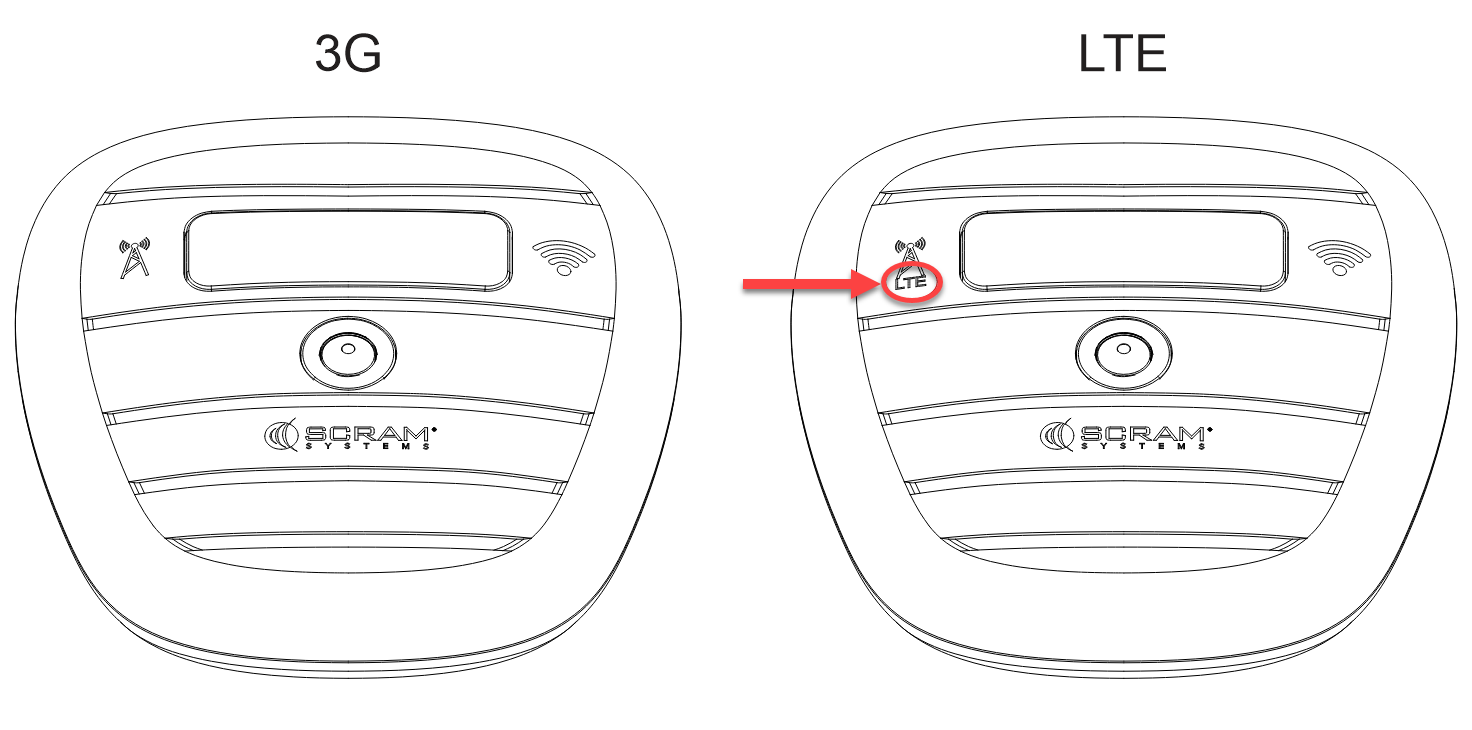
The front casing of a 4G LTE SCRAM Wireless Base Station includes the letters “LTE” just beneath the image of the wireless network (cellular) antenna, which is located just to the left of the display screen.

3G WBS vs. 4G LTE WBS (click to enlarge)

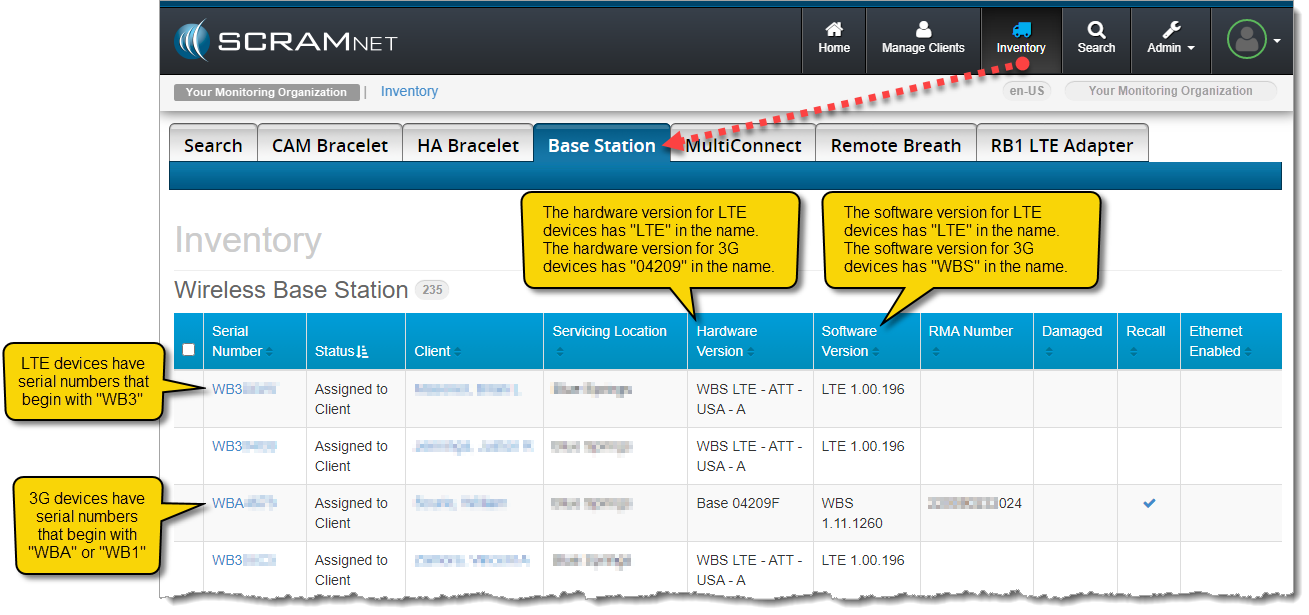
Additionally, the serial numbers for LTE devices begin with “WB3,” whereas the serial numbers for 3G WBS devices begin with “WBA” or “WB1.” Besides using the serial number, on the SCRAMNET Inventory page you can identify the type of WBS devices you have in your inventory by looking at their hardware and software versions.

3G WBS vs LTE WBS in SCRAMNET (click to enlarge)

The hardware version for LTE devices has “LTE” in its name and the hardware version for 3G devices has “04209” in its name. Similarly, the software version for LTE devices has “LTE” in the name; however, the software version for 3G devices has “WBS” in the name.

Next Steps

Contact your SCRAM Systems Account Representative to learn how to replace your 3G WBS inventory with 4G LTE-compatible SCRAM Wireless Base Stations, and read our SCRAM LTE Upgrade FAQ for more information about AT&T’s 3G to 4G-LTE network upgrade.

Continue Reading

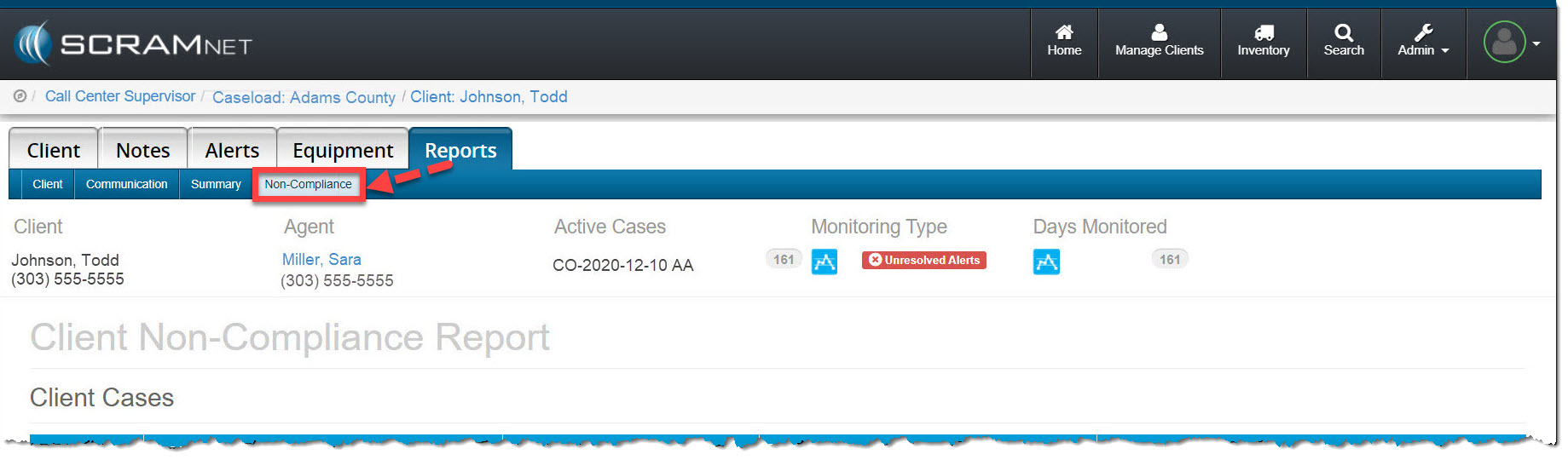
On the afternoon of March 24, 2022, SCRAM Systems® released a new and improved Client Non-Compliance Report in SCRAMNET. This redesigned and streamlined report replaces both the former non-compliance report as well as the custom “Court Report.” The new Client Non-Compliance Report is conveniently located under the client’s Reports tab in SCRAMNET

Client Report tab Non-Compliance subtab highlighted
Non-Compliance Report sub-tab (click to enlarge)

Here are the enhancements you will see:

  • Multiple confirmed alerts may be included in a single report and will be listed chronologically
  • The alert confirmation criteria are included in the report
  • The Manufacturer’s Description of Technology has been updated
  • A Data Interpretation Summary has been added to the report
  • Your organization’s name now appears on the cover page as the preparer of the report
  • The client’s data interpretation is included with each graph
  • Reports are immediately available on-demand in an easy-to-print format

View an example Client Non-Compliance Report (PDF).

To view the step-by-step instructions to create a non-compliance report for a client, visit the Non-compliance Report Help article located in the CAM Help section.

Continue Reading

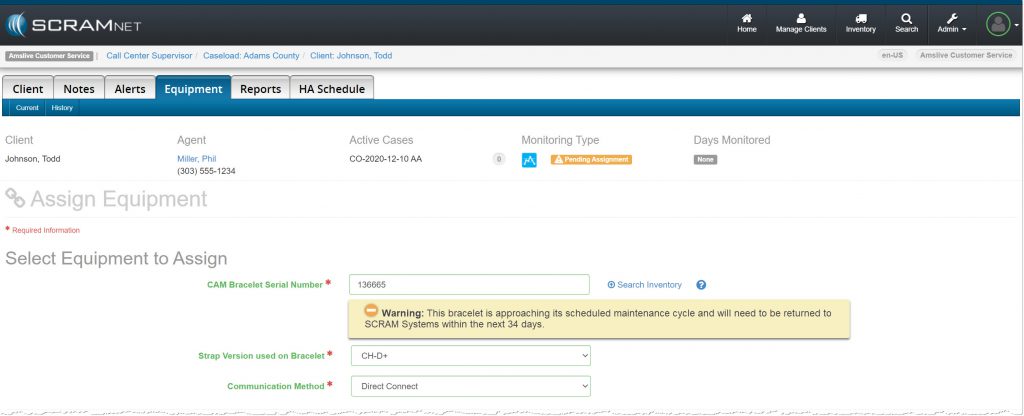
SCRAM Systems has changed the timing of the SCRAM CAM bracelet Annual Maintenance Required alert in SCRAMNET. Instead of being alerted at 366 days of on-ankle use, you will now be alerted that an RMA has been issued for the device on Day 355. This will allow you 10 days to arrange to meet with the client and replace the bracelet. The device will stop generating non-compliance alerts on Day 366. Details below.

At 300 to 354 days of on-ankle use:

  • A warning message will display under the SCRAM CAM bracelet serial number on the Equipment Assignment page in SCRAMNET.
    • This message provides the number of assigned days available before the bracelet will reach 365 days of on-ankle use and will require replacement.
    • This will aid you in assigning the appropriate SCRAM CAM device from your inventory to meet your clients’ monitoring requirements.
  • The bracelet is still available for client monitoring at this point in time.
Warning Message (click to enlarge)

At 355 days of on-ankle use:

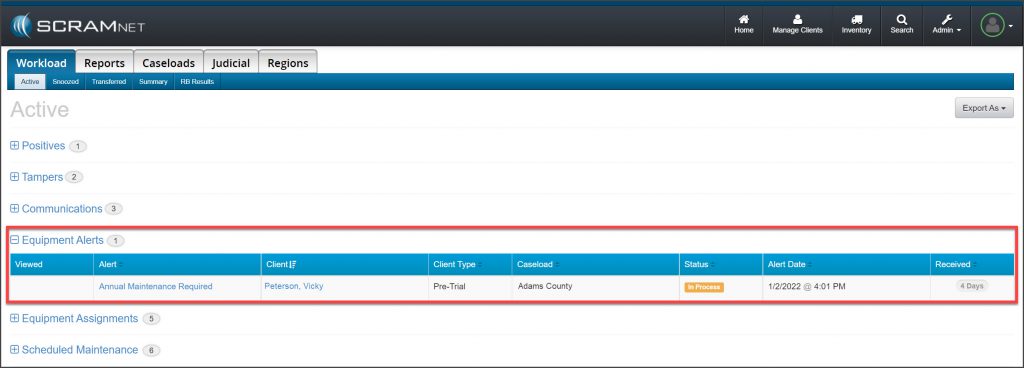
  • An Annual Maintenance RMA is issued for the device, which generates an “Annual Maintenance Required” alert on the Workload page under the ‘Equipment Alerts’ section in SCRAMNET.
  • You have 10 days from this point to replace the SCRAM CAM device and return it to SCRAM Systems for reconditioning and calibration.
  • At this time, the client is still being monitored, and alerts will continue to generate in the system for all non-compliance events.
‘Annual Maintenance Required’ Equipment Alert (click to enlarge)

On Day 366 of on-ankle use:

  • The status of the RMA issued for the device updates to “Failed.”
  • Alcohol and Tamper alerts stop generating in the system for non-compliance events. The client is effectively no longer being monitored.
  • The bracelet should be replaced immediately.  

Continue Reading

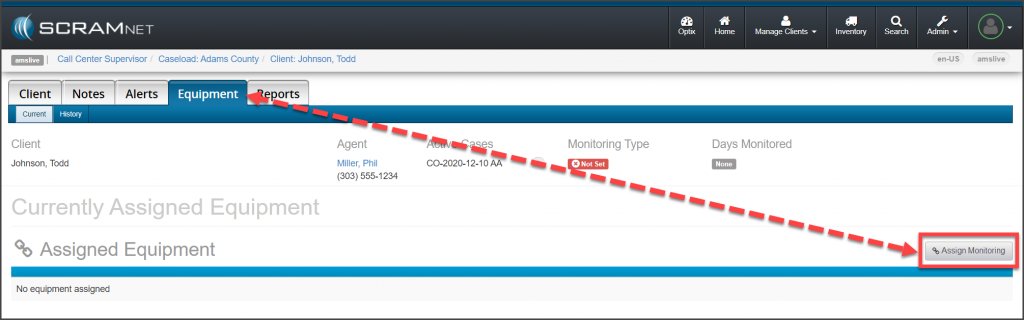
On November 18, 2021, the Change Monitoring button located on a new client’s Equipment page will display as “Assign Monitoring” until a monitoring type has been associated with the client. The updated verbiage on the button for this initial association to a monitoring type, more accurately reflects the action being completed for a new client.

Client's Equipment Page Assign Monitoring button
click to enlarge

Once the initial association to a monitoring type has been selected, the button will display as Change Monitoring from that point forward.

The process of adding a monitoring type to a new client itself has not changed; this is just a simple verbiage update to the action button. To review the process of creating a client in SCRAMNET, select the hyperlinks below to navigate to the corresponding monitoring technology’s Help articles:

Continue Reading

Since its launch three months ago, SCRAM Systems has supported both the new Direct Connect Version 2 – or “DC v2” – and the previous Direct Connect Version 1 – or “DC v1.” Effective November 1, 2021, SCRAM Systems will be retiring DC v1, and the DC v1 software will no longer work with your SCRAM Systems equipment.

On June 17, 2021, SCRAM Systems® released Direct Connect Version 2. This new version of the Direct Connect application no longer requires you to log in each time you launch it. Instead, the application uses your Microsoft Windows login credentials to automatically log you in. In other words, if agent John Doe logs into Windows on a computer and then launches Direct Connect, it will record John Doe’s Windows Username on SCRAMNET, which may or may not match John Doe’s SCRAMNET login ID. What this means is:

If your monitoring organization has one computer you use to do all your Direct Connects, then SCRAMNET will reflect the username of whomever logged into that computer last; so if the agent who logs in first thing in the morning neglects to log out, it’s possible it will look like that agent did all the DCs for all clients all day long.

DC v2 Installation Instructions

Visit the Direct Connect Installation page of the SCRAM Systems Help & Support site to learn how to install the Direct Connect v2 application on your organization’s monitoring program computers. SCRAM Systems is not able to remotely identify which computers have been upgraded to the new Direct Connect software; so to avoid any issues in downloading and assigning devices, it is recommended that you uninstall Direct Connect v1 from your monitoring program computers, since DC v1 will no longer work after November 1st.

Continue Reading

SCRAM Systems is pleased to announce the addition of two NEW client participant videos to the Help page in addition to the SCRAM CAM participant agreement video already available! These videos describe what is expected of a client as a participant in the SCRAM CAM, Remote Breath, and GPS monitoring programs. Have your clients view the video prior to having them sign the Participant Agreement.

Continue Reading

On the afternoon of June 17, 2021, SCRAM Systems® released Direct Connect v2. Once installed, this new version of the Direct Connect application will no longer require that you log in each time you launch the tool. Instead, the application uses your Microsoft credentials to automatically log you in.

Installing the new application will entail:

  • Ensuring that the application is closed.
  • Validating that the correct back-end framework is installed.
  • Completing the installation steps.

For now, the Direct Connect application currently installed on your computer can continue to be used to upload data. Instructions for removing the old application are included below at the end of this article.

Installation

To install Direct Connect v2:

  1. If Direct Connect is open, close the application before proceeding.
  2. Access the new SCRAMnet Direct Connect installation page. You will know you are on the correct installation page if it reads Version: 2.2.0.2.
Direct Connect application installation page (click to enlarge)
  1. Ensure that “Microsoft .NET Framework 4.7.2 Client Profile (x86 and x64)” and “Windows Installer 4.5” are installed.
  2. Click the Install button.
    Note: You may have to click the Install button twice.
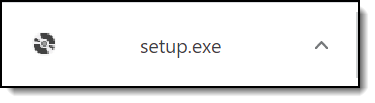
    A setup.exe pop-up appears in the lower-left corner.
  3. Click the pop-up.
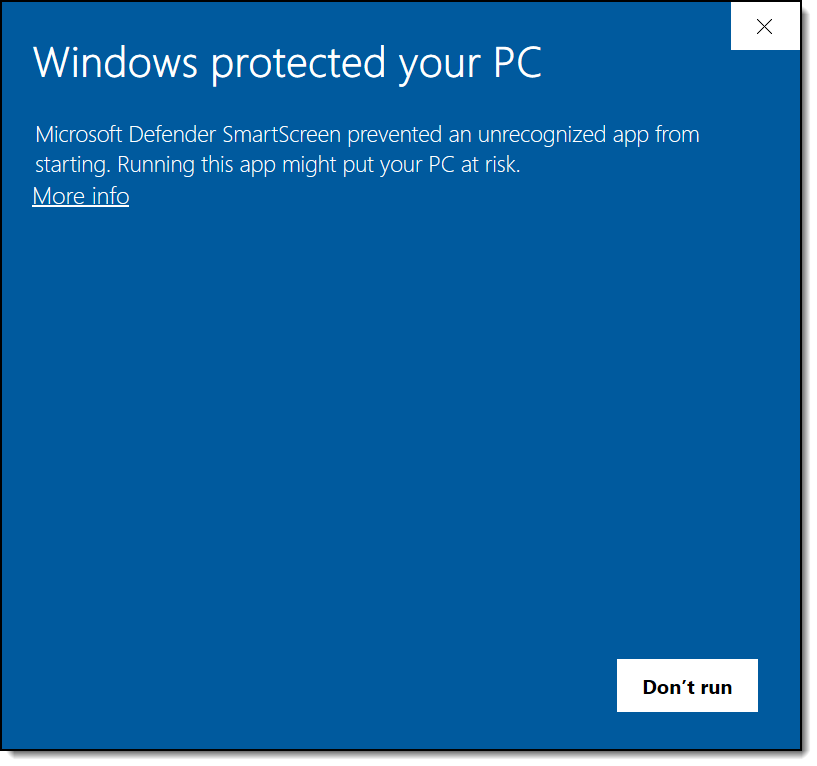
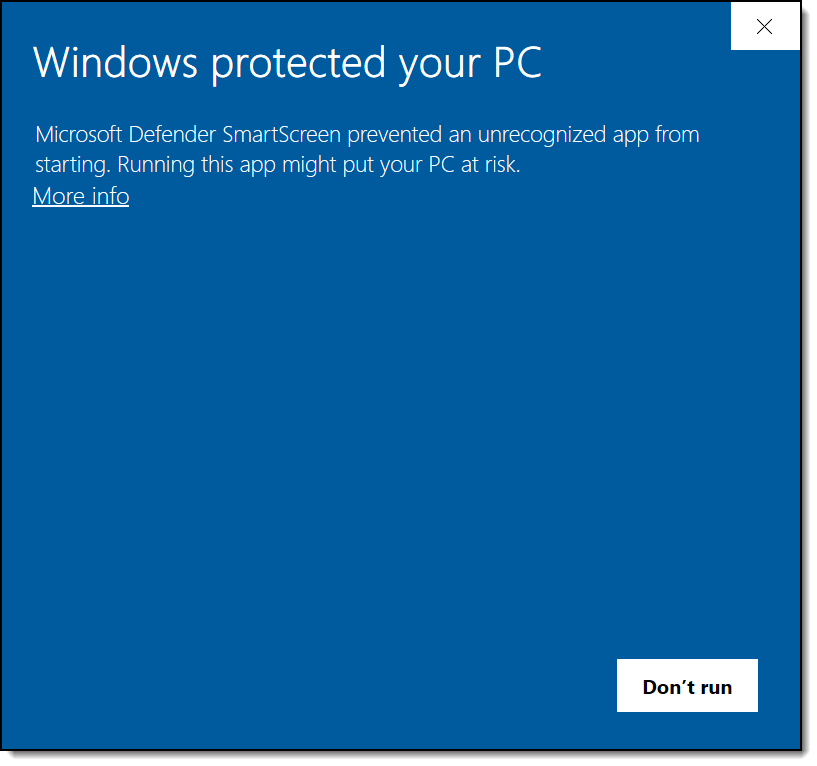
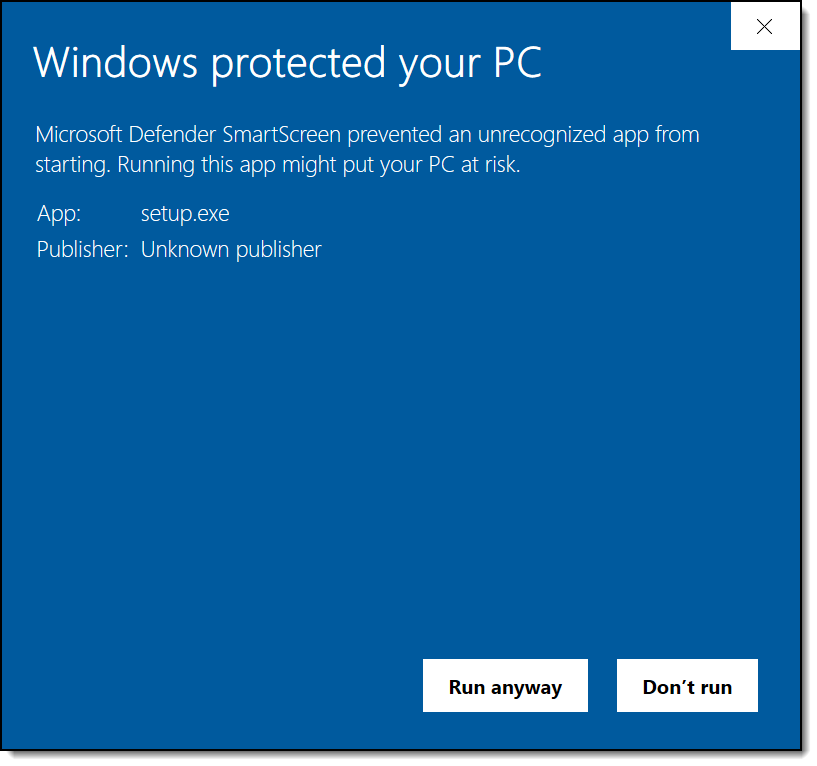
    The Windows protected your PC pop-up may appear.
  4. Click the More Info link.
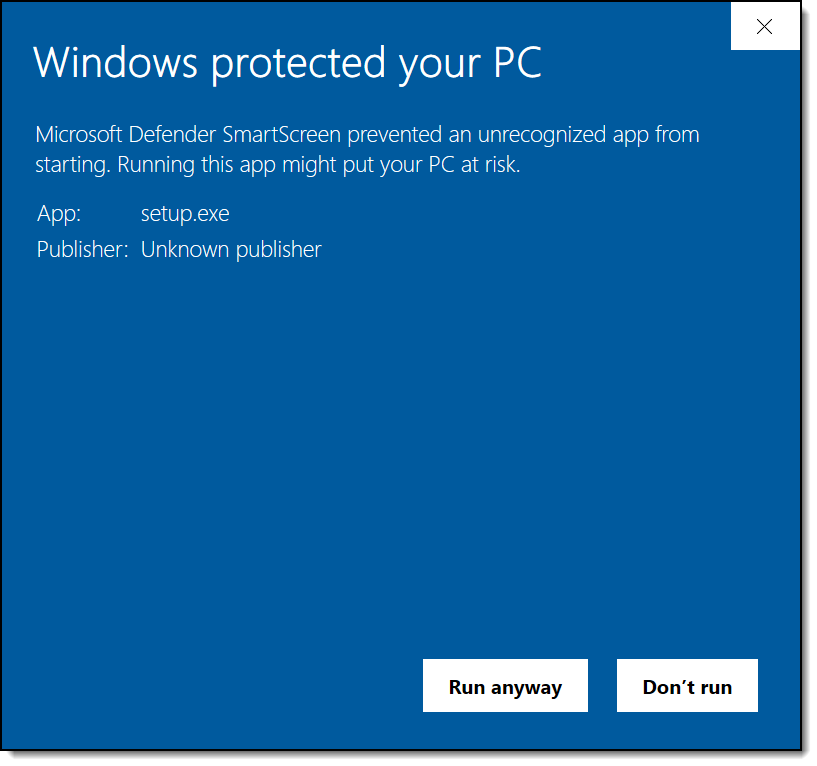
    A Run anyway button appears.
  5. Click the Run anyway button.
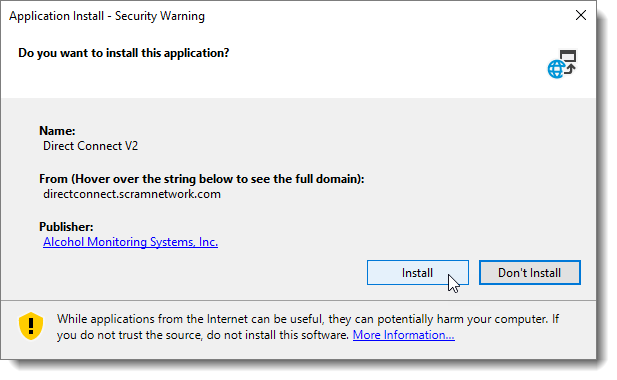
    An Application Install – Security Warning pop-up appears.
  6. Click the Install button.
    The Windows protected your PC pop-up may reappear.
  7. Click the More Info link.
    The Run anyway button reappears.
  8. Click the Run anyway button.
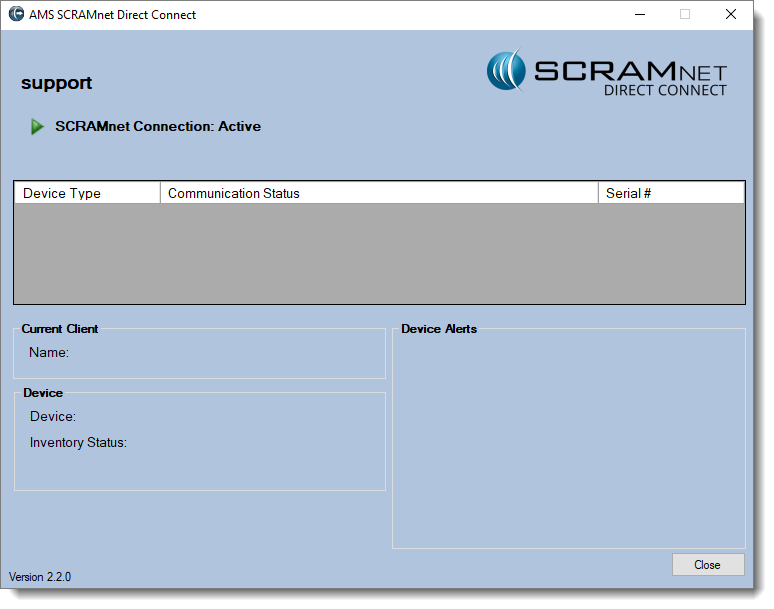
    The application launches with your Microsoft user name displayed.
Direct Connect v2 (click to enlarge)

Uninstall Old Direct Connect Application

Two versions of the Direct Connect application are now on your computer. They are:

  • Direct Connect v2 (New)
  • Direct Connect (Old)

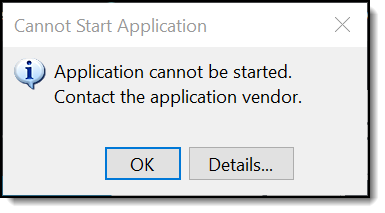
The following message will appear if you attempt to open the old Direct Connect application.

It is not necessary but you have the option to uninstall the old version. To do that:

  1. Locate the SCRAMnet/Direct Connect option in your program list.
  2. Right-click the option and select the Uninstall option.
  3. Select the Direct Connect program.
  4. Click the Uninstall/Change button and follow the instructions.

Continue Reading