SCRAM CAM Device

As of today, June 11, 2021, the SCRAM CAM Level 1 training course has been updated to the new SCRAM CAM Caseload Fundamentals course.

The SCRAM CAM Caseload Fundamentals course prepares an agent to manage a caseload of clients on an alcohol monitoring program from induction to discharge. The training program consists of six topic-based modules. Each module includes hands-on software simulations, detailed step-by-step instructions, and some video demonstrations.

The module topics included are:

  1. SCRAM CAM Bracelet and Base Station Technology Overview
  2. SCRAMNET Navigation Overview
  3. SCRAM CAM Client Setup and Equipment Assignment
  4. SCRAM Equipment Maintenance
  5. SCRAM Critical Alert Management
  6. SCRAM CAM Equipment Removal and Stop Monitoring

The course includes a certification exam so successful learners who pass with a score of 80% or better will be considered certified in SCRAM CAM Caseload Fundamentals.

Learning Objectives

By the end of this e-learning program, the successful learner will be able to:

  1. Navigate the SCRAM Optix and SCRAMNET monitoring systems
  2. Add a SCRAM CAM client to the system for alcohol monitoring and install the SCRAM CAM bracelet
  3. Perform the duties required to effectively manage and maintain a SCRAM CAM client caseload
  4. Discharge a client from the SCRAM CAM monitoring program and check-in the client’s monitoring equipment

How to Enroll

To enroll in this new course, please log into the SCRAM Systems University and select the Get Item button for the SCRAM CAM Caseload Fundamentals course in the Course Catalog.
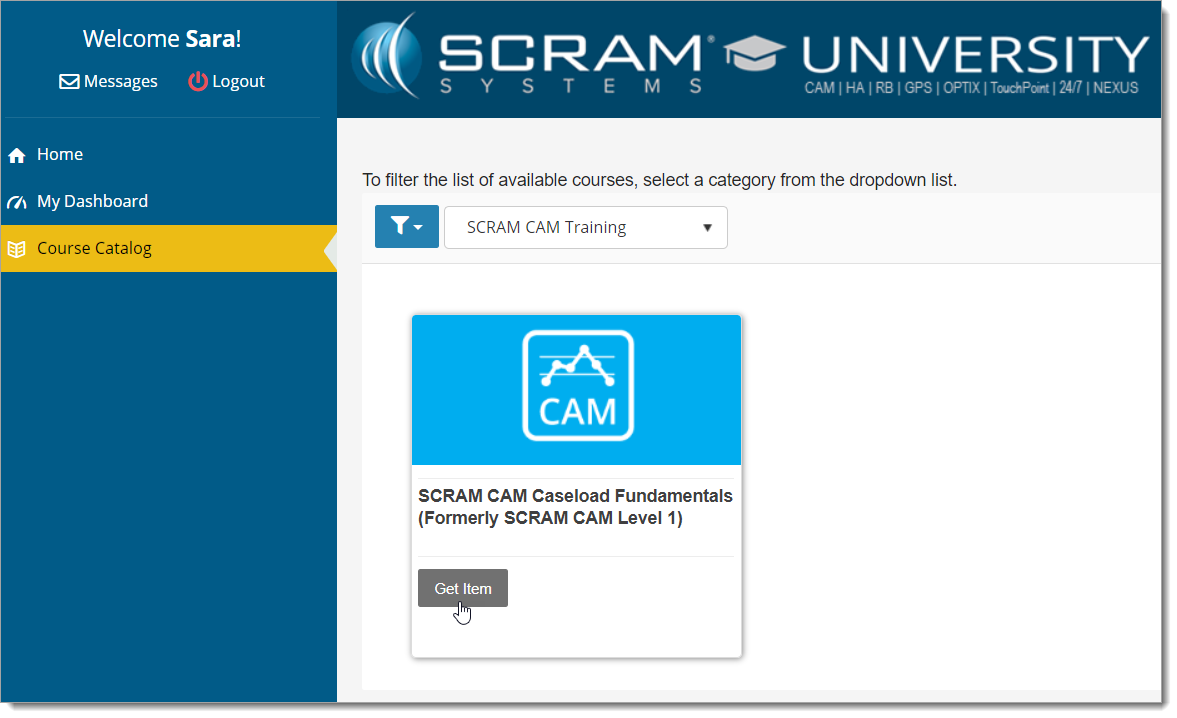
SCRAM University Course Catalog page
click to enlarge

If you do not yet have an account, access the login page and click the Register Now! link. Use your organization’s unique registration key to fill out the registration form to request access to the site. Once your request for access is approved, you will receive an email with all the information you need to access the course catalog and enroll in our course offerings.

If a registration key has not been provided to you, or if you need help with the site, please email us at training@scramsystems.com.
Continue Reading

A deployment scheduled for Thursday, April 8, 2021 introduces a new report and a change in how SCRAMNET reacts when a device is in the “Awaiting Return” status for 30 days.

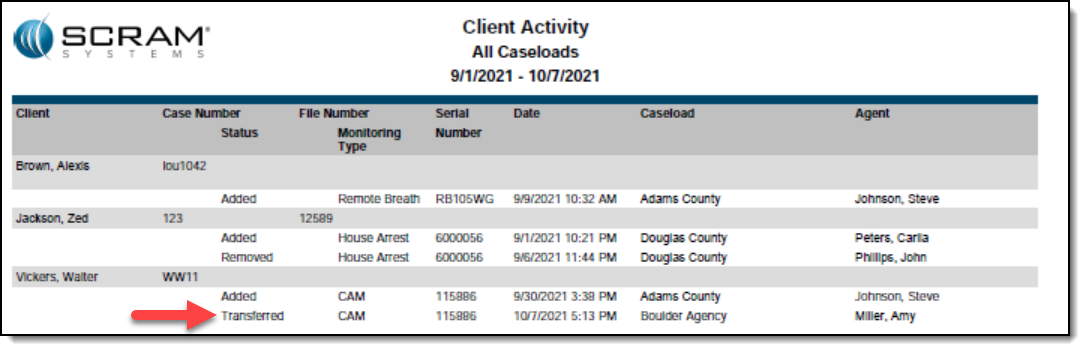
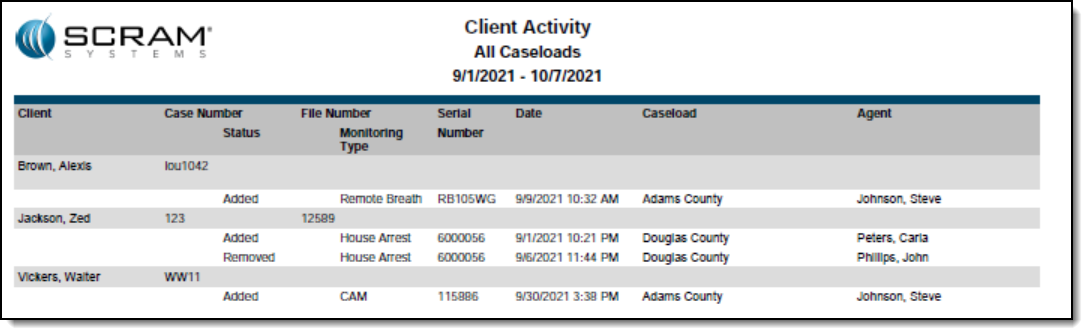
New Client Activity Report

This report allows customers to review all client activity within a selected date range for a specific location or for all locations. To access the report in SCRAMNET, click the Reports tab then click the Management sub-tab.

The Client Activity report also shows client transfers between agencies, as shown below.

Equipment No Longer Set to “Lost” After 30 Days in “Awaiting Return” Status

At the end of a client’s monitoring program, a SCRAM CAM or House Arrest bracelet and/or base station can be placed in the “Awaiting Return” status in SCRAMNET if the equipment is NOT on hand when the client is being removed from the program. Presently, SCRAMNET will automatically change the equipment status to “Lost” if the equipment is not checked in within 30 days.

However, customer feedback has informed us that equipment is often not returned within 30 days, but is also not lost. In response to your feedback, moving forward SCRAMNET will no longer automatically change the status of any device to “Lost” after 30 days. All equipment will remain in the “Awaiting Return” status until you check it in or designate it as “Lost” yourself.

Continue Reading

SCRAM Systems® provides enhancements and updates to the SCRAM TouchPoint™ Mobile application on a continual basis. These updates improve the functionality and usability of the application for your client. Once an update is available in the Apple App store and the Google Play store, the next step is to have the client update the application on their smartphone.

An app update can be completed in two ways.

  • Automatic application updates (Recommended)
  • Manual application updates

As a best practice, we recommend you encourage your clients to enable automatic app updates – this ensures they are always using the latest version of the TouchPoint app.

Setup Automatic Application Updates

iPhone

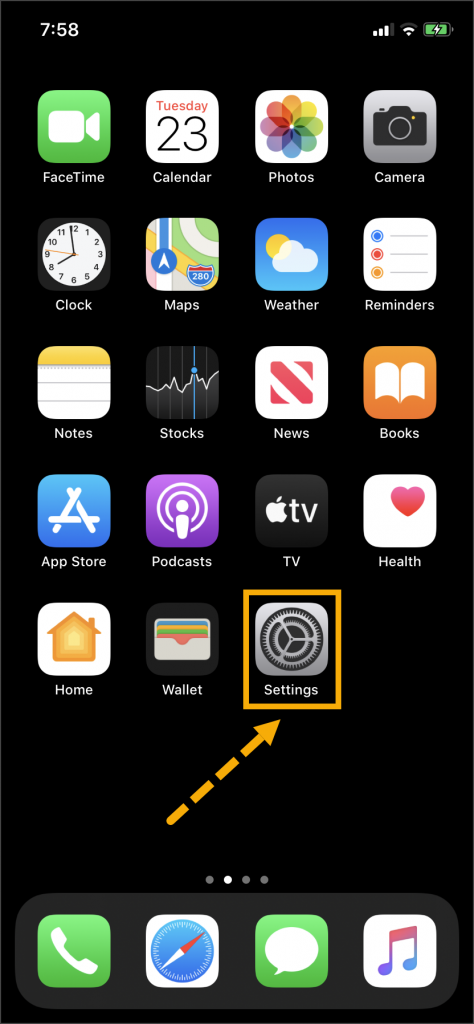
  1. On the client’s smartphone, tap the Settings icon.
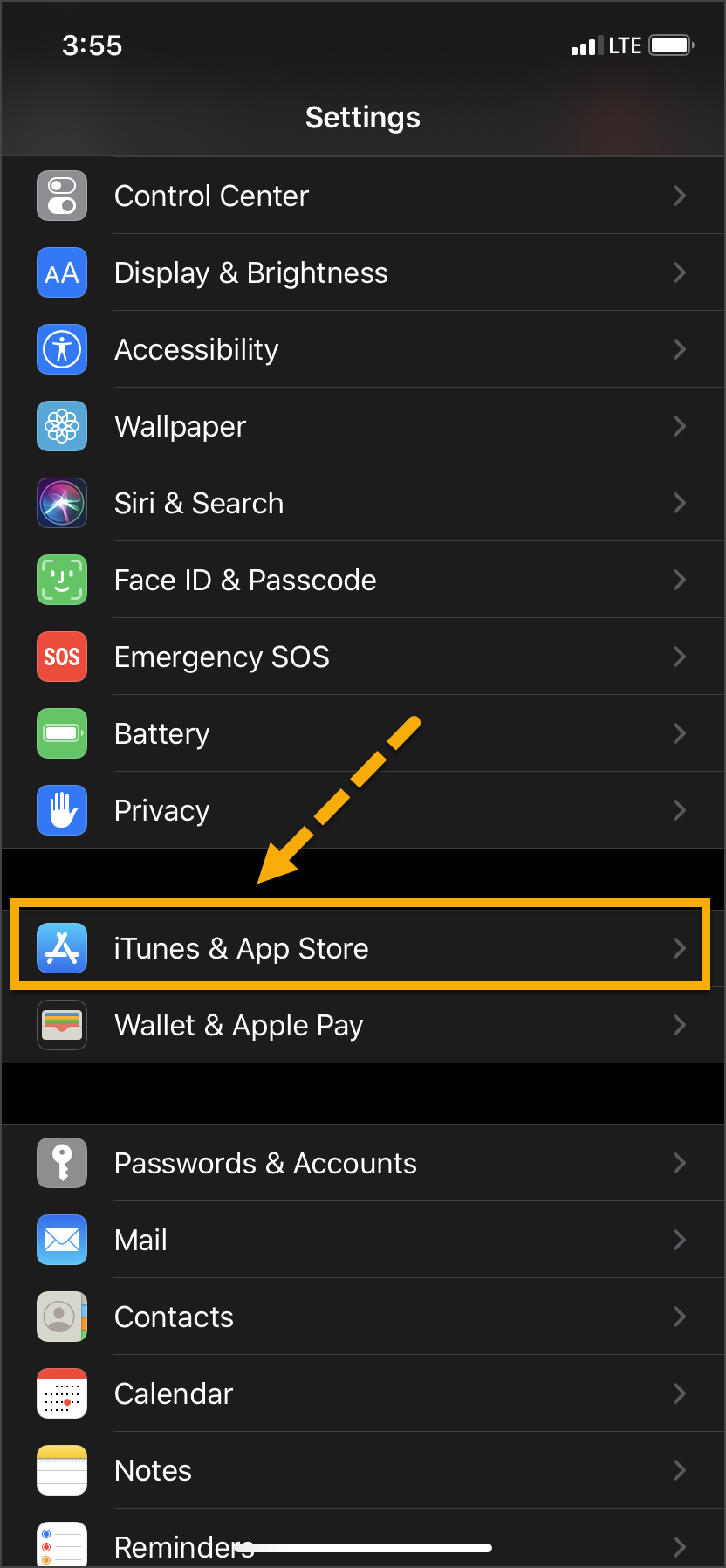
  2. On the Settings screen, tap the iTunes & App Store option.
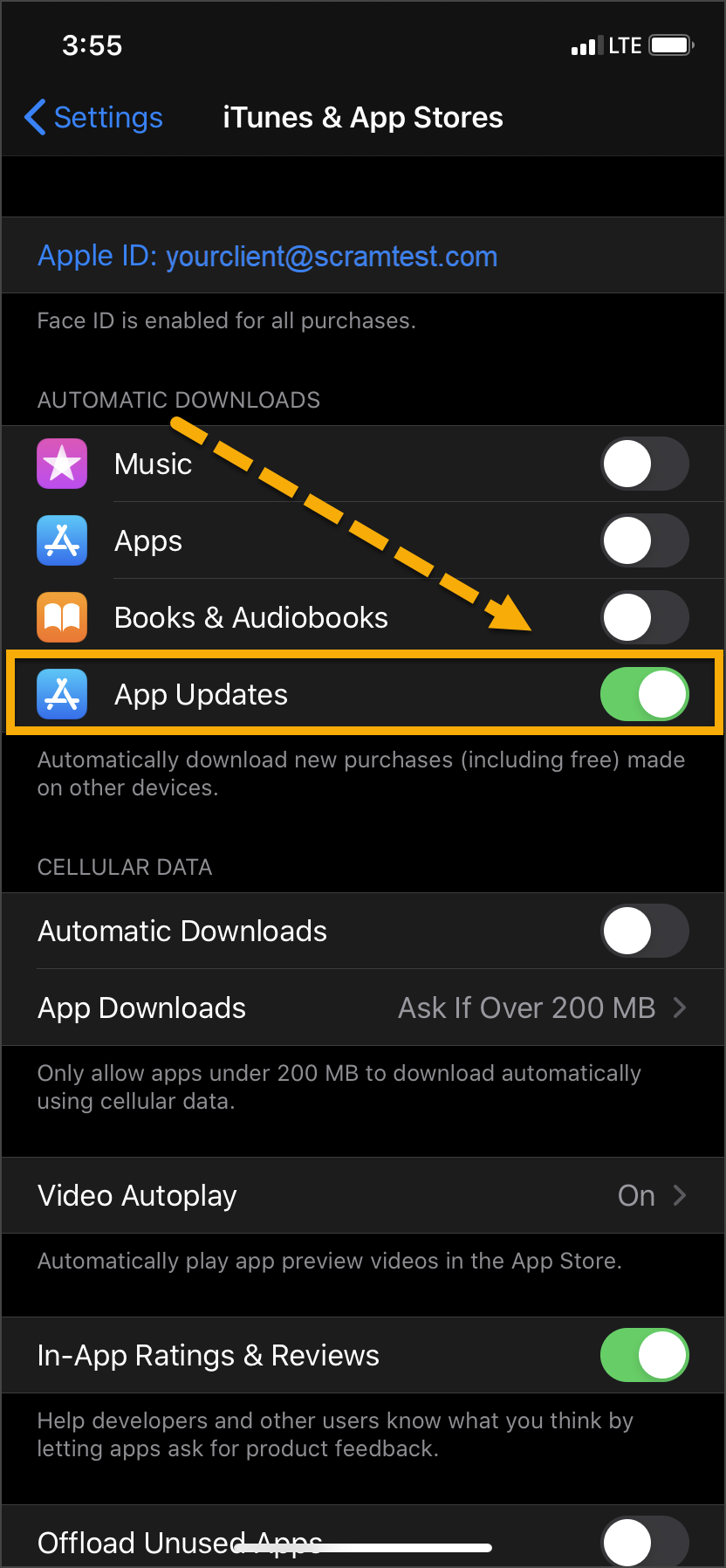
  3. Under the Automatic Downloads section, ensure the App Updates option is enabled.   
iPhone home screen Settings icon iPhone settings screen iPhone Settings screen

Click on any image to enlarge it.

Android

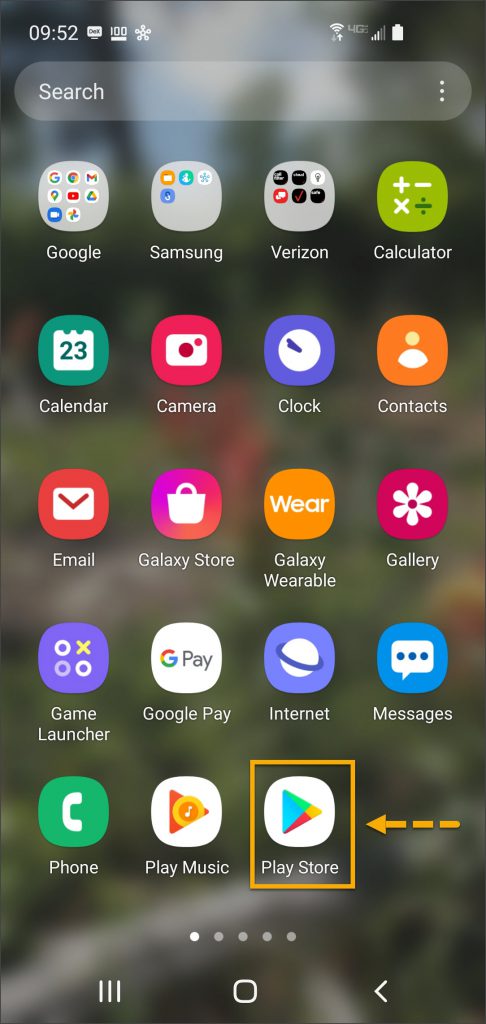
  1. On the client’s smartphone, swipe up on the Home screen.
  2. Tap the Play Store icon.
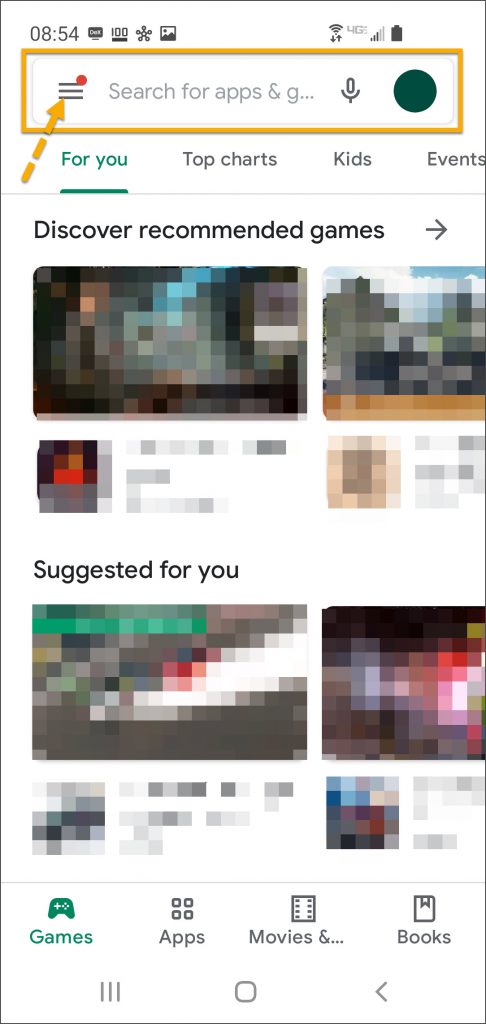
  3. On the Google Play store screen, tap the menu icon in the search field.
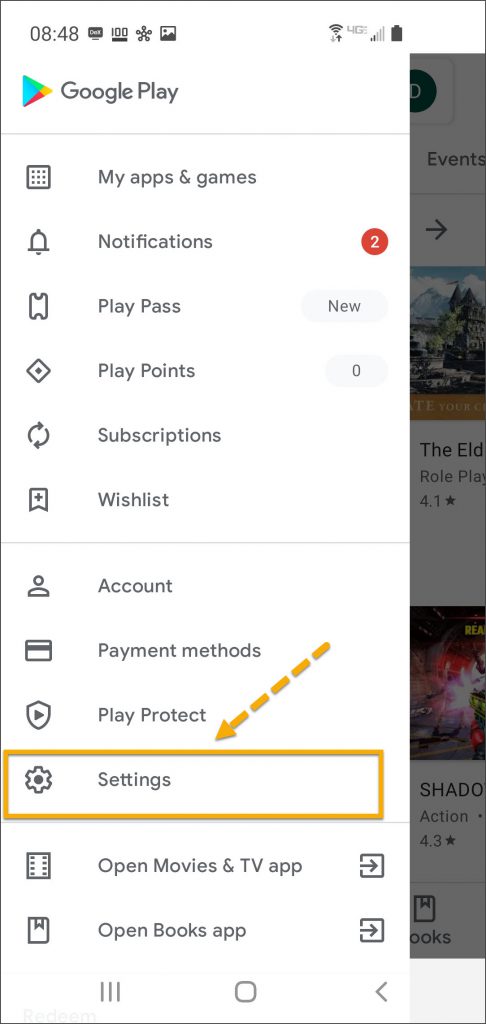
  4. Locate and tap the Settings option.
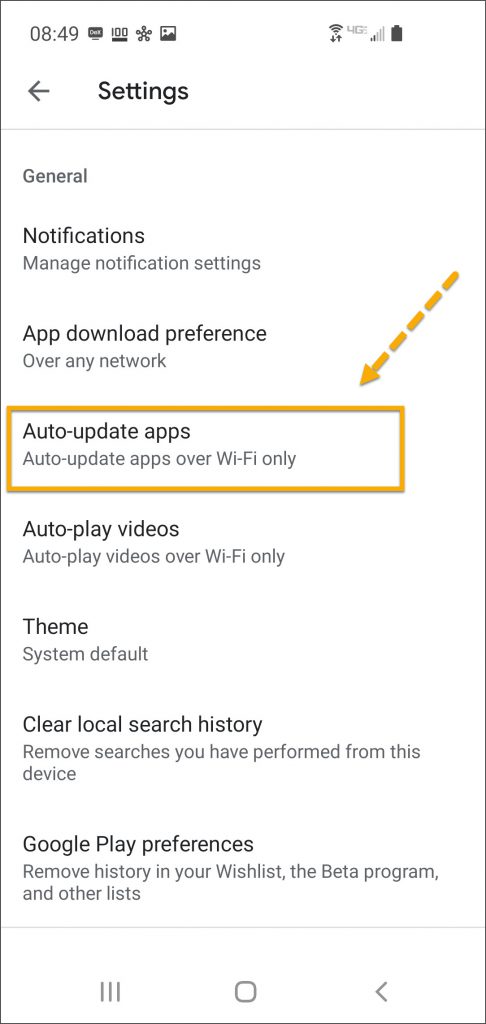
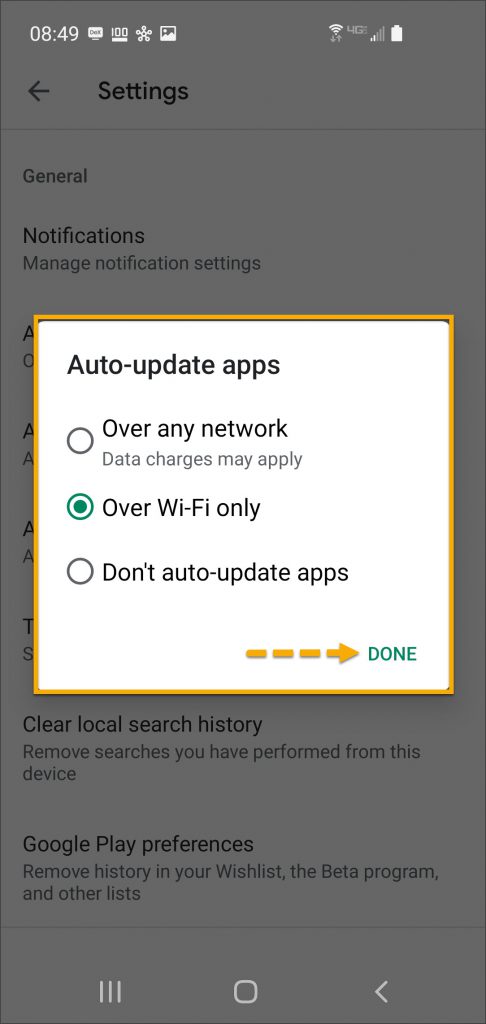
  5. Tap the Auto-update apps option.
  6. In the Auto-update apps window, select the option of,
    • Over any network (Data charges may apply)
    • Over Wi-Fi only
  7. After making the selection, tap Done.
Android app screen Play Store app Android Google Play screen menu Android Google Play store screen
Android Settings screen Auto-Update appsAndroid Auto Update apps window options  

Click on any image to enlarge it.

Manual Application Update

iPhone

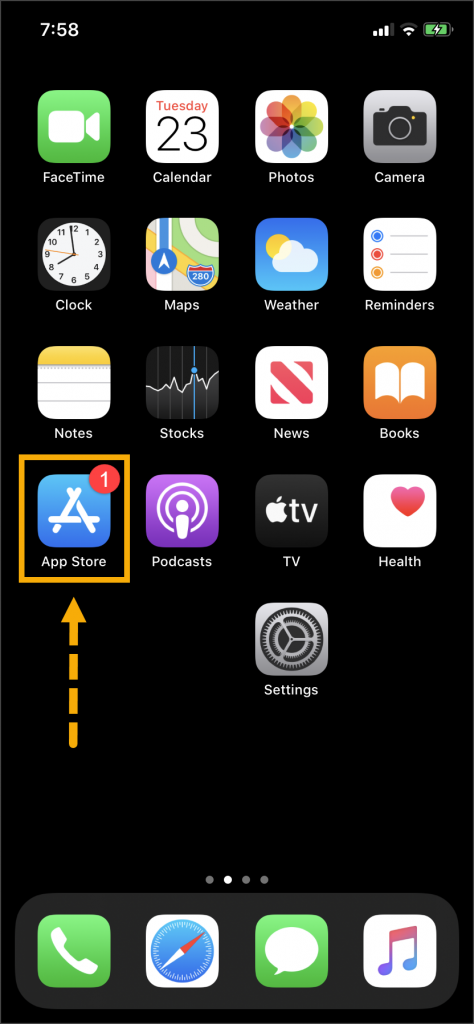
Once an update to the TouchPoint application is available, the App Store icon will display a red badge.

Instruct the client to:

  1. Tap the App Store icon.
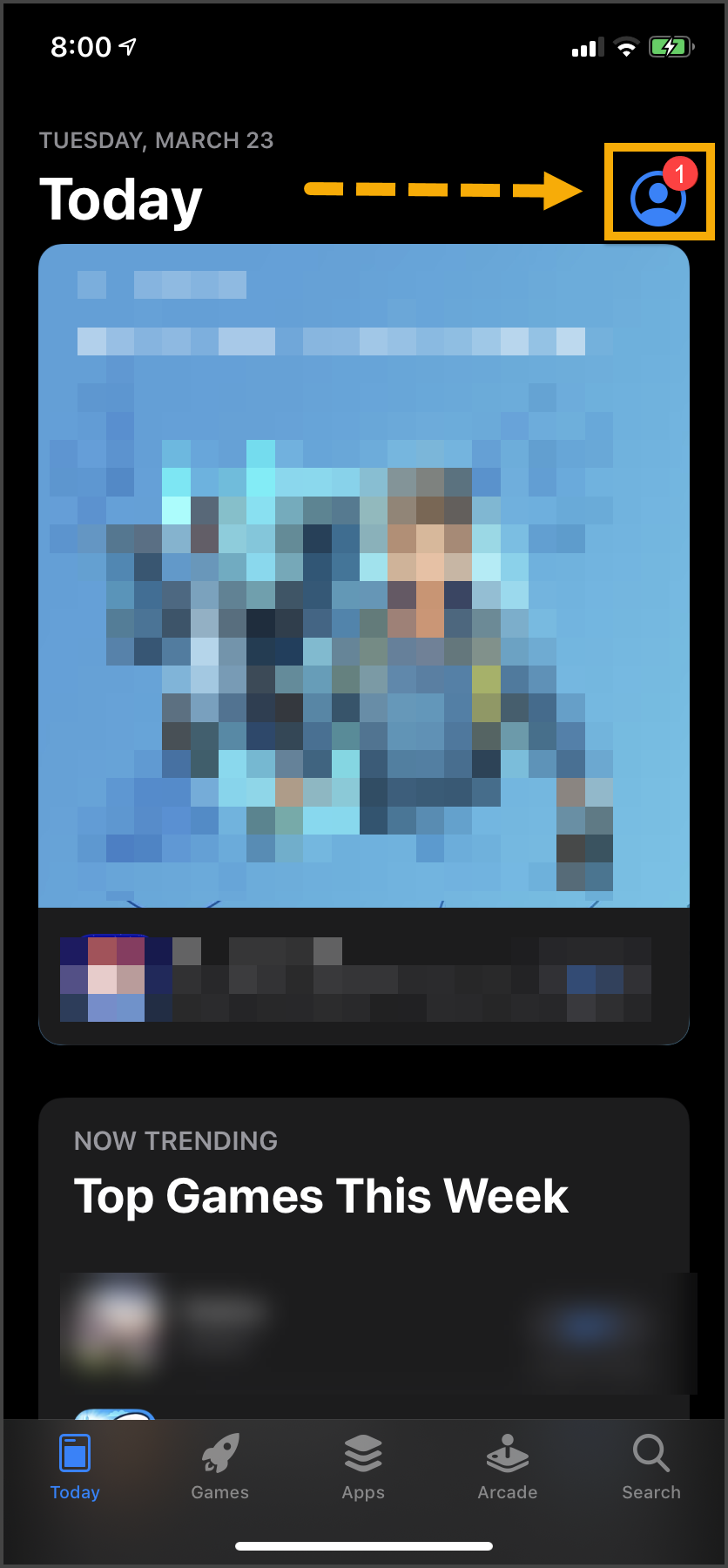
  2. Tap their profile icon.
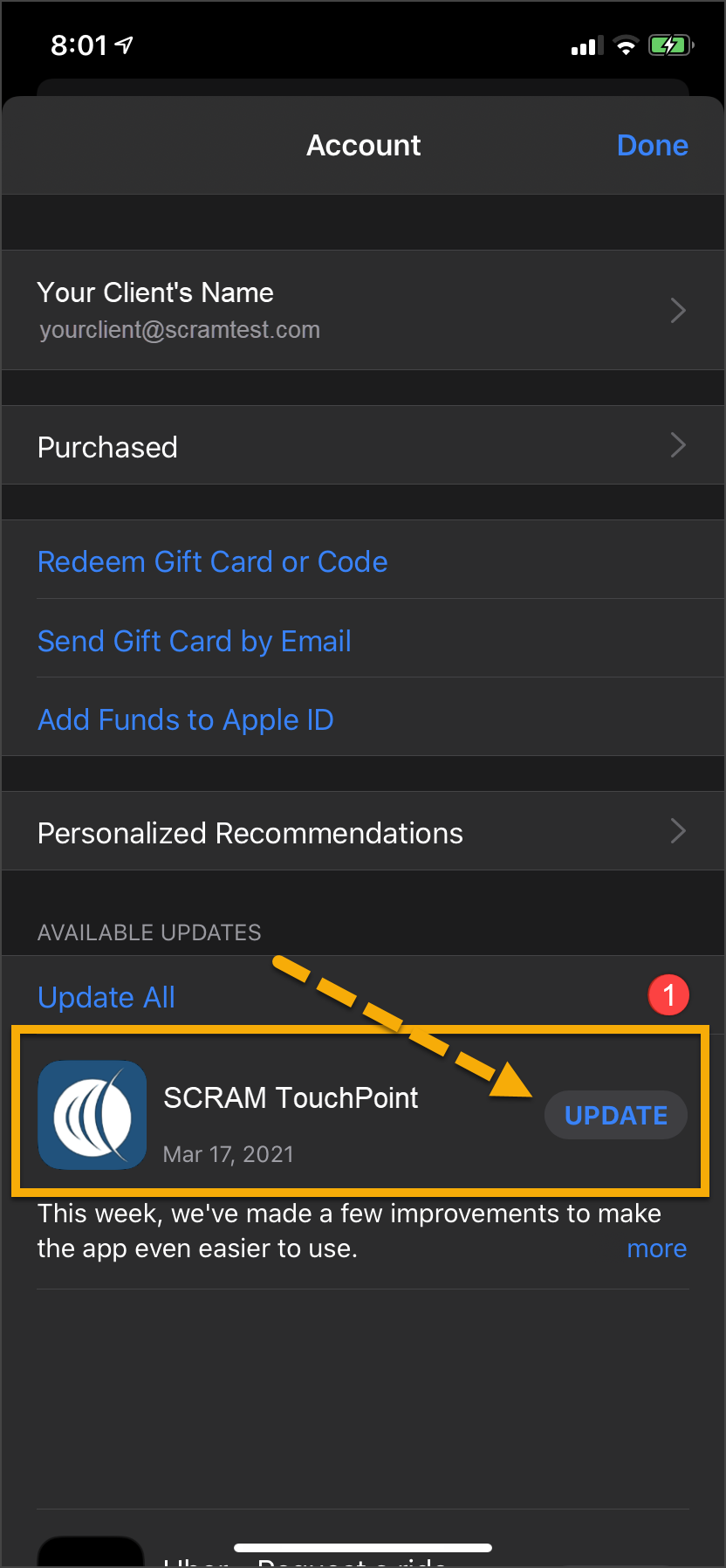
  3. Under the Available Updates heading, locate the SCRAM TouchPoint app.
  4. Tap the Update button. 

As a best practice, we recommend you encourage your clients to enable automatic app updates – this ensures they are always using the latest version of the TouchPoint app.

iPhone Home screen App Store icon iPhone App screeniPhone App update screen

Click on any image to enlarge it.

Android

  1. Swipe up on the Home screen and tap the Play Store icon.
  2. On the Google Play store screen, tap the menu icon in the search field.
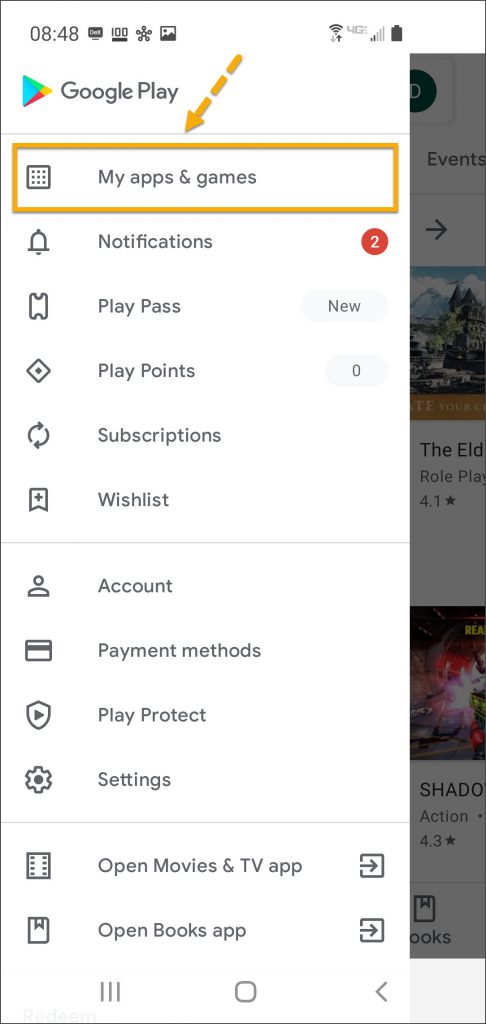
  3. Tap the My apps & games option.
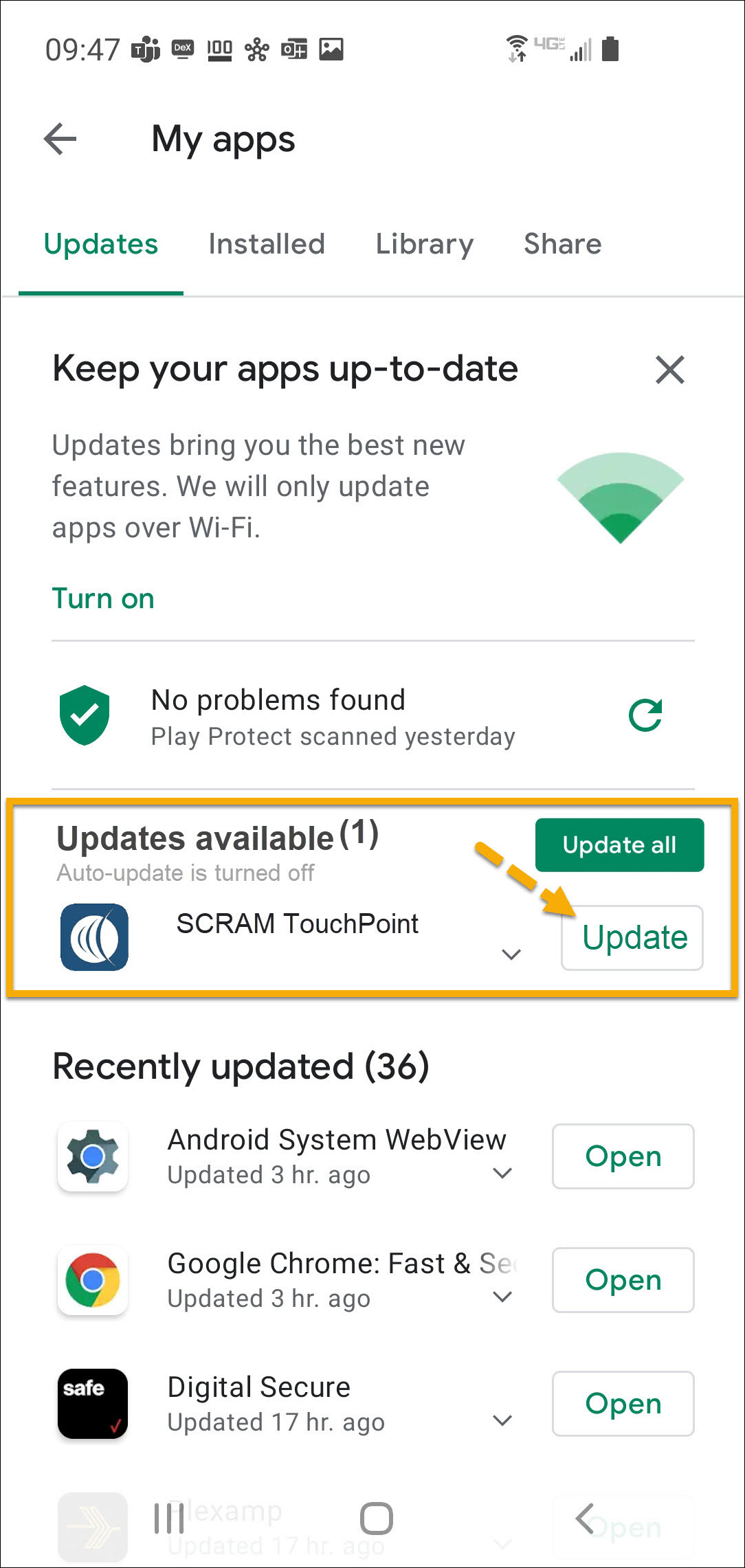
  4. Under the Updates Available section, locate the SCRAM TouchPoint app and tap the Update button.

As a best practice, we recommend you encourage your clients to enable automatic app updates – this ensures they are always using the latest version of the TouchPoint app.

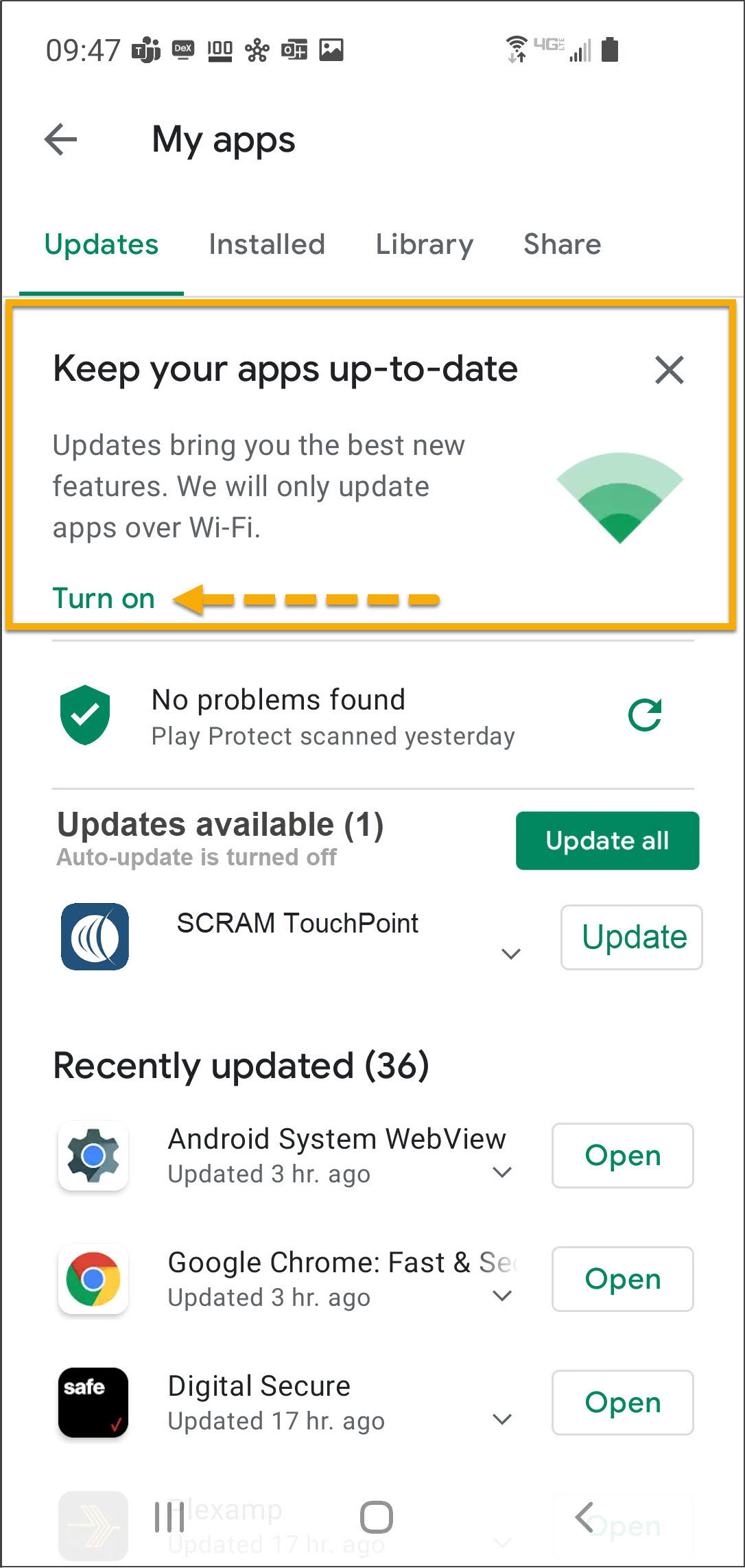
On the My apps screen, tap the Turn on button to enable automatic app updates.

Android app screen Play Store app Android Google Play screen menu Android Google Play store screen
Android My apps screen update availableAndroid My apps screen  

Click on any image to enlarge it.

Feedback

Please contact SCRAM Systems Customer Service with any recommendations for system improvements.

Continue Reading

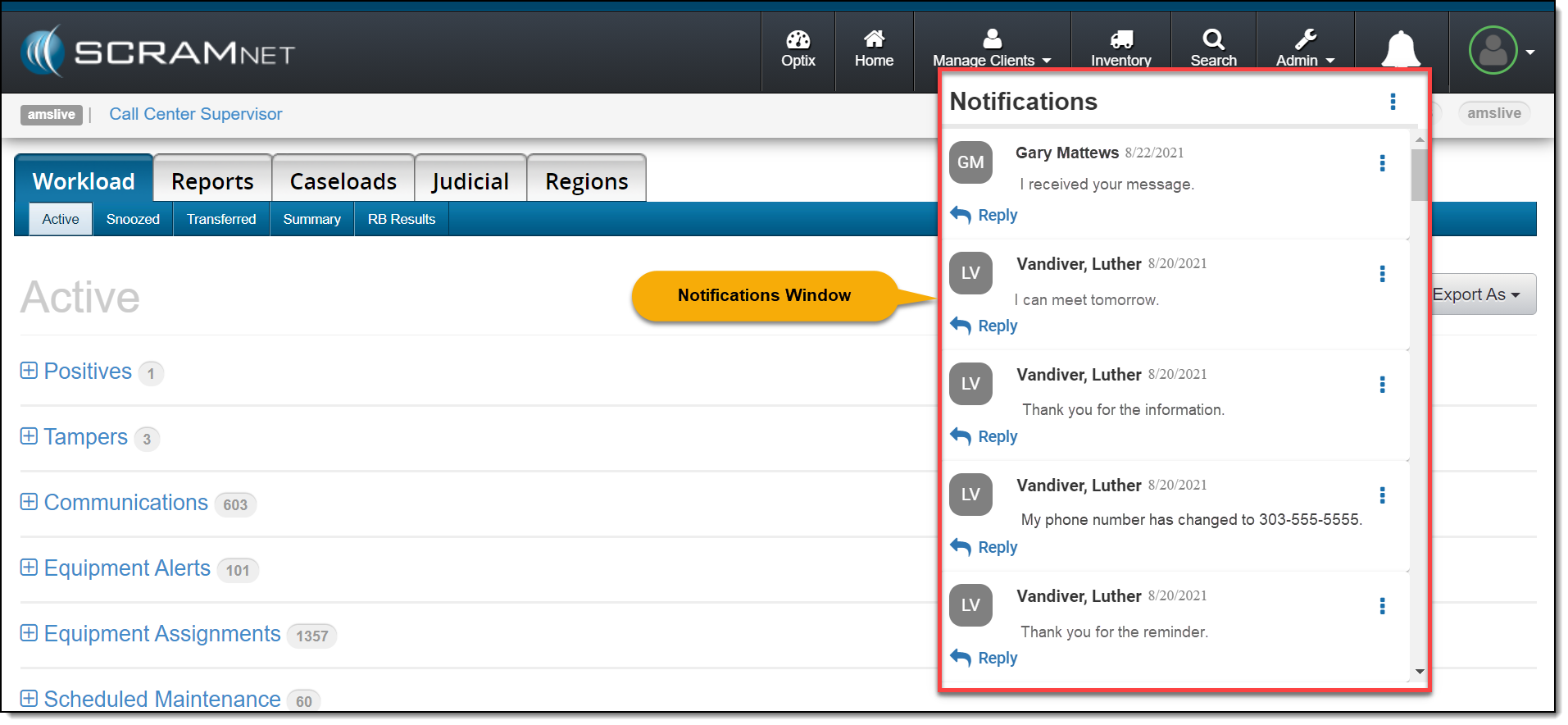
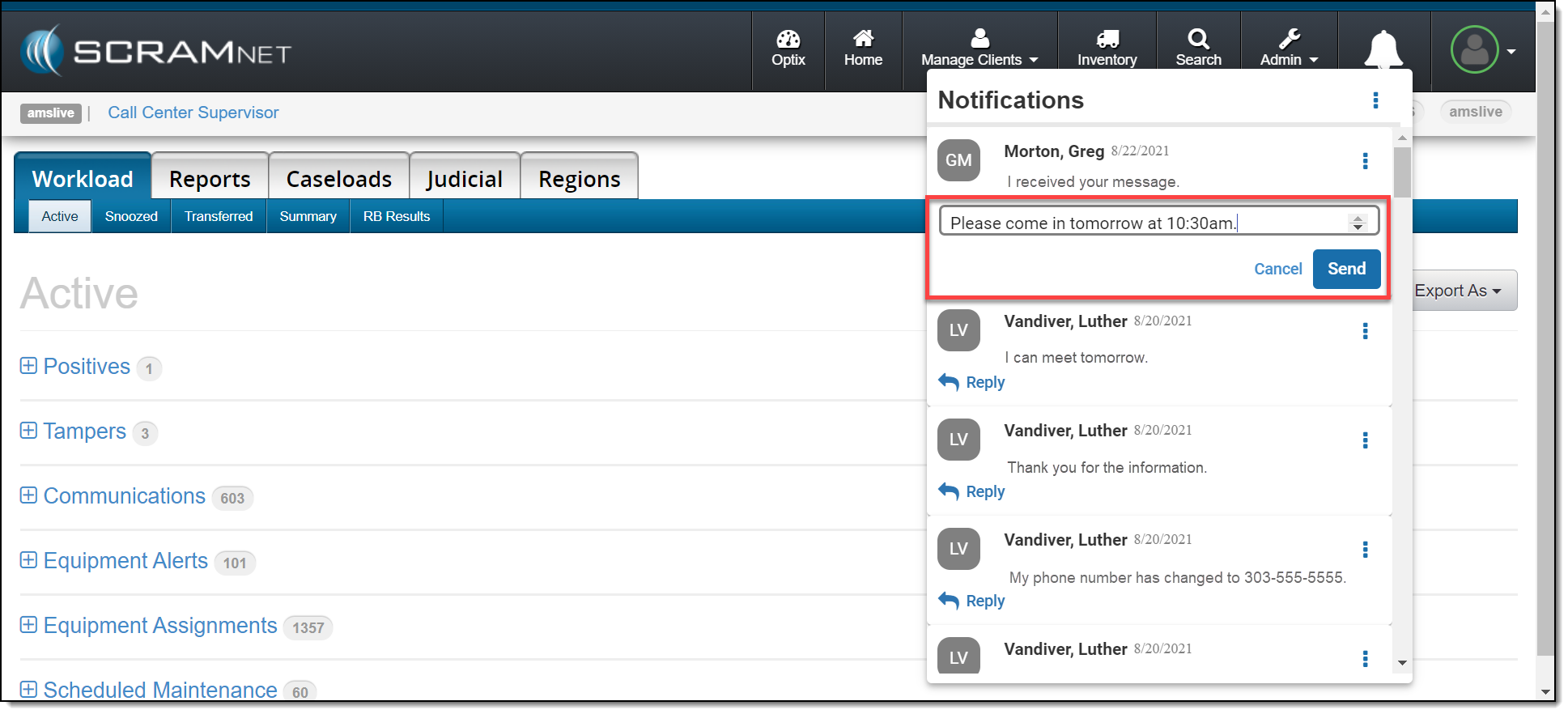
On March 4, 2021, SCRAM Systems® will release a new Notifications Window in SCRAMNET®. This Notification Window displays new messages sent from your SCRAM TouchPoint™ client caseload. With this feature you can view, clear, mark messages as read, or respond to your clients’ messages from within SCRAMNET. All actions completed within the Notifications Window are reflected on each client’s TouchPoint Messaging page.

Notifications in SCRAMNET

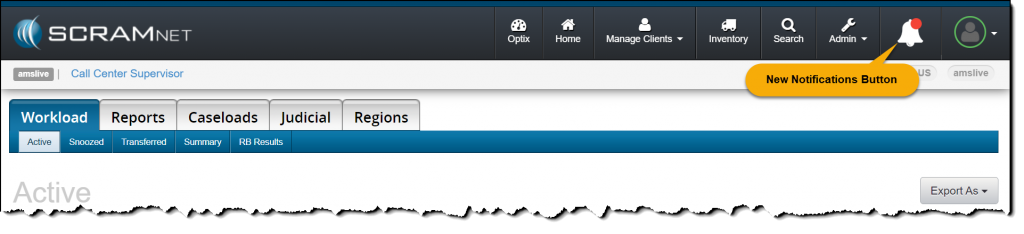
When a new message is sent by your client through the SCRAM TouchPoint app, the Notifications button in SCRAMNET will display a red badge. To view the message, click the button.

click to enlarge

On the Notifications Window, the client’s name, date, and message is displayed.

click to enlarge

Managing the Notifications Window

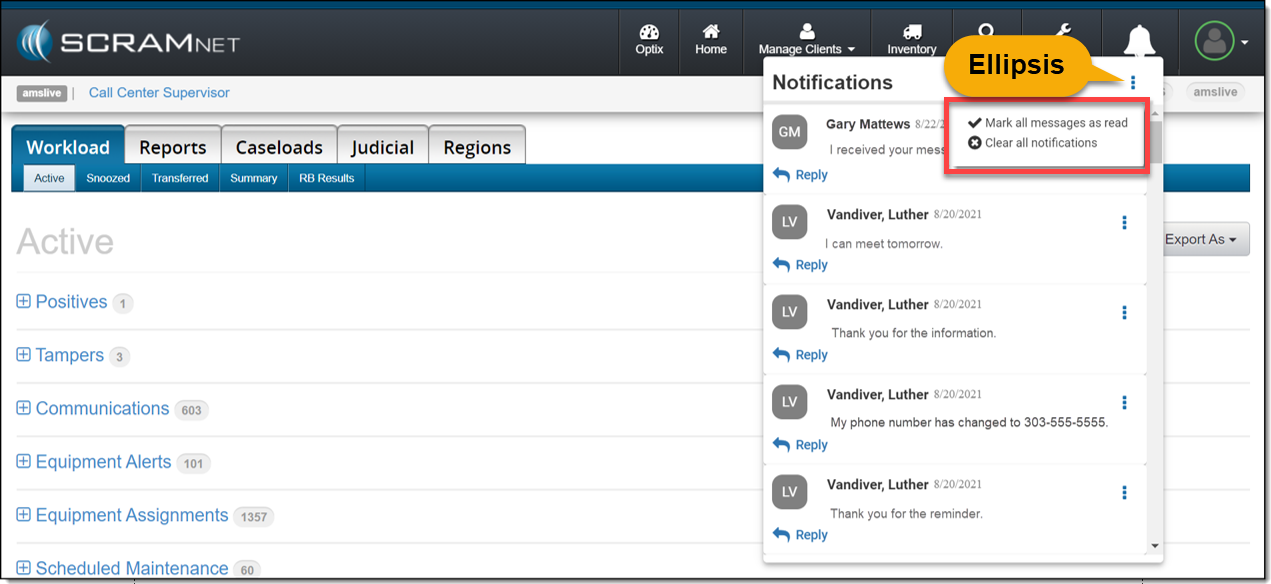
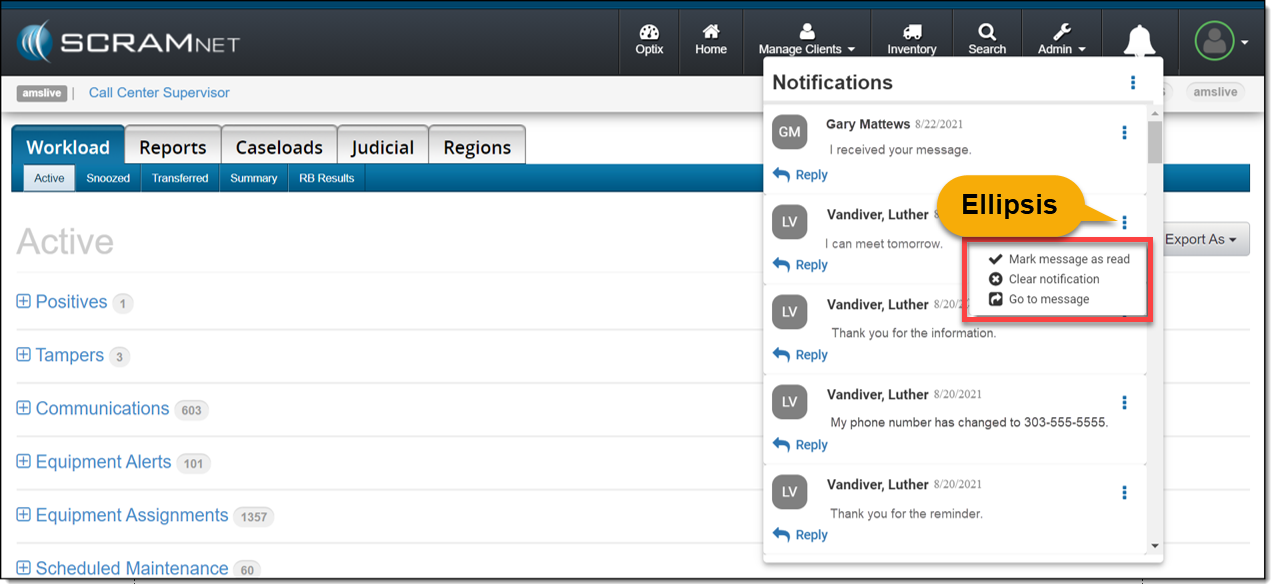
Selecting the ellipsis next to the Notifications heading or next to the client’s name will display a menu with following options:  

  • Mark all messages as read or Mark message as read: When selected, the message will be cleared from the Notifications Window. On the client’s TouchPoint Messaging page, the message will display as Read for the client.
  • Clear all Notifications or Clear Notification: When selected, this option will clear the message from the Notifications Window in SCRAMNET. This does not mark the message as Read on the client’s TouchPoint Messaging page; it simply clears the message from the Notifications Window.
  • Go to Message: This option will open a new tab that displays the client’s TouchPoint Messaging page. This action will clear the message from the Notifications Window.

Option One

Mark all messages as read or clear all notifications by selection the ellipsis to the right of the Notifications heading.

click to enlarge

Option Two

Manage each message individually by selection the ellipsis next to the message.

click to enlarge

Reply

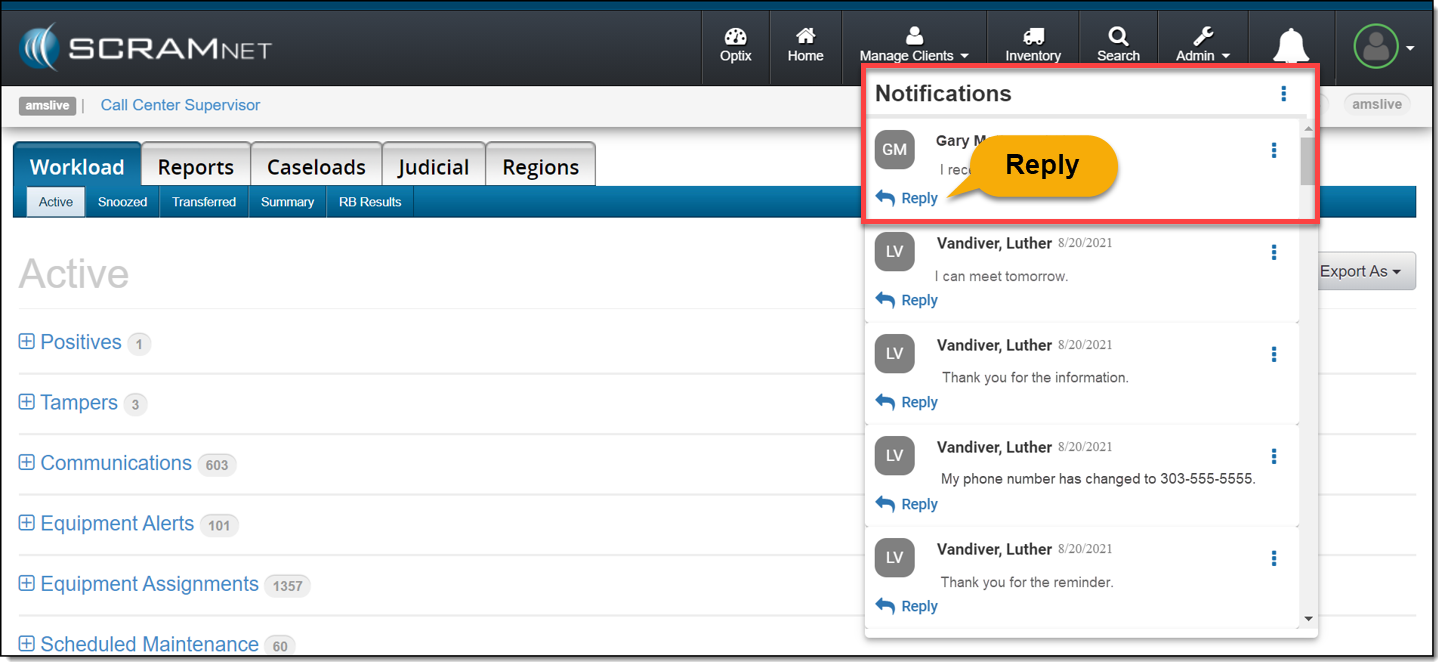
Click the Reply link to respond to the client’s message. After entering a response, click the Send button.

click to enlarge
click to enlarge

The message will no longer be displayed in the Notifications Window.

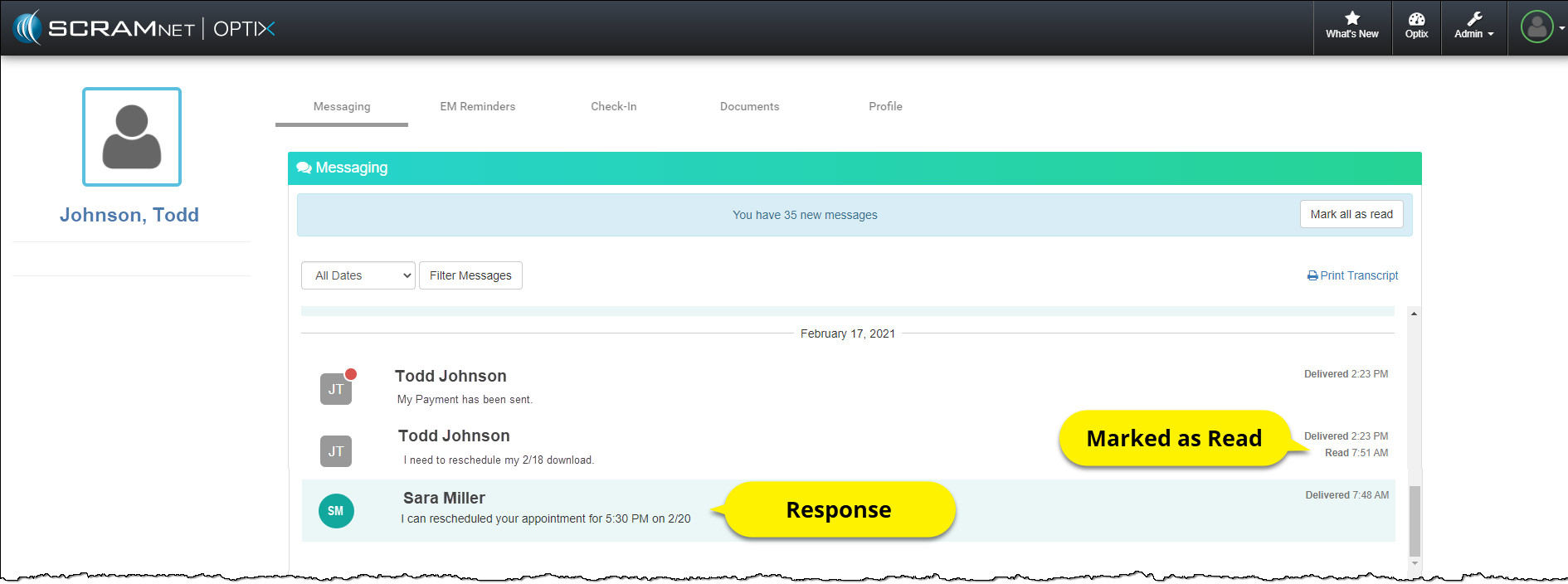
On the client’s TouchPoint Messaging page, the message will be marked as Read and the response sent by the user will be displayed.

Client Messaging page
click to enlarge

Feedback

As always, please contact SCRAM Systems Customer Service with any recommendations for system improvements.

Continue Reading

On February 18, 2021, SCRAM Systems® will release a new option on the Stop Monitoring and Change Client Status pages in SCRAMNET®. This new option will allow you to inactivate/disable a SCRAMNET client and their linked SCRAM TouchPoint™ profile simultaneously.  

Inactivate the SCRAMNET Client Profile

Option One:

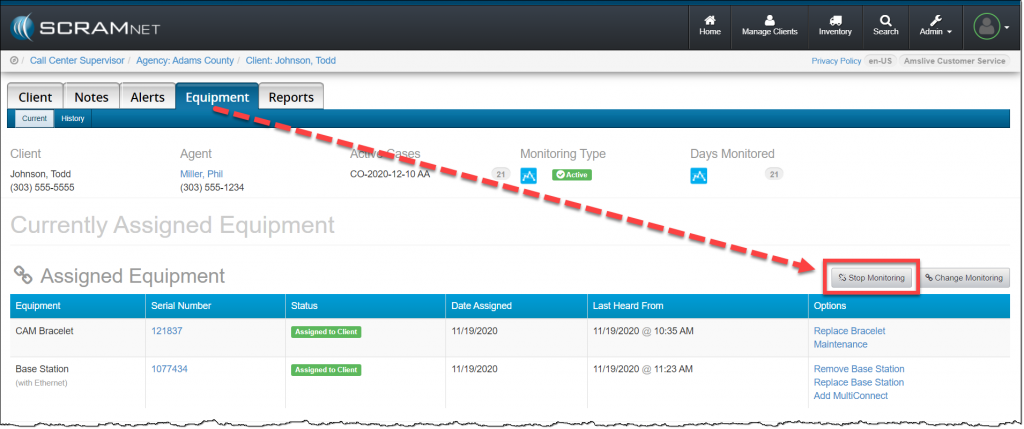
In SCRAMNET click the Stop Monitoring button on the client’s Equipment page.   

SCRAMNET Equipment page
click to enlarge

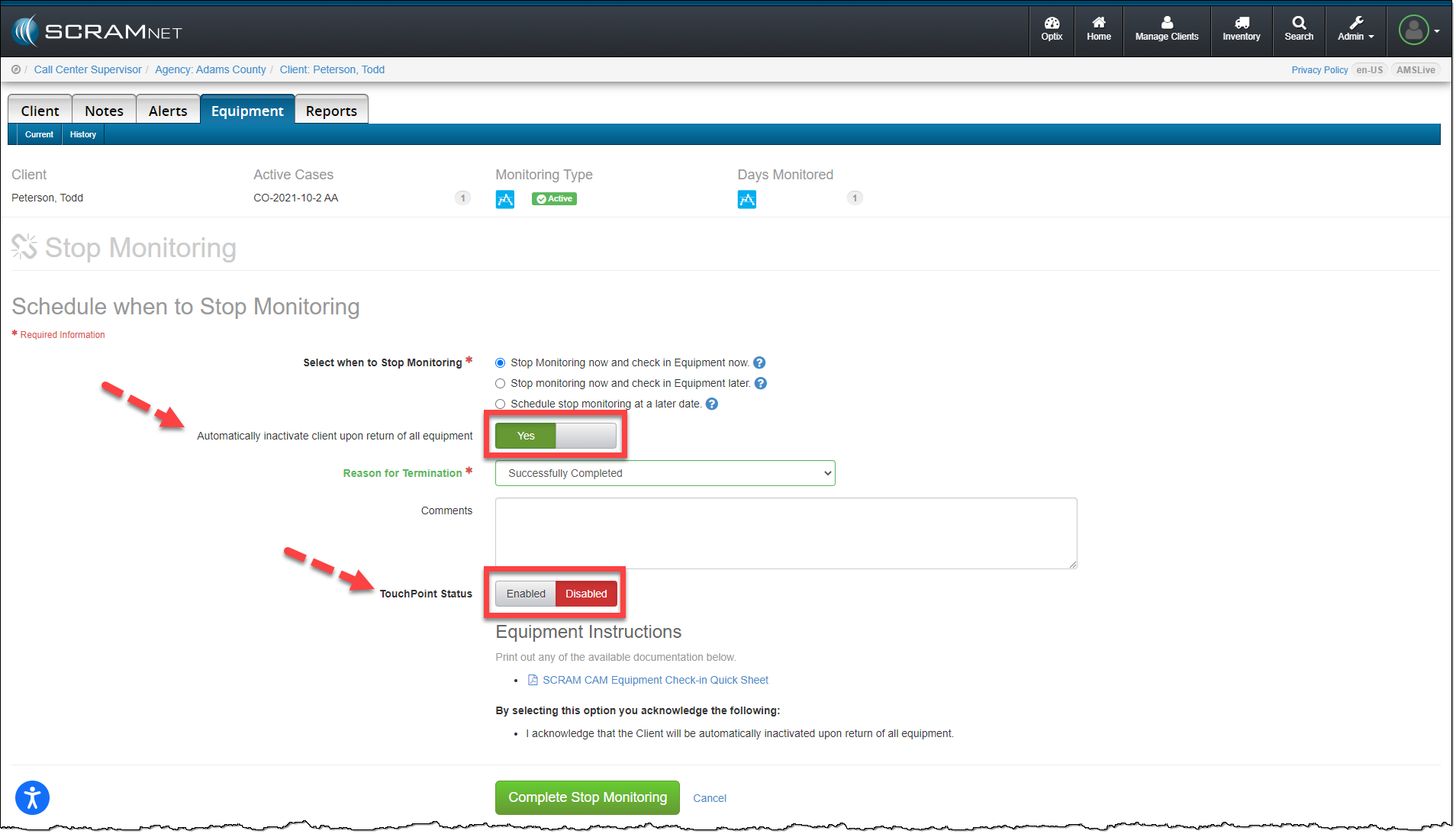
On the Stop Monitoring page, you have the option to automatically inactivate the client upon return of all equipment. When this option is updated to Yes, you now have the option to disable the client’s linked TouchPoint profile at the same time. Next to the TouchPoint Status option, simply toggle the Enabled option to Disabled and click the Complete Stop Monitoring button.

SCRAMNET Equipment page Stop Monitoring Options
click to enlarge

Option Two:

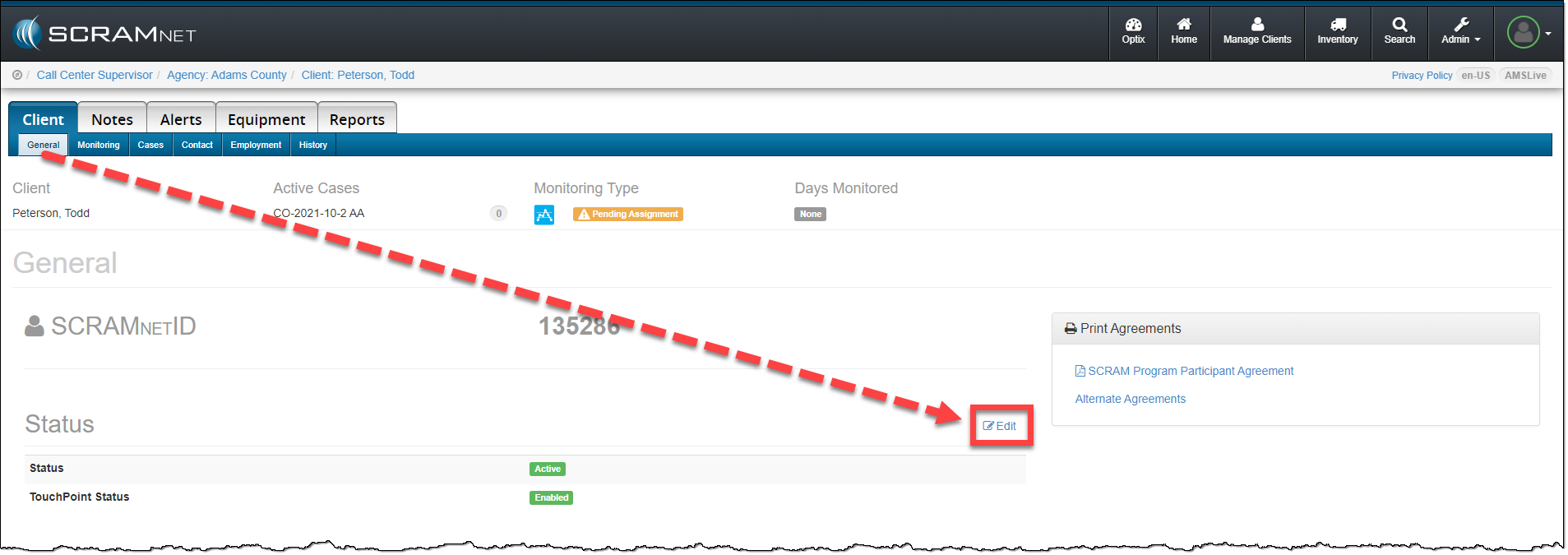
When inactivating the client’s SCRAMNET profile from the Status section, click the Edit link on the Client page.

SCRAMNET Client page
click to enlarge

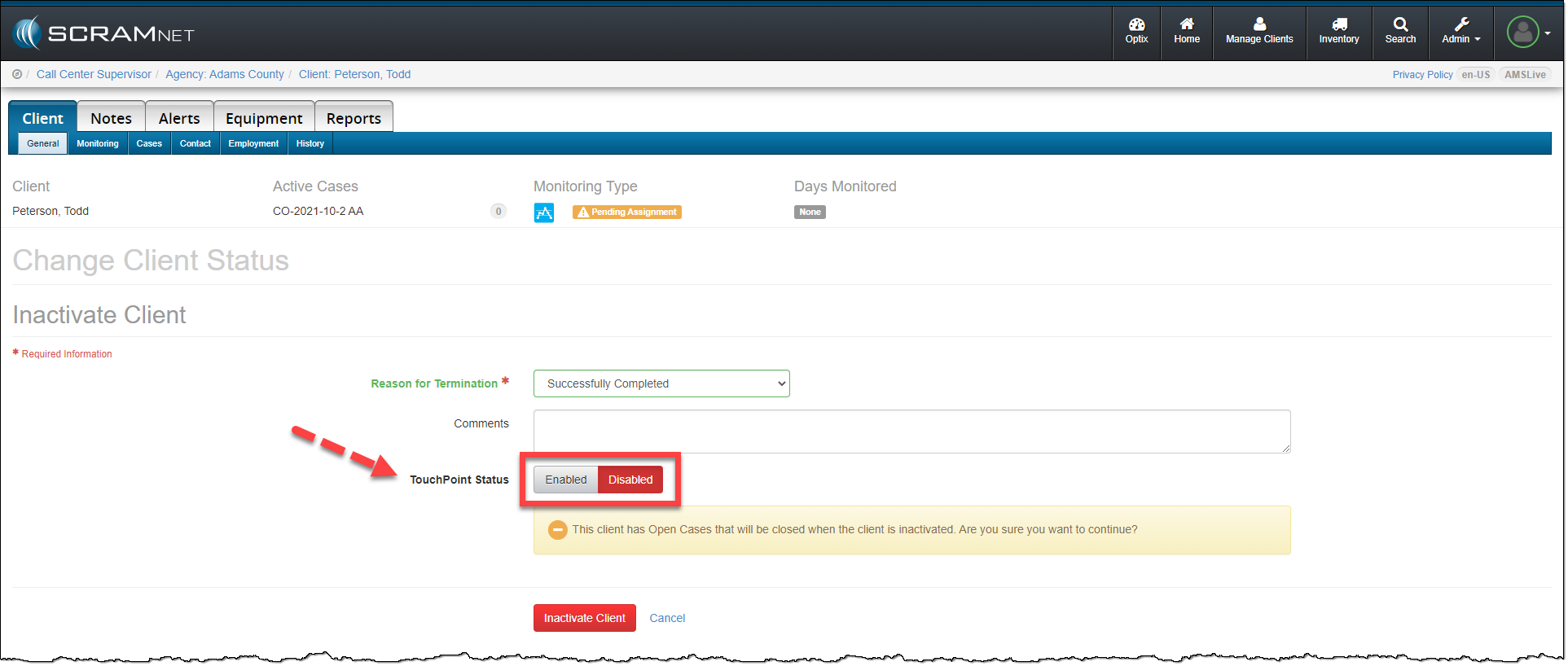
On the Change Client Status page, toggle the TouchPoint Status from Enabled to Disabled. To complete the process, click the Inactivate Client button.

SCRAMNET Client page Change Client Status options
click to enlarge

The SCRAMNET client profile is inactivated and the client’s TouchPoint profile and any enabled services are automatically disabled.

Feedback

As always, please contact SCRAM Systems Customer Service with any recommendations for system improvements.

Continue Reading

New SCRAM Faceplate Removal Tool

SCRAM Systems® continues to refine the tools that are used in your everyday operations to maximize their effectiveness and save you time. Our new spring-loaded SCRAM CAM® and SCRAM House Arrest® faceplate removal tool makes it easier to remove the faceplate – without prying – and helps prevent damage to the outer casing. We understand how important it is for you to keep your SCRAM CAM/HA devices operational and in your available inventory, and our new faceplate removal tool is designed to help you keep them operating at peak performance so you get the most out of your investment.

During the month of January 2021, we began shipping the new faceplate removal tool. If you received one, please watch this short instructional video to learn best practices for positioning and using the new spring-loaded removal tool on the bracelet, and how best to remove faceplates that don’t readily disengage. Failure to use the tool as shown in the video may result in damage to your CAM/HA device.

To order more faceplate removal tools, look for part number 00178 on the SCRAM Equipment Order Form (SCRAMNET login required).

Please contact Customer Service if you have questions about the new Faceplate Removal Tool and how to use it.

Continue Reading

Awaiting Return vs. Pending Removal

When it is time to discharge a client from the SCRAM CAM program, be sure you have a clear understanding of the status in which you should place the equipment.

Awaiting Return

If the bracelet or base station is NOT on-hand, select Stop Monitoring and complete the Stop Monitoring process to set the status to Awaiting Return. This status ends the monitoring program and stops the billing associated with it. The bracelet will remain in this status until it is checked in or until 30 days elapses, at which time it will automatically move to Lost status.

Pending Removal

If you will be completing the Stop Monitoring process with the client in person and the equipment is on-hand, select Stop Monitoring and complete the Stop Monitoring process to set the status to Pending Removal. This status prepares the bracelet for final connection with the Direct Connect device and application, and monitoring and billing both continue until the Direct Connect process is complete and the bracelet moves to In Inventory status.

More Help

For more detailed Client Discharge instructions please visit the Check In SCRAM CAM Bracelet help article on SCRAM Systems Help & Support.

Continue Reading

As you know, when a SCRAM CAM® Bracelet and Wireless Base Station (WBS) are checked in without you having one or both devices in hand, you set the status of those devices to “Awaiting Return.” However, because the WBS continues to communicate via a wireless network with SCRAMNET®, the device automatically sets its status to “In Inventory” the next time it communicates, which requires you to manually change the status back to “Awaiting Return.”

With this release, the WBS will no longer communicate when set to the “Awaiting Return” status. Consequently, the WBS will stay in that status until you retrieve the device and manually change the status to “In Inventory” yourself, or 30 days elapses at which time the device status is automatically set to “Lost.”

To allow you to manually set a returned WBS to “In Inventory”, a new Move to Inventory link will appear on the client’s Equipment page when the device is set to “Awaiting Return”, as shown below. When you click the link, the device is returned to inventory and is removed from the client’s Equipment page.

Continue Reading

CAM Client Interactions – Best Practices

Below are some helpful tips to assist your team in maintaining the integrity of your monitoring program. Please contact SCRAM Customer Service for questions or if any assistance is needed.

Document, Document, Document

We recommend agents document each and every client interaction* – whether in-person or over the phone – in SCRAMNET®. This will promote clarity when preparing client updates.
*Examples include bill payments, maintenance, phone discussions, etc.

Inspect the Equipment

Each time the client is in the office, regardless of the reason, inspect the bracelet.

  • Wake bracelet with magnet until you see the green light illuminate to ensure the bracelet powers up.
  • Check the fit of the bracelet to ensure it is properly tethered and is not loose enough to slide over the heel of the foot.
  • Visually inspect bracelet body, straps, and buckle for pry marks, scratches, and/or signs of tamper or removal.
  • Move tamper clips side-to-side with your fingers to ensure they are still securely fastened and have no visible signs of removal.

Alerts & Maintenance

Check the Alerts tab in SCRAMNET to see if client has any pending alerts that require additional information.

If the client will be away for an extended period, consider performing maintenance on the device to avoid near-future maintenance alerts from generating.

To properly reinitialize the bracelet:

  1. Be sure to use the Maintenance link on the Equipment page first,
  2. Perform physical maintenance second, and
  3. Direct Connect the bracelet on the client’s leg last

Continue Reading

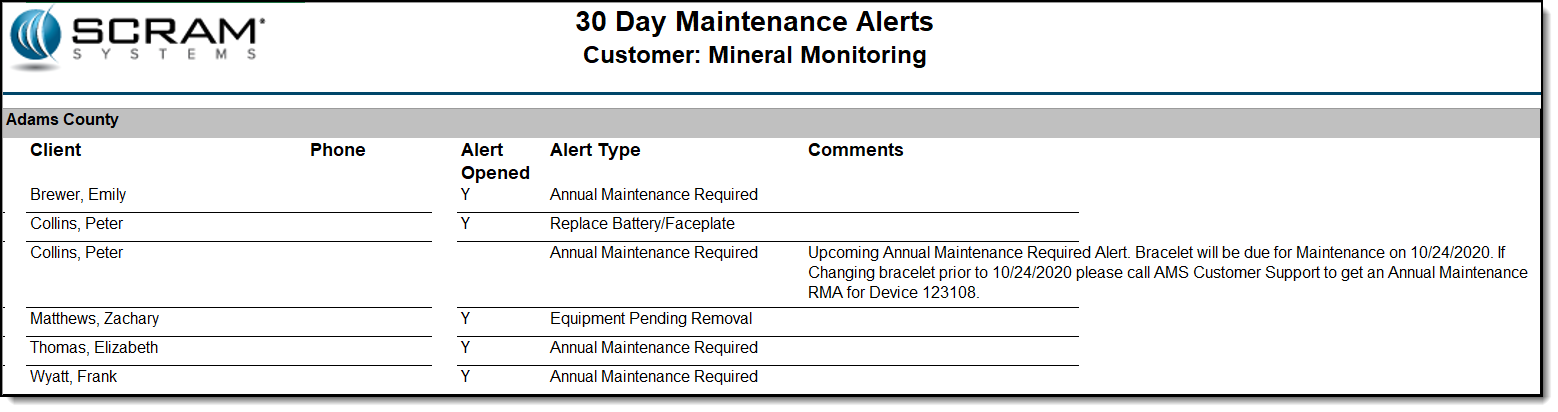
To facilitate efficient processing of specific SCRAM CAM® alert types, a new 30-Day Maintenance Alerts report is being made available in SCRAMNET®. The report, available at the Service Provider level for Admin-level users and sorted by caseload, lists all current and upcoming CAM maintenance alerts for the next 30 days.

In the example below, Peter Collins has a bracelet assigned that needs the battery and faceplate replaced. Viewing this report, you see that the bracelet is also scheduled for a maintenance replacement in the next few weeks. Knowing this, you can have the client come in for a bracelet replacement…saving you the cost of needlessly replacing the battery and faceplate when the bracelet itself is scheduled to be replaced in the near future. By having this complete picture, you will have reduced the number of times the client must be called in to meet with you in a very short time period.

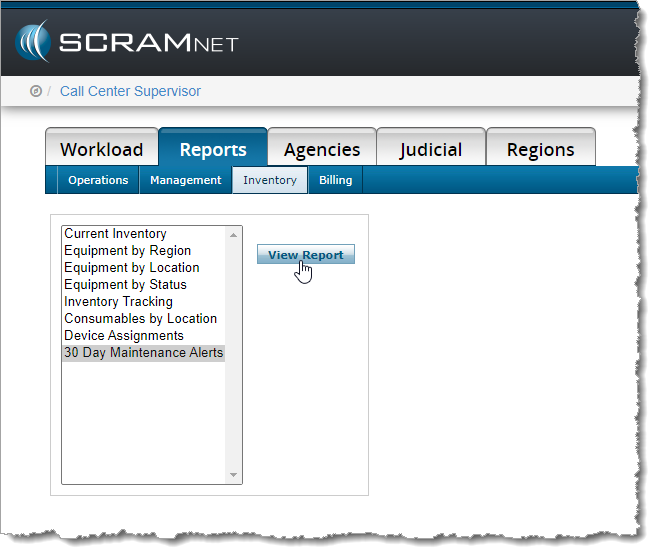
To run the report, click the Reports -> Inventory sub-tab, select the 30 Day Maintenance Alerts option, and click the View Report button.

How to access the 30-Day Maintenance Alerts Report

Continue Reading