On December 11, 2025, SCRAM Systems will release an enhancement for your SCRAM 24/7 and TouchPoint Monitoring programs. With this update, 24/7 users may view the historical activity for the services connected to TouchPoint Activity communication. TouchPoint users will find Electronic Monitoring Reminders, Messaging, and Video Conferencing in one consolidated place under the Communications tab in Optix.
SCRAM 24/7 Communications Tab
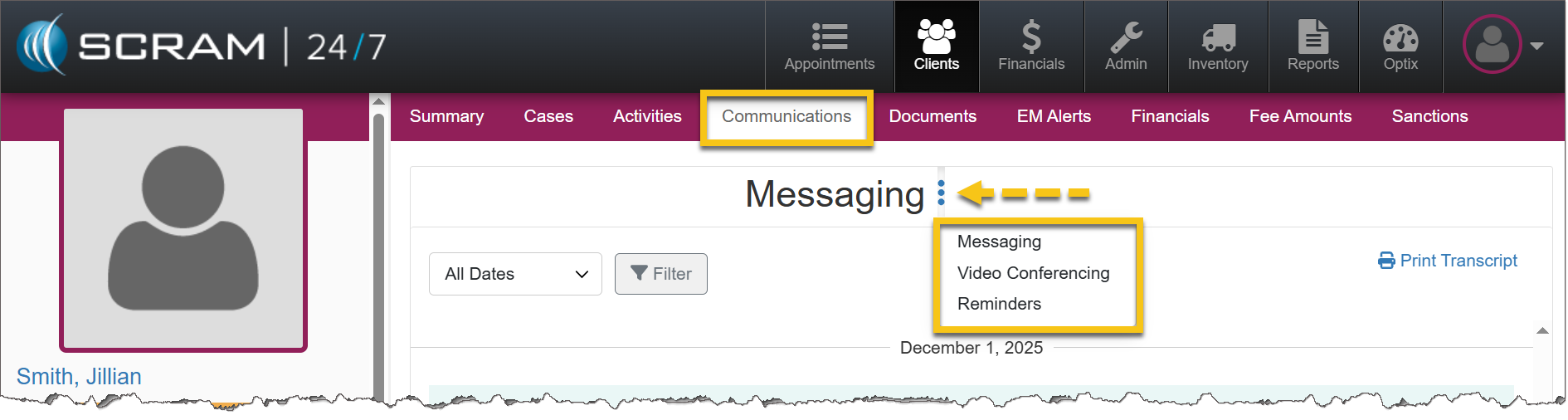
In a previous update, SCRAM Systems enabled 24/7 users to complete all messaging functions within SCRAM 24/7 without navigating to Optix. With a recent update, users are able to view the historical activity associated with services connected to TouchPoint Activity communication.
- The Communications tab becomes available once the TouchPoint activity has been added. If TouchPoint has never been added, this tab will not appear.
- After the TouchPoint activity has been added – whether it remains active or has been disabled – the Communications tab will continue to display historical activity for Messaging, Video Conferencing, and Reminders.
- Service availablility determines whether users may interact with each option in the dropdown menu. For example, if Messaging is not enabled, users may view historical messages, but may not send new messages.
 |
If Video Conferencing has not been enabled for the account, that option will not display. |
|
Would you like to learn more about the benefits of the SCRAM TouchPoint Mobile application? Contact your Account Manager for details on getting started. |
Optix Communications Tab
With this enhancement, users will find a consolidated view of communication and monitoring information under the Communications tab. This tab will contain:
- Electronic Monitoring Reminders
- Messaging
- Video Conferencing
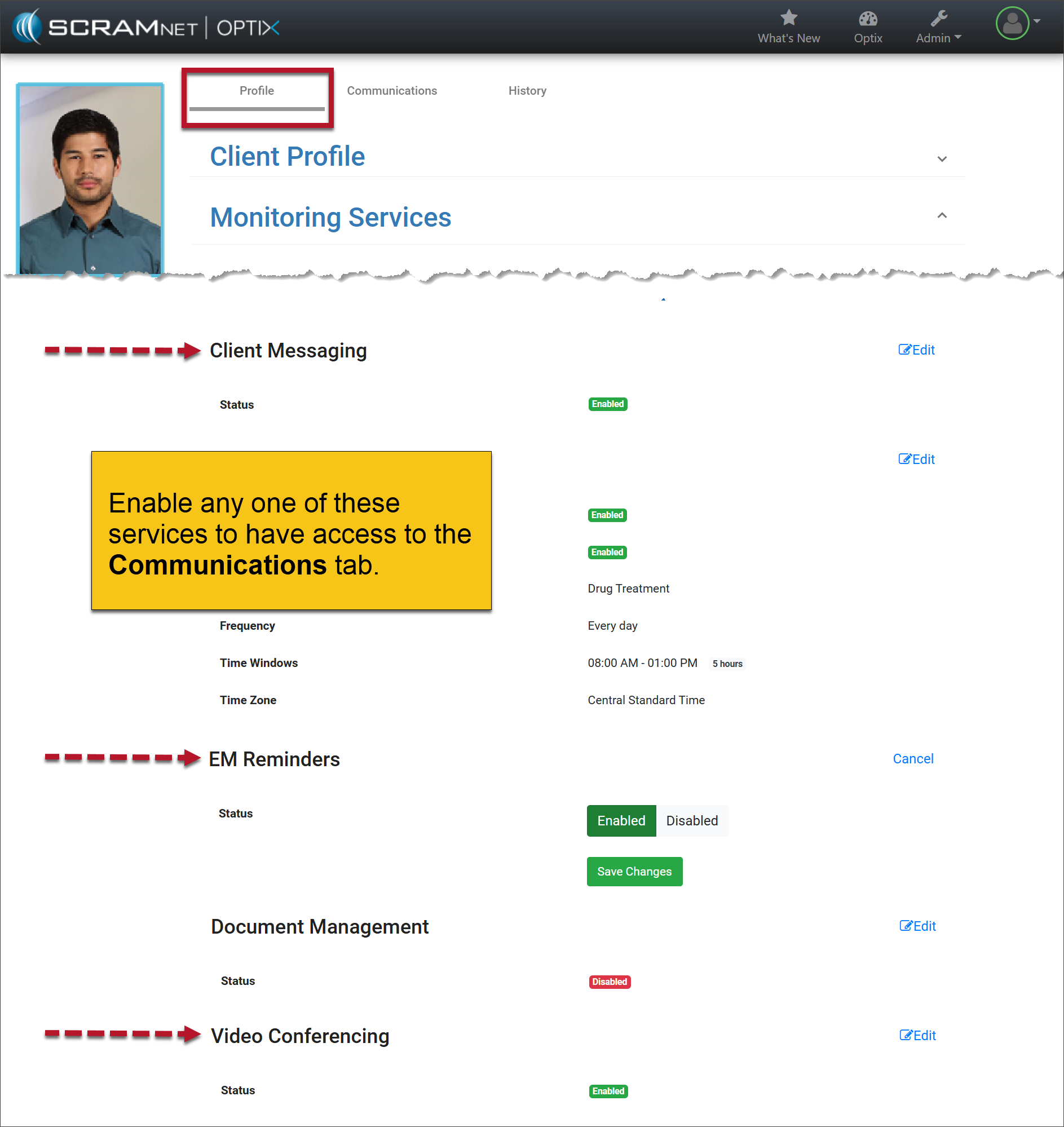
Enable the Service(s)
The Communications tab is available once any of the services is enabled.
Communications Tab
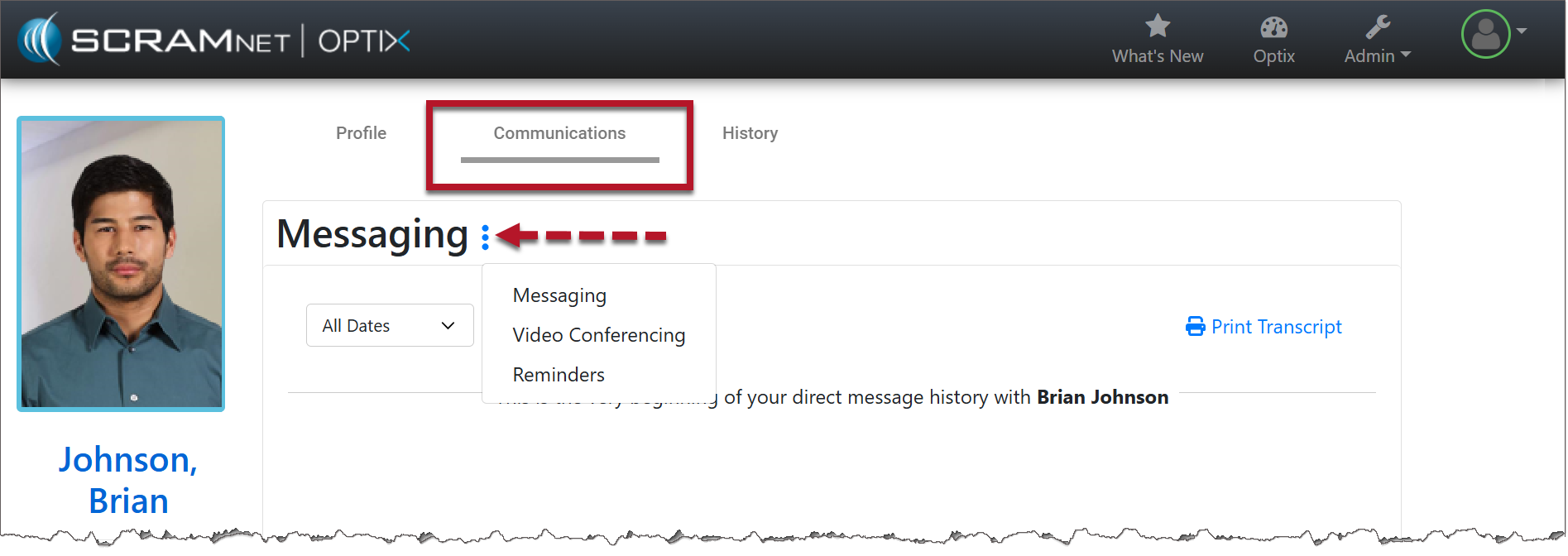
- Select the Communications tab.
- Open the More (ellipsis) menu next to Messaging.
- Select the desired service.
- If the services are later disabled, users may still view the historical activity associated with those features. However, they will no longer be able to interact with the service or perform any new actions.
|
If Video Conferencing has not been enabled for the account, that option will not display. |
|
Your account must be enabled for video conferencing for these instructions to work. Contact your SCRAM Systems Account Representative if you are interested in activating this service. |