On February 4, 2026, SCRAM Systems will release an update that allows providers to control whether the GPS battery level is visible to clients in the TouchPoint Mobile app. This setting can be managed in SCRAM Optix or 24×7.
Enable the Display GPS Battery Level Setting in Optix
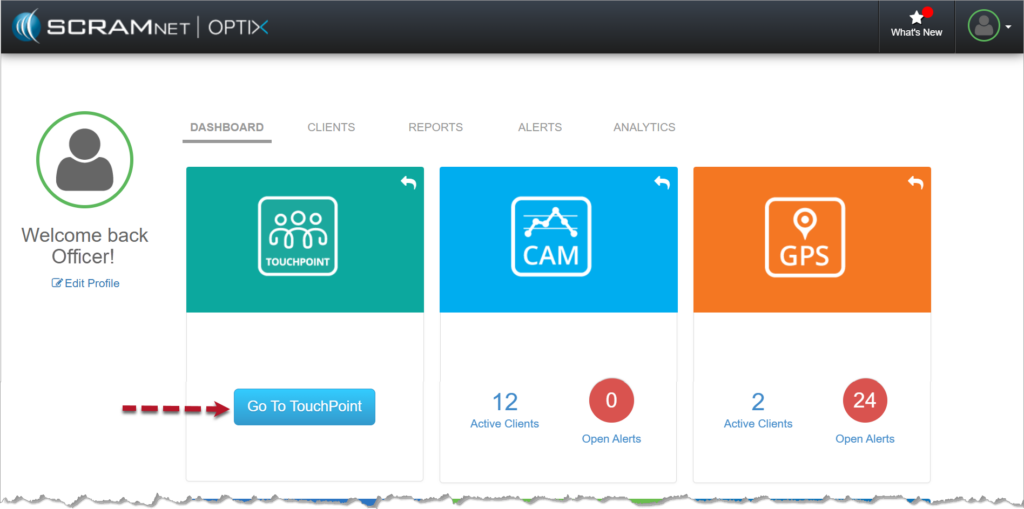
- In Optix, navigate to TouchPoint.
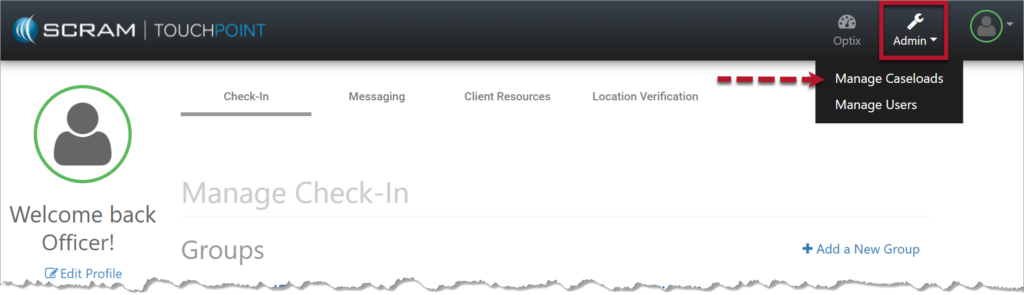
- Select the Admin tab from the top toolbar and then the Manage Caseloads option.
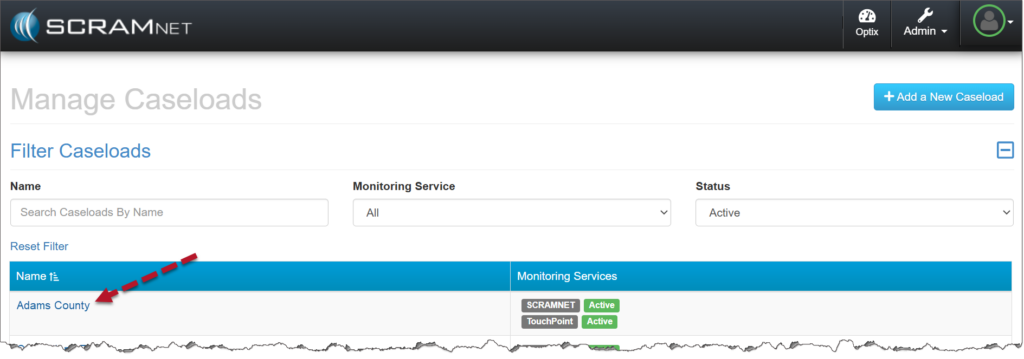
- Select the caseload.
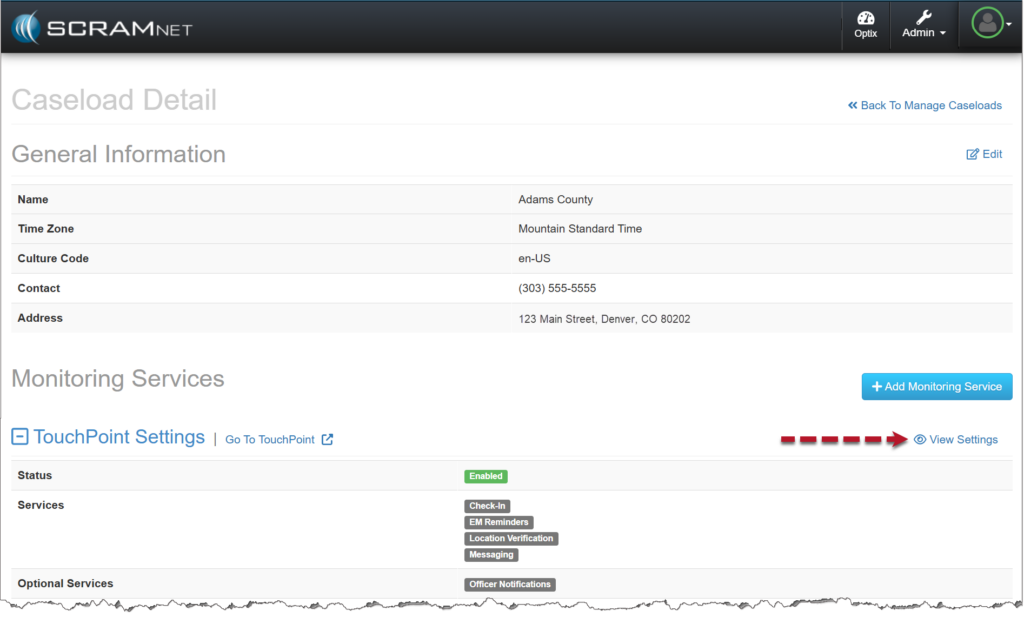
- From the Caseload Detail page, select the View Settings hyperlink.
- Select the Edit hyperlink.
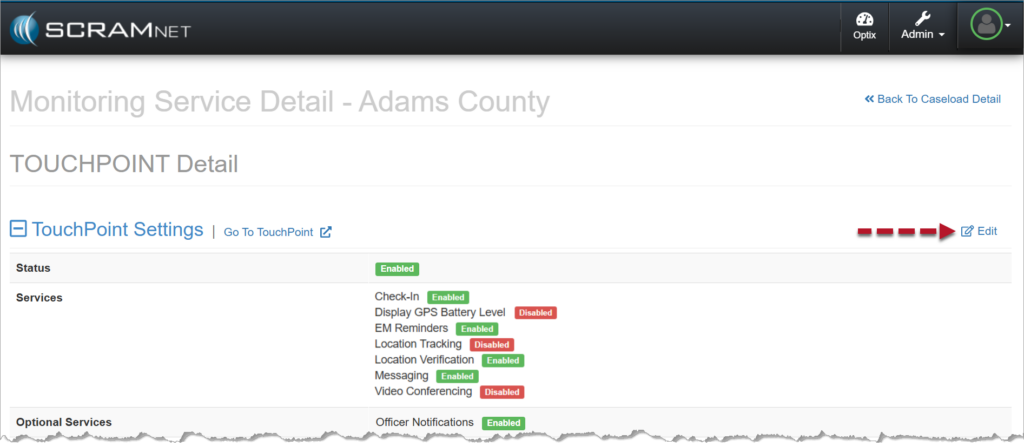
- Select the checkbox next to Display GPS Battery Level.
- Save your changes.
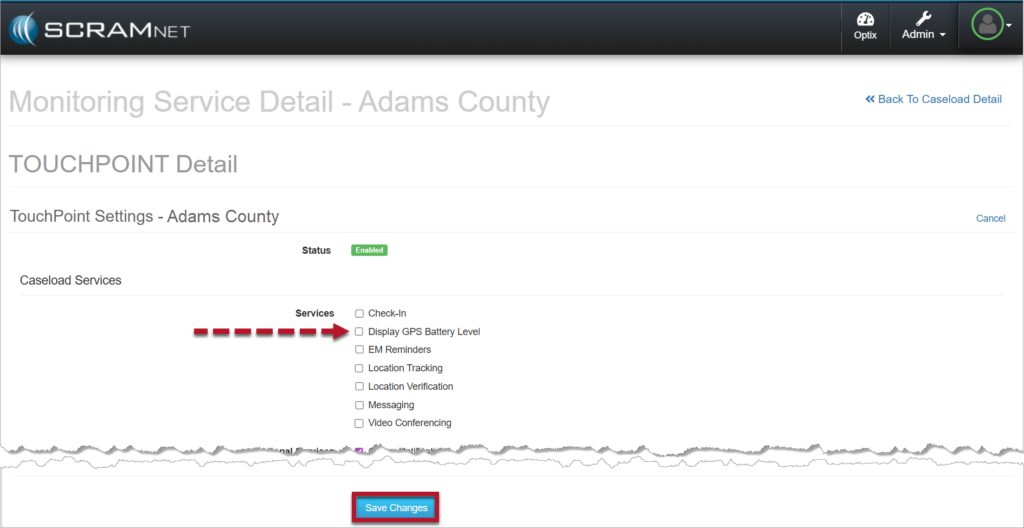
Once saved:
- The setting will appear as Enabled under TouchPoint Settings on the TouchPoint Detail page for the caseload.
- The Display GPS Battery Percentage option will be visible on the client’s Profile page in Optix.
- Enable the Display GPS Battery Percentage service for the client:
- Select the Edit hyperlink on the client’s Profile page.
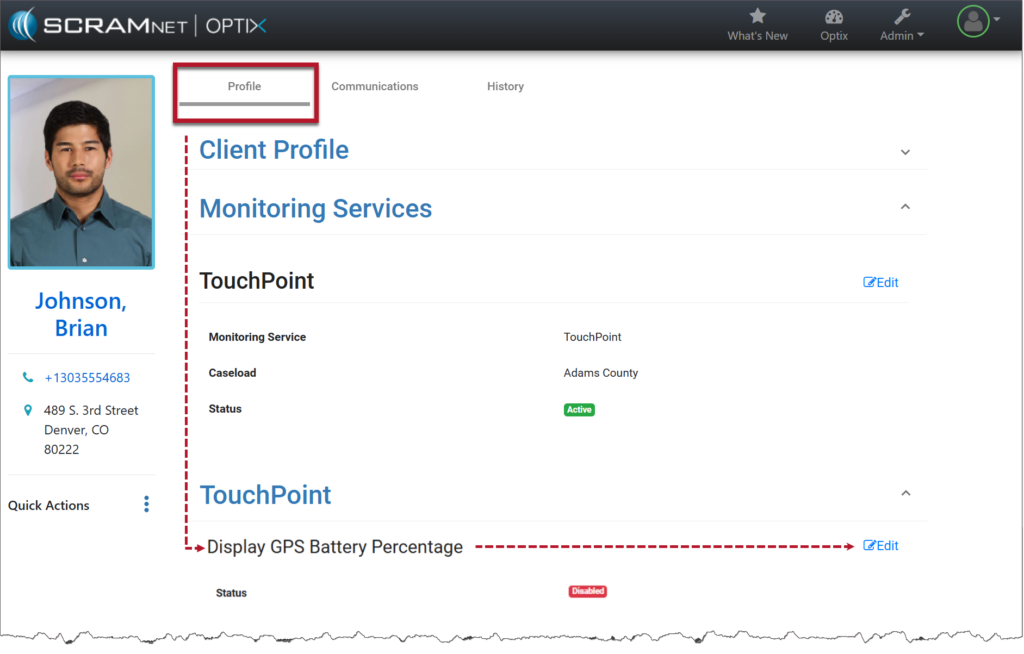
- Change the Status from Disabled to Enabled.
- Save your changes.

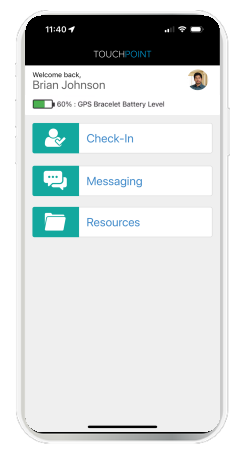
The client’s last reported SCRAM GPS bracelet’s battery level is displayed at the top of the home screen within the TouchPoint mobile application.
 | Important Notes:
|
Disable the Display GPS Battery Level Setting Once Enabled in Optix
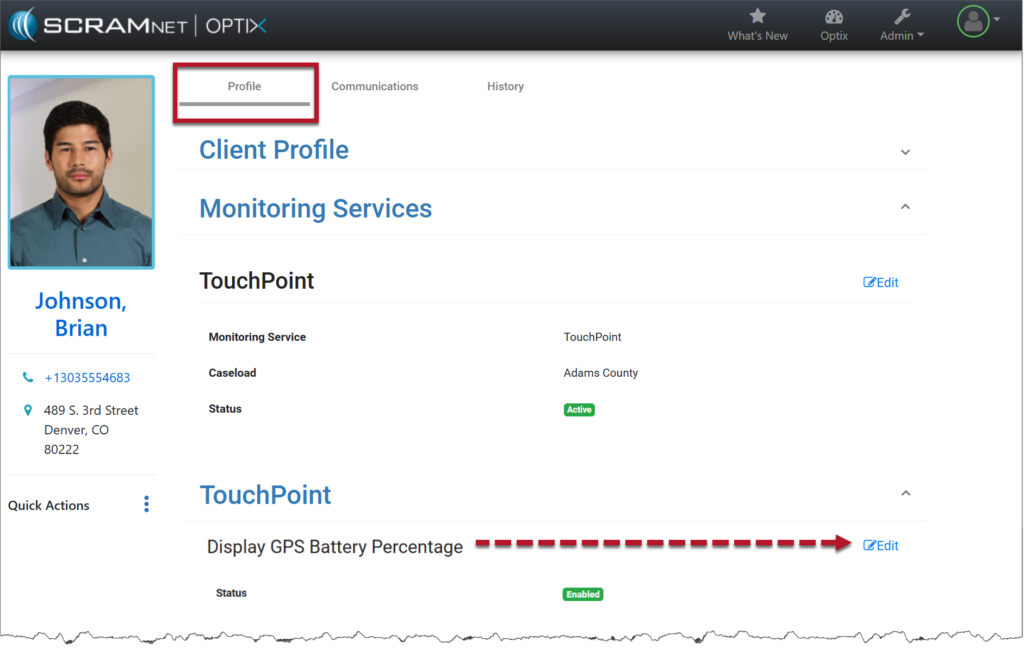
- From the client’s Profile page, select the Edit hyperlink next to Display GPS Battery Percentage.
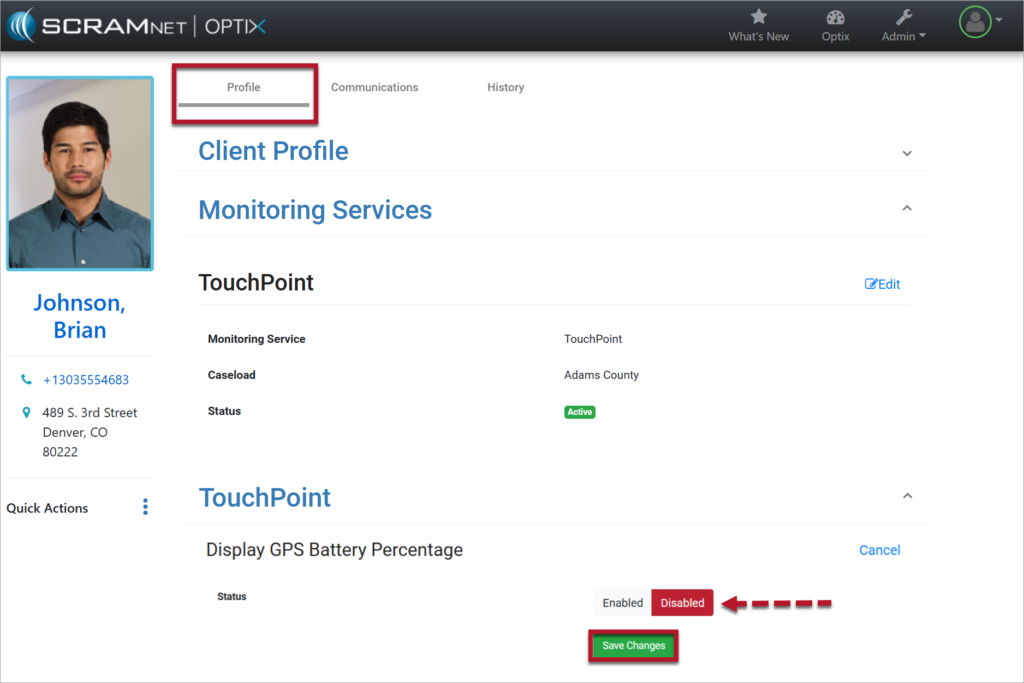
- Toggle the status to Disabled and select the Save Changes button.
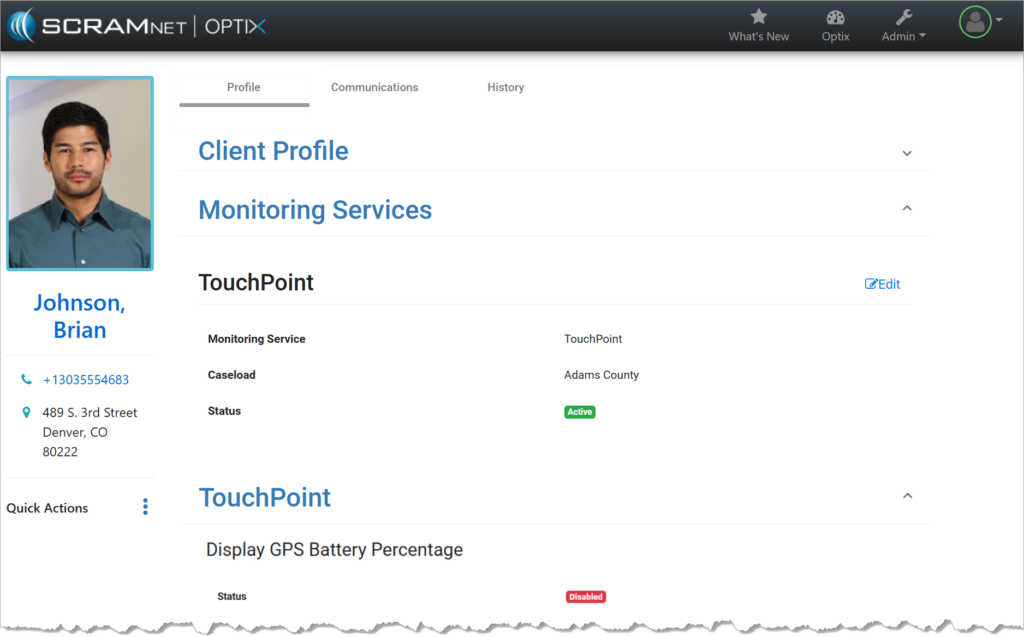
- The Display GPS Battery Percentage setting has been disabled for the client.
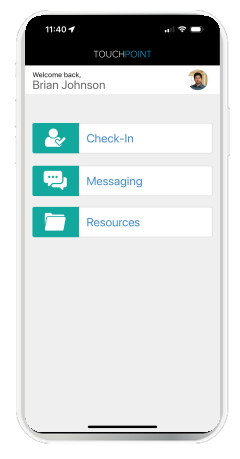
- The SCRAM GPS bracelet’s battery level is no longer displayed at the top of the home screen within the TouchPoint Mobile application.
Enable the Display GPS Battery Level Setting for a SCRAM 24×7 Client
After adding a GPS Activity to a client, you may also add a TouchPoint Activity and enable the GPS Battery Level feature from within SCRAM 24/7.
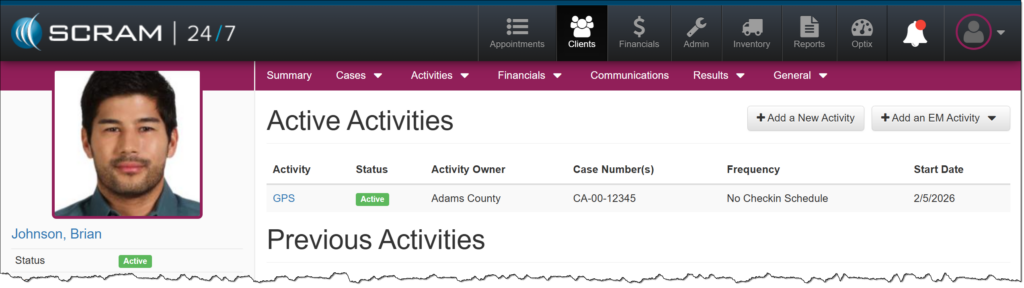
On the client’s Activities page:
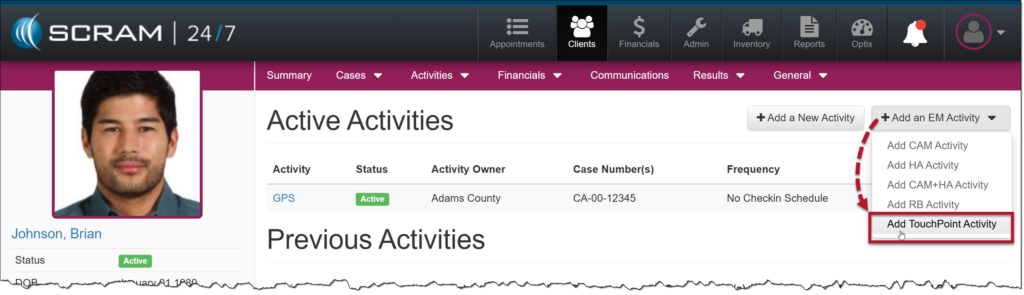
- Open the +Add an EM Activity dropdown menu, and then select the Add TouchPoint Activity option.
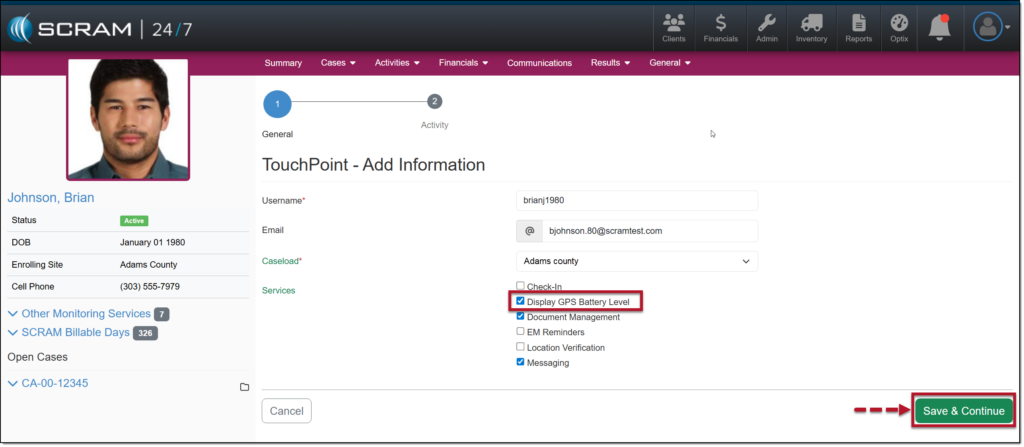
- On the TouchPoint – Add Information page, enter the TouchPoint details. This includes the client’s username for the mobile application, email address, and TouchPoint Caseload.
- Select the checkbox next to each TouchPoint service the client will be utilizing. To display the client’s GPS battery voltage in the mobile application, select the checkbox next to the Display GPS Battery Level option.
- Once you have made your selections, select the Save & Continue button.
|
When adding a TouchPoint Activity, the services and features available to select on dependent on the TouchPoint Caseload selected. |
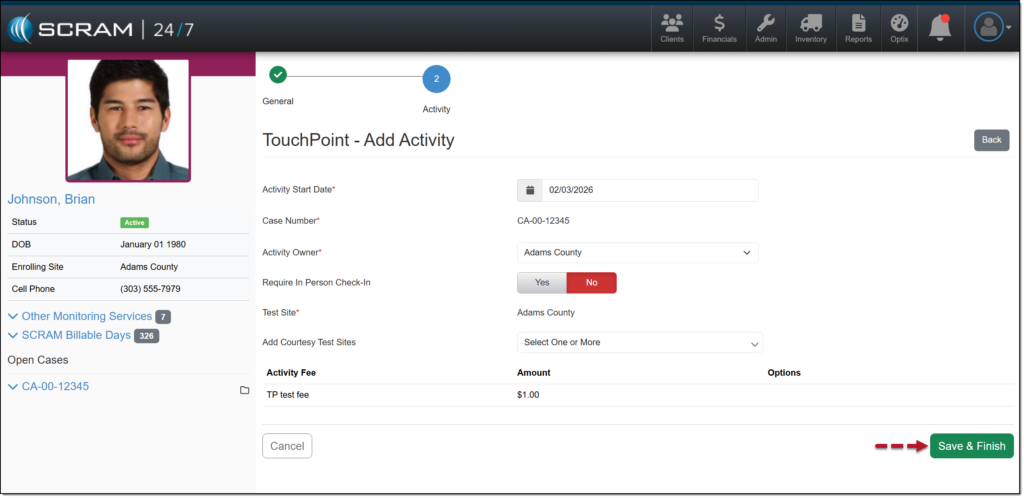
- Add the Activity Start Date and any additional monitoring requirements, and then select the Save & Finish button.
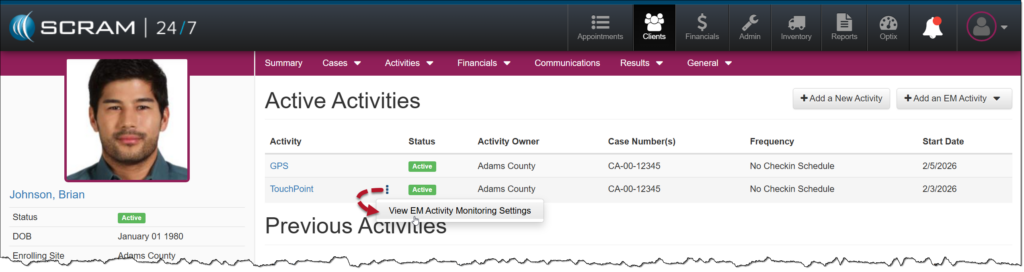
The TouchPoint Activity is now displayed on the client’s Activity page.
To view or edit the TouchPoint settings, select the ellipsis, and then the View EM Activity Monitoring Settings option.
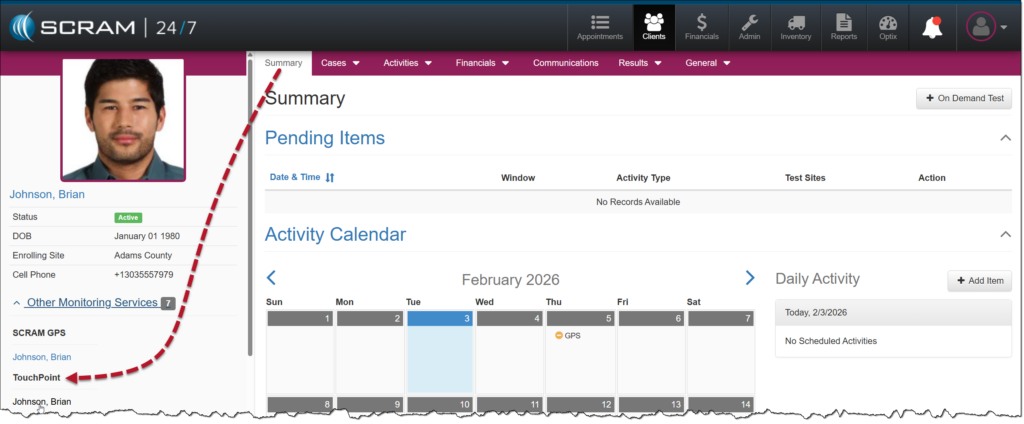
Or, you may navigate to the client’s TouchPoint Profile page in Optix by selecting their name hyperlink in the Other Monitoring Services section on the Summary page.
|
The Display GPS Battery Level option is only editable after a GPS device has been assigned to the client. |