At 5:00 AM MDT on Thursday, April 3, 2025, SCRAM Systems is introducing two new features in SCRAMNET GPS. Enhancements include:
Changes to the SCRAM Ally mobile app registration and login process
Enhanced performance with HTTP/2 support
During the 15-minute deployment, you may not be able to access SCRAMNET GPS, but messages from the SCRAM GPS device will continue to be processed uninterrupted.
Changes to SCRAM Ally Registration & Login
Victim Notification: Background
The SCRAMNET GPS Victim Notification service, paired with its companion smartphone app, SCRAM Ally™, allows officers and case managers to automatically inform victims when an assigned GPS client is in close proximity to the victim’s smartphone, and possibly in violation of a restraining order.
IMPORTANT: Activation of the Victim Notification service requires a contract amendment. If you are interested in the service, please contact your SCRAM Systems Account Manager or Sales Representative.
Changes That Impact Existing Victim Notification Customers
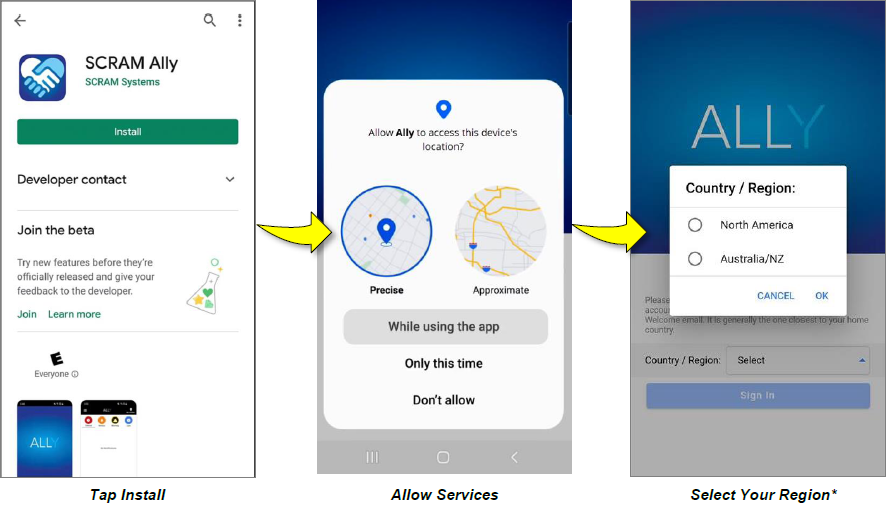
New victim-users of the SCRAM Ally mobile app must now select their home Country / Region* when registering the app:
Select the image above to open the SCRAM Ally App Victim Instructions help page
IMPORTANT NOTES:
*If a new victim-user selects the wrong Region by mistake during registration, contact SCRAM Systems Customer Support for assistance immediately.
Existing users of the SCRAM Ally app will not need to take any action to continue using the app.
Enhanced Performance with HTTP/2 Support
SCRAMNET GPS now supports HTTP/2, a modern standard for allowing web browsers to communicate more efficiently with SCRAM Systems servers, which results in faster page-load times. You don’t need to do anything to take advantage of this feature. It is automatically enabled on your browser.
Tip: For optimal performance we suggest clearing your browser’s cache and cookies following the April 3rd deployment of the feature.
On February 18, 2025, SCRAM Systems will release three enhancements for your SCRAM TouchPoint Caseloads. These enhancements include:
An option to disable Biometric Verification for clients who log in to TouchPoint for Check-Ins.
For Messaging services, as soon as one user marks a message as read, it eliminates the need for all users to mark the same passage as read. Each message will be stamped with the username, date, and time read.
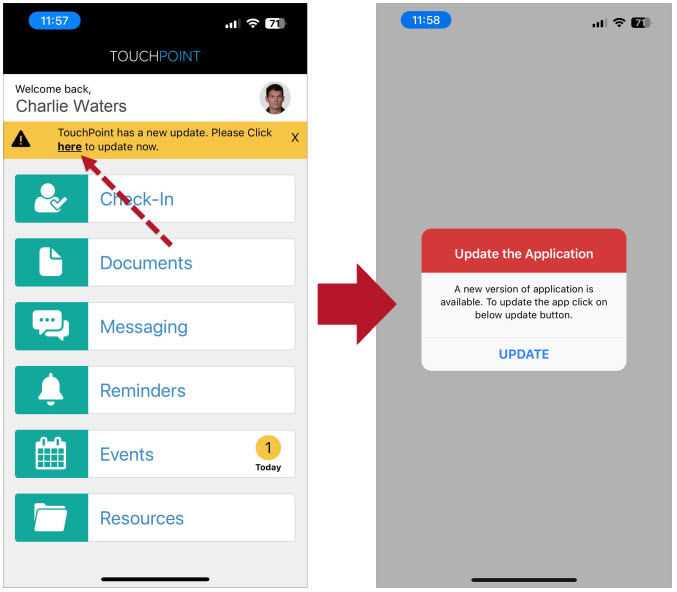
In an effort to ensure that clients are using the latest version of the SCRAM TouchPoint mobile application, a reminder banner will be displayed on the client’s smartphone.
Your account must be enabled for video conferencing for these instructions to work. Contact your SCRAM Systems Account Representative if you are interested in activating this service.
As a best practice, we recommend you encourage your clients to enable automatic app updates. This ensures they are always using the latest version of the TouchPoint app.
Optional Biometric Login
For customers who do not require biometric verification when logging into TouchPoint, an option will be available to disable the setting.
Disabling Biometric Verification
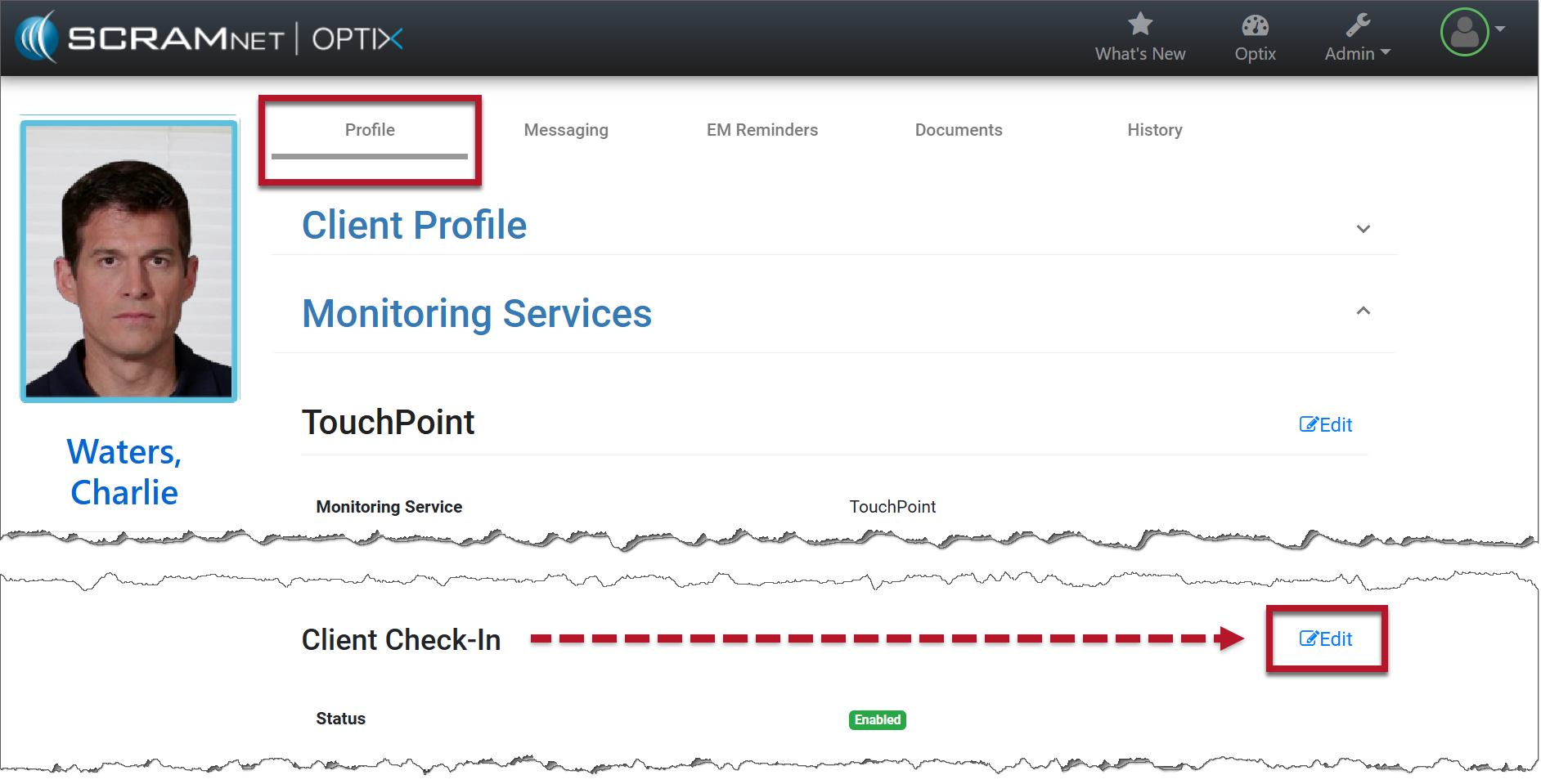
From the client’s Profile page in Optix, select the Edit hyperlink for Client Check-In.
Client Profile Page
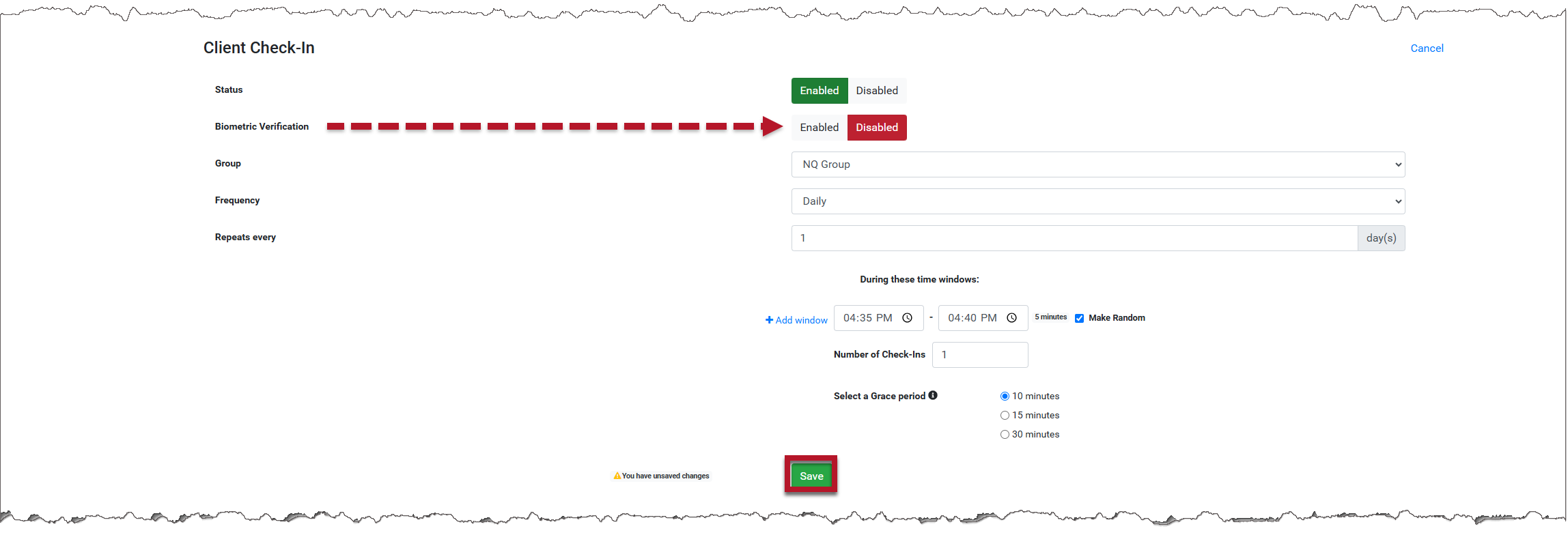
Toggle the Status of the Biometric Verification from Enabled to Disabled and save your changes.
Toggle Button to Disabled
Biometric Verification has been disabled. When the user logs in to TouchPoint on their smartphone, biometric verification will not be required. The Check-In questions will be the first thing they see.
Biometric Verification Disabled
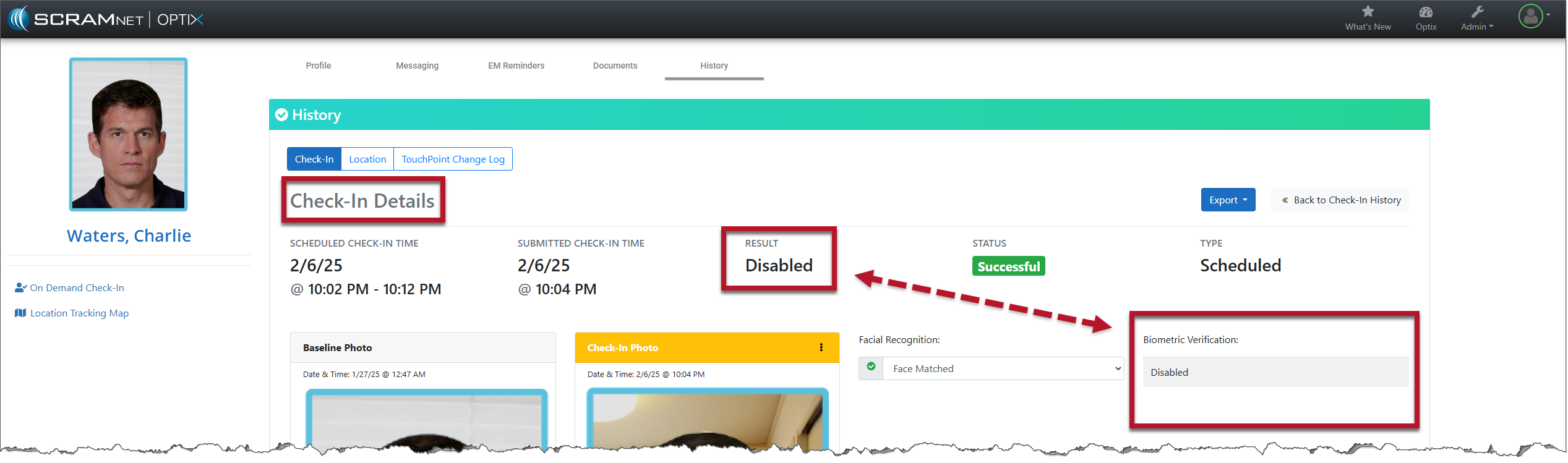
The Check-In Details page will also display “Disabled” for Biometric Verification.
Check-In Details Page
TouchPoint Read Messages
Once a user reads a message in TouchPoint, that message will be marked as read for all users.
Mark Messages as Read
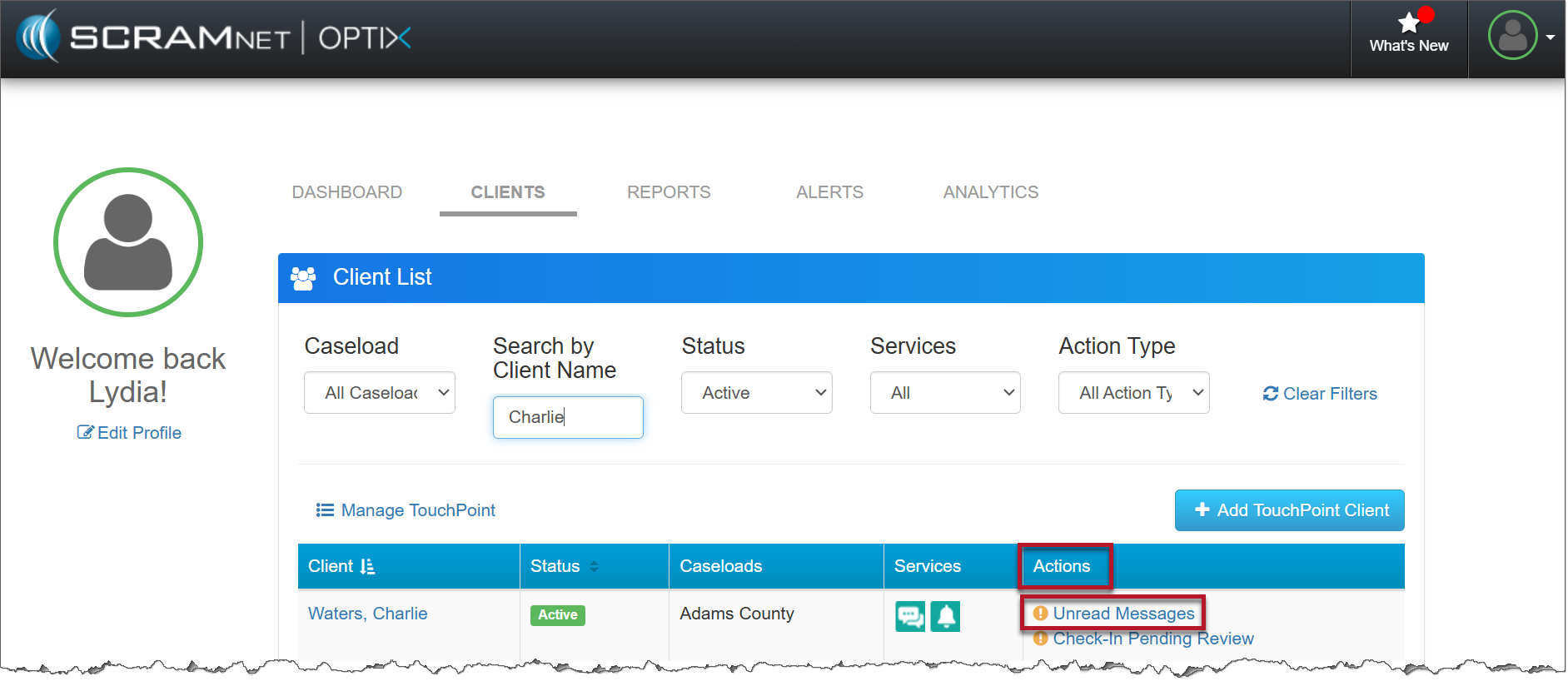
When a user receives a message from a client, an Unread Message alert appears in the Actions column on the Client List page. Select the Unread Messages hyperlink.
Client List Page
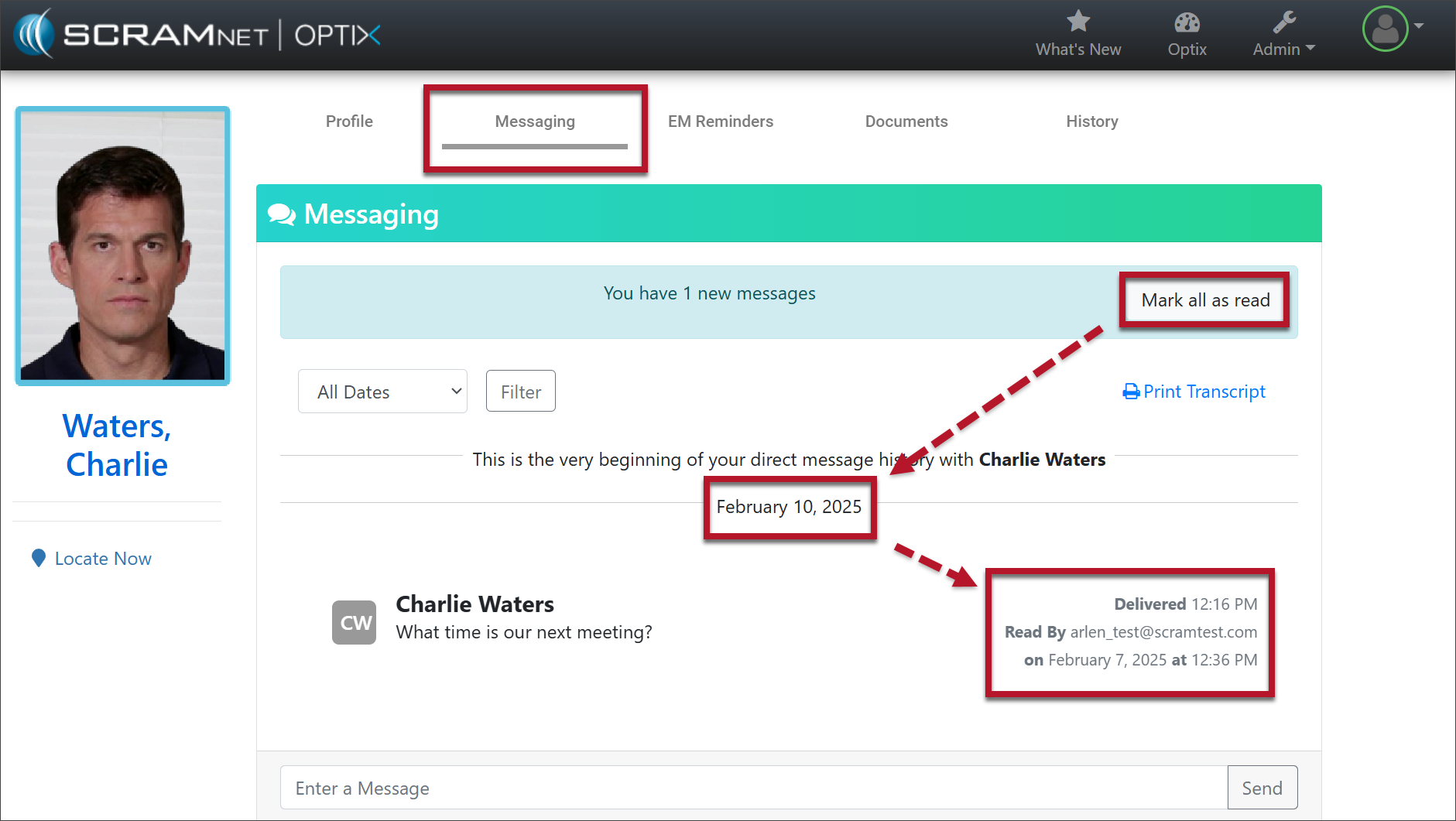
The new message displays on the Messaging tab. Selecting the Mark all as read button:
Removes the Unread Message alert from the Actions column for all users.
Displays a “Read By” receipt to all users that shows the username, date, and time of the message read.
Messaging Tab with Read Receipt
Update to Latest Version of TouchPoint Application
To ensure your client is using the most recent version of the TouchPoint Mobile Application, a reminder banner will be displayed when logging in to TouchPoint. Selecting the link will take the client to the Google Play store or Apple App Store to download and install the update.
If clients select the x in the banner, it will close the alert. The next time the client logs in, the banner will reappear until the app is updated.
A new version of the SCRAM Ally (Victim Notification) mobile app is available on the Google Play Store. Users are encouraged to update to the latest version (2.1.0), which includes the following changes:
Support for newer versions of the Android OS
Updates to the core messaging system used for alert notifications
Permissions to access Location Service and Motion Activity are now optional
Support for Newer Versions of the Android OS
SCRAM Ally supports Android versions 9 through 15, and this latest update provides a smoother, more optimized experience for users on Android 14 and 15 devices.
Updates to the Core Messaging System Used for Alert Notifications
The SCRAM Ally app’s core messaging system – Firebase Cloud Messaging (FCM) – was updated for improved reliability and performance. Android smartphone users are strongly encouraged to visit the Google Play Store and update to the latest version of SCRAM Ally for Android to ensure proper delivery of important alerts via push notifications.
Tip: After updating the SCRAM Ally app, it is important that your Victim users open the app and visit the Homepage. This action will ensure alert notifications function properly.
Access to Location Service and Motion Activity
For accurate, continuous monitoring, SCRAM Ally requires permission to access Location Service and Motion & Fitness Activity. Even when permissions are required by the app to function properly, both Apple and Google recommend making these permissions optional, to give users more control over their data.
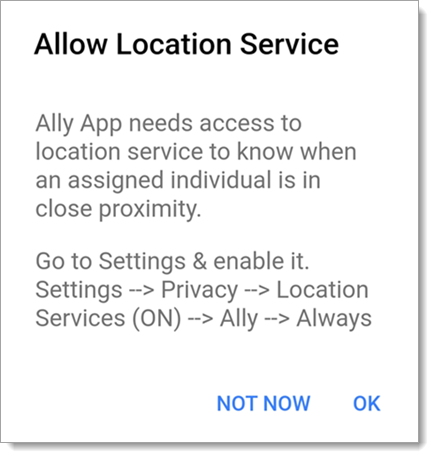
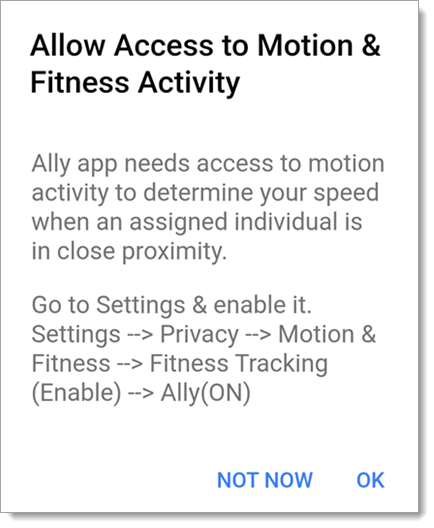
SCRAM Ally requires these permissions to properly monitor Victims and deliver important alerts with regard to Victims’ proximity to their assigned individuals. When Ally does not have these permissions, the following dialogs are displayed:
SCRAM Ally App Requests Access to Location Service
SCRAM Ally Requests Access to Motion & Fitness Activity
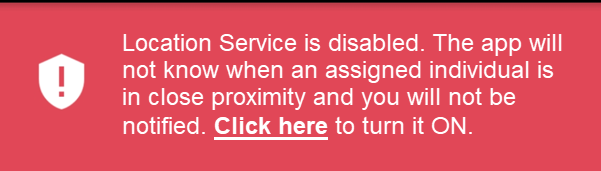
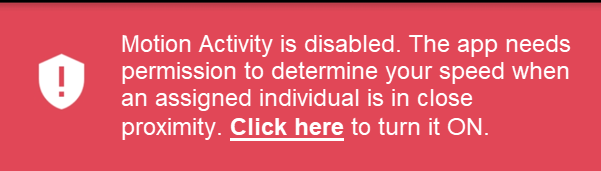
If Victim users do not grant permission to either of these services, the following banner warnings are displayed in the SCRAM Ally app:
Warning Banner: Location Service is Disabled
Warning Banner: Motion & Fitness Activity is Disabled
Additionally, when the Location Service is disabled, a critical alert is generated in SCRAMNET GPS. It is important to address this alert as it indicates the Victim is not properly monitored:
SCRAMNET Alert: Location Service Disabled – Victim (click to enlarge)
SCRAM Systems® provides enhancements and updates to the SCRAM TouchPoint™ Mobile application on a continual basis. These updates improve the functionality and usability of the application for your client. Once an update is available in the Apple App store and the Google Play store, the next step is to have the client update the application on their smartphone.
An app update can be completed in two ways.
Automatic application updates (Recommended)
Manual application updates
As a best
practice, we recommend you encourage your clients to enable automatic app
updates – this ensures they are always using the latest version of the
TouchPoint app.
Setup Automatic Application Updates
iPhone
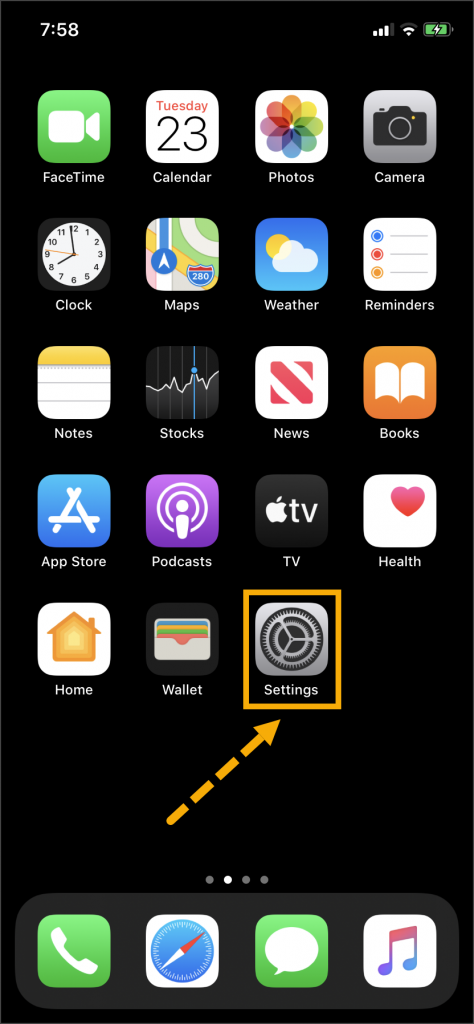
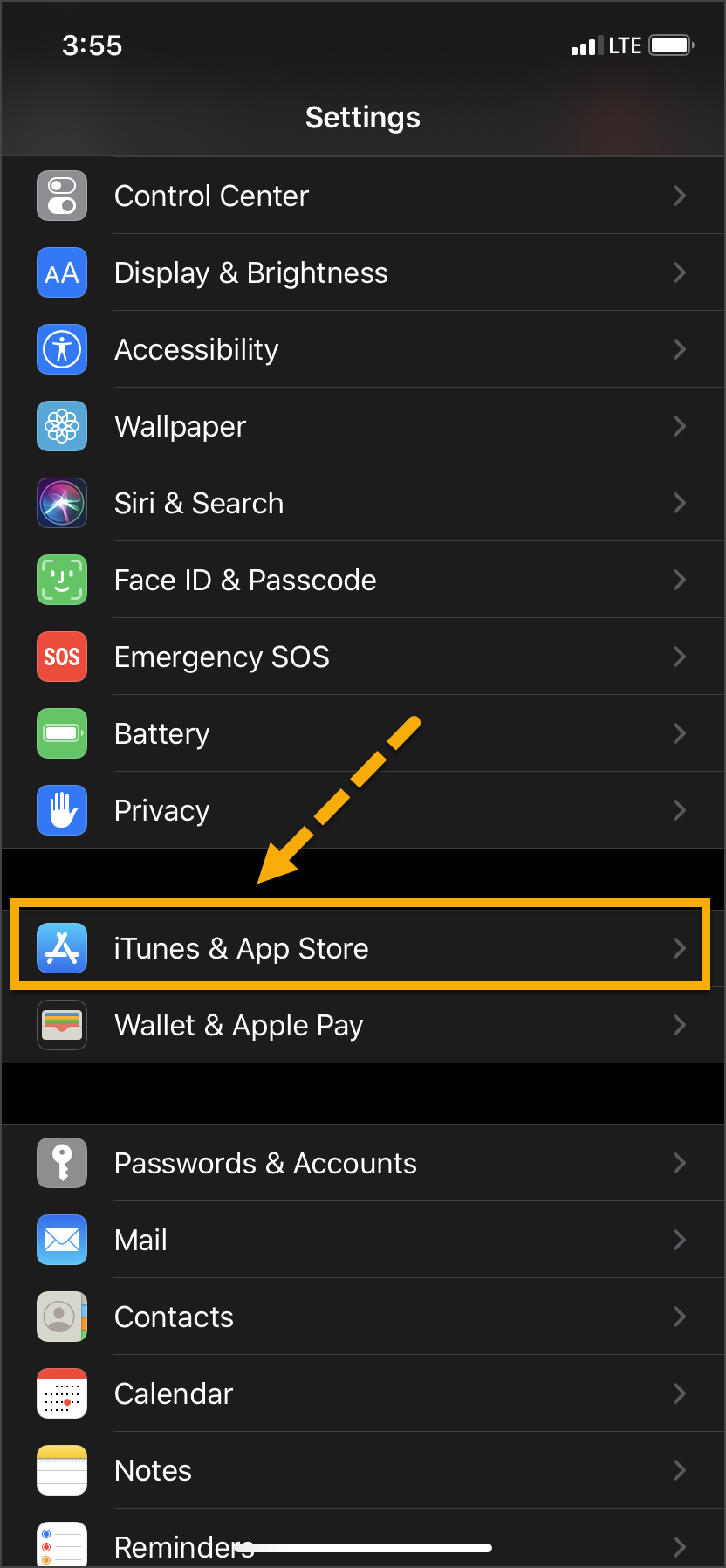
On the client’s smartphone, tap the Settings
icon.
On the Settings screen, tap the iTunes
& App Store option.
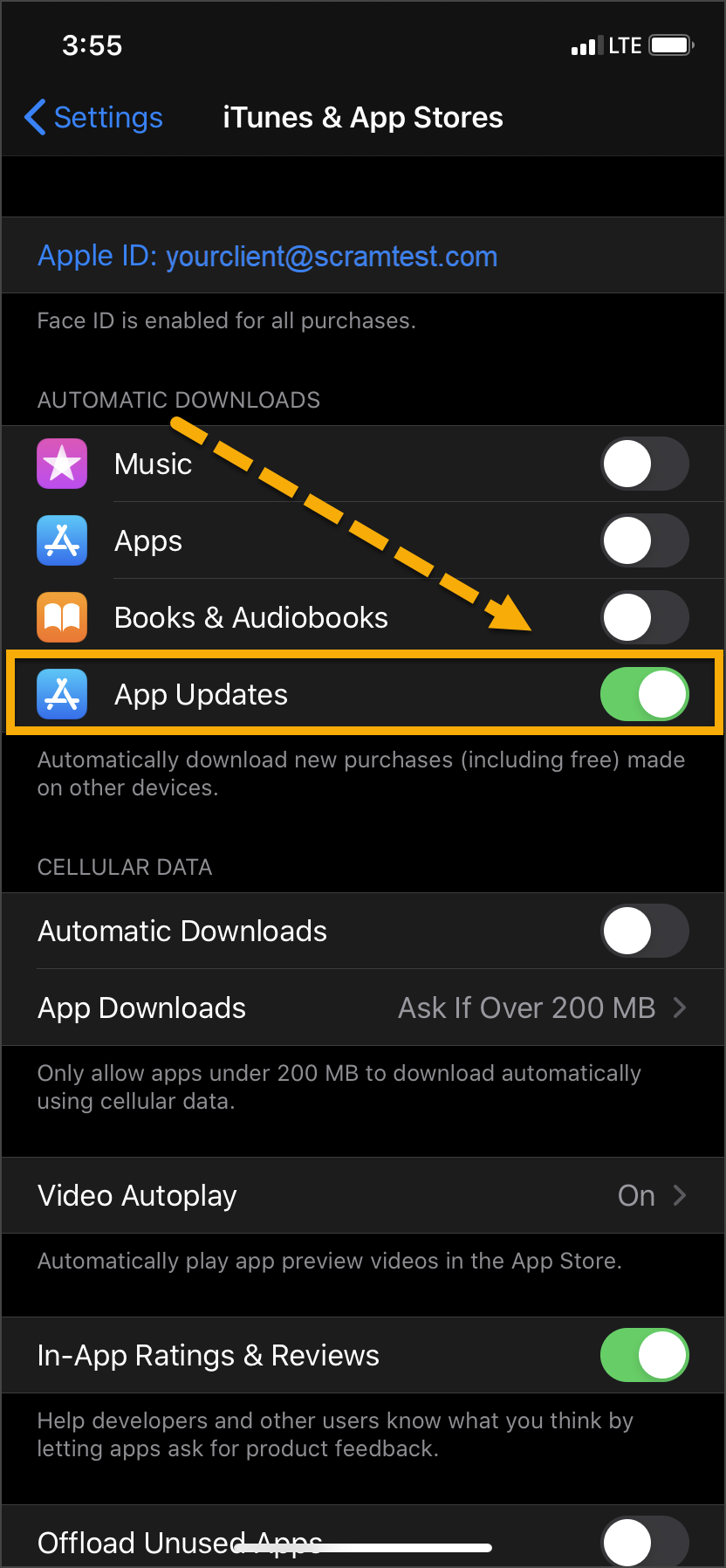
Under the Automatic Downloads section, ensure the App Updates option is enabled.
Tap ‘Settings’
Tap ‘iTunes & App Store’
Toggle ‘App Updates’ to the “On” Position
Android
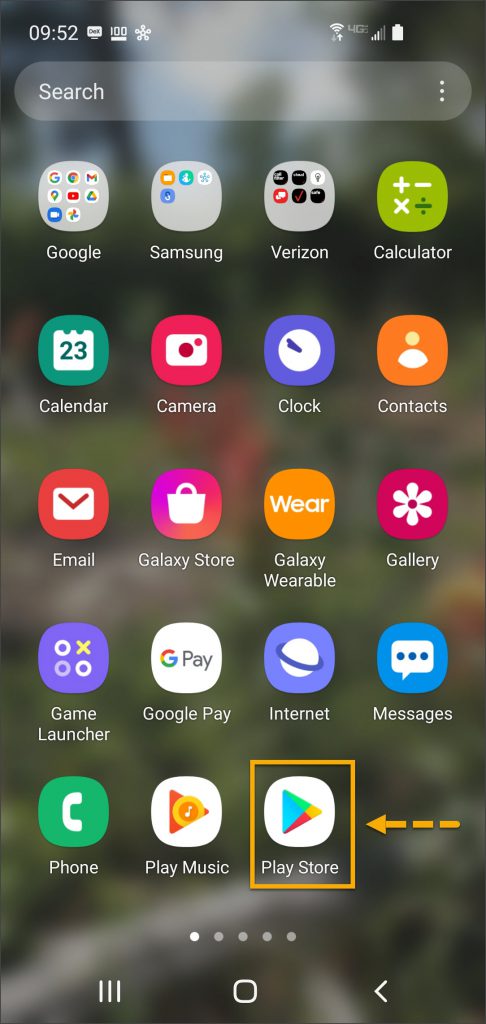
On the client’s smartphone, swipe up on the Home screen.
Tap the Play Store icon.
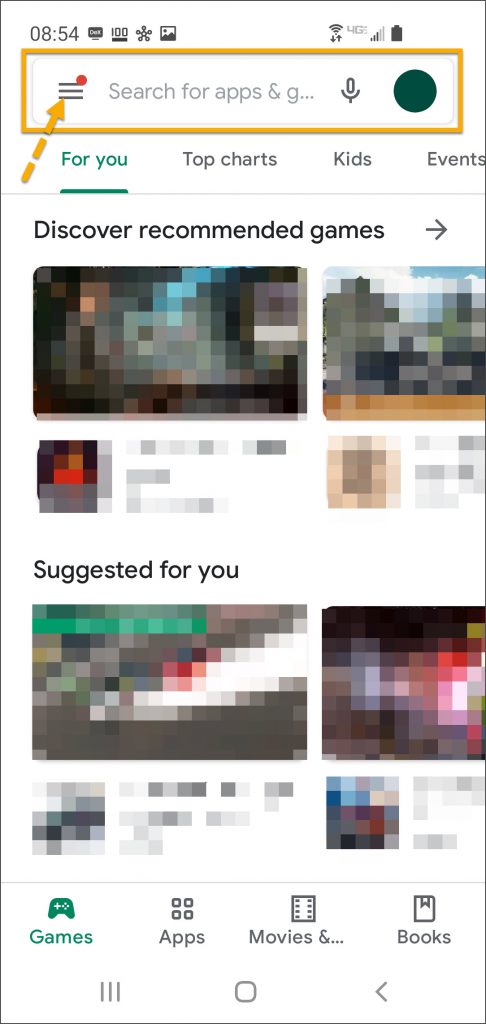
On the Google Play store screen, tap the menu icon in the search field.
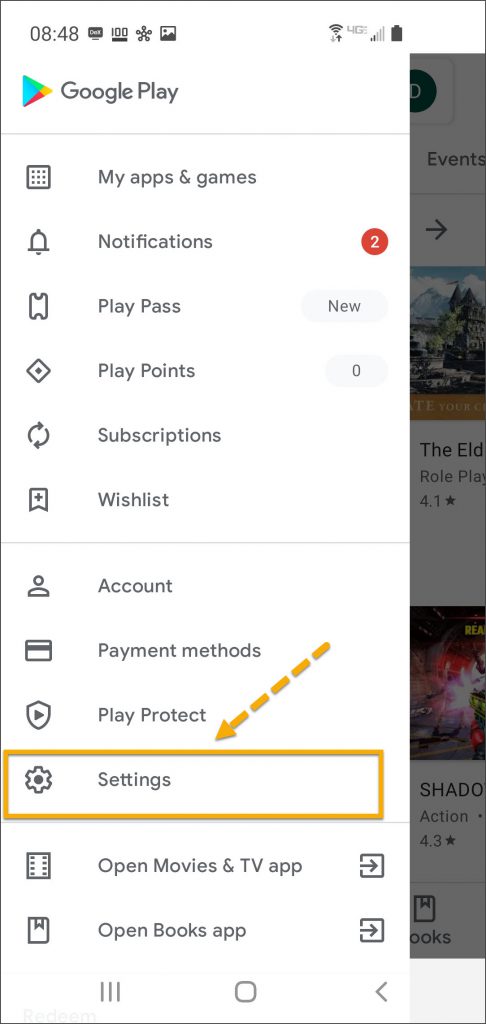
Locate and tap the Settings option.
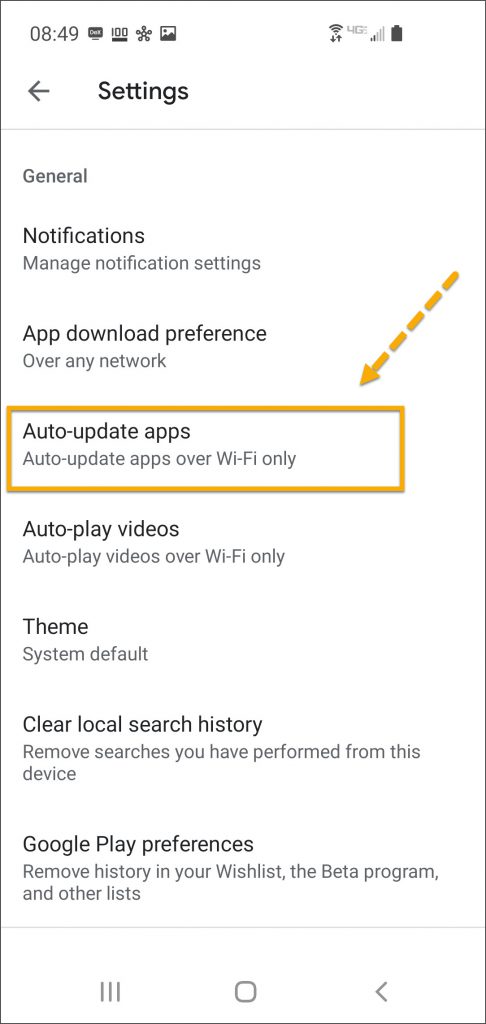
Tap the Auto-update apps option.
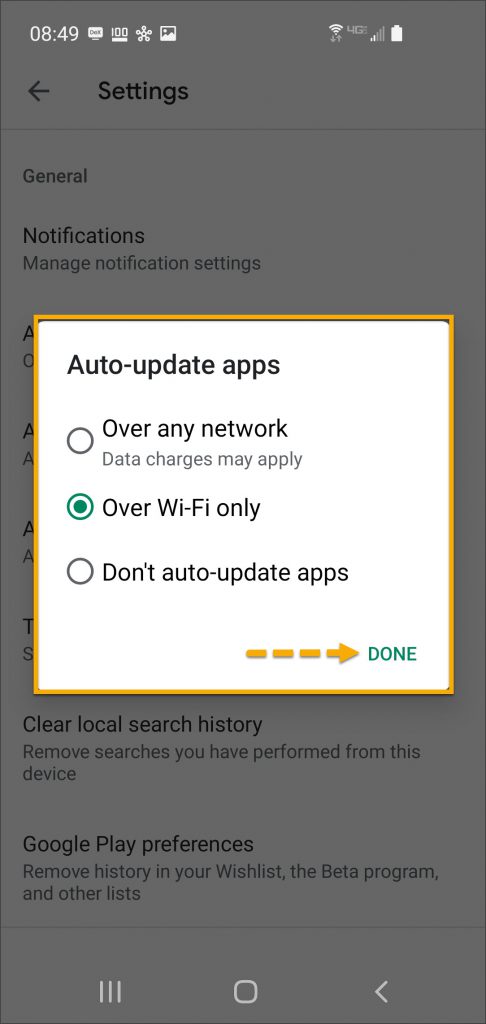
In the Auto-update apps window, select the option of,
Over any network (Data charges may apply)
Over Wi-Fi only
After making the selection, tap Done.
Tap the ‘Play Store’ App Icon
Select the “Hamburger” Menu
Tap ‘Settings’
Select ‘Auto-update apps’
Select the Desired Update Communication Method and Tap ‘Done’
Manual Application Update
iPhone
Once an update to the TouchPoint application is available,
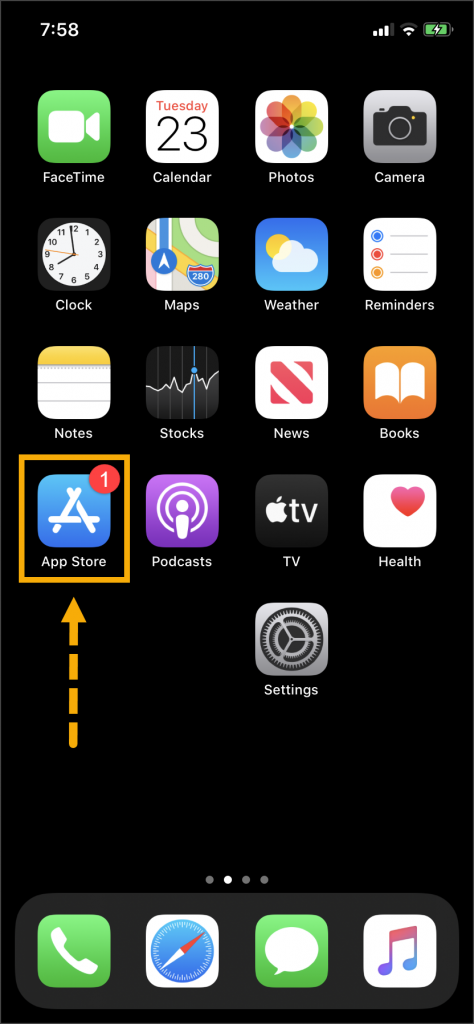
the App Store icon will display a red badge.
Instruct the client to:
Tap the App Store icon.
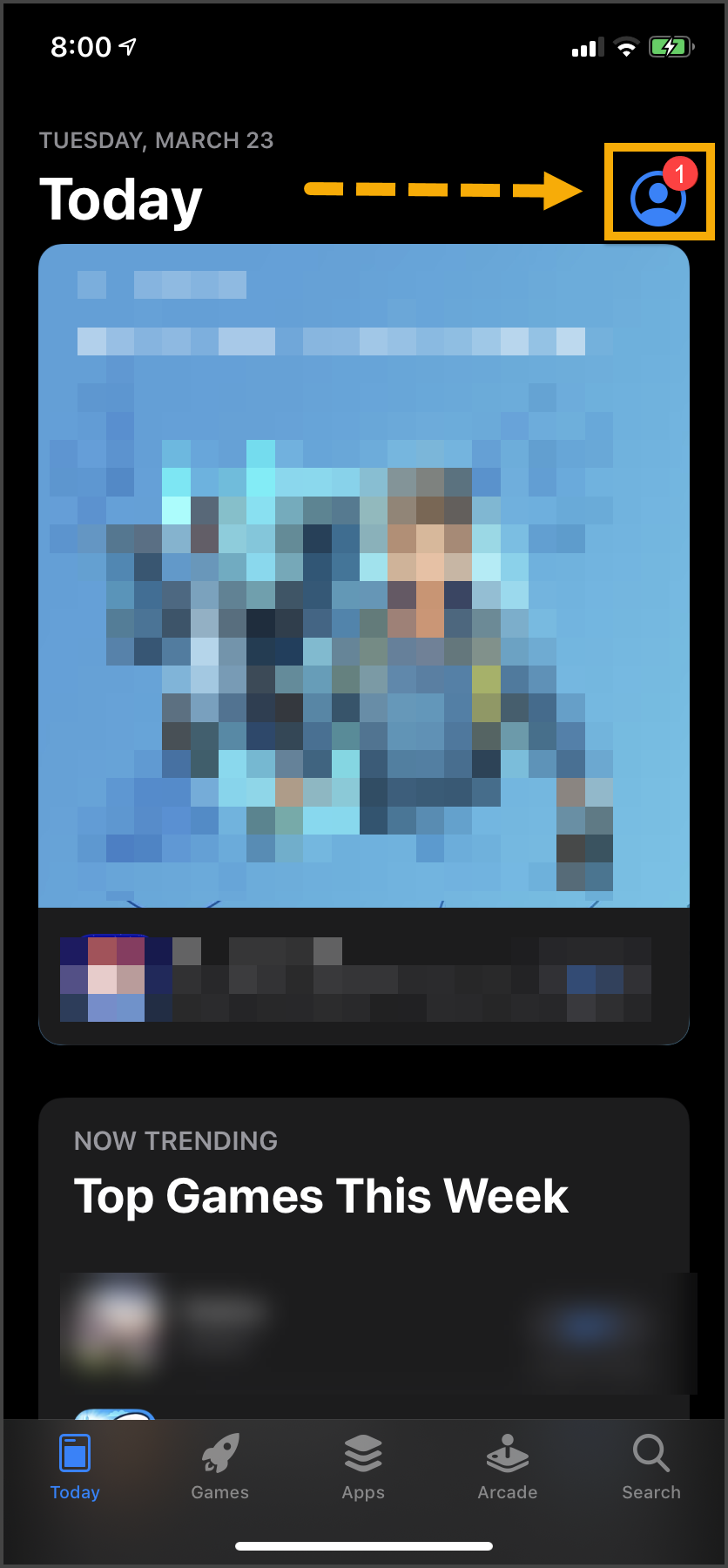
Tap their profile icon.
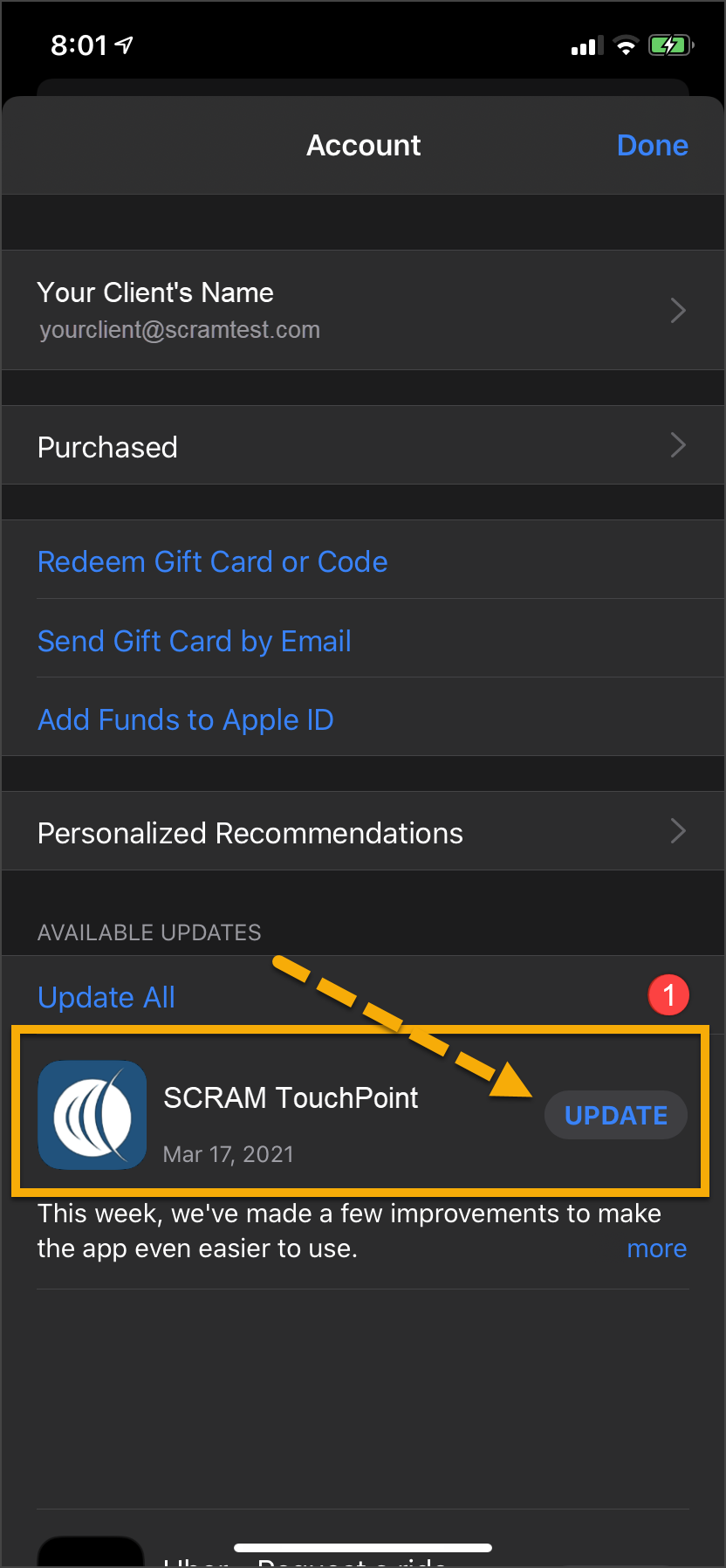
Under the Available Updates heading,
locate the SCRAM TouchPoint app.
Tap the Update button.
As a best practice, we recommend you encourage your clients to enable automatic app updates – this ensures they are always using the latest version of the TouchPoint app.
Tap the ‘App Store’ Icon
Select the “My Account” Icon
Locate the SCRAM TouchPoint App in the List and Select ‘UPDATE’
Android
Swipe up on the Home screen and tap the Play Store
icon.
On the Google Play store screen, tap the menu
icon in the search field.
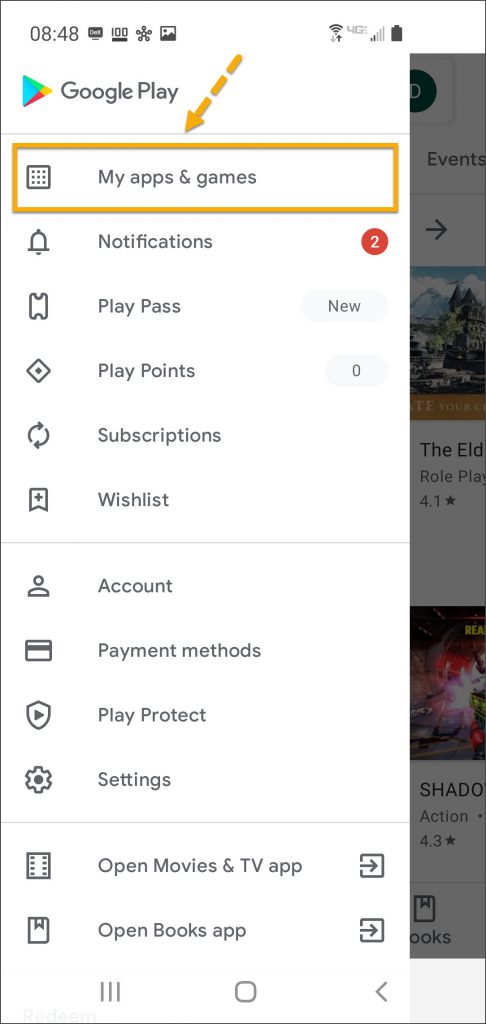
Tap the My apps & games option.
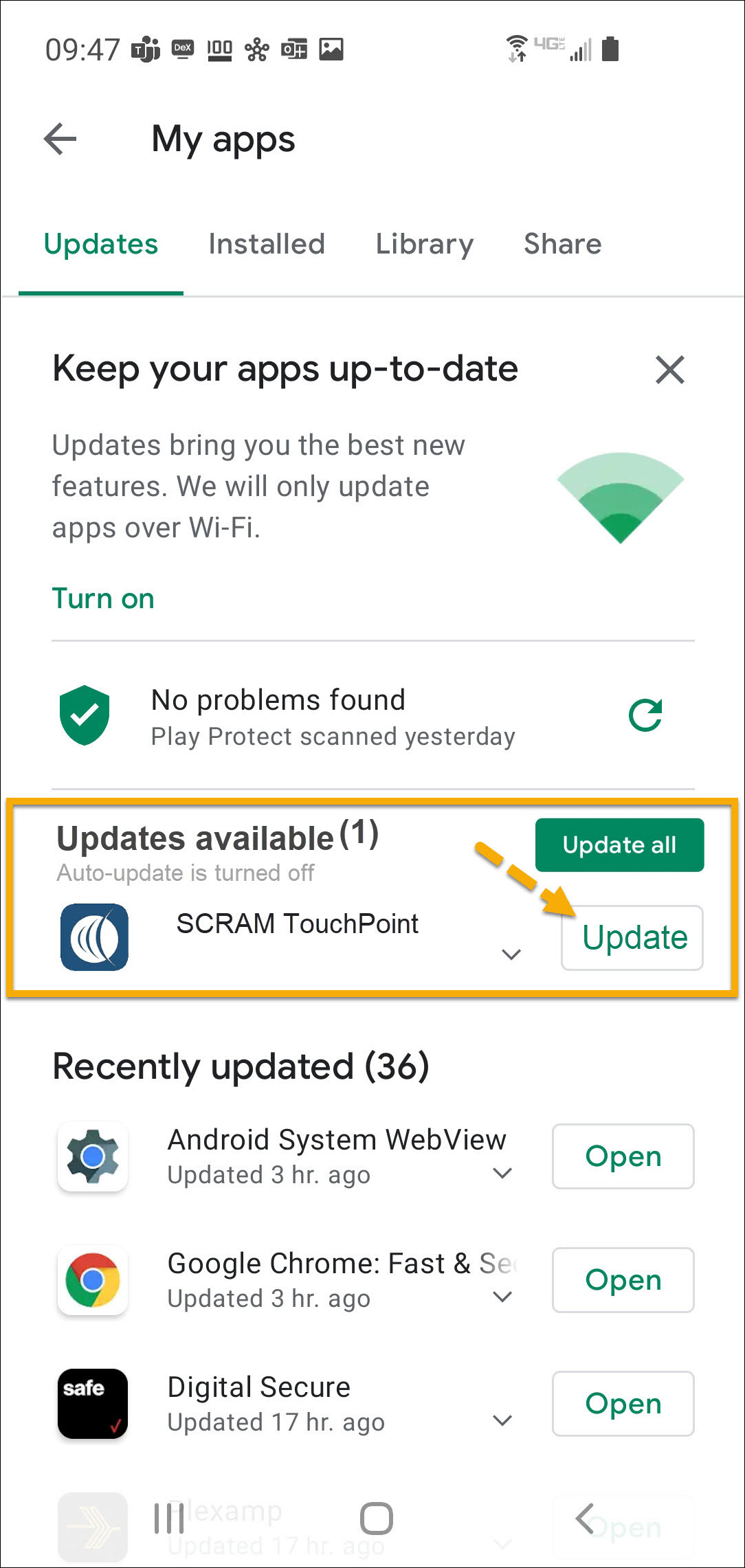
Under the Updates Available section, locate the
SCRAM TouchPoint app and tap the Update button.
As a best
practice, we recommend you encourage your clients to enable automatic app
updates – this ensures they are always using the latest version of the
TouchPoint app.
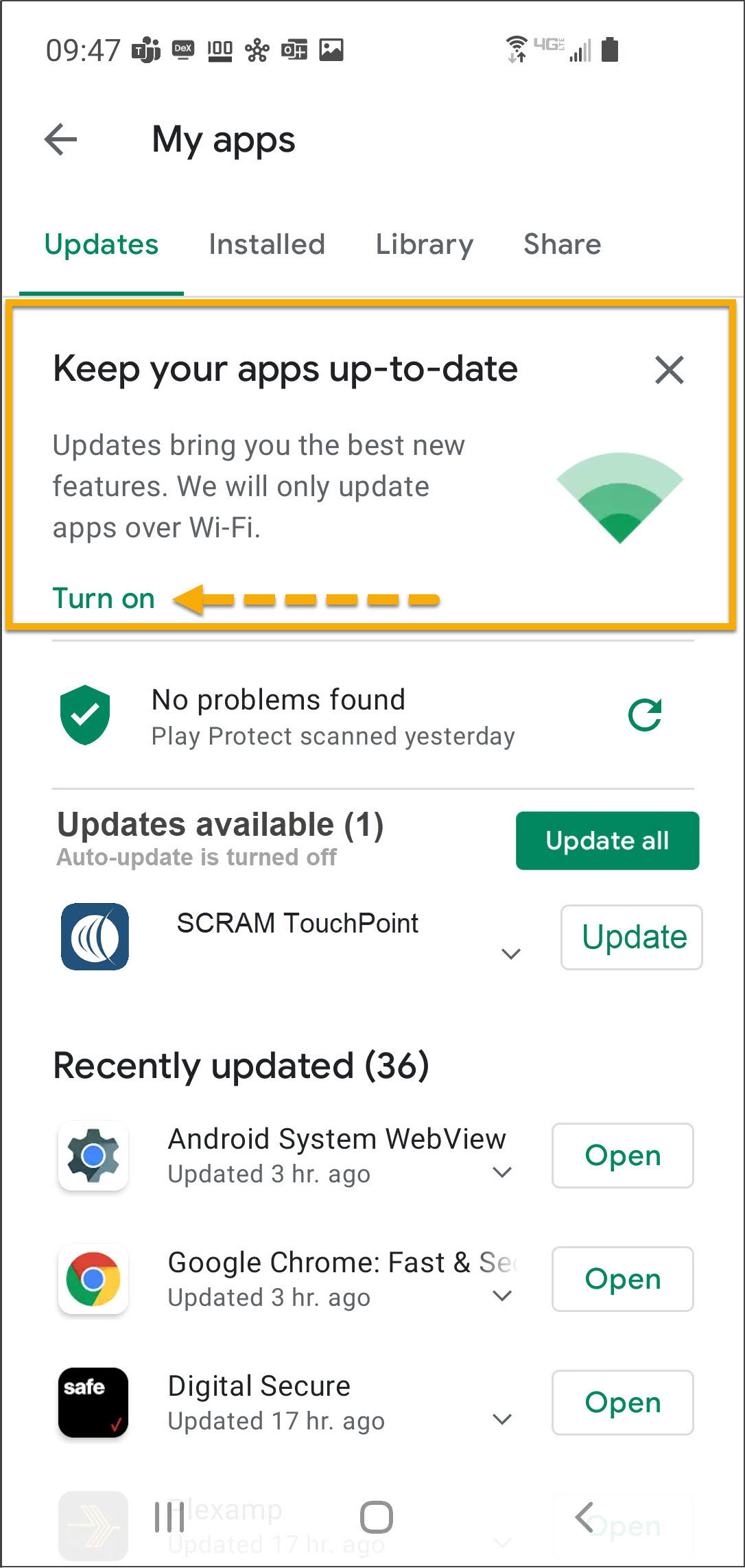
On the My apps screen, tap the Turn on button to enable automatic app updates.
Tap the ‘Play Store’ App Icon
Select the “Hamburger” Menu
Select ‘My apps & games’
Locate the SCRAM TouchPoint App in the List and Select ‘Update’
Tap ‘Turn On’ to Automatically Keep Apps Up-to-Date Over Wi-Fi
On October 28, 2024, SCRAM Systems released two enhancements for your SCRAM TouchPoint caseloads. These enhancements include:
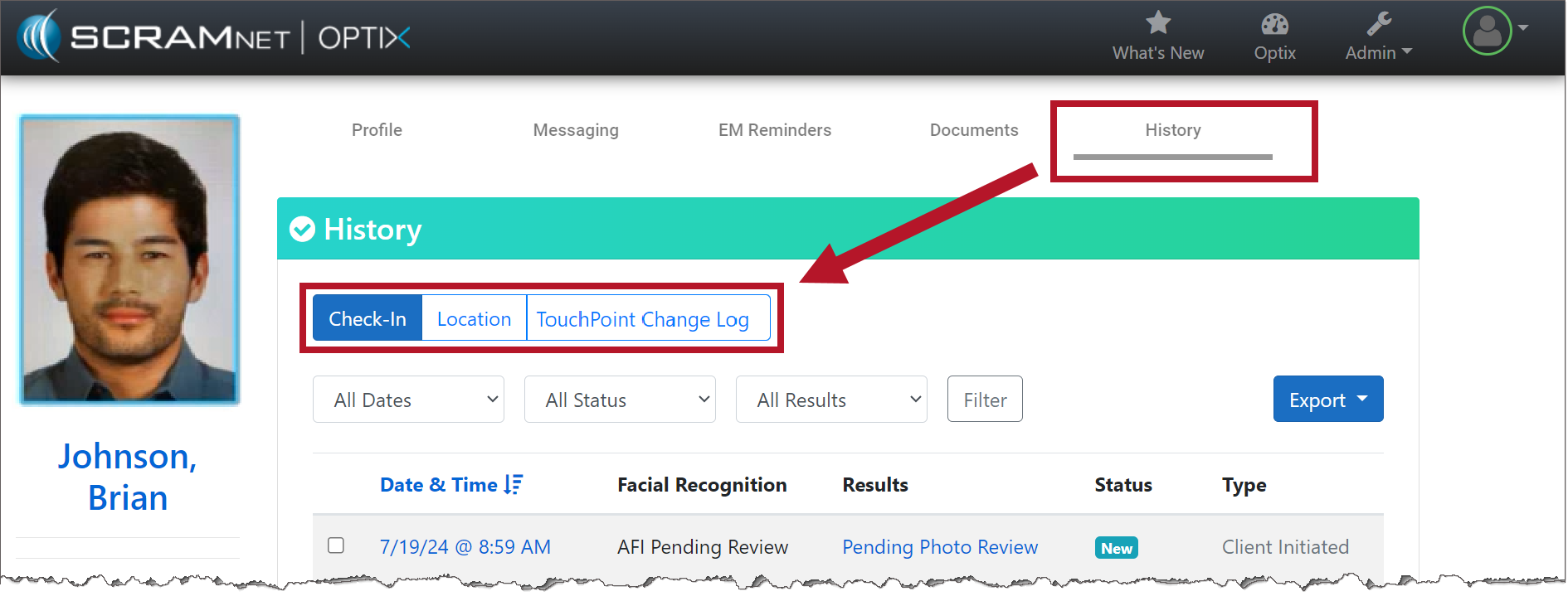
Your client’s Check-In and Location details are now consolidated under a “History” tab.
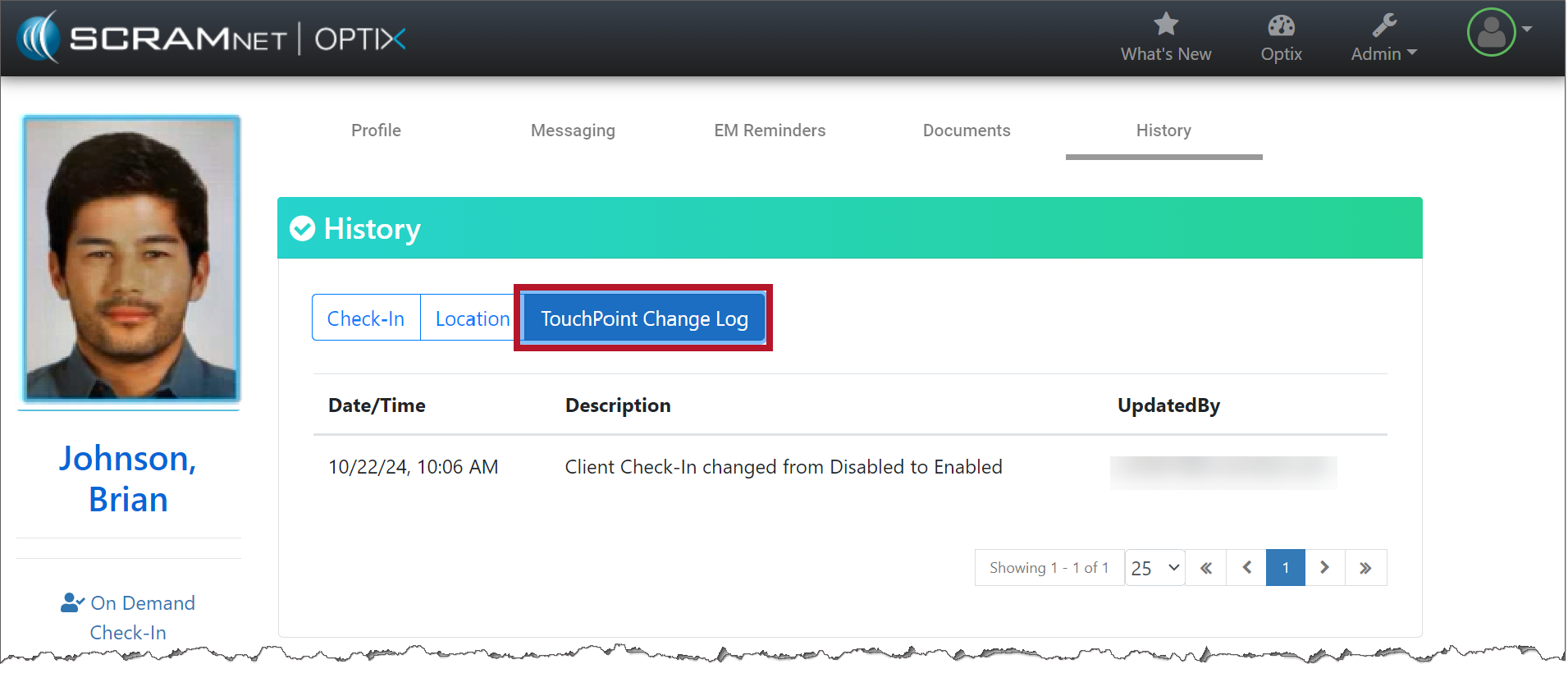
A new “TouchPoint Change Log” record is available on the History tab detailing all updates made on the client’s Profile page.
To Access the History Tab for the Client:
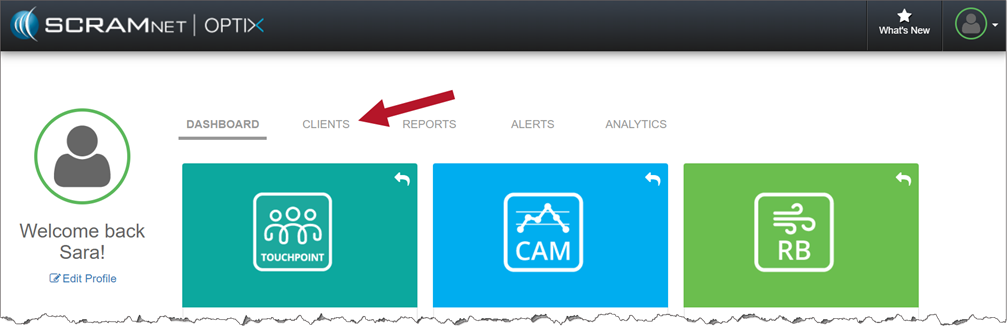
On the Optix Dashboard, select the Clients tab.
The Clients Tab on the Optix Dashboard (click to enlarge)
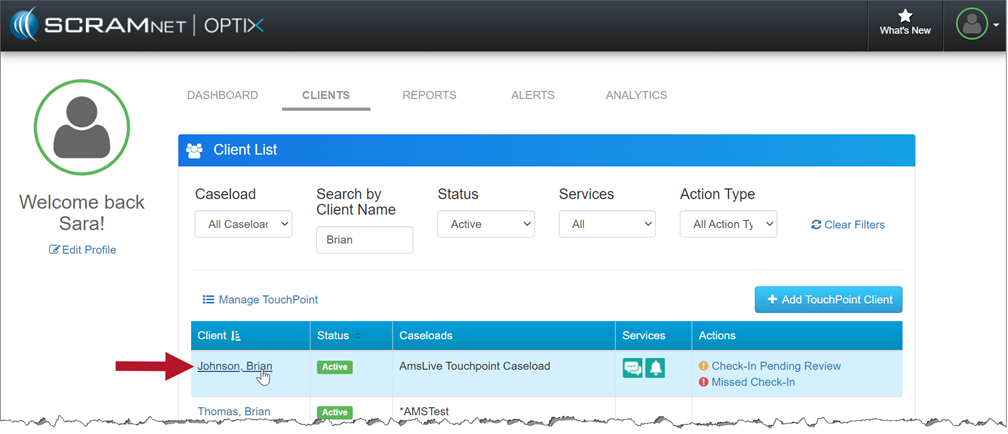
2. Once you’ve found your client, select their name hyperlink.
Select Your Client from the Client List (click to enlarge)
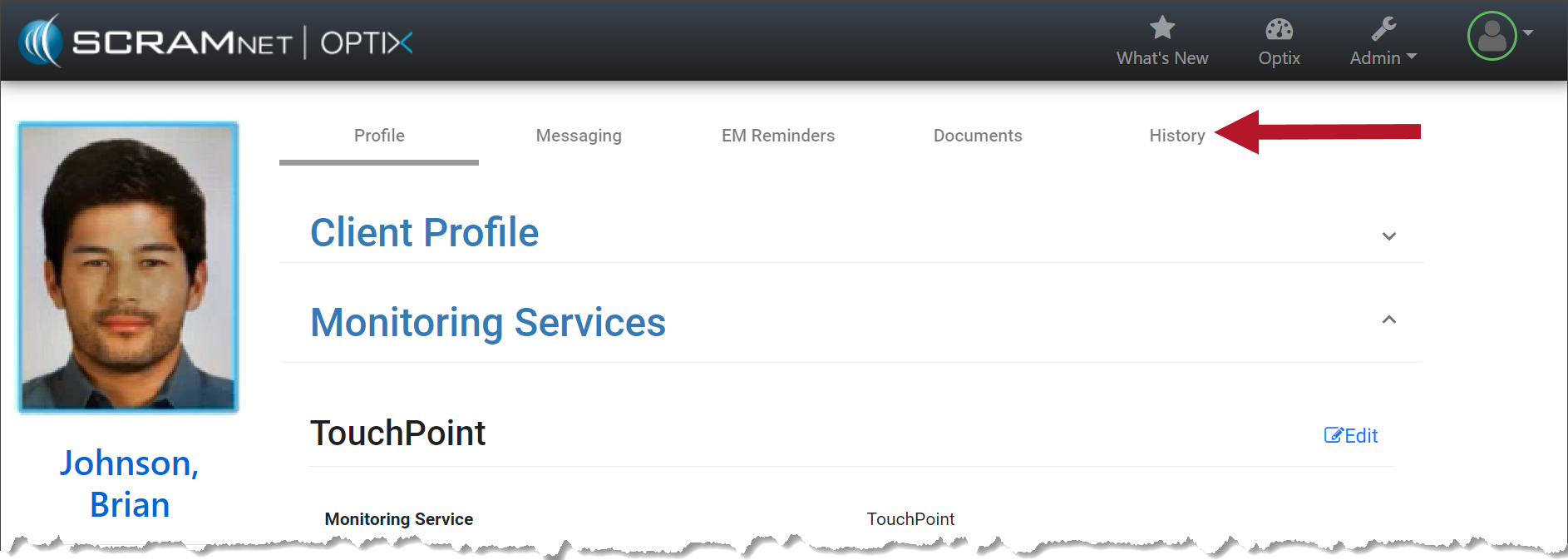
3. On the client’s Profile page, select the History tab.
The New History Tab will Appear on the Client’s Page (click to enlarge)
4. On the History page, select the Check-In, Location, and TouchPoint Change Log buttons to view the details.
History tab with Check-In, Location, and TouchPoint Change Log information (click to enlarge)
Check-In
With the Check-In button selected, you will still see the date & time, the results of the Facial Recognition feature, status, and type. No changes have been made to this feature.
Location
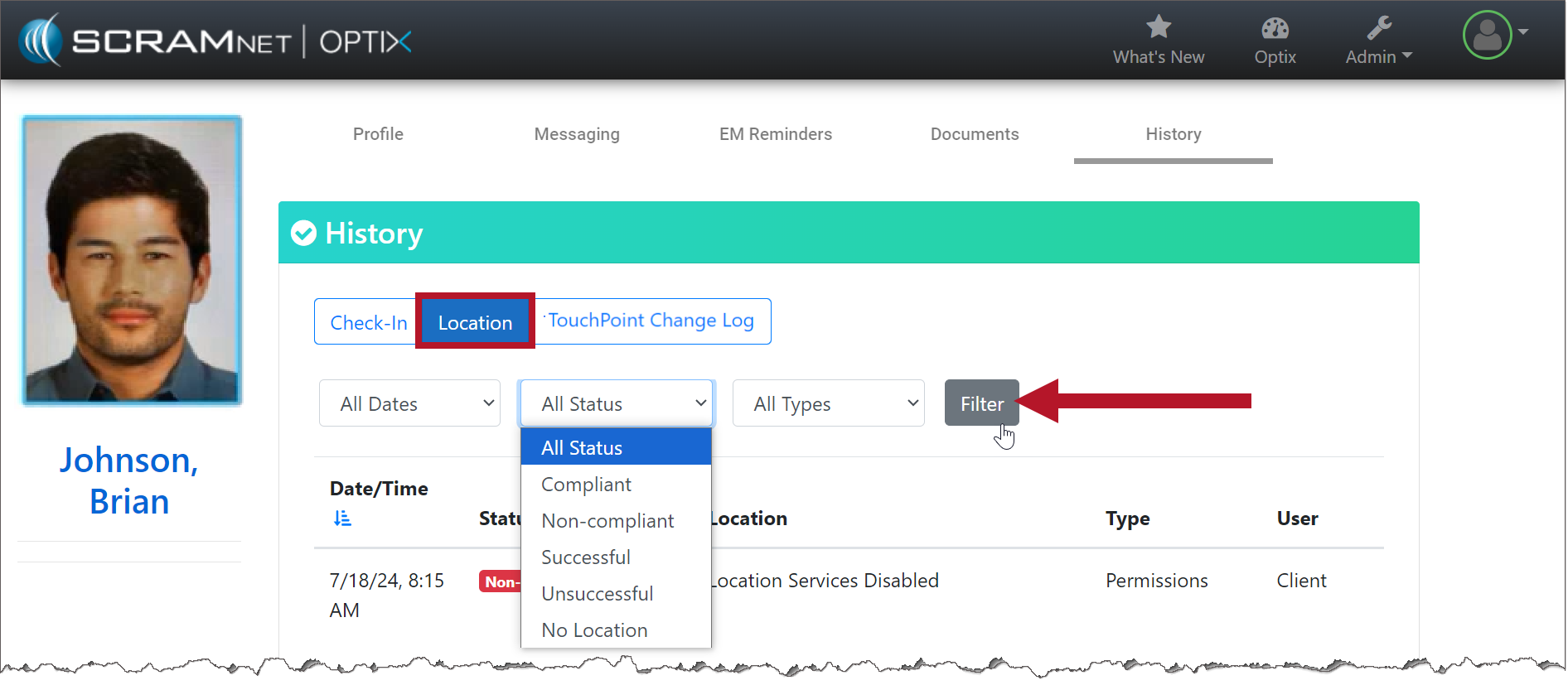
With the Location button selected, you may use the filters to customize what is displayed on the page.
Filter your Location Results (click to enlarge)
TouchPoint Change Logs
With the TouchPoint Change Log selected, you may view a record of the changes made on the client’s Profile page, including the user’s information that made the change.
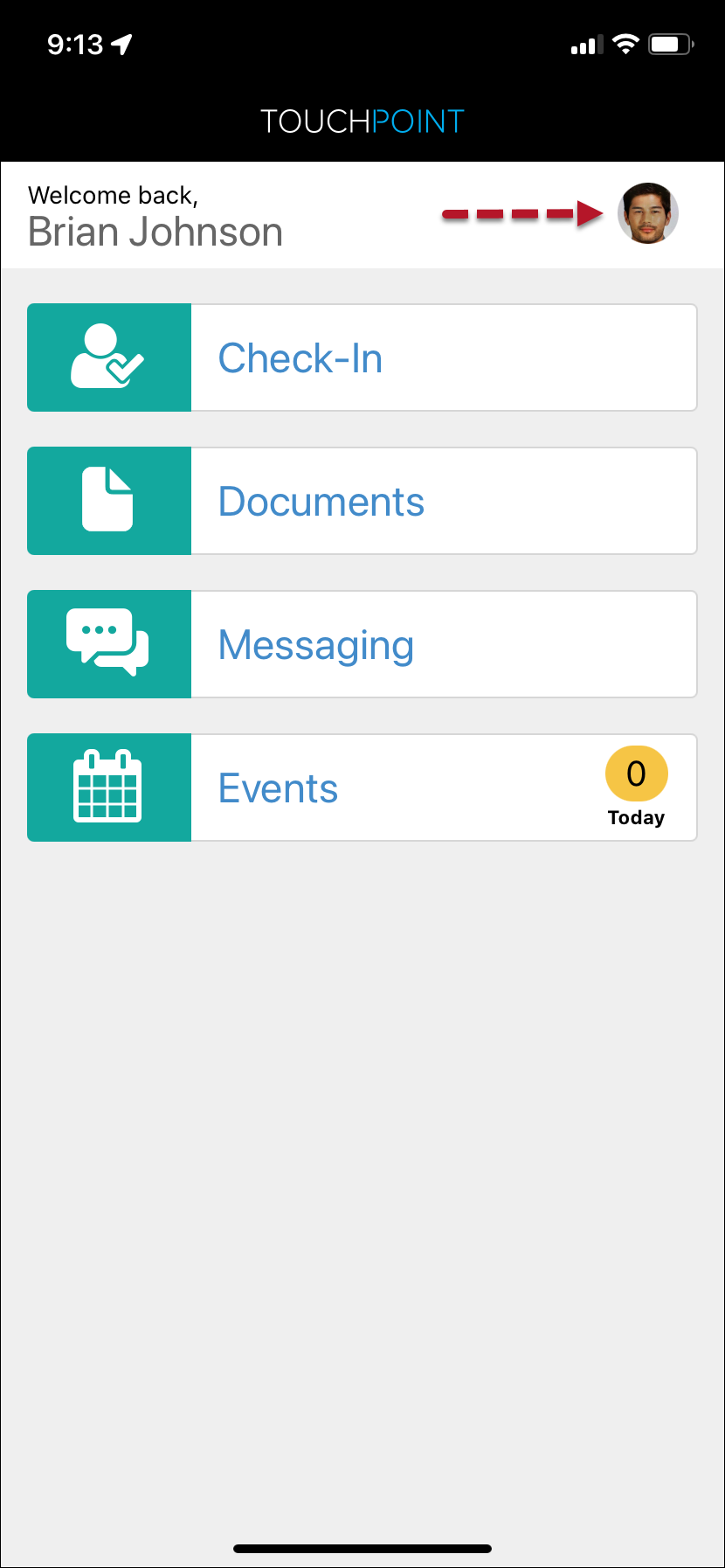
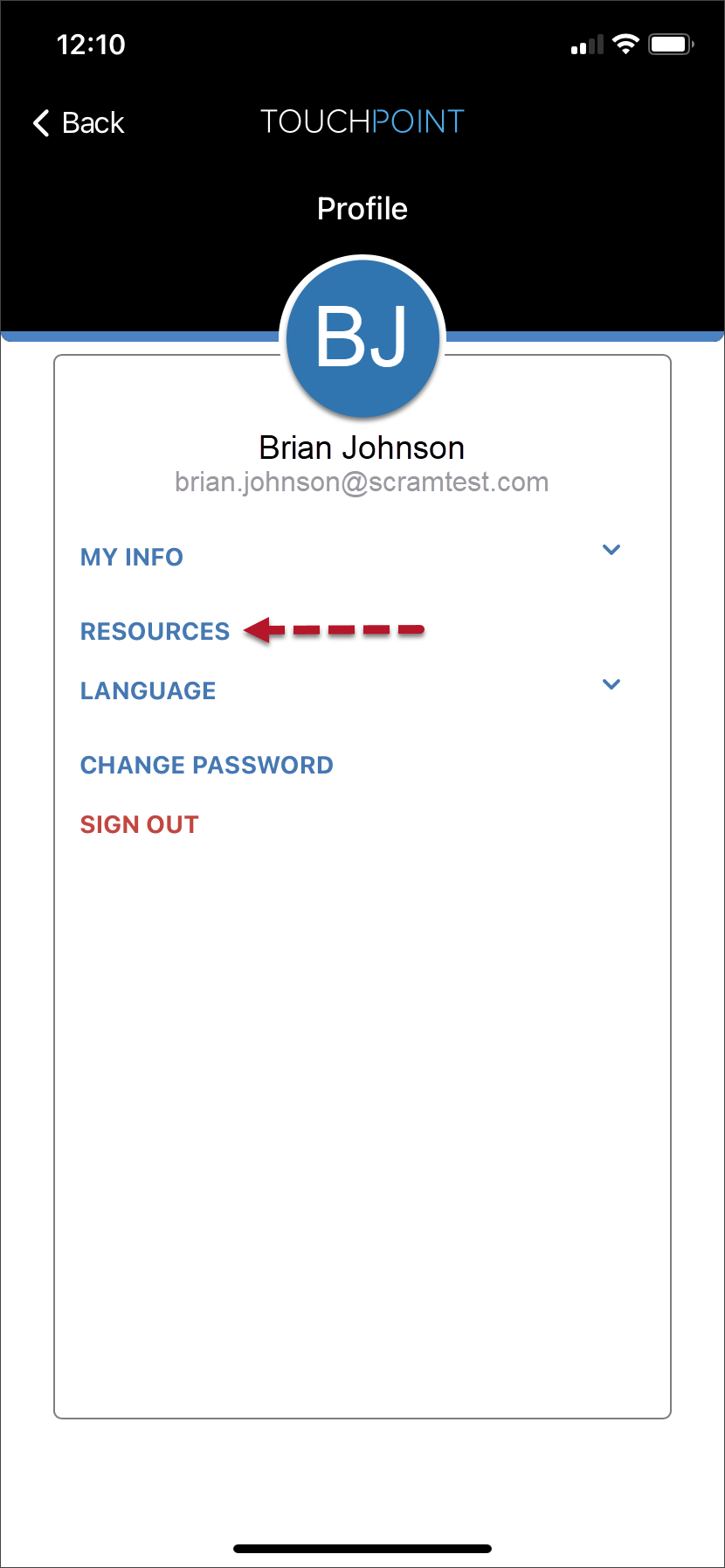
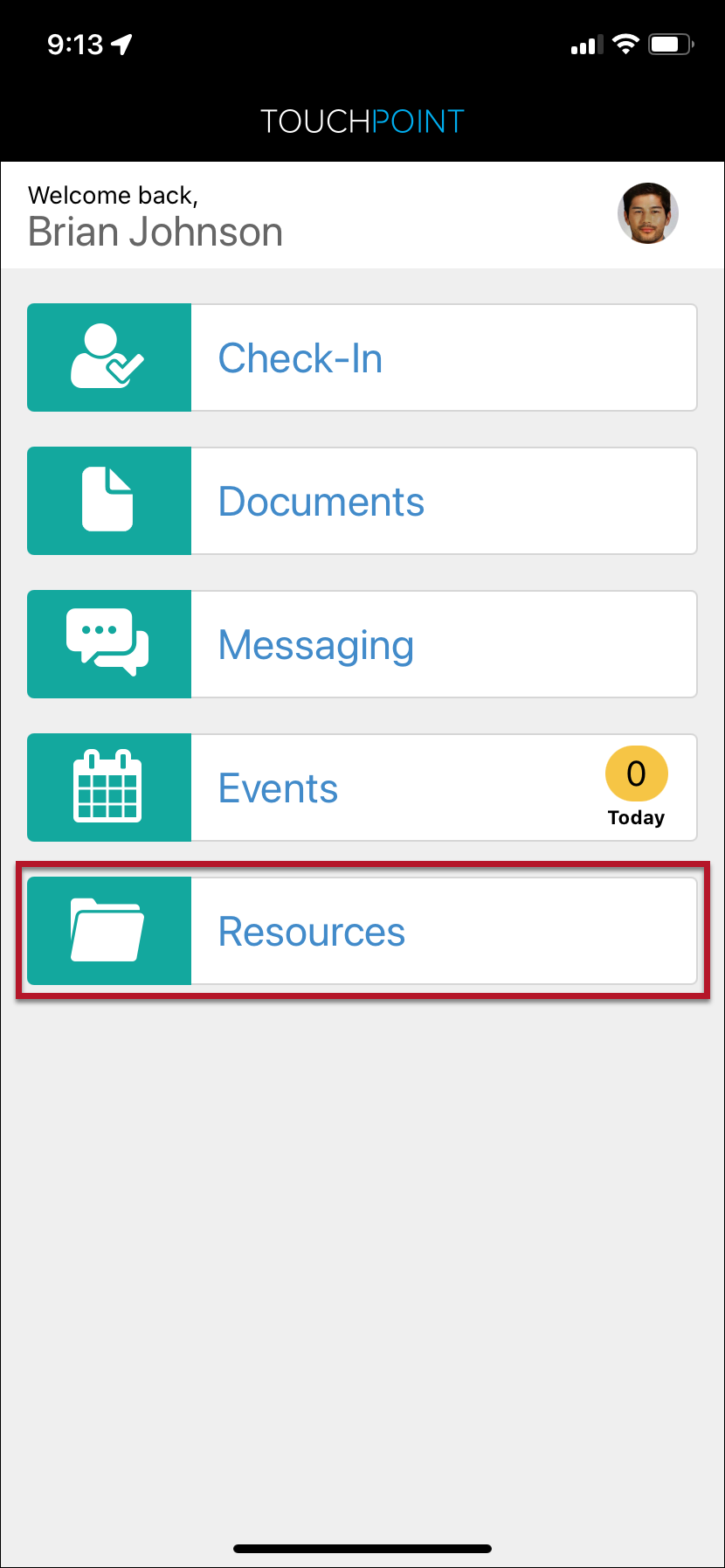
On September 26, 2024, SCRAM Systems will release an update to the client’s TouchPoint mobile application. This update relocates the Resources hyperlink from the application’s Profile screen to a Resources Tile on the Home screen for easy access.
The latest version of the TouchPoint app will be available to clients in the app stores. As a best practice, SCRAM Systems recommends that all TouchPoint app users enable their smartphones to automatically update their apps to make this process easier.
Current Resources Hyperlink Location
SCRAM TouchPoint Mobile Application Home Screen – click to enlargeSCRAM TouchPoint Mobile Application Profile Screen – click to enlarge
Post-Release App Resources Tile
SCRAM TouchPoint Mobile Application Home Screen – click to enlarge
Visit the TouchPoint Client Resources Help article to learn more about using the Client Resources section to provide your clients with documents and other online resources within their TouchPoint app.
On August 22, 2024, SCRAM Systems will release an automated electronic “Officer Notification” enhancement for your SCRAM TouchPoint caseloads. Currently, to view any activity the client completes – a Check-In pending review, unread messages from the client, electronic signatures recorded, or a new document that has been received from the client – you must navigate to the Optix Clients page and view the Actions column, or navigate to the client’s TouchPoint Profile page.
With this enhancement, you may set up email and text notifications to alert you when the client completes a specific action on their TouchPoint mobile app. These actions include:
Check-In Pending Review
Electronic Signature Completed
Location Services Disabled
Location Verification Pending Review
New Document
New Message
If you don’t see the enhancement in SCRAM Optix, please clear your cache and cookies and refresh your browser window
Caseload Setup
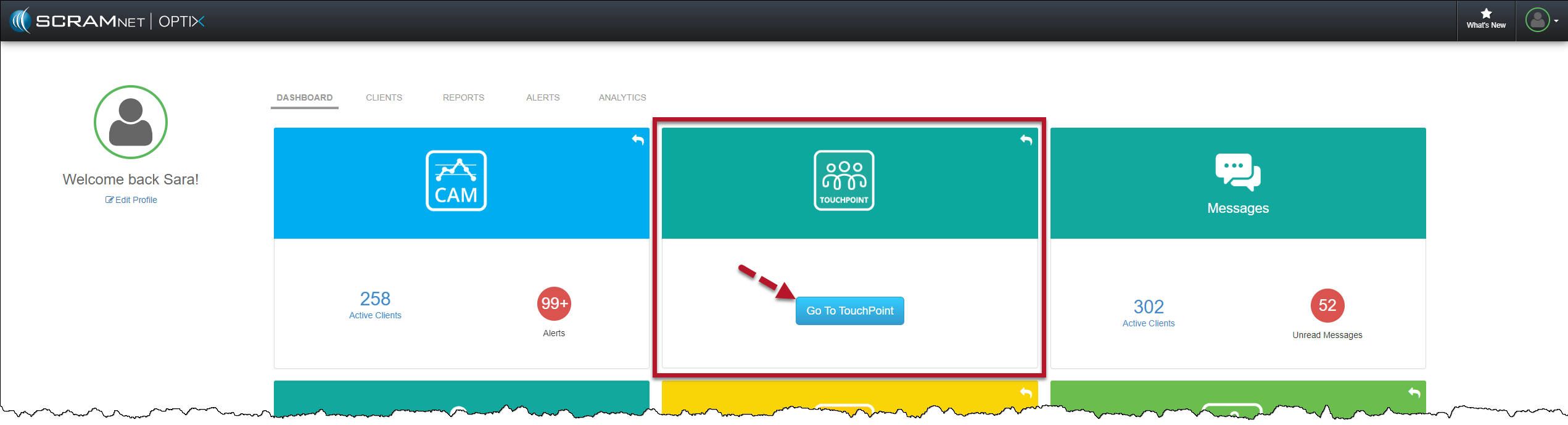
On the Optix Dashboard, locate the TouchPoint tile and select the Go To TouchPoint button.
Optix Dashboard TouchPoint Tile – click to enlarge
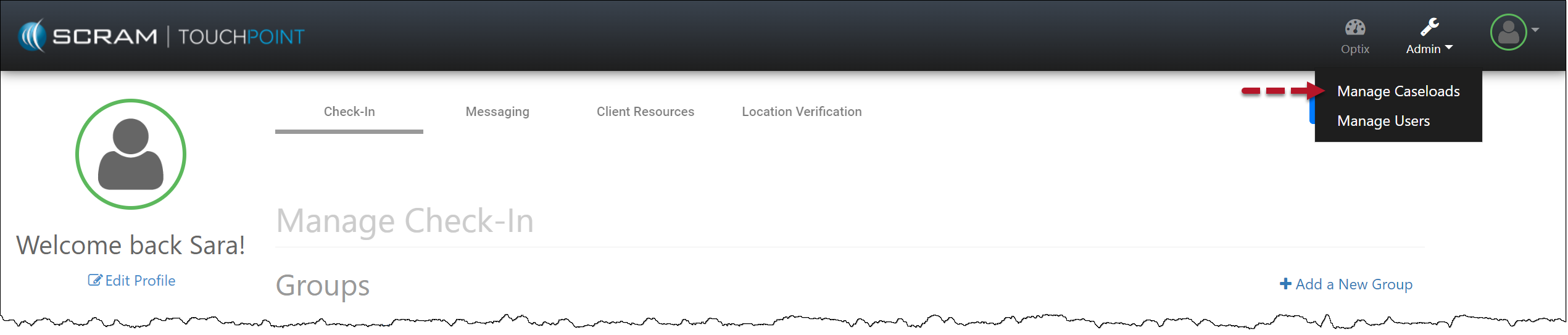
Select the Admin button and then the Manage Caseloads option from the dropdown menu.
Admin Manage Caseload Dropdown Menu – click to enlarge
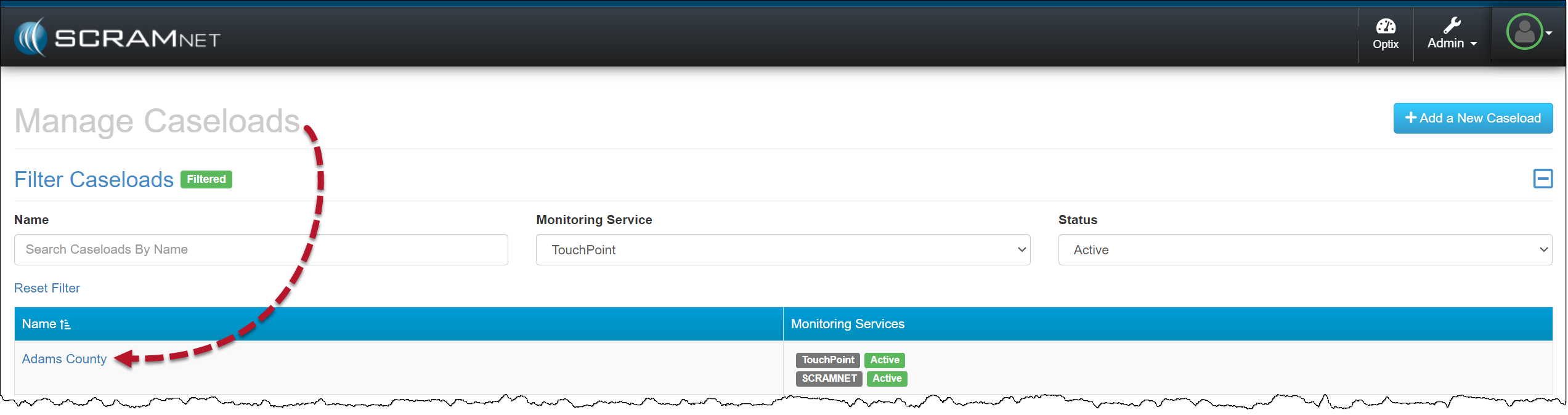
Select the TouchPoint Caseload for which you wish to enable Officer Notifications.
Manage Caseloads Page – click to enlarge
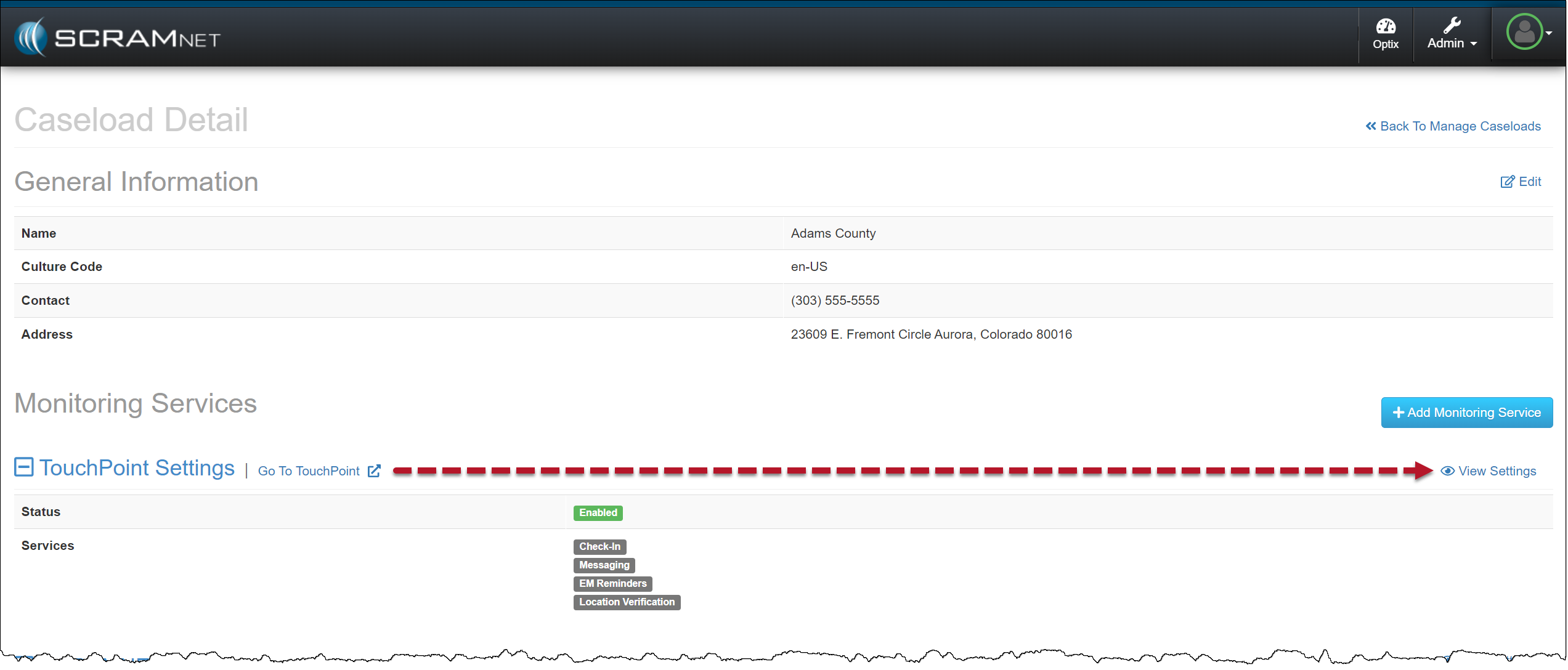
On the Caseload Detail page, locate the “TouchPoint Settings” under the Monitoring Services section and select the View Settings hyperlink.
TouchPoint Caseload Detail Page – click to enlarge
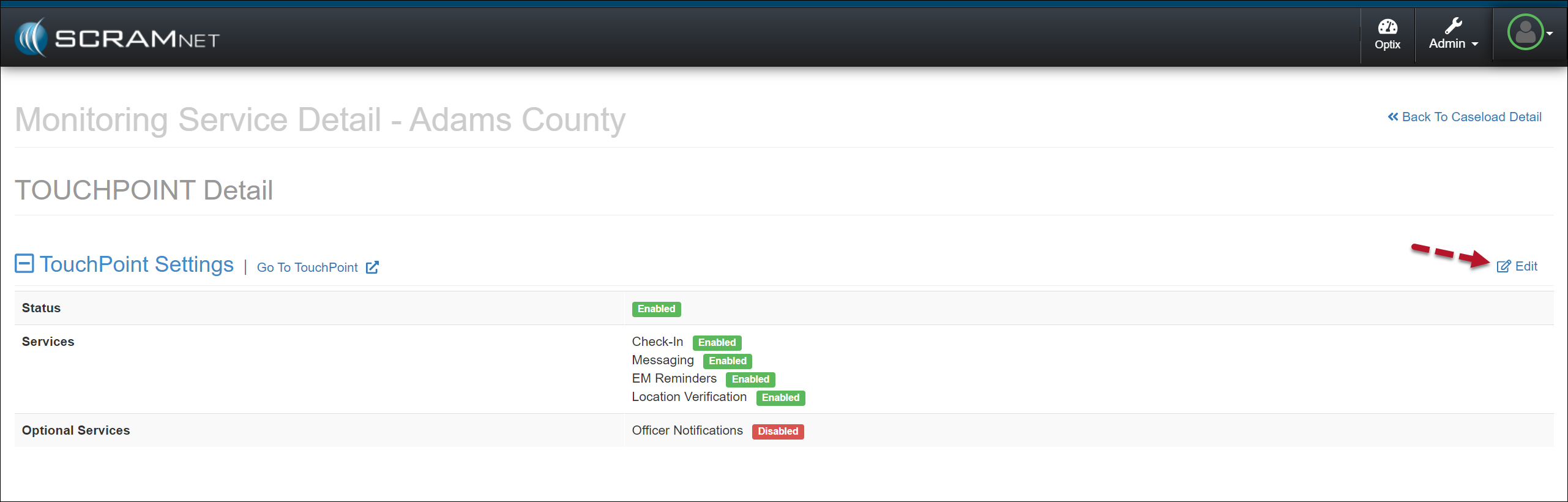
To enable the “Officer Notifications” in the Optional Services section, select the Edit hyperlink.
Edit TouchPoint Caseload – click to enlarge
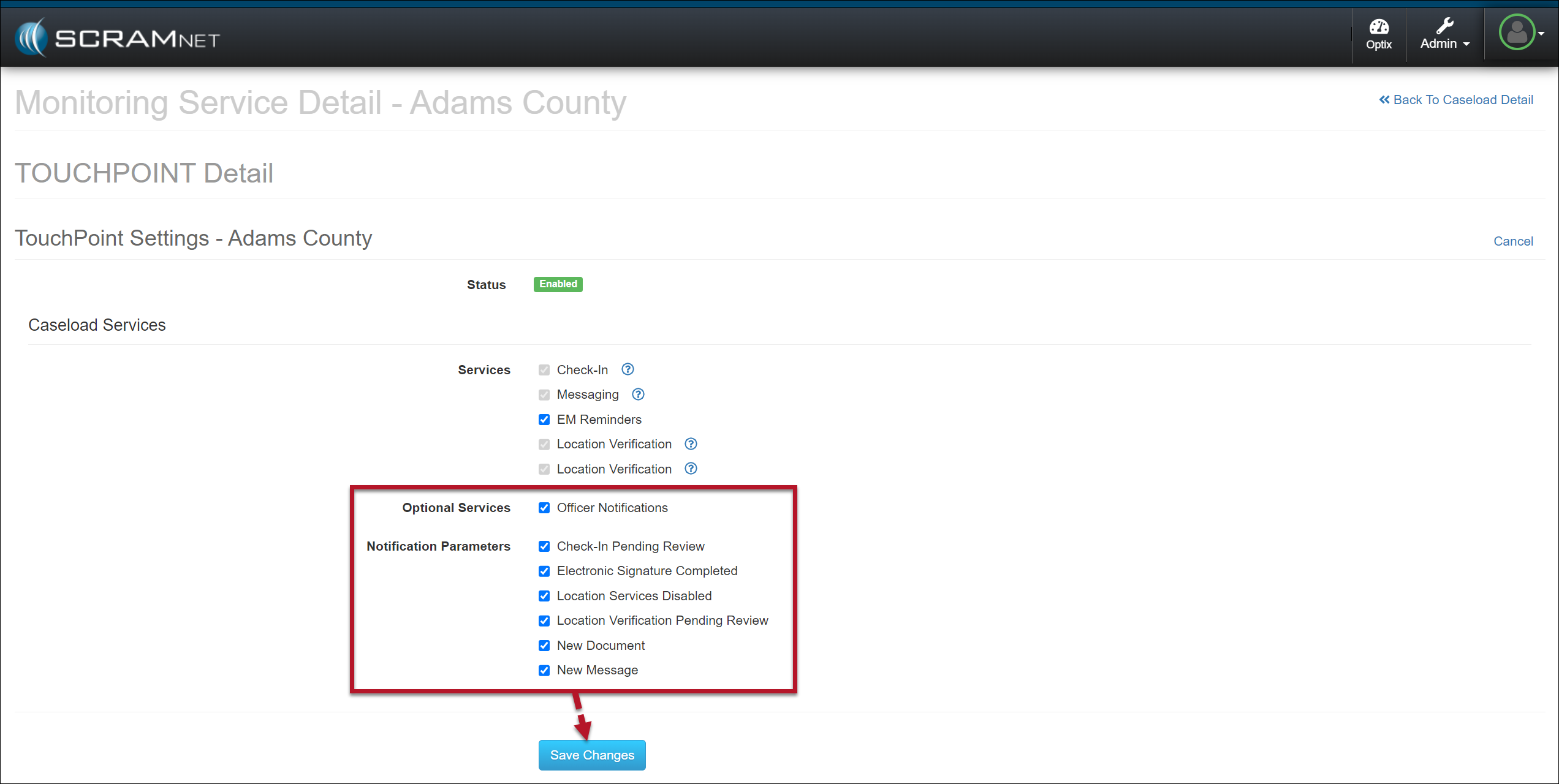
Select the checkbox next to Officer Notifications.
Select the events for which you want automated notification for the entire caseload.
Save the selections by selecting the Save Changes button.
Select Officer Notifications Options – click to enlarge
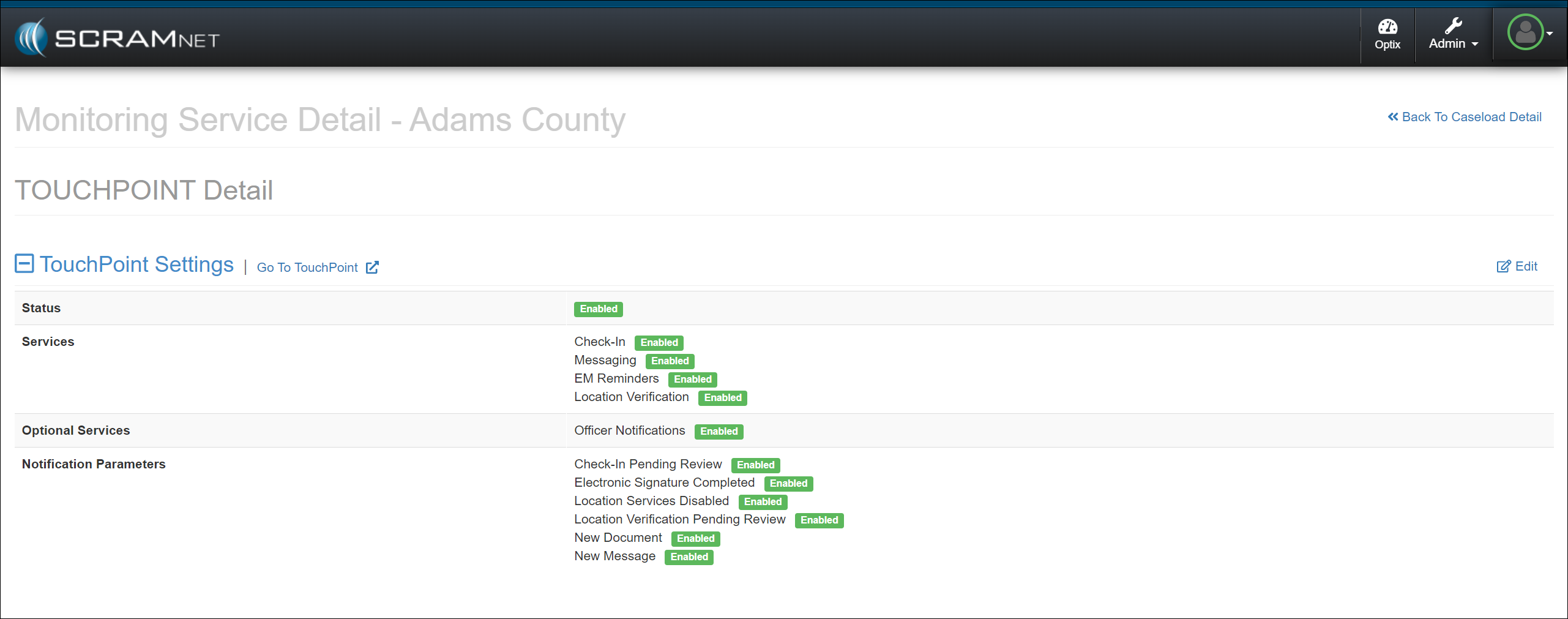
Officer Notifications are now enabled for your TouchPoint Caseload.
Caseload Officer Notifications Enabled – click to enlarge
Enable User Notifications
Once enabled at the Caseload level, users may then switch on notifications by adding their preferred notification methods and schedules.
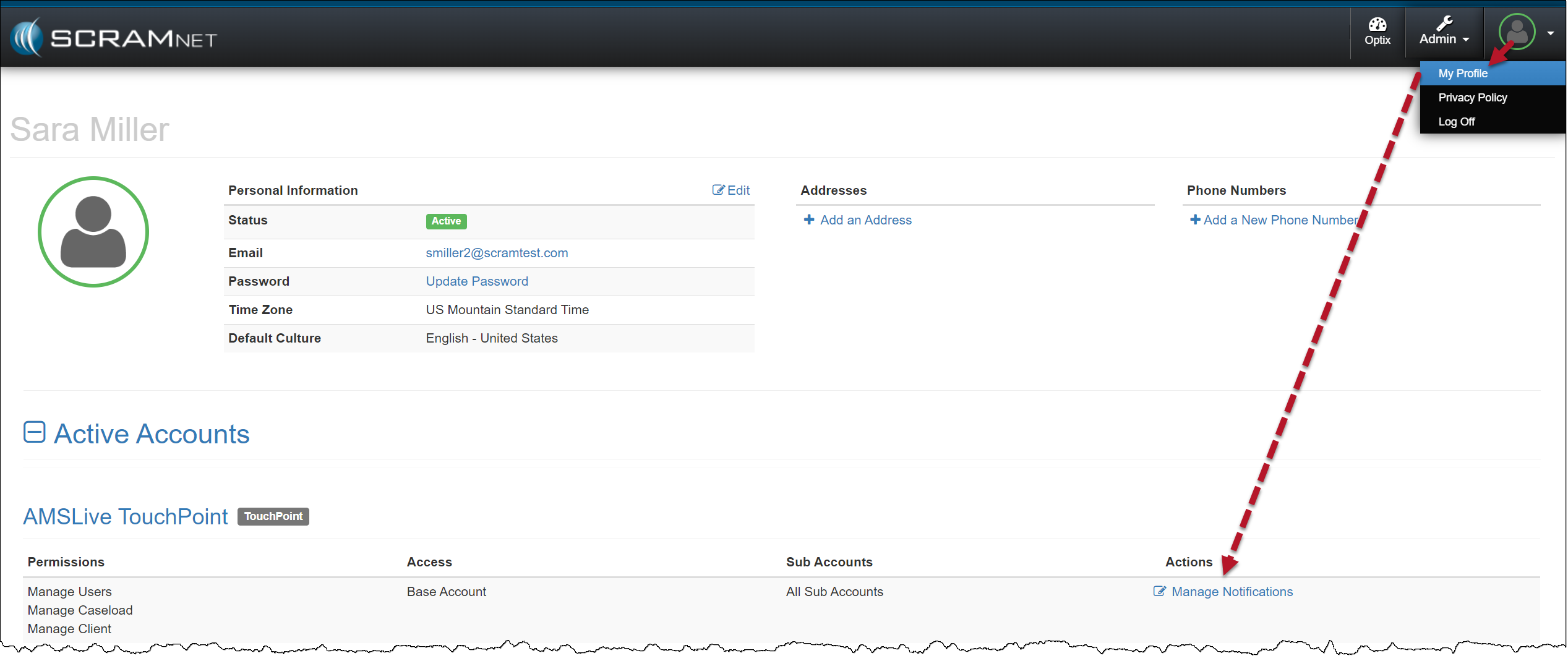
Navigate to the My Profile page.
Locate and select the Manage Notifications hyperlink for the TouchPoint Caseload.
User Profile page TouchPoint Caseload Manage Notifications – click to enlarge
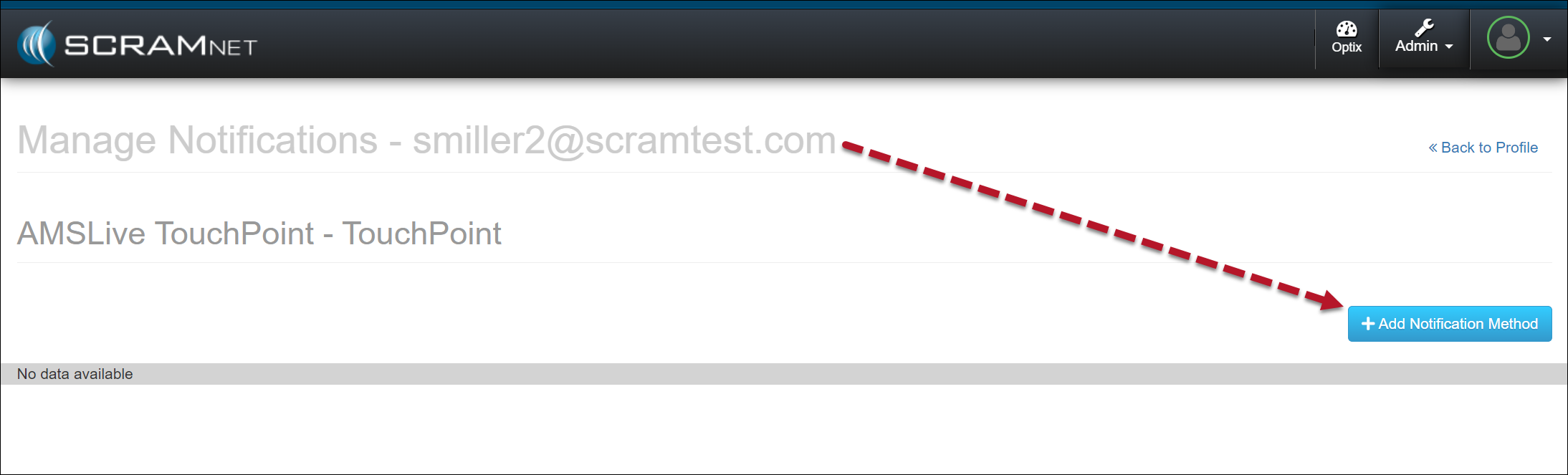
Select the +Add Notification Method button.
+Add Notification Method – click to enlarge
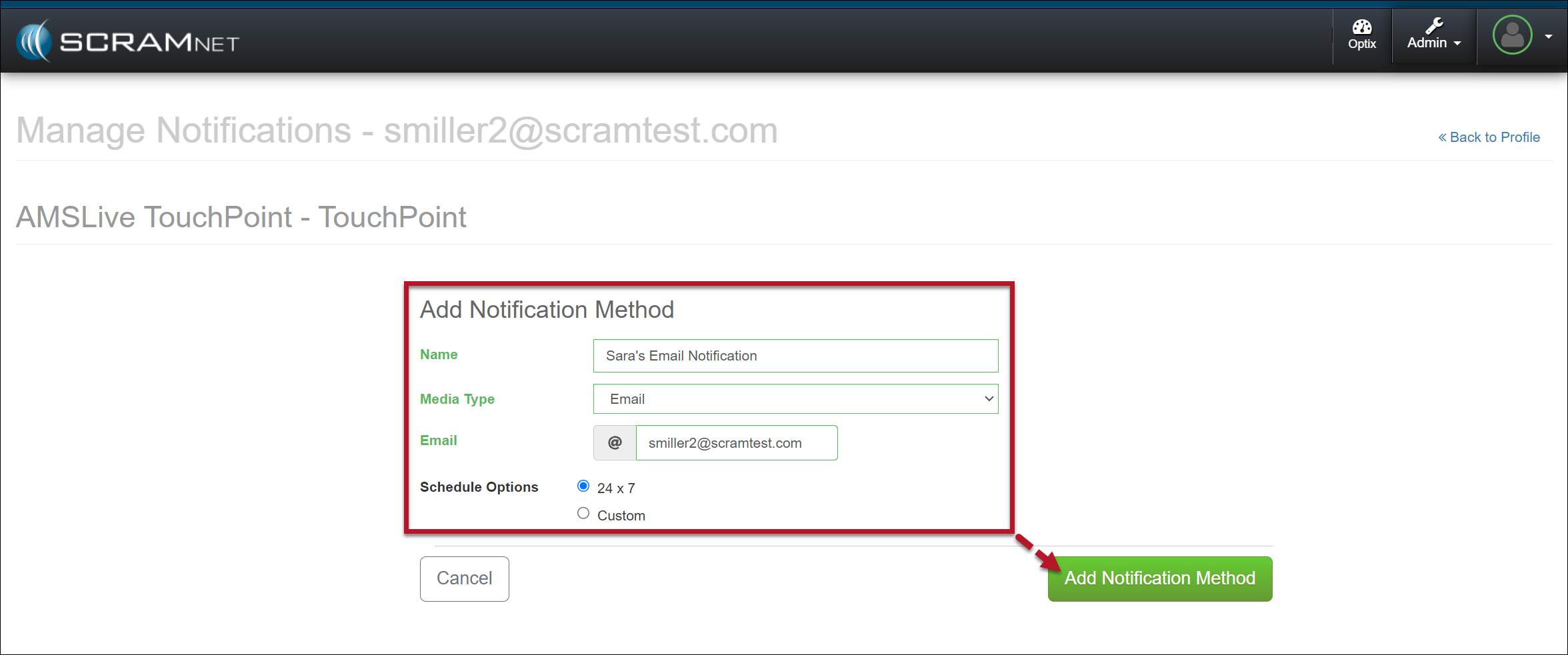
Enter the details for the notification method. In the Schedule Options section, select the Custom option to customize the timeframe for which you wish to receive electronic notification or leave it at the default of 24×7.
Select the Add Notification Method button to save the notification method.
Notification Details – click to enlarge
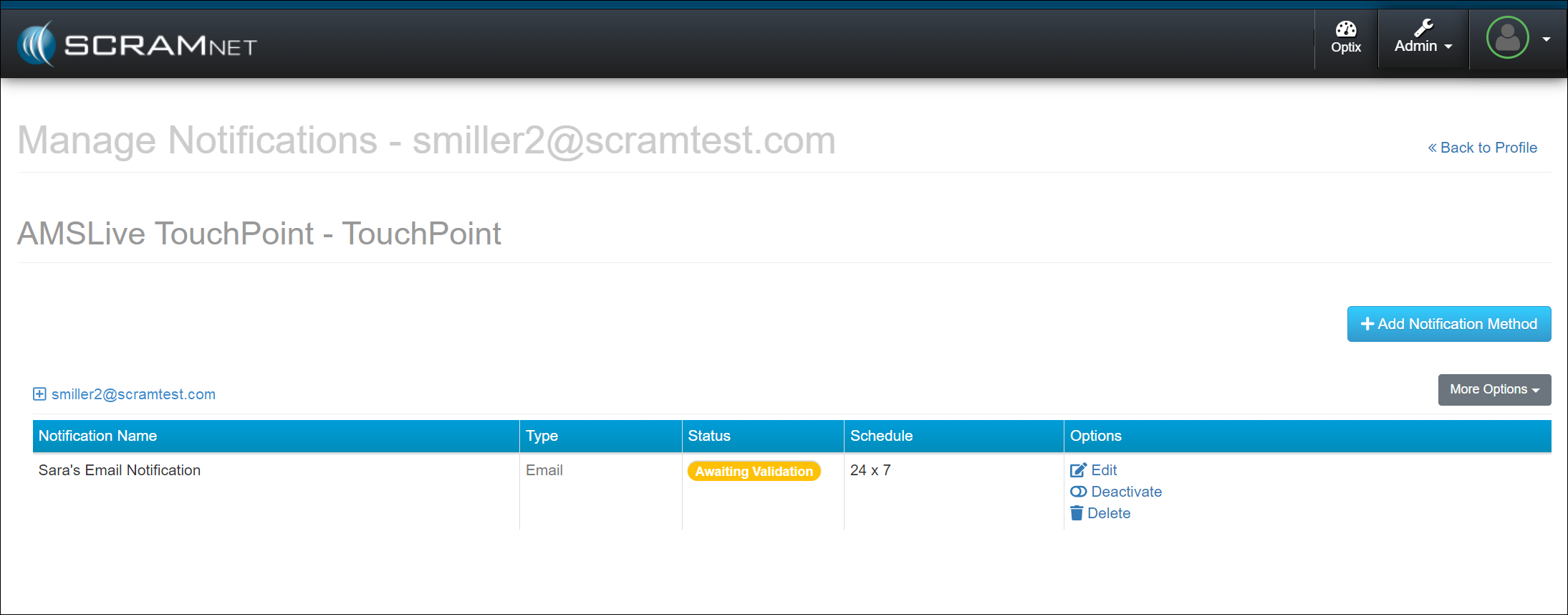
Once saved, the user’s Manage Notifications page will display the notification method as “Awaiting Validation,” and a validation email or text message will be sent using the notification method entered.
Awaiting Validation Officer Notification Method – click to enlarge
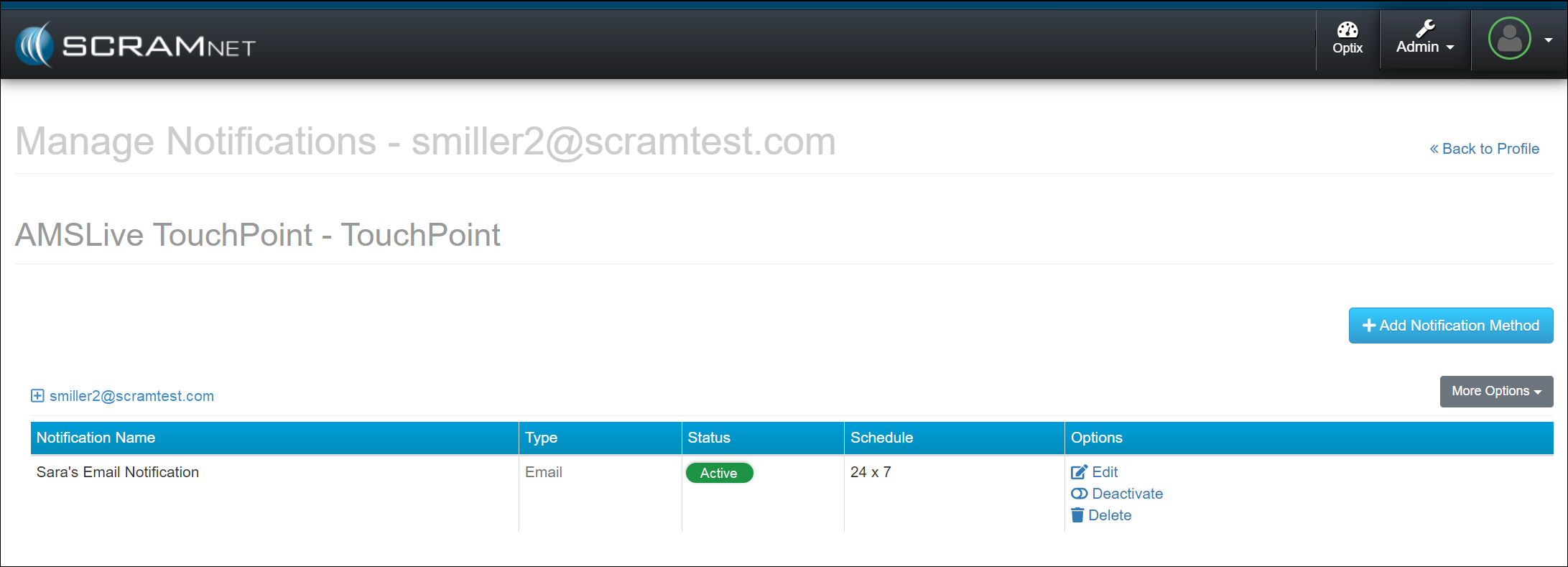
Once received, follow the email or text instructions to validate the delivery method. Refresh the Manage Notifications page, and the notification status will update to “Active.”
Active Officer Notification Method – click to enlarge
In the Options column, use the hyperlinks to edit, deactivate, or delete the notification method. Additionally, you may select the “More Options” button and edit the notification method or send a test email or text message.
SCRAM Systems has moved from its Mineral Avenue address in Littleton, Colorado. When conducting business with us, be sure to use the appropriate address:
RMA Address
When a Return Merchandise Authorization (RMA) is issued for one of your SCRAM Systems devices, please ensure that the return shipping address on the label reads:
SCRAM Systems (AMS) 8100 Southpark Way Littleton, CO 80120
If your return shipping labels have the old, now-obsolete Mineral Avenue address on them, please discard them and request new labels from your SCRAM Systems Account Manager or Regional Sales Manager.
Payments Address
When making a bill payment to SCRAM Systems for monitoring services, equipment purchases and rentals, or any other reason, please remit payment to the SCRAM Systems bank lockbox:
Alcohol Monitoring Systems, Inc. PO Box 561097 Denver, CO 80256-1097
Do not remit payments to the now-obsolete Mineral Avenue address or to the Southpark Way address.
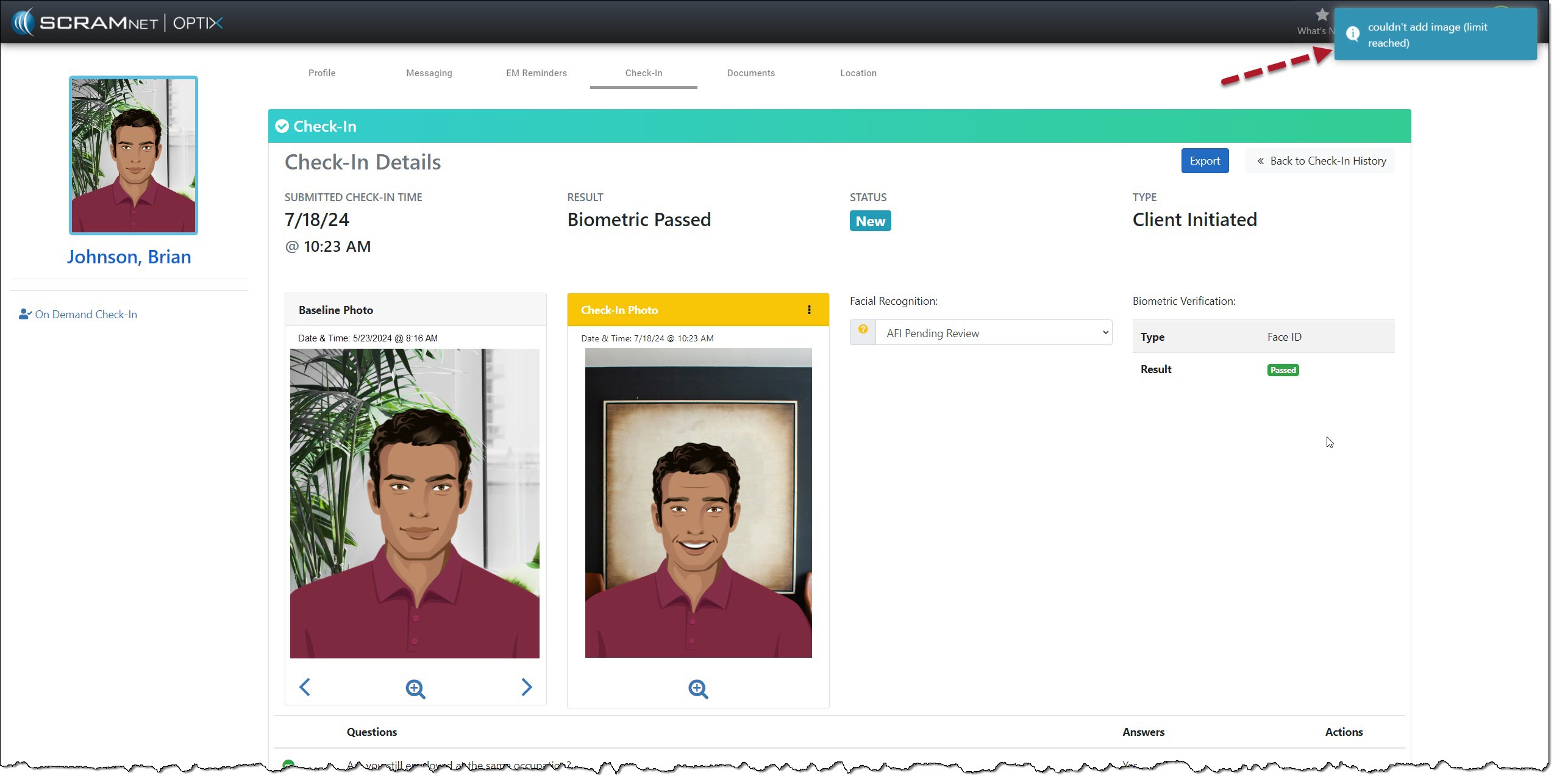
On July 31, 2024, SCRAM Systems will release an enhancement for your Client Check-In Caseload. Before this release, you would compare the client’s baseline image to their check-in photo for verification. With this release, you may now create a check-in photo gallery to reference while verifying the check-in photo taken by the client during a check-in.
If you don’t see the enhancement in SCRAM TouchPoint, please clear your cache and cookies and refresh your browser window.
Client Check-In Details
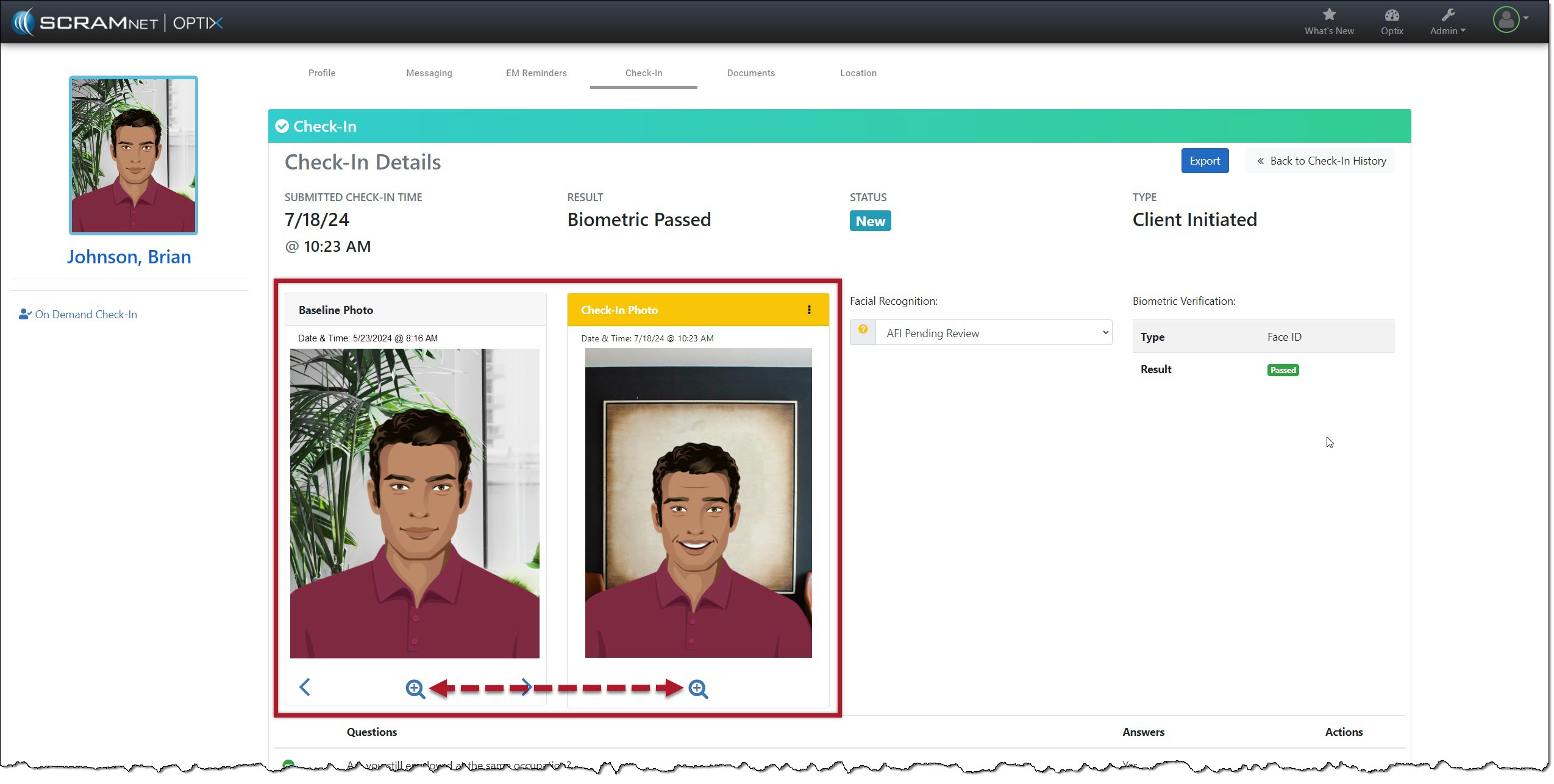
The client Check-In Details page’s Baseline and Check-In Photo section contains additional navigation and menu options.
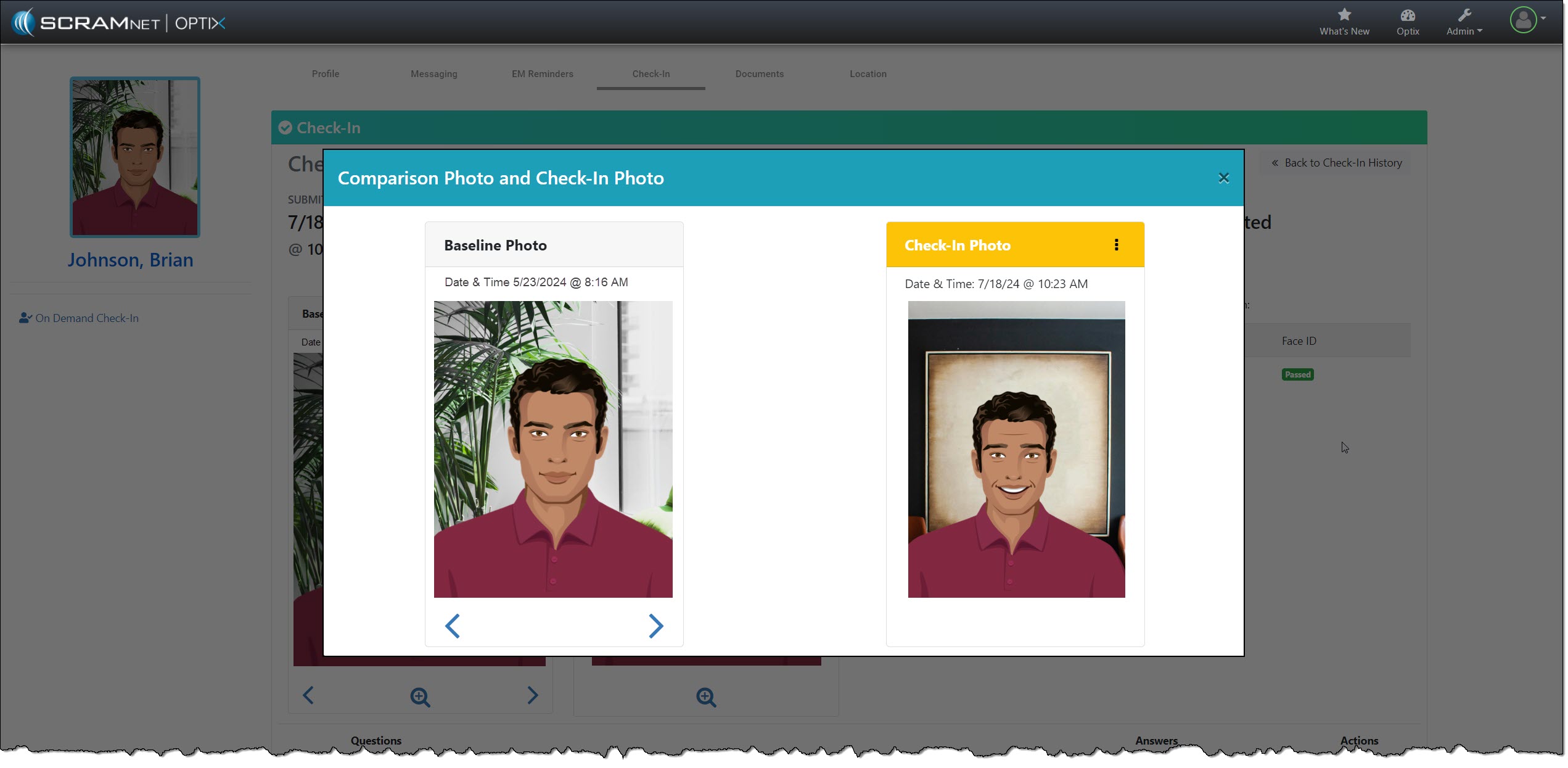
Starting with the “magnifying glass” icon: Selecting the icon opens a pop-up window, isolating and enlarging the two photos for your review.
Isolate and Enlarge Photos – click to enlargeComparison Photos with “More” (⋮) Option – click to enlarge
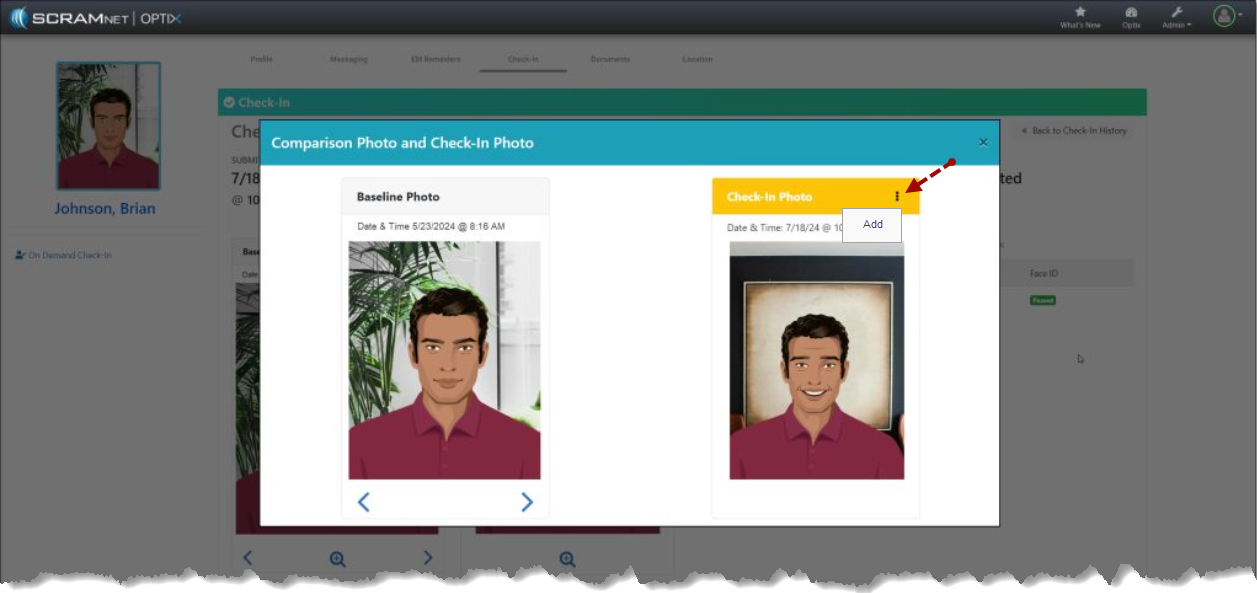
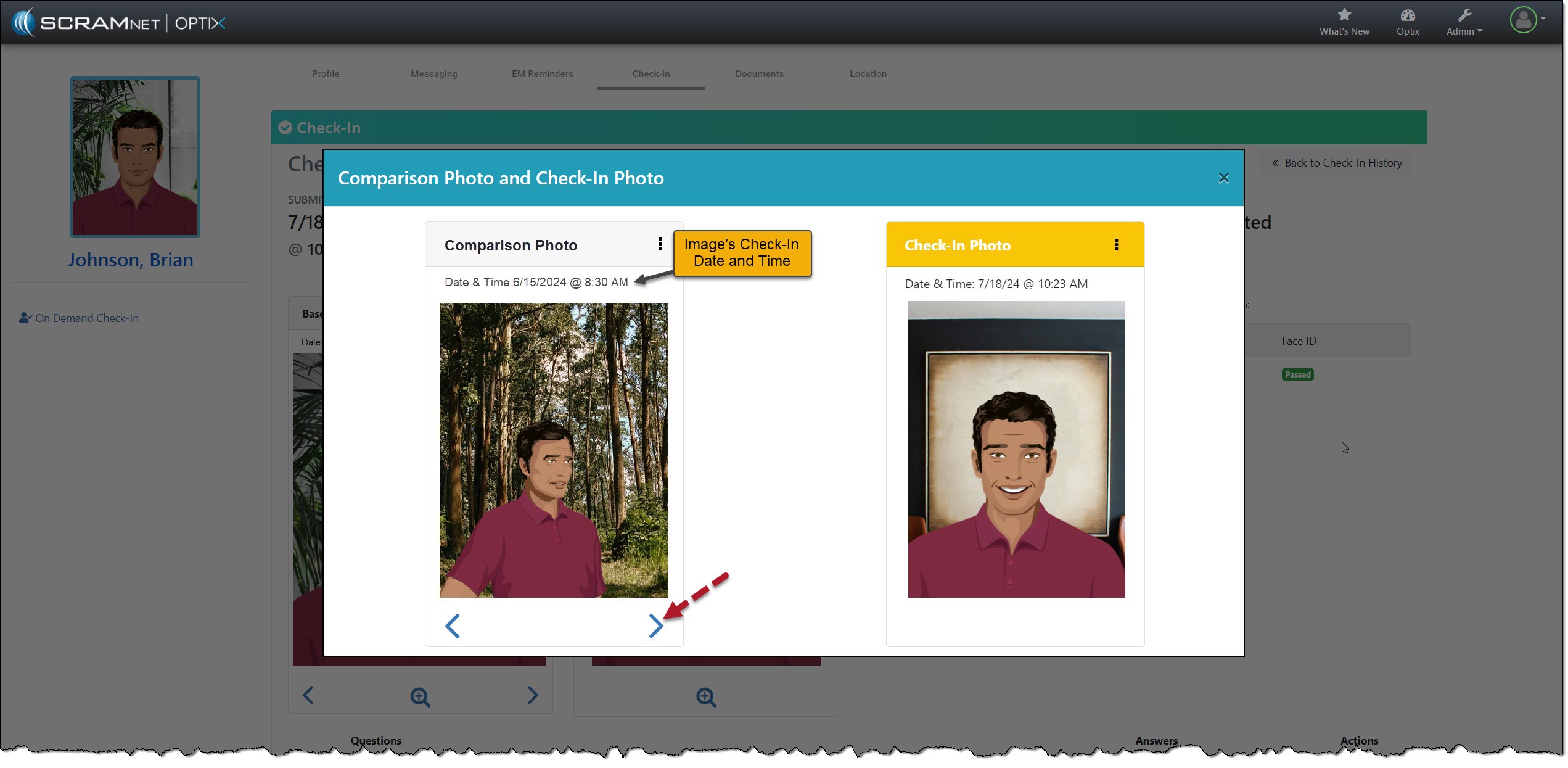
The Check-In Photo heading contains a “More” (⋮) option that allows you to Add the current check-in photo to an image gallery. Once added, you may use the arrows below the Baseline Photo to scroll through the gallery. The gallery of comparison photos will hold up to 10 images, including the Baseline Photo.
Add Current Check-In Photo to Image Gallery – click to enlarge
As you scroll through the images, the check-in photos added to the gallery will have a heading labeled “Comparison Photo,” along with their check-in date and time information.
Check-In Details with Pop-up Date & Time – click to enlarge
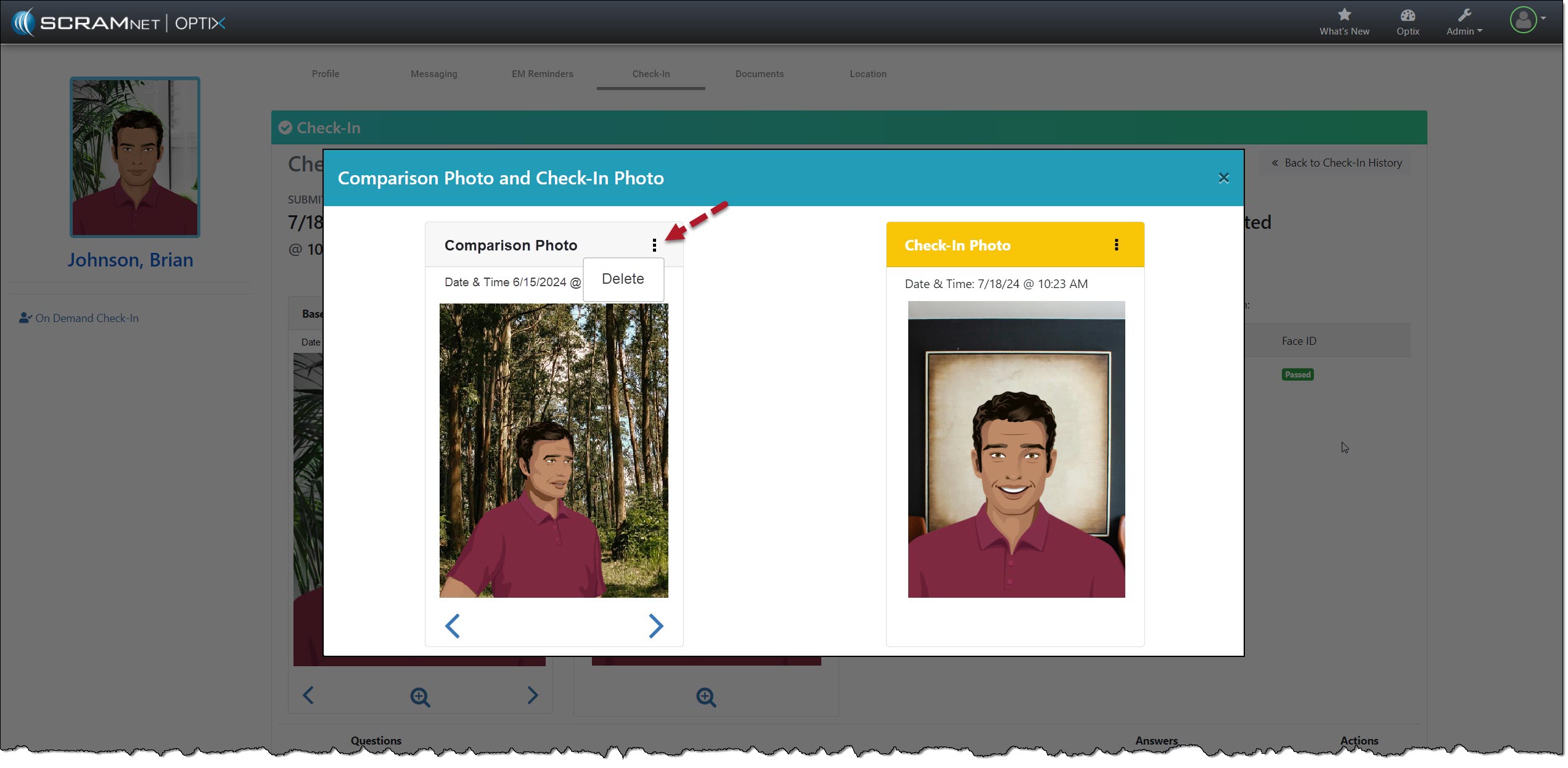
Select the Menu (⋮) above the image to remove a comparison photo from the gallery and then the Delete option.
Remove Comparison Photo – click to enlarge
Each time you add or remove an image from the gallery, you will note a banner in the upper right corner of the page stating “Image Added” or “Image Deleted.” Once you have reached the 10-image limit, the system will display a “Couldn’t add image (limit reached)” banner if you try to add additional images.
“Couldn’t add image” Message – click to enlarge
To proceed, you must delete an image from the gallery and add the desired image.
On July 11, 2024, SCRAM Systems will release enhancements for your client Check-In and Document-sharing Caseloads. Specifically:
You may now eliminate the requirement for the client to answer questions during a TouchPoint Check-In.
Clients may send Word and PDF documents, as well as images, by utilizing the Documents feature within the TouchPoint mobile application.
The latest version of the TouchPoint app will be available to clients in the app stores. As a best practice, SCRAM Systems recommends that all TouchPoint app users enable their smartphones to automatically update their apps to make this process easier.
Not seeing the enhancement in SCRAM Optix? Clear your cache and cookies and refresh your browser window.
No Question Check-In Group
When a client is not required to answer questions during a TouchPoint check-in, you may remove that requirement for current Check-In Groups or create a new Check-In Group with the questions removed.
New Check-In Group
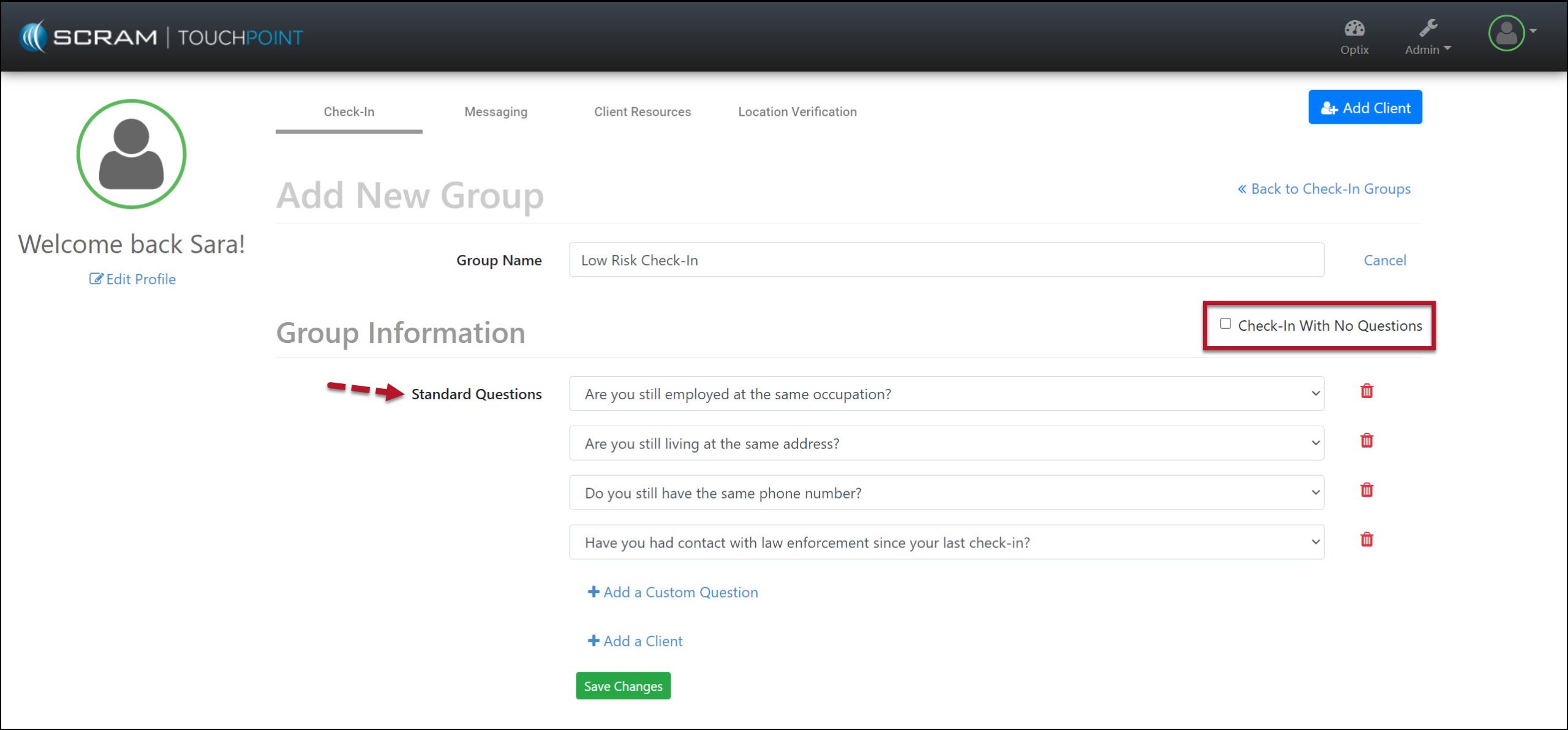
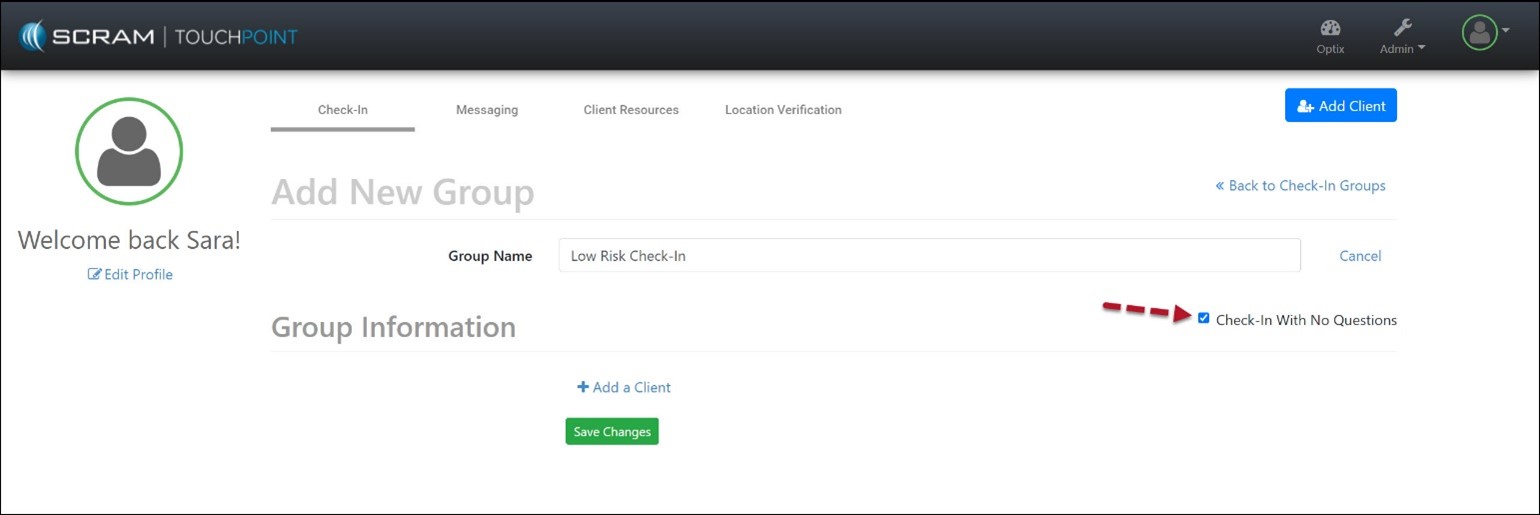
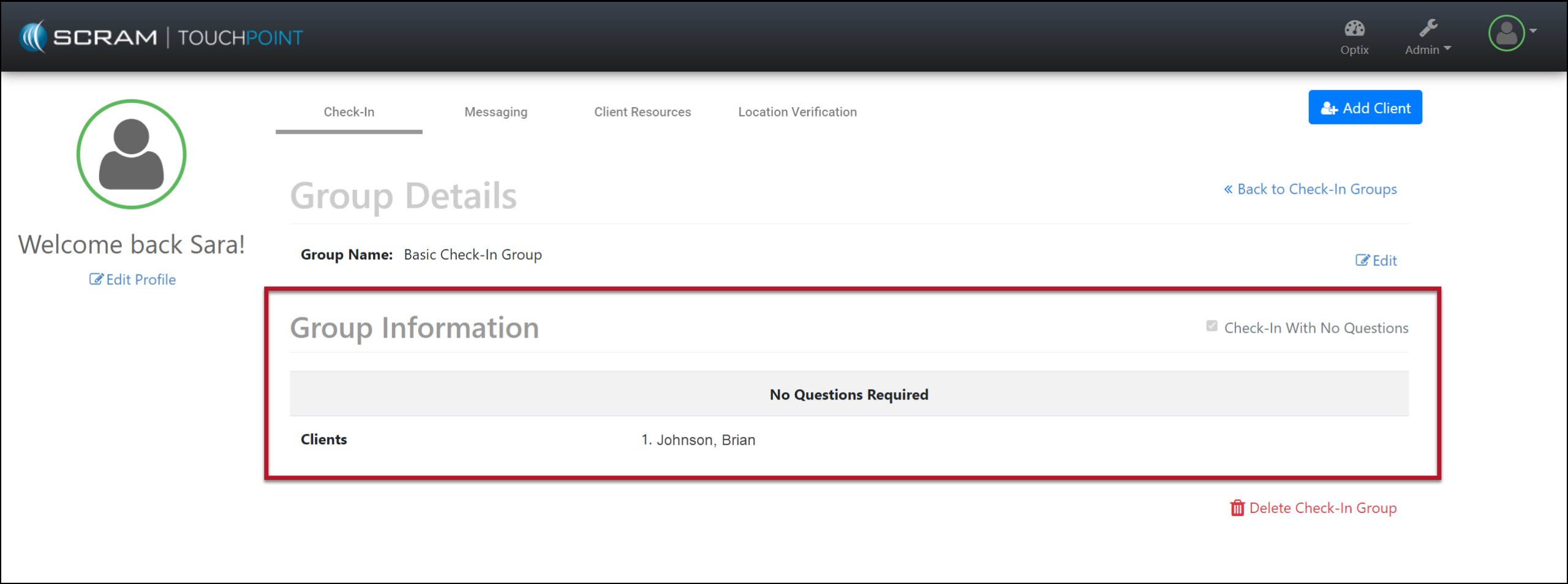
When creating a new Check-In Group, select the checkbox next to the statement “Check-In With No Questions” to remove all questions from the check-in.
Example: Before the checkbox is selected – click to enlargeExample: After the checkbox is selected – click to enlarge
Edit a Current Check-In Group
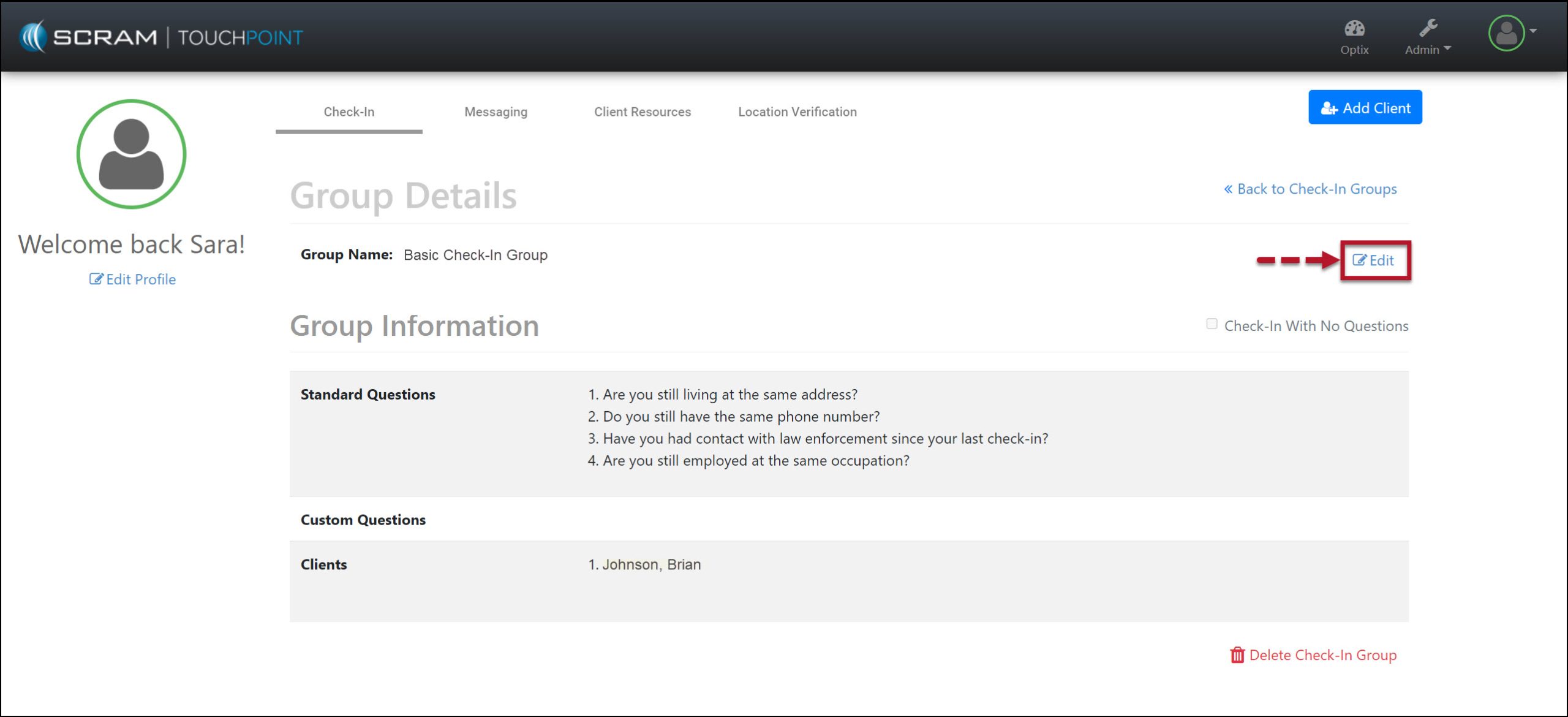
To remove the questions from a current Check-in Group, select the Edit link and the checkbox next to “Check-in Group With No Questions.”
Edit current Check-In Group – click to enlargeCheck-In Saved with Updated Settings – click to enlarge
During a Check-In, once the client has selected the Check-In button within the TouchPoint mobile application and completes the Biometric verification (fingerprint or face ID), they will be prompted to take a photo and submit the check-in.
Document Sharing from the Client’s TouchPoint Mobile Application
The client may share images from their TouchPoint mobile application from the Documents Capture screen. With this update, the client may also share Word documents and PDF files from their mobile application.
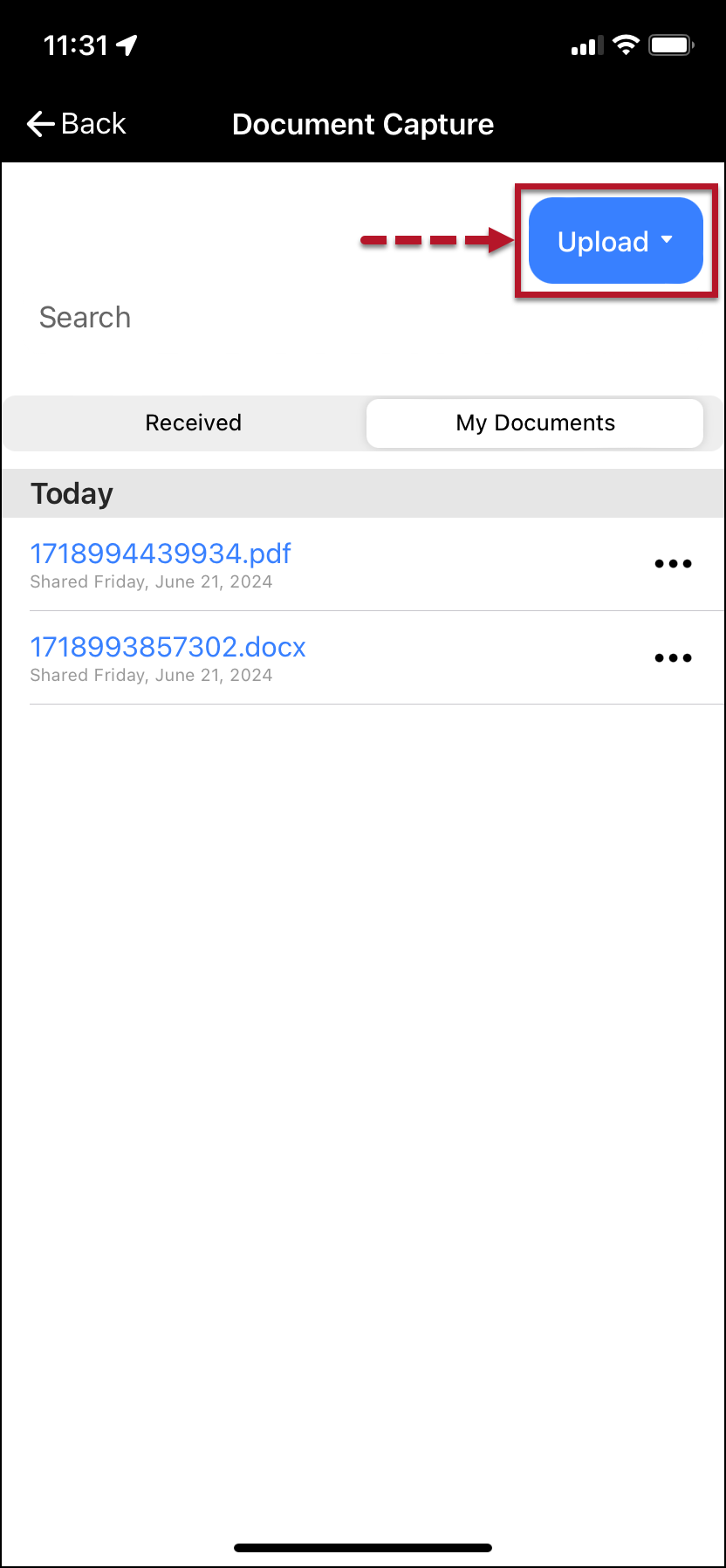
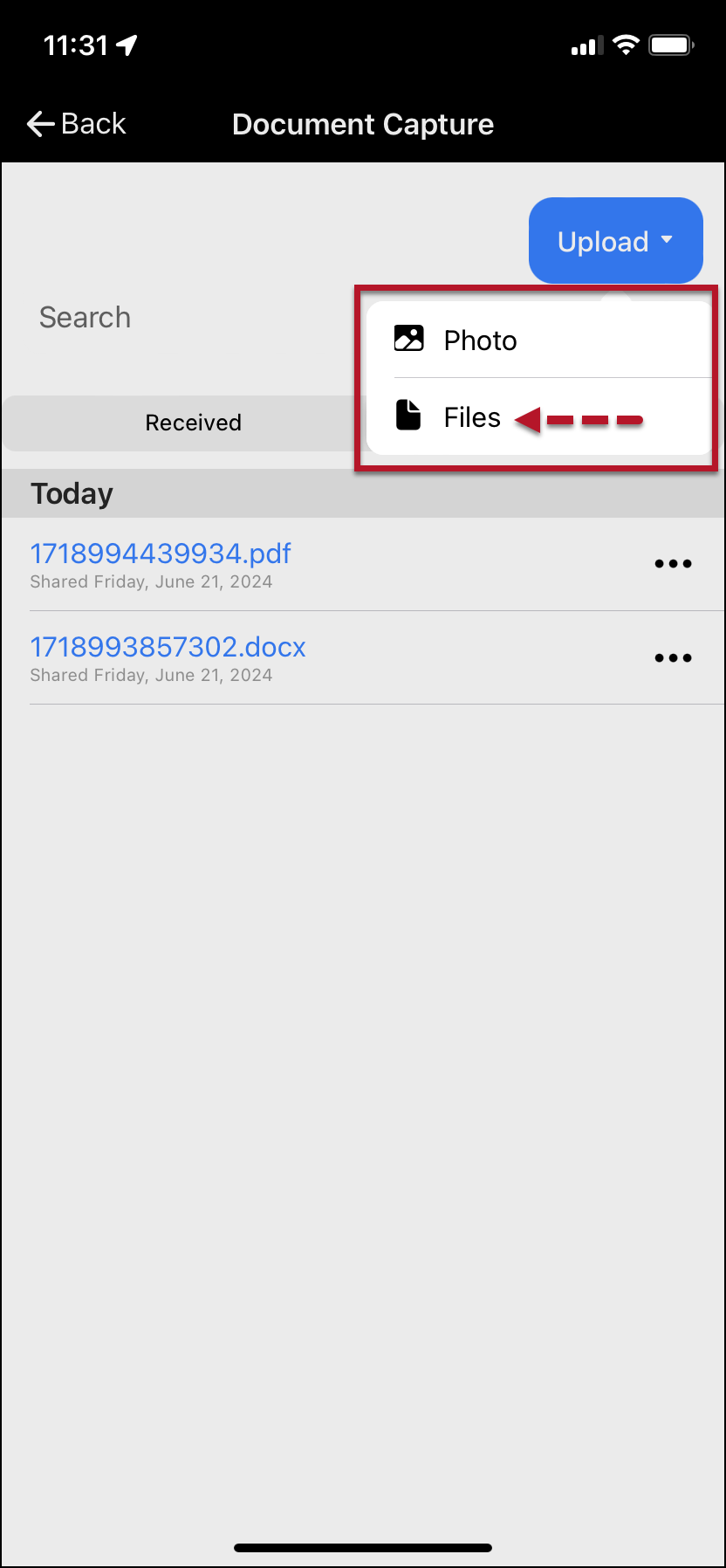
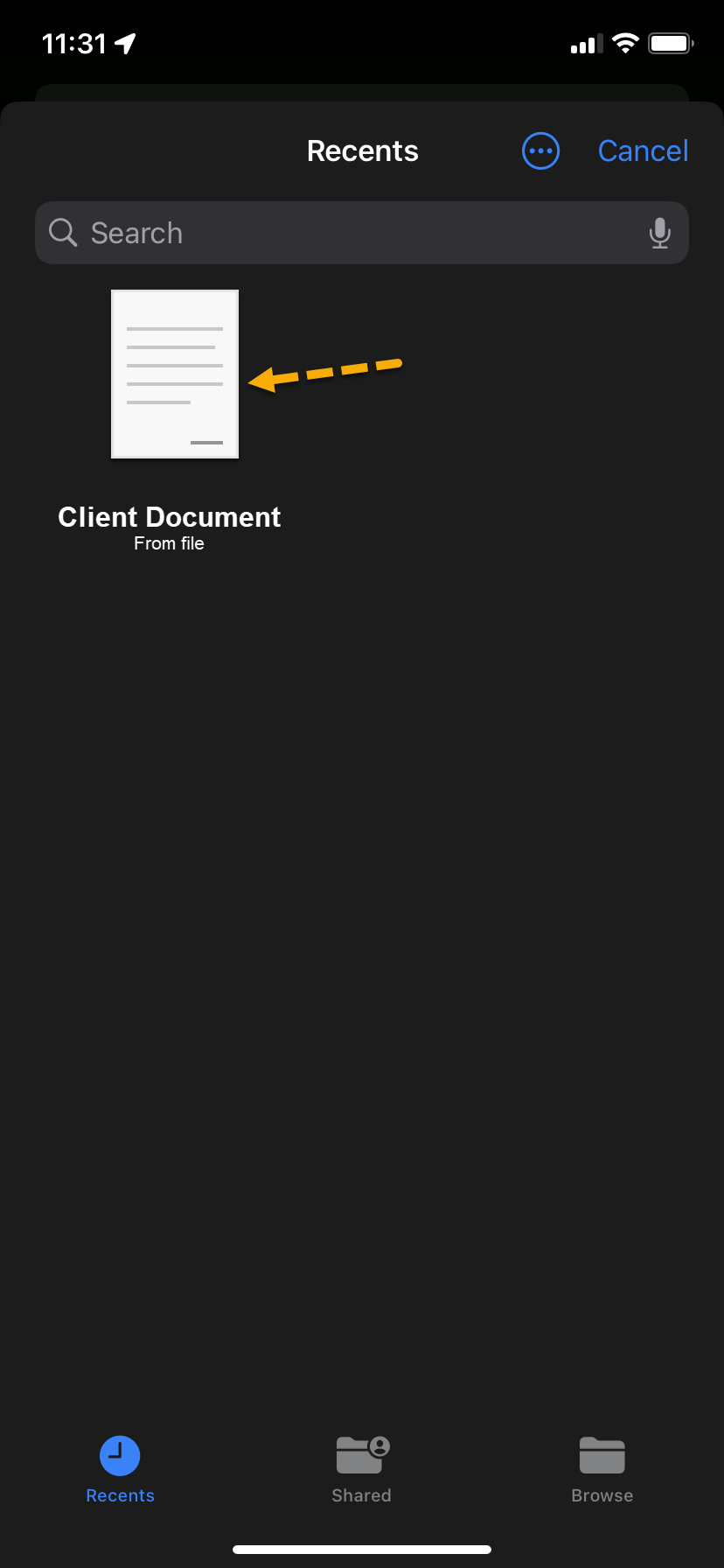
Once the client has saved a document to the smartphone, on the Document Capture screen:
Tap the Upload button.
Tap the Files option on the dropdown menu.
Search for or tap on the file to be shared.
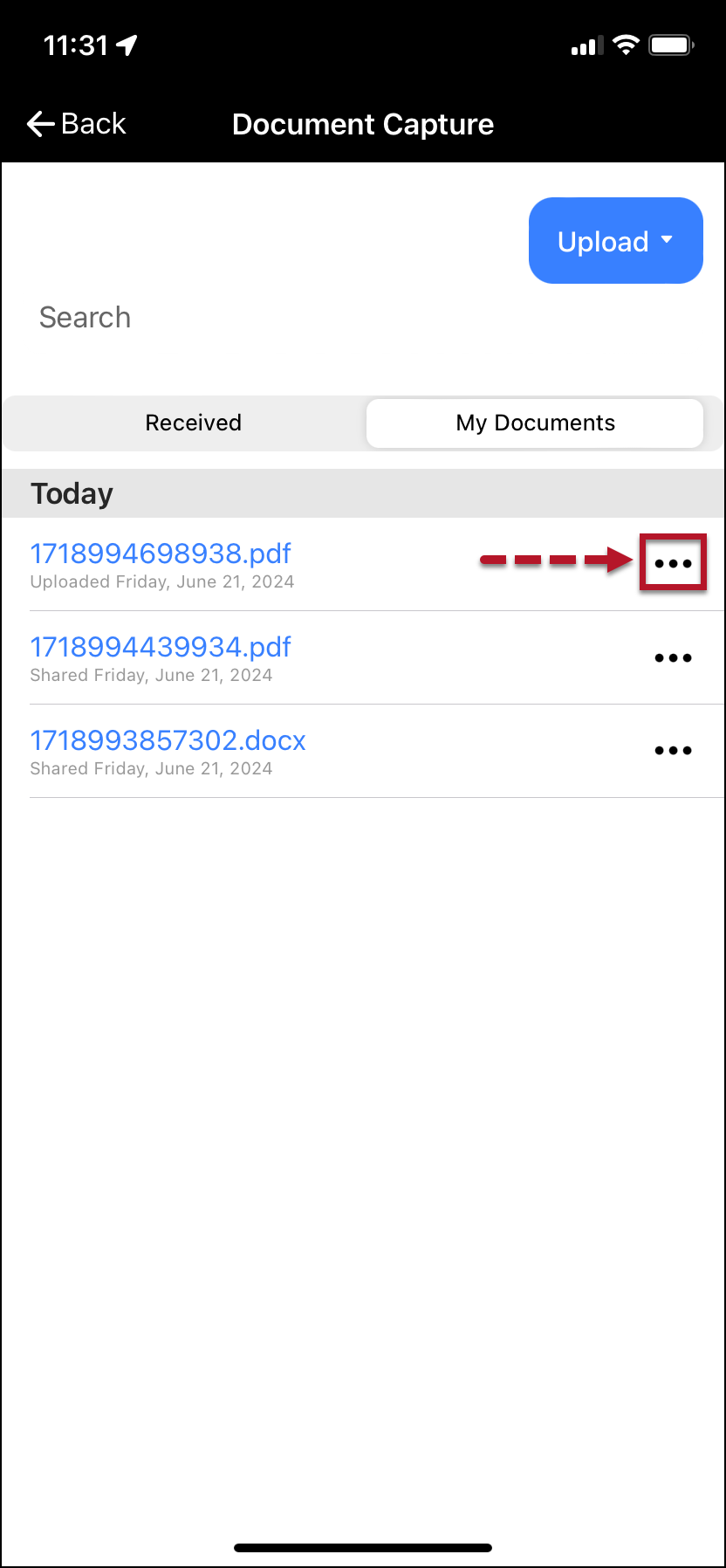
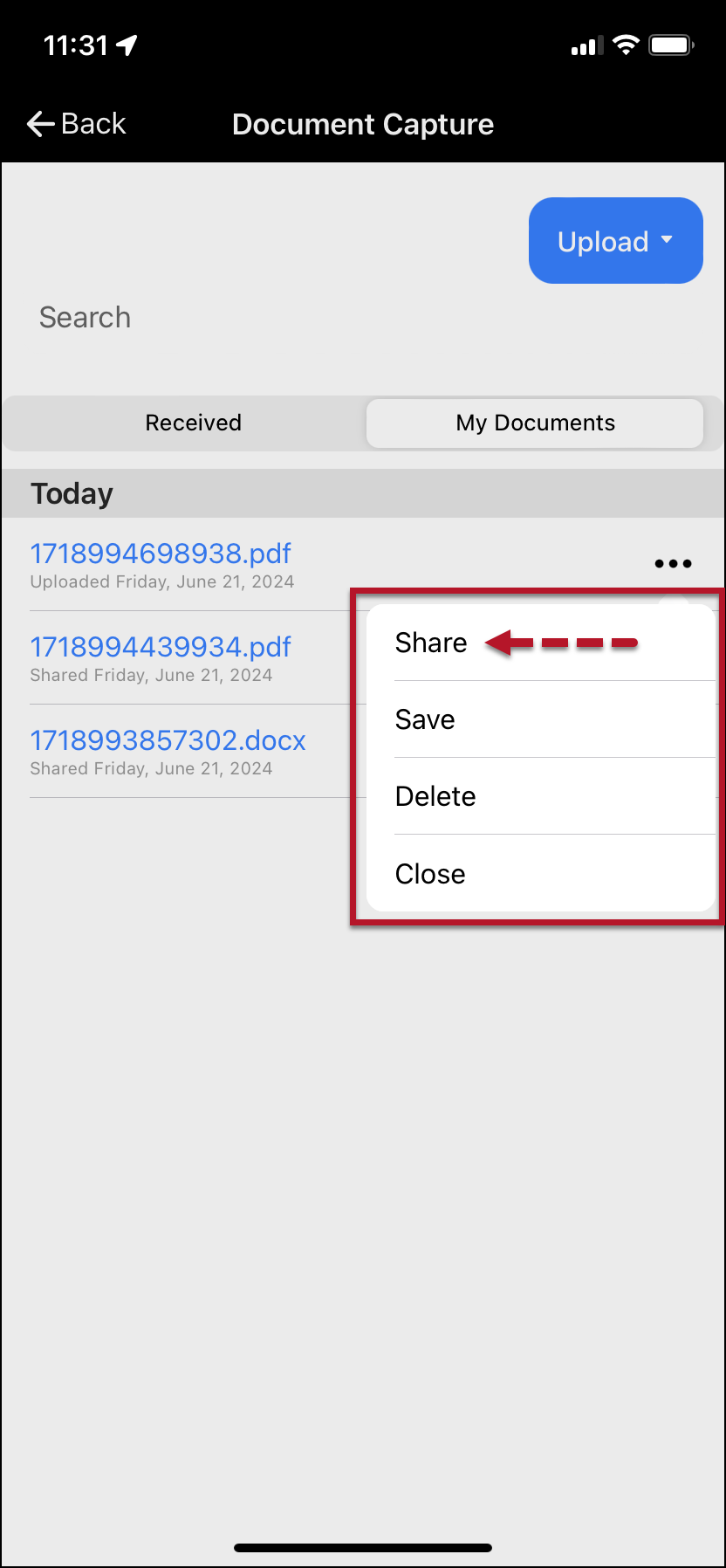
The uploaded file will be listed on the client’s My Documents screen. Select the ellipsis next to the file and tap the Share option on the dropdown menu to access it.
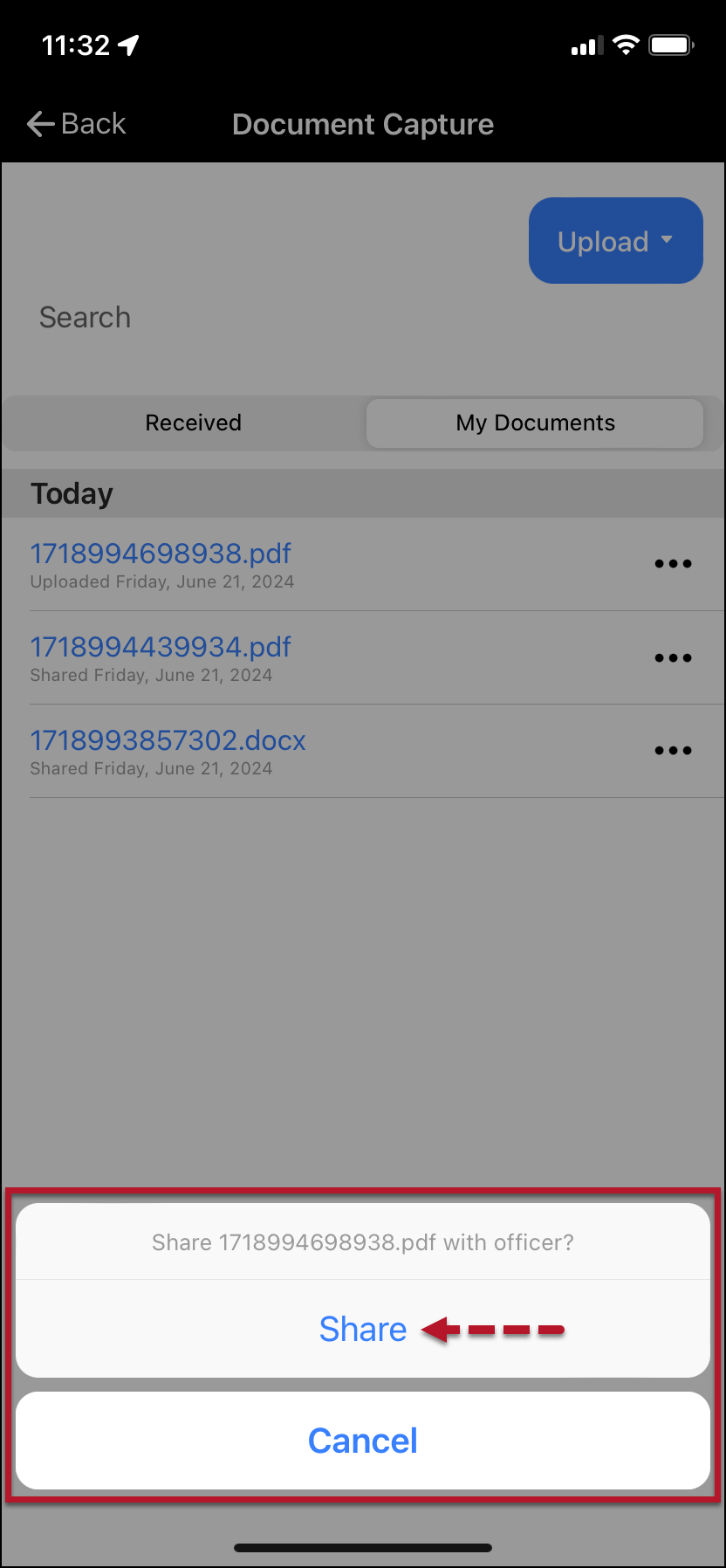
Tap the Share file acknowledgment button.
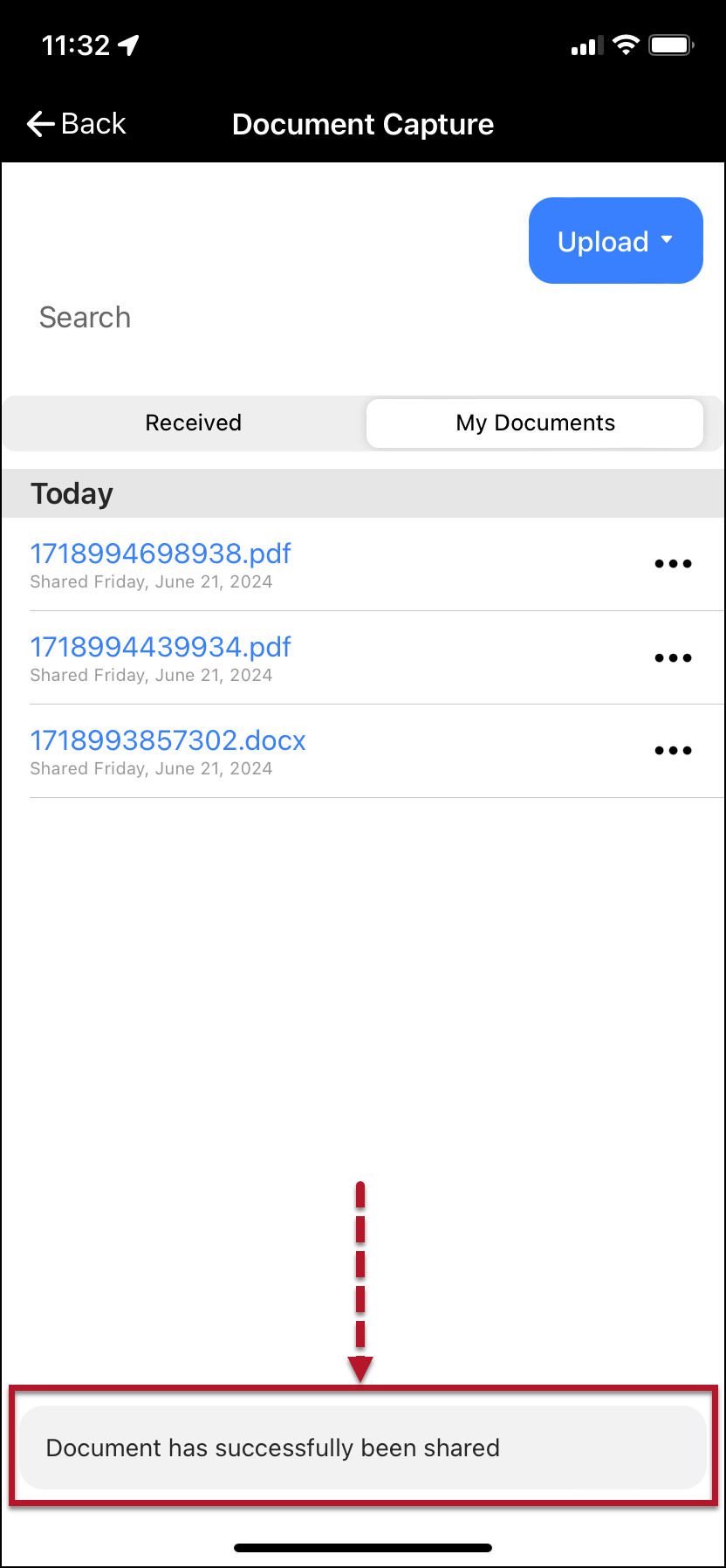
Once shared, a “success” banner will be displayed on the bottom of the screen.
click to enlarge
click to enlarge
click to enlarge
click to enlarge
click to enlarge
click to enlarge
click to enlarge
Supported file types include .pdf, .doc, and .docx.
There is a 5 MB file size maximum.
The client is responsible for managing their smartphone’s file storage location.
Viewing a Shared File
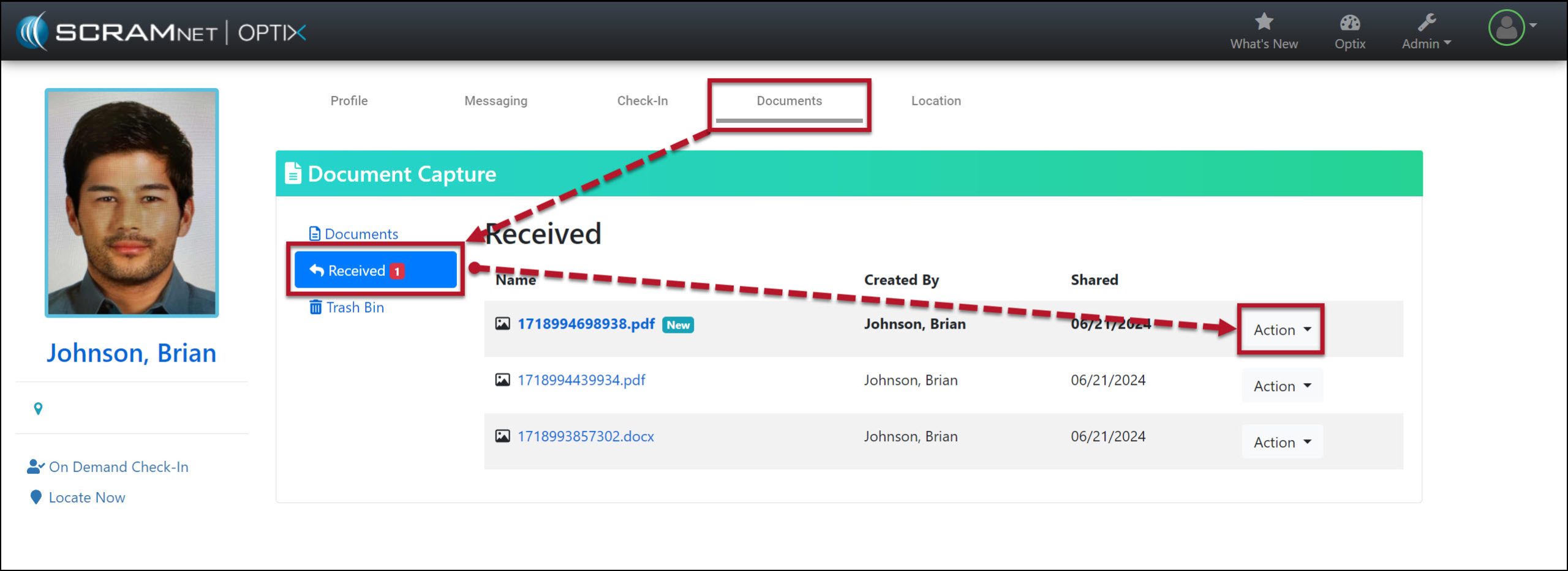
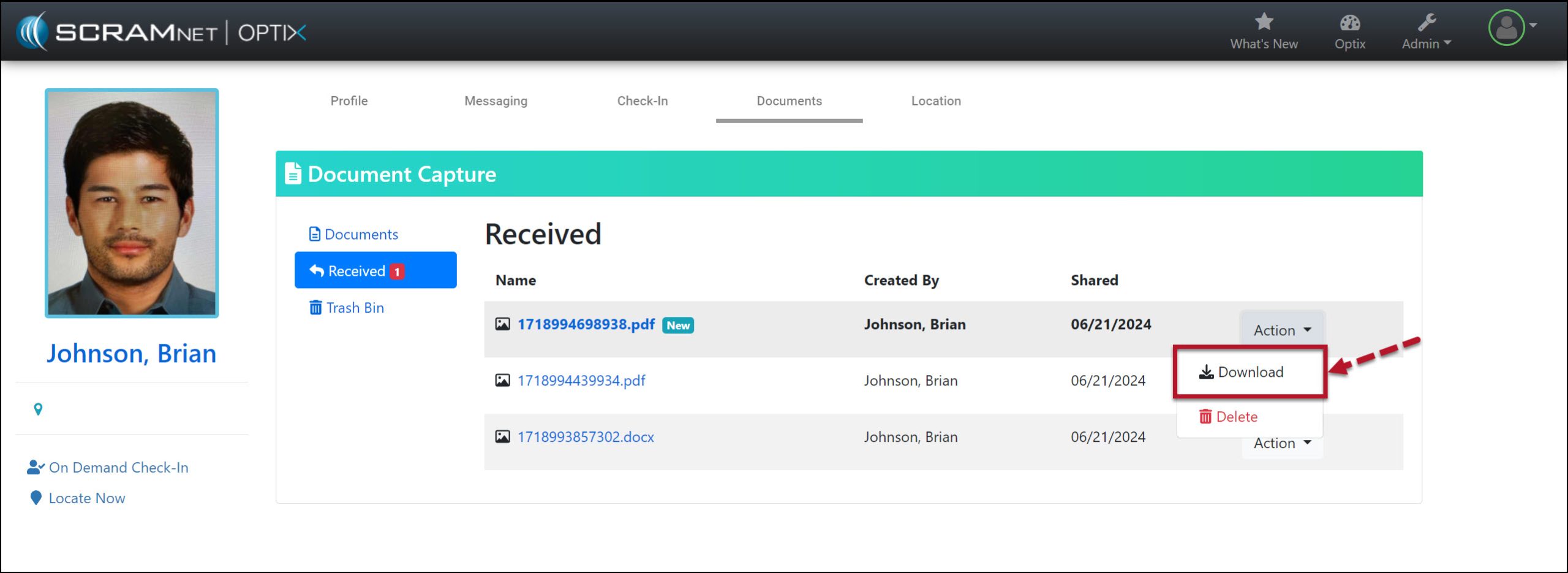
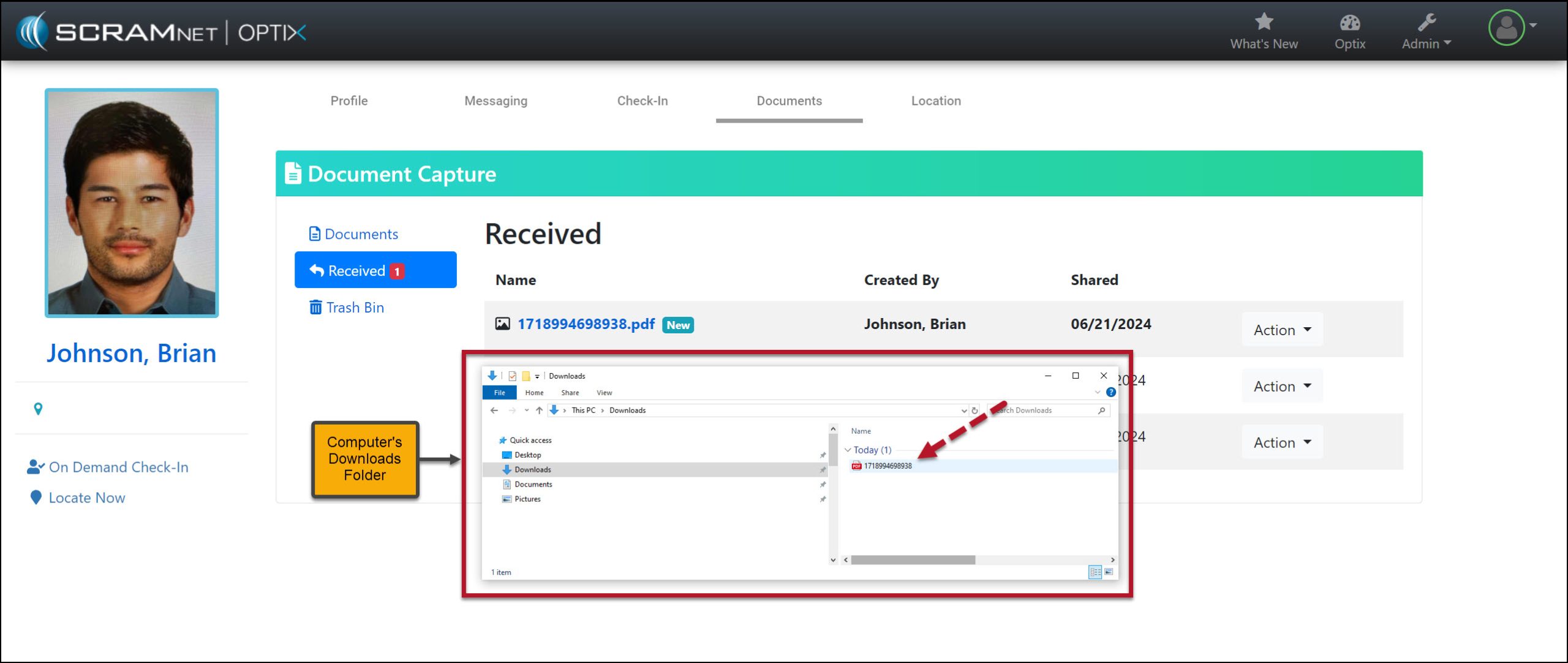
In SCRAM Optix, access the Received section of the DocumentsCapture page for the client, and then open the Action dropdown menu to download the shared file.
Received Documents Screen – click to enlargeAction Dropdown Menu Download Option – click to enlargeComputer’s Downloads Folder – click to enlarge