Thursday, October 9, 2025, at 5:00 a.m. MDT, SCRAM Systems will release two new features for your SCRAMNET GPS caseloads and the SCRAM Ally (Victim Notification) application.
The enhancements are:
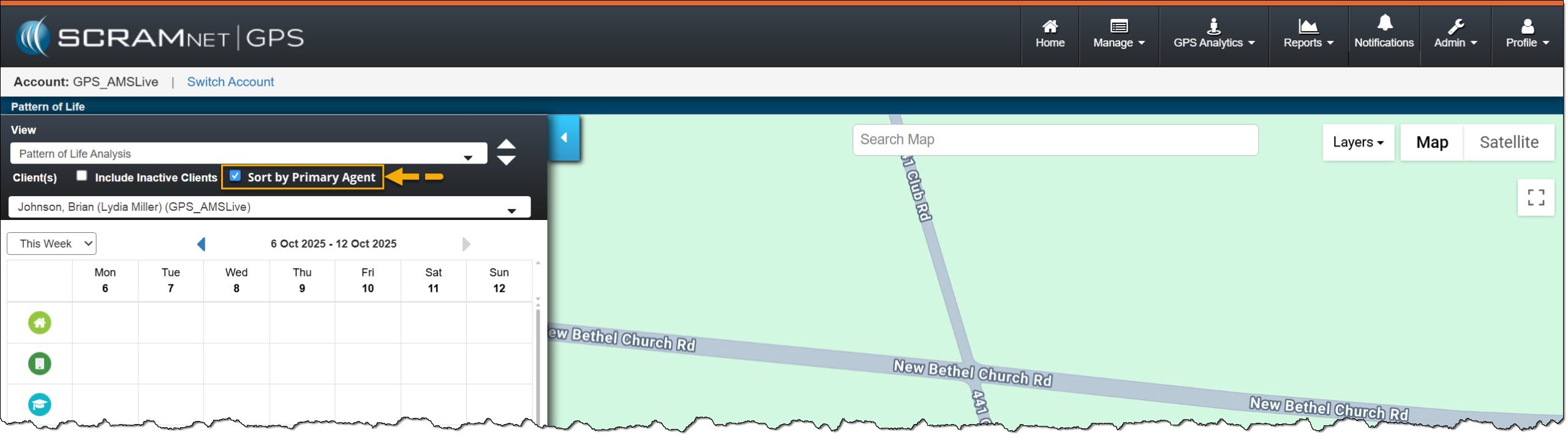
Pattern of Life “Sort by Primary Agent” Filter option
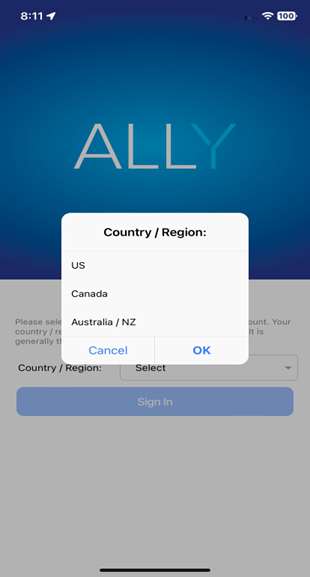
SCRAM Ally application, County/Region option for Canada Victim Users
During the 15-minute deployment, you may not be able to access SCRAMNET GPS, but messages from the SCRAM GPS device will continue to be processed uninterrupted.
Pattern of Life “Sort by Primary Agent” Filter option
Use the “Sort By Primary Agent” to customize the Activity view within the Pattern of Life Analysis data..
Patter Of Life Analysis – click to enlarge
Updated Country/Region Selection for Ally
The first time the victim accesses the SCRAM Ally app on their smartphone, the victim must select one of the following options: US, Canada, or Australia/NZ for the app to operate correctly.
SCRAM Ally app County/Region selections – click to enlarge
IMPORTANT: Activation of the Victim Notification service requires a contract amendment. If you are interested in the service, please contact your SCRAM Systems Account Manager or Sales Representative.
On 10/2/2025, SCRAM Systems will release an enhancement for your SCRAM Nexus caseload. This enhancement allows users to record a client’s Education and Military Experience directly within the Profile section.
If you don’t see the enhancement in SCRAM Nexus, please clear your cache and cookies and refresh your browser window.
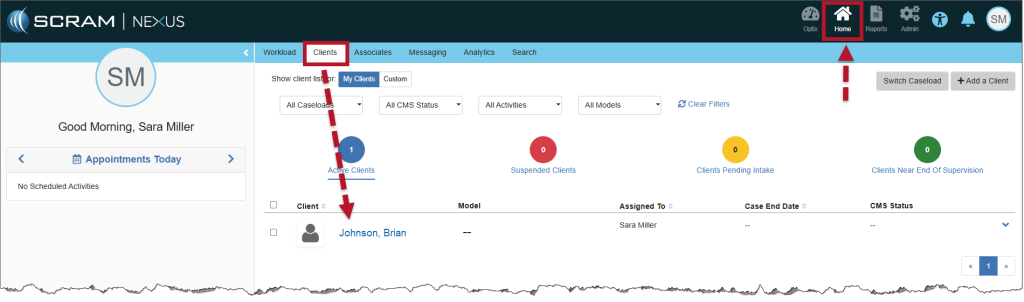
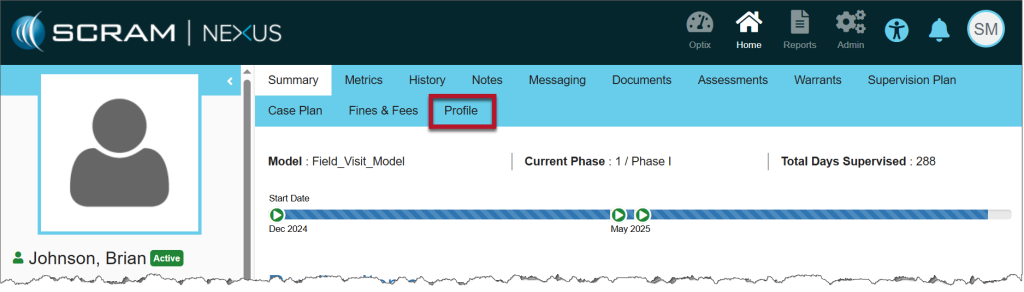
Access the Client’s Profile Page
Select the client’s name hyperlink from the Clients tab on the Home page.
Home Page, Clients Tab
From the client’s Summary page, open the Profile tab.
Client’s Summary Page
Add Education Information
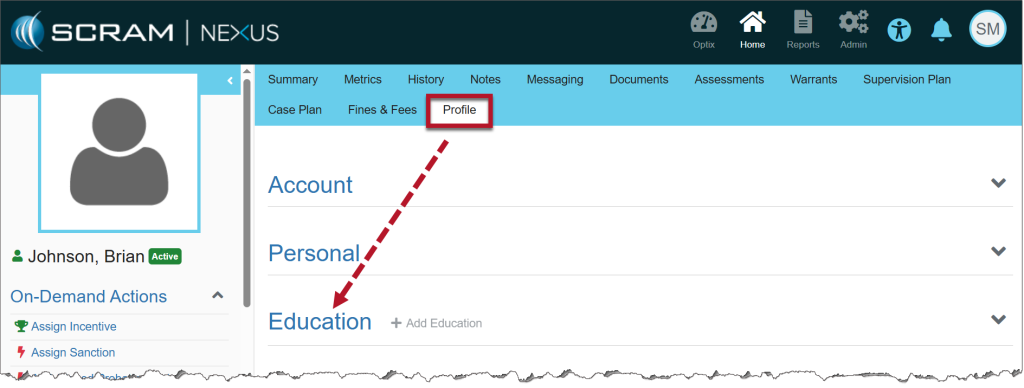
On the Profile page, scroll to the Education section and select the Education heading to expand it.
Profile Tab, Education heading
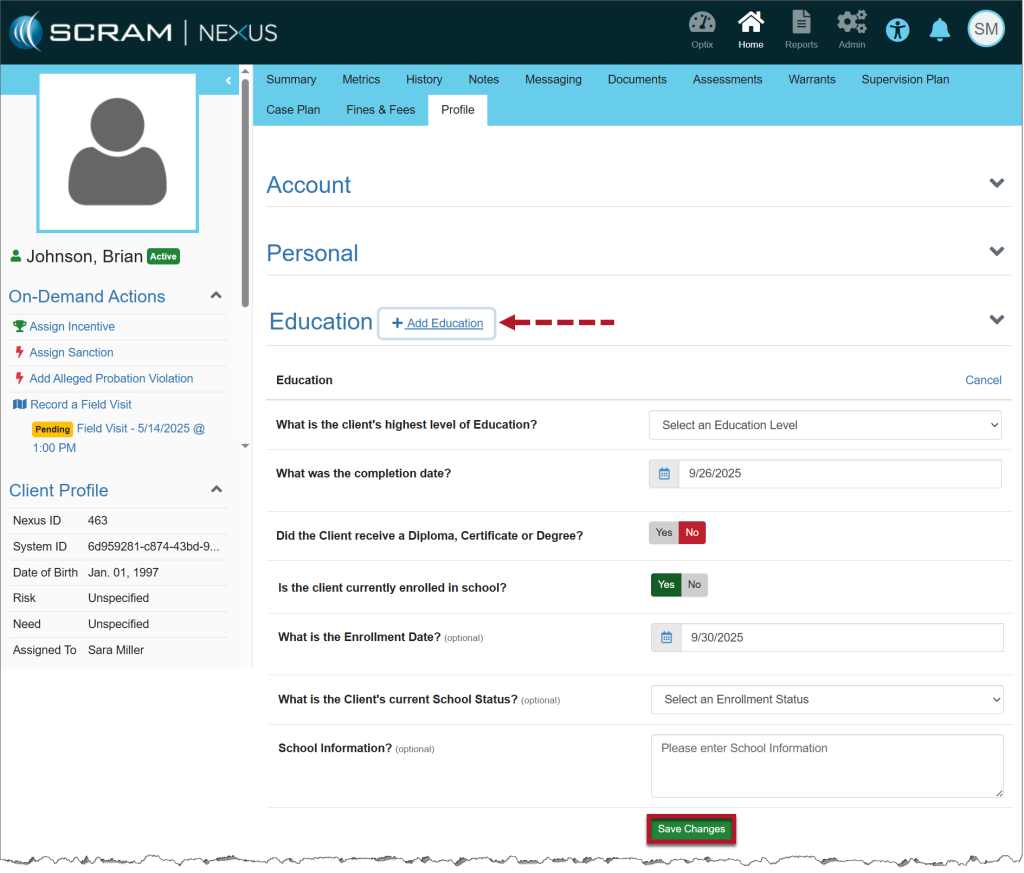
Select the +Add Education link.
The related question and answer options will display.
Some questions will trigger additional fields. For example, toggling Yes for “Is the client currently enrolled in school?” reveals optional follow-up questions.
Enter the relevant client information.
Fields marked Optional may be left blank.
Select Save Changes to add the information to the client’s Profile.
+Add Education Link
Add Military Education
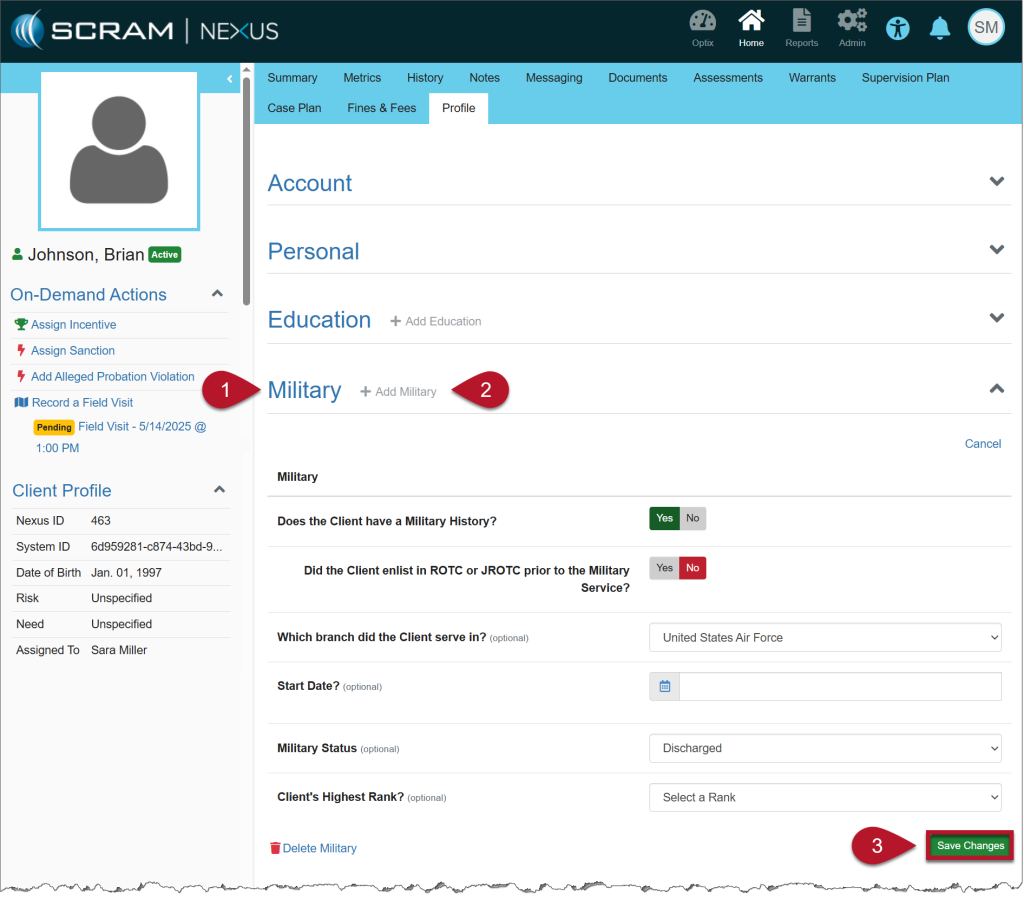
Select the Military heading to expand it.
Select the +Add Military link.
The first question will display: Does the Client have a Military History?
If Yes is selected, additional fields will appear for you to complete.
If No is selected, choose Save Changes to record the response.
Fields marked Optional may be left blank.
Select Save Changes to add the information to the client’s Profile.
Military Heading
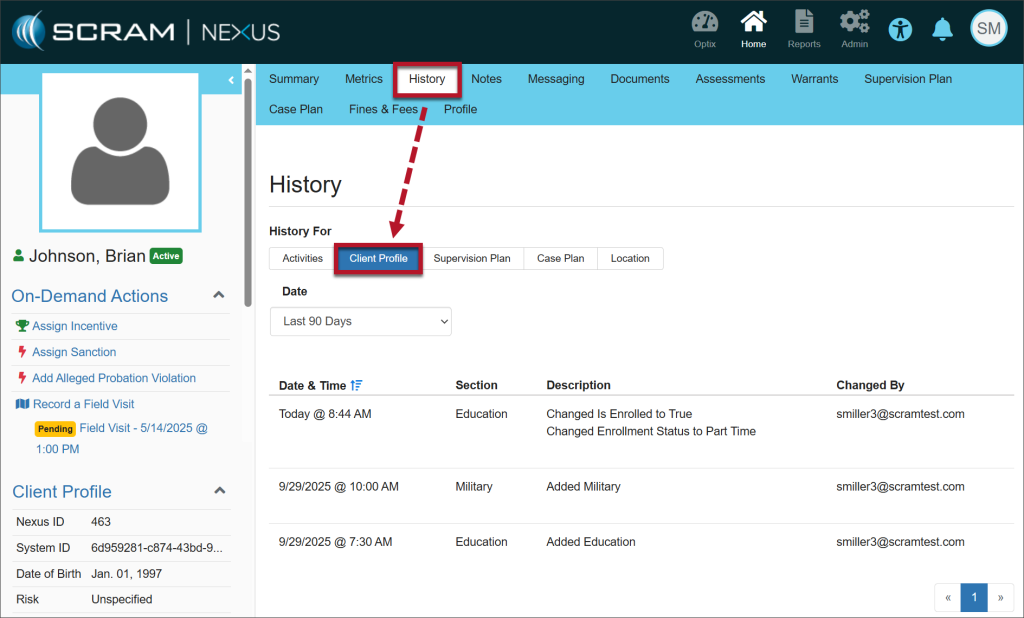
View Changes
Any edits or additions will appear in the History tab, Client Profile.
It can sometimes be difficult for a client with a breathing issue, such as COPD or asthma, to provide a breath sample with enough air volume in it to test. The SCRAM Remote Breath Pro (RB Pro) device is designed to test a breath sample for alcohol once 1.5 liters of air has passed through it. The device will, however, test a breath sample for alcohol once 1.3 liters of air has passed through it, if it senses the breath sample air pressure dropping.
Tips for Breath-Testing Success
Doublecheck the Straw: RB Pro breath tubes are fatter on one end versus the other. Make sure your client is inserting the “skinny” end of the straw all the way down into the device and then blowing through the fatter end.
Keep it Clear: There is an exhaust port on the bottom of the RB Pro device. If that port is covered, it will create backpressure through the breath tube and make it difficult to pass enough air through the device. Ensure that your client is not inadvertently covering the exhaust port with a thumb or the palm of their hand, and make sure they never take a breath test with the device lying flat on a table.
Start Strong: Blowing a large volume of air through the breath tube early tells the RB Pro device to start measuring air volume immediately. Starting gently and increasing volume causes some amount of air to pass through the device before it begins measuring to the target volume (1.5 L).
Following these tips will give your clients the best chance at successfully completing their SCRAM Remote Breath monitoring program.
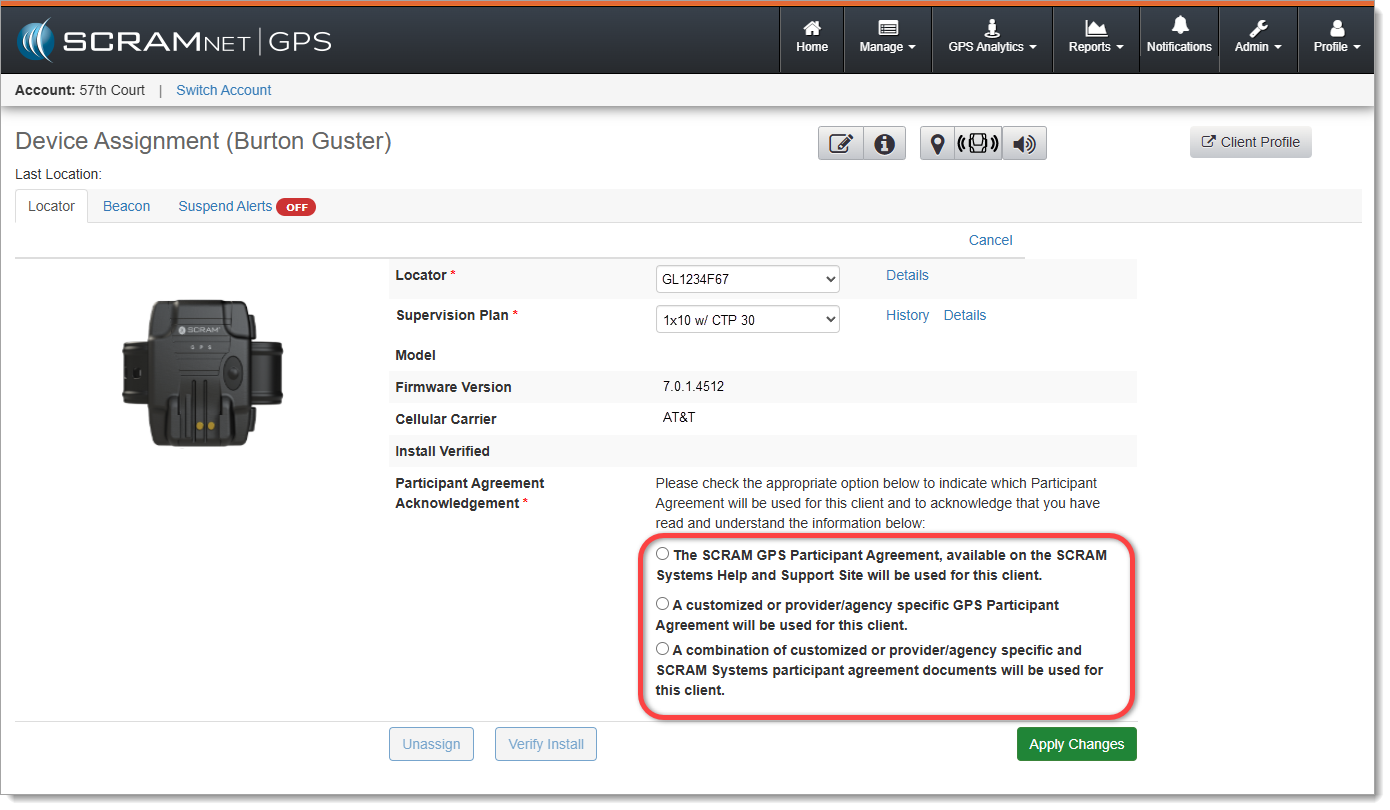
At 5:00 AM MDT on Thursday, September 18, 2025, SCRAM Systems will introduce a new third option to the Participant Agreement Acknowledgement during device assignment in SCRAMNET GPS.
During the 15-minute deployment, you may not be able to access SCRAMNET GPS, but messages from the SCRAM GPS device will continue to be processed uninterrupted.
Device Assignment Enhancement
In June of 2025, SCRAM Systems released an enhancement in SCRAMNET GPS that requires you to make a “Participant Agreement Acknowledgement.” The addition of this acknowledgement to the enrollment process grew out of a need for better recordkeeping. This acknowledgement is simply a record of which Agreement was used at the time of enrollment and does not impact the level of court support you receive from SCRAM Systems.
Originally, you were presented with two choices. With this release you will now have three options from which to choose:
The SCRAM GPS Participant Agreement, available on the SCRAM Systems Help and Support Site will be used for this client.
A customized or provider/agency specific GPS Participant Agreement will be used for this client.
NEW! A combination of customized or provider/agency specific and SCRAM Systems participant agreement documents will be used for this client.
The new ‘Participant Agreement Acknowledgement’ section on the Device Assignment page in SCRAMNET GPS (click to enlarge)
First Option
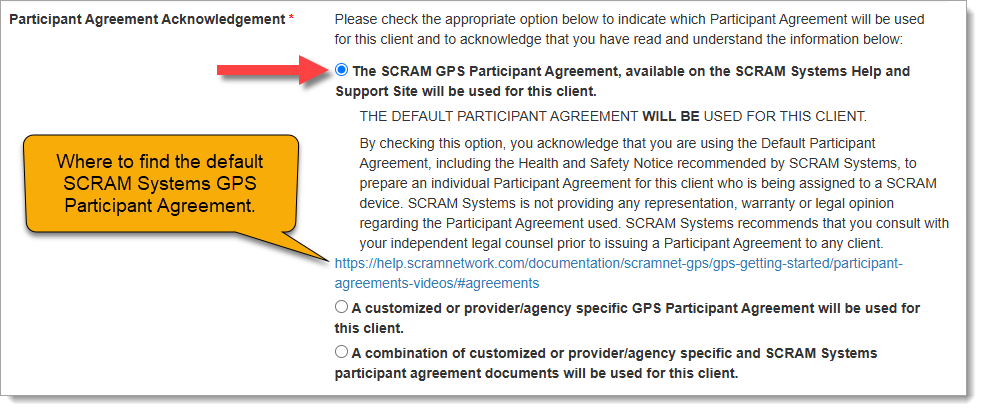
Customers who use the SCRAM Systems-provided SCRAM GPS Program Participant Agreement and Health & Safety Notice, which is available for download from SCRAM Systems Help & Support, will choose the first option, “The SCRAM GPS Participant Agreement, available on the SCRAM Systems Help and Support Site will be used for this client.” This option indicates that you are using the default SCRAM GPS Participant Agreement that was developed by SCRAM Systems and is currently available in SCRAM GPS Help.
Once you have chosen an option, a more detailed explanation of the choice you have made will appear, along with a link to the SCRAM GPS Participant Agreement documents on GPS Help:
Participant Agreement Acknowledgement Option 1 chosen (click to enlarge)
Second Option
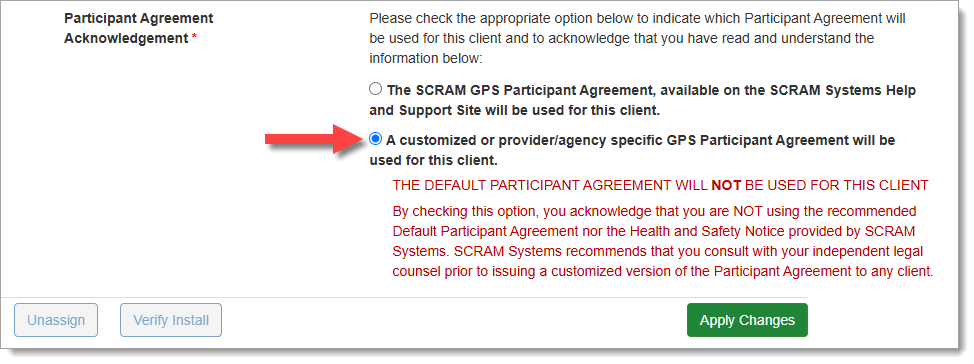
Customers who use their own monitoring program participation agreements, which they have developed in-house, independent of SCRAM Systems, and are NOT accessed from SCRAM Systems Help & Support, should choose the second option, “A customized or provider/agency specific GPS Participant Agreement will be used for this client,” as shown below:
Participant Agreement Acknowledgement Option 2 chosen (click to enlarge)
Third Option
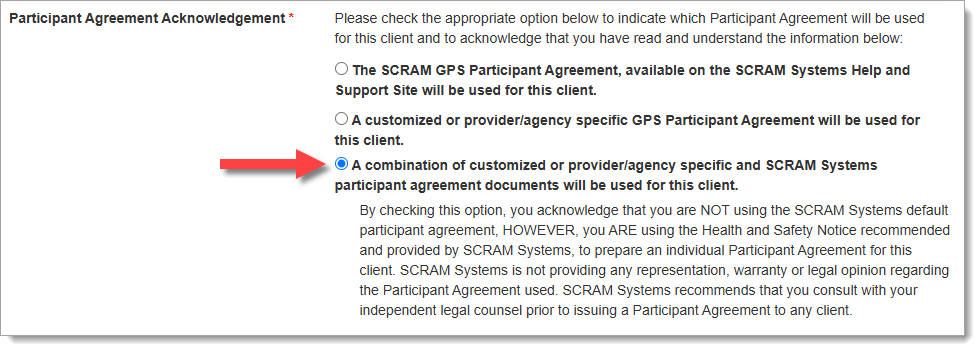
Customers who use their own monitoring program participation agreements, which they have developed in-house and independent of SCRAM Systems, but combine it with the SCRAM Systems Health & Safety Notice, should select the third Participant Agreement Acknowledgement option.
Participant Agreement Acknowledgement Option 3 chosen (click to enlarge)
If you are unsure about the type of monitoring program participation agreement used by your organization, ask your supervisor or program administrator.
Completing the Device Assignment
Once you have chosen the appropriate Participant Agreement Acknowledgement, then Apply Changes and continue with the device assignment process as usual.
Tip: Regardless of which option you select, SCRAM Systems recommends you print two copies of the Participant Agreement and have the client and agent sign both copies – one copy for your records and one copy for the client’s records.
Audit Report
The Participant Agreement Acknowledgement selection made will be reflected in the Audit Report. This ensures a comprehensive and auditable history of agreement usage for each device assignment.
If you have been on the SCRAM GPS Help site recently, you have probably noticed that many of the help articles have been moved to new locations within the site, as indicated by a moving truck icon followed by a link to the article’s new location.
Moving Truck Example
We are in the process of redesigning the site to bring it in line with our other SCRAM products and services help sites.
How it Was
Previously, SCRAM GPS help was organized in a couple of different ways. There was a Getting Started section, which covered a wide array of SCRAM GPS-related device and monitoring software setup topics, followed by a series of monitoring system or individual device-specific help sections, which only covered topics related to the monitoring system or one specific device. This hybrid design created many duplicate articles. For example, the Add Client article was covered in both the Getting Started and the SCRAMNET GPS sections. Similarly, the SCRAM GPS Bracelet Installation article could be found in both the Getting Started and GPS Bracelet sections.
A help structure with a varying flow and duplicate articles is difficult to maintain and lends itself to potential article content mismatches. To improve the user experience, we decided to change the overall structure and flow of the site, and in so doing remove the duplicate articles.
How it Will Be
Moving forward, the SCRAM GPS Help portion of the SCRAM Systems Help & Support site will be organized in much the same way as the SCRAM CAM, HA, and RB portions of the site are organized. The help topics will be organized into a “client’s lifecycle on the program” flow, from Getting Started to Client Discharge. Between those two bookends will be topics like Client Management, Caseload Management, and Equipment Maintenance. A Program Administration section will round out the GPS Help topics.
The SCRAM GPS Help articles you’ve come to depend on will be – or already are – in the process of moving to these new top-level sections. We’ll even be adding some new help articles along the way. The “moving truck” will be there to guide you through the changes. Once the new structure is completely in place and we have given everyone a chance to update their help article bookmarks, we will “park” the moving trucks.
Thank You
Thank you for your patience during this redesign and transition. It will be worth it in the end.
On September 3rd, 2025, SCRAM Systems will release multiple enhancements focusing on Alcohol and Tamper alerts that require maintenance activities after analysis to resolve them.
These enhancements include:
Five new Maintenance Alerts
Updates to the Alert Management Console
New Maintenance Alerts
Currently, once a Data Analyst completes their review, the next step for some alerts requires a maintenance activity to be completed to close them. To improve efficiency in both identifying and taking the required actions to resolve these alerts, SCRAM Systems will introduce new alerts that will appear in the Scheduled Maintenance section on the Workload page. Each alert will include the specific actions required to resolve the alert and to ensure proper client monitoring. These new alerts and required actions are:
Removal without Reinitialization – Removal without re-initialization – CLIENT IS NOT BEING MONITORED. Need to meet with client to perform a re-initialization. First, utilize the Maintenance Link. Second, reinstall bracelet to the proper fit. Third, perform a direct connect. Once the bracelet receives the required initialization this alert will auto resolve, and monitoring can begin. Click the Maintenance button below to begin the process.
Fit Check Requested – Fit check – First, utilize the Maintenance Link. Second, inspect client’s bracelet to ensure a proper fit. If the bracelet is not fit properly, please remove and reinstall to the proper fit. Third, perform a direct connect. Once the bracelet receives the new initialization this alert will auto resolve. Click the Maintenance button below to begin the process.
Assigned Off Body – Assigned off body – CLIENT IS NOT BEING MONITORED. Need to meet with client to perform a re-initialization. First, utilize the Maintenance Link. Second, inspect client’s bracelet to ensure a proper fit. If the bracelet is not fit properly, please remove and reinstall to the proper fit. Third, perform a direct connect. Once the bracelet receives the new initialization, this alert will auto resolve. Click the Maintenance button below to begin the process.
Battery Replacement Required – Battery Replacement Required – First, utilize the Maintenance Link and select the “Battery, Faceplate and Exhaust Cap Replaced” option. Second, remove the bracelet. Clean the battery contacts using a dry, fine-bristled brush and wipe clean using the microfiber cloth. Install a new battery and faceplate, ensuring you hear four audible clicks. Third, perform a direct connect. Once the bracelet receives the new initialization this alert will auto resolve. Click the Maintenance button below to begin the process.
Alcohol detected at Install – Alcohol detected at install. This could be attributed to prior consumption of alcohol, product use, or environmental contaminants. Waiting for alcohol to dissipate and reach zero for long enough to allow the required initialization to complete. Once the bracelet receives the required initialization this alert will auto resolve, and monitoring can begin.
To keep your monitoring program running smoothly, ensure you are managing the alerts displayed in the Scheduled Maintenance section daily.
Alert Management Console
In addition to the five new alert types, we have made a couple of updates to the Alert Management Console (AMC).
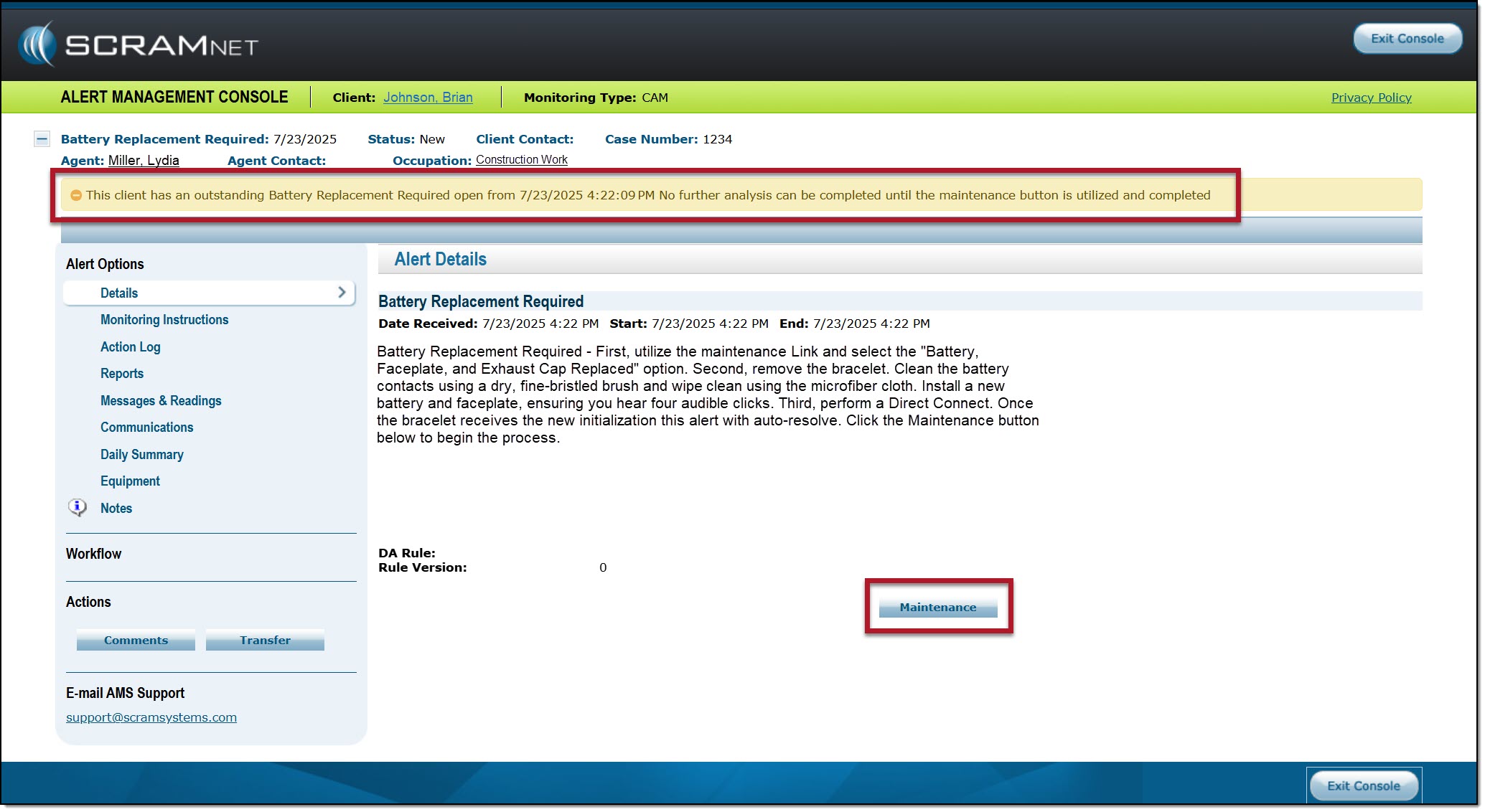
Upon opening the AMC, you will note a new alert banner that will display any required maintenance items that need your immediate attention for client monitoring.
When a maintenance task is needed, a new Maintenance button is available for you to access and complete the required maintenance tasks.
Example of the Alert Management Console with Maintenance Banner- click to enlarge
Handling the New Alert Types
Let’s walk through an example of an alert so you can better understand the workflow.
Data Analysis
A “Tamper” alert is generated and displayed in the Tamper section of the Workload page.
The Data Analyst completes their analysis of the data and determines that a fit check is required.
The Data Analyst will generate a “Fit Check” alert that is displayed in the Scheduled Maintenance section on the Workload page and then will resolve the “Tamper” alert, thus removing it from the Tamper section.
Your Tasks
Expand the Scheduled Maintenance section and select the Fit Check alert.
Complete the required actions.
Once all required actions are completed and recorded in SCRAMNET, the system will automatically resolve the alert.
Day-to-Day Operations
Overall, this update will improve your efficiency by providing a centralized location for all alerts that require maintenance actions to be completed to ensure client monitoring. Additionally, once the appropriate actions have been completed on your part and recorded in the system, the alerts are auto-resolved, eliminating the requirement to “Transfer” an alert back to your Data Analyst, thus removing alerts from your Workload page more efficiently.
If you have any questions or concerns, contact your Data Analyst or Customer Service.
At 5:00 AM MDT on Thursday, August 28, 2025, SCRAM Systems will introduce two important feature enhancements for SCRAM GPS 9 Plus devices in SCRAMNET GPS:
Enhancements to the Potential Cell Jamming Alert
Updates to the Battery Fully Charged Event
During the 15-minute deployment, you may not be able to access SCRAMNET GPS, but messages from the SCRAM GPS device will continue to be processed uninterrupted.
Potential Cell Jamming Alert
This enhancement release will enable SCRAMNET GPS to utilize data from additional sensors within SCRAM GPS 9 Plus devices to both generate and clear Potential Cell Jamming alerts. Communication and battery sensors, among others, will supplement the generation and clearing of these alerts.
Battery Fully Charged Event
Occasionally, events will come in from SCRAM GPS 9 Plus devices that indicate the battery has been fully charged when in fact the device has not. With this enhancement, additional data will be used and analyzed prior to the SCRAMNET GPS Dashboard displaying Battery Fully Charged events.
On August 21, 2025, SCRAM Systems will release an enhancement for your SCRAM Nexus Caseloads. With this improvement, the Personal section of the client’s Profile page has been expanded to include new optional identifying attributes, along with additional identification details.
To Edit the Client’s Profile
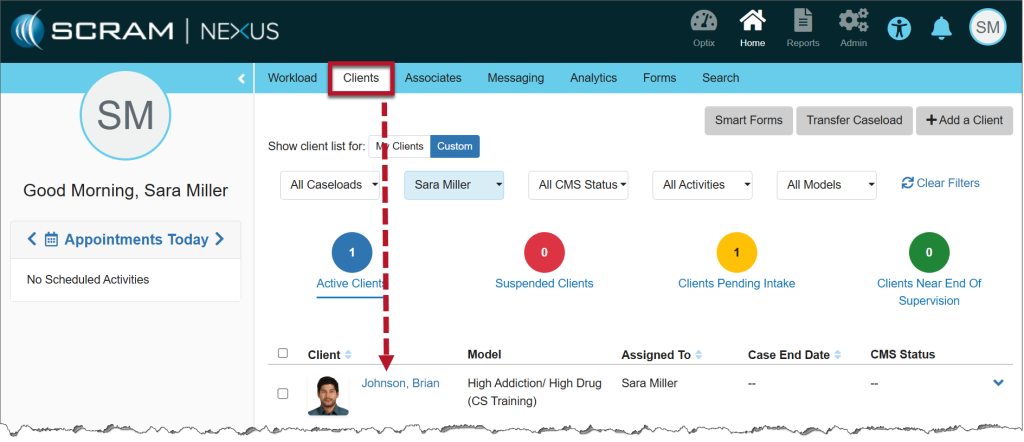
From the Clients tab in Nexus, select the client’s name hyperlink.
Nexus Clients tab – Click to enlarge
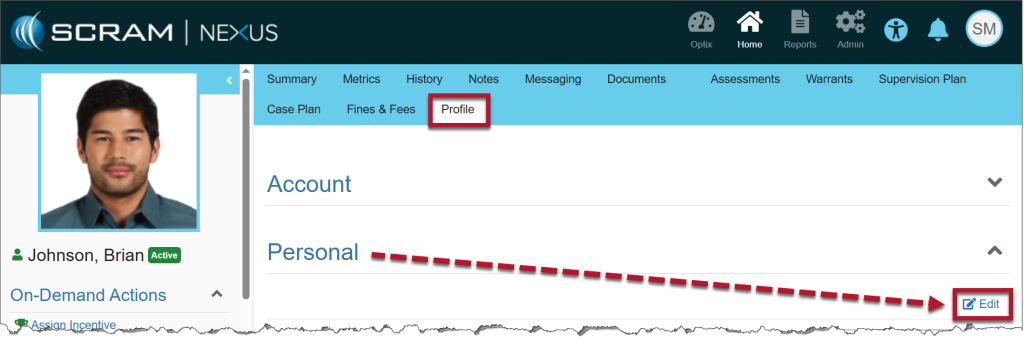
Select the Profile tab and then select the Edit hyperlink in the Personal section.
Nexus Profile tab – Click to enlarge
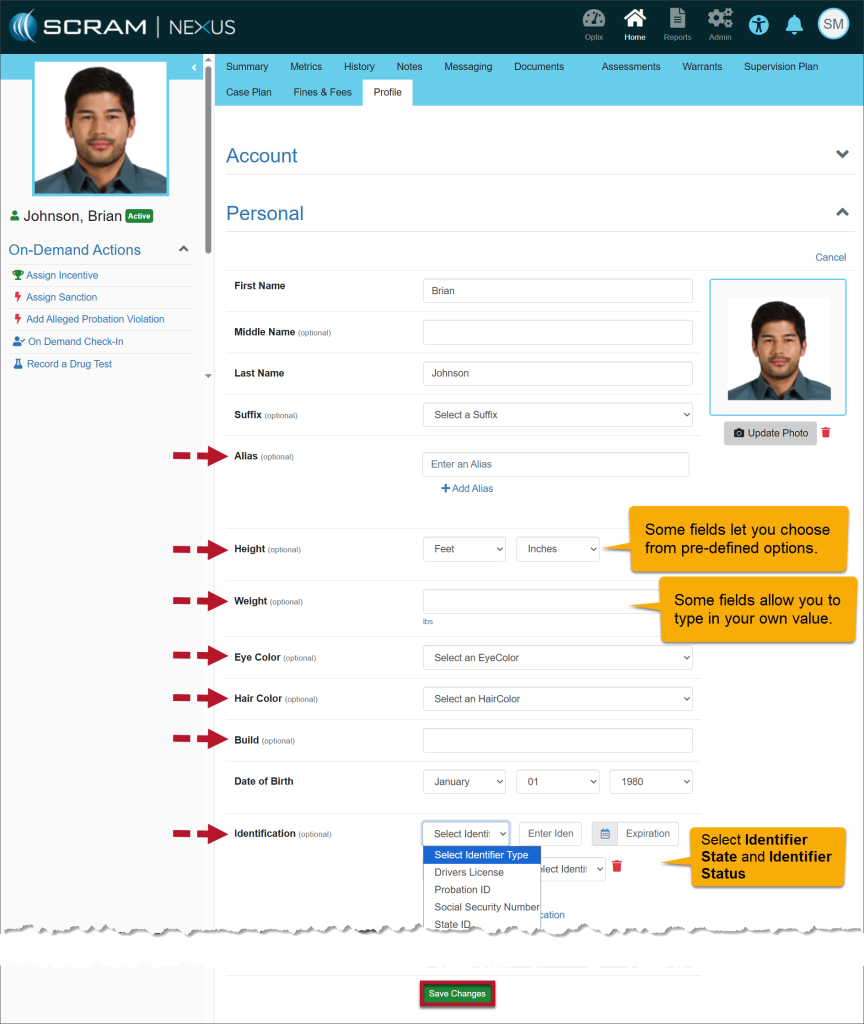
Add or edit all required fields, then enter any additional details in the new optional fields.
Nexus Profile page
After making any updates, select the Save Changes button.
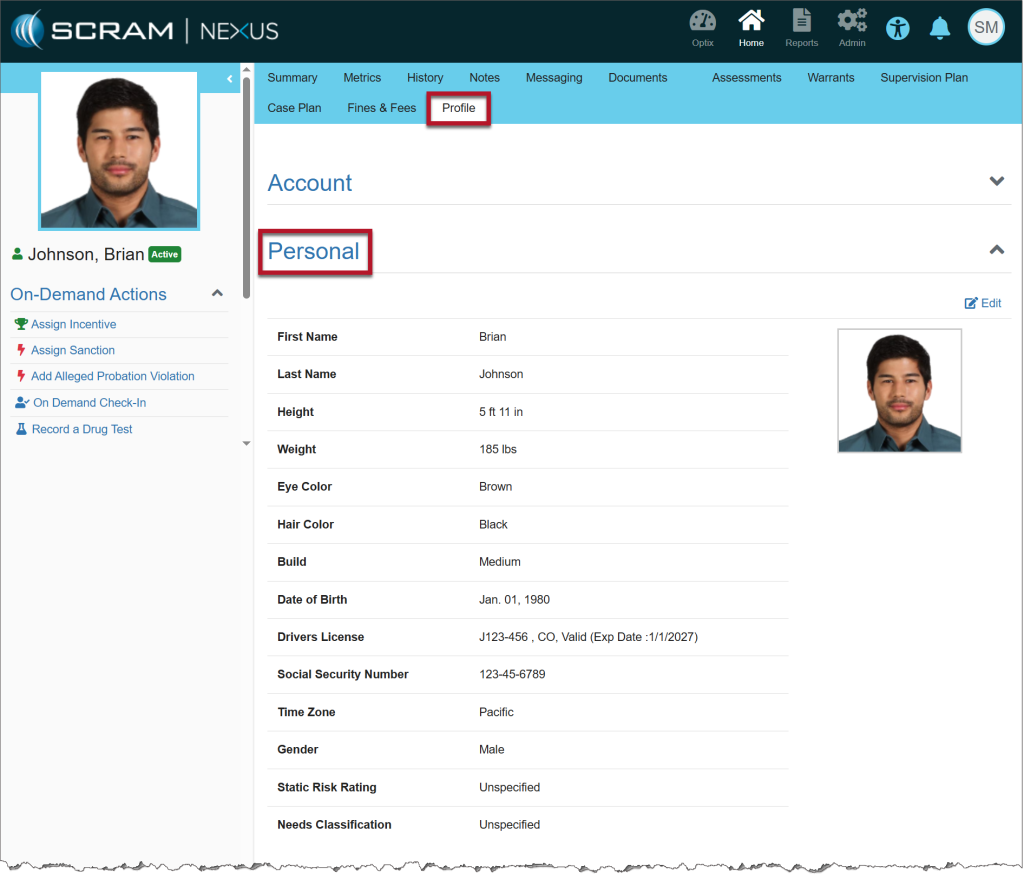
Once saved, the details entered are displayed under the Personal heading.
Saved Information on the Profile page
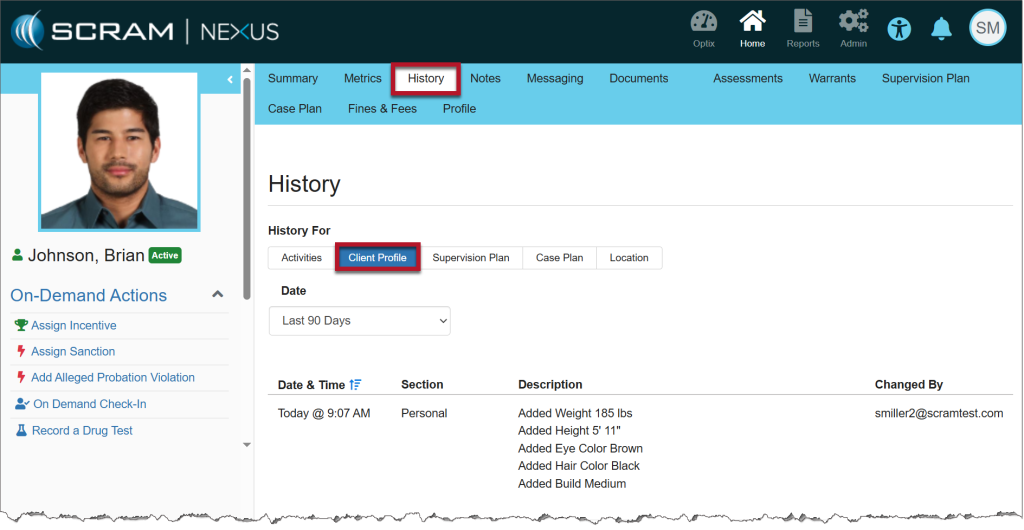
All updates made to the client’s profile may be viewed on their History page, Client Profile sub-tab.
On August 14th, 2025, a new version of the SCRAM Ally (Victim Notification mobile application) will be available for iOS users in the Apple Store. The enhancements in version 2.1.1 (2) include:
Logging into multiple Ally applications on multiple devices
Updated Push Notifications, Location Service, and Motion Activity Disabled banners
Location information availability when the Ally Victim uses the application to call for help
As a best practice, SCRAM Systems recommends that all SCRAM Ally Victim app users enable their smartphones to automatically update their apps to make this process easier.
For accurate, continuous monitoring, SCRAM Ally requires permission to send Push Notifications, access Location Service, and Motion & Fitness Activity. SCRAM Ally requires these permissions to properly monitor Victims and deliver important alerts with regard to Victims’ proximity to their assigned individuals.
Tip: After updating the SCRAM Ally app, it is important that your Victim users open the app and visit the Homepage. This action will ensure alert notifications function properly.
Logging into Multiple Devices
If the client is currently logged into the Ally application on their smartphone and they attempt to log into the application on a second device, for example, an iPad or second smartphone, the following pop-up message will display on the second device: “Your Ally account is already registered with another phone. If you choose to continue, the account on your prior phone will be disabled, and only this phone will be used for monitoring. Do you want to continue?”
The Ally victim user is presented with two options to move forward. If they select:
Continue/OK – The user is automatically logged out of the first device and may sign into the app on the second device. The first device will display a message of, “Your Ally account is registered with a new phone. Your Ally account will be disabled on this phone and will not be used for monitoring.”
Cancel – This will cancel the login attempt on the second device, keeping the victim signed in on the first device. In this case, the first device is the smartphone being monitored.
Updated Push Notifications, Location Service, and Motion Activity Disabled Banners
For accurate, continuous monitoring, SCRAM Ally requires permission to send Push Notifications, access Location Service, and Motion & Fitness Activity. Even when the app requires permissions to function properly, Apple recommends making these permissions optional to give users more control over their data.
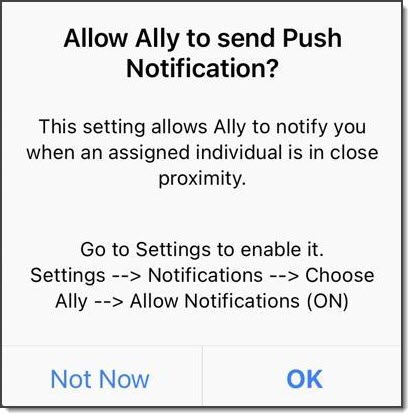
SCRAM Ally requires these permissions to properly monitor Victims and deliver important alerts with regard to Victims’ proximity to their assigned individuals. When Ally does not have these permissions, the following dialogs are displayed:
SCRAM Ally App Requests to send Push Notifications
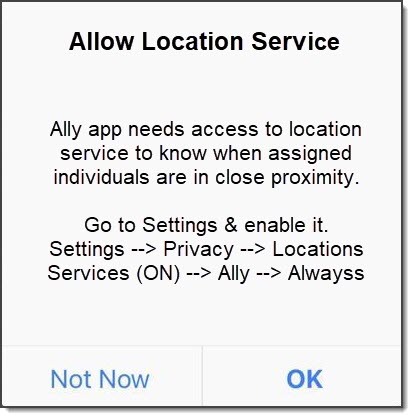
SCRAM Ally App Requests Access to Location Service
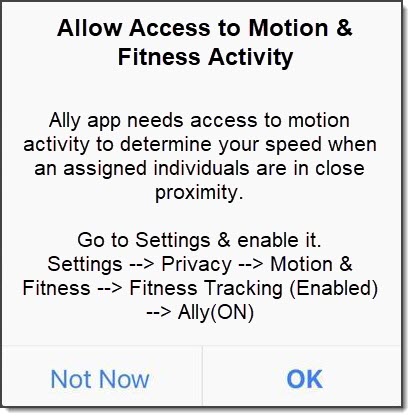
SCRAM Ally Requests Access to Motion & Fitness Activity
If Victim users do not grant permission to these services, the following banner warnings are displayed in the SCRAM Ally app:
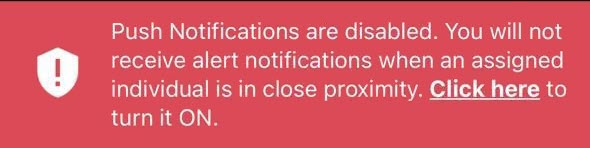
Warning Banner: Push Notifications are Disabled
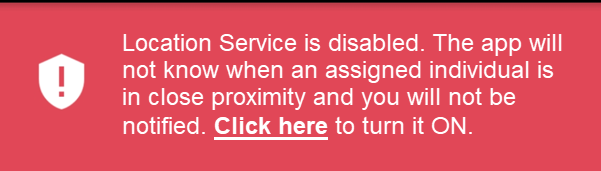
Warning Banner: Location Service is Disabled
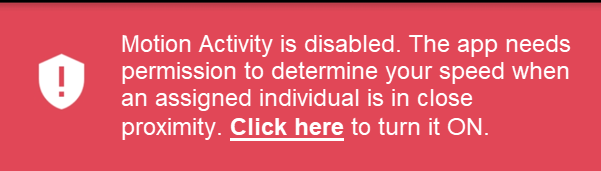
Warning Banner: Motion & Fitness Activity is Disabled
Additionally, when the Location Service is disabled, a critical alert is generated in SCRAMNET GPS. It is important to address this alert as it indicates the Victim is not properly monitored:
SCRAMNET Alert: Location Service Disabled – Victim (click to enlarge)
Location Information Availability when the Ally Victim Uses the Application to Call for Help
When Location Services are enabled for the Ally application and the victim uses the app to call the emergency number displayed, the current location information is reported.
If the victim disables Location Services while the application is open, when they call the emergency number displayed, the last known location will be reported.
If the victim disables Location Services and then closes the application on their smartphone, once reopened, unless Location Services are enabled, no location information is reported when making an emergency call from within the Ally application.
With the end of Summer closing in, some of your clients who are wearing SCRAM CAM Devices as part of their monitoring program requirements, may be looking forward to squeezing in a vacation before their kids head back to school, for example.
If you have clients who fit that description, SCRAM Systems recommends that Program Participants who will be traveling by air while wearing a SCRAM CAM Device, carry a printed copy of their signed SCRAM CAM or SCRAM CAM+HA Program Participant Agreement, along with a printed copy of our Air Travel Safety Statement, to share with airport security and airline personnel if needed.