On July 16, 2025, SCRAM Systems® will release an enhancement for your Remote Breath Pro client Caseload. With this release, you may suspend your client’s monitoring and billing without using the Stop Monitoring process and unenrolling the device.
While a client is on your program, there may be a scenario where you need to suspend their monitoring temporarily. This enhancement allows you to set a suspension start and end date to temporarily stop monitoring and billing for a client for up to 30 days.
To suspend a client’s monitoring,
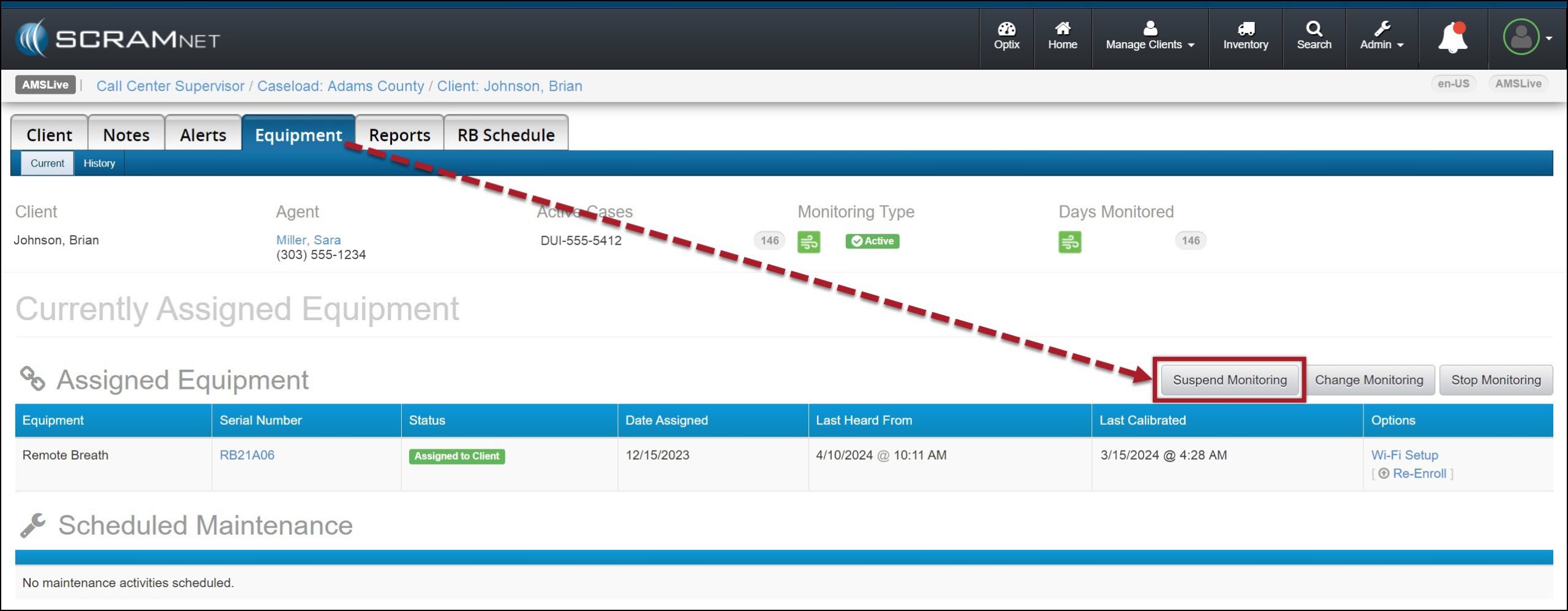
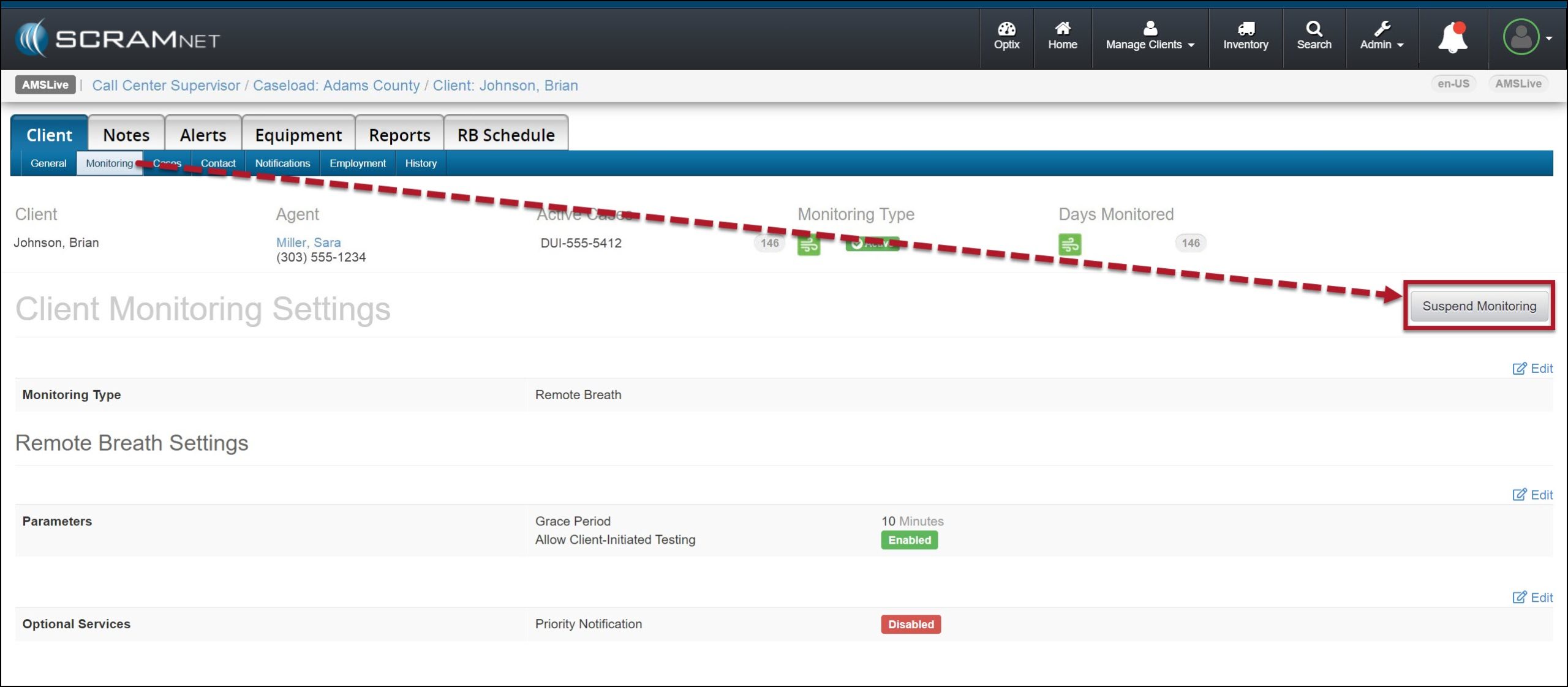
Navigate to the client’s Equipment page and select the Suspend Monitoring button.
Client’s Equipment Page, Suspend Monitoring Button – click to enlarge
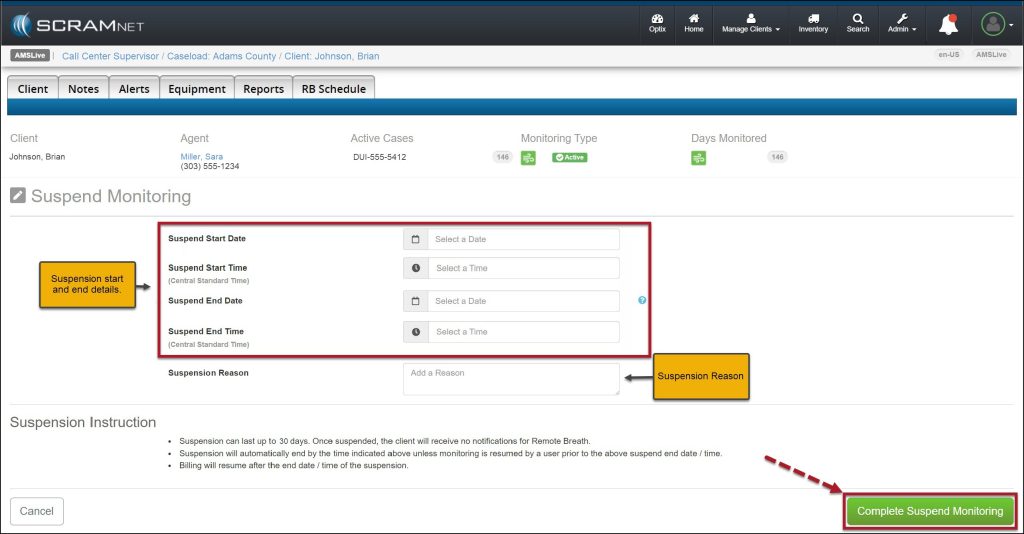
On the Suspend Monitoring page, enter the start and end date and time, and the SuspensionReason.
When selecting the start date, you may enter the current date or schedule the suspension of monitoring for a future date.
Select the Complete Suspend Monitoring button.
Suspend Monitoring Page – click to enlarge
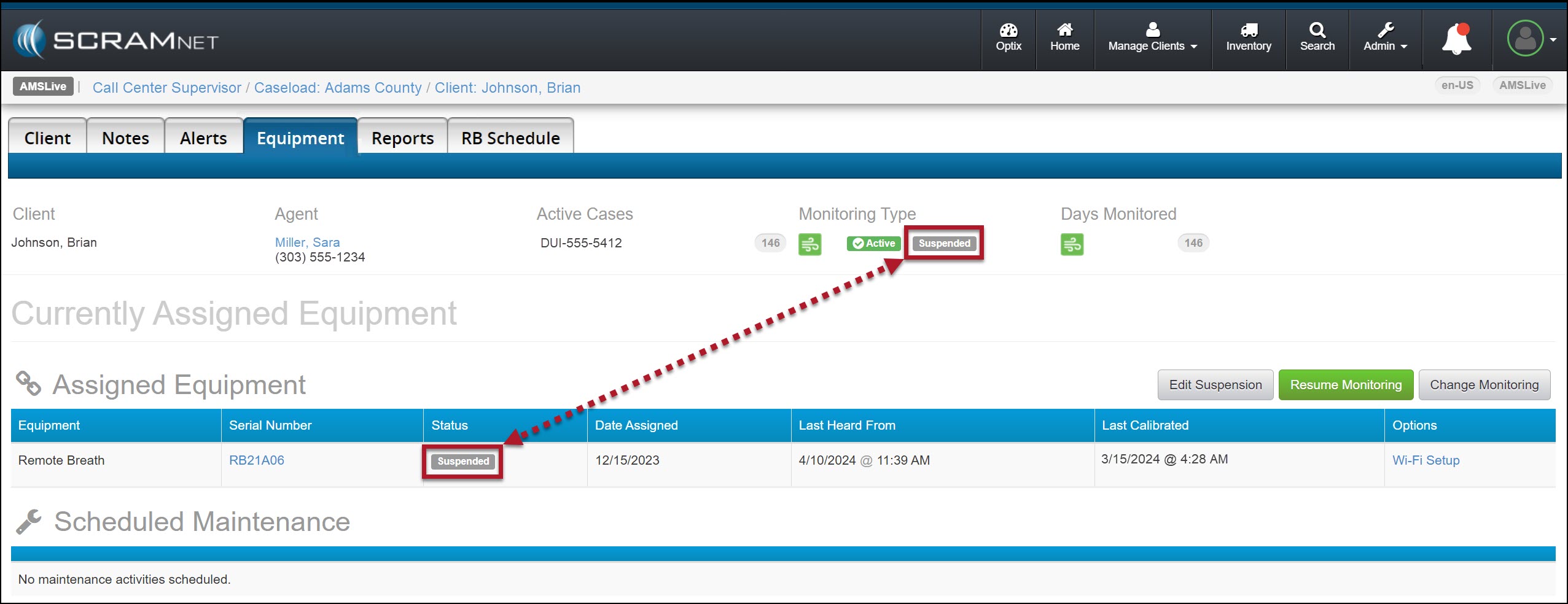
Once the suspension period has begun, the Monitoring Type banner and the Status column will display a status of “Suspended.”
Monitoring Status Displaying Suspended – click to enlarge
During the suspension period:
The client’s Remote Breath Pro device will continue to display Monitoring on the screen.
On-Demand and “Client-Initiated” testing is not available.
The client will not be prompted to provide a breath sample.
Only Calibration Required alerts are generated when required.
Once the suspension period has ended, monitoring and billing will resume, “On Demand” and “Client-Initiated” tests are available, and the status will reflect active monitoring.
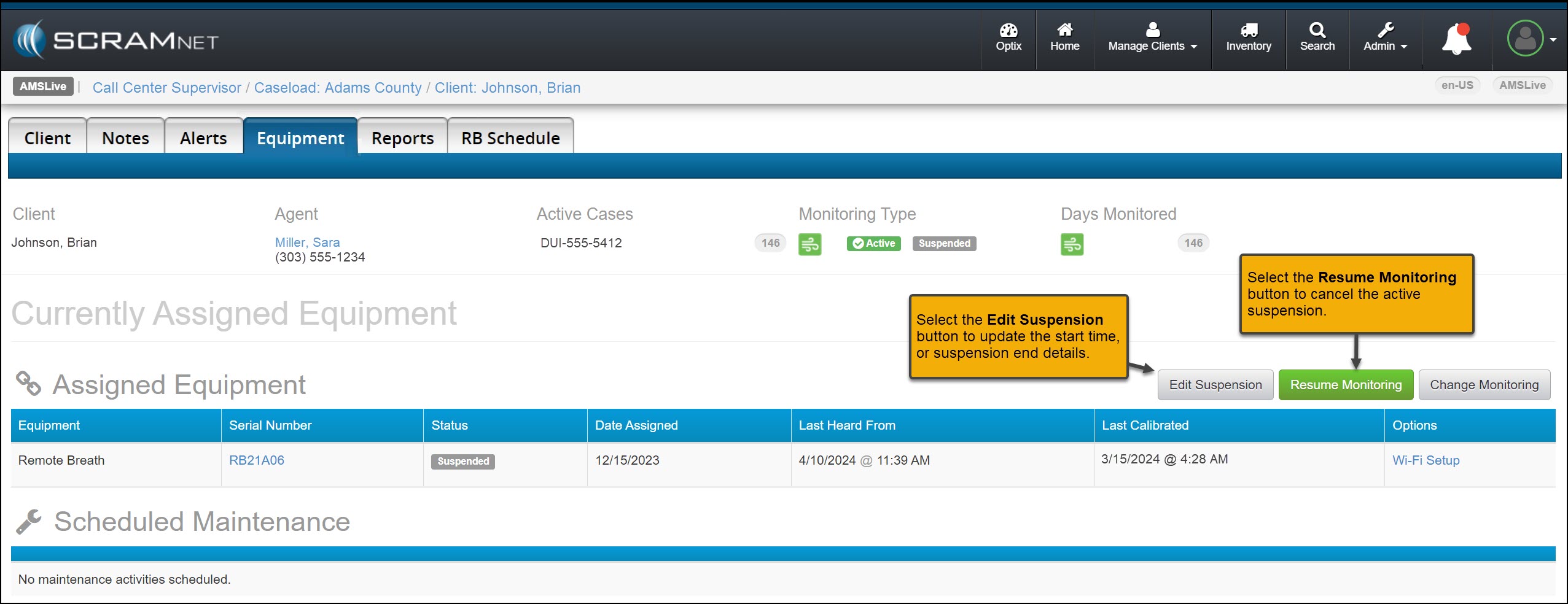
You may select the Resume Monitoring button to end the current suspension or the Edit Suspension button to update the suspension details.
Edit Suspension and Resume Monitoring Buttons – click to enlarge
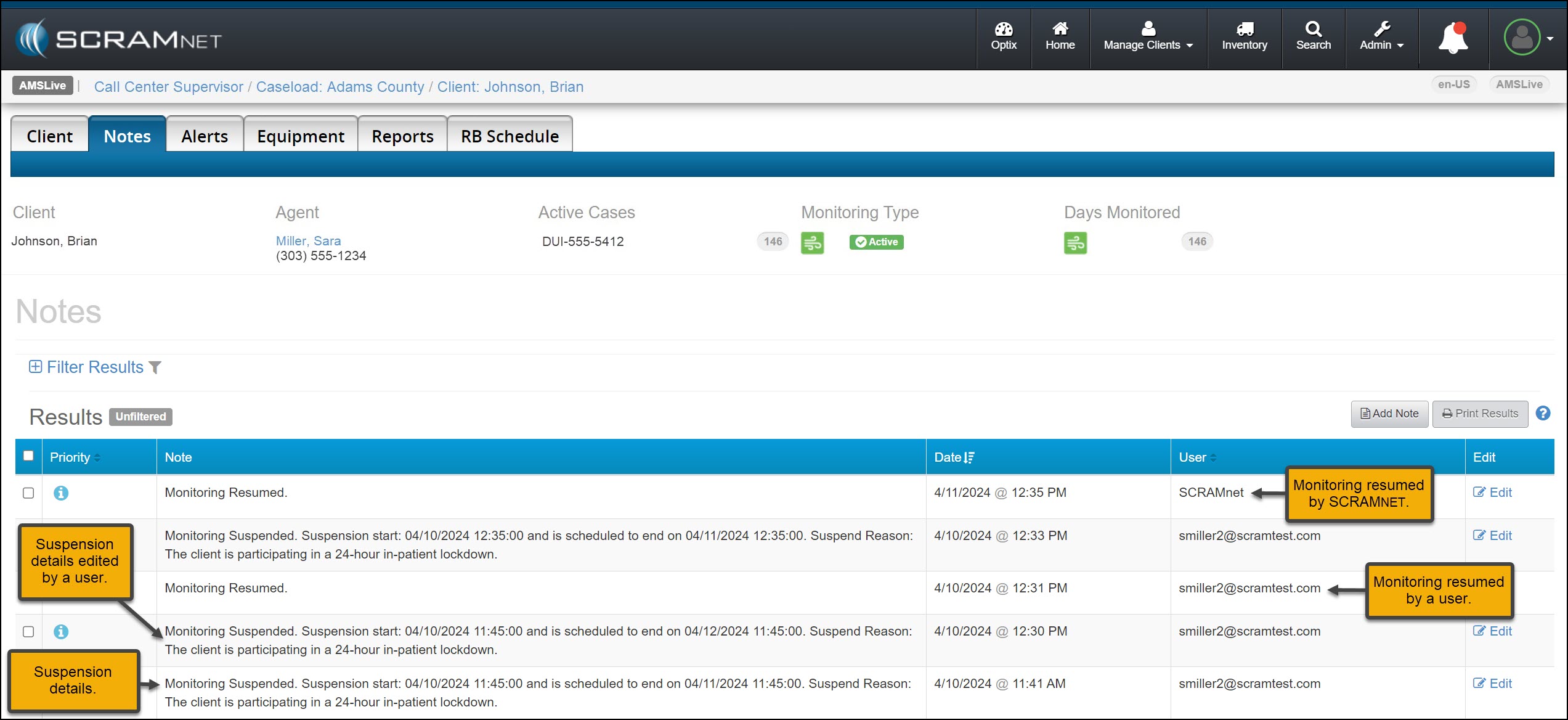
A history of the suspension details may be viewed on the client’s Notes page.
Client’s Notes page with Suspension Results Displayed – click to enlarge
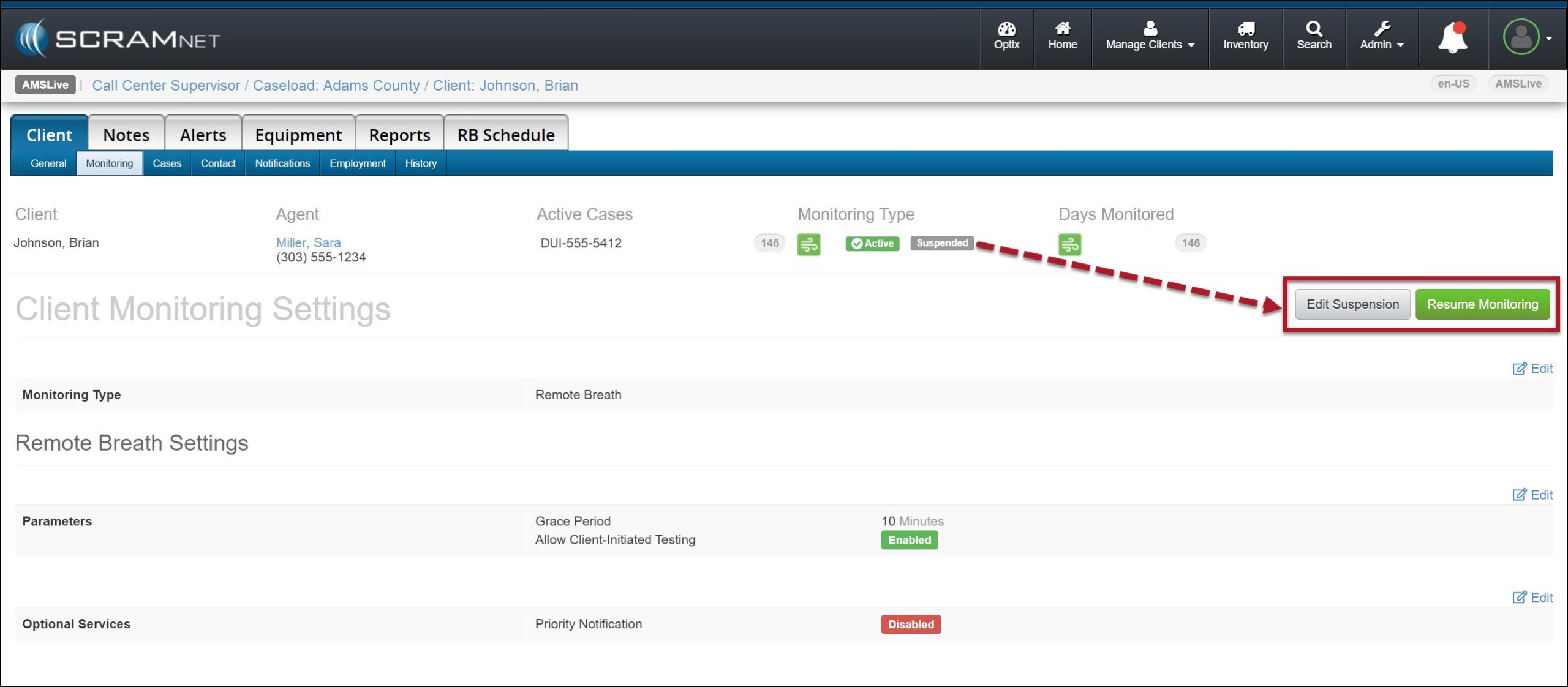
You may also suspend a client’s monitoring or edit and resume monitoring from their Monitoring sub-tab.
Client’s Monitoring Sub-Tab – Click to enlargeClient’s Monitoring Sub-Tab – Click to enlarge
On July 9, 2025, SCRAM Systems released a client Document Management enhancement within SCRAM Optix, SCRAMNET GPS and SCRAM Nexus.
If you don’t see the enhancement, please clear your cache and cookies and refresh your browser window.
SCRAM Documents Page Enhancement
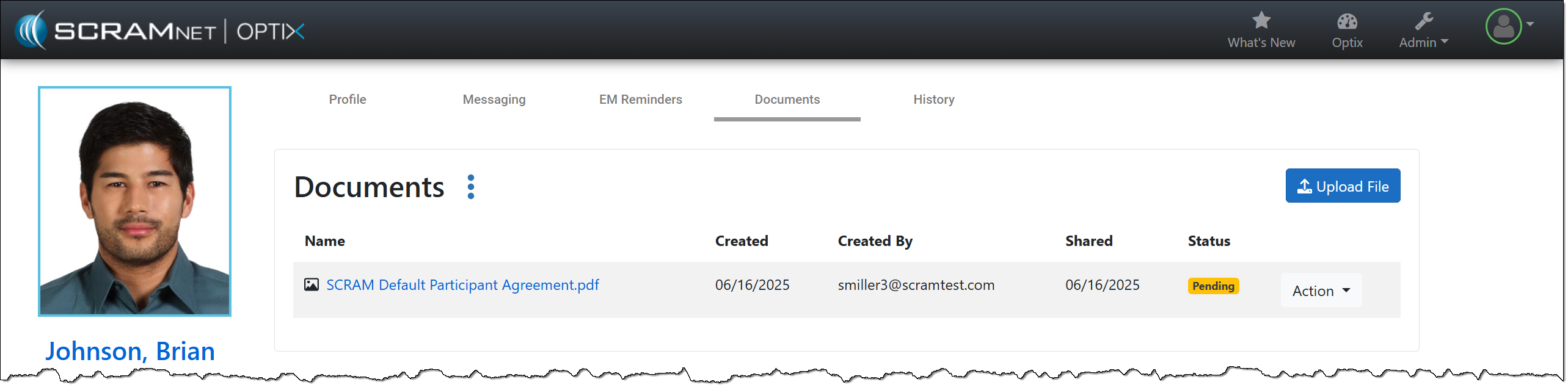
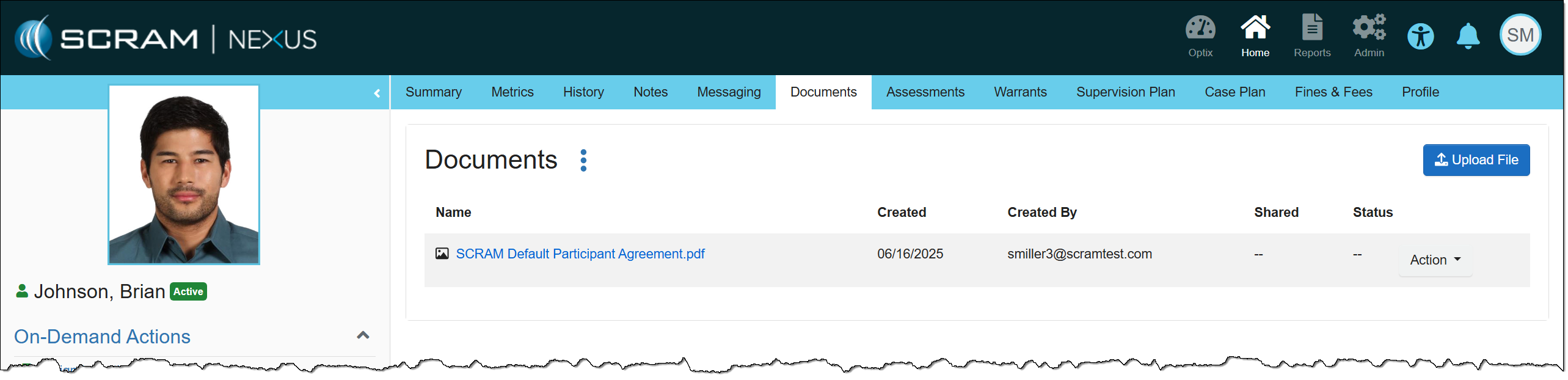
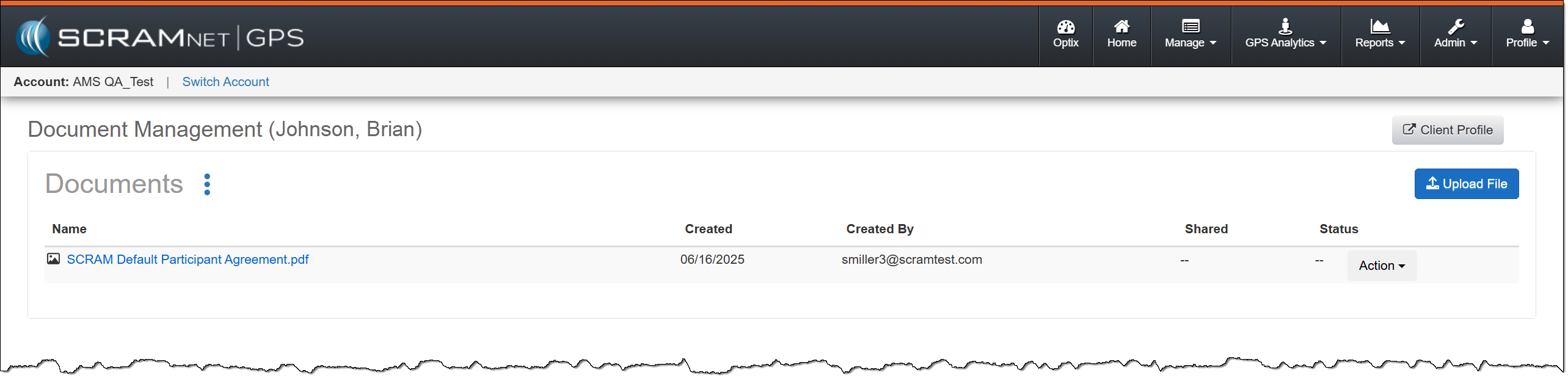
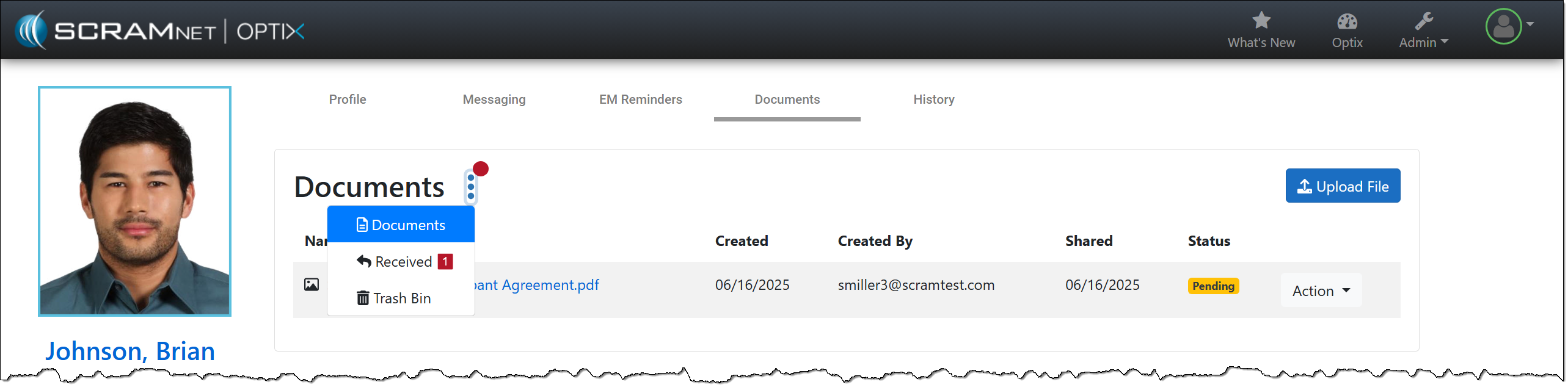
When viewing the client’s Documents page, you will notice a redesign. The “Documents, Received, and Trash Bin” options have been consolidated into an ellipsis menu, and the “Upload File” button has been moved to the right sideof the page.
SCRAM Optix Documents Page – click to enlargeSCRAM Nexus Documents Page – click to enlargeSCRAMNET GPS Documents page – click to enlargeExample of Notification Badge – click to enlarge
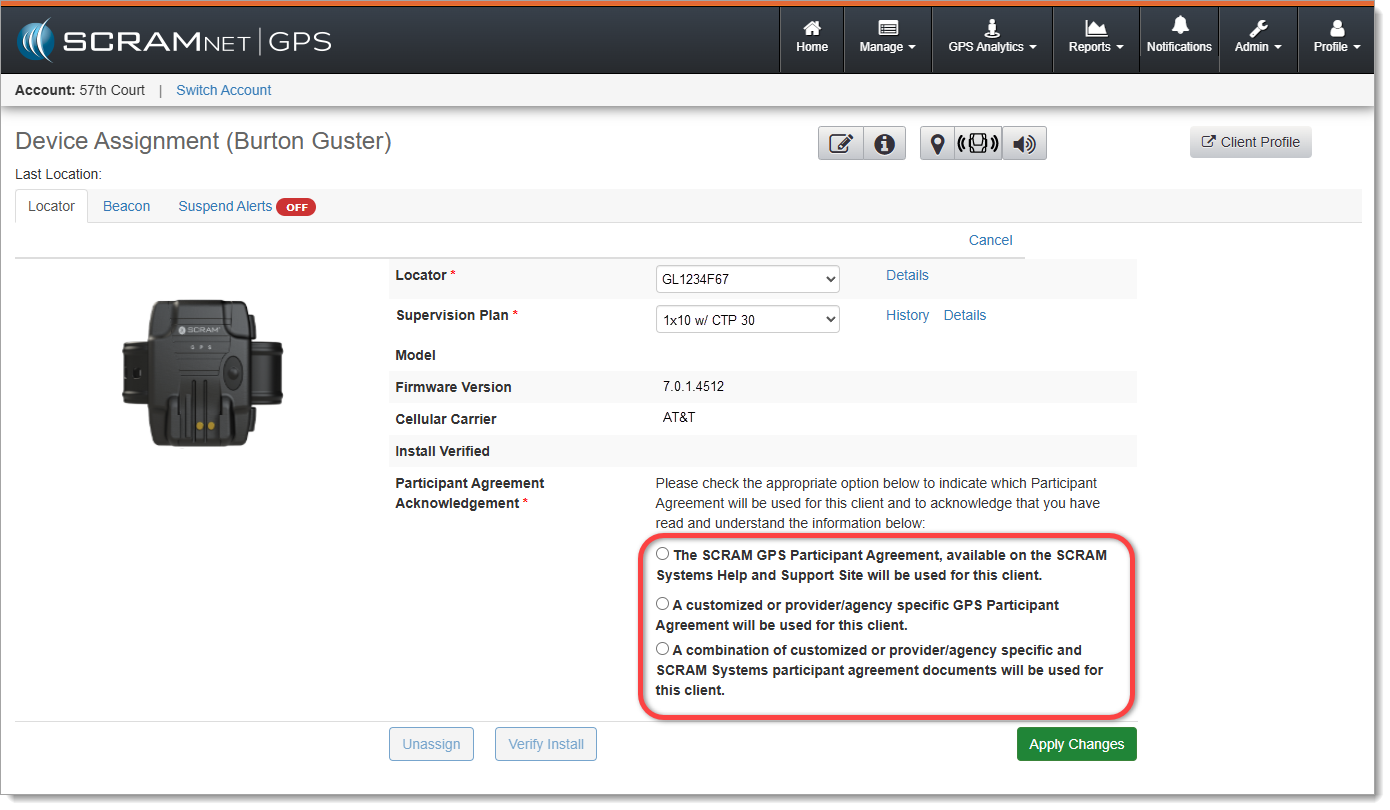
You may have noticed that when it is time to assign equipment, after adding your client to the SCRAMNET GPS monitoring system, you are now prompted to make a “Participant Agreement Acknowledgement.” A Participant Agreement is a legal contract between you – as agent for the monitoring services provider or supervising authority – and the client.
SCRAM Systems strongly recommends using a signed Participant Agreement for every client in your program.
Within the Agreement, you and your organization agree to fit the client with a SCRAM GPS device and provide all the necessary accessories (charging cable, e.g.) for your client to be successful in their monitoring program, and the client agrees to wear the device and follow the rules of the monitoring program as described in the Agreement.
Your organization may use its own agreement it has developed in-house and evolved over time, or your organization may use the SCRAM Systems-developed SCRAM GPS Program Participant Agreement that we too have evolved over time, and vetted with our internal legal counsel. Either way, SCRAM Systems strongly recommends using a signed Participant Agreement for every client in your program, as it provides legal protection to both you as agent and your organization.
Where to Find the SCRAM Systems GPS Participant Agreements
The SCRAM Systems developed GPS Participant Agreements are available in two places on the Help Site:
The SCRAM GPS Participant Agreements & Videos page (the SCRAM GPS Overview and Rules video is also an excellent resource available for you to use during device assignment)
The addition of the Acknowledgement to the enrollment process grew out of a need for better recordkeeping. The Acknowledgement is simply a record of which Agreement was used at the time of enrollment and does not impact the level of court support you receive from SCRAM Systems.
At 5:00 AM MDT on Thursday, June 26, 2025, SCRAM Systems will introduce a new Participant Agreement Acknowledgement feature in SCRAMNET GPS.
During the 15-minute deployment, you may not be able to access SCRAMNET GPS, but messages from the SCRAM GPS device will continue to be processed uninterrupted.
Device Assignment Enhancement
When it is time to assign equipment after adding your client to SCRAMNET GPS, before you may continue with the assignment process, you will have to make a “Participant Agreement Acknowledgement.” The addition of this acknowledgement to the enrollment process grew out of a need for better recordkeeping. This acknowledgement is simply a record of which Agreement was used at the time of enrollment and does not impact the level of court support you receive from SCRAM Systems.
You will be presented with two choices:
The SCRAM GPS Participant Agreement, available on the SCRAM Systems Help and Support Site will be used for this client.
A customized or provider/agency specific GPS Participant Agreement will be used for this client.
The new ‘Participant Agreement Acknowledgement’ section on the Device Assignment page in SCRAMNET GPS (click to enlarge)
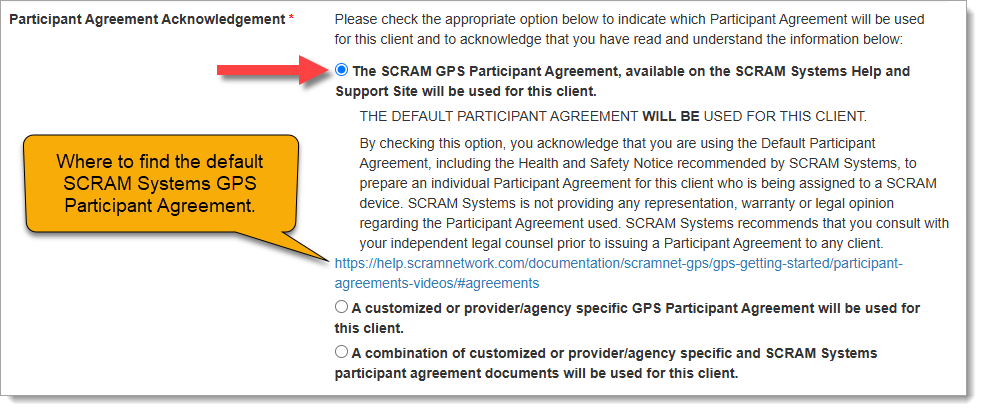
Customers who use the SCRAM Systems-provided SCRAM GPS Program Participant Agreement and Health & Safety Notice, which is available for download from SCRAM Systems Help & Support, will choose the first option, “The SCRAM GPS Participant Agreement, available on the SCRAM Systems Help and Support Site will be used for this client.” This option indicates that you are using the default SCRAM GPS Participant Agreement that was developed by SCRAM Systems and is currently available in SCRAM GPS Help.
Once you have chosen an option, a more detailed explanation of the choice you have made will appear:
Participant Agreement Acknowledgement Option 1 chosen (click to enlarge)
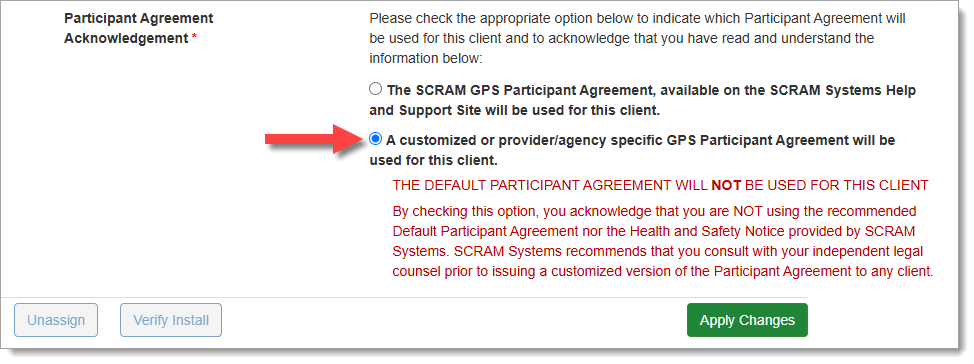
Customers who use their own monitoring program participation agreements, which they have developed in-house, independent of SCRAM Systems, and are NOT accessed from SCRAM Systems Help & Support, should choose the second option, “A customized or provider/agency specific GPS Participant Agreement will be used for this client,” as shown below:
Participant Agreement Acknowledgement Option 2 chosen (click to enlarge)
If you are unsure about the type of monitoring program participation agreement used by your organization, ask your supervisor or program administrator.
Completing the Device Assignment
Once you have chosen the appropriate Participant Agreement Acknowledgement, then Apply Changes and continue with the device assignment process as usual.
Tip: Regardless of which option you select, SCRAM Systems recommends you print two copies of the Participant Agreement and have the client and agent sign both copies – one copy for your records and one copy for the client’s records.
Audit Report
The Participant Agreement Acknowledgement selection made will be reflected in the Audit Report. This ensures a comprehensive and auditable history of agreement usage for each device assignment. The Audit Entry is shown as one of the following:
SCRAM Systems Approved Participant Agreement – YES
At 5:00 AM MDT on Thursday, June 5, 2025, SCRAM Systems will introduce a new feature that will allow users of the SCRAMNET GPS monitoring system to filter out inactive clients from Pattern of Life views.
During the 15-minute deployment, you may not be able to access SCRAMNET GPS, but messages from the SCRAM GPS device will continue to be processed uninterrupted.
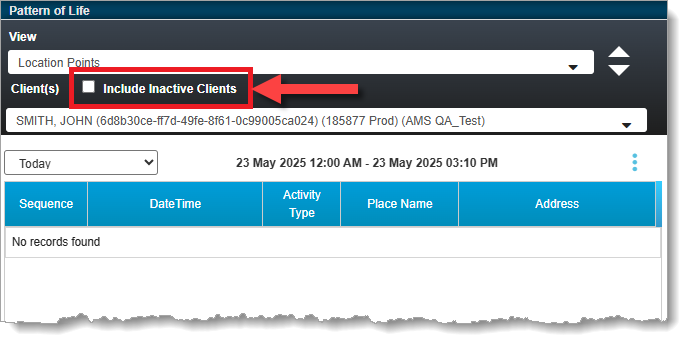
With this release, clients with Inactive statuses will be filtered from all applicable Pattern of Life views by default. This is useful in that it allows you to more quickly view Active clients only. This applies to the “Pattern of Life Analysis,” “Daily Activity Routine,” and “Location Points” views.
To see data for an Inactive client, select the Include Inactive Clients checkbox:
SCRAMNET GPS Pattern of Life ‘Include Inactive Clients’ Checkbox
On April 30th, 2025, SCRAM Systems will release multiple enhancements for your SCRAM 24/7 program.
These enhancements are:
Updates to the personally identifiable information (PII) that is available on the Add 24/7 Client page and the client’s Profile page.
Google Address validation for client address on the Add 24/7 Client page in the Contact Information section.
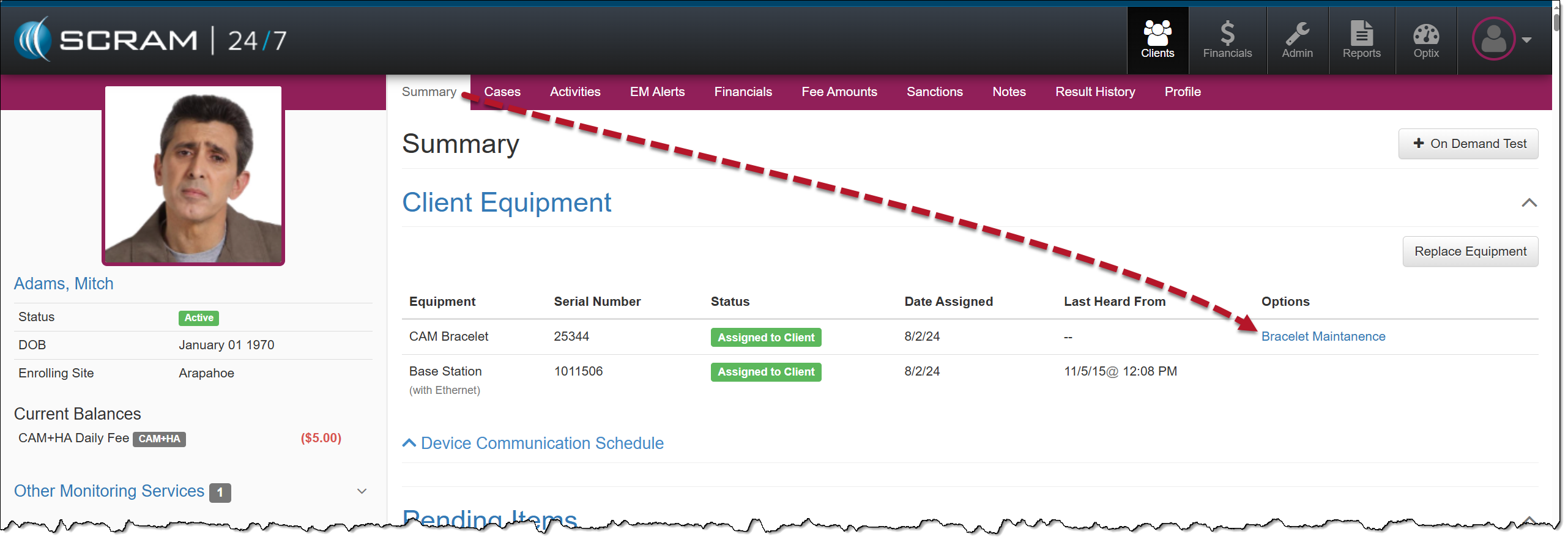
On the client’s Summary page, the Maintenance hyperlink located in the Options column will now display as “Bracelet Maintenance.”
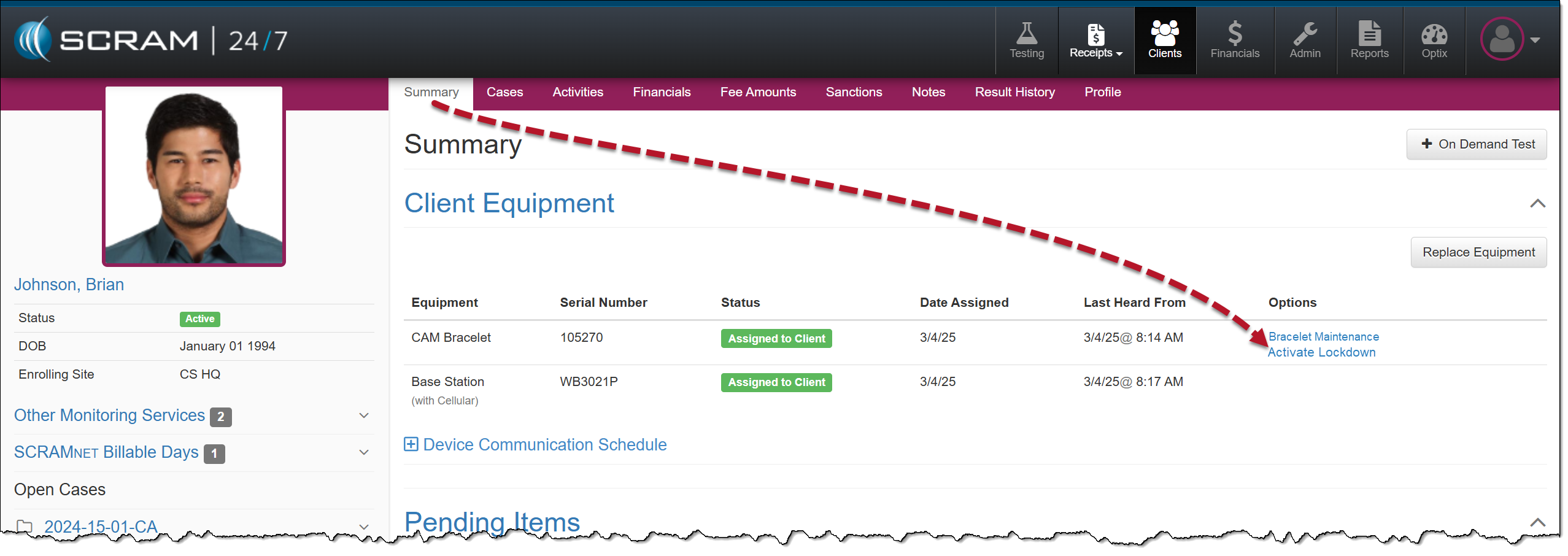
For clients participating in a CAM+HA or House Arrest Activity, an Activate Lockdown hyperlink is available in the Options column.
Personally Identifiable Information (PII)
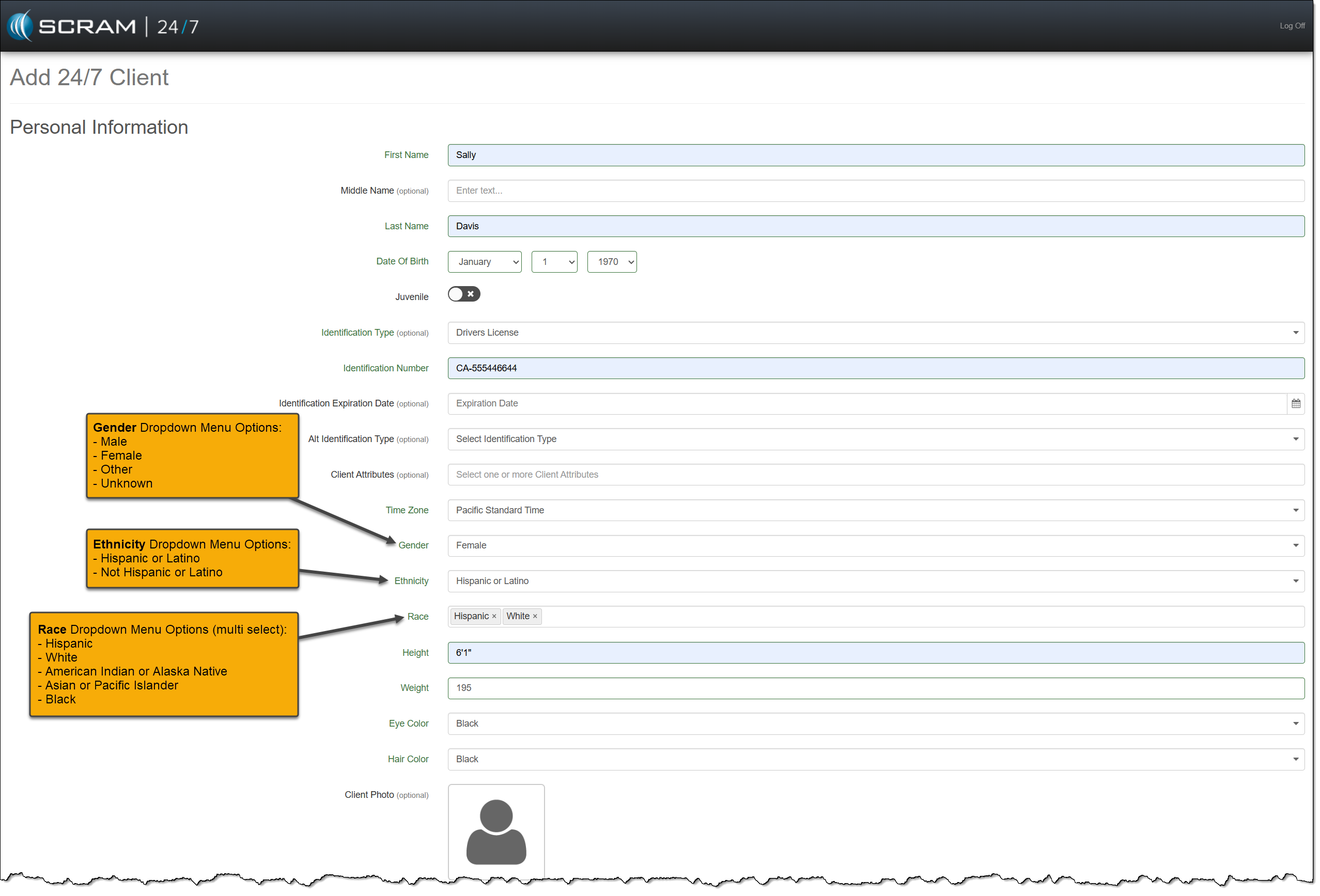
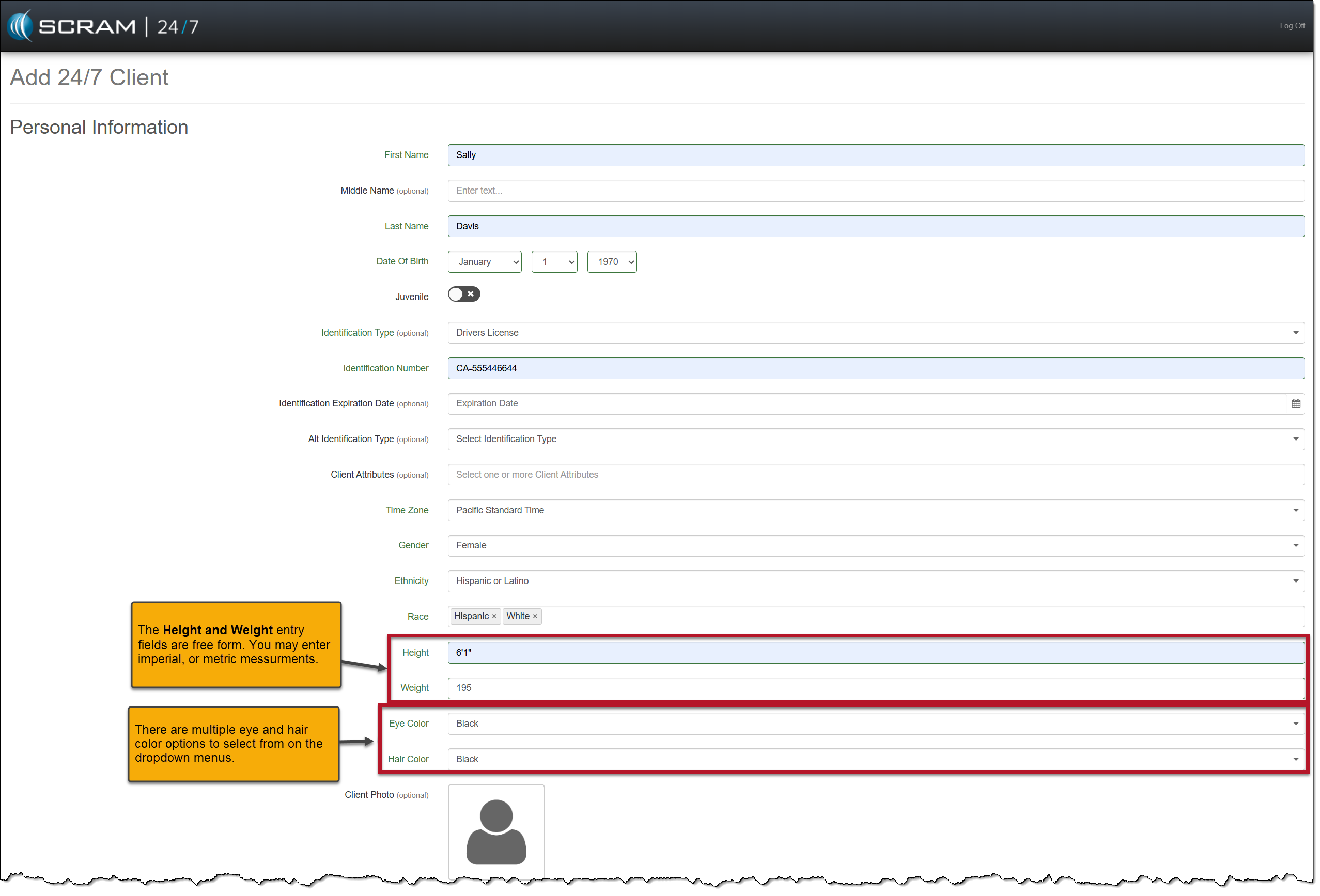
When adding a new client to the system, you will notice five additional required fields in the Personal Information section on the Add 24/7 Client page and some dropdown menu option updates. These updates allow you to include more detailed PII for your clients.
The additional PII fields are:
Race (multiple select)
Height
Weight
Eye Color
Hair Color
Updated dropdown menus include the following:
Gender
Ethnicity
Personal Information Section – Gender, Ethnicity, and Race options. Personal Information Section – Height, Weight, Eye and Hair Color options
You may also update an existing client’s PII on their Profile page.
Client Contact Information
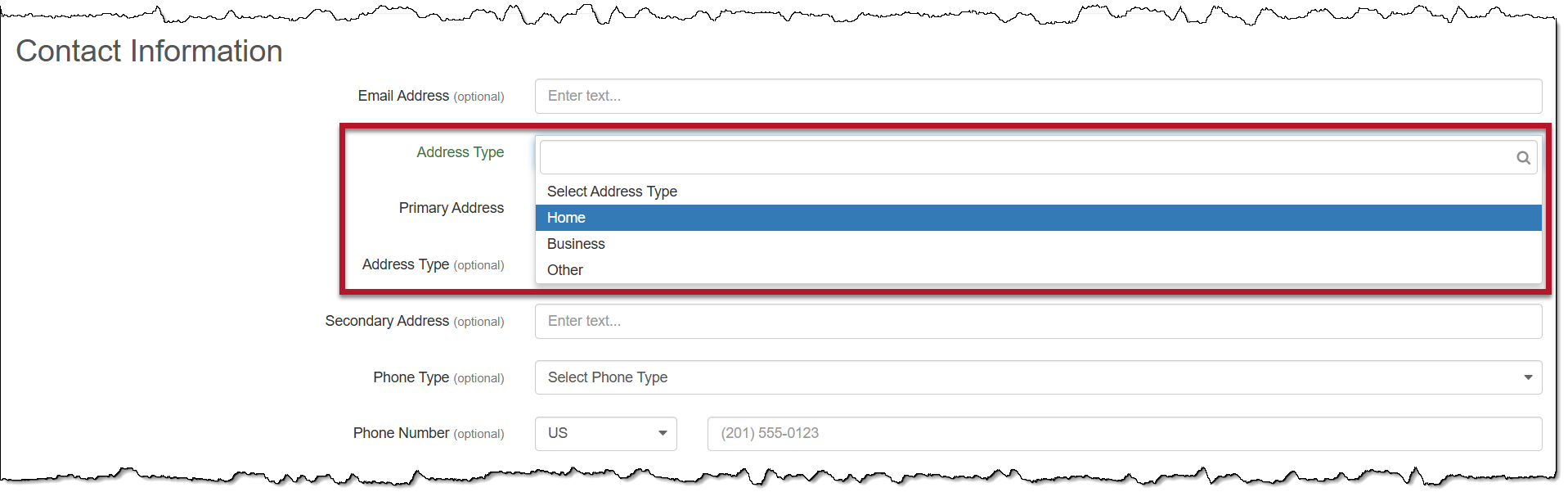
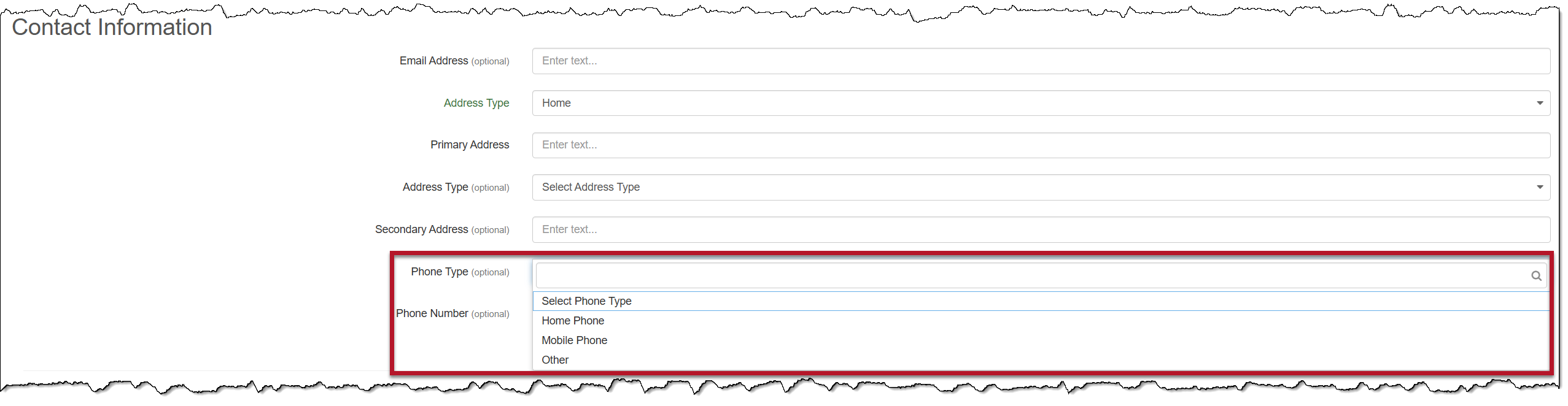
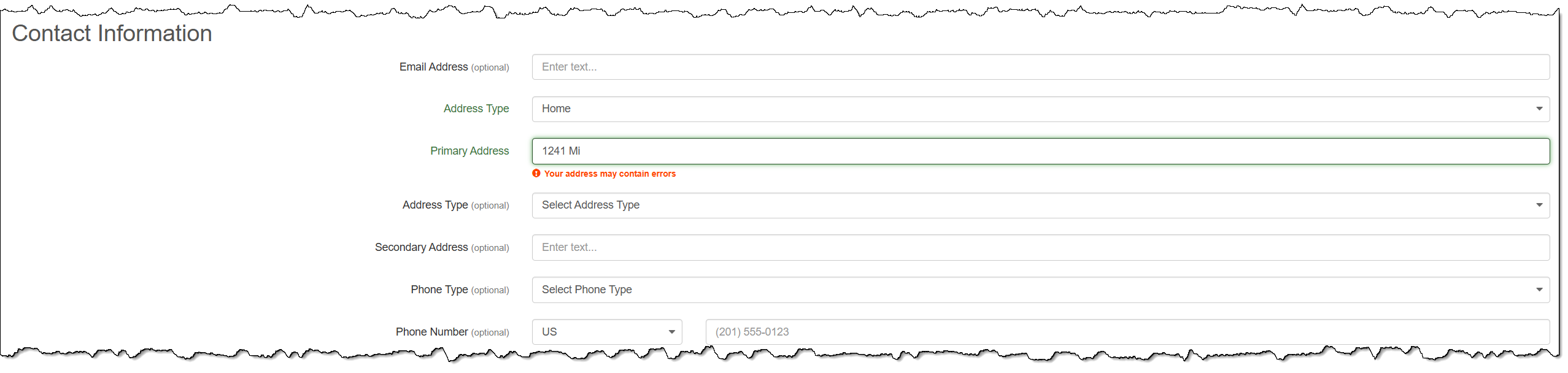
On the Add 24/7 Client page, you will notice a new Address Type dropdown menu, and the options for the Phone Type dropdown menu have been updated.
Address Type Dropdown Menu OptionsContact Information Section – Phone Type Dropdown Menu
While entering the address details, you will notice an address validation warning.
Contact Information Section – Possible Address Error Message
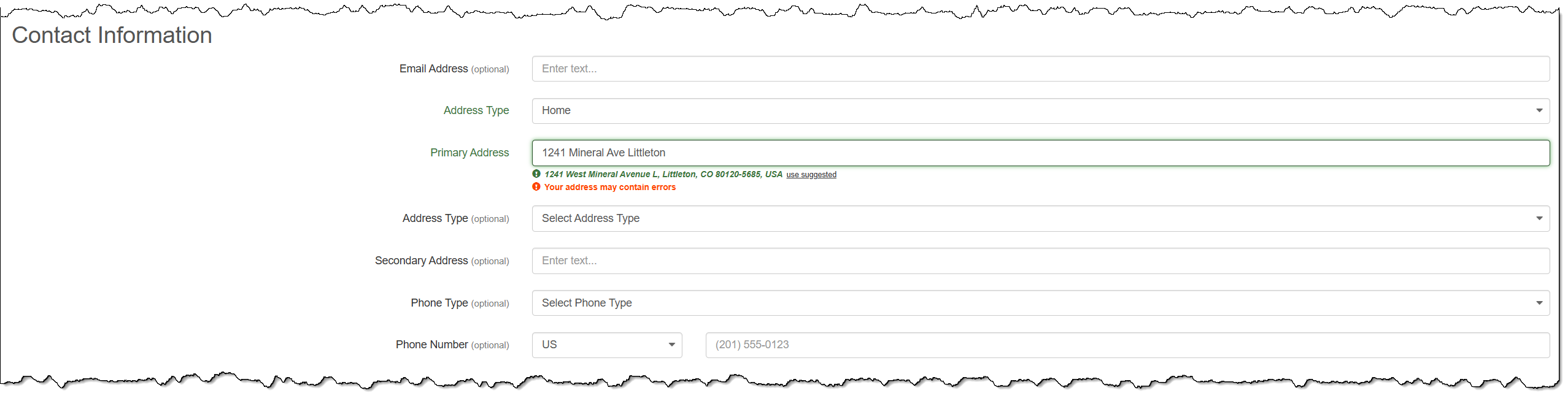
As you continue to add the details, Google will validate the address, and a suggested address will be available for you to select.
contact Information Section – Google Verified Address Suggestion
While entering the client’s address, you may save the information regardless of whether a Google-verified address suggestion is available to select.
After the release of this enhancement, your current clients’ address type will display as “Other.” You may update this option on their Profile page.
Bracelet Maintenance Hyperlink
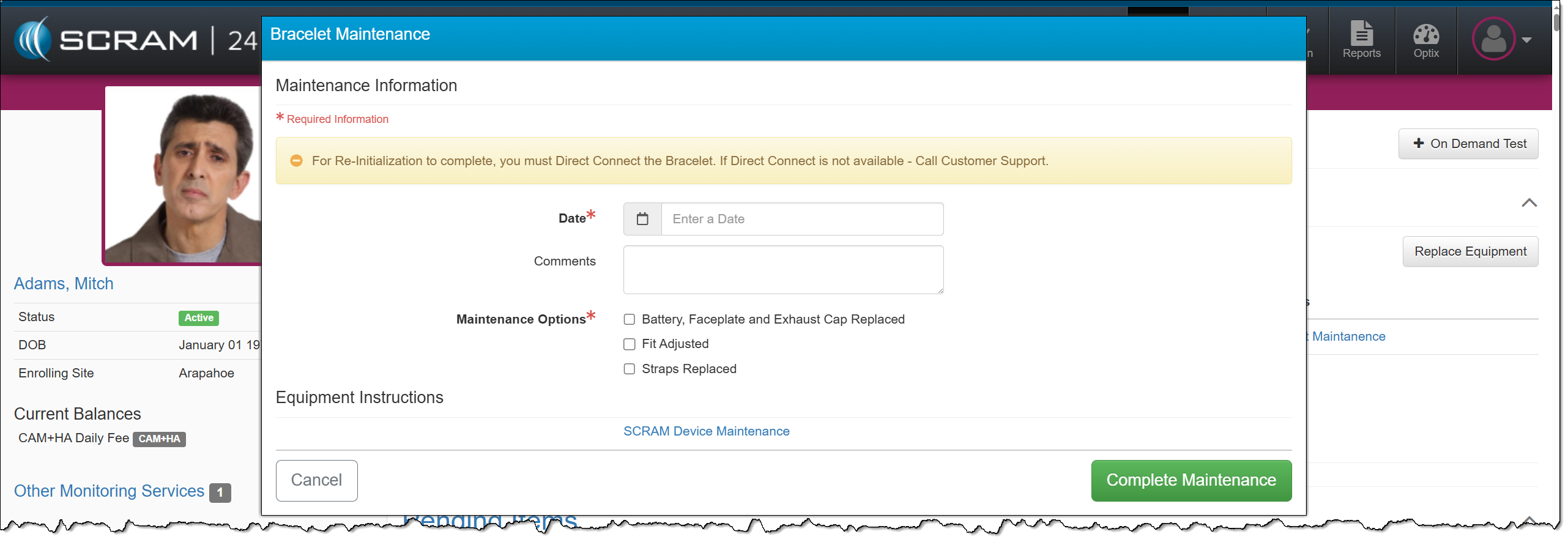
On the client’s Summary page, you will now access the Bracelet Maintenance hyperlink when completing maintenance on SCRAM CAM and SCRAM House Arrest bracelets. This maintenance includes Battery/Faceplate Replacement, Fit Adjustments, and Strap Replacement.
Clients participating in a curfew monitoring program, also known as house arrest, typically have permission to leave throughout the day to work or engage in other activities. These leaves are scheduled on the HA Schedule page in SCRAMNET. In some cases, non-compliant behavior or court orders may result in the revocation of the client’s freedom to leave their home.
When this occurs, quickly override the client’s HA Schedule by selecting the ActivateLockdown hyperlink in the Client Equipment section on the Summary page in SCRAM 24/7.
Activate Lockdown Hyperlink
Once the Lockdown status is active, an Unauthorized Leave alert is generated any time the client moves outside the range of the base station, regardless of the HA schedule.
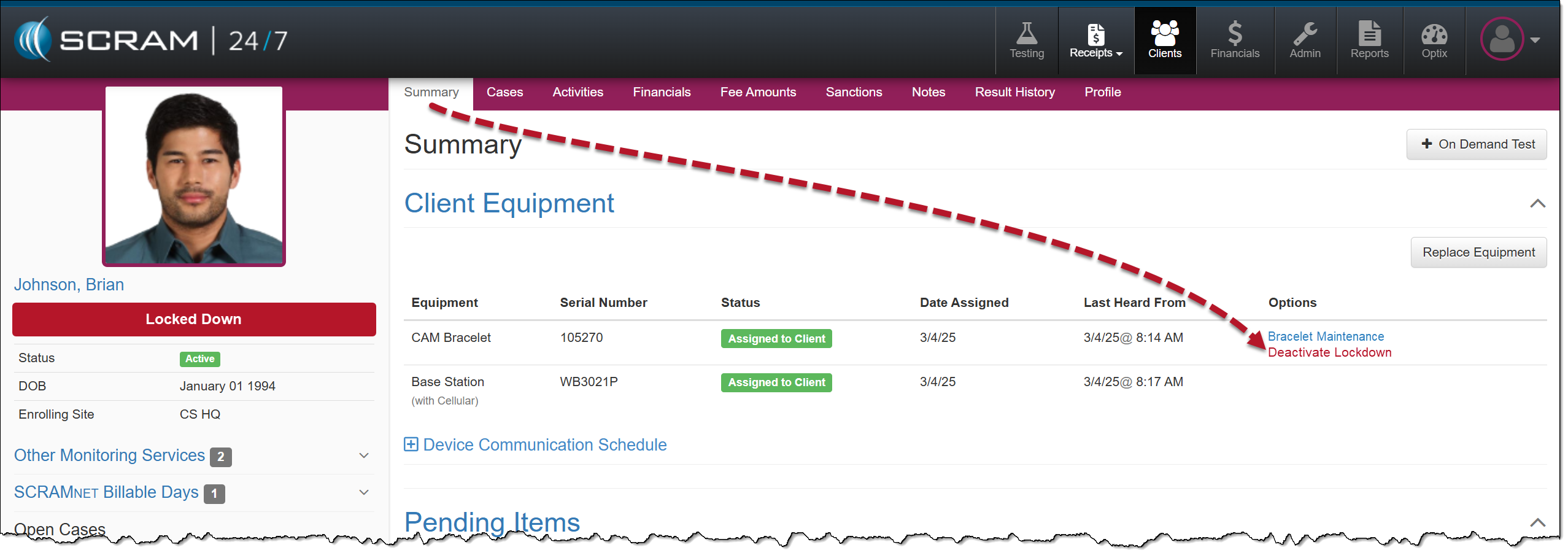
To remove the lockdown status, select the Deactivate Lockdown hyperlink, and the client may resume their activities based on the HA schedule saved in the system.
Deactivate Lockdown Hyperlink
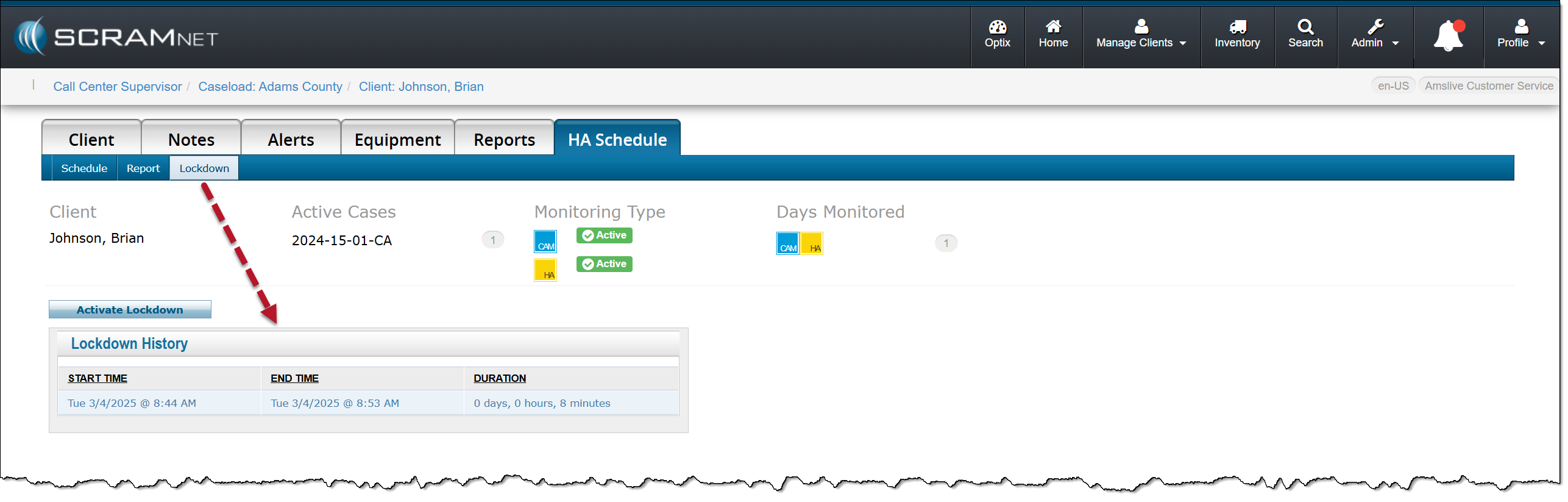
In SCRAMNET, you can view the client’s Lockdown History on the HA Schedule page, under the Lockdown subtab.
Your account must be enabled for location tracking for these instructions to work. Contact your SCRAM Systems Account Representative if you are interested in activating this service.
To Set Up Location Tracking at the Caseload Level:
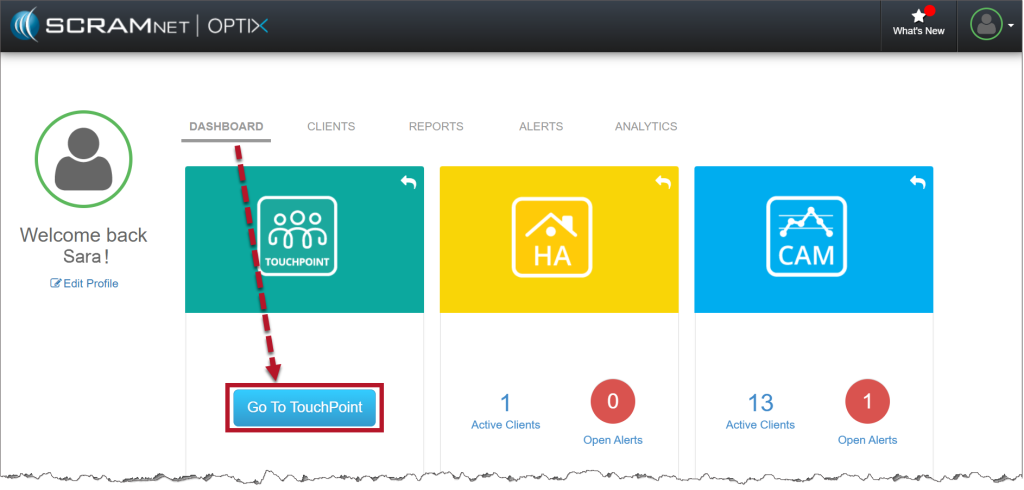
On the Optix Dashboard, select Go to TouchPoint.
Optix Dashboard
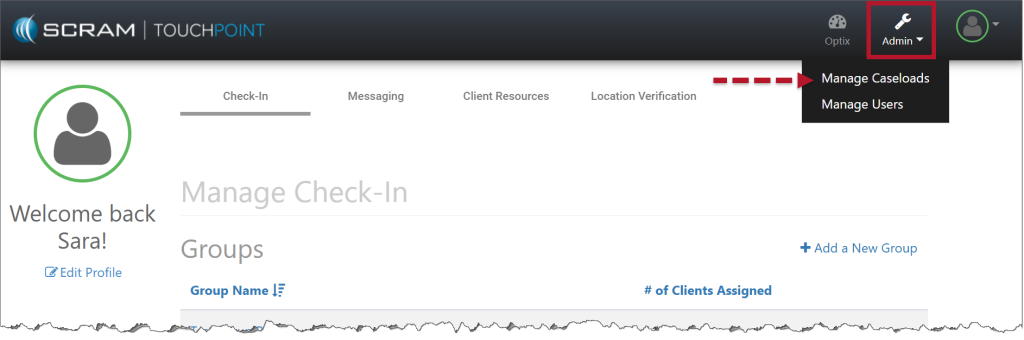
From the TouchPoint Check-In page, select the Admin dropdown menu, and choose Manage Caseloads.
Manage Check-In Page
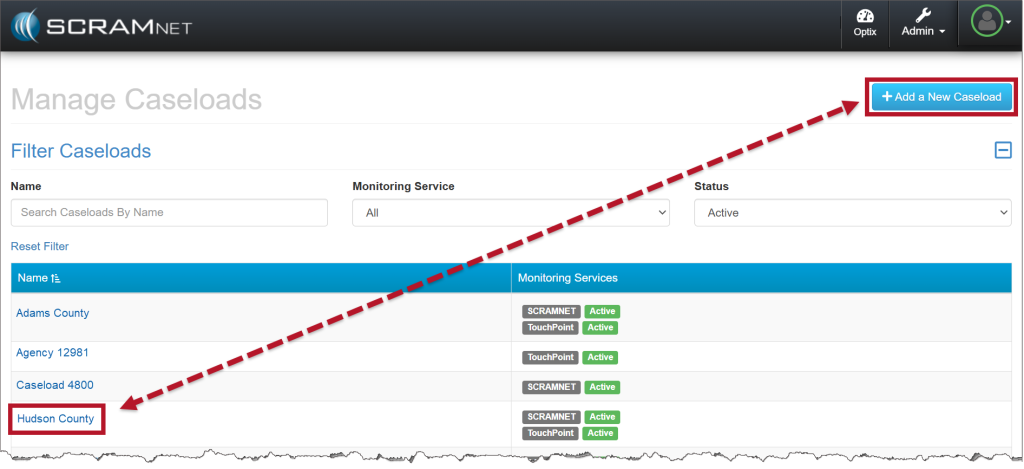
Select the Add a New Caseload button to create a new caseload or select an existing caseload to add this feature.
Manage Caseloads Page
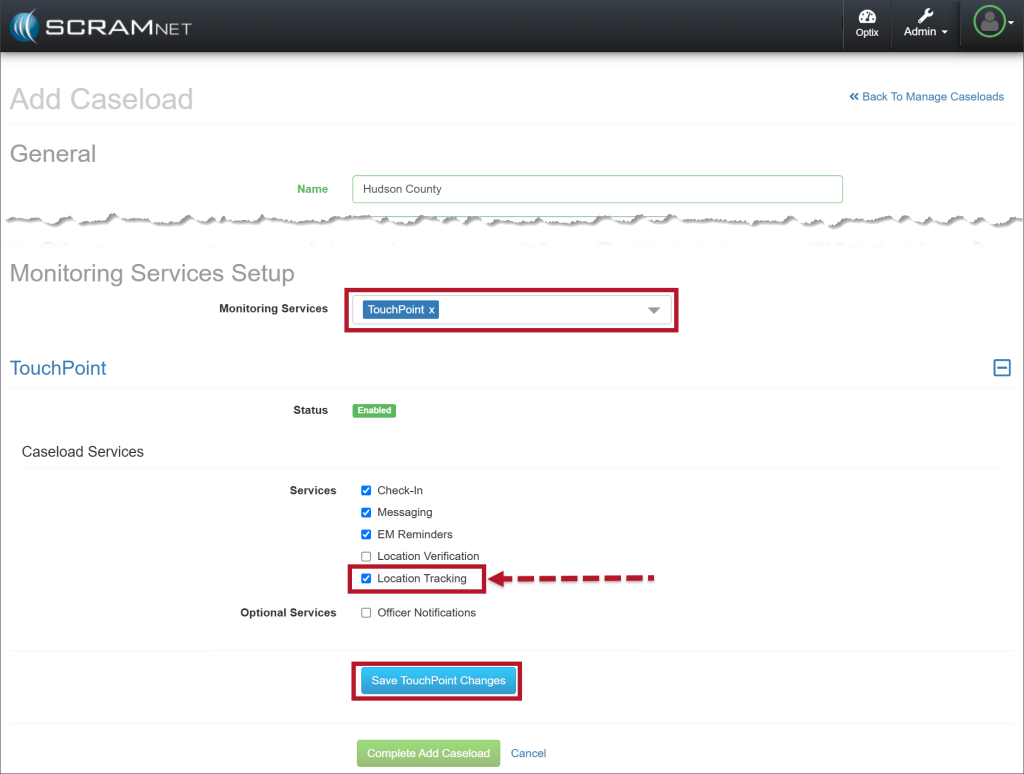
When adding a new Caseload or editing an existing Caseload, in the Monitoring Services section, select the checkbox next to the Location Tracking option located in the Caseload Services section.
When selecting the Caseload Services, Location Verification and Location Tracking cannot be enabled simultaneously.
To finish, select the Save TouchPoint Changes button.
Monitoring Services Setup Page
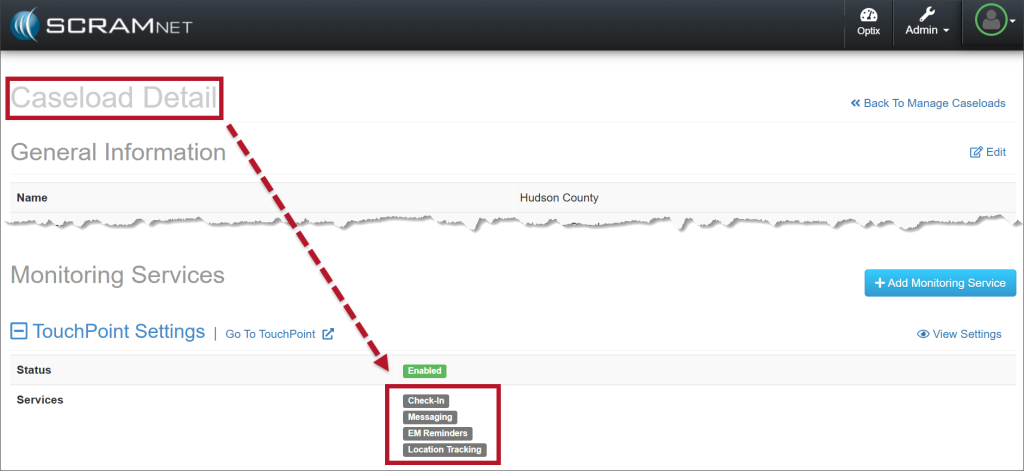
Once saved, the Caseload Detail page will display the enabled services.
Caseload Details Page
Enabling Location Tracking for Clients
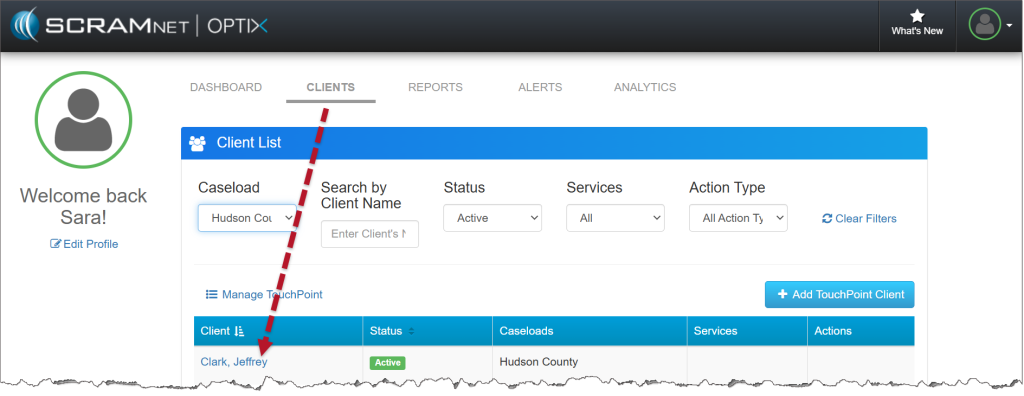
Once your Caseload is enabled for Location Tracking, you may enable this service for clients on their Client Profile page. For existing clients, on the Optix Clients page, select their name hyperlink.
Optix Client Page
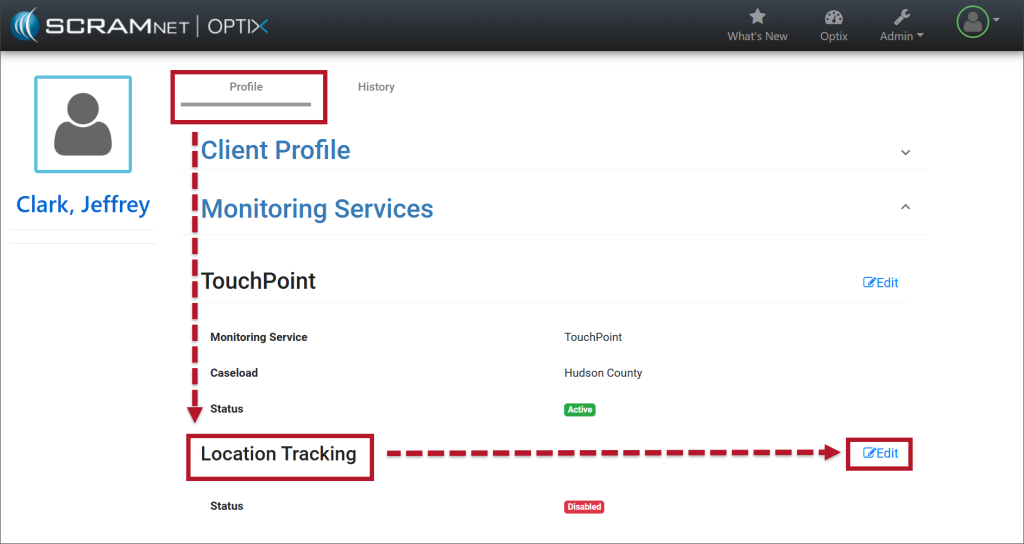
In the Monitoring Services section, select the Edit hyperlink to the right of the Location Tracking monitoring service.
Monitoring Services on the Client Profile Page
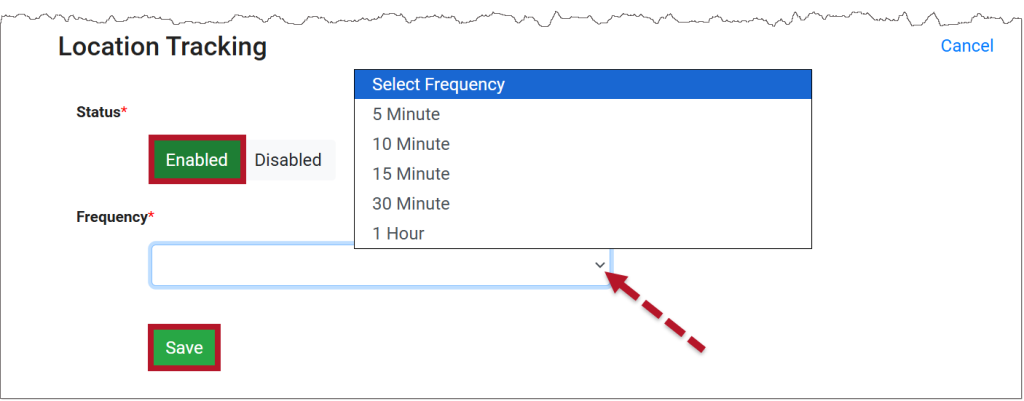
Select the Enable button and then set the frequency – “how often” you want the client’s smartphone to provide a location point.
Select the Save button.
Location Tracking Options
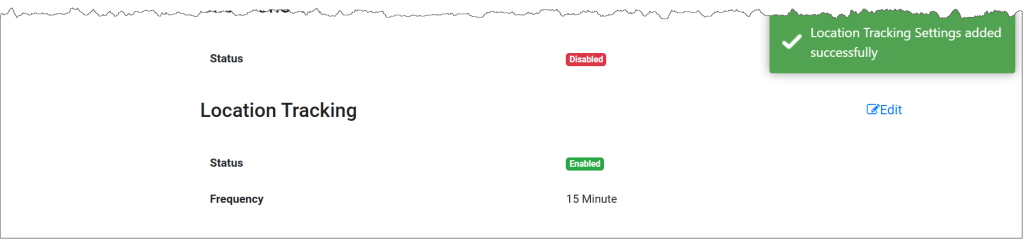
Once saved, a pop-up verifying the Location Tracking setting was successfully enabled for the client will display on the page.
Location Tracking Added Successfully
Accessing the Location Tracking Information
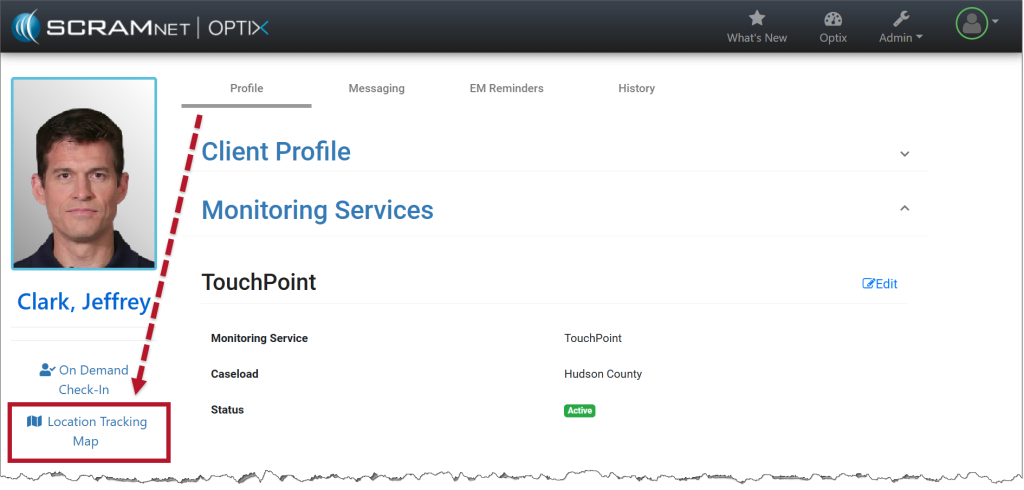
The Location Tracking information may be accessed by selecting that hyperlink on the Client Profile page.
Link to Location Tracking Map
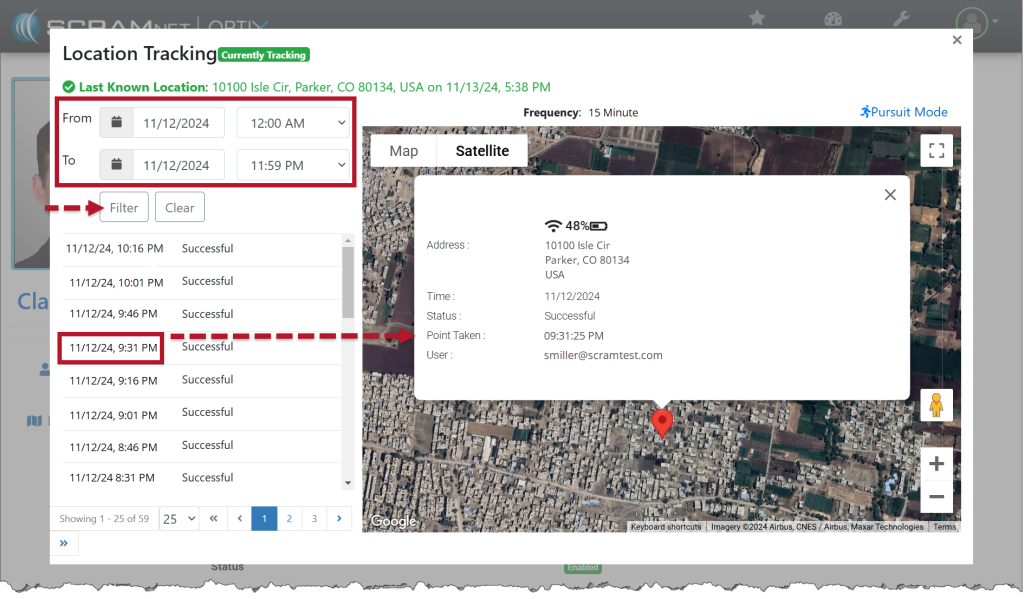
On the Location Tracking pop-up window:
The client’s last known location is displayed.
The “From” and “To” calendar and time fields allow you to customize the location information displayed on the pop-up. You are limited to a seven-day selection.
Select a specific date and time from the list to bring that location point into focus on the map.
Hover over the location point on the map to view the location’s details. This includes the location’s address, status, phone battery strength, and user name assigned to the client.
Location Tracking Pop-Up
Pursuit Mode Feature
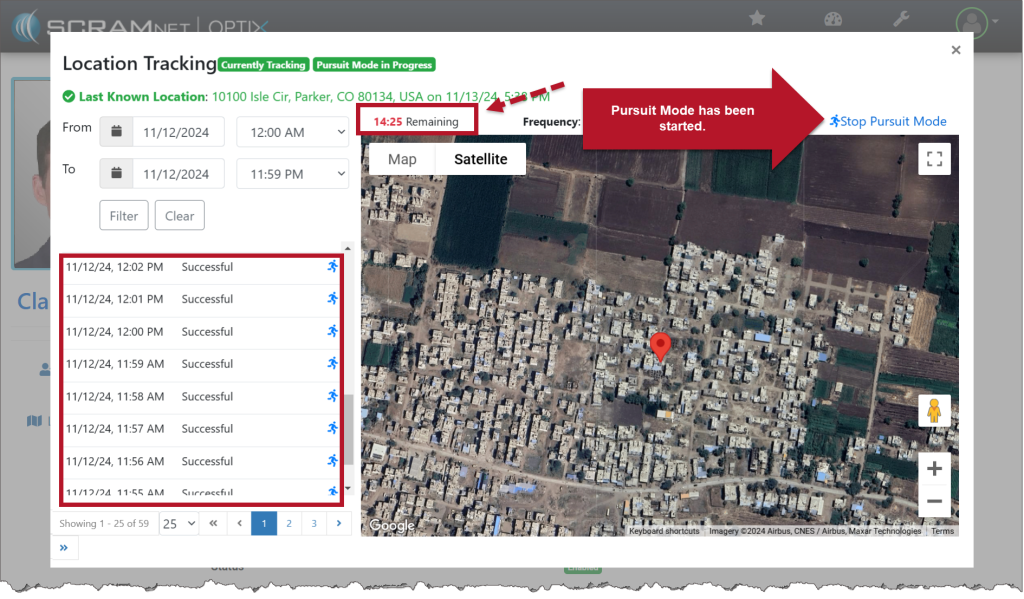
In some scenarios, real-time tracking of a client may be needed. “Pursuit Mode” temporarily overrides the saved location frequency for the client and updates the frequency to one location point every minute. The system will continue to gather a location point every minute for a total duration of 15 minutes or until manually ended by selecting the Stop Pursuit Mode option.
As the location information is received, the map and location data are updated in real-time on the pop-up.
On the morning of Thursday, April 10, 2025, SCRAM Systems introduced the following new feature:
Preserve Schedules and Exceptions on Client Reactivation
When clients are inactivated, associated schedules and exceptions expire. With this release, your SCRAMNET GPS account can be configured to allow schedules and exceptions to remain active, even on Inactive client profiles. This can be useful in scenarios where clients are inactivated, but will be reactivated, due to a short-term incarceration, for example. This new feature means officers don’t have to re-create schedules and exceptions when they reactivate the client.
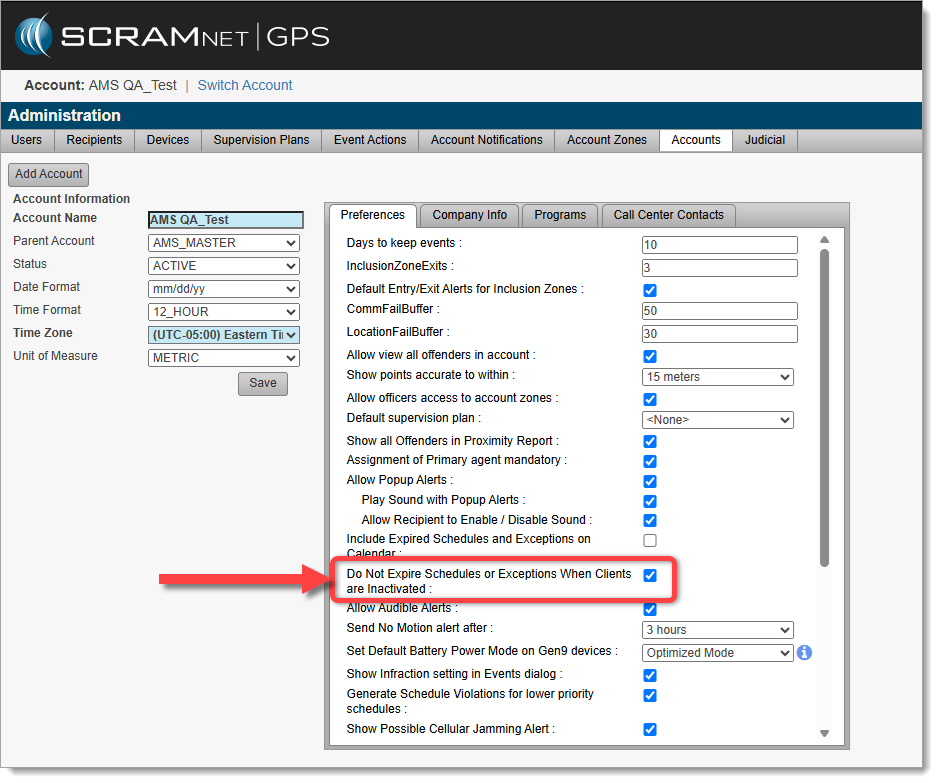
To use this new feature, an account Administrator must enable “Do Not Expire Schedules or Exceptions When Clients are Inactivated” in Administration / Accounts:
Check the “Do Not Expire Schedules or Exceptions When Clients are Inactivated” checkbox
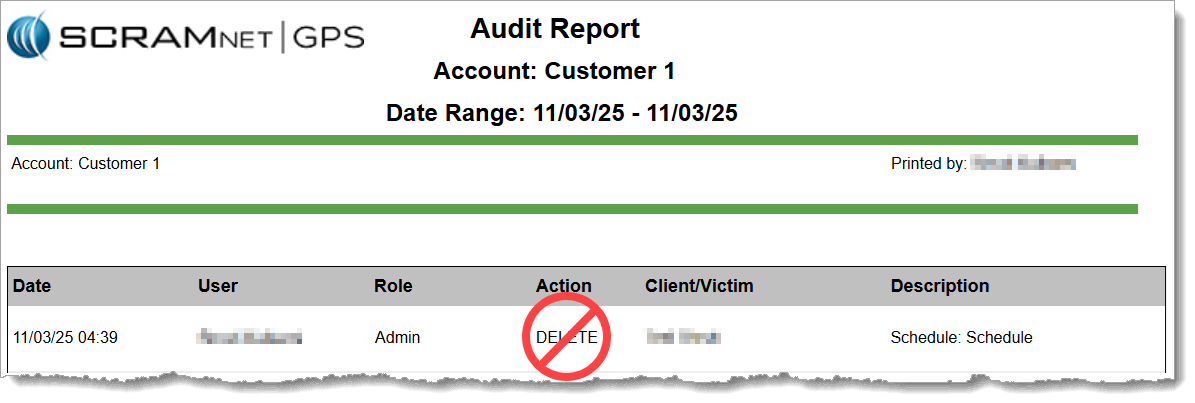
Tip: When this feature is activated, the Audit Report will no longer show “DELETE” entries for schedules or exceptions to Inclusion and Exclusion Zones, when a client is inactivated.
Audit Report no longer shows “DELETE” entries for Schedules or Exceptions
On April 16th, 2025, at 11:00 AM MDT, SCRAM Systems will release an enhancement to your SCRAM 24/7 monitoring program software. Currently, you may only associate a SCRAM 24/7 user with a single enrollment site (Caseload). With this enhancement, you may configure a user’s profile to access and manage clients on multiple enrollment sites (caseloads).
During the deployment, you will be unable to access SCRAM 24/7 for up to one hour.
Associate Multiple Caseloads with a User
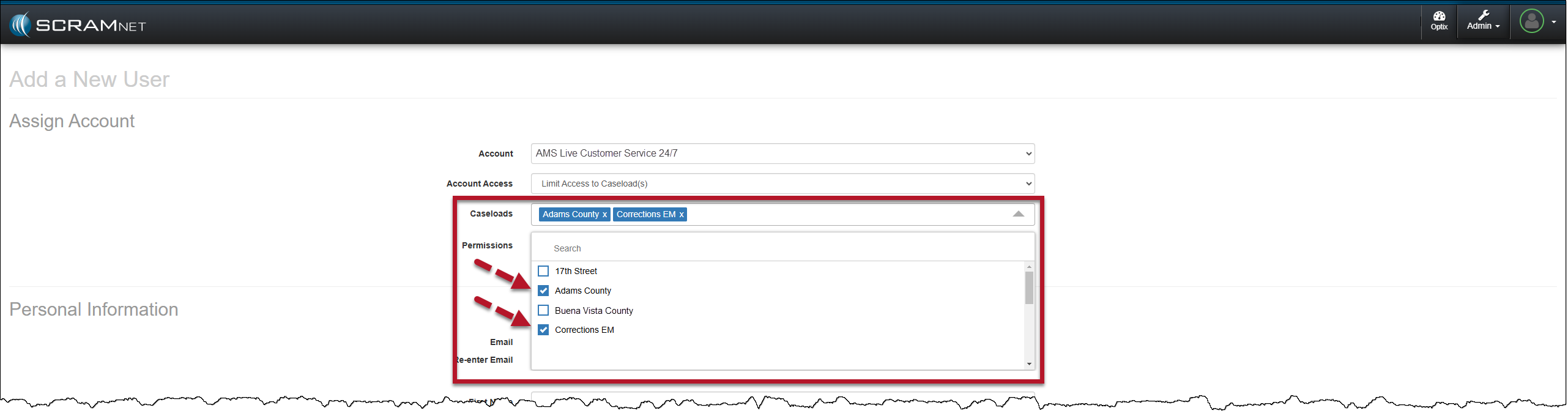
When editing a current user or adding a new user to your program, once the SCRAM 24/7 Account and Account Access options are selected, choose one or multiple Caseloads for the user to access and manage clients from within SCRAM 24/7, and then set the user’s Permissions for the selected Caseloads.
Manage User Page, Select Multiple Caseload
Tips:
An Administrator for your program may update a user’s profile from the Manage Users page.
The permissions selected for the user apply to each caseload associated with that user.
When editing a current user’s profile, the user should log out of the system and back in after the Administrator has saved changes to their profile.
SCRAM 24/7 Filter Updates for a Multiple Caseload User
Once a user has access to multiple caseloads for client management, the user must remember to select the caseload in which they wish to complete their daily tasks from the various dropdown menus throughout the SCRAM 24/7 site.
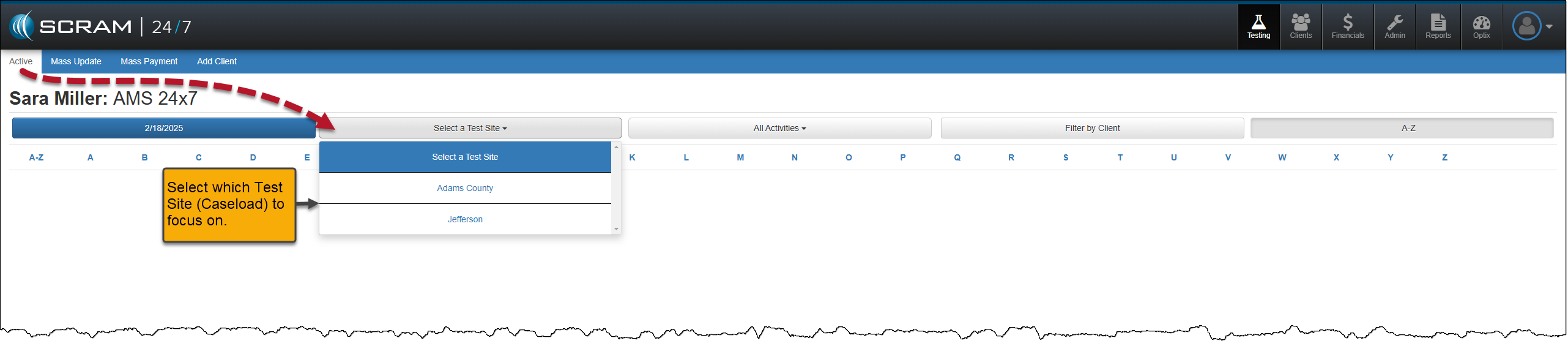
For example, quickly filter the clients associated with a specific caseload on the Testing Dashboard and the Clients page by selecting the appropriate caseload in the Test Site and Caseload dropdown menus, respectively. Once selected, the clients displayed on the page are associated with the chosen caseload.
Testing Dashboard – Test Site Dropdown MenuClients page – Caseload Dropdown Menu
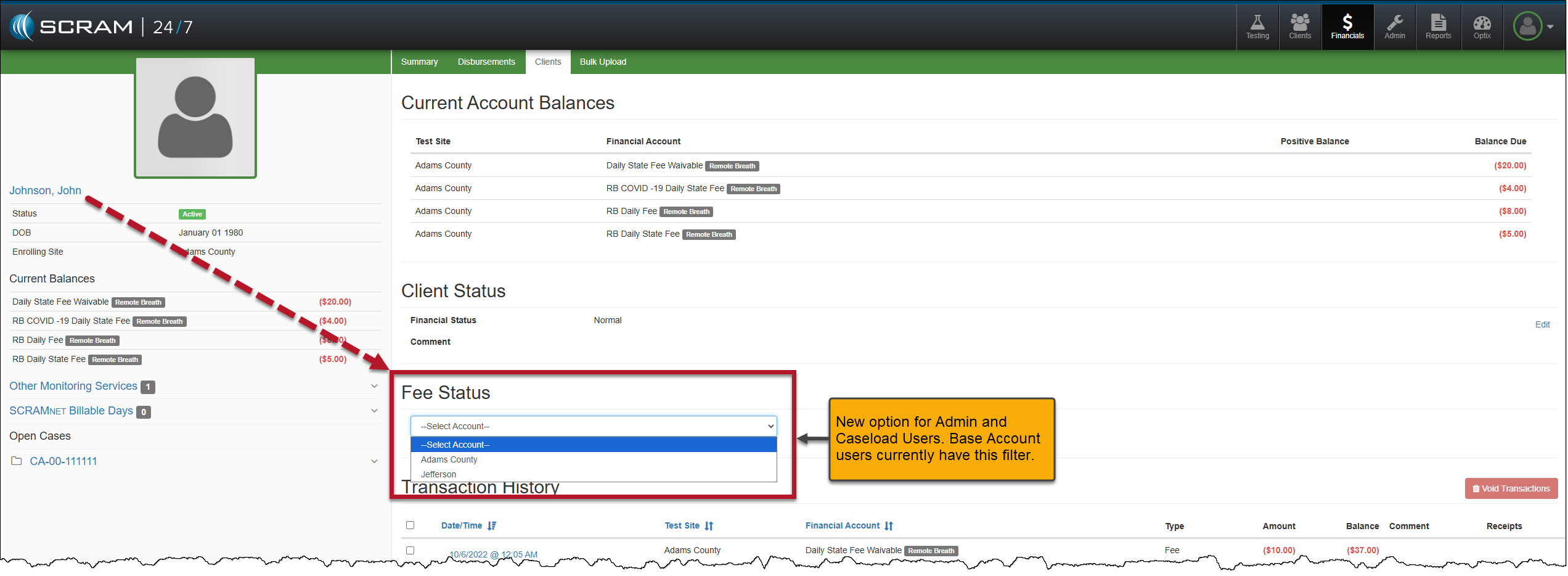
Additional Examples of Filters and Dropdown Menus
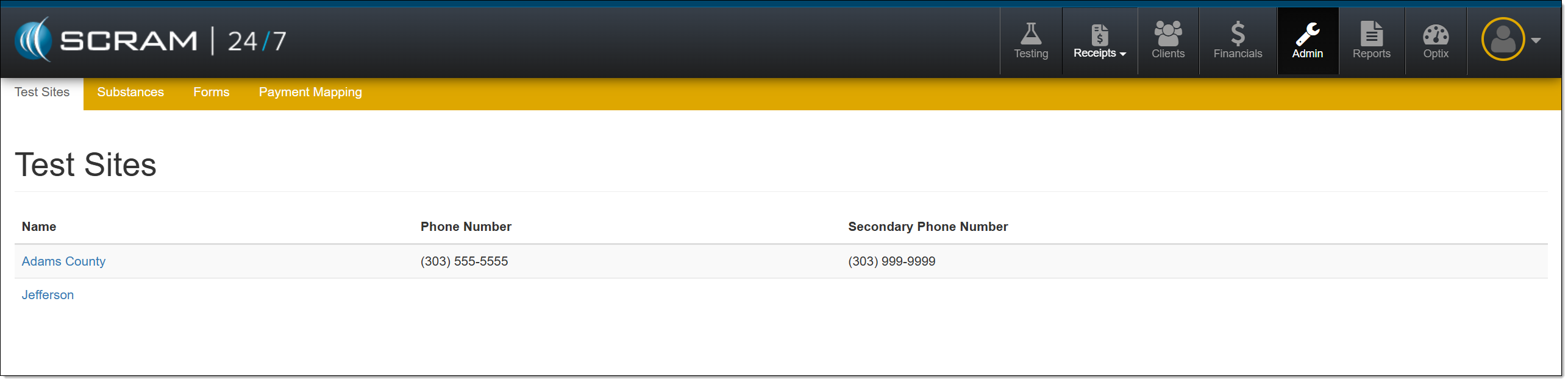
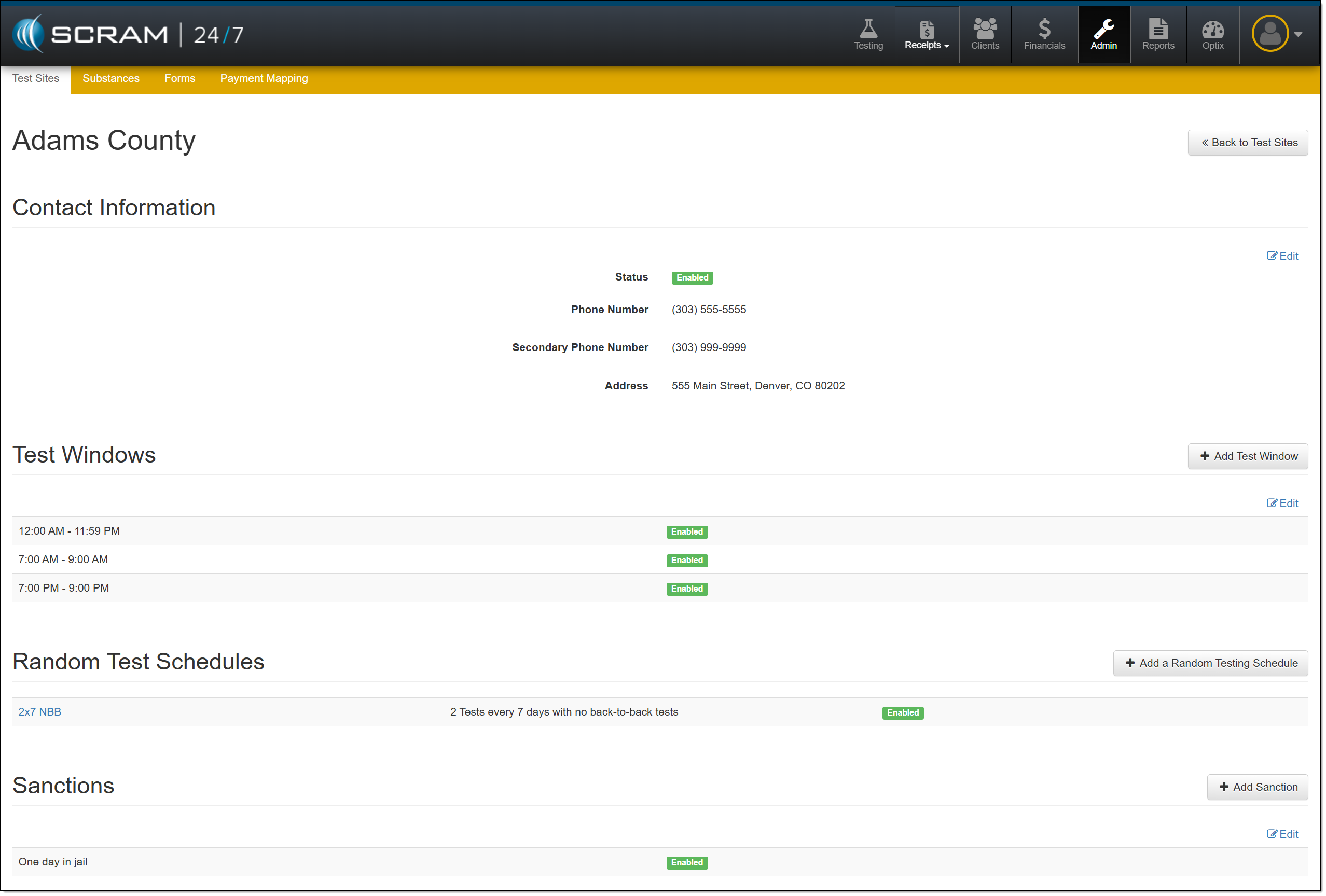
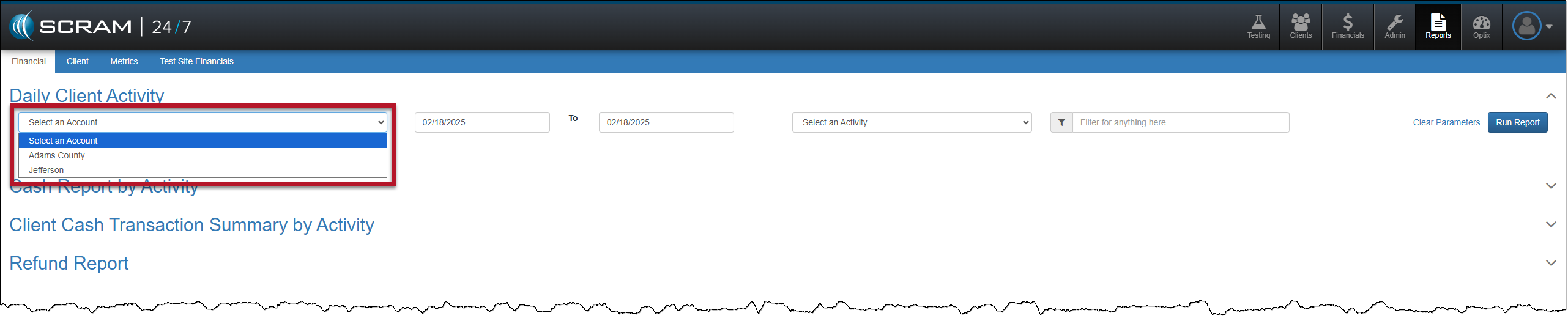
Financials Page – Clients Tab – Client PageAdmin PageAdmin Page – Adams County Caseload SelectedReports page – Account Dropdown Menu
There are no visual changes to the navigation for a single-caseload user.