On January 14th, 2026, from 11:00 AM to Noon MST, SCRAM Systems will release two enhancements in SCRAM 24/7. The first enhancement improves client search capabilities. The second allows you to perform additional equipment actions directly from the Options column on the client’s Summary page for your CAM+HA and RB Activity clients when equipment is assigned.
During the release window, SCRAM 24/7 access will be interrupted for 1 hour. During this time frame, SCRAM 24/7 will be unavailable, and you will not be able to perform client-related tasks, such as adding a new client or managing current client activities. Once the maintenance window has expired, you will need to refresh your connection (logout/login) to the SCRAM 24/7 system to resume access and navigation.
Equipment Options Column
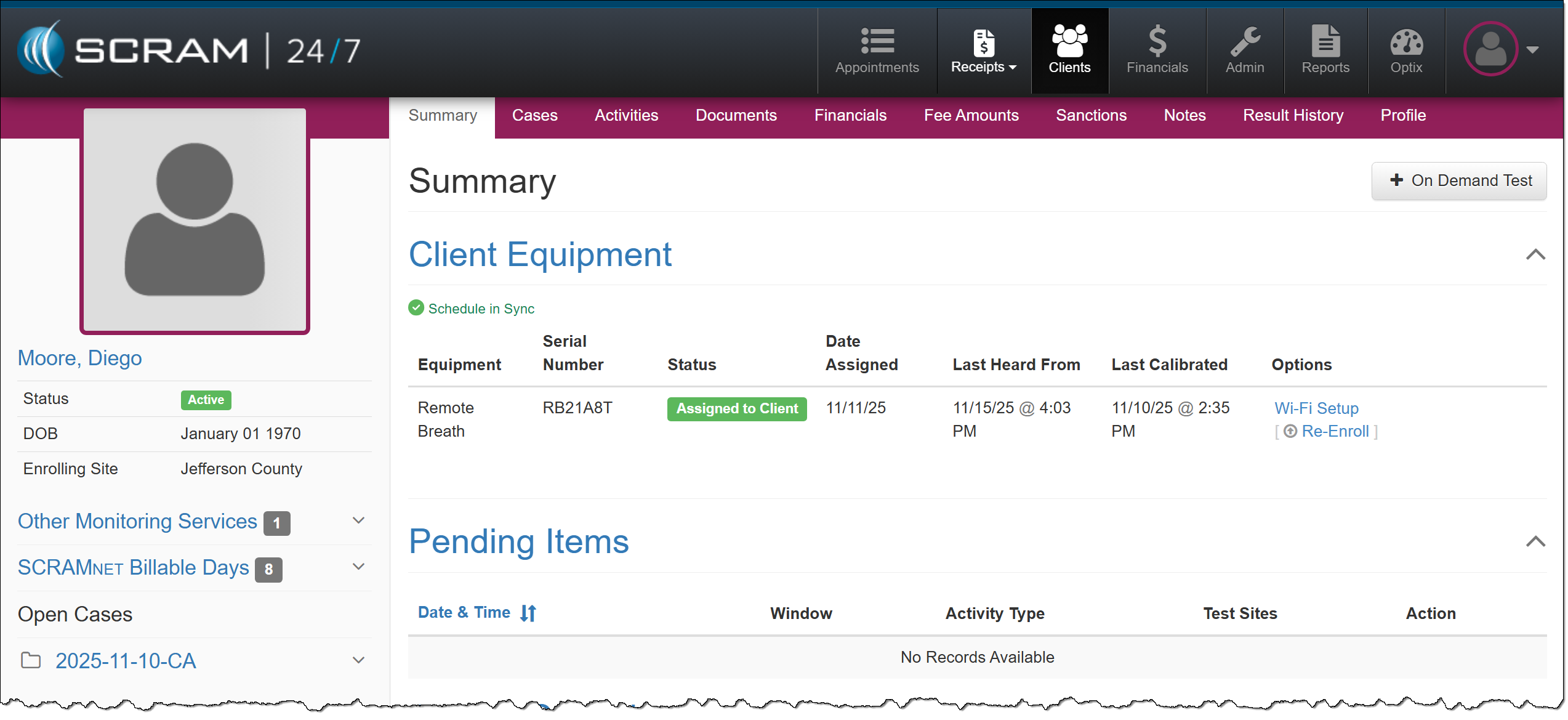
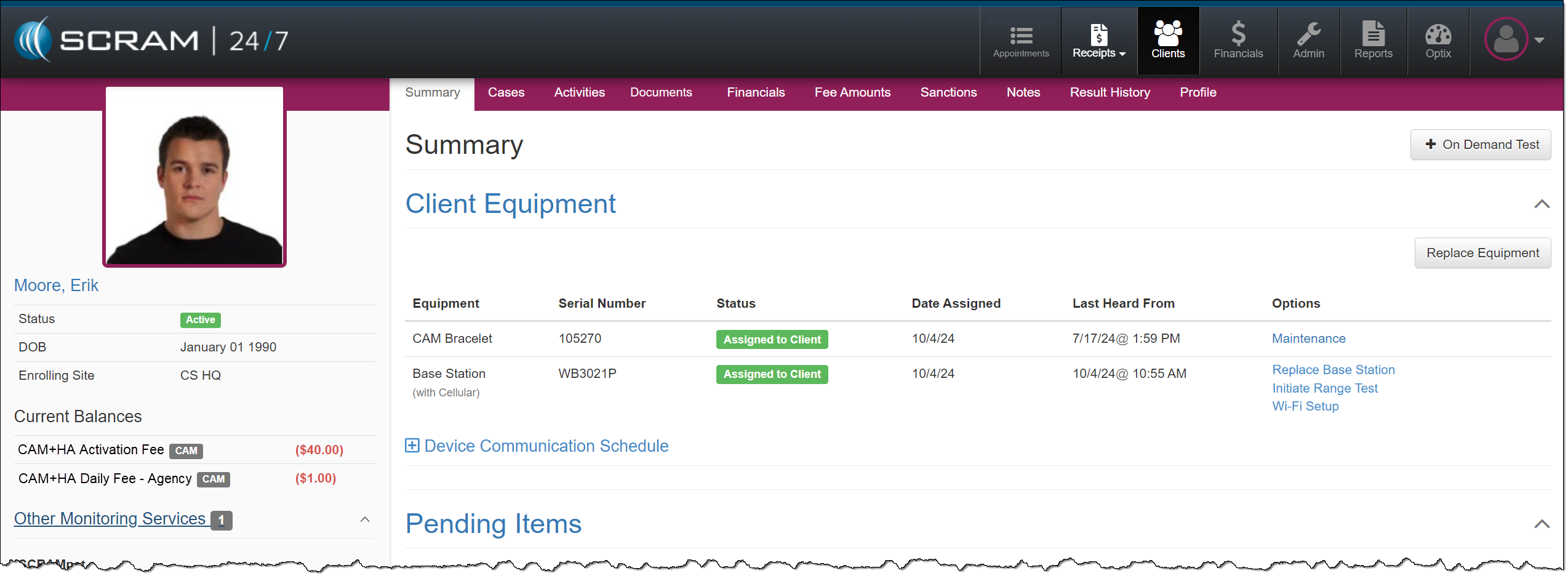
Actions typically completed in SCRAMNET for assigned equipment may now be performed on the client’s Summary page for the Remote Breath and CAM/House Arrest Activities. Select the task you wish to perform from the new ‘Options’ column found in the table under the Client Equipment heading.
Remote Breath Activity, Additional Equipment Options for Wi-Fi Setup and Re-Enroll (click to enlarge)Base Station Additional Options, House Arrest Initiate Range Test, and Wireless Base Station Wi-Fi Setup (click to enlarge)
Search Options
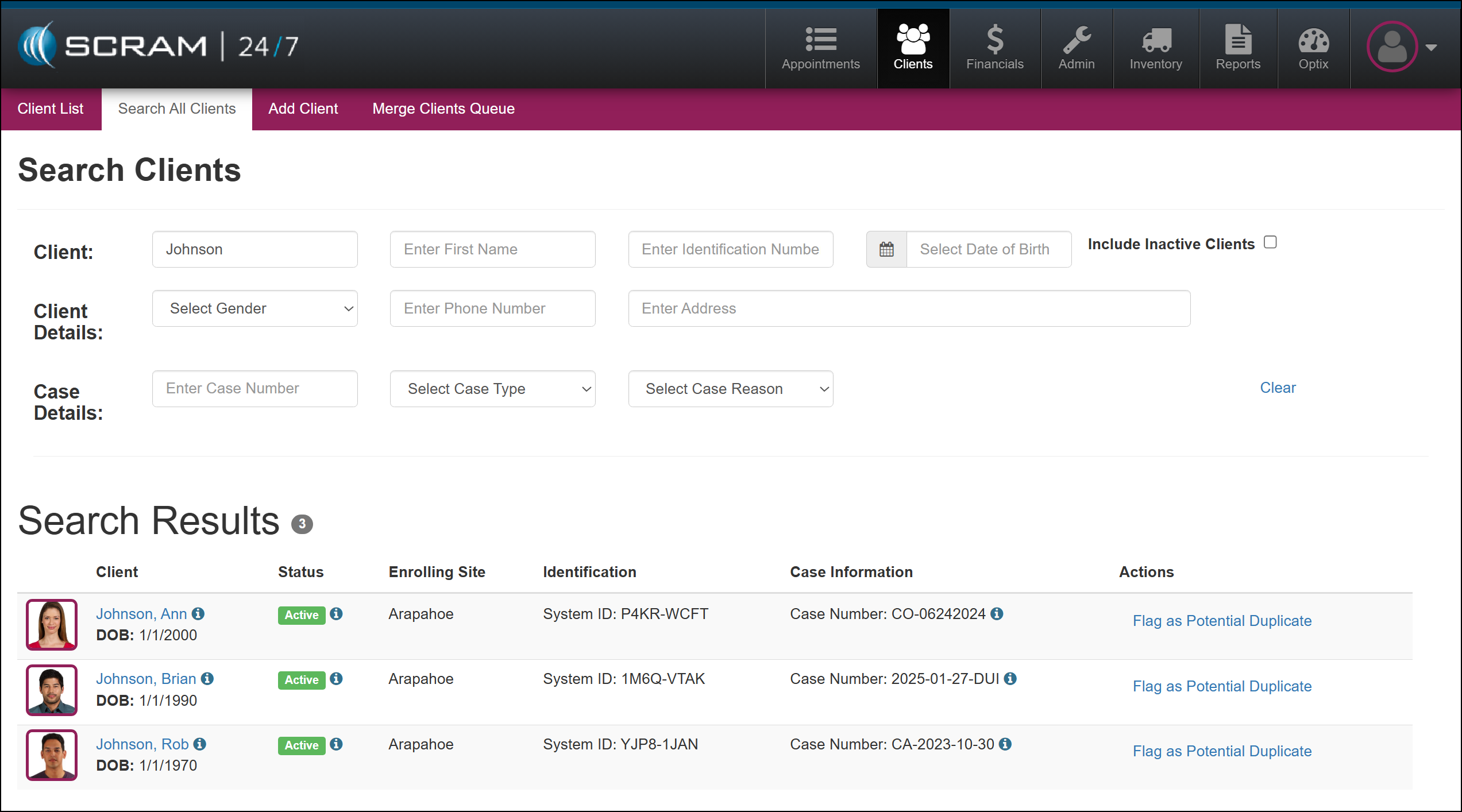
In addition to the current search fields, you may now search by:
Date of Birth
Gender
Phone Number
Address
Case Type
Case Reason
This update will be reflected on both the Clients page, on the Search All Clients tab, and the Financials page, on the Clients tab.
In the Search Results section, you will note some additional changes
Additional Search Criteria and Results (click to enlarge)
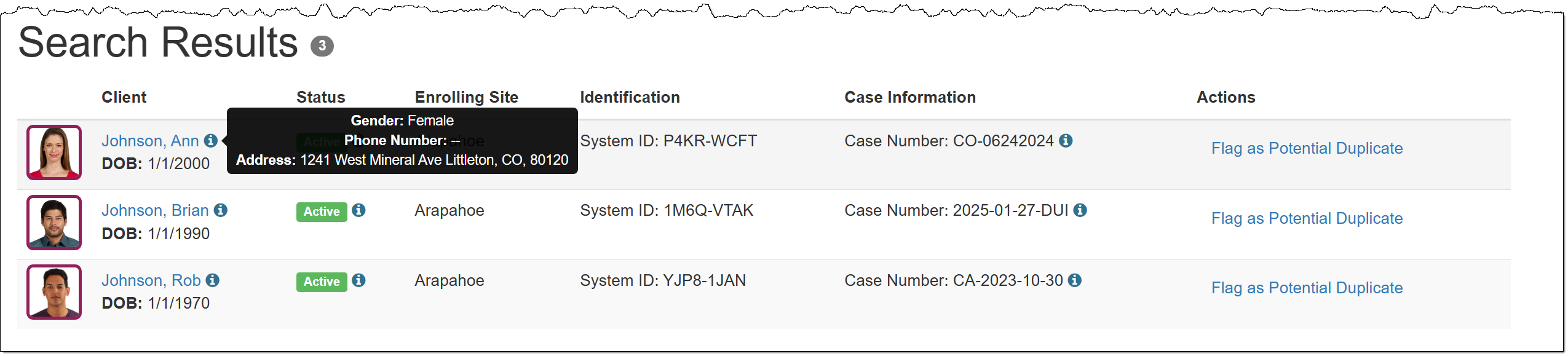
The client’s Date of Birth is now located under their name hyperlink, along with an information icon that displays the client’s gender, phone number, and address when you hover your mouse pointer over it.
Updated Client Results Column (click to enlarge)
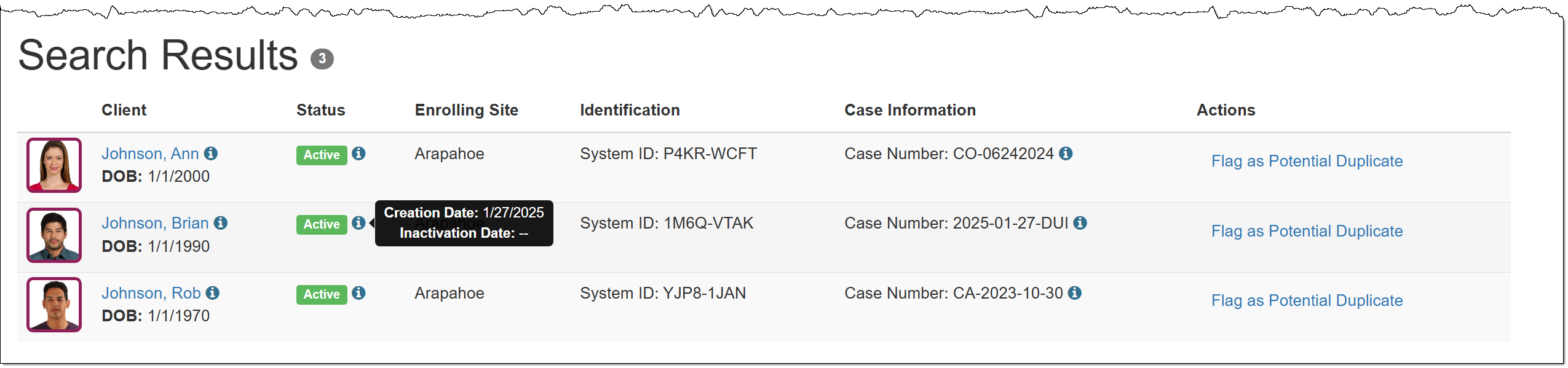
The Status column has been relocated, and an information icon that will display the creation and inactivation dates when hovered over has been added.
Updated Status Results Column (click to enlarge)
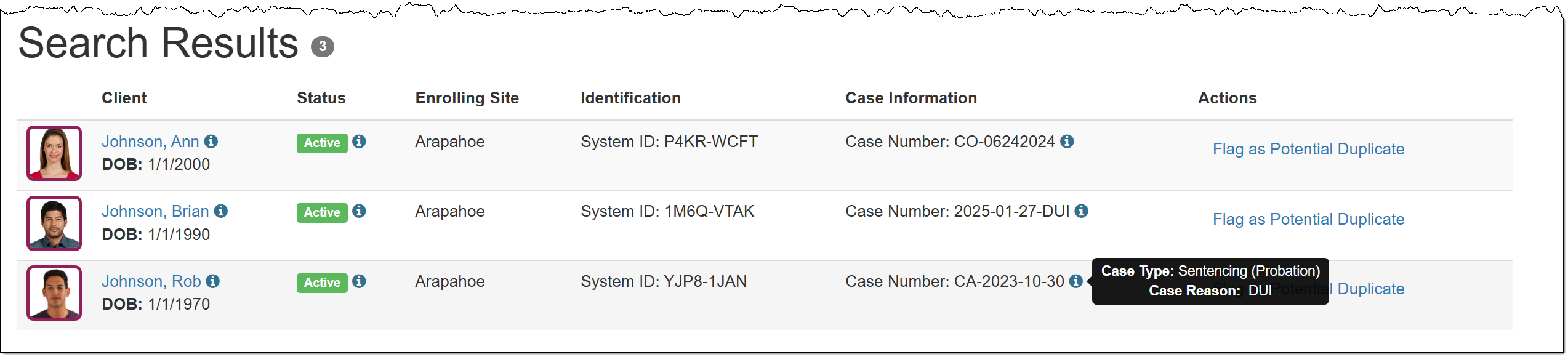
A new Case Information column displays the client’s case number, along with an information icon that shows the case type and case reason when hovered over.
Case Information Results Column (click to enlarge)
SCRAM Systems is introducing several new enhancements to the SCRAMNET GPS monitoring system. While many of the enhancements are either caseload-specific or back-end updates, two notable enhancements will be available to all SCRAM GPS customers:
New Icon to Indicate Wi-Fi points for SCRAM GPS 9 Plus Devices
Account Level Setting to Set Default for Client SSN Checkbox
SCRAMNET GPS deployments typically occur on Thursdays at 7:00 AM EST in the US, 10:00 PM AEST in Australia, and the following 12:00 AM EST (Friday) in Canada. Please refer to the official SCRAM Systems email communication associated with this release for more details. During the 15-minute deployment, you may not be able to access SCRAMNET GPS, but messages from the SCRAM GPS device will continue to be processed uninterrupted.
New Icon to Indicate Wi-Fi points for SCRAM GPS 9 Plus Devices
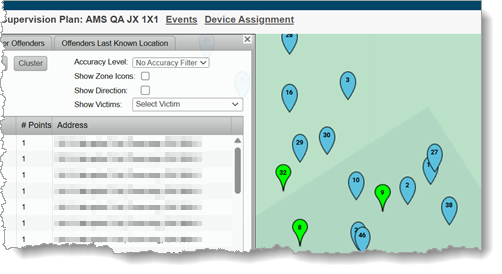
Location points that are derived from Wi-Fi hotspots instead of through GPS or Cell Tower Points (CTP) will now be displayed with a blue icon. This will allow users to immediately identify the source of the location points without drilling down.
Wi-Fi Points Display in Blue
Account Level Setting to Set Default for Client SSN Checkbox
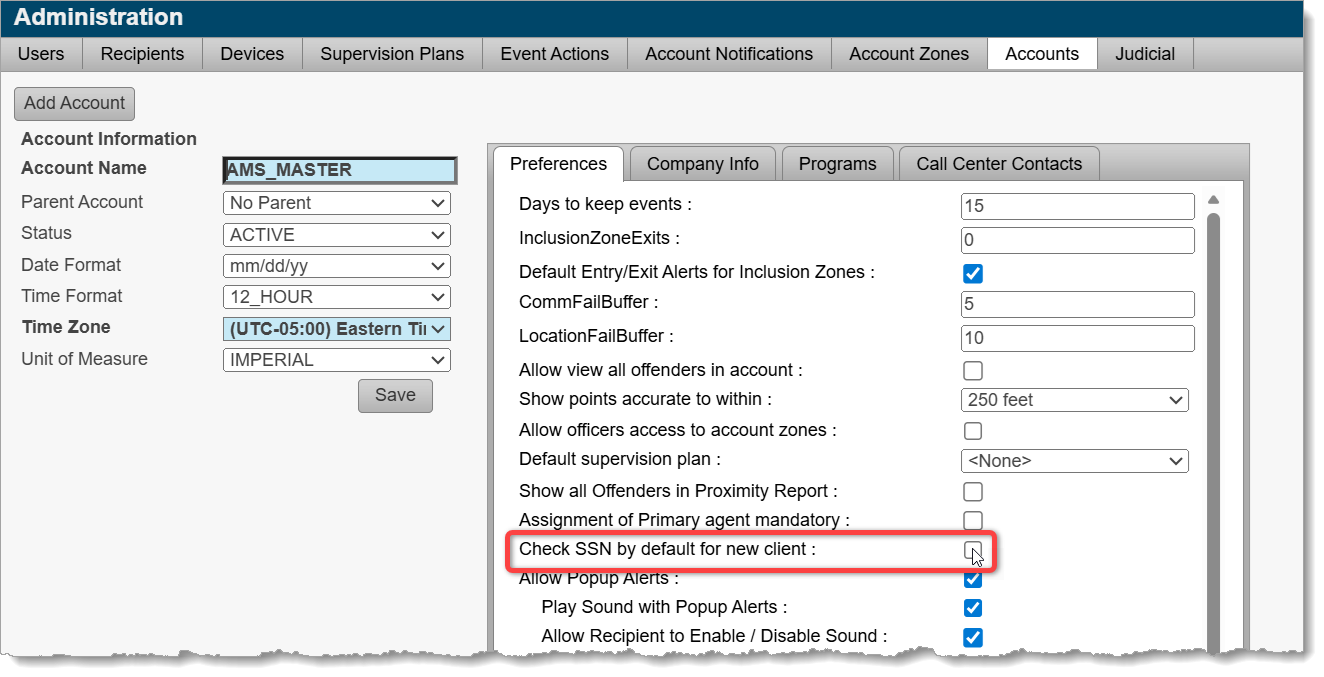
With this release, Administrators may select a checkbox at the account level that ensures that all new clients added will have the SSN checkbox enabled. Enabling this checkbox encrypts the social security number of the client in reports and provides an additional level of protection for that information.
New Checkbox: Check SSN by default for new client (click to enlarge)
After extensive research and testing, SCRAM Systems has decided to move away from its previous line of device cleaning agents in favor of a simplified – but equally effective – approach. Effective immediately, SCRAM Systems recommends all SCRAM devices be cleaned and disinfected with 3% Hydrogen Peroxide (H2O2) Solution. Yes, the stuff in the brown bottle you can get at any local supermarket or drug store.
When used correctly and allowed to remain on surfaces for 10-15 minutes, 3% Hydrogen Peroxide solution is an effective disinfectant, but without the harsh fumes or smell associated with the previous selection of disinfectants. For this reason, 3% Hydrogen Peroxide solution is now the only cleaner approved by SCRAM Systems.
Finish Your Existing Stock of Cleaners
Although SCRAM Systems now recommends 3% Hydrogen Peroxide solution as its only approved cleaning and disinfecting agent for SCRAM devices, you are still welcome to use up your existing stock of previously-approved alcohol-free cleaning agents. Once those previously-purchased cleaning and disinfecting agents are depleted, however, please do not replenish them, and instead make the switch to 3% Hydrogen Peroxide solution.
Where to Get It
3% Hydrogen Peroxide solution is available at almost any local supermarket or drug store, and you are welcome to purchase bottles of it from those local outlets. SCRAM Systems also has supplies in stock and available to order from the SCRAMNET Equipment Order Form or through your SCRAM Systems account representative.
Brown Bottle Benefits
How to Use It
SCRAM Systems has updated all of its training and help resources to reflect the change. Additionally, the Quick Reference Guides (booklets) for all products have also been updated. Please visit the SCRAM Device Cleaning page on the SCRAM Systems Help and Support site to navigate to cleaning help for your specific device and situation. You may also download our all-in-one Disinfect and Clean SCRAM Equipment “quick sheet,” which includes a one-page matrix on the last page that summarizes the cleaning steps for each device – perfect for printing off and posting at a cleaning station!
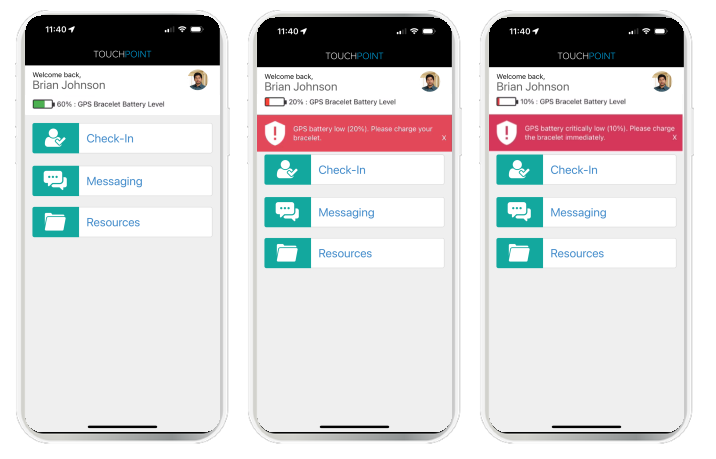
Today, December 18th, 2025, SCRAM Systems released an enhancement for your SCRAM TouchPoint Monitoring program. With this update, clients enrolled in both SCRAM GPS monitoring and SCRAM TouchPoint may now view their GPS bracelet’s battery level within their TouchPoint mobile app.
The latest version of the TouchPoint app is available to clients in the app stores. As a best practice, SCRAM Systems recommends that all TouchPoint app users enable automatic app updates on their smartphones to make this process easier.
What’s New
The client’s last reported SCRAM GPS bracelet’s battery level is displayed at the top of the home screen within the TouchPoint mobile application.
A red banner with charging instructions for the client will display on the Home screen within the app when the device requires charging. The banners will display when the device’s battery level is:
Below 20%, indicating a Battery Low alert.
Below 10%, indicating a Critically Low Battery alert.
TouchPoint GPS Battery Level Display
Important Reminder
The battery level shown in the client’s TouchPoint mobile app is for reference only. The client should not rely solely on the app’s display to manage charging. To remain compliant and avoid interruptions in monitoring, clients must continue to charge their GPS device regularly, following program instructions.
The battery level shown in the TouchPoint mobile app may not exactly match the battery level displayed on the GPS Dashboard in the agent view. In TouchPoint, battery levels are shown in 10% increments. For example, if the GPS Dashboard shows a battery level of 66%, the TouchPoint app will display 70%.
On December 17,th, 2025, SCRAM Systems will release a new Notifications “bell” button in SCRAM 24/7. This Notification dropdown window displays new messages sent from your clients who have a TouchPoint Activity with Messaging enabled. With this feature, you may view, clear, mark messages as read, or respond to your clients’ messages from within SCRAM 24/7. All actions completed within the Notifications dropdown window are reflected on the client’s Communication tab and within their SCRAM Optix TouchPoint profile.
Notifications in SCRAM 24/7
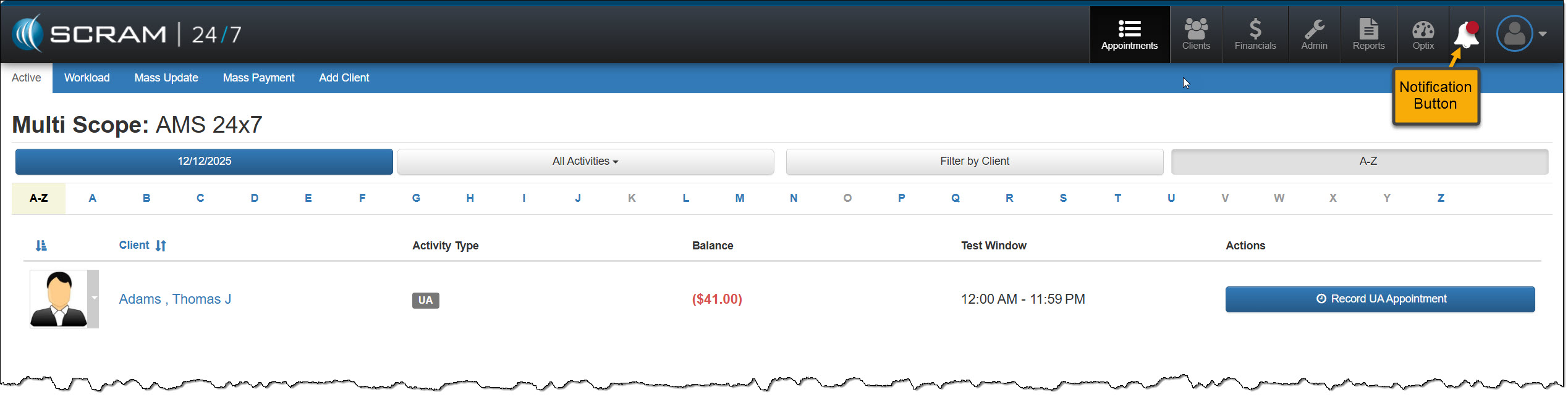
When your client sends a new message via their SCRAM TouchPoint mobile app, the Notifications button in SCRAM 24/7 will display a red badge. To view the message, select the button.
Notifications “Bell” Button – click to enlarge
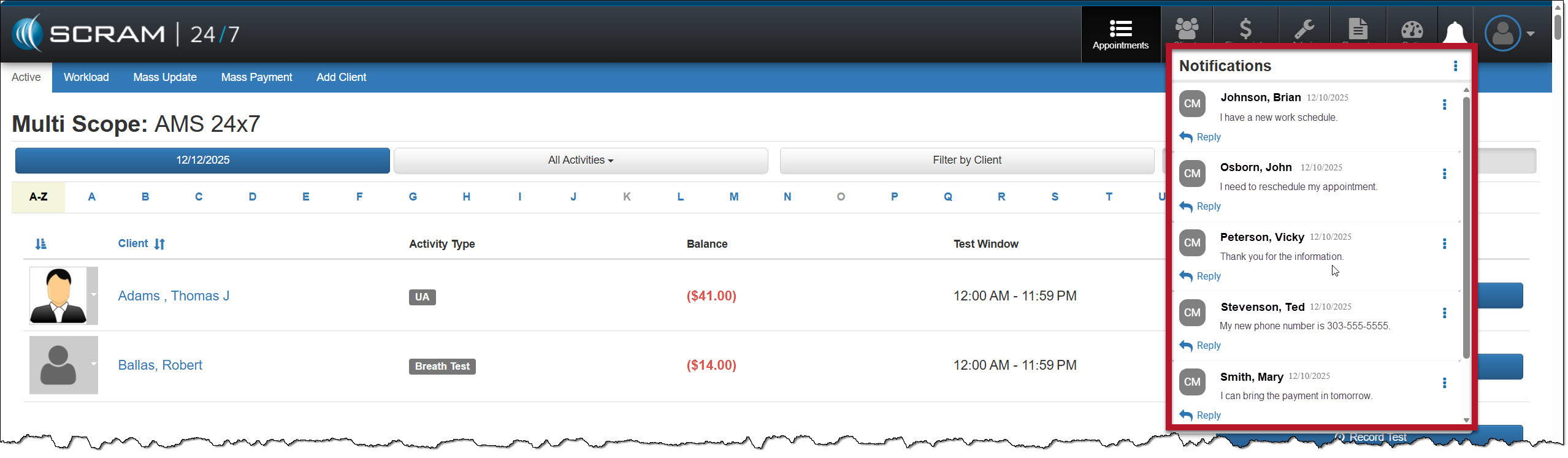
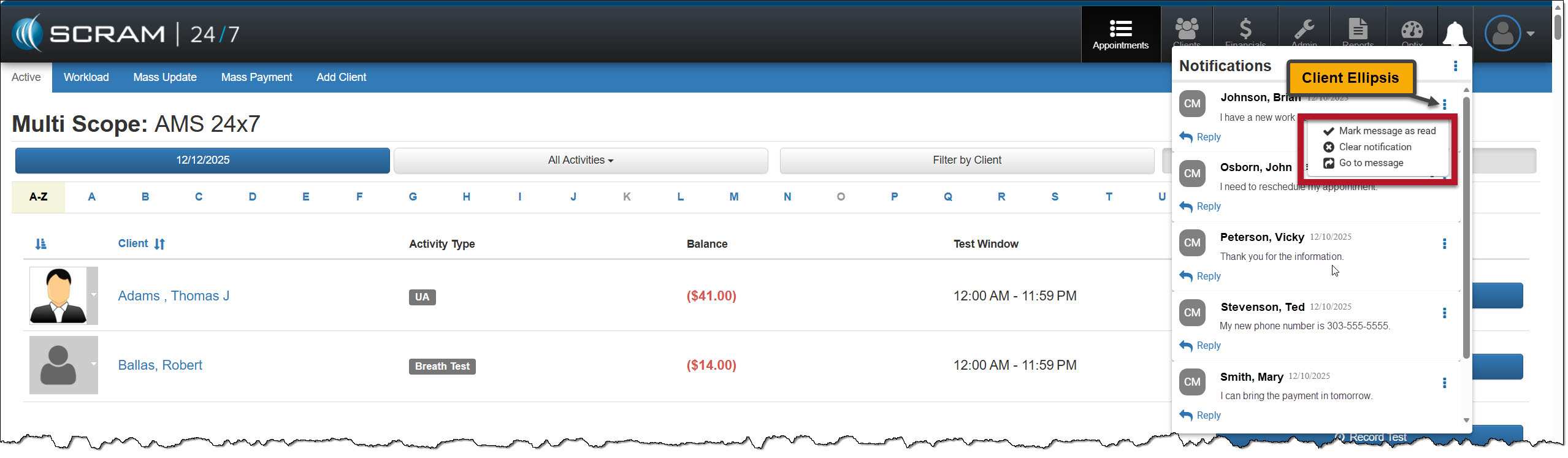
On the Notifications dropdown window, the client’s name, date, and message are displayed.
Notifications Dropdown Window – click to enlarge
Managing the Notifications Window
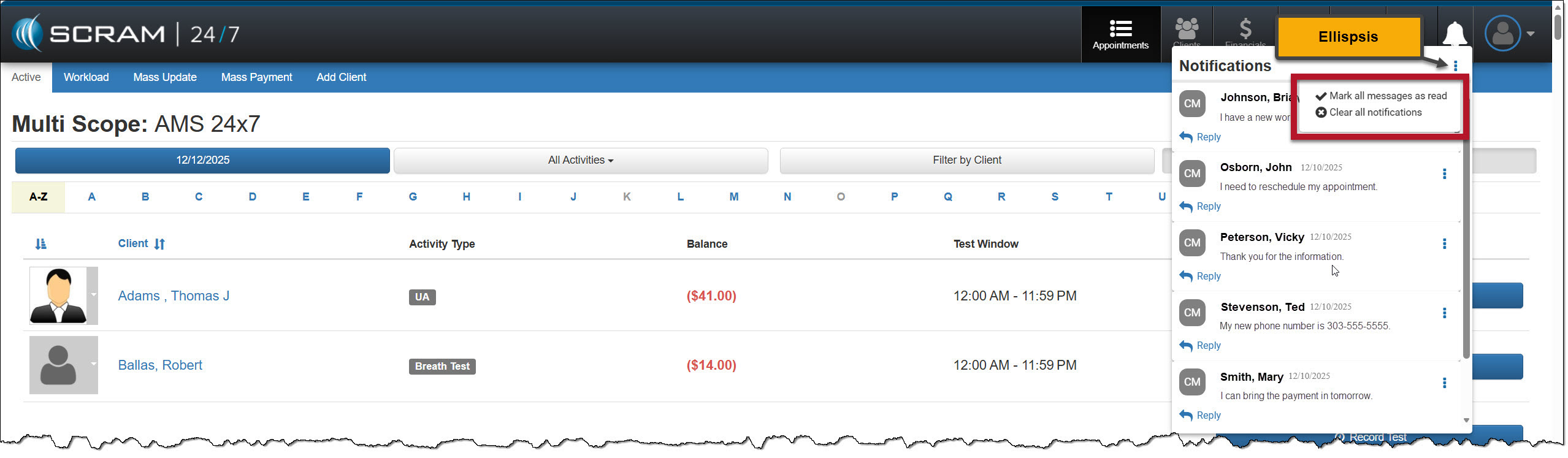
Selecting the ellipsis next to the Notifications heading at the top of the dropdown window, or next to the client’s name, will display a menu with following options:
Mark all messages as read, or mark a message as read: When selected, the message will be removed from the Notifications window. On the client’s Communication Messaging page in SCRAM 24/7 and their Optix TouchPoint Messaging page, the message will display as Read for the client.
Clear all Notifications or Clear Notification: When selected, this option clears all messages from the Notifications window in SCRAM 24/7. This does not mark the message as Read on the client’s Communication Messaging page in SCRAM 24/7 and their Optix TouchPoint Messaging page; it simply clears the message from the Notifications window.
Go to Message: This option will open a new tab that displays the client’s Optix TouchPoint Messaging page. This action will clear the message from the Notifications window.
Option One
Mark all messages as read or clear all notifications by selection the ellipsis to the right of the Notifications heading.
Mark all messages as read – click to enlarge
Option Two
Manage each message individually by selecting the ellipsis next to the message.
Manage each message individually – click to enlarge
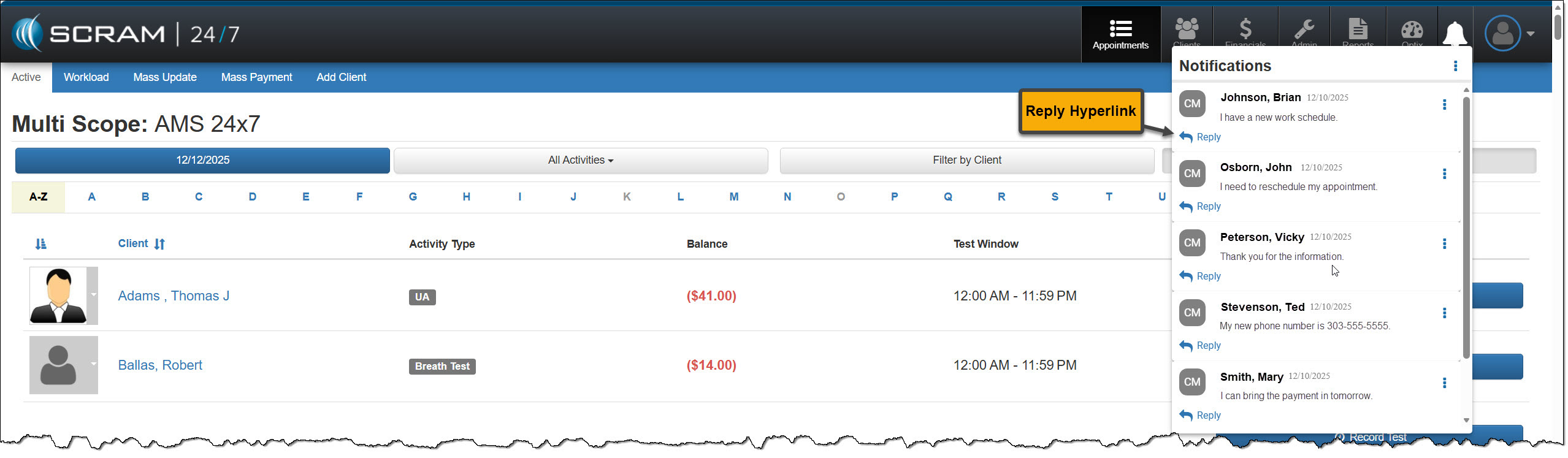
Reply
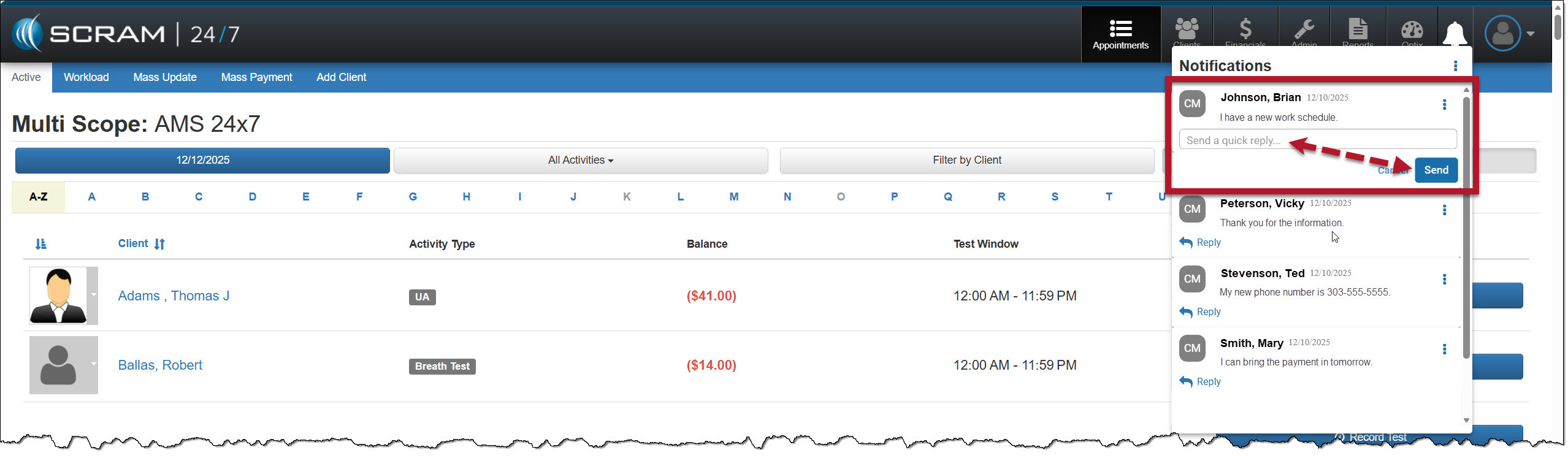
Click the Reply hyperlink to respond to the client’s message. After entering a response, select the Send button.
Select the Reply link – click to enlargeInput your message and then select Send – click to enlarge
The message will no longer be displayed in the Notifications window.
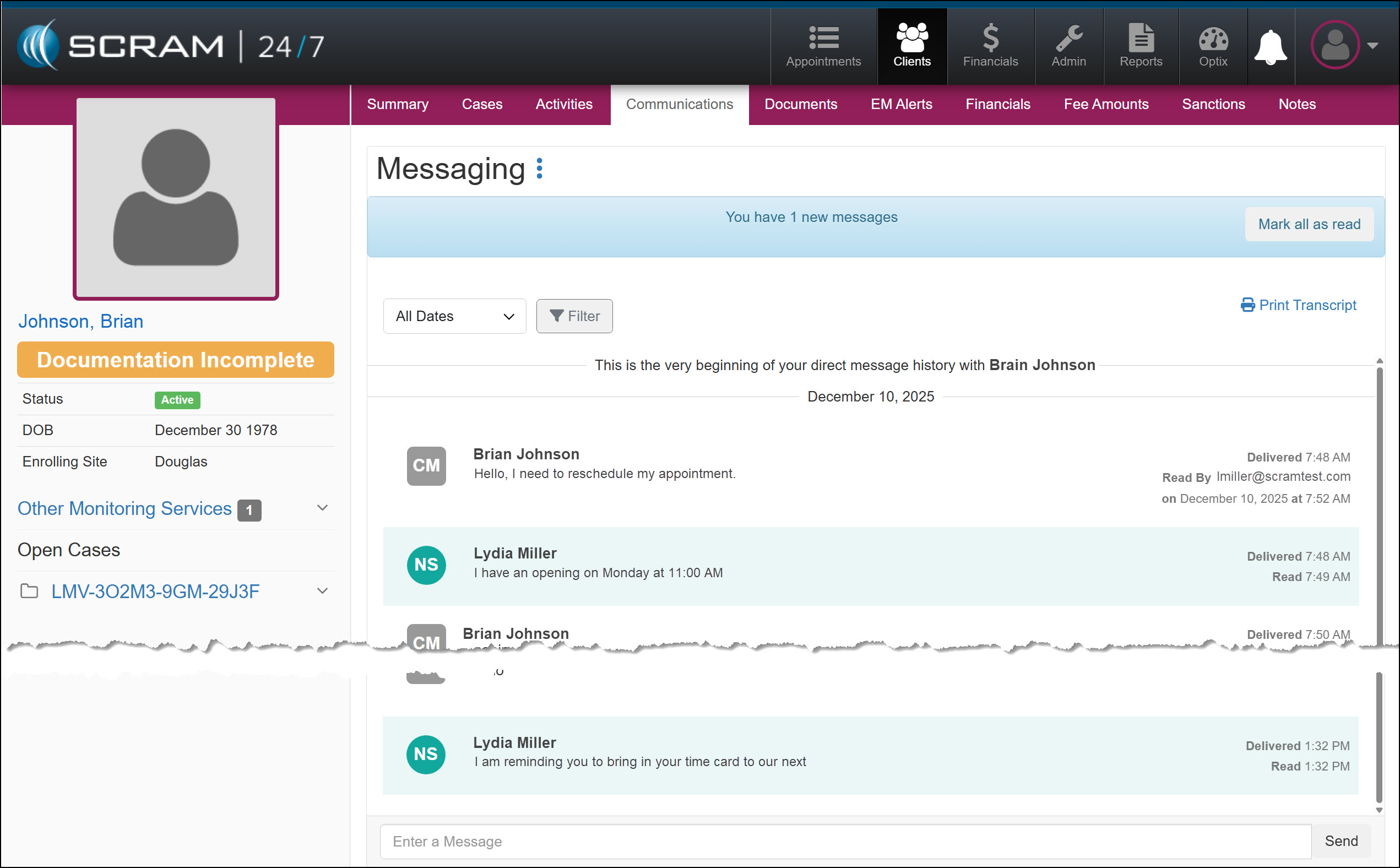
On the client’s Communications / Messaging page, the message will be marked as Read, and the user’s response will be displayed.
The client’s Communications / Messaging page – click to enlarge
On December 11, 2025, SCRAM Systems will release an enhancement for your SCRAM 24/7 and TouchPoint Monitoring programs. With this update, 24/7 users may view the historical activity for the services connected to TouchPoint Activity communication. TouchPoint users will find Electronic Monitoring Reminders, Messaging, and Video Conferencing in one consolidated place under the Communications tab in Optix.
SCRAM 24/7 Communications Tab
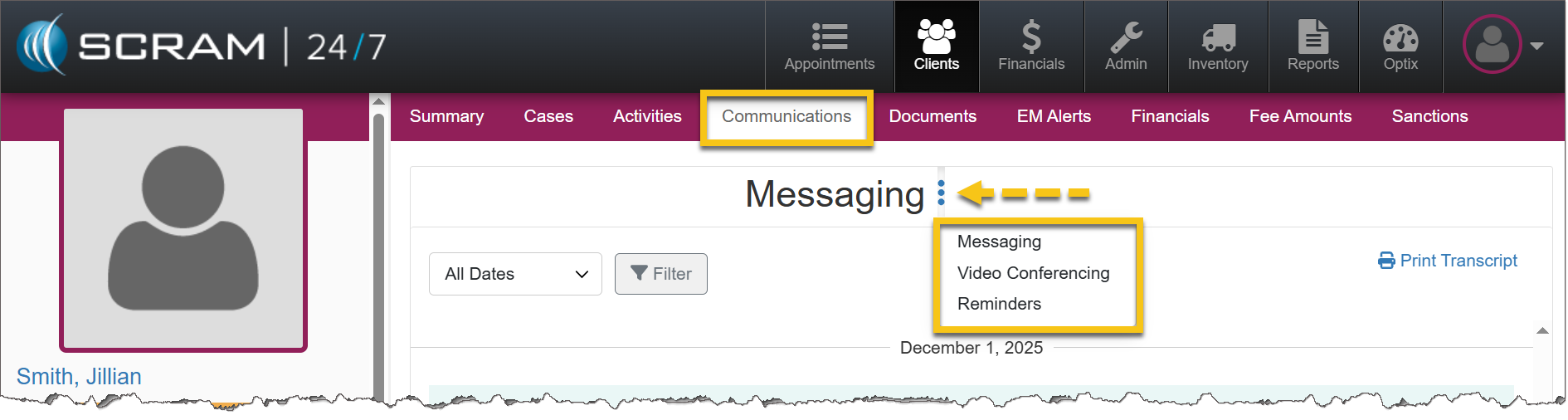
In a previous update, SCRAM Systems enabled 24/7 users to complete all messaging functions within SCRAM 24/7 without navigating to Optix. With a recent update, users are able to view the historical activity associated with services connected to TouchPoint Activity communication.
The Communications tab becomes available once the TouchPoint activity has been added. If TouchPoint has never been added, this tab will not appear.
After the TouchPoint activity has been added – whether it remains active or has been disabled – the Communications tab will continue to display historical activity for Messaging, Video Conferencing, and Reminders.
Service availablility determines whether users may interact with each option in the dropdown menu. For example, if Messaging is not enabled, users may view historical messages, but may not send new messages.
If Video Conferencing has not been enabled for the account, that option will not display.
Communications Tab in SCRAM 24/7 (click to enlarge)
Would you like to learn more about the benefits of the SCRAM TouchPoint Mobile application? Contact your Account Manager for details on getting started.
Optix Communications Tab
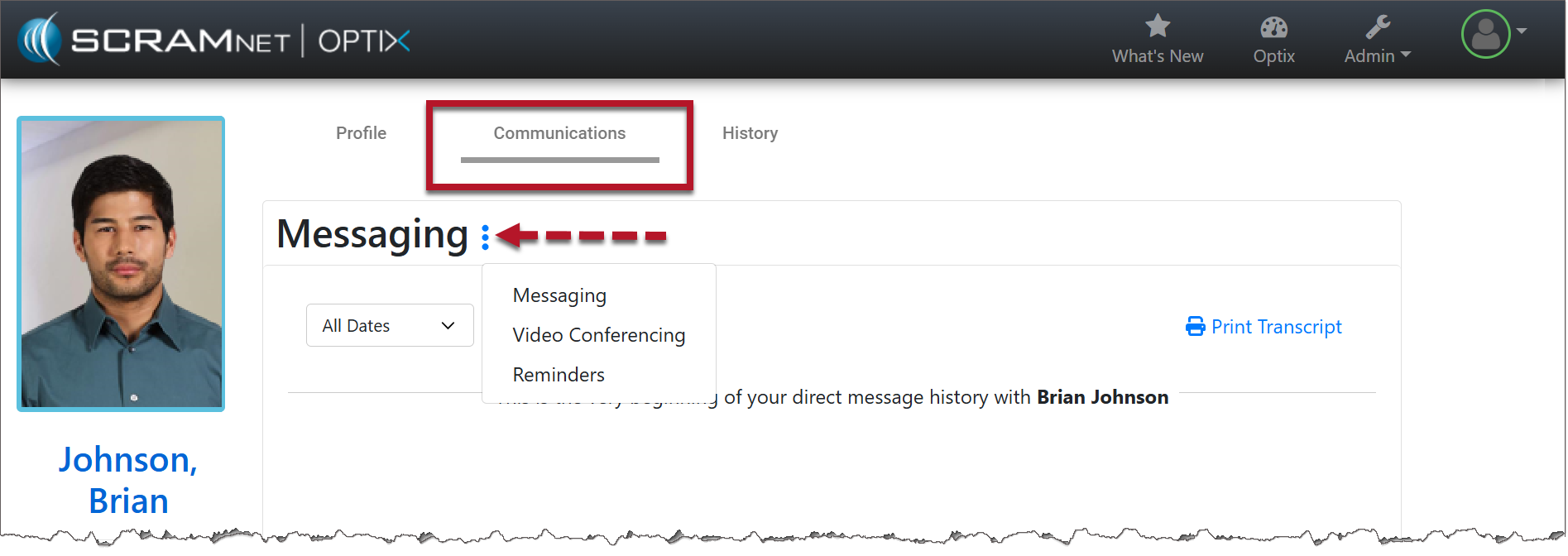
With this enhancement, users will find a consolidated view of communication and monitoring information under the Communications tab. This tab will contain:
Electronic Monitoring Reminders
Messaging
Video Conferencing
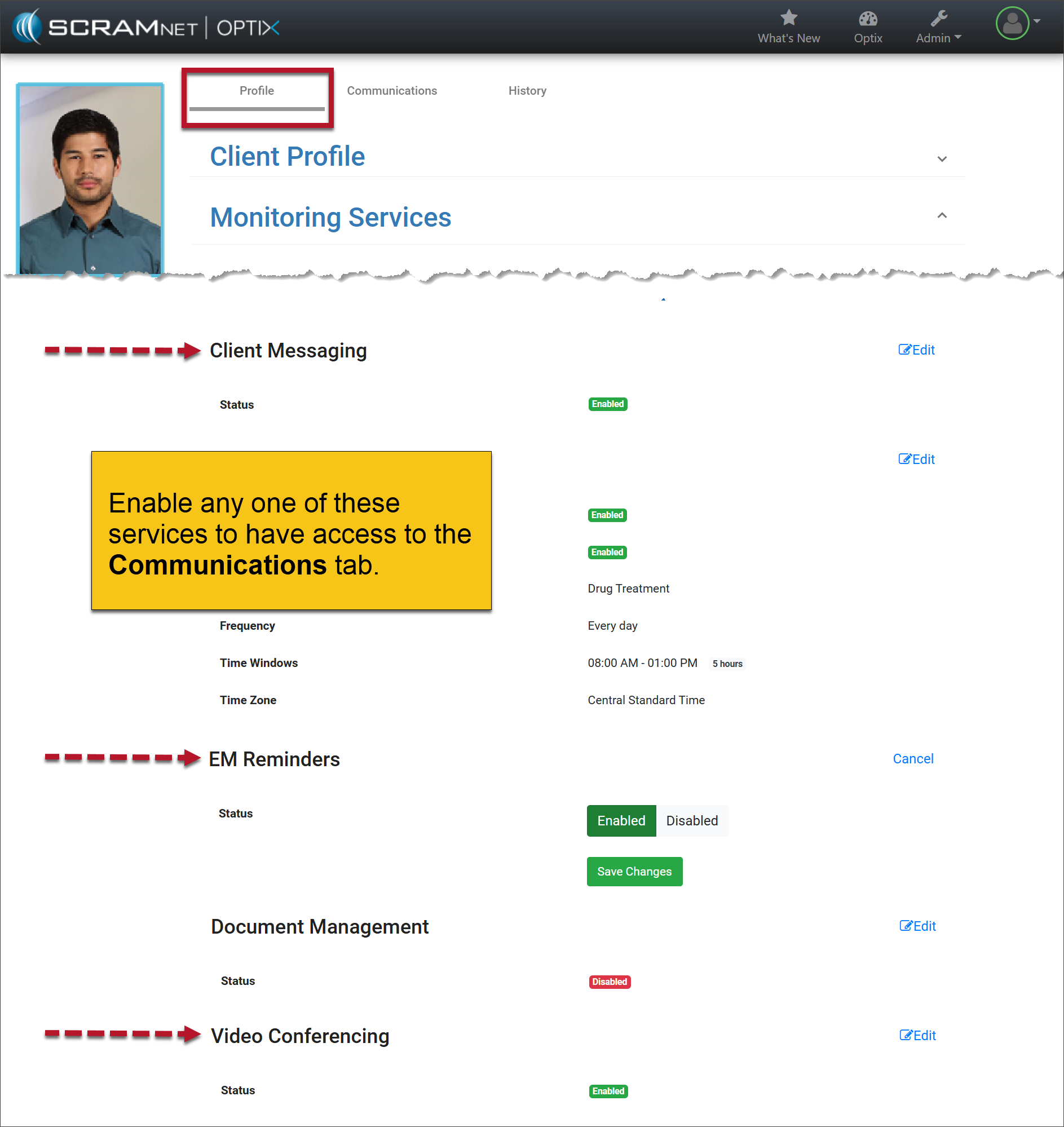
Enable the Service(s)
The Communications tab is available once any of the services is enabled.
Client Profile Page in Optix (click to enlarge)
Communications Tab
Select the Communications tab.
Open the More (ellipsis) menu next to Messaging.
Select the desired service.
If the services are later disabled, users may still view the historical activity associated with those features. However, they will no longer be able to interact with the service or perform any new actions.
If Video Conferencing has not been enabled for the account, that option will not display.
Communications Tab in Optix (click to enlarge)
Your account must be enabled for video conferencing for these instructions to work. Contact your SCRAM Systems Account Representative if you are interested in activating this service.
Starting on December 2nd, 2025, and continuing through December 18th, SCRAM Systems® will release enhancements for your Remote Breath Pro (RB Pro) Caseload. The first enhancement focuses on devices currently in “Storage Mode.” The second enhancement provides the client with four (4) options to establish and manage Wi-Fi networks from the RB Pro device’s menu.
Included in this enhancement:
Auto “Power off” functionality for devices in Storage Mode.
RB Pro menu options for client-accessible Wi-Fi management.
Contact your Account Manager for details on your devices’ firmware enhancement dates.
Auto “Power off” functionality
With this enhancement, when devices in “Storage Mode” are powered on to check the battery level status, they will automatically power off – if not manually powered off – after 30 minutes of being cycled on. This will conserve battery levels between client assignments.
RB Pro Wi-Fi Menu Options
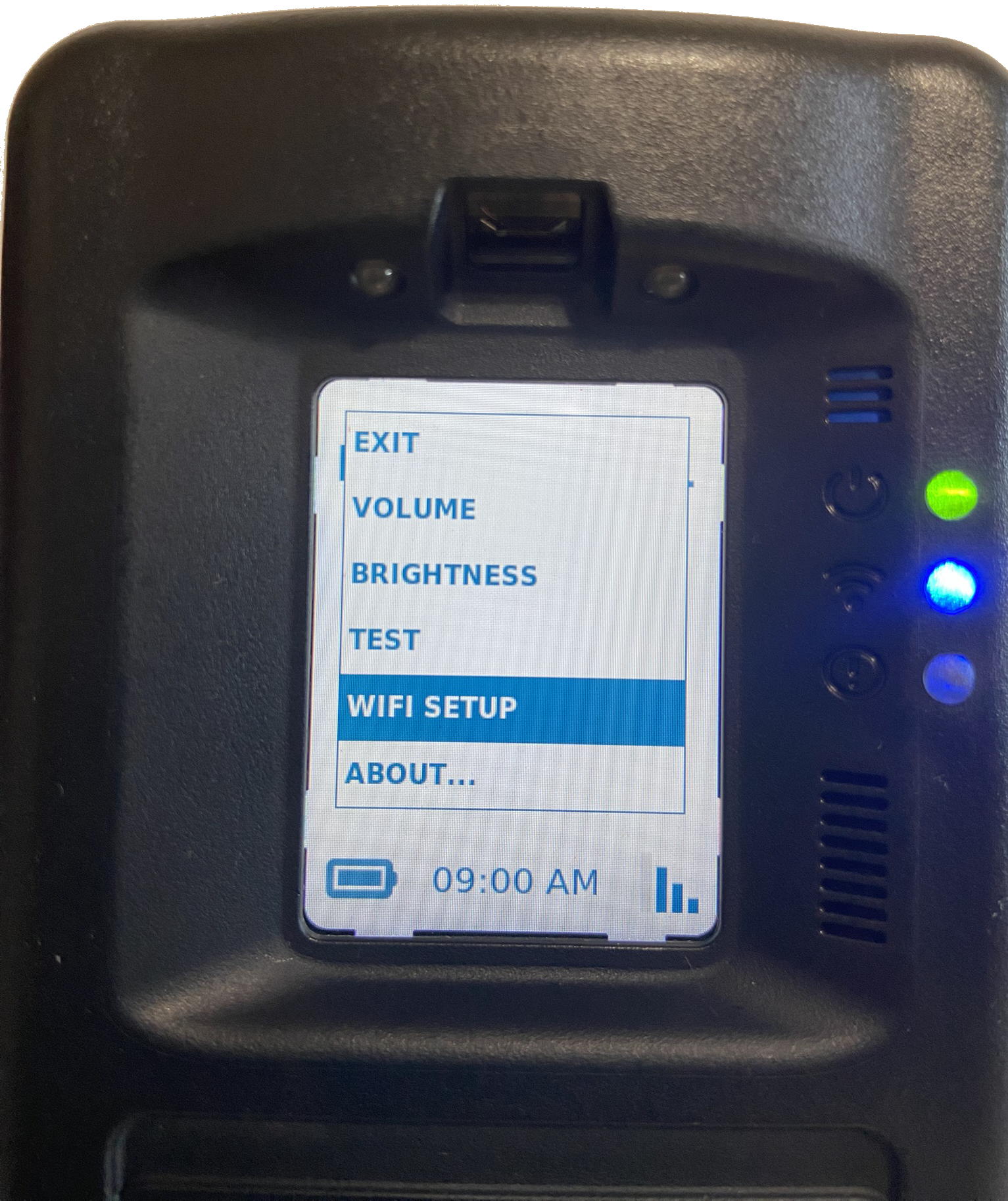
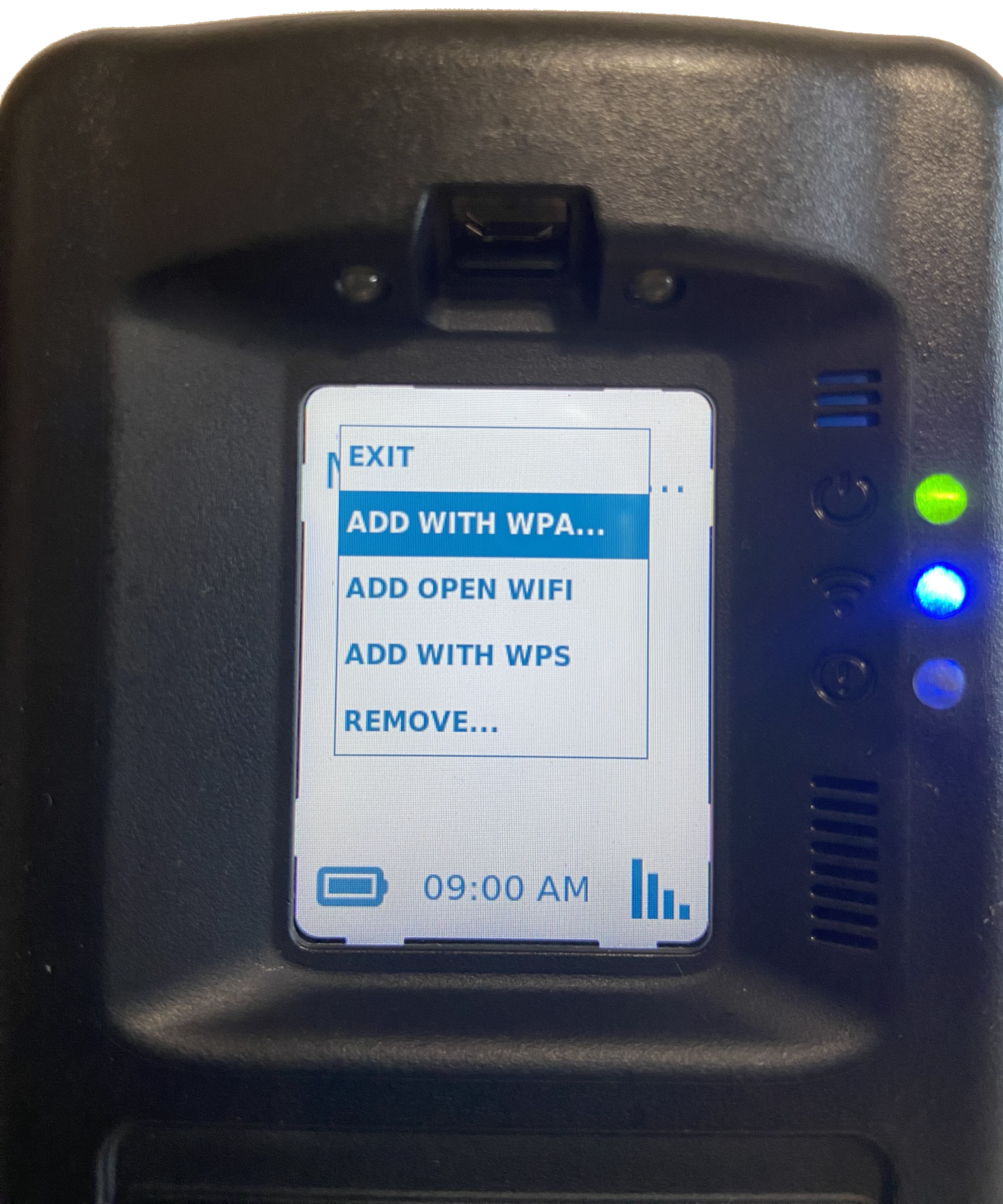
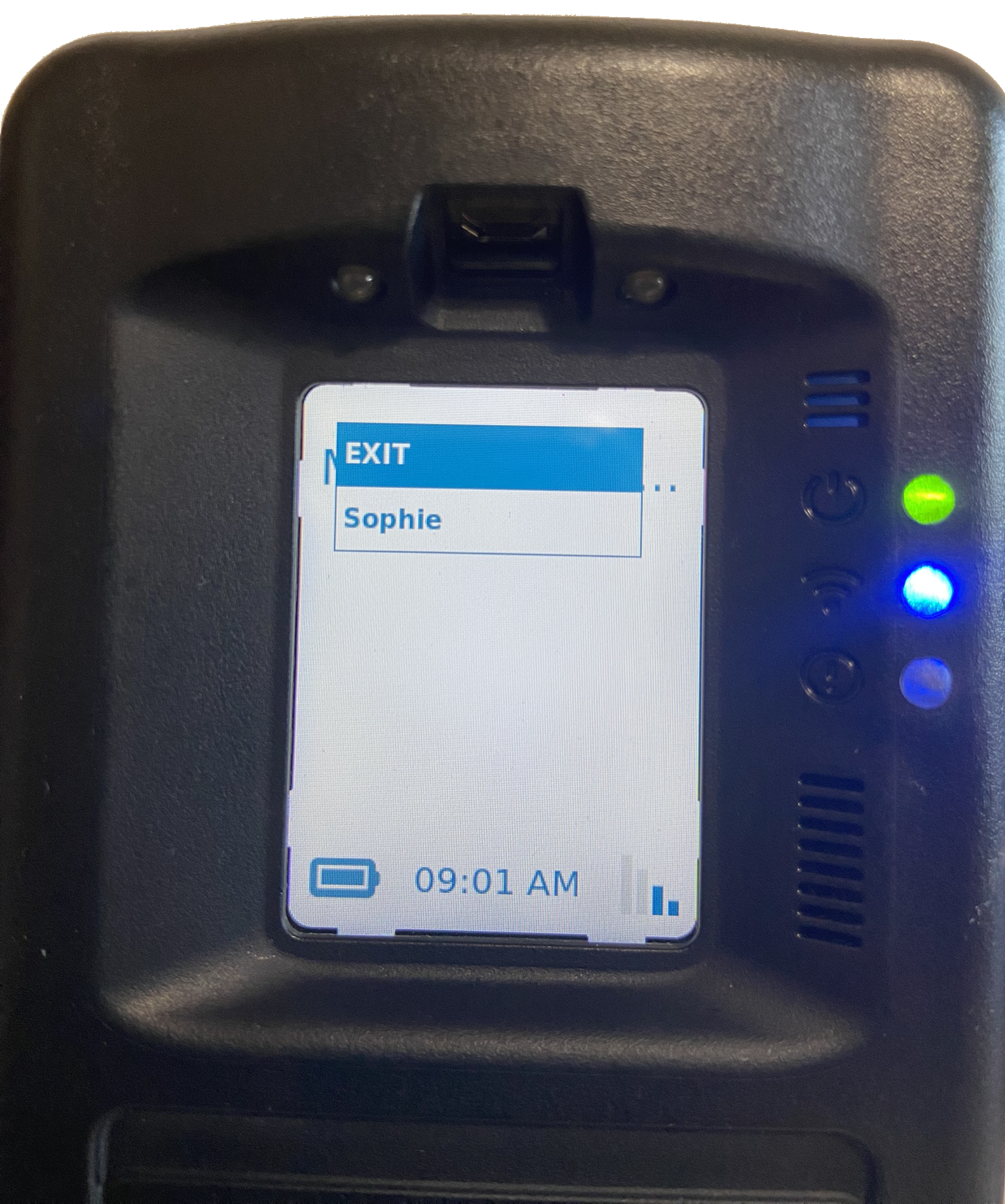
Currently, to connect to their Wi-Fi network, clients must navigate to wifisetup.scramsystems.com and enter their Wi-Fi network name and device serial number. Additionally, their RB Pro device must have a good cellular connection for the Wi-Fi setup to work. To simplify this process and provide additional options for connecting and managing client-accessible Wi-Fi networks, the client may access the RB Pro’s Wi-Fi Setup menu options. On the Wi-Fi setup menu, the client may select :
Add with WPA (Wireless Protected Access)
Add Open WiFi (Unprotected Wireless Access)
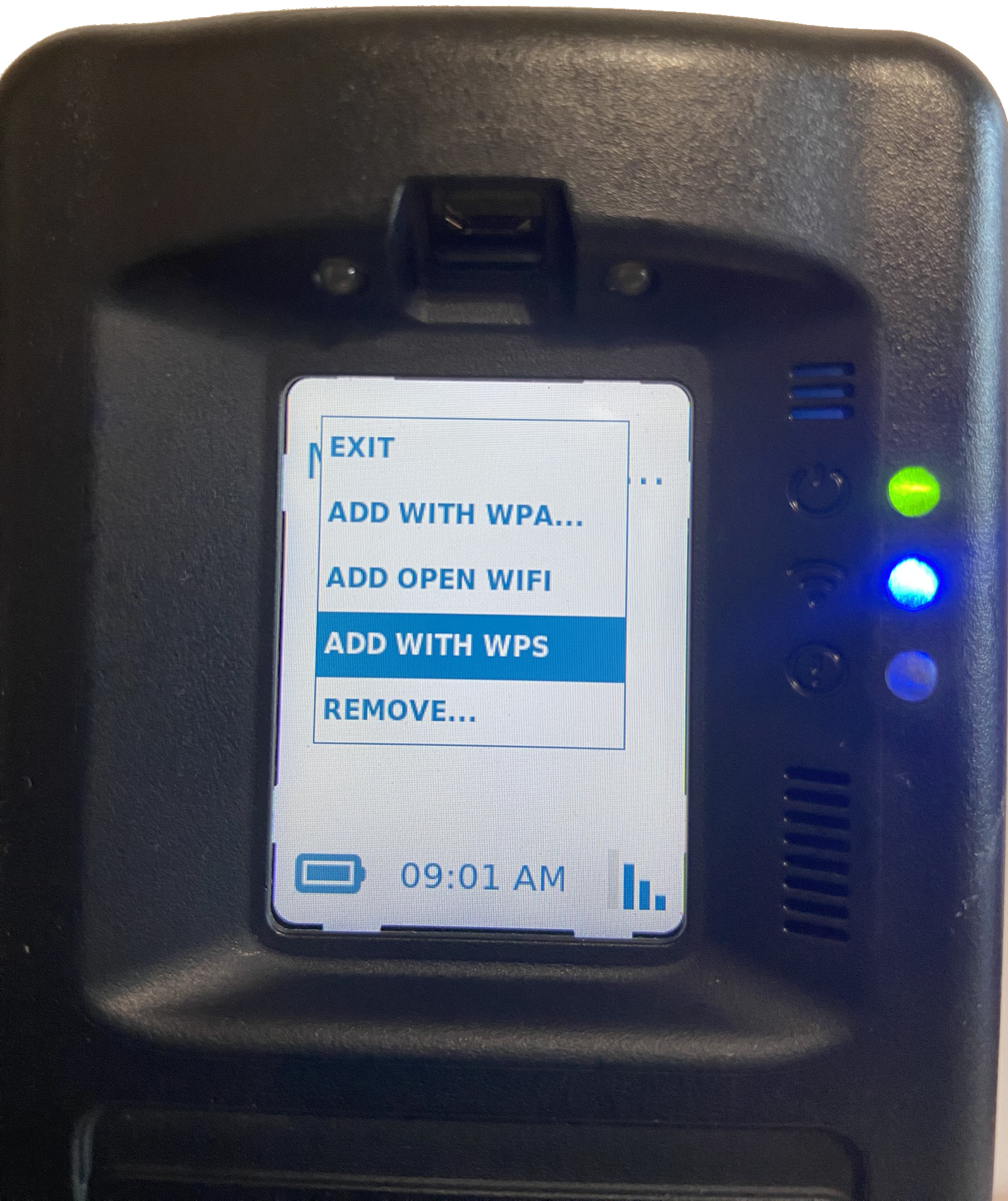
Add with WPS (Wireless Protected Setup)
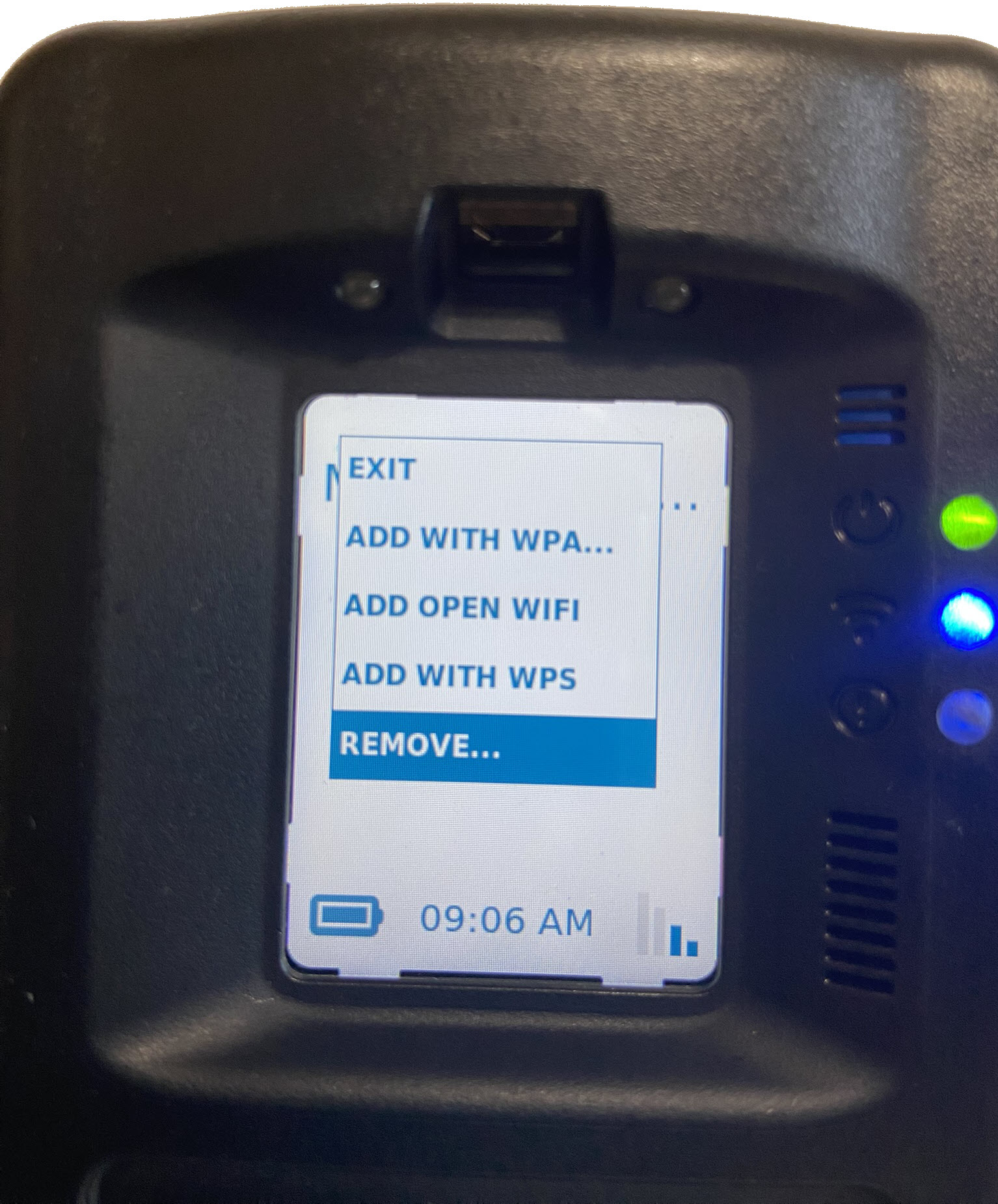
Remove (remove a client-added Wi-Fi network)
Once the RB Pro device has successfully connected to the Wi-Fi network, it will automatically switch back to a cellular network after 60 minutes, regardless of the cellular network’s signal strength. Moving forward, the device will only connect to the Wi-Fi network when it cannot communicate data over the cellular network.
The RB Pro device will only connect to Wi-Fi access points that use a 2.4 GHz band frequency.
There is no limit to the number of Wi-Fi networks the client may add.
Wi-Fi networks (SSIDs) that contain quotation marks (‘ or “), spaces, or dots (.) may cause issues when trying to connect to the RB Pro device. SCRAM Systems recommends either not using these networks, or renaming them.
Connect to a Client’s Wi-Fi Network:
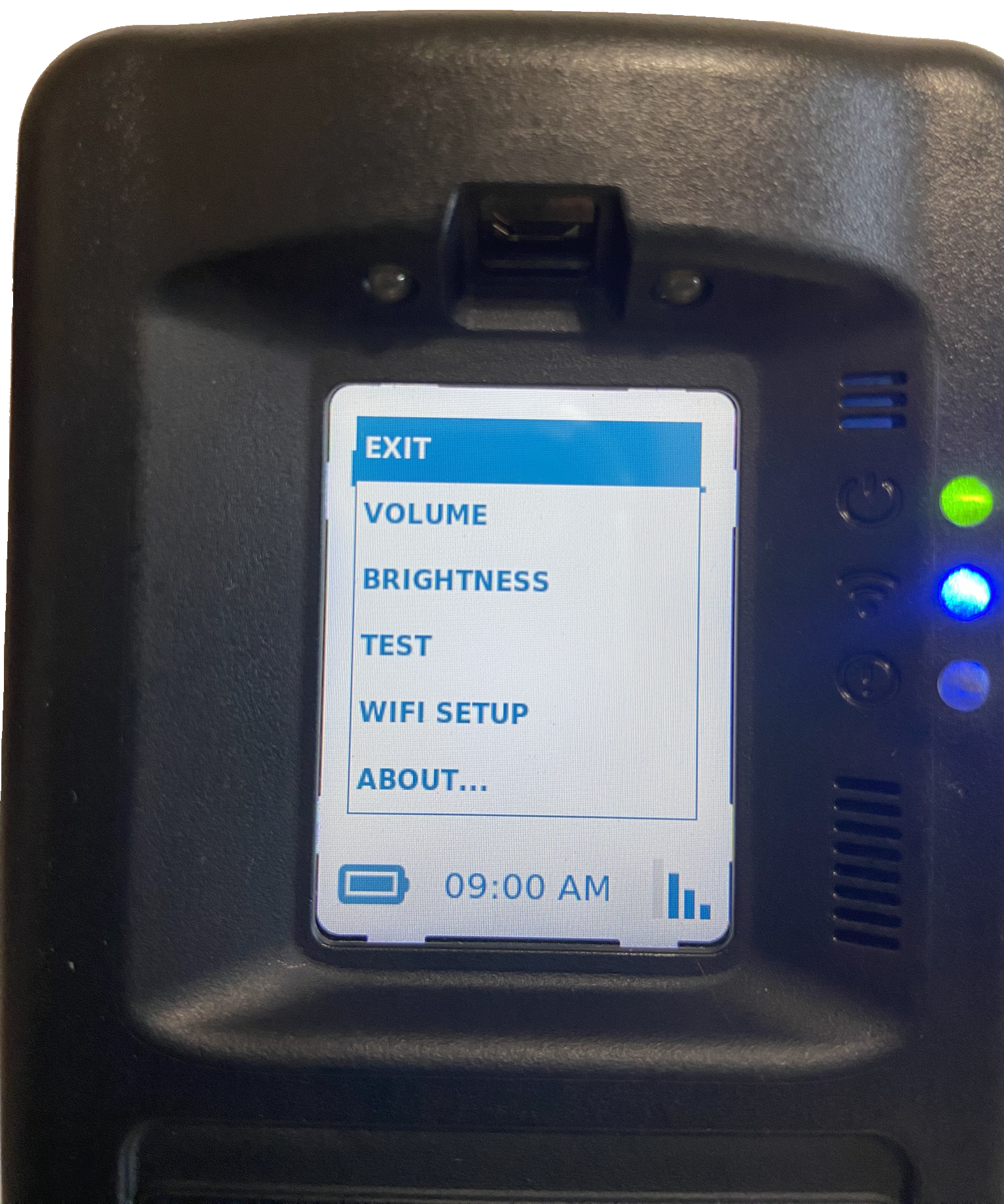
Start by accessing the RB Pro Menu.
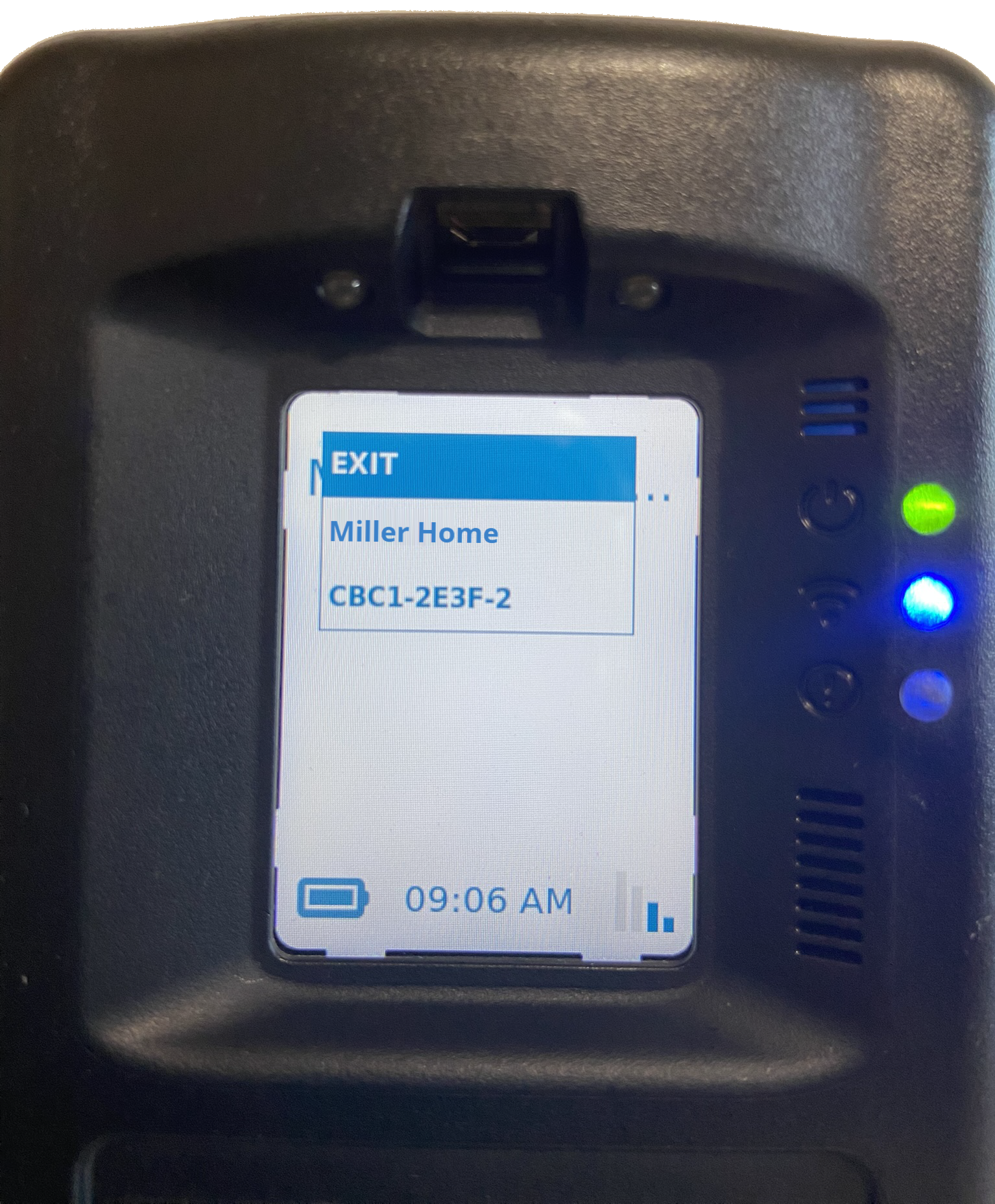
Use the up/down buttons on the RB Pro to highlight the WIFI SETUP option and then press the select button.
RB Pro Menu Options – click to enlarge
Wi-Fi Setup Option – click to enlarge
On the Wi-Fi option screen, select one of the options available and follow the instructions for connecting
RB Pro Menu Wi-Fi Setup Options – click to enlarge
Connect using the “Add with WPA” Option
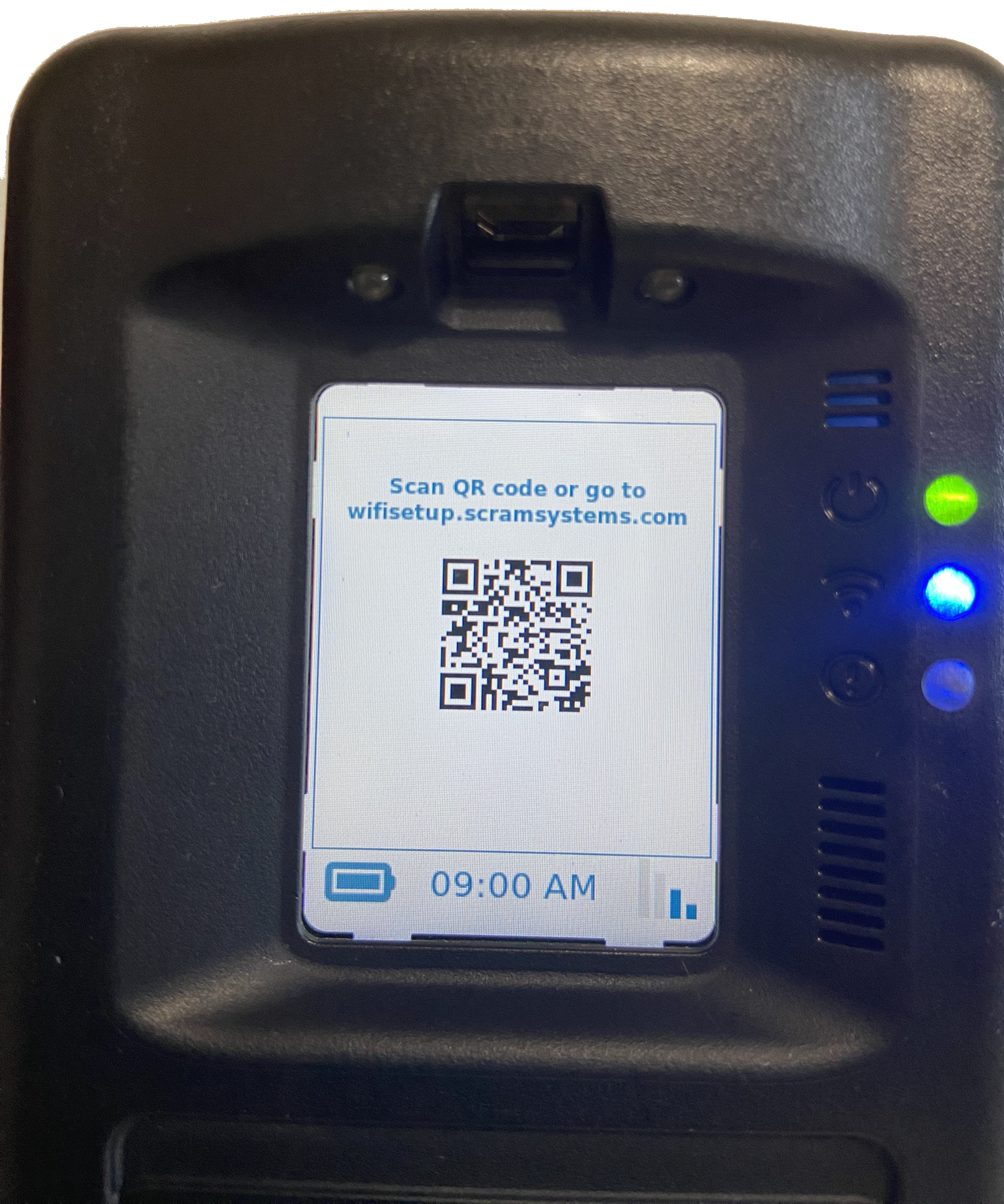
Once the “Add With WPA” option is selected on the RB Pro, the screen will display instructions for accessing the wifisetup.scramsystems.com by either entering in the web address or using the QR code displayed.
Add With WPA Option Highlighted – click to enlarge
QR Code for Wifisetup.scramsystems.com – click to enlarge
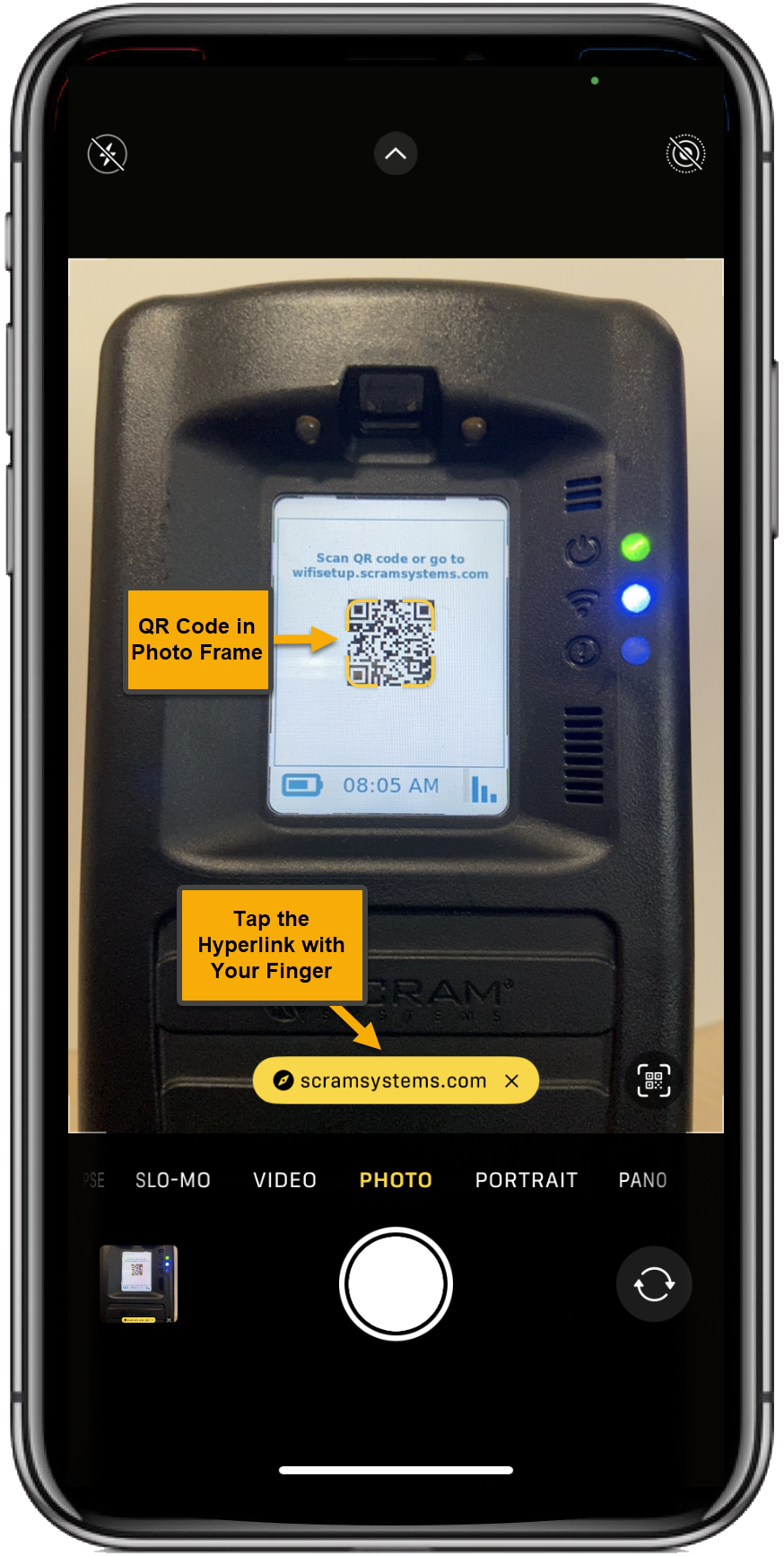
Connect using the QR code:
Using a smartphone, open the camera option and bring the QR code into the photo frame.
On the smartphone’s screen, tap the revealed hyperlink for “scramsystems.com.”
Viewing RB Pro’s Screen and QR Code – click to enlarge
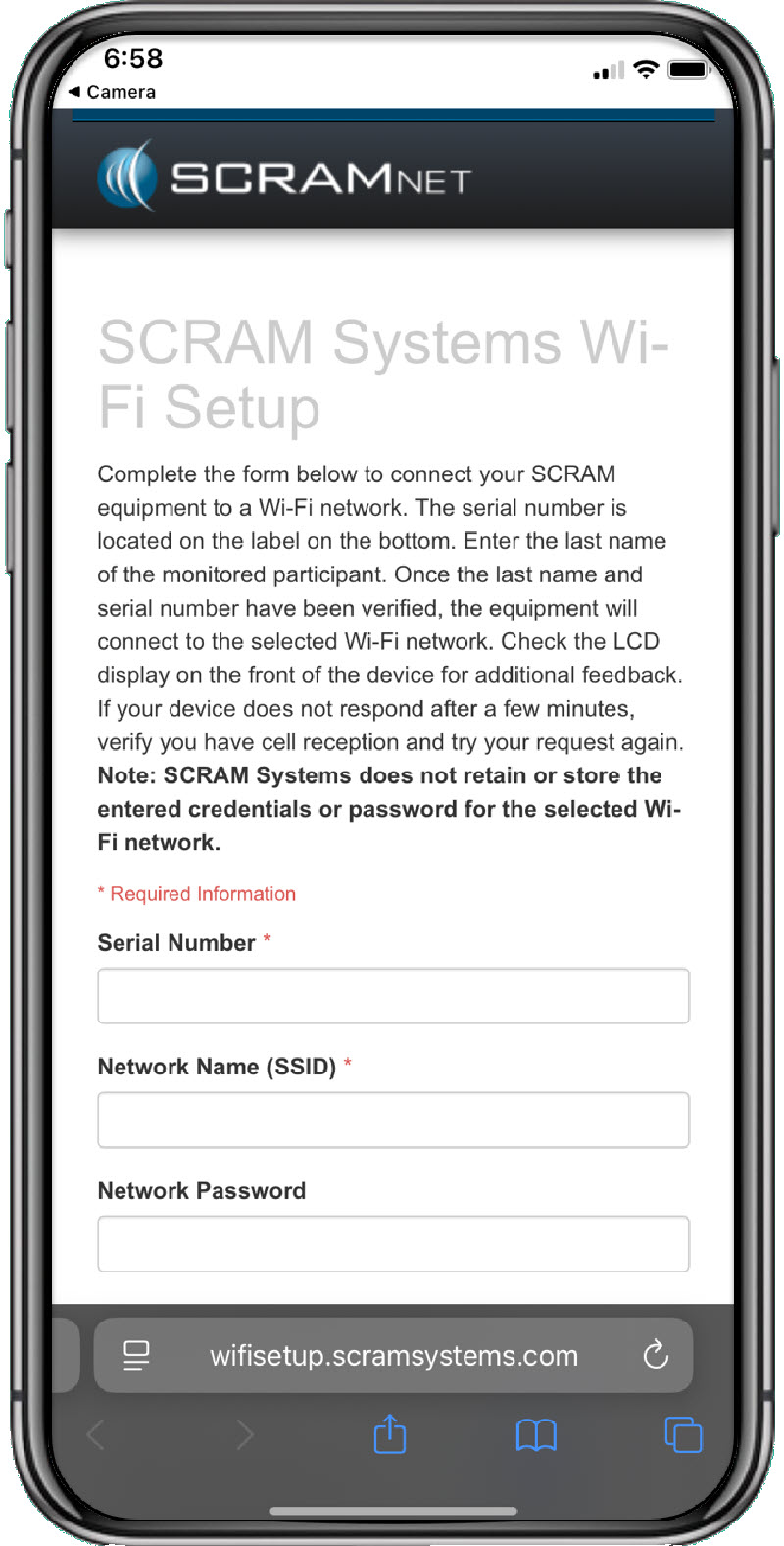
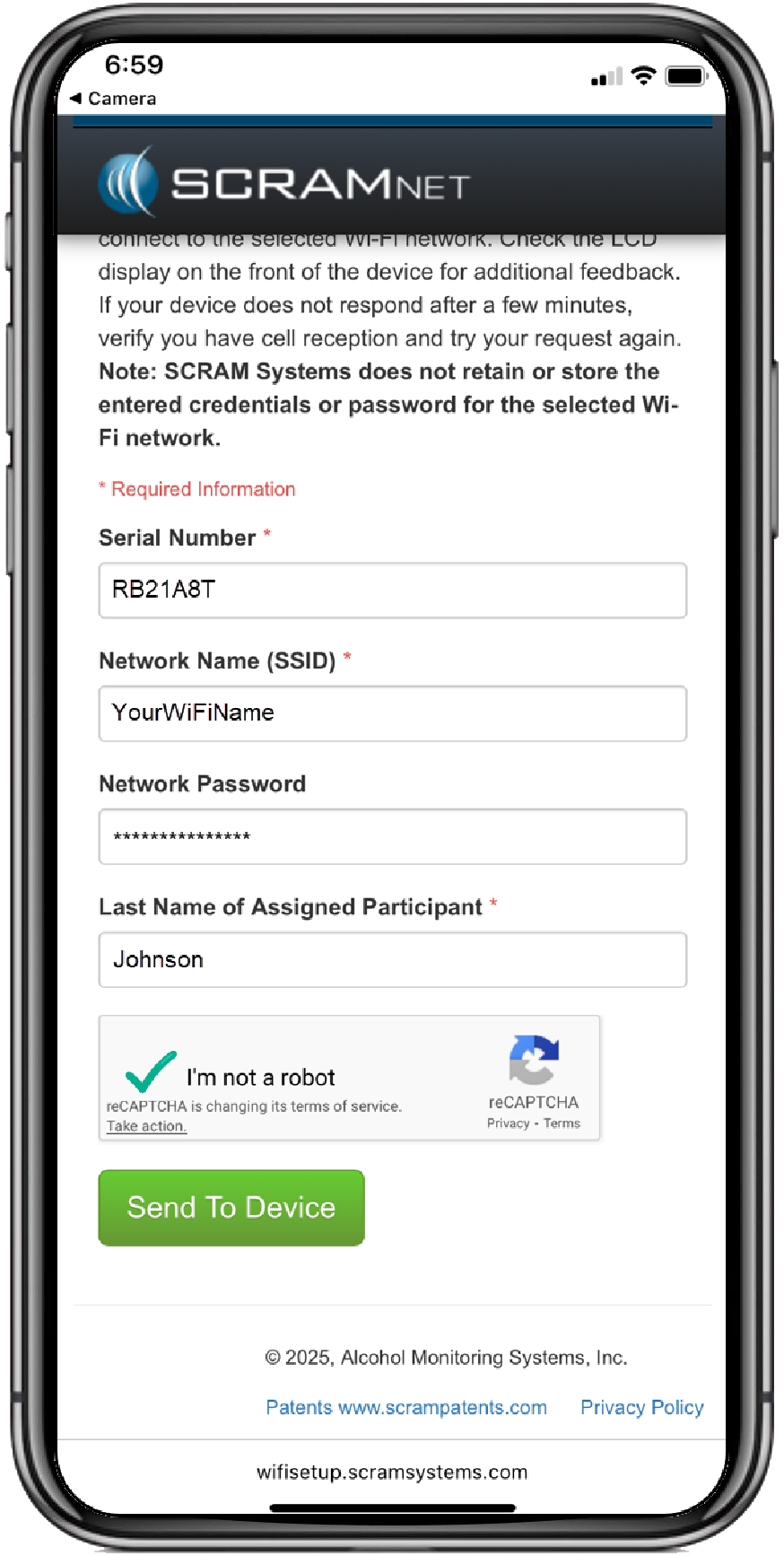
An internet page for SCRAM System Wi-Fi Setup will open on the smartphone. Enter the required information and complete the captcha requirement.
Wi-Fi Setup Web Page- click to enlarge
Wi-Fi Setup Details Entered and Captcha Completed – click to enlarge
Tap the Send to Device button.
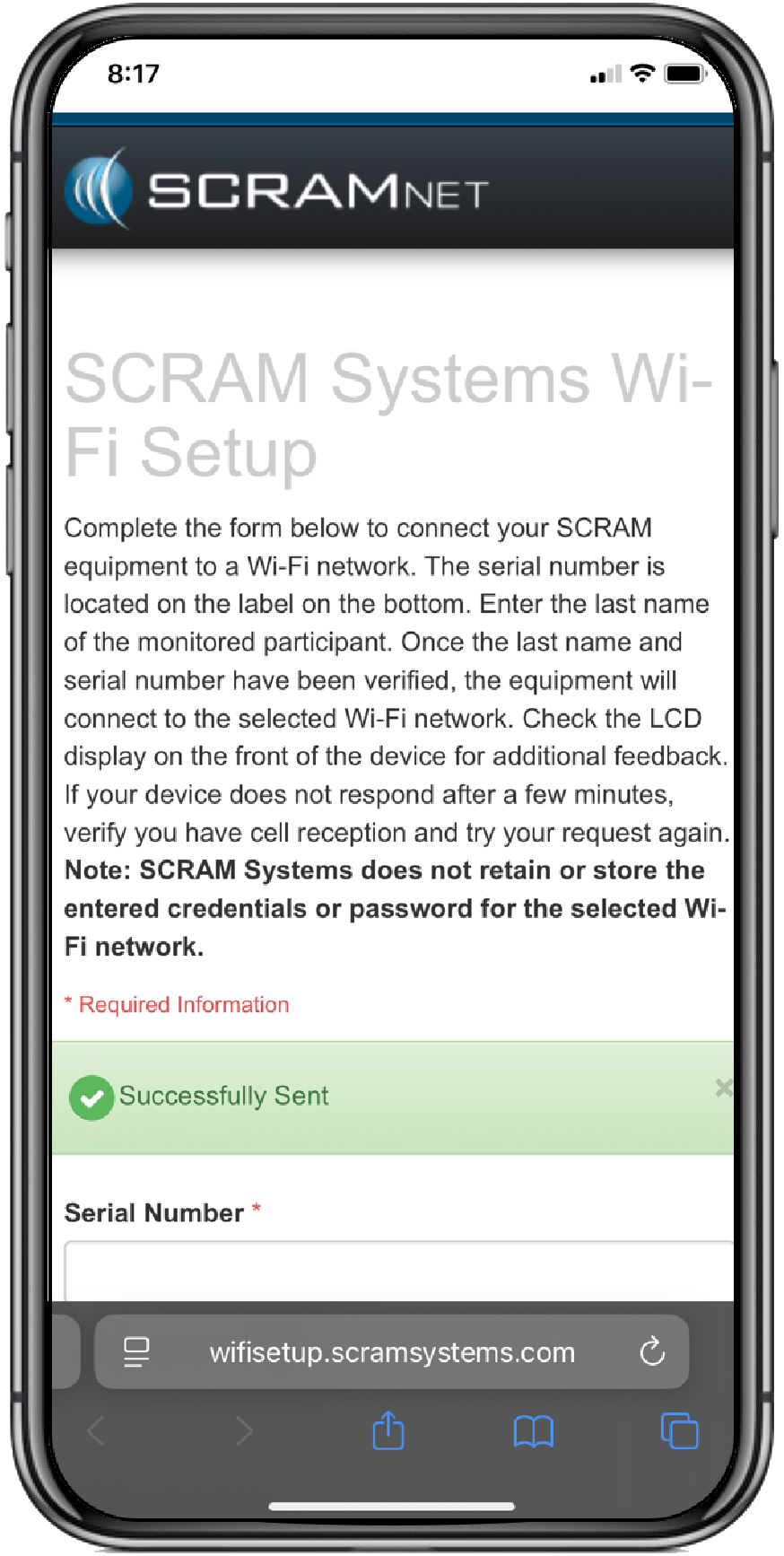
A Successfully Sent banner will be displayed on the smartphone’s screen.
Wi-Fi Setup Successfully Banner – click to enlarge
Once the Wi-Fi’s information has been communicated to the RB Pro over a cellular network connection, the RB Pro’s screen will display the Wi-Fi icon in the lower right corner. After 60 minutes, it will automatically switch back to a cellular network, regardless of the cellular network’s signal strength. Moving forward, the device will only connect to the Wi-Fi network when it cannot communicate data over the cellular network.
For the RB Pro device to receive Wi-Fi network information, it must first connect to the cellular network. It may be necessary for a client to relocate the device to an area with a cellular network connection.
Connect using the “Add Open WiFi” Option
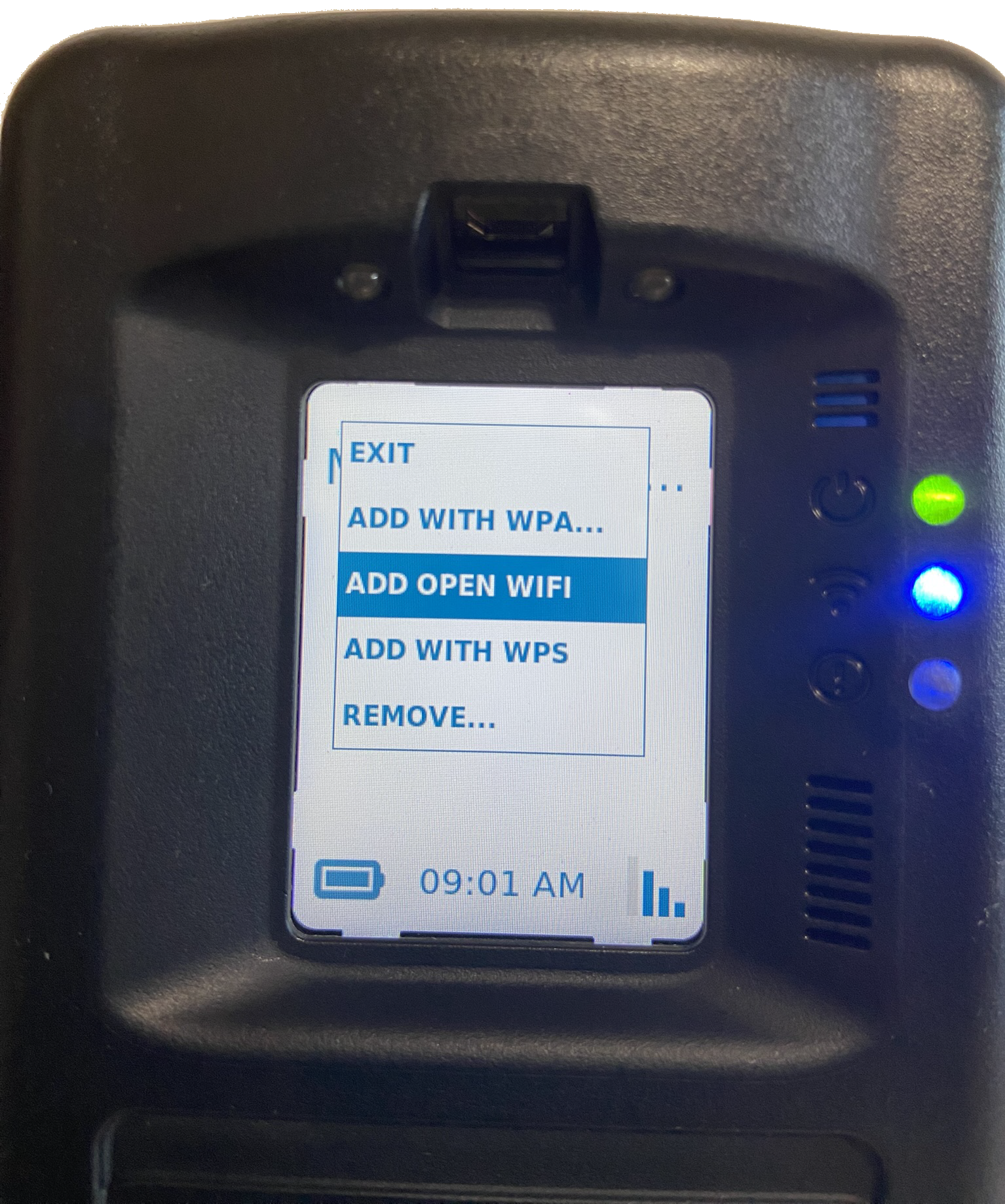
Using the up/down buttons on the RB Pro device, highlight the “open Wi-Fi” network you wish to connect to.
Once highlighted, press the “select” button on the RB Pro device.
Add Open Wi-Fi Option Highlighted – click to enlarge
Open Wi-Fi Screen and Available Options – click to enlarge
After a few minutes, the RB Pro’s screen will display the Wi-Fi connection in the lower right corner. After 60 minutes, it will automatically switch back to a cellular network, regardless of the cellular network’s signal strength. Moving forward, the device will only connect to the Wi-Fi network when it cannot communicate data over the cellular network.
A cellular network connection is not required to connect the RB Pro device to an “open Wi-Fi” network.
When connecting to an “open Wi-Fi” network, if the network requires you to acknowledge its terms and conditions or if you must enter additional data before accessing the network, the RB Pro cannot be connected to that open wi-fi network.
Connect using the “Add With WPS” Option
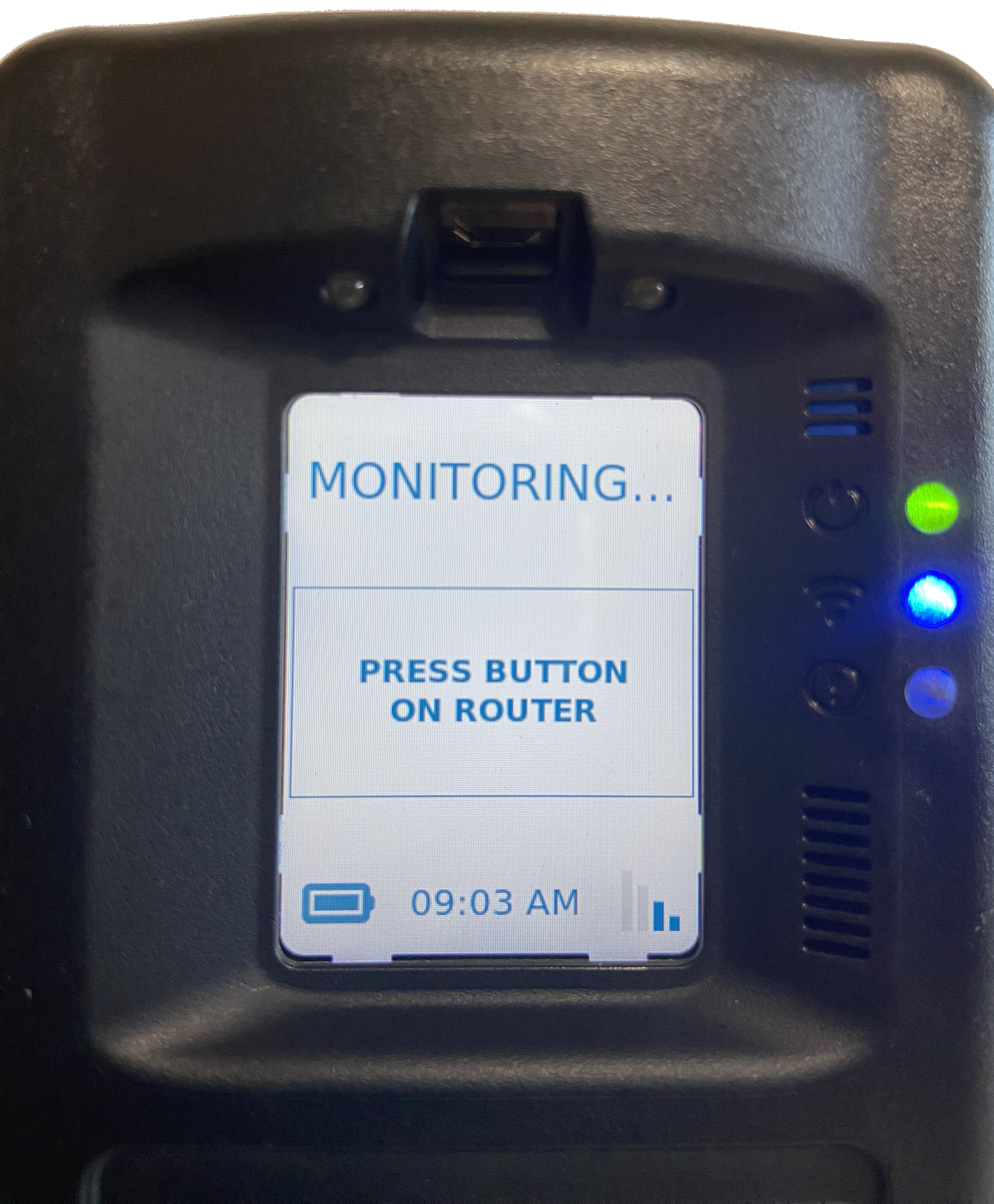
Once the “Add With WPS” option is selected on the RB Pro device, instruct the client to locate the WPS button on their modem or router and press that button.
Add with WPS Option Highlighted – click to enlarge
WPS Set Up On Screen Instruction – click to enlarge
After a few minutes, the RB Pro’s screen will display the Wi-Fi connection in the lower right corner. After 60 minutes, it will automatically switch back to a cellular network, regardless of the cellular network’s signal strength. Moving forward, the device will only connect to the Wi-Fi network when it cannot communicate data over the cellular network.
A cellular network connection is not required to connect the client’s Wi-Fi network to the RB Pro Device when using the Add with WPS option.
The “Press Button on Router” screen will remain for approximately two (2) minutes. After which, the screen will update to Monitoring, and the device will go into “sleep” mode.
Manually Remove a Client-Added Wi-Fi Network
If the client would like to remove a Wi-Fi network that they have connected to, they may accomplish this task by:
Accessing the RB Pro WiFi Setup menu.
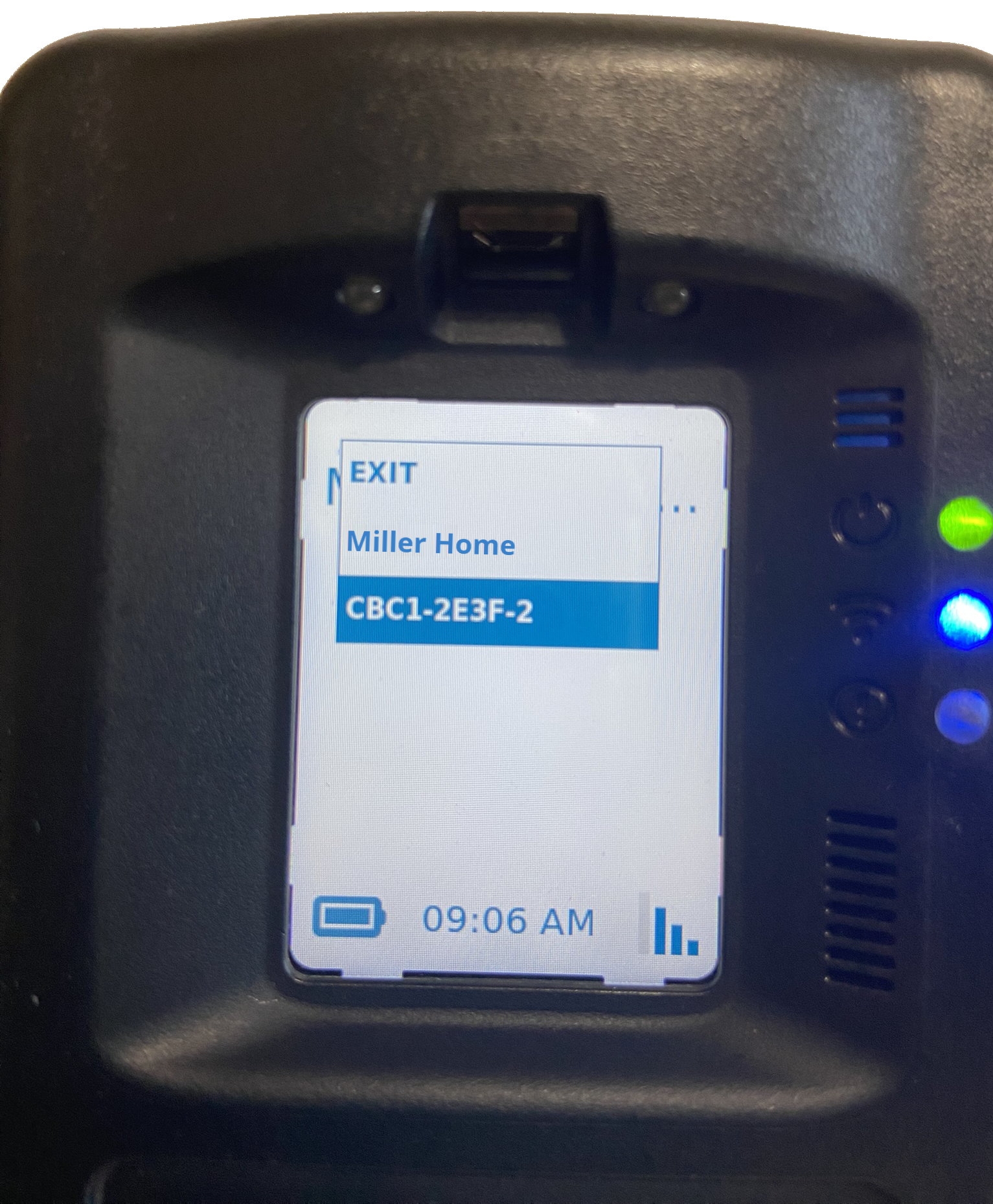
Use the up/down buttons on the RB Pro to highlight the Remove option and then press the select button.
Wi-Fi Setup Option – click to enlarge
Wi-Fi Remove Option Highlighted – click to enlarge
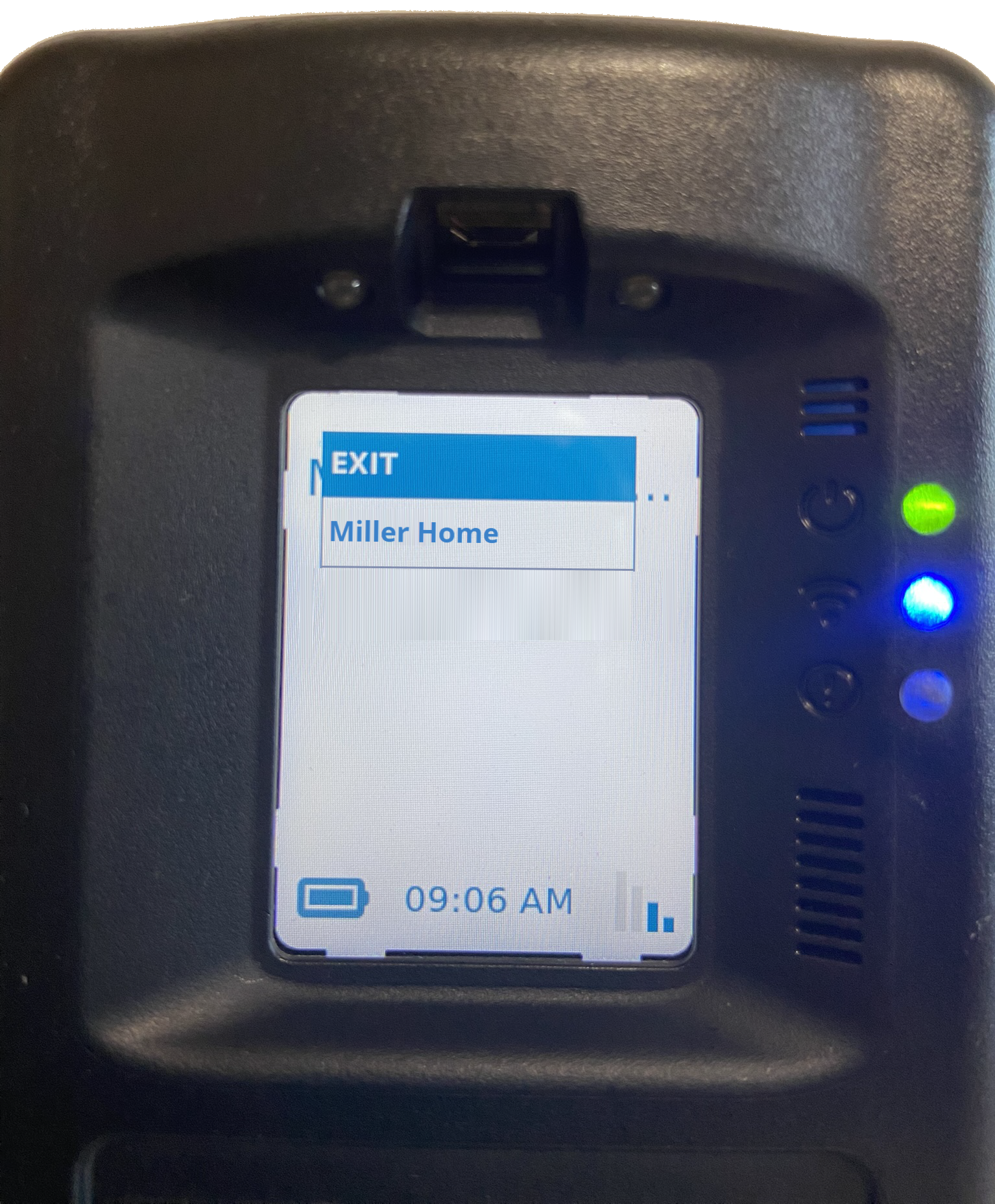
Use the up/down buttons to highlight the wi-fi network to be removed and then press the “select” button.
At 5:00 AM MST on Tuesday, November 4, 2025, SCRAM Systems will release an enhancement that will give you more duration options for suspending client alerts.
During the 15-minute deployment, you may not be able to access SCRAMNET GPS, but messages from the SCRAM GPS device will continue to be processed uninterrupted.
New, Longer Suspension Durations
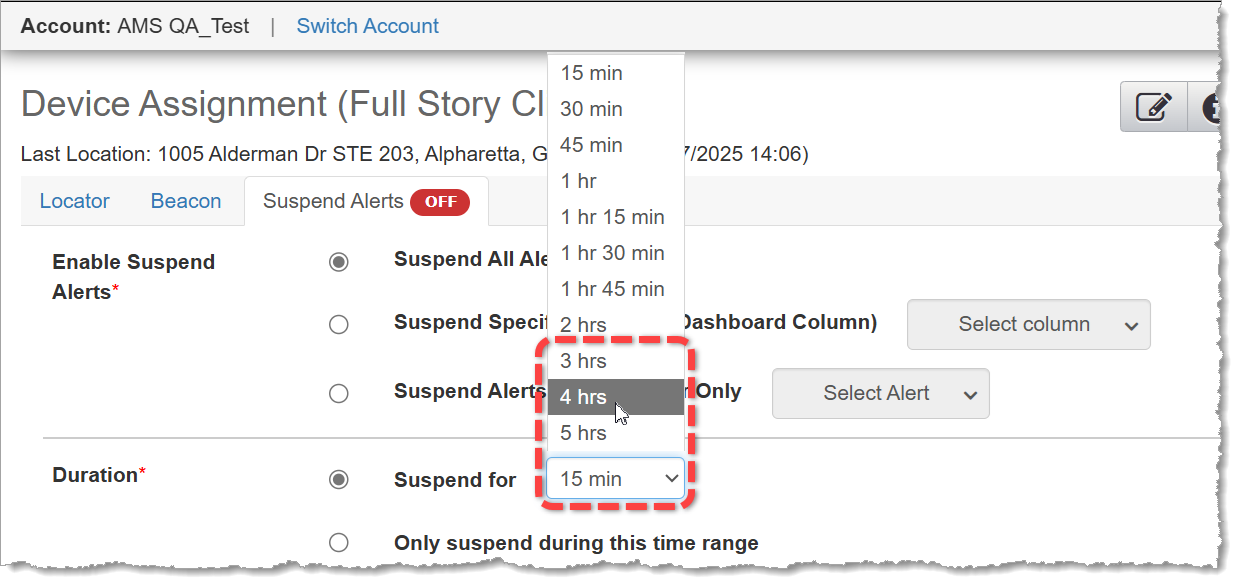
Three, four, and five-hour durations have been added to the “Suspend for” dropdown menu. These expanded durations may be useful in situations where your client is scheduled to be in a location for a relatively long time that is normally “off limits,” or is an impaired communications environment.
3 hrs, 4 hrs, and 5 hrs are now available alert suspension durations (click to enlarge)
Please visit the Suspend Event Notification article in SCRAM GPS Help for detailed instructions on how to use this feature.
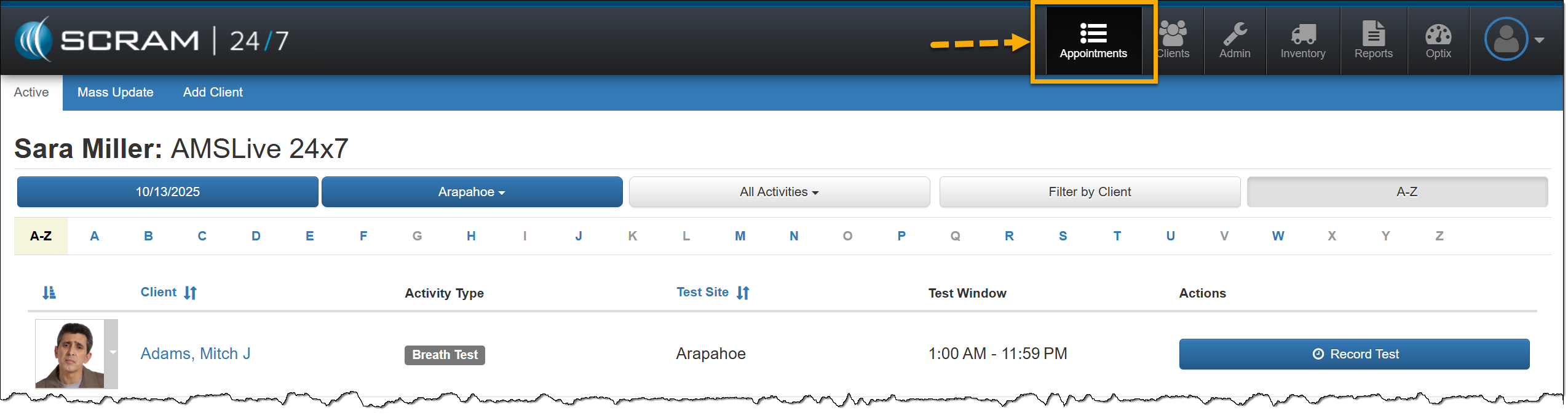
With this release, the current main navigation button of “Testing” will be updated to “Appointments” to more accurately represent the activities that may be required for clients during their monitoring program.
Appointments Main Navigation Option – click to enlarge
Documents
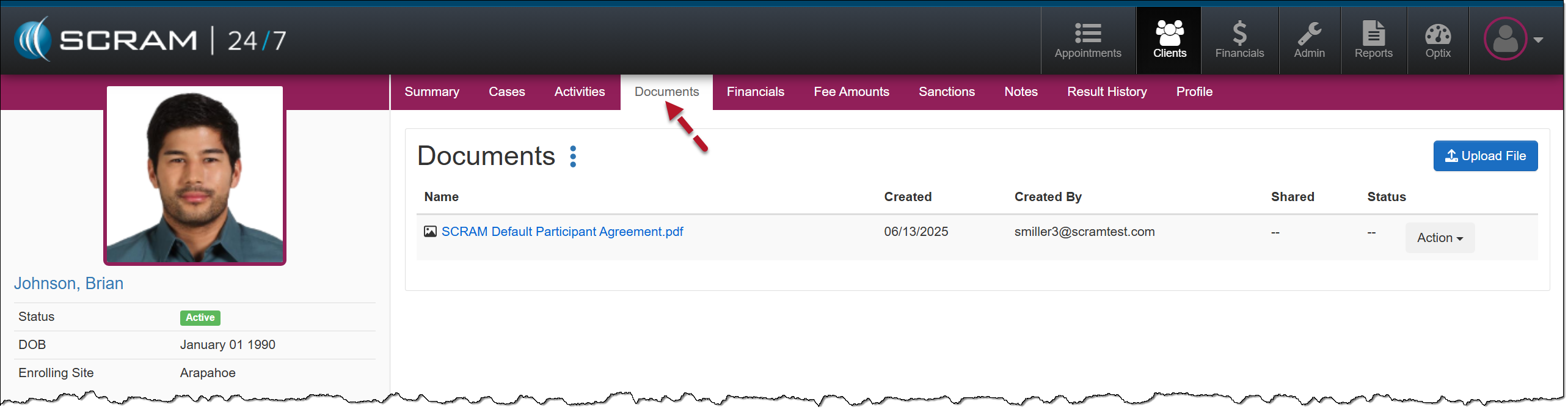
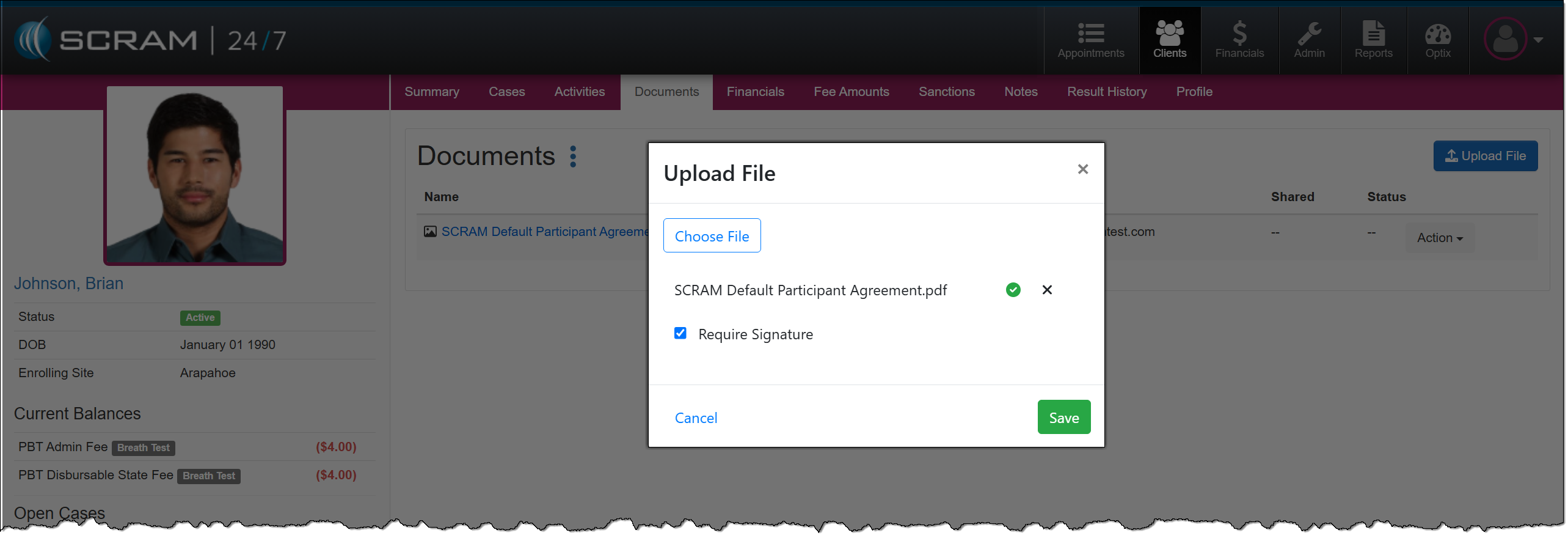
Currently, during your client’s monitoring program, you may associate and save documents relating to a specific case on the Cases tab. Depending on the client, there may be occasions when the client has multiple cases and documents. This enhancement will add a dedicated Documents tab for each client in SCRAM 24/7, providing centralized management of client documents.
Documents Tab with saved document – click to enlarge
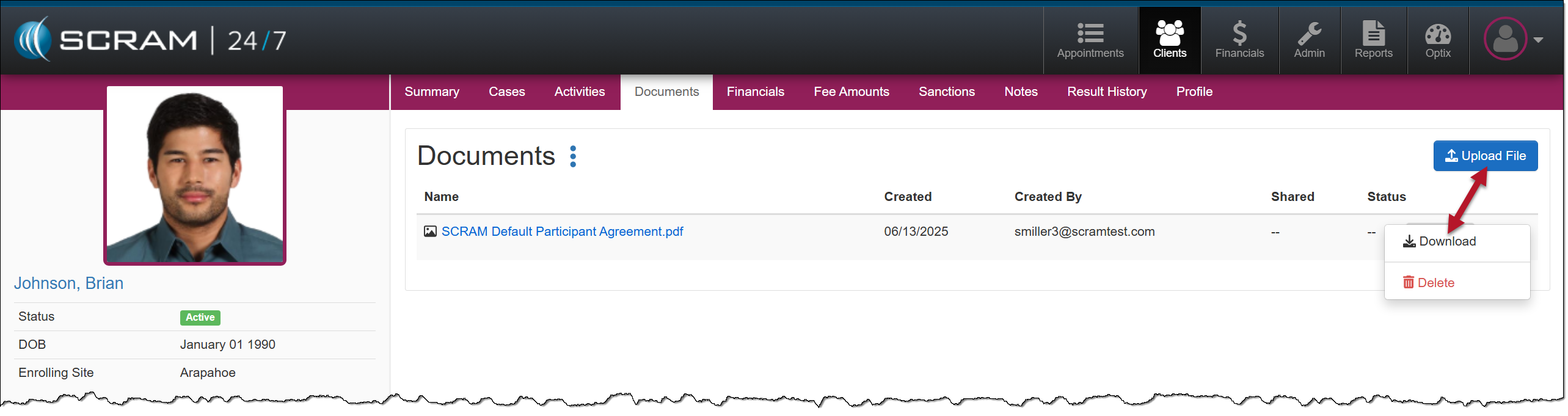
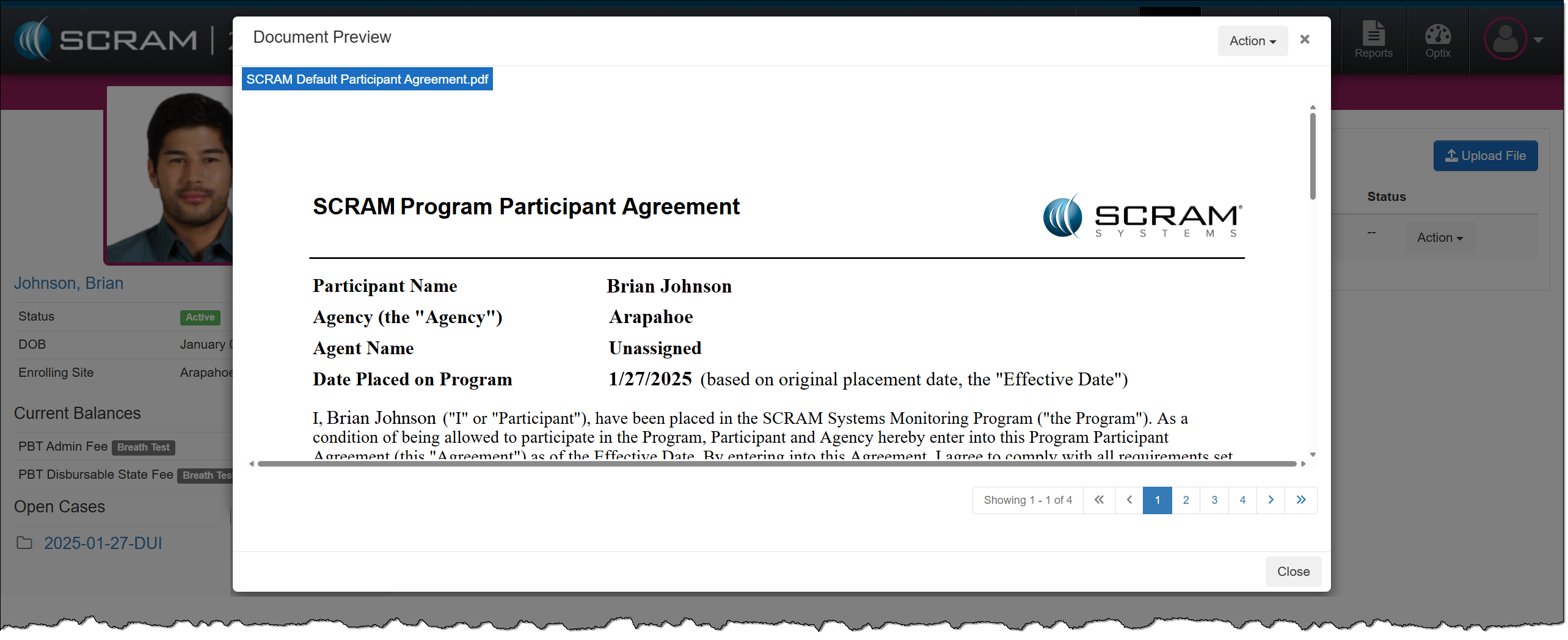
Once the Documents enhancement is released, all current documents saved on the Cases tab will automatically be relocated to the client’s Documents tab for easy access. From there, you may upload or download files, select the document’s hyperlink to view it in a preview window, or delete it.
Documents Tab Upload and Download options – click to enlargeDocuments Preview – click to enlarge
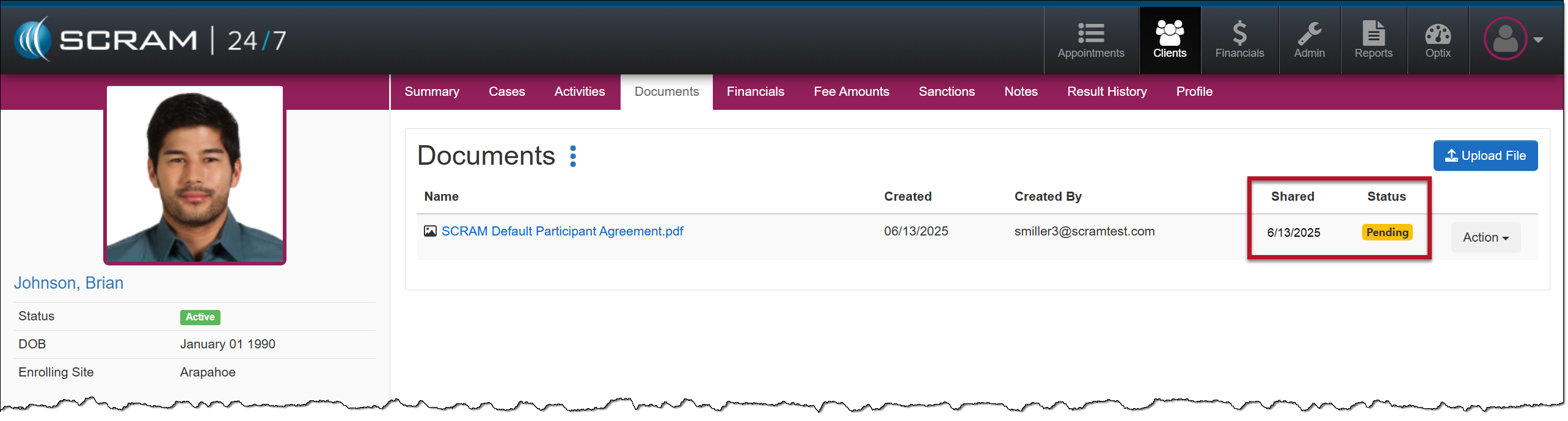
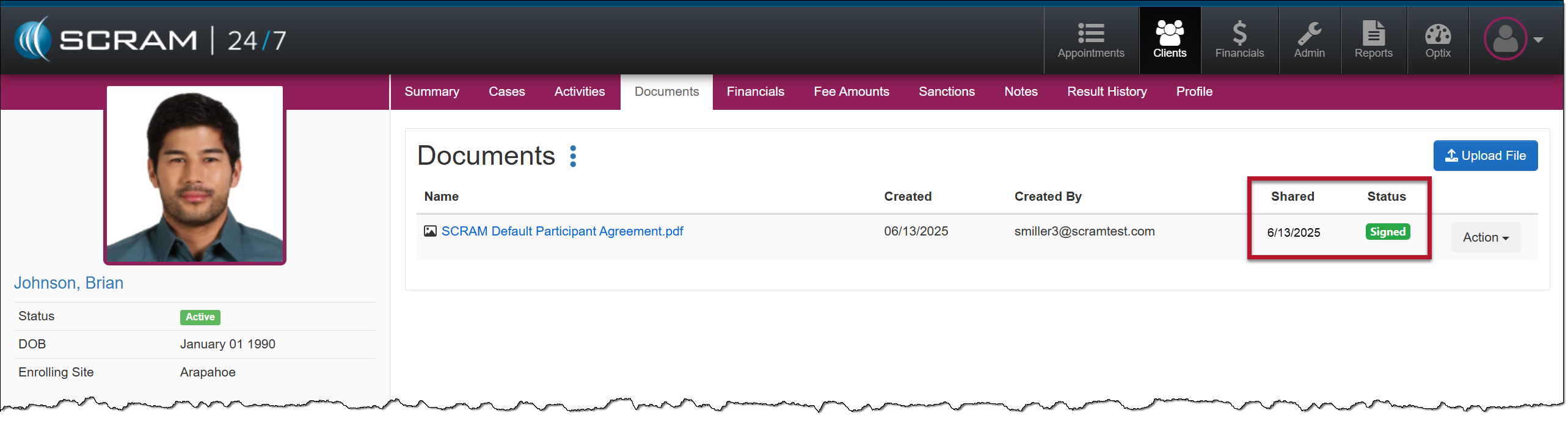
An additional benefit of this Documents enhancement for clients utilizing the TouchPoint Activity and the SCRAM TouchPoint Mobile application is that you may take advantage of all the benefits of the Documents service without navigating to the client’s Optix Profile. This includes:
sharing documents directly with the client through the SCRAM TouchPoint Mobile application,
requiring client e-signatures, and
generating “Read” date and time stamps on shared documents.
TouchPoint Activity Share Document with Client’s app – click to enlargeTouchPoint Activity Document View Status- click to enlargeTouchPoint Activity Document Signed Status – click to enlarge
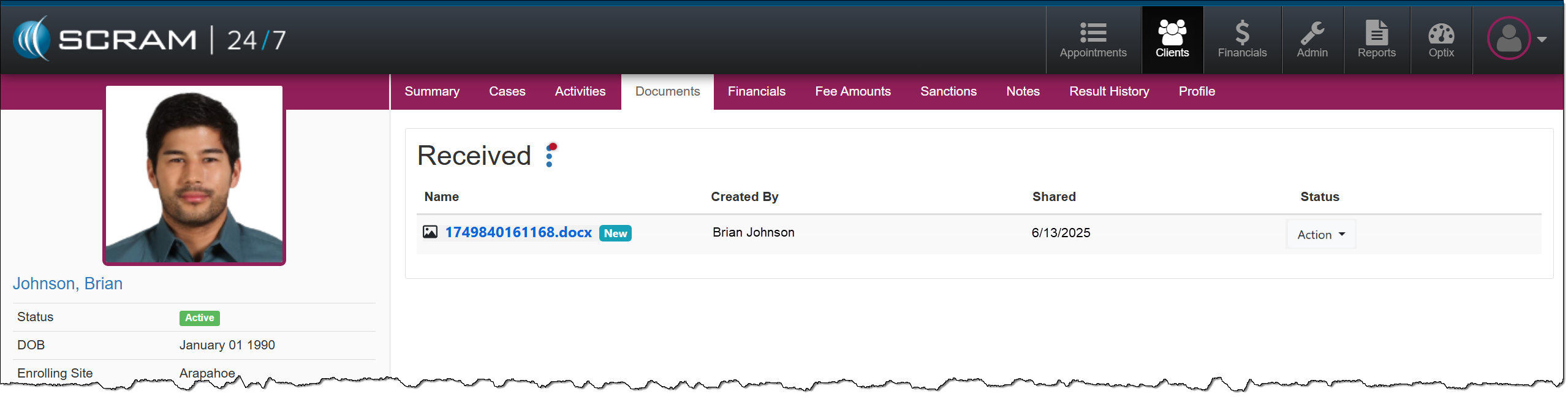
Additionally, the client may send documents and images directly from their mobile application to their Documents page in SCRAM 24/7, thus streamlining the delivery, receiving, and saving of documents to the client’s SCRAM 24/7 Profile.
TouchPoint Activity Document Received from Client’s App- click to enlarge
Communications
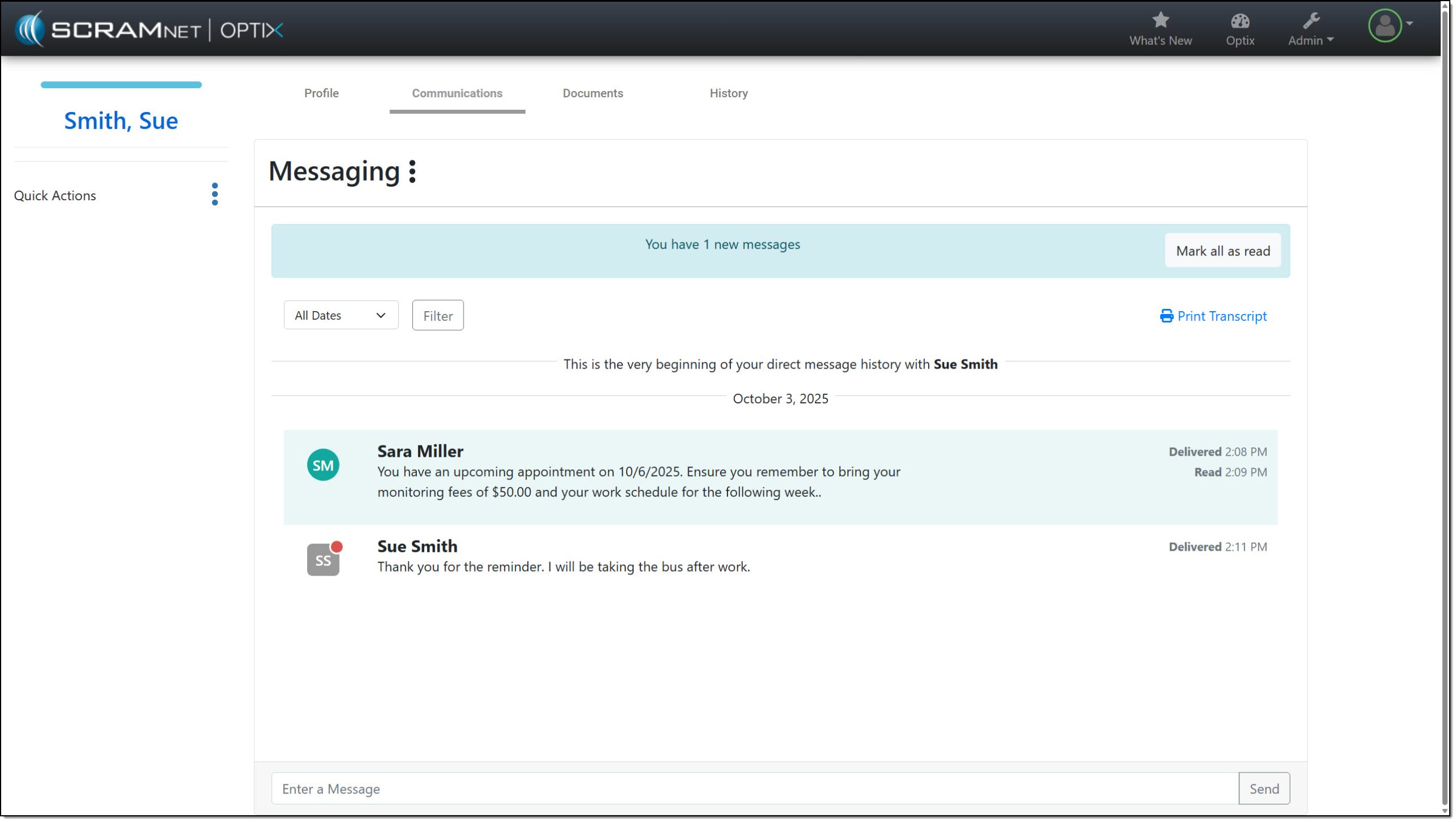
Currently, after adding the TouchPoint Activity and enabling the Messaging feature for your client, you must navigate to the client’s Optix TouchPoint profile to send, view, and print a history of messages.
Hyperlink to View Client’s Optix Profile – click to enlargeOptix Communication, Messaging page for Client – click to enlarge
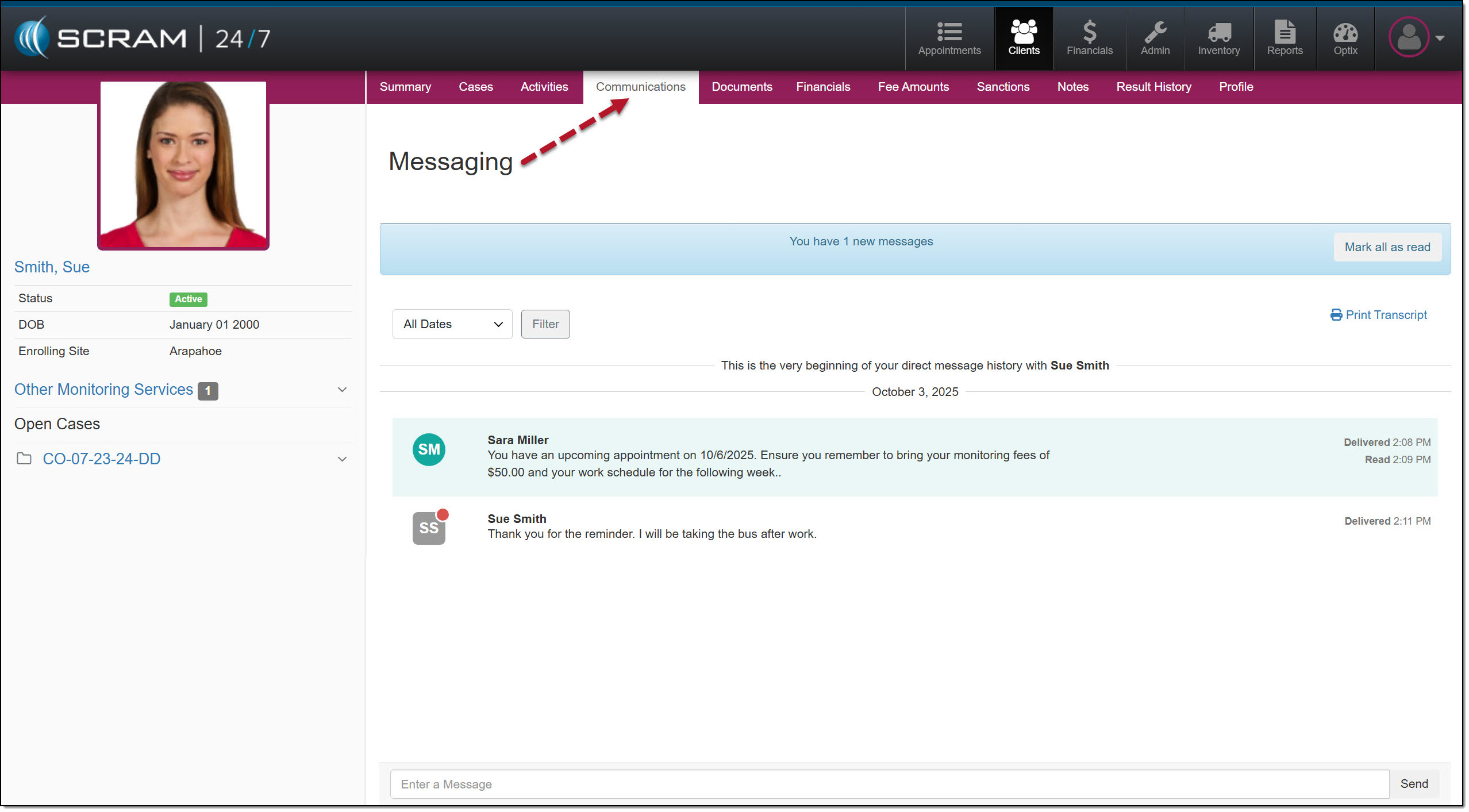
With this enhancement, you may complete all messaging tasks from within SCRAM 24/7.
SCRAM 24/7 Communication, Messaging Client page – click to enlarge
TouchPoint Activity “Quick Actions” Options
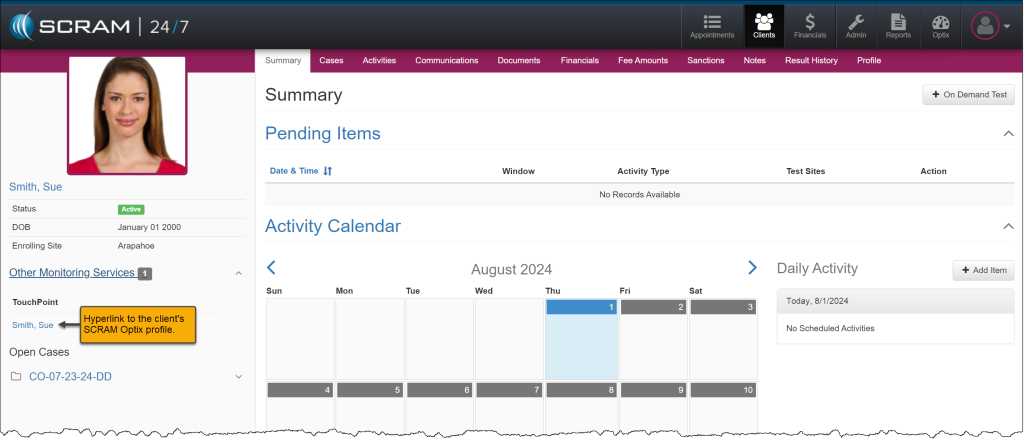
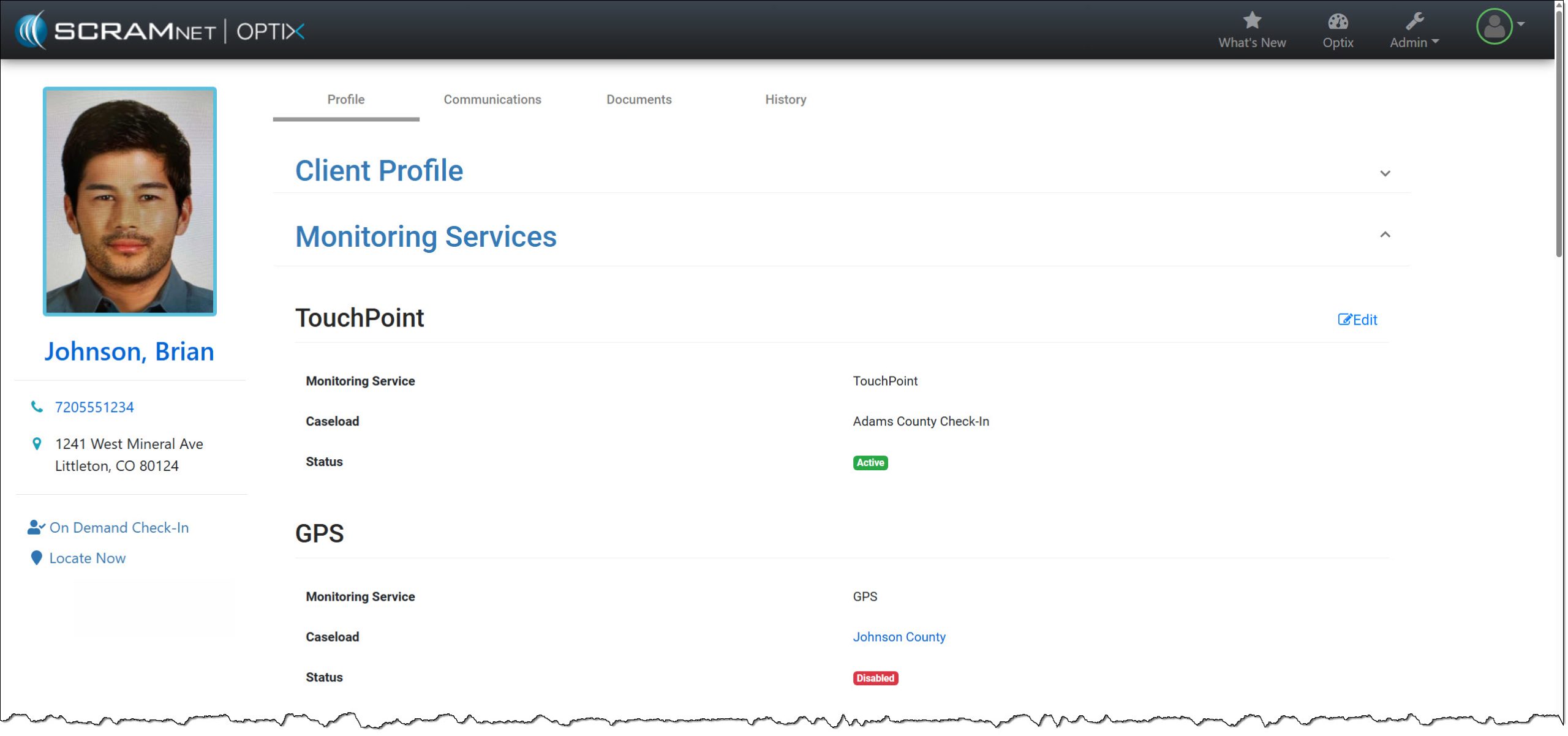
Once a TouchPoint Activity has been enabled for your SCRAM 24/7 client, to utilize the on-demand features like “Locate Now” or to request an “On Demand Check-in,” you would navigate to the client’s Optix profile using the client’s name hyperlink located in the Other Monitoring Services section under the “TouchPoint” heading.
Hyperlink to View Client’s Optix Profile – click to enlarge
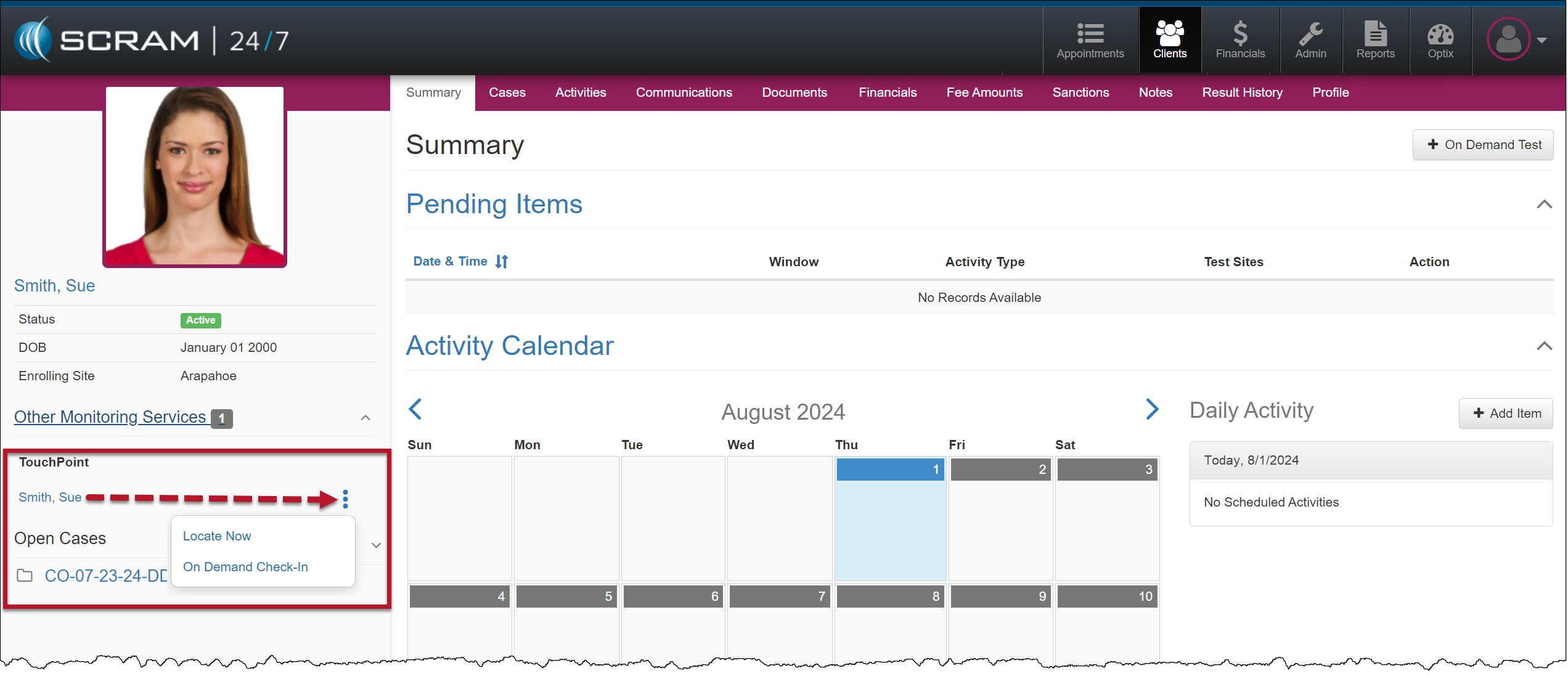
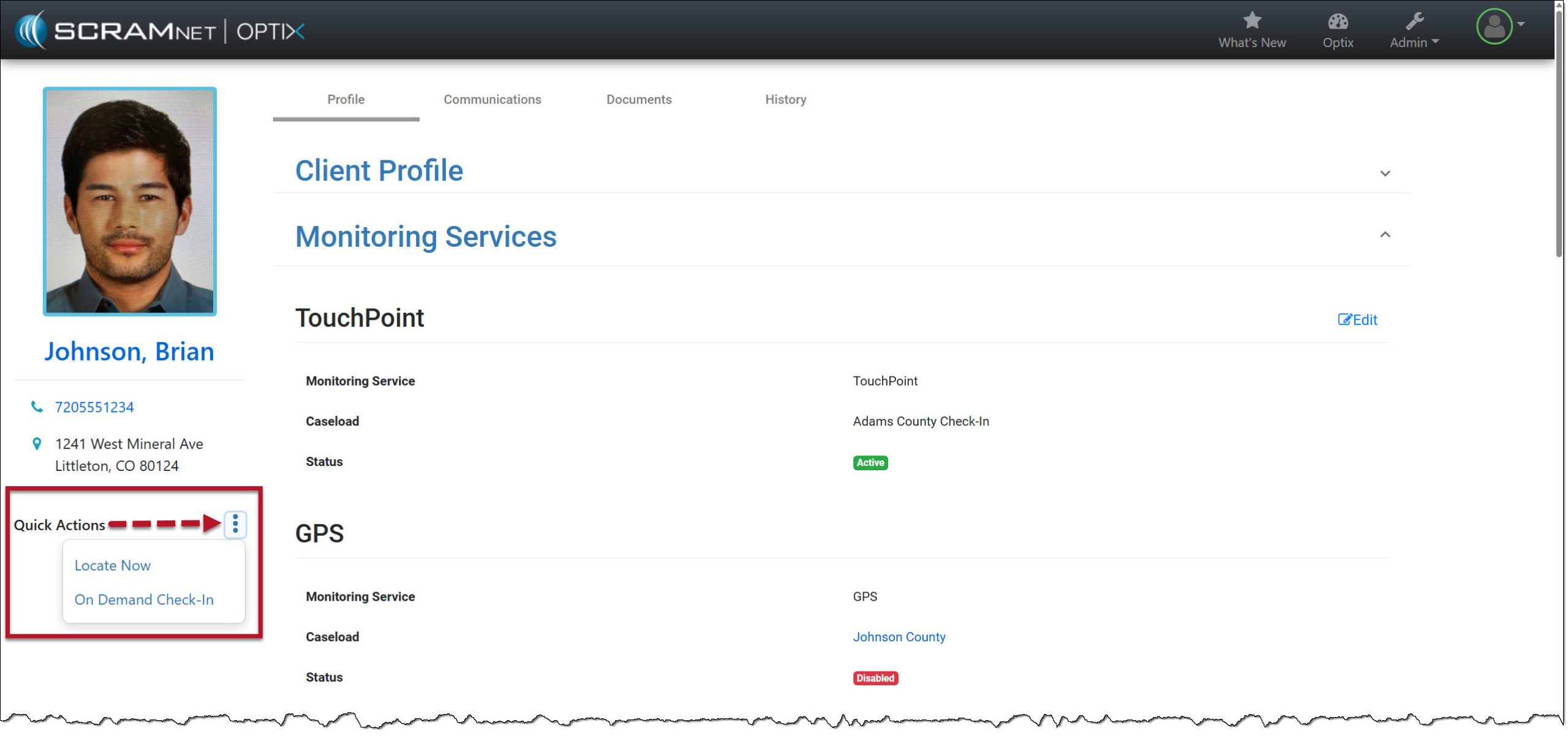
With this enhancement, you may now access and launch these features within SCRAM 24/7 by opening the Quick Actions dropdown menu.
Quick Action Dropdown Menu – click to enlarge
Would you like to learn more about the benefits of the SCRAM TouchPoint Mobile application? Contact your Account Manager for details on getting started.
Not seeing the enhancement in SCRAM 24/7? Clear your cache and cookies and refresh your browser window.
On October 15, 2025, SCRAM Systems will release an enhancement for your SCRAM TouchPoint caseload. This enhancement consolidates the one-touch action hyperlinks into a Quick Actions dropdown menu and allows room for additional Quick Actions to be added in the future..
The options available on the “Quick Actions” dropdown menu will reflect the current SCRAM TouchPoint features enabled for the client.
Current View of the Quick Actions Hyperlinks – click to enlargeQuick Actions Consolidated Dropdown Menu – click to enlarge