The Analytics tab on the SCRAM Optix dashboard provides you with a wealth of interactive data visualizations that display client and program activity and performance statistics for your department’s usage of SCRAM technology. Based on your licensed products, a series of report templates may be accessed via the Available Reports dropdown menu. Check back often – new reports are being added all the time!
SCRAM CAM Device, SCRAM Remote Breath Device, SCRAMNET GPS, Tip of the Month
New Client Participant Videos for RB and GPS
SCRAM Systems is pleased to announce the addition of two NEW client participant videos to the Help page in addition to the SCRAM CAM participant agreement video already available! These videos describe what is expected of a client as a participant in the SCRAM CAM, Remote Breath, and GPS monitoring programs. Have your clients view the video prior to having them sign the Participant Agreement.
- Access the SCRAM CAM Overview and Rules (English and Spanish)
- Access the New SCRAM Remote Breath Overview and Rules (English and Spanish)
- Access the New SCRAM GPS Overview and Rules (English and Spanish)
On the afternoon of June 17, 2021, SCRAM Systems® released Direct Connect v2. Once installed, this new version of the Direct Connect application will no longer require that you log in each time you launch the tool. Instead, the application uses your Microsoft credentials to automatically log you in.
Installing the new application will entail:
- Ensuring that the application is closed.
- Validating that the correct back-end framework is installed.
- Completing the installation steps.
For now, the Direct Connect application currently installed on your computer can continue to be used to upload data. Instructions for removing the old application are included below at the end of this article.
Installation
To install Direct Connect v2:
- If Direct Connect is open, close the application before proceeding.
- Access the new SCRAMnet Direct Connect installation page. You will know you are on the correct installation page if it reads Version: 2.2.0.2.

- Ensure that “Microsoft .NET Framework 4.7.2 Client Profile (x86 and x64)” and “Windows Installer 4.5” are installed.
- Click the Install button.
Note: You may have to click the Install button twice.
A setup.exe pop-up appears in the lower-left corner.
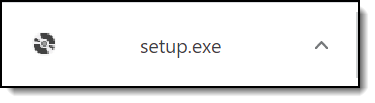
- Click the pop-up.
The Windows protected your PC pop-up may appear.
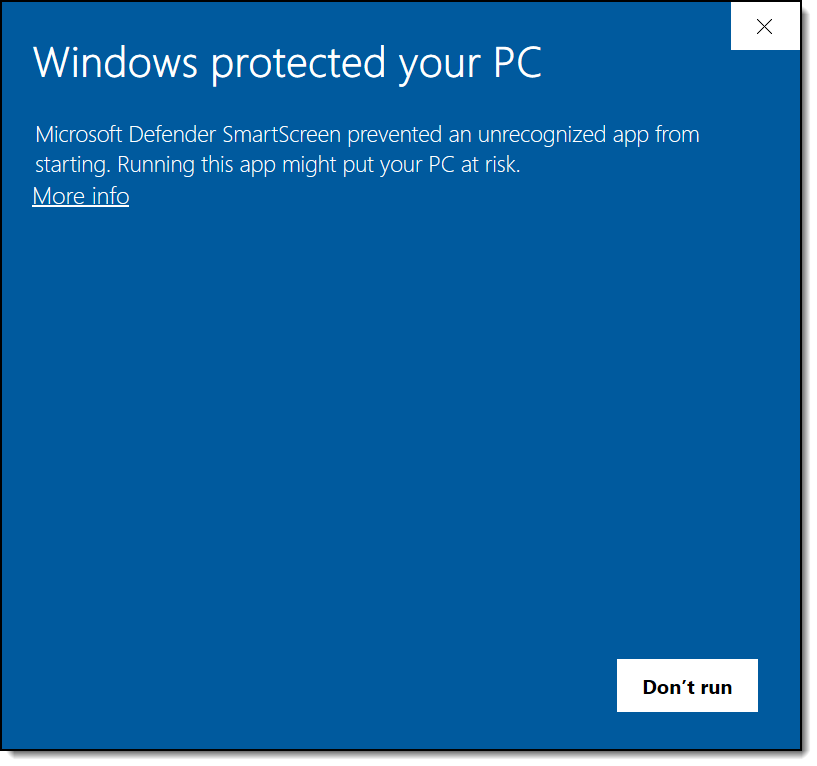
- Click the More Info link.
A Run anyway button appears.
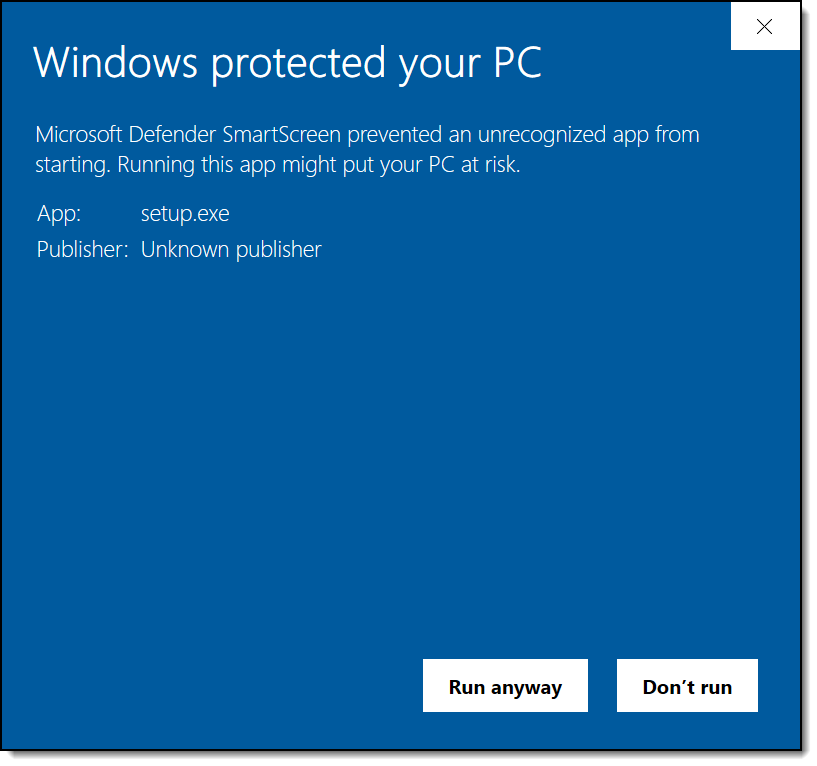
- Click the Run anyway button.
An Application Install – Security Warning pop-up appears.
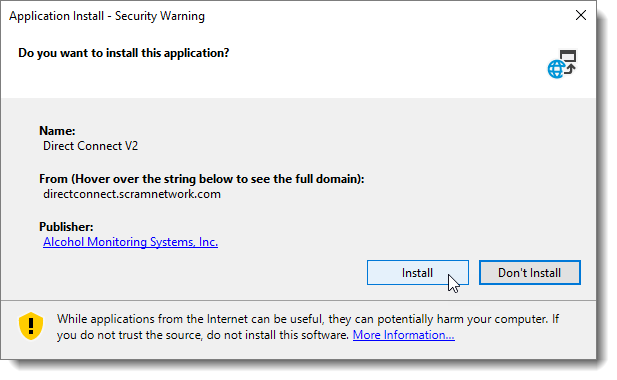
- Click the Install button.
The Windows protected your PC pop-up may reappear.
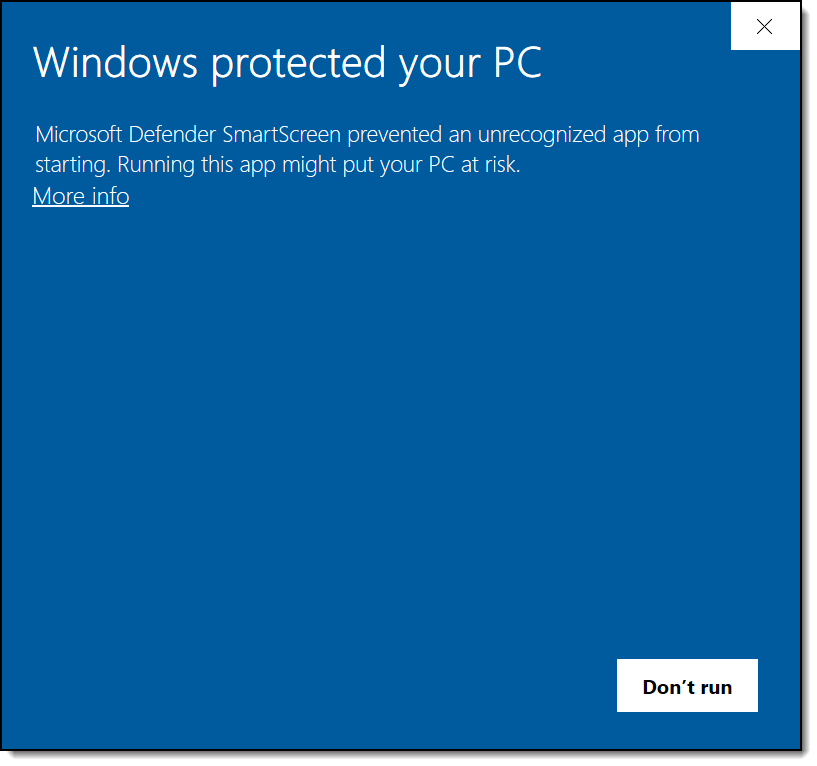
- Click the More Info link.
The Run anyway button reappears.
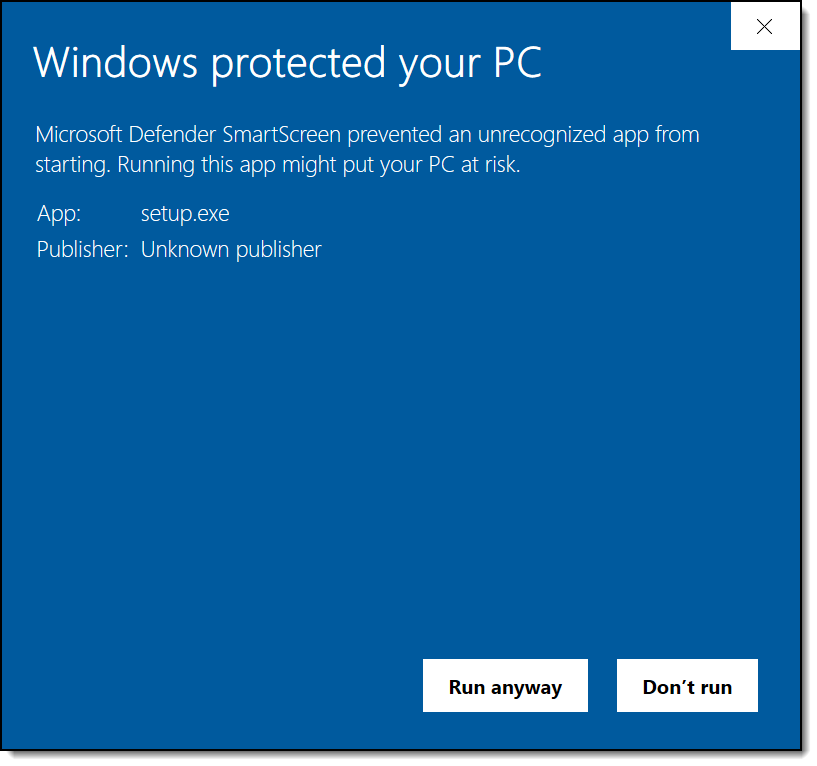
- Click the Run anyway button.
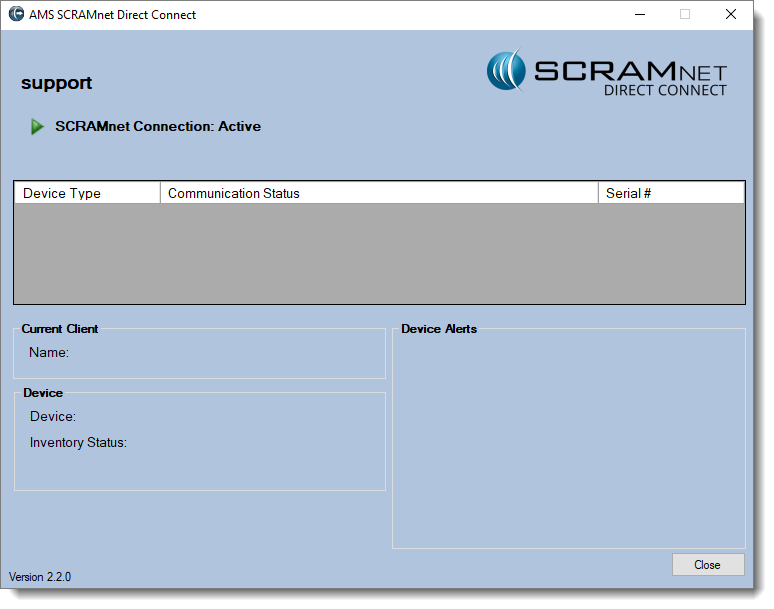
The application launches with your Microsoft user name displayed.
Uninstall Old Direct Connect Application
Two versions of the Direct Connect application are now on your computer. They are:
- Direct Connect v2 (New)
- Direct Connect (Old)
The following message will appear if you attempt to open the old Direct Connect application.
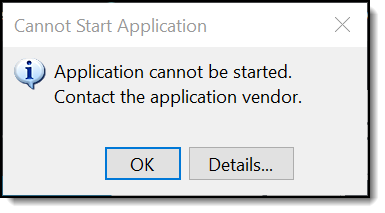
It is not necessary but you have the option to uninstall the old version. To do that:
- Locate the SCRAMnet/Direct Connect option in your program list.
- Right-click the option and select the Uninstall option.
- Select the Direct Connect program.
- Click the Uninstall/Change button and follow the instructions.
New reports have been added to Optix Analytics to help optimize how you use TouchPoint to meet the needs of your community. These reports have been designed to provide you with a high-level overview of the performance of your SCRAM TouchPoint® program. This information can be used to measure check-in compliance and to track utilization of the TouchPoint-enabled services provided by your monitoring program.
There are three TouchPoint reports available to you within Optix Analytics:
- Check-In Overview: This report provides you with the total number of active TouchPoint clients, as well as a breakdown of clients by TouchPoint-enabled services.
- Check-In Table: This report provides you with similar information to the Check-In Overview, but presents the data in a table rather than on a chart. This report also displays the verification method used by the client’s smartphone, and whether or not the check-in passed verification.
- Check-In Heat Map: This report provides you with a visual of the geographical locations from which the greatest concentration of your clients submit their TouchPoint check-ins.
Visit the TouchPoint Reports help page to learn more about these new reports.
Equipment No Longer Set to “Lost” After 30 Days in “Awaiting Return” Status
At the end of a client’s monitoring program, a SCRAM CAM or House Arrest bracelet and/or base station may be placed in the Awaiting Return status in SCRAMNET if the equipment is NOT on hand when the client is being removed from the monitoring program. Previously, SCRAMNET would automatically change the equipment status to Lost if the equipment was not checked in within 30 days.
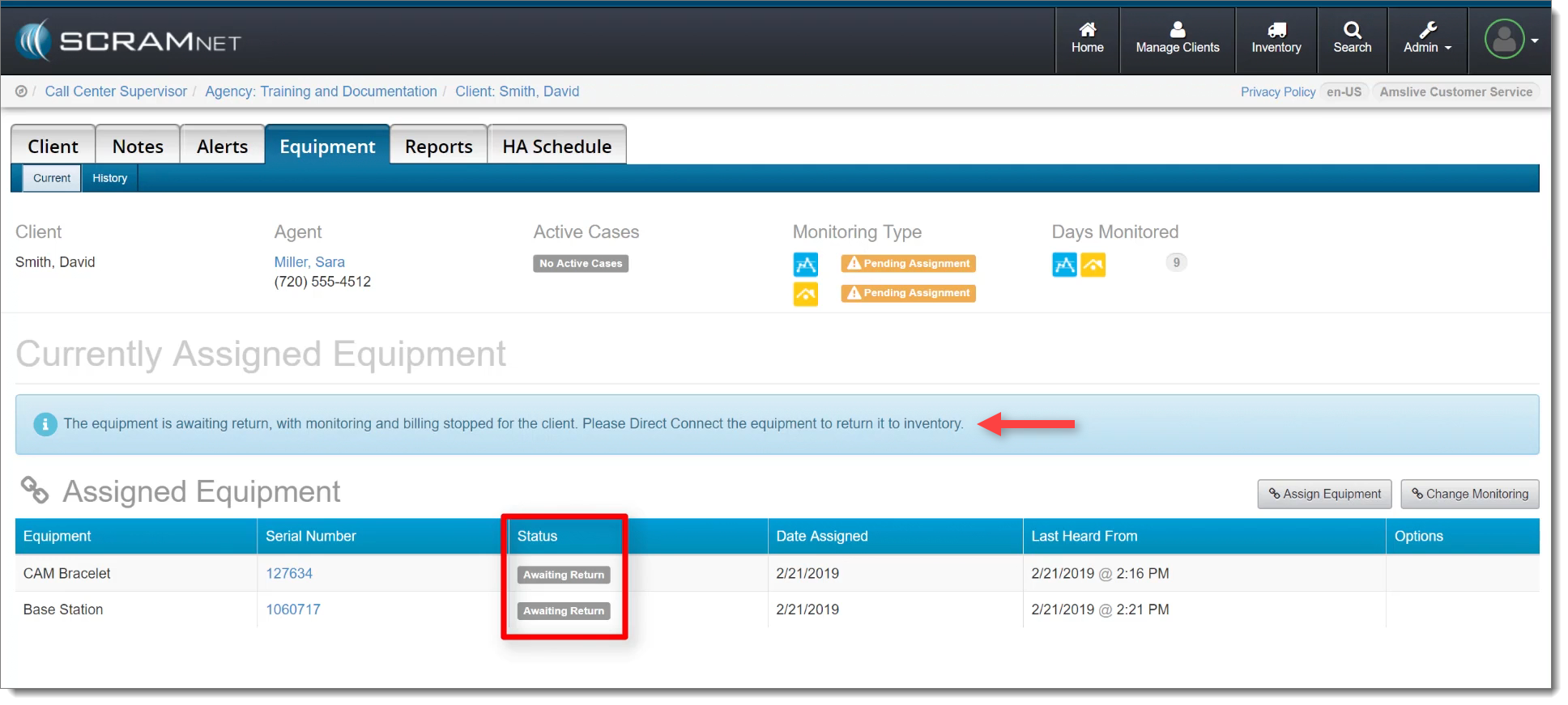
However, customer feedback informed us that oftentimes equipment that is not returned within 30 days is NOT lost. Therefore, in response to your feedback, SCRAMNET no longer automatically changes the status of an Awaiting Return device to Lost after 30 days. All equipment will remain in Awaiting Return status until you check it in, or designate it as Lost yourself.
SCRAM CAM Device, SCRAM Mobile, SCRAM Nexus, SCRAM Optix, SCRAM TouchPoint, SCRAMNET GPS, Tip of the Month
SCRAM TouchPoint Mobile App Update Best Practices
SCRAM Systems® provides enhancements and updates to the SCRAM TouchPoint™ Mobile application on a continual basis. These updates improve the functionality and usability of the application for your client. Once an update is available in the Apple App store and the Google Play store, the next step is to have the client update the application on their smartphone.
An app update can be completed in two ways.
- Automatic application updates (Recommended)
- Manual application updates
As a best practice, we recommend you encourage your clients to enable automatic app updates – this ensures they are always using the latest version of the TouchPoint app.
Setup Automatic Application Updates
iPhone
- On the client’s smartphone, tap the Settings icon.
- On the Settings screen, tap the iTunes & App Store option.
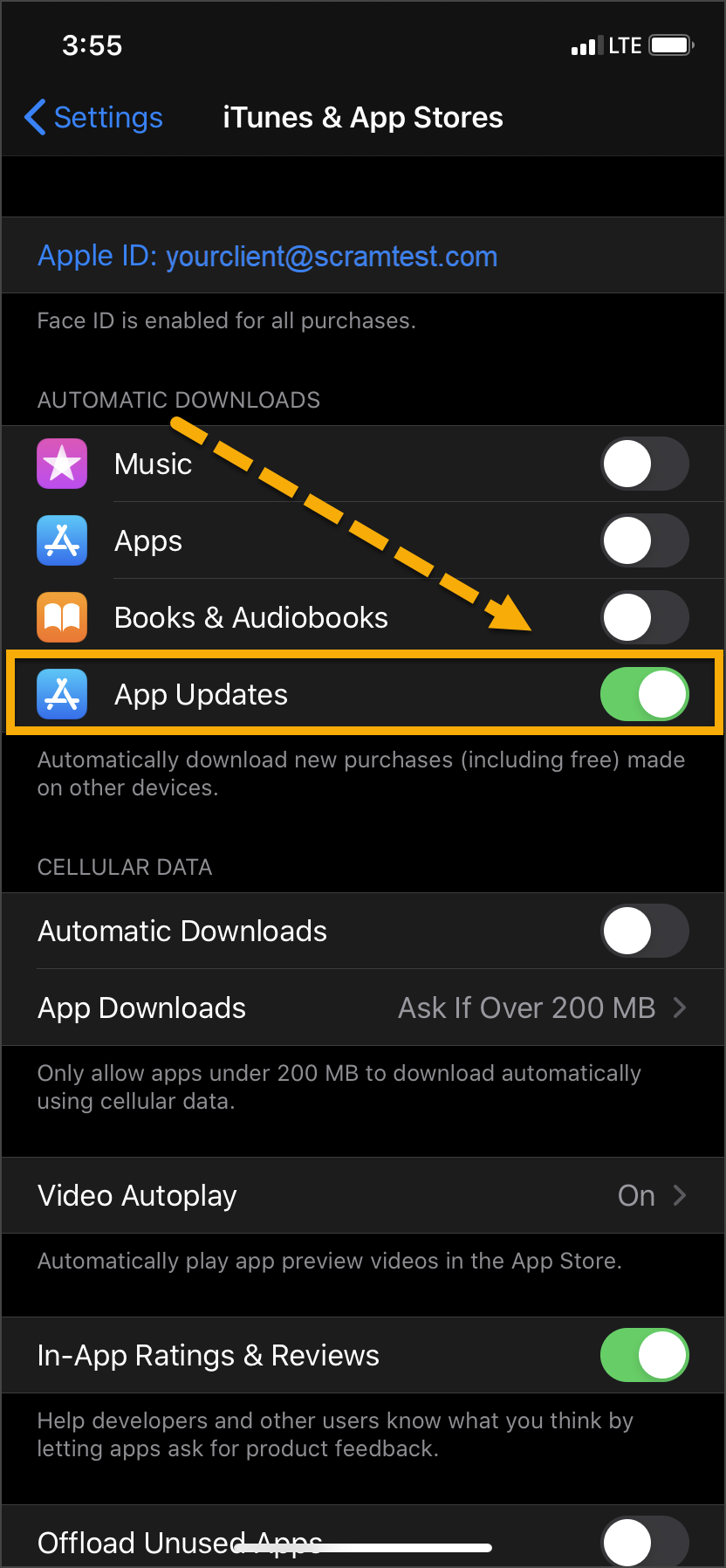
- Under the Automatic Downloads section, ensure the App Updates option is enabled.
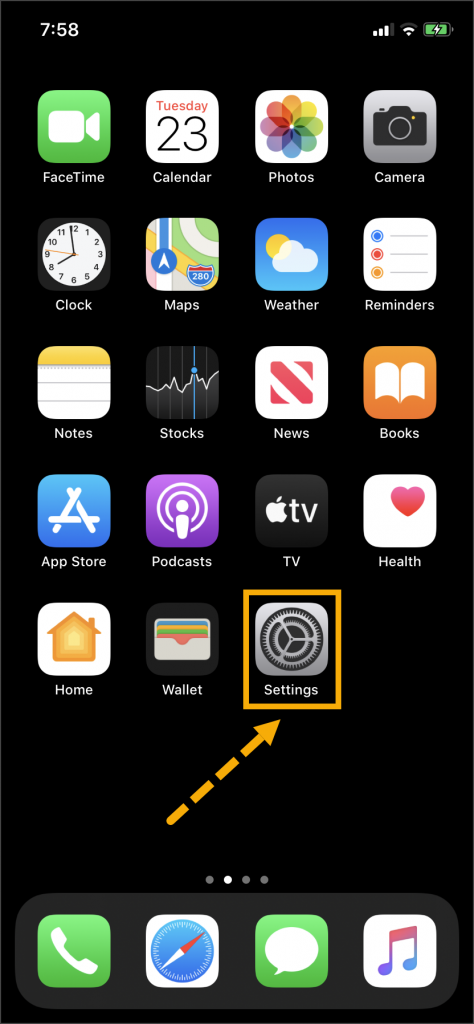 | 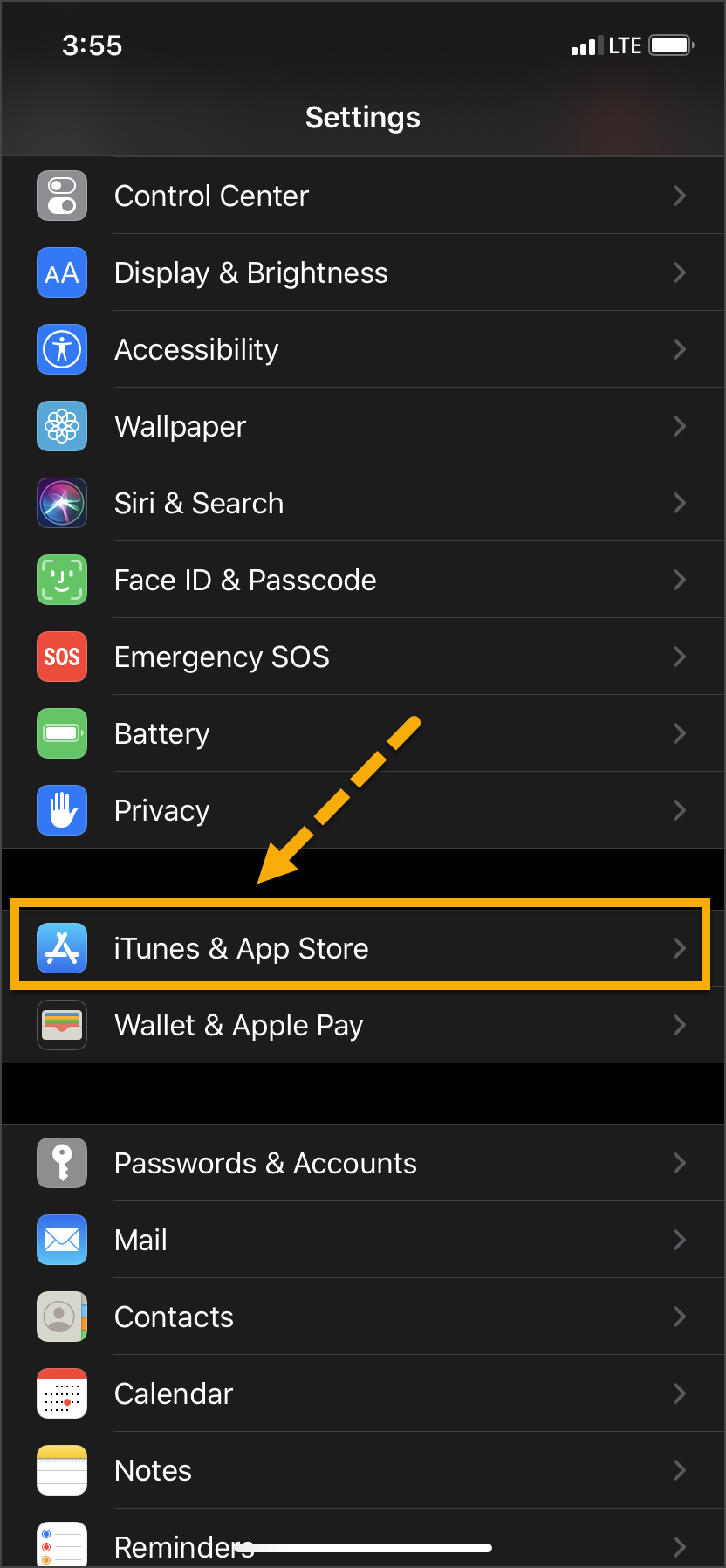 |  |
Click on any image to enlarge it.
Android
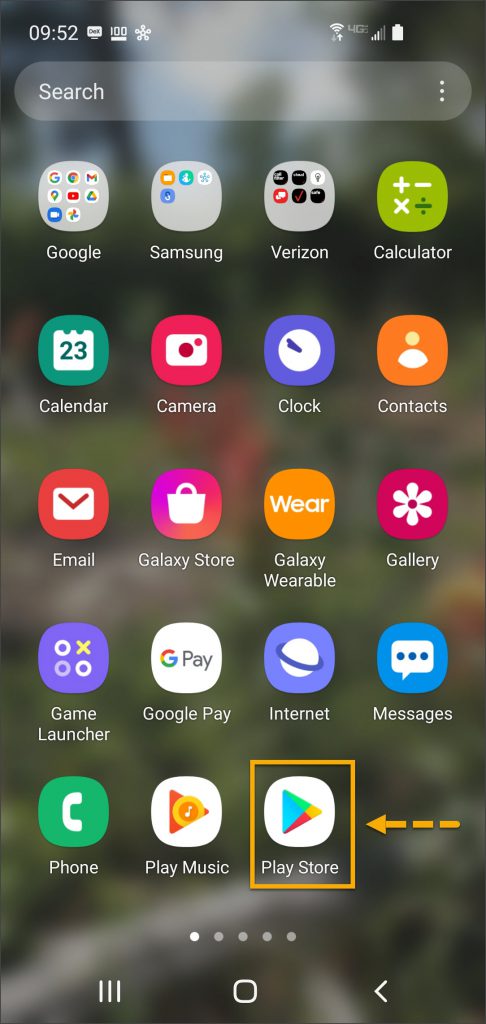
- On the client’s smartphone, swipe up on the Home screen.
- Tap the Play Store icon.
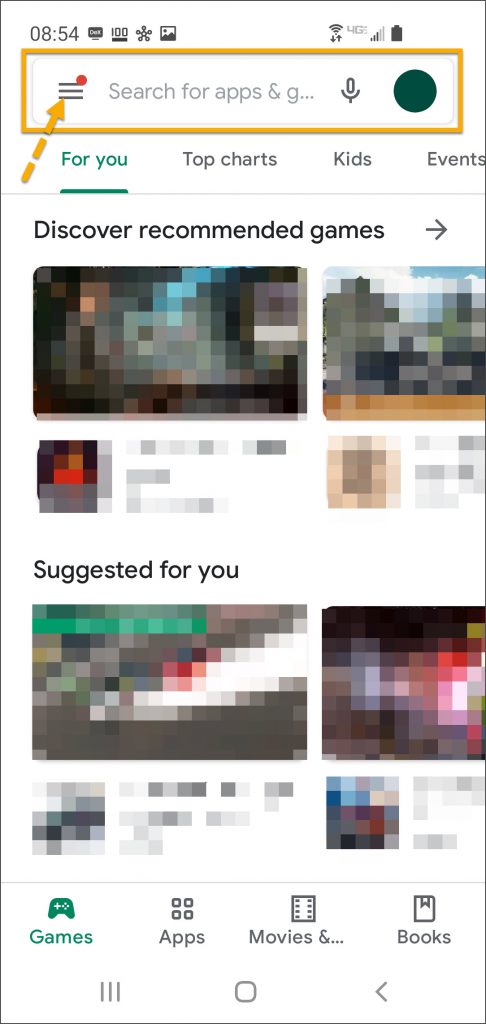
- On the Google Play store screen, tap the menu icon in the search field.
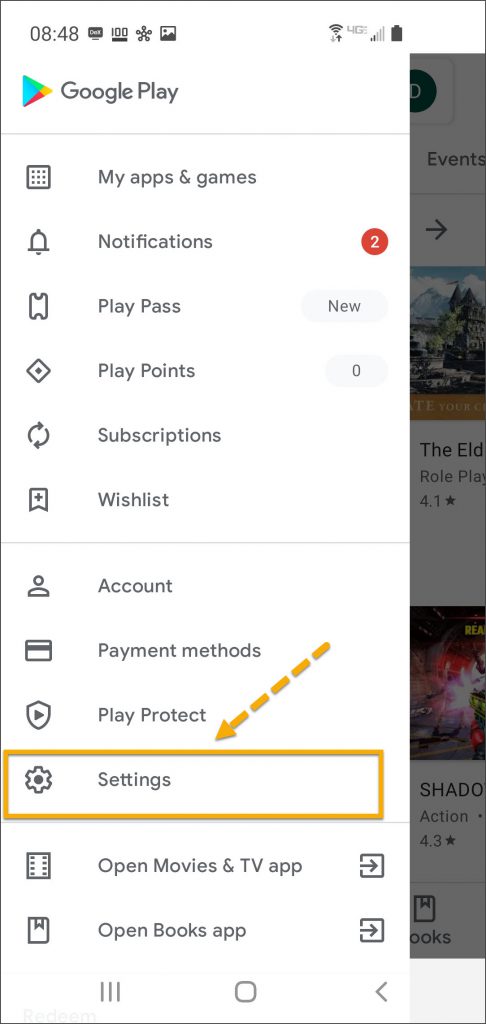
- Locate and tap the Settings option.
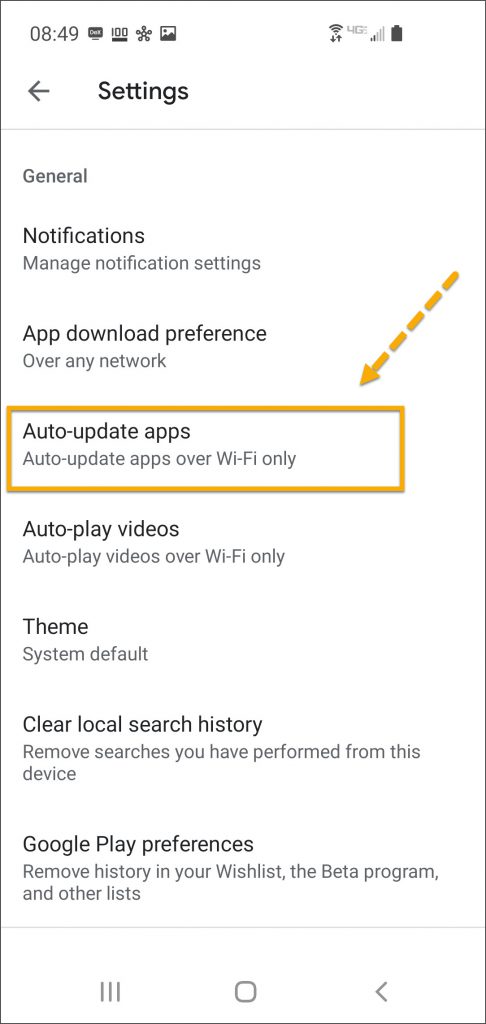
- Tap the Auto-update apps option.
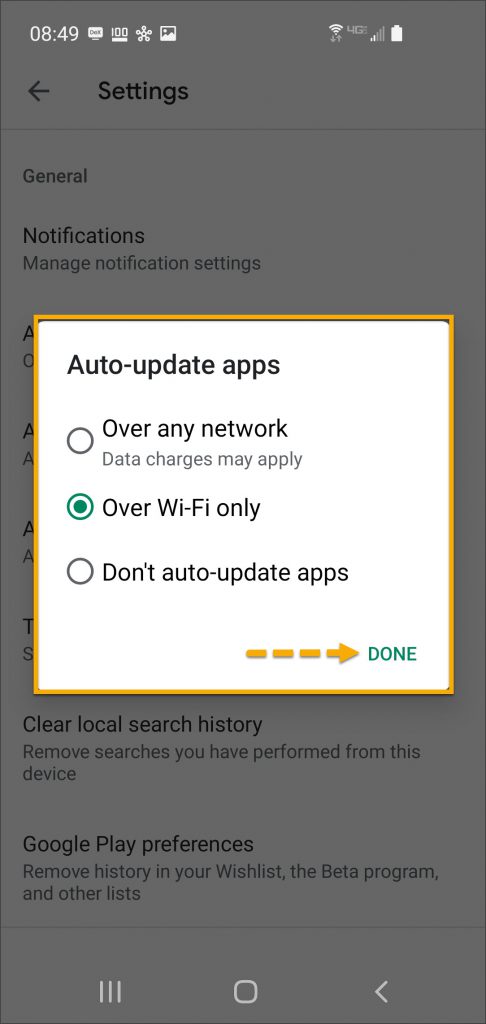
- In the Auto-update apps window, select the option of,
- Over any network (Data charges may apply)
- Over Wi-Fi only
- After making the selection, tap Done.
 |  |  |
 |  |
Click on any image to enlarge it.
Manual Application Update
iPhone
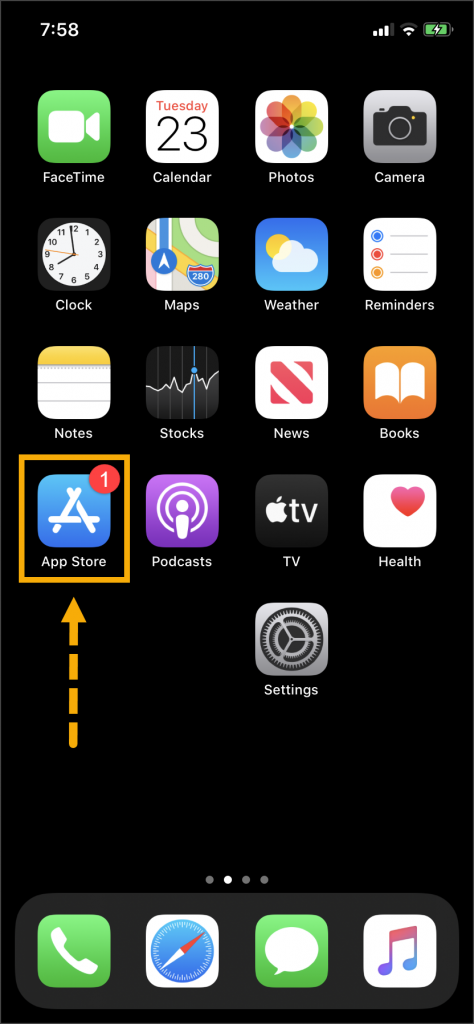
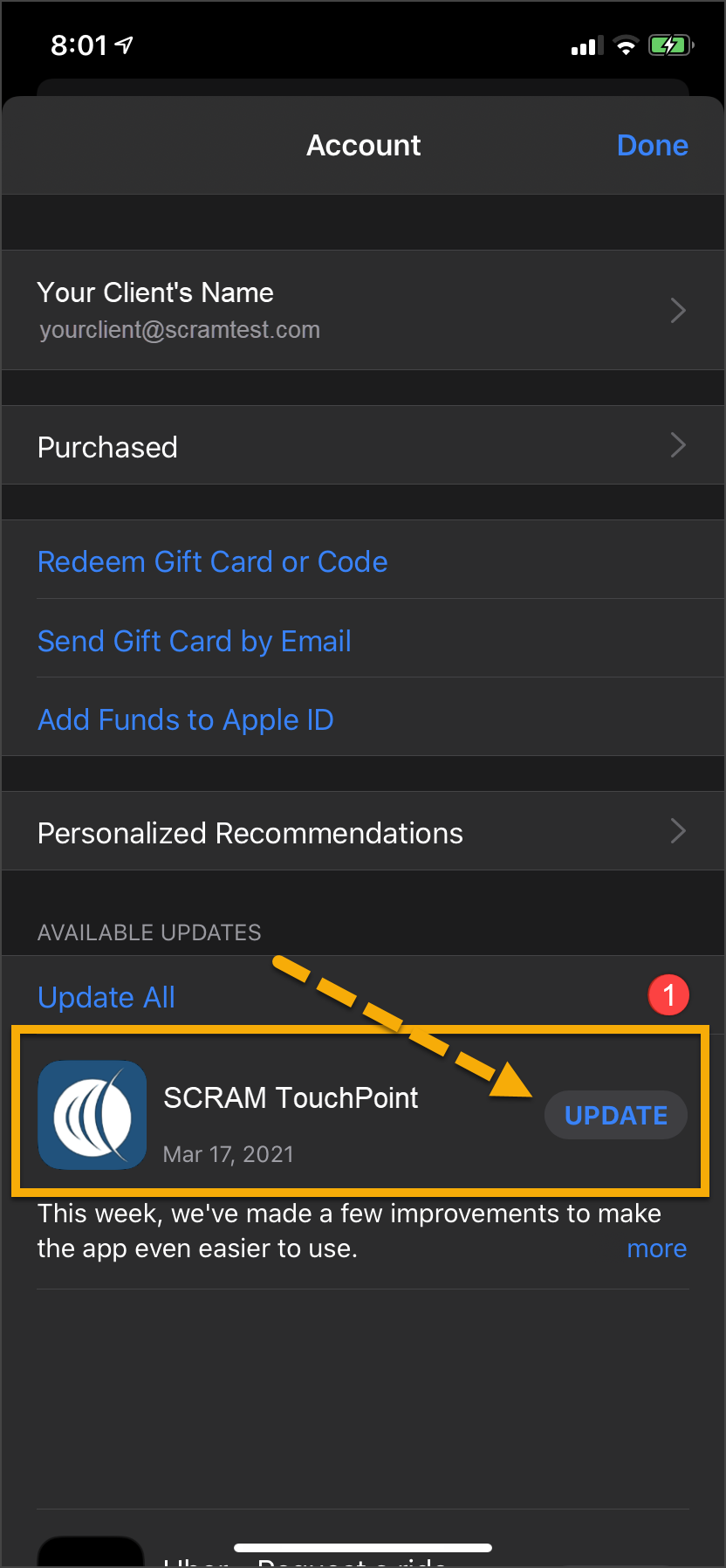
Once an update to the TouchPoint application is available, the App Store icon will display a red badge.
Instruct the client to:
- Tap the App Store icon.
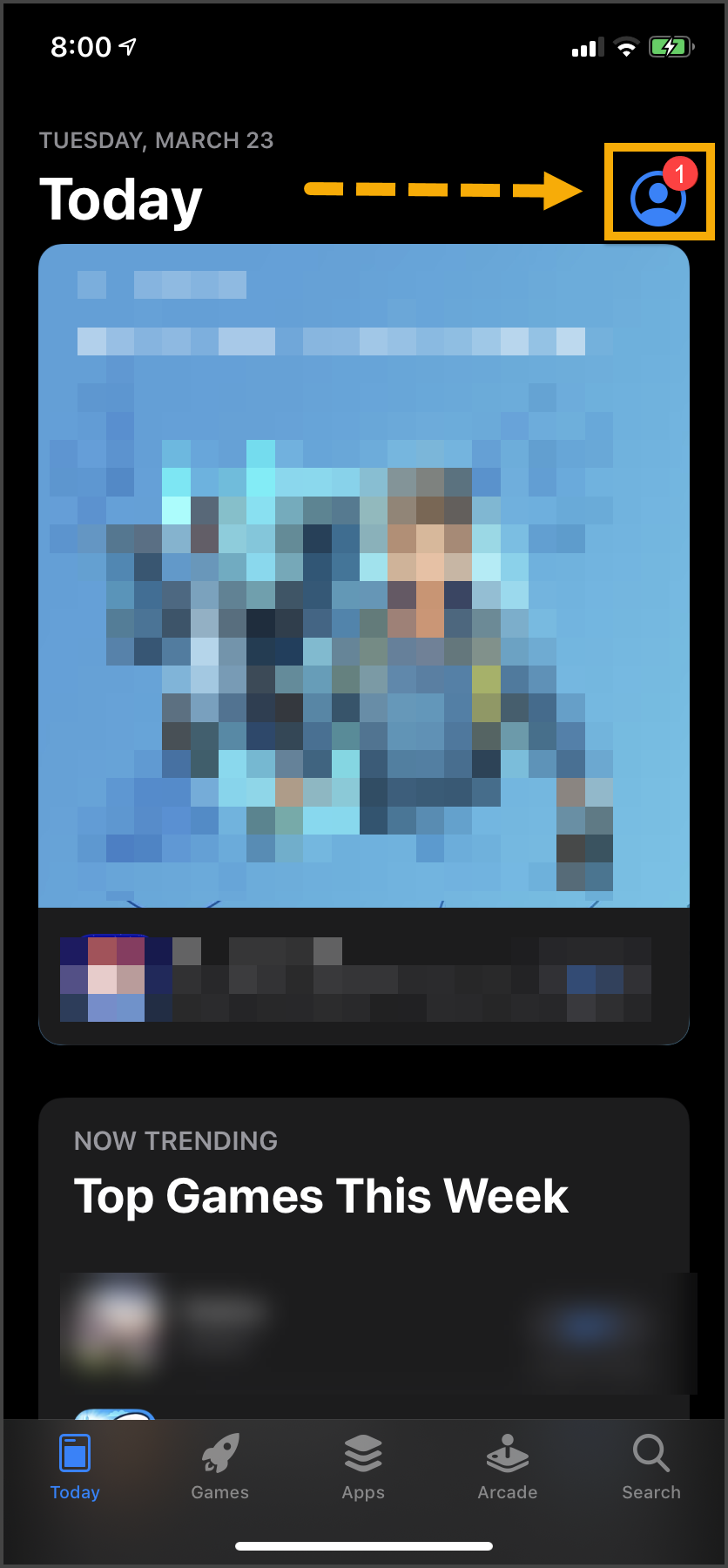
- Tap their profile icon.
- Under the Available Updates heading, locate the SCRAM TouchPoint app.
- Tap the Update button.
As a best practice, we recommend you encourage your clients to enable automatic app updates – this ensures they are always using the latest version of the TouchPoint app.
 |  |  |
Click on any image to enlarge it.
Android
- Swipe up on the Home screen and tap the Play Store icon.
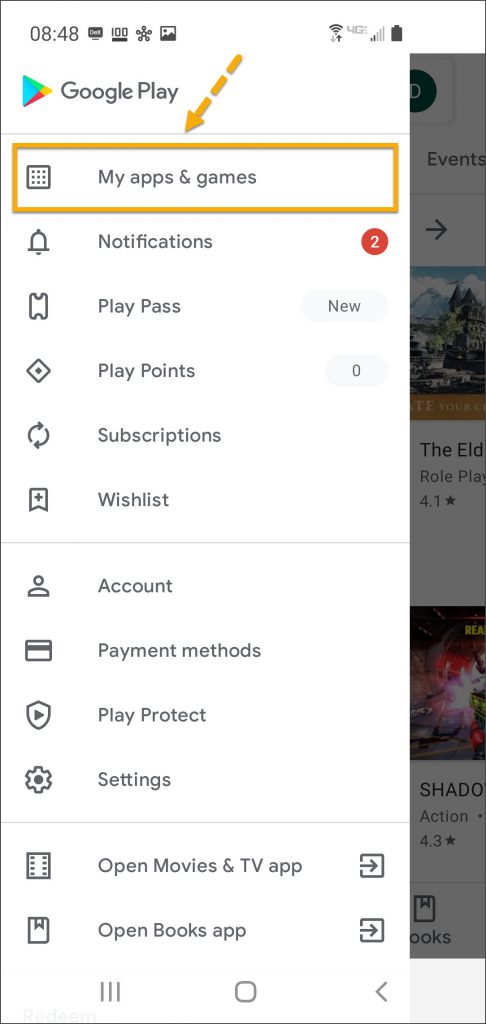
- On the Google Play store screen, tap the menu icon in the search field.
- Tap the My apps & games option.
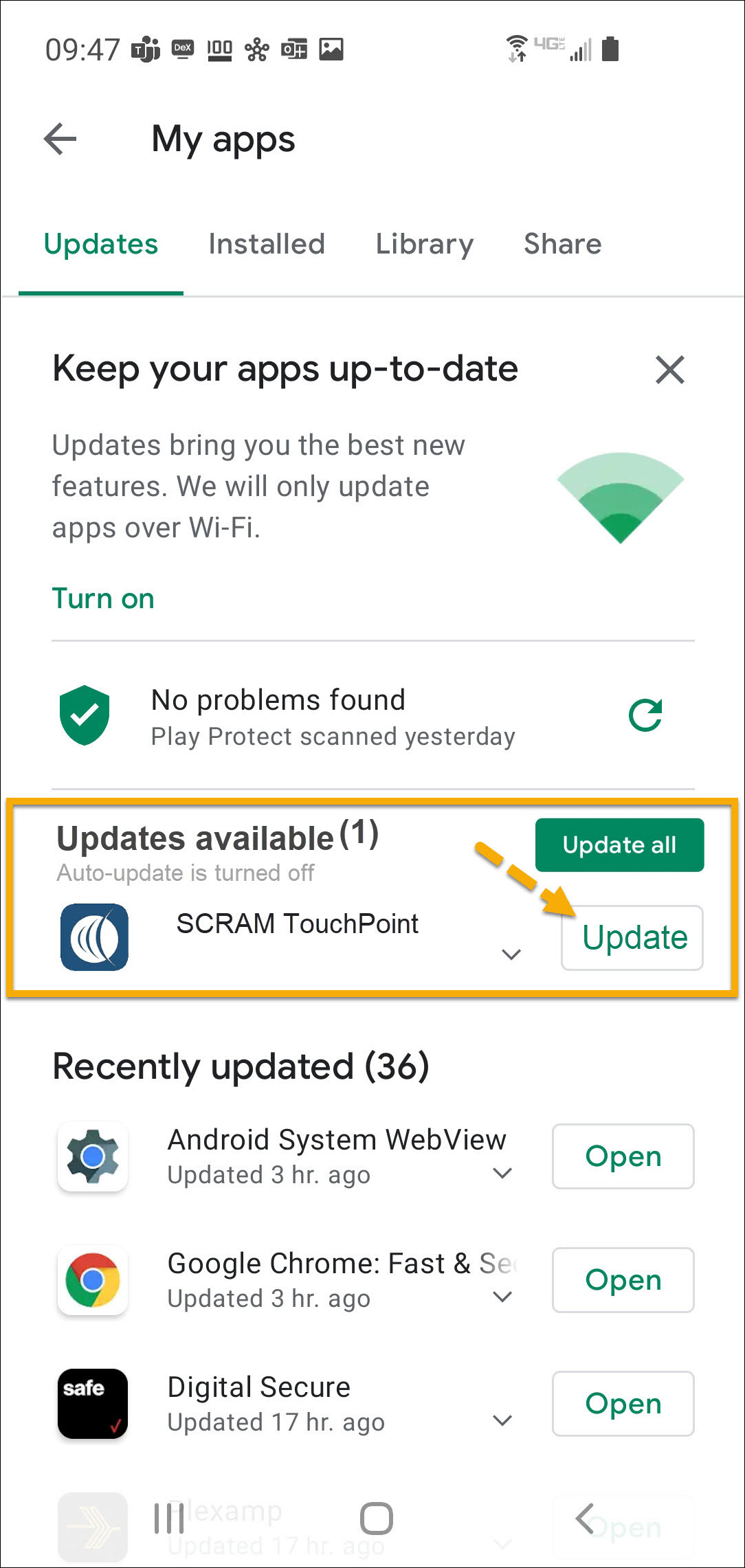
- Under the Updates Available section, locate the SCRAM TouchPoint app and tap the Update button.
As a best practice, we recommend you encourage your clients to enable automatic app updates – this ensures they are always using the latest version of the TouchPoint app.
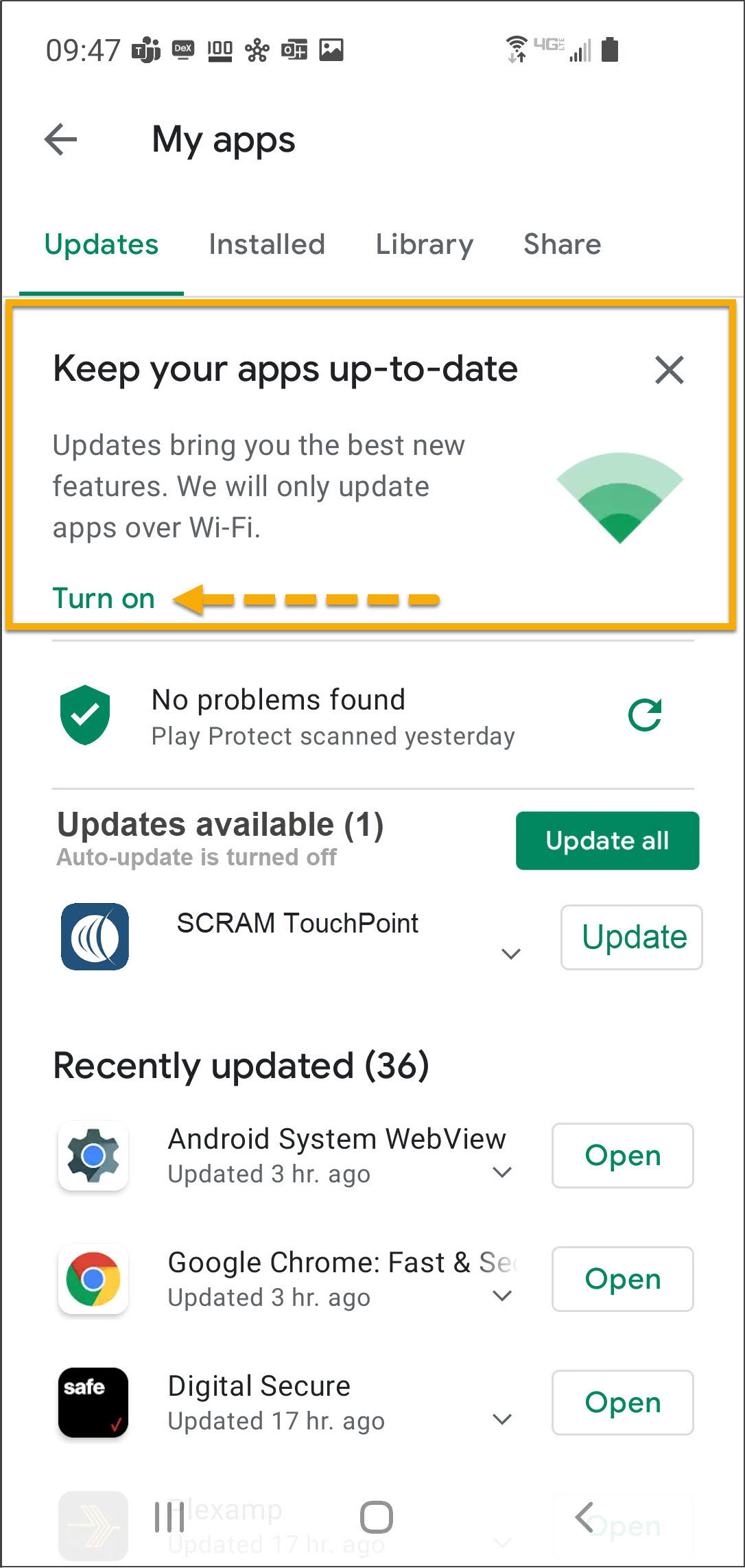
On the My apps screen, tap the Turn on button to enable automatic app updates.
| | |  |
 |  |
Click on any image to enlarge it.
Feedback
Please contact SCRAM Systems Customer Service with any recommendations for system improvements.
Inspect GPS Charger Components Before Use
Prior to providing a power supply and charging cables to your clients, inspect the cables and power supply for signs of wear and tear. After GPS charger components have been in service for several months:
- AC charging cables may become weakened at the junction where the cord plugs into the power supply and expose bare wires (pictured below) that can short out and spark when plugged into a wall outlet.
- The contacts inside the connector on the GPS device charging cable that plugs into the two DC pins on the power supply may become damaged or completely fall out (pictured below) and will no longer carry electrical current to charge the GPS device.
- The DC pins on on the power supply itself may become bent or broken (pictured below) and will no longer transfer power to the GPS device charging cable.
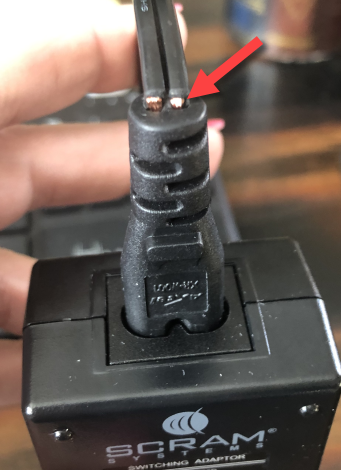 | 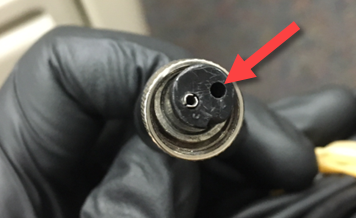 | 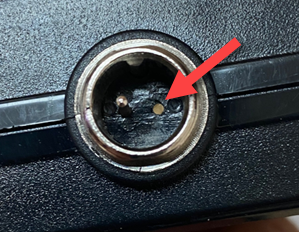 |
| AC Power Cord with Exposed Wires | Missing Contact in Damaged GPS Charging Cable Connector | GPS Power Supply with Broken DC Pin |
All three components of the GPS device charger are consumables; so if any of the above conditions is true, dispose of the component and order a replacement from the SCRAM Equipment Order Form or by contacting Customer Service.
New SCRAM Faceplate Removal Tool
SCRAM Systems® continues to refine the tools that are used in your everyday operations to maximize their effectiveness and save you time. Our new spring-loaded SCRAM CAM® and SCRAM House Arrest® faceplate removal tool makes it easier to remove the faceplate – without prying – and helps prevent damage to the outer casing. We understand how important it is for you to keep your SCRAM CAM/HA devices operational and in your available inventory, and our new faceplate removal tool is designed to help you keep them operating at peak performance so you get the most out of your investment.
During the month of January 2021, we began shipping the new faceplate removal tool. If you received one, please watch this short instructional video to learn best practices for positioning and using the new spring-loaded removal tool on the bracelet, and how best to remove faceplates that don’t readily disengage. Failure to use the tool as shown in the video may result in damage to your CAM/HA device.
To order more faceplate removal tools, look for part number 00178 on the SCRAM Equipment Order Form (SCRAMNET login required).
Please contact Customer Service if you have questions about the new Faceplate Removal Tool and how to use it.
Update Client Employment Information in the ‘Occupation’ Field
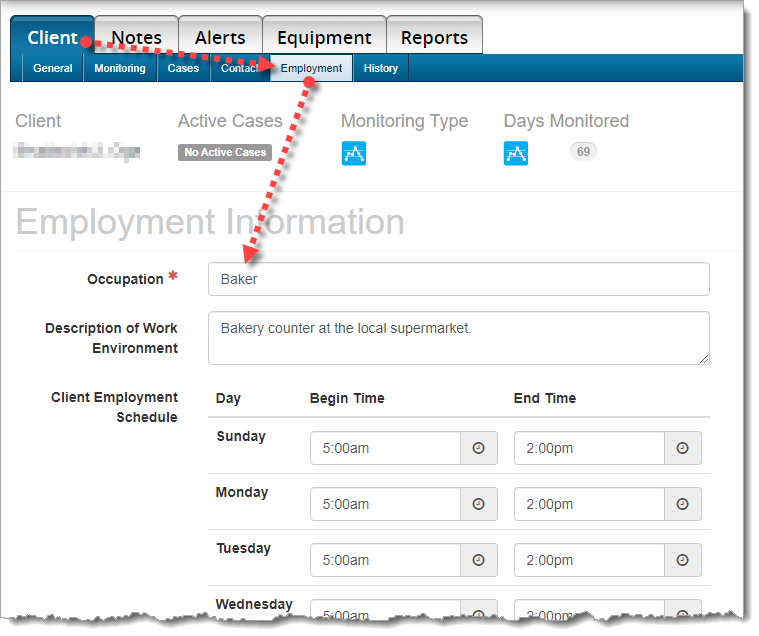
When current employment information is entered in the Occupation field in SCRAMNET, we are able to better determine the client’s actions and environment during an alert. This will save time and frustration for both you, and your client by reducing the number of calls you make to question your client’s actions.
To Update Employment Information:
Choose the Client tab, then choose the Employment sub-tab. Please update the client’s occupation, description of the work environment, and most importantly, the client’s work schedule.
Awaiting Return vs. Pending Removal
When it is time to discharge a client from the SCRAM CAM program, be sure you have a clear understanding of the status in which you should place the equipment.
Awaiting Return
If the bracelet or base station is NOT on-hand, select Stop Monitoring and complete the Stop Monitoring process to set the status to Awaiting Return. This status ends the monitoring program and stops the billing associated with it. The bracelet will remain in this status until it is checked in or until 30 days elapses, at which time it will automatically move to Lost status.
Pending Removal
If you will be completing the Stop Monitoring process with the client in person and the equipment is on-hand, select Stop Monitoring and complete the Stop Monitoring process to set the status to Pending Removal. This status prepares the bracelet for final connection with the Direct Connect device and application, and monitoring and billing both continue until the Direct Connect process is complete and the bracelet moves to In Inventory status.
More Help
For more detailed Client Discharge instructions please visit the Check In SCRAM CAM Bracelet help article on SCRAM Systems Help & Support.