New reports have been added to Optix Analytics to help optimize how you use TouchPoint to meet the needs of your community. These reports have been designed to provide you with a high-level overview of the performance of your SCRAM TouchPoint® program. This information can be used to measure check-in compliance and to track utilization of the TouchPoint-enabled services provided by your monitoring program.
There are three TouchPoint reports available to you within Optix Analytics (click on the report name to jump directly to it):
Accessing the Report
To access the report, select the Analytics tab on the SCRAM Optix home page, and then select “TouchPoint” from the Available Reports dropdown menu.
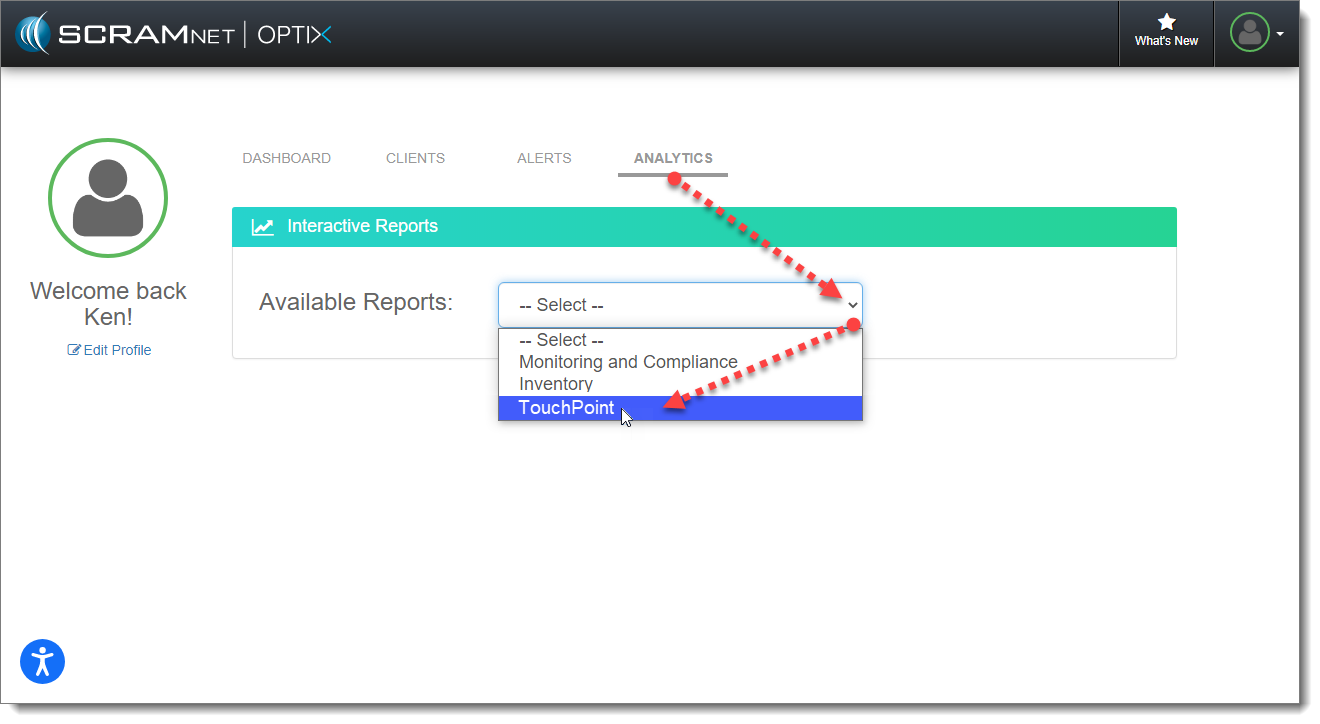
Select Analytics, then TouchPoint (click to enlarge)
Check-In Overview
This TouchPoint report, located on the first of the three tabs across the bottom of the screen, provides you with the total number of active TouchPoint clients, as well as a breakdown of clients by TouchPoint-enabled services, for a time period of your choosing. You may further filter the report by a specific Caseload, Question Group, and/or Client Name. Clicking on one of the bars in the bar graph tile allows you to “drill down” into the check-in data for that specific time period. Hovering your mouse over a check-in point on the map allows you to see client, date, and time information for that check-in location, via a floating pop-up window.
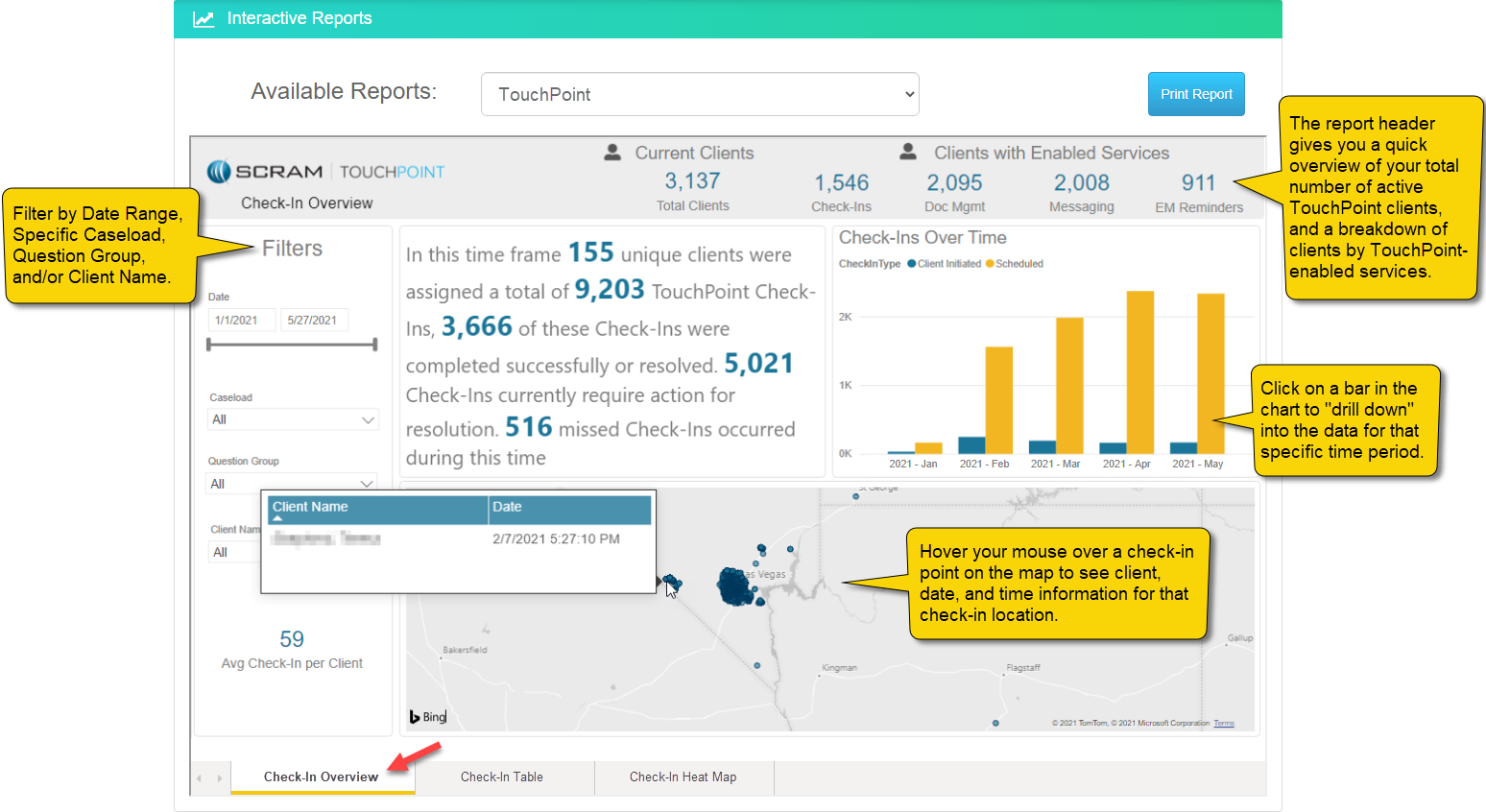
Check-In Overview Report (click to enlarge)
Check-In Table
This TouchPoint report, located on the second of the three tabs across the bottom of the screen, also provides you with the total number of active TouchPoint clients, as well as a breakdown of clients by TouchPoint-enabled services, for the time period of your choosing, but presents the data in a table format rather than on a chart. This report also displays the verification method used by the client’s smartphone, and whether or not the check-in passed verification. You may further filter this report by a specific Caseload, Alert Status, Group Name, and/or Client Name.
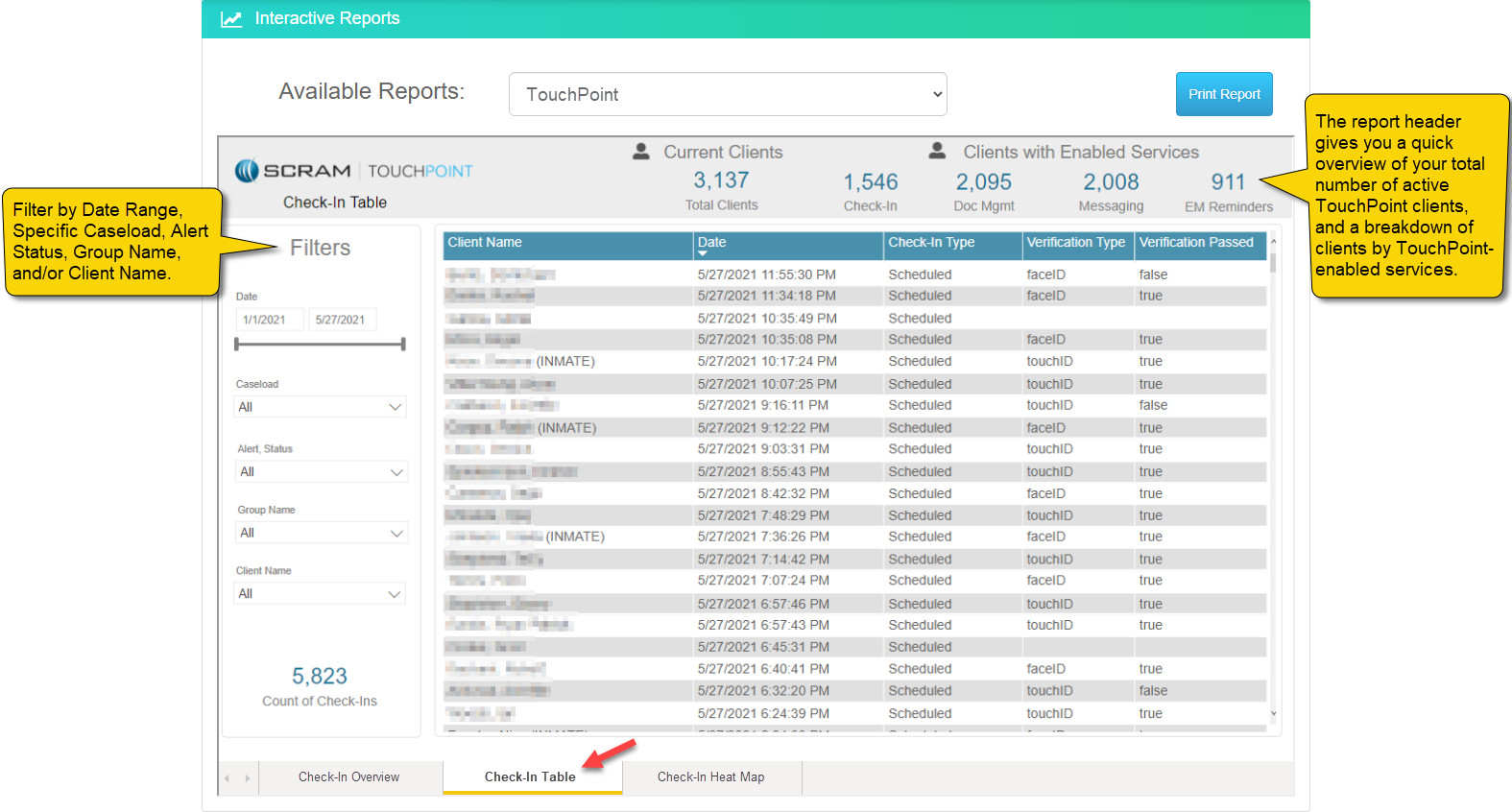
Check-In Table Report (click to enlarge)
Check-In Heat Map
This TouchPoint report, located on the third of the three tabs across the bottom of the screen, provides you with a visual of the geographical locations (as determined by location services on your clients’ smartphones) from which the greatest concentration of your clients submit their TouchPoint check-ins. This report may also be filtered by Date Range, specific Caseload, Alert Status, and/or Group Name.
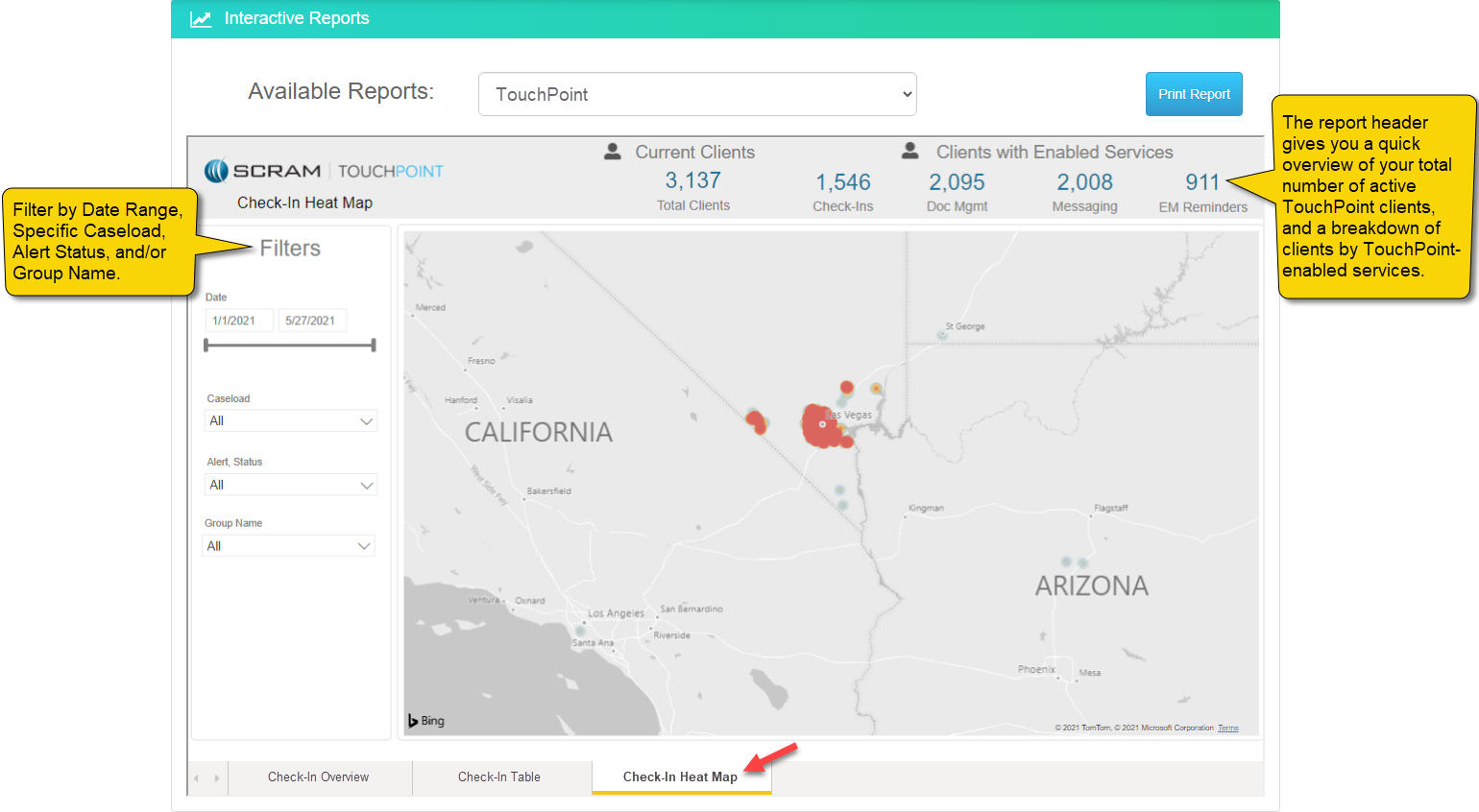
Check-In Heat Map Report (click to enlarge)