SCRAM 24/7

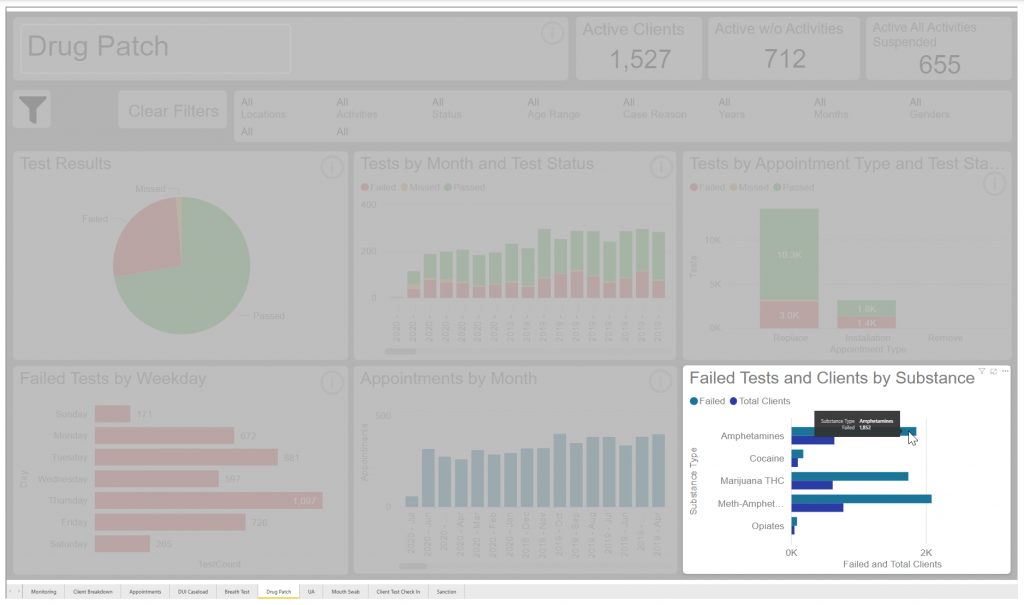
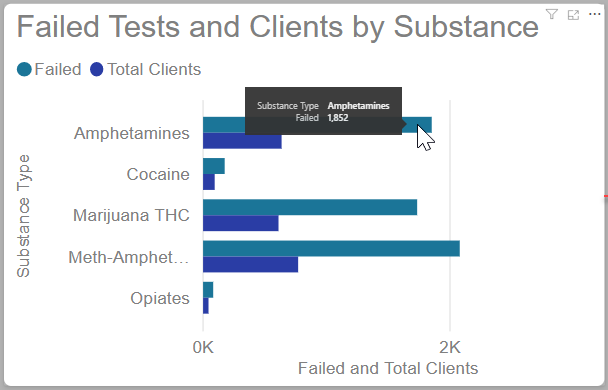
Effective July 8, 2020 SCRAM Systems® has added three new 24/7 Monitoring and Compliance reports available on the Analytics tab in SCRAMNET OPTIX™. Additionally, a new section entitled Failed Test and Clients by Substance has been added to the current Drug Patch and UA reports.

New 24/7 Monitoring and Compliance Analytics Reports

The new analytic reporting available provides insight into compliance, activity treads, and sanction details for your program. The new reports available are:

Visit the Analytics page on SCRAMNET Optix Help to learn more.

Update to the Drug Patch and UA Report

With the addition of the Failed Test and Clients by Substance data, the Drug Patch and UA reports will now display the total failed tests by substances and the number of clients who tested positive for that substance.
Feedback

As always, please contact SCRAM Systems Customer Service at 1-303-785-7879 with any recommendations for system improvements.
Continue Reading

Overview

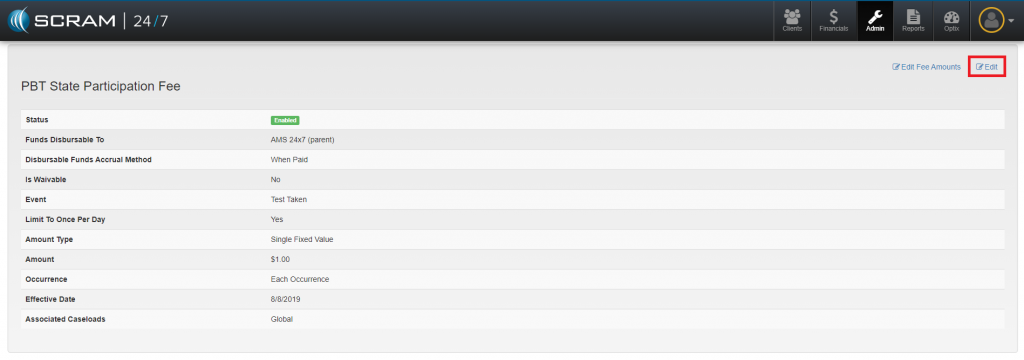
On Wednesday June 17, 2020, SCRAM Systems will be releasing new features in SCRAM 24/7™ that include the ability to create a Caseload Specific Fees and the option of having a new or edited fee be applied to all current clients or just new clients.

  • Add a Caseload Specific Fee
  • Apply a New or Edited Fee to all Active Clients
  • Associate an Existing Fee to a Specific Caseload
  • Disable a Fee for an Activity and Apply to All Active Clients

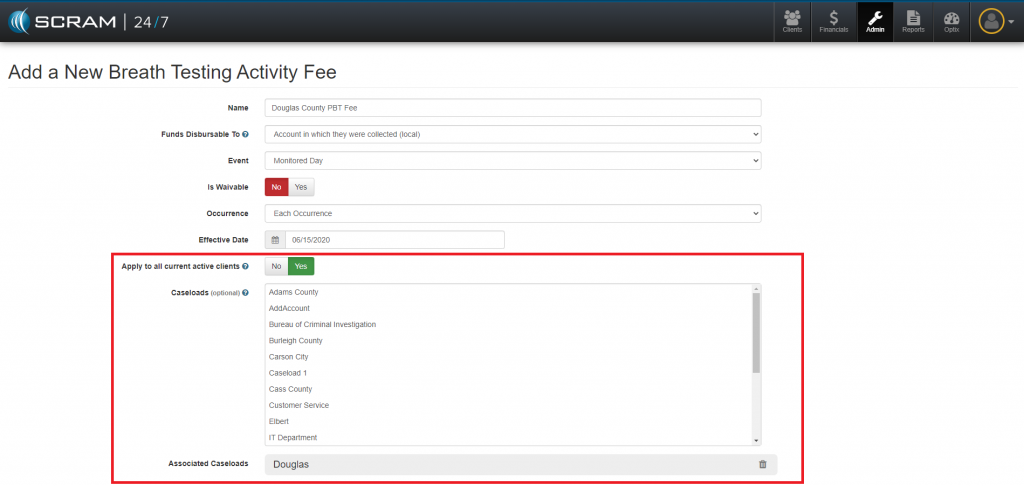
Add a Caseload Specific Fee and Apply the Fee to all Active Clients

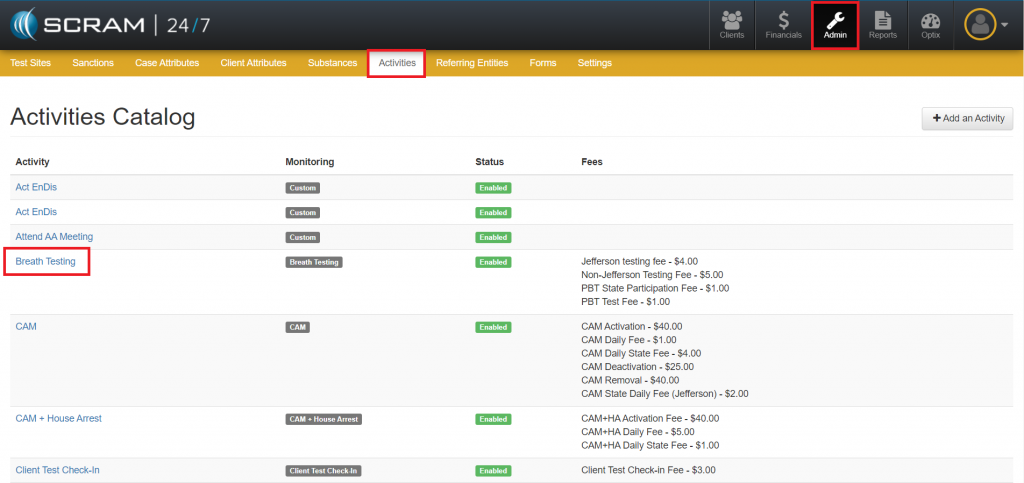
  1. Access the Activities Catalog page in the Admin area.
  2. Select the activity in which a Caseload Specific Fee will be added.
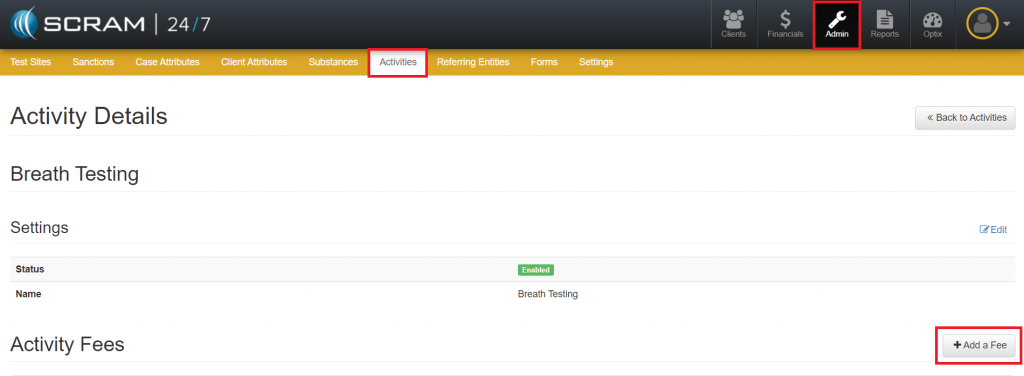
  1. Click the Add a Fee button.
  1. Create the Fee:
    1. Name
    2. Funds Disbursable – Designate whether the fee should be disbursable to the state.
    3. Event – What should trigger the fee to be issued?
    4. Is Waivable
    5. Occurrence – How often should the fee be issued?
    6. Effective Date – Fee cannot be backdated.
    7. Apply to All Current Active Clients – Clicking the Yes button will apply this fee to active clients who have this activity assigned.
    8. Caseload – This option allows you to specify the test where the fee will be applied. If none is selected, the fee will be applied to all test sites.
    9. Amount Type:
      1. Single Fixed Value
      2. Range of Values
      3. Fixed Set of Values

Edit Fee Amount and Apply to All Active Clients

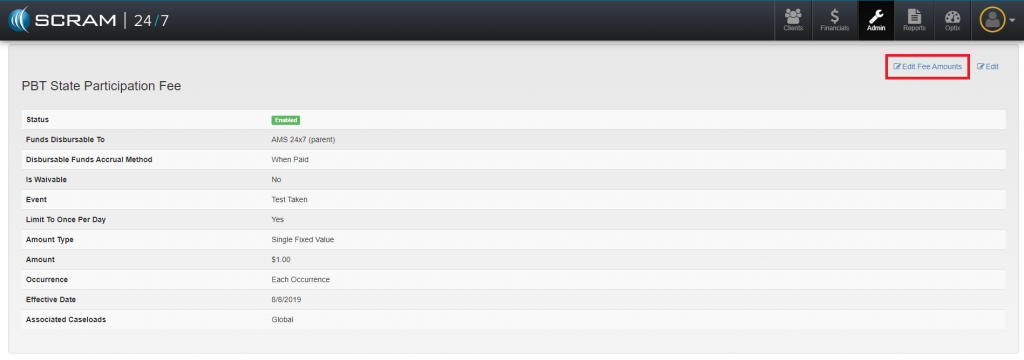
  1. Navigate to the fee.
  2. Click the Edit Fee Amounts link.
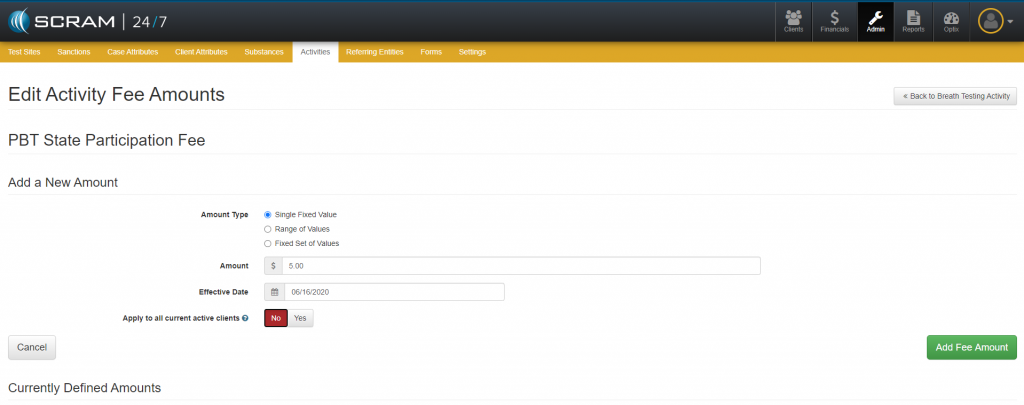
  1. Edit the Amount Type, the Amount and or the Effective Date.
  2. Select whether the change should be Applied to All Current Active Clients.
    • Selecting the Yes button – Will apply this edited fee to all active clients who have this activity assigned.
    • Selecting the No button – Will only apply this edited fee to new clients that have been assigned to this activity.

Associate an Existing Fee to a Specific Caseload

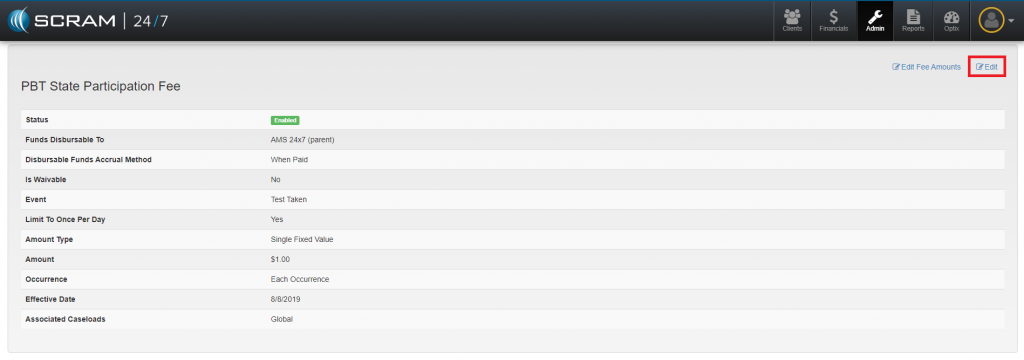
  1. Navigate to the fee.
  2. Click the Edit link.
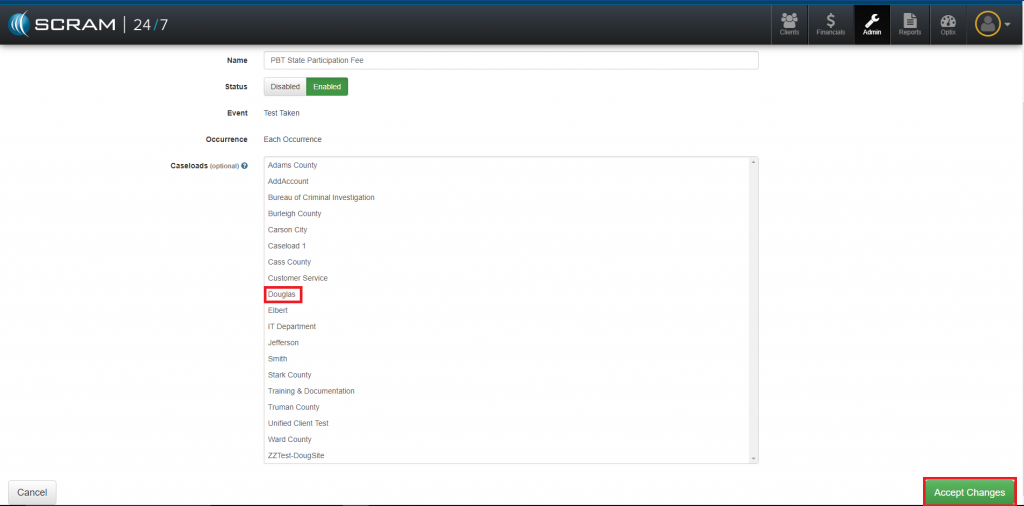
  1. Select Caseload(s).
  2. Click the Accept Changes button.

Disable a Fee for an Activity/Applied to All Active Clients

  1. Navigate to the fee.
  2. Click the Edit link.
  1. Click the Disable button.
  2. Apply to all Current Active Clients field.
    • Selecting the Yes option – Will remove this fee for all active clients who have this activity assigned.
    • Selecting the No option – The fee will remain for current clients but will not be an option for future clients.

Feedback

As always, please feel free to contact SCRAM Systems Customer Service at 1-303-785-7879 with any recommendations for system improvements.
Continue Reading

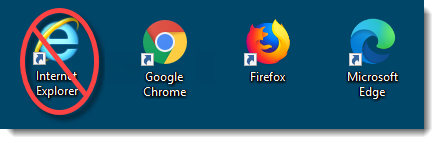
Microsoft Corporation discontinued support of older versions of its Internet Explorer (IE) browser on January 12, 2016, which impacted IE 10 and older versions. Although IE 11 is still being supported, Microsoft itself is phasing out IE 11 in favor of a browser that better supports today’s modern web capabilities.

The SCRAM Systems platform utilizes leading-edge web technologies to deliver comprehensive and informative data and reports that enable you to monitor clients efficiently and effectively. Effective March 9, 2020, SCRAM Systems will no longer develop content or provide technical support for any version of IE. Instead, for the best possible experience utilizing SCRAM Systems’ monitoring platforms, we recommend switching to the Google Chrome, Mozilla Firefox, or Microsoft Edge browsers.

Browser icons
Browser icons

Please contact our Customer Service department at 1-303-785-7879 if you have questions or concerns regarding this change.

Continue Reading

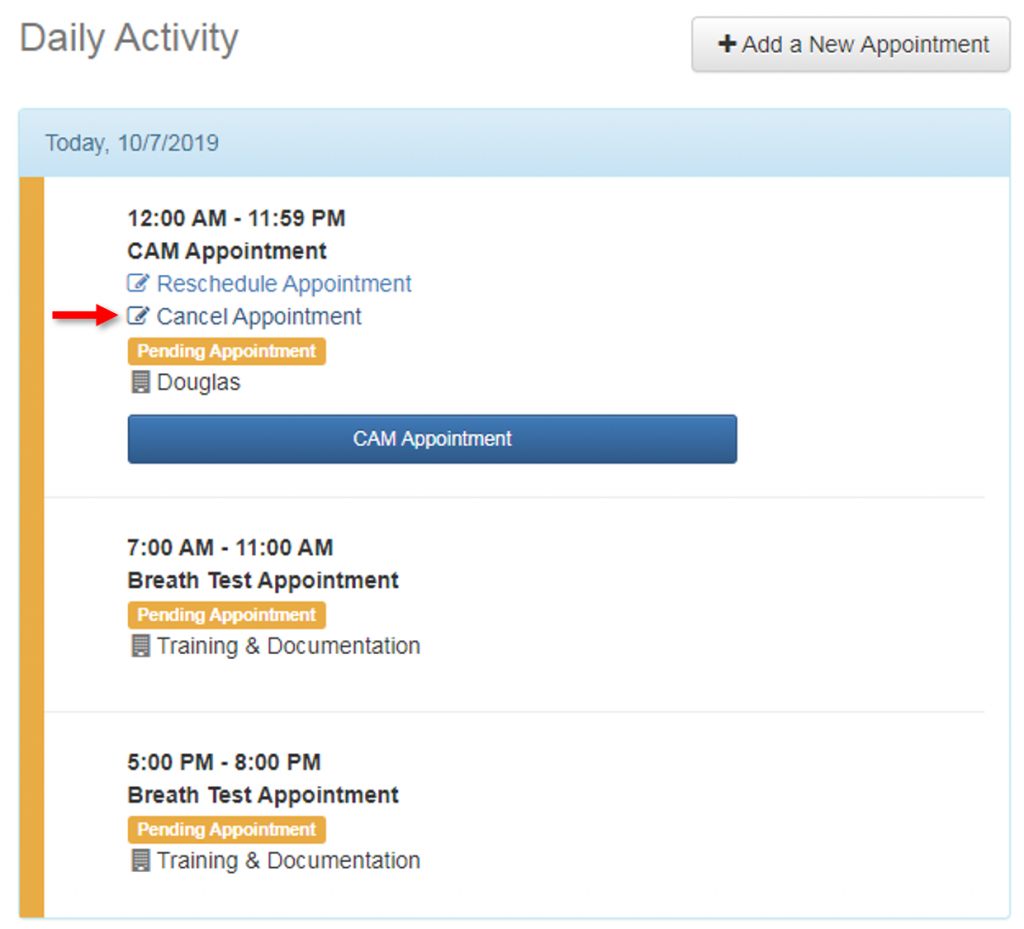
Previously, you were only able to cancel future-date appointments in SCRAM 24/7; the system did not allow you to cancel an appointment for the current date. As of Wednesday October 2, 2019, SCRAM 24/7 now gives you the flexibility to cancel a current-day appointment:

Screen capture of the bottom-right corner of a client’s activity page in SCRAM 24/7

Continue Reading

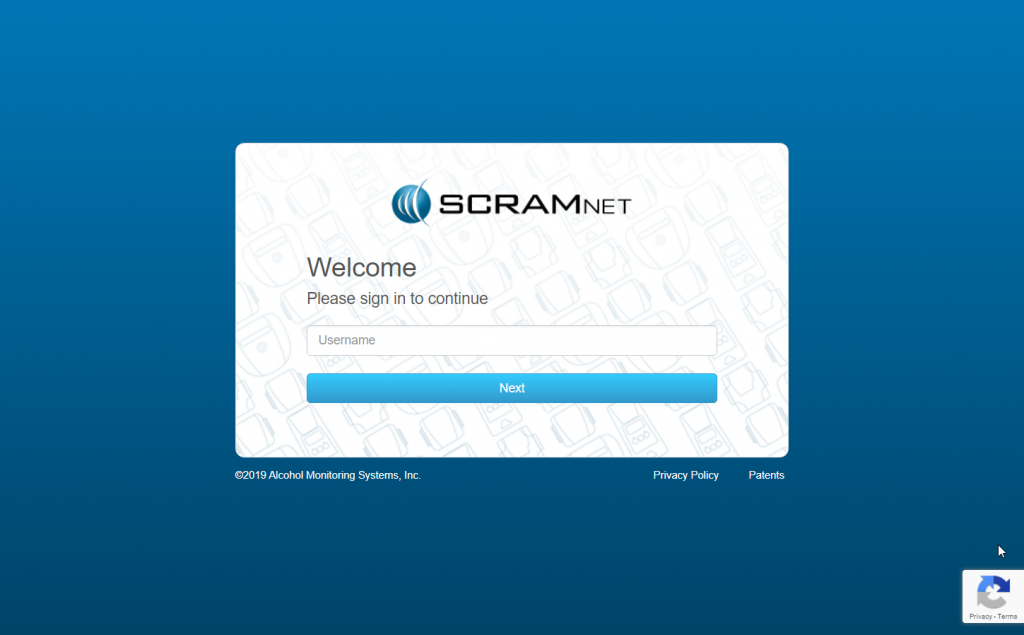
Starting this Wednesday, September 18, 2019, when you log into any of our SCRAM client management systems, you will notice newly designed login pages. Simply enter your user name, click the Next button, enter your password, and click the Sign In button to access the system.

The primary reason for notifying you regarding this change is to ensure you that, when you see this new look-and-feel, you are actually logging into the correct site and not a pirated or “spoofed” site.

Continue Reading

SCRAM Systems has released a new update to our 24/7 Sobriety Program management software which includes major enhancements to the scheduling, activity management, and calendar display features of the system.  For more details, please review this quicksheet:

04172019 – SCRAM 24×7 Release


FAQ Questions from Webinar:

  • How do I change future Drug Patch appointments to appear on Thursdays when they are scheduled for Fridays? Example, I have a Drug Patch Client who currently is scheduled to replace their Drug Patch every 14-days and is currently coming in on Fridays. Her work schedule is changing and she will now need to come in on Thursdays. How do I make her future appointments appear on Thursdays?
    • Future appointments are Projected Appointments and are based on the next scheduled appointment. To make the Projected Appointments appear on Thursdays, I simply need to change the next scheduled appointment when recording a Replace/Remove Appointment to appear on a Thursday and the future Projected Appointments will now appear on Thursdays with a frequency of every 14-days.
  • Can I Reschedule a Drug Patch Appointment not being the enrolling site?
    • The answer is Yes. As long as you are listed as a Courtesy Testing site, there are no limitations on Rescheduling that appointment. We have verified this behavior in the site and cannot reproduce a scenario where it is preventing us from rescheduling this appointment. If this behavior continues for you, please contact me at nrusovick@scramsyststems.com and we can trouble shoot together.
  • Is it possible to get an Indefinite Button for Suspending Activities?
    • This information has been passed along to the design team to research.
  • I noticed that with this latest release that when I suspended an Activity for a Client, the current days appointments are not being suspended. Only future appointments (not today) are removed. Is this by design?
    • The answer is Yes. This a byproduct of the new scheduling features and is related to the creation and cancellation of appointments. In this scenario, you will need to open the appointments and either Excuse or Miss the appointment to clear it from the Calendar. We know that this is not the most convenient way for this feature to behave and we plans to release an update the will address this behavior.

Continue Reading

Continue Reading