SCRAM 24/7

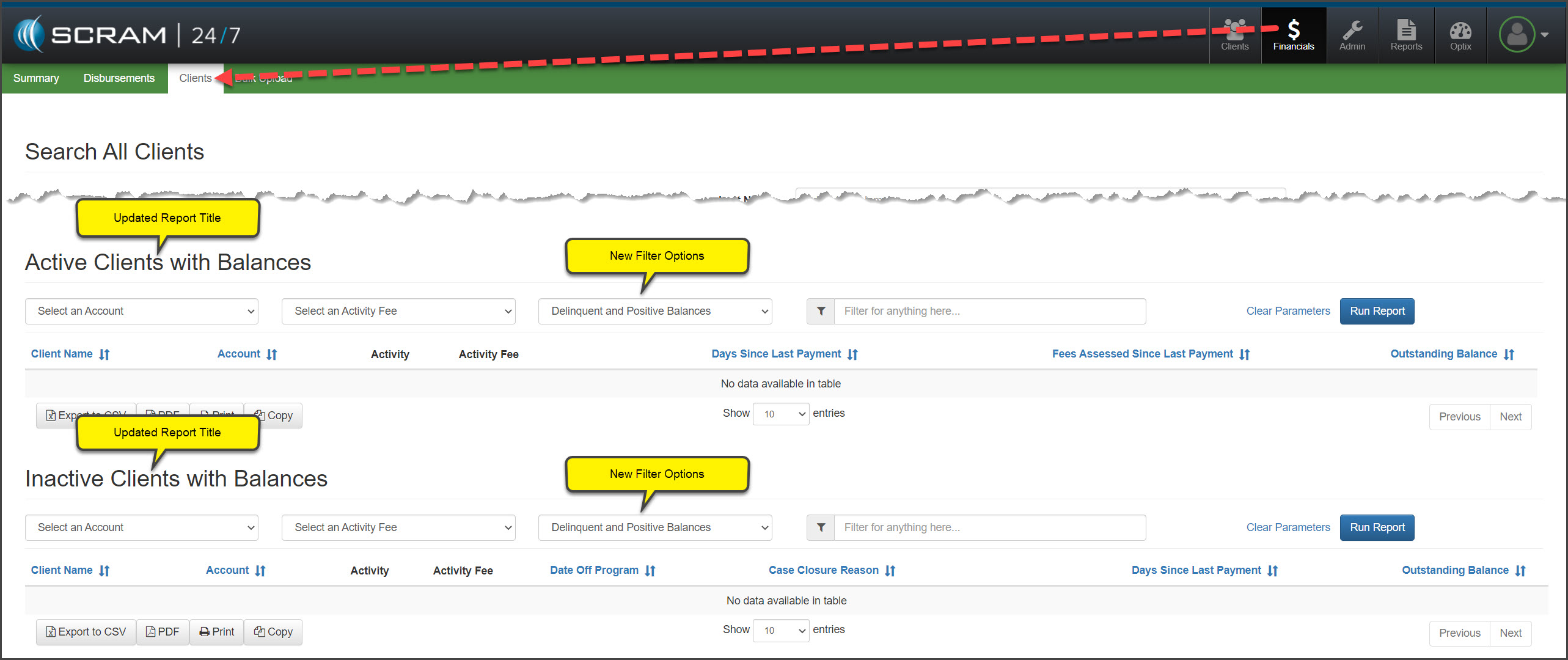
Today, May 4, 2022, SCRAM Systems® will update the Active Clients with Delinquent Balances and Inactive Clients with Delinquent Balances report for your caseload. With this update, you will be able to view both delinquent and positive client account balances. In addition, a user with Base Account permissions will be able to select a specific account for the report.

Select the Balance Option

On the Clients report page, you will notice the report headings have been updated to reflect “Active Clients with Balances” and “Inactive Client with Balances.”

Administrative User
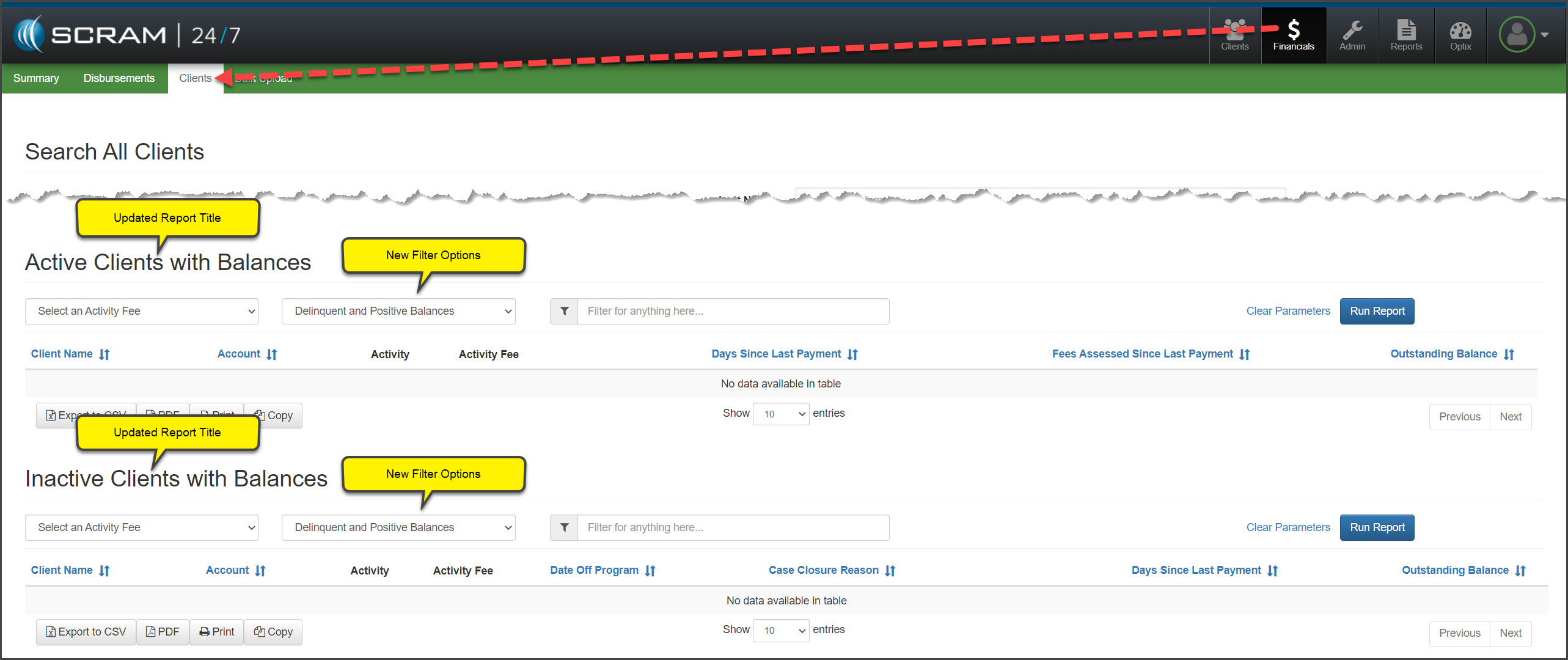
click to enlarge

Base Account User

click to enlarge

To run a report:

  1. Select the Activity Fee from the menu options.
  2. Leave the default setting of Delinquent and Positive Balances selected, or select another option from the menu.
    • Delinquent Balances” are displayed in red.
    • Positive Balances” are displayed in black.
  3. After making your selection, click the Run Report button.
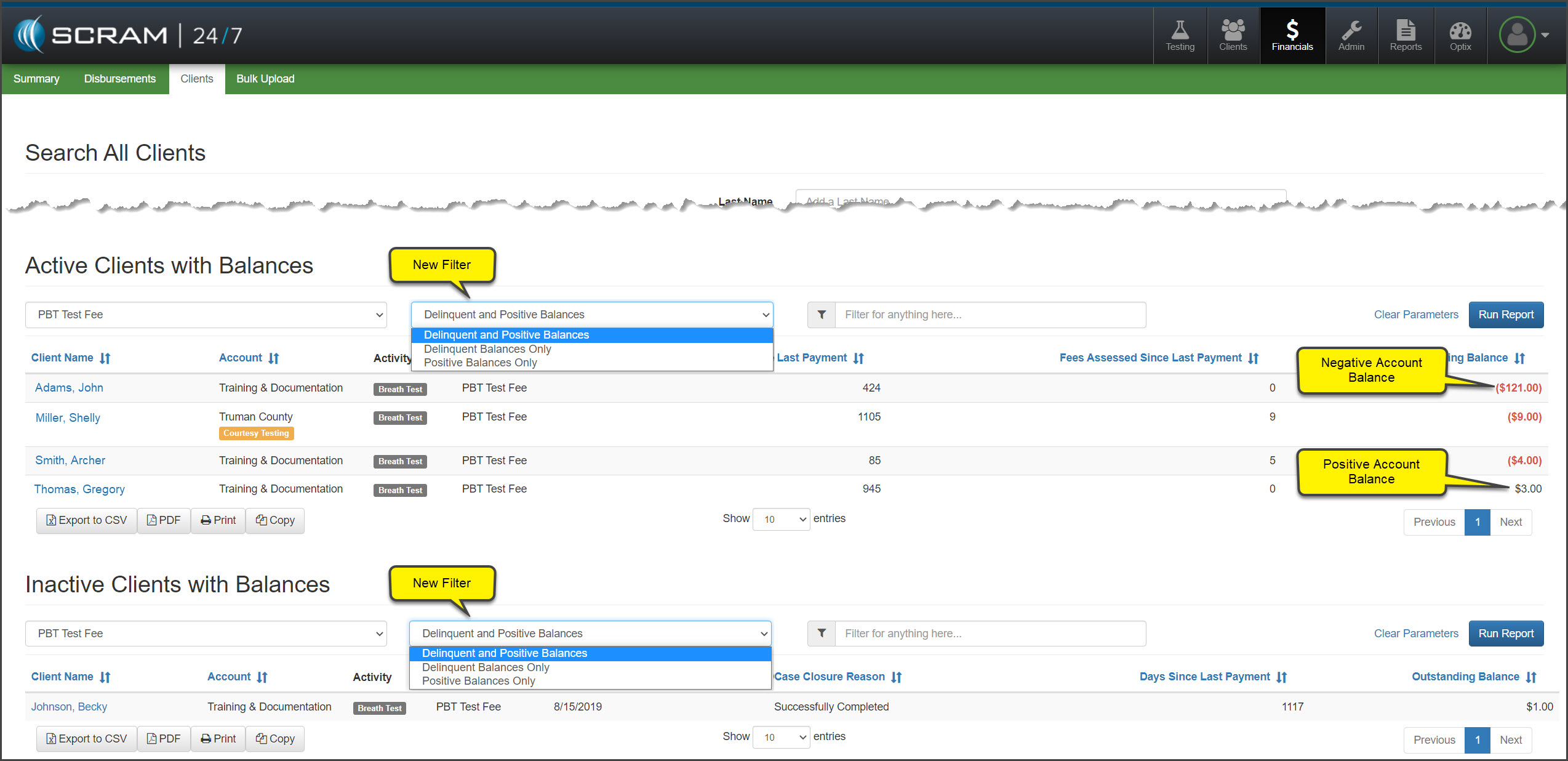
click to enlarge
If a client’s financials are current, meaning they do not have a delinquent or positive balance, their name will not display on the report.

Continue Reading

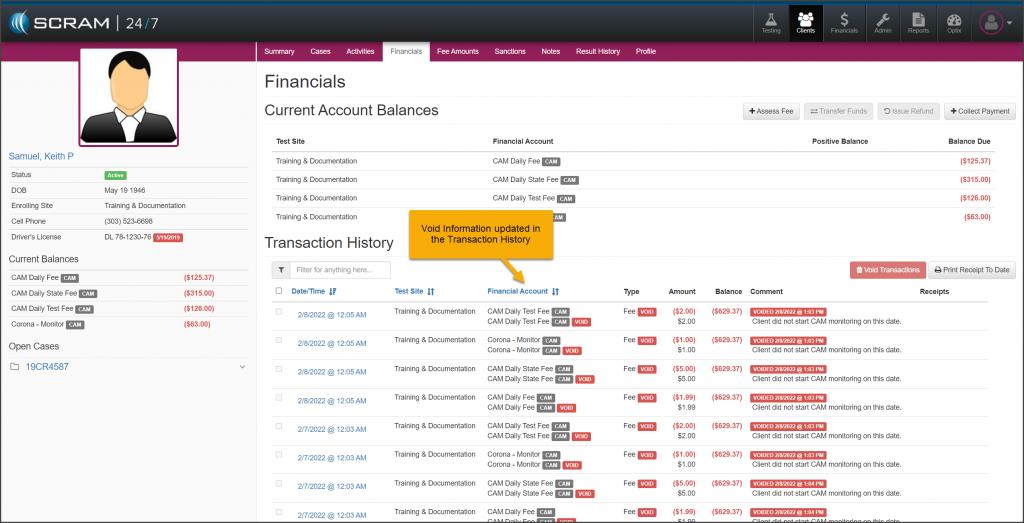
On, February 9, 2022, SCRAM Systems® will release an update to the client Financials page.  With this update, you will be able to void multiple transactions on the client’s financials Transactions History section at one time. This new feature can be accessed from the individual client’s profile or the caseload’s Financials page.

To get started:

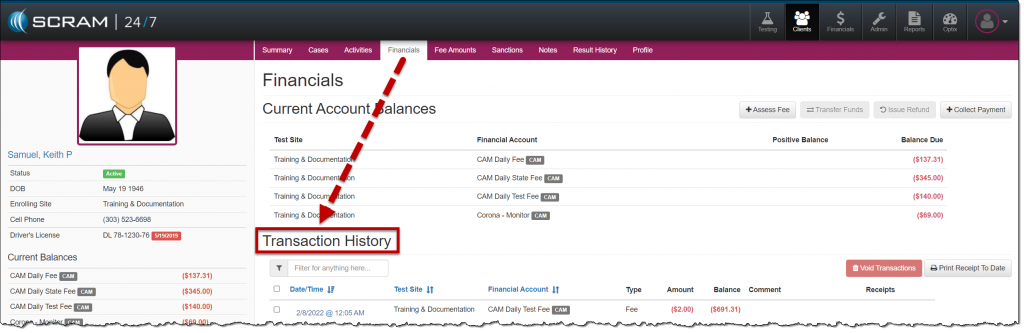
  1. Navigate to the client’s Financials tab and locate the Transaction History section.
click to enlarge
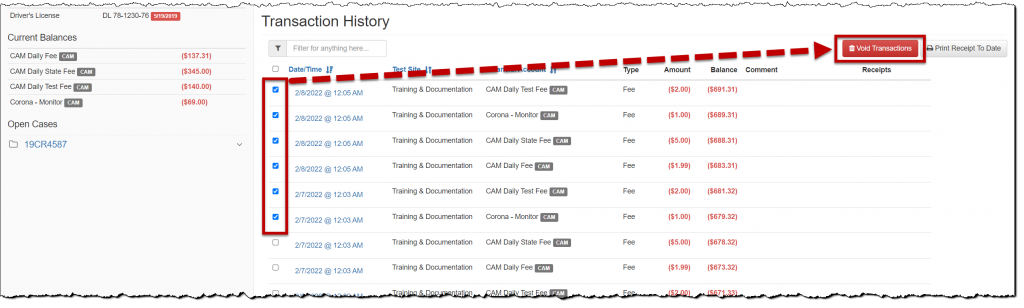
  1. Select the checkbox to the left of each transaction you wish to void.
  2. Click the Void Transactions button.
click to enlarge
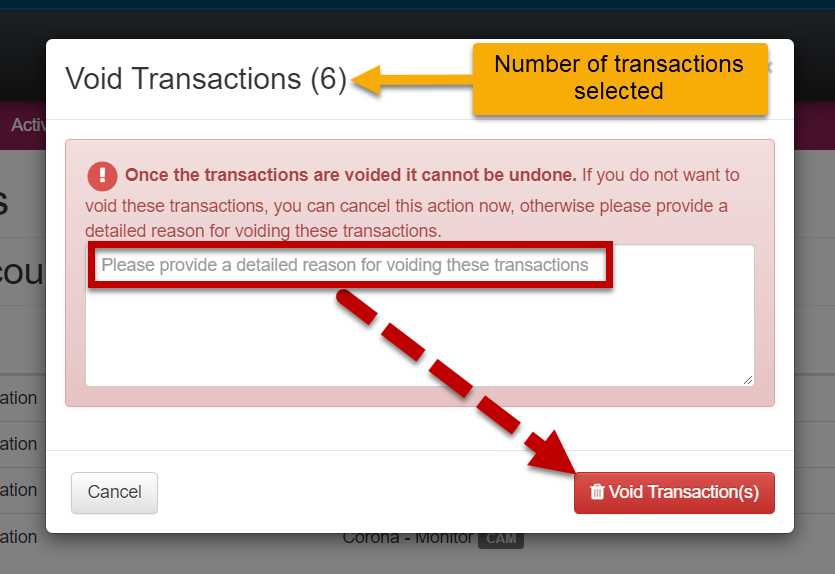
  1. In the Void Transactions pop-up box:
    1. Notate the reason for voiding the transaction(s).
    2. Click the Void Transaction(s) button.
click to enlarge

The Transaction History section will reflect the activity.

click to enlarge

Continue Reading

The Analytics tab on the SCRAM Optix dashboard provides you with a wealth of interactive data visualizations that display client and program activity and performance statistics for your department’s usage of SCRAM technology. Based on your licensed products, a series of report templates may be accessed via the Available Reports dropdown menu. Check back often – new reports are being added all the time!

Continue Reading

Today July 21, 2021, SCRAM Systems will be releasing a new enhancement to your client’s Financials page in SCRAM 24/7.  

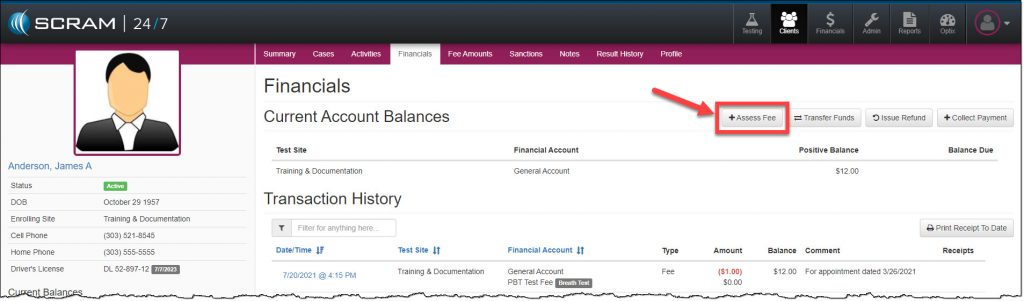
On the client’s Financials page, a new feature allows you to assess multiple fees to the client with one action.

To get started, click the +Assess Fee button.

Client's Financials page Assess Fee button highlighted
click to enlarge

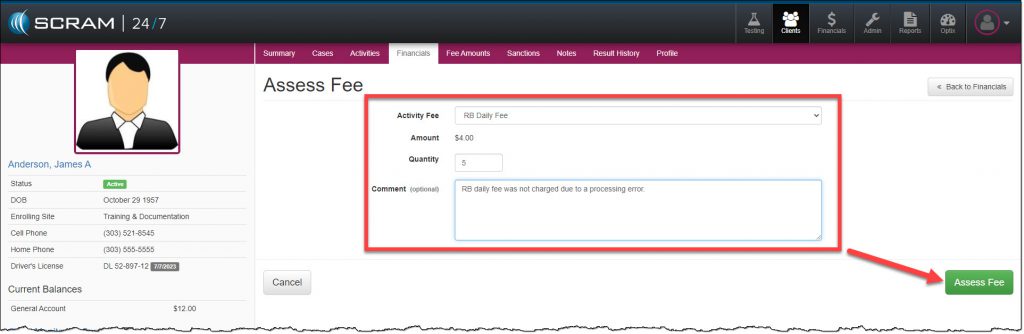
On the Assess Fee page:

  1. Select the Activity Fee to be applied to the client from the drop-down menu. Once the Activity Fee is selected, the Amount field will display the dollar amount associated to that fee.
  2. Enter in the Quantity. Enter the quantity of 1-999.
  3. Add a Comment. As a best practice, always record the reason for adding a fee to a client.
  4. Click the Assess Fee button to save the information.
Assess fee page
click to enlarge

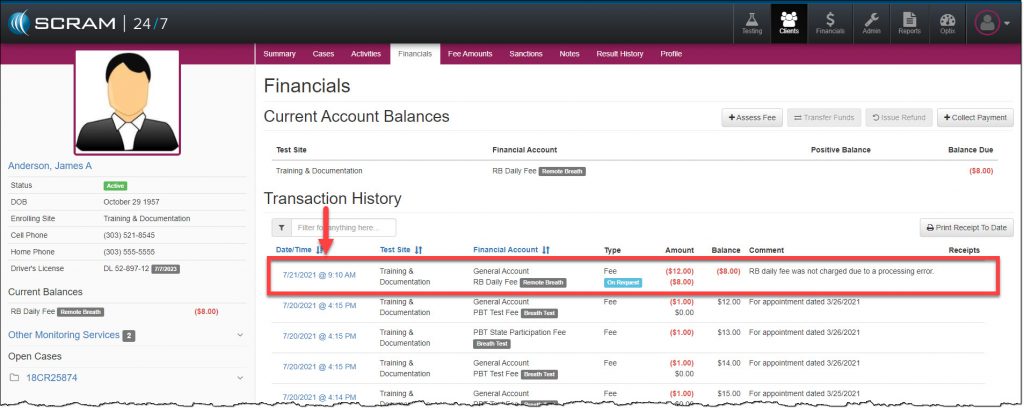
The assessed fee is now displayed under the client’s Transaction History section as an On Request fee.

Client's Financials page with the Transaction History section highlighted On Request fee outlined
click to enlarge

Continue Reading

On July 21, 2021, SCRAM Systems will release a new enhancement that enables you to edit and cancel Received Disbursements in SCRAM 24/7.

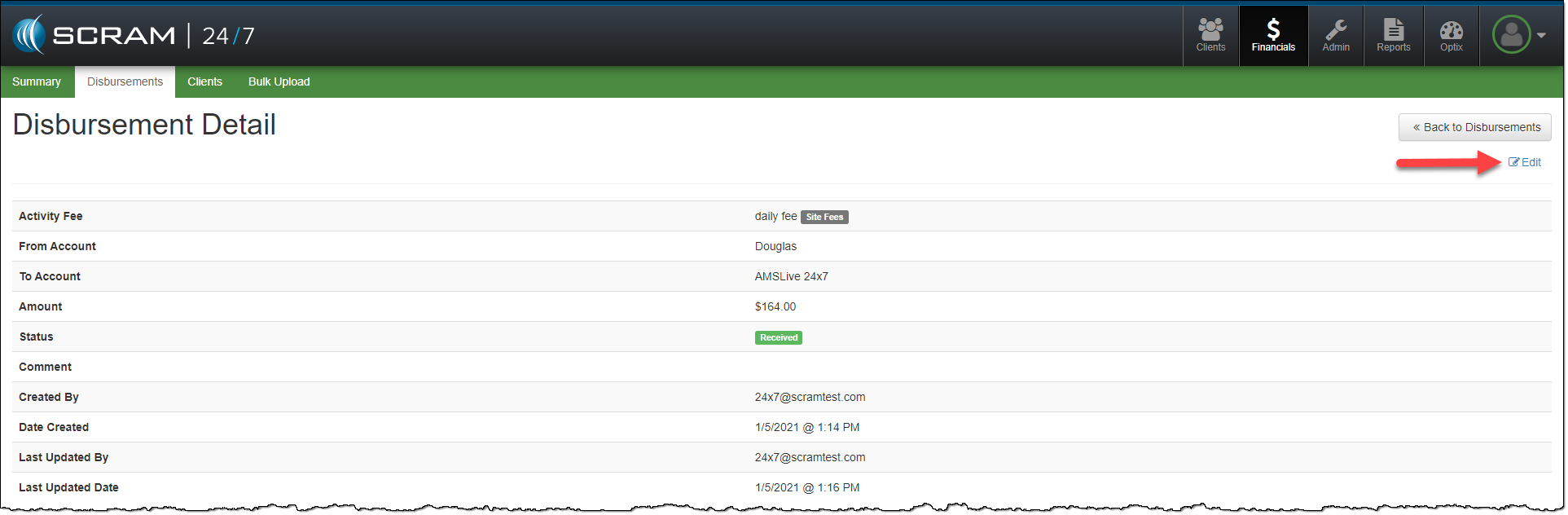
Start by selecting the received disbursement with the error from the History section on the Disbursement Detail page.

  1. Select the Edit hyperlink on the Disbursement Detail page.
24/7 Disbursement Detail page Edit hyperlink highlighted
click to enlarge
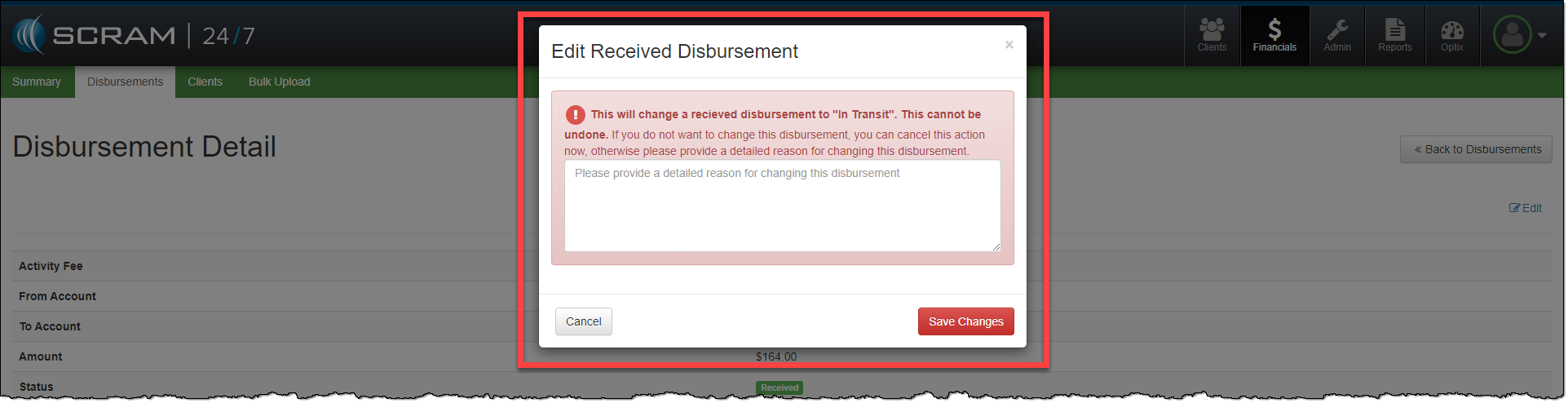
  1. On the Edit Received Disbursement pop-up, take note of the warning information.
  2. Provide a note detailing the reason for updating the disbursement.
  3. Click Save Changes button.
Edit Received Disbursement pop- up highlighted
click to enlarge

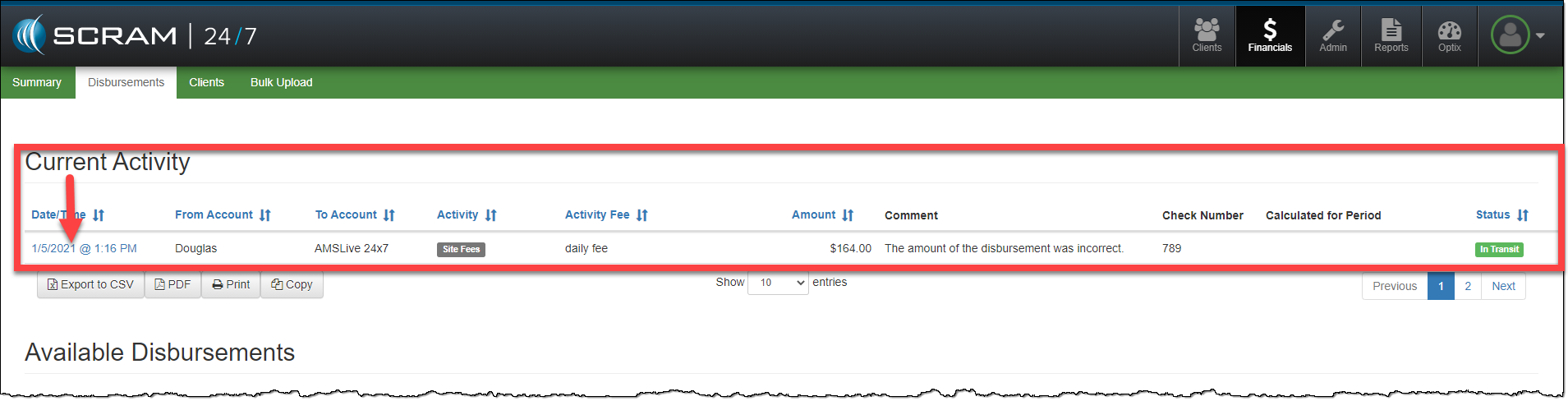
The disbursement will update to an In Transit status. This updated disbursement should be canceled, and a new disbursement created.  

24/7 Disbursements page Current Activity section highlighted
click to enlarge
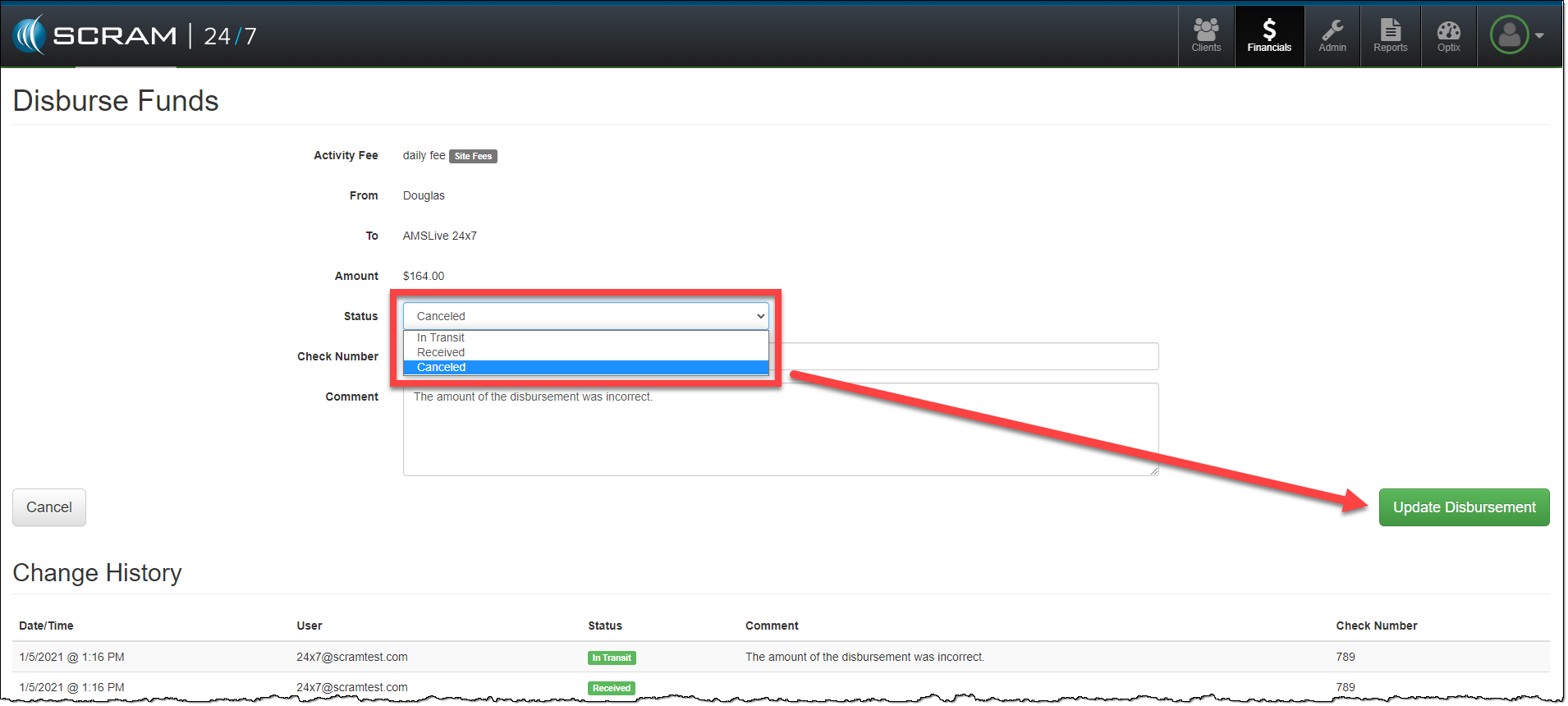
  1. Select the In Transit disbursement from the Current Activity list.
  2. Update the Status to Canceled.
  3. Add any additional comments.
  4. Click the Update Disbursement button.
Disburse Funds page with Canceled status highlighted and Updated Disbursement button
click to enlarge

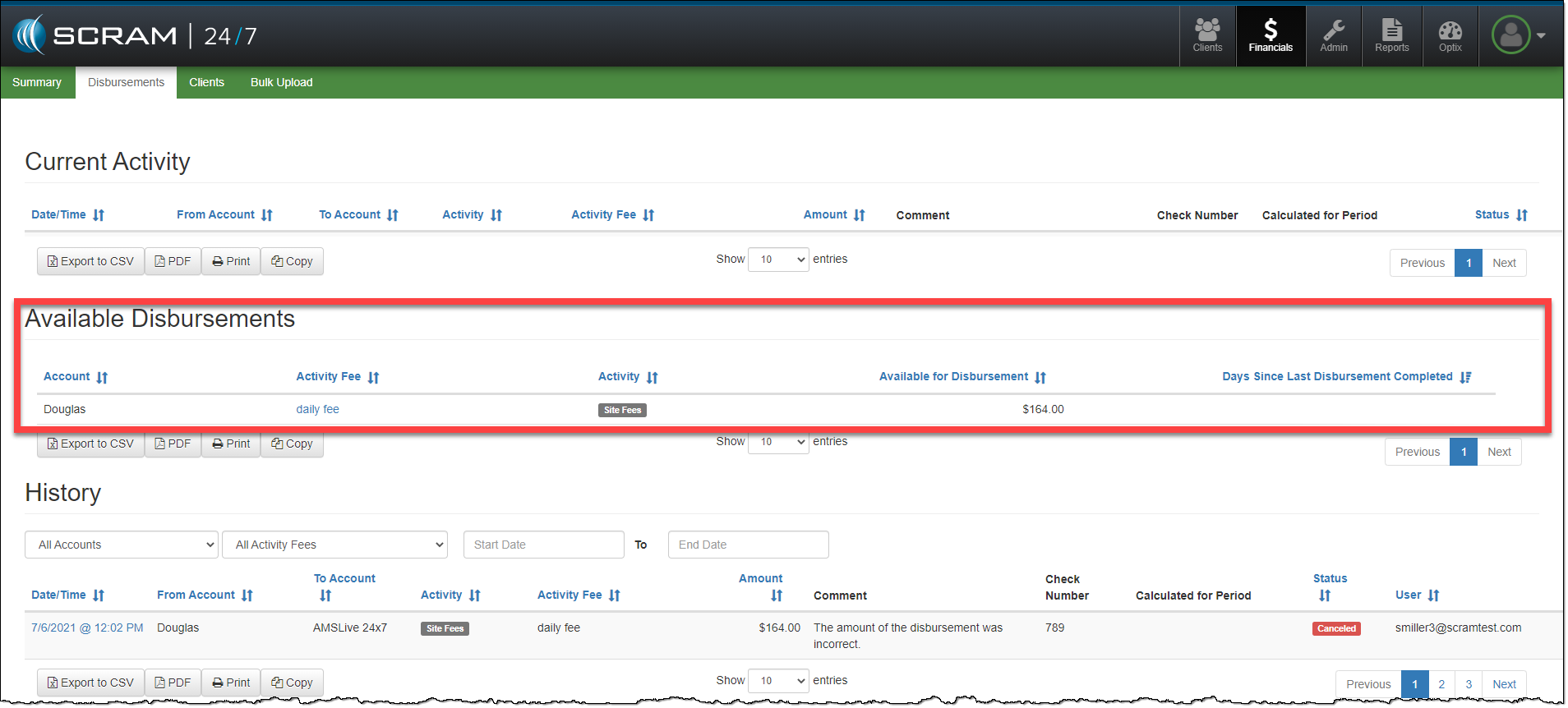
Once the original disbursement has been canceled, the funds are available for disbursement again, and you may process it as appropriate.

24/7 Disbursements Available Disbursements section highlighted
click to enlarge

Continue Reading

Today June 2, 2021, SCRAM Systems will be releasing a new enhancement to your client’s Financials page in SCRAM 24/7.  

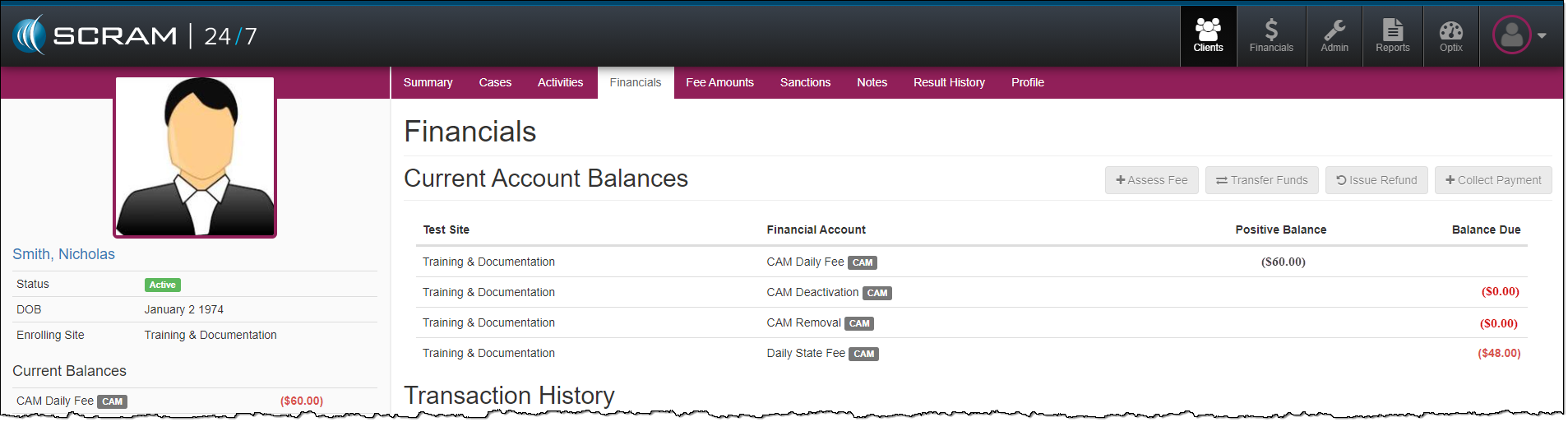
On the client’s Financials page, the Current Account Balances section provides a balance snapshot of the program fees recorded for the client. This includes fees with a positive, zero, or a balance due.

24/7 Client Financials page
click to enlarge

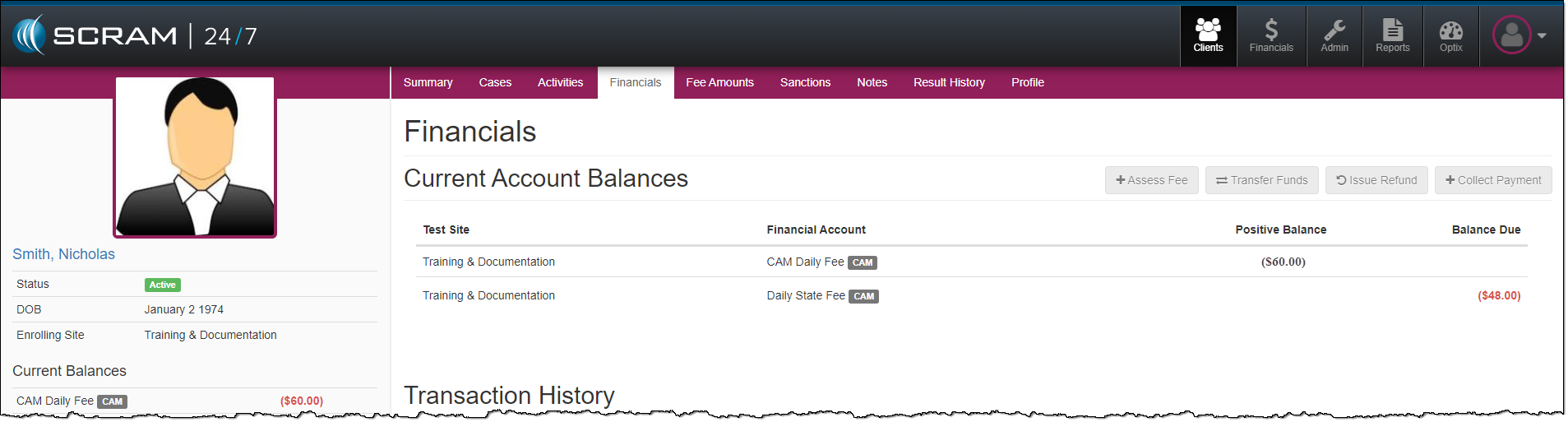
Moving forward, once a fee has a zero balance, the fee line item will drop from the Current Account Balances section.

24/7 Client Financials page
click to enlarge

If the balance for the fee changes due to a new balance due or credit applied to that fee item, the fee item will once again be displayed in the Current Account Balances section.  

Feedback

Please contact SCRAM Systems Customer Service with any recommendations for system improvements.

Continue Reading

At 11:00 AM MST on Wednesday, March 24, 2021, SCRAM System will be introducing a new feature in SCRAM 24/7. This new feature will allow you to choose Refused as a result type for the Breath Testing, UA, and Mouth Swab activities.

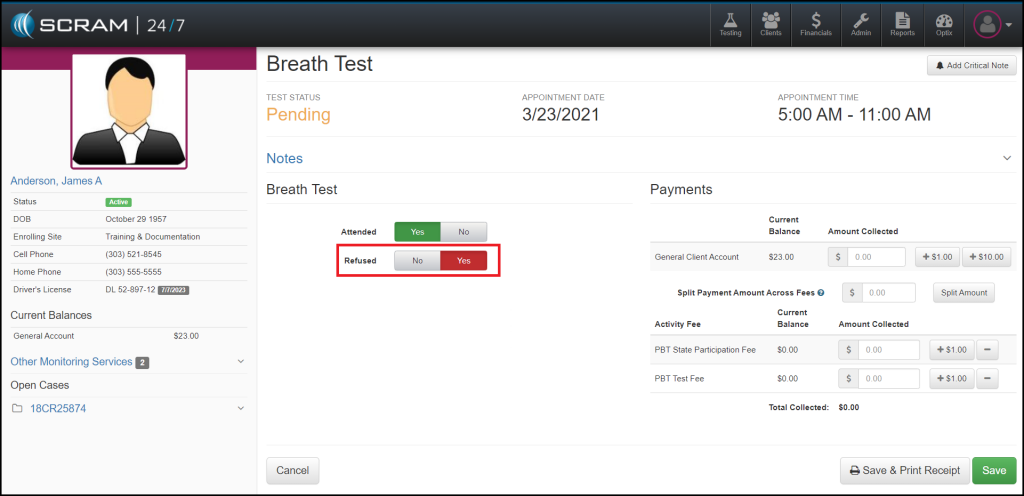
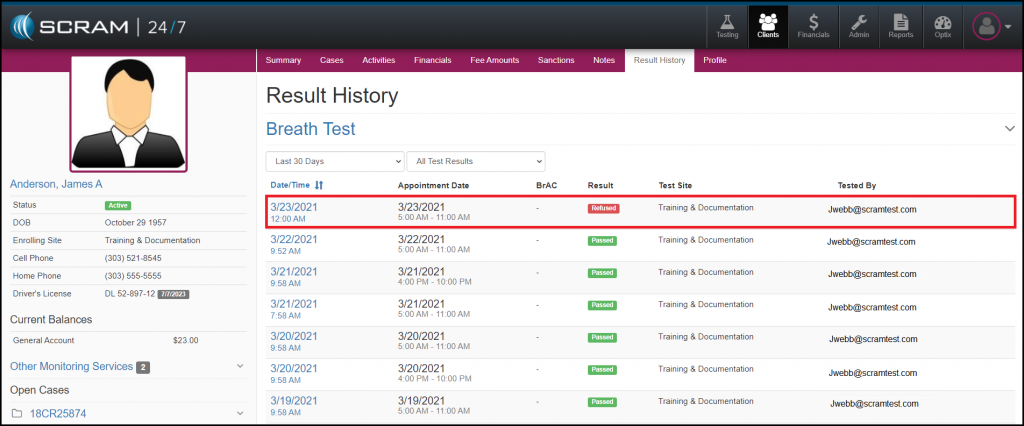
Now when recording an appointment, you will see the Refused toggle when completing the appointment details.  The toggle will always default to “NO” to allow you to record appointments quickly and efficiently.

Click to Enlarge Image

Once an appointment has been recorded as Refused, the Result History will reflect this by displaying Refused as the result type.

Click to Enlarge Image

As always, please contact SCRAM Systems Customer Services with any recommendations for system improvements.

Continue Reading

Update for the enhancement that was deployed March 3, 2021 that changed how the Client List renders in SCRAM 24/7.

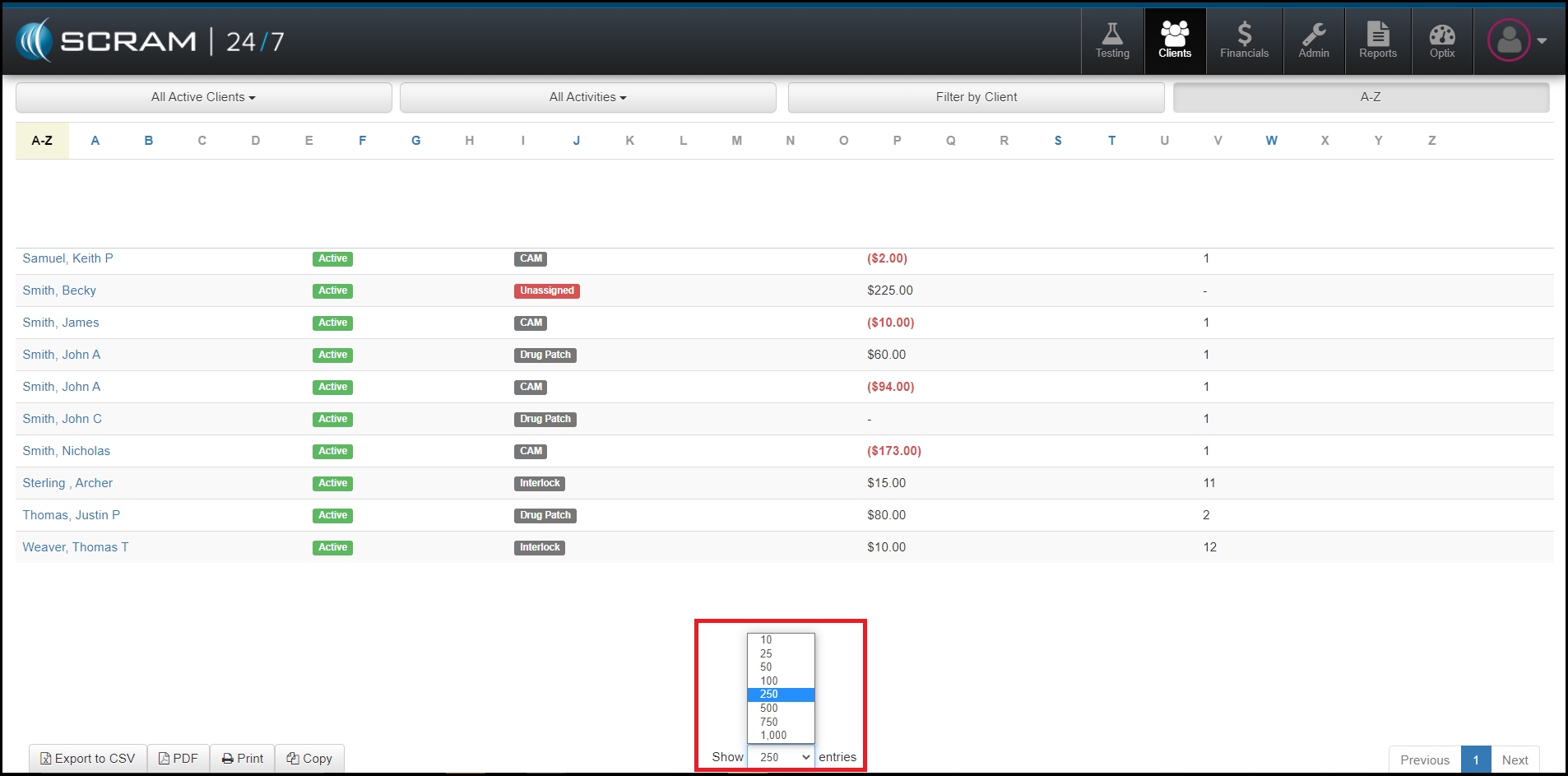
Today, March 10, 2021, SCRAM Systems will release an enhancement that will allow you to increase the number of entries that appear on the Client page in SCRAM 24/7. This enhancement allows you to change the number of entries per page to a selection that makes sense for your agency. For example, if you have 100 clients in your agency, SCRAM Systems recommends you to set the number of entries to 250 in order to have the full alphabet bar as your client list grows.

As a reminder, the selection of entries will persist until it is manually changed, or you clear your cookies and cache. At that time, you will need to reset the number of entries per page.

If you have any questions or concerns, please feel free to contact Customer Service at (303) 785-7879.

Continue Reading

An enhancement that was deployed on March 3, 2021, caused a change to how the Client List renders in SCRAM 24/7.

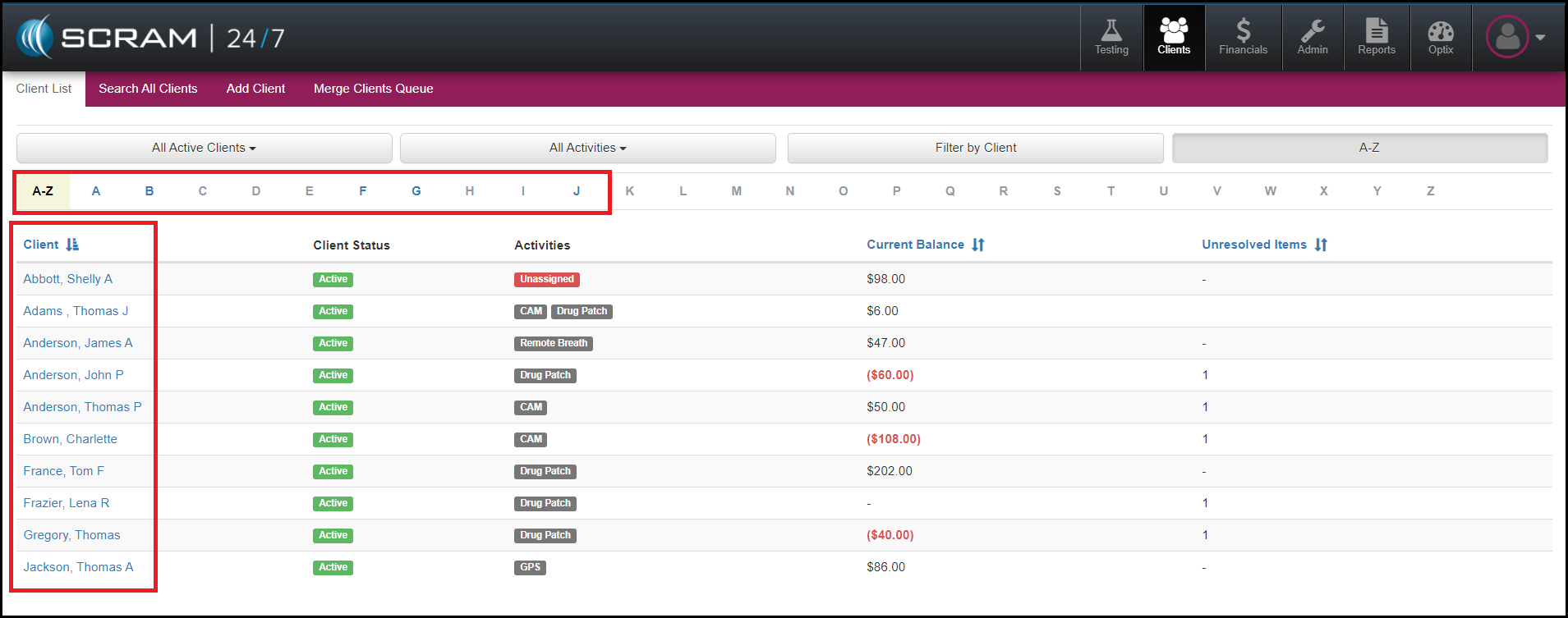
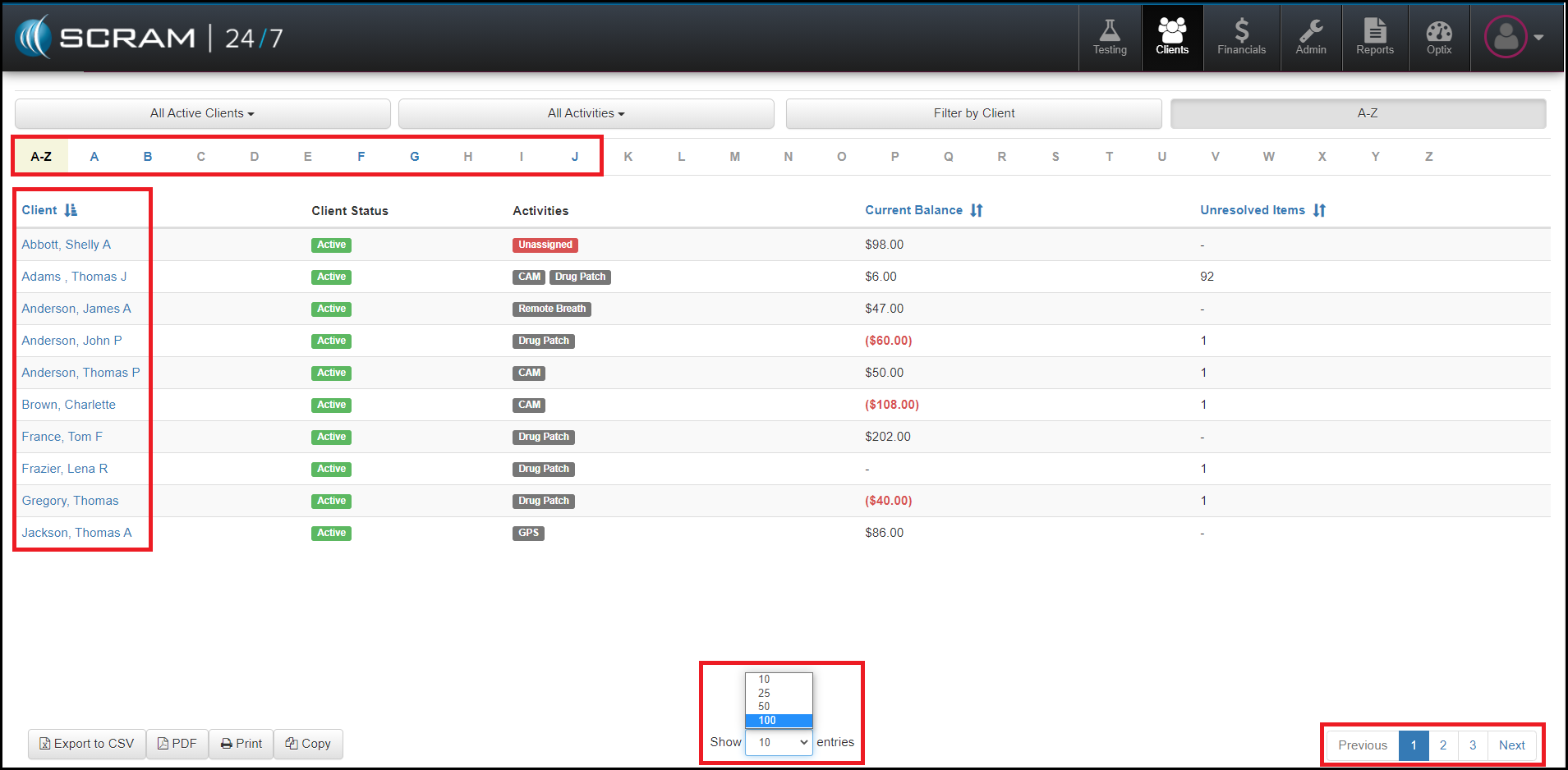
Prior to this deployment, you were able to use the alphabet bar at the top of the client list to filter down to the first letter of the client’s last name for your entire client list. Now, the alphabet filter is limited to the clients that are displayed on the page. The list is set to display 10 clients by default; this makes page-loading and displaying quicker and more efficient.

To have the client list populate more client names, increase the number of entries this list shows to 100. This action will populate the first 100 names for your agency. If your agency has more than 100 clients, use the page breaks at the bottom right to advance your search. Once your list display is set to 100 entries, this setting will persist until it is manually changed to another option.

Our development team plans to update to this feature to allow for more than 100 entries per page. Once complete, we will post another message with the details. Until then, if you have any questions or concerns, please contact Customer Service at (303) 785-7879.

Continue Reading

New and Improved Help and Support

SCRAM Systems® is pleased to announce the arrival of its new consolidated SCRAM Systems Help & Support Home page! Effective Thursday September 10th at 1:00 PM MDT, regardless of which SCRAM monitoring system you are using, you can get help and support for all SCRAM Systems products, services, and software – in one place!

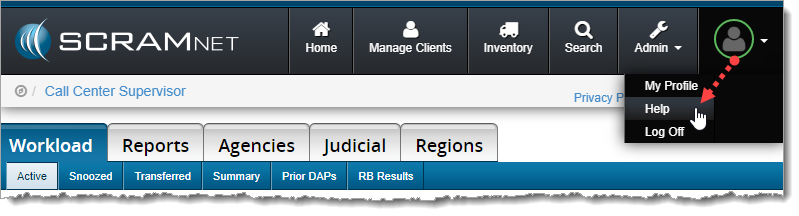
Screen capture of help being selected from the scram net profile drop down menu.
Select Help from the Profile dropdown menu (click to enlarge)


Easy Access

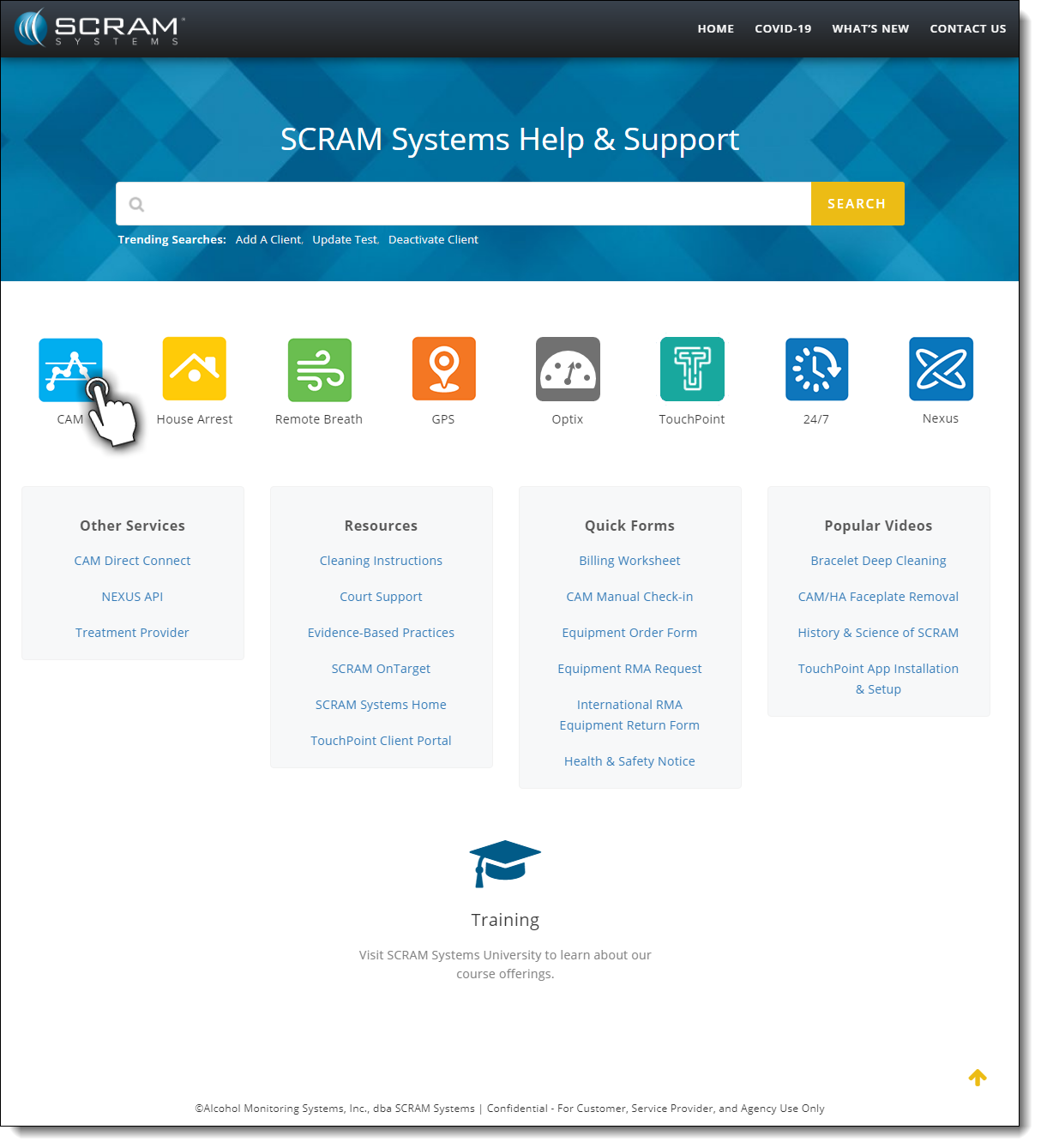
Once on the SCRAM Systems Help & Support Home page, you’ll have easy access to systems help, resources, forms, and videos.

Screen capture of the SCRAM Systems Help and Support landing page
SCRAM Help & Support Home (click to view all)


One-Stop Shop

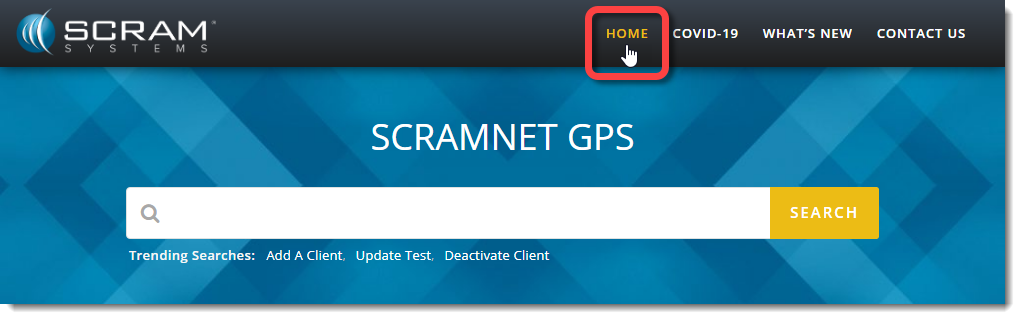
There’s no need to change which SCRAM monitoring system you’re accessing to get Help; just click the Help & Support Home link at the top of any page to get access to help for all your SCRAM products and software.

Screen capture of the Home link from a scram net GPS page
Select the Home link from any page to return (click to enlarge).


Searchable Across Products

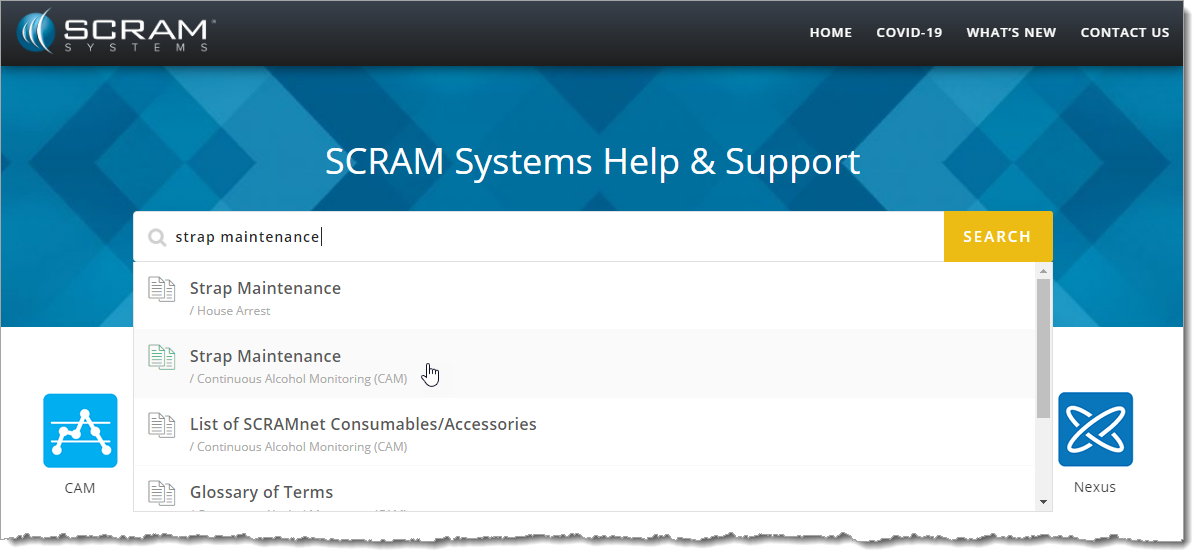
Not quite sure where to start? Enter a few words into the Search field at the top of the page to reveal the most relevant help topics and then select the most appropriate article.

Enter some keywords and then select the appropriate article (click to enlarge).


Feedback

Please contact our Customer Service department at 1-303-785-7879 if you have questions about about the new and improved SCRAM Help & Support Home page, or if you have recommendations for improvements.

Continue Reading